We’ve all been there: you need to generate a few images for a project, you fire up an AI image service, and suddenly you’re wondering what happens to your prompts, how many credits you have left, or why that “safe content” filter rejected your perfectly reasonable request for a dragon wearing a business suit. What if you could skip all of that and run the whole thing on your own machine, with a slick chat UI on top?
That’s exactly what Docker Model Runner now makes possible. With a couple of commands you can pull an image-generation model, connect it to Open WebUI, and start generating images right from a chat interface fully local, fully private, fully yours.
Let’s build it. Your own private DALL-E, no cloud subscription required.
Docker Desktop (macOS) or Docker Engine (Linux)
~8 GB of free RAM for a small model (more is better)
GPU: optional but highly recommended, NVIDIA (CUDA), Apple Silicon (MPS), or CPU fallback
If you can run docker model version without errors, you’re good to go.
How Docker Model Runner works with Open WebUI
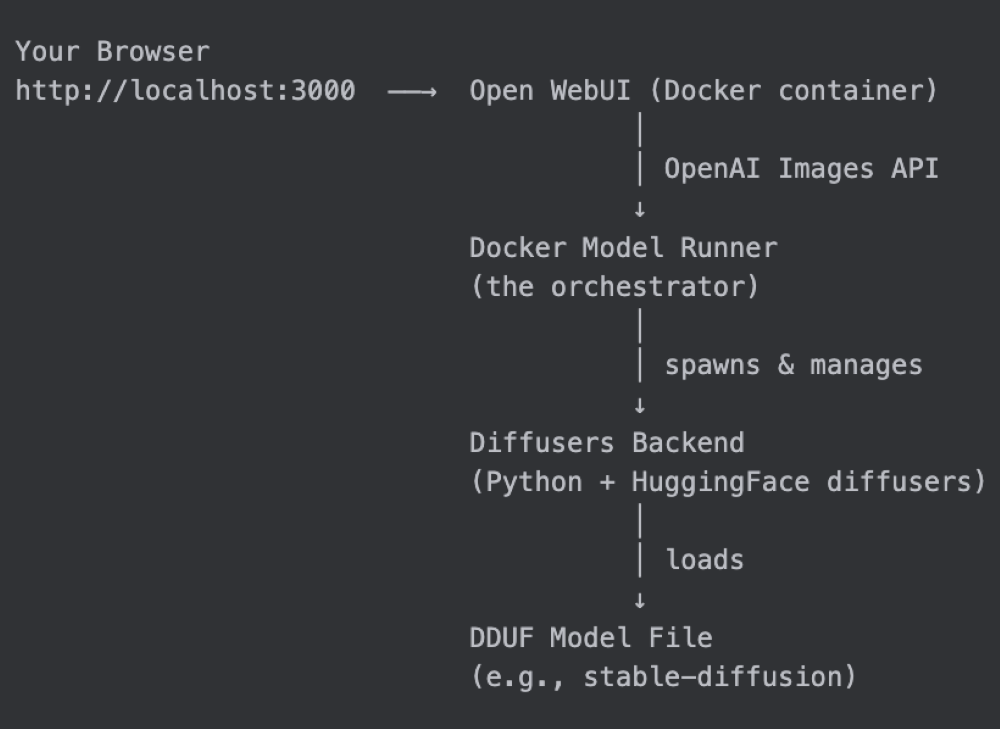
Before we dive in, here’s the big picture:
Docker Model Runner acts as the control plane. It downloads the model, manages the inference backend lifecycle, and exposes a 100% OpenAI-compatible API — including the POST /v1/images/generations endpoint that Open WebUI already knows how to talk to.
Step 1: Pull an Image Generation Model
Docker Model Runner uses a compact packaging format called DDUF (Diffusers Unified Format) to distribute image generation models through Docker Hub, just like any other OCI artifact.
Pull a model to get started:
docker model pull stable-diffusion
docker model inspect stable-diffusion
{
"id": "sha256:5f60862074a4c585126288d08555e5ad9ef65044bf490ff3a64855fc84d06823",
"tags": [
"docker.io/ai/stable-diffusion:latest"
],
"created": 1768470632,
"config": {
"format": "diffusers",
"architecture": "diffusers",
"size": "6.94GB",
"diffusers": {
"dduf_file": "stable-diffusion-xl-base-1.0-FP16.dduf",
"layout": "dduf"
}
}
}
What’s happening under the hood? The model is stored locally as a DDUF file, a single-file format that bundles all the components of a diffusion model (text encoder, VAE, UNet/DiT, scheduler config) into one portable artifact. Docker Model Runner knows how to unpack it at runtime.
Step 2: Launch Open WebUI
This is a magic trick. Docker Model Runner has a built-in launch command that knows exactly how to wire up Open WebUI against the local inference endpoint:
That’s it. Behind the scenes this runs:
docker run –rm
-p 3000:8080
-e OPENAI_API_BASE=http://model-runner.docker.internal/engines/v1
-e OPENAI_BASE_URL=http://model-runner.docker.internal/engines/v1
-e OPENAI_API_KEY=sk-docker-model-runner
ghcr.io/open-webui/open-webui:latest
The model-runner.docker.internal hostname is a special DNS entry that Docker Desktop containers use to reach the Model Runner running on the host, no port-forwarding gymnastics required. If you use Docker CE, you’ll see the docker/model-runner container address instead of model-runner.docker.internal.
Open your browser at http://localhost:3000, create a local account (it stays offline), and you’ll land on the chat interface.
Tip: Want to run it in the background? Add –detach:
docker model launch openwebui –detach
Prefer Docker Compose? See the full setup here: https://docs.docker.com/ai/model-runner/openwebui-integration/
Step 3: Configure Open WebUI for Image Generation
Open WebUI already uses Docker Model Runner for text chat automatically (it reads the OPENAI_API_BASE env var). For image generation you need to point it at the images endpoint too, a 30-second job in the settings UI.
Got to http://localhost:3000/admin/settings/images
Field
Value
stable-diffusion
http://model-runner.docker.internal/engines/diffusers/v1
whatever-you-want
Why the dummy API key? Docker Model Runner doesn’t require authentication, it’s a local service. The key is only there because Open WebUI’s form requires one. Any non-empty string works.
Step 4: Pull a Chat Model
Open WebUI is also a full-featured chat interface, and one of its best tricks is letting you ask the LLM to generate an image right from the conversation. For that to work, you need a language model too.
# Lightweight option — runs on almost any machine
docker model pull smollm2
# Recommended — more capable, better at understanding creative prompts
docker model pull gpt-oss
Both will show up automatically in the Open WebUI model selector. Use smollm2 if you’re tight on RAM, or gpt-oss if you want richer, more creative responses before image generation.
No extra configuration needed, Open WebUI picks up text models from the same OPENAI_API_BASE endpoint it was already configured with.
Step 5: Generate Your First Image
Head back to the main chat view. You’ll notice a small image icon in the message input bar.
Click it to toggle image generation mode, type your prompt, and send.
The first request takes a little longer while the backend loads the model into memory. After that, subsequent images generate much faster.
Open WebUI will automatically route image-generation requests to the diffusers backend and text requests to the language model, seamlessly, in the same conversation.
Step 6: Generate Images Directly via the API
For developers who want to integrate image generation into their own apps, Docker Model Runner exposes the standard OpenAI Images API directly:
curl -s -X POST http://localhost:12434/engines/diffusers/v1/images/generations
-H "Content-Type: application/json"
-d '{
"model": "stable-diffusion",
"prompt": "A cat sitting on a couch",
"size": "512×512"
}'
The response follows the OpenAI Images API format exactly:
{
"created": 1742990400,
"data": [
{
"b64_json": "/9j/4AAQSkZJRgABAQAAAQABAAD/2wBD…"
}
]
}
curl -s -X POST http://localhost:12434/engines/diffusers/v1/images/generations
-H "Content-Type: application/json"
-d '{
"model": "stable-diffusion",
"prompt": "A cat sitting on a couch",
"size": "512×512"
}' | jq -r '.data[0].b64_json' | base64 -d > cat.png
open cat.png
The API supports all the parameters you’d expect from a full diffusers pipeline:
curl http://localhost:12434/engines/diffusers/v1/images/generations
-X POST
-H "Content-Type: application/json"
-d '{
"model": "stable-diffusion",
"prompt": "A serene Japanese zen garden, cherry blossoms, koi pond, photorealistic",
"negative_prompt": "blurry, low quality, distorted, watermark",
"size": "768×512",
"n": 2,
"num_inference_steps": 30,
"guidance_scale": 7.5,
"seed": 42,
"response_format": "b64_json"
}'| jq -r '.data[0].b64_json' | base64 -d > garden.png
Parameter
prompt
negative_prompt
size
Resolution as WIDTHxHEIGHT (e.g., 512×512, 768×512)
n
Number of images to generate (1–10)
num_inference_steps
More steps = higher quality, slower (default: 50)
guidance_scale
How closely to follow the prompt (1–20, default: 7.5)
seed
Integer for reproducible results; omit for random
Pro tip: Set a seed while you’re iterating on a prompt. Once you’re happy with the composition, remove it to get unique variations.
Under the Hood: How the Diffusers Backend Works
When you first request an image, Docker Model Runner:
Unpacks the DDUF file: extracts the model components and loads them via DiffusionPipeline.from_pretrained()
Starts a FastAPI server: this is the server that Open WebUI and your curl commands talk to through Docker Model Runner
The server is installed on first use by downloading a self-contained Python environment from Docker Hub (version-pinned, so updates are explicit). It lives at ~/.docker/model-runner/diffusers/ — no Python version conflicts, no virtualenv setup.
Troubleshooting
The model takes forever to load on first use. That’s normal, the model weights are being loaded from disk and transferred to GPU memory. Subsequent requests in the same session are much faster because the backend stays warm.
I get a “No model loaded” 503 error Make sure the model is fully downloaded (docker model list) and that you’re sending the correct model name in the model field.
Image quality is poor / generations are too fast Increase num_inference_steps (try 20–50 steps). Higher values = slower but sharper results.
Open WebUI can’t connect to the image endpoint Double-check the URL in Admin Panel → Settings → Images. Inside a Docker container it must be http://model-runner.docker.internal/engines/diffusers/v1, not localhost.
Docker Model Runner makes local image generation simple. It packages and serves image models through an OpenAI-compatible API, while Open WebUI provides an easy chat interface on top. Together, they let you generate images privately on your own machine, either through the browser or directly through the API, without relying on a cloud service.
This feature opens up a lot of possibilities:
Multimodal workflows: Chat with a text model about an idea, then immediately generate an image of it — in the same Open WebUI conversation
RAG + image generation: Build a pipeline that generates illustrations for your documents
Custom models: The diffusers backend supports any DDUF-packaged model, so you can package your own fine-tuned models using Docker’s model packaging tools
The Docker Model Runner team is actively expanding model support on Docker Hub. Check docker model search for the latest available models.
Quelle: https://blog.docker.com/feed/








Published by