Running Powershell on Google Cloud SDK

Posted by Mete Atamel, Developer Advocate

It’s exciting to see so many options for .NET developers to manage their cloud resources on Google Cloud Platform. Apart from the usual Google Cloud Console, there’s Cloud Tools for Visual Studio, and the subject of this post: Cloud Tools for PowerShell.

PowerShell is a command-line shell and associated scripting language built on the .NET Framework. It’s the default task automation and configuration management tool used in the Windows world. A PowerShell cmdlet is a lightweight command invoked within PowerShell.

Cloud Tools for PowerShell is a collection of cmdlets for accessing and manipulating GCP resources. It’s currently in beta and allows access to Google Compute Engine, Google Cloud Storage, Google Cloud SQL and Google Cloud DNS —with more to come! For other services, you can still use the gcloud command line tool inside Google Cloud SDK Shell.

Installation

PowerShell cmdlets come as part of the Cloud SDK for Windows installation, so make sure that you’ve checked the PowerShell option when installing Cloud SDK.

If you want to add PowerShell cmdlets into an existing Cloud SDK installation, you’ll need to do a little more work.

First, you need to install cmdlets using gcloud:

$ gcloud components install powershell

Second, you need to register cmdlets with your PowerShell environment. This is done by running a script named AppendPsModulePath.ps1 (provided by Cloud SDK) in PowerShell. Depending on whether Cloud SDK was installed per user or for all users, you can find this script either in

%AppData%..LocalGoogleCloudSDKgoogle-cloud-sdkplatformGoogleCloudPowerShell

or

C:Program Files (x86)GoogleCloudSDKgoogle-cloud-sdkplatformGoogleCloudPowerShell

Authentication
As with any other Google Cloud APIs, you need to be authenticated before you can use cmdlets. Here’s the gcloud command to do that:

$ gcloud auth login

PowerShell cmdlets

Once authenticated, you’re ready to use GCP cmdlets within PowerShell. Here’s an example of using Get-GceInstance cmdlet to list properties of a Compute Engine instance:

Here’s another example of creating a Google Cloud Storage bucket using New-GcsBucket cmdlet:

Here are some of the tasks you can perform with PowerShell cmdlets against a Google Compute Engine instance:

Create a Compute Engine VM instance.
Start, stop and restart an instance.
Add or remove a firewall rule.
Create a disk snapshot.

Some of the tasks you can perform against Google Cloud Storage are:

Create a storage bucket.
List all the buckets in the project.
List the contents of a bucket.
Get, or delete an item in a bucket.

We also have guides on how to administer Google Cloud SQL instances and how to configure the DNS settings for a domain using Cloud DNS.

The full list of Cloud Storage cmdlets can be found here.

Summary
With Cloud Tools for PowerShell, .NET developers can now script and automate their Compute Engine, Cloud Storage, Cloud SQL and Cloud DNS resources using PowerShell. Got questions? Let us know. Bugs? Report them here. Want to contribute? Great! Care to be part of a UX study? Click here! We’re ramping up our efforts for Windows developers, and would love to hear from you about the direction you want us to take.

Quelle: Google Cloud Platform

Google to acquire Apigee

Posted by Diane Greene, Senior Vice President

Today, we’re excited to announce that Google has entered into a definitive agreement to acquire Apigee, a provider of application programming interface (API) management. APIs — the mechanism developers use to interface and integrate with outside apps and services — are vital for how business gets done today in the fast-growing digital and mobile marketplace. They’re the hubs through which companies, partners and customers interact, whether it’s a small business applying online for a loan or a point of sale system sending your warranty information to the manufacturer.

Apigee is already used by hundreds of companies, including Walgreens, AT&T, Bechtel, Burberry, First Data and Live Nation. Walgreens, for example, uses Apigee to manage the APIs that enable an ecosystem of partners and developers building apps using Walgreens APIs, including the Photo Prints API (enabling mobile app developers to include the ability for their app users to print photos at any Walgreens store), and the Prescription API (enabling users to quickly order refills of prescriptions right from their mobile app). The benefits of interacting digitally drives a large market opportunity; Forrester predicts that US companies alone will spend nearly $3 billion on API management by 2020.

The addition of Apigee’s API solutions to Google cloud will accelerate our customers’ move to supporting their businesses with high quality digital interactions. Apigee will make it much easier for the requisite APIs to be implemented and published with excellence.

Offering a good API goes well beyond having the company develop and publish a performant specification of the interface. A good API needs to support security, give developers the freedom to work in the development environment of their choice and allow the company to continue to innovate its service while supporting a stable interface to the apps and services using the API. Finally, a good API includes testing support and usage analytics to guide the company’s developers.

Apigee’s products handle all of these challenges and that is why the company was recently named a leader in the Gartner Magic Quadrant for Application Services Governance and recognized for its “Completeness of Vision.”

Google cloud customers are already benefitting from no sys-ops dev environments, including Google App Engine and Google Container Engine. Now, with Apigee’s API management platform, they’ll be able to front these secure and scalable services with a simple way to provide the exported APIs.

Looking ahead, Kubernetes will be integrated to help enterprises get better control and visibility into how their internal systems talk to one another, an additional part of deploying services. As always, we’ll make sure that these capabilities are available in the public clouds and can also be used on-premises.

The transition toward cloud, mobile and digital interaction with customers and partners via APIs is happening, and fast. It’s happening because customers of every stripe — in the consumer realm and in the enterprise — are demanding it, and because it translates to engaging and valuable businesses.

We’re thrilled to be bringing these new capabilities to our customers, and we look forward to welcoming the talented Apigee team to Google.

This blog post includes forward-looking statements within the meaning of Section 27A of the Securities Act of 1933 and Section 21E of the Securities Exchange Act of 1934. These forward-looking statements generally can be identified by phrases such as Google or management “believes,” “expects,” “anticipates,” “foresees,” “forecasts,” “estimates” or other words or phrases of similar import. Similarly, statements herein that describe the proposed transaction, including its financial impact, and other statements of management’s beliefs, intentions or goals also are forward-looking statements. It is uncertain whether any of the events anticipated by the forward-looking statements will transpire or occur, or if any of them do, what impact they will have on the results of operations and financial condition of the combined companies or the price of Alphabet or Apigee stock. These forward-looking statements involve certain risks and uncertainties that could cause actual results to differ materially from those indicated in such forward-looking statements, including but not limited to the ability of the parties to consummate the proposed transaction and the satisfaction of the conditions precedent to consummation of the proposed transaction, including the ability to secure regulatory approvals at all or in a timely manner; the ability of Google to successfully integrate Apigee’s operations, product lines and technology; the ability of Google to implement its plans, forecasts and other expectations with respect to Apigee’s business after the completion of the transaction and realize additional opportunities for growth and innovation; and the other risks and important factors contained and identified in Alphabet’s filings with the Securities and Exchange Commission (the “SEC”), any of which could cause actual results to differ materially from the forward-looking statements. The forward-looking statements included in this blog post are made only as of the date hereof. Google and Alphabet undertake no obligation to update the forward-looking statements to reflect subsequent events or circumstances.
Quelle: Google Cloud Platform

Getting started with Cloud Tools for Visual Studio

Posted by Mete Atamel, Developer Advocate

If you’re a .NET developer, you’re used to managing cloud resources right inside Visual Studio. With the recent release of our Cloud Tools for Visual Studio, you can also manage your Google Cloud Platform resources from Visual Studio.

Cloud Tools is a Visual Studio extension. It has a quickstart page with detailed information on how to install the extension, how to add your credentials and how to browse and manage your cloud resources. In this post, I want to highlight some of the main features and refer to individual how-to pages for details.

Installation
You can install the extension in two ways: From inside Visual Studio, you can either go to “Tools” and then “Extension and Updates,” or you can install it from Visual Studio Gallery. The installation section of quickstart page has the installation details.

Authentication
Once installed, you can find “Google Cloud Tools” under “Tools.” “Google Cloud Explorer” is the main tool to browse and manage cloud resources, but before you can use it, you need to add your credentials to Visual Studio.

To add your credentials, select “Manage Accounts.” This opens a new browser window, where you log into your cloud account and add your credentials to Visual Studio.

Google Cloud Explorer
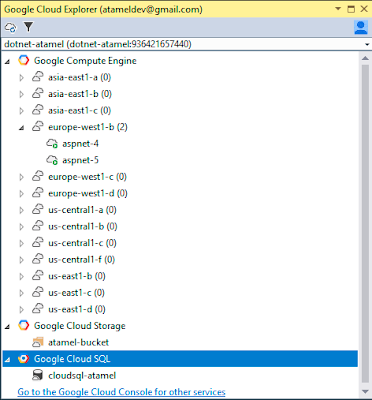
Google Cloud Explorer is a browser for Google Cloud Resources. Once you’ve selected your project from the top dropdown, it displays three different types of cloud resources: Google Compute Engine, Google Cloud Storage, and Google Cloud SQL.

(click to enlarge)

In the Compute Engine list, you can see all your Windows and Linux instances. If you right-click on the instances, you can perform administrative tasks such as opening terminal sessions or resetting Windows usernames and passwords. You can also create an ASP.NET instance (a Windows instance with the ASP.NET stack installed) by right-clicking on the Compute Engine list item. It directs you to Google Cloud Launcher to install the instance, into which you can then deploy your ASP.NET app.

In the Cloud Storage list, you can see all the Cloud Storage buckets you have in your project and navigate to Google Cloud Console to browse the contents of the bucket. Browsing Storage Buckets documentation has more details.

The Cloud SQL list shows all your Cloud SQL instances, and you can easily create data connections to those instances as explained in Browsing Cloud SQL Instances documentation.

Hopefully, this gave you a high level overview of the Cloud Tools for Visual Studio.

Give it a try and let us know in the comments what you think. Any issues? Report them here, or visit our GitHub page if you want to contribute.

“Interested in helping us improve the Google Cloud User Experience? Click here!”
Quelle: Google Cloud Platform

Web serving on Google Cloud Platform: an overview

Posted by Jim Travis, Senior Lead Technical Writer

If you’re running a website and considering moving your web serving infrastructure to the cloud, Google Cloud Platform offers a variety of great options. But with so many products and services, it can be hard to figure out what’s right for your particular needs. To help you understand the landscape of web hosting options, we recently published a new overview, our Serving Websites guide.

This guide starts with the idea that you’re probably already running a site and/or understand a particular set of technologies, such as using a LAMP stack or hosting static pages. The guide tries to meet you where you’re at to show you how your current infrastructure and knowledge can map to GCP computing and hosting products, and then links off to relevant documentation, solutions and tutorials that go deeper into the details.

The guide covers the following four main options:

Option

Product

Summary

Static website

Google Cloud Storage

Deliver static web pages and assets from a Cloud Storage bucket. This is the simplest option on GCP, and you get automatic scaling with no additional effort.

Virtual machines

Google Compute Engine

Install, configure, and maintain your own web hosting stack. You have control of every component, but you also have all the responsibility to keep things running. You also must decide how to provide for load balancing and scalability, from a variety of options.

Containers

Google Container Engine

Use container technology to package your dependencies with your code for easier deployment. Then, use Container Engine to manage clusters of your containers.

Managed platform

Google App Engine

Focus on your code, deploy to App Engine, and let Google manage the systems for you. You have a choice of the standard environment, which prescribes the languages and runtimes that you can use, and the flexible environment, that gives you additional options but requires some self-management.

For each option, the guide provides information about things like scalability, load balancing, DevOps, logging and monitoring.

We hope you find this article useful and it makes learning about GCP enjoyable. Please tell us what you think, and be sure to sign up for a free trial!
Quelle: Google Cloud Platform

Manage your APIs with Google Cloud Endpoints

Posted by Dan Ciruli, Product Manager, Google Cloud Platform

Today we’re announcing the open beta release of the newest set of features and open source components in Google Cloud Endpoints, a distributed API management suite that lets you deploy, protect, monitor and manage APIs written in any language and running on Google Cloud Platform (GCP). We’re also releasing new versions of the Cloud Endpoints Frameworks for Java and Python that reduce latency, support custom domains and feature improved debugging.

One of the challenges we faced was building an API platform at Google with sufficient performance to handle the surge in microservices in addition to the scale of our web APIs. That led us to develop a server-side proxy that performs traditional API management functions itself. This avoids an additional network hop and in our testing delivers sub-millisecond latency — compared to tens to hundreds of milliseconds with traditional standalone proxies.

And now, we’re releasing that architecture to you. The Extensible Service Proxy (ESP) is a NGINX-based proxy designed to run in the server-local architecture. Designed to be deployed in a containerized environment or on its own, ESP integrates with Google Service Control to provide ultra-low latency monitoring, authorization checks, API key validation and many of the other features that Google uses to manage its own APIs. ESP is being developed in GitHub.

We’re also announcing support for the OpenAPI Specification. We’re a founding member of the Open API Initiative (OAI), and recognize the value of standardizing how REST APIs are described. Organizations that adopt the OpenAPI Specification benefit from OAI tooling, while developing their applications in the language and framework of their choice.

Google Cloud Endpoints featuresThe beta release of Google Cloud Endpoints includes the breadth of API management functionality that you need to manage your own APIs, whether they’re accessed from mobile apps, web apps or other services. Today, Cloud Endpoints allows users to monitor the status of critical APIs with usage, error and consumption charts. It logs API calls to Google Cloud Logging and trace information to Google Cloud Trace, and enables powerful analytics by integrating with Google BigQuery. Cloud Endpoints supports end-user authentication through built-in Google authentication and integrations to Auth0 and Firebase Authentication, and creates and validates API Keys to track usage by client.

(click to enlarge)

Cloud Endpoints is designed to allow developers to easily choose the language and framework they want for their backend. Based on the Open API Specification (formerly known as Swagger), Cloud Endpoints supports backends running on Google App Engine Standard or Flexible Environment, Google Compute Engine or Google Container Engine. In App Engine Standard or Flexible Environments, you can transparently add in proxy functionality with a one-line config change, or deploy a containerized version of the proxy on Kubernetes and Container Engine.

GCP customers are already super-charging their development with Cloud Endpoints. “Cloud Endpoints have allowed us to build and ship our APIs faster and more consistently than ever before,” said Braden Bassingthwaite, technical lead at Vendasta. “Not having to worry about authentication, performance and status monitoring has reduced the time and effort we need to build great APIs at Vendasta.”

Endpoints Framework for Java and PythonIn addition to the new API management features, we’re also announcing new versions of the Google Cloud Endpoints API frameworks for Java and Python that run on App Engine Standard Environment. The new versions of those frameworks feature reduced latency, an improved developer experience and support for custom domains. In addition, these new frameworks allow you to opt into the new API management features. To read more about the Endpoints Frameworks, check out the Java and Python documentation.

Try it outDuring the initial part of our beta period, the API management features in Cloud Endpoints will be offered at no charge. We will announce final pricing during the beta period.

APIs are an area of focus and investment for GCP. Be on the lookout for upcoming releases from the Endpoints team with support for more use cases and additional functionality, including integration with Identity and Access Management, rate limits and quotas, developer portals and more. Read the documentation to get the know the details. Try our walkthroughs for App Engine (Standard or Flexible Environment, Container Engine or Compute Engine) and join our Google Cloud Endpoints Google Group to send us your feedback.

Quelle: Google Cloud Platform

Building scalable web prototypes using the Google Cloud Platform stack

Posted by Jason Mayes, Google Web Engineer

As a web engineer at Google, I’ve been creating scaled systems for internal teams and customers for the past five years. Often these include a web front and back-end component. I would like to share with you a story about creating a bespoke machine learning (ML) system using the Google Cloud Platform stack — and hopefully inspire you to build some really cool web apps of your own.

The story starts with my curiosity for computer vision. I’ve been fascinated with this area for a long time. Some of you may have even seen my public posts from my personal experiments, where I strive to find the most simple solution to achieve a desired result. I’m a big fan of simplicity, especially as the complexity of my projects has increased over the years. A good friend once said to me, “Simplicity is a complex art,” and after ten years in the industry, I can say that this is most certainly true.

Some of my early experiments in computer vision attempting to isolate movement

My background is as a web engineer and computer scientist, getting my start back in 2004 on popular stacks of the day like LAMP. Then, in 2011 I joined Google and was introduced to the Google Cloud stack, namely Google App Engine. I found that having a system that dealt with scaling and distribution was a massive time saver, and have been hooked on App Engine ever since.

But things have come a long way since 2011. Recently, I was involved in a project to create a web-based machine learning system using TensorFlow. Let’s look at some of the newer Google Cloud technologies that I used to create it.

Problem: how to guarantee job execution for both long running and shorter time critical tasks

Using TensorFlow to recognize custom objects via Google Compute Engine

Earlier in the year I was learning how to use TensorFlow — an open source software library for machine intelligence developed by Google (which is well worth checking out by the way). Once I figured out how to get TensorFlow working on Google Compute Engine, I soon realized this thing was not going to scale on its own — several components needed to be split out into their own servers to distribute the load.

Initial design and problem
In my application, retraining parts of a deep neural network was taking about 30 minutes per job on average. Given the potential for long running jobs, I wanted to provide status updates in real-time to the user to keep them informed of progress.

I also needed to analyze images using classifiers that had already been trained, which typically takes less than 100ms per job. I could not have these shorter jobs blocked by the longer running 30-minute ones.

An initial implementation looked something like this:

There are a number of problems here:

The Google Compute Engine server is massively overloaded, handling several types of jobs.
It was possible to create a Compute Engine auto-scaling pool of up to 10 instances depending on demand, but if 10 long-running training tasks were requested, then there wouldn’t be any instances available for classification or file upload tasks.
Due to budget constraints for the project, I couldn’t fire up more than 10 instances at a time.

Database options
In addition to having to support many different kinds of workloads, this application required being able to store persistent data. There are a number of databases that support this, the most obvious of which is Google Cloud SQL. However, I had a number of issues with this approach:

Time investment. Using Cloud SQL would have meant writing all that DB code to integrate with a SQL database myself, and I needed to provide a working prototype ASAP.
Security. Cloud SQL integration would have required the Google Compute Engine instances to have direct access to the core database, which I did not want to expose.
Heterogeneous jobs. It’s 2016 and surely there’s something that solves this issue already that could work with different job types?

My solution was to use Firebase, Google’s backend as a service offering for creating mobile and web applications. Firebase allowed me to use their existing API to persist data using JSON objects (perfect for my Node.js based server), which allowed the client to listen to changes to DB (perfect for communicating status updates on jobs), and did not require tightly coupled integration with my core Cloud SQL database.

My Google Cloud Platform stack

I ended up splitting the server into three pools that were highly specialized for a specific task: one for classification, one for training, and one for file upload. Here are the cloud technologies I used for each task:

Firebase
I had been eyeing an opportunity to use Firebase on a project for quite some time after speaking with James Tamplin and his team. One key feature of Firebase is that it allows you to create a real-time database in minutes. That’s right, real time, with support for listening for updates to any part of it, just using JavaScript. And yes, you can write a working chat application in less than 5 minutes using Firebase! This would be perfect for real-time job status updates as I could just have the front-end listen for changes to the job in question and refresh the GUI. What’s more, all the websockets and DB fun is handled for you, so I just needed to pass JSON objects around using a super easy-to-use API — Firebase even handles going offline, syncing when connectivity is restored.

Cloud Pub/Sub
My colleagues Robert Kubis and Mete Atamel introduced me to Google Cloud Pub/Sub, Google’s managed real-time messaging service. Cloud Pub/Sub essentially allows you to send messages to a central topic from which your Compute Engine instances can create a subscription and pull/push from/to asynchronously in a loosely coupled manner. This guarantees that all jobs will eventually run, once capacity becomes available, and it all happens behind the scenes so you don’t have to worry about retrying the job yourself. It’s a massive time-saver.

Any number of endpoints can be Cloud Pub/Sub publishers and pull subscribers

App Engine
This is where I hosted and delivered my front-end web application — all of the HTML, CSS, JavaScript and theme assets are stored here and scaled automatically on-demand. Even better, App Engine is a managed platform with built-in security and auto-scaling as you code against the App Engine APIs in your preferred language (Java, Python, PHP etc). The APIs also provide access to advanced functionality such as Memcache, Cloud SQL and more without having to worry about how to scale them as load increases.

Compute Engine with AutoScaling
Compute Engine is probably what most web devs are familiar with. It’s a server on which you can install your OS of choice and get full root access to that instance. The instances are fully customizable (you can configure how many vCPUs you desire, as well as RAM and storage) and are charged by the minute — for added cost savings when you scale up and down with demand. Clearly, having root access means you can do pretty much anything you could dream of on these machines, and this is where I chose to run my TensorFlow environment. Compute Engine also benefits from autoscaling, increasing and decreasing the number of available Compute Engine instances with demand or according to a custom metric. For my use case, I had an autoscaler ranging from 2 to 10 instances at any given time, depending on average CPU usage.

Cloud Storage
Google Cloud Storage is an inexpensive place in which you can store a large number of files (both in size and numbers) that are replicated to key edge server locations around the globe, closer to the requesting user. This is where I stored the uploaded files used to train the classifiers in my machine learning system until they were needed.

Network Load Balancer
My JavaScript application was making use of a webcam, and I therefore needed to access it over a secure connection (HTTPS). Google’s Network Load Balancer allows you to route traffic to the different Compute Engine clusters that you have defined. In my case, I had a cluster for classifying images, and a cluster for training new classifiers, and so depending on what was being requested, I could route that request to the right backend, all securely, via HTTPS.

Putting it all together

After putting all these components together, my system architecture looked roughly like this:

While this worked very well, some parts were redundant. I discovered that the Google Compute Engine Upload Pool code could be re-written to just run on App Engine in Java, pushing directly to Cloud Storage, thus taking out the need for an extra pool of Compute Engine instances. Woohoo!

In addition, now that I was using App Engine, the custom SSL load balancer was also redundant as App Engine itself could simply push new jobs to Pub/Sub internally, and deliver any front-end assets over HTTPS out of the box via appspot.com. Thus, the final architecture should look as follows if deploying on Google’s appspot.com:

Reducing the complexity of the architecture will make it easier to maintain, and add to cost savings.

Conclusion

By using Pub/Sub and Firebase, I estimate I saved well over a week’s development time, allowing me to jump in and solve the problem at hand in a short timeframe. Even better, the prototype scaled with demand, and ensured that all jobs would eventually be served even when at max capacity for budget.

Combining the Google Cloud Platform stack provides the web developer with a great toolkit for prototyping full end-to-end systems at rapid speed while aiding security and scalability for the future. I highly recommend you try them out for yourself.
Quelle: Google Cloud Platform

Stackdriver Debugger now displays application logs to better troubleshoot apps

Posted by Sharat Shroff, Product Manager, Google Cloud Platform

Stackdriver Debugger is already a popular tool for troubleshooting issues in production applications. Now, based on customer feedback, we’re announcing a new feature: logs panel integration.

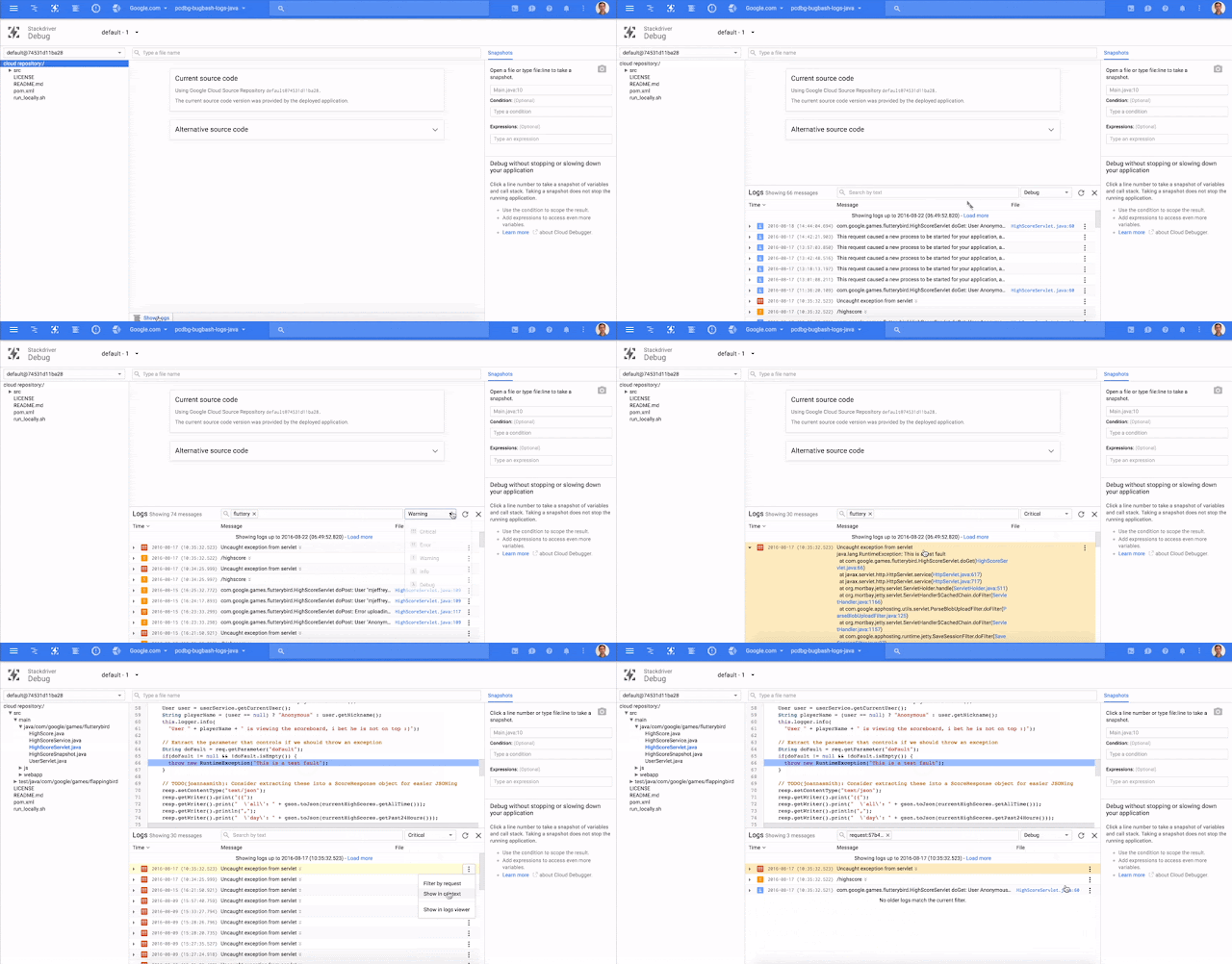
With logs panel integration, not only can you gather production application state and link to its source, but you can also view the associated raw logs associated with your Google App Engine projects — all on one page.

We’ve integrated several useful features. For instance, you can:

Display log messages, flat in chronological order, for easy access, without having to expand the request log to see text.
Easily navigate to the log statement in source code directly from the log message.
Quickly filter by text, log level, request or source file
Show all logs while highlighting your log message of interest with the “Show in context” option.

For easier collaboration, simply copy/paste the URL to your team. The link highlights your log message of interest, as well as including your logs panel filter. You can also save this URL and reuse it later for easy retrieval with your tracking system.

We’re working hard to make Stackdriver Debugger an easy and intuitive tool for diagnosing application issues directly in production (check out our new feature that allows you to dynamically add log statements without having to write and re-deploy code). Start using the integrated Debugger and log panel functionality today by navigating to the cloud console Debug page — and be sure to send us your feedback and questions!

Quelle: Google Cloud Platform

Test and deploy to Google App Engine with the new Maven and Gradle plugins

Posted by Amir Rouzrokh, Product Manager, Google Cloud Platform


Here at Google, we strive to make it easy for developers to use Google Cloud Platform (GCP). Today, we’re excited to announce the beta release of two new build tool plugins for Java developers: one for Apache Maven, and another for Gradle. Together, these plugins allow developers to test applications locally and then deploy them to cloud from the Command Line Interface (CLI), or through integration with an Integrated Development Environment (IDE) such as Eclipse and IntelliJ (check out our new native plugin for IntelliJ as well).

Developed in open-source, the plugins are available for both standard and flexible Google App Engine environments and are based on the Google Cloud SDK. The new Maven plugin for GAE standard is offered as an alternative to an existing plugin for App Engine standard. This allows users to choose the existing plugin if they wish to use tooling based on the App Engine Java SDK, or the new plugin if they wish to use tooling based on Google Cloud SDK (all other plugins are fully based on Google Cloud SDK).

After installing the Google Cloud SDK, you can install the plugins using the pom.xml or build.gradle file:

pom.xml

<plugins>

  <plugin>

    <groupId>com.google.cloud.tools</groupId>

    <artifactId>appengine-maven-plugin</artifactId>

    <version>0.1.1-beta</version>

 </plugin>

</plugins>

build.gradle

buildscript {

dependencies {

   classpath “com.google.cloud.tools:appengine-gradle-plugin:+” // latest version  } }

apply plugin: “com.google.cloud.tools.appengine”

And then, to deploy an application:

$ mvn appengine:deploy

$ gradle appengineDeploy

Once the application is deployed, you’ll see its URL in the output of the shell.

For enterprise users who wish to take their compiled artifacts such as JARs and WARs through a separate release process, both plugins provide a staging command that copies the final compiled artifacts to a target directory without deploying them to the cloud. Those artifacts can then be passed to a Continuous Delivery/Continuous Integration (CI/CD) pipeline (see here for some of CI/CD offerings for GCP).

$ mvn appengine:stage

$ gradle appengineStage

You can check the status of your deployed applications in the Google Cloud Platform Console. Head to the Google App Engine tab and click on Instances to see your application’s underlying infrastructure in action.

For additional information on the new plugins, please see the documentation for App Engine Standard (Maven, Gradle) and App Engine Flexible (Maven, Gradle). If you have specific feature requests, please submit them at GitHub, for Maven and Gradle.

You can learn more about using Java on GCP at the Java developer portal, where you’ll find all the information you need to get up and running. And be on the lookout for additional plugins for Google Cloud Platform services in the coming months!

Happy Coding!

Quelle: Google Cloud Platform

Windows in a Google Cloud Platform world: this week on Google Cloud Platform

Posted by Alex Barrett, Editor, Google Cloud Platform Blog

Google has a long and storied history running Linux, but Google Cloud Platform’s goal is to support a broad range of languages and tools. This week saw us significantly expand our support for the Microsoft ecosystem, with new support for ASP.NET, SQL Server, Powershell and the like.

If you have apps developed in .NET, Microsoft’s application development framework, you’ll be happy to learn that you can run them efficiently on GCP, with support for several flavors of Windows Server, an ASP.NET image in Cloud Launcher, pre-loaded SQL Server images on Google Compute Engine, and a variety of Google APIs available for the .NET platform. And thanks to a new integration with Microsoft Visual Studio, the popular integrated development environment, developers in the Microsoft ecosystem can easily access that functionality from the comfort of their IDE.

But it’s not just about Google broadening its horizons. Microsoft, too, is taking its offerings outside of its traditional confines. This week, Microsoft open-sourced Powershell, the command-line shell and scripting language for .NET, so that developers can use it to automate and administer Linux apps and environments, not just Windows ones.

And Kubernetes, Google’s open-source container management system, is also finding its way over to Microsoft’s Azure public cloud, thanks to its ability to provide a lingua franca for hosting and managing container-based environments. Check out this blog post about provisioning Azure Kubernetes infrastructure to see just how far things have come.
Quelle: Google Cloud Platform

Getting started with Google Cloud Client Libraries for .NET

Posted by Mete Atamel, Developer Advocate

Last week, we introduced new tools and client libraries for .NET developers to integrate with Google Cloud Platform, including Google Cloud Client Libraries for .NET, a set of new client libraries that provide an idiomatic way for .NET developers to interact with GCP services. In this post, we’ll explain what it takes to install the new client libraries for .NET in your project.

Currently, the new client libraries support a subset of GCP services, including Google BigQuery, Google Cloud Pub/Sub and Google Cloud Storage (for other services, you still need to rely on the older Google API Client Libraries for .NET). Both sets of libraries can coexist in your project and as more services are supported by the new libraries, dependencies on the older libraries will diminish.

Authentication
As you would expect, the new client libraries are published on NuGet, the popular package manager for .NET, so it’s very easy to include them in your project. But before you can use them, you’ll need to set up authentication.

The GitHub page for the libraries (google-cloud-dotnet) describes the process for each different scenario in the authentication section. Briefly, to authenticate for local development and testing, install Cloud SDK for Windows, which comes with Google Cloud SDK shell, and use the gcloud command line tool to authenticate.

If you haven’t initialized gcloud yet, run the following command in Google Cloud SDK shell to initialize your project, zones and also setup authentication along the way:

$ gcloud init

If you’ve already set up gcloud and simply want to authenticate, run this command instead:

$ gcloud auth login

Installation

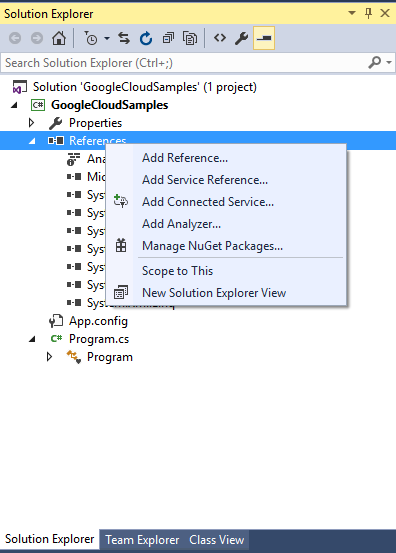
Now, let’s import and use the new libraries. Create a project in Visual Studio (but make sure it’s not a .NET Core project, as those are not supported by the libraries yet), right click on the project references and select “Manage NuGet packages”:

In NuGet window, select “Browse” and also check “Include prerelease.” The full list of supported services and their NuGet package names can be found on the google-cloud-dotnet page. Let’s install the library for Cloud Storage. For Cloud Storage, we need to search for Google.Storage:

The resulting list shows the new client library for Cloud Storage (Google.Storage) along with the low-level library (Google.Apis.Storage) that it depends on. Select Google.Storage and install it. When installation is complete, you’ll see Google.Storage as a reference, along with its Google.Apis dependencies:

That’s it! Now, you can use the new client library for Cloud Storage from your .NET application. If you’re looking for a sample, check out the Cloud Storage section of the GitHub page for the libraries.

Give it a try and let us know what you think. Any issues? Report them here. Better yet, help us improve our support for .NET applications by contributing.

“Interested in helping us improve the Google Cloud User Experience? Click here!”
Quelle: Google Cloud Platform