Using Google’s cloud networking products: a guide to all the guides

Posted by Mike Truty, Cloud Solutions Architect

I’m a relative newcomer to Google Cloud Platform. After nine years working in Technical Infrastructure, I recently joined the team to work hand-in-hand with customers building out next-generation applications and services on the platform. In this role, I realized that my privileged understanding of how we build our systems can be hard to come by from outside the organization. That is, unless you know where to look.

I recently spent a bunch of time hopping around the Google Cloud Networking pages under the main GCP site, looking for materials that could help a customer better understand our approach.

What follows is a series of links for anyone who may want an introduction to Google Cloud Networking, presented in digestible pieces and ordered to build on previous content.

Getting started
First, for some quick 15-minute background, I recommend this Google Cloud Platform Overview. It’s a one-page survey of all the necessary concepts you need to work in Cloud Platform. Then, you may want to scan the related Cloud Platform Services doc, another one-pager that introduces the primary customer-facing services (including networking services) that you might need. It’s not obvious but Cloud Platform networking also lays the foundation for the newer managed services mentioned including Google Container Engine (Kubernetes) and Cloud Dataflow. After all that, you’ll have a good idea of the landscape and be ready to actually do something in GCP!

(click to enlarge)

Networking Codelabs
Google has an entire site devoted to Codelabs — my favorite way to learn nontrivial technical concepts. Within the Cloud Codelabs there are two really excellent networking Codelabs: Networking 101 and Networking 102. I recommend them highly for a few reasons. Each one only takes about 90 minutes end-to-end; each is a quick survey of a few of the most commonly used features in cloud networking; both include really helpful hints about performance and, most importantly, after completing these Codelabs, you’ll have a really good sandbox for experimenting in cloud networking on Google Cloud Platform.

Google Cloud Networking references
Another question you may have is what are the best Google Cloud Networking reference docs? The Google Cloud Networking feature docs are split between two main landing pages: the Cloud Networking Products page and the Compute Engine networking page. The products page introduces the main product feature areas: Cloud Virtual Network, Autoscaling and Load Balancing, Global DNS, Cloud Interconnect and Cloud CDN. Be sure to scroll down to the end, because there are some really valuable links to guides and resources at the very bottom of each page that a lot of people miss out on.

The Compute Engine networking page is a treasure trove of all kinds of interesting details that you won’t find anywhere else. It includes the picture I hold in my mind for how networks and subnetworks are related to regions and zones, details about quotas, default IP ranges, default routes, firewall rules, details about internal DNS, and some simple command line examples using gcloud.

An example of the kind of gem you’ll find on this page is a little blurb on measuring network throughput that links to the PerfKitBenchMarker tool, an open-source benchmark tool for comparing cloud providers (more on that below). I return to this page frequently and find things explained that previously confused me.

For future reference, the Google Cloud Platform documentation also maintains a list of networking tutorials and solutions documents with some really interesting integration topics. And you should definitely check out Google Cloud Platform for AWS Professionals: Networking, an excellent, comprehensive digest of networking features.

Price and performance
Before you do too much, you might want to get a sense for how much of your free quota it will cost you to run through more networking experiments. Get yourself acquainted with the Cloud Platform Pricing page as a reference (notice the “Free credits” link at the bottom of the page). Then, you can find the rest of what you need under Compute Engine Pricing. There, you can see rates for the standard machine types used in the Codelabs, and also a link to General network pricing. A little further down, you’ll find the IP address pricing numbers. Finally, you may find it useful to click through the link at the very bottom to the estimated billing charges invoice page for a summary of what you spent on the codelabs.

Once you’ve done that, you can start thinking about the simple performance and latency tests you completed in the Codelabs. There’s a very helpful discussion on egress throughput caps buried in the Networking and Firewalls doc and you can run your own throughput experiments with PerfKitBenchMarker (sources). This tool does all the heavy lifting with respect to spinning up instances, and understands how different cloud providers define regions, making for relevant comparisons. Also, with PerfKitBenchmaker, someone else has already done the hard work of identifying the accepted benchmarks in various areas.

Real world use cases
Now that you understand the main concepts and features behind Google Cloud Networking, you might want to see how others put them all together. A common first question is how to set things up securely. Securely Connecting to VM Instances is a really good walkthrough that includes more overviews of key topics (firewalls, HTTPS/SSL, VPN, NAT, serial console), some useful gcloud examples and a nice picture that reflects the jumphost setup in the codelab.

Next you should watch two excellent videos from GCP Next 2016: Seamlessly Migrating your Networks to GCP and Load Balancing, Autoscaling & Optimizing Your App Around the Globe. What I like about these videos is that they hit all the high points for how people talk about public cloud virtual networking, and offer examples of common approaches used by large early adopters.

A common question about cloud networking technologies is how to distribute your services around the globe. The Regions and Zones document explains specifically where GCP resources reside, and Google’s research paper Software Defined Networking at Scale (more below) has pretty map-based pictures of Google’s Global CDN and inter-Datacenter WAN that I really like. This Google infrastructure page has zoomable maps with Google’s data centers around the world marked and you can read how Google uses its four undersea cables, with more ‘under’ the horizon, to connect them here.

Finally, you may want to check out this sneaky-useful collection of articles discussing approaches to geographic management of data. I plan to go through the solutions referenced at the bottom of this page to get more good ideas on how to use multiple regions effectively.

Another thing that resonated with me from both GCP Next 2016 videos was the discussion about how easy it is to setup and manage services in GCP to serve from closest, low-latency instances using a single global Anycast VIP. For more on this, the Load Balancing and Scaling concept doc offers a really nice overview of the topic. Then, for some initial exploration of load balancing, check out Setting Up Network Load Balancing.

And in case you were wondering from exactly where Google peers and serves CDN content, visit the Google Edge Network/Peering site and PeeringDB for more details. The peering infrastructure page has zoomable maps where you can see Google’s Edge PoPs and nodes.

Best practices
There’s also a wealth of documents about best practices for Google Cloud Networking. I really like the Best Practices for Networking and Security within the Best Practices for Enterprise Organizations document, and DDoS Best Practices doc provides more useful ways to think about building a global service.

Another key concept to wrap your head around is Cloud Identity & Access Management (IAM). In particular, check out the Understanding Roles doc for its introduction to network- and security-specific roles. Service accounts play a key role here. Understanding Service Accounts walks you through the considerations, and Using IAM Securely offers some best practices checklists. Also, for some insight into where this all leads, check out Access Control for Organizations using IAM [Beta].

A little history of Google Cloud Networking
All this research about Google Cloud Networking may leave you wanting to know more about its history. I checked out the research papers referenced in the previously mentioned video Seamlessly Migrating your Networks to GCP and — warning — they’re deep, but they’ll help you understand the fundamentals of how Google Cloud Networking has evolved over the past decade, and how its highly distributed services deliver the performance and competitive pricing for which it’s known.

Google’s network-related research papers fall into two categories:

Cloud Networking fundamentals

Enter the Andromeda zone – Google Cloud Platform’s latest networking stack, a 2014 blog that details the fundamentals of network virtualization.
Jupiter Rising: A Decade of Clos Topologies and Centralized Control in Google’s Datacenter Network. This 2015 paper provides an excellent description of the evolution of datacenter networking at Google. It even comes with a video.
Maglev: A Fast and Reliable Software Network Load Balancer, a 2016 paper that presents an overview of distributed load balancing.

Networking background

A Guided Tour of Data-Center Networking. This 2012 article provides a high-level system overview.
B4: Experience with a Globally Deployed Software Defined WAN. Read this 2013 paper for a detailed look at Google’s quest for simpler and more efficient WAN.
Software Defined Networking at Scale, slides from 2014 about SDN models.
A look inside Google’s Data Center Networks. “Jupiter fabrics…can deliver more than 1 Petabit/sec…enough for 100,000 servers to exchange information at 10Gb/s each, enough to read the entire…Library of Congress in less than 1/10th of a second.”

The Andromeda network architecture (source)

I hope this post is useful, and that these resources help you better understand the ins and outs of Google Cloud Networking. If you have any other good resources, be sure to share them in the comments.

Quelle: Google Cloud Platform
IoT is now easier with Particle and Google Cloud Platform

Posted by Preston Holmes, Head of IoT Solutions

Building IoT products and solutions involves stitching together a whole range of complex technologies, from devices to applications. With a new direct integration between Particle, an IoT cloud platform and hardware provider, and Google Cloud Platform (GCP), you can now easily bring that data to big data tools such as Google Cloud Dataflow, our batch and streaming big data processing service; Google BigQuery, our managed data analytics warehouse and others.

A growing list of devices support the Particle platform, making it easy for organizations developing IoT applications to manage devices, perform firmware updates and acquire and send field data to the internet through a range of connectivity options.

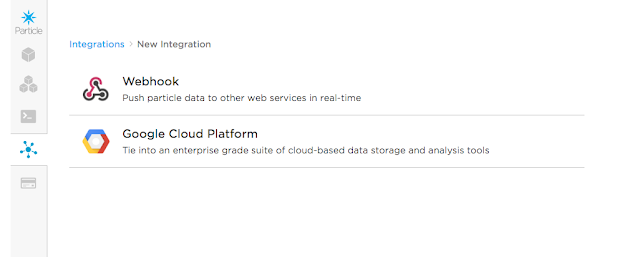
You can now connect to GCP from the Particle platform developer console.

To begin, connect your Particle project to a Google Cloud Pub/Sub topic. Cloud Pub/Sub lets you decouple the device data ingest stream from different downstream subscribers, durably storing the data in as it arrives for up to seven days while it’s processed. By granting limited permissions to Particle to publish to a specific Cloud Pub/Sub topic, you can properly isolate the data ingest portion of your IoT application. You can then use Cloud DataFlow to operate on a multi-device, time-windowed stream of events in near-real-time, or dispatch and store this data to a number of storage options. For example, storing data long-term in BigQuery and Google Cloud Storage lets you affordably record a long history of device information, against which you can later perform various analytics or train machine learning models to make scenario-based decisions. You can then call Particle Cloud APIs to take action on devices back in the world.

With this integration, we believe developers and product builders will be able to bring production-quality products to market faster, blending the Particle device ecosystem and platform with GCP’s scalable and innovative data solutions. To get started, check out the tutorial on the Particle website and connect device data directly to your GCP project today.
Quelle: Google Cloud Platform

Evaluating Cloud SQL Second Generation for your mobile game

Posted by Joseph Holley, Gaming Solutions Architect, Google Cloud Platform

Many of today’s most successful games are played in small sessions on the devices in our pockets. Players expect to open the game app from any of their supported devices and find themselves right where they left off. In addition, players may be very sensitive to delays caused by waiting for the game to save their progress during play. For mobile game developers, all of this adds up to the need for a persistent data store that can be accessed with consistently low latency.

Game developers with database experience are usually most comfortable with relational databases as their backend game state storage. MySQL, with its ACID-compliant transactions and well-understood semantics offers a known pattern. However, “game developer” and “database administrator” are different titles for a reason; game developers may not relish standing up and administering a database when they could be building new game content and features. That’s why Google Cloud Platform offers high-performance, fully-managed MySQL instances in the form of Google Cloud SQL Second Generation to help handle your mobile game’s persistent storage.

Many game developers ask for guidance about how much player load (concurrent users in a game) Cloud SQL can handle. In order to provide a starting point for these discussions, we recently published a new solutions document that details a simple mock game stress-testing framework built on Google Cloud Platform and Cloud SQL Second Generation. For a data model, we looked to the data schema and access patterns of popular massively single-player social games such as Puzzle and Dragons™ or Monster Strike™ for our testing framework. We also made the source code for the framework available so you can have a look at whether the simulated gameplay patterns and the data model are similar to your game’s. The results should provide a starting point for deciding if Cloud SQL Second Generation’s performance is the right fit for your next game project’s concurrent user estimates.

For more information about Cloud SQL Second Generation, have a look at the documentation. If you’d like to see more solutions, check out the gaming solutions page.

Quelle: Google Cloud Platform

Using BigQuery and Firebase Analytics to understand your mobile app

Posted by Sara Robinson, Developer Advocate

At Google I/O this May, Firebase announced a new suite of products to help developers build mobile apps. Firebase Analytics, a part of the new Firebase platform, is a tool that automatically captures data on how people are using your iOS and Android app, and lets you define your own custom app events. When the data’s captured, it’s available through a dashboard in the Firebase console. One of my favorite cloud integrations with the new Firebase platform is the ability to export raw data from Firebase Analytics to Google BigQuery for custom analysis. This custom analysis is particularly useful for aggregating data from the iOS and Android versions of your app, and accessing custom parameters passed in your Firebase Analytics events. Let’s take a look at what you can do with this powerful combination.

How does the BigQuery export work?

After linking your Firebase project to BigQuery, Firebase automatically exports a new table to an associated BigQuery dataset every day. If you have both iOS and Android versions of your app, Firebase exports the data for each platform into a separate dataset. Each table contains the user activity and demographic data automatically captured by Firebase Analytics, along with any custom events you’re capturing in your app. Thus, after exporting one week’s worth of data for a cross-platform app, your BigQuery project would contain two datasets, each with seven tables:

Diving into the data

The schema for every Firebase Analytics export table is the same, and we’ve created two datasets (one for iOS and one for Android) with sample user data for you to run the example queries below. The datasets are for a sample cross-platform iOS and Android gaming app. Each dataset contains seven tables — one week’s worth of analytics data.

The following query will return some basic user demographic and device data for one day of usage on the iOS version of our app:

SELECT
user_dim.app_info.app_instance_id,
user_dim.device_info.device_category,
user_dim.device_info.user_default_language,
user_dim.device_info.platform_version,
user_dim.device_info.device_model,
user_dim.geo_info.country,
user_dim.geo_info.city,
user_dim.app_info.app_version,
user_dim.app_info.app_store,
user_dim.app_info.app_platform
FROM
[firebase-analytics-sample-data:ios_dataset.app_events_20160601]

Since the schema for every BigQuery table exported from Firebase Analytics is the same, you can run any of the queries in this post on your own Firebase Analytics data by replacing the dataset and table names with the ones for your project.

The schema has user data and event data. All user data is automatically captured by Firebase Analytics, and the event data is populated by any custom events you add to your app. Let’s take a look at the specific records for both user and event data.

User data

The user records contain a unique app instance ID for each user (user_dim.app_info.app_instance_id in the schema), along with data on their location, device and app version. In the Firebase console, there are separate dashboards for the app’s Android and iOS analytics. With BigQuery, we can run a query to find out where our users are accessing our app around the world across both platforms. The query below makes use of BigQuery’s union feature, which lets you use a comma as a UNION ALL operator. Since a row is created in our table for each bundle of events a user triggers, we use EXACT_COUNT_DISTINCT to make sure each user is only counted once:
SELECT
user_dim.geo_info.country as country,
EXACT_COUNT_DISTINCT( user_dim.app_info.app_instance_id ) as users
FROM
[firebase-analytics-sample-data:android_dataset.app_events_20160601],
[firebase-analytics-sample-data:ios_dataset.app_events_20160601]
GROUP BY
country
ORDER BY
users DESC

User data also includes a user_properties record, which includes attributes you define to describe different segments of your user base, like language preference or geographic location. Firebase Analytics captures some user properties by default, and you can create up to 25 of your own.

A user’s language preference is one of the default user properties. To see which languages our users speak across platforms, we can run the following query:

SELECT
user_dim.user_properties.value.value.string_value as language_code,
EXACT_COUNT_DISTINCT(user_dim.app_info.app_instance_id) as users,
FROM
[firebase-analytics-sample-data:android_dataset.app_events_20160601],
[firebase-analytics-sample-data:ios_dataset.app_events_20160601]
WHERE
user_dim.user_properties.key = “language”
GROUP BY
language_code
ORDER BY
users DESC

Event data

Firebase Analytics makes it easy to log custom events such as tracking item purchases or button clicks in your app. When you log an event, you pass an event name and up to 25 parameters to Firebase Analytics and it automatically tracks the number of times the event has occurred. The following query shows the number of times each event in our app has occurred on Android for a particular day:

SELECT
event_dim.name,
COUNT(event_dim.name) as event_count
FROM
[firebase-analytics-sample-data:android_dataset.app_events_20160601]
GROUP BY
event_dim.name
ORDER BY
event_count DESC

If you have another type of value associated with an event (like item prices), you can pass it through as an optional value parameter and filter by this value in BigQuery. In our sample tables, there is a spend_virtual_currency event. We can write the following query to see how much virtual currency players spend at one time:

SELECT
event_dim.params.value.int_value as virtual_currency_amt,
COUNT(*) as num_times_spent
FROM
[firebase-analytics-sample-data:android_dataset.app_events_20160601]
WHERE
event_dim.name = “spend_virtual_currency”
AND
event_dim.params.key = “value”
GROUP BY
1
ORDER BY
num_times_spent DESC

Building complex queries

What if we want to run a query across both platforms of our app over a specific date range? Since Firebase Analytics data is split into tables for each day, we can do this using BigQuery’s TABLE_DATE_RANGE function. This query returns a count of the cities users are coming from over a one week period:

SELECT
user_dim.geo_info.city,
COUNT(user_dim.geo_info.city) as city_count
FROM
TABLE_DATE_RANGE([firebase-analytics-sample-data:android_dataset.app_events_], DATE_ADD(‘2016-06-07′, -7, ‘DAY’), CURRENT_TIMESTAMP()),
TABLE_DATE_RANGE([firebase-analytics-sample-data:ios_dataset.app_events_], DATE_ADD(‘2016-06-07′, -7, ‘DAY’), CURRENT_TIMESTAMP())
GROUP BY
user_dim.geo_info.city
ORDER BY
city_count DESC

We can also write a query to compare mobile vs. tablet usage across platforms over a one week period:

SELECT
user_dim.app_info.app_platform as appPlatform,
user_dim.device_info.device_category as deviceType,
COUNT(user_dim.device_info.device_category) AS device_type_count FROM
TABLE_DATE_RANGE([firebase-analytics-sample-data:android_dataset.app_events_], DATE_ADD(‘2016-06-07′, -7, ‘DAY’), CURRENT_TIMESTAMP()),
TABLE_DATE_RANGE([firebase-analytics-sample-data:ios_dataset.app_events_], DATE_ADD(‘2016-06-07′, -7, ‘DAY’), CURRENT_TIMESTAMP())
GROUP BY
1,2
ORDER BY
device_type_count DESC

Getting a bit more complex, we can write a query to generate a report of unique user events across platforms over the past two weeks. Here we use PARTITION BY and EXACT_COUNT_DISTINCT to de-dupe our event report by users, making use of user properties and the user_dim.user_id field:

SELECT
STRFTIME_UTC_USEC(eventTime,”%Y%m%d”) as date,
appPlatform,
eventName,
COUNT(*) totalEvents,
EXACT_COUNT_DISTINCT(IF(userId IS NOT NULL, userId, fullVisitorid)) as users
FROM (
SELECT
fullVisitorid,
openTimestamp,
FORMAT_UTC_USEC(openTimestamp) firstOpenedTime,
userIdSet,
MAX(userIdSet) OVER(PARTITION BY fullVisitorid) userId,
appPlatform,
eventTimestamp,
FORMAT_UTC_USEC(eventTimestamp) as eventTime,
eventName
FROM FLATTEN(
(
SELECT
user_dim.app_info.app_instance_id as fullVisitorid,
user_dim.first_open_timestamp_micros as openTimestamp,
user_dim.user_properties.value.value.string_value,
IF(user_dim.user_properties.key = ‘user_id’,user_dim.user_properties.value.value.string_value, null) as userIdSet,
user_dim.app_info.app_platform as appPlatform,
event_dim.timestamp_micros as eventTimestamp,
event_dim.name AS eventName,
event_dim.params.key,
event_dim.params.value.string_value
FROM
TABLE_DATE_RANGE([firebase-analytics-sample-data:android_dataset.app_events_], DATE_ADD(‘2016-06-07′, -7, ‘DAY’), CURRENT_TIMESTAMP()),
TABLE_DATE_RANGE([firebase-analytics-sample-data:ios_dataset.app_events_], DATE_ADD(‘2016-06-07′, -7, ‘DAY’), CURRENT_TIMESTAMP())
), user_dim.user_properties)
)
GROUP BY
date, appPlatform, eventName

If you have data in Google Analytics for the same app, it’s also possible to export your Google Analytics data to BigQuery and do a JOIN with your Firebase Analytics BigQuery tables.

Visualizing analytics data

Now that we’ve gathered new insights from our mobile app data using the raw BigQuery export, let’s visualize it using Google Data Studio. Data Studio can read directly from BigQuery tables, and we can even pass it a custom query like the ones above. Data Studio can generate many different types of charts depending on the structure of your data, including time series, bar charts, pie charts and geo maps.

For our first visualization, let’s create a bar chart to compare the device types from which users are accessing our app on each platform. We can paste the mobile vs. tablet query above directly into Data Studio to generate the following chart:

From this chart, it’s easy to see that iOS users are much more likely to access our game from a tablet. Getting a bit more complex, we can use the above event report query to create a bar chart comparing the number of events across platforms:

Check out this post for detailed instructions on connecting your BigQuery project to Data Studio.

What’s next?
If you’re new to Firebase, get started here. If you’re already building a mobile app on Firebase, check out this detailed guide on linking your Firebase project to BigQuery. For questions, take a look at the BigQuery reference docs and use the firebase-analytics and google-bigquery tags on Stack Overflow. And let me know if there are any particular topics you’d like me to cover in an upcoming post.

Quelle: Google Cloud Platform

Global Historical Daily Weather Data now available in BigQuery

Historical daily weather data from the Global Historical Climate Network (GHCN) is now available in Google BigQuery, our managed analytics data warehouse. The data comes from over 80,000 stations in 180 countries, spans several decades and has been quality-checked to ensure that it’s temporally and spatially consistent. The GHCN daily data is the official weather record in the United States.

According to the National Center for Atmospheric Research (NCAR), routine weather events such as rain and unusually warm and cool days directly affect 3.4% of the US Gross Domestic Product, impacting everyone from ice-cream stores, clothing retailers, delivery services, farmers, resorts and business travelers. The NCAR estimate considers routine weather only — it doesn’t take into account, for example, how weather impacts people’s moods, nor the impact of destructive weather such as tornadoes and hurricanes. If you analyze data to make better business decisions (or if you build machine learning models to provide such guidance automatically), weather should be one of your inputs.

The GHCN data has long been freely available from the National Oceanic and Atmospheric Association (NOAA) website to download and analyze. However, because the dataset changes daily, anyone wishing to analyze that data over time would need to repeat the process the following day. Having the data already loaded and continually refreshed in BigQuery makes it easier for researchers and data scientists to incorporate weather information in analytics and machine learning projects. The fact that BigQuery analysis can be done using standard SQL makes it very convenient to start analyzing the data.

Let’s explore the GHCN dataset and how to interact with it using BigQuery.

Where are the GHCN weather stations?

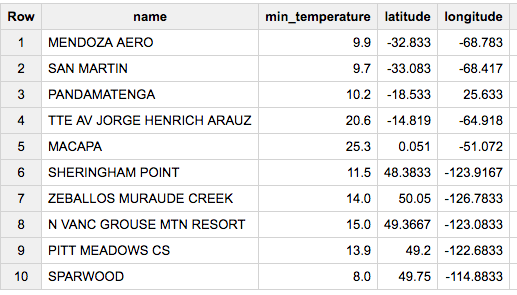
The GHCN data is global. For example, let’s look at all the stations from which we have good minimum-temperature data on August 15, 2016:

SELECT
name,
value/10 AS min_temperature,
latitude,
longitude
FROM
[bigquery-public-data:ghcn_d.ghcnd_stations] AS stn
JOIN
[bigquery-public-data:ghcn_d.ghcnd_2016] AS wx
ON
wx.id = stn.id
WHERE
wx.element = ‘TMIN’
AND wx.qflag IS NULL
AND STRING(wx.date) = ‘2016-08-15′

This returns:

By plotting the station locations in Google Cloud Datalab, we notice that the density of stations is very good in North America, Europe and Japan and quite reasonable in most of Asia. Most of the gaps correspond to sparsely populated areas such as the Australian outback, Siberia and North Africa. Brazil is the only gaping hole. (For the rest of this post, I’ll show only code snippets — for complete BigQuery queries and Python plotting commands, please see the full Datalab notebook on github.)

Blue dots represent GHCN weather stations around the world.

Using GHCN weather data in your applications
Here’s a simple example of how to incorporate GHCN data into an application. Let’s say you’re a pizza chain based in Chicago and want to explore some weather variables that might affect demand for pizza and pizza delivery times. The first thing to do is to find the GHCN station closest to you. You go to Google Maps and find that your latitude and longitude is 42 degrees latitude and -87.9 degrees longitude, and run a BigQuery query that computes the great-circle distance between a station and (42, -87.9) to get the distance from your pizza shop in kilometers (see the Datalab notebook for what this query looks like). The result looks like this:

Plotting these on a map, you can see that there are a lot of GHCN stations near Chicago, but our pizza shop needs data from station USW00094846 (shown in red) located at O’Hare airport, 3.7 km away from our shop.

Next, we need to pull the data from this station on the dates of interest. Here, I’ll query the table of 2015 data and pull all the days from that table. To get the rainfall amount (“precipitation” or PRCP) in millimeters, you’d write:

SELECT
wx.date,
wx.value/10.0 AS prcp
FROM
[bigquery-public-data:ghcn_d.ghcnd_2015] AS wx
WHERE
id = ‘USW00094846′
AND qflag IS NULL
AND element = ‘PRCP’
ORDER BY wx.date

Note that we divide wx.value by 10 because the GHCN reports rainfall in tenths of millimeters. We ensure that the quality-control flag (qflag) associated with the data is null, indicating that the observation passed spatio-temporal quality-control checks.

Typically, though, you’d want a few more weather variables. Here’s a more complete query that pulls rainfall amount, minimum temperature, maximum temperature and the presence of some weather phenomenon (fog, hail, rain, etc.) on each day:

SELECT
wx.date,
MAX(prcp) AS prcp,
MAX(tmin) AS tmin,
MAX(tmax) AS tmax,
IF(MAX(haswx) = ‘True’, ‘True’, ‘False’) AS haswx
FROM (
SELECT
wx.date,
IF (wx.element = ‘PRCP’, wx.value/10, NULL) AS prcp,
IF (wx.element = ‘TMIN’, wx.value/10, NULL) AS tmin,
IF (wx.element = ‘TMAX’, wx.value/10, NULL) AS tmax,
IF (SUBSTR(wx.element, 0, 2) = ‘WT’, ‘True’, NULL) AS haswx
FROM
[bigquery-public-data:ghcn_d.ghcnd_2015] AS wx
WHERE
id = ‘USW00094846′
AND qflag IS NULL )
GROUP BY
wx.date
ORDER BY
wx.date

The query returns rainfall amounts in millimeters, maximum and minimum temperatures in degrees Celsius and a column that indicates whether there was impactful weather on that day:

You can cast the results into a Pandas DataFrame and easily graph them in Datalab (see notebook in github for queries and plotting code):

BigQuery Views and Data Studio 360 dashboards
Since the previous query pivoted and transformed some fields, you can save the query as a View. Simply copy-paste this query into the BigQuery console and select “Save View”:

SELECT
REPLACE(date,”-“,””) AS date,
MAX(prcp) AS prcp,
MAX(tmin) AS tmin,
MAX(tmax) AS tmax
FROM (
SELECT
STRING(wx.date) AS date,
IF (wx.element = ‘PRCP’, wx.value/10, NULL) AS prcp,
IF (wx.element = ‘TMIN’, wx.value/10, NULL) AS tmin,
IF (wx.element = ‘TMAX’, wx.value/10, NULL) AS tmax
FROM
[bigquery-public-data:ghcn_d.ghcnd_2016] AS wx
WHERE
id = ‘USW00094846′
AND qflag IS NULL
AND value IS NOT NULL
AND DATEDIFF(CURRENT_DATE(), date) < 15 )
GROUP BY
date
ORDER BY
date ASC

Notice my use of DATEDIFF and CURRENT_DATE functions to get weather data from the past two weeks. Saving this query as a View allows me to query and visualize this View as if it were a BigQuery table.

Since visualization is on my mind, I can go over to Data Studio and easily create a dashboard from this View, for example:

One thing to keep in mind is that the “H” in GHCN stands for historical. This data is not real-time, and there’s a time lag. For example, although I did this query on August 25, the latest data shown is from August 22.

Mashing datasets in BigQuery
It’s quite easy to execute a weather query from your analytics program and merge the result with other corporate data.

If that other data is on BigQuery, you can combine it all in a single query! For example, another BigQuery dataset that’s publicly available is airline on-time arrival data. Let’s mash the GHCN and on-time arrivals datasets together:

SELECT
wx.date,
wx.prcp,
f.departure_delay,
f.arrival_airport
FROM (
SELECT
STRING(date) AS date,
value/10 AS prcp
FROM
[bigquery-public-data:ghcn_d.ghcnd_2005]
WHERE
id = ‘USW00094846′
AND qflag IS NULL
AND element = ‘PRCP’) AS wx
JOIN
[bigquery-samples:airline_ontime_data.flights] AS f
ON
f.date = wx.date
WHERE
f.departure_airport = ‘ORD’
LIMIT 100

This yields a table with both flight delay and weather information:

We can look at the distributions in Datalab using the Python package Seaborn:

As expected, the heavier the rain, the more the distribution curves shift to the right, indicating that flight delays increase.

GHCN data in BigQuery democratizes weather data and opens it up to all sorts of data analytics and machine learning applications. We can’t wait to see how you use this data to build what’s next.

Quelle: Google Cloud Platform

Digging in on Cloud SQL automatic storage increases

Posted by Greg Wilson, Head of Developer Advocacy

There’s a cool new setting in the storage dialog of Cloud SQL Second Generation: “Enable automatic storage increase.” When selected, it checks the available database storage every 30 seconds and adds more capacity as needed in 5GB to 25GB increments, depending on the size of the database. This means that instead of having to provision storage to accommodate future database growth, storage capacity grows as the database grows.

There are two key benefits to Cloud SQL automatic storage increases:

Having a database that grows as needed can reduce application downtime by reducing the risk of running out of database space. You can take the guesswork out of capacity sizing without incurring any downtime or performing database maintenance.
If you’re managing a growing database, automatic storage increases can save a considerable amount of money. That’s because allocated database storage grows as needed rather than you having to provision a lot of space upfront. In other words, you pay for only what you use plus a small margin.

According to the documentation, Cloud SQL determines how much capacity to add in the following way: “The size of the threshold and the amount of storage that is added to your instance depends on the amount of storage currently provisioned for your instance, up to a maximum size of 25 GB. The current storage capacity is divided by 25, and the result rounded down to the nearest integer. This result is added to 5 GB to produce both the threshold size and the amount of storage that is added in the event that the available storage falls below the threshold.”

Expressed as a JavaScript formula, that translates to the following (units=GB):

Math.min((Math.floor(currentCapacity/25) + 5),25)

Here’s what that looks like for a few database sizes:

Current capacity

Threshold

Amount auto-added

50GB

7GB

7GB

100GB

9GB

9GB

250GB

15GB

15GB

500GB

25GB

25GB

1000GB

25GB

25GB

5000GB

25GB

25GB

If you already have a database instance running on Cloud SQL Second generation, you can go ahead and turn this feature on now.

Quelle: Google Cloud Platform

Imagine the machine learning possibilities: this week on Google Cloud Platform

Posted by Alex Barrett, Editor, Google Cloud Platform Blog

Evernote, the latest company to announce their move to Google Cloud Platform, said this week that part of the appeal of GCP is gaining access to “the same deep-learning technologies that power services like translation, photo management and voice search.” Evernote didn’t elaborate on exactly how machine learning might manifest in its productivity software, though, so we thought we’d share some other examples that we’ve come across.

First and foremost, who can forget Makoto Koike, the Japanese farmer who used the Google-developed machine learning library TensorFlow to learn to sort cucumbers according to complex traditional criteria?

Then there are the bright folks over at Google DeepMind and their paper on WaveNet, which generates speech that mimics the human voice with much more natural-sounding results than current text-to-speech systems. Or Google’s recent solutions document in which university art students “experiment with DeepDream algorithms to render digital artwork using machine intelligence.”

Meanwhile, Google Developer Advocate Sara Robinson has unearthed some very practical use cases for machine learning. Check out this post, in which she takes us on on a whirlwind tour of the Cloud Vision API to detect landmarks, and this post on how to use it to filter inappropriate content. She then embarks on a series of posts on using Google Cloud Natural Language with BigQuery. Here’s a post on analyzing twitter posts about the Rio Olympics, and another that compares tweets about Hillary Clinton and Donald Trump.

(Speaking of the Natural Language API, if you need a bit of a primer on how to integrate it into existing projects, check out this post from digital consultancy White October on how to connect Cloud Natural Language API with Python on Google App Engine. Thanks, guys, for as you put it, filling what was “a definite lack of a ‘hello world’ sample showing the basics of how to connect to and call the API.”)

But really, the use cases for machine learning are just early examples, and it’s anyone’s guess what tomorrow’s killer machine learning app will be (Diane Greene discusses some pretty compelling examples of using machine learning starting at the 10:00 minute mark).

Perhaps you’ll be the one to come up with the next great use case for machine learning? Increase your chances by signing up for the new Udacity class on deep learning. Over 61,000 students have already signed up for the free three-month class!
Quelle: Google Cloud Platform

Six Google Cloud Platform features that can save you time and money

Posted by Greg Wilson, Head of Developer Advocacy, Google Cloud Platform

Google Cloud Platform (GCP) has launched a ton of new products and features lately, but I wanted to call out six specific features that were designed specifically to help save customers money (and time).

VM Rightsizing Recommendations
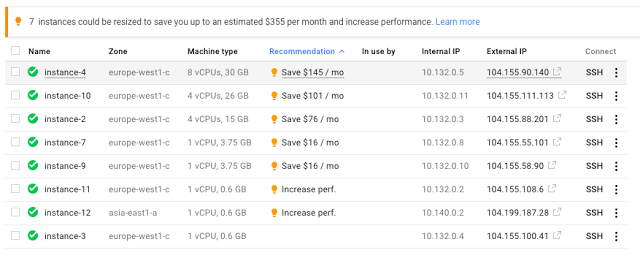
Rightsizing your VMs is a great way to avoid overpaying — and underperforming. By monitoring CPU and RAM usage over time, Google Compute Engine’s VM Rightsizing Recommendations feature helps show you at a glance whether your machines are the right size for the work they perform. You can then accept the recommendation and resize the VM with a single click.

Docs
Google Compute Engine VM Rightsizing Recommendations announcement

Cloud Shell

Google Cloud Shell is a free VM for GCP customers integrated into the web console with which to manage your GCP resources, to test, build, etc. Cloud Shell comes with many common tools pre-installed, including Google Cloud SDK, Git, Mercurial, Docker, Gradle, Make, Maven, npm, nvm, pip, iPython, MySQL client, gRPC compiler, Emacs, Vim, Nano and more. It also has language support for Java, Go, Python, Node.js, PHP and Ruby, and has built-in authorization to access GCP Console projects and resources.

Google Cloud Shell documentation

Google Cloud Shell overview
Google Cloud Shell documentation
Using Cloud Shell: YouTube demo
Google Cloud Shell GA announcement

Custom Machine Types
Compute Engine offers VMs in lots of different sizes, but when there’s not a perfect fit, you can create a custom machine type with exactly the number of cores and memory you need. Custom Machine Types has saved some customers as much as 50% over a standard-sized instance. 

Google Custom MachineTypes overview

Google Compute Engine Custom Machine Types documentation

Creating Custom Google Compute Engine Instances: YouTube Cloud Minute (YouTube video) Announcement 

Preemptible VMs 

For batch jobs and fault-tolerant workloads, preemptible VMs can cost up to 70% less than normal VMs. Preemptible VMs fill the spare capacity in our datacenters, but let us reclaim them as needed, helping us optimize our datacenter utilization. This allows the pricing to be highly affordable. 
Preemptible VMs overview
Preemptible VMs docs
Preemptible VMs announcement 
Preemptible VMs price drop

Cloud SQL automatic storage increases
When this Cloud SQL feature is enabled, the available database storage is checked every 30 seconds, and more is added as needed in 5GB to 25GB increments, depending on the size of the database. Instead of having to provision storage to accommodate future database growth, the storage grows as the database grows. This can reduce the time needed for database maintenance and save on storage costs.

Cloud SQL automatic storage increases documentation

Online resizing of persistent disks without downtime
When a Google Compute Engine persistent disk is reaching full capacity, you can resize it in-place, without causing any downtime.

Google Cloud Persistent Disks announcement
Google Cloud Persistent Disks documentation
Adding Persistent Disks: YouTube demo

As you can see, there are plenty of ways to save money and improve performance with GCP features. Have others? Let us know in the comments.

Quelle: Google Cloud Platform

Note-able news: Evernote to use Google Cloud Platform

Posted by Brian Stevens, Vice President, Google Cloud Platform

Today, Evernote announced it’s moving to Google Cloud Platform to host its productivity service used by over 200 million people to store billions of notes and attachments. Consumers and businesses using Evernote — on the web or their device of choice — will soon benefit from the security, scalability and data processing power of Google’s public cloud infrastructure.

Moving to the public cloud was a natural progression for the company, as it looks to provide a seamless experience for its users and boost productivity with new features and services. Evernote initially built a private cloud infrastructure that serves users and data on any device, anywhere in the world. By moving its data center operations to Google’s cloud, Evernote can focus on its core competency: providing customers with the best experience for taking, organizing and archiving notes.

Evernote takes customer data protection seriously, so it’s no surprise that security was at the top of its list of selection criteria. With Google Cloud Platform, Evernote users will benefit from our world class security, while strengthening the company’s commitment to its own Three Laws of Data Protection.

Evernote evaluated multiple public cloud vendors and specifically chose Google Cloud Platform for our advanced data analytics and machine learning capabilities. By taking advantage of the advancements in machine learning such as voice recognition and translation, Evernote will continue to explore innovative new features that allow users to naturally capture their ideas at “the speed of thought.” You can learn more about Evernote’s plans and selection criteria here.

We here at Google Cloud Platform are excited to build on our partnership that began with the integration of Google Drive and Evernote. We welcome Evernote and look forward to the exciting journey ahead of us!
Quelle: Google Cloud Platform

Prototyping kit gets your IoT app on Google Cloud Platform, fast

Posted by Preston Holmes, Head of IoT Solutions

The Internet of Things provides businesses with the opportunity to connect their IT infrastructure beyond the datacenter to an ever-increasing number of sensors and actuators that can convert analog information to digital data, and we believe Google Cloud Platform (GCP) is a great landing place for that valuable information. Whether it’s handling event ingest in Google Cloud Pub/Sub, processing the streams of data from multiple devices with Google Cloud Dataflow, storing time-series data in Google Bigtable, or asking questions across IoT and non-IoT data with Google BigQuery, GCP’s data and analytics products can help you manage that IoT data and turn it into something relevant.

Just like software, it’s useful to prototype and validate your IoT project quickly. Unfortunately, not all businesses have a bench of electrical engineers and embedded software developers on staff. That’s why we’ve teamed up with Seeed Studio and Beagleboard.org to bring you the BeagleBone Green Wireless IoT Developer prototyping kit for GCP.

Features of the BeagleBone IoT prototyping kit include:
New improvements to the original BeagleBone Green, including built in Wi-Fi and Bluetooth radios
A fully open hardware design
Built-in Grove connectors that allow for prototyping without the need for soldering or complex breadboard work
Built-in onboard flash that lets you treat SD cards as optional, removable storage
Built-in PRU real-time co-processors that are well suited for certain industrial protocols
Built-in analog-to-digital conversion, key for many IoT prototyping situations

With the BeagleBone Green Wireless IoT Developer prototyping kit, you’ll be able to get data from the world around you directly onto GCP within minutes. From there, you can use any of our client libraries on the board’s familiar Debian Linux operating system.

Learn more about the kit and demo! Don’t have the kit yet? Buy one here, or use your phone as a simulated device. Most importantly, let us know how it goes.

Quelle: Google Cloud Platform