Analyzing GCP costs using folders and BigQuery Billing export

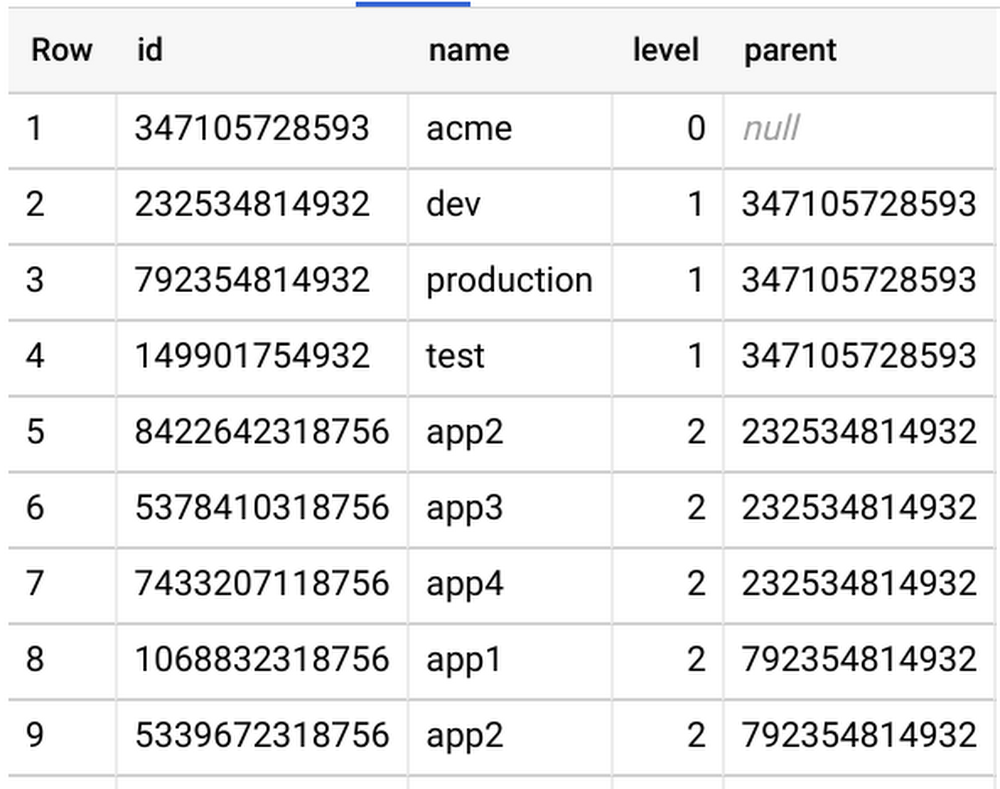
Effectively managing and reporting on costs is a critical part of financial stewardship, whether you’re running a multi-billion-dollar enterprise business or small household budget. But making data-driven decisions on how to cut costs or double down on a business venture all starts with collecting the data you’ll need to inform those decisions. At Google Cloud Platform (GCP), one of our goals is to help customers make data-driven decisions about their cloud costs and usage. You can do this through multiple native capabilities available in the Cloud Console, including Billing reports, budgets and alerts, configurable quotas, resource hierarchies, and Billing export. While costs per project, product, and SKU are available via our native Billing reports, we often hear that enterprises face a challenge when reporting comprehensive spend, KPIs, and cost of goods sold (COGS) per team or department, which often involves more comprehensive data. Fortunately, detailed GCP Billing data is easily exportable into BigQuery and visualized with a BI tool like Data Studio so you can do more detailed analysis. Right now, GCP folder hierarchies (denoted as project.ancestry_numbers in the Billing export) only reflect their numerical and immutable ID form rather than their folder name (i.e., a GCP project under folder /acme/production/app1 is reflected by something like /720879011932/792354814932/1068832318756).To make it easier to allocate costs across departments, teams, cost centers, etc., we’ve put together this solution. Read on to see how to convert IDs into folder names so you can more easily track and analyze costs.Generating folder hierarchy namesTo convert your Billing export’s project.ancestry_numbers into something human-readable, you’ll first need a key that will map ancestry numbers like 720879011932 into the folder name “acme,” and a way to link parent/child folders.Using our native tools to view your folder structure is simple for one-off requests via the Cloud Console or gcloud CLI, or by API, but it can be complex if your enterprise organization is built from dozens of departments, teams, and hierarchical structures. To make this process even simpler, consider using a GitHub tool like folder-lookup, which uses Cloud Functions to programmatically crawl your organization’s folder structure and create a folder-structure key directly in BigQuery. After running this tool, you’ll see a simple folder-structure key to join against your Billing export, like so:Enhancing your BigQuery Billing exportThe next step is to convert Folder IDs into Folder Names within your Billing export. In order to cut down costs (i.e., the total amount of data queried), we’ll run this query only once per day via a scheduled BigQuery query. This query joins the previous day’s Billing export to this folder-structure key and appends a running Billing export with a folder data table. If data freshness is a high priority for you, you can easily modify the scheduled query to pull data on a more regular cadence (you’ll also have to alter the line ”WHERE _PARTITIONDATE = DATE_SUB(current_date(), INTERVAL 1 DAY)”).The query runs against the previous day’s data, so here we’ll run the scheduled query at 7 a.m. every day to get a full picture of the previous day’s spend. Note that the below query assumes a maximum folder depth of four, so it may have to be slightly augmented to meet your requirements.After running this query, you’ll see there’s now more detailed information on spend per department, and it’s easier to aggregate costs by environment or application.And thanks to Data Studio, visualizing this data is a piece of cake too:Monitoring your company’s cloud spend is crucial for quickly catching issues, prioritizing resources, and making better financial decisions. GCP provides tools to help you conduct a comprehensive analysis of your costs with Billing reports, Billing export, and Data Studio. And thanks to BigQuery’s powerful capabilities, crunching big data and using these insights to make data-driven decisions has never been easier. To see more options for BigQuery Billing export queries, check out our billing query example guide.
Quelle: Google Cloud Platform

DR for cloud: Architecting Microsoft SQL Server with GCP

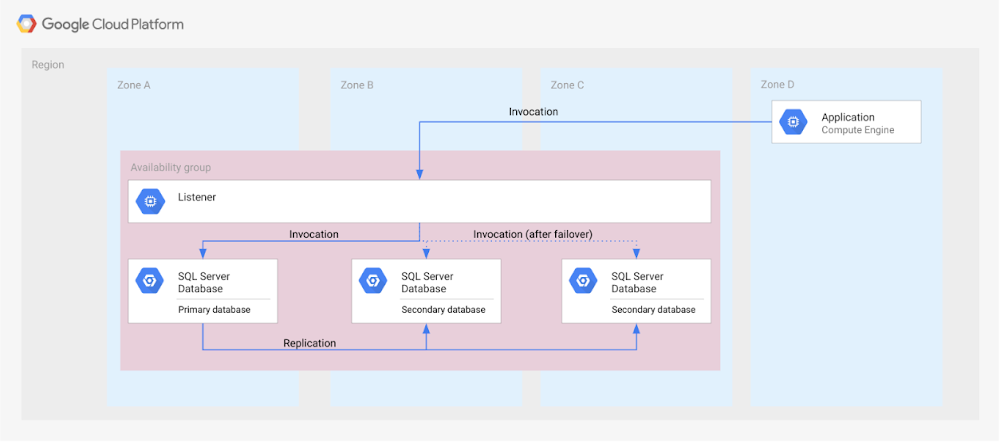
Database disaster recovery (DR) planning is an important component of a bigger DR plan, and for enterprises using Microsoft SQL Server on Compute Engine, it often involves critical data. When you’re architecting a disaster recovery solution with Microsoft SQL Server running on Google Cloud Platform (GCP), you have some decisions to make to build an effective, comprehensive plan. Microsoft SQL Server includes a variety of disaster recovery strategies and features, such as Always On availability groups or Failover Cluster Instances. And Google Cloud is designed from the start for resilience and availability. There are several types of data centers available within GCP where you can map SQL Server’s availability features based on your specific requirements: zones and regions. Zones are autonomous data centers co-located within a GCP region. These regions are available in different geographies such as North America or APAC. However, there is no single disaster recovery strategy to map Microsoft SQL Server DR features to Google Cloud’s data center topology that satisfies every possible combination of disaster recovery requirements. As a database architect, you have to design a custom disaster recovery strategy based on your specific use cases and requirements.Our new Disaster Recovery for Microsoft SQL Server solution provides information on Microsoft’s SQL Server disaster recovery strategies, and shows how you can map them to zones and regions in GCP based on your business’s particular criteria and requirements. One example is deploying an availability group within a region across three zones (shown in the diagram below). For successful DR planning, you should have a clear conceptual model and established terminology in place. In this solution, you’ll find a base set of concepts and terms in context of Google Cloud DR. This includes defining terms like primary database, secondary database, failover, switchover, and fallback.You’ll also find details on recovery point objective, recovery time objective and single point of failure domain, since those are key drivers for developing a specific disaster recovery solution.Building a DR solution with Microsoft SQL Server in GCP regionsTo get started with implementing the availability features of Microsoft SQL Server in the context of Google Cloud, take a look at this diagram, which shows the implementation of an Always On availability group in a GCP region, using several zones:In the new solution, you’ll see other availability features, like log shipping, along with how they map to GCP. In addition, features in Microsoft SQL Server that are not deemed availability features—like server replication and backup file shipping—can actually be used for disaster recovery, so those are included as well. Disaster recovery features of Microsoft SQL Server do not have to be used in isolation and can be combined for more complex and demanding use cases. For example, you can set up availability groups in two regions with log shipping as the transfer mechanism between the regions.Disaster Recovery for Microsoft SQL Server also describes the disaster recovery process itself, how to test and verify a defined disaster recovery solution, and outlines a basic approach, step-by-step. Learn more about SQL Server on GCP and check out all of our solutions.
Quelle: Google Cloud Platform

Cloud Identity and Atlassian Access: User lifecycle management across your organization

User lifecycle management—the ability to automatically add and remove users to applications—is one of the key features of Cloud Identity, Google Cloud’s identity, access, and device management solution, which is available as a standalone solution and also to our G Suite Enterprise customers. Many of our G Suite customers use a variety of additional SaaS and on-premises applications, including Atlassian products like Jira, Confluence, Bitbucket, and more. Today, we’re pleased to announce that we’re partnering with Atlassian to enable user lifecycle management for these products.This partnership will allow you to provision and de-provision Atlassian users directly from the Cloud Identity or G Suite admin console,meaning admins will automatically have the right accounts created for all of their Atlassian apps. This saves your IT department from the headache of constantly updating user accounts and permissions across apps—now, when you add, modify, or delete a user in the admin console, changes are automatically reflected in your Atlassian apps, making it easier to manage access as employees change roles, join or leave the company. This update will also make life easier for your end users, enabling them to easily move from working in G Suite to their Atlassian apps.We do this by integrating with Atlassian Access, which provides enterprise-wide cloud governance and security across multiple Atlassian cloud products.Enabling SSO for Atlassian is required to set up user provisioningEnabling user provisioning for Atlassian in the admin consoleUnderpinning this partnership is SCIM 2.0, an industry-standard protocol for user lifecycle management that Cloud Identity has supported since 2016. In addition to Atlassian, Google Cloud partners with dozens of other apps and service providers for automated user provisioning and deprovisioning from within Cloud Identity and G Suite, including with Box, Dropbox, Salesforce, Slack, Zendesk, and more. See the full list of supported apps here and sign up today for a free trial to try it out yourself.
Quelle: Google Cloud Platform

5 reasons your legacy data warehouse won’t cut it

As we engage with enterprises across the globe, one thing is becoming clear: Today’s businesses are solving complex business problems that are data-intensive. But often, their data platform infrastructure is holding them back. Data platform architectures that were designed in the 1990s are not ready to solve business problems for 2020. We don’t have to tell you about the explosive data growth that’s going on for businesses around the world. If you’re managing data infrastructure today, you already know plenty about that data growth. Ever faster and larger data streams, global business needs, and tech-savvy users are all putting the pressure on IT teams to move faster, with more agility.Despite all these changes, it is often the legacy, traditional data warehouse where most of the data analytics tasks take place, and they’re underprepared for those demands. When we talk to people working in IT today, we hear a lot about the constraints that come with operating legacy technology while trying to build a modern data strategy. Those legacy data warehouses likely aren’t cutting it anymore. Here’s why—and here’s what you can do about it.  1. Business agility is hard to achieve with legacy tools. Business agility is the main goal as organizations move toward completely digital operations. Think of online banking, or retailers staying ahead of always-on e-commerce needs in a competitive environment. All these great, cutting-edge innovations reflect cultural and technical change, where flexibility is essential. A business has to be able to manage and analyze data quickly to understand how to better serve customers, and allow its internal teams to do their best work with the best data available.We hear that lots of data warehouses running today are operating at 95% or 100%, maxing out what they can provide to the business. Whether it’s on-premises or an existing data warehouse infrastructure moved wholesale to cloud, those warehouses aren’t keeping up with all the data requests users have. Managing and preventing these issues can take up a lot of IT time, and the problems often compound over time. Hitting capacity limits slows down users and ties up database administrators too.From a data infrastructure perspective, separating the compute and storage layers is essential to achieve business agility. When a data warehouse can handle your scalability needs and self-manage performance, that’s when you can really start being proactive. 2. Legacy data warehouses require a disproportionate degree of management. Most of the reports and queries your business runs are probably time-sensitive, and that sense of urgency is only increasing as users and teams see the possibilities of data analytics. In our engagements with customers, we often observe that they are spending a majority of the time on systems engineering, so that only about 15% of the time is spent analyzing data. That’s a lot of time spent on maintenance work. Because legacy infrastructure is complex, we often hear that businesses continue to invest in hiring people to manage those outdated systems, even though they’re not advancing data strategy or agility.To cut time on managing a data warehouse, it helps to automate the system engineering work away from the analytics work, like BigQuery enables. Once those functions are separated, the analytics work can take center stage and let users become less dependent on administrators. BigQuery also helps remove the user access issues that are common with legacy data warehouses. Once that happens, users can focus on building reports, exploring datasets, and sharing trusted results easily. 3. Legacy data warehouse costs make it harder to invest in strategy. Like other on-prem systems, data warehouses adhere to the old-school model of paying for technology, with the associated hardware and licensing costs and ongoing systems engineering. This kind of inefficient architecture drives more inefficiency. When the business is moving toward becoming data-driven, they’ll continue to ask your team for more data. But responding to those needs means you’ll run out of money pretty quickly. Cloud offers much more cost flexibility, meaning you’re not paying for, or managing, the entire underlying infrastructure stack. Of course, it’s possible to simply port an inefficient legacy architecture into the public cloud. To avoid that, we like to talk about total cost of ownership (TCO) for data warehouses, because it captures the full picture of how legacy technology costs and business agility aren’t matching up. Moving to BigQuery isn’t just moving to cloud—it’s moving to a new cost model, where you’re cutting out that underlying infrastructure and systems engineering. You can get more detail on cloud data warehouse TCO comparisons from ESG.4. A legacy data warehouse can’t flexibly meet business needs. While overnight data operations used to be the norm, the global opportunities for businesses mean that a data warehouse now has to load streaming and batch data while also supporting simultaneous queries. Hardware is the main constraint for legacy systems as they struggle to keep up.Moving your existing architecture into the cloud usually means moving your existing issues into the cloud, and we hear from businesses that doing so still doesn’t allow for real-time streaming. That’s a key component for data analysts and users. Using a platform like BigQuery means you’re essentially moving your computational capabilities into the data warehouse itself, so it scales as more and more users are accessing analytics. Unlimited compute is a pretty good way to help your business become digital. Instead of playing catch-up with user requests, you can focus on developing new features. Cloud brings added security, too, with cloud data warehouses able to do things like automatically replicate, restore and back up data, and offer ways to classify and redact sensitive data. 5. Legacy data warehouses lack built-in, mature predictive analytics solutions. Legacy data warehouses are usually struggling to keep up with daily data needs, like providing reports to departments like finance or sales. It can be hard to imagine having the time and resources to start doing predictive analytics when provisioning and compute limits are holding your teams back.We hear from customers that many of them are tasked with simplifying infrastructure and adding modern capabilities like AI, ML and self-service analytics for business users. The best stories about digital transformation are those where the technology changes and business or cultural changes happen at the same time. One customer told us that because BigQuery uses a familiar SQL interface, they were actually able to shift the work of data analytics away from a small, overworked group of data scientists into the hands of many more workers. Doing so also eliminated a lot of the siloed data lakes that had sprung up as data scientists extracted data one project at a time into various repositories to train ML models.These large-scale computational possibilities save time and overhead, but also let businesses explore new avenues of growth. AI and ML are already changing the face of industries like retail, where predictive analytics can provide forecasting and other tasks to help the business make better decisions. BigQuery lets you take on sophisticated machine learning tasks without moving data or using a third-party tool. We designed BigQuery so that our engineers deploy the resources needed for you to scale. It means your focus can change entirely toward meeting the needs the business has put forth, and bringing a lot more flexibility. BigQuery is fully serverless and runs on underlying Google infrastructure, so it integrates with our ecosystem of data and analytics partner tools. This architecture means you’re continually getting the most up-to-date software stack—analytics that scale, real-time insights, and cutting-edge functionality that includes geospatial and machine learning right from the SQL interface. Streamline your path to data warehouse modernization with BigQuery by learning about Google Cloud’s proven migration methodology and get started with your data warehouse by applying for our migration offer.
Quelle: Google Cloud Platform

Introducing Cloud Run Button: Click-to-deploy your git repos to Google Cloud

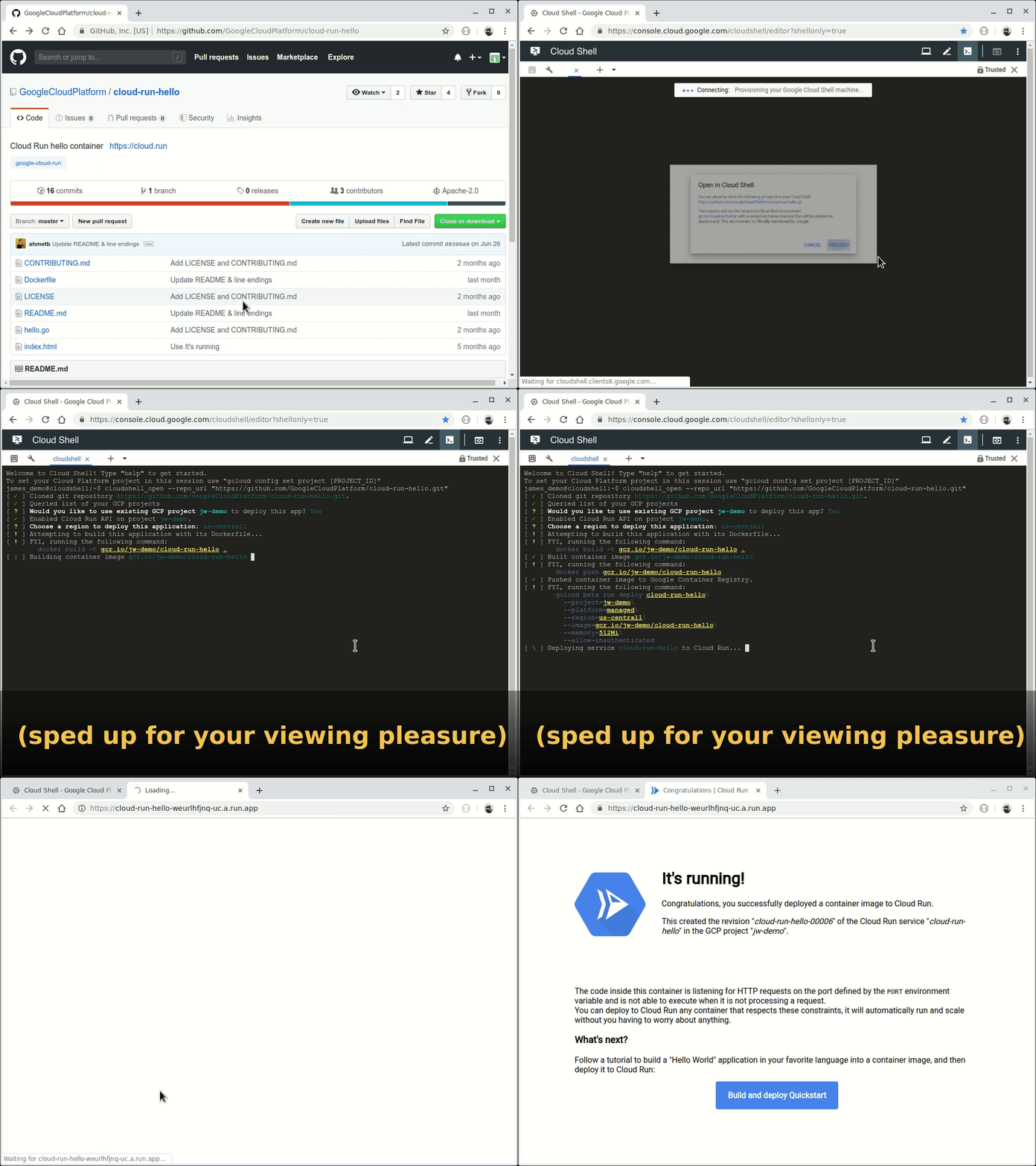
As developers, we love that Cloud Run allows you to deploy containerized serverless applications without having to worry about operations, scalability and security. You can package your app in a container, deploy to Cloud Run, and get a fully managed HTTPS endpoint.Today, we are introducing the Cloud Run Button, an image and link you can add to the README of your source code repositories to allow others to deploy your application to Google Cloud Platform using Cloud Run. Check out a demo:Cloud Run Button works with any repository that has a Dockerfile, or that can be built using Cloud Native Buildpacks. When you click the Cloud Run Button to deploy an application, it packages the application source code as a container image, pushes it to Google Container Registry, and deploys it on Cloud Run.For example, you can deploy our cloud-run-hello sample application (which has a Dockerfile) to Cloud Run on your GCP project by clicking this button:Once deployed, this application is hosted in your GCP project, and with Cloud Run’s pay-per-use model, you are only charged when the application handles requests.You can also make your Git repositories easily deployable to Cloud Run by following the instructions on the Cloud Run Button repository. Give it a try and let us know what you think!
Quelle: Google Cloud Platform

Introducing the BigQuery Terraform module

It’s no secret software developers love to automate their work away, and cloud development is no different. Since the release of the Cloud Foundation Toolkit (CFT), we’ve offered automation templates with Deployment Manager and Terraform to help engineers get set up with Google Cloud Platform (GCP) quickly. But as useful as the Terraform offering was, it was missing a critical module for a critical piece of GCP: BigQuery.Fortunately, those days are over. With the BigQuery module for Terraform, you can now automate the instantiation and deployment of your BigQuery datasets and tables. This means you have an open-source option to start using BigQuery for data analytics.In building the module, we applied the flexibility and extensibility of Terraform throughout and adhered to the following principles:Referenceable templatesModular, loosely coupled design for reusabilityProvisioning and association for both datasets and tablesSupport for full unit testing (via Kitchen-Terraform)Access control (coming soon)By including the BigQuery Terraform module in your larger CFT scripts, it’s possible for you to go effectively from zero to ML in minutes, with significantly reduced barriers to implementation. Let’s walk through how to set this up.Building blocks: GCP and Terraform prerequisitesTo use the BigQuery Terraform module, you’ll need—you guessed it—to have BigQuery and Terraform ready to go.Note: The steps outlined below are applicable for Unix- and Linux-based devices, and have not been optimized for CI/CD systems or production use.1. Download the Terraform binary that matches your system type and Terraform installation process.2. Install Google Cloud SDK on your local machine.3. Start by creating a GCP project in your organization’s folder and project. Try something via Terraform like the following:4. Let’s set up some environment variables to use. Ensure you updated the values to accurately reflect your environment.5. Go ahead and enable the BigQuery API (or use the helpers directory in the module instead)6. Establish an identity with the IAM permissions required7. Browse through the examples directory to get a full list of examples that are possible within the module.What’s in the box: Get to know the Terraform moduleThe BigQuery module is packaged in a self-contained GitHub repository for you to easily download (or reference) and deploy. Included in the repo is a central module that supports both Terraform v0.12.X and v0.11.X, allowing users (both human and GCP service accounts) to dynamically deploy datasets with any number of tables attached to the dataset. (By the way, the BigQuery module has you covered in case you’re planning to partition your tables using a TIMESTAMP OR DATE column to optimize for faster retrieval and lower query costs.) To enforce naming standardization, the BigQuery module creates a single dataset that is referenced in the multiple tables that are created, which streamlines the creation of multiple instances and generates individual Terraform state files per BigQuery dataset. This is especially useful for customers with hundreds of tables in dozens of datasets, who don’t want to get stuck with manual creation. That said, the module is fundamentally an opinionated method for setting up your datasets and table schemas; you’ll still need to handle your data ingestion or upload via any of the methods outlined here, as that’s not currently not supported by Terraform.In addition, the repo is packaged with a rich set of test scripts that use Kitchen-Terraform plugins, robust examples on how to use the module in your deployments, major version upgrade guides, and helper files to get users started quickly.Putting them together: Deploying the moduleNow that you have BigQuery and Terraform set up, it’s time to plug them together. 1. Start by cloning the repository:2. If you didn’t enable the BigQuery API earlier and create the service account with permissions, run the setup-sa.sh quickstart script in the helpers directory of the repo. This will set up the service account and permissions, and enable the BigQuery API.3. Define your BigQuery table schema, or try out an example schema here.4. Create a deployment (module) directory.5. Create the deployment files: main.tf, variables.tf, outputs.tf, and optionally a terraform.tfvars (in case you want to override default vars in the variables.tf file):6. Populate the files as detailed below.Main.tfOutputs.tfTerraform.tfvarsvariables.tf7. Navigate to the correct directory.8. Initialize the directory and plan.9. Apply the changes.What’s next?That’s it! You’ve used the BigQuery Terraform module to deploy your dataset and tables, and you’re now ready to load in your data for querying. We think this fills a critical gap in our Cloud Foundations Toolkit so you can easily stand up BigQuery with an open-source, extensible solution. Set it and forget it, or update it anytime you need to change your schema or modify your table structure. Once you’ve given it a shot, if you have any questions, give us feedback by opening an issue. Watch or star the module to stay on top of future releases and enjoy all your newfound free time (we hear BQML is pretty fun).
Quelle: Google Cloud Platform

Skip the heavy lifting: Moving Redshift to BigQuery easily

Enterprise data warehouses are getting more expensive to maintain. Traditional data warehouses are hard to scale and often involve lots of data silos. Business teams need data insights quickly, but technology teams have to grapple with managing and providing that data using old tools that aren’t keeping up with demand. Increasingly, enterprises are migrating their data warehouses to the cloud to take advantage of the speed, scalability, and access to advanced analytics it offers. With this in mind, we introduced the BigQuery Data Transfer Service to automate data movement to BigQuery, so you can lay the foundation for a cloud data warehouse without writing a single line of code. Earlier this year, we added the capability to move data and schema from Teradata and S3 to BigQuery via the BigQuery Data Transfer Service. To help you take advantage of the scalability of BigQuery, we’ve now added a service to transfer data from Amazon Redshift, in beta, to that list. Data and schema migration from Redshift to BigQuery is provided by a combination of the BigQuery Data Transfer Service and a special migration agent running on Google Kubernetes Engine (GKE), and can be performed via UI, CLI or API. In the UI, Redshift to BigQuery migration can be initiated from BigQuery Data Transfer Service by choosing Redshift as a source. The migration process has three steps: UNLOAD from Redshift to S3—The GKE agent initiates an UNLOAD operation from Redshift to S3. The agent extracts Redshift data as a compressed file, which helps customers minimize the egress costs. Transfer from S3 to Cloud Storage—The agent then moves data from Amazon S3 to a Cloud Storage bucket using Cloud Storage Transfer Service. Load from Cloud Storage to BigQuery—Cloud Storage data is loaded into BigQuery (up to 10 million files).The BigQuery Data Transfer Service, showing Redshift as a source.You can see more here about how customers are using the BigQuery Data Transfer Service to move database instances easily.To get started, follow our step-by-step guide, or read our article on migrating data to BigQuery using Informatica Intelligent Cloud Services. Qualifying customers can also take advantage of our data warehouse migration offer, which provides architecture and design guidance from Google Cloud engineers, proof-of-concept funding, free training, and usage credits to help speed up your modernization process. Learn more here.
Quelle: Google Cloud Platform

Itaú Unibanco: How we built a CI/CD Pipeline for machine learning with online training in Kubeflow

Itaú Unibanco is the largest private sector bank in Brazil, with a mission to put its customers at the center of everything they do as a key driver of success. As a result, one of its projects is AVI (Itaú Virtual Assistant), a digital customer service tool that uses natural language processing, built with machine learning, to understand customer questions and respond in real time.AVI helps about a million customers per month. It answers all but 2% of customer questions, and answers those questions correctly 85% of the time. In instances where AVI is not best suited to help a customer, it transitions to a live agent transparently, and in the same channel.To help continually improve and evolve AVI, as well as Itaú’s other projects that use machine learning, they needed an efficient strategy for machine learning model deployment. However, they quickly found that building a robust tool that helps their data scientists deploy, manage and govern ML models in production proved challenging. As a result, the team began working with Google Cloud to create a CI/CD pipeline based on the open source project Kubeflow, for online machine learning training and deployment. Here’s how they did it.How Itaú built their pipelineA machine learning project lifecycle mainly comprises four major stages, executed iteratively:Once a data scientist has a set of well-performing machine learning models, they need to operationalize them for other applications to consume. Depending on the business requirements, predictions are produced either in real time or on a batch basis. For the AVI project, two business requirements were essential: (1) the ability to have multiple models in production (whether using different techniques or models trained using distinct data), and (2) the ability to retrain the production model with new data.Although the data science and machine learning features are well cared for by the AVI multidisciplinary team, both model training and deployment are still not fully automated at Itaú. Additionally, internal change management procedures can mean it takes up to one week to retrain and deploy new models. This has made ML initiatives hard to scale for Itaú. Once the CI/CD pipeline is integrated with the AVI platform, the bank hopes that training and deployment will take hours instead of days, or even faster by using GPU or TPU hardware.Some of the main requirements for this deployment pipeline and serving infrastructure include:The Itaú team may work with several ML model architectures in parallel. Each of these models is called a “technique” in the team’s internal jargon.Promoting a new technique to production should be an automated process, triggered by commits to specific branches.It should be possible to re-train each model on new data in the production environment, triggered by the front-end used by agent managers.Several versions of the same or different models could be served simultaneously, for A/B test purposes or to serve different channels.ArchitectureItaú has a hybrid and multi-cloud IT strategy based on open source software and open standards to guarantee maximum portability and flexibility. This created a natural alignment with Google Cloud, which is also committed to open source and hybrid/multi-cloud. Therefore, the architecture was planned around open source platforms, tools and protocols, including Kubeflow, Kubernetes, Seldon Core, Docker, and Git. The goal was to have a single overall solution that could be deployed on GCP or on-premises, according to the needs and restrictions of each team inside the company.This is the high-level, conceptual view of the architecture:Models start their lives as code in the source repository, and data in object storage. A build is triggered in the CI server, producing new container images with the model code packaged for training. The CI process also compiles and uploads a pipeline definition to the training platform, and triggers a new training run with the latest data. At the end of the training pipeline, if everything runs well, a new trained model is written to object storage, and a new serving endpoint is started. The front-end server of the customer service application will use these API endpoints to obtain model predictions from a given input. Service administrators use the same application to manage training example data and classes. These users can trigger the training of a new model version with a new dataset. This is accomplished by triggering a new run of the training pipeline, with no need to reload or re-compile source code.For this project, the concrete architecture was instantiated with the following components:Itaú’s centralized infrastructure teams have selected Jenkins and GitLab as their standard tools for integration and source control, respectively, so these tools were used to build the integrated pipeline. For the container registry and object storage, the cloud-native solutions Container Registry and Cloud Storage were used, since they should be easy to replace with on-premises equivalents without many changes. The core of the system is Kubeflow, the open source platform for ML training and serving that runs on Kubernetes, the industry standard open source container orchestrator. Itaú tested the platform with two flavors of Kubernetes: Origin, the open source version of RedHat OpenShift, used by Itaú in its private cloud, and Google Kubernetes Engine (GKE), for easier integration and faster development. Kubeflow runs well on both.The centerpiece of the pipeline is Kubeflow Pipelines (KFP), which provides an optimized environment to run ML-centric pipelines, with a graphical user interface to manage and analyze experiments. Kubeflow Pipelines are used to coordinate the training and deployment of all ML models.ImplementationIn the simplest case, each pipeline should train a model and deploy an endpoint for prediction. This is what such a pipeline looks like in Kubeflow Pipelines:Since this platform will potentially manage several ML models, Itaú agreed on a convention of repository structure that must be followed for each model:The root of each directory should contain a Dockerfile, to build the image that will train the model, and an optional shell script to issue the docker build and push commands. The src subdirectory contains all source code, including a script called trainer.sh that will initiate the training process. This script should receive three parameters, in the following order: path to the training data set, path to the evaluation data set, and output path where the trained model should be stored.The pipeline directory contains pipeline.py, the definition of the Kubeflow Pipeline that will perform the training and deployment of the model. We’ll take a better look at this definition later.Container ImagesEach step in a KFP pipeline is implemented as a container image. For our minimum viable product (MVP), Itaú created three container images:Model trainer (sklearn_spacy_text_trainer)Model deployment script (serving_deployer)Model serving with Seldon Core (pkl_server)The model trainer image is built from the model source code tree, with the Dockerfile shown in the file structure above. The other two images are more generic, and can be reused for multiple models, receiving the specific model code as runtime parameters.The model trainer and deployer containers are built by simple shell scripts from their respective Dockerfiles. The model serving container is built with the s2i utility, which automatically assembles a container from the source code tree, using the Seldon Python 3.6 base image. The shell script below shows how that’s accomplished:Pipeline definitionA pipeline in Kubeflow Pipelines is defined with a Python-based domain specific language (DSL), which is then compiled into a yaml configuration file. There are two main sections to a pipeline definition: (1) definition of operators and (2) instantiation and sequencing of those operators.For this sample pipeline, an operator was defined for the trainer container and one for the deployer. They are parameterized to receive relevant dynamic values such as input data path and model endpoint name:The pipeline itself declares the parameters that will be customizable by the user in the KFP UI, then instantiates the operations with relevant parameters. Note that there is no explicit dependency between the train and deploy operations, but since the deploy operation relies on the output of the training as an input parameter, the DSL compiler is able to infer that dependency.Pipeline build and deployA commit to the main branch will trigger a build in Jenkins. The build script will execute the following steps:Build the containersCompile the KFP pipeline definitionUpload the new pipeline to KFPTrigger a run of the new pipeline to train the model (this step is optional, depending on what makes sense for each model and the team’s workflow)The sample script below executes steps 2 and 3, receiving a descriptive pipeline name as an argument:Pipeline runWhenever the training dataset is changed, a user can trigger a model training from the administration UI. Training a model is simply a matter of placing the new data in the right location and starting a new run of the pipeline that is deployed to Kubeflow. If successful, the pipeline will train the model and start a new serving endpoint to be called by the front-end.This REST call will return a run ID parameter, which can be used by the UI back end to poll for the run status and update the user when it’s done, or there is an error.Model prediction servingThe final step of the pipeline is, of course, serving model predictions. Since most of our models are created with Scikit Learn, Itaú leveraged Seldon Core, a bundled component of Kubeflow, to implement the serving endpoints. Seldon Core lets you implement just a simple predict method and takes care of all the plumbing for exposing a REST endpoint, with optional advanced orchestration features.Since the serving API tends to change infrequently, we opted to implement a generic class that can serve any model serialized to a PKL file. The deployment definition parameterizes a storage location with the PKL file and bundled model source code, which is then unpacked and used for serving by the container. The Python code that achieves this is listed below:This serving code is deployed for each endpoint by a shell script in the deployer container. The script takes in the location of the trained model, name and version for the endpoint, generates the necessary configuration and deploys it to Kubernetes:ConclusionWith this relatively simple architecture and very little custom development, Itaú was able to build a CI/CD pipeline for machine learning that can accelerate the pace of innovation while simplifying production maintenance for AVI and other teams. It should be fairly easy to replicate and adapt it to many organizations and requirements, thanks to the openness and flexibility of tools like Kubeflow and Kubeflow Pipelines.AcknowledgmentsThis work was created by a joint team between Google Cloud and Itaú Unibanco:Cristiano Breuel (Strategic Cloud Engineer, Google Cloud)Eduardo Marreto (Cloud Consultant, Google Cloud)Rogers Cristo (Data Scientist, Itaú Unibanco)Vinicius Caridá (Advanced Analytics Manager, Itaú Unibanco)
Quelle: Google Cloud Platform
Best practices for SAP app server autoscaling on Google Cloud

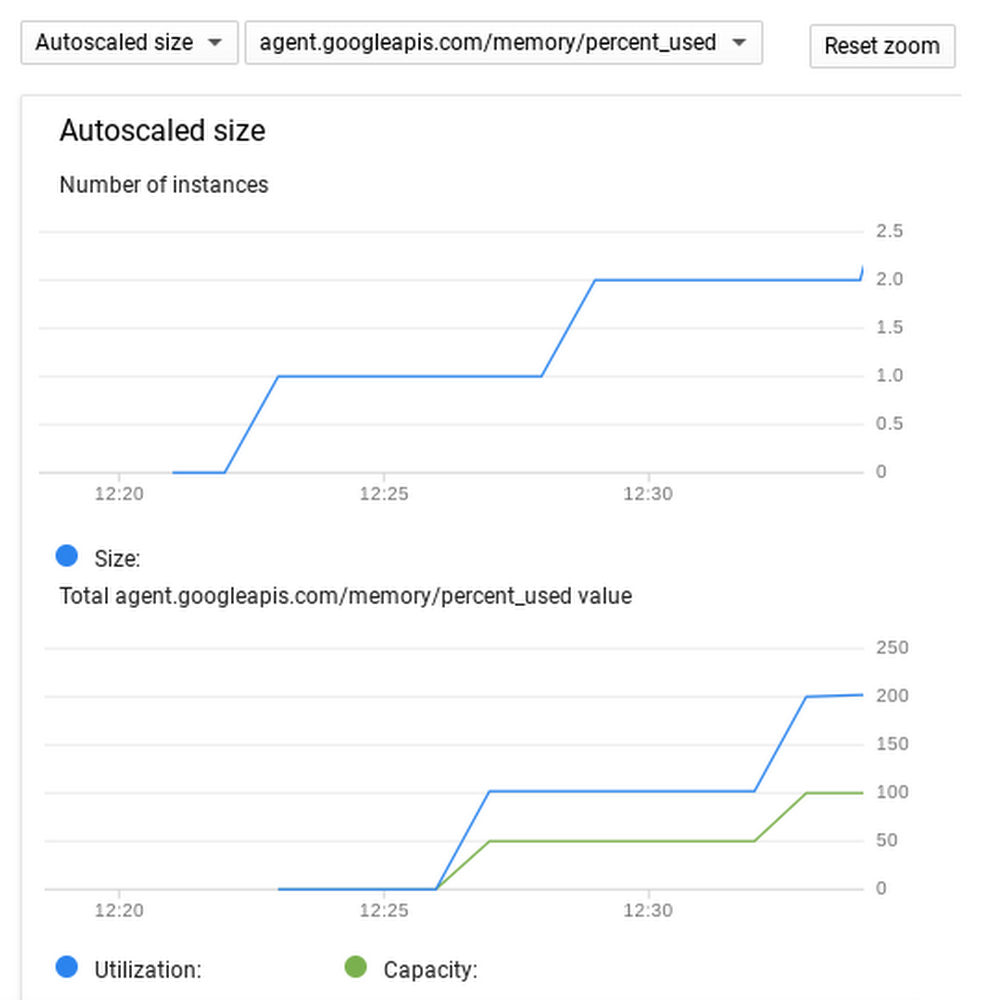
In most large SAP environments, there is a predictable and well known daily variation in app server workloads. The timing and rate of workload changes are generally consistent and rarely change, making them great candidates to benefit from the elastic nature of cloud infrastructure. Expanding and contracting VMs to match the workload cycle can speed up task processing during busy times, while saving cost when resources are not needed. In this article, we will explore two options for autoscaling SAP app servers, discuss the pros and cons of each, and walk through a sample deployment.   The two common approaches for scaling an SAP app server on Google Cloud Platform (GCP) are:  Utilization-based autoscaling: Generic VMs are added to the SAP environment as usage increases (e.g. by measuring CPU utilization).Schedule-based scaling: Previously configured VMs are started and stopped in tandem with workload cycles. Utilization-based autoscalingGCP offers a robust VM autoscaling platform that scales the VM landscape up and down based on CPU or load balancer usage, Stackdriver metrics, or a combination of these. The core GCP elements needed to establish autoscaling are:Instance template: An SAP app server baseline VM image that gets stamped into running VMs on a scale up event.Managed Instance Group (MIG): A collection of definitions on how and when to scale the VM defined by the instance template. It includes the VM shape, zones to launch, autoscale rules, min/max counts, and more. In utilization-based autoscaling, each SAP app server function (for example, Dialog, Batch) has its own separate instance template and instance group so it can scale up and down independently. How SAP systems integrate newly created VMs—by performing logon group assignments and monitoring, for example—differs based on how the system is configured, so we won’t discuss it in this article. Here are some of the benefits and challenges of utilization-based autoscaling. Pros  When done right, this approach provides the most optimal utilization of resources. Scale-up takes place only when new resources are needed, and scale down occurs when they are not. Each SAP component scales up or down independently. For example, batch workers are scaled at a different rate and size than dialog workers. Since there is only a single instance template per component, upgrades and patches are easier to execute.Cons:Instances are not automatically added to the non-default SAP logon group.Instances are not automatically monitored by SAP Solution Manager.Implementing utilization-based autoscalingTo implement utilization-based autoscaling, first we need a baseline image of each SAP component. Starting with a valid app server dialog VM, remove all hostname references from config/profile  files and replace them with a templated variable, like $HOSTNAME—you will need to replace this variable with the actual hostname using a startup script. Next, take a snapshot of all disks. In this example, we assume there are three disks: boot, pdssd (which holds /usr/sap folder), and swap.Once they’re ready, we create an image out of each snapshot.Once we have an image of each VM, we can create the instance template.Now, we can create the MIG that contains a healthcheck and autoscaling policy.Once completed, the MIG runs the first dialog instance and begins measuring the CPU utilization. As you can see from the variable “target-cpu-utilization” on the bottom line, in this example the MIG adds and removes dialog instances when usage crosses above or below 60%.  Memory-based scalingSAP app server load can also scale very well based on memory usage. Thanks to the flexibility of GCP autoscaling, we can easily modify our example to use memory usage as the scale trigger. (Note: Memory usage in a VM is not exposed to the hypervisor, so we will need to install the Stackdriver agent before we create our boot disk snapshot). In this case, we’ll set the scale trigger to 50% by executing the following gcloud command, which uses the stackdriver memory usage metric “agent.googleapis.com/memory/percent_used”.To see the progression of your scale events, simply go to the “Monitoring” tab of your instance group in the GCP Console.Next-level scalingYou can further optimize scaling by using Stackdriver custom metrics to base it on the actual SAP job load rather than CPU load. Using the SAP workload as the indicator for autoscaling gives you a more graceful VM shutdown, and won’t interrupt jobs that might have low CPU usage.   Schedule-based autoscalingSchedule-based autoscaling works best when your SAP app server workloads are running on a known and recurring pattern. In this example, we will create a fully configured and functioning cluster, sized to service peak workload. Initially, we create and configure the app server cluster for peak usage, with all VMs up and registered with the correct SAP logon groups. VMs will then be stopped, but not terminated, until the next work schedule. Right before the known work is scheduled to start, Cloud Scheduler revives the VMs, bringing the cluster to full capacity. At a set time when work is expected to complete, Cloud Scheduler then stops the VMs again. Here are some of the benefits and challenges of schedule-based autoscaling.ProsIt is a simple environment to configure and maintain.It delivers predictable usage and cost.Desired SAP logon groups are preconfigured in cluster VMs.ConsScale events are fixed across the cluster, which creates a rigid scale up/down cycle.  Any change in workload start or end time requires schedule modifications.All VMs come up and turn down at the same time regardless of usage, which can lead to suboptimal resource usage.Stopped or suspended VMs still incur storage cost.Maintenance and upgrades are required for each VM.Implementing schedule-based autoscalingThe first step in our schedule-based autoscaling example is to build and configure the app server cluster using GCP SAP NetWeaver deployment guides. The resulting environment contains a HANA instance, a primary application server instance, and three dialog instances.If we issue the RZ12 transaction code in the SAP UI we can observe the VMs joining the cluster.The next step is to label the dialog VMs to include them in the scaling events. In our example, we add the label “nwscale” to all of the instances that will be scheduled to scale up and down.Following along with the Cloud Scheduler for VM walkthrough, we clone the git repo and deploy the cloud functions that start and stop VMs, and create a Pub/Sub topic for scale up and scale down events.Now we can test to see if our function can stop one of our dialog instances. Based on the tag we created earlier, we base64-encode the message that contains the zone and resource we are operating on.Then we use the payload to call the cloud function and stop dialog VMs in the us-east4-a zone that’s labeled with “nwscale=true”.As we can see, the labeled dialog instance in east4-a stops.The results of the SAP RZ12 transaction code also show us that the instance is marked in SAP UI as unavailable, but still is a part of the SAP logon group for when it starts up again later.Now that the initial setup is complete, we can create a Cloud Scheduler cron job to start and stop the instances. For our example, we’ll scale up all labeled instances every weekday at 9AM ET.We can confirm the schedule has been created through the Cloud Scheduler console.To complete the system, just use the same process to create start/stop schedules for all remaining zones. The next level: SAP event-based scalingSince the SAP platform is capable of directly managing infrastructure, we can further improve  our schedule-based autoscaling implementation by using SAP event-based scaling and allowing the SAP admin to define and control the VM landscape. An SAP External Command (SM69) executes the gcloud command and publishes scale messages to Pub/Sub. This can then be referenced in either a custom ABAP or by calling a function module like SXPG_COMMAND_EXECUTE.Other considerationsWhen implementing autoscaling in your environment, there are a couple other things to keep in mind. Remove application instances gracefullyScale down does not necessarily drain app server instances before shutting them down, so using the SAP web-based UI instead of rich clients (SAPGUI/NWBC) can limit user disruption.Monitoring autoscaled instancesSAP Solution Manager requires instances to be added in advance for monitoring purposes. Schedule-based instances can be added as part of their initial configuration, and make debugging easier since they persist after work is done. ConclusionThere are many benefits of autoscaling in an SAP app server environment. Depending on the particulars of your environment, utilization-based or schedule-based autoscaling can expand your VMs when you need them, and contract them when you don’t, providing cost and resource savings along the way. In this article, we looked at  some of the pros and cons of each approach and walked through the deployment steps for each method. We look forward to hearing how it works for you. To learn more about SAP solutions on Google Cloud, visit our website.
Quelle: Google Cloud Platform

Shining a light on your costs: New billing features from Google Cloud

One of our primary goals at Google Cloud Platform (GCP) is to help you focus on building value for your business while we take care of the infrastructure. But as you focus on those value-adding activities, it’s still important to understand the costs of what you’re building so you can optimize them. One of the biggest steps you can take is to shine a light on those costs through good cost hygiene and awareness. Over the last few months, we’ve added a number of features to help you adopt cost management best practices.You can see some of the new features we’ve added to Billing reports in this video:You can also get a more comprehensive look into what we’ve released below along with recommendations for how to apply good cost hygiene and awareness within your organization.Create cost accountability through visibilityThe biggest step you can take is to simply make your costs visible. We offer several features in GCP that make this easy to do: our new Billing account overview page, which gives you an at-a-glance summary of your charges to date, estimated end-of-month charges, and any credit balances; Billing reports, which are dynamic, built-in cost reports available in the Google Cloud console; and Billing export, which exports detailed cost data to a BigQuery dataset of your choice for further analysis. You can set permissions on both Billing reports and export to make sure people in your organization have access to the right cost views, and you can use exported data to run custom queries and dashboards (such as via Data Studio) to dive deeper into your cloud usage and costs.These tools do more than create a culture of cost ownership. In the cloud, where performance bugs can often manifest as cost anomalies, improving cost visibility and accountability can go a long way to improving general operations. Customers tell us that using these tools helps them make better technology decisions and improves their cost efficiency:“Giving developers access to view the costs for their GCP projects helps them be more aligned with the business and its objectives,” says Dale Birtch, site reliability engineer at Vendasta. “Not only do we get better engineering practices, we get a more stable environment long-term, and it costs us less to run.”Organize costs the way you manage workThe next big step is to organize costs the way you manage work. There are three main ways to organize your GCP costs: by product hierarchy, by project hierarchy, and by label. The default way to organize costs is by product hierarchy. Anytime you use a GCP resource, whether it is a Compute Engine VM or a Cloud Pub/Sub message, its costs are reported by stock-keeping unit (SKU). We organize these SKUs under GCP products, helping you get a higher-level view of your usage. For example, N1 standard instance SKUs roll up to the Compute Engine product. As part of GCE’s resource-based pricing launch, we added more metadata to your Billing export BigQuery datasets, so you can see the usage location (if applicable) and, for Compute Engine VMs, the machine specification, core and memory footprint of your instances via system labels. We have also added usage location to Billing reports. This helps you quickly see which geography, region or multi-region is driving your costs.The next way to organize costs is by the project hierarchy. Almost every resource is contained by a project, meaning that most resource access and costs can be managed by project. Organizations and folders give structure to your GCP environments and help you organize your projects and standardize permissions and policies across groups of projects. For example, a folder might represent the “production” environment with strict access requirements set at the folder level. You can also now see a project’s folder path in Billing export to BigQuery to make it easy to query and create custom dashboards for folder costs.The final way to organize costs is by label. In particular, resource labels can be applied to resources to help you distinguish between usage within or across projects. For example, if a project contains all of the resources for an application, one set of labels could represent resources for components of that application (i.e., front end, back end), and another set of labels could represent common costs across applications (i.e., security, testing, development). With these new features, labels are available in Billing export to BigQuery, and we plan to add the ability to filter and group costs by labels in Billing reports soon.If you are a Google Kubernetes Engine (GKE) user, we also recently launched GKE usage metering. GKE usage metering exports usage breakdowns by Kubernetes namespace and Kubernetes labels to BigQuery in a way that can be joined with Billing export data to estimate cost breakdowns for teams and workloads that are sharing a cluster.Understand your net costsAnother big step you can take toward cost visibility is to understand your fully loaded or net costs. We’ve made two improvements to make your net costs easier to understand.First, Billing reports now let you see costs by invoice month, including taxes and other invoice-level charges. We also added the ability to filter usage-based credits by type so that you can understand what your costs would be without free trial, promotional, or other usage-based credits, such as sustained use discounts and committed use discountsSecond, we’ve added a new cost breakdown report that lets you see how we arrive at your final invoice amount from your original usage costs. For example, if you use Compute Engine, the cost breakdown chart will show you how much your VM costs would have been before any committed use discounts, sustained use discounts, promotional credits and/or free trial credits, and visualize the net effect of those discounts. This gives you a simple at-a-glance overview of your GCP costs and savings, as shown here:Plans might change, but planning is essentialFinally, an important part of cost management is to understand what your costs should be (your plan) and when costs have deviated from your plan. Last year, we added a cost forecast feature to Billing reports to show you a smart forecast based on your cost history and selected filters. We’ve improved our forecasting algorithm so that it captures monthly cyclicality. Now, instead of a simple linear projection, you can see a forecast that matches how cycles within a month affect your costs, like this:In addition, with the higher accuracy forecast, we have also launched the ability to set alerts based on forecasted cost. So rather than relying simply on alerts when you exceed a budget threshold (e.g., $1,000 per month for a specific project), you can now also set an alert—via email or Cloud Pub/Sub—so that you’re notified when you are forecasted to exceed that budget for the month.Turn on the electric lightCloud customers often tell us that they feel left in the dark about the cost of what their developers are building. Developer velocity has never been faster, but administrators and managers are simultaneously struggling to govern their costs. A quote by Justice Louis Brandeis comes to mind: “Sunlight is said to be the best of disinfectants; electric light the most efficient policeman.” Every corner of your cloud should be well-lit so you can easily understand your cloud costs. We’re committed to delivering cost management tools that help you illuminate your business and grow confidently in the cloud.To learn more about what’s next for Google Cloud cost management, check out the following:Videos: Recent Next ‘19 session recordings and best practices webinarsHands-on lab: Understanding and analyzing your costs with Billing reportsWhitepaper: Guide to financial governance in the cloudGuide: Billing resource organization & access managementRelease notes: Billing & cost managementContact us anytime with your feedback or questions.
Quelle: Google Cloud Platform