5-ish ways to get your data into Cloud Storage

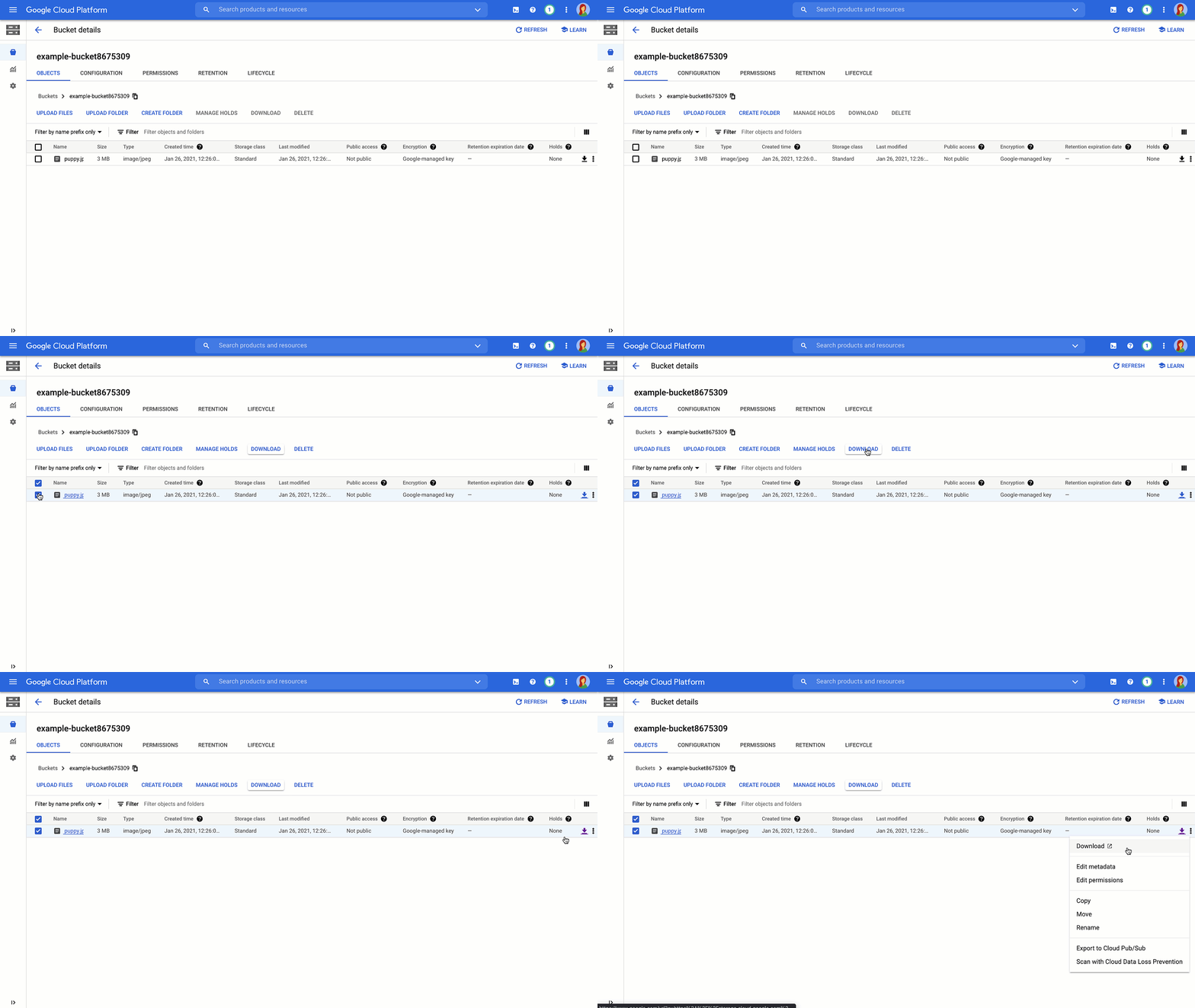
Would you rather listen than read? Check out our new tech blog podcast.So you’ve created your buckets, and now you want to use the power of the cloud to serve your content. With a can-do attitude and the details of this post, you’ll learn how to get your data into Cloud Storage with a variety of upload methods. Let’s go!When you upload an object to your Cloud Storage bucket, it will consist of the data you want to store, along with any associated metadata. When it comes to the actual uploading, you’ve got a few different options to choose from, which we’ll go over below. For more detail, check out the documentation. And for general, conceptual information on uploads and downloads, read this.Cloud consoleFirst, we’ll cover the Cloud Console. This provides you with an in-browser experience where you can easily click to create buckets and folders, and then choose, or drag and drop the files from your local machine to upload.Pro-Tip:folder uploads are also supported if you’re using the Chrome browser.gsutilFor production environments, you may want an automated, command line solution. For this, we provide the gsutil tool. gsutil is a Python application that lets you access Cloud Storage from the command line, providing you with the ability to do all sorts of things like creating buckets, moving objects, or even editing metadata.To use it, run the gsutil program with a variety of command line options. For example, this command uploads a directory of files from your local machine to your Cloud Storage bucket using parallel upload.And this command lists out specific objects that have a version-specific URL using a wildcard. More cool stuff you can do with the gsutil tool can be found inthis documentation.Client librariesAt some point, you might need to interface with Cloud Storage directly from your code, rather than going out to a command line option. You can include the client libraries into your code and call a simple api to get data into a bucket or folder. And before you even ask about language, with options in C++, C#, Go, Java, Node.js, PHP, Python, and Ruby—we’ve got you covered. For example, check out this Python code to upload an object to a Cloud Storage bucket:Check out even more code samples here.JSON and XMLAnd finally, if none of that does the trick, there’s always the JSON and XML APIs, which can let you kick off an HTTP POST request to upload data directly to a bucket or folder. It’s a bit more complex, but it’s there if you need it.Cloud Storage Transfer ApplianceNow, for you folks with LOTS of data, it’s worth noting that it might not be feasible to upload all of that data directly from your on-prem systems to Google Cloud—for that you can use the Cloud Storage Transfer Appliance. We ship you a fancy device, you connect it, add your data, and send it back to us. Plus you get this cool looking box on your desk for a while, which can be a great conversation starter, if you’re into that kind of thing. More details here.More clouds, more problems? Not so!Don’t worry if your data is in another cloud, we’ve got easy-to-use guides to help you get up and running with supporting a multicloud environment, and getting that data over to Cloud Storage.Now what?Of course, now that the data is in Cloud Storage, you’ve got to figure out the best ways to serve it to your users worldwide. Stay tuned for best practices around getting that data out into the world in our next post.Learn more about your storage options in Cloud Storage Bytes, or check out the documentationfor more information, including tutorials.Related ArticleOptimizing your bucket options in Cloud StorageIn this post, we’ll review why buckets are the cornerstone of everything you’ll do in Cloud Storage, and go over some of the options you’…Read Article
Quelle: Google Cloud Platform

How to use a machine learning model from a Google Sheet using BigQuery ML

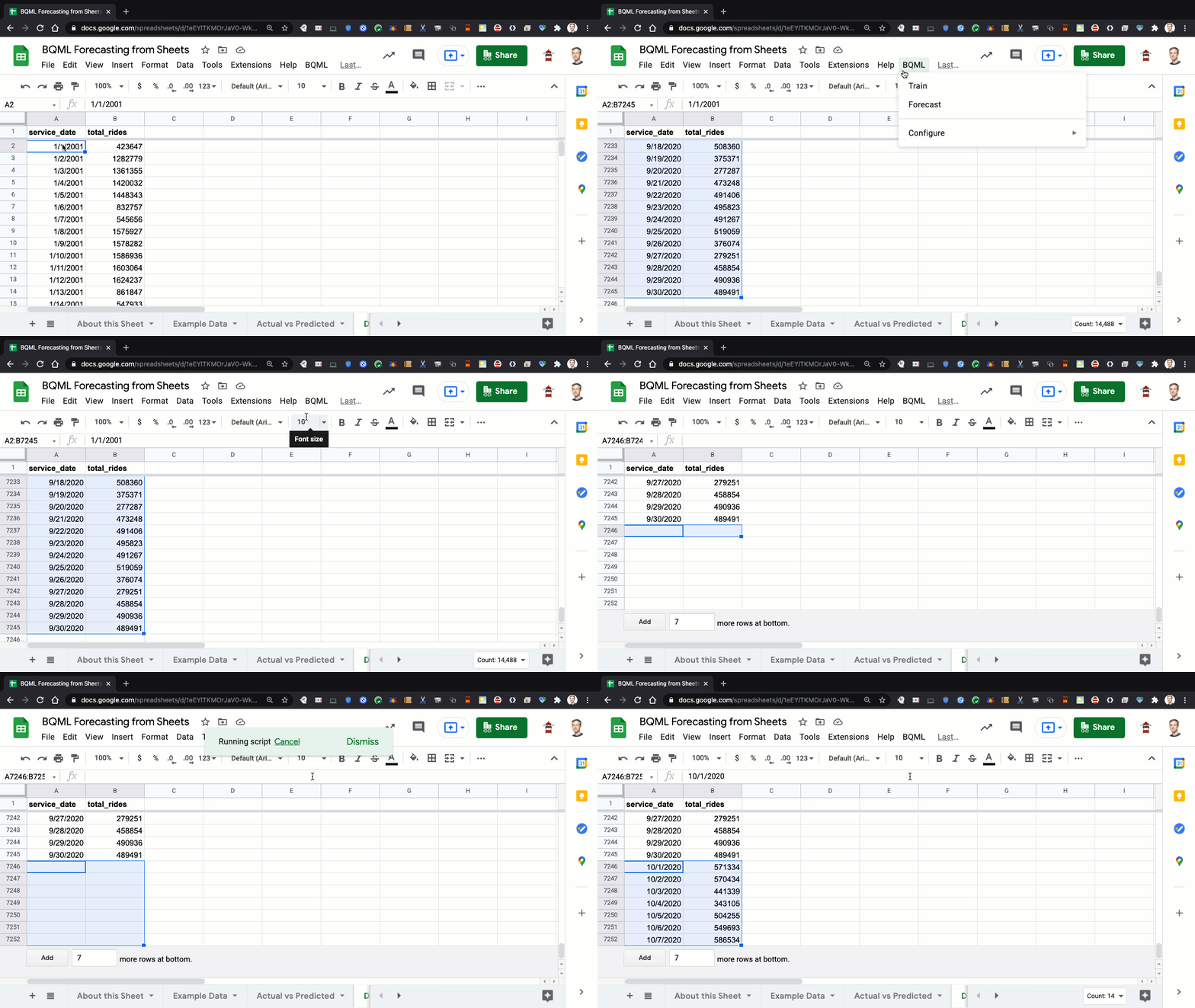
Spreadsheets are everywhere! They are one of the most useful productivity tools available. They make organizing, calculating, and presenting data a breeze. Google Sheets is the spreadsheet application included in Google Workspace, which has over 2 billion users. Machine learning, or ML for short, has also become an essential business tool. Making predictions with data at low cost and high accuracy has transformed industries. The adoption of machine learning in business is estimated to be growing at over 40% a year.Doesn’t it make sense to bring the power of machine learning to all the data out there in spreadsheets? I definitely think so! Now we have the tools to make this happen. Let’s take a look in this blog post.The Big PictureBigQuery ML, built into BigQuery, enables users to create machine learning models using standard SQL queries. In this blog post, we’ll discuss how to create a time series forecasting model with BigQuery ML. The input for a time series model is a historical sequence of values, and the output is a sequence of future predicted values.I’ve picked this particular type of model because time series data is very common in spreadsheets. You can imagine a variety of scenarios that might have an ordered set of dates along with numeric values: sales, staffing, operational metrics, etc. For an in-depth look at a demand forecasting reference pattern using BigQuery ML, I recommend this blog post.What you’ll learn in this blog post will apply to any type of machine learning model. BigQuery ML supports a wide variety of model types, from neural networks, AutoML models, or even TensorFlow models. You don’t need to know how the model is built–you just need to bring your data and choose the appropriate options. BigQuery ML will build and host the model for you.To build the model, you need training data to learn patterns from. Fortunately, that data is right in your spreadsheet! If you use Connected Sheets, you can even access massive amounts of data directly from BigQuery, ensuring that you’re working with the most recent, secured data at all times.To execute BigQuery ML queries from Sheets, we’ll use Apps Script, a cloud-based, JavaScript platform to extend Google Workspace. The Apps Script code will extract input data from the spreadsheet; execute BigQuery ML queries for training and predicting; and update the spreadsheet with predictions from the model.The ProblemAs an example scenario, let’s forecast visits to an e-commerce site using Google Analytics data from BigQuery Public Datasets. The dataset consists of 12 months of traffic, content, and transaction data. Let’s look at a chart of hourly website visits:This dataset contains some complex patterns that the robust forecasting capabilities in BigQuery ML can handle well. For example, we see a repeating pattern over each day, as well as over each week (daily and weekly seasonality). Also, there are some spikes that could potentially throw off a forecasting algorithm, but BigQuery ML provides automatic outlier detection to manage these events.Using Data from BigQueryOur example code will work with your data, wherever it comes from. If you do have access to business data in BigQuery, Connected Sheets is the recommended way to access it from Sheets. Let’s take a look.From the Data menu, you’d choose to Connect to BigQuery:Select the project, dataset, and table, and your spreadsheet is now connected!Connected Sheets allows you to unlock big data insights with features you’re already familiar with in Sheets such as pivot tables, charts and formulas,that can be automatically refreshed with new data from BiqQuery. For our scenario, we’d want to create a model trained with a snapshot from a certain point in time. That’s as easy as selecting the data, and then selecting Extract:Using a BigQuery ML Model from SheetsLet’s now look into how we can execute BigQuery ML commands from the Sheets user interface. We’ll walk through a code sample from the Google Workspace ml-integration-samples to show how this can be done.By opening up the Script Editor from your sheet (Tools > Script Editor), you’ll be able to write your Apps Script code and configure integrations. This sample has enabled two Advanced Services, BigQuery and Sheets, to support the use of these APIs in the script.Let’s first look at the menu that’s added to Sheets, and see how we linked it to code in the project:The onOpen() is triggered when the spreadsheet is opened. You can see that it creates several menu items, which are each linked to functions. For example, the “Train” menu item will invoke the train() function when it is selected.Model TrainingLet’s now explore how the training function works with any custom data provided. The user selects a range of data in the sheet, each containing a date and the data to forecast. The training code extracts these values that are populated in the Range object.The rows are then inserted into a temporary BigQuery table. Finally, a query is executed to create a time series model with the data in the table.Let’s now look at an example query that could be generated by the training code. It specifies a model type of “ARIMA” (for time series) and the timestamp and data columns from the temporary table. Additional options are available in BigQuery ML, such as holidays, but are not included in the sample.ForecastingTo make a forecast, you would select a number of rows in the spreadsheet, and then select Forecast in the menu. The script will invoke the ML.FORECAST() function on the model, specifying the horizon as the number of rows selected.Two fields are extracted from the forecast, for each time period:The forecast timestamp formatted as a string with the date, time, and time zone.The forecast value for that timestamp.The query might look like this, assuming 3 rows are selected:Now, let’s look at an actual forecast! Here, we see the last week of data in blue, along with a forecast for the last 3 days in red.Putting it all togetherBy combining Sheets with BigQuery ML, you can bring the power of machine learning to any data in your spreadsheet. You just need to have enough high-quality data to extract meaningful patterns from.The code sample shows how the training process can work with all types of data, as long as it has a date and a numeric value. Depending on your needs, the sample could be modified to work with different model types; use different options; or work with different spreadsheet layouts. Then, business users can simply use the menu to build new models and forecast with them.A template sheet, pre-installed with the code sample, can help you get started. You can also follow the instructions in the code sample to install it yourself. If you want to get more hands-on experience with BigQuery ML, I recommend this introductory codelab. With Sheets and BigQuery ML, I hope you are able to solve more problems than ever before!Related ArticleHow to build demand forecasting models with BigQuery MLWith BigQuery ML, you can train and deploy machine learning models using SQL. With the fully managed, scalable infrastructure of BigQuery…Read Article
Quelle: Google Cloud Platform

Introducing GKE Autopilot: a revolution in managed Kubernetes

In the years since Google invented Kubernetes, it has completely revolutionized IT operations, becoming the de facto standard for organizations looking for advanced container orchestration. Organizations that need the highest levels of reliability, security, and scalability for their applications choose Google Kubernetes Engine (GKE). In the second quarter of 2020 alone, more than 100,000 companies used our application modernization platforms and services—including GKE—to build and run their applications. Until now, Kubernetes still involved a fair bit of manual assembly and tinkering to optimize it for your needs. Today, we’re introducing GKE Autopilot, a revolutionary mode of operations for managed Kubernetes that lets you focus on your software, while GKE Autopilot manages the infrastructure.For many businesses, the flexibility and power that Kubernetes and GKE offers is ideal, giving them a high level of control over most aspects of their cluster configurations. For others though, this level of control and choices can be overwhelming or unnecessary for their workloads’ requirements, as they just want a simple way to build a more secure and consistent development platform. Autopilot can help, allowing businesses to embrace Kubernetes and simplifying operations by managing the cluster infrastructure, control plane, and nodes.With its optimized, ready-for-production cluster, Autopilot offers a strong security posture and ops-friendly configuration, reducing the need to learn the nitty-gritty details of cluster configuration. By managing the cluster infrastructure, Autopilot also helps reduce Day-2 operational and maintenance costs, while improving resource utilization. Autopilot is a hands-off fully managed Kubernetes experience that allows you to focus more on your workloads and less on managing cluster infrastructure. One GKE, two modes of operationWith the launch of Autopilot, GKE users can now choose from two different modes of operation, each with their own level of control over their GKE clusters and the relative responsibilities related to GKE. GKE already offers an industry-leading level of automation that makes setting up and operating a Kubernetes cluster easier and more cost effective than do-it-yourself and other managed offerings; Autopilot represents a significant leap forward. In addition to the fully managed control plane that GKE has always provided, using the Autopilot mode of operation automatically applies industry best practices and can eliminate all node management operations, maximizing your cluster efficiency and helping to provide a stronger security posture.GKE AutopilotGKE has always been about simplifying Kubernetes, while still giving you control. Perhaps you still want to customize your Kubernetes cluster configurations or manually provision and manage the cluster’s node infrastructure. If so, you can continue to use GKE with the current mode of operation in GKE, referred to as Standard, which provides the same configuration flexibility that GKE offers today.GKE StandardLeave the management to GKE Early access customers have found that choosing Autopilot has the potential to dramatically improve the performance, security, and resilience of their Kubernetes environments, while reducing the overall operational load required for managing Autopilot clusters. Here are some of the benefits they are excited about. Optimize for production like a Kubernetes expert With Autopilot, GKE creates clusters based on battle-tested and hardened best practices learned from Google SRE and engineering experience. These optimized configurations are ready for production, helping reduce the GKE learning curve. GKE also automatically provisions cluster infrastructure based on your workload specifications and can take care of managing and maintaining the node infrastructure. “Reducing the complexity while getting the most out of Kubernetes is key for us and GKE Autopilot does exactly that!” – Mario Kleinsasser, team leader at Strabag InternationalEnjoy a stronger security posture from the get-go GKE already does a lot to help secure your cluster—from hardening the lowest level of hardware, through the virtualization, operating system, Kubernetes, and container layers. With Autopilot, GKE helps secure the cluster infrastructure based on years of experience running the GKE fleet. Autopilot implements GKE hardening guidelines and security best practices, utilizing GCP unique security features like Shielded GKE Nodes and Workload Identity. In addition, Autopilot blocks certain features deemed as less safe such as External IP Services or legacy authorization, disabling CAP_NET_RAW and restricting specific cipher suite usage. By locking down individual Kubernetes nodes, Autopilot further helps reduce the cluster’s attack surface, and minimizes ongoing security configuration mistakes.Use Google as your SRE for both nodes and the control plane Google SRE already handles cluster management for GKE; with Autopilot, Google SREs manage your nodes as well, including provisioning, maintenance, and lifecycle management. Because Autopilot nodes are locked down, sysadmin-level modifications that could result in nodes being unsupportable can be prevented. Autopilot also supports maintenance windows and a pod disruption budget for maintenance flexibility. In addition to GKE’s SLA on hosts and the control plane, Autopilot also includes an SLA on Pods—a first.“GKE Autopilot is the real serverless K8s platform that we’ve been waiting for. Developers can focus on their workloads, and leave the management of underlying infrastructure to Google SREs.” – Boris Simandoff, VP Engineering, at Via Transportation, Inc. Pay for the optimized resources you useWith Autopilot, we provision and scale the underlying compute infrastructure based on your workload specifications and dynamic load, helping to provide highly efficient resource optimization. Autopilot dynamically adjusts compute resources, so there’s no need to figure out what size and shape nodes you should configure for your workloads. With Autopilot, you pay only for the pods you use and you’re billed per second for vCPU, memory and disk resource requests. No more worries about unused capacity!Welcoming the GKE partner ecosystemWe designed Autopilot to be broadly compatible with how GKE has always worked, as well as with partner solutions. Out of the gate, Autopilot supports logging and monitoring from DataDog and CI/CD from GitLab. Both work just as they do in GKE today—no need to configure things differently or use sidecars. Our goal is full partner compatibility, and many more integrations are expected in the coming months.Join the Kubernetes revolutionWe’re proud of the dramatic efficiency that GKE brings to running complex, distributed applications, and GKE Autopilot represents the next big leap forward in terms of management and operations. Autopilot is generally available today1; we encourage you to see the difference that it brings to your Kubernetes environment. Get started today with the free tier. To learn more about GKE Autopilot, tune into this week’s episode of the Kubernetes Podcast with GKE Autopilot Product Manager Yochay Kiriaty.Save the date: Build the future with Google Kubernetes Engine online event is on March 11th. Join us to learn what’s new in the world of containers and Kubernetes at Google Cloud, get access to exclusive demos and hear from experts. See you there!1. You can currently access Autopilot from the command line interface, and we are gradually rolling it out to the Google Cloud Console for all GCP regions. If you don’t see the Autopilot option in Cloud Console yet, use the CLI or try again later.Related ArticleLooking ahead as GKE, the original managed Kubernetes, turns 5Happy birthday, GKE. As we look ahead, we wanted to share five ways we’re continuing our work to make GKE the best place to run Kubernetes.Read Article
Quelle: Google Cloud Platform

A look at the new Google Cloud Marketplace Private Catalog, now with Terraform support

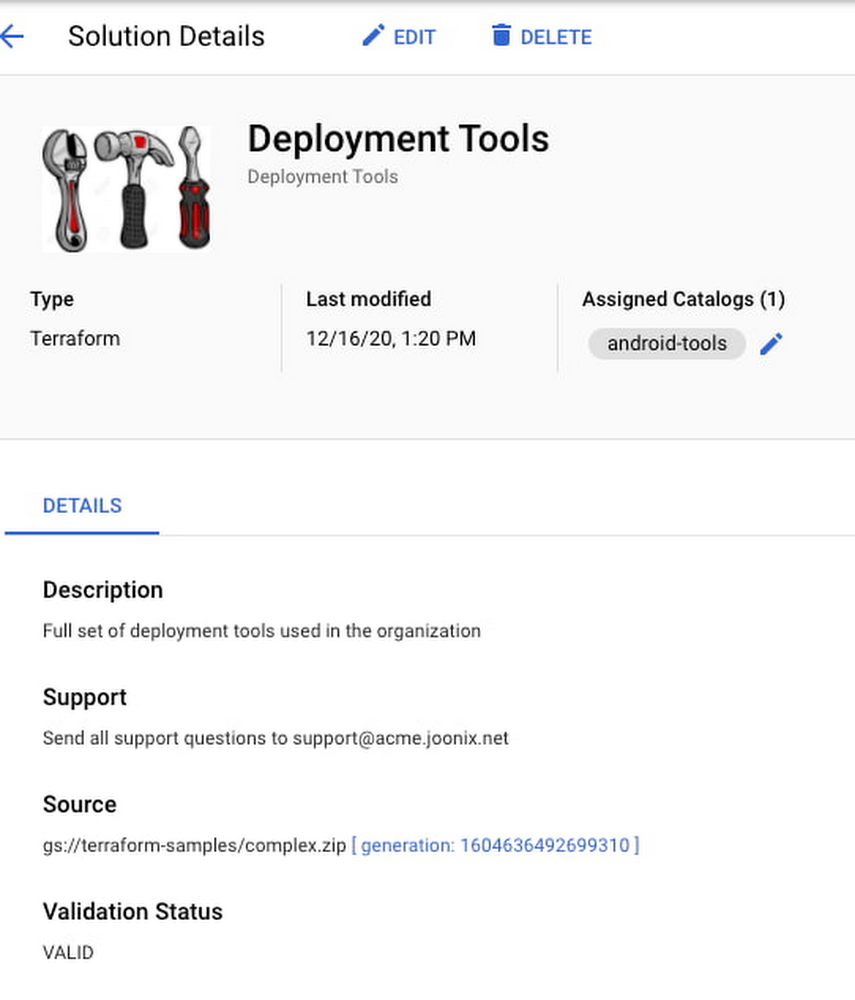
In April 2019, we announced that Private Catalog was generally available to all Google Cloud Marketplace customers, giving cloud administrators, developers, and procurement managers within an organization a single, centralized home for apps and solutions that are approved for everyone’s internal use. Private Catalog makes teams more productive by making Google Cloud services, third-party and internal solutions easier to find and use, and limits risk by letting admins grant clear visibility and deployment controls. Since making Private Catalog generally available, we’ve been working closely with multiple Enterprise customers and are pleased to announce enhancements to our admin experience, along with support for Terraform.Deploy your infrastructure using TerraformEngineers increasingly use Terraform as their preferred  technology for  building and deploying solutions that can scale across clouds, and Terraform support has been one of our most oft-requested features.With this update to Private Catalog, you can ingest and deploy Terraform configurations. Further, you can deploy your infrastructure using Terraform without having to install Terraform. Stay tuned for additional features this year to enhance the Terraform experience.Easier-to-manage products With Private Catalog, the products you create traditionally must live under a single catalog. This made it easy to manage your products at the catalog level but made it difficult if you wanted to include the same product in multiple catalogs, or get a list of all the products in your organization.With the latest version of Private Catalog, products and catalogs are now separate; you can now manage products outside of a catalog, bulk-add products to multiple catalogs, and gain a clear, concise view of all the products in their organizations, along with which catalogs they’re shared to. Private Catalog also features a revamped Admin UX that makes it easy to view lists of products and catalogs.Simple delegate managementBefore the current update, you had to add Private Catalog IAM permissions at the Organization level. We heard feedback that you wanted the flexibility to add permissions at different levels of the GCP resource hierarchy. Now, you can now add Catalog IAM permissions at the folder and project levels, which eliminates the need for a Cloud Admin at the Org level to manage Catalog Admin permissions. With this federated model,  complex enterprises can easily manage separate catalogs and permissions anywhere in the GCP hierarchy and enable admins to manage individual catalogs at different folders or projects. No more losing track of who’s an Org Admin, and restricting Catalog Admins’ permissions. Of course, you can also choose to maintain the existing centralized model if you choose.View shared catalogs with easeAnother  customer pain point has been around catalog sharing. Cloud admins share catalogs with the GCP Org, Folder or Project to provide visibility of the solutions to their end users, but Private Catalog didn’t show the sharing metadata. With this release, sharing controls and information are displayed prominently in the Catalog list, with improved governance controls, and you can easily unshare the catalog.Click to enlargeBulk-edit products When you shared products across many catalogs, you’ve traditionally had to recreate them in each catalog and manage each catalog separately. With this release, products are managed independently from catalogs, so you can easily bulk-assign them to catalogs and manage the product in a single place.Begin your move to Private Catalog todayThis is our largest update to Private Catalogs since its launch in April. To take advantage of the many new capabilities, you will need to migrate to it, which will move your products into a single Google Cloud project. We’re working hard to make the migration process painless and simple. For existing Private Catalog customers, when you’re ready to migrate, please fill out this short, six-question form. We will then contact you directly to schedule your migration and get you up and running on the newest version. New customers can visit the Private Catalog page to sign up or learn more about the feature here. Please note that all new Private Catalog customers will need to select a project when you first start up.We hope the new functionality will help you ensure compliance and governance within your organization, and we welcome any feedback you may have. Try out Private Catalog on Google Cloud Marketplace today.Related ArticleImprove enterprise IT procurement with Private Catalog, now in betaWith Private Catalog, now in beta, you can control which GCP apps are available throughout your organization.Read Article
Quelle: Google Cloud Platform

Partnering with Intel to accelerate cloud-native 5G

Communications service providers are increasingly adopting cloud-native technologies to harness the potential of 5G not only as a connectivity solution, but also as a business services platform for delivering applications to the network edge. We announced our telecommunications industry strategy last year to help Communication Service Providers address the growing demands of enterprise customers to take advantage of cloud capabilities with 5G connectivity.We believe that by partnering across the telecommunications stack—with application providers, carriers and communications service providers, hardware providers, and global telecoms—we can decrease the cost and time-to-market needed for the telecommunications industry to shift to cloud-native 5G, and open new lines of business for communications service providers as they deliver cloud-native 5G for enterprises.As we continue to grow cloud-native services for the telecommunications industry, we’re excited to announce a collaboration with Intel to develop reference architectures and integrated solutions for communications service providers to accelerate their deployment of 5G and edge network solutions.“The next wave of network transformation is fueled by 5G and is driving a rapid transition to cloud-native technologies,” said Dan Rodriguez, Intel corporate vice president and general manager of the Network Platforms Group. “As communications service providers build out their 5G network infrastructure, our efforts with Google Cloud and the broader ecosystem will help them deliver agile, scalable solutions for emerging 5G and edge use cases.” Under this partnership, we’ll work closely with Intel in three main areas: accelerating the ability of communications service providers to deploy their Virtualized RAN (vRAN) and Open Radio Access Network (ORAN) solutions by providing next-generation infrastructure and hardware, launching new lab environments to help communications service providers innovate on cloud-native 5G, and making it easier for them to deliver business applications to the network edge.5G vRAN on Google Cloud’s Anthos with Intel cloud-native platforms and solutionsWith the industry’s transition to 5G and growth in edge services, Google Cloud and Intel will also collaborate on vRAN solutions. vRAN can bring significant benefits for operators, including improved network performance and spectral efficiency, cost efficiencies, and flexible deployment models. At the same time, these solutions present communications service providers with stringent network, timing, and processing demands. The ability to deploy, manage, and upgrade network functions is critical to enable 5G vRAN deployments at scale.  To help communications service providers streamline the rollout of vRAN, and therefore 5G, we will leverage Google Cloud’s global infrastructure and capabilities alongside solutions from Intel, including:Intel’s FlexRAN reference software;Intel’s cloud-native Open Network Edge Service Software (OpenNESS) deployment model, and best practices applicable to Anthos;Data Plane Development Kit (DPDK) and hardware infrastructure based on Intel Xeon processors;New reference architecture and solutions to accelerate 5G vRAN with Anthos, an application platform.Network Functions Validation LabIn addition, Google Cloud will jointly launch a Network Functions Validation lab and collaborate with Intel to support vendors in testing, optimizing, and validating their core network functions running on Google Cloud’s Anthos for Telecom platform. This lab environment will expand to help customers conceive, plan, and validate their 5G and edge application strategies.Delivering ISV applications to the network edgeWith the rollout of 5G networks, communications service providers have an opportunity to transform the network edge into an enterprise services platform, opening up new lines of business by delivering enterprise applications to the edge. For example, we recently announced an initiative to deliver 200+ partner applications to the edge via Google Cloud’s network and 5G.In addition to network functions, to make it even easier for communications service providers to deliver applications to the edge, we will collaborate with Intel to develop edge solutions with Intel compute-optimized technology. We’ll also work closely with Intel to create blueprints and solutions to accelerate edge transformation in key industries, such as manufacturing or retail.To learn more about our telecommunications industry offerings and our partnership with Intel, reach out to your Google Cloud partner or representative.Related ArticleBringing partner applications to the edge with Google CloudGoogle Cloud’s Anthos for Telecom initiative plus the availability of 5G lets our partners run their apps on Anthos, at the edge.Read Article
Quelle: Google Cloud Platform

Scale model training in minutes with RAPIDS + Dask and NVIDIA GPUs on AI Platform

Python has solidified itself as one of the top languages for data scientists looking to prep, process, and analyze data for analytics and machine learning (ML) related use cases. However, base Python libraries are not designed for large-scale transformations, creating major obstacles for data scientists seeking to deploy their code in production environments. Increasingly, ML tasks must process massive amounts of data, requiring the processing to be distributed across multiple machines. Libraries like Dask and RAPIDS help data scientists manage that distributed processing in Python. Google Cloud’s AI Platform enables data scientists to easily provision extremely powerful virtual machines with those libraries pre-installed, and with a variety of speed-boosting GPUs to boot. RAPIDS is a suite of open-source libraries that let data scientists leverage NVIDIA GPUs in their ML pipelines.Dask is an open-source library for parallel computing in Python that helps data scientists scale their ML workloads.AI Platform is Google Cloud’s fully-managed platform that provides data scientists with automatically-provisioned environments to do data science and  ML.Put them together, and you can run scalable distributed training on a cluster of your specification, accelerated by NVIDIA GPUs. That is what we will be walking you through in this blog post.Overview Today, Dask is the most commonly used parallelism framework within the PyData and SciPy communities. Dask is designed to scale from parallelizing workloads on the CPUs in your laptop to thousands of nodes in a cloud cluster. In conjunction with the open-source RAPIDS framework developed by NVIDIA, you can utilize the parallel processing power of both CPUs and NVIDIA GPUs. GPUs can greatly accelerate all stages of an ML pipeline: pre-processing, training, and inference. In this blog, we will be focusing on the pre-processing and training stages, using Python in a Jupyter Notebook environment.First, we will use Dask/RAPIDS to read a dataset into NVIDIA GPU memory and execute some basic functions. Then, we’ll use Dask to scale beyond our GPU memory capacity.Next, we’ll scale XGBoost across multiple NVIDIA A100 Tensor Core GPUs, by submitting an AI Platform Training job with a custom container. Finally, you can deploy your model for online inference, accelerated by GPUs, using AI Platform Predictions.Find the accompanied Github repository for this blog here.How Dask is usedDask is being used by data science teams working on a wide range of problems, including high-performance computing, climate science, banking and imaging problems. Additionally, Dask is also well-suited for business intelligence problems. See here for a list of use cases that teams have made progress on using Dask.Why use Dask on AI PlatformDask supports data loads from many different sources such as Google Cloud Storage and HDFS, and many different data formats such as CSV, Parquet and Avro. These are supported by different open source libraries such as PyArrow, GCSFS, FastParquet, and FastAvro, all of which are included with AI Platform. AI Platform also collaborates closely with NVIDIA to ensure top-notch compatibility between AI Platform and NVIDIA GPUs. AI Platform Notebooks provides an easy way to spin up a Jupyterlab development environment to meet your exact needs, with the memory, CPUs or GPUs, and libraries you need. AI Platform Training allows you to submit your data processing and model training workloads as a job, using either hosted frameworks such as scikit-learn, TensorFlow or XGBoost, or bring your own frameworks via a custom container.Both AI Platform Notebooks and AI Platform Training give you the flexibility to design your compute clusters to match any workload, while also managing the bulk of the dependencies, networking and monitoring under the hood. This means you can spend your time developing in Python, and not worrying about infrastructure (but you can also play around with the machines if you want to!)Create Development Environment on AI NotebooksWe will be using AI Platform Notebooks to spin up an environment to work in. Before you begin, you must sign up for Google Cloud Platform, and enable the AI Platform Notebooks API (see instructions here). Please note that you will be charged when you create an AI Notebook instance. See pricing details here. AI Platform Notebooks provides monthly/hourly cost estimates for each machine type that you select. You can delete the instance when this tutorial is done, and you will only pay for the time it took you to complete the tutorial (if you keep the instance running for 3 hours, at current prices you’re spending less than $3). If you want to save your work, you can choose to stop the instance when you are not using it to only pay for the boot disk storage. By customizing our AI Notebook instance, we can create a development environment with all the packages and frameworks we need within a matter of minutes. These are the settings we chose:*Be sure to check the “install GPU driver” box or you will need to manually install it and restart your instance!** If you will be using the AI Notebook instance to generate the Higgs dataset (instructions to come in later section), then upload it to the cloud, you will want to increase your boot disk size to 200GB.Click “Create” to spin up your notebook environment. This will take a few minutes. Once it is finished, a button will appear next to your instance that reads “Open Jupyterlab”. Click this button to enter the Jupyterlab instance. Interacting with your AI NotebookMost data scientists will be familiar with Jupyter Notebook functionality. Most of the libraries we need have already been installed on your instance, but we will create a conda environment to ensure reproducibility. Execute the following code in the terminal:You can also issue terminal commands from within a Jupyter notebook. Select file > New > Notebook. Create a new code block, paste the following command in it, and execute it. This will clone the github repository for this tutorial into your Notebook instance. You can use the file navigator on the left of the Jupyter console to navigate through your folders and files. You can also manage  your own github repository from the Git page of the Jupyter console.Navigate to ~/ai-platform-samples/training/rapids/rapids_AIP. This will be the folder where you will find all the files needed for this tutorial. Start by opening dask_blog.ipynb.You can also install Dask into your local environment from scratch by following these instructions.Instantiate LocalCudaClusterNow we will instantiate a LocalCUDACluster, which will be used to assign the attached GPU to the Python processes. Note that it is not necessary to use Dask with a single node and a single GPU (cuDF and cuML will also work – and you can use more functions with those libraries), but we will need it once we scale up.Prepare DataThe dataset we will be using for this tutorial is simulated particle activity data that was released for the Higgs Boson Machine Learning Challenge. We will be replicating this public dataset, and using different subsets of Higgs (some larger, some smaller) to demonstrate the scaling ability of Dask on AI Platform. Executing makedataset.sh script in the repo will download the dataset, replicate it, and upload it to GCS in the github. You can execute this script in your AI Notebook, or run it in a separate GCE instance, or run it locally if you wish.There are many ways to ingest data into your Notebook instance, including uploading a local file. We will be reading the data from GCS (Google Cloud Storage), into a DataFrame that can be processed by GPUs.cuDFis a Python GPU DataFrame library (built on the Apache Arrow columnar memory format) for loading, joining, aggregating, filtering, and otherwise manipulating tabular data using a DataFrame style API.Dask-cuDF extends Dask where necessary to allow its DataFrame partitions to be processed by cuDF GPU DataFrames as opposed to Pandas DataFrames. For instance, when you call dask_cudf.read_csv(…), your cluster’s GPUs do the work of parsing the CSV file(s) with underlying cudf.read_csv().For faster performance, you can use Parquet format instead of CSV. You will also need to shard your data so that it can be distributed across the workers. There are multiple ways to do this. You can partition your data into multiple files before reading it in, then use the * decorator to read them in. This is the route we will take in this tutorial. You can also use the npartitions argument with read_csv(), or chunk size in Dask Array to set the partitions.A good rule of thumb is 1 GB partitions for an NVIDIA T4 GPU, and 2-3 GB is usually a good choice for a V100 GPU (with above 16GB of memory). Larger partitions will generally result in faster performance up to a point, but you need to be sure they will fit in your GPU memory.This will read in our first dataset, and show the number of partitions. Our dataset is 10GB, with ten 1GB partitions.Now we can execute some basic functions on the Dask Dataframe. This takes around a minute to run. As a note, this medium blog showed that these Dask functions execute 2-3x faster on GPUs than on CPUs. If you tried to do this group by on a pandas DataFrame of this size, your machine may very well error out, or take hours to complete the task.You can keep track of your GPU’s memory usage by executing nvidia-smi dmon in the terminal, within the rapids-0.17 conda environment. For more metrics, you can utilize Jupyterlab extensions like dask-labextension or  nvdashboard , which will visualize various charts and metrics like GPU memory use and utilization. Using dask-labextension, we can see that GPU utilization is spiky. The “Dask Gpu Memory” total is inaccurate as it’s measuring the total memory of the localCUDAcluster, which includes the CPU memory of the notebook instance.At present, using un-supported Jupyterlab extensions with AI Notebooks can be difficult (we’ve included instructions on how to do it in the git repo but there’s no guarantee that will work with other configurations). If this is a requirement, we recommend using Dask onGKEor Dataproc, and configuring your own Jupyter environment. In our next blog, we will explore how to visualize GPU metrics in greater detail.Scale to 20GBNow, we want to read in a 20 GB dataset, but our attached NVIDIA T4 GPU only has 16GB of memory. Luckily, Dask allows us to spill from GPU memory to host memory when the GPU runs out. To do this, we restart the Python kernel, and create a new LocalCUDACluster with a device_memory_limit set.  Dask will typically spill to disk by default, but setting device_memory_limit allows you to control when that will happen.Note that you can instantiate a new LocalCUDACluster by shutting down and restarting the kernel using the terminal and kernel session control page in jupyterlab. Make sure you choose the rapids-0.17 kernel.Execute the code again to run the functions. Dask manages the movement of the data so that it can execute despite the constraints. This takes ~2 minutes to execute.Scale to 100GB using AI Platform TrainingNow we would like to train an XGBoost model on our 100 GB dataset. However, even using Dask Dataframes, XGBoost executes completely in memory, meaning we can’t spill as dynamically from GPU to host memory. This means we need to beef up our GPUs.Note that it is easy to resize your AI Notebook instance with more GPUs or GPUs of a different kind. However, we want to take a more dynamic approach by using AI Platform Training with custom containers. AI Platform Training will spin up the resources we specify, run our code as a job, then spin them down when completed. And, we can easily package and submit our code from AI Notebooks.We will run the same libraries we used above, but on AI Platform Training with four NVIDIA A100 GPUs. A100s available in AI Platform have 40GB of GPU memory and you can scale up to 16 of them on a single machine without having to worry about multi-node distribution (As of the time this blog is published, GCP is the only Cloud Provider to support 16). This gives you a whopping 640GB GPU memory to play with. This both simplifies managing your environment and limits any networking issues that could pop up when dealing with multi-node setups.Training with ContainersBy using Containers, we can customize exactly how our training job is submitted, and on what machines. As you already cloned the entire Git repository, use the Jupyterlab navigation panel to navigate to the XGboost_training folder. Inside, you will find the files necessary to build the RAPIDS-based container, and deploy the AI Platform Training Job.Build the containerYou can see in the Dockerfile that we are using a base image from RAPIDS.To build the container and push it to your own GCR, open build.sh and update the path to match your repository. Then execute the script.XGBoost on AI Platform Training Open the rapids_dask.yaml file. This is how we configure the machines on which AI Platform Training will execute our XGBoost code. As you can see, we are using 4 GPUs of the type A100. See a full list of the GPUs available in each region, and with what machine types here.Update the bracketed variables, and change the imageURI if you build your own container. Save the file when you are done.Now we are ready to submit the training job. Do this by executing the following code in the AI Notebook terminal (also found in the README file).You can monitor your job by clicking on it from the list of jobs in AI Platform on Cloud Console (AI Platform > Jobs). On the job details page, you can see a variety of metrics, such as CPU and GPU utilization. In addition, you can click on the “View Logs” link to be taken to Cloud Logging, where you can see all logs generated by your job. Or, execute gcloud ai-platform jobs stream-logs $JOB_NAME to stream the logs in your terminal.It will take around 11 minutes to spin up the training environment and begin executing the code. You can follow along with the steps by watching the logs. The usage metrics will take a few minutes to propagate as well. When we ran this job using a 100GB dataset, it completed in 19 minutes (including training environment spin up time), with the XGBoost training portion taking only 56 seconds!By making a few minor changes to the YAML file, we can run the same code on 4 NVIDIA T4 GPUs. Dask recognizes that it cannot be executed completely in GPU memory, and therefore spills to disk when necessary. This results in an overall job time of 20 minutes, and a training time of 124 seconds. With 8 V100 GPUs, we saw a training time of 28 seconds! We encourage you to play around with different resource configurations and data sizes, as AI Platform makes it easy to do so.Deploy Model for Online PredictionNow that you have a trained model in your GCS bucket, you can deploy that model on AI Platform Predictions for online inference. Once again, you can leverage GPUs to increase the inference speed.Clean UpDelete the AI Notebook instance to prevent any further charges. If you want to save your work, you can choose to stop the instance instead.Delete the GCS bucket.ConclusionDask is an exciting framework that has seen tremendous growth over the past few years. RAPIDS + Dask allows you to leverage the power of NVIDIA GPUs, which can greatly decrease your data processing and training time. We saw that using NVIDIA A100 GPUs resulted in a lower training time compared to NVIDIA T4 GPUs, even with twice the data. Dask is also handy in its ability to automatically tailor its method of execution based on the resources you have available. We saw that Dask will automatically revert to using CPU memory when GPU memory is exhausted, and that you can control this mechanism. AI Platform allows you to quickly get started with Dask. You can develop in Jupyterlab with any number of GPUs in AI Notebook. You can then scale up your code to execute on souped-up machines on-demand with AI Platform Training. Imagine what you could do with 16 A100 GPUs at your disposal?  Need more proof that NVIDIA GPUs can speed up your XGBoost training,check out this blog. Find out more fun ways to use A100s here.Big thanks to Mikhail Chrestkha, Winston Chiang, Guoqing Xu, Ethem Can, Dong Meng, Arun Raman, Rajesh Thallam, Michael Thomas, Rajan Arora and Subhan Ali for educating me and helping with the example workflow.Related ArticleBeginners guide to painless machine learningGet a deep dive on Google Cloud AI tools that make machine learning painless, and learn tips for building AI-powered apps fast.Read Article
Quelle: Google Cloud Platform
3 common serverless patterns to build with Workflows

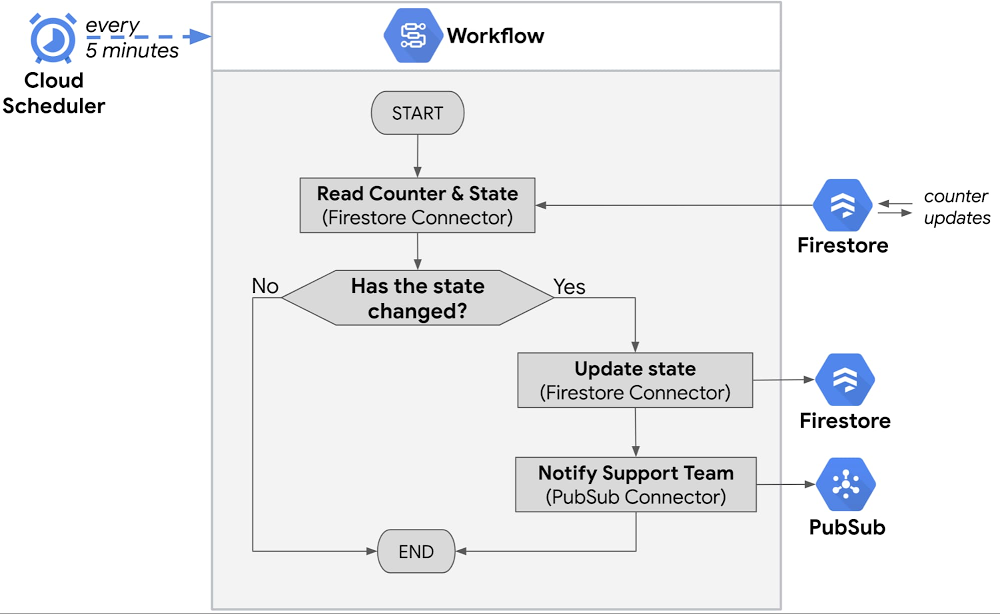
In January 2021, our Workflows orchestration and automation service reached General Availability. At the same time, we updated Workflows with a preview of Connectors, which provide seamless integration with other Google Cloud products. Workflows plus Connectors are a great way to design common architecture patterns that can help you build advanced serverless applications. Workflows is a serverless product designed to orchestrate work across Google Cloud APIs as well as any HTTP-based API available on the internet. It requires no infrastructure management and generates no charges when workflows are waiting for operations to complete. You can learn more about Workflow’s core capabilities in our previous blog post. In this blog post, we will take a look at a few useful architecture patterns including scheduling recurring workflow executions, handling long-running API requests by polling for results, and iterating through an array of database entries. Scheduled workflowsLet’s consider an e-commerce website or a gaming application that requires the support team’s intervention whenever user traffic is not within an expected, normal range. For example, exceptionally low number of online users may indicate an outage, while a higher than expected number of concurrent users may cause scalability issues. The number of concurrent online users is stored in a Firestore database as a distributed counter updated by log-in/log-out transactions. Our workflow needs to periodically check the value of the counter and react accordingly, depending on its value. Consider the following workflow:The workflow is triggered every 5 minutes and retrieves the value of the current user counter from a Firestore database using the Firestore Connector. Along with the counter value, it also retrieves the last state of the traffic, e.g., “Low”, “Normal”, “High”, that was saved during the workflow’s  previous run. Workflows’ built-in switch step, combined with a custom formula, is used to determine whether the current value of the counter would make it fall to a different state than the one saved in the previous run of the workflow. If so, the new state is saved in the Firestore database and  Pub/Sub Connector pushes a message to the support team, informing them about state change. The workflow is checking not only the current value of the counter but also the last recorded state, so that only status changes result in notifications. With only a few steps, the workflow above becomes a reliable serverless application with full tracking of execution history. Built-in Identity and Access Management (IAM) integration reduces the complexity of interacting with other Google Cloud products, like Firestore or Pub/Sub.Learn how to schedule workflow executions using Cloud Scheduler, similar to the example above, in this guide.Workflows with API polling Consider a workflow that requests an execution of a long-running job using an external API. The external API accepts a job execution request and returns a unique JobID that can be used to poll for this job’s execution status. The job can take hours and the workflow can only proceed to the next steps only once this job is completed. As there is no feature in this API to notify the workflow about a job completion, the workflow needs to periodically poll for the job status.The workflow presented below implements this pattern, checking the status of the job every 2 minutes. Note that Workflows’ pricing model is based on the number of executed steps and there is no time-related charge for a sleep operation. Workflows can run for up to a year, so you can be confident that they will follow through on even the longest-running jobs.In real life scenarios, you may need to add an extra step at the beginning of this workflow to retrieve an authentication key for the external API from a secure storage system. We recommended you use Secret Manager as a key or password storage system and get the key values using the Secret Manager Connector feature.Iterating through an array of database recordsIn this example, the application needs to check customer records once a day, and send email reminders to customers with overdue invoices. The workflow below uses a Firestore Connector to run a query that retrieves entries for all customers with overdue payments. The workflow then iterates through this set and sends an email reminder about the pending payment to each customer, using an external Email API like SendGrid.The above example uses Workflow’s ability to process arrays and perform tasks for every element of an array, as shown in this example. By specifying error handling and retries in the workflow, you can be sure that intermittent failures, or errors with a particular entry, will not prevent the rest of the customer messaging from sending successfully.Similar to the previous example, this workflow may need to be extended with a connector call to Secret Manager to retrieve an access key for the email service. Get ready to WorkflowReal-life, line-of-business applications often need to use a combination of architecture patterns. While your actual use cases may differ from the examples above, the patterns of periodic scheduling, polling and array iterations are universal and the building blocks of countless implementations. Workflows’ support for serverless and API-based architectures allow you to minimize ongoing operational overhead but maintaining full control over your business logic, while Connectors to Google Cloud products like Pub/Sub, Firestore, Compute Engine, Secret Manager or Cloud Tasks make it easy to integrate Workflows into your environment.Now that Workflows is generally available, you can feel confident using it for production line-of-business applications, while built-in error handling for API calls further improves reliability of your applications. To learn more, visit the Workflows landing page today, or go directly to the Cloud Console to try it out.Related ArticleGet to know Workflows, Google Cloud’s serverless orchestration engineGoogle Cloud’s purpose-built Workflows tool lets you orchestrate complex, multi-step processes more effectively than general-purpose tools.Read Article
Quelle: Google Cloud Platform

Run data science at scale with Dataproc and Apache Spark

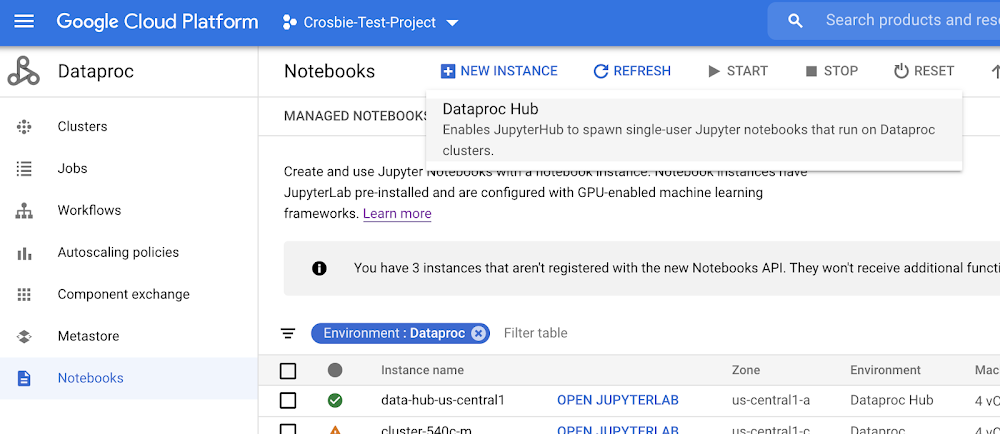
Data driven enterprises are transforming their businesses by migrating their on-prem data lakes and data warehouses to the cloud so they can enable new analytics at scale. As every enterprise looks to migrate, it’s important that IT leaders don’t forget about a key data stakeholder, the data scientist. Open source software (OSS) and libraries are a crucial piece of a data scientists toolkit and we’ve made significant progress to make OSS easier to manage for data scientists on Google Cloud’s data analytics platform.Data scientists rely on a suite of powerful open source applications to work on solving the world’s biggest challenges. With the integration of leading open source tools like Dask and RAPIDS on Google Cloud, the Dataproc team is making NVIDIA GPU-accelerated data science at scale more accessible. Scott McClellan Sr Director, Data Science Product Group, NVIDIADataproc Hub feature is now generally available: Secure and scale open source machine learningDataproc Hub, a feature now generally available for Dataproc users, provides an easier way to scale processing for common data science libraries and notebooks, govern custom open source clusters, and manage costs so that enterprises can maximize their existing skills and software investments. Dataproc Hub features include:Ready to use big data frameworks including JupyterLab with BigQuery, Presto, PySpark, SparkR, Dask, and Tensorflow on Spark.Access to custom Dataproc clusters within an isolated and controlled data science sandbox. Data scientists do not have to rely on IT to make changes to the programming environment. Access to BigQuery, Cloud Storage and AI Platform using the notebook users’ credentials ensures that permissions are always in sync and the right data is available to the right users. IT cost controls that include the ability to set auto scaling policies, CPU/RAM sizes and NVIDIA GPUs, auto-deletions and timeouts, and more. Integrated security controls including custom image versions, locations, VPC-SC, AXT, CMEK, Sole tenancy, shielded VMs, Apache Ranger, and Personal Cluster Authentication, to name a few. Easy to generate templated Dataproc configurations that can be reused for other clusters based on existing Dataproc clusters. A simple export is all that is needed. The current state of open source machine learning on Google CloudDataproc Hub was created by working in partnership with several companies that were facing rapid adoption of cloud sized datasets (big data), machine learning, and IoT. These new and large datasets were coupled with data analysis techniques and tools that simply do not fit into the traditional data warehousing model. Data science teams were combining methodologies across ETL (creating their own data structures), administration (using programming skills to configure resource sizing), and reporting (using Jupyter notebooks for exchanging data results). In addition, data scientists often work with unstructured data, which does not follow the same table/view permissions model as the data warehouse. The IT leaders we worked with wanted an easy way to control and secure data science environments. They also wanted to maintain production stability, control costs, and ensure security and governance controls were being met. They asked us to simplify the process of creating a secured data science environment that could serve as an extension of their BigQuery data warehouse. At the same time, the data scientists who are setting up their own data science environments felt frustrated by having to do what they consider “IT work” such as figuring out various security connections and package installations. They wanted to focus on exploring data and building models with the tools they are familiar with. Working with these organizations, we built Dataproc Hub to eliminate these primary concerns of both IT leaders and data science teams. IT governed Dataproc clusters personalized to your data scientist’s use caseWith Dataproc Hub, you can extend existing data warehouse investments at a cost that grows in proportion to the value without having to compromise on security and compliance standards. Dataproc Hub allows IT leaders to specify templated Dataproc clusters that can leverage a variety of controls ranging from custom images which can be used to include standard IT software such as virus protection and asset management software to autoscaling policies that let customers automatically scale their code within limits set in advance. Dataproc templates can easily be created from a running Dataproc cluster using the export command. Customers of AI Platform Notebooks that want to use their BigQuery or Cloud Storage data for model training, feature engineering, and preprocessing will often exceed the limits of a single node machine. Data scientists also want to quickly iterate on ideas from inside the notebook environment without having to spend time packaging up their models to send off into a separate service just to try out an idea. With Dataproc Hub, data scientists can quickly tap into APIs like PySpark and Dask that are configured to autoscale to meet the demands of the data without having to do a lot of setup and configuration. They can even accelerate their Spark XGBoost pipelines with NVIDIA GPUs to process their data 44x faster at a 14x reduction in cost vs CPUs. The data scientist is in full control of the software environment spawned by Dataproc Hub and can install their own packages, libraries and configurations, achieving freedom within the framework set by IT. Using Dataproc Hub and Python-based libraries for genomic analysisOne example of this need to balance IT guardrails with data science flexibility is in the field of genomics, where data volumes continue to explode. By 2025, an estimated 40 exabytes of storage capacity will be required for human genomic data. Researchers need the freedom to try out a variety of techniques and run large scale jobs without IT intervention. However, IT organizations need to protect personal health data that comes with genomics datasets—something that Google Cloud, Dataproc, and the open source community are well suited to help with. If you want to see the genomic analysis we talked about above in action, please register for our upcoming webinar where we will demo Dataproc Hub. Next stepsThe Dataproc Hub feature is now generally available and ready for use today. To get started, log into the Google Cloud Console and from the Dataproc page, choose Notebooks and then “New Instance”. Name the instance and populate the Dataproc Hub fields to configure the settings according to your standards. Alternatively, you can accept the default settings to be provided with a Dataproc Hub environment based on two example clusters. The IP address of the Dataproc Hub can then be provided to data scientists so teams can self-provision Jupyter environments based on Dataproc clusters. When the data task is completed, the user can go to File->Return to Control Panel and then “Stop Cluster”. Cluster templates can also be set with a TTL to ensure that resources are cleaned up. Related ArticleDataproc Metastore: Fully managed Hive metastore now in public previewDataproc Metastore lets you use your Apache Hive metastore to simplify technical metadata management when you’re building a data lake on …Read Article
Quelle: Google Cloud Platform
Migrating Apache Hadoop to Dataproc: A decision tree

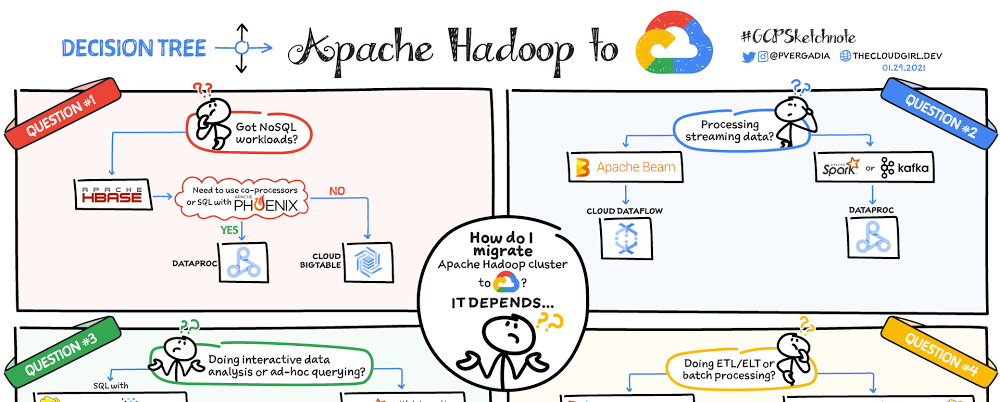
Are you using the Apache Hadoop ecosystem? Are you looking to simplify the management of resources while continuing to use your existing tools? If yes, then checkout Dataproc. In this blog post, we will briefly cover Dataproc and then highlight four scenarios for migrating your Apache Hadoop workflows to Google Cloud.What is Dataproc?Dataproc is a managed Apache Spark and Apache Hadoop service that lets you take advantage of open-source data tools for batch processing, querying, streaming, and machine learning. If you are using the Apache Hadoop ecosystem and looking for an easier option to manage it then Dataproc is your answer. Dataproc automation helps you create clusters quickly, manage them easily, and save money by turning clusters off when you don’t need them. With less time and money spent on administration, you can focus on what matters the most—your DATA!Key Dataproc FeaturesDataproc installs a Hadoop cluster on demand, making it a simple, fast, and cost-effective way to gain insights. It simplifies the traditional cluster management activities and creates a cluster in seconds. Key Dataproc features include:Support for open source tools in the Hadoop and Spark ecosystem including 30+ OSS tools Customizable virtual machines that scale up and down as neededOn-demand ephemeral clusters to save costTight integration with other Google Cloud analytics and security service. How does Dataproc work?To move your Hadoop/Spark jobs to Dataproc, simply copy your data into Google Cloud Storage, update your file paths from HDFS to GS and you are ready to go!Watch this video for more:What is Google Cloud Dataproc Youtube VideoWhat is Google Cloud Dataproc Youtube VideoDataproc disaggregates storage and compute. Say an external application is sending logs that you want to analyze, and you store them in a data source. From Cloud Storage the data is used for processing by Dataproc, which then stores it back into Cloud Storage, BigQuery, or Bigtable. You could also use the data for analysis in a notebook and send logs to Cloud Monitoring and Cloud Logging.Since storage is separate, for a long-lived cluster you could have one cluster per job. To save cost, however, you could also use ephemeral clusters that are grouped and selected by labels. And finally, you can also save costs by using just the right amount of memory, CPU, and disk to fit the needs of your application.What are the migration scenarios to consider?Here are four common scenarios that help you decide how to migrate a Hadoop cluster to Dataproc:Are you trying to migrate NoSQL workloads?Are you processing streaming data? Are you doing interactive data analysis or ad hoc querying?Are you doing ETL or batch processing?Question 1: Do you have NoSQL workloads?If you are using HBase then check if you need to use co-processors or SQL with Phoenix. If so, Dataproc is the best option. But if you don’t require a co-processor or SQL, then Bigtable is a good choice.Question 2: Are you processing streaming data?If you’re using Apache Beam it makes sense to use Dataflow because it is based on the Beam SDK. If you are using Spark or Kafka then Dataproc is a good option.Question 3: Are you doing interactive data analysis or ad hoc querying?If you are doing interactive data analysis in Spark with interactive notebooks then Dataproc is great in combination with Jupyter Notebook or Zeppelin. If instead you are doing data analysis with SQL in Hive or Presto AND want to keep it that way then Dataproc is a good fit. But if you are interested in a managed solution for your interactive data analysis then you’ll want to look at BigQuery. It is a fully managed data analysis and warehousing solution.Question 4: Are you doing ETL or batch processing?Use Dataproc if you are running ETL or batch processes using MapReduce, Pig, Spark, or Hive. If you’re using a workflow orchestration tool such as Apache Airflow or Oozie and want to keep the jobs as they are, then again Dataproc is great. However, if you prefer a managed solution then take a look at Cloud Composer, which is managed by Apache Airflow.ConclusionSo there you have it—four different scenarios to plan the migration of your Apache Hadoop cluster to Google Cloud.For more details, check out the Dataproc product page. And, for more #GCPSketchnote and similar cloud content follow me on Twitter and Instagram @pvergadia and keep an eye out on thecloudgirl.dev.Related ArticleCombining the power of Apache Spark and AI Platform Notebooks with Dataproc HubDataproc Hub: Administering Jupyter notebooks for Spark workloads on DataprocRead Article
Quelle: Google Cloud Platform

What’s in a name? Understanding the Google Cloud network “edge”

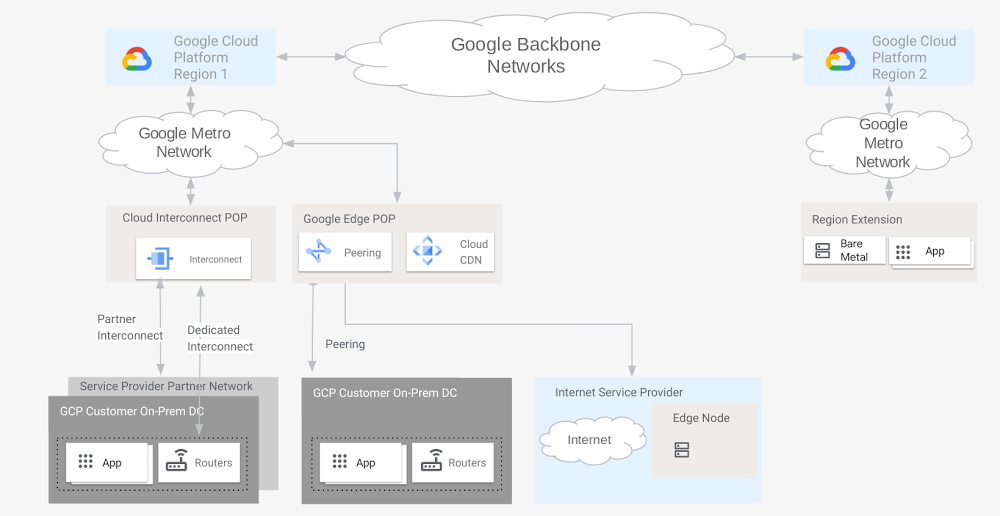
Google is dedicated to building infrastructure that lets you modernize and run your workloads, and connect with more users, no matter where they are in the world. Part of this infrastructure is our extensive global network, which provides best-in-class connectivity to Google Cloud customers, and our edge network, which lets you connect with ISPs and end customers. When it comes to choosing how you connect to Google Cloud, we provide a variety of flexible options that optimize performance and cost. But when it comes to the Google network edge, what constitutes an edge point? Depending on your requirements and connectivity preferences, your organization may view different demarcation points in our network as the “edge,” each of which performs traffic handoffs in their own way. For example, a telco customer might consider the edge to be where Google Global Caches (GGC) are located, rather than an edge point of presence (POP) where peering occurs. In this blog post, we describe the various network points of presence within our edge, how they connect to Google Cloud, and how traffic handoffs occur. Armed with this information, you can make a more informed decision about how best to connect to Google Cloud.Click to enlargeGCP regions and zonesThe first thing to think about when considering your edge options is where your workloads run in Google Cloud. Google Cloud hosts compute resources in multiple locations worldwide, which comprise different regions and zones. A region includes data centers in a specific geographical location where you can host your resources. Regions have three or more zones. For example, the us-west1 region denotes a region on the west coast of the United States that has three zones: us-west1-a, us-west1-b, and us-west1-c.Click to enlargeEdge POPsOur edge POPs are where we connect Google’s network to the Internet via peering. We’re present on over 180 internet exchanges and at over 160 interconnection facilities around the world. Google operates a large, global meshed network that connects our edge POPs to our data centers. By operating an extensive global network of interconnection points, we can bring Google traffic closer to our peers, thereby reducing their costs, latency, and providing end users with a better experience. Google directly interconnects with all major Internet Service Providers (ISPs) and the vast majority of traffic from Google’s network to our customers is transmitted via direct interconnections with the client’s ISP.Cloud CDNCloud CDN (Content Delivery Network) uses Google’s globally distributed edge POPs to cache Cloud content close to end users. Cloud CDN relies on infrastructure at edge POPs that Google uses to cache content associated with its own web properties that serve billions of users. This approach brings Cloud content closer to customers and end users, and connects individual POPs into as many networks as possible. This reduces latency and ensures that we have capacity for large traffic spikes (for example, for streaming media events or holiday sales).Click to enlargeCloud Interconnect POPsDedicated Interconnect provides direct physical connections between your on-premises network and Google’s network. Dedicated Interconnect enables you to efficiently transfer large amounts of data between networks. For Dedicated Interconnect, your network must physically meet Google’s network in a supported colocation facility, also known as an Interconnect connection location. This facility is where a vendor, the colocation facility provider, provisions a circuit between your network and a Google point of presence. You may also use Partner Interconnect to connect to Google through a supported service provider. Today, you can provision an Interconnect to Google Cloud in these 95+ locations.Edge nodes, or Google Global CacheOur edge nodes represent the tier of Google’s infrastructure closest to Google’s users, operating from over 1,300 cities in more than 200 countries and territories. With our edge nodes, network operators and ISPs host Google-supplied caches inside their network. Static content that’s popular with the host’s user base (such as YouTube and Google Play) is temporarily cached on these edge nodes, thus allowing users to retrieve this content from much closer to their location. This creates a better experience for users and reduces the host’s overall network capacity requirements.Region extensionsFor certain specialized workloads, such as Bare Metal Solution, Google hosts servers in colocation facilities close to GCP regions to provide low latency (typically <2ms) connectivity to workloads running on Google Cloud. These facilities are referred to as region extensions. To the edge and backAn edge is in the eye of the beholder. Despite this already vast investment in infrastructure, network, and partnership, we believe that the journey towards the edge has just begun. As Google Cloud expands in reach and capabilities, the landscape of applications is evolving again, with traits such as critical reliability, ultra low latency, embedded AI, as well as tight integration and interoperability with 5G networks and beyond. We are looking forward to driving the future evolution of network edge as well as edge cloud capabilities. Stay tuned as we continue to roll out new edge sites, capabilities, and services.We hope this post clarifies Google’s network edge offerings, and how they help connect your applications running in Google Cloud to your end users. For more about Google Cloud’s networking capabilities, check out these Google Cloud networking tutorials and solutions.
Quelle: Google Cloud Platform