Stay informed by customizing your budgets

TL;DR: By default, budget alerts only go to Billing Account Administrators and Billing Account Users. You can easily add up to 5 more custom emails by using a Cloud Monitoring channel. Try to send to groups, not individuals!Budgets and alerts fit well into the inform phase of the FinOps lifecycle for visibilityMy last post went over how to set up budgets and why you should definitely set them up (probably in too much detail). It’s definitely important to have a budget, but alerts for these budgets only go to Billing Account Administrators and Billing Account Users. So what happens when you want to keep more people informed of the budget status?Well, you could add them to the billing account as users or administrators, but then they might end up with more permissions than you want them to have. For example, users can link projects to a billing account, and that’s not something you may want to allow a bunch of people to do (least privilege and such). Instead, thanks to a new feature, you can easily add up to 5 email addresses that you specify to get alerts as well! So, let’s walk through exactly that.It’s basically just one checkboxFirst, you can go through setting up a budget just like the last post covered, or you can modify an existing budget. As you get to the end of setting up the budget, you’ll see this checkbox.That’s the checkbox I mentioned earlierThe next step should be pretty obvious, so go ahead and check that box! Now you’ll have to select a workspace with the notifications channels you want to use.These workspaces are for Cloud Monitoring (previously Stackdriver) and are basically ways to help you organize what you’re monitoring. You can read more about workspaces here but we don’t really need to know any of the finer details about them to add these budget alert emails. Chances are, you may not have a workspace if you haven’t worked with Cloud Monitoring, so let’s pause here and go set up a workspace.Okay, so maybe it’s more than just one checkboxThis part is pretty easy as well, but there’s an important note here. Workspaces are attached to projects, not billing accounts, so you’ll need to have a project that you want to use with this. I recommend creating a new project where you’re the owner and you just use it for these notifications. We’ll look at some other things in the future that require a project so you can use that same project for those assets as well!If you’re not sure how to create a new project, head to the console home screen. At the top left-ish, you’ll see a project selector that shows you the currently selected project. Clicking on that will pop up some options to choose a project or create a new one.If you haven’t created a workspace before, just use the left-nav and click on Monitoring under Operations to automatically create one for your current project.Creating a workspace may take a few moments, so grab a cup of tea while you waitOnce you’ve created a new workspace, you can go back to creating/editing a budget and once again, check that box!Those of you with a keen eye will notice it’s still the same boxHurray, you’ve now selected a workspace, but you still need to select our emails. Opening up the notification channels box will show an empty list if you haven’t added any notification channels (especially so if this is a new workspace) so you’ll need to follow that link that says “Manage Notification Channels” which will hopefully open in a new window.Hey, this is more than just one checkboxAlright, I’m sorry for dragging you back and forth but we’re almost done! I also find it a bit easier to interact with from the budget side rather than poking around the Cloud Monitoring interface. Either way, you should see a list of potential channels, such as Slack, webhooks, email, and more. Go ahead and use that “Add New” button next to email, which will cause this to pop up.Each email you add will need the email and a display nameSo, go through this process and add the emails you’re looking to send budget alerts to. One best practice worth noting:This really makes me appreciate having great friends in the officeIn general, you should try to use groups instead of individual users whenever possible. Whether it’s permissions or these budget alerts, it’s likely your teams will change over time and it’s a lot easier to manage a group through G Suite or whatever other interface than it is to constantly go back and update budgets.It’s also worth noting that if you spam a ton of people with budget alerts, no one will care about this budget alert. So think about who in your organization/team will actually care about these alerts. Will it be someone from the engineering team who can shut down the resources? Or perhaps someone from the finance team who wants to measure the spending? Maybe even a centralized FinOps team? Either way, you have the power to choose what makes the most sense for each budget!Go through and add a few emails and once you’re done, go back to the window where you had your budget. There’s a little “refresh” icon at the bottom of the selector so you can reload the list and add the emails you just entered.By using group emails, you won’t have to update the budget itselfSelect the emails that you want to be notified, save your budget, and you’re done!By default, this will be enabledIf you only want to send alerts to the emails you set up manually, go ahead and uncheck this option. Especially when creating lots of budgets, it may make sense to let your billing admins and users avoid receiving those alerts. Specific budgets, such as ones that cover one of your company’s applications, are likely to be more useful for the application team rather than for everyone on the billing account.Alright, technically it was several checkboxesSo, as you can see it’s relatively straightforward to add more people to your budget alerts. On top of that, you can add plenty of notification channels to your workspace, and then choose the right channels for each budget you have. Each budget can only have up to 5 channels, so that’s another good reason to use group emails.That’s an easy way to add more people/groups to your budget alerts, which makes budgets even more useful. You can read the full documentation here if you want more details. Now you can sit back, relax, know that the right teams will be notified about your budgets.]Stay tuned for the next post where we get to automate things with programmatic budget notifications!Related ArticleProtect your Google Cloud spending with budgetsBudgets are the first and simplest way to get a handle on your cloud spend. In this post, we break down a budget and help you set up aler…Read Article
Quelle: Google Cloud Platform

At your service! With schedule-based autoscaling, VMs are at the ready

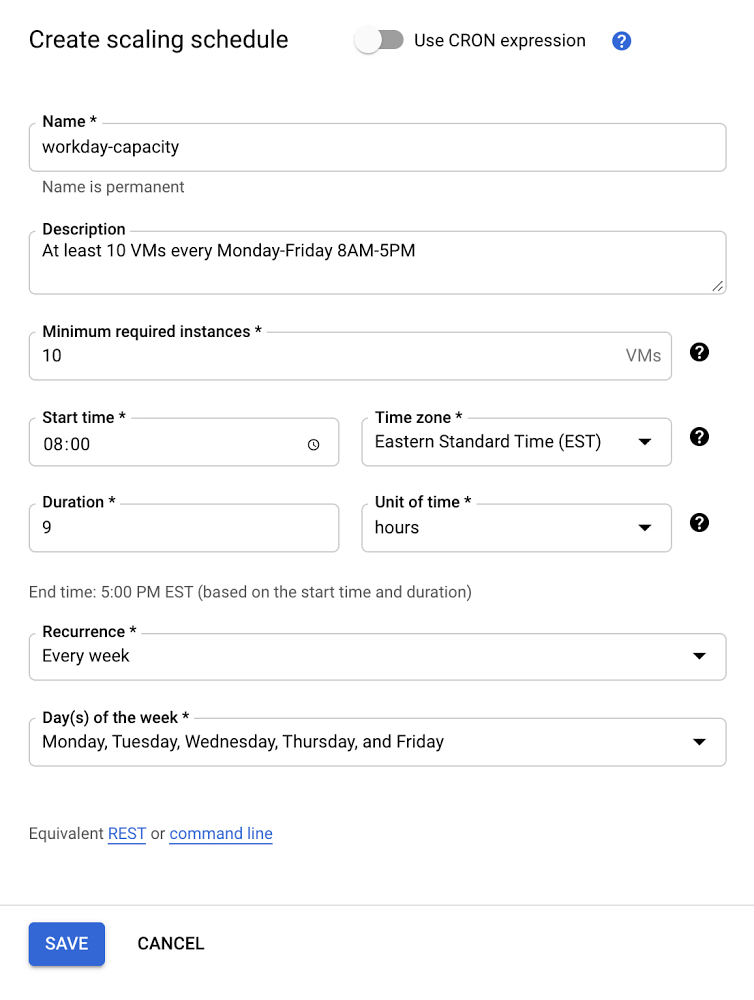
We believe that managing even the most demanding VM-based application in Google Cloud should be easy. For instance, in a Compute Engine environment, managed instance groups (MIGs) offer autoscaling that lets you automatically change an instance group’s capacity based on current load, so you can rightsize your environment—and your costs. Autoscaling adds more virtual machines (VMs) to a MIG when there is more load, and deletes VMs when the need for VMs is lower.But if your VMs take several minutes to initialize, you might not have sufficient capacity to respond effectively to sudden increased demand. And chances are, this happens on a regular basis, for example, every morning when your users wake up and start to use your service, or when there’s a special event like a marketing campaign or a time-bound customer offer. If only you could tell the autoscaler to spin up more VMs in anticipation of those busy periods… Well, now you can!Introducing schedule-based autoscalingCompute Engine’s new schedule-based autoscaling lets you improve the availability of your workloads by scheduling capacity ahead of anticipated load. If you run your workload on a managed instance group (MIG), you can schedule the required number of virtual machine (VM) instances for recurring load patterns as well as one-off events. Use scaling schedules if your workload takes a long time to initialize and you want to scale out in advance of anticipated load spikes.Getting startedYou can create a schedule using the Google Cloud Console. Select an autoscaled MIG from the instance groups page and click Edit group. Under the Autoscaling policy section, click Add a new scaling schedule.The Cloud Console allows you to check the status and manage all your existing scaling schedules.You can also configure schedule-based autoscaling programmatically. Here’s an example command written using the gcloud CLI:For more details, including configuration using the API, refer to the documentation.Try schedule-based autoscalingSchedule-based autoscaling is available in Preview across all regions. For more information on how you can manage your scaling schedules, visit the  documentation.Related ArticleScale in at your own pace with Compute Engine autoscaler controlsWith new scale-in controls for Compute Engine managed instance groups, you can control the rate at which VMs are turned down when load de…Read Article
Quelle: Google Cloud Platform

Black History Month: Celebrating the success of Black founders with Google Cloud: Get Optimal Tech

February is Black History Month – a time for us to come together to celebrate and remember the important people and history of the African diaspora. Over the next four weeks, we will highlight four black-led startups and how they worked with Google Cloud. Our third feature highlights Optimal Technology Corporation and its founder, Reggie. Specifically, Reggie talks about how the team was able to innovate quickly with easy to use Google Cloud tools and how Optimal Tech drives sustainability using the greenest Cloud.Every year, commercial buildings waste over $36 billion in energy based on a MIT study. Many commercial building owners do not monitor their energy usage, understand the benefits of renewable energy, and lack access to a facility manager on staff to get insights. To help solve this, Optimal was born. Optimal Tech aims to intelligently lower energy expenses for building owners using facility-management-as-a-service (FMaaS), which is unlike competing services requiring an on-staff facility or energy manager. Optimal’s management team. (l-r) Reginald Parker (Founder and President), Tim Webb (Chief Business Development Officer), Charelle Lans (VP of Operations), and William McCarroll (VP of Installations)Specifically, our product, CARI™(Controlling Assets with Reliable Intelligence) provides business intelligence and recommendations directly to building owners to make more informed decisions. This enhances and extends the life of key equipment and helps to solve the multi-billion dollar energy problem companies are facing everyday.To date, Optimal has deployed over 1,000 CARI™  Solutions on U.S. hotels, saving an estimated 6,800 tons of CO2 emissions annually. The installs are estimated to save hotels up to 70% on their energy bills and help taxpayers make up to a 35% ROI.Breaking into the energy spaceAs a Black-led startup in the energy industry, it was very difficult for me to get our foot in the door. To my knowledge, I am the first African-American person to develop a utility-scale solar farm. I traveled to 10 different counties educating the counties on the importance and sustainability of solar energy, only to see nine of them do business with my White competitors. This showed me that while many are ready for solar energy, they’re not ready for a founder of color.In the one county that did accept my proposal, I built a 25-acre solar field on what was previously a cotton field. The connection to slavery, Jim Crow, and their legacies were not lost on me. My mother was a sharecropping cotton farmer and my father a tobaco farmer; I saw this as an opportunity to demonstrate how far my family and the descendants of slavery had come. While the discrimination I faced when starting my company was nothing compared to what my ancestors faced in this country, it speaks to the modern forms of racism we continue to see on a daily basis. Empowering customers—literally—using Google Cloud’s clean technology Using Google Cloud’s easy to use technology has allowed Optimal to scale our device fleet in a simple and repeatable way that is not possible without a fully integrated and managed pipeline service. My team has been looking for ways to manage Optimal Tech’s large number of IoT (Internet of Things) devices and seamlessly collect and integrate that data to help our customers make informed decisions. IoT Core and Firebase have been crucial to allow our customers to manage several devices at once while providing a holistic view of their energy journey. We use Dataflow—specifically using Pub/Sub— to aggregate all the customer data across many devices and send customers a customized report of the findings. In particular, data collected through BigQuery, works in combination with CARI™  to ensure the customized report provided to customers is user-friendly and presents targeted information to improve energy consumption. Furthermore, as a company whose goal it is to use energy more efficiently, it is only natural that we would partner with Google Cloud, the cleanest cloud provider – one that runs on 100% renewable energy and is one of the largest corporate purchasers of renewable energy in the world. Google for Startups: Black Founders Fund – leveling the playing field in energy entrepreneurship and energy povertyGoogle for Startups helped Optimal break into the energy market, scale our tech, and expand our mission to end energy poverty. While on visits to Nigeria, Ghana and Nicaragua, energy poverty was at the forefront of my mind. Habitat for Humanity defines energy poverty as “adequate, affordable, reliable, quality, safe and environmentally sound energy services to support development”.  While on these trips we lost power multiple times a day, something that in the states would cause an uproar, but loss of power was commonplace in these countries. Optimal is working on microgrids for Ghana, Nigeria and Liberia to get reliable access to energy in nearly 5,000 homes. The importance of the Google for Startups: Black Founders Fund is illuminated in my struggles to break into the energy industry. It is difficult for people of color to secure funding for any business in general, let alone breaking into a traditionally white sector of the economy. The Black Founders Fund has provided us not only with $50K in non-dilutive funding but also crucial 1:1 mentorship in the areas of engineering, networking, goal-setting, and sales channels. Furthermore, Black Founders Fund gave us the necessary technology and $100K in Google Cloud Credits for founders like myself to scale their businesses along with a family of other black-led startups facing similar struggles. My cohort of other black-led startups hold each other accountable and provide essential love and support, all extremely valuable to startups, specifically those of underserved communities. Google has been a constant and consistent part of our story from the very beginning and wants to highlight a few Googlers who helped our journey such as Gibran Khan, Nicole Froker, and Nia Froome just to name a few. Optimal Tech looks forward to learning and growing more with Google in 2021 and beyond! If you want to learn more about how Google Cloud can help your startup, visit our startup page here and sign up for our monthly startup newsletter to get a peek at our community activities, digital events, special offers, and more.
Quelle: Google Cloud Platform

Architect your data lake on Google Cloud with Data Fusion and Composer

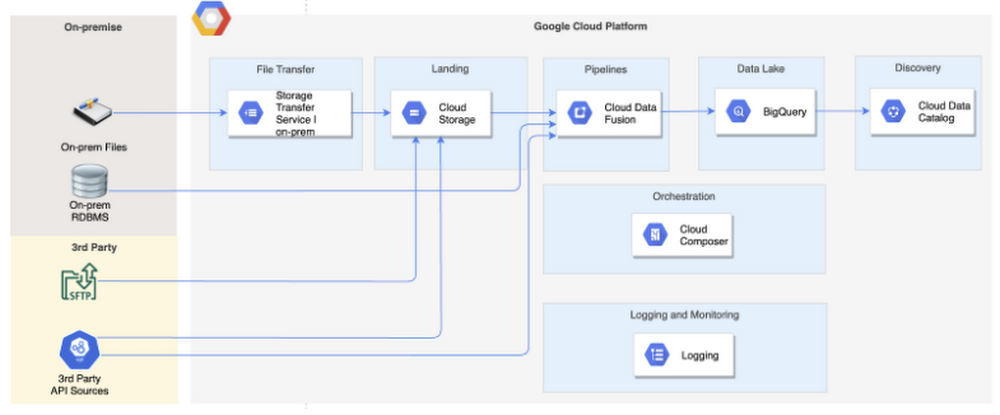
With an increasing number of organisations migrating their data platforms to the cloud, there is also a demand for cloud technologies that allow utilising the existing skill sets in the organisation while also ensuring successful migration.ETL developers often form a sizable part of data teams in many organisations. These developers are well versed in the use of GUI based ETL tools as well as complex SQL and also have or are beginning to develop programming skills in languages such as Python.In this series, I will share an overview of: a scalable data lake architecture for structured data using data integration and orchestration services suitable for the skill set described above [this article]detailed solution design for easy to scale ingestion using Data Fusion and Cloud ComposerI will publish the code for this solution soon for anyone interested in digging deeper and using the solution prototype. Look out for an update to this article with the link to the code.Who will find this article usefulThis article series will be useful for solution architects and designers getting started with GCP and looking to establish a data platform/data lake on GCP.Key requirements of the use caseThere are a few broad requirements that form the premise for this architecture.Leverage existing ETL skill set available in the organisationIngest from hybrid sources such as on-premise RDBMS (e.g., SQL Server, Postgres), flat files and 3rd party API sources.Support complex dependency management in job orchestration, not just for the ingestion jobs, but also custom pre and post ingestion tasks.Design for a lean code base and configuration driven ingestion pipelinesEnable data discoverability while still ensuring appropriate access controlsSolution architectureArchitecture designed for the data lake to meet above requirements in shown below. The key GCP services involved in this architecture include services for data integration, storage, orchestration and data discovery.Considerations for tool selectionGCP provides a comprehensive set of data and analytics services. There are multiple service options available for each capability and the choice of service requires architects and designers to consider a few aspects that apply to their unique scenarios.In the following sections, I have described some considerations that architects and designers should make during the selection of different types of services for the architecture, and the rationale behind my final selections for each type of service.There are multiple ways to design the architecture with different service combinations and what is described here is just one of the ways. Depending on your unique requirements, priorities and considerations, there are other ways to architect a data lake on GCP.Data integration serviceThe image below details the considerations involved in selecting a data integration service on GCP.Integration service chosenFor my use case, data had to be ingested from a variety of data sources including on-premise flat files and RDBMS such as Oracle, SQL Server and PostgreSQL, as well as 3rd party data sources such as SFTP servers and APIs. The variety of source systems was expected to grow in the future. Also, the organisation this was being designed for had a strong presence of ETL skills in their data and analytics team.Considering these factors, Cloud Data Fusion was selected for creating data pipelines.What is Cloud Data Fusion?Cloud Data Fusion is a GUI based data integration service for building and managing data pipelines. It is based on CDAP, which is an open source framework for building data analytics applications for on-premise and cloud sources. It provides a wide variety of out of the box connectors to sources on GCP, other public clouds and on-premise sources.Below image shows a simple pipeline in Data Fusion.What can you do with Data Fusion?In addition to the capability to create code free GUI based pipelines, Data Fusion also provides features for visual data profiling and preparation, simple orchestration features, as well as granular lineage for pipelines.What sits under the hood?Under the hood, Data Fusion executes pipelines on a Dataproc cluster. Data Fusion automatically converts GUI based pipelines into Dataproc jobs for execution whenever a pipeline is executed. It supports two execution engine options: MapReduce and Apache Spark.OrchestrationThe tree below shows the considerations involved in selecting an orchestration service on GCP.My use case requires managing complex dependencies such as converging and diverging execution control. Also, UI capability to access operational information such as historical runs and logs, and the ability to restart workflows from the point of failure was important. Owing to these requirements, Cloud Composer is selected as the orchestration service.What is Cloud Composer?Cloud Composer is a fully managed workflow orchestration service. It is a managed version of open source Apache Airflow and is fully integrated with many other GCP services.Workflows in Airflow are represented in the form of a Direct Acyclic Graph (DAG). A DAG is simply a set of tasks that needs to be performed. Below is a screenshot of a simple Airflow DAG.Airflow DAGs are defined using Python.Here is a tutorial on how you can write your first DAG. For a more detailed read, see tutorials in Apache Airflow documentation. Airflow Operators are available for a large number of GCP services as well as other public clouds. See this Airflow documentation page for different GCP operators available.Segregation of duties between Data Fusion and ComposerIn this solution, Data Fusion is used purely for data movement from source to destination. Cloud Composer is used for orchestration of Data Fusion pipelines and any other custom tasks performed outside of Data Fusion. Custom tasks could be written for tasks such as audit logging, updating column descriptions in the tables, archiving files or automating any other tasks in the data integration lifecycle. This is described in more detail in the next article in the series.Data lake storageStorage layer for the data lake needs to consider the nature of the data being ingested and the purpose it will be used for. The image below provides a decision tree for storage service selection based on these considerations.Since this article aims to address the solution architecture for structured data which will be used for analytical use cases, GCP BigQuery was selected as the storage service/database for this data lake solution.Data discoveryCloud Data Catalog is the GCP service for data discovery. It is a fully managed and highly scalable data discovery and metadata management service that automatically discovers technical metadata from BigQuery, Pub/Sub and Google Cloud Storage.There is no additional process or workflow required to make data assets in BigQuery, Cloud Storage and Pub/Sub available in Data Catalog. Data Catalog self discovers data assets and makes it available to the users for further discovery.A glimpse again at the architectureNow that we have a better understanding of why Data Fusion and Cloud Composer services were chosen, the rest of the architecture is self explanatory.The only additional aspect I want to touch upon is the reason for opting for a Cloud Storage landing layer.To land or not to land files on Cloud Storage?In this solution, data from on-premise flat files and SFTP is landed into Cloud Storage before ingestion into the lake. This is to address the requirement that the integration service should only be allowed to access selective files and prevent any sensitive files from ever being exposed to the data lake.Below is a decision matrix with a few points to consider when deciding whether or not to land files on Cloud Storage before loading into BigQuery. It is quite likely that you will see a combination of these factors, and the approach you decide to take will be the one that works for all those factors that apply to you.Source: On-premise and SFTP Files** Samba is supported but other protocols/tools of sharing files such as Connect:Direct, WebDav, etc are not.3rd Party APIs* Data Fusion out of box source connector for API sources (i.e., HTTP source plugin) supports basic authentication (id/password based) and OAUTH2 based authentication of source APIs.RDBMSNo landing zone is used in this architecture for data from on-premise RDBMS systems. Data Fusion pipelines are used to directly read from source RDBMS using JDBC connectors available out of the box. This is considering there was no sensitive data in those sources that needs to be restricted from being ingested into the data lake.SummaryTo recap, GCP provides a comprehensive set of services for Data and Analytics and there are multiple service options available for each task. Deciding which service option is suitable for your unique scenario requires you to consider a few factors that will influence the choices you make.In this article, I have provided some insight into the considerations you need to make to decide the right GCP service for your needs in order to design a data lake.Also, I have described the GCP architecture for a data lake that ingests data from a variety of hybrid sources, with ETL developers being the key persona in mind for skill set availability.What next?In the next article in this series, I will describe in detail the solution design to ingest structured data into the data lake based on the architecture described in this article. Also, I will share the source code for this solution.Learning ResourcesIf you are new to the tools used in the architecture described in this blog, I recommend the following links to learn more about them.Data FusionWatch this 3 min video for a byte sized overview of Data Fusion or listen to a more detailed talk from Cloud Next. Then try your hand at Data Fusion by following this Code Lab to Ingest CSV data to BigQuery.ComposerWatch this 4 min video for a byte sized overview of Composer or watch this detailed video from Cloud OnAir.  Want to try your hand? Follow these Quickstart instructions.BigQueryWatch this quick 4 min video for an overview and access BigQuery with free access using the BigQuery sandbox (subject to sandbox limits).Try your hand with Code Labs for BigQuery UI Navigation and Data Exploration and to load and query data with the bq command-line tool.Have a play with BigQuery Public Datasets and query the Wikipedia dataset in BigQuery.Stay tuned for part 2:  “Framework for building a configuration driven Data Lake using Data Fusion and Composer”Related ArticleBetter together: orchestrating your Data Fusion pipelines with Cloud ComposerSee how to orchestrate and manage ETL and ELT pipelines for data analytics in Cloud Composer using Data Fusion operators.Read Article
Quelle: Google Cloud Platform

Signify chooses Google Cloud IoT Core to power Philips Hue smart lighting

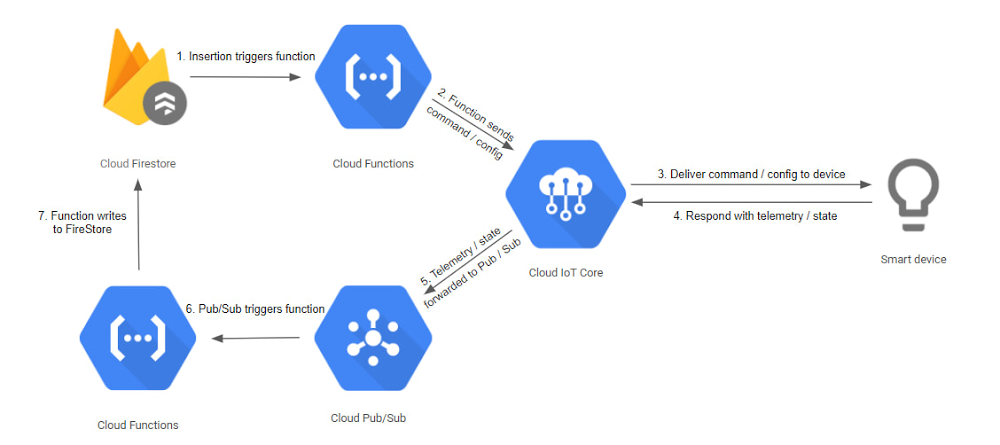
Today, more than ever, consumers expect personalization, innovation and information protection from their connected products and services.  According to industry analysts, this trend will continue, and the number of connected devices will likely exceed 21.5B in 2025.1To successfully execute a connected products strategy, IoT manufacturers must choose a partner that can scale with their business and provide the innovation and privacy that consumers expect. Signify, the creators of the highly successful Philips Hue line of smart light bulbs, selected Google Cloud as their preferred partner of choice to deliver a seamless digital experience, making it easier than ever for Hue owners to enjoy smart lighting’s full potential.Signify chose Google Cloud to power their smart lighting solution for our ability to manage millions of connected devices as well as offer true scalability, flexibility, and security.Signify performed an extensive evaluation of our technologies for connected devices and intelligent products, with a focus on Cloud IoT Core. Here’s how Signify approached the evaluation:Large fleet simulation using virtual devicesLive field test and validation with the entire installed base of Hue BridgesThe goal of the large fleet simulation with virtual devices was to prove that our Cloud IoT Core could meet scalability and performance expectations now and in the future. This simulation effectively stress tested Cloud IoT Core by connecting as many simulated devices as the actual number of Hue Bridges managed by Signify, and then by performing typical messaging operations.Benchmark architecture diagramTests were initiated via insertion of benchmarking parameters into Cloud Firestore which in turn triggered communication to devices through IoT Core via Cloud Functions. Responses from devices were routed back through Cloud Pub/Sub and recorded back in Firestore via Cloud Functions. The data stored in Firestore allowed the team to analyze the success of the benchmark.Once the simulation was complete and validated the scalability of Google Cloud Platform, Signify initiated the real-world test. To ensure there would not be any interruption in service for Hue Bridge owners, Signify deployed Cloud IoT Core as a second connection path, leaving the functioning legacy connection and backend infrastructure in place while separating the connection to Google Cloud. This allowed for safe validation of Cloud IoT Core, in a real world context, with direct comparison to the existing legacy infrastructure.The dual path real-world test included dozens of unique benchmarks, without any reported issues over many weeks. This result proved that Cloud IoT Core and the associated architecture would support Signify and their customers’ expectations for performance and reliability.Signify has noted that Cloud IoT Core met and exceeded their performance expectations, with low latency and high scalability. This level of performance enables Signify to confidently scale their business, today and beyond.  If you would like to learn more about IoT Core, please get in touch with us or visit our product page1. Internet of Things (IoT) active device connections installed base worldwide from 2015 to 2025, StatistaRelated ArticleIntroducing the Cloud IoT Device SDK: a new way for embedded IoT devices to connect to Google Cloud IoT CoreThe Cloud IoT Device SDK provides flexible libraries for your embedded devices to connect to Cloud IoT Core.Read Article
Quelle: Google Cloud Platform

New framework expands Google Cloud access globally

As part of our commitment to supporting pioneering research globally, Google Cloud is proud to announce that its services are now available to participants in the OCRE (Open Clouds for Research Environment) framework. Co-founded in January 2019 by GÉANT, the leading technology organization for higher education and research institutions in Europe, the OCRE framework facilitates access to cloud computing for more than 50 million users across thousands of research institutions in 40 European countries. In January 2021, OCRE also announced over €1M in funding for fifteen innovative research projects in astrophysics, healthcare imaging and drug delivery, climate research, machine learning, and AI.OCRE’s Cloud Catalogue lists all the compliant digital services providers for every participating EU nation, as well as contacts at local National Research and Education Networks (NRENs) to fast-track cloud adoption. As part of the OCRE framework, Computas, Revolgy, Telefonica, and Sparkle, a division of Telecom Italia, have been chosen as partners to distribute Google Cloud solutions to GÉANT’s member institutions in their move to the cloud. Sparkle, for example, offers procurement consulting, technical support, and training to regional customers in 27 EU countries.Cloud computing offers compelling advantages to researchers—from accelerating the speed of processing massive datasets to improving collaboration through shared tools and data storage. But it also presents some administrative hurdles in a complex legal and regulatory environment. The OCRE framework aims to encourage adoption of cloud services and ease the transition to the cloud with benefits like:Streamlined procurement process with ready-made agreements that can be tailored to each institution’s needsUp-to-date compliance requirements and built-in data protectionsSpecial discount pricing and funding opportunitiesGoogle Cloud services are already helping to accelerate significant research across Europe. The Biomedical Informatics (BMI) Group run by Dr. Gunnar Rätsch at ETH Zurich (Swiss Federal Institute of Technology) draws on huge datasets of genomic information to answer key questions about molecular processes and diseases like cancer. Now the BMI Group team uses Google Cloud Storage to manage sequencing data and Compute Engine’s Virtual Machine (VM) instances to process them. Their flexible solution, called the Metagraph Project, is able to process four petabytes of genomic data, making it the largest DNA search engine ever built.A team at Rostlab in the Technical University of Munich (TUM) developed ProtTrans, an innovative way to use machine learning to analyze protein sequences. By expanding access to critical resources, ProtTrans makes protein sequencing easier and faster despite the challenges of working during the pandemic. Ahmed Elnaggar, an AI specialist and a Ph.D. candidate in deep learning, points out that “this work couldn’t have been done two years ago. Without the combination of today’s bioinformatics data, new AI algorithms, and the computing power from GPUs and TPUs, it couldn’t be done.” Faced with a rapidly-changing research climate, these research teams found creative ways to rethink their workflows with the flexible, powerful resources of cloud computing. “IT procurement in universities is often optimised for long research projects,” says André Kahles, Senior Postdoc in the BMI group. “You’re locked into infrastructure for four to five years, without much flexibility to adapt in fast-paced projects. Google Cloud lets us constantly readjust the setup to our needs, creating new opportunities and preventing us from spending money on infrastructure we can’t use optimally.”To join the OCRE community and take advantage of special cloud access, discount pricing, and funding opportunities it offers, visit the Computas, Revolgy, Telefonica, and Sparkle websites depending on your country. To find out more about Google Cloud programs and initiatives for Higher Education and Research, including our Cloud Research Credits program, click here.Related ArticleGoogle Cloud initiatives offer researchers critical support during the pandemicOur new initiatives offer crucial support to overburdened researchers in these difficult times.Read Article
Quelle: Google Cloud Platform

New in Google Cloud VMware Engine: improved reach, networking and scale

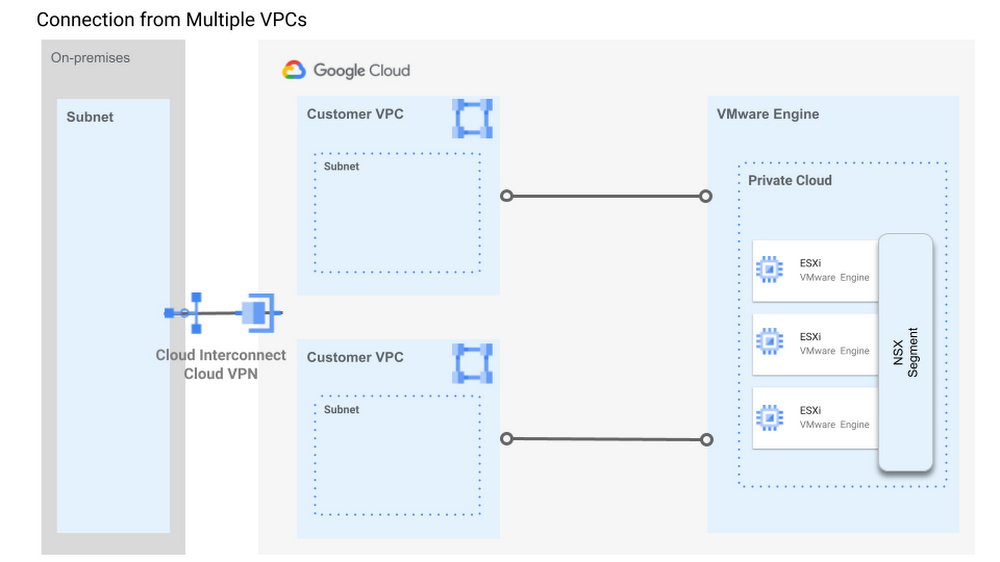
Every enterprise is striving to adopt a cloud-first strategy, but making that happen is easier said than done. Google Cloud VMware Engine simplifies the challenges of moving and modernizing critical workloads to the cloud, letting you seamlessly migrate your VMware workloads from on-premises data centers directly into Google Cloud.We have been hard at work in the new year developing features to help make networking simpler and improve security management; this blog highlights a few of the innovative features we released recently: Improved networking support: Multi-region networking, connectivity from multiple VPCs, Cloud DNS for management across global deployments, end-to-end dynamic routing, and support for reserved blocks as well as non-private addresses.Improved scalability and support for the VMware platform: vSphere/vSAN version 7.0 and NSX-T 3.0, larger clusters, HCX migration support, ESXi host configuration retention, and enhanced password management.Improved reach: regional presence in two new regions: Montreal and São PauloMulti-region networkingLarge scale deployments often span geographies. You may want a VMware environment deployed in Virginia to communicate with one that’s deployed in Frankfurt. In a typical cloud context, you have to configure special networking between the two regions, often requiring a VPN-based tunnel over the WAN to ensure uniform network addressing. This adds to deployment and operational complexity as well as cost. Google Cloud solves this problem in a unique way. VPCs support global routing, which allows a VPC’s subnets to be deployed in any region worldwide. VMware Engine now also supports this capability. With this support, global deployment scenarios become very straightforward: when you create a private cloud in any of the regions supported worldwide, you get instant, direct Layer 3 access between them without having to configure any special connectivity.Multiple VPC connectivityOften, users have application deployments in different VPC networks such as separate dev/test and production environments or multiple administrative domains across business units. The service now supports “many-to-many” access from VPC networks to VMware Engine networks, allowing you to retain existing architectures deployed and extend them flexibly to your VMware environments.Simple architectural diagram showing how connections from multiple VPCs can be established to your Private CloudCloud DNS integrationUsers deploy their applications in private clouds in different regions for latency, data sovereignty or backup reasons. However, each private cloud comes with its own DNS endpoint. If your private clouds are deployed in multiple regions, maintaining separate DNS resolution for each of them creates added complexity. We’ve simplified this by enabling the use of Cloud DNS with VMware Engine. This feature allows you to resolve the domain names of management components of multiple private clouds (in the same or different regions) in your Google Cloud project. This tremendously simplifies your deployment globally with a single DNS management point.Flexible networking architecturesWhen you’re coming from on-premises contexts, you may have a number of network configuration options that you would like to bring over. These include the use of custom or reserved-block Public IP (non RFC-1918) or RFC 6598 (non-private) address ranges. VMware Engine now supports the use of custom/reserved-block addresses for workload or management networks, and RFC 6598 address ranges for use on management networks. This gets you the compatibility and design flexibility you need for some scenarios, minimizing the changes required for your move to the cloud.vSphere 7 supportAll new VMware Engine private clouds are now deployed with VMware vSphere version 7.0 and NSX-T version 3.0. You get plenty of new features, enhanced flexibility and improved performance.Larger clustersWith larger deployments, you often need to create multiple clusters and private clouds. This increases complexity and management overhead. VMware Engine now supports large clusters—up to 32 hosts per cluster. You can now scale as large as your applications need. HCX cloud-to-cloud migrationOften, the cloud is home for your applications, and you need to migrate not just from on-premises, but between cloud locations as well. With HCX cloud-cloud migration, you can now migrate your VMs between two VMware Engine private clouds. And with Global Routing, it’s fast and easy to move across geographies without having to set up complex tunnels. It is now easier to update your deployment plan and cloud architecture even after you have completed your cloud migrations.ESXi host configuration retention across rebootsMany VMware Engine users have ESXi host-specific configurations such as vSphere labels, vSphere custom attributes, vSphere tags, and affinity and anti-affinity rules. These usually have to be rebuilt when a host is replaced in the event of a failure. With this feature, node customizations now transfer from the failed node to the replacement node.Enhanced password managementManaging passwords can be a full time job and lead to much frustration if you don’t have a way to keep track of the passwords easily. VMware Engine now supports default password management of VMware services like vCenter, NSX, HCX and allows resetting of passwords. Random, secure passwords are generated by default right in the VMware UI, which is accessed via the VMware Engine console. The result is easier and more secure password management without ever having to swivel out of that management interface.Availability in Canada and BrazilWe are excited to announce the availability of VMware Engine in our São Paulo and Montréal data centers to support diverse users across the North and South American continents. Customers who already use VMware can migrate to Google Cloud more easily without the need for transformation in their local regions. Among the benefits for enterprises are the ability to manage data and applications in-country and to pay for services in local currency. VMware Engine is now supported in ten regions.Discounts still availableWe’re committed to making it simple to get started with VMware Engine and help you optimize your consumption up front. Our fully managed service offers the highest density storage and memory per core to help reduce your total cost of ownership. For a limited time, we’re offering a 12% discount on all VMware Engine SKUs with a new agreement (contact sales for more information). We’ve also developed an online pricing calculator to help you calculate costs up front, enabling you to configure and estimate your costs based on different commitment terms, number of instances, and regions.Join our webinar on February 23Join our vMug webinar on Feb 23, 9 AM PT, A unique approach to VMware-as-a-Service with Google Cloud VMware Engine. We’ll show you how you can quickly migrate to the cloud to unify operations and increase operational efficiency, without re-architecting applications. We’ll cover common challenges, key use cases, and show you how you can plug into native Google Cloud services such as Cloud AI, BigQuery, and Cloud Storage. And, we’ll provide you access to our hands-on lab so you can test drive VMware Engine to get a feel for how few steps you need to move to Google Cloud. Hope to see you there!Related ArticleGet ready to migrate your SAP, Windows and VMware workloads in 2021In 2020, Google Cloud became an even better place to run your legacy SAP, Windows and VMware workloads.Read Article
Quelle: Google Cloud Platform

Benchmarking rendering software on Compute Engine

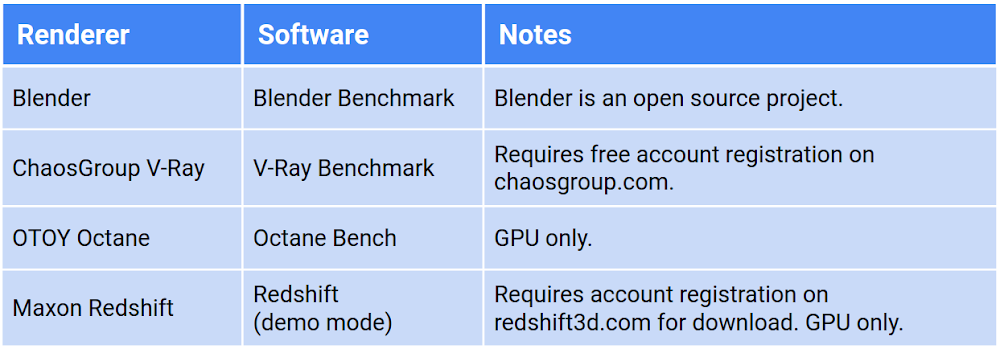
For our customers who regularly perform rendering workloads such as animation or visual effects studios, there is a fixed amount of time to deliver a project. When faced with a looming deadline, these customers can leverage cloud resources to temporarily expand their fleet of render servers to help complete work within a given timeframe, a process known as burst rendering. To learn more about deploying rendering jobs to Google Cloud, see Building a Hybrid Render Farm.When gauging render performance on the cloud, customers sometimes reproduce their on-premises render worker configurations by building a virtual machine (VM) with the same number of CPU cores, processor frequency, memory, and GPU. While this may be a good starting point, the performance of a physical render server is rarely equivalent to a VM running on a public cloud with a similar configuration. To learn more about comparing on-premises hardware to cloud resources, see the reference article Resource mappings from on-premises hardware to Google Cloud.With the flexibility of cloud, you canright-size your resources to match your workload. You can define each individual resource to complete a task within a certain time, or within a certain budget. But as new CPU and GPU platforms are introduced or prices change, this calculation can become more complex. How can you tell if your workload would benefit from a new product available on Google Cloud?This article examines the performance of different rendering software on Compute Engine instances. We ran benchmarks for popular rendering software across all CPU and GPU platforms, across all machine type configurations to determine the performance metrics of each. The render benchmarking software we used is freely-available from a variety of vendors. You can see a list of the software we used in the table below, and learn more about each in Examining the benchmarks.Note: Benchmarking of any render software is inherently biased towards the scene data included with the software and the settings chosen by the benchmark author. You may want to run benchmarks with your own scene data within your own cloud environment to fully understand how to take advantage of the flexibility of cloud resources.Benchmark overviewRender benchmark software is typically provided as a standalone executable containing everything necessary to run the benchmark: a license-free version of the rendering software itself, the scene or scenes to render, and supporting files are all bundled in a single executable that can be run either interactively or from a command line.Benchmarks can be useful for determining the performance capabilities of your configuration when compared to other posted results. Benchmarking software such as Blender Benchmark use job duration as their main metric; the same task is run for each benchmark no matter the configuration. The faster the task completes, the higher the configuration is rated.Other benchmarking software such as V-Ray Bench examines how much work can be completed during a fixed amount of time. The amount of computations completed by the end of this time period provides the user with a benchmark score that can be compared to other benchmarks.Benchmarking software is subject to the limitations or features of the renderer on which they’re based. For example, software such as Octane or Redshift cannot take advantage of CPU-only configurations as they’re both GPU-native renderers. V-Ray from ChaosGroup can take advantage of both CPU and GPU but performs different benchmarks depending on the accelerator, and therefore cannot be compared to each other.We tested the following render benchmarks:Choosing instance configurationsAn instance on Google Cloud can be made up of almost any combination of CPU, GPU, RAM, and disk. In order to gauge performance across a large number of variables, we defined how to use each component and locked its value when necessary for consistency. For example, we let the machine type determine how much memory was assigned to each VM, and we created each machine with a 10 GB boot disk.Number and type of CPUGoogle Cloud offers a number of CPU platforms from different manufacturers. Each platform (referred to as Machine Type in the Console and documentation) offers a range of options, from a single vCPU all the way up to the m2-megamem-416. Some platforms offer different generations of CPUs, and new generations are introduced on Google Cloud as they come on the market.We limited our research to predefined machine types on N1, N2, N2D, E2, C2, M1, and M2 CPU platforms. All benchmarks were run on a minimum of 4 vCPUs, using the default amount of memory allocated to each predefined machine type.Number and type of GPUFor GPU-accelerated renderers, we ran benchmarks across all combinations of all NVIDIA GPUs available on Google Cloud. To simplify GPU renderer benchmarks, we used only a single, predefined machine type, the n1-standard-8, as most GPU renderers don’t take advantage of CPUs for rendering (with the exception of V-Ray’s Hybrid Rendering feature, which we didn’t benchmark for this article).Not all GPUs have the same capabilities: some GPUs support NVIDIA’s RTX, which can accelerate certain raytracing operations for some GPU renderers. Other GPUs offer NVLink, which supports faster GPU-to-GPU bandwidth and offers a unified memory space across all attached GPUs. The rendering software we tested works across all GPU types, and is able to leverage these types of unique features, if available.For all GPU instances we installed NVIDIA driver version 460.32.03, available from NVIDIA’s public download driver page as well as from our public cloud bucket. This driver runs CUDA Toolkit 11.2, and supports features of the new Ampere architecture of the A100’s.Note: Not all GPU types are available in all regions. To view available regions and zones for GPUs on Compute Engine, see GPUs regions and zone availability.Type and size of boot diskAll render benchmark software we used takes up less than a few GB of disk, so we kept the boot disk for each test instance as small as possible. To minimize cost, we chose a boot disk size of 10 GB for all VMs. A disk of this size will only deliver modest performance, but rendering software typically ingest scene data into memory prior to running the benchmark; disk I/O has little effect on the benchmark.RegionAll benchmarks were run in the us-central1 region. We located instances in different zones within the region, based on resource availability. Note: Not all resource types are available in all regions. To view available regions and zones for CPUs on Compute Engine, see available regions and zones. To view available regions and zones for GPUs on Compute Engine, see GPUs regions and zone availability.Calculating benchmark costsAll prices in this article are calculated inclusive of all instance resources (CPU, GPU, memory, and disk) for only the duration of the benchmark itself. Each instance incurs startup time, driver and software installation, and latency prior to shutdown following the benchmark. We didn’t add this extra time to the costs shown, which could be reduced by baking an image or by running within a container. Prices are current at the time of writing, based on resources in the us-central1 region, and are in USD. All prices are for on-demand resources; most rendering customers will want to use preemptible VMs, which are well-suited for rendering workloads, but for the purposes of this article it’s more important to see the relative differences between resources than overall cost. See the Google Cloud Pricing Calculator for more details.To come up with hourly costs for each machine type, we added together the various resources that make up each configuration:cost/hr = vCPUs + RAM (GB) + boot disk (GB) + GPU (if any)To get the cost of an individual benchmark, we multiplied the duration of the render by this cost/hr:total cost = cost/hr * render durationCost performance indexCalculating cost based on how long a render takes only works for benchmarks that use render duration as a metric. Other benchmarks such as V-Ray and Octane calculate a score by measuring the amount of computations possible within a fixed period of time. For these benchmarks, we calculate the Cost Performance Index (CPI) of each render, which can be expressed as:CPI = Value / CostFor our purposes, we substitute Value with Score, and Cost with the hourly cost of the resources:CPI = score / cost/hrThis gives us a single metric that represents both price and the performance of each instance configuration.Calculating CPI in this manner makes it easy to compare results to each other within a single renderer; the resulting values themselves aren’t as important as how they compare to other configurations running the same benchmark. For example, examine the CPI of three different configurations rendering the V-Ray Benchmark:To make these values easier to comprehend, we can normalize them by defining a pivot point; a target resource configuration that has a CPI of 1.0. In this example, we use n1-standard-8 as our target resource:This makes it easier to see that the n2d-standard-8 has a CPI that’s around 70% higher than that of the n1-standard-8.For CPU benchmarks, we defined the target resource as an n1-standard-8. For GPU benchmarks, we defined the target resource as an n1-standard-8 with a single NVIDIA P100. A CPI greater than 1.0 indicates better cost/performance compared to the target resource, and CPI less than 1.0 indicates lower cost/performance compared to the target resource.For formula for calculating CPI using the target resource can be expressed as:CPI = (score / cost/hr) / (target-score / target-cost/hr)We use CPI in the Examining the benchmarks section.Comparing instance configurationsOur first benchmark examines the performance differences between a number of predefined N1 machine type configurations. When we run the Blender Benchmark on a selection of six configurations and compare duration and the cost to perform the benchmark (cost/hr x duration), we see an interesting result:The cost for each of these benchmarks is almost identical, but the duration is dramatically different. This tells us that the Blender renderer scales well as we increase the number of CPU resources. For a Blender render, if you want to get your results back quickly, it makes sense to choose a configuration with more vCPUs.When we compare the N1 CPU platform to other CPU platforms, we learn even more about Blender’s rendering software. Compare the Blender Benchmark across all CPU platforms with 16 vCPUs:The graph above is sorted according to cost, with least expensive on the right. The N2D CPU platform (which uses AMD EPYC Rome CPUs) is the lowest cost and completes the benchmark in the shortest amount of time. This may indicate that Blender can render more efficiently on AMD CPUs, a fact that can also be observed on their public benchmark results page. The C2 CPU platform (which uses Intel Cascade Lake CPUs) comes in a close second, possibly because it offers the highest sustained frequency of 3.9 GHz.Note: While a few pennies’ difference may seem trivial for a single render test, a typical animated feature is 90 minutes (5400 seconds) in duration. At 24 frames per second, that’s approximately 130,000 frames to be rendered for a single iteration. Some elements can go through tens or even hundreds of iterations before final approval. A miniscule difference at this scale can mean a massive difference in cost by the end of a production.CPU vs GPUBlender Benchmark allows you to compare CPU and GPU performance using the same scenes and metrics. The advantage of GPU rendering is revealed when we compare the previous CPU results to that of a single NVIDIA T4 GPU:The Blender Benchmark is both faster and cheaper when run in GPU mode on an n1-standard-8 with a single NVIDIA T4 GPU attached. When we run the benchmark on all GPU types, the results can vary widely in both cost and duration:GPU performanceSome GPU configurations have a higher hourly cost, but their performance specifications give them a better cost-to-performance advantage than lower-cost resources.For example, the FP64 performance of the NVIDIA Tesla A100 (9.7 TFLOPS) is 38 times higherthan that of the T4 (0.25 TFLOPS), yet the A100 is around 9 times the cost. In the above diagram, the P100, V100, and A100 cost almost the same, yet the A100 finished the render almost twice as fast as the P100.By far the most cost-effective GPU in the fleet is the NVIDIA T4, but it didn’t outperform the P100, V100, or A100 for this particular benchmark.All GPU benchmarks (except the A100, which used the a2-highgpu-1g configuration) used the n1-standard-8 configuration with a 10 GB PD-SSD boot disk:We can also examine how the same benchmark performs on an instance with more than one GPU attached:The NVIDIA V100-8 configuration may complete the benchmark fastest, but it also incurs the highest cost. The GPU configuration with the highest value appears to be 2x NVIDIA T4 GPUs, which complete the work fast enough to cost less than the 1x NVIDIA T4 GPU.Finally, we compare all CPU and GPU configurations. The Blender Benchmark returns a duration, not a score, so we can use the cost of each benchmark to represent CPI. In the graph below, we use the n1-standard-8 (with a CPI of 1.0) as our target resource, to which we compare all other configurations:This confirms that the highest value configuration to run the Blender Benchmark is the 2x NVIDIA T4 GPU configuration running the benchmark in GPU mode.Diminishing returnsRendering on multiple GPUs can be more cost-effective than on a single GPU. The performance boost some renderers can gain from multiple GPUs can exceed that of the cost increase, which is linear.The performance gains start to diminish as we add multiple V100s, therefore the value is also diminished when you factor in the increased cost. This observed flattening of the performance curve is an example of Amdahl’s Law. Adding resources to scale performance can result in a performance increase, but only up to a point, after which you tend to experience diminishing returns in performance. Many renderers are not capable of 100% parallelization, and therefore cannot scale linearly as resources are added.As with GPU resources, the same can be observed across CPU resources. In this diagram, we observe how benchmark performance gains diminish as the number of N2D vCPUs climbs:The above diagram shows that performance gains start to diminish above 64 vCPUs where the cost, surprisingly, drops a bit before climbing again.Running the benchmarksTo ensure accurate, repeatable results, we built a simple, programmatic, reproducible testing framework that uses simple components of Google Cloud. We could also have used an established benchmarking framework such as PerfKit Benchmarker. To observe the raw performance of each configuration, we ran each benchmark on a new instance running Ubuntu 1804. We ran each benchmark configuration six times in a row, discarding the first pass to account for local disk caching or asset load, and averaged the results of the remaining passes. This method, of course, doesn’t necessarily reflect the reality of a production environment where things like network traffic, queue management load, and asset synchronization may need to be taken into consideration.Our benchmark workflow resembled the following diagram:Examining the benchmarksThe renderers we benchmarked all have unique qualities, features, and limitations. Benchmark results revealed some interesting data, some of which is unique to a particular renderer or configuration, and some of which we found to be common across all rendering software.Blender benchmarkBlender Benchmark was the most extensively tested of the benchmarks we ran. Blender’s renderer (called Cycles) is the only renderer in our tests that is able to run the same benchmark on both CPU and GPU configurations, allowing us to compare the performance of completely different architectures.Blender Benchmark is freely available and is open source so you can even modify the code to include your own settings or render scenes.The Blender Benchmark includes a number of different scenes to render. All our Blender benchmarks rendered the following scenes:bmw27classroomfishy_catkoropavillon_barcelonaYou can learn more about the above scenes on the Blender Demo Files page.Download Blender Benchmark (version 2.90 used for this article)Blender Benchmark documentationBlender Benchmark public resultsBenchmark observationsBlender Cycles appears to perform in a consistent fashion as resources are increased across all CPU and GPU configurations, although some configurations are subject to diminishing returns, as noted earlier:Next, we examine cost. With a few exceptions, all benchmarks cost between $0.40 and $0.60, no matter how many vCPUs or GPUs were used:This may be more of a testament to how Google Cloud designed its resource cost model, but it’s interesting to note that each benchmark performed the exact same amount of work and generated the exact same output. Investigating the design of Blender Cycles and how it manages resource usage is beyond the scope of this article, however the source code is freely available for anyone to see, should they be interested in learning more.The CPI of Blender is the inverse of the benchmark cost, but comparing it to our target resource (the n1-standard-8) reveals the highest value configurations to be any combination of T4 GPUs. The lowest value resources are the M2 machine types, due to their cost premium and the diminishing performance returns we see in the larger vCPU configurations:V-Ray benchmarkV-Ray is a flexible renderer by ChaosGroup that is compatible with many 2D and 3D applications, as well as real time game engines.V-Ray Benchmark is available as a standalone product for free (account registration required) and runs on Windows, Mac OS, and Linux. V-Ray can render in CPU and GPU modes, and even has a hybrid mode where it uses both.V-Ray may run on both CPU and GPU, but their benchmarking software renders different sample scenes, and uses different units to compare results on each platform (CPU uses vsamples, GPU uses vpaths). We have grouped our V-Ray benchmark results into separate CPU and GPU configurations.Download V-Ray Benchmark (version 5.00.01 used for this article)V-Ray Bench documentationV-Ray Bench public resultsBenchmark observationsFor CPU renders (using mode=vray for the benchmark), V-Ray appears to scale well as the number of vCPUs increases, and can take good advantage of the more modern CPU architectures offered on GCP, particularly the AMD EPYC in the N2D and the Intel Cascade Lake in the M2 Ultramem machine types:Looking at the CPI results, there appears to be a sweet spot where you get the most value out of V-Ray, somewhere between 8 and 64 vCPUs. Scores for 4 vCPU configurations all tend to be lower than the average of each machine type, and the larger configurations start to see diminishing returns as the vCPU count climbs.The M1 and M2 Ultramem configurations are well below the CPI of our target resource (the n1-standard-8) as they have a cost premium that offsets their impressive performance. If you have the budget, however, you will get the best raw performance out of these machine types.The best value appears to be from the N2D-standard-8, if your workload can fit into 32 GB of RAM:In GPU mode (using mode=vray-gpu-cuda), V-Ray supports multiple GPUs well, scaling in a near-linear fashion with the number of GPUs.It also appears that V-Ray is able to take good advantage of the new Ampere architecture on the A100 GPUs, showing a 30-35% boost in performance over the V100:This boosted performance comes at a cost, however. The CPI for the 1x and 2xA100 configurations are only slightly better than the target resource (1xP100), and the 4x, 8x, and 16x configurations get increasingly expensive compared to performance capabilities. As with all the other benchmarks, all configurations of the T4 GPU revealed the highest value GPU in the fleet:Octane benchOctane Render by OTOY is an unbiased, GPU-only renderer that is integrated with most popular 2D, 3D, and game engine applications.Octane Bench is freely available for download and returns a score based on the performance of your configuration. Scores are measured in Ms/s (mega samples per second), and are relative to the performance of OTOY’s chosen baseline GPU, the NVIDIA GTX 980. See Octane Bench’s results page for more information on how the Octane Bench score is calculated.Download Octane Bench (version 2020.1.4 used for this article)Octane Bench documentationOctane Bench public resultsBenchmark observationsOctane Render scores relatively high across most GPUs offered on GCP, especially the a2-megagpu-16g machine type, which took the top score in their results when first publicly announced:All configurations of the T4 delivered the most value, but P100’s and A100’s scored above the target resource. Interestingly, adding multiple GPUs improved the CPI in all cases, which is not always the case with the other benchmarks:Redshift renderRedshift Render is a GPU-accelerated, biased renderer by Maxon, and integrates with 3D applications such as Maya, 3DS Max, Cinema 4D, Houdini, and Katana.Redshift includes a benchmarking tool as part of the installation, and the demo version does not require a license to run the benchmark. To access the resources below, sign up for a free account here.Download Redshift (version 3.0.31 used for this article)Redshift Benchmark documentationRedshift Benchmark public resultsBenchmark observationsRedshift Render appears to scale in a linear manner as the number of GPUs is increased:When benchmarking on the NVIDIA A100 GPUs, we start to see some limitations. Both the 8xA100 and 16xA100 configurations deliver the same results, and are only marginally faster than the 4xA100 configuration. Such a fast benchmark may be pushing the boundaries of the software itself, or may be limited by other factors such as the write performance of the attached persistent disk:The NVIDIA T4 GPUs have the highest CPI by far, due to their low cost and competitive compute performance, particularly when multiple GPUs are used. Unfortunately, the limitations noted in the 8x and 16xA100 GPUs result in a lower CPI, but this could be due to the limits of this benchmark architecture and example scene.TakeawaysThis data can help customers who run rendering workloads decide which resources to use based on their individual job requirements, budget, and deadline. Some simple takeaways from this research:If you aren’t time-constrained, and your render jobs don’t require lots of memory, you may want to choose smaller, preemptible configurations with higher CPI, such as the N2D or E2 machine types.If you’re under a deadline and less concerned about cost, the M1 or M2 machine types (for CPU) or A2 machine types (for GPU) can deliver the highest performance, but may not be available as preemptible or may not be available in your chosen region.ConclusionWe hope this research helps you better understand the characteristics of each compute platform and how performance and cost can be related for compute workloads.Here are some final observations from all the render benchmarks we ran:For CPU renders, N2D machine types appear to provide the best performance at a reasonable cost, with the greatest flexibility (up to 224 vCPUs on a single VM). For GPU renders, the NVIDIA T4 delivers the most value due to its low price and Turing architecture, which is capable of running both RTX and TensorFlow workloads. You may not be able to run some larger jobs on the T4 however, as each GPU is limited to 16 GB of memory. If you need more GPU memory, you may want to look at a GPU type that offers NVLink, which unifies the memory of all attached GPUs.For sheer horsepower, the M2 machine types offer massive core counts (up to 416 vCPUs running at 4.0 GHz) with an astounding amount of memory (up to 11.7 GB). This may be overkill for most jobs, but a fluid simulation in Houdini or a 16k architectural render may need the extra resources to successfully complete. If you are in a deadline crunch or need to address last-minute changes, you can use the CPI of various configurations to help you cost model production workloads. When combined with performance metrics, you can accurately estimate how much a job should cost, how long it will take, and how well it will scale on a given architecture.The A100 GPUs in the A2 machine type offer massive gains over previous NVIDIA GPU generations, but we weren’t able to run all benchmarks on all configurations. The Ampere platform was relatively new when we ran our tests, and support for Ampere hadn’t been released for all GPU-capable rendering software.Some customers choose resources based on the demands of their job, regardless of value. For example, a GPU render may require an unusually high amount of texture memory, and may only successfully complete on a GPU type that offers NVLink. In another scenario, a render job may have to be delivered in a short amount of time, regardless of cost. Both of these scenarios may steer the user towards the configuration that will get the job done, rather than the one with the highest CPI.No two rendering workloads are the same, and no single benchmark can provide the true compute requirements for any job. You may want to run your own proof-of-concept render test to gauge how your own software, plugins, settings, and scene data perform on cloud compute resources.Other benchmarking resourcesBear in mind we didn’t benchmark other metrics such as disk, memory, or network performance. See the following articles for more information, or to learn how to run your own benchmarks on Google Cloud:Benchmarking persistent disk performance.Benchmarking local SSD performance.PerfKitBenchmarker results for Linux and Windows VM instances.Using netperf and ping to measure network latency.Resource mappings from on-premises hardware to Google Cloud.Related ArticleCompute Engine explained: Choosing the right machine family and typeAn overview of Google Compute Engine machine families and machine types.Read Article
Quelle: Google Cloud Platform
Introducing Cloud Domains: Easily register and manage custom domains

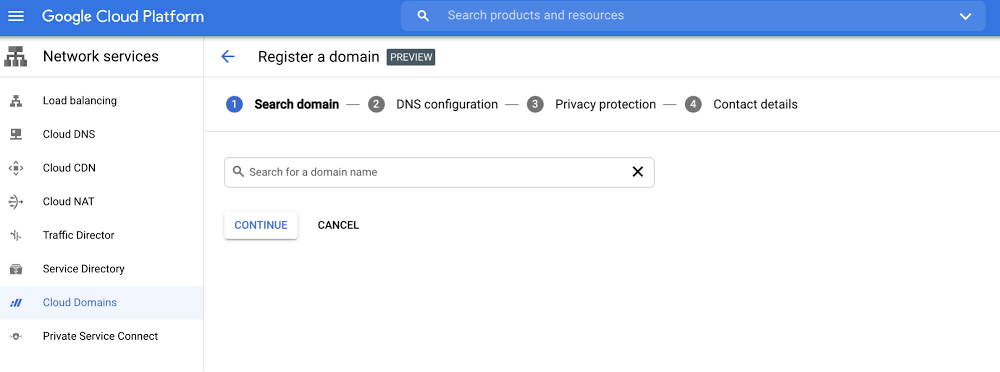
Using custom domain names can be a cumbersome process: you need to register a domain with a domain name registrar, verify the domain, and finally configure the DNS to map to your cloud products and services. The entire process requires dealing with multiple UIs, several steps and separate billing for domain registration. At Google Cloud, we want to make it easy for you to register and use custom domains within our platform. Today, we’re introducing Cloud Domains in preview, which simplifies domain registration and management within Google Cloud.Cloud Domains improves the custom domain experience for developers, increases security, and supports stronger integrations around DNS and SSL. It offers easy domain renewal through Cloud Billing, and permissions management through Cloud Identity & Access Management, reducing what was a multi-step process to configure a custom domain to just a few clicks.Since Cloud Domains uses Google Domains — Google’s internet domain name registration service — as the registrar, customers can access a wide range of registrar features through Google Domains management console. Key benefitsIf your Google Cloud application requires a custom domain, you can gain a lot by using Cloud Domains:Simplified user experience: Cloud Domains greatly simplifies the custom domain registration and management experience in Google Cloud. Cloud Domains enables customers to register domain names natively within Google Cloud via the Google Cloud Console UI, gcloud, and API, and offers automatic domain verification based on user accounts. Domain registration pricing is simple and transparent with registration and renewals for .coms starting at $12/year. Privacy protection is included for free. End-to-end domain management: Cloud Domains simplifies domain management by performing automatic domain verification. For customers looking to use Cloud DNS, the Cloud Domains UI provides easy access to Cloud DNS to set up public zones and DNS records.  Enhanced security: Cloud Domains provides one-click DNSSEC configuration when used in conjunction with Cloud DNS. Cloud Domains supports increased security with Cloud IAM permissions providing enterprise-grade access management. Managed billing with Google Cloud: Cloud Domains uses Google Cloud Billing so that you have a hassle-free domain renewal experience and a single place to manage all Google Cloud resources.  API and gcloud: Cloud Domains comes with an API for domain management and registration that you can use to programmatically manage your domain portfolio. Try Cloud Domains todayRegistering and using a custom domain name should be simple. To learn more about how Cloud Domains can solve your domain management needs in Google Cloud, please visit https://cloud.google.com/domains.
Quelle: Google Cloud Platform

The life-changing magic of making with ML

One of the most fun ways to learn machine learning is by building projects for yourself. In this post, I’ll show you how.An eon ago, I decided to learn to code by building my own personal website. I knew nothing about computers then, let alone what a server was, but it felt like I had infinite tech topics left to learn and an endless appetite to learn them. I laid awake at night thinking about all the ways I’d trick out my website—scrolling parallax stars, an obscene number of Google Fonts—and dreamt of all the personal projects I’d build next.Years later, I’m a professional engineer who works on objectively cooler, more sophisticated technological problems than my hack-y personal website. Yet it’s hard to say I ever feel that, ahem, “childlike wonder” I did back when I was first learning to code.If you work in tech, you surely know you’ve committed yourself to a lifetime of learning. Blink too long and every piece of software you thought was state-of-the-art will be entirely replaced (unless that software is Vim, which I still haven’t managed to exit).In computer science, one great example is machine learning (ML). Most of us never learned this topic in university (if we studied CS in school at all), but it’ll soon be ubiquitous, transforming software development in every domain. It’s no surprise that the question I’m most frequently asked is, “Where should I start learning machine learning?”Typically I’ll recommend resources like Google’s Machine Learning Crash Course, the book Hands-On Machine Learning, or Andrew Ng’s classic Coursera course, which cover the fundamentals from theory to practice.But if you’re like me and your favorite way to learn is by building, consider learning ML by building software for yourself. Not only are personal projects a fun (and potentially useful) way to learn a new technology, they’re also a great way to learn about some of the challenges you’ll face deploying machine learning in production, rather than in the quixotic setting of a homework assignment.At the beginning of the pandemic, when I suddenly found myself swimming in free time, this was the challenge I gave myself—can I learn more about machine learning by building personal projects that solve problems in my own life? Since then, I’ve used ML to intelligently search my family videos, improve my tennis serve, translate videos, invent new baking recipes, and a whole lot more. Below you’ll find a roundup of these projects along with their source code, tutorial YouTube videos, and step-by-step blog posts. From introducing you to new techniques and tools to showing you how to weave this stuff together into functioning apps, I hope you’ll find these projects as fun to build as they are to learn from. Or, better yet, I hope they’ll inspire your own endeavors, made with ML. If you do build something neat, let me know. Until then, as always, happy making. Making with machine learning projectsSmart family video archiveWhat you’ll build: An archive that makes your home videos searchable by transcript (what people say) and by image (search for “birthday,” “bicycle,” “video game”).What you’ll learn: A super common Machine Learning use case: making complicated data types more easily sortable and searchableHow to use the Video Intelligence APIHow to architect an ML-powered app, with a Flutter frontend, serverless Firebase backend, and search-as-a-service (powered by Algolia)Discord moderator botWhat you’ll build: A bot for the chat platform Discord that allows you to flag toxic, offensive, profane, or spam messagesWhat you’ll learn:How to use the Perspective API to analyze textHow to use ML in a chat applicationHow to think about using machine learning for tricky problems that aren’t so black-and-whiteCan AI make you a better athlete?What you’ll build: A Jupyter notebook that can track your tennis serve and the trajectory of a tennis ball (or golf swing or baseball pitch, etc) and that analyzes this data to give you tips to improve. Follow along in the Qwiklab.What you’ll learn:Hacks for doing sophisticated ML with small datasetsHow to combine pose tracking with simple math to understand human movementHow to use the Video Intelligence APIHow to use AutoML VisionMaking smarter video game worlds with NLP aka Build Apps Powered by Language with Semantic MLWhat you’ll build: A simple language-based system for having video game worlds respond to users’ free-text input What you’ll learn:How to use sentence embeddings, one of the most useful techniques in all of NLPHow to implement semantic text searchHow to cluster textHow to implement a basic conversational botHow to do all this stuff from a Google SheetPDF-to-audiobook converterWhat you’ll build: Code that converts PDFs to MP3 audiobooksWhat you’ll learn:How to extract text from PDFs using the Vision APIHow to speak words using the Text-to-Speech APIHow to use math hacks to parse document layoutsTranslating and dubbing videos with MLWhat you’ll build: Code that can automatically transcribe, translate, and dub videos.What you’ll learn:How to combine Speech-to-Text, Translation, and Text-to-SpeechHow to improve transcription and translation qualityHow to work with videos and audio in PythonCan AI generate a good baking recipe?What you’ll build: A no-code machine learning model that classifies recipes and that can even generate new onesWhat you’ll learn:How to build a no-code machine learning model for tabular (“spreadsheet”) data using AutoML TablesHow to ML explainability features to understand why a model is making the decisions it isML without code in the browserWhat you’ll build: A super quick machine learning model based on pose, vision, or soundWhat you’ll learn:What it takes to build a simple neural network (without coding)How to build a super fast model that runs in the browser with Teachable MachinesMaking outfits with AIWhat you’ll build: An app that uses pictures of your own wardrobe and photos from fashionable social media influencers to recommend you outfits/What you’ll learn: How to use the Product Search and Vision APIHow to architect ML apps with React and FirebaseRelated ArticleCan machine learning make you a better athlete?How to use computer vision, posture tracking, and math to improve your tennis serve, soccer kick, and more.Read Article
Quelle: Google Cloud Platform