How to solve the context size issues with context packing with Docker Model Runner and Agentic Compose

If you’ve worked with local language models, you’ve probably run into the context window limit, especially when using smaller models on less powerful machines. While it’s an unavoidable constraint, techniques like context packing make it surprisingly manageable.

Hello, I’m Philippe, and I am a Principal Solutions Architect helping customers with their usage of Docker.  In my previous blog post, I wrote about how to make a very small model useful by using RAG. I had limited the message history to 2 to keep the context length short.

But in some cases, you’ll need to keep more messages in your history. For example, a long conversation to generate code:

– generate an http server server in golang
– add a human structure and a list of humans
– add a handler to add a human to the list
– add a handler to list all humans
– add a handler to get a human by id
– etc…

Let’s imagine we have a conversation for which we want to keep 10 messages in the history. Moreover, we’re using a very verbose model (which a lot of tokens), so we’ll quickly encounter this type of error:

error: {
code: 400,
message: 'request (8860 tokens) exceeds the available context size (8192 tokens), try increasing it',
type: 'exceed_context_size_error',
n_prompt_tokens: 8860,
n_ctx: 8192
},
code: 400,
param: undefined,
type: 'exceed_context_size_error'
}

What happened?

Understanding context windows and their limits in local LLMs

Our LLM has a context window, which has a limited size. This means that if the conversation becomes too long… It will bug out.

This window is the total number of tokens the model can process at once, like a short-term working memory.  Read this IBM article for a deep dive on context window

In our example in the code snippet above, this size was set to 8192 tokens for LLM engines that power local LLM, like Docker Model Runner, Ollama, Llamacpp, …

This window includes everything: system prompt, user message, history, injected documents, and the generated response. Refer to this Redis post for more info. 

Example: if the model has 32k context, the sum (input + history + generated output) must remain ≤ 32k tokens. Learn more here.  

It’s possible to change the default context size (up or down) in the compose.yml file:

models:
chat-model:
model: hf.co/qwen/qwen2.5-coder-3b-instruct-gguf:q4_k_m
# Increased context size for better handling of larger inputs
context_size: 16384

You can also do this with Docker with the following command: docker model configure –context-size 8192 ai/qwen2.5-coder `

And so we solve the problem, but only part of the problem. Indeed, it’s not guaranteed that your model supports a larger context size (like 16384), and even if it does, it can very quickly degrade the model’s performance.

Thus, with hf.co/qwen/qwen2.5-coder-3b-instruct-gguf:q4_k_m, when the number of tokens in the context approaches 16384 tokens, generation can become (much) slower (at least on my machine). Again, this will depend on the model’s capacity (read its documentation). And remember, the smaller the model, the harder it will be to handle a large context and stay focused.

Tips: always provide an option (a /clear command for example) in your application to empty the message list, or to reduce it. Automatic or manual. Keep the initial system instructions though.

So we’re at an impasse. How can we go further with our small models?

Well, there is still a solution, which is called context packing.

Using context packing to fit more information into limited context windows

We can’t indefinitely increase the context size. To still manage to fit more information in the context, we can use a technique called “context packing”, which consists of having the model itself summarize previous messages (or entrust the task to another model), and replace the history with this summary and thus free up space in the context.So we decide that from a certain token limit, we’ll have the history of previous messages summarized, and replace this history with the generated summary.I’ve therefore modified my example to add a context packing step. For the exercise, I decided to use another model to do the summarization.

Modification of the compose.yml file

I added a new model in the compose.yml file: ai/qwen2.5:1.5B-F16

models:
chat-model:
model: hf.co/qwen/qwen2.5-coder-3b-instruct-gguf:q4_k_m

embedding-model:
model: ai/embeddinggemma:latest

context-packing-model:
model: ai/qwen2.5:1.5B-F16

Then:

I added the model in the models section of the service that runs our program.

I increased the number of messages in the history to 10 (instead of 2 previously).

I set a token limit at 5120 before triggering context compression.

And finally, I defined instructions for the “context packing” model, asking it to summarize previous messages.

excerpt from the service:

golang-expert-v3:
build:
context: .
dockerfile: Dockerfile
environment:

HISTORY_MESSAGES: 10
TOKEN_LIMIT: 5120
# …

configs:
– source: system.instructions.md
target: /app/system.instructions.md
– source: context-packing.instructions.md
target: /app/context-packing.instructions.md

models:
chat-model:
endpoint_var: MODEL_RUNNER_BASE_URL
model_var: MODEL_RUNNER_LLM_CHAT

context-packing-model:
endpoint_var: MODEL_RUNNER_BASE_URL
model_var: MODEL_RUNNER_LLM_CONTEXT_PACKING

embedding-model:
endpoint_var: MODEL_RUNNER_BASE_URL
model_var: MODEL_RUNNER_LLM_EMBEDDING

You’ll find the complete version of the file here: compose.yml

System instructions for the context packing model

Still in the compose.yml file, I added a new system instruction for the “context packing” model, in a context-packing.instructions.md file:

context-packing.instructions.md:
content: |
You are a context packing assistant.
Your task is to condense and summarize provided content to fit within token limits while preserving essential information.
Always:
– Retain key facts, figures, and concepts
– Remove redundant or less important details
– Ensure clarity and coherence in the condensed output
– Aim to reduce the token count significantly without losing critical information

The goal is to help fit more relevant information into a limited context window for downstream processing.

All that’s left is to implement the context packing logic in the assistant’s code.

 Applying context packing to the assistant’s code

First, I define the connection with the context packing model in the Setup part of my assistant:

const contextPackingModel = new ChatOpenAI({
model: process.env.MODEL_RUNNER_LLM_CONTEXT_PACKING || `ai/qwen2.5:1.5B-F16`,
apiKey: "",
configuration: {
baseURL: process.env.MODEL_RUNNER_BASE_URL || "http://localhost:12434/engines/llama.cpp/v1/",
},
temperature: 0.0,
top_p: 0.9,
presencePenalty: 2.2,
});

I also retrieve the system instructions I defined for this model, as well as the token limit:

let contextPackingInstructions = fs.readFileSync('/app/context-packing.instructions.md', 'utf8');

let tokenLimit = parseInt(process.env.TOKEN_LIMIT) || 7168

Once in the conversation loop, I’ll estimate the number of tokens consumed by previous messages, and if this number exceeds the defined limit, I’ll call the context packing model to summarize the history of previous messages and replace this history with the generated summary (the assistant-type message: [“assistant”, summary]). Then I continue generating the response using the main model.

excerpt from the conversation loop:

let estimatedTokenCount = messages.reduce((acc, [role, content]) => acc + Math.ceil(content.length / 4), 0);
console.log(` Estimated token count for messages: ${estimatedTokenCount} tokens`);

if (estimatedTokenCount >= tokenLimit) {
console.log(` Warning: Estimated token count (${estimatedTokenCount}) exceeds the model's context limit (${tokenLimit}). Compressing conversation history…`);

// Calculate original history size
const originalHistorySize = history.reduce((acc, [role, content]) => acc + Math.ceil(content.length / 4), 0);

// Prepare messages for context packing
const contextPackingMessages = [
["system", contextPackingInstructions],
…history,
["user", "Please summarize the above conversation history to reduce its size while retaining important information."]
];

// Generate summary using context packing model
console.log(" Generating summary with context packing model…");
let summary = '';
const summaryStream = await contextPackingModel.stream(contextPackingMessages);
for await (const chunk of summaryStream) {
summary += chunk.content;
process.stdout.write('x1b[32m' + chunk.content + 'x1b[0m');
}
console.log();

// Calculate compressed size
const compressedSize = Math.ceil(summary.length / 4);
const reductionPercentage = ((originalHistorySize – compressedSize) / originalHistorySize * 100).toFixed(2);

console.log(` History compressed: ${originalHistorySize} tokens → ${compressedSize} tokens (${reductionPercentage}% reduction)`);

// Replace all history with the summary
conversationMemory.set("default-session-id", [["assistant", summary]]);

estimatedTokenCount = compressedSize

// Rebuild messages with compressed history
messages = [
["assistant", summary],
["system", systemInstructions],
["system", knowledgeBase],
["user", userMessage]
];
}

You’ll find the complete version of the code here: index.js

All that’s left is to test our assistant and have it hold a long conversation, to see context packing in action.

docker compose up –build -d
docker compose exec golang-expert-v3 node index.js

And after a while in the conversation, you should see the warning message about the token limit, followed by the summary generated by the context packing model, and finally, the reduction in the number of tokens in the history:

Estimated token count for messages: 5984 tokens
Warning: Estimated token count (5984) exceeds the model's context limit (5120). Compressing conversation history…
Generating summary with context packing model…
Sure, here's a summary of the conversation:

1. The user asked for an example in Go of creating an HTTP server.
2. The assistant provided a simple example in Go that creates an HTTP server and handles GET requests to display "Hello, World!".
3. The user requested an equivalent example in Java.
4. The assistant presented a Java implementation that uses the `java.net.http` package to create an HTTP server and handle incoming requests.

The conversation focused on providing examples of creating HTTP servers in both Go and Java, with the goal of reducing the token count while retaining essential information.
History compressed: 4886 tokens → 153 tokens (96.87% reduction)

This way, we ensure that our assistant can handle a long conversation while maintaining good generation performance.

Summary

The context window is an unavoidable constraint when working with local language models, particularly with small models and on machines with limited resources. However, by using techniques like context packing, you can easily work around this limitation. Using Docker Model Runner and Agentic Compose, you can implement this pattern to support long, verbose conversations without overwhelming your model.

All the source code is available on Codeberg: context-packing. Give it a try! 
Quelle: https://blog.docker.com/feed/
Hardened Images Are Free. Now What?

Docker Hardened Images are now free, covering Alpine, Debian, and over 1,000 images including databases, runtimes, and message buses. For security teams, this changes the economics of container vulnerability management.

DHI includes security fixes from Docker’s security team, which simplifies security response. Platform teams can pull the patched base image and redeploy quickly. But free hardened images raise a question: how should this change your security practice? Here’s how our thinking is evolving at Docker.

What Changes (and What Doesn’t)

DHI gives you a security “waterline.” Below the waterline, Docker owns vulnerability management. Above it, you do. When a scanner flags something in a DHI layer, it’s not actionable by your team. Everything above the DHI boundary remains yours.

The scope depends on which DHI images you use. A hardened Python image covers the OS and runtime, shrinking your surface to application code and direct dependencies. A hardened base image with your own runtime on top sets the boundary lower. The goal is to push your waterline as high as possible.

Vulnerabilities don’t disappear. Below the waterline, you need to pull patched DHI images promptly. Above it, you still own application code, dependencies, and anything you’ve layered on top.

Supply Chain Isolation

DHI provides supply chain isolation beyond CVE remediation.

Community images like python:3.11 carry implicit trust assumptions: no compromised maintainer credentials, no malicious layer injection via tag overwrite, no tampering since your last pull. The Shai Hulud campaign(s) demonstrated the consequences when attackers exploit stolen PATs and tag mutability to propagate through the ecosystem.

DHI images come from a controlled namespace where Docker rebuilds from source with review processes and cooldown periods. Supply chain attacks that burn through community images stop at the DHI boundary. You’re not immune to all supply chain risk, but you’ve eliminated exposure to attacks that exploit community image trust models.

This is a different value proposition than CVE reduction. It’s isolation from an entire class of increasingly sophisticated attacks.

The Container Image as the Unit of Assessment

Security scanning is fragmented. Dependency scanning, SAST, and SCA all run in different contexts, and none has full visibility into how everything fits together at deployment time.

The container image is where all of this converges. It’s the actual deployment artifact, which makes it the checkpoint where you can guarantee uniform enforcement from developer workstation to production. The same evaluation criteria you run locally after docker build can be identical to what runs in CI and what gates production deployments.

This doesn’t need to replace earlier pipeline scanning altogether. It means the image is where you enforce policy consistency and build a coherent audit trail that maps directly to what you’re deploying.

Policy-Driven Automation

Every enterprise has a vulnerability management policy. The gap is usually between policy (PDFs and wikis) and practice (spreadsheets and Jira tickets).

DHI makes that gap easier to close by dramatically reducing the volume of findings that require policy decisions in the first place. When your scanner returns 50 CVEs instead of 500, even basic severity filtering becomes a workable triage system rather than an overwhelming backlog.

A simple, achievable policy might include the following:

High and critical severity vulnerabilities require remediation or documented exception

Medium and lower severity issues are accepted with periodic review

CISA KEV vulnerabilities are always in scope

Most scanning platforms support this level of filtering natively, including Grype, Trivy, Snyk, Wiz, Prisma Cloud, Aqua, and Docker Scout. You define your severity thresholds, apply them automatically, and surface only what requires human judgment.

For teams wanting tighter integration with DHI coverage data, Docker Scout evaluates policies against DHI status directly. Third-party scanners can achieve similar results through pipeline scripting or by exporting DHI coverage information for comparison.

The goal isn’t perfect automation but rather reducing noise enough that your existing policy becomes enforceable without burning out your engineers.

VEX: What You Can Do Today

Docker Hardened Images ship with VEX attestations that suppress CVEs Docker has assessed as not exploitable in context. The natural extension is for your teams to add their own VEX statements for application-layer findings.

Here’s what your security team can do today:

Consume DHI VEX data. Grype (v0.65+), Trivy, Wiz, and Docker Scout all ingest DHI VEX attestations automatically or via flags. Scanners without VEX support can still use extracted attestations to inform manual triage.

Write your own VEX statements. OpenVEX provides the JSON format. Use vexctl to generate and sign statements.

Attach VEX to images. Docker recommends docker scout attestation add for attaching VEX to images already in a registry:

docker scout attestation add
–file ./cve-2024-1234.vex.json
–predicate-type https://openvex.dev/ns/v0.2.0
<image>

Alternatively, COPY VEX documents into the image filesystem at build time, though this prevents updates without rebuilding.

Configure scanner VEX ingestion. The workflow: scan, identify investigated findings, document as VEX, feed back into scanner config. Future scans automatically suppress assessed vulnerabilities.

Compliance: What DHI Actually Provides

Compliance frameworks such as ISO 27001, SOC 2, and the EU Cyber Resilience Act require systematic, auditable vulnerability management. DHI addresses specific control requirements:

Vulnerability management documentation (ISO 27001  A.8.8. , SOC 2 CC7.1). The waterline model provides a defensible answer to “how do you handle base image vulnerabilities?” Point to DHI, explain the attestation model, show policy for everything above the waterline.

Continuous monitoring evidence. DHI images rebuild and re-scan on a defined cadence. New digests mean current assessments. Combined with your scanner’s continuous monitoring, you demonstrate ongoing evaluation rather than point-in-time checks.

Remediation traceability. VEX attestations create machine-readable records of how each CVE was handled. When auditors ask about specific CVEs in specific deployments, you have answers tied to image digests and timestamps.

CRA alignment. The Cyber Resilience Act requires “due diligence” vulnerability handling and SBOMs. DHI images include SBOM attestations, and VEX aligns with CRA expectations for exploitability documentation.

This won’t satisfy every audit question, but it provides the foundation most organizations lack.

What to Do After You Read This Post

Identify high-volume base images. Check Docker Hub’s Hardened Images catalog (My Hub → Hardened Images → Catalog) for coverage of your most-used images (Python, Node, Go, Alpine, Debian).

Swap one image. Pick a non-critical service, change the FROM line to DHI equivalent, rebuild, scan, compare results.

Configure policy-based filtering. Set up your scanner to distinguish DHI-covered vulnerabilities from application-layer findings. Use Docker Scout or Wiz for native VEX integration, or configure Grype/Trivy ignore policies based on extracted VEX data.

Document your waterline. Write down what DHI covers and what remains your responsibility. This becomes your policy reference and audit documentation.

Start a VEX practice. Convert one informally-documented vulnerability assessment into a VEX statement and attach it to the relevant image.

DHI solves specific, expensive problems around base image vulnerabilities and supply chain trust. The opportunity is building a practice around it that scales.

The Bigger Picture

DHI coverage is expanding. Today it might cover your OS layer, tomorrow it extends through runtimes and into hardened libraries. Build your framework to be agnostic to where the boundary sits. The question is always the same, though, namely —  what has Docker attested to, and what remains yours to assess?

The methodology Docker uses for DHI (policy-driven assessment, VEX attestations, auditable decisions) extends into your application layer. We can’t own your custom code, but we can provide the framework for consistent practices above the waterline. Whether you use Scout, Wiz, Grype, Trivy, or another scanner, the pattern is the same. You can let DHI handle what it covers, automate policy for what remains, and document decisions in formats that travel with artifacts.

At Docker, we’re using DHI internally to build this vulnerability management model. The framework stays constant regardless of how much of our stack is hardened today versus a year from now. Only the boundary moves.

The hardened images are free. The VEX attestations are included. What’s left is integrating these pieces into a coherent security practice where the container is the unit of truth, policy drives automation, and every vulnerability decision is documented by default.

For organizations that require stronger guarantees, FIPS-enabled and STIG-ready images, and customizations, DHI Enterprise is tailor made for those use cases. Get in touch with the Docker team if you would like a demo. If you’re still exploring, take a look at the catalog (no-signup needed) or take DHI Enterprise for a spin with a free trial.

Quelle: https://blog.docker.com/feed/
Reduce Vulnerability Noise with VEX: Wiz + Docker Hardened Images

Open source components power most modern applications. A new generation of hardened container images can establish a more secure foundation, but even with hardened images, vulnerability scanners often return dozens or hundreds of CVEs with little prioritization. This noise slows teams down and complicates security triage. The VEX (Vulnerability Exploitability eXchange) standard addresses the problem by providing information on whether a specific vulnerability actually impacts an organization’s application stack and infrastructure.

A new integration between Docker Hardened Images (DHI) and Wiz CLI now gives security and platform teams accurate reachability insights by analyzing VEX data. Wiz worked with Docker to tune its scanners to properly ingest and parse the VEX statements included with every one of the more than 1,000 DHI images in the catalog. The integration helps users cut through vulnerability noise with scan results that deliver clear, actionable insights.

When the Wiz scanner detects a Docker Hardened Image, it pulls from the image’s VEX documents and OSV advisories to filter out false positives. For organizations already using Wiz, this means a simpler path to adopting hardened images across their container fleet. Finally, for organizations pursuing FedRAMP or other compliance certifications that specify VEX coverage, the ability of Wiz to read DHI VEX statements can accelerate compliance, reducing time to deployment and consequently time to revenue.

TL;DR

Integrate Docker with Wiz to:

Minimize false positives using VEX and OSV data

Identify base images and software components more accurately

Provide security teams with clear visibility into software bills of materials (SBOMs)

Reduce manual validation efforts by integrating detailed issue summaries into your remediation workflows

Better image quality assurance with up-to-date package metadata and SPDX snippets

Migrate to Docker Hardened Images with greater confidence

Why VEX?

VEX (Vulnerability Exploitability eXchange) is a machine-readable way for software suppliers to state whether a known vulnerability actually affects a specific product. Instead of inferring risk from dependency lists alone, VEX explicitly declares whether a vulnerability is not affected, affected, fixed, or under investigation. This matters because many scanner findings are not exploitable in real products, leading to false positives, wasted effort, and obscured real risk.VEX  enables transparent, auditable vulnerability status that security tools and customers can independently verify, unlike proprietary advisory feeds that obscure context and historical risk.

Before you begin

Ensure you have access to both your Docker and Wiz organizations;

Confirm your are using a Docker Hardened Image

Ensure you have SBOM export and scan visibility enabled in Wiz.

Identifying Docker Hardened Images via the Integration on Wiz

With the integration, Wiz automatically detects Docker Hardened Images. The integration consists of two main functionalities on the Wiz dashboard. First, we will verify how many resources and organizations are using Docker Hardened Images by following these steps: 

Navigate to the Wiz Docker integration page and click connect

You’ll be prompted to log in to your Wiz dashboard

Once logged in, navigate to the “Inventory” section on the left side bar of your dashboard

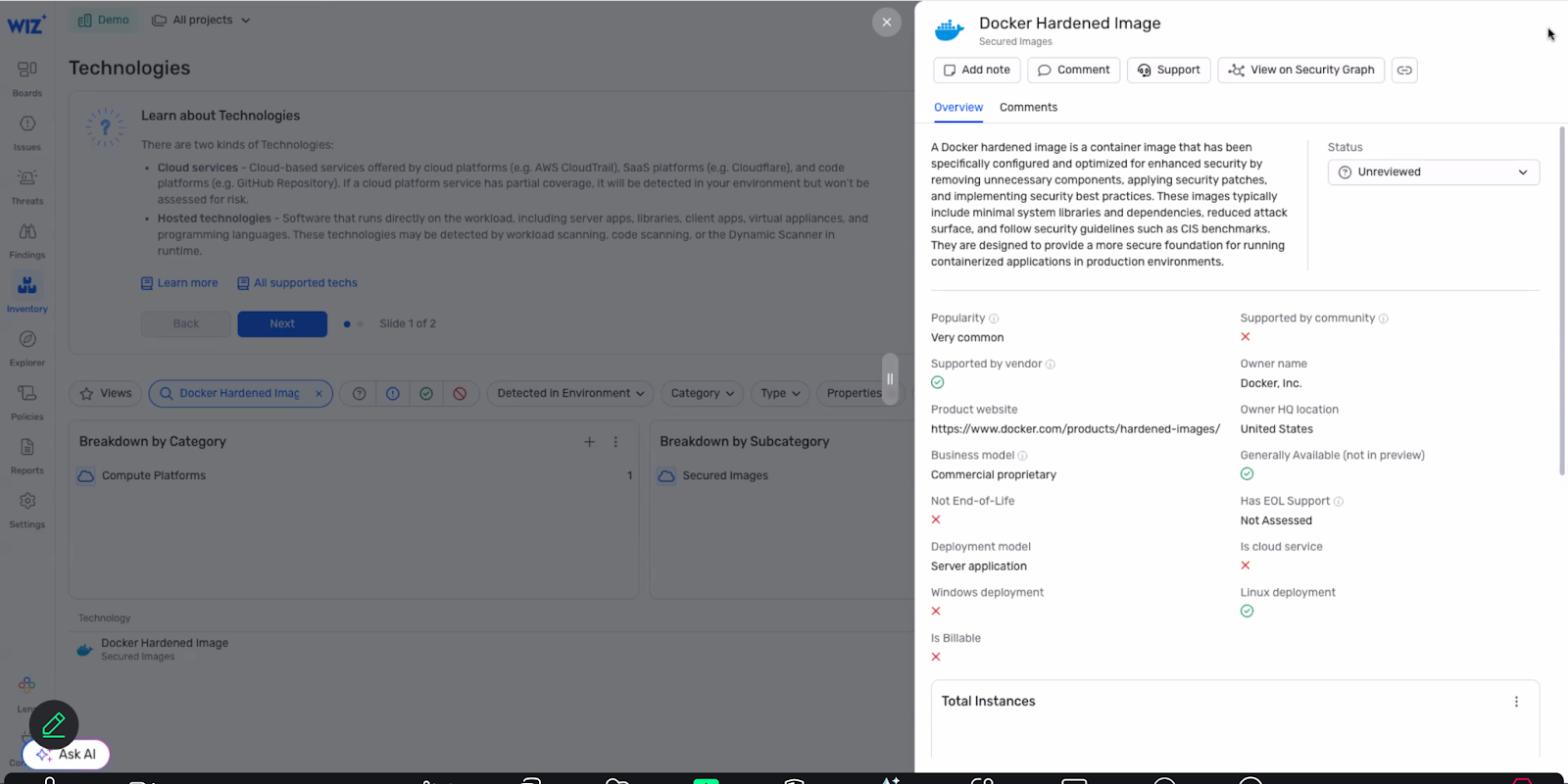
You’ll be redirected to the “Technology” dashboard, where Wiz detects all technologies running on customer environments. Now, look for “Docker Hardened Images” on the search bar

Wiz automatically detects the specific operating systems running on each container mounts and flags them as hardened images

Checking for vulnerabilities on the Wiz dashboard:

Once you’ve validated that Wiz can identify Docker Hardened Images, you will be able to check for vulnerabilities using Wiz’s security graph and Docker’s container metadata. In order to do that, follow these steps from the technologies tab:

Go to inventory/technologies page and filter by operating systems or search for specific technology

Click on the OS/technology to view metadata and resource count

Click to access the security graph view showing all resources running that technology

Add a condition to filter for CVEs detected on those resources. 

View all resources with their associated vulnerabilities in table or graph format

Final Check

After setup, the vulnerabilities will appear according to your pre-set policies. You’ll be able to get a detailed overview on each CVE listed, including graph visualizations for dependency relationships, severity distribution, and potential exploit paths. These insights will help you prioritize remediation efforts, track resolution progress, and ensure compliance with your organization’s security standards.

Integrating Docker Hardened Images for better software supply chain visibility

The Docker-Wiz integration is more than just a checkbox in your security checklist. It provides:

Clarity: VEX documents and accurate base image identification eliminate guesswork, providing clear, contextual vulnerability data.

Confidence: Minimized false positives through OSV advisories and Docker-provided metadata ensures security teams can trust what they see.

Control: Enhanced visibility into SBOMs and technology usage empowers teams to prioritize and manage remediation effectively.

Coverage: Full-stack integration with Wiz surfaces vulnerabilities across all Docker environments, including hardened images and source-built components.This partnership helps DevSecOps teams move fast and remain proactive against container vulnerabilities, an essential capability for modern, lean teams managing fast-paced releases, open source risk, and complex cloud-native environments.

Ready to Get Started?

If you’re already using Docker Hardened Images and Wiz, you’re just a few clicks away from reducing false positives, improving SBOM visibility, and making vulnerability data more actionable.

Check the Docker + Wiz solutions brief

Visit the Docker + Wiz integration page

Read more about VEX in our documentation

Quelle: https://blog.docker.com/feed/
Get Started with the Atlassian Rovo MCP Server Using Docker

We’re excited to announce that the remote Atlassian Rovo MCP server is now available in Docker’s MCP Catalog and Toolkit, making it easier than ever to connect AI assistants to Jira and Confluence. With just a few clicks, technical teams can use their favorite AI agents to create and update Jira issues, epics, and Confluence pages without complex setup or manual integrations.

In this post, we’ll show you how to get started with the Atlassian remote MCP server in minutes and how to use it to automate everyday workflows for product and engineering teams.

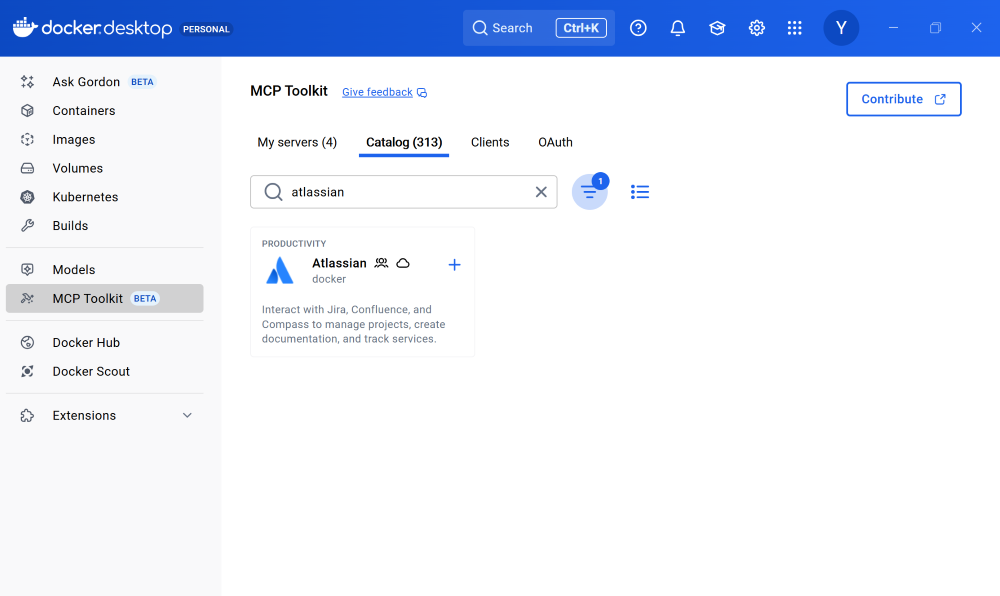
Figure 1: Discover over 300+ MCP servers including the remote Atlassian MCP server in Docker MCP Catalog.

What is the Atlassian Rovo MCP Server?

Like many teams, we rely heavily on Atlassian tools, especially Jira to plan, track, and ship product and engineering work. The Atlassian Rovo MCP server enables AI assistants and agents to interact directly with Jira and Confluence, closing the gap between where work happens and how teams want to use AI.

With the Atlassian Rovo MCP server, you can:

Create and update Jira issues and epics

Generate and edit Confluence pages

Use your preferred AI assistant or agent to automate everyday workflows

Traditionally, setting up and configuring MCP servers can be time-consuming and complex. Docker removes that friction, making it easy to get up and running securely in minutes.

Enable the Atlassian Rovo MCP Server with One Click

Docker’s MCP Catalog is a curated collection of 300+ MCP servers, including both local and remote options. It provides a reliable starting point for developers building with MCP so you don’t have to wire everything together yourself.

Prerequisites

Before you begin, make sure you have:

A machine with 8GB RAM minimum, ideally 16GB

Install Docker Desktop

To get started with the Atlassian remote MCP server:

Open Docker Desktop and click on the MCP Toolkit tab. 

Navigate to Docker MCP Catalog

Search for the Atlassian Rovo MCP server. 

Select the remote version with cloud icon

Enable it with a single click

That’s it. No manual installs. No dependency wrangling.

Why use the Atlassian Rovo MCP server with Docker

Demo by Cecilia Liu: Set up the Atlassian Rovo MCP server with Docker with just a few clicks and use it to generate Jira epics with Claude Desktop

Seamless Authentication with Built-in OAuth

The Atlassian Rovo MCP server uses Docker’s built-in OAuth, so authorization is seamless. Docker securely manages your credentials and allows you to reuse them across multiple MCP clients. You authenticate once, and you’re good to go.

Behind the scenes, this frictionless experience is powered by the MCP Toolkit, which handles environment setup and dependency management for you.

Works with Your Favorite AI Agent

Once the Atlassian Rovo MCP server is enabled, you can connect it to any MCP-compatible client.

For popular clients like Claude Desktop, Claude Code, Codex, or Gemini CLI, connecting is just one click. Just click Connect, restart Claude Desktop, and now we’re ready to go.

From there, we can ask Claude to:

Write a short PRD about MCP

Turn that PRD into Jira epics and stories

Review the generated epics and confirm they’re correct

And just like that, Jira is updated.

One Setup, Any MCP Client

Sometimes AI assistants have hiccups. Maybe you hit a daily usage limit in one tool. That’s not a blocker here.

Because the Atlassian Rovo MCP server is connected through the Docker MCP Toolkit, the setup is completely client-agnostic. Switching to another assistant like Gemini CLI or Cursor is as simple as clicking Connect. No need for reconfiguration or additional setup!

Now we can ask any connected AI assistant such as Gemini CLI to, for example, check all new unassigned Jira tickets. It just works.

Coming Soon: Share Atlassian-Based Workflows Across Teams

We’re working on new enhancements that will make Atlassian-powered workflows even more powerful and easy to share. Soon, you’ll be able to package complete workflows that combine MCP servers, clients, and configurations. Imagine a workflow that turns customer feedback into Jira tickets using Atlassian and Confluence, then shares that entire setup instantly with your team or across projects. That’s where we’re headed.

Frequently Asked Questions (FAQ)

What is the Atlassian Rovo MCP server?

The Atlassian MCP Rovo server enables AI assistants and agents to securely interact with Jira and Confluence. It allows AI tools to create and update Jira issues and epics, generate and edit Confluence pages, and automate everyday workflows for product and engineering teams.

How do I use the Atlassian Rovo MCP server with Docker? 

You can enable the Atlassian Rovo MCP server directly from Docker Desktop or CLI. Simply open the MCP Toolkit tab, search for the Atlassian MCP server, select the remote version, and enable it with one click. Connect to any MCP-compatible client. For popular tools like Claude Code, Codex, and Gemini, setup is even easier with one-click integration. 

Why use Docker to run the Atlassian Rovo MCP server?

Using Docker to run the Atlassian Rovo MCP server removes the complexity of setup, authentication, and client integration. Docker provides one-click enablement through the MCP Catalog, built-in OAuth for secure credential management, and a client-agnostic MCP Toolkit that lets teams connect any AI assistant or agent without reconfiguration so you can focus on automating Jira and Confluence workflows instead of managing infrastructure.

Less Setup. Less Context Switching. More Work Shipped.

That’s how easy it is to set up and use the Atlassian Rovo MCP server with Docker. By combining the MCP Catalog and Toolkit, Docker removes the friction from connecting AI agents to the tools teams already rely on.

Learn more

Get started with MCP Catalog and Toolkit

Explore the Docker MCP Catalog: Discover containerized, security-hardened MCP servers

Read more about the Docker MCP Toolkit: Official Documentation

Quelle: https://blog.docker.com/feed/
The 3Cs: A Framework for AI Agent Security

Every time execution models change, security frameworks need to change with them. Agents force the next shift.

The Unattended Laptop Problem

No developer would leave their laptop unattended and unlocked. The risk is obvious. A developer laptop has root-level access to production systems, repositories, databases, credentials, and APIs. If someone sat down and started using it, they could review pull requests, modify files, commit code, and access anything the developer can access.

Yet this is how many teams are deploying agents today. Autonomous systems are given credentials, tools, and live access to sensitive environments with minimal structure. Work executes in parallel and continuously, at a pace no human could follow. Code is generated faster than developers can realistically review, and they cannot monitor everything operating on their behalf.

Once execution is parallel and continuous, the potential for mistakes or cascading failures scales quickly. Teams will continue to adopt agents because the gains are real. What remains unresolved is how to make this model safe enough to operate without requiring manual approval for every action. Manual approval slows execution back down to human speed and eliminates the value of agents entirely. And consent fatigue is real.

Why AI Agents Break Existing Governance

Traditional security controls were designed around a human operator. A person sits at the keyboard, initiates actions deliberately, and operates within organizational and social constraints. Reviews worked because there was time between intent and execution. Perimeter security protected the network boundary, while automated systems operated within narrow execution limits.

But traditional security assumes something deeper: that a human is operating the machine.  Firewalls trust the laptop because an employee is using it. VPNs trust the connection because an engineer authenticated. Secrets managers grant access because a person requested it. The model depends on someone who can be held accountable and who operates at human speed.

Agents break this assumption. They act directly, reading repositories, calling APIs, modifying files, using credentials. They have root-level privileges and execute actions at machine speed.  

Legacy controls were never intended for this. The default response has been more visibility and approvals, adding alerts, prompts, and confirmations for every action. This does not scale and generates “consent fatigue”, annoying developers and undermining the very security it seeks to enforce. When agents execute hundreds of actions in parallel, humans cannot review them meaningfully. Warnings become noise.

AI Governance and the Execution Layer: The Three Cs Framework

Each major shift in computing has moved security closer to execution. Agents follow the same trajectory. If agents execute, security must operate at the agentic execution layer.

That shift maps governance to three structural requirements: the 3Cs.

Contain: Bound the Blast Radius

Every execution model relies on isolation. Processes required memory protection. Virtual machines required hypervisors. Containers required namespaces. Agents require an equivalent boundary. Containment limits failure so mistakes made by an agent don’t have permanent consequences for your data, workflows, and business. Unlocking full agent autonomy requires the confidence that experimentation won’t be reckless. . Without it, autonomous execution fails.

Curate: Define the Agent’s Environment

What an agent can do is determined by what exists in its environment. The tools it can invoke, the code it can see, the credentials it can use, the context it operates within. All of this shapes execution before the agent acts.

Curation isn’t approval. It is construction. You are not reviewing what the agent wants to do. You are defining the world it operates in. Agents do not reason about your entire system. They act within the environment they are given. If that environment is deliberate, execution becomes predictable. If it is not, you have autonomy without structure, which is just risk.

Control: Enforce Boundaries in Real Time

Governance that exists only on paper has no effect on autonomous systems. Rules must apply as actions occur. File access, network calls, tool invocation, and credential use require runtime enforcement. This is where alert-based security breaks down. Logging and warnings explain what happened or ask permission after execution is already underway. 

Control determines what can happen, when, where, and who has the privilege to make it happen. Properly executed control does not remove autonomy. It defines its limits and removes the need for humans to approve every action under pressure. If this sounds like a policy engine, you aren’t wrong. But this must be dynamic and adaptable, able to keep pace with an agentic workforce.

Putting the 3Cs Into Practice

The three Cs reinforce one another. Containment limits the cost of failure. Curation narrows what agents can attempt and makes them more useful to developers by applying semantic knowledge to craft tools and context to suit the specific environment and task. Control at the runtime layer replaces reactive approval with structural enforcement.

In practice, this work falls to platform teams. It means standardized execution environments with isolation by default, curated tool and credential surfaces aligned to specific use cases, and policy enforcement that operates before actions complete rather than notifying humans afterward. Teams that build with these principles can use agents effectively without burning out developers or drowning them in alerts. Teams that do not will discover that human attention is not a scalable control plane.
Quelle: https://blog.docker.com/feed/
Docker Sandboxes: Run Claude Code and Other Coding Agents Unsupervised (but Safely)

We introduced Docker Sandboxes in experimental preview a few months ago. Today, we’re launching the next evolution with microVM isolation, available now for macOS and Windows. 

We started Docker Sandboxes to answer the question:

How do I run Claude Code or Gemini CLI safely?

Sandboxes provide disposable, isolated environments purpose-built for coding agents. Each agent runs in an isolated version of your development environment, so when it installs packages, modifies configurations, deletes files, or runs Docker containers, your host machine remains untouched.

This isolation lets you run agents like Claude Code, Codex CLI, Copilot CLI, Gemini CLI, and Kiro with autonomy. Since they can’t harm your computer, let them run free.

Since our first preview, Docker Sandboxes have evolved. They’re now more secure, easier to use, and more powerful.

Level 4 Coding Agent Autonomy

Claude Code and other coding agents fundamentally change how developers write and maintain code. But a practical question remains: how do you let an agent run unattended (without constant permission prompts), while still protecting your machine and data? 

Most developers quickly run into the same set of problems trying to solve this:

OS-level sandboxing interrupts workflows and isn’t consistent across platforms

Containers seem like the obvious answer, until the agent needs to run Docker itself

Full VMs work, but are slow, manual, and hard to reuse across projects

We started building Docker Sandboxes specifically to fill this gap.

Docker Sandboxes: MicroVM-Based Isolation for Coding Agents

Defense-in-depth, isolation by default

Each agent runs inside a dedicated microVM

Only your project workspace is mounted into the sandbox

Hypervisor-based isolation significantly reduces host risk

A real development environment

Agents can install system packages, run services, and modify files

Workflows run unattended, without constant permission approvals

Safe Docker access for coding agents

Coding agents can build and run Docker containers inside the MicroVM

They have no access to the host Docker daemon

One sandbox, many coding agents

Use the same sandbox experience with Claude Code, Copilot CLI, Codex CLI, Gemini CLI, and Kiro

More to come (and we’re taking requests!)

Fast reset, no cleanup

If an agent goes off the rails, delete the sandbox and spin up a fresh one in seconds

What’s New Since the Preview and What’s Next

The experimental preview validated the core idea: coding agents need an execution environment with clear isolation boundaries, not a stream of permission prompts. The early focus was developer experience, making it easy to spin up an environment that felt natural and productive for real workflows.

As Matt Pocock put it, “Docker Sandboxes have the best DX of any local AI coding sandbox I’ve tried.”

With this release, we’re making Sandboxes more powerful and secure with no compromise on developer experience.

What’s New

MicroVM-based isolation Sandboxes now run on dedicated microVMs, adding a hard security boundary.

Network isolation with allow and deny listsControl over coding agent network access.

Secure Docker execution for agentsDocker Sandboxes are the only sandboxing solution we’re aware of that allows coding agents to build and run Docker containers while remaining isolated from the host system.

What’s Next

We’re continuing to expand Docker Sandboxes based on developer feedback:

Linux support

MCP Gateway support

Ability to expose ports to the host device and access host-exposed services

Support for additional coding agents

Docker Sandboxes were made for developers who want to run coding agents unattended, experiment freely, and recover instantly when something goes wrong. They extend the usability of containers’ isolation principles but with hard boundaries.

If you’ve been holding back on using agents because of permission prompts, system risk, or Docker-in-Docker limitations, Docker Sandboxes are built to remove those constraints.

We’re iterating quickly, and feedback from real-world usage will directly shape what comes next.

Quelle: https://blog.docker.com/feed/

Clawdbot with Docker Model Runner, a Private Personal AI Assistant

Personal AI assistants are transforming how we manage our daily lives—from handling emails and calendars to automating smart homes. However, as these assistants gain more access to our private data, concerns about privacy, data residency, and long-term costs are at an all-time high.

By combining Clawdbot with Docker Model Runner (DMR), you can build a high-performance, agentic personal assistant while keeping full control over your data, infrastructure, and spending.

This post walks through how to configure Clawdbot to utilize Docker Model Runner, enabling a privacy-first approach to personal intelligence.

What Are Clawdbot and Docker Model Runner?

Clawdbot is a self-hosted AI assistant designed to live where you already are. Unlike browser-bound bots, Clawdbot integrates directly with messaging apps like Telegram, WhatsApp, Discord, and Signal. It acts as a proactive digital coworker capable of executing real-world actions across your devices and services.

Docker Model Runner (DMR) is Docker’s native solution for running and managing large language models (LLMs) as OCI artifacts. It exposes an OpenAI-compatible API, allowing it to serve as the private “brain” for any tool that supports standard AI endpoints.

Together, they create a unified assistant that can browse the web, manage your files, and respond to your messages without ever sending your sensitive data to a third-party cloud.

Benefits of the Clawdbot + DMR Stack

Privacy by Design

In a “Privacy-First” setup, your assistant’s memory, message history, and files stay on your hardware. Docker Model Runner isolates model inference, meaning:

No third-party training: Your personal emails and schedules aren’t used to train future commercial models.

Sandboxed execution: Models run in isolated environments, protecting your host system.

Data Sovereignty: You decide exactly which “Skills” (web browsing, file access) the assistant can use.

Cost Control and Scaling

Cloud-based agents often become expensive when they use “long-term memory” or “proactive searching,” which consume massive amounts of tokens. With Docker Model Runner, inference runs on your own GPU/CPU. Once a model is pulled, there are no per-token fees. You can let Clawdbot summarize thousands of unread emails or research complex topics for hours without worrying about a surprise API bill at the end of the month.

Configuring Clawdbot with Docker Model Runner

Modifying the Clawdbot Configuration

Clawdbot uses a flexible configuration system to define which models and providers drive its reasoning. While the onboarding wizard (clawdbot onboard) is the standard setup path, you can manually point Clawdbot to your private Docker infrastructure.

You can define your provider configuration in:

Global configuration: ~/.config/clawdbot/config.json

Workspace-specific configuration: clawdbot.json in your active workspace root.

Using Clawdbot with Docker Model Runner

To bridge the two, update your configuration to point to the DMR server. Assuming Docker Model Runner is running at its default address: http://localhost:12434/v1.

Your config.json should be updated as follows:

{
"models": {
"providers": {
"dmr": {
"baseUrl": "http://localhost:12434/v1",
"apiKey": "dmr-local",
"api": "openai-completions",
"models": [
{
"id": "gpt-oss:128K",
"name": "gpt-oss (128K context window)",
"contextWindow": 128000,
"maxTokens": 128000
},
{
"id": "glm-4.7-flash:128K",
"name": "glm-4.7-flash (128K context window)",
"contextWindow": 128000,
"maxTokens": 128000
}
]
}
}
},
"agents": {
"defaults": {
"model": {
"primary": "dmr/gpt-oss:128K"
}
}
}
}

This configuration tells Clawdbot to bypass external APIs and route all “thinking” to your private models.

Note for Docker Desktop Users:Ensure TCP access is enabled so Clawdbot can communicate with the runner. Run the following command in your terminal:docker desktop enable model-runner –tcp

Recommended Models for Personal Assistants

While coding models focus on logic, personal assistant models need a balance of instruction-following, tool-use capability, and long-term memory.

Model

Best For

DMR Pull Command

gpt-oss

Complex reasoning & scheduling

docker model pull gpt-oss

glm-4.7-flash

Fast coding assistance and debugging

docker model pull glm-4.7-flash

qwen3-coder

Agentic coding workflows

docker model pull qwem3-coder

Pulling models from the ecosystem

DMR can pull models directly from Hugging Face and convert them into OCI artifacts automatically:

docker model pull huggingface.co/bartowski/Llama-3.3-70B-Instruct-GGUF

Context Length and “Soul”

For a personal assistant, context length is critical. Clawdbot relies on a SOUL.md file (which defines its personality) and a Memory Vault (which stores your preferences).

If a model’s default context is too small, it will “forget” your instructions mid-conversation. You can use DMR to repackage a model with a larger context window:

docker model package –from llama3.3 –context-size 128000 llama-personal:128k

Once packaged, reference llama-personal:128k in your Clawdbot config to ensure your assistant always remembers the full history of your requests.

Putting Clawdbot to Work: Running Scheduled Tasks 

With Clawdbot and DMR running, you can move beyond simple chat. Let’s set up a “Morning Briefing” task.

Verify the Model: docker model ls (Ensure your model is active).

Initialize the Soul: Run clawdbot init-soul to define how the assistant should talk to you.

Assign a Task:“Clawdbot, every morning at 8:00 AM, check my unread emails, summarize the top 3 priorities, and message me the summary on Telegram.”

Because Clawdbot is connected to your private Docker Model Runner, it can parse those emails and reason about your schedule privately. No data leaves your machine; you simply receive a helpful notification on your phone via your chosen messaging app.

How You Can Get Involved

The Clawdbot and Docker Model Runner ecosystems are growing rapidly. Here’s how you can help:

Share Model Artifacts: Push your optimized OCI model packages to Docker Hub for others to use.

Join the Community: Visit the Docker Model Runner GitHub repo.

Quelle: https://blog.docker.com/feed/

Run Claude Code Locally with Docker Model Runner

We recently showed how to pair OpenCode with Docker Model Runner for a privacy-first, cost-effective AI coding setup. Today, we’re bringing the same approach to Claude Code, Anthropic’s agentic coding tool.

This post walks through how to configure Claude Code to use Docker Model Runner, giving you full control over your data, infrastructure, and spend.

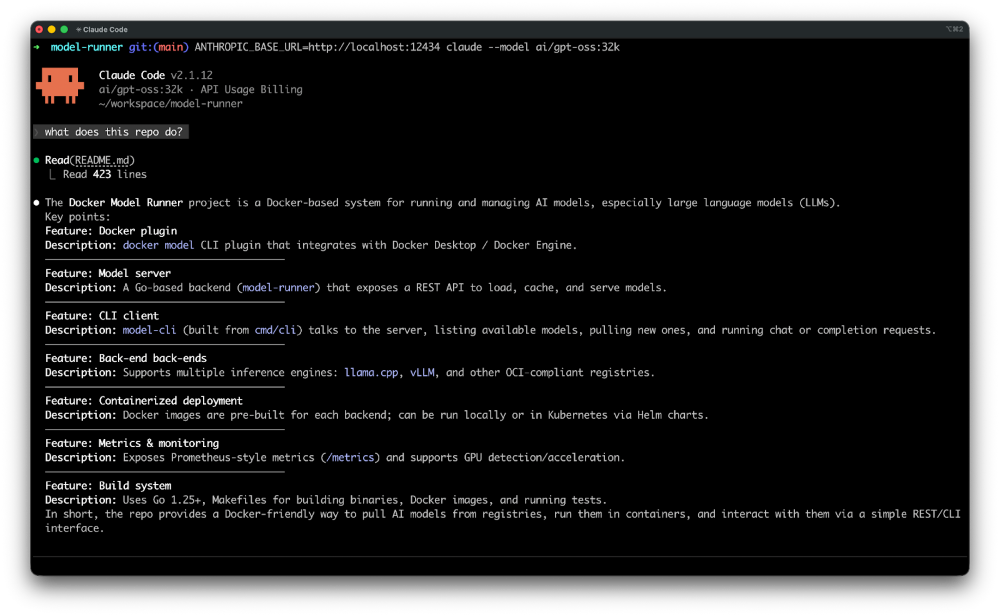
Figure 1: Using local models like gpt-oss to power Claude Code

What Is Claude Code?

Claude Code is Anthropic’s command-line tool for agentic coding. It lives in your terminal, understands your codebase, and helps you code faster by executing routine tasks, explaining complex code, and handling git workflows through natural language commands.

Docker Model Runner (DMR) allows you to run and manage large language models locally. It exposes an Anthropic-compatible API, making it straightforward to integrate with tools like Claude Code.

Install Claude Code

Install Claude Code:macOS / Linux:

curl -fsSL https://claude.ai/install.sh | bash

Windows PowerShell:

irm https://claude.ai/install.ps1 | iex

Using Claude Code with Docker Model Runner

Claude Code supports custom API endpoints through the ANTHROPIC_BASE_URL environment variable. Since Docker Model Runner exposes an Anthropic-compatible API, integrating the two is simple.

Note for Docker Desktop users:If you are running Docker Model Runner via Docker Desktop, make sure TCP access is enabled:

docker desktop enable model-runner –tcp

Once enabled, Docker Model Runner will be accessible at http://localhost:12434.

Increasing Context Size

For coding tasks, context length matters. While models like glm-4.7-flash, qwen3-coder and devstral-small-2 come with 128K context by default, gpt-oss defaults to 4,096 tokens.

Docker Model Runner makes it easy to repackage any model with an increased context size:

docker model pull gpt-oss
docker model package –from gpt-oss –context-size 32000 gpt-oss:32k

Once packaged, use it with Claude Code:

ANTHROPIC_BASE_URL=http://localhost:12434 claude –model gpt-oss:32k

ANTHROPIC_BASE_URL=http://localhost:12434 claude –model gpt-oss "Describe this repo."

That’s it. Claude Code will now send all requests to your local Docker Model Runner instance.

Run Claude Code locally with gpt-oss using Docker Model Runner

Here’s what it looks like in action:

Figure 2: Claude Code powered by Docker Model Runner keeps everything local and in your  control

$ docker model pull gpt-oss

$ docker model package –from gpt-oss –context-size 32000 gpt-oss:32k

$ ANTHROPIC_BASE_URL=http://localhost:12434 claude –model gpt-oss:32k "Describe this repo."

▐▛███▜▌ Claude Code v2.1.12
▝▜█████▛▘ gpt-oss:32k · API Usage Billing
▘▘ ▝▝ ~/workspace/model-runner

❯ Describe this repo.

Read(README.md)
⎿ Read 423 lines

Docker Model Runner (DMR)
– A Go-based tool that lets developers pull, run, and serve AI models
directly from Docker Hub or any OCI-compatible registry.
– Consists of two main components:
a. model-runner – a server/daemon that manages model lifecycle,
inference, and metrics.
b. model-cli – a CLI plugin (docker model) that communicates with
the server, listing models, pulling new ones, and executing inference.

– Supports multiple inference backends: llama.cpp, vLLM, and others.
– Built with Docker Desktop in mind, but also works with Docker Engine
on Linux.
– Provides a REST API for model management and inference, plus a
/metrics endpoint for Prometheus-style monitoring.

Claude Code reads your repository, reasons about its structure, and provides an accurate summary, all while keeping your code entirely on your local machine.

Monitor the requests sent by Claude Code

Want to see exactly what Claude Code sends to Docker Model Runner? Use the docker model requests command:

docker model requests –model gpt-oss:32k | jq .

Figure 3: Monitor requests sent by Claude Code to the LLM

This outputs the raw requests, which is useful for understanding how Claude Code communicates with the model and debugging any compatibility issues.

Making It PersistentFor convenience, set the environment variable in your shell profile:

# Add to ~/.bashrc, ~/.zshrc, or equivalent
export ANTHROPIC_BASE_URL=http://localhost:12434

Then simply run:

claude –model gpt-oss:32k "Describe this repo."

How You Can Get Involved

The strength of Docker Model Runner lies in its community, and there’s always room to grow. To get involved:

Star the repository: Show your support by starring the Docker Model Runner repo.

Contribute your ideas: Create an issue or submit a pull request. We’re excited to see what ideas you have!

Spread the word: Tell your friends and colleagues who might be interested in running AI models with Docker.

We’re incredibly excited about this new chapter for Docker Model Runner, and we can’t wait to see what we can build together. Let’s get to work!

Learn More

Read the companion post: OpenCode with Docker Model Runner for Private AI Coding

Check out the Docker Model Runner General Availability announcement

Visit our Model Runner GitHub repo

Get started with a simple hello GenAI application

Learn more about Claude Code from Anthropic’s documentation

Quelle: https://blog.docker.com/feed/

Making the Most of Your Docker Hardened Images Enterprise Trial – Part 3

Customizing Docker Hardened Images

In Part 1 and Part 2, we established the baseline. You migrated a service to a Docker Hardened Image (DHI), witnessed the vulnerability count drop to zero, and verified the cryptographic signatures and SLSA provenance that make DHI a compliant foundation.

But no matter how secure a base image is, it is useless if you can’t run your application on it. This brings us to the most common question engineers ask during a DHI trial: what if I need a custom image?

Hardened images are minimal by design. They lack package managers (apt, apk, yum), utilities (wget, curl), and even shells like bash or sh. This is a security feature: if a bad actor breaks into your container, they find an empty toolbox.

However, developers often need these tools during setup. You might need to install a monitoring agent, a custom CA certificate, or a specific library.

In this final part of our series, we will cover the two strategies for customizing DHI: the Docker Hub UI (for platform teams creating “Golden Images”) and the multi-stage build pattern (for developers building applications).

Option 1: The Golden Image (Docker Hub UI)

If you are a Platform or DevOps Engineer, your goal is likely to provide a “blessed” base image for your internal teams. For example, you might want a standard Node.js image that always includes your corporate root CA certificate and your security logging agent.The Docker Hub UI is the preferred path for this. The strongest argument for using the Hub UI is maintenance automation.

The Killer Feature: Automatic Rebuilds

When you customize an image via the UI, Docker understands the relationship between your custom layers and the hardened base. If Docker releases a patch for the underlying DHI base image (e.g., a fix in glibc or openssl), Docker Hub automatically rebuilds your custom image.

You don’t need to trigger a CI pipeline. You don’t need to monitor CVE feeds. The platform handles the patching and rebuilding, ensuring your “Golden Image” is always compliant with the latest security standards.

How It Works

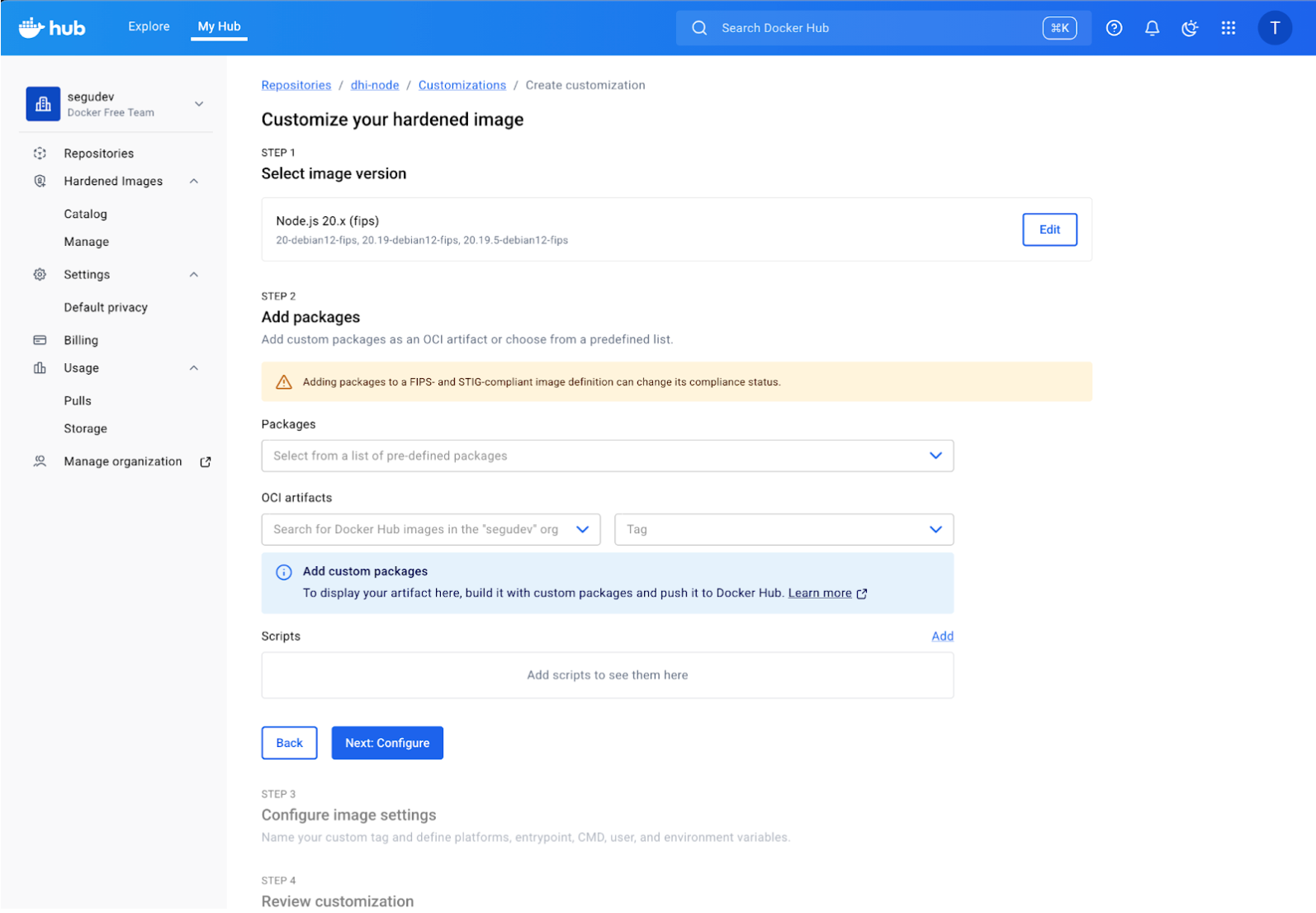
Since you have an Organization setup for this trial, you can explore this directly in Docker Hub.First, navigate to Repositories in your organization dashboard. Locate the image you want to customize (e.g., dhi-node), then the Customizations tab and click the “Create customization” action. This initiates a customization workflow as follows:

In the “Add packages” section, you can search for and select OS packages directly from the distribution’s repository. For example, here we are adding bash to the image for debugging purposes. You can also add “OCI Artifacts” to inject custom files like certificates or agents.

Finally, configure the runtime settings (User, Environment Variables) and review your build. Docker Hub will verify the configuration and queue the build. Once complete, this image will be available in your organization’s private registry and will automatically rebuild whenever the base DHI image is updated.

This option is best suited for creating standardized “golden” base images that are used across the entire organization. The primary advantage is zero-maintenance security patching due to automatic rebuilds by Docker Hub. However, it is less flexible for rapid, application-specific iteration by individual development teams.

Option 2: Multi-Stage Build

If you are an developper, you likely define your environment in a Dockerfile that lives alongside your code. You need flexibility, and you need it to work locally on your machine.

Since DHI images don’t have apt-get or curl, you cannot simply RUN apt-get install my-lib in your Dockerfile. It will fail.

Instead, we use the multi-stage build pattern. The concept is simple:

Stage 1 (Builder): Use a standard “fat” image (like debian:bookworm-slim) to download, compile, and prepare your dependencies.

Stage 2 (Runtime): Copy only the resulting artifacts into the pristine DHI base.

This keeps your final image minimal, non-root, and secure, while still allowing you to install whatever you need.

Hands-on Tutorial: Adding a Monitoring Agent

Let’s try this locally. We will simulate a common real-world scenario: adding the Datadog APM library (dd-trace) globally to a Node.js DHI image.

1. Setup

Create a new directory for this test and add a simple server.js file. This script attempts to load the dd-trace library to verify our installation.

app/server.js

// Simple Express server to demonstrate DHI customization
console.log('Node.js version:', process.version);
try {
require('dd-trace');
console.log('dd-trace module loaded successfully!');
} catch (e) {
console.error('Failed to load dd-trace:', e.message);
process.exit(1);
}
console.log('Running as UID:', process.getuid(), 'GID:', process.getgid());
console.log('DHI customization test successful!');

2. Hardened Dockerfile

Now, create the Dockerfile. We will use a standard Debian image to install the library, and then copy it to our DHI Node.js image. Create a new directory for this test and add a simple server.js file. This script attempts to load the dd-trace library to verify our installation.

# Stage 1: Builder – a standard Debian Slim image that has apt, curl, and full shell access.
FROM debian:bookworm-slim AS builder

# Install Node.js (matching our target version) and tools
RUN apt-get update &amp;&amp;
apt-get install -y curl &amp;&amp;
curl -fsSL https://deb.nodesource.com/setup_24.x | bash – &amp;&amp;
apt-get install -y nodejs

# Install Datadog APM agent globally (we force the install prefix to /usr/local so we know exactly where files go)
RUN npm config set prefix /usr/local &amp;&amp;
npm install -g dd-trace@5.0.0

# Stage 2: Runtime – we switch to the Docker Hardened Image.
FROM &lt;your-org-namespace&gt;/dhi-node:24.11-debian13-fips

# Copy only the required library from the builder stage
COPY –from=builder /usr/local/lib/node_modules/dd-trace /usr/local/lib/node_modules/dd-trace

# Environment Configuration
# DHI images are strict. We must explicitly tell Node where to find global modules.
ENV NODE_PATH=/usr/local/lib/node_modules

# Copy application code
COPY app/ /app/

WORKDIR /app

# DHI Best Practice: Use the exec form (["node", …])
# because there is no shell to process strings.
CMD ["node", "server.js"]

3. Build and Run

Build the custom image:

docker build -t dhi-monitoring-test .

Now run it. If successful, the container should start, find the library, and exit cleanly.

docker run –rm dhi-monitoring-test

Output:

Node.js version: v24.11.0
dd-trace module loaded successfully!
Running as UID: 1000 GID: 1000
DHI customization test successful!

Success! We have a working application with a custom global library, running on a hardened, non-root base.

Security Check

We successfully customized the image. But did we compromise its security?

This is the most critical lesson of operationalizing DHI: hardened base images protect the OS, but they do not protect you from the code you add.Let’s verify our new image with Docker Scout.

docker scout cves dhi-monitoring-test –only-severity critical,high

Sample Output:

✗ Detected 1 vulnerable package with 1 vulnerability

0C 1H 0M 0L lodash.pick 4.4.0
pkg:npm/lodash.pick@4.4.0

✗ HIGH CVE-2020-8203 [Improperly Controlled Modification of Object Prototype Attributes]

This result is accurate and important. The base image (OS, OpenSSL, Node.js runtime) is still secure. However, the dd-trace library we just installed pulled in a dependency (lodash.pick) that contains a High severity vulnerability.

This proves that your verification pipeline works.

If we hadn’t scanned the custom image, we might have assumed we were safe because we used a “Hardened Image.” By using Docker Scout on the final artifact, we caught a supply chain vulnerability introduced by our customization.

Let’s check how much “bloat” we added compared to the clean base.

docker scout compare –to &lt;your-org-namespace&gt;/dhi-node:24.11-debian13-fips dhi-monitoring-test

You will see that the only added size corresponds to the dd-trace library (~5MB) and our application code. We didn’t accidentally inherit apt, curl, or the build caches from the builder stage. The attack surface remains minimized.

A Note on Provenance: Who Signs What?

In Part 2, we verified the SLSA Provenance and cryptographic signatures of Docker Hardened Images. This is crucial for establishing a trusted supply chain. When you customize an image, the question of who “owns” the signature becomes important.

Docker Hub UI Customization: When you customize an image through the Docker Hub UI, Docker itself acts as the builder for your custom image. This means the resulting customized image inherits signed provenance and attestations directly from Docker’s build infrastructure. If the base DHI receives a security patch, Docker automatically rebuilds and re-signs your custom image, ensuring continuous trust. This is a significant advantage for platform teams creating “golden images.”

Local Dockerfile: When you build a custom image using a multi-stage Dockerfile locally (as we did in our tutorial), you are the builder. Your docker build command produces a new image with a new digest. Consequently, the original DHI signature from Docker does not apply to your final custom image (because the bits have changed and you are the new builder).However, the chain of trust is not entirely broken:

Base Layers: The underlying DHI layers within your custom image still retain their original Docker attestations.

Custom Layer: Your organization is now the “builder” of the new layers.

For production deployments using the multi-stage build, you should integrate Cosign or Docker Content Trust into your CI/CD pipeline to sign your custom images. This closes the loop, allowing you to enforce policies like: “Only run images built by MyOrg, which are based on verified DHI images and have our internal signature.”

Measuring Your ROI: Questions for Your Team

As you conclude your Docker Hardened Images trial, it’s critical to quantify the value for your organization. Reflect on the concrete results from your migration and customization efforts using these questions:

Vulnerability Reduction: How significantly did DHI impact your CVE counts? Compare the “before and after” vulnerability reports for your migrated services. What is the estimated security risk reduction?

Engineering Effort: What was the actual engineering effort required to migrate an image to DHI? Consider the time saved on patching, vulnerability triage, and security reviews compared to managing traditional base images.

Workflow: How well does DHI integrate into your team’s existing development and CI/CD workflows? Do developers find the customization patterns (Golden Image / Builder Pattern) practical and efficient? Is your team likely to adopt this long-term?

Compliance & Audit: Has DHI simplified your compliance reporting or audit processes due to its SLSA provenance and FIPS compliance? What is the impact on your regulatory burden?

Conclusion

Thanks for following through to the end! Over this 3-part blog series, you have moved from a simple trial to a fully operational workflow:

Migration: You replaced a standard base image with DHI and saw immediate vulnerability reduction.

Verification: You independently validated signatures, FIPS compliance, and SBOMs.

Customization: You learned to extend DHI using the Hub UI (for auto-patching) or multi-stage builds, while checking for new vulnerabilities introduced by your own dependencies.

The lesson here is that the “Hardened” in Docker Hardened Images isn’t a magic shield but a clean foundation. By building on top of it, you ensure that your team spends time securing your application code, rather than fighting a never-ending battle against thousands of upstream vulnerabilities.
Quelle: https://blog.docker.com/feed/

Making the Most of Your Docker Hardened Images Enterprise Trial – Part 2

Verifying Security and Compliance of Docker Hardened Images

In Part 1 of this series, we migrated a Node.js service to Docker Hardened Images (DHI) and measured impressive results: 100% vulnerability elimination, 90% package reduction, and 41.5% size decrease. We extracted the SBOM and saw compliance labels for FIPS, STIG, and CIS.

The numbers look compelling. But how do you verify these claims independently?

Security tools earn trust through verification, not promises. When evaluating a security product for production, you need cryptographic proof. This is especially true for images that form the foundation of every container you deploy.This post walks through the verification process: signature validation, provenance analysis, compliance evidence examination, and SBOM analysis. We’ll focus on practical verification you can run during your trial, with links to the official DHI documentation for deeper technical details. By the end, you’ll have independently confirmed DHI’s security posture and built confidence for a production scenario.

Understanding Security Attestations available with Docker Hardened Images

Before diving into verification, you need to understand what you’re verifying.

Docker Hardened Images include attestations: cryptographically-signed metadata about the image’s build process, contents, and compliance posture. These are signed statements that can be independently verified.

Important: If you’ve pulled the image locally, you need to use the registry:// prefix when working with attestations. This tells Docker Scout to look for attestations in the registry, not just the local image cache.

List all attestations for your hardened image:

docker scout attestation list registry://&lt;your-org-namespace&gt;/dhi-node:24.11-debian13-fips

This shows 16 different attestation types:

https://slsa.dev/provenance/v0.2 SLSA provenance
https://docker.com/dhi/fips/v0.1 FIPS compliance
https://docker.com/dhi/stig/v0.1 STIG scan
https://cyclonedx.org/bom/v1.6 CycloneDX SBOM
https://spdx.dev/Document SPDX SBOM
https://scout.docker.com/vulnerabilities Scout vulnerabilities
https://scout.docker.com/secrets/v0.1 Scout secret scan
https://scout.docker.com/virus/v0.1 Scout virus/malware
https://scout.docker.com/tests/v0.1 Scout test report
https://openvex.dev/ns/v0.2.0 OpenVEX

Each attestation is a JSON document describing a specific aspect of the image. The most critical attestations for verification:

SLSA provenance: Build source, builder identity, and build process details

SBOM: Complete software bill of materials

FIPS compliance: Evidence of FIPS 140-3 certified cryptographic modules

STIG scan: Security Technical Implementation Guide compliance results

Vulnerability scan: CVE assessment

VEX report: CVE exploitability

These attestations follow the in-toto specification, an open framework for supply chain security. Each attestation includes:

Subject: What the attestation describes (the container image)

Predicate: The actual claims (FIPS certified, STIG compliant, etc.)

Signature: Cryptographic signature from the builder

Let’s see how you can verify the signatures yourself.

Verifying Attestations with Docker Scout

The attestations we’re about to examine are cryptographically signed by Docker’s build infrastructure. Docker Scout provides a simple, integrated approach that handles DHI attestations natively and without the hassle of managing public keys or certificate chains.To validate an attestation, simply append the –verify flag, which provides explicit validation feedback. This process relies on cryptographic hashing: the digest is a hash of the attestation content, so even a single character change completely alters the hash. Moreover, the attestation’s signature is cryptographically bound to the specific image digest it describes, guaranteeing that the metadata you’re verifying corresponds exactly to the image you have and preventing substitution attacks.

Retrieving an Attestation

To extract a specific attestation (like SLSA provenance), use the attestation get command with the full predicate type URI:

docker scout attestation get registry://&lt;your-org-namespace&gt;/dhi-node:24.11-debian13-fips
–predicate-type https://slsa.dev/provenance/v0.2
–output provenance.json

Success looks like this:

✓ SBOM obtained from attestation, 32 packages found
✓ Provenance obtained from attestation
✓ Report written to provenance.json

The checkmarks confirm Docker Scout successfully retrieved and verified the attestation. Behind the scenes, Scout validated:

The attestation signature matches Docker’s signing key

The signature hasn’t expired

The attestation applies to this specific image digest

The attestation hasn’t been tampered with

If signature verification fails, Scout returns an error and won’t output the attestation file.To learn more about available predicate types, check out the DHI verification documentation.

Validating SLSA Provenance

Signatures prove attestations are authentic. Provenance shows where the image came from.

SLSA (Supply-chain Levels for Software Artifacts) is a security framework developed by Google, the Linux Foundation, and other industry partners. It defines levels of supply chain security maturity, from SLSA 0 (no guarantees) to SLSA 4 (highest assurance).

Docker Hardened Images target SLSA 3, which requires:

Build process fully scripted/automated

All build steps defined in version control

Provenance generated automatically by build service

Provenance includes source, builder, and build parameters

Using our previously extracted SLSA provenance.json, we can check the source repository and commit hash:

jq '.predicate.invocation.environment.github_repository' provenance.json

Output:

"docker-hardened-images/definitions"
jq '.predicate.invocation.environment.github_sha1' provenance.json

Output:

"698b367344efb3a7d443508782de331a84216ae4"

Similarly, you can see exactly what GitHub Actions workflow produced this image.

jq '.predicate.builder.id' provenance.json

Output:

“https://github.com/docker-hardened-images/definitions/actions/runs/18930640220/attempts/1”

For DHI Enterprise Users: Verifying High-Assurance Claims

While the free hardened images are built with security best practices, DHI Enterprise images carry the specific certifications required for FedRAMP, HIPAA, and financial audits. Here is how to verify those high-assurance claims.

FIPS 140-3 Validation

FIPS (Federal Information Processing Standard) 140-3 is a U.S. government standard for cryptographic modules. Think of it as a certification that proves the cryptography in your software has been tested and validated by independent labs against federal requirements.

If you’re building software for government agencies, financial institutions, or healthcare providers, FIPS compliance is often mandatory: without it, your software can’t be used in those environments!

Check if the image includes FIPS-certified cryptography:

docker scout attestation get registry://&lt;your-org-namespace&gt;/dhi-node:24.11-debian13-fips
–predicate-type https://docker.com/dhi/fips/v0.1
–output fips-attestation.json

Output:

{
"certification": "CMVP #4985",
"certificationUrl": "https://csrc.nist.gov/projects/cryptographic-module-validation-program/certificate/4985",
"name": "OpenSSL FIPS Provider",
"package": "pkg:dhi/openssl-provider-fips@3.1.2",
"standard": "FIPS 140-3",
"status": "active",
"sunsetDate": "2030-03-10",
"version": "3.1.2"
}

The certificate number (4985) is the key piece. This references a specific FIPS validation in the official NIST CMVP database.

STIG Compliance

STIG (Security Technical Implementation Guide) is the Department of Defense’s (DoD) checklist for securing systems. It’s a comprehensive security configuration standard needed for deploying software for defense or government work.DHI images undergo STIG scanning before release. Docker uses a custom STIG based on the DoD’s General Operating System Security Requirements Guide. Each scan checks dozens of security controls and reports findings. You can extract and review STIG scan results:

docker scout attestation get registry://&lt;your-org-namespace&gt;/dhi-node:24.11-debian13-fips
–predicate-type https://docker.com/dhi/stig/v0.1
–output stig-attestation.json

Check the STIG scan summary:

jq '.predicate[0].summary' stig-attestation.json

Output:

{
"failedChecks": 0,
"passedChecks": 91,
"notApplicableChecks": 107,
"totalChecks": 198,
"defaultScore": 100,
"flatScore": 91
}

This shows DHI passed all 91 applicable STIG controls with zero failed checks and a 100% score. The 107 “notApplicableChecks” typically refer to controls that are irrelevant to the specific minimal container environment or its configuration. For a complete list of STIG controls and DHI compliance details, including how to extract and view the full STIG scan report, see the DHI STIG documentation.

CIS Benchmark Hardening

CIS (Center for Internet Security) Benchmarks are security configuration standards created by security professionals across industries. Much like STIGs, they represent consensus best practices, but unlike government-mandated frameworks (FIPS, STIG), CIS benchmarks are community-developed.

CIS compliance isn’t legally required, but it demonstrates you’re following industry-standard security practices—valuable for customer trust and audit preparation.

You can verify CIS compliance through image labels:

docker inspect &lt;your-org-namespace&gt;/dhi-node:24.11-debian13-fips |
jq '.[0].Config.Labels["com.docker.dhi.compliance"]'

Output: “fips,stig,cis”

The CIS label indicates that an image is hardened according to the CIS Docker Benchmark.

What exactly is a SBOM used for?

Compliance frameworks tell you what standards you meet. The SBOM tells you what’s actually in your container—and that’s where the real security work begins.

Identifying Transitive Dependencies

When you add a package to your project, you see the direct dependency. What you don’t see: that package’s dependencies, and their dependencies, and so on. This is the transitive dependency problem.

A vulnerability in a transitive dependency you’ve never heard of can compromise your entire application. Real example: the Log4Shell vulnerability affected millions of applications because Log4j was a transitive dependency buried several levels deep in dependency chains.

Most vulnerabilities hide in transitive dependencies because:

Developers don’t know they exist

They’re not updated when the direct dependency updates

Scanning tools miss them without an SBOM

Minimal images reduce this risk dramatically. Fewer packages = fewer transitive dependencies = smaller attack surface.

Compare dependency counts:

Official Node.js image: 321 packages, ~1,500 dependency relationships

DHI Node.js image: 32 packages, ~150 dependency relationships

90% reduction in packages means 90% reduction in transitive dependency risk.

Scanning for Known (Exploitable) Vulnerabilities

With the SBOM extracted, scan for known vulnerabilities:

docker scout cves registry://&lt;your-org-namespace&gt;/dhi-node:24.11-debian13-fips

Output:

Target: &lt;your-org-namespace&gt;/dhi-node:24.11-debian13-fips

0C 0H 0M 8L

8 vulnerabilities found in 2 packages
CRITICAL 0
HIGH 0
MEDIUM 0
LOW 8

Zero critical, high, or medium severity vulnerabilities. Docker Scout cross-references the SBOM against multiple vulnerability databases (NVD, GitHub Security Advisories, etc.).This is the payoff of minimal images: fewer packages means fewer potential vulnerabilities. The official Node.js image had 25 CVEs across CRITICAL, HIGH, and MEDIUM severities. The hardened version has zero actionable vulnerabilities—not because vulnerabilities were patched, but because vulnerable packages were removed entirely.

Understanding Exploitability with VEX

Not all CVEs are relevant to your deployment. A vulnerability in a library function your application never calls, or a flaw in a service that isn’t running, doesn’t pose real risk. Docker Hardened Images include signed VEX attestations that identify which reported CVEs are not actually exploitable in the image’s runtime context. This helps you distinguish between CVEs that exist in a package (reported), and CVEs that can actually be exploited given how the package is used in this specific image (exploitable). In other words, VEX reduces false positives.

Docker Scout applies VEX statements automatically when scanning DHI images: when you run docker scout cves, Scout uses VEX attestations to suppress vulnerabilities marked as non-exploitable.

You can see which CVEs have been evaluated with this command:

docker scout attestation get registry://&lt;your-org-namespace&gt;/dhi-node:24.11-debian13-fips
–predicate-type https://openvex.dev/ns/v0.2.0
–output vex.json

License Compliance Analysis

When you use open source software, you’re bound by license terms. Some licenses (MIT, Apache) are permissive and you can use them freely, even in commercial products. Others (GPL, AGPL) are copyleft: they require you to release your source code if you distribute software using them.

SBOMs make license compliance visible. Without an SBOM, you’re blind to what licenses your containers include.

Export the SBOM in SPDX format:

docker scout sbom registry://&lt;your-org-namespace&gt;/dhi-node:24.11-debian13-fips
–format spdx
–output node-sbom-spdx.json

Analyze license distribution:

jq '.packages[].licenseConcluded' node-sbom-spdx.json |
sort | uniq -c | sort -rn

Output:

15 "MIT"
8 "Apache-2.0"
5 "GPL-2.0-or-later"
2 "BSD-3-Clause"
1 "OpenSSL"
1 "NOASSERTION"

In this example:

✅ MIT and Apache-2.0 are permissive (safe for commercial use)

⚠️ GPL-2.0-or-later requires review (is this a runtime dependency or build tool?)

⚠️ NOASSERTION needs investigation

Conclusion: What You’ve Proven

You’ve independently verified critical security claims Docker makes about Hardened Images:

Authenticity: Cryptographic signatures prove images are genuine and unmodified

Provenance: SLSA attestations trace builds to specific source commits in public repositoriesCompliance: FIPS certificate, STIG controls passed, and CIS benchmarks met

Security posture

Every claim you verified (except CIS) has a corresponding attestation you can check yourself, audit, and validate in your CI/CD pipeline.

You can customize a Docker Hardened Image (DHI) to suit your specific needs using the Docker Hub UI. This allows you to select a base image, add packages, add OCI artifacts (such as custom certificates or additional tools), and configure settings. In addition, the build pipeline ensures that your customized image is built securely and includes attestations.

In Part 3, we’ll cover how to customize Docker Hardened Images to suit your specific needs, while keeping all the benefits we just explored.

You’ve confirmed DHI delivers on security promises. Next, we’ll make it operational.

If you missed reading part 1, where we discussed how you can get to 100% vulnerability elimination and 90% package reduction, read the blog here.

Quelle: https://blog.docker.com/feed/


