Protecting the Software Supply Chain: The Art of Continuous Improvement

Without continuous improvement in software security, you’re not standing still — you’re walking backward into oncoming traffic. Attack vectors multiply, evolve, and look for the weakest link in your software supply chain daily. 

Cybersecurity Ventures forecasts that the global cost of software supply chain attacks will reach nearly $138 billion by 2031, up from $60 billion in 2025 and $46 billion in 2023. A single overlooked vulnerability isn’t just a flaw; it’s an open invitation for compromise, potentially threatening your entire system. The cost of a breach doesn’t stop with your software — it extends to your reputation and customer trust, which are far harder to rebuild. 

Docker’s suite of products offers your team peace of mind. With tools like Docker Scout, you can expose vulnerabilities before they expose you. Continuous image analysis doesn’t just find the cracks; it empowers your teams to seal them from code to production. But Docker Scout is just the beginning. Tools like Docker Hub’s trusted content, Docker Official Images (DOI), Image Access Management (IAM), and Hardened Docker Desktop work together to secure every stage of your software supply chain. 

In this post, we’ll explore how these tools provide built-in security, governance, and visibility, helping your team innovate faster while staying protected. 

Securing the supply chain

Your software supply chain isn’t just an automated sequence of tools and processes. It’s a promise — to your customers, team, and future. Promises are fragile. The cracks can start to show with every dependency, third-party integration, and production push. Tools like Image Access Management help protect your supply chain by providing granular control over who can pull, share, or modify images, ensuring only trusted team members access sensitive assets. Meanwhile, Hardened Docker Desktop ensures developers work in a secure, tamper-proof environment, giving your team confidence that development is aligned with enterprise security standards. The solution isn’t to slow down or second-guess; it’s to continuously improve on securing your software supply chain, such as automated vulnerability scans and trusted content from Docker Hub.

A breach is more than a line item in the budget. Customers ask themselves, “If they couldn’t protect this, what else can’t they protect?” Downtime halts innovation as fines for compliance failures and engineering efforts re-route to forensic security analysis. The brand you spent years perfecting could be reduced to a cautionary tale. Regardless of how innovative your product is, it’s not trusted if it’s not secure. 

Organizations must stay prepared by regularly updating their security measures and embracing new technologies to outpace evolving threats. As highlighted in the article Rising Tide of Software Supply Chain Attacks: An Urgent Problem, software supply chain attacks are increasingly targeting critical points in development workflows, such as third-party dependencies and build environments. High-profile incidents like the SolarWinds attack have demonstrated how adversaries exploit trust relationships and weaknesses in widely used components to cause widespread damage. 

Preventing security problems from the start

Preventing attacks like the SolarWinds breach requires prioritizing code integrity and adopting secure software development practices. Tools like Docker Scout seamlessly integrate security into developers’ workflows, enabling proactive identification of vulnerabilities in dependencies and ensuring that trusted components form the backbone of your applications.

Docker Hub’s trusted content and Docker Scout’s policy evaluation features help ensure that your organization uses compliant and secure images. Docker Official Images (DOI) provide a robust foundation for deployments, mitigating risks from untrusted components. To extend this security foundation, Image Access Management allows teams to enforce image-sharing policies and restrict access to sensitive components, preventing accidental exposure or misuse. For local development, Hardened Docker Desktop ensures that developers operate in a secure, enterprise-grade environment, minimizing risks from the outset. This combination of tools enables your engineering team to put out fires and, more importantly, prevent them from starting in the first place.

Building guardrails

Governance isn’t a roadblock; it’s the blueprint for progress. The problem is that some companies treat security like a fire extinguisher — something you grab when things go wrong. That is not a viable strategy in the long run. Real innovation happens when security guardrails are so well-designed that they feel like open highways, empowering teams to move fast without compromising safety. 

A structured policy lifecycle loop — mapping connections, planning changes, deploying cleanly, and retiring the dead weight — turns governance into your competitive edge. Automate it, and you’re not just checking boxes; you’re giving your teams the freedom to move fast and trust the road ahead. 

Continuous improvement on security policy management doesn’t have to feel like a bureaucratic chokehold. Docker provides a streamlined workflow to secure your software supply chain effectively. Docker Scout integrates seamlessly into your development lifecycle, delivering vulnerability scans, image analysis, and detailed reports and recommendations to help teams address issues before code reaches production. 

With the introduction of Docker Health Scores — a security grading system for container images — teams gain a clear and actionable snapshot of their image security posture. These scores empower developers to prioritize remediation efforts and continuously improve their software’s security from code to production.

Keeping up with continuous improvement

Security threats aren’t slowing down. New attack vectors and vulnerabilities grow every day. With cybercrime costs expected to rise from $9.22 trillion in 2024 to $13.82 trillion by 2028, organizations face a critical choice: adapt to this evolving threat landscape or risk falling behind, exposing themselves to escalating costs and reputational damage. Continuous improvement in software security isn’t a luxury. Building and maintaining trust with your customers is essential so they know that every fresh deployment is better than the one that came before. Otherwise, expect high costs due to imminent software supply chain attacks. 

Best practices for securing the software supply chain involve integrating vulnerability scans early in the development lifecycle, leveraging verified content from trusted sources, and implementing governance policies to ensure consistent compliance standards without manual intervention. Continuous monitoring of vulnerabilities and enforcing runtime policies help maintain security at scale, adapting to the dynamic nature of modern software ecosystems.

Start today

Securing your software supply chain is a journey of continuous improvement. With Docker’s tools, you can empower your teams to build and deploy software securely, ensuring vulnerabilities are addressed before they become liabilities.

Don’t wait until vulnerabilities turn into liabilities. Explore Docker Hub, Docker Scout, Hardened Docker Desktop, and Image Access Management to embed security into every stage of development. From granular control over image access to tamper-proof local environments, Docker’s suite of tools helps safeguard your innovation, protect your reputation, and empower your organization to thrive in a dynamic ecosystem.

Learn more

Docker Scout: Integrates seamlessly into your development lifecycle, delivering vulnerability scans, image analysis, and actionable recommendations to address issues before they reach production.

Docker Health Scores: A security grading system for container images, offering teams clear insights into their image security posture.

Docker Hub: Access trusted, verified content, including Docker Official Images (DOI), to build secure and compliant software applications.

Docker Official Images (DOI): A curated set of high-quality images that provide a secure foundation for your containerized applications.

Image Access Management (IAM): Enforce image-sharing policies and restrict access to sensitive components, ensuring only trusted team members access critical assets.

Hardened Docker Desktop: A tamper-proof, enterprise-grade development environment that aligns with security standards to minimize risks from local development.

Quelle: https://blog.docker.com/feed/
Mastering Docker and Jenkins: Build Robust CI/CD Pipelines Efficiently

Hey there, fellow engineers and tech enthusiasts! I’m excited to share one of my favorite strategies for modern software delivery: combining Docker and Jenkins to power up your CI/CD pipelines. 

Throughout my career as a Senior DevOps Engineer and Docker Captain, I’ve found that these two tools can drastically streamline releases, reduce environment-related headaches, and give teams the confidence they need to ship faster.

In this post, I’ll walk you through what Docker and Jenkins are, why they pair perfectly, and how you can build and maintain efficient pipelines. My goal is to help you feel right at home when automating your workflows. Let’s dive in.

Brief overview of continuous integration and continuous delivery

Continuous integration (CI) and continuous delivery (CD) are key pillars of modern development. If you’re new to these concepts, here’s a quick rundown:

Continuous integration (CI): Developers frequently commit their code to a shared repository, triggering automated builds and tests. This practice prevents conflicts and ensures defects are caught early.

Continuous delivery (CD): With CI in place, organizations can then confidently automate releases. That means shorter release cycles, fewer surprises, and the ability to roll back changes quickly if needed.

Leveraging CI/CD can dramatically improve your team’s velocity and quality. Once you experience the benefits of dependable, streamlined pipelines, there’s no going back.

Why combine Docker and Jenkins for CI/CD?

Docker allows you to containerize your applications, creating consistent environments across development, testing, and production. Jenkins, on the other hand, helps you automate tasks such as building, testing, and deploying your code. I like to think of Jenkins as the tireless “assembly line worker,” while Docker provides identical “containers” to ensure consistency throughout your project’s life cycle.

Here’s why blending these tools is so powerful:

Consistent environments: Docker containers guarantee uniformity from a developer’s laptop all the way to production. This consistency reduces errors and eliminates the dreaded “works on my machine” excuse.

Speedy deployments and rollbacks: Docker images are lightweight. You can ship or revert changes at the drop of a hat — perfect for short delivery process cycles where minimal downtime is crucial.

Scalability: Need to run 1,000 tests in parallel or support multiple teams working on microservices? No problem. Spin up multiple Docker containers whenever you need more build agents, and let Jenkins orchestrate everything with Jenkins pipelines.

For a DevOps junkie like me, this synergy between Jenkins and Docker is a dream come true.

Setting up your CI/CD pipeline with Docker and Jenkins

Before you roll up your sleeves, let’s cover the essentials you’ll need:

Docker Desktop (or a Docker server environment) installed and running. You can get Docker for various operating systems.

Jenkins downloaded from Docker Hub or installed on your machine. These days, you’ll want jenkins/jenkins:lts (the long-term support image) rather than the deprecated library/jenkins image.

Proper permissions for Docker commands and the ability to manage Docker images on your system.

A GitHub or similar code repository where you can store your Jenkins pipeline configuration (optional, but recommended).

Pro tip: If you’re planning a production setup, consider a container orchestration platform like Kubernetes. This approach simplifies scaling Jenkins, updating Jenkins, and managing additional Docker servers for heavier workloads.

Building a robust CI/CD pipeline with Docker and Jenkins

After prepping your environment, it’s time to create your first Jenkins-Docker pipeline. Below, I’ll walk you through common steps for a typical pipeline — feel free to modify them to fit your stack.

1. Install necessary Jenkins plugins

Jenkins offers countless plugins, so let’s start with a few that make configuring Jenkins with Docker easier:

Docker Pipeline Plugin

Docker

CloudBees Docker Build and Publish

How to install plugins:

Open Manage Jenkins > Manage Plugins in Jenkins.

Click the Available tab and search for the plugins listed above.

Install them (and restart Jenkins if needed).

Code example (plugin installation via CLI):

# Install plugins using Jenkins CLI
java -jar jenkins-cli.jar -s http://<jenkins-server>:8080/ install-plugin docker-pipeline
java -jar jenkins-cli.jar -s http://<jenkins-server>:8080/ install-plugin docker
java -jar jenkins-cli.jar -s http://<jenkins-server>:8080/ install-plugin docker-build-publish

Pro tip (advanced approach): If you’re aiming for a fully infrastructure-as-code setup, consider using Jenkins configuration as code (JCasC). With JCasC, you can declare all your Jenkins settings — including plugins, credentials, and pipeline definitions — in a YAML file. This means your entire Jenkins configuration is version-controlled and reproducible, making it effortless to spin up fresh Jenkins instances or apply consistent settings across multiple environments. It’s especially handy for large teams looking to manage Jenkins at scale.

Reference:

Jenkins Plugin Installation Guide.

Jenkins Configuration as Code Plugin.

2. Set up your Jenkins pipeline

In this step, you’ll define your pipeline. A Jenkins “pipeline” job uses a Jenkinsfile (stored in your code repository) to specify the steps, stages, and environment requirements.

Example Jenkinsfile:

pipeline {
agent any
stages {
stage('Checkout') {
steps {
git branch: 'main', url: 'https://github.com/your-org/your-repo.git'
}
}
stage('Build') {
steps {
script {
dockerImage = docker.build("your-org/your-app:${env.BUILD_NUMBER}")
}
}
}
stage('Test') {
steps {
sh 'docker run –rm your-org/your-app:${env.BUILD_NUMBER} ./run-tests.sh'
}
}
stage('Push') {
steps {
script {
docker.withRegistry('https://index.docker.io/v1/', 'dockerhub-credentials') {
dockerImage.push()
}
}
}
}
}
}

Let’s look at what’s happening here:

Checkout: Pulls your repository.

Build: Creates a built docker image (your-org/your-app) with the build number as a tag.

Test: Runs your test suite inside a fresh container, ensuring Docker containers create consistent environments for every test run.

Push: Pushes the image to your Docker registry (e.g., Docker Hub) if the tests pass.

Reference: Jenkins Pipeline Documentation.

3. Configure Jenkins for automated builds

Now that your pipeline is set up, you’ll want Jenkins to run it automatically:

Webhook triggers: Configure your source control (e.g., GitHub) to send a webhook whenever code is pushed. Jenkins will kick off a build immediately.

Poll SCM: Jenkins periodically checks your repo for new commits and starts a build if it detects changes.

Which trigger method should you choose?

Webhook triggers are ideal if you want near real-time builds. As soon as you push to your repo, Jenkins is notified, and a new build starts almost instantly. This approach is typically more efficient, as Jenkins doesn’t have to continuously check your repository for updates. However, it requires that your source control system and network environment support webhooks.

Poll SCM is useful if your environment can’t support incoming webhooks — for example, if you’re behind a corporate firewall or your repository isn’t configured for outbound hooks. In that case, Jenkins routinely checks for new commits on a schedule you define (e.g., every five minutes), which can add a small delay and extra overhead but may simplify setup in locked-down environments.

Personal experience: I love webhook triggers because they keep everything as close to real-time as possible. Polling works fine if webhooks aren’t feasible, but you’ll see a slight delay between code pushes and build starts. It can also generate extra network traffic if your polling interval is too frequent.

4. Build, test, and deploy with Docker containers

Here comes the fun part — automating the entire cycle from build to deploy:

Build Docker image: After pulling the code, Jenkins calls docker.build to create a new image.

Run tests: Automated or automated acceptance testing runs inside a container spun up from that image, ensuring consistency.

Push to registry: Assuming tests pass, Jenkins pushes the tagged image to your Docker registry — this could be Docker Hub or a private registry.

Deploy: Optionally, Jenkins can then deploy the image to a remote server or a container orchestrator (Kubernetes, etc.).

This streamlined approach ensures every step — build, test, deploy — lives in one cohesive pipeline, preventing those “where’d that step go?” mysteries.

5. Optimize and maintain your pipeline

Once your pipeline is up and running, here are a few maintenance tips and enhancements to keep everything running smoothly:

Clean up images: Routine cleanup of Docker images can reclaim space and reduce clutter.

Security updates: Stay on top of updates for Docker, Jenkins, and any plugins. Applying patches promptly helps protect your CI/CD environment from vulnerabilities.

Resource monitoring: Ensure Jenkins nodes have enough memory, CPU, and disk space for builds. Overworked nodes can slow down your pipeline and cause intermittent failures.

Pro tip: In large projects, consider separating your build agents from your Jenkins controller by running them in ephemeral Docker containers (also known as Jenkins agents). If an agent goes down or becomes stale, you can quickly spin up a fresh one — ensuring a clean, consistent environment for every build and reducing the load on your main Jenkins server.

Why use Declarative Pipelines for CI/CD?

Although Jenkins supports multiple pipeline syntaxes, Declarative Pipelines stand out for their clarity and resource-friendly design. Here’s why:

Simplified, opinionated syntax: Everything is wrapped in a single pipeline { … } block, which minimizes “scripting sprawl.” It’s perfect for teams who want a quick path to best practices without diving deeply into Groovy specifics.

Easier resource allocation: By specifying an agent at either the pipeline level or within each stage, you can offload heavyweight tasks (builds, tests) onto separate worker nodes or Docker containers. This approach helps prevent your main Jenkins controller from becoming overloaded.

Parallelization and matrix builds: If you need to run multiple test suites or support various OS/browser combinations, Declarative Pipelines make it straightforward to define parallel stages or set up a matrix build. This tactic is incredibly handy for microservices or large test suites requiring different environments in parallel.

Built-in “escape hatch”: Need advanced Groovy features? Just drop into a script block. This lets you access Scripted Pipeline capabilities for niche cases, while still enjoying Declarative’s streamlined structure most of the time.

Cleaner parameterization: Want to let users pick which tests to run or which Docker image to use? The parameters directive makes your pipeline more flexible. A single Jenkinsfile can handle multiple scenarios — like unit vs. integration testing — without duplicating stages.

Declarative Pipeline examples

Below are sample pipelines to illustrate how declarative syntax can simplify resource allocation and keep your Jenkins controller healthy.

Example 1: Basic Declarative Pipeline

pipeline {
agent any
stages {
stage('Build') {
steps {
echo 'Building…'
}
}
stage('Test') {
steps {
echo 'Testing…'
}
}
}
}

Runs on any available Jenkins agent (worker).

Uses two stages in a simple sequence.

Example 2: Stage-level agents for resource isolation

pipeline {
agent none // Avoid using a global agent at the pipeline level
stages {
stage('Build') {
agent { docker 'maven:3.9.3-eclipse-temurin-17' }
steps {
sh 'mvn clean package'
}
}
stage('Test') {
agent { docker 'openjdk:17-jdk' }
steps {
sh 'java -jar target/my-app-tests.jar'
}
}
}
}

Each stage runs in its own container, preventing any single node from being overwhelmed.

agent none at the top ensures no global agent is allocated unnecessarily.

Example 3: Parallelizing test stages

pipeline {
agent none
stages {
stage('Test') {
parallel {
stage('Unit Tests') {
agent { label 'linux-node' }
steps {
sh './run-unit-tests.sh'
}
}
stage('Integration Tests') {
agent { label 'linux-node' }
steps {
sh './run-integration-tests.sh'
}
}
}
}
}
}

Splits tests into two parallel stages.

Each stage can run on a different node or container, speeding up feedback loops.

Example 4: Parameterized pipeline

pipeline {
agent any

parameters {
choice(name: 'TEST_TYPE', choices: ['unit', 'integration', 'all'], description: 'Which test suite to run?')
}

stages {
stage('Build') {
steps {
echo 'Building…'
}
}
stage('Test') {
when {
expression { return params.TEST_TYPE == 'unit' || params.TEST_TYPE == 'all' }
}
steps {
echo 'Running unit tests…'
}
}
stage('Integration') {
when {
expression { return params.TEST_TYPE == 'integration' || params.TEST_TYPE == 'all' }
}
steps {
echo 'Running integration tests…'
}
}
}
}

Lets you choose which tests to run (unit, integration, or both).

Only executes relevant stages based on the chosen parameter, saving resources.

Example 5: Matrix builds

pipeline {
agent none

stages {
stage('Build and Test Matrix') {
matrix {
agent {
label "${PLATFORM}-docker"
}
axes {
axis {
name 'PLATFORM'
values 'linux', 'windows'
}
axis {
name 'BROWSER'
values 'chrome', 'firefox'
}
}
stages {
stage('Build') {
steps {
echo "Build on ${PLATFORM} with ${BROWSER}"
}
}
stage('Test') {
steps {
echo "Test on ${PLATFORM} with ${BROWSER}"
}
}
}
}
}
}
}

Defines a matrix of PLATFORM x BROWSER, running each combination in parallel.

Perfect for testing multiple OS/browser combinations without duplicating pipeline logic.

Additional resources:

Jenkins Pipeline Syntax: Official reference for sections, directives, and advanced features like matrix, parallel, and post conditions.

Jenkins Pipeline Steps Reference: Comprehensive list of steps you can call in your Jenkinsfile.

Jenkins Configuration as Code Plugin (JCasC): Ideal for version-controlling your Jenkins configuration, including plugin installations and credentials.

Using Declarative Pipelines helps ensure your CI/CD setup is easier to maintain, scalable, and secure. By properly configuring agents — whether Docker-based or label-based — you can spread workloads across multiple worker nodes, minimize resource contention, and keep your Jenkins controller humming along happily.

Best practices for CI/CD with Docker and Jenkins

Ready to supercharge your setup? Here are a few tried-and-true habits I’ve cultivated:

Leverage Docker’s layer caching: Optimize your Dockerfiles so stable (less frequently changing) layers appear early. This drastically reduces build times.

Run tests in parallel: Jenkins can run multiple containers for different services or microservices, letting you test them side by side. Declarative Pipelines make it easy to define parallel stages, each on its own agent.

Shift left on security: Integrate security checks early in the pipeline. Tools like Docker Scout let you scan images for vulnerabilities, while Jenkins plugins can enforce compliance policies. Don’t wait until production to discover issues.

Optimize resource allocation: Properly configure CPU and memory limits for Jenkins and Docker containers to avoid resource hogging. If you’re scaling Jenkins, distribute builds across multiple worker nodes or ephemeral agents for maximum efficiency.

Configuration management: Store Jenkins jobs, pipeline definitions, and plugin configurations in source control. Tools like Jenkins Configuration as Code simplify versioning and replicating your setup across multiple Docker servers.

With these strategies — plus a healthy dose of Declarative Pipelines — you’ll have a lean, high-octane CI/CD pipeline that’s easier to maintain and evolve.

Troubleshooting Docker and Jenkins Pipelines

Even the best systems hit a snag now and then. Here are a few hurdles I’ve seen (and conquered):

Handling environment variability: Keep Docker and Jenkins versions synced across different nodes. If multiple Jenkins nodes are in play, standardize Docker versions to avoid random build failures.

Troubleshooting build failures: Use docker logs -f <container-id> to see exactly what happened inside a container. Often, the logs reveal missing dependencies or misconfigured environment variables.

Networking challenges: If your containers need to talk to each other — especially across multiple hosts — make sure you configure Docker networks or an orchestration platform properly. Read Docker’s networking documentation for details, and check out the Jenkins diagnosing issues guide for more troubleshooting tips.

Conclusion

Pairing Docker and Jenkins offers a nimble, robust approach to CI/CD. Docker locks down consistent environments and lightning-fast rollouts, while Jenkins automates key tasks like building, testing, and pushing your changes to production. When these two are in harmony, you can expect shorter release cycles, fewer integration headaches, and more time to focus on developing awesome features.

A healthy pipeline also means your team can respond quickly to user feedback and confidently roll out updates — two crucial ingredients for any successful software project. And if you’re concerned about security, there are plenty of tools and best practices to keep your applications safe.

I hope this guide helps you build (and maintain) a high-octane CI/CD pipeline that your team will love. If you have questions or need a hand, feel free to reach out on the community forums, join the conversation on Slack, or open a ticket on GitHub issues. You’ll find plenty of fellow Docker and Jenkins enthusiasts who are happy to help.

Thanks for reading, and happy building!

Learn more

Subscribe to the Docker Newsletter. 

Take a deeper dive in Docker’s official Jenkins integration documentation.

Explore Docker Business for comprehensive CI/CD security at scale.

Get the latest release of Docker Desktop.

Have questions? The Docker community is here to help.

New to Docker? Get started.

Quelle: https://blog.docker.com/feed/
Simplify AI Development with the Model Context Protocol and Docker

This ongoing Docker Labs GenAI series explores the exciting space of AI developer tools. At Docker, we believe there is a vast scope to explore, openly and without the hype. We will share our explorations and collaborate with the developer community in real time. Although developers have adopted autocomplete tooling like GitHub Copilot and use chat, there is significant potential for AI tools to assist with more specific tasks and interfaces throughout the entire software lifecycle. Therefore, our exploration will be broad. We will be releasing software as open source so you can play, explore, and hack with us, too.

In December, we published The Model Context Protocol: Simplifying Building AI apps with Anthropic Claude Desktop and Docker. Along with the blog post, we also created Docker versions for each of the reference servers from Anthropic and published them to a new Docker Hub mcp namespace.

This provides lots of ways for you to experiment with new AI capabilities using nothing but Docker Desktop.

For example, to extend Claude Desktop to use Puppeteer, update your claude_desktop_config.json file with the following snippet:

“puppeteer”: {
“command”: “docker”,
“args”: [”run”, “-i”, “–rm”, “–init”, “-e”, “DOCKER_CONTAINER=true”, “mcp/puppeteer”]
}

After restarting Claude Desktop, you can ask Claude to take a screenshot of any URL using a Headless Chromium browser running in Docker.

You can do the same thing for a Model Context Protocol (MCP) server that you’ve written. You will then be able to distribute this server to your users without requiring them to have anything besides Docker Desktop.

How to create an MCP server Docker Image

An MCP server can be written in any language. However, most of the examples, including the set of reference servers from Anthropic, are written in either Python or TypeScript and use one of the official SDKs documented on the MCP site.

For typical uv-based Python projects (projects with a pyproject.toml and uv.lock in the root), or npm TypeScript projects, it’s simple to distribute your server as a Docker image.

If you don’t already have Docker Desktop, sign up for a free Docker Personal subscription so that you can push your images to others.

Run docker login from your terminal.

Copy either this npm Dockerfile or this Python Dockerfile template into the root of your project. The Python Dockerfile will need at least one update to the last line.

Run the build with the Docker CLI (instructions below).

The two Dockerfiles shown above are just templates. If your MCP server includes other runtime dependencies, you can update the Dockerfiles to include these additions. The runtime of your MCP server should be self-contained for easy distribution.

If you don’t have an MCP server ready to distribute, you can use a simple mcp-hello-world project to practice. It’s a simple Python codebase containing a server with one tool call. Get started by forking the repo, cloning it to your machine, and then following the following instructions to build the MCP server image.

Building the image

Most sample MCP servers are still designed to run locally (on the same machine as the MCP client, communication over stdio). Over the next few months, you’ll begin to see more clients supporting remote MCP servers but for now, you need to plan for your server running on at least two different architectures (amd64 and arm64). This means that you should always distribute what we call multi-platform images when your target is local MCP servers. Fortunately, this is easy to do.

Create a multi-platform builder

The first step is to create a local builder that will be able to build both platforms. Don’t worry; this builder will use emulation to build the platforms that you don’t have. See the multi-platform documentation for more details.

docker buildx create
  –name mcp-builder
  –driver docker-container
  –bootstrap

Build and push the image

In the command line below, substitute <your-account> and your mcp-server-name for valid values, then run a build and push it to your account.

docker buildx build
–builder=mcp-builder
–platform linux/amd64,linux/arm64
-t <your-docker-account>/mcp-server-name
–push .

Extending Claude Desktop

Once the image is pushed, your users will be able to attach your MCP server to Claude Desktop by adding an entry to claude_desktop_config.json that looks something like:

“your-server-name”: {
“command”: “docker”,
“args”: [”run”, “-i”, “–rm”, “–pull=always”,
“your-account/your-server-name”]
}

This is a minimal set of arguments. You may want to pass in additional command-line arguments, environment variables, or volume mounts.

Next steps

The MCP protocol gives us a standard way to extend AI applications. Make sure your extension is easy to distribute by packaging it as a Docker image. Check out the Docker Hub mcp namespace for examples that you can try out in Claude Desktop today.

As always, feel free to follow along in our public repo.

For more on what we’re doing at Docker, subscribe to our newsletter.

Learn more

Subscribe to the Docker Newsletter. 

Learn about accelerating AI development with the Docker AI Catalog.

Read the Docker Labs GenAI series.

Get the latest release of Docker Desktop.

Have questions? The Docker community is here to help.

New to Docker? Get started.

Quelle: https://blog.docker.com/feed/
Meet Gordon: An AI Agent for Docker

This ongoing Docker Labs GenAI series explores the exciting space of AI developer tools. At Docker, we believe there is a vast scope to explore, openly and without the hype. We will share our explorations and collaborate with the developer community in real time. Although developers have adopted autocomplete tooling like GitHub Copilot and use chat, there is significant potential for AI tools to assist with more specific tasks and interfaces throughout the entire software lifecycle. Therefore, our exploration will be broad. We will be releasing software as open source so you can play, explore, and hack with us, too.

In previous articles, we focused on how AI-based tools can help developers streamline tasks and offered ideas for enabling agentic workflows, like reviewing branches and understanding code changes.

In this article, we’ll explore our experiments around the idea of creating a Docker AI Agent — something that could both help new users learn about our tools and products and help power users get things done faster.

During our explorations around this Docker Agent and AI-based tools, we noticed that the main pain points we encountered were often the same:

LLMs need good context to provide good answers (garbage in -> garbage out).

Using AI tools often requires context switching (moving to another app, to a different website, etc.).

We’d like agents to be able to suggest and perform actions on behalf of the users.

Direct product integrations with AI are often more satisfying to use than chat interfaces.

At first, we tried to see what’s possible using off-the-shelf services like ChatGPT or Claude. 

By using testing prompts such as “optimize the following Dockerfile, following all best practices” and providing the model with a sub-par but common Dockerfile, we could sometimes get decent answers. Often, though, the resulting Dockerfile had subtle bugs, hallucinations, or simply wasn’t optimized or didn’t use many of the best practices we would’ve hoped for. Thus, this approach was not reliable enough.

Data ended up being the main issue. Training data for LLM models is always outdated by some amount of time, and the number of bad Dockerfiles that you can find online vastly outnumbers the amount of up-to-date Dockerfiles using all best practices, etc.

After doing proof-of-concept tests using a RAG approach, including some documents with lots of useful advice for creating good Dockerfiles, we realized that the AI Agent idea was definitely possible. However, setting up all the things required for a good RAG would’ve taken too much bandwidth from our small team.

Because of this, we opted to use kapa.ai for that specific part of our agent. Docker already uses them to provide the AI docs assistant on Docker docs, so most of our high-quality documentation is already available for us to reference as part of our LLM usage through their service. Using kapa.ai allowed us to experiment more, getting high-quality results faster, and allowing us to try different ideas around the AI agent concept.

Enter Gordon

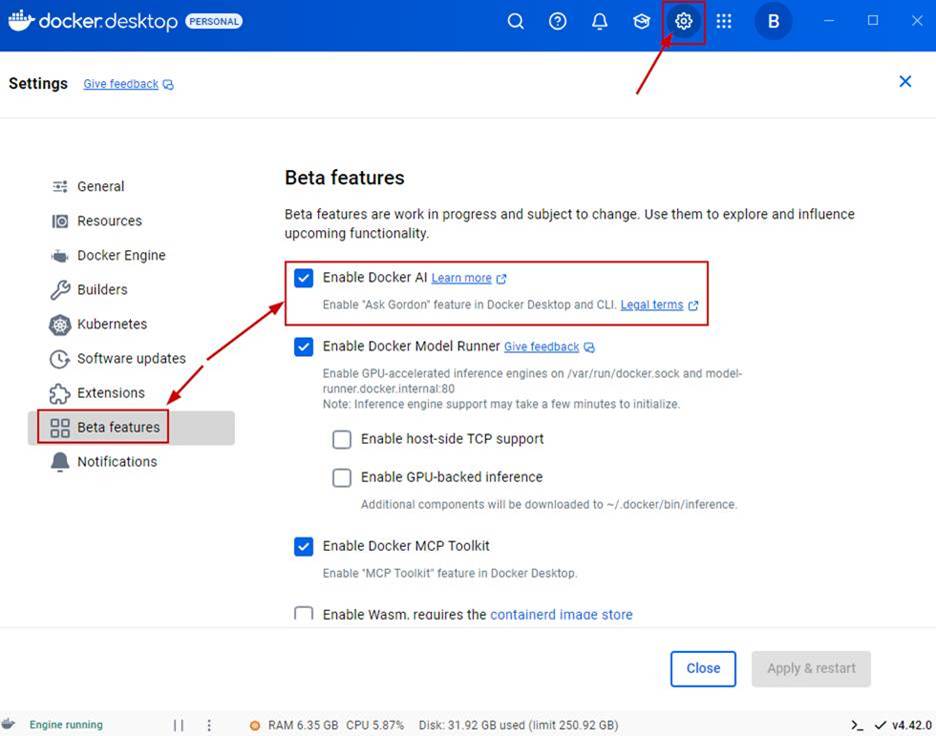
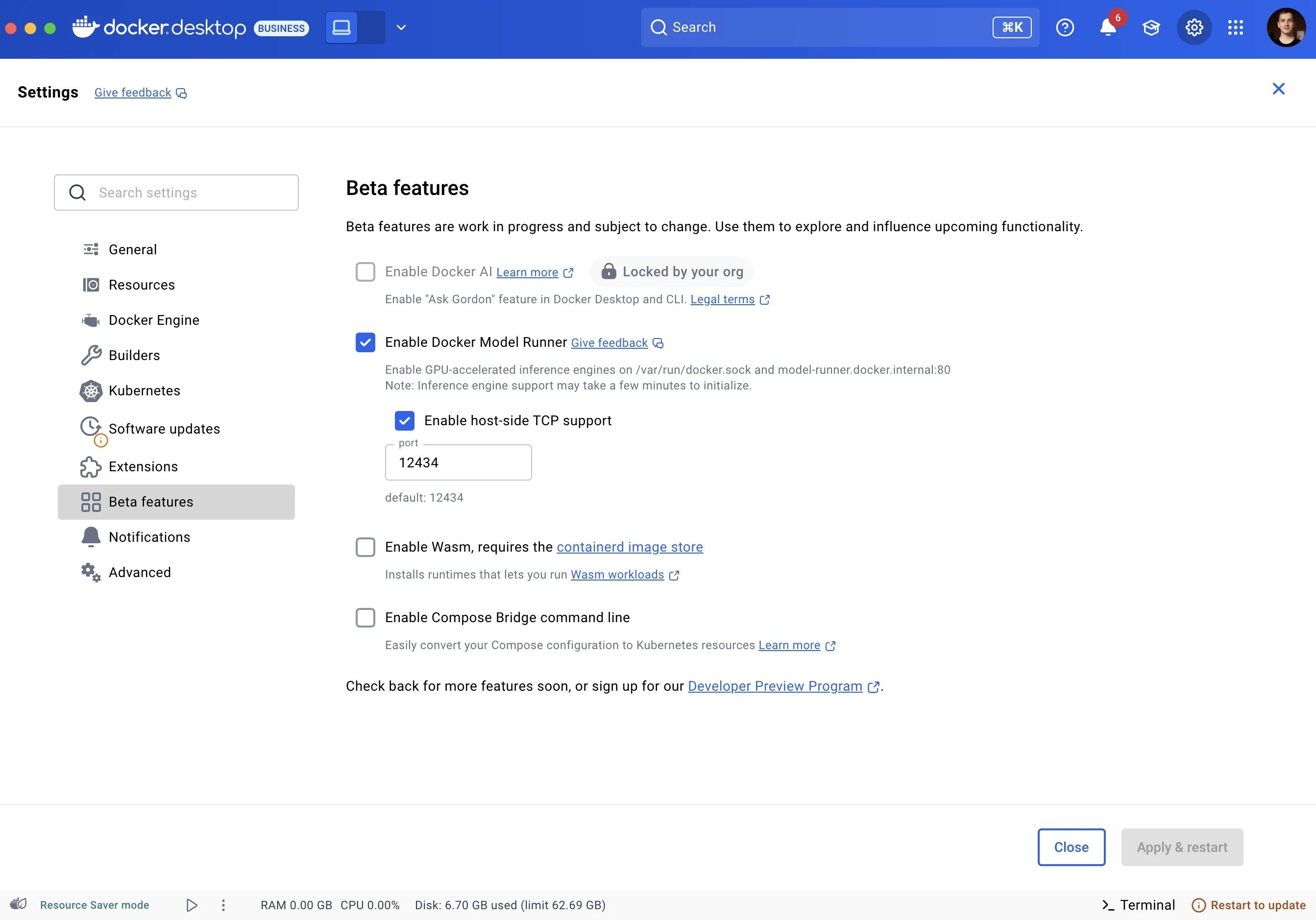
Out of this experimentation came a new product that you can try: Gordon. With Gordon, we’d like to tackle these pain points. By integrating Gordon into Docker Desktop and the Docker CLI (Figure 1), we can:

Access much more context that can be used by the LLMs to best understand the user’s questions and provide better answers or even perform actions on the user’s behalf.

Be where the users are. If you launch a container via Docker Desktop and it fails, you can quickly debug with Gordon. If you’re in the terminal hacking away, Docker AI will be there, too.

Avoid being a purely chat-based agent by providing Gordon-based features directly as part of Docker Desktop UI elements. If Gordon detects certain scenarios, like a container that failed to start, a button will appear in the UI to directly get suggestions, or run actions, etc. (Figure 2).

Figure 1: Gordon icon on Docker Desktop.

Figure 2: Ask Gordon (beta).

What Gordon can do

We want to start with Gordon by optimizing for Docker-related tasks — not general-purpose questions — but we are not excluding expanding the scope to more development-related tasks as work on the agent continues.

Work on Gordon is at an early stage and its capabilities are constantly evolving, but it’s already really good at some things (Figure 3). Here are things to definitely try out:

Ask general Docker-related questions. Gordon knows Docker well and has access to all of our documentation.

Get help debugging container build or runtime errors.

Remediate policy deviations from Docker Scout.

Get help optimizing Docker-related files and configurations.

Ask it how to run specific containers (e.g., “How can I run MongoDB?”).

Figure 3: Using Gordon to understand a Dockerfile.

How Gordon works

The Gordon backend lives on Docker servers, while the client is a CLI that lives on the user’s machine and is bundled with Docker Desktop. Docker Desktop uses the CLI to access the local machine’s files, asking the user for the directory each time it needs that context to answer a question. When using the CLI directly, it has access to the working directory it’s executed in. For example, if you are in a directory with a Dockerfile and you run “Docker AI, rate my Dockerfile”, it will find the one that’s present in that directory

Currently, Gordon does not have write access to any files, so it will not edit any of your files. We’re hard at work on future features that will allow the agent to do the work for you, instead of only suggesting solutions. 

Figure 4 shows a rough overview of how we are thinking about things behind the scenes.

Figure 4: Overview of Gordon.

The first step of this pipeline, “Understand the user’s input and figure out which action to perform”, is done using “tool calling” (also known as “function calling”) with the OpenAI API. 

Although this is a popular approach, we noticed that the documentation online isn’t very good, and general best practices aren’t well defined yet. This led us to experiment a lot with the feature and try to figure out what works for us and what doesn’t.

Things we noticed:

Tool descriptions are important, and we should prefer more in-depth descriptions with examples.

Testing around tool-detection code is also important. Adding new tools to a request could confuse the LLM and cause it to no longer trigger the expected tool.

The LLM model used influences how the whole tool calling functionality should be implemented, as different models might prefer descriptions written in a certain way, behave better/worse under certain scenarios (e.g. when using lots of tools), etc.

Try Gordon for yourself

Gordon is available as an opt-in Beta feature starting with Docker Desktop version 4.37. To participate in the closed beta, all you need to do is fill out the form on the site.

Initially, Gordon will be available for use both in Docker Desktop and the Docker CLI, but our idea is to surface parts of this tech in various other parts of our products as well.

For more on what we’re doing at Docker, subscribe to our newsletter.

Learn more

Subscribe to the Docker Newsletter. 

Learn about accelerating AI development with the Docker AI Catalog.

Read the Docker Labs GenAI series.

Get the latest release of Docker Desktop.

Have questions? The Docker community is here to help.

New to Docker? Get started.

Quelle: https://blog.docker.com/feed/
Unlocking Efficiency with Docker for AI and Cloud-Native Development

The need for secure and high quality software becomes more critical every day as the impact of vulnerabilities increases and related costs continue to rise. For example, flawed software cost the U.S. economy $2.08 trillion in 2020 alone, according to the Consortium for Information and Software Quality (CISQ). And, a software defect that might cost $100 to fix if found early in the development process can grow exponentially to $10,000 if discovered later in production. 

Docker helps you deliver secure, efficient applications by providing consistent environments and fast, reliable container management, building on best practices that let you discover and resolve issues earlier in the software development life cycle (SDLC).

Shifting left to ensure fewer defects

In a previous blog post, we talked about using the right tools, including Docker’s suite of products to boost developer productivity. Besides having the right tools, you also need to implement the right processes to optimize your software development and improve team productivity. 

The software development process is typically broken into two distinct loops, the inner and the outer loops. At Docker, we believe that investing in the inner loop is crucial. This means shifting security left and identifying problems as soon as you can. This approach improves efficiency and reduces costs by helping teams find and fix software issues earlier.

Using Docker tools to adopt best practices

Docker’s products help you adopt these best practices — we are focused on enhancing the software development lifecycle, especially around refining the inner loop. Products like Docker Desktop allow your dev team in the inner loop to run, test, code, and build everything fast and consistently. This consistency eliminates the “it works on my machine” issue, meaning applications behave the same in both development and production.  

Shifting left lets your dev team identify problems earlier in your software project lifecycle. When you detect issues sooner, you increase efficiency and help ensure secure builds and compliance. By shifting security left with Docker Scout, your dev teams can identify vulnerabilities sooner and help avoid issues down the road. 

Another example of shifting left involves testing — doing testing earlier in the process leads to more robust software and faster release cycles. This is when Testcontainers Cloud comes in handy because it enables developers to run reliable integration tests, with real dependencies defined in code. 

Accelerate development within the hybrid inner loop

We see more and more companies adopting the so-called hybrid inner loop, which combines the best of two worlds — local and cloud. The results provide greater flexibility for your dev teams and encourage better collaboration. For example, Docker Build Cloud uses the power of the cloud to speed up build time without sacrificing the local development experience that developers love. 

By using these Docker products across the software development life cycle, teams get quick feedback loops and faster issue resolution, ensuring a smooth development flow from inception to deployment. 

Simplifying AI application development

When you’re using the right tools and processes to accelerate your application delivery and maximize efficiency throughout your SDLC, processes that were once cumbersome become your new baseline, freeing up time for true innovation. 

Docker also helps accelerate innovation by simplifying AI/ML development. We are continually investing in AI to help your developers deliver AI-backed applications that differentiate your business and enhance competitiveness.

Docker AI tools

Docker’s GenAI Stack accelerates the incorporation of large language models (LLMs) and AI/ML into your code, enabling the delivery of AI-backed applications. All containers work harmoniously and are managed directly from Docker Desktop, allowing your team to monitor and adjust components without leaving their development environment. Deploying the GenAI Stack is quick and easy, and leveraging Docker’s containerization technology helps speed setup and simplify scaling as applications grow.

Earlier this year, we announced the preview of Docker Extension for GitHub Copilot. By standardizing best practices and enabling integrations with tools like GitHub Copilot, Docker empowers developers to focus on innovation, closing the gap from the first line of code to production.

And, more recently, we launched the Docker AI Catalog in Docker Hub. This new feature simplifies the process of integrating AI into applications by providing trusted and ready-to-use content supported by comprehensive documentation. Your dev team will benefit from shorter development cycles, improved productivity, and a more streamlined path to integrating AI into both new and existing applications.

Wrapping up

Docker products help you establish sound processes and practices related to shifting left and discovering issues earlier to avoid headaches down the road. This approach ultimately unlocks developer productivity, giving your dev team more time to code and innovate. Docker also allows you to quickly use AI to close knowledge gaps and offers trusted tools to build AI/ML applications and accelerate time to market. 

To see how Docker continues to empower developers with the latest innovations and tools, check out our Docker 2024 Highlights.

Learn about Docker’s updated subscriptions and find the ideal plan for your team’s needs.

Learn more

Subscribe to the Docker Navigator Newsletter. 

Get the latest release of Docker Desktop.

Have questions? The Docker community is here to help.

New to Docker? Get started.

Quelle: https://blog.docker.com/feed/

How to Dockerize a Django App: Step-by-Step Guide for Beginners

One of the best ways to make sure your web apps work well in different environments is to containerize them. Containers let you work in a more controlled way, which makes development and deployment easier. This guide will show you how to containerize a Django web app with Docker and explain why it’s a good idea.

We will walk through creating a Docker container for your Django application. Docker gives you a standardized environment, which makes it easier to get up and running and more productive. This tutorial is aimed at those new to Docker who already have some experience with Django. Let’s get started!

Why containerize your Django application?

Django apps can be put into containers to help you work more productively and consistently. Here are the main reasons why you should use Docker for your Django project:

Creates a stable environment: Containers provide a stable environment with all dependencies installed, so you don’t have to worry about “it works on my machine” problems. This ensures that you can reproduce the app and use it on any system or server. Docker makes it simple to set up local environments for development, testing, and production.

Ensures reproducibility and portability: A Dockerized app bundles all the environment variables, dependencies, and configurations, so it always runs the same way. This makes it easier to deploy, especially when you’re moving apps between environments.

Facilitates collaboration between developers: Docker lets your team work in the same environment, so there’s less chance of conflicts from different setups. Shared Docker images make it simple for your team to get started with fewer setup requirements.

Speeds up deployment processes: Docker makes it easier for developers to get started with a new project quickly. It removes the hassle of setting up development environments and ensures everyone is working in the same place, which makes it easier to merge changes from different developers.

Getting started with Django and Docker

Setting up a Django app in Docker is straightforward. You don’t need to do much more than add in the basic Django project files.

Tools you’ll need

To follow this guide, make sure you first:

Install Docker Desktop and Docker Compose on your machine.

Use a Docker Hub account to store and access Docker images.

Make sure Django is installed on your system.

If you need help with the installation, you can find detailed instructions on the Docker and Django websites.

How to Dockerize your Django project

The following six steps include code snippets to guide you through the process.

Step 1: Set up your Django project

1. Initialize a Django project. 

If you don’t have a Django project set up yet, you can create one with the following commands:

django-admin startproject my_docker_django_app
cd my_docker_django_app

2. Create a requirements.txt file. 

In your project, create a requirements.txt file to store dependencies:

pip freeze > requirements.txt

3. Update key environment settings.

You need to change some sections in the settings.py file to enable them to be set using environment variables when the container is started. This allows you to change these settings depending on the environment you are working in.

# The secret key
SECRET_KEY = os.environ.get("SECRET_KEY")

DEBUG = bool(os.environ.get("DEBUG", default=0))

ALLOWED_HOSTS = os.environ.get("DJANGO_ALLOWED_HOSTS","127.0.0.1").split(",")

Step 2: Create a Dockerfile

A Dockerfile is a script that tells Docker how to build your Docker image. Put it in the root directory of your Django project. Here’s a basic Dockerfile setup for Django:

# Use the official Python runtime image
FROM python:3.13

# Create the app directory
RUN mkdir /app

# Set the working directory inside the container
WORKDIR /app

# Set environment variables
# Prevents Python from writing pyc files to disk
ENV PYTHONDONTWRITEBYTECODE=1
#Prevents Python from buffering stdout and stderr
ENV PYTHONUNBUFFERED=1

# Upgrade pip
RUN pip install –upgrade pip

# Copy the Django project and install dependencies
COPY requirements.txt /app/

# run this command to install all dependencies
RUN pip install –no-cache-dir -r requirements.txt

# Copy the Django project to the container
COPY . /app/

# Expose the Django port
EXPOSE 8000

# Run Django’s development server
CMD ["python", "manage.py", "runserver", "0.0.0.0:8000"]

Each line in the Dockerfile serves a specific purpose:

FROM: Selects the image with the Python version you need.

WORKDIR: Sets the working directory of the application within the container.

ENV: Sets the environment variables needed to build the application

RUN and COPY commands: Install dependencies and copy project files.

EXPOSE and CMD: Expose the Django server port and define the startup command.

You can build the Django Docker container with the following command:

docker build -t django-docker .

To see your image, you can run:

docker image list

The result will look something like this:

REPOSITORY TAG IMAGE ID CREATED SIZE
django-docker latest ace73d650ac6 20 seconds ago 1.55GB

Although this is a great start in containerizing the application, you’ll need to make a number of improvements to get it ready for production.

The CMD manage.py is only meant for development purposes and should be changed for a WSGI server.

Reduce the size of the image by using a smaller image.

Optimize the image by using a multistage build process.

Let’s get started with these improvements.

Update requirements.txt

Make sure to add gunicorn to your requirements.txt. It should look like this:

asgiref==3.8.1
Django==5.1.3
sqlparse==0.5.2
gunicorn==23.0.0
psycopg2-binary==2.9.10

Make improvements to the Dockerfile

The Dockerfile below has changes that solve the three items on the list. The changes to the file are as follows:

Updated the FROM python:3.13 image to FROM python:3.13-slim. This change reduces the size of the image considerably, as the image now only contains what is needed to run the application.

Added a multi-stage build process to the Dockerfile. When you build applications, there are usually many files left on the file system that are only needed during build time and are not needed once the application is built and running. By adding a build stage, you use one image to build the application and then move the built files to the second image, leaving only the built code. Read more about multi-stage builds in the documentation.

Add the Gunicorn WSGI server to the server to enable a production-ready deployment of the application.

# Stage 1: Base build stage
FROM python:3.13-slim AS builder

# Create the app directory
RUN mkdir /app

# Set the working directory
WORKDIR /app

# Set environment variables to optimize Python
ENV PYTHONDONTWRITEBYTECODE=1
ENV PYTHONUNBUFFERED=1

# Upgrade pip and install dependencies
RUN pip install –upgrade pip

# Copy the requirements file first (better caching)
COPY requirements.txt /app/

# Install Python dependencies
RUN pip install –no-cache-dir -r requirements.txt

# Stage 2: Production stage
FROM python:3.13-slim

RUN useradd -m -r appuser &&
mkdir /app &&
chown -R appuser /app

# Copy the Python dependencies from the builder stage
COPY –from=builder /usr/local/lib/python3.13/site-packages/ /usr/local/lib/python3.13/site-packages/
COPY –from=builder /usr/local/bin/ /usr/local/bin/

# Set the working directory
WORKDIR /app

# Copy application code
COPY –chown=appuser:appuser . .

# Set environment variables to optimize Python
ENV PYTHONDONTWRITEBYTECODE=1
ENV PYTHONUNBUFFERED=1

# Switch to non-root user
USER appuser

# Expose the application port
EXPOSE 8000

# Start the application using Gunicorn
CMD ["gunicorn", "–bind", "0.0.0.0:8000", "–workers", "3", "my_docker_django_app.wsgi:application"]

Build the Docker container image again.

docker build -t django-docker .

After making these changes, we can run a docker image list again:

REPOSITORY TAG IMAGE ID CREATED SIZE
django-docker latest 3c62f2376c2c 6 seconds ago 299MB

You can see a significant improvement in the size of the container.

The size was reduced from 1.6 GB to 299MB, which leads to faster a deployment process when images are downloaded and cheaper storage costs when storing images.

You could use docker init as a command to generate the Dockerfile and compose.yml file for your application to get you started.

Step 3: Configure the Docker Compose file

A compose.yml file allows you to manage multi-container applications. Here, we’ll define both a Django container and a PostgreSQL database container.

The compose file makes use of an environment file called .env, which will make it easy to keep the settings separate from the application code. The environment variables listed here are standard for most applications:

services:
db:
image: postgres:17
environment:
POSTGRES_DB: ${DATABASE_NAME}
POSTGRES_USER: ${DATABASE_USERNAME}
POSTGRES_PASSWORD: ${DATABASE_PASSWORD}
ports:
– "5432:5432"
volumes:
– postgres_data:/var/lib/postgresql/data
env_file:
– .env

django-web:
build: .
container_name: django-docker
ports:
– "8000:8000"
depends_on:
– db
environment:
DJANGO_SECRET_KEY: ${DJANGO_SECRET_KEY}
DEBUG: ${DEBUG}
DJANGO_LOGLEVEL: ${DJANGO_LOGLEVEL}
DJANGO_ALLOWED_HOSTS: ${DJANGO_ALLOWED_HOSTS}
DATABASE_ENGINE: ${DATABASE_ENGINE}
DATABASE_NAME: ${DATABASE_NAME}
DATABASE_USERNAME: ${DATABASE_USERNAME}

DATABASE_PASSWORD: ${DATABASE_PASSWORD}
DATABASE_HOST: ${DATABASE_HOST}
DATABASE_PORT: ${DATABASE_PORT}
env_file:
– .env
volumes:
postgres_data:

And the example .env file:

DJANGO_SECRET_KEY=your_secret_key
DEBUG=True
DJANGO_LOGLEVEL=info
DJANGO_ALLOWED_HOSTS=localhost
DATABASE_ENGINE=postgresql_psycopg2
DATABASE_NAME=dockerdjango
DATABASE_USERNAME=dbuser
DATABASE_PASSWORD=dbpassword
DATABASE_HOST=db
DATABASE_PORT=5432

Step 4: Update Django settings and configuration files

1. Configure database settings. 

Update settings.py to use PostgreSQL:

DATABASES = {
'default': {
'ENGINE': 'django.db.backends.{}'.format(
os.getenv('DATABASE_ENGINE', 'sqlite3')
),
'NAME': os.getenv('DATABASE_NAME', 'polls'),
'USER': os.getenv('DATABASE_USERNAME', 'myprojectuser'),
'PASSWORD': os.getenv('DATABASE_PASSWORD', 'password'),
'HOST': os.getenv('DATABASE_HOST', '127.0.0.1'),
'PORT': os.getenv('DATABASE_PORT', 5432),
}
}

2. Set ALLOWED_HOSTS to read from environment files. 

In settings.py, set ALLOWED_HOSTS to:

# 'DJANGO_ALLOWED_HOSTS' should be a single string of hosts with a , between each.
# For example: 'DJANGO_ALLOWED_HOSTS=localhost 127.0.0.1,[::1]'
ALLOWED_HOSTS = os.environ.get("DJANGO_ALLOWED_HOSTS","127.0.0.1").split(",")

3. Set the SECRET_KEY to read from environment files.

In settings.py, set SECRET_KEY to:

# SECURITY WARNING: keep the secret key used in production secret!
SECRET_KEY = os.environ.get("DJANGO_SECRET_KEY")

4. Set DEBUG to read from environment files.

In settings.py, set DEBUG to:

# SECURITY WARNING: don't run with debug turned on in production!
DEBUG = bool(os.environ.get("DEBUG", default=0))

Step 5: Build and run your new Django project

To build and start your containers, run:

docker compose up –build

This command will download any necessary Docker images, build the project, and start the containers. Once complete, your Django application should be accessible at http://localhost:8000.

Step 6: Test and access your application

Once the app is running, you can test it by navigating to http://localhost:8000. You should see Django’s welcome page, indicating that your app is up and running. To verify the database connection, try running a migration:

docker compose run django-web python manage.py migrate

Troubleshooting common issues with Docker and Django

Here are some common issues you might encounter and how to solve them:

Database connection errors: If Django can’t connect to PostgreSQL, verify that your database service name matches in compose.yml and settings.py.

File synchronization issues: Use the volumes directive in compose.yml to sync changes from your local files to the container.

Container restart loops or crashes: Use docker compose logs to inspect container errors and determine the cause of the crash.

Optimizing your Django web application

To improve your Django Docker setup, consider these optimization tips:

Automate and secure builds: Use Docker’s multi-stage builds to create leaner images, removing unnecessary files and packages for a more secure and efficient build.

Optimize database access: Configure database pooling and caching to reduce connection time and boost performance.

Efficient dependency management: Regularly update and audit dependencies listed in requirements.txt to ensure efficiency and security.

Take the next step with Docker and Django

Containerizing your Django application with Docker is an effective way to simplify development, ensure consistency across environments, and streamline deployments. By following the steps outlined in this guide, you’ve learned how to set up a Dockerized Django app, optimize your Dockerfile for production, and configure Docker Compose for multi-container setups.

Docker not only helps reduce “it works on my machine” issues but also fosters better collaboration within development teams by standardizing environments. Whether you’re deploying a small project or scaling up for enterprise use, Docker equips you with the tools to build, test, and deploy reliably.

Ready to take the next step? Explore Docker’s powerful tools, like Docker Hub and Docker Scout, to enhance your containerized applications with scalable storage, governance, and continuous security insights.

Learn more 

Subscribe to the Docker Newsletter. 

Learn more about Docker commands, Docker Compose, and security in the Docker Docs. 

Find Dockerized Django projects for inspiration and guidance in GitHub. 

Discover Docker plugins that improve performance, logging, and security.

Get the latest release of Docker Desktop.

Have questions? The Docker community is here to help.

New to Docker? Get started.

Quelle: https://blog.docker.com/feed/

Incident Update: Docker Desktop for Mac 

We want to inform you about a new issue affecting Docker Desktop for some macOS users. This causes Docker Desktop to not start. Some users may also have received malware warnings. Those warnings are inaccurate.  

Current status

We have identified the root cause. A temporary workaround that will restore functionality is available for any affected users. Detailed instructions for the workaround are available on GitHub.

Next steps

Our team is prioritizing this issue and working diligently on a permanent fix. If you prefer to wait for the longer-term patch update, please refrain from (re)-starting Docker Desktop.

We know how important Docker Desktop is to your work, and we’re committed to resolving this issue quickly and effectively. For assistance or additional information, please reach out to our Support team or check the Docker Status page for the latest updates.
Quelle: https://blog.docker.com/feed/

How to Set Up a Kubernetes Cluster on Docker Desktop

Kubernetes is an open source platform for automating the deployment, scaling, and management of containerized applications across clusters of machines. It’s become the go-to solution for orchestrating containers in production environments. But if you’re developing or testing locally, setting up a full Kubernetes cluster can be complex. That’s where Docker Desktop comes in — it lets you run Kubernetes directly on your local machine, making it easy to test microservices, CI/CD pipelines, and containerized apps without needing a remote cluster.

Getting Kubernetes up and running can feel like a daunting task, especially for developers working in local environments. But with Docker Desktop, spinning up a fully functional Kubernetes cluster is simpler than ever. Whether you’re new to Kubernetes or just want an easy way to test containerized applications locally, Docker Desktop provides a streamlined solution. In this guide, we’ll walk through the steps to start a Kubernetes cluster on Docker Desktop and offer troubleshooting tips to ensure a smooth experience. 

Note: Docker Desktop’s Kubernetes cluster is designed specially for local development and testing; it is not for production use. 

Benefits of running Kubernetes in Docker Desktop 

The benefits of this setup include: 

Easy local Kubernetes cluster: A fully functional Kubernetes cluster runs on your local machine with minimal setup, handling network access between the host and Kubernetes as well as storage management. 

Easier learning path and developer convenience: For developers familiar with Docker but new to Kubernetes, having Kubernetes built into Docker Desktop offers a low-friction learning path. 

Testing Kubernetes-based applications locally: Docker Desktop gives developers a local environment to test Kubernetes-based microservices applications that require Kubernetes features like services, pods, ConfigMaps, and secrets without needing access to a remote cluster. It also helps developers to test CI/CD pipelines locally. 

How to start Kubernetes cluster on Docker Desktop in three steps

Download the latest Docker Desktop release.

Install Docker Desktop on the operating system of your choice. Currently, the supported operating systems are macOS, Linux, and Windows.

In the Settings menu, select Kubernetes > Enable Kubernetes and then Apply & restart to start a one-node Kubernetes cluster (Figure 1). Typically, the time it takes to set up the Kubernetes cluster depends on your internet speed to pull the needed images.

Figure 1: Starting Kubernetes.

Once the Kubernetes cluster is started successfully, you can see the status from the Docker Desktop dashboard or the command line.

From the dashboard (Figure 2):

Figure 2: Status from the dashboard.

The command-line status:

$ kubectl get node
NAME STATUS ROLES AGE VERSION
docker-desktop Ready control-plane 5d v1.30.2

Getting Kubernetes support

Docker bundles Kubernetes but does not provide official Kubernetes support. If you are experiencing issues with Kubernetes, however, you can get support in several ways, including from the Docker community, Docker guides, and GitHub documentation: 

Docker community forums

Deploy to Kubernetes | Docker Docs

Docker Docs

GitHub documentation:

Docker Desktop for Windows documentation

Docker Desktop for Mac documentation 

Docker Desktop for Linux documentation 

What to do if you experience an issue 

Generate a diagnostics file

Before troubleshooting, generate a diagnostics file using your terminal.

Refer to the documentation for diagnosing from the terminal. For example, if you are using a Mac, run the following command:

/Applications/Docker.app/Contents/MacOS/com.docker.diagnose gather -upload

The command will show you where the diagnostics file is saved:

Gathering diagnostics for ID into /var/folders/50/<Random Character>/<Random Character>/<Machine unique ID>/<YYYYMMDDTTTT>.zip.

In this case, the file is saved at /var/folders/50/<Random Characters>/<Random Characters>/<YYYMMDDTTTT>.zip. Unzip the file (<YYYYMMDDTTTT>.zip) where you can find the logs file for Docker Desktop.

Check for logs

Checking for logs instead of guessing the issue is good practice. Understanding what Kubernetes components are available and what their functions are is essential before you start troubleshooting. You can narrow down the process by looking at the specific component logs. Look for the keyword error or fatal in the logs. 

Depending on which platform you are using, one method is to use the grep command and search for the keyword in the macOS terminal, a Linux distro for WSL2, or the Linux terminal for the file you unzipped:

$ grep -Hrni "<keyword>" <The path of the unzipped file>

## For example, one of the error found related to Kubernetes in the "com.docker.backend.exe" logs:

$ grep -Hrni "error" *
[com.docker.backend.exe.log:[2022-12-05T05:24:39.377530700Z][com.docker.backend.exe][W] starting kubernetes: 1 error occurred:
com.docker.backend.exe.log: * starting kubernetes: pulling kubernetes images: pulling registry.k8s.io/coredns:v1.9.3: Error response from daemon: received unexpected HTTP status: 500 Internal Server Error

Troubleshooting example

Let’s say you notice there is an issue starting up the cluster. This issue could be related to the Kubelet process, which works as a node-level agent to help with container management and orchestration within a Kubernetes cluster. So, you should check the Kubelet logs. 

But, where is the Kubelet log located? It’s at log/vm/kubelet.log in the diagnostics file.

An example of a possible related issue can be found in the kubelet.log. The images needed to set up Kubernetes are not able to be pulled due to network/internet restrictions. You might find errors related to failing to pull the necessary Kubernetes images to set up the Kubernetes cluster.

For example:

starting kubernetes: pulling kubernetes images: pulling registry.k8s.io/coredns:v1.9.3: Error response from daemon: received unexpected HTTP status: 500 Internal Server Error

Normally, 10 images are needed to set up the cluster. The following output is from a macOS running Docker Desktop version 4.33:

$ docker image ls
REPOSITORY TAG IMAGE ID CREATED SIZE
docker/desktop-kubernetes kubernetes-v1.30.2-cni-v1.4.0-critools-v1.29.0-cri-dockerd-v0.3.11-1-debian 5ef3082e902d 4 weeks ago 419MB
registry.k8s.io/kube-apiserver v1.30.2 84c601f3f72c 7 weeks ago 112MB
registry.k8s.io/kube-scheduler v1.30.2 c7dd04b1bafe 7 weeks ago 60.5MB
registry.k8s.io/kube-controller-manager v1.30.2 e1dcc3400d3e 7 weeks ago 107MB
registry.k8s.io/kube-proxy v1.30.2 66dbb96a9149 7 weeks ago 87.9MB
registry.k8s.io/etcd 3.5.12-0 014faa467e29 6 months ago 139MB
registry.k8s.io/coredns/coredns v1.11.1 2437cf762177 11 months ago 57.4MB
docker/desktop-vpnkit-controller dc331cb22850be0cdd97c84a9cfecaf44a1afb6e 3750dfec169f 14 months ago 35MB
registry.k8s.io/pause 3.9 829e9de338bd 22 months ago 514kB
docker/desktop-storage-provisioner v2.0 c027a58fa0bb 3 years ago 39.8MB

You can check whether you successfully pulled the 10 images by running docker image ls. If images are missing, a workaround is to save the missing image using docker image save from a machine that successfully starts the Kubernetes cluster (provided both run the same Docker Desktop version). Then, you can transfer the image to your machine, use docker image load to load the image into your machine, and tag it. 

For example, if the registry.k8s.io/coredns:v<VERSION> image is not available,  you can follow these steps:

Use docker image save from a machine that successfully starts the Kubernetes cluster to save it as a tar file: docker save registry.k8s.io/coredns:v<VERSION> > <Name of the file>.tar.

Manually transfer the <Name of the file>.tar to your machine.

Use docker image load to load the image on your machine: docker image load < <Name of the file>.tar.

Tag the image: docker image tag registry.k8s.io/coredns:v<VERSION> <Name of the file>.tar.

Re-enable the Kubernetes from your Docker Desktop’s settings.

Check other logs in the diagnostics log.

What to look for in the diagnostics log

In the diagnostics log, look for the folder starting named kube/. (Note that the <kube> below,  for macOS and Linux is kubectl and for Windows is kubectl.exe.)

kube/get-namespaces.txt: List down all the namespaces, equal to <kube> –context docker-desktop get namespaces.

kube/describe-nodes.txt: Describe the docker-desktop node, equal to <kube> –context docker-desktop describe nodes.

kube/describe-pods.txt: Description of all pods running in the Kubernetes cluster.

kube/describe-services.txt: Description of the services running, equal to <kube> –context docker-desktop describe services –all-namespaces.

You also can find other useful Kubernetes logs in the mentioned folder.

Search for known issues

For any error message found in the steps above, you can search for known Kubernetes issues on GitHub to see if a workaround or any future permanent fix is planned.

Reset or reboot 

If the previous steps weren’t helpful, try a reboot. And, if the previous steps weren’t helpful, try a reboot. And, if a reboot is not helpful, the last alternative is to reset your Kubernetes cluster, which often helps resolve issues: 

Reboot: To reboot, restart your machine. Rebooting a machine in a Kubernetes cluster can help resolve issues by clearing transient states and restoring the system to a clean state.

Reset: For a reset, navigate to Settings > Kubernetes > Reset the Kubernetes Cluster. Resetting a Kubernetes cluster can help resolve issues by essentially reverting the cluster to a clean state, and clearing out misconfigurations, corrupted data, or stuck resources that may be causing problems.

Bringing Kubernetes to your local development environment

This guide offers a straightforward way to start a Kubernetes cluster on Docker Desktop, making it easier for developers to test Kubernetes-based applications locally. It covers key benefits like simple setup, a more accessible learning path for beginners, and the ability to run tests without relying on a remote cluster. We also provide some troubleshooting tips and resources for resolving common issues. 

Whether you’re just getting started or looking to improve your local Kubernetes workflow, give it a try and see what you can achieve with Docker Desktop’s Kubernetes integration.

Learn more

Subscribe to the Docker Newsletter. 

Get the latest release of Docker Desktop.

On-demand training: Container Orchestration 101

Docker and Kubernetes

Docker community forums

Deploy to Kubernetes | Docker Docs

Docker Docs

Docker Compose Bridge

GitHub documentation

Docker Desktop for Windows documentation

Docker Desktop for Mac documentation 

Docker Desktop for Linux documentation 

Have questions? The Docker community is here to help.

New to Docker? Get started.

Quelle: https://blog.docker.com/feed/

Mastering Peak Software Development Efficiency with Docker

In modern software development, businesses are searching for smarter ways to streamline workflows and deliver value faster. For developers, this means tackling challenges like collaboration and security head-on, while driving efficiency that contributes directly to business performance. But how do you address potential roadblocks before they become costly issues in production? The answer lies in optimizing the development inner loop — a core focus for the future of app development.

By identifying and resolving inefficiencies early in the development lifecycle, software development teams can overcome common engineering challenges such as slow dev cycles, spiraling infrastructure costs, and scaling challenges. With Docker’s integrated suite of development tools, developers can achieve new levels of engineering efficiency, creating high-quality software while delivering real business impact.

Let’s explore how Docker is transforming the development process, reducing operational overhead, and empowering teams to innovate faster.

Speed up software development lifecycles: Faster gains with less effort

A fast software development lifecycle is a crucial aspect for delivering value to users, maintaining a competitive edge, and staying ahead of industry trends. To enable this, software developers need workflows that minimize friction and allow them to iterate quickly without sacrificing quality. That’s where Docker makes a difference. By streamlining workflows, eliminating bottlenecks, and automating repetitive tasks, Docker empowers developers to focus on high-impact work that drives results.

Consistency across development environments is critical for improving speed. That’s why Docker helps developers create consistent environments across local, test, and production systems. In fact, a recent study reported developers experiencing a 6% increase in productivity when leveraging Docker Business. This consistency eliminates guesswork, ensuring developers can concentrate on writing code and improving features rather than troubleshooting issues. With Docker, applications behave predictably across every stage of the development lifecycle.

Docker also accelerates development by significantly reducing time spent on iteration and setup. More specifically, organizations leveraging Docker Business achieved a three-month faster time-to-market for revenue-generating applications. Engineering teams can move swiftly through development stages, delivering new features and bug fixes faster. By improving efficiency and adapting to evolving needs, Docker enables development teams to stay agile and respond effectively to business priorities.

Improve scaling agility: Flexibility for every scenario

Scalability is another essential for businesses to meet fluctuating demands and seize opportunities. Whether handling a surge in user traffic or optimizing resources during quieter periods, the ability to scale applications and infrastructure efficiently is a critical advantage. Docker makes this possible by enabling teams to adapt with speed and flexibility.

Docker’s cloud-native approach allows software engineering teams to scale up or down with ease to meet changing requirements. This flexibility supports experimentation with cutting-edge technologies like AI, machine learning, and microservices without disrupting existing workflows. With this added agility, developers can explore new possibilities while maintaining focus on delivering value.

Whether responding to market changes or exploring the potential of emerging tools, Docker equips companies to stay agile and keep evolving, ensuring their development processes are always ready to meet the moment.

Optimize resource efficiency: Get the most out of what you’ve got

Maximizing resource efficiency is crucial for reducing costs and maintaining agility. By making the most of existing infrastructure, businesses can avoid unnecessary expenses and minimize cloud scaling costs, meaning more resources for innovation and growth. Docker empowers teams to achieve this level of efficiency through its lightweight, containerized approach.

Docker containers are designed to be resource-efficient, enabling multiple applications to run in isolated environments on the same system. Unlike traditional virtual machines, containers minimize overhead while maintaining performance, consolidating workloads, and lowering the operational costs of maintaining separate environments. For example, a leading beauty company reduced infrastructure costs by 25% using Docker’s enhanced CPU and memory efficiency. This streamlined approach ensures businesses can scale intelligently while keeping infrastructure lean and effective.

By containerizing applications, businesses can optimize their infrastructure, avoiding costly upgrades while getting more value from their current systems. It’s a smarter, more efficient way to ensure your resources are working at their peak, leaving no capacity underutilized.

Establish cost-effective scaling: Growth without growing pains

Similarly, scaling efficiently is essential for businesses to keep up with growing demands, introduce new features, or adopt emerging technologies. However, traditional scaling methods often come with high upfront costs and complex infrastructure changes. Docker offers a smarter alternative, enabling development teams to scale environments quickly and cost-effectively.

With a containerized model, infrastructure can be dynamically adjusted to match changing needs. Containers are lightweight and portable, making it easy to scale up for spikes in demand or add new capabilities without overhauling existing systems. This flexibility reduces financial strain, allowing businesses to grow sustainably while maximizing the use of cloud resources.

Docker ensures that scaling is responsive and budget-friendly, empowering teams to focus on innovation and delivery rather than infrastructure costs. It’s a practical solution to achieve growth without unnecessary complexity or expense.

Software engineering efficiency at your fingertips

The developer community consistently ranks Docker highly, including choosing it as the most-used and most-admired developer tool in Stack Overflow’s Developer Survey. With Docker’s suite of products, teams can reach a new level of efficient software development by streamlining the dev lifecycle, optimizing resources, and providing agile, cost-effective scaling solutions. By simplifying complex processes in the development inner loop, Docker enables businesses to deliver high-quality software faster while keeping operational costs in check. This allows developers to focus on what they do best: building innovative, impactful applications.

By removing complexity, accelerating development cycles, and maximizing resource usage, Docker helps businesses stay competitive and efficient. And ultimately, their teams can achieve more in less time — meeting market demands with efficiency and quality.

Ready to supercharge your development team’s performance? Download our white paper to see how Docker can help streamline your workflow, improve productivity, and deliver software that stands out in the market.

Learn more

Find a Docker plan that’s right for you.

Subscribe to the Docker Newsletter. 

Get the latest release of Docker Desktop.

New to Docker? Get started.

Quelle: https://blog.docker.com/feed/

Why Secure Development Environments Are Essential for Modern Software Teams

“You don’t want to think about security — until you have to.”

That’s what I’d tell you if I were being honest about the state of development at most organizations I have spoken to. Every business out there is chasing one thing: speed. Move faster. Innovate faster. Ship faster. To them, speed is survival. There’s something these companies are not seeing — a shadow. An unseen risk hiding behind every shortcut, every unchecked tool, and every corner cut in the name of “progress.”

Businesses are caught in a relentless sprint, chasing speed and progress at all costs. However, as Cal Newport reminds us in Slow Productivity, the race to do more — faster — often leads to chaos, inefficiency, and burnout. Newport’s philosophy calls for deliberate, focused work on fewer tasks with greater impact. This philosophy isn’t just about how individuals work — it’s about how businesses innovate. Development teams rushing to ship software often cut corners, creating vulnerabilities that ripple through the entire supply chain. 

The strategic risk: An unsecured development pipeline

Development environments are the foundation of your business. You may think they’re inherently secure because they’re internal. Foundations crumble when you don’t take care of them, and that crack doesn’t just swallow your software — it swallows established customer trust and reputation. That’s how it starts: a rogue tool here, an unpatched dependency there, a developer bypassing IT to do things “their way.” They’re not trying to ruin your business. They’re trying to get their jobs done. But sometimes you can’t stop a fire after it’s started. Shadow IT isn’t just inconvenient — it’s dangerous. It’s invisible, unmonitored, and unregulated. It’s the guy leaving the back door open in a neighborhood full of burglars.

You need control, isolation, and automation — not because they’re nice to have, but because you’re standing on a fault line without them. Docker gives you that control. Fine-grained, role-based access ensures that the only people touching your most critical resources are the ones you trust. Isolation through containerization keeps every piece of your pipeline sealed tight so vulnerabilities don’t spread. Automation takes care of the updates, the patch management, and the vulnerabilities before they become a problem. In other words, you don’t have to hope your foundation is solid — you’ll know it is.

Shadow IT: A growing concern

While securing official development environments is critical, shadow IT remains an insidious and hidden threat. Shadow IT refers to tools, systems, or environments implemented without explicit IT approval or oversight. In the pursuit of speed, developers may bypass formal processes to adopt tools they find convenient. However, this creates unseen vulnerabilities with far-reaching consequences.

In the pursuit of performative busywork, developers often take shortcuts, grabbing tools and spinning up environments outside the watchful eyes of IT. The intent may not be malicious; it’s just human nature. Here’s the catch: What you don’t see, you can’t protect. Shadow IT is like a crack in the dam: silent, invisible, and spreading. It lets unvetted tools and insecure code slip into your supply chain, infecting everything from development to production. Before you know it, that “quick fix” has turned into a legal nightmare, a compliance disaster, and a stain on your reputation. In industries like finance or healthcare, that stain doesn’t wash out quickly. 

A solution rooted in integration

The solution lies in a unified, secure approach to development environments that removes the need for shadow IT while fortifying the software supply chain. Docker addresses these vulnerabilities by embedding security directly into the development lifecycle. Our solution is built on three foundational principles: control, isolation, and automation.

Control through role-based access management: Docker Hub establishes clear boundaries within development environments by enabling fine-grained, role-based access. You want to ensure that only authorized personnel can interact with sensitive resources, which will ideally minimize the risk of unintended or malicious actions. Docker also enables publishers to enforce role-based access controls, ensuring only authorized users can interact with development resources. It streamlines patch management through verified, up-to-date images. Docker Official Images and Docker Verified Publisher content are scanned with our in-house image analysis tool, Docker Scout. This helps find vulnerabilities before they can be exploited.

Isolation through containerization: Docker’s value proposition centers on its containerization technology. By creating isolated development spaces, Docker prevents cross-environment contamination and ensures that applications and their dependencies remain secure throughout the development lifecycle.

Automation for seamless security: Recognizing the need for speed in modern development cycles, Docker integrates recommendations with Scout through recommendations for software updates and patch management for CVEs. This ensures that environments remain secure against emerging threats without interrupting the flow of innovation.

Delivering tangible business outcomes

Businesses are always going to face this tension between speed and security, but the truth is you don’t have to choose. Docker gives you both. It’s not just a platform; it’s peace of mind. Because when your foundation is solid, you stop worrying about what could go wrong. You focus on what comes next.

Consider the example of a development team working on a high-stakes application feature. Without secure environments, a single oversight — such as an unregulated access point — can result in vulnerabilities that disrupt production and erode customer trust. By leveraging Docker’s integrated security solutions, the team mitigates these risks, enabling them to focus on value creation rather than crisis management.

Aligning innovation with security

As a previous post covers, securing the development pipeline is not simply deploying technical solutions but establishing trust across the entire software supply chain. With Docker Content Trust and image signing, organizations can ensure the integrity of software components at every stage, reducing the risk of third-party code introducing unseen vulnerabilities. By eliminating the chaos of shadow IT and creating a transparent, secure development process, businesses can mitigate risk without slowing the pace of innovation.

The tension between speed and security has long been a barrier to progress, but businesses can confidently pursue both with Docker. A secure development environment doesn’t just protect against breaches — it strengthens operational resilience, ensures regulatory compliance, and safeguards brand reputation. Docker empowers organizations to innovate on a solid foundation as unseen risks lurk within an organization’s fragmented tools and processes. 

Security isn’t a luxury. It’s the cost of doing business. If you care about growth, if you care about trust, if you care about what your brand stands for, then securing your development environments isn’t optional — it’s survival. Docker Business doesn’t just protect your pipeline; it turns it into a strategic advantage that lets you innovate boldly while keeping your foundation unshakable. Integrity isn’t something you hope for — it’s something you build.

Start today

Securing your software supply chain is a critical step in building resilience and driving sustained innovation. Docker offers the tools to create fortified development environments where your teams can operate at their best.

The question is not whether to secure your development pipeline — it’s how soon you can start. Explore Docker Hub and Scout today to transform your approach to innovation and security. In doing so, you position your organization to navigate the complexities of the modern development landscape with confidence and agility.

Learn more

Subscribe to the Docker Newsletter. 

Visit Docker’s trusted content page.

Get the latest release of Docker Desktop.

Have questions? The Docker community is here to help.

New to Docker? Get started.

Quelle: https://blog.docker.com/feed/

