Introducing the Jenkins GKE Plugin—deploy software to your Kubernetes clusters

Jenkins is one of the most widely used tools for automating software build, test, and deployment. Kubernetes, meanwhile, is an increasingly popular deployment target for those workloads. While it’s already possible to run Jenkins on Google Kubernetes Engine (GKE) clusters, it’s harder to manage robust deployment strategies for your workloads that run on Kubernetes. Today, we are excited to announce the availability of the Jenkins Google Kubernetes Engine (GKE) Plugin, which provides a build step that streamlines deploying workloads to GKE clusters across GCP projects. Here is a screenshot of the user interface:After providing credentials and configuration to the plugin it will do the following during your Jenkins job:Download ephemeral credentials for your target GKE clusterUse kubectl to apply the Kubernetes resources in your workspaceWait for the number of replicas you have defined in your Deployment specification to reach the healthy stateGetting started with the Jenkins GKE plugin is easy. First, provide a single set of credentials to the plugin to discover the GKE clusters across your GCP projects. Then, after choosing a project and cluster, configure the path to the manifests in the Jenkins workspace from which you’d like to deploy. You can also optionally define a namespace to deploy your manifests to. While many deployment mechanisms fire off a kubectl command and hope that Kubernetes realizes their changes successfully, this can lead to many false positives as deployments fail to reach the healthy state. You can configure the Jenkins GKE Plugin to wait for your deployment to enter the desired state by checking the “Verify Deployments” option. For each Deployment manifest that is applied to the cluster, the plugin polls the deployment to ensure that the number of healthy pods matches the requested minimum number of healthy replicas. In the future we hope to add more of this type of logic to verify other types of resources.Getting started using the graphical interface like we do with the build step configuration above can speed up your initial exploration of the plugin, providing some guard rails and a more intuitive user experience. But in most cases you’ll want to define your application deployment processes in code so that changes can be reviewed, audited, and approved. Thankfully Jenkins provides the Pipeline syntax that lets you define your build, test and release process in a file alongside your source code. Below is an example pipeline that defines a simple rollout process that deploys to a staging cluster, waits for a manual approval from someone in the “sre-approvers” group and then finally deploys to production.Now that you’ve seen some of the features of the Jenkins GKE plugin, go ahead and install it. Head over to the Jenkins Plugin Manager and search the available plugins for “Google Kubernetes Engine Plugin” to install the latest version. For more information on how to configure the plugin, check out the documentation. We’d love your feedback and contributions:Visit our GitHub repo to let us know how we can make this plugin even betterChat with us on the GCP Community Slack in the #gcp-jenkins channelMore about Jenkins on GCPWe’ve released a number of Jenkins plugins that make running continuous integration and continuous delivery workloads on Google Cloud even easier:Use the Google Cloud Storage Plugin to store your build artifactsUse the Google Compute Engine Plugin to dynamically create Jenkins agents that match your utilizationUse the Google OAuth Plugin to store GCP service account credentials in the Jenkins credentials storeWe also have the following tutorials to help you get up to speed with Jenkins on GCP:Setting up Jenkins on Kubernetes EngineContinuous Deployment with Jenkins on Kubernetes EngineDistributed Builds with Jenkins on Google Compute Engine
Quelle: Google Cloud Platform

Investing in Google infrastructure, investing in Nevada

Today we’re announcing new infrastructure investments in the state of Nevada: a new Google data center and Google Cloud region. These investments will expand our footprint in the southwestern U.S., creating more jobs in the area, improving connectivity and speed for users of Google services and Google Cloud customers, and ensuring that Nevada will become one of the world’s onramps to the internet.Google infrastructureInfrastructure is a key area of investment for us because it underpins all of the work that we do and supports all of our products. Data centers are the engines of the internet, and as demand for online content and cloud services continues to increase, our data centers are growing too. They support all of our products including Search, Ads, Maps, YouTube, and Google Cloud. In total, we’ve invested $47 billion in capex between 2016 and 2018, which includes investments in our infrastructure. We announced earlier this year that we’ll invest another $13 billion in the U.S. alone, including this investment in Nevada.Globally, Google operates data centers in sixteen locations, and Google Cloud customers are served by 20 cloud regions and 61 availability zones around the world. Once complete, our new site in Nevada will be part of this worldwide network of data centers.Economic growth and technology in the Silver StateThe Las Vegas metro area is home to over two million people and a booming entertainment and gaming industry. Whether you’re a Gmail user, a global retailer, or one of the world’s largest entertainment corporations, fast access to online content and cloud services are critical to keeping your day running smoothly. Caesars Entertainment Corporation is among the world’s largest hotel operators, with 40,000 rooms around the globe. The data analytics team at Caesars leverages Google Cloud’s BigQuery serverless data warehouse and TensorFlow machine learning framework to aggregate data and derive meaningful insights from it. With these valuable insights, Caesars Entertainment has improved the results of their marketing and hospitality initiatives. “Caesars Entertainment selected Google Cloud because we depend on highly reliable performance as well as scalability for our data analytics initiatives,” said Gene Lee, SVP Chief Analytics Officer for Caesars Entertainment. “The addition of a Google Cloud region in Las Vegas, combined with the sophisticated capabilities of BigQuery and TensorFlow, should enable Caesars to further differentiate the gaming, hospitality and entertainment experiences we are able to offer to individual guests.”A new Google data center At our groundbreaking event in Henderson today, we marked the start of construction on a new Google data center. Today’s celebration was attended by Senator Catherine Cortez Masto, Senator Jacky Rosen, Representative Susie Lee, and Governor Steve Sisolak who spoke about how Google continues to invest in the state by bringing tech jobs to the area, giving local non-profits access to over $1 million in funding, and providing additional support for small and large businesses in the state. When it comes online in 2020, the new data center will enhance our ability to provide the fastest and most reliable services for all our users and customers. We’re creating more jobs, servicing more customers in the area, and creating economic opportunity by supporting local nonprofits.A cloud for NevadaWhen it launches, the new Google Cloud region in Las Vegas will give organizations in the Western U.S. and those doing business in Nevada faster access to Google Cloud Platform products and tools that will help supercharge their businesses. The region will have three availability zones and will support our portfolio of key GCP products, delivering simple, reliable, and secure infrastructure and lightning fast data analytics and ML/AI capabilities.And we aren’t stopping there—we’ll launch our Salt Lake City cloud region in early 2020, for a total of seven Google Cloud regions in the continental United States. These new regions will enable Google Cloud customers to distribute their workloads across up to four regions in the west—Los Angeles, Oregon, Salt Lake City, and Las Vegas—providing even greater connectivity than ever before. Contact sales to learn more about cloud region availability and to get started on GCP today.A new home in the SouthwestWe believe it’s important to invest in the communities that we call home. In this spirit, today we announced the Google.org Impact Challenge Nevada, a $1,000,000 commitment to Silver State nonprofits with bold and innovative ideas to create economic opportunity in their communities. Beginning today, local nonprofits can submit their proposals to a panel of local judges who will select five winners to receive $175,000 grants and training from Google.org to jumpstart their ideas. Additionally, Nevadans will have a chance to vote for their favorite idea from the five winners, and the “People’s Choice Winner” will receive an additional $125,000 in funding.Google is proud to call Nevada its newest home, and we’ll continue to invest in communities throughout the state. Thank you for welcoming Google into your communities—we look forward to building out our infrastructure in Nevada and welcoming Google Cloud customers to our Las Vegas region soon.
Quelle: Google Cloud Platform

Introducing advanced security options for Cloud Dataproc, now generally available

Google Cloud Platform (GCP) offers security and governance products that help you meet your policy, regulatory, and business objectives. The controls and capabilities we offer are always expanding. We’re pleased to announce that we’ve expanded the security capabilities of Cloud Dataproc, our fully managed Hadoop and Spark service, by making Kerberos and Hadoop secure mode security configurations generally available. Cloud Dataproc’s new security configurations give you the best of two worlds: access to modern, best-in-class security features and infrastructure, and the familiar controls you’ve already developed for your Hadoop and Spark environments. Moving on-prem Hadoop clusters securely With Kerberos and Hadoop secure mode, you can migrate your existing Hadoop security controls directly into the cloud without having to make changes to your security policies and procedures. You can now enable new tools in Cloud Dataproc, including: Connecting Cloud Dataproc back to Microsoft Active DirectoryEncrypting data in flight between nodes in a cluster Supporting multi-tenant clustersHere’s a look at a common customer setup for Kerberos on Cloud Dataproc.Each GCP user is associated with a cloud identity. This authentication mechanism gives users the ability to SSH into a cluster, run jobs via the API and to create cloud resources (i.e., a Cloud Dataproc cluster).If you want to use a Kerberized “Hadoop” application, you have to obtain a Kerberos principal. Microsoft Active Directory is used as a cross-realm trust to users and groups that map into Cloud Dataproc Kerberos principals.Note: This setup requires Active Directory to be source of truth for user identities. Cloud Identity is only a synchronized copy.  When the “Hadoop” application needs to obtain data from Cloud Storage, a Cloud Storage Connector is invoked. The Cloud Storage Connector allows “Hadoop” to access Cloud Storage data at the block level as if it were a native part of Hadoop. This connector relies on a service account to authenticate against Cloud Storage.Standing on the shoulders of GCP securityKerberos and Hadoop secure mode provides you parity with legacy Hadoop security platforms, making it easy to port your existing procedures and policies. However, you may find that even though you maintain existing security practices, the overall security posture of your Hadoop and Spark environments greatly improves with the migration to GCP. This is because Cloud Dataproc and GCP take advantage of the same secure-by-design infrastructure, built-in protection, and global network that Google uses to protect your information, identities, applications, and devices. In addition, GCP and Cloud Dataproc offer additional security features that help protect your data. Some of the most commonly used GCP-specific security features used with Cloud Dataproc include: Default at-rest encryption, where GCP encrypts customer data stored at rest by default, with no additional action required from you. We offer a continuum of encryption key management options, including a CMEK feature that lets you create, use, and revoke the key encryption key (KEK). Stackdriver Monitoring provides visibility into the performance, uptime, and overall health of cloud-powered applications. Stackdriver collects and ingests metrics, events, and metadata from Cloud Dataproc clusters to bring you insights via dashboards and charts.OS Login allows you to use Compute Engine IAM roles to manage SSH access to Cloud Dataproc instances. This is an alternative to manually managing instance access by adding and removing SSH keys in metadata.VPC Service Controls allow you to define a security perimeter around Cloud Dataproc and the data stored in Cloud Storage buckets. Datasets can be constrained within a VPC to help mitigate data exfiltration risks. With VPC Service Controls, you can keep sensitive data private and still take advantage of the fully managed storage and data processing capabilities of GCP.These features and many others are certified by third-party auditors. Cloud Dataproc certifications include the most widely recognized, internationally accepted independent security standards, including ISO for security controls, cloud security and privacy, as well as SOC 1, 2, and 3. These certifications help us meet the demands of industry standards such as HIPAA and PCI. We continue to expand our list of certifications globally to assist our customers with their compliance obligations.End-to-end authorization with GCP Token BrokerAs a typical cloud best practice, we recommend that the GCP service accounts associated with the virtual machines (or cloud infrastructure) access datasets on behalf of a user. Many Cloud Dataproc customers choose to provision small autoscaling clusters for each Cloud Dataproc user. This way, there is a clear audit log to see who was on which cluster when it accessed a Cloud Storage dataset. However, we also hear that many enterprise customers would prefer to use multi-tenant clusters and have strict compliance requirements that dictate that access to GCP resources (Cloud Storage, BigQuery, Cloud Bigtable, etc.) must be attributable to the individual user who initiated the request. In addition, to meet compliance requirements, this should be done in a way that ensures no long-lived credentials are stored on client machines or worker nodes.To meet these customer goals, Google Cloud created an open source GCP Token Broker. The GCP Token Broker enables end-to-end Kerberos security and Cloud IAM integration for Hadoop workloads on GCP. You can use this open source software to bridge the gap between Kerberos and Cloud IAM to allow users to log in with Kerberos and access GCP resources.The following diagram illustrates the overall architecture for direct authentication.For more on how the GCP Token Broker extends the functionality of the generally available Kerberos and Hadoop secure mode in Cloud Dataproc, check out the joint Google and Cloudera session from Google Cloud Next ’19: Building and Securing Data Lakes.  Getting started with secure modeTo get started with Kerberos and Hadoop secure mode, check “Enable Kerberos and Hadoop secure mode” in the Cloud Dataproc console, as shown here:To securely exchange a secret key and administrator password, you will first need to create those files outside of the console and encrypt them using Cloud Key Management Service. By default, Cloud Dataproc will turn on all the features of Hadoop secure mode, including in-flight encryption. Cloud Dataproc will auto-generate a self-signed certificate for the encryption, or you can upload your own. Any default setting can be overwritten using a cluster property. For example, if you want to enable multi-tenant Cloud Dataproc but don’t have compliance requirements that warrant the performance penalty associated with in-transit encryption within a VPC, you can disable the in-transit encryption by setting the following Cloud Dataproc properties: You can set these properties from gcloud or in the cluster properties page, as shown here:A cross-realm trust option is also available if you want to rely on an external directory like Microsoft Active Directory. For complete instructions on setting up different types of security configurations, check out Cloud Dataproc security configuration.
Quelle: Google Cloud Platform

How to implement document tagging with AutoML

Many businesses need to digitize photos, documents, memos, and other types of physical media to help with tasks like invoice processing, application review, and contract analysis. At Google Cloud, we provide a number of ways customers can do this, from using our pre-trained machine learning APIs, to build on our AutoML suite, to applying Document Understanding AI, our latest AI solution.In this post, we’ll focus on one approach, using Cloud AutoML to perform document tagging for the purposes of document processing. Document tagging means identifying key value pairs from a document like responses (or values) to fields (or tags) such as customers, account numbers, totals, and more. Here, ‘tags’ are the fields that one wants to extract, and ‘values’ are the knowledge against that tag. In this solution, we’ll use AutoML to fetch important content from an image like signatures, stamps, and boxes, for processing.Solutions of the pastA few years ago, digitizing a document meant simply scanning and storing it as an image in the cloud. Now, with better tools and techniques, and with the recent boom in ML-based solutions, it is possible to convert a physical document into structured data that can be automatically processed, and from which useful knowledge can be extracted.Until recently, digitizing documents required the application of a rule-based methodology like using regular expressions for identifying fields, or extracting OCR from fixed field positions. But these solutions don’t always work on new documents and can be problematic with keyword-matching or text-based NLP models. Object detection and entity recognition, which gained a lot of traction in the last few years, have now led to significant improvements in this area. Cloud AutoML, our suite of AI services that let you create high-quality custom machine learning models with minimal ML expertise, is one example of that.A GCP solution: AutoML at scaleThere are a wide variety of AutoML services that can be used as a foundation to create models that solve unique business problems. In the case of document digitization, one possible architecture that can be used looks like this:This type of architecture is not just simple to follow, but also easy to deploy in production. All components are based on existing GCP products that are highly scalable, serverless, and can be directly put in production.Tagged document—You can use the AI Platform Data Labeling Service if you don’t already have annotated data.OCR & object detection—This can be done by Vision API and AutoML Vision Object Detection, a recent addition to the AutoML suite of products.Merge and feature processing—There are several different ways this can be done, like using a simple Jupyter notebook or a Python-based containerized solution.Entity recognition—This can be done by using Entity extraction, a new feature in AutoML Natural Language,  a recent addition to the AutoML suite of productsPost processing—This can be done in a similar fashion to feature processing.The whole pipeline can be orchestrated using Cloud Composer, or can be deployed using Google Kubernetes Engine (GKE). However, some business problems, for e.g. building customized data ingestion pipeline to GCP, rules extraction from legal documents, redact sensitive information from the documents before parsing etc., require additional customizations that can be developed in addition to the above mentioned architecture. For such requirements you can contact our sales team for more details and help.Value generationDifferent ML solutions have their own business or technical benefits—and many of our customers have used solutions like this one to meet their objectives, whether it’s enhancing the user experience, decreasing operational costs, or reducing overall errors. Solutions like the one described in this post can be used across industries such as healthcare, financial services, media, and more. Here are just a few examples:Automatically extracting knowledge from Electronic Health Records (EHR).Key value pair generation from invoices.Field fetching from financial documents.Text understanding of customer complaints.Tagging of bank checks, tickets, and other data.What’s nextIn this age of deep learning, solutions that simplify the training process, like transfer learning, are increasingly needed. The architecture described in this post has been successfully tested and deployed to work at scale, and makes it possible to digitize documents without needing thousands of annotated images for model training. Data variability, however, is still an important factor in any machine learning-based solution. AutoML automatically solves a lot of basic problems for variance in data, making it possible for you to use as little as a few thousand images to train a custom model.Helping customers process their documents fits perfectly with Google’s mission to organize the world’s information and make it universally accessible and useful. We hope that by sharing this post, we can inspire more organizations to look to the cloud. Tools like Cloud AutoML Vision, Cloud AutoML Natural Language, and Cloud Storage can help you build a rich data set and improve the end-user experience.This is a simple and targeted solution for a specific problem. For broader and more powerful document process automation and insight extraction technology, please refer to Google’s Document Understanding AI solution. AutoML is a core component of the end-to-end Document Understand AI solution, which is easy to deploy through our partners, and requires no machine learning expertise. You can learn more on our website.
Quelle: Google Cloud Platform

Introducing Equiano, a subsea cable from Portugal to South Africa

Today we are introducing Equiano, our new private subsea cable that will connect Africa with Europe. Once complete, Equiano will start in western Europe and run along the West Coast of Africa, between Portugal and South Africa, with branching units along the way that can be used to extend connectivity to additional African countries. The first branch is expected to land in Nigeria. This new cable is fully funded by Google, making it our third private international cable after Dunant and Curie, and our 14th subsea cable investment globally.Equiano’s planned route and branching units, from which additional potential landings can be built.Google’s private subsea cables all carry the names of historical luminaries, and Equiano is no different. Named for Olaudah Equiano, a Nigerian-born writer and abolitionist who was enslaved as a boy, the Equiano cable is state-of-the-art infrastructure based on space-division multiplexing (SDM) technology, with approximately 20 times more network capacity than the last cable built to serve this region. Equiano will be the first subsea cable to incorporate optical switching at the fiber-pair level, rather than the traditional approach of wavelength-level switching. This greatly simplifies the allocation of cable capacity, giving us the flexibility to add and reallocate it in different locations as needed. And because Equiano is fully funded by Google, we’re able to expedite our construction timeline and optimize the number of negotiating parties. A contract to build the cable with Alcatel Submarine Networks was signed in Q4 2018, and the first phase of the project, connecting South Africa with Portugal, is expected to be completed in 2021.Over the last three years, Google has invested US$47 billion to improve our global infrastructure, and Equiano will further enhance the world’s highest capacity and best connected international network. We’re excited to bring Equiano online, and look forward to working with licensed partners to bring Equiano’s capacity to even more countries across the African continent.
Quelle: Google Cloud Platform

Introducing Equiano, a subsea cable from Portugal to South Africa

Today we are introducing Equiano, our new private subsea cable that will connect Africa with Europe. Once complete, Equiano will start in western Europe and run along the West Coast of Africa, between Portugal and South Africa, with branching units along the way that can be used to extend connectivity to additional African countries. The first branch is expected to land in Nigeria. This new cable is fully funded by Google, making it our third private international cable after Dunant and Curie, and our 14th subsea cable investment globally.Equiano’s planned route and branching units, from which additional potential landings can be built.Google’s private subsea cables all carry the names of historical luminaries, and Equiano is no different. Named for Olaudah Equiano, a Nigerian-born writer and abolitionist who was enslaved as a boy, the Equiano cable is state-of-the-art infrastructure based on space-division multiplexing (SDM) technology, with approximately 20 times more network capacity than the last cable built to serve this region. Equiano will be the first subsea cable to incorporate optical switching at the fiber-pair level, rather than the traditional approach of wavelength-level switching. This greatly simplifies the allocation of cable capacity, giving us the flexibility to add and reallocate it in different locations as needed. And because Equiano is fully funded by Google, we’re able to expedite our construction timeline and optimize the number of negotiating parties. A contract to build the cable with Alcatel Submarine Networks was signed in Q4 2018, and the first phase of the project, connecting South Africa with Portugal, is expected to be completed in 2021.Over the last three years, Google has invested US$47 billion to improve our global infrastructure, and Equiano will further enhance the world’s highest capacity and best connected international network. We’re excited to bring Equiano online, and look forward to working with licensed partners to bring Equiano’s capacity to even more countries across the African continent.
Quelle: Google Cloud Platform

GCP DevOps tricks: Create a custom Cloud Shell image that includes Terraform and Helm

If you develop or manage apps on Google Cloud Platform(GCP), you’re probably familiar with Cloud Shell, which provides you with a secure CLI that you can use to manage your environment directly from the browser. But while Cloud Shell’s default image contains most of the tools you could wish for, in some cases you might need more—for example, Terraform for infrastructure provisioning, or Helm, the Kubernetes package manager. In this blog post, you will learn how to create a custom Docker image for Cloud Shell that includes the Helm client and Terraform. At a high level, this is a two-step process:Create and publish a Docker imageConfigure your custom image to be used in Cloud ShellLet’s take a closer look. 1. Create and publish a custom Cloud Shell Docker imageFirst, you need to create new Docker image that’s based on the default Cloud Shell image and then publish the image you created to Container Registry.1. Create a new repo and set the project ID where the Docker image should be published:2.  With your file editor of choice, create a file named Dockerfile with the following content:3. Build the Docker image:4. Push the Docker image to Container Registry:Note: You will need to configure Docker to authenticate with gcr by following the steps here.2. Configure Cloud Shell image to use the published imageNow that you’ve created and published your image, you need to configure the Cloud Shell Environment to utilize the image that was published to Container Registry. In the Cloud Console follow these steps:Go to Cloud Shell Environment settingsClick EditClick “Select image from project”In the Image URL field enter: gcr.io/$GCP_PROJECT_ID/cloud-shell-image:latestClick “Save”Now open a new Cloud Shell session and you should see that the new custom image is used.There you have it—a way to configure your Cloud Shell environment with all your favorite tools. To learn more about Cloud Shell, check out the documentation.
Quelle: Google Cloud Platform

Google Cloud Data Catalog Now Available in Public Beta

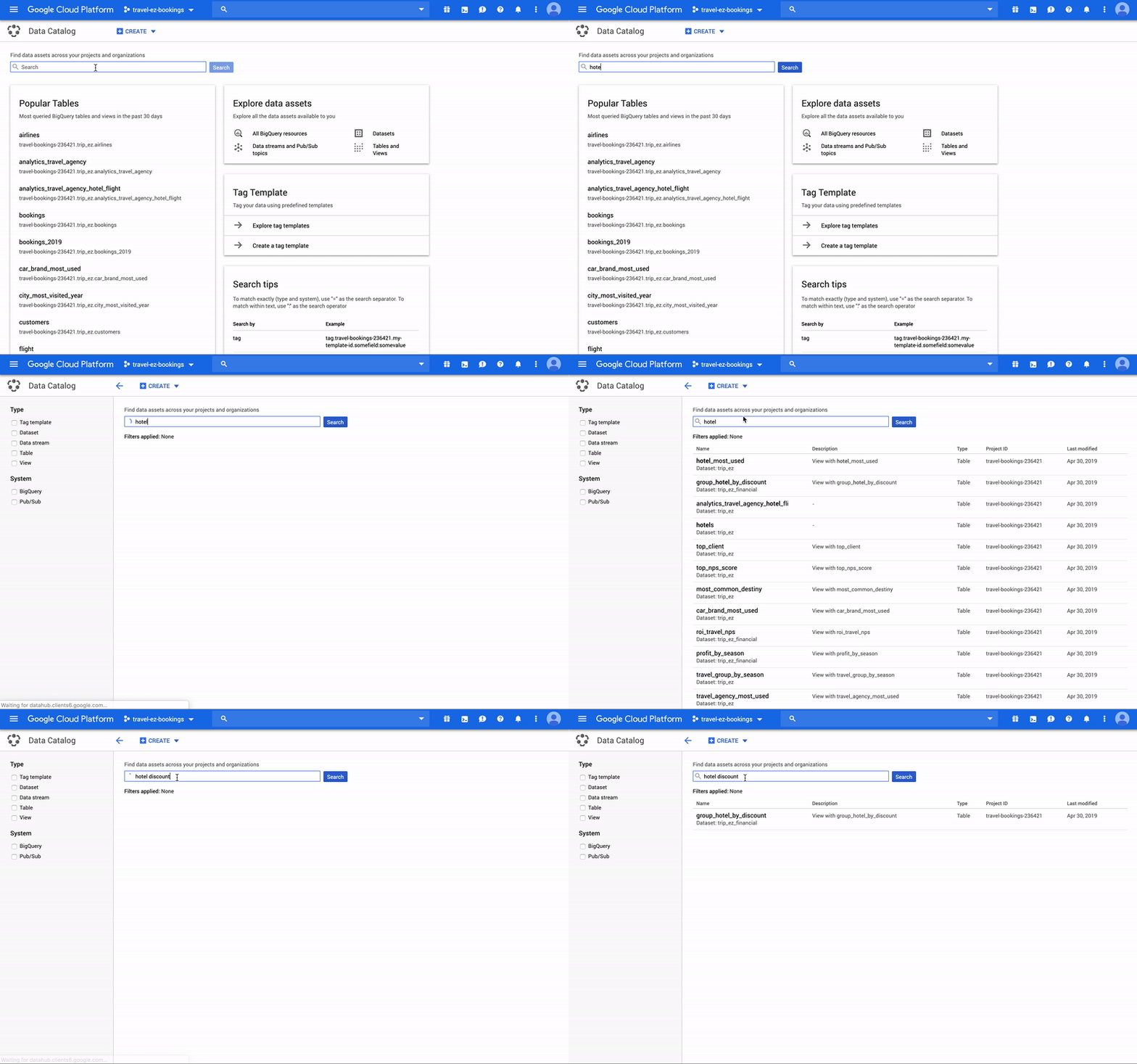
At Google Cloud Next ’19 San Francisco, we introduced Data Catalog, a fully managed, data discovery and metadata management service that allows you to quickly discover, manage, and understand your data in Google Cloud. Today, we’re announcing that Data Catalog is now available in public beta.Simple and powerful data discoveryData analysts can now use Data Catalog to easily search for tables in Google BigQuery, or topics in Cloud Pub/Sub across all cloud projects that they can access. Data Catalog uses the same search technology that supports Gmail and Google Drive, allowing you to quickly find data by table name, column name, or business metadata in tags using various filters. Integration with access controls defined in Cloud Identity & Access Management (IAM) returns data that you have access to, reducing the need to configure additional permissions within Data Catalog.Find tables with simple search syntaxes across all projects in GCP.“Data Catalog gives us the flexibility we need in metadata management,”says Crystal Widjaja,  SVP, Business Intelligence & Growth at Go-Jek. “Integration with Cloud Identity and Access Management (IAM) means that data discovery is ACL-ed though the Data Catalog search index, giving us peace of mind.”Understand your data with schematized business metadataData Catalog allows data stewards to tag data assets with metadata and easily search through them. You can define business metadata using tag templates and apply them to various data assets. Data Catalog extends the traditional business glossary concept by supporting doubles, booleans, and enumerated type in addition to storing metadata as strings. For example, you can assign a business category as an enumerated type to a data asset from a preset list of categories, ensuring consistent categories are used when capturing metadata. Data Catalog provides a wealth of API options that augment the UI. With the API, you can bulk attach tags as part of a data processing pipeline as soon as a table is created in BigQuery, storing information such as the last ETL update time as a tag.Attach various types of metadata to a table with predefined tag templates.Automatically detect and classify sensitive data with Cloud Data Loss Prevention (DLP)In recent years, increased regulatory and compliance requirements are driving companies to data governance solutions. The Cloud DLP integration enables data governors to create jobs and scan hundreds of tables for sensitive data and attach tags in Data Catalog. This allows you to find tables with sensitive data types and classify them with DLP generated tags across all their data on Google Cloud, providing you with a richer set of data out-of-the-box, and complementing other tagging processes. With DLP, you can also configure periodic scans to keep the tags updated, ensuring compliance at all times.Getting startedTo use Data Catalog, navigate to your GCP console, and click on Data Catalog in the left navigation panel. All your BigQuery tables are automatically indexed and searchable. Data stewards can define business tag templates to be applied to all datasets. To learn more about using Data Catalog for discovering data and metadata management, check out our overview of Data Catalog or our documentation.
Quelle: Google Cloud Platform

See how your code actually executes with Stackdriver Profiler, now GA

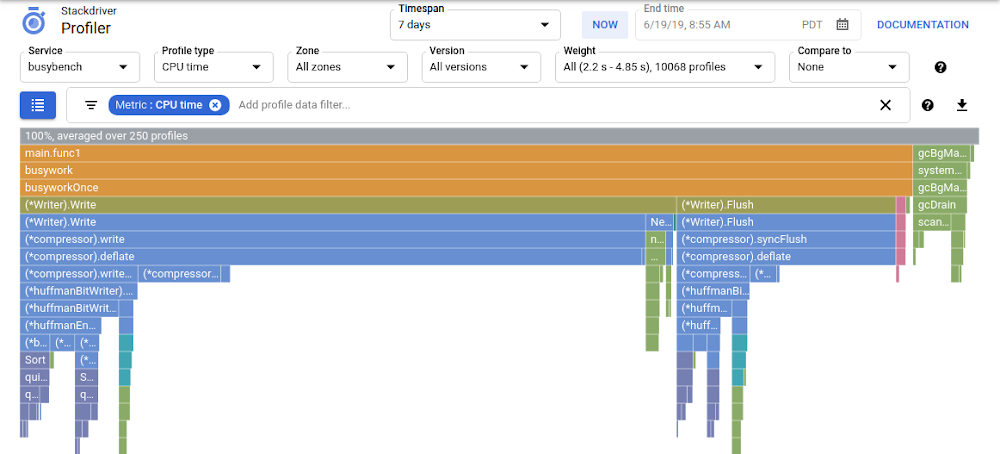
We’re happy to announce that Stackdriver Profiler is now generally available. This is an important piece of our Stackdriver monitoring and logging tool for Google Cloud Platform (GCP) services. It brings continuous CPU and heap profiling, so you can improve the performance of your cloud services and cut costs.Stackdriver Profiler shows you how your code actually executes in production. You can see how functions are called and which functions are consuming the most CPU and memory, with no noticeable performance impact. Profiler is free to use and supports Java, Go, Node.js, and Python applications running on Google Kubernetes Engine (GKE), Google Compute Engine, containers, VMs, or physical machines running anywhere. Here’s what it looks like:Profiler is useful for optimizing the performance of your code, tracking down the sources of memory leaks, and reducing your costs. It provides insight about production performance that isn’t available anywhere else.Using Profiler in productionMany of our largest customers are having great success with Profiler. We’ll let them describe the impact that it’s had on their businesses:”Using Stackdriver Profiler, the back-end team at Outfit7 was able to analyze the memory usage pattern in our batch processing Java jobs running in App Engine Standard, identify the bottlenecks and fix them, reducing the number of OOMs [out-of-memory] errors from a few per day to almost zero,” says Anže Sodja, senior software engineer at Outfit7 Group (Ekipa2 subsidiary). “Stackdriver Profiler helped us to identify issues fast, as well as significantly reducing debugging time by enabling us to profile our application directly in the cloud without setting up a local testing environment.”In addition, Snap Inc. has found great success using Profiler. “We used Stackdriver Profiler as part of an effort to improve the scalability of our services,” says Evan Yin, software engineer at Snap Inc. “It helped us to pinpoint areas we can optimize and reduce CPU time, which means a lot to us at our scale.”Making Profiler continually betterWe’re always working to add useful new functionality to Profiler. We recently added weight filtering and a table showing the aggregate cost of each function, and we’ve added even more features in the past few months:Full support for Python applications running on containers and VMsNew optional coloring modes for the flame graph, which highlights functions based on their consumption, exposed via the new “color mode” filter in the filter barTool tips for filters, accessible through the question mark button to the right of the filter barThe focus table now works with the comparison feature and adds additional comparison columns when two sets of profiles are being comparedWe’re really excited that Profiler is now generally available, and we hope that you are too. In the coming months and quarters we’ll keep focusing on ways to make this product even better. If you haven’t yet used Stackdriver Profiler, get started here.
Quelle: Google Cloud Platform

Introducing Deep Learning Containers: Consistent and portable environments

It’s easy to underestimate how much time it takes to get a machine learning project up and running. All too often, these projects require you to manage the compatibility and complexities of an ever-evolving software stack, which can be frustrating, time-consuming, and keep you from what you really want to do: spending time iterating and refining your model. To help you bypass this set-up and quickly get started with your project, we’re introducing Deep Learning Containers in beta today. Deep Learning Containers are pre-packaged, performance-optimized, and compatibility-tested, so you can get started immediately. Productionizing your workflow requires not only developing the code or artifacts you want to deploy, but also maintaining a consistent execution environment to guarantee reproducibility and correctness. If your development strategy involves a combination of local prototyping and multiple cloud tools, it can often be frustrating to ensure that all the necessary dependencies are packaged correctly and available to every runtime. Deep Learning Containers address this challenge by providing a consistent environment for testing and deploying your application across GCP products and services, like Cloud AI Platform Notebooks and Google Kubernetes Engine (GKE), making it easy to scale in the cloud or shift across on-prem. In addition, we provide hardware optimized versions of TensorFlow, whether you’re training on NVIDIA GPUs or deploying on Intel CPUs.In this blog post, we’ll cover some common scenarios when working with Deep Learning Containers, including how to select a container, develop locally, and create derivative containers for use in Cloud AI Platform Notebooks.Choose a container and develop locallyAll Deep Learning Containers have a preconfigured Jupyter environment, so each can be pulled and used directly as a prototyping space. First, make sure you have the gcloud tool installed and configured. Then, determine the container that you would like to use. All containers are hosted under gcr.io/deeplearning-platform-release, and can be listed with the command:Each container provides a Python3 environment consistent with the corresponding Deep Learning VM, including the selected data science framework, conda, the NVIDIA stack for GPU images (CUDA, cuDNN, NCCL), and a host of other supporting packages and tools. Our initial release consists of containers for TensorFlow 1.13, TensorFlow 2.0, PyTorch, and R, and we are working to reach parity with all Deep Learning VM types.With the exception of the base containers, the container names will be in the format <framework>-<cpu/gpu>.<framework version>. Let’s say you’d like to prototype on CPU-only TensorFlow. The following command will start the TensorFlow Deep Learning Container in detached mode, bind the running Jupyter server to port 8080 on the local machine, and mount /path/to/local/dir to /home in the container.Then, the running JupyterLab instance can be accessed at localhost:8080. Make sure to develop in /home, as any other files will be removed when the container is stopped.If you would like to use the GPU-enabled containers, you will need a CUDA 10 compatible GPU, the associated driver, and nvidia-docker installed. Then, you can run a similar command.Create derivative containers and deploy to Cloud AI Platform Notebooks and GKEAt some point, you’ll likely need a beefier machine than what your local machine has to offer, but you may have local data and packages that need to be installed in the environment. Deep Learning Containers can be extended to include your local files, and then these custom containers can then be deployed in a Cloud AI Platform Notebooks instance and GKE.For example, imagine that you have a local python package called mypackage that you are using as part of your Pytorch workflow. Create a Dockerfile in the directory above mypackage as such.DockerfileThis simple Dockerfile will copy in the package files and install it into the default environment. You can add additional RUN pip/conda commands, but you should not modify CMD or ENTRYPOINT, as these are already configured for AI Platform Notebooks. Build and upload this container to Google Container Registry.Then, create an AI Platform Notebooks instance using the gcloud CLI (custom container UI support coming soon). Feel free to modify the instance type and accelerator fields to suit your workload needs.The image will take a few minutes to set up. If the container was loaded correctly, there will be a link to access JupyterLab written to the proxy-url metadata field, and the instance will appear as ready in the AI Platform > Notebooks UI on Cloud Console. You can also query the link directly by describing the instance metadata.Accessing this link will take you to your JupyterLab instance. Please note: only data saved to /home will be persisted across reboots. By default, the container VM mounts /home on the VM to /home on the container, so make sure you create new notebooks in /home, otherwise that work will be lost if the instance shuts down.Deploying Deep Learning Containers on GKE with NVIDIA GPUsYou can also take advantage of GKE to develop on your Deep Learning Containers. After setting up your GKE cluster with GPUs following the user guide, you just need to specify the container image in your Kubernetes pod spec. The following spec creates a pod with one GPU from tf-gpu and an attached GCE persistent disk:pod.yamlDeploy and connect to your instance with the following commands:After the pod is fully deployed, your running JupyterLab instance can be accessed at localhost:8080.Getting Started If you’re not already a Google Cloud customer, you can sign up today for $300 of credit in our free tier. Then, try out our quick start guides and documentation for more details on getting started with your project.
Quelle: Google Cloud Platform