Helping veterans build a career path with the Google Cloud certification challenge

Each year about 200,000 veterans transition out of service but, despite being well-equipped to work in the tech sector, many of these skilled veterans don’t have a clear career path. That’s why Google Cloud is partnering with VetsInTech to help U.S. veterans develop in-demand cloud technology skills through a Google Cloud certification challenge. This six- to 10-week program gives participants access to free training and is designed to prepare U.S. veterans for the Google Cloud Associate Cloud Engineer certification exam. Throughout the program, participants can work with VetsInTech to sharpen their resume writing and interview skills, and to connect with mentors in the tech world. VetsInTech also provides job-matching services and job fairs with local tech companies. They have established relationships with corporate talent representatives and recruiters who work with them to help veterans get hired. If you’re a U.S. veteran taking the Associate Cloud Engineer, Professional Cloud Architect, or Professional Data Engineer certification exam, you can now have the cost of your exam reimbursed. The Veteran’s Administration recognizes these exams as reimbursable certification tests. After attempting the exam and receiving results, apply for reimbursement using VA Form 22-803. Additional information about this benefit is available on the Education and Training page of the GI Bill website. Why get Google Cloud certified? Cloud computing is one of the most disruptive forces in the IT market. As cloud adoption grows rapidly, so do ways that that cloud technologies can solve problems—and so does the need for cloud talent and skills. Cloud certifications are a great way to demonstrate technical skills to the broader IT market. We are committed to creating training and certification opportunities for transitioning service members, veterans, and military spouses to help them thrive in a cloud-first worldAs the demand for cloud skills continues to grow, getting certified can open up opportunities to progress within your company or help you explore other exciting roles. Scheduling for the examYou can schedule a Google Cloud certification exam here. If you’re interested in participating in the certification challenge for veterans, please review the suggested prerequisites and register with VetsInTech.
Quelle: Google Cloud Platform

Meeting reliability challenges with SRE principles

You’ve built a beautiful, reliable service, and your users love it. After the initial rush from launch is over, realization dawns that this service not only needs to be run, but run by you! At Google, we follow site reliability engineering (SRE) principles to keep services running and users happy. Through years of work using SRE principles, we’ve found there are a few common challenges that teams face, and some important ways to meet or avoid those challenges. We’re sharing some of those tips here.In our experience, the three big sources of production stress are:ToilBad monitoringImmature incident handling proceduresHere’s more about each of those, and some ways to address them.1. Avoid toilToil is any kind of work tied to running a production service that tends to be manual, repetitive, automatable, tactical, devoid of enduring value, and that scales linearly as a service grows. This doesn’t mean toil has no business value; it does mean we have better ways to solve it than just manually addressing it every time.Toil is pernicious. Without constant vigilance, it can grow out of control until your entire team is consumed by it. Like weeds in a garden, there will always be some amount of toil, but your team should regularly assess how much is acceptable and actively manage it. Project planners need to make room for “toil-killer” projects on an ongoing basis.Some examples of toil are:Ticket spam: an abundance of tickets that may or may not need action, but need human eyes to triage (i.e., notifications about running out of quota).A service change request that requires a code change to be checked in, which is fine if you have five customers. However, if you have 100 customers, manually creating a code change for each request becomes toil.Manually applying small production changes (i.e., changing a command line, pushing a config, clicking a button, etc.) in response to varying service conditions. This is fine if it’s required only once a month, but becomes toil if it needs to happen daily.Regular customer questions on several repeated topics. Can better documentation or self-service dashboards help?This doesn’t mean that every non-coding task is toil. For example, non-toil things include debugging a complex on-call issue that reveals a previously unknown bug, or consulting with large, important customers about their unique service requirements. Remember, toil is repetitive work that is devoid of enduring value.How do you know which toilsome activities to target first? A rule of thumb is to prioritize those that scale unmanageably with the service. For example:I need to do X more frequently when my service has more featuresY happens more as the size of service growsThe number of pages scale with the service’s resource footprintAnd in general, prioritize automation of frequently occurring toil over complex toil. 2. Eliminate bad monitoringAll good monitoring is alike; each bad monitoring is unique in its own way. Setting up monitoring that works well can help you get ahead of problems, and solve issues faster. Good monitoring alerts on actionable problems. Bad monitoring is often toilsome, and some of the ways it can go awry are:Unactionable alerts (i.e., spam)High pager or ticket volumeCustomers asking for the same thing repeatedlyImpenetrable, cluttered dashboardsService-level indicators (SLIs) or service-level objectives (SLOs) that don’t actually reflect customers’ suffering. For example, users might complain that login fails, but your SLO dashboard incorrectly shows that everything is working as intended. In other words, your service shouldn’t rely on customer complaints to know when things are broken.Poor documentation; useless playbooks.Discover sources of toil related to bad monitoring by:Keeping all tickets in the same spotTracking ticket resolutionIdentifying common sources of notifications/requestsEnsuring operational load does not exceed 50%, as prescribed in the SRE Book3. Establish healthy incident managementNo matter the service you’ve created, it’s only a matter of time before your service suffers a severe outage. Before that happens, it’s important to establish good practices to lessen the confusion in the heat of outage handling. Here are some steps to follow so you’re in good shape ahead of an outage.Practice incident management principlesIncident management teaches you how to organize an emergency response by establishing a hierarchical structure with clear roles, tasks, and communication channels. It establishes a standard, consistent way to handle emergencies and organize an effective response.Make humans findableIn an urgent situation, the last thing you want is to scramble around trying to find the right human to talk to. Help yourselves by doing the following:Create your own team-specific urgent situation mailing list. This list should include all tech leads and managers, and maybe all engineers, if it makes sense.Write a short document that lists subject matter experts who can be reached in an emergency. This makes it easier and faster to find the right humans for troubleshooting.Make it easy to find out who is on-call for a given service, whether by maintaining an up-to-date document or by writing a simple tool.At Google, we have a team of senior SREs called the Incident Response Team (IRT). They are called in to help coordinate, mitigate and/or resolve major service outages. Establishing such a team is optional, but may prove useful if you have outages spanning multiple services.  Establish communication channelsOne of the first things to do when investigating an outage is to establish communication channels in your team’s incident handling procedures. Some recommendations are:Agree on a single messaging platform, whether it be Internet Relay Chat, Google Chat, Slack, etc. Start a shared document for collaborators to take notes in during outage diagnosis. This document will be useful later on for the postmortem. Limit permissions on this document to prevent leaking personally identifiable information (PII).Remember that PII doesn’t belong in the messaging platform, in alert text, or company-wide accessible notes. Instead, if you need to share PII during outage troubleshooting, restrict permissions by using your bug tracking system, Google docs, etc.   Establish escalation pathsIt’s 2am. You’re jolted awake by a page. Rubbing the sleep from your eyes, you fumble around the dizzying array of multi-colored dashboards, and realize you need advice. What do you do?Don’t be afraid to escalate! It’s OK to ask for help. It’s not good to sit on a problem until it gets even worse—well-functioning teams rally around and support each other.Your team will need to define its own escalation path. Here is an example of what it might look like:If you are not the on-call, find your service’s on-call person.If the on-call is unresponsive or needs help, find your team lead (TL) or manager. If you are the TL or manager, make sure your team knows it’s OK to contact you outside of business hours for emergencies (unless you have good reasons not to).If a dependency is failing, find that team’s on-call person.If you need more help, page your service’s panic list.(optional) If people within your team can’t figure out what’s wrong or you need help coordinating with multiple teams, page the IRT if you have one. Write blameless postmortemsAfter an issue has been resolved, a postmortem is essential. Establish a postmortem review process so that your team can learn from past mistakes together, ask questions, and keep each other honest that follow-up items are addressed appropriately. The primary goals of writing a postmortem are to ensure that the incident is documented, that all contributing root cause(s) are well-understood, and that effective preventive actions are put in place to reduce the likelihood and/or impact of recurrence.All postmortems at Google are blameless postmortems. A blameless postmortem assumes that everyone involved had good intentions and responded to the best of their ability with the information they had. This means the postmortem focuses on identifying the causes of the incident without pointing fingers at any individual or team for bad or inappropriate behavior.Recognize your helpersIt takes a village to run a production service reliably, and SRE is a team effort. Every time you’re tempted to write “thank you very much for doing X” in a private chat, consider writing the same text in an email and CCing that person’s manager. It takes the same amount of time for you and brings the added benefit of giving your helper something they can point to and be proud of. May your queries flow and the pager be silent! Learn more in the SRE Book and the SRE Workbook.Thanks to additional contributions from Chris Heiser and Shylaja Nukala.
Quelle: Google Cloud Platform

Combining the power of Apache Spark and AI Platform Notebooks with Dataproc Hub

Apache Spark is commonly used by companies that want to explore large amounts of data and perform additional machine learning (ML)-related tasks at scale. Data scientists often need to examine these large datasets with the help of tools like Jupyter Notebooks, which plug into the scalable processing powerhouse that is Spark and also give them access to their favorite ML libraries. The new Dataproc Hub brings together interactive data research at scale and ML from within the same notebook environment (either from Dataproc or AI Platform) in a secure and centrally managed way.With Google Cloud, you can use the following products to access notebooks:Dataprocis a Google Cloud-managed service for running Spark and Hadoop jobs, in addition to other open source software of the extended Hadoop ecosystem. Dataproc also provides notebooks as an Optional Component and is securely accessible through the Component Gateway. Check out the process for Jupyter notebooks.AI Platform Notebooks is a Google Cloud-managed service for JupyterLab environments that run on Deep Learning Compute Engine instances and is accessible through a secure URL provided by Google’s inverting proxy.Although both of those products provide advanced features to set up notebooks, until now,Data scientists either needed to choose between Spark and their favorite ML libraries or had to spend time setting up their environments. This could prove cumbersome and often repetitive. That time could be spent exploring interesting data instead.Administrators could provide users with ready-to-use environments but had little means to customize the managed environments based on specific users or groups of users. This could lead to unwanted costs and security management overhead.Data scientists have told us that they want the flexibility of running interactive Spark tasks at scale while still having access to the ML libraries that they need from within the same notebook and with minimum setup overhead. Administrators have told us that they want to provide data scientists with an easy way to explore datasets interactively and at scale while still ensuring that the platform meets the costs and security constraints of their company.We’re introducing Dataproc Hub to address those needs. Dataproc Hub is built on core Google Cloud products (Cloud Storage, AI Platform Notebooks and Dataproc) and open-source software (JupyterHub, Jupyter and JupyterLab).Click to enlargeBy combining those technologies, Dataproc Hub:Provides a way for data scientists to quickly select the Spark-based predefined environment that they need without having to understand all the possible configurations and required operations. Data scientists can combine this added simplicity with existing Dataproc advantages that include:Agility provided by ephemeral (short-lived or job-scoped, usually) clusters that can start in seconds so data scientists don’t have to wait for resources.Scalability: managed by autoscaling policies so scientists can run research on sample data and run tests at scale from within the same notebook.Durability: backed by Cloud Storage outside of the Dataproc cluster, which minimizes chances of losing precious work.Facilitates the administration of standardized environments to make it easier for both administrators and data scientists to transition to production. Administrators can combine this added security and consistency with existing Dataproc advantages that include:Flexibility: implemented by initialization actions that run additional scripts when starting a cluster to provide data scientists with the libraries that they need.Velocity: provided by custom images that minimize startup time through pre-install packages. Availability: supported by multiple master nodes.Getting started with Dataproc HubTo get started with Dataproc Hub today, using the default setup:1. Go to the Dataproc UI2. Click on the Notebooks menu in the left panel.3. Click on NEW INSTANCE.4. Choose Dataproc Hub from the Smart Analytics Frameworks menu.5. Create the Dataproc Hub instance that meets your requirements and fits the needs of the group of users that will use it.6. Wait for the instance creation to finish and click on the OPEN JUPYTERLAB link.7. This should open a page that shows you either a configuration form or redirects you to the JupyterLab interface. If this is working, keep note of the URL of the page that you opened. 8. Share the URL with the group of data scientists that you created the Dataproc Hub instance for. Dataproc Hub identifies the data scientist when they access the secure endpoint and uses that identity to provide them with their own single-user environment.Predefined configurationsAs an administrator, you can add customization options for data scientists. For example, they can select a predefined working environment from a list of configurations that you curated. Cluster configurations are declarative YAML files that you define by following these steps:Manually create a reference cluster and export its configuration using the command gcloud beta dataproc clusters exportCLUSTERStore the YAML configuration files in a Cloud Storage bucket accessible by the identity of the instance that runs the Dataproc Hub interface.Repeat this for all the configurations that you want to create.Sets an environment variable with all the Cloud Storage URI of the relevant YAML files when creating the Dataproc Hub instance.Note: If you provide configurations, a data scientist who accesses a Dataproc Hub endpoint for the first time will see the configuration form mentioned in Step 6 above. If they have a notebook environment running at the URL, Dataproc Hub will redirect them directly to their notebook.For more details about setting up and using Dataproc Hub, check out theDataproc Hub documentation.Security overviewCloud Identity and Access Management (Cloud IAM) is central to most Google Cloud products and provides two main features for our purposes here:Identity: defines who is trying to perform an action.Access: specifies whether an identity is allowed to perform an action.In the current version of Dataproc Hub, all spawned clusters use the same customizable service account, set up by following these steps:An administrator provides a service account that will act as a common identity for all spawn Dataproc clusters. If not set, the default service account for Dataproc clusters is used.When a user spawns their notebook environment on Dataproc, the cluster starts with that identity. Users do not need the roles/iam.serviceAccountUser role on that service account because Dataproc Hub is the one spawning the cluster.Tooling optimizationsFor additional tooling that you might want for your specific environment, check out the following:Use Dataproc custom images in order to minimize the cluster startup time. You can automate this step by using the image provided by the Cloud Builder community. You can then provide the image reference in your cluster configuration YAML files.Extend Dataproc Hub by using theDataproc Hub Github repository. This option runs your own Dataproc Hub setup on a Managed Instance Group, similar to the version hosted on AI Platform Notebooks but including additional customization capabilities, such as custom DNS, identity-aware proxy, high availability for the front end, and options for internal endpoint setup.Both Dataproc Hub on AI Platform Notebooks and its extended version on Managed Instance Groups share the same open-sourced Dataproc Spawner and are based on JupyterHub. If you want to provide additional options to your data scientists, you can further configure those tools when you extend Dataproc Hub.If you need to extend Dataproc Hub, the Github repository provides an example that sets up the following architecture using Terraform:Click to enlargeNext stepsGet familiar with the Dataproc spawner to learn how to spawn notebook servers on Dataproc.Get familiar with the Dataproc Hub example code in Github to learn how to deploy and further customize the product to your requirements.Read the Dataproc Hub product documentation to learn how to quickly launch a Dataproc Hub instance.
Quelle: Google Cloud Platform

Tools for debugging apps on Google Kubernetes Engine

Editor’s note: This is a follow up to a recent post on how to use Cloud Logging with containerized applications running in Google Kubernetes Engine. In this post, we’ll focus on how DevOps teams can use Cloud Monitoring and Logging to find issues quickly. Running containerized apps on Google Kubernetes Engine (GKE) is a way for a DevOps team to focus on developing apps, rather than on the operational tasks required to run a secure, scalable and highly available Kubernetes cluster. Cloud Logging and Cloud Monitoring are two of several services integrated into GKE that provide DevOps teams with better observability into applications and systems, for easier troubleshooting in the event of a problem. Using Cloud LoggingLet’s look at a simple, yet common use case. As a member of the DevOps team, you have received an alert from Cloud Monitoring about an application error in your production Kubernetes cluster. You need to diagnose this error. To use a concrete example, we will work through a scenario based on a sample microservices demo app deployed to a GKE cluster. In this demo app, there are many microservices and dependencies among them.For this example, consider the demo app running in your staging environment shared by multiple teams or a production environment running multiple workloads. Let’s see how you can work through troubleshooting a simple error scenario. Let’s start this example from an alert triggered by a large number of HTTP 500 errors. You can create a logs-based metric based on the number of log events or the content of the log entries which you can also use for alerting purposes. Cloud Monitoring provides Alerting which can be set-up to send emails, SMS or generate notifications in third-party apps. In our example, let’s say there are HTTP 500 errors with the following stack trace.If you have already created the alerting policy in Cloud Monitoring, you will receive notifications like the following one:You can view the incident details by clicking the ‘VIEW INCIDENT’ link. Following the Policy link from the alert notification opens the alerting section of the Monitoring UI.One of the first places that you can look for information on the errors is the Kubernetes Engine section of the Monitoring console. Using the workload view, you can select your cluster and easily see the usage resources for the pods and containers running in the cluster. In this case, you can see that the pod and container for the recommendationservice have very high CPU utilization. This could mean that the recommendationservice is overloaded and not able to respond to requests from the frontend. Ideally, you also have an alert set up for the CPU and memory utilization for the container, which would also generate alerts.Opening the link to the server container under the recommendationservice service/pod displays the details about the container. The details include metrics like memory and CPU, logs and details about the container. You can also click the MANAGE link to navigate directly to the pod details in the GKE console. Because Monitoring is integrated into the GKE console, you can view monitoring graphs for the pod. Using the CPU graph, you can see that the CPU is regularly exceeding the requested amount of CPU. Notice the purple line crossing the solid blue line in the lower left graph. You can also easily see that the memory and disk space are not highly utilized, eliminating them from a list of possible issues. In this case, the CPU could be the issue.Clicking on the container, you can see the requested CPU, memory, and the deployment details.You can also click on the Revision history link to review the history of the container. You can see that there was a recent deployment.It’s worth looking at the logs to see if there is any information about why additional CPU power is suddenly in demand. Since the original error was a 500 error served through the frontend pod, you can navigate to the frontend entry under Workloads. To view the frontend logs, click on the Container logs link. This opens the Cloud Logging UI with a specific pre-constructed filter for the logs of this container.In the Logs Viewer, you can see the detailed query, a histogram of the logs, and the individual log entries. The histogram feature provides context for how often log entries are observed over the given time window and can be a powerful tool to help identify application issues. In this case, you can see that the error entries started increasing at around 4:50PM.By expanding the error entries, you can see the log message below.“failed to get product recommendations: rpc error: code = Unavailable desc = all SubConns are in TransientFailure, latest connection error: connection error: desc = “transport: Error while dialing dial tcp 10.55.247.125:8080: connect: connection refused”This matches the original HTTP 500 error served through the frontend pod. Now, take a look at the recommendationservice pod logs by adjusting the logging filter to surface error entries with the recommendations name. The filter below restricts the entries to errors from the containers in the pod with a prefix of “recommendations”.Now, adjust the filter to look at the non-error log entries.You can see in the logs histogram that there are log entries being generated from the service, which likely means that the service is still receiving and responding to some requests.Since no errors were generated by the recommendationservice in the logs, this helps to confirm the suspicion that there is an issue with the latest code deployment causing it to use more CPU than before. With this information, you can take action. You could either increase the CPU request in the container YAML or roll back the recent update to the recommendationservice and contact the developer responsible for the service to review the increase in CPU utilization. The specific action depends on your understanding of the code and recent deployments, your organization and policies. Whichever option you take, you can continue monitoring your cluster for adverse events using Cloud Logging and Monitoring. Learn more about Cloud Logging, Monitoring and GKEWe built our logging and monitoring capabilities for GKE into Cloud Operations to make it easy for you to monitor, alert and analyze your apps. If you haven’t already, get started with Cloud Logging on GKE and join the discussion on our mailing list. As always, we welcome your feedback.
Quelle: Google Cloud Platform

Migrating Apache Hadoop clusters to Google Cloud

Apache Hadoop and the big data ecosystem around it has served businesses well for years, offering a way to tackle big data problems and build actionable analytics. As these on-prem deployments of Hadoop and Apache Spark, Presto, and more moved out of experiments and into thousand-node clusters, cost, performance, and governance challenges emerged. While these challenges grew on-prem, Google Cloud emerged as a solution for many Hadoop admins looking to decouple compute from storage to increase performance while only paying for the resources they use. Managing costs and meeting data and analytics SLAs, while still providing secure and governed access to open source innovation, became a balancing act that the public cloud could solve without large upfront machine costs. How to think about on-prem Hadoop migration costsThere is no one right way to estimate Hadoop migration costs. Some folks will look at their footprint on-prem today, then try to compare directly with the cloud, byte for byte and CPU cycle for CPU cycle. There is nothing wrong with this approach, and when you consider opex and capex, and discounts such as those for sustained compute usage, the cost case will start to look pretty compelling. Cloud economics work! But what about taking a workload-centric approach? When you run your cloud-based Hadoop and Spark proof of concepts, consider the specific workload by measuring the units billed to run just that workload. Spoiler: it is quite easy when you spin up a cluster, run the data pipeline, and then tear down the cluster after you are finished. Now, consider making a change to that workload. For example, use a later version of Spark and then redeploy. This is a seemingly easy task—but how would you accomplish it today on your on-prem cluster, and what would have been the cost to plan and implement such a change? These are all things to consider when you are building a TCO analysis of migrating your entire, or just a piece of, your on-prem Hadoop cluster. Where to begin your on-prem Hadoop migrationIt’s important to note that you are not migrating a cluster, but rather the user and workloads, from a place where you shoulder the burden of maintaining and operating a cluster to a place where you share that responsibility with Google. Starting with these users and workloads allows you to build a better, more agile experience.Consider the data engineer who wants to update their pipeline to use the latest Spark APIs. When you migrate their code, you can choose to run it on its own ephemeral cluster—you are not forced to update the code for all your other workloads. They can run on their own cluster(s) and continue to leverage the previous version of the Spark APIs.Or for the data analyst who may need additional resources to run their Hive query in time to meet a reporting deadline, you can choose to enable autoscaling. Or for a data scientist who has been wanting to decrease their ML training job duration, you can provide them with a familiar notebook interface and spin up a cluster as needed with GPUs attached.These benefits all sound great, but there is hard work involved in migrating workloads and users. Where should you start? In the Migrating Data Processing Hadoop Workloads to Google Cloud blog post, we start the journey by helping data admins, architects, and engineers consider, plan, and run a data processing job. Spoilers: You can precisely select which APIs and versions are available for any specific workload. You can size and scale your cluster as needed to meet the workload’s requirements.Once you’re storing and processing your data in Google Cloud, you’ll want to think about enabling your analysis and exploration tools, wherever they are running, to work with your data. The work required here is all about proxies, networking, and security—but don’t worry, this is well-trodden ground. In Migrating Hadoop clusters to GCP – Visualization Security: Part I – Architecture, we’ll help your architects and admins to enable your analysts. For data science workloads and users, we have recently released Dataproc Hub, which enables your data scientists and IT admins to access on-demand clusters tailored to their specific data science needs as securely as possible. The Apache Hadoop ecosystem offers some of the best data processing and analytical capabilities out there. A successful migration is one in which we have unleashed them for your users and workloads; one in which the workload defines a cluster, and not the other way around. Get in touch with your Google Cloud contact and we’ll make your Hadoop migration a success together.
Quelle: Google Cloud Platform

How Kaggle solved a spam problem in 8 days using AutoML

Kaggle is a data science community of nearly 5 million users. In September of 2019, we found ourselves under a sudden siege of spam traffic that threatened to overwhelm visitors to our site. We had to come up with an effective solution, fast. Using AutoML Natural Language on Google Cloud, Kaggle was able to train, test, and deploy a spam detection model to production in just eight days. In this post, we’ll detail our success story about using machine learning to rapidly solve an urgent business dilemma.A spam dilemmaMalicious users were suddenly creating large numbers of Kaggle accounts in order to leave spammy search engine optimization (SEO) content in the user bio section. Search engines were indexing these bios, and our existing spam detection heuristics were failing to flag them. In short, we faced a growing and embarrassing predicament. Our problem was context. Kaggle is a community focused on data science and machine learning. As a result of our topical data-science focus, a user bio that seems harmless in isolation may be the work of a spammer. Here is a real example of one such bio:I am a personal injury lawyer in Chicago. I help individuals and families in cases involving serious injuries and wrongful death. Many of my cases involve car accidents, nursing home abuse, and medical malpractice.Such a bio may fit in on a forum of legal professionals, but on the Kaggle site it’s a mark of an SEO spammer. This content also lacks the typical keywords and unsavory topics that one might expect to find in spam. This context meant that stopping the spam required more than a generic model; we needed a solution that could take our Kaggle-specific context into account.We had the intuition that machine learning could handle this problem, but building natural language models to deal with spam was not anyone at Kaggle’s day job. We feared weeks of late nights slogging towards a good-enough solution—spam models require very high accuracy because of the high cost of miscategorizing a legitimate user. Even with a usable prototype running in R or Python, there was the looming frustration of deploying it in Kaggle’s C# codebase. As we planned out our options, we had an unconventional idea: what about trying AutoML?Enter AutoMLTrue to its name, AutoML performs automated machine learning: evaluating huge numbers of neural network architectures to determine the most effective model for a problem. We first witnessed the potential of the AutoML suite of products when a Google team used it to take second place at the 2019 KaggleDays hackathon. On a whim, we decided to pass our bio problem through the AutoML Natural Language Classification API. We could readily generate a labeled training dataset because we had existing examples of bios belonging to known-legitimate users:After uploading these bios, clicking the “Start Training” button, and waiting a few hours, we received an email that training was complete. Building models is normally a process that involves many failures, but the results were astoundingly impressive for a first attempt, with precision (how “accurate” the model is) and recall (how “thorough” the model is) above 99%.We manually inspected the performance, ran test examples through the model, and determined it would be immediately suitable to deploy in production. It successfully picked up on a wide variety of spammy content types (some identifying information and language is blurred out):Returning to our previous example on the importance of context, the model gives the personal injury lawyer a 98% confidence of being spam:Meanwhile, it has full confidence that the data scientist equivalent is allowable:On top of being accurate, AutoML afforded a major advantage when the time came to deploy the model. When training was finished, the model was already hosted and exposed via an API. Kaggle simply had to write a quick shim to call this API from our application.It took only eight days from when we started working on this problem to when we deployed a model serving live traffic. It required no advanced skills in deep learning or natural language processing. The model has since made thousands of correct decisions and greatly reduced our spam-related traffic.While this story was about spam detection, the takeaway isn’t just that you can use AutoML for spam. AutoML has the potential to replicate this success story across the thousands of bespoke image, text, or tabular problems that businesses face. AutoML can step in when off-the-shelf models are insufficient, when you want to test a hunch but don’t have months to dedicate to it, or if you’re simply not a deep learning expert. The combination of high accuracy, rapid iteration, and smooth deployment can make AutoML an attractive approach to developing machine learning solutions for a wide range of business problems and needs.
Quelle: Google Cloud Platform

Operate more efficiently and reduce your costs with the cloud

Organizations everywhere are calibrating against a new, challenging business landscape, and we want to help you reduce costs and solve for operational efficiency with cloud technology.  Please join our Solving Together Digital Conference (sessions starting today and available on demand) to hear best practices in navigating these challenges. Leaders are finding they need to make tough decisions about what projects to prioritize and how to allocate resources. Cloud technologies are playing an increasingly central role in supporting businesses as they focus on prioritization and operational efficiency.At Google Cloud, we’ve helped businesses of all sizes take advantage of the cloud to do everything from enabling entire workforces to embrace remote work, to moving on-premises environments to the cloud for scalability, to decreasing infrastructure overhead and costs through reduced on-prem hardware footprints. For example, we’ve designed a managed service that can quickly migrate applications running on VMware to Google Cloud which can reduce a VMware environment total cost of ownership by as much as 30% over on-premises costs. We’ve also developed approaches to migrating systems of record like SAP to the cloud with a 46% lower three-year cost of operations1. Data is another place where the cloud can help organizations be more efficient and drive meaningful cost savings, and businesses that switch to our data warehousing solution, BigQuery, can reduce their overall three-year costs by 52% when compared to on-premises.Our Solving Together Digital Conference kicking off May 27 shares learnings and solutions we’ve found to be the most helpful—whether organizations are recovering, adjusting, or building for the future. The conference will feature a keynote from Chris Ciauri, Google Cloud’s Vice President, EMEA, as well as more than 20 individual sessions focused on five common challenge areas, from operational efficiency, to business continuity, to remote work. Specific sessions include:Improving operational efficiency with infrastructure—The cloud provides a real opportunity for IT cost reduction while improving your ability to operate. This session walks you through how moving to Google Cloud can impact cost and operational efficiency in several infrastructure migration scenarios. Learn more. Run data analytics without busting your  IT budget—Analytics teams are looking to increase agility, efficiency, scalability, while reducing TCO. This session shows you how modernizing your data warehouse with BigQuery can provide these benefits and more, and help you run analytics without breaking the bank. Learn more.A path to more predictable cloud costs—Understanding and implementing cost optimization principles is a key part of running successful cloud infrastructure. Join this session to learn processes and best practices you can put in place to reduce costs while at the same time increasing capabilities. Learn more.Serving customers efficiently with Contact Center AI—Google AI can help transform the contact center experience, creating high-quality customer experiences at minimal cost. This session discusses how Contact Center AI applies advanced speech and language understanding models and shows you how you can get to production quickly. Learn more.The Solving Together Digital Conference is available live and on demand starting May 27. Register today for free with your Google account and watch these sessions by visiting the conference website.1. IDC research, June 2020
Quelle: Google Cloud Platform

Choosing between BigQuery on-demand and flat rate pricing

Editor’s note: This is one installment in a series about managing BigQuery costs. Check out the other posts on using Reservations effectively and how to use Flex Slots to save on costs.When you use data to guide your business decision-making process, you need to continually optimize your data analytics usage to get more out of that data. Here, we’ll share some ways to be more efficient with your BigQuery usage through ups and downs and changing demands.Like a lot of things in the data realm, there are simple answers that address simple situations. For the more complex situations, the answers get less simple, but the solutions are much more powerful. In this post, we’ll walk through a few scenarios that illustrate the ways you can deploy BigQuery to fit the particular needs of your business.First, a quick intro: BigQuery is Google Cloud’s fully managed enterprise data warehouse. We decouple storage and compute, so the costs for storage and compute are decoupled as well. We’ll only address compute costs in this post.So let’s talk about how compute is billed in BigQuery. You can use BigQuery entirely for free via the sandbox. You can use a pure pay-as-you-go model, where you pay for only the compute you use for querying data. In this pay-as-you-go model, also known as on-demand pricing, you are billed based on the number of bytes your queries scan. In the flat-rate model, you pay a fixed amount each month for dedicated resources in the BigQuery service, and you can scan as much data as you want.Let’s describe each of these in a little more detail.BigQuery sandboxThe BigQuery sandbox can be used by anyone with a Google account, even if they haven’t set up Google Cloud billing. This means the usage, while subject to some limits, is entirely free.BigQuery on-demand pricing modelBigQuery’s on-demand model gets every Google Cloud project up to 2,000 slots, with the ability to burst beyond that when capacity is available. Slots are BigQuery’s unit of computational capacity, and they get scheduled dynamically as your queries execute. As above, when your queries execute, they’ll scan data. You get billed based on how many bytes you scan in the on-demand billing model.BigQuery flat-rate pricing modelIn the flat-rate model, you decide how many slots you’d like to reserve, and you pay a fixed cost each month for those resources. You can choose whether to reserve slots for as little as one minute, or on a month-to-month basis, or commit to a year. In this model, you’re no longer billed based on your bytes scanned. Think of this like an all-you-can-query plan.How to choose the best plan for your situation? Let’s look at a few scenarios that will illuminate some of the decision points. The scenarios build on each other, with each representing an increasingly more complex environment.You’re just getting started with BigQuery. You don’t know how much querying you’re going to do, and you need to be efficient with your spend.You’ve been using BigQuery for a while. Your data is growing, and more and more people are using the warehouse as the business seeks greater access to data. You want to support this while keeping costs in check.You’re looking to consolidate data silos into one source for analytics workloads, and you’re looking to support advanced analytics using Spark or Python. This is in addition to serving multiple lines of business, with a mix of different workloads, from ad-hoc analytics to business intelligence. Some of these workloads will have tight service-level objectives, while others can tolerate best-effort service levels.Here’s how to tackle each of these scenarios.1. You’re just getting started.BigQuery’s on-demand model is perfect for anyone who’s looking for cost efficiency and to pay only for what they consume. If you follow our best practices for cost optimization and make use of custom cost controls, you will be billed for only what you use, while guarding against unexpected spikes in consumption.Since you optimize for cost and performance in BigQuery in almost exactly the same ways (by limiting the data you scan), you’ll get better performance while consuming the least resources possible—the best of all worlds!On-demand slots scale to zero when you’re not querying, and it happens instantly. You don’t need to wait for an inactivity timeout that may never come in order to shut down some nodes. BigQuery only ever schedules as many resources as are necessary to complete your queries, and when the queries complete, the resources are released immediately.One of the most important things to do early on is set up monitoring of your BigQuery usage. Your job metadata is stored for the past 180 days in INFORMATION_SCHEMA tables that you can query and report against. You should also make use of the BigQuery metrics stored in Cloud Monitoring to understand your slot utilization and more.2. You’ve been using BigQuery for a while.As your use of BigQuery grows, you’ll scan more data, so your costs will increase correspondingly. If you’re using the on-demand model, you might look for opportunities to save on cost. One option is to consider BigQuery Reservations.The first thing to know is that the BigQuery Reservations and on-demand pricing models are not mutually exclusive. You can use one or the other, you can combine them as you see fit, or you can try out a reservation with a short-term allocation of Flex Slots. What are Flex Slots? Flex Slots let you scale your data warehouse up and down very quickly—for as little as 60 seconds at a time. Flex Slots let you quickly respond to increased demand for analytics and prepare for business events such as retail holidays and app launches. In addition, Flex Slots are a great way to test a dedicated reservation for a short period of time to help determine whether a longer slot commitment is right for your workloads. Since many businesses have analytics needs that vary seasonally, monthly, or even on an hourly basis, you can reserve Flex Slots to add capacity to your slot pool when you need it.Consider also that you can address different workloads with a combination of cost models. Let’s imagine you have several workloads that revolve around BigQuery: You ingest data, you transform it in an ELT style, and serve both reporting and ad-hoc query usage.Ad-hoc workloads are less predictable, almost by definition. If you’re looking to keep costs in check without hampering your users’ ability to explore data, it can be a good idea to use the flat-rate model to provide an all-you-can-query experience. Reporting workloads are the yin to ad-hoc workloads’ yang. In contrast to the unpredictable load ad-hoc queries can bring, reporting workloads can be much more predictable. Ad-hoc workloads are usually assigned best-effort resources, while reporting workloads tend to have strict SLAs. For workloads with SLAs, it’s helpful to earmark resources for them and ensure that other workloads don’t get in the way. This is where BigQuery’s workload management through reservations comes in. You can configure a project to consume slots from the slot pool on a best-effort basis, while reserving slots for high-SLA workloads. When the high-SLA workloads are not consuming their reservation, the slots can be seamlessly shared with other workloads under the reservation. And when the workloads with strict SLAs run, BigQuery will automatically and non-disruptively pre-empt the slots that had been shared with other, less critical workloads.Finally, maybe the amount of data you transform on a daily basis is fairly predictable. In other words, you know that your ELT jobs will be processing about the same amount of data each day. Since the number of bytes you process is predictable, this workload may be a good match for on-demand pricing. So you might decide to run your ELT workloads in a project that is not assigned to a reservation, thus using on-demand resources. In addition to paying only for the bytes you scan, you also can burst beyond the usual 2,000 slots per project when conditions allow.3. You’re consolidating data silos and more.So you’re consolidating from multiple data silos, and you’ve got lots of workloads. In addition to the kinds of workloads described in the second scenario above, there are power users and data scientists consuming data from your data lake using Spark or Jupyter, and they’d like to continue to do the same thing with BigQuery. They plan to use BigQuery ML to create and get batch inferences from ML models. You might choose to mix and match models as above, but consider that flat rate also includes all BigQuery ML usage, and 300 TB per month of Storage API usage. So for data science and advanced analytics involving Python (Jupyter, Pandas, etc.) or Spark, there may be savings to be had by running those workloads in a Google Cloud project that is assigned a slot reservation.Putting it all togetherBy the time your infrastructure has matured to have a situation like that in the third scenario, you may be mixing and matching multiple billing constructs in order to achieve your cost and efficiency goals: BigQuery Reservations for cost predictability and to provide guaranteed capacity for workloads with SLAs; BigQuery Flex Slots for cyclical workloads that require extra capacity, or for workloads that need to process a lot of data in a short time, and so would be less expensive to run using reserved slots for a short time;On-demand for workloads where the volume of data to be processed is predictable. The per-byte-scanned billing model can be advantageous in that you pay precisely for what you use, with the amount of scanned data as a proxy for compute consumption.Provided you can place your workloads in Google Cloud projects aligned to reservations, or to projects that are opted out of reservations, you can choose the resource that’s right for you on a workload-by-workload basis. Learn more about BigQuery pricing models.
Quelle: Google Cloud Platform

Optimize BigQuery costs with Flex Slots

Editor’s note: This is one installment in a series about managing BigQuery costs. Check out the other posts on choosing between BigQuery pricing models and using Reservations effectively.Google Cloud’s enterprise data warehouse BigQuery offers some flexible pricing options so you can get the most out of your resources. Our recently added Flex Slots can save you money by switching your billing to flat-rate pricing for defined time windows to add maximum efficiency. Flex Slots lets you take advantage of flat-rate pricing when it’s most advantageous, rather than only using on-demand pricing.This is particularly useful for those of you querying large tables—those above 1 terabyte. Flex Slots lets you switch to flat-rate pricing to save money on these larger queries. We often hear, for example, that running data science or ELT jobs over large tables can benefit from using Flex Slots. And companies with teams of AI Notebook users running analytics jobs for several hours or more a day can benefit as well. In this blog post, you’ll see how you can incorporate Flex Slots programmatically into your BigQuery jobs to meet querying spikes or scale on demand to meet data science needs, without going over budget or using a lot of management overhead. Users on Flat Rate commitments no longer pay for queries by bytes scanned and instead pay for reserved compute resources; using Flex Slots commitments, you can cancel anytime after 60 seconds. At the time of this writing, an organization can run an hour’s worth of queries in BigQuery’s U.S. multi-region using Flex Slots for the same price as a single 4TiB on-demand query.  Setting up for Flex SlotsThe recommended best practice for BigQuery Reservations is to maintain a dedicated project for administering the reservations. In order to create reservations, the user account will need the bigquery.resourceAdmin role on the project and Reservations API slots quota.Understanding the conceptsFlex Slot commitments are purchases charged in increments of 500 slot hours for $20, or ~$0.33/minute. You can increase your slot commitments if you need faster queries or more concurrency.  Reservations create a named allocation of slots, and are necessary to assign purchased slots to a project. Find details on reservations in this documentation.Assignments assign reservations to Organizations, Folders, or Projects. All queries in a project will switch from on-demand billing to purchased slots after the assignment is made.You can manage your Flex Slots commitments from the Reservations UI in the Google Cloud Console. In this post, though, we’ll show how you can use the Python client library to apply Flex Slots reservations to your jobs programmatically, so that you can schedule slots when you need them and reduce any unnecessary idle time. This means you can run jobs at any hour, without an admin needing to click a button, and automatically remove that slot commitment when it’s no longer needed (no admin needed).  Check out the BigQuery Quickstart documentation for details on how to authenticate your client session. Here’s a look at a simple script that purchases Flex Slots for the duration of an ELT job:Confirming query reservationsYou can see your query statistics nicely formatted in the BigQuery query history tab within the BigQuery console. The Reservation name will be indicated with a property for queries that used the reserved slots, as shown here:Interpreting the run times and costsThe charts compare the query times and costs of on-demand runs,soft-capped at 2,000 slots, with runs at increments of 500 slots up to 2,000 for a single 3.15 TB on-demand query. It’s important to remember that Flex Slot customers will also pay for idle time and those costs can add up for larger reservations. Even padded with three minutes of idle time, Flex Slots cost 60% to 80% less than the cost of on-demand pricing for large queries.There’s a near-linear performance increase as slots are added.60% to 80% cost savings using Flex SlotsUsing Flex Slots and the Reservation APIs together lets you fine-tune your organization’s cost and performance profile with flexibility that is unprecedented among data warehouse solutions. For more details on how to get started with BigQuery or developing with the Reservations APIs, check out these resources:Get an introduction to BigQuery ReservationsLearn more about BigQuery slotsCheck out the  Python Client for Cloud BigQuery Reservation docsSee the details on Flex Slots pricing
Quelle: Google Cloud Platform

Effectively using BigQuery Reservations

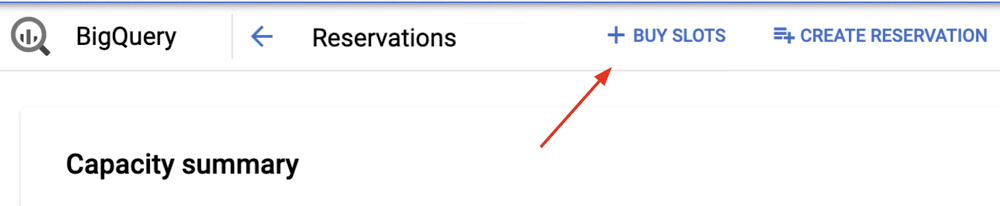
Editor’s note: This is one installment in a series about effectively managing BigQuery costs. Check out the other posts on choosing between BigQuery pricing models and how to properly size your slots.BigQuery has several built-in features and capabilities to help you save on costs, manage spend, and get the most out of your data warehouse resources. In this blog, we’ll dive into Reservations, BigQuery’s platform for cost and workload management. In short, BigQuery Reservations enables you to:Quickly purchase and deploy BigQuery slots Assign slots to various parts of your organizationSwitch your organization from bytes processed to a flat-rate pricing modelCustomers on the flat-rate pricing model purchase compute capacity, measured in slots, and can run any number of queries using this capacity. The flat-rate pricing model is a great alternative to the bytes processed pricing model, as it gives you more cost predictability and control. Think of slots as compute nodes—the more slots you have, the more horsepower you have for your queries.Getting started with ReservationsGetting going with BigQuery Reservations is very easy and low-risk. We introduced Flex Slots, which are charged per second and can be canceled after only 60 seconds, so you can run an experiment for the price of a cup of coffee! Here’s how to get started:1. Simply go into the BigQuery UI and click on “Reservations.” From there choose “Buy Slots.”2. In the purchase flow, choose “Flex Slots” as your commitment type and “500” as your size. If you’ve never bought slots before, you’ll be prompted to default your organization to flat-rate. Opt in if you want all your projects to start using your purchased slots automatically. 3. Confirm your purchase. In a few seconds, your capacity should be confirmed and deployed. 4. Go into the “Assignments” tab and assign any of your projects, or even your entire organization, to the “default” reservation. This tells BigQuery that those projects are on the slots pricing model, rather than bytes processed. Voila!Once you’re done with your test, simply delete all assignments and commitments. A 15-minute test will cost you just $5. Using BigQuery ReservationsOnce you set up Reservations, BigQuery automatically makes sure that your usage is efficient. Any provisioned slot that’s idle across your organization is available elsewhere in your organization to be used. That’s right, any idle or slack capacity is always available for you to use. This means that no matter how big or small your organization is, you get economy of scale benefits, without the penalty of creating wasteful compute silos.To increase capacity, all you need to do is buy more slots. Once your purchase is confirmed and slots are deployed, BigQuery automatically starts using this additional capacity for all your queries in flight—there’s no pausing work or waiting for new queries to start. It all happens quickly and seamlessly.Likewise, to decrease capacity, simply cancel an existing slot commitment. If you were using that capacity, BigQuery will simply pause those bits of work—your queries won’t fail, and at worst they’ll just slow down.Head over to documentation on slots to learn more about what BigQuery slots are and how they are distributed to do work.  Using Reservations for workload managementBigQuery Reservations is built for simplicity, first and foremost. That said, it’s a highly configurable platform that helps complex organizations manage their entire BigQuery operations in one place.It’s typical for an organization administrator to want to isolate and compartmentalize their departments or workloads. For example, you may have a “business” department, an “IT” department, and a “marketing” department, and you’d like each department to have their own set of BigQuery resources, like this:In the above example, you could set up your Reservations as follows:You purchase a 1000-slot commitment. This is your organization’s total processing capacity.You earmark 500 slots for “business,” 300 slots for “IT,” and 200 slots for “marketing” by creating a reservation for each.You assign Google Cloud folder “business_folder” to “business” reservation, and any other Google Cloud project that the business department is using.You assign Google Cloud folder “IT” to “IT” reservation, and project “it_project”You assign the Google Cloud project used by the marketing team for Looker dashboards to “dashboard_proj” We mentioned earlier that idle capacity is seamlessly shared across your organization. In the above example, if at this moment “business” reservation has 20 idle slots, they are automatically available to “IT” and “marketing.” As soon as “business” reservation wants them back, they’re pre-empted from “IT” and “marketing.” Pre-emption is graceful—queries slow down and accelerate seamlessly, rather than error out. Reservations also enables you to centrally manage your entire organization, mitigating the risk of “shadow IT” and unbounded spend. Only folks with bigquery.resourceAdmin, bigquery.admin, or owner roles set at the org level can dictate which projects and folders are assigned to which reservations. Cost attribution back to each department may be important to you. Simply query INFORMATION_SCHEMA jobs tables for reservation_id field and aggregate over slots consumed to report on what portion of the total bill is attributable to each team. To make this even easier, in the coming weeks you’ll see project-level cost attribution in the Google Cloud billing console. When to use Reservations Let’s unpack some examples of how you could set up Reservations for specific use cases.If you have a dev, test, or QA workload, you may only want it to have access to a small amount of resources, and you may not want it to leverage any idle capacity. In this instance, you could create a reservation “dev” with 50 slots and set ignore_idle_slots to true. This way this reservation will not use any idle capacity in the system beyond the 50 slots it requires.If you have a batch processing workload, and you’d like it to only run when there’s slack in the overall system, you can create a reservation “batch” with 0 slots. Any query in this reservation will sit queued up waiting for slack capacity, and will only make forward progress if there’s slack capacity.Suppose you have a reservation that is used to generate Looker dashboards, and you know that every Monday between 9 and 11 in the morning this dashboard experiences higher than normal demand. You may set up a scheduled job (via cron or any other scheduling tool) to increase the size of this reservation at 9am, and reduce it back at 11am.Using Google Cloud folders for advanced configurationGoogle Cloud supports organizations and folders, a powerful way to map your organization to Google Cloud Identity and Access Management (Cloud IAM). Child folders acquire properties of their parent folders, unless explicitly specified otherwise, and users with access to parent folders automatically acquire access to all child folders and their resources.BigQuery Reservations can be used in conjunction with folders to manage complex organizations.Consider the above scenario:Folder C is set up for a specific department in the organization.Org admin has IAM credentials to the entire organization.Folder admin has IAM credentials to Folder C (and hence Folder E as well).Folder admin wants to control her department’s BigQuery costs and resources autonomouslyOrg admin is the central IT department that oversees security and budget conformism.Folder D represents another department in the organization, managed by org admin.To configure BigQuery for this organization, do the following:Folder admin sets up BigQuery Reservations in Folder CFolder admin assigns Folder C and any projects she owns to her reservationsOrg admin sets up BigQuery Reservations in a project in Folder D, and in a project tied to the organizationOrg admin assigns Folder D and any projects he owns to his reservations in Folder DOrg admin assigns the entire organization to the reservations at org levelWith the above setup, folder admin is able to self-manage BigQuery for Folder C and Folder E, and org admin is able to manage BigQuery for every folder in their organization, including Folder C and Folder D. The only caveat is that in this configuration, idle slots are not shared between reservations in Folder C, Folder D, and the organization node.With BigQuery Reservations, managing your BigQuery costs and your workloads is easy. And BigQuery Reservations offers the power and flexibility to meet the goals of the most complex organizations out there while maximizing efficiency and minimizing waste. To learn more about BigQuery Reservations, head over to the documentation.
Quelle: Google Cloud Platform