Fast, simple Docker Enterprise deployments with the Mirantis Launchpad CLI Tool

The post Fast, simple Docker Enterprise deployments with the Mirantis Launchpad CLI Tool appeared first on Mirantis | Pure Play Open Cloud.
Try out Docker Enterprise or generate PoC clusters quickly and confidently with our new deployer
Released in Beta with Docker Enterprise 3.1 comes Mirantis Launchpad, a simple-to-use, robust CLI deployer that works out-of-the-box to let you quickly configure, deploy, tear down, and update clusters for trial, PoCs, labs, and development on almost any infrastructure, and integrates with Terraform and other tools for low-level IaaS provisioning.

Right now, Mirantis Launchpad only deploys Docker Enterprise itself, due to (now changing) limits on how Docker Trusted Registry applies license files. In coming weeks, Mirantis will add the ability to deploy DTR alongside Docker Enterprise, and add layers of custom configurability while preserving sensible defaults. The evolving result will remain the easiest way of deploying demo and (eventually) full production Docker Enterprise clusters: readily integrated with other automation you may be using, and complementary to existing deployment solutions.
Using Mirantis Launchpad
Mirantis Launchpad will run on any laptop (Windows, Mac, or Linux) and can deploy to any collection of target bare-metal or virtual machines that it can reach (via IP address or hostnames), and that can see one another. Depending on your requirements, it’s easy to set up various lab configurations, e.g., on AWS, Azure, or your desktop virtualization solution of choice.
Download the binary
Mirantis Launchpad is written in Go and distributed as binaries for direct execution on Windows, Mac, or Linux. To get started, visit our download page and grab the link for the version you need. 

The binary should be downloaded to a convenient folder, optionally renamed (we renamed it to ‘launchpad’), and made executable. On (Ubuntu) Linux, we did this as follows:
chmod +x launchpad
We could then test the installation by executing launchpad with the ‘version’ argument:
./launchpad version
The ./ simply directs execution to the local file, since we didn’t add launchpad to our execution path.

This produces the output (example only):
version: 0.10.0
commit: 636ce55
Your version details may vary. 
Registering yourself as a user
We’re interested in knowing how people use Mirantis Launchpad, so we ask that you register before using the software. This can be done from the command line:
./launchpad register
This will cause Mirantis Launchpad to ask your name, email, and company name, and transmit these to Mirantis.
Prepare target infrastructure
A small demo deployment can be done on as few as two virtual machines running a supported operating system and configured to comply with Docker Enterprise minimum requirements. Important: Target VMs should be configured for access via .ssh and private key, and login accounts (for Linux nodes) should be part of the sudoers group, with passwordless sudo enabled. This is the default setup for Linux VMs on most public clouds. If you created a new ssh key to use with your deployment, remember to install it on your deployer laptop (on Linux, this would typically be in the .ssh folder in your home directory).

Mirantis Launchpad will deploy Docker Enterprise manager nodes only on Linux (a Docker Enterprise requirement), but can deploy worker nodes optionally on Windows Server, providing these have been set up for access with SSH by the Administrator. 
Networking considerations
Target machines must be able to:

Access the internet, so will require public IP addresses or internet access via a configured gateway.
Access one another on several ports to enable Swarm and Kubernetes networking.
Must be accessible on port 22 (SSH) to the machine Mirantis Launchpad is running on, enabling configuration.

Additional ports must also be open between the deployer laptop and target machines to use docker, kubectl and related clients with your new cluster. And ports 80 and 443 (at minimum) will be required to be open on target machines for access to applications running on the cluster.

For the sake of simplicity, it may be easiest to set up a single security group for all target machines with rules as follows:
Security group “my_security_group”
Inbound rules (IPv4 only):

Port Rule
80 Allow from anywhere
443 Allow from anywhere
All traffic Allow from security group my_security_group
All traffic Allow from <launchpad laptop IP (if laptop is not on same subnet as cluster) or jumpbox IP>
Additionally, on AWS (and perhaps other public clouds), depending on your configuration, it may be necessary to explicitly allow machine to machine communications on private IP addresses. Do this by selecting the machines, then, Actions -> Networking -> Source/destination IP checks -> Disable.
Create a config.yaml file
Next step is to create a config.yaml file for launchpad, representing your cluster’s desired configuration. The command:
./launchpad init > cluster.yaml
… will generate a basic cluster.yaml file for you to modify. Meanwhile, here’s a sample cluster.yaml for deploying a cluster on two Linux nodes, creating a manager and a worker:
apiVersion: launchpad.mirantis.com/v1beta1
kind: UCP
metadata:
 name: ucp-kube
spec:
 ucp:
   installFlags:
     – –admin-username=<username>
     – –admin-password=<password>
     – –default-node-orchestrator=<kubernetes_or_swarm>
 hosts:
 – address: <IP_or_hostname_of_manager_node>
   role: manager
   sshKeyPath: <path_and_name_of_private_keyfile>
   user: ubuntu
 – address: <IP_or_hostname_of_worker_node>
   role: worker
   sshKeyPath: <path_and_name_of_private_keyfile>
   user: ubuntu
As with Kubernetes object definition files, the important stuff begins in the spec: stanza, where (in the ucp: stanza) you specify the cluster administrator’s username and password, and the cluster’s default orchestrator (the orchestration mode to which newly-joined nodes are assigned).

Following the ucp: stanza is an array of maps describing cluster nodes and roles. Mirantis Launchpad requires (at this point) at least one node designated as ‘manager’ and one as ‘worker.’ It can provision multiple manager nodes in a highly-available configuration, and as many workers as you like.

Mirantis Launchpad will default to accessing target nodes as ‘root.’ If this isn’t practical (e.g., on Ubuntu targets, which by default don’t permit root login, preferring instead of designate an administrative user with sudo privileges) you can use the user: parameter to specify a username.

The sshKeyPath: key, as you might expect, takes as its value the full path and filename of the private key it will use to access target servers (e.g., ~/.ssh/id_rsa).

Save cluster.yaml after making changes.
Avoiding complexity
Mirantis Launchpad seeks to avoid unnecessary complexity, so by default, for example, component versions are left unspecified, and Mirantis Launchpad will select automatically among latest compatible versions of Docker Engine – Enterprise and other artifacts. Ability to specify versions and many other details, however, is built in (see documentation). For example, you can specify the Docker Engine – Enterprise version by adding an engine: sub-stanza to the ucp: stanza:
 engine:
   version: 19.03.8-rc2
Note that the most recent compatible version of Docker Engine – Enterprise, at time of writing is 19.03.8-rc3, which Mirantis Launchpad would deploy unless instructed otherwise.

Full documentation of the Mirantis Launchpad YAML specification is here.
Running launchpad to deploy a cluster
At this point, you can deploy your cluster by cd’ing to the directory in which you saved launchpad, and entering:
./launchpad apply
Mirantis Launchpad finds cluster.yaml and begins by testing SSH connectivity to your target machines. As it executes, Mirantis Launchpad tests before performing operations or implementing changes, exposing errors and stopping before anything gets broken. Assuming no configuration, networking, or other errors, it will implement your configuration and terminate execution, telling you the IP address/hostname of your manager node, enabling browser connection using your admin username and password.

Mirantis Launchpad can also tear down your cluster, using the command:
./launchpad reset
… in the process, uninstalling all installed components. This will typically only be used when you no longer need the cluster, however (see below).
Idempotency and updates
More generally, like other mature deployment tools (and Kubernetes itself) Launchpad tries to function idempotently: making changes only in cases where a target system’s actual configuration differs from the configuration requested. You can thus apply (and change, and reapply) cluster.yaml to converge your cluster on a desired state, without repeating steps unnecessarily, or breaking the cluster in the process. For example, if you want to add additional servers, you can add them to the cluster.yaml file.

You can thus perform ‘launchpad apply’ as many times as needed (to fix basic configuration errors such as the wrong path to a private key), add or remove nodes, or update components.
Integrating Mirantis Launchpad with other tools
Users of Terraform will appreciate that Mirantis Launchpad can consume Terraform infrastructure description files to deploy clusters on infrastructure provisioned with this tool. The files need to be converted from JSON to YAML (trivial, using a tool like ‘yq’ or equivalent). An upcoming tutorial will address ways of integrating Mirantis Launchpad with Terraform and other automation.   

Now that you have a working cluster, check out this tutorial showing how to use it, and join us for a webinar on the new features in Docker Enterprise 3.1. 

 The post Fast, simple Docker Enterprise deployments with the Mirantis Launchpad CLI Tool appeared first on Mirantis | Pure Play Open Cloud.
Quelle: Mirantis
Mirantis Launches New Docker Enterprise Release, Adds the only production-ready Kubernetes Clusters on Windows Servers and Industry Leading SLAs

The post Mirantis Launches New Docker Enterprise Release, Adds the only production-ready Kubernetes Clusters on Windows Servers and Industry Leading SLAs appeared first on Mirantis | Pure Play Open Cloud.
Docker Enterprise 3.1 is first major release since November’s Docker Enterprise acquisition
Campbell, CA, May 28, 2020 — Mirantis, the open cloud company, today announced the general availability of Docker Enterprise 3.1, the first major release since the company acquired the Docker Enterprise business in November 2019.
Docker Enterprise customers can now further expand their container and Kubernetes adoption to include their most valuable use cases and applications. Now, administrators of a Docker Enterprise cluster can easily join Windows Server 2019 nodes to a Docker Enterprise cluster and enable end users to use Kubernetes to orchestrate Windows containers.
Docker Enterprise 3.1 also adds greater stability and additional features, with an updated version of Kubernetes and Nvidia GPU integration for AI/Machine Learning, IoT, and Big Data applications. It also allows users to easily enable Istio ingress for a Kubernetes cluster with the click of a button.
At the same time, Mirantis is introducing new support options for all Docker Enterprise customers: LabCare, ProdCare, and OpsCare. Previously, the highest level of support available was 24×7 for Severity 1 cases; with Mirantis ProdCare, customers have 24×7 support for all cases. With Mirantis OpsCare, customers get remote managed operations for their environment with enhanced SLAs, a designated customer success manager, proactive monitoring and alerting, and dedicated resources with ongoing health checks and reviews.
“Seven hundred and fifty customers adopted Docker Enterprise as the fastest way to build and run modern apps at enterprise scale,” said Adrian Ionel, co-founder and CEO of Mirantis. “Docker Enterprise 3.1 doubles down on that promise with the only production-ready Kubernetes for Windows capability and SLAs for mission critical applications.”
The latest capabilities of Docker Enterprise 3.1 include:

Certified Kubernetes 1.17

The upstream Kubernetes included in Docker Enterprise has been incremented to the 1.17 release, bringing greater stability and various features introduced after release 1.14, such as Windows support and scheduler improvements.

Kubernetes on Windows
Kubernetes clusters managed by the Universal Control Plane (UCP) in Docker Enterprise can now include nodes running Windows Server. Additionally, pods can interoperate when running on nodes in a mixed cluster consisting of Windows Server and Linux nodes.

GPU Orchestration
Nvidia GPU integration is now included in Docker Enterprise, with a pre-installed device plugin. Users can view GPU nodes inside Docker UCP, request GPUs through standard YAML pod specifications, and create policies for GPUs around access control and shared resources.

Istio Ingress for Kubernetes
Developers can enable Istio Ingress for a Kubernetes cluster with the click of a button. Istio will be automatically added to the cluster with intelligent defaults to get started quickly. Users can additionally configure proxies, add external IPs, and more – all from a simplified, user-friendly interface. Users can also create and review traffic routing rules, with virtual services supported out of the box.

New Mirantis Launchpad CLI Tool for Deployment & Upgrades on any infrastructure (all major public clouds, on-prem operating systems and VMware)
A new Command Line Interface (CLI) tool deploys a cluster in minutes with ready-to-use Docker Engine – Enterprise, Kubernetes, and Universal Control Plane.

“The market leadership of the Docker Enterprise platform combined with Mirantis’ reputation for customer care and technical expertise makes the Docker 3.1 release a compelling fit for our customers in support of their app modernization journey,” said Glen Tindal, Solutions Business unit leader, Capstone IT. “Adding Windows Server support with Kubernetes gives Capstone IT’s customers greater business flexibility and choice based on their use cases.”
Docker Enterprise is the only platform that enables developers to seamlessly build, share and safely run any applications anywhere – from public cloud to hybrid cloud to the edge. One third of Fortune 100 companies use Docker Enterprise as their high-velocity innovation platform.
On June 4th, Mirantis will host a live webinar to walk through the highlights in Docker Enterprise 3.1, and provide a live demonstration of its capabilities. To register for the webinar, sign up here: https://info.mirantis.com/webinar-docker-enterprise-3-1.
 The post Mirantis Launches New Docker Enterprise Release, Adds the only production-ready Kubernetes Clusters on Windows Servers and Industry Leading SLAs appeared first on Mirantis | Pure Play Open Cloud.
Quelle: Mirantis
Announcing Docker Enterprise 3.1 General Availability

The post Announcing Docker Enterprise 3.1 General Availability appeared first on Mirantis | Pure Play Open Cloud.
As you may know, last November Mirantis acquired the Docker Enterprise business from Docker, Inc., and since then we’ve been, as you might imagine, quite busy!  The two teams have been integrating their efforts, and combining the best of both worlds into the best products, services, and support we can bring to customers. 
Now, six months later, we are proud to announce the general availability of Docker Enterprise 3.1, with new features that let you up your Kubernetes game even more.  This new release includes lots of new features, including:

K8s on Windows
GPU support
Istio Ingress
A new UCP Installer
Upgrade to K8s 1.17

Let’s look at each of these in turn.
Kubernetes on Windows
From the start, Kubernetes has been an extremely Linux-centric project, which is understandable, as containers themselves evolved from Linux constructs such as cgroups. But what does that mean for Windows developers? After all, Docker runs on Windows, and makes it possible to run Linux containers (albeit using virtualization).
Over the last few Kubernetes releases, the community has been working on the ability to run on Windows, and with Docker Enterprise 3.1, you now have the ability to easily add Windows worker nodes to a Kubernetes cluster and manage them just as you would manage traditional Linux nodes with UCP.
The ability to orchestrate Windows-based container deployments lets organizations leverage the wide availability of components in Windows container formats, both for new application development and app modernization. It provides a relatively easy on-ramp for containerizing and operating mission-critical (even legacy) Windows applications in an environment that helps guarantee availability and facilitates scaling, while also enabling underlying infrastructure management via familiar Windows-oriented policies, tooling, and affordances. Of course, it also frees users to exploit Azure Stack, and/or and other cloud platforms offering Windows Server virtual and bare metal infrastructure.
GPU support
There was a time when Graphic Processing Units (GPUs) were just for gaming, but that time has long since passed; now they are an essential part of efficiently performing the heavy calculations that are becoming more and more a part of enterprise life. Even before Machine Learning and Artificial Intelligence crept onto the enterprise radar, large corporations had data mining operations that have prepared them for the coming onslaught.
Docker Enterprise 3.1 with Kubernetes 1.17 makes it simple to add standard GPU worker node capacity to Kubernetes clusters. A few easily-automated steps configure the (Linux) node, either before or after joining it to Docker Enterprise, and thereafter, Docker Kubernetes Service automatically recognizes the node as GPU-enabled, and deployments requiring or able to use this specialized capacity can be tagged and configured to seek it out. 
This capability complements the ever-wider availability of NVIDIA GPU boards for datacenter (and desktop) computing, as well as rapid expansion of GPU hardware-equipped virtual machine options from public cloud providers. Easy availability of GPU compute capacity and strong support for standard GPUs at the container level (for example, in containerized TensorFlow) is enabling an explosion of new applications and business models, from AI to bioinformatics to gaming. Meanwhile, Kubernetes and containers are making it easier to share still-relatively-expensive GPU capacity, or configure and deploy to cloud-based GPU nodes on an as-needed basis, potentially enabling savings, since billing for GPU nodes tends to be high.
Istio Ingress
When you are using Kubernetes, you don’t want to expose your entire cluster to the outside world. The safe and secure thing to do is to expose only as much of your cluster as necessary to handle incoming traffic. Ideally, you would want to be able to configure this part and have additional handling logic based on routes, headers, and so on. 
You may have heard of Istio, the service mesh application that gives you extremely powerful and granular control of traffic within the parts of a decentralized application.  Part of Istio is Istio Ingress, a drop-in replacement for Kubernetes Ingress, which controls the traffic coming into your cluster.
Docker Enterprise 3.1 includes Istio Ingress, which can be controlled and configured directly from UCP 3.3.0. That means you can easily enable or disable the service directly from the user interface or the CLI.
Mirantis Launchpad CLI Tool for Docker Enterprise
Docker Enterprise is meant to make your life easier by giving you a more straightforward way to perform tasks such as adding servers to your Kubernetes or Swarm clusters, but before you ever get there, you have to install it. Until now, this has been a somewhat manual process, but Docker Enterprise 3.1 includes a new CLI tool, Mirantis Launchpad, that takes the pain and complexity out of deployment and upgrades.
The process is simple. All you need to do is download the installer, tell it where to find your servers, and let it go. (There are a couple of optional intermediate steps depending on your deployment preferences, but we’ve tried to make the process as frictionless as possible.)
For more information on how to get and use Mirantis Launchpad, click here.
Upgrade to K8s 1.17
Finally, Docker Enterprise 3.1 upgrades the included version of Kubernetes to 1.17, which means you now have access to all of the features that come with that release, such as:

IPv4/IPv6 dual stack support and awareness for Kubernetes pods, nodes, and service
The ability to automatically prevent workloads from being scheduled to a node based on conditions such as memory usage or disk space
CSI Topology support, which attempts to ensure that workloads are scheduled to nodes that actually host the volumes they’re going to use, improving speed and performance
Environment variables expansion in SubPath mount and defaulting of CustomResources, which expand capabilities for end user developers
The ability to use RunAsUsername for Windows in addition to Linux

Where to get more information
If you’d like to try out these features, please go ahead and download the Mirantis Launchpad CLI Tool and try out Docker Enterprise 3.1! You can also can see these features in action, at our live webinar on June 4. We look forward to seeing you there!
The post Announcing Docker Enterprise 3.1 General Availability appeared first on Mirantis | Pure Play Open Cloud.
Quelle: Mirantis
Getting Started with Docker Enterprise 3.1

The post Getting Started with Docker Enterprise 3.1 appeared first on Mirantis | Pure Play Open Cloud.
Docker Enterprise from Mirantis is the fastest way to create modern applications, but despite its power, it’s pretty easy to set up and get started. In this article, we’re going to assume you’ve installed Docker Enterprise using the Mirantis Launchpad CLI Tool, get familiar with using the Universal Control Plane to create and manage Kubernetes objects, add an additional node to the cluster, and learn how to access it from the command line.
Let’s get started.
Accessing Docker Enterprise Universal Control Plane
The first thing we need to do is initialize the cluster:

When you installed Docker Enterprise with Mirantis Launchpad, you got a message such as:
INFO[0257] Cluster is now configured. You can access your cluster admin UI at: https://ec2-34-222-249-19.us-west-2.compute.amazonaws.com
INFO[0257] You can also download the admin client bundle with the following command: launchpad download-bundle –username <username> –password <password> 

Copy the URL to your browser and access it to get to the login screen.  (You may have to tell it to ignore certificate warnings.)
Log in using the username and password you specified in your cluster.yaml file, as in:
apiVersion: launchpad.mirantis.com/v1beta1
kind: UCP
metadata:
name: ucp-kube
spec:  
ucp:
   installFlags:
    – –admin-username=admin
    – –admin-password=passw0rd!
   – –default-node-orchestrator=kubernetes                                    
hosts:
 – address: ec2-34-222-249-19.us-west-2.compute.amazonaws.com
   user: ubuntu

If you have one, click Upload License and choose your *.lic file, or click Skip For Now.

Congratulations, you now have a functional cluster!
Now let’s look at accessing the cluster.
Accessing the Kubernetes cluster using UCP
When you run Launchpad, it creates a cluster capable of hosting both Kubernetes and Docker Swarm nodes. In this case, let’s look at how to access the cluster using Kubernetes tools.
Follow these steps to use the UI to create and manage individual objects: 

Choose Kubernetes -> + Create to create any type of object using YAML.

In this case, let’s create a couple of different objects using the following YAML:
apiVersion: v1
kind: Service
metadata:
 name: nginx
 labels:
   app: nginx
spec:
 selector:
   app: nginx
 ports:
 – port: 80
   name: http
   targetPort: 80
 – port: 443
   name: https
   targetPort: 80

apiVersion: v1
kind: Pod
metadata:
 name: rss-site
 labels:
   app: web
spec:
 containers:
   – name: front-end
     image: nginx
     ports:
       – containerPort: 80
   – name: rss-reader
     image: nickchase/rss-php-nginx:v1
     ports:
       – containerPort: 88
Enter the YAML in the box, or upload the *.yml file directly. In this case, we’re adding the objects to the kube-public namespace.  Choose that as your namespace and click Create.</span

Click Kubernetes -> Namespaces, then highlight kube-public and click Set Context to tell UCP to choose this namespace.

Now choose Kubernetes -> Pods and you’ll see the Pod you just created.
You can also use the Actions pulldown to remove objects.

Now let’s talk about accessing the cluster using the command line.
Accessing the Docker Enterprise Kubernetes cluster from the CLI
In order to access the Kubernetes cluster from the command line, you will need to do two things:

Install kubectl
Download the client bundle from UCP to set the context and provide credentials

There’s no special tool for accessing the Kubernetes cluster, so you can use the normal kubectl install instructions to complete step 1.  Fortunately, step 2 is just as easy.  Follow these instructions:

Click Dashboard and scroll down to find the Docker CLI information box.  

Click the arrow to open the Create and Manage Services Using the CLI dialog box.

Now you’ll need to create the client bundle. To do that, click the user profile page link.  This link opens a new tab that enables you to create a new bundle.

Click New Client Bundle and select Generate Client Bundle, then enter a label and click Confirm.

When you click Confirm, the bundle will download automatically. There won’t be any dialog box or other indication, but don’t panic, it’s in your Downloads folder.  On the command line of your local machine (where you downloaded the bundle), you’ll want to extract the environment script and execute it.  If you’re using Linux, this set of commands is:
unzip ucp-bundle-admin.zip
eval “$(<env.sh)”
Note that this assumes that you’re using the admin user; make sure to use the actual filename.
For Windows, simply unzip the archive and run 
.env.cmd

At this point your kubectl client is configured to access the Kubernetes cluster. To test it, type
$ kubectl get pods -n kube-public
NAME       READY     STATUS    RESTARTS   AGE
rss-site   2/2       Running   0          1d
The first time you run this command, it may take a few seconds to get a response, but you should see the pods we created earlier.

Now that you know how to access the Kubernetes cluster, let’s look at adding an additional node to that cluster.
Adding a new node to a Docker Enterprise cluster
The last thing we want to do in this article is to add another node to the cluster so you can see how that is done.  Using Mirantis Launchpad CLI Tool, it’s a simple matter of adding the new server to the cluster.yaml file and applying it.  For example, I started with two servers, and now I’ve added a third:
apiVersion: launchpad.mirantis.com/v1beta1
kind: UCP
metadata:
name: ucp-kube
spec:  
ucp:
   installFlags:
   – –admin-username=admin
   – –admin-password=passw0rd!
   – –default-node-orchestrator=kubernetes                                    
hosts:
 – address: ec2-34-222-249-19.us-west-2.compute.amazonaws.com
   user: ubuntu
   role: manager               
   sshKeyPath: /Users/nchase/Downloads/kaas.pem
 – address: ec2-35-160-242-135.us-west-2.compute.amazonaws.com
   user: ubuntu                
   role: worker
   sshKeyPath: /Users/nchase/Downloads/kaas.pem
 – address: ec2-18-237-127-216.us-west-2.compute.amazonaws.com
   user: ubuntu
   role: worker
   sshKeyPath: /Users/nchase/Downloads/kaas.pem
From there, if we go ahead and re-execute:
launchpad apply

INFO[0094] ==> Running phase: Join workers     
INFO[0095] ec2-35-160-242-135.us-west-2.compute.amazonaws.com: already a swarm node 
INFO[0096] ec2-18-237-127-216.us-west-2.compute.amazonaws.com:  This node joined a swarm as a worker. 
INFO[0096] ec2-18-237-127-216.us-west-2.compute.amazonaws.com: joined succesfully 
INFO[0096] ==> Running phase: Close SSH Connection 
INFO[0098] ec2-18-237-127-216.us-west-2.compute.amazonaws.com: SSH connection closed 
INFO[0098] ec2-35-160-242-135.us-west-2.compute.amazonaws.com: SSH connection closed 
INFO[0098] ec2-34-222-249-19.us-west-2.compute.amazonaws.com: SSH connection closed 
INFO[0098] ==> Running phase: UCP cluster info 
INFO[0098] Cluster is now configured. You can access your cluster admin UI at: https://ec2-34-222-249-19.us-west-2.compute.amazonaws.com
INFO[0098] You can also download the admin client bundle with the following command: launchpad download-bundle –username <username> –password <password>
As you can see, the new node gets added to the cluster.  You can see that if you choose Shared Resources -> Nodes.
Back on your local machine, where you’ve downloaded the client bundle, you should now be able to see the new Kubernetes node as well.
Next Steps
At this point, you’ve got a fully-functional Kubernetes cluster running on Docker Enterprise, and you can do anything you’d normally do with Kubernetes with it. Stay tuned for upcoming tutorials on using Istio Ingress, GPUs, and Windows nodes with Kubernetes, or join us to see them in action. And if you haven’t tried Mirantis Launchpad CLI Tool yet, now is the time!
The post Getting Started with Docker Enterprise 3.1 appeared first on Mirantis | Pure Play Open Cloud.
Quelle: Mirantis

RDO Ussuri Released

The RDO community is pleased to announce the general availability of the RDO build for OpenStack Ussuri for RPM-based distributions, CentOS Linux and Red Hat Enterprise Linux. RDO is suitable for building private, public, and hybrid clouds. Ussuri is the 21st release from the OpenStack project, which is the work of more than 1,000 contributors from around the world.
The release is already available on the CentOS mirror network at http://mirror.centos.org/centos/8/cloud/x86_64/openstack-ussuri/.

The RDO community project curates, packages, builds, tests and maintains a complete OpenStack component set for RHEL and CentOS Linux and is a member of the CentOS Cloud Infrastructure SIG. The Cloud Infrastructure SIG focuses on delivering a great user experience for CentOS Linux users looking to build and maintain their own on-premise, public or hybrid clouds.

All work on RDO and on the downstream release, Red Hat OpenStack Platform, is 100% open source, with all code changes going upstream first.

PLEASE NOTE: At this time, RDO Ussuri provides packages for CentOS8 only. Please use the previous release, Train, for CentOS7 and python 2.7.

Interesting things in the Ussuri release include:

Within the Ironic project, a bare metal service that is capable of managing and provisioning physical machines in a security-aware and fault-tolerant manner, UEFI and device selection is now available for Software RAID.
The Kolla project, the containerised deployment of OpenStack used to provide production-ready containers and deployment tools for operating OpenStack clouds, streamlined the configuration of external Ceph integration, making it easy to go from Ceph-Ansible-deployed Ceph cluster to enabling it in OpenStack.

Other improvements include:

Support for IPv6 is available within the Kuryr project, the bridge between container framework networking models and OpenStack networking abstractions.
Other highlights of the broader upstream OpenStack project may be read via https://releases.openstack.org/ussuri/highlights.html.
A new Neutron driver networking-omnipath has been included in RDO distribution which enables the Omni-Path switching fabric in OpenStack cloud.
OVN Neutron driver has been merged in main neutron repository from networking-ovn.

Contributors
During the Ussuri cycle, we saw the following new RDO contributors:

Amol Kahat 
Artom Lifshitz 
Bhagyashri Shewale 
Brian Haley 
Dan Pawlik 
Dmitry Tantsur 
Dougal Matthews 
Eyal 
Harald Jensås 
Kevin Carter 
Lance Albertson 
Martin Schuppert 
Mathieu Bultel 
Matthias Runge 
Miguel Garcia 
Riccardo Pittau 
Sagi Shnaidman 
Sandeep Yadav 
SurajP 
Toure Dunnon 

Welcome to all of you and Thank You So Much for participating!

But we wouldn’t want to overlook anyone. A super massive Thank You to all 54 contributors who participated in producing this release. This list includes commits to rdo-packages and rdo-infra repositories:

Adam Kimball 
Alan Bishop 
Alan Pevec 
Alex Schultz 
Alfredo Moralejo 
Amol Kahat 
Artom Lifshitz 
Arx Cruz 
Bhagyashri Shewale 
Brian Haley 
Cédric Jeanneret 
Chandan Kumar
Dan Pawlik
David Moreau Simard 
Dmitry Tantsur 
Dougal Matthews 
Emilien Macchi 
Eric Harney 
Eyal 
Fabien Boucher 
Gabriele Cerami 
Gael Chamoulaud 
Giulio Fidente 
Harald Jensås 
Jakub Libosvar 
Javier Peña 
Joel Capitao 
Jon Schlueter 
Kevin Carter 
Lance Albertson 
Lee Yarwood 
Marc Dequènes (Duck) 
Marios Andreou 
Martin Mágr 
Martin Schuppert 
Mathieu Bultel 
Matthias Runge 
Miguel Garcia 
Mike Turek 
Nicolas Hicher 
Rafael Folco 
Riccardo Pittau 
Ronelle Landy 
Sagi Shnaidman 
Sandeep Yadav 
Soniya Vyas

Sorin Sbarnea 
SurajP 
Toure Dunnon 
Tristan de Cacqueray 
Victoria Martinez de la Cruz 
Wes Hayutin 
Yatin Karel
Zoltan Caplovic

The Next Release Cycle
At the end of one release, focus shifts immediately to the next, Victoria, which has an estimated GA the week of 12-16 October 2020. The full schedule is available at https://releases.openstack.org/victoria/schedule.html.
Twice during each release cycle, RDO hosts official Test Days shortly after the first and third milestones; therefore, the upcoming test days are 25-26 June 2020 for Milestone One and 17-18 September 2020 for Milestone Three.

Get Started
There are three ways to get started with RDO.

To spin up a proof of concept cloud, quickly, and on limited hardware, try an All-In-One Packstack installation. You can run RDO on a single node to get a feel for how it works.
For a production deployment of RDO, use the TripleO Quickstart and you’ll be running a production cloud in short order.
Finally, for those that don’t have any hardware or physical resources, there’s the OpenStack Global Passport Program. This is a collaborative effort between OpenStack public cloud providers to let you experience the freedom, performance and interoperability of open source infrastructure. You can quickly and easily gain access to OpenStack infrastructure via trial programs from participating OpenStack public cloud providers around the world.
Get Help
The RDO Project participates in a Q&A service at https://ask.openstack.org. We also have our users@lists.rdoproject.org for RDO-specific users and operrators. For more developer-oriented content we recommend joining the dev@lists.rdoproject.org mailing list. Remember to post a brief introduction about yourself and your RDO story. The mailing lists archives are all available at https://mail.rdoproject.org. You can also find extensive documentation on RDOproject.org.

The #rdo channel on Freenode IRC is also an excellent place to find and give help.

We also welcome comments and requests on the CentOS devel mailing list and the CentOS and TripleO IRC channels (#centos, #centos-devel, and #tripleo on irc.freenode.net), however we have a more focused audience within the RDO venues.
Get Involved
To get involved in the OpenStack RPM packaging effort, check out the RDO contribute pages, peruse the CentOS Cloud SIG page, and inhale the RDO packaging documentation.
Join us in #rdo and #tripleo on the Freenode IRC network and follow us on Twitter @RDOCommunity. You can also find us on Facebook and YouTube.
Quelle: RDO

Working Remotely Isn’t Just About the Work

With COVID-19, the business world has come to a fork in the road: Down one route, shuttered offices. Down the other, companies embracing remote work, showing us how businesses can survive — and thrive! — with a fully remote workforce. And that includes fostering strong team bonds and employee relationships; just because there’s no physical break room or water cooler doesn’t mean companies can’t create opportunities for colleagues to connect.
Not all businesses can operate with remote employees, and the world’s frontline workers don’t have the luxury of dialing in from home. But for those companies that can function without a central office, there are myriad benefits to a distributed workforce. Automattic has always been fully distributed, and we’ve learned a lot about how to build a productive and happy remote workforce over the past 15 years. (CEO Matt Mullenweg is sharing many of these lessons and chatting with other folks running distributed companies on Distributed.blog and on the Distributed podcast.) Lots of companies find themselves suddenly switching to a remote work environment, and there’s a learning curve.
One of the things that can be seen as challenging is social interaction on the job, which plays a vital role in productivity and mental health. When employees build friendships and strong interpersonal relationships, they enjoy their work more and do a better job overall. And if you’re reading this, thinking you don’t know anyone whose work improves when they have strong social bonds among colleagues, you do now — it’s me! As an extrovert, I get energized when I’m able to see people and faces, especially in person, but also online. I’m a conversational learner, too, so ideas stick better in my brain when I have the chance to discuss and brainstorm topics in real time with teammates.

These days, it seems teleconferencing software is as commonplace as coffee shops in Seattle. “Zoom” has become part of our vocabulary, helping us to remain close with family and friends (albeit not physically), and it’s become fodder for marketing and advertising campaigns.
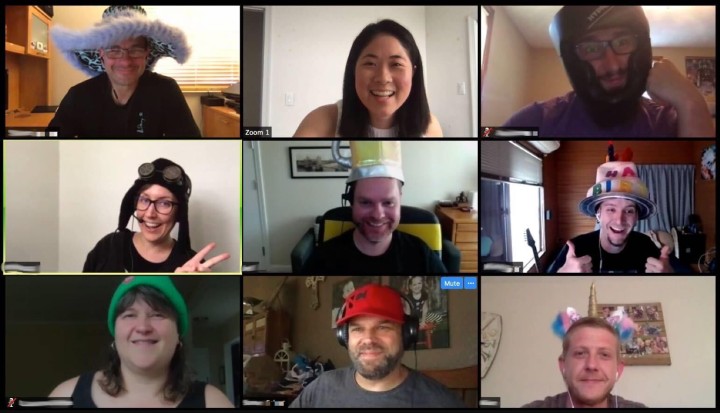
It’s also our preferred conference tool at Automattic, and we use it for a wide range of work gatherings, like town halls and team meetings. But that’s not all we use it for. Knowing that social communication is vital to ensuring a strong culture of camaraderie, we use Zoom to hang out together: We host open mic nights, break out our pencil crayons and color collectively, or do some chair yoga with one another. We’ll also grab a beverage of choice — coffee, beer, Soylent, tea, a crisp rosé — and join a happy hour.

In addition to maximizing online communication tools, we strengthen our collegial relationships offline. For example, we take advantage of the fact that we are distributed all over the world and send postcards to one another.
Whatever we do, we do it because we know that social connection is important. That we’re not going to work in the same physical office just means that we have to be more intentional about making the time, and carving out the (virtual) space, to connect with coworkers. To help inspire other businesses with newly distributed workforces, we’ve put together a resource that lists the many ways we communicate socially at Automattic. You can find it on this page.
Quelle: RedHat Stack

Add a Post Carousel and Embed a Podcast Player in Seconds with Our Two Latest Blocks

The WordPress editor keeps expanding its library of blocks, adding new and exciting functionality to websites on a regular basis. After a crop of new business-related blocks last month, our most recent additions will appeal to three communities we hold close to our heart: podcasters, podcast lovers, and bloggers.

Use the Podcast Player block to spread the word about your favorite episodes

Podcasts have been an unstoppable cultural force for several years now — and the format seems to have only grown in popularity in recent months, as so many of us are at home and looking for entertainment and (occasionally?) enlightenment.

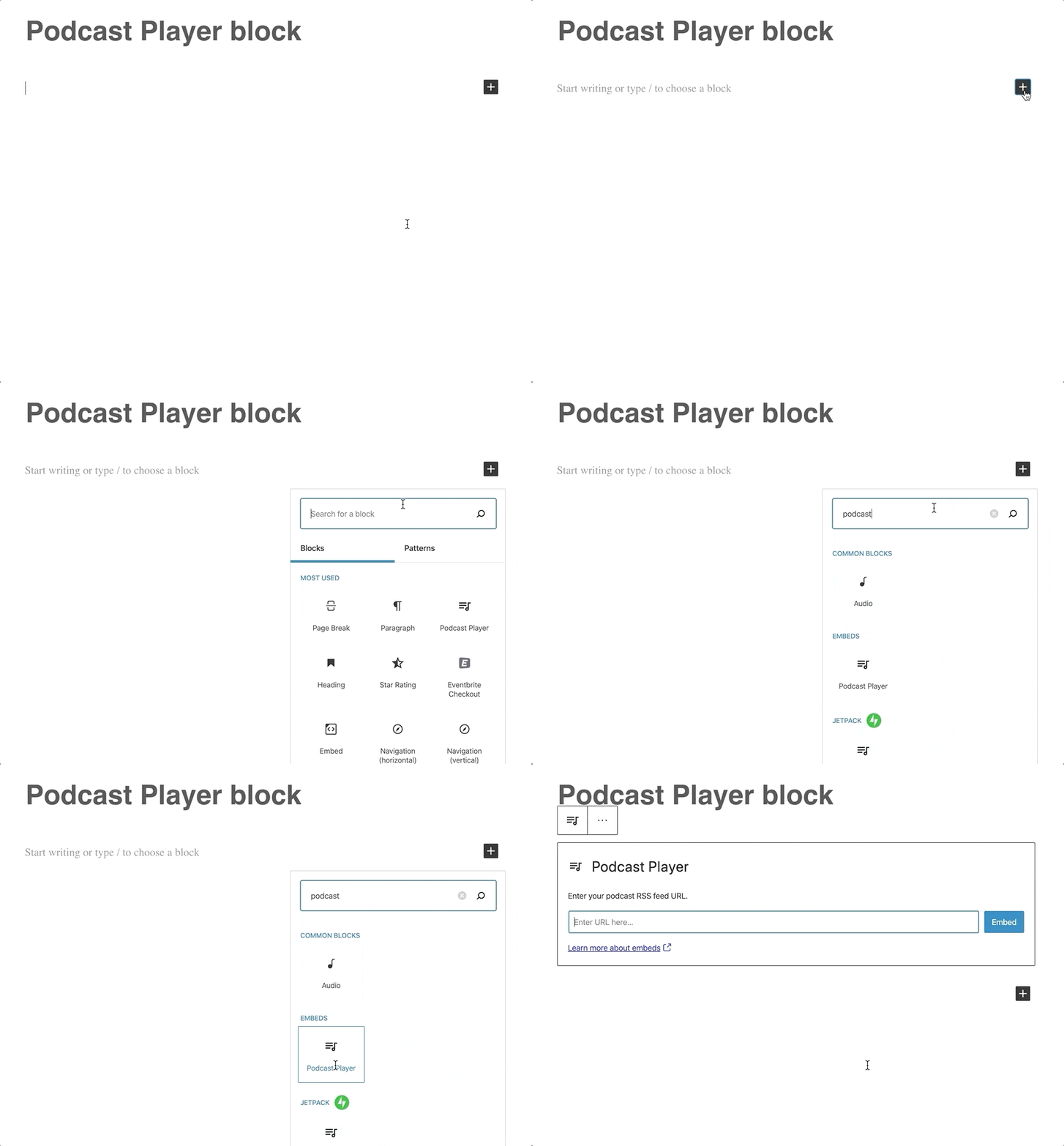
Are you a podcaster? Add the Podcast Player block to share your passion project with your visitors, embedding your podcast’s latest episodes on any post or page on your website. If you haven’t launched a podcast (for now, anyway), but are still an avid listener, you can now embed episodes from others’ shows within your own content so readers can listen to them without ever leaving your site.

Once you choose the Podcast Player block from the available blocks in the editor, you won’t need any special codes or embed links. The only information you’ll have to provide is the podcast’s RSS feed URL (not sure where to find it? The information will be readily available on your preferred podcast platform.) Here’s what the podcast player will look like on your site — the example below features the latest episode on the Distributed podcast, hosted by Automattic CEO Matt Mullenweg:

Episode 20: Adam Gazzaley on the Distracted Mind During a Crisis

Distributed, with Matt Mullenweg

Episode 20: Adam Gazzaley on the Distracted Mind During a Crisis

{“attributes”:{“url”:”https://distributed.blog/category/podcast/feed/”,”itemsToShow”:1,”showEpisodeDescription”:false,”showCoverArt”:true},”title”:”Distributed, with Matt Mullenweg”,”link”:”https://distributed.blog/”,”cover”:”https://i1.wp.com/distributed.blog/wp-content/uploads/2019/05/distributed_cover.jpg?fit=3000%2C3000&ssl=1″,”tracks”:[{“id”:”podcast-track-1″,”link”:”https://distributed.blog/2020/04/29/adam-gazzaley-distracted-mind/”,”src”:”https://distributed.blog/wp-content/uploads/2020/04/distributed-episode-20-with-adam-gazzaley.mp3″,”type”:”audio/mpeg”,”description”:”Matt Mullenweg speaks with neuroscientist Dr. Adam Gazzaley, co-author of the book The Distracted Mind: Ancient Brains in a High-Tech World, about how our brains work, particularly during times like the current pandemic. How does the brain handle internal and external stimuli, and what do we know about the effect of practices like meditation, exercise, nutrition, and sleep?”,”title”:”Episode 20: Adam Gazzaley on the Distracted Mind During a Crisis”}],”playerId”:”jetpack-podcast-player-block-1″}

( function( instanceId ) {
document.getElementById( instanceId ).classList.remove( ‘is-default’ );
window.jetpackPodcastPlayers=(window.jetpackPodcastPlayers||[]);
window.jetpackPodcastPlayers.push( instanceId );
} )( “jetpack-podcast-player-block-1″ );

You can customize the Podcast Player block in a number of ways, from specifying how many of the most recent episodes to display, to deciding whether or not you’d like to show each episode’s description. Whether you feature your own podcast or someone else’s, you get to design the listener’s experience on your site. Learn more about adding and customizing the Podcast Episode block.

Keep readers reading with the Post Carousel block

Sooner or later, both veteran bloggers and newer creators encounter a similar issue: publishing frequently helps energize your audience (and gives you an SEO boost, too), but also makes older posts tougher to find.

The Post Carousel block comes to the rescue, providing an easy gateway to the treasures in your blog’s archives.

Add the Post Carousel block to any post or page on your site to encourage visitors to explore more posts (by default, the block will display your most recent ones). For a post to show up in the carousel, it needs to have a featured image; the idea is to engage and entice readers with strong visuals they’ll want to click on. To get a taste of the carousel in action, here’s one highlighting the five most recent posts on the WordPress.com Blog:

Add a Post Carousel and Embed a Podcast Player in Seconds with Our Two Latest Blocks

by Jerry Jones
May 22, 2020

Expert Advice: SEO and Content Marketing

by Kasey Steinbrinck
May 21, 2020

10 Ways to Make Your Site More Accessible

by Cheri Lucas Rowlands
May 21, 2020

Say Hello to the WordPress Block Editor

by Dave Martin
May 18, 2020

Coming Soon: Make Your Site Private Until You’re Ready to Launch

by Adam Zieliński
May 15, 2020

For a more curated experience, you can customize what the post carousel shows. A post about your cauliflower taco recipe might call for a carousel showing other recipes that share the “vegan” tag or category. If you run a multi-author online magazine, consider presenting other stories by the same contributor. You can also configure how many items each carousel displays and whether it automatically slides from one featured post to another (among other options). Learn more about adding and customizing the Post Carousel block.

We hope you give these two new blocks a try — leave a comment if you have any questions, or if you’d like to share a link to a post where you’ve already used them.
Quelle: RedHat Stack

10 Ways to Make Your Site More Accessible

Today, Global Accessibility Awareness Day, raises awareness around digital access and inclusion and improving the web experience for everyone. This year, WebAIM analyzed one million homepages for accessibility issues and found that 98% of websites had at least one WCAG (Web Content Accessibility Guidelines) failure on their homepage, such as low-contrast text, missing image alt text, and empty links. These types of accessibility barriers make it difficult or impossible for some visitors — people who are blind, deaf and hard of hearing, and disabled, for example — to use your site.

We encourage you to audit your site to ensure it’s accessible for all readers; the WAVE Web Accessibility Evaluation Tool can identify various errors on your site in seconds. Here are some web accessibility tips to get you started, and be sure to explore the guidelines and resources on the W3C Web Accessibility Initiative (WAI) website for deeper learning.

Use an accessibility-ready theme

You can choose from among a variety of designs for your site, but some themes have features that add complexity, making it harder for disabled people or visitors using screen readers to access your content.

When choosing a theme, consider an accessibility-ready design, like Balasana, a free minimal theme for your business website; or Mayland, a free visual theme that’s great for photographers and storytellers. These themes have been checked by the Theme Review Team and pass basic accessibility requirements.

Display your site title and tagline

Many themes allow you to upload a custom header image, which is a visual way to brand your site, display the title of your blog, or promote the name of your business. But some themes may not support alternative text, or the written copy that appears in place of an image on a page if the image fails to load on your visitor’s screen.

Instead of conveying your site title and tagline within a header image, display your site title and tagline text. Go to Manage → Settings, and at the top under Site profile, fill out your Site title and Site tagline. Then, head to Design → Customize, go to Site Identity, and check the box next to Display Site Title and Tagline.

Structure your pages and posts with appropriate headings

Add headings with the Heading Block to organize pages and posts and make it easier for readers to follow your content, which is especially important for longer pages and posts. Click on the “i” icon in the top toolbar of the block editor to view any errors and incorrect heading sizes.

Select fonts and colors for legibility

Fonts and colors are essential components on your site, adding personality and style and strengthening your visual identity online. Avoid font styles and sizes and color palettes that make your site difficult to read, and pay attention to contrast, or the difference between the darkness of your text and the lightness of your background.

The block editor will display an error message in Color settings when it detects poor color contrast in the specific block you’re working on.

Clearly describe your links

When linking to another page or post on the web, make your linked text descriptive. For example, “click here” is not as effective as “learn how to apply to my writing workshop.”

Include captions with your images

When adding an image with the Image Block, add a description of the image in the caption underneath it. While captions are optional, they improve the experience for all readers by providing more context.

Add alt text to your images

Alt text is essential for people who are blind or use screen readers (they can hear alt text read aloud), or people who have disabled images for speed or bandwidth reasons. Alt text is also important for your site’s SEO — it helps search engines understand what your site content is about.

When adding an image with the Image Block, go to the block’s settings on the right and add the alt text in the box under Image settings.

Learn more about W3C’s image accessibility guidelines.

Create easily clickable CTA areas

With the Buttons Block, you can add call-to-action buttons to your pages and posts quickly. For those of you who design and embed your own buttons with Image Widgets, make buttons, icons, and other CTA elements with wide-enough areas that are easy to click or tap from different devices.

You can apply this tip to text links as well. Tapping a linked hashtag or asterisk within a sentence, for example — especially on a small screen — may be difficult for some people.

Include captions or transcripts for multimedia content

If your site includes video content, consider adding captions or including transcripts (documenting speech, sounds, as well as actions seen on-screen). Podcast transcripts are also incredibly helpful; here’s a transcript of a recent Distributed episode with neuroscientist Adam Gazzaley.

It’s best if video and audio content does not auto-play, but if that’s not possible, options to pause or adjust the volume should be obvious on the page.

Never stop learning and improving

This list is just an introduction to a few best practices and guidelines! If you’re interested in learning more, explore the resources on the W3C Web Accessibility Initiative (WAI) website. You can also explore ways to get involved in improving the accessibility of WordPress.

Learn more about Global Accessibility Awareness Day and participate in online events, webinars, and podcasts.
Quelle: RedHat Stack

Expert Advice: SEO and Content Marketing

You’ve launched your website or started a blog. Congratulations! Now it’s time to attract an audience. You built a website to reach people with your art, ideas, or products and services. We’ve created a free online session to help you do just that. 

Register for our next 60-minute webinar, Traffic Control: How to Find and Grow an Audience for your Website, to get advice and guidance on attracting the right people to your site.

Date: May 27, 2020Time: 10:00 a.m. PDT | 11:00 a.m. MDT | 12:00 p.m. CDT | 1:00 p.m. EDT | 17:00 UTCCost: Free | Register nowWho’s invited: Content creators, online publishers, and small businesses looking for the best ways to build an audience of loyal customers and dedicated readers.

Topics will include:

Understanding your audience.Demystifying SEO.How to optimize your site for local visitors.What does “quality content” really mean?Using email, social media, and paid advertising.How to take advantage of WordPress.com’s marketing tools for audience growth.

Hosts Chris Smith and Kasey Steinbrinck run their own sites and both have worked with a variety of businesses to help them optimize their websites and create strong content. They’ll help you choose what to focus on so that you can make the most of your time. 

After working as an SEO specialist for many years, Chris supports WordPress.com customers with expert advice as a Happiness Engineer. Kasey started his career as a TV news producer and entertainment writer before becoming a content marketer and an independent blogger. Today he works on WordPress.com’s content strategy.

The 60-minute webinar will include detailed instructions on WordPress SEO as well as a Q&A session. Seats are limited so register today to reserve your spot.
Quelle: RedHat Stack

Say Hello to the WordPress Block Editor

On June 1 we’ll be retiring our older WordPress.com editor and transitioning to the more recent (and more powerful) WordPress block editor. Want to know how this may affect your site and what you can expect? Read on.

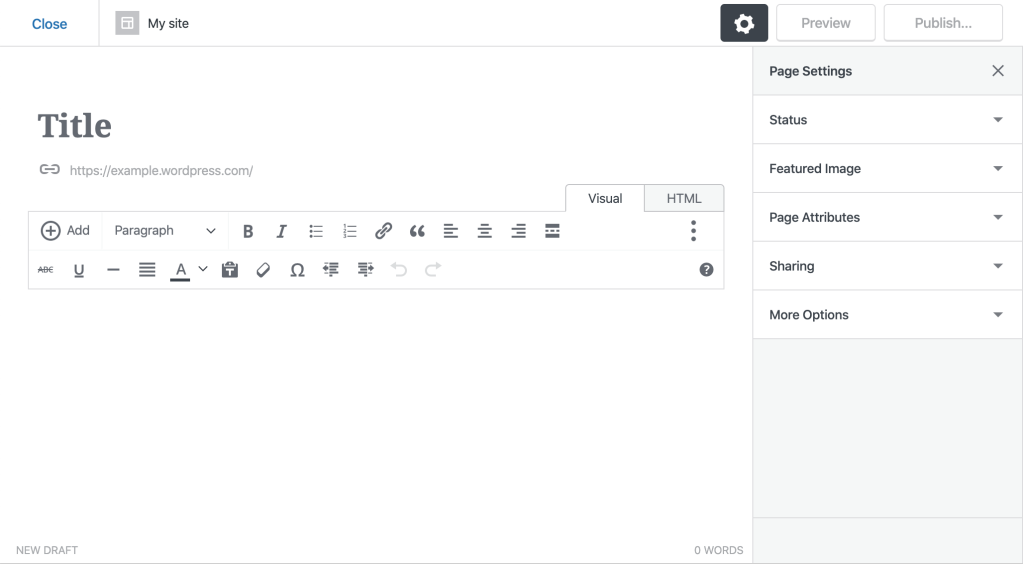
If you’ve launched your WordPress.com site in the past year and a half you may have never seen our older editor and are likely already using the more recent WordPress editor. Those of you who have an older site, though, might recognize this editing experience:

We know it can be frustrating to get used to an online tool only to see it change or go away. Retiring an entire editor — the place where you publish posts and pages on WordPress.com — is not something we would ever do on a whim. What inspired us to take this decision is the positive experience site owners have had with the newer WordPress editor.

Why switch to the WordPress editor? Let us count the ways.

The WordPress block editor was released over a year and a half ago. Since then, it has improved in numerous ways thanks to thousands of enhancements and fixes  — to the point that we’re certain it offers a far superior experience compared to the older WordPress.com editor. Not sure? You can take the WordPress editor for a spin. In case you’ve never encountered it before, here are only some of the features you’ll find in the WordPress block editor that aren’t available in the older WordPress.com editor.

Over 100 content blocks for publishing virtually any type of page or postContent blocks can be mixed and matched to customize the content of any page or post.

A growing collection of block patternsBlock patterns are simply collections of blocks pre-bundled together to form beautiful designs.

Dozens of beautiful, built-in page templatesPage templates simplify the creation of common pages within WordPress by giving you a beautiful predesigned template to get started.

Customizable styles directly within the editorYou can now customize the look and feel of your website by testing out different fonts directly within the WordPress editor.

What other options do I have?

We hope you give the WordPress editor a try — it’s been the editing experience of choice for millions since it arrived on the scene. That said, we know some of you might prefer to avoid this change. We’re offering two options for those who’d rather  stick with an older way of editing your content.

1) Use the Classic blockWithin the new WordPress editor you’ll find the Classic block, which replicates the functionality of the Classic editor — that’s the editor that used to be the default until several years ago, well before we introduced the WordPress.com editor. Here’s what it looks like:

2) Opt to use the Classic editorYou also have the choice to switch to the Classic editor. Here’s what it looks like, in case you haven’t seen this one in a while (or ever):

We hope you enjoy the new WordPress editor — give it a try today to get a taste ahead of June 1!
Quelle: RedHat Stack