Permission manager : RBAC management for Kubernetes

Permission manager : RBAC management for KubernetesPhoto by Kyle Glenn on UnsplashCame across a GitHub repository implemented by the awesome folks at Sighup.IO for managing user permissions for Kubernetes cluster easily via web UI.GitHub Repo : https://github.com/sighupio/permission-managerWith Permission Manager, you can create users, assign namespaces/permissions, and distribute Kubeconfig YAML files via a nice&easy web UI.The project works on the concept of templates that you can create and then use that template for different users.Template is directly proportional to clusterrole. In rder to create a new template you need to defile a clusterrole with prefix template-namespaces-resources__. The default template are present in the k8s/k8s-seeds directory.Example template:apiVersion: rbac.authorization.k8s.io/v1kind: ClusterRolemetadata: name: template-namespaced-resources___developerrules: – apiGroups: – "*" resources: – "configmaps" – "endpoints" – "persistentvolumeclaims" – "pods" – "pods/log" – "pods/portforward" – "podtemplates" – "replicationcontrollers" – "resourcequotas" – "secrets" – "services" – "events" – "daemonsets" – "deployments" – "replicasets" – "ingresses" – "networkpolicies" – "poddisruptionbudgets" # – "rolebindings" # – "roles" verbs: – "*"Let us now deploy it on Katakoda kubernetes playground and see the permission checker in action.Step1: Open https://www.katacoda.com/courses/kubernetes/playgroundStep 2: git clone https://github.com/sighupio/permission-manager.gitStep3: Change the deploy.yaml filemaster $ kubectl cluster-infoKubernetes master is running at https://172.17.0.14:6443update the deployment file “k8s/deploy.yaml” with the CONTROL_PLANE_ADDRESS from the result of the above command.apiVersion: apps/v1kind: Deploymentmetadata: namespace: permission-manager name: permission-manager-deployment labels: app: permission-managerspec: replicas: 1 selector: matchLabels: app: permission-manager template: metadata: labels: app: permission-manager spec: serviceAccountName: permission-manager-service-account containers: – name: permission-manager image: quay.io/sighup/permission-manager:1.5.0 ports: – containerPort: 4000 env: – name: PORT value: "4000" – name: CLUSTER_NAME value: "my-cluster" – name: CONTROL_PLANE_ADDRESS value: "https://172.17.0.14:6443" – name: BASIC_AUTH_PASSWORD valueFrom: secretKeyRef: name: auth-password-secret key: password—apiVersion: v1kind: Servicemetadata: namespace: permission-manager name: permission-manager-servicespec: selector: app: permission-manager ports: – protocol: TCP port: 4000 targetPort: 4000 type: NodePortStep4: Deploy the manifestscd permission-managermaster $ kubectl apply -f k8s/k8s-seeds/namespace.ymlnamespace/permission-manager createdmaster $ kubectl apply -f k8s/k8s-seedssecret/auth-password-secret creatednamespace/permission-manager unchangedclusterrole.rbac.authorization.k8s.io/template-namespaced-resources___operation createdclusterrole.rbac.authorization.k8s.io/template-namespaced-resources___developer createdclusterrole.rbac.authorization.k8s.io/template-cluster-resources___read-only createdclusterrole.rbac.authorization.k8s.io/template-cluster-resources___admin createdrolebinding.rbac.authorization.k8s.io/permission-manager-service-account-rolebinding createdclusterrolebinding.rbac.authorization.k8s.io/permission-manager-service-account-rolebinding createdserviceaccount/permission-manager-service-account createdclusterrole.rbac.authorization.k8s.io/permission-manager-cluster-role createdcustomresourcedefinition.apiextensions.k8s.io/permissionmanagerusers.permissionmanager.user createdmaster $ kubectl apply -f k8s/deploy.yamldeployment.apps/permission-manager-deployment createdservice/permission-manager-service createdStep5: Get the NodePort and open UI using Katakodamaster $ kubectl get svc -n permission-managerNAME TYPE CLUSTER-IP EXTERNAL-IP PORT(S) AGEpermission-manager-service NodePort 10.104.183.10 <none> 4000:31996/TCP 9m40sn order to open port from Katakoda click on the + and select View HTTP port 8080 on Host 1 and change the port to 31996Enter the username and password : username: adminpassword: 1v2d1e2e67dS You can change the password in k8s/k8s-seeds/auth-secret.yml file.Now Let us create some users and assign one of the default template.User Test1 with permission as a developer in permission-manager namespaceLet us download the kubeconfig file and test the permissions:master $ kubectl –kubeconfig=/root/permission-manager/newkubeconfig get podsError from server (Forbidden): pods is forbidden: User "test1" cannot list resource "pods" in API group "" in the namespace "default"master $ kubectl –kubeconfig=/root/permission-manager/newkubeconfig get pods -n permission-managerNAME READY STATUS RESTARTS AGEpermission-manager-deployment-544649f8f5-jzlks 1/1 Running 0 6m38smaster $ kubectl get clusterrole | grep templatetemplate-cluster-resources___admin 7m56stemplate-cluster-resources___read-only 7m56stemplate-namespaced-resources___developer 7m56stemplate-namespaced-resources___operation 7m56sSummary: With permission checker you can easily create multiple users and give permission for specific resources in specific namespace using custom-defined templates.About SaiyamSaiyam is a Software Engineer working on Kubernetes with a focus on creating and managing the project ecosystem. Saiyam has worked on many facets of Kubernetes, including scaling, multi-cloud, managed kubernetes services, K8s documentation and testing. He’s worked on implementing major managed services (GKE/AKS/OKE) in different organizations. When not coding or answering Slack messages, Saiyam contributes to the community by writing blogs and giving sessions on InfluxDB, Docker and Kubernetes at different meetups. Reach him on Twitter @saiyampathak where he gives tips on InfluxDB, Rancher, Kubernetes and open source.We’re hiring!We are looking for engineers who love to work in Open Source communities like Kubernetes, Rancher, Docker, etc.If you wish to work on such projects please do visit our job offerings page.Permission manager : RBAC management for Kubernetes was originally published in Kubernauts on Medium, where people are continuing the conversation by highlighting and responding to this story.
Quelle: blog.kubernauts.io

TK8 Cattle EKS Provisioner with Terraform Rancher Provider

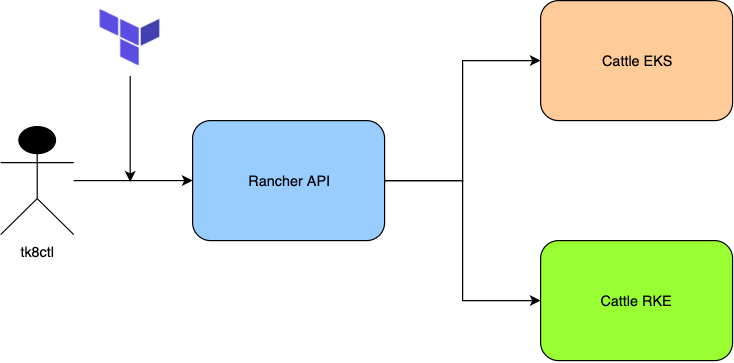
In a previous post we introduced how to use a Rancher Server with Terraform Rancher Provider to deploy Rancher’s Kubernetes Engine (RKE) with the TK8 Cattle AWS provisioner on auto-provisioned EC2 machines.In this post I’ll introduce the TK8 Cattle EKS provisioner by the awesome Shantanu Deshpande to deploy an EKS Cluster with the tk8ctl tool talking to a Rancher Server using a valid SSL certificate running on our local machine.Rancher launched EKS vs. Rancher launched RKE ClusterWith Rancher Server you can launch or import any Kubernetes cluster on any cloud provider or existing bare-metal servers or virtual machines.In the case of AWS, we can either choose to use RKE with new nodes on Amazon EC2 or the managed Amazon EKS offering.With EKS one doesn’t need to worry about managing the control plane or even the worker nodes, AWS manages everything for us at the price of a lower Kubernetes version, which is Kubernetes v1.14.8 at this time of writing.With RKE, we can use the latest Kubernetes 1.16.x or soon 1.17.x versions, but we need to manage the control plane and worker nodes on our own, which requires skilled Kubernetes and Rancher professionals.Harshal Shah shares his experience nicely in this blog post about Lessons Learned from running EKS in Production, which I highly recommend to read, if you’d like to free-up your time to be able to deal with other challenges.In a previous post I wrote about a dilemma by deciding on how to run and manage multiple Kubernetes clusters using OpenShift, RKE, EKS or Kubeadm on AWS.Let’s get startedPrerequisitesMost probably you have already these tools installed listed below, except mkcert and tk8ctl:AWS CLITerraform 0.12Docker for Desktopgit climkcerttk8ctlGet the sourcegit clone https://github.com/kubernauts/tk8-provisioner-cattle-eks.gitcd tk8-provisioner-cattle-eksInstall Rancher with Docker and mkcertAs mentioned at the beginning we are going to use Rancher Server and Rancher’s API via code to deploy and manage the life cycle of our EKS clusters with tk8ctl and the Cattle EKS provisioner.To keep things simple, we’ll install Rancher on our local machine with docker and mkcert to get a valid SSL certificate in our browser, which we need to talk to with the following simple commands on MacOS (on Linux you need to follow these mkcert instructions and copy the rootCA.pem from the right directory on linux to your working directory):$ brew install mkcert$ mkcert — install$ mkcert '*.rancher.svc'# on MacOS# cp $HOME/Library/Application Support/mkcert/rootCA.pem cacerts.pem# on Ubuntu Linux# cp /home/ubuntu/.local/share/mkcert/rootCA.pem cacerts.pem# cp _wildcard.rancher.svc.pem cert.pem# cp _wildcard.rancher.svc-key.pem key.pem$ sudo echo "127.0.0.1 gui.rancher.svc" >> /etc/hostsdocker run -d -p 80:80 -p 443:443 -v $PWD/cacerts.pem:/etc/rancher/ssl/cacerts.pem -v $PWD/key.pem:/etc/rancher/ssl/key.pem -v $PWD/cert.pem:/etc/rancher/ssl/cert.pem rancher/rancher:stable$ open https://gui.rancher.svcWith that you should be able to access Rancher on https://gui.rancher.svc without TLS warnings!Get the tk8ctl CLIDownload the latest tk8ctl release and place it in your path:# On MacOS$ wget https://github.com/kubernauts/tk8/releases/download/v0.7.7/tk8ctl-darwin-amd64chmod +x tk8ctl-darwin-amd64mv tk8ctl-darwin-amd64 /usr/local/bin/tk8ctl$ tk8ctl version# ignore any warnings for now, you’ll get a config.yaml file which we’ll overwrite shortly# On Linux$ wget https://github.com/kubernauts/tk8/releases/download/v0.7.7/tk8ctl-linux-amd64chmod +x tk8ctl-linux-amd64$ sudo mv tk8ctl-linux-amd64 /usr/local/bin/tk8ctl$ tk8ctl version# provide any value for aws access and secret key, you’ll get a config.yaml file which we’ll overwriteSet AWS and Terraform Rancher Provider variablesGet the bearer token from Rancher UI in the menu via API & Keys:and provide your AWS access and secret keys in a file called e.g. cattle_eks_env_vars.template:https://medium.com/media/7e1e05d06680754e8a20465782e29e06/hrefand source the file:$ source cattle_eks_env_vars.templateDeploy EKS with tk8ctlNow you’re ready to deploy EKS via Rancher API:$ cp example/config-eks-gui.rancher.svc.yaml config.yaml$ tk8ctl cluster install cattle-eksAfter some seconds you should see in the Rancher Server GUI an EKS cluster in the provisioning state, take a cup of coffee or a delicious red wine, your EKS cluster needs about 15 min. to get ready.Access your EKS clusterTo access your EKS Cluster you can either get the kubeconfig from Rancher UI and save it as kubeconfig.yaml and run:KUBECONFIG=kubeconfig.yaml kubectl get nodesor you can run the following aws eks command to update your default kubeconfig file with the new context:aws eks update-kubeconfig –name tk8-tpr2-eksClean-Uptk8ctl cluster destroy cattle-eksWe’re hiring!We are looking for engineers who love to work in Open Source communities like Kubernetes, Rancher, Docker, etc.If you wish to work on such projects please do visit our job offerings page.TK8 Cattle EKS Provisioner with Terraform Rancher Provider was originally published in Kubernauts on Medium, where people are continuing the conversation by highlighting and responding to this story.
Quelle: blog.kubernauts.io

Announcing the DockerCon LIVE 2020 Speakers

After receiving many excellent CFP submissions, we are thrilled to finally announce the first round of speakers for DockerCon LIVE on May 28th starting at 9am PT / GMT-7. Check out the agenda here.

In order to maximize the opportunity to connect with speakers and learn from their experience, talks are pre-recorded and speakers are available for live Q&A for their whole session. From best practices and how tos to new product features and use cases; from technical deep dives to open source projects in action, there are a lot of great sessions to choose from, like:

Docker Desktop + WSL 2 Integration Deep Dive

Simon Ferquel, Docker

Dev and Test Agility for Your Database with Docker

Julie Lerman, The Data Farm

Build & Deploy Multi-Container Applications to AWS

Lukonde Mwila, Entelect

COVID-19 in Italy: How Docker is Helping the Biggest Italian IT Company Continue Business Operations

Clemente Biondo, Engineering Ingegneria Informatica

How to Create PHP Development Environments with Docker Compose

Erika Heidi, Digital Ocean

From Fortran on the Desktop to Kubernetes in the Cloud: A Windows Migration Story

Elton Stoneman, Container Consultant and Trainer

How to Use Mirroring and Caching to Optimize your Container Registry

Brandon Mitchell, Boxboat 

In addition to 36 sessions from Docker experts and the container ecosystem, we’ve partnered with theCUBE and the Docker Captains to deliver even more formats for our community to come together to connect, share and learn. 

Container Conversations with theCUBE

theCUBE’s John Furrier and Jeff Frick go behind the scenes in exclusive interviews with speakers all day long. Tune in to catch interviews with the speakers and other ecosystem partners.

Captains on Deck

And, if you are looking for a virtual hallway track, then you won’t want to miss the incredible line of Docker Captains and guests that will be live, on deck all day in a help-desk-style stream, answering your questions, demoing the latest container functionality and chattin’ up how they use it. Hosted by Captain Bret Fisher, and supported by a rotating cast, this “channel” promises fun and surprises.

The post Announcing the DockerCon LIVE 2020 Speakers appeared first on Docker Blog.
Quelle: https://blog.docker.com/feed/

Using Docker Desktop and Docker Hub Together – Part 1

Introduction

In today’s fast-paced development world CTOs, dev managers and product managers demand quicker turnarounds for features and defect fixes. “No problem, boss,” you say. “We’ll just use containers.” And you would be right but once you start digging in and looking at ways to get started with containers, well quite frankly, it’s complex. 

One of the biggest challenges is getting a toolset installed and setup where you can build images, run containers and duplicate a production kubernetes cluster locally. And then shipping containers to the Cloud, well, that’s a whole ‘nother story.

Docker Desktop and Docker Hub are two of the foundational toolsets to get your images built and shipped to the cloud. In this two-part series, we’ll get Docker Desktop set up and installed, build some images and run them using Docker Compose. Then we’ll take a look at how we can ship those images to the cloud, set up automated builds, and deploy our code into production using Docker Hub.

Docker Desktop

Docker Desktop is the easiest way to get started with containers on your development machine. The Docker Desktop comes with the Docker Engine, Docker CLI, Docker Compose and Kubernetes. With Docker Desktop there are no cloning of repos, running make files and searching StackOverflow to help fix build and install errors. You just need to download the image for your OS and double-click to get started installing. Let’s quickly walk through the process now.

Installing Docker Desktop

Docker Desktop is available for Mac and Windows. Navigate over to Docker Desktop homepage and choose your OS.

Once the download has completed, double click on the image and follow the instructions to get Docker Desktop installed. For more information on installing for your specific operating system, click the link below.

Install Docker Desktop on MacInstall Docker Desktop on Windows

Docker Desktop UI Overview

Once you’ve downloaded and installed Docker Desktop and the whale icon has become steady you are all set. Docker Desktop is running on your machine.

Dashboard

Now, let’s open the docker dashboard and take a look around.

Click on the Docker icon and choose “Desktop” from the dropdown menu.

The following window should open:

As you can see, we do not have any containers running at this time. We’ll fix that in a minute but for now, let’s take a quick tour of the dashboard.

Login with Docker ID

The first thing we want to do is login with our Docker ID. If you do not already have a one, head over to Docker Hub and signup. Go ahead, I’ll wait.

Okay, in the top right corner of the Dashboard, you’ll see the Sign in button. Click on that and enter your Docker ID and Password. If instead, you see your Docker ID, then you are already logged in.

Settings

Now let’s take a look at the settings you can configure in Docker Desktop. Click on the settings icon in the upper right hand corner of the window and you should see the Settings screen:

General

Under this tab is where you’ll find the general settings such as starting Docker Desktop when you log in to your machine, automatically checking for updates, include the Docker Desktop VM in backups, and whether Docker Desktop will send usage statistics to Docker.

These default settings are fine. You really do not need to change them unless you are doing advanced image builds and need to backup your working images. Or you want to have more control over when Docker Desktop is started.

Resources

Next let’s take a look at the Resources tab. On this tab and its sub-tabs is where you can control the resources that are allocated to your Docker environment. These default settings are sufficient to get started. If you are building a lot of images or running a lot of containers at once, you might want to bump up the number of CPUs, Memory and RAM. You can find more information about these settings in our documentation.

Docker Engine

If you are looking to make more advanced changes to the way the Docker Engine runs, then this is the tab for you. The Docker Engine daemon is configured using a daemon.json file located in /etc/docker/daemon.json on Linux systems. But when using Docker Desktop, you will add the config settings here in the text area provided. These settings will get passed to the Docker Engine that is used with Docker Desktop. All available configurations can be found in the documentation.

Command Line

Turning on and off experimental features for the CLI is as simple as toggling a switch. These features are for testing and feedback purposes only. So don’t rely on them for production. They could be changed or removed in future builds.

You can find more information about what experimental features are included in your build on this documentation page.

Kubernetes

Docker Desktop comes with a standalone Kubernetes server and client and is integrated with the Docker CLI. On this tab is where you can enable and disable this Kubernetes. This instance of Kubernetes is not configurable and comes with one single-node cluster.

The Kubernetes server runs within a Docker container and is intended for local testing only. When Kubernetes support is enabled, you can deploy your workloads, in parallel, on Kubernetes, Swarm, and as standalone containers. Enabling or disabling the Kubernetes server does not affect your other workloads.

Troubleshoot

Let’s move on to the troubleshoot screen. Click on the but icon in the upper right hand corner of the window and you should see the following Troubleshoot screen:

Here is where you can restart Docker Desktop, Run Diagnostics, Reset features and Uninstall Docker Desktop.

Building Images and Running Containers

Now that we have Docker Desktop installed and have a good overview of the UI, let’s jump in and create a Docker image that we can run and ship to Hub.

Docker consists of two major components: the Engine that runs as a daemon on your system and a CLI that sends commands to the daemon to build, ship and run your images and containers.

In this article, we will be primarily interacting with Docker through the CLI.

Difference between Images and Containers

A container is a process running on your system just like any other process. But the difference between a “container” process and a “normal” process is that the container process has been sandboxed or isolated from other resources on the system. 

One of the main pieces of this isolation is the filesystem. Each container is given its own private filesystem which is created from the Docker image. This Docker image is where everything is packaged for the processes to run – code, libraries, configuration files, environment variables and runtime.

Creating a Docker Image

I’ve put together a small node.js application that I’ll use for demonstration purposes but any web application would follow the same principles that we will be talking about. Feel free to use your own application and follow along.

First, let’s clone the application from GitHub.

$ git clone git@github.com:pmckeetx/projectz.git

Open the project in your favorite text editor. You’ll see that the application is made up of a UI written in React.js and a backend service written in Node.js and Express.

Let’s install the dependencies and run the application locally to make sure everything is working.

Open your favorite terminal and cd into the root directory of the project.

$ cd services

$ npm install 

Now let’s install the UI dependencies.

$ cd ../ui

$ npm install

Let’s start the services project first. Open a new terminal window and cd into the services directory. To run the application execute the following command:

$ npm run start

In your original terminal window, start the UI. To start the UI run the following command:

$ npm run start

If a browser window is not opened for you automatically, fire up your favorite browser and navigate to http://localhost:3000/

You should see the following screen:

If you do not see a list of projects or get an error message, make sure you have the services project running.

Okay, great, we have everything set up and running.

Dockerfile

Before we build our images, let’s take a quick look at the Dockerfile we’ll use to build the services image.

In your texteditor, open the Dockerfile for the services project. You should see the following.

FROM node:lts

ARG NODE_ENV=production
ENV NODE_ENV $NODE_ENV

WORKDIR /code

ARG PORT=80
ENV PORT $PORT

COPY package.json /code/package.json
COPY package-lock.json /code/package-lock.json
RUN npm ci

COPY . /code

CMD [ “node”, “src/server.js” ]

A Dockerfile is basically a shell script that tells Docker how to build your image.

FROM node:lts

The first line in the file tells Docker that we will be using the long-term-support of node.js as our base image.

ARG NODE_ENV=production
ENV NODE_ENV $NODE_ENV

Next, we create a build arg and set the default value to be “production” and then set NODE_ENV environment variable to what was set in the NODE_ENV build arg.

WORKDIR /code

Now we tell Docker to create a directory named code and use it as our working directory. The following COPY and RUN commands will be performed in this directory:

ARG PORT=80
ENV PORT $PORT

Here we are creating another build argument and assigning 80 as the value. Then this build argument is used to set the PORT environment variable.

COPY package.json /code/package.json
COPY package-lock.json /code/package-lock.json
RUN npm ci

These COPY commands will copy the package*.json files into our image and will be used by the npm ci to install node.js dependencies.

COPY . /code

Now we’ll copy our application code into the image.

Quick Note: Dockerfiles are executed from top to bottom. Each command will first be checked against a cache. If nothing has changed in the cache, Docker will use the cache instead of running the command. On the other hand, if something has changed, the cache will be invalidated and all subsequent cache layers will also be invalidated and corresponding commands will be run. So if we want to have the fastest build possible and not invalidate the entire cache on every image build, we will want to place the commands that change the most as far to the bottom of the Dockerfile as possible.

So for example, we want to copy the package.json and package-lock.json files into the image before we copy the source code because the source code will change a lot more often than adding modules to the package.json file. 

CMD [ “node”, “src/server.js” ]

The last line in our Dockerfile tells Docker what command we would like to execute when our image is started. In this case, we want to execute the command: node src/server.js

Building the image

Now that we understand our Dockerfile. Let’s have Docker build the image.

In the root of the services directory, run the following command:

$ docker build –tag projectz-svc .

This tells Docker to build our image using the Dockerfile located in the current directory and then tag that image with projectz-svc

You should see a similar output when Docker has finished building the image.

Successfully built 922d1db89268

Successfully tagged projectz-svc

Now let’s run our container and make sure we can connect to it. Run the following command to start our image and connect port 8080 to port 80 inside our container.

$ docker run -it –rm –name services -p 8080:80 projectz-svc

You should see the following printed to the terminal:

Listening on port: 80

Open your browser and navigate to http://localhost:8080/services/projects

If all is well, you will see a bunch of json returned in the browser and “GET /services/projects” printed on in the terminal.

Let’s do the same for the front-end UI. I won’t walk you through the Dockerfile at this time but we will revisit when we look at pushing to the Cloud.

Navigate in your terminal into the UI source directory and run the following commands:

$ docker build –tag projectz-ui .

$ docker run -it –rm –name ui -p 3000:80 projectz-ui

Again, open your favorite browser and navigate to http://localhost:3000/

Awesome!!!

Now, if you remember at the beginning of the article we took a look at the Docker Desktop UI. At that time we did not have any containers running. Open the Docker Dashboard by clicking on the whale icon () either in the Notification area (or System Tray) on Windows or from the menu bar on Mac.

We can now see our two containers running:

If you do not see them running, re-run the following commands in your terminal.

$ docker run -it –rm –name services -p 8080:80 projectz-svc

$ docker run -it –rm –name ui -p 3000:80 projectz-ui

Hover your mouse over one of the images and you’ll see buttons appear.

With these buttons you can do the following:

Open in a browser – If the container exposes a port, you can click this button and open your application in a browser.CLI – This button will run the docker exec in a terminal for you.Stop/Start – You can start and stop your container.Restart – You are also able to restart your container.Delete – You can also remove your container.

Now click on the ui container to view its details page.

On the details screen, we are able to view the container logs, inspect the container, and view stats such as CPU Usage, Memory Usage, Disk Read/Writes, and Networking I/O.

Docker-compose

Now let’s take a look at how we can do this a little easier using docker-compose. Using docker-compose, we can configure both our applications in one file and start both of them with one command.

If you take a look in the root of our git repo, you’ll see a docker-compose.yml file. Open that file in your text editor and let’s have a look.

version: “3.7”

services:

ui:
image: projectz-ui
build:
context: ./ui
args:
NODE_ENV: production
REACT_APP_SERVICE_HOST: http://localhost:8080
ports:
– “3000:80″

services:
image: projectz-svc
build:
context: ./services
args:
NODE_ENV: production
PORT: “80”
ports:
– “8080:80″

This file combines all the parameters we passed to our two earlier commands to build and run our services.

If you have not done so already, stop and remove the services and ui containers that we start earlier.

$ docker stop services

$ docker stop ui

Now let’s start our application using docker-compose. Make sure you are in the root of the git repo and run the following command:

$ docker-compose up –build

Docker-compose will build our images and tag them. Once that is finished, compose will start two containers – one for the UI application and one for the services application.

Open up the Docker Desktop dashboard screen and you will now be able to see we have projectz running.

Expand the projectz and you will see our two containers running:

If you click on either one of the containers, you will have access to the same details screens as before.

Docker-compose gives us huge improvements over running each individual docker build and docker run commands as before. Just imagine if you had 10s of services or even 100s of micro-services running your application and having to start each individual container one at a time. With docker-compose, you can configure your application, build arguments and start all services with one command.

Next Steps

For more on how to use Docker Desktop, check out these resources: 

Docker OverviewGetting started tutorial

Stay tuned for Part II of this series where we’ll use Docker Hub to build our images, run automated tests, and push our images to the cloud.

The post Using Docker Desktop and Docker Hub Together – Part 1 appeared first on Docker Blog.
Quelle: https://blog.docker.com/feed/

Advanced Dockerfiles: Faster Builds and Smaller Images Using BuildKit and Multistage Builds

Multistage builds feature in Dockerfiles enables you to create smaller container images with better caching and smaller security footprint. In this blog post, I’ll show some more advanced patterns that go beyond copying files between a build and a runtime stage, allowing to get most out of the feature. If you are new to multistage builds you probably want to start by reading the usage guide first.

Note on BuildKit

The latest Docker versions come with new opt-in builder backend BuildKit. While all the patterns here work with the older builder as well, many of them run much more efficiently when BuildKit backend is enabled. For example, BuildKit efficiently skips unused stages and builds stages concurrently when possible. I’ve marked these cases under the individual examples. If you use these patterns, enabling BuildKit is strongly recommended. All other BuildKit based builders support these patterns as well.

• • •

Inheriting from a stage

Multistage builds added a couple of new syntax concepts. First of all, you can name a stage that starts with a FROM command with AS stagename and use –from=stagename option in a COPY command to copy files from that stage. In fact, FROM command and –from flag have much more in common and it is not accidental that they are named the same. They both take the same argument, resolve it and then either start a new stage from that point or use it as a source for file copy.

That means that same way as you can use –from=stagename you can also use FROM stagename to use a previous stage as a source image for your current stage. This is useful when multiple commands in the Dockerfile share the same common parts. It makes the shared code smaller and easier to maintain while keeping the child stages separate so that when one is rebuilt it doesn’t invalidate the build cache for the others. Each stage can also be built individually using the –target flag while invoking docker build.

FROM ubuntu AS baseRUN apt-get update && apt-get install gitFROM base AS src1RUN git clone …FROM base AS src2RUN git clone …

In BuildKit, the second and third stage in this example would be built concurrently.

Using images directly

Similarly to using build stage names in FROM commands that previously only supported image references, we can turn this around and directly use images with –fromflag. This allows copying files directly from other images. For example, in the following code, we can use linuxkit/ca-certificates image to directly copy the TLS CA roots into our current stage.

FROM alpineCOPY –from=linuxkit/ca-certificates / /

Alias for a common image

A build stage doesn’t need to contain any commands — it may just be a single FROM line. When you are using an image in multiple places this can be useful to improve readability and making sure that when a shared image needs to be updated, only a single line needs to be changed.

FROM alpine:3.6 AS alpineFROM alpineRUN …FROM alpineRUN …

In this example, any place that uses image alpine is actually fixed to alpine:3.6 not alpine:latest. When it comes time to update to alpine:3.7, only a single line needs to be changed and we can be sure that all parts of the build are now using the updated version.

This is even more powerful when a build argument is used in the alias. The following example is equal to the previous one but lets the user override all the instances the alpine image is being used in this build with setting the –build-arg ALPINE_VERSION=value option. Remember that any arguments used in FROM commands need to be defined before the first build stage.

ARG ALPINE_VERSION=3.6FROM alpine:${ALPINE_VERSION} AS alpineFROM alpineRUN …

Using build arguments in ` — from`

The value specified in –from flag of the COPY command may not contain build arguments. For example, the following example is not valid:

// THIS EXAMPLE IS INTENTIONALLY INVALIDFROM alpine AS build-stage0RUN …FROM alpineARG src=stage0COPY –from=build-${src} . .

This is because the dependencies between the stages need to be determined before the build can start, so that we don’t need to evaluate all commands every time. For example, an environment variable defined in alpine image could have an effect on the evaluation of the –from value. The reason we can evaluate the arguments for the FROM command is that these arguments are defined globally before any stage begins. Luckily, as we learned before, we can just define an alias stage with a single FROM command and refer that instead.

ARG src=stage0FROM alpine AS build-stage0RUN …FROM build-${src} AS copy-srcFROM alpineCOPY –from=copy-src . .

Overriding a build argument src would now cause the source stage for the final COPY element to switch. Note that if this causes some stages to become unused, only BuildKit based builders have the capability to efficiently skip these stages so they never run.

Conditions using build arguments

There have been requests to add IF/ELSE style conditions support in Dockerfiles. It is unclear yet if something like this will be added in the future — with the help of custom frontends support in BuildKit we may try that in the future. Meanwhile, with some planning, there is a possibility to use current multistage concepts to get a similar behavior.

// THIS EXAMPLE IS INTENTIONALLY INVALIDFROM alpineRUN …ARG BUILD_VERSION=1IF $BUILD_VERSION==1RUN touch version1ELSE IF $BUILD_VERSION==2RUN touch version2DONERUN …

The previous example shows pseudocode how conditions could be written with IF/ELSE. To have the same behavior with current multistage builds you would need to define different branch conditions as separate stages and use an argument to pick the correct dependency path.

ARG BUILD_VERSION=1FROM alpine AS baseRUN …FROM base AS branch-version-1RUN touch version1FROM base AS branch-version-2RUN touch version2FROM branch-version-${BUILD_VERSION} AS after-conditionFROM after-condition RUN …

The last stage in this Dockerfile is based on after-condition stage that is an alias to an image that is resolved by BUILD_VERSION build argument. Depending on the value of BUILD_VERSION, a different middle section stage is picked.

Note that only BuildKit based builders can skip the unused branches. In previous builders all stages would be still built, but their results would be discarded before creating the final image.

Development/test helper for minimal production stage

Let’s finish up with an example of combining the previous patterns to show how to create a Dockerfile that creates a minimal production image and then can use the contents of it for running tests or for creating a development image. Start with a basic example Dockerfile:

FROM golang:alpine AS stage0…FROM golang:alpine AS stage1…FROM scratchCOPY –from=stage0 /binary0 /binCOPY –from=stage1 /binary1 /bin

This is quite a common when creating a minimal production image. But what if you wanted to also get an alternative developer image or run tests with these binaries in the final stage? An obvious way would be just to copy the same binaries to the test and developer stages as well. A problem with that is that there isn’t a guarantee that you will test all the production binaries in the same combination. Something may change in the final stage and you may forget to make identical changes to the other stages or make a mistake to the path where the binaries are copied. After all, we want to test the final image not an individual binary.

An alternative pattern would be to define a developer and test stage after production stage and copy the whole production stage contents. A single FROM command with the production stage can be then used to make the production stage default again as the last step.

FROM golang:alpine AS stage0…FROM scratch AS releaseCOPY –from=stage0 /binary0 /binCOPY –from=stage1 /binary1 /binFROM golang:alpine AS dev-envCOPY –from=release / /ENTRYPOINT [“ash”]FROM golang:alpine AS testCOPY –from=release / /RUN go test …FROM release

By default, this Dockerfile will continue building the default minimal image, while building for example with –target=dev-env option will now build an image with a shell that always contains the full release binaries.

• • •

I hope this was helpful and gave you some ideas for creating more efficient multistage Dockerfiles. You can use the BuildKit repository to track the new developments for more efficient builds and new Dockerfile features. If you need help, you can join the #buildkit channel in Docker Community Slack.
The post Advanced Dockerfiles: Faster Builds and Smaller Images Using BuildKit and Multistage Builds appeared first on Docker Blog.
Quelle: https://blog.docker.com/feed/
A New Way to Get Started with Docker!

One of the most common challenges we hear from developers is how getting started with containers can sometimes feel daunting. It’s one of the needs Docker is focusing on in its commitment to developers and dev teams. Our two aims: teach developers and help accelerate their onboarding.

With the benefits of Docker so appealing, many developers are eager to get something up and running quickly. That’s why, with Docker Desktop Edge 2.2.3 Release, we have launched a brand new “Quick Start” guide which displays after first installation and shows users the Docker basics: how to quickly clone, build, run, and share an image directly in Docker Desktop. 

To keep everything in one place, we’ve crafted the guide with a built-in terminal so that you can paste commands directly — or type them out yourself. It’s a light-touch and integrated way to get something up and running.

Continue learning in an in-depth tutorial

You might expect that this new container you’ve spun up would be just a run-of-the-mill “hello world”. Instead, we’re providing you with a resource for further hands-on learning that you can do at your own pace.

This Docker tutorial, accessible on your localhost, will walk you through the steps to build and share a containerized app. You’ll learn how to build images, use volumes to persist data and mount in source code, and define your application using Compose. We’ll also delve deeper into a few useful advanced topics like networking and image building best-practices.

You’ll be on your way to developing with containers with confidence! 

Feedback

To try out the new guide, download the latest version of Docker Desktop and send us any feedback or ideas for other kinds of tutorials you’d like to see in our Roadmap here.

Download the latest Docker Desktop Edge 2.2.3 Release!

Edge 2.2.3 for macOS

Edge 2.2.3 for Windows
The post A New Way to Get Started with Docker! appeared first on Docker Blog.
Quelle: https://blog.docker.com/feed/

How we test Docker Desktop with WSL 2

Recently we have released a new Edge version 2.2.3.0 of Docker Desktop for Windows. This can be considered as a release candidate for the next Stable version that will officially support WSL 2. With Windows 10 version 2004 in sight we are giving the next version of Docker Desktop the final touches to give you the best experience running Linux containers on Windows 10.

One of the great benefits is that with the next update of Windows 10 we will also support running Docker Desktop on Windows 10 Home. We worked closely with Microsoft during the last few months to make Docker Desktop and WSL 2 fit together.

In this blog post we look behind the scenes at how we set up new WSL 2 capable test machines to run automated tests in our CI pipeline.

It started with a laptop

Let’s keep in mind that all automation somehow starts with manual steps and you evolve from there to get better and more automated. At the beginning of this project we were given a laptop back at KubeCon 2019 with an early version of WSL 2.

With that single laptop our development team could start getting their hands on that new feature and integrating it into Docker Desktop. But of course, this doesn’t really scale for a whole team and we also needed automated tests.

The Docker Desktop test matrix

In the Docker Desktop team we run several test suites across several Windows and Mac machines with different operating system versions installed. Each code change is tested with a matrix of tests on selected machines.

One of our challenges was to add Windows machines to this matrix with WSL 2 enabled. At that time the Windows Insider program started to ship first releases and we could start automating the process to keep new test machines up to date.

On-demand test runners

The startup time of Docker Desktop is much faster with the WSL 2 backend. This gave us the option to run the end-to-end tests in virtual machines. We enhanced our CI infrastructure to spin up Windows 10 Insider machines in Azure on demand. This gave us more flexibility to keep the test machines at a working version of WSL 2 in our pool and also trying out the latest Insider builds.

Our internal CI dashboard shows all the test machines and the jobs running on them changed every few weeks. We constantly moved from one Insider release to the next. Currently we are concentrating on the final Slow Ring builds 19041.x, but we are also continuing with the next Fast Ring machines to have feedback from upcoming Windows builds.

Automated pipeline to build the test machines

The Azure VM images we use to spin up WSL 2 test machines are created with a separate CI pipeline. We use Packer to create the VM image from an ISO file and run provision scripts to prepare everything we need to run it as a CI runner. The pipeline of how we build and upload the VM image also contains more than just the build step. We first check the source code of the Packer template and the PowerShell and Unix shell scripts to fail fast if a code change broke something. The Packer build itself takes the longest time, it also runs a Windows Update in the VM to get the latest OS version. After the build we added a verification step using InSpec to check if the software we need is installed correctly.

The output of this Packer pipeline is an Azure VM image that can be used to spin up new on-demand runners in other CI pipelines. We normally run some tests in a canary environment to see if the VM image really boots up and attaches to our CI infrastructure. If everything is fine we update the configuration for the Docker Desktop CI for our end-to-end tests.

A new challenge: Windows 10 Home

With that automation for Windows 10 Pro machines at hand we were able to add Windows 10 Home very easily. Of course there were some challenges, for example Windows 10 Home does not provide Remote Desktop support. We added a VNC server to be able to attach to the cloud runners if we want to investigate problems.

Conclusion

In the last 12 months the Docker Desktop team worked hard to bring not only the WSL 2 support to Docker Desktop, but also enabled Windows 10 Home users to easily run Docker on their machines. We really look forward to the official release of Windows 10, version 2004 and love to hear your feedback.
The post How we test Docker Desktop with WSL 2 appeared first on Docker Blog.
Quelle: https://blog.docker.com/feed/

#mydockerbday Recap + Community Stories

Emma Cresta, 13

Although March has come and gone, you can still take part in the awesome activities put together by the community to celebrate Docker’s 7th birthday. 

Birthday Challenge

Denise Rey and Captains Łukasz Lach, Marcos Nils, Elton Stoneman, Nicholas Dille, and Brandon Mitchell put together an amazing birthday challenge for the community to complete and it is still available. If you haven’t checked out the hands-on learning content yet, go to the birthday page and earn your seven badges (and don’t forget to share them on twitter).

Live Show

Captain Bret Fisher hosted a 3-hour live Birthday Show with the Docker team and Captains. You can check out the whole thing on Docker’s Youtube Channel, or skip ahead using the timestamps below:

– 02:00 Pre-show pics and games

– 07:43 Kickoff with Captains

– 29:00 Docker Roadmap

– 1:15:47 Docker Desktop: What’s New

– 1:53:45 Docker Hub with GitHub Actions

– 2:20:15 Using Docker with Kubernetes

– 2:55:00 #myDockerBday Stories

Community Stories

And while many Community Leaders had to cancel in-person meetups due to the evolving COVID 19 situation, they and their communities still showed up and shared their #mydockerbday stories. There were too many amazing stories to include in one blog post, so I’ve shared just a few of my favorites here: 

Joining a microservice-based architecture team was already going to be a steep learning curve. That would have been the case if it wasn’t for Docker. Learning and using Docker was a very pleasant experience and has improved my day-to-day developer experience because it makes everything easy, especially on projects that span multiple services. I am truly grateful for this product.

Gerade Geldenhuys, Engineer

I first stumbled upon Docker at a conference and I have been a big fan ever since. The concept of a container and the ease of using it was great. I would actively attend meetups on Docker and also hosted a Docker meetup along with co-workers. I have also made a few OSS contributions to Docker and had fun learning Golang in the process. Docker fascinates me today as much as it did 7 years ago. #myDockerBday

Deepak Bhaskaran, Engineer

Well, I’m from Porto Alegre, but today I live in Ireland. I learned everything Docker from the Porto Alegre community led by Cristiano and I also made great friends there. Today I work a lot using Docker (I’m a Freelancer) and I also help other women and black people to enter the infrastructure and development area using Docker. And last but not least, on Docker’s birthday last year I met a wonderful person who today is my husband (my husband is an excellent person, but loves to break production). Thank you for bringing me great friends and the love of my life.

Natalia Raythz, Developer

I use Docker everyday, since 2014, from Docker v0.9. I containerized all of my applications, speeding up my CI / CD with Docker.

Jintao Zhang, Engineer
The post #mydockerbday Recap + Community Stories appeared first on Docker Blog.
Quelle: https://blog.docker.com/feed/

Deploy Stateful Docker Containers with Amazon ECS and Amazon EFS

At Docker, we are always looking for ways to make developers’ lives easier either directly or by working with our partners. Improving developer productivity is a core benefit of using Docker products and recently one of our partners made an announcement that makes developing cloud-native apps easier.

AWS announced that its customers can now configure their Amazon Elastic Container Service (ECS) applications deployed in Amazon Elastic Compute Cloud (EC2) mode to access Amazon Elastic File Storage (EFS) file systems. This is good news for Docker developers who use Amazon ECS. It means that Amazon ECS now natively integrates with Amazon EFS to automatically mount shared file systems into Docker containers. This allows you to deploy workloads that require access to shared storage such as machine learning workloads, containerizing legacy apps, or internal DevOps workloads such as GitLab, Jenkins, or Elasticsearch. 

The beauty of containerizing your applications is to provide a better way to create, package, and deploy software across different computing environments in a predictable and easy-to-manage way. Containers were originally designed to be stateless and ephemeral (temporary). A stateless application is one that neither reads nor stores information about its state from one time that it is run to the next. A stateful application, on the other hand, can remember some things about its state each time it runs.

Maintaining state in an app means finding a way to connect containers to stateful storage. For example, if you open up your weather app on your mobile device, it remembers your home city as the weather app maintains state. The only way to containerize applications that require state is to connect containers to stateful, persistent storage.

“Docker and AWS are collaborating on making the right workloads more easily deployed as stateful containerized applications. Docker’s industry-leading container technology including Docker Desktop and Docker Hub are integral to advancing developer workflows for modern apps. Our customers can now deploy and run Docker containers seamlessly on Amazon ECS and Amazon EFS, enabling development teams to ship apps faster,” according to Justin Graham, Vice President of Products for Docker.

If you are a developer who would like to deploy workloads that require access to shared external storage, highly-available regional storage, or high-throughput storage then the combination of Amazon ECS and Amazon EFS is your answer. Developers familiar with Amazon ECS can now use the ECS task definition to specify the file system ID and specific directory that they would like to mount on one or more containers in their task. ECS takes care of mounting the file-system on the container so that you can focus on your applications without having to worry about configuring infrastructure. 

If you are interested in how to actually deploy a stateful container-based application, AWS’ Martin Beeby has a great blog post that walks through how to configure Amazon EFS to add state to your containers running on Amazon ECS. Developers who are interested in learning more about how to get started with Docker can expand their understanding with these additional resources: Docker Desktop and Docker Hub.

The post Deploy Stateful Docker Containers with Amazon ECS and Amazon EFS appeared first on Docker Blog.
Quelle: https://blog.docker.com/feed/






