DockerCon 2020: Top Rated Sessions – The Fundamentals

Of all the sessions from DockerCon LIVE 2020, the Best Practices + How To’s track sessions received the most live views and on-demand views. Not only were these sessions highly viewed, they were also highly rated. We thought this would be the case based on the fact that many developers are learning Docker for this first time as application containerization is experiencing broad adoption within IT shops. In the recently released 2020 Stack Overflow Developer Survey Docker ranked as the #1 most wanted platform. The data is clear…developers love Docker!

This post begins our series of blog articles focusing on the key developer content that we are curating from DockerCon. What better place to start than with the fundamentals. Developers are looking for the best content by the top experts to get started with Docker. These are the top sessions from the Best Practices + How To’s track. 

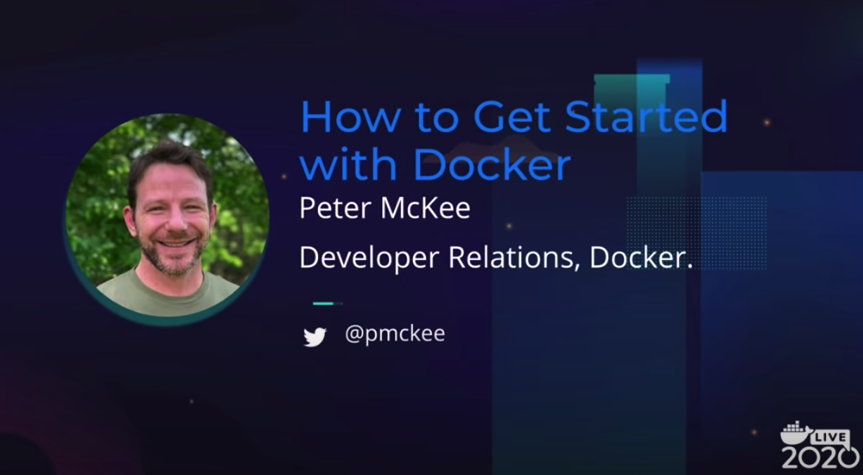
How to Get Started with DockerPeter McKee – Docker

Peter’s session was the top session based on views across all of the tracks. He does an excellent job focusing on the fundamentals of containers and how to go from code to cloud. This session covers getting Docker installed, writing your first Dockerfiles, building and managing images, and shipping your images to the cloud.

Build & Deploy Multi-Container Applications to AWSLukonde Mwila – Entelect

Lukonde’s excellent session was the second most-viewed DockerCon session. Developers are looking for more information on how to best deploy their apps to the cloud. You definitely want to watch this session as Lukonde provides not only a great overview but gets into the code and command line. This session covers Docker Compose as well as how to containerize: Nginx server, React app, Node.js app, and a MongoDB app. He also covers how to create a CI/CD pipeline and how to push images to Docker Hub.

Simplify All the Things with Docker ComposeMichael Irwin – Virginia Tech

Michael is a Docker Captain and a top expert on Docker. He focuses this session on where the magic happens with Docker: Docker Compose. It’s the magic that delivers the simplest dev onboarding experience imaginable. Michael starts with the basics but quickly moves into several advanced topics. The section on how to use Docker Compose in your CI/CD pipelines to perform automated tests of your container images is a real gem!

How to Build and Test Your Docker Images in the CloudPeter McKee – Docker

This is another awesome session by Peter. He focused this talk on how to automate your build pipeline and perform continuous testing. With a focus on the fundamentals, Peter explains continuous integration (CI) and how to setup a CI pipeline using Docker Hub’s Webhooks, AutoBuilds, AutoTests and GitHub Actions. This is a great overview and primer for developers looking to start using Docker Hub.If you are ready to get started with Docker, we offer free plans for individual developers and teams just starting out. Get started with Docker today.
The post DockerCon 2020: Top Rated Sessions – The Fundamentals appeared first on Docker Blog.
Quelle: https://blog.docker.com/feed/

Containerize Your Go Developer Environment – Part 1

When joining a development team, it takes some time to become productive. This is usually a combination of learning the code base and getting your environment setup. Often there will be an onboarding document of some sort for setting up your environment but in my experience, this is never up to date and you always have to ask someone for help with what tools are needed.

This problem continues as you spend more time in the team. You’ll find issues because the version of the tool you’re using is different to that used by someone on your team, or, worse, the CI. I’ve been on more than one team where “works on my machine” has been exclaimed or written in all caps on Slack and I’ve spent a lot of time debugging things on the CI which is incredibly painful.

Many people use Docker as a way to run application dependencies, like databases, while they’re developing locally and for containerizing their production applications. Docker is also a great tool for defining your development environment in code to ensure that your team members and the CI are all using the same set of tools.

We do a lot of Go development at Docker. The Go toolchain is great– providing fast compile times, built in dependency management, easy cross compiling, and strong opinionation on things like code formatting. Even with this toolchain we often run into issues like mismatched versions of Go, missing dependencies, and slightly different configurations. A good example of this is that we use gRPC for many projects and so require a specific version of protoc that works with our code base.

This is the first of a series of blog posts that will show you how to use Docker for Go development. It will cover building, testing, CI, and optimization to make your builds quicker.

Start simple

Let’s start with a simple Go program:

package mainimport “fmt”func main() {    fmt.Println(“Hello world!”) }

You can easily build this into a binary using the following command:$ go build -o bin/example .

The same can be achieved using the following Dockerfile:

FROM golang:1.14.3-alpine AS buildWORKDIR /srcCOPY . .RUN go build -o /out/example .FROM scratch AS binCOPY –from=build /out/example /

This Dockerfile is broken into two stages identified with the AS keyword. The first stage, build, starts from the Go Alpine image. Alpine uses the musl C library and is a minimalist alternative to the regular Debian based Golang image. Note that we can define which version of Go we want to use. It then sets the working directory in the container, copies the source from the host into the container, and runs the go build command from before. The second stage, bin, uses a scratch (i.e.: empty) base image. It then simply copies the resulting binary from the first stage to its filesystem. Note that if your binary needs other resources, like CA certificates, then these would also need to be included in the final image.

As we are leveraging BuildKit in this blog post, you will need to make sure that you enable it by using Docker 19.03 or later and setting DOCKER_BUILDKIT=1 in your environment. On Linux, macOS, or using WSL 2 you can do this using the following command:$ export DOCKER_BUILDKIT=1

On Windows for PowerShell you can use:$env:DOCKER_BUILDKIT=1

Or for command prompt:set DOCKER_BUILDKIT=1

To run the build, we will use the docker build command with the output option to say that we want the result to be written to the host’s filesystem:$ docker build –target bin –output bin/ .

You will then see that we have the example binary inside our bin directory:$ ls binexample

As this binary was built in a Linux container, it will be built for Linux and not necessarily your local OS:$ file bin/examplebin/example: ELF 64-bit LSB executable, x86-64, version 1 (SYSV), statically linked, Go BuildID=c6gqNQAtPiSgADfwKGvk/Gwjkkghl0lqappMisBRv/A5Lxynxz0n8wTt25vbme/LH_2ZCsnmpIAW_cpaQW7, not stripped

Note that this is only a problem if your host operating system is not Linux and if you are developing software that needs to run on your host.

Simple cross compiling

As Docker supports building images for different platforms, the build command has a platform flag. This allows setting the target OS (i.e.: Linux or Windows) and architecture (i.e.: amd64, arm64, etc.). To build natively for other platforms, your builder will need to be set up for these platforms. As Golang’s toolchain includes cross compilation, we do not need to do any builder setup but can still leverage the platform flag.

We can cross compile the binary for the host operating system by adding arguments to our Dockerfile and filling them from the platform flag of the docker build command. The updated Dockerfile is as follows:

FROM –platform=${BUILDPLATFORM} golang:1.14.3-alpine AS buildWORKDIR /srcENV CGO_ENABLED=0COPY . .ARG TARGETOSARG TARGETARCHRUN GOOS=${TARGETOS} GOARCH=${TARGETARCH} go build -o /out/example .FROM scratch AS binCOPY –from=build /out/example /

Notice that we now have the BUILDPLATFORM variable set as the platform for our base image. This will pin the image to the platform that the builder is running on. In the compilation step, we consume the TARGETOS and TARGETARCH variables, both filled by the build platform flag, to tell Go which platform to build for. To simplify things, and because this is a simple application, we statically compile the binary by setting CGO_ENABLED=0. This means that the resulting binary will not be linked to any C libraries. If your application uses any system libraries (like the system’s cryptography library) then you will not be able to statically compile the binary like this.

To build for your host operating system, you can specify the local platform:$ docker build –target bin –output bin/ –platform local .

As the docker build command is getting quite long, we can put it into a Makefile (or a scripting language of your choice):

all: bin/example.PHONY: bin/examplebin/example:   @docker build . –target bin    –output bin/    –platform local

This will allow you to run your build as follows:$ make bin/example$ make

We can go a step further and add a cross compiling targets to the Dockerfile:

FROM –platform=${BUILDPLATFORM} golang:1.14.3-alpine AS buildWORKDIR /srcENV CGO_ENABLED=0COPY . .ARG TARGETOSARG TARGETARCHRUN GOOS=${TARGETOS} GOARCH=${TARGETARCH} go build -o /out/example .FROM scratch AS bin-unixCOPY –from=build /out/example /FROM bin-unix AS bin-linuxFROM bin-unix AS bin-darwinFROM scratch AS bin-windowsCOPY –from=build /out/example /example.exeFROM bin-${TARGETOS} AS bin

Above we have two different stages for Unix-like OSes  (bin-unix) and for Windows (bin-windows). We then add aliases for Linux (bin-linux) and macOS (bin-darwin). This allows us to make a dynamic target (bin) that depends on the TARGETOS variable and is automatically set by the docker build platform flag.

This allows us to build for a specific platform:$ docker build –target bin –platform windows/amd64 .$ file bin/bin/example.exe: PE32+ executable (console) x86-64 (stripped to external PDB), for MS Windows

Our updated Makefile has a PLATFORM variable that you can set:

all: bin/examplePLATFORM=local.PHONY: bin/examplebin/example:   @docker build . –target bin    –output bin/    –platform ${PLATFORM}

This means that you can build for a specific platform by setting PLATFORM:$ make PLATFORM=windows/amd64

You can find the list of valid operating system and architecture combinations here: https://golang.org/doc/install/source#environment.

Shrinking our build context

By default, the docker build command will take everything in the path passed to it and send it to the builder. In our case, that includes the contents of the bin/ directory which we don’t use in our build. We can tell the builder not to do this, using a .dockerignore file:

bin/*

Since the bin/ directory contains several megabytes of data, adding the .dockerignore file reduces the time it takes to build by a little bit.

Similarly, if you are using Git for code management but do not use git commands as part of your build process, you can exclude the .git/ directory too.

What’s next?

This post showed how to start a containerized development environment for local Go development, build an example CLI tool for different platforms and how to start speeding up builds by shrinking the build context. In the next post of this series, we will add dependencies to make our example project more realistic, look at caching to make builds faster, and add unit tests.

You can find the finalized source this example on my GitHub: https://github.com/chris-crone/containerized-go-dev

If you’re interested in build at Docker, take a look at the Buildx repository: https://github.com/docker/buildx

Read the whole blog post series here.
The post Containerize Your Go Developer Environment – Part 1 appeared first on Docker Blog.
Quelle: https://blog.docker.com/feed/
How To Manage Docker Hub Organizations and Teams

Docker Hub has two major constructs to help with managing users access to your repository images. Organizations and Teams. Organizations are a collection of Teams and Teams are a collection of DockerIDs.

There are a variety of ways of configuring your Teams within your Organization. In this blog post we’ll use a fictitious software company named Stark Industries which has a couple of development teams. One which works on the front-end of the application and the other that works on the back-end of the application. They also have a QA team and a DevOps team. 

We’ll want to set up our Teams so that each engineering team can push and pull the images that they create. We’ll give the DevOps team access privileges to pull images from the dev teams repos and the ability to push images to the repos that they own. We’ll also give the QA team read-only access to all the repos.

Organizations

In Docker Hub, an organization is a collection of teams. Image repositories can be created at the organization level. We are also able to configure notifications and link to source code repositories.

Let’s set up our Organization.

Open your favorite browser and navigate to Docker Hub. If you do not already have a Docker ID you can create from the main page.

Login Hub with the account that you would like to be the owner of the Organization. Don’t worry if you are not 100% sure which Docker ID you would like to use as the owner, you can add more owners later if need be.

Once you are logged, navigate to the Organizations page by clicking on the Organization link in the top navigation bar.

Let’s create a new organization. Click on the “Create Organization” button in the top right. You will be presented with the option to choose between the Free Team or the Team plans. You can find more information about the plans on our pricing page.

We will be using the Team plan in this blog post.

Once you’ve selected the Team plan, you’ll walk through the steps of setting up the Organization.

First enter the Organization’s name and description.

Now choose the number of users you would like to initially start with. The Team plan comes with 5 users and you can always add more later.

Now you’ll be presented with a screen to enter your payment information.

Once you click purchase and your credit card is approved, you will land on your newly created Organization home page.

And there you have it, we’ve created our Organization that we can now start adding Teams to.

Teams

In Docker Hub, Teams are a collection of Docker IDs. We will use this construct to group users and assign privileges to image repositories that are owned by the Organization.

Let’s set up our Teams now.

Back on your organization’s homepage, click on the tab for Teams and then click the blue “Create Team” button.

Enter a name and description for your team.

Create the following four teams:

backendeng

Back-end Engineering Teams

frontendeng

Front-end Engineering Team

qaeng

QA Engineering Team

devopseng

DevOps Engineering Team

Now that we have our teams set up, let’s add users to each team.

Adding a user to a team is pretty straightforward. Select one of the teams from the list. Then click the blue “Add Member” button. Now, go ahead and enter the Docker ID of the user you want to add.

Go ahead and add at least one user to each of your teams.

Image Repository Permissions

Okay, now that we have our Organization and Teams set up. Let’s configure permissions for our image repositories. 

Before we do that, let’s talk a little bit about workflow. We currently have two development teams that are writing code for our application. They work on feature creation and defect fixes. They also are responsible for writing the Dockerfiles that will be used by DevOps to build out the CI/CD pipeline. 

Also, the development teams (front-end and back-end) should have Admin rights to the images they create. They will also have read permissions to the images that DevOps creates

Once a development team commits and pushes a change to the application, the CI/CD pipeline should kick off and build the images, run tests and push into our repository. 

In this fictitious scenario, we do not have fully automated CI/CD into production because we want our QA team to test the application in our test environment and then approve the build. So, once the QA CI/CD pipeline has been run and pushed a build into the QA environment. QA will test and report defects. These defects will be tagged with the current image tag that the team is testing on. This way the development team can then pull and run that specific tag and reduce the complexity of reproducing the error.

Once the QA team has approved the build, they will then kick-off a CI/CD pipeline that will again build the image but this time, it will name and tag the image with a different image repository. One that is meant for a release. The QA team will have read and write access to this repository and the development teams will have read access.

The DevOps team will have Admin rights to all the image repositories that are in the CI/CD pipeline except the ones that are owned by the development teams. This way they have full control to set and manage the CI/CD pipeline.

Create Image Repos and Permissions

Let’s create the image repositories that our teams will use. We can also then set up the correct permissions for our teams.

Click the “Repositories” link in the top navigation. Then click the blue Create Repository button. Fill out the following form.

Choose your organization from the dropdown and then give your new image a name. Fill out the optional description and then choose Private. Once done, click the “Create” button.

You will need the following image repositories:

Now let’s assign permissions to our teams. Navigate to the Organization’s dashboard by clicking the “Organizations” link in the top navigation. Click the Organization that you want to manage. In our case, we’ll choose “starkmagic”. Now click the “Teams” tab.

Let’s start with the development teams. Click on the “frontendeng” Team to view it’s details. Then click the “Permissions” tab.

From the drop down menu, choose the “ironsuit-ui-build” repository and then choose “Admin” from the permissions dropdown.

You’ll notice that the description of the “Admin” privilege is displayed to the left of the UI.

Click the blue “Add” button. 

We also want to assign “read-only” permissions to the other three image repositories.

Now do the same for the backend engineering team. Assign the “backendeng” team “Admin” permissions to the “ironsuit-api-build” and “read-only” to the other three image repositories.

Now let’s set up permissions for the QA team.

Follow the same steps above to assign “Read & Write” permissions to the following image repositories:

ironsuit-uiIronsuit-api

Now assign “Read-only” permissions to the other images.

The final Team that we need to configure permissions for is the DevOps team. They will have “Admin” access to all images to allow the team to manage the full CI/CD pipeline.

Follow the steps above to grant “Admin” permissions to all the images for the “devopseng” team.

Conclusion

Docker Hub has a simple yet extremely powerful Roles Based Access Control system to allow you to use Organizations and Teams to group and manager users permissions to image repositories. This allows distributed teams to own their own repos but collaborate across the organization and accelerate development workflow.

To learn more about Teams and Organizations checkout our documentation.
The post How To Manage Docker Hub Organizations and Teams appeared first on Docker Blog.
Quelle: https://blog.docker.com/feed/






