Google Cloud networking in-depth: Simplify routing between your VPCs with VPC peering

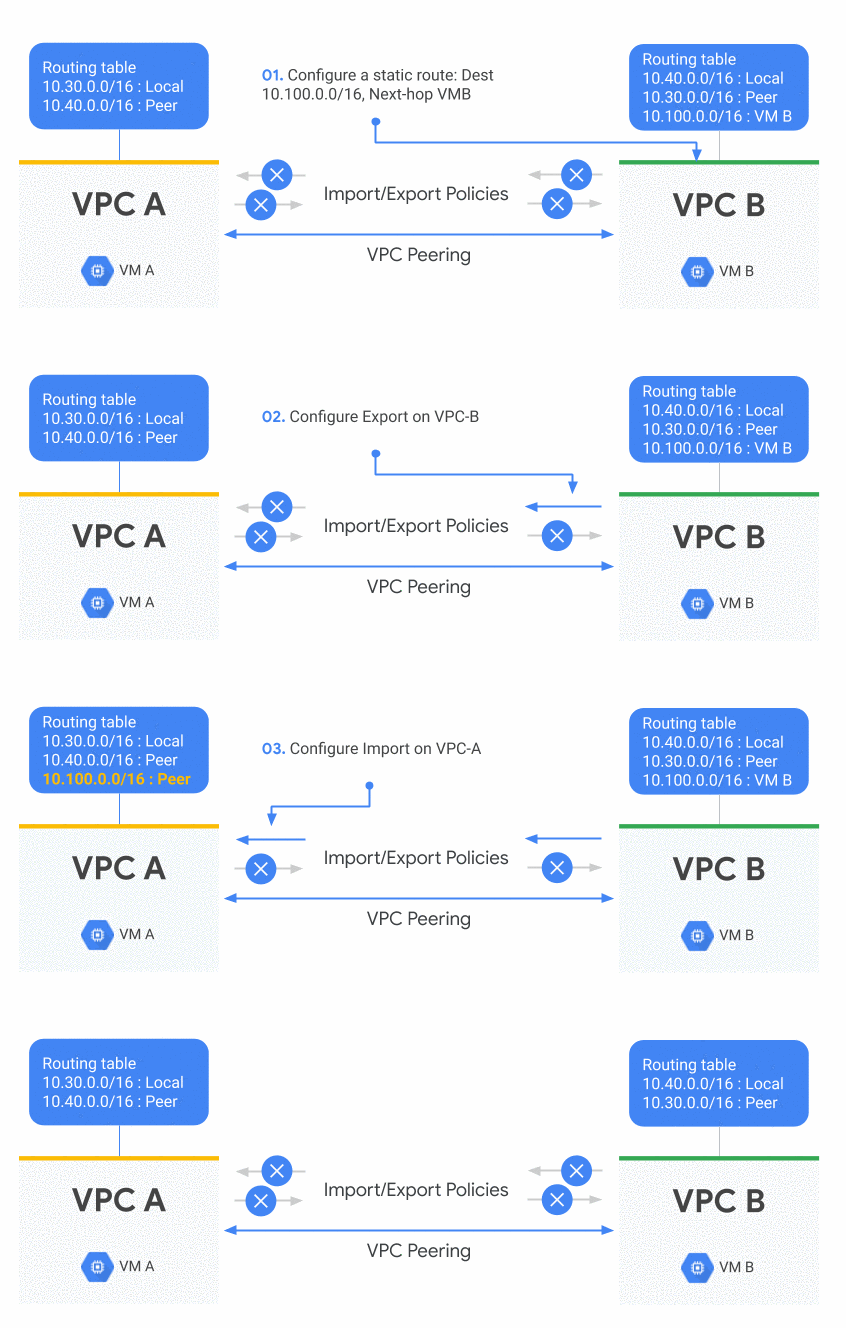
Editor’s note: Google Cloud networking products and services fall into five main pillars: ‘Connect,’ ‘Scale,’ ‘Secure,’ ‘Optimize,’ and ‘Modernize.’ At Google Cloud Next ‘19 we announced several additions to our networking portfolio, and heard from customers, prospects and partners who wanted to learn more about the technical aspects of these announcements. What follows is a deep dive into the Connect pillar, exploring the enhanced routing capabilities in Google Cloud VPC. Stay tuned in the coming weeks as we explore the Google Cloud networking pillars further.Network routing is about creating reliable paths between multiple networks by exchanging IP address information, where a network is either remote behind some type of hybrid connectivity service or a Virtual Private Cloud (VPC) network.Today, we thought we would share a little more insight into how to use a new VPC peering capability to help you improve your on-prem connectivity to Google Cloud Platform (GCP), share VPNs across multiple VPCs or accessing a third party appliance on a peered VPC.In Google Cloud a VPC is global so VPC peering is not needed to communicate between regions. Still, organizations may want to separate their deployments in different VPCs for isolation purposes and in this case VPC peering is ideal to keep those entities connected. But until now, you could only exchange subnet routes with VPC peering. For example, if you learned a BGP dynamic route in one VPC via Cloud Router, it couldn’t be used or wasn’t visible from any of its peered VPCs.At Google Cloud Next ’19, we announced that you can now exchange any type of routes between two peered VPC networks, including static routes, subnet routes and dynamic BGP routes. Let’s look at a couple of use cases where it might be useful.Using a peered VPC service with static routesMany applications or services are using static routes instead of subnets routes for connectivity. An example is using Equal Cost Multi-Path (ECMP) with static routes to load balance traffic to multiple third party appliances. Starting now, you can set up your VPC peering so that two VPCs exchange their static routes; this means that those appliances are available from another VPC. You can do this by configuring import/export policies on a VPC peering connection. By default only subnet routes are exchanged across peers.In the following example, there are two VPC networks. VPC-A is peered with VPC-B. A static route is created on VPC-B. VPC-B exports that route to VPC-A which is importing it. It results in the static route being visible in VPC-A.Exchange of static routes between VPCsBetter connectivity from an on-prem networkImagine that you have two VPCs connected via VPC peering and you would like to reach both of them from an on-prem network with a single VPN. This is a very common use case as many managed services in GCP use VPC peering, including Cloud SQL. (Note: To better understand the existing types of services and connections in GCP, check out this Google Cloud Next ’19breakout session on how to privately access your Google Cloud or third-party managed services.)Connecting those VPCs from an on-prem network means that you need the on-prem routes to be advertised to both VPCs. In the example below, VPC-A is connected to an on-prem network and to another VPC-B. On-prem routes are exported to VPC-B through VPC-A, resulting in the connectivity between the on-prem network and both VPCs.Exchange of on-premise routes with two VPCsYou can use this functionality to share a single on-prem hybrid connection such as a VPN tunnel or an interconnect between multiple VPC networks, by creating a transit VPC.What’s next for VPC connectivityAs enterprises migrate different types of workloads, public cloud providers’ networking topologies will become more complex. GCP routing solutions like VPC peering will continue to become more flexible with extensible policy filters to fine-tune your connectivity and security boundaries. In a way, VPC peering inherits many attributes of traditional routing protocols like BGP.In short, we’re far from done. Click here to learn more about GCP cloud networking and reach us at gcp-networking@google.com.
Quelle: Google Cloud Platform

Getting started with Identity Platform

Modern businesses need to manage not only the identities of their employees but also the identities of customers, partners, and Things (IoT). In April, we made Identity Platform generally available to help you add Google-grade identity and access management functionality to your apps and services, protect user accounts, and scale with confidence.Customers are already using Identity Platform to add authentication and identity management to apps for their customers, build data intelligence platforms, enhance device management, and issue tokens for Things. Let’s now take a deeper look at how to use Identity Platform to add identity and access management functionality to your apps and services.Before you beginBefore you get started, you need to have a Google Cloud Platform (GCP) project for which you’re a Project Owner, with billing enabled for the project.Enable Identity PlatformThe first step is to enable Identity Platform in GCP Marketplace:Go to the Identity Platform Marketplace page in the GCP Console.Turn on Identity Platform by clicking Enable Identity Platform.Navigate to the GCP Console.Now you are ready to start using Client and Admin SDKs for your apps and services.Configure authentication methodsAfter you enable Identity Platform, you can configure authentication methods (e.g. email/password, social login, etc), so that your users can sign in to your applications and services.To enable an authentication method:1. Go to the Identity Providers page in the GCP Console.2. Click Add A Provider.3. Select the provider you want to use from the list of providers and enterprise federation standards:Email & Password/PasswordlessPhoneSocial providersSAMLOpenID ConnectAnonymous4. After you select a provider, enter your provider’s relevant details, like Client ID, secret, and other provider-specific information.You can find more information on configuring authentication methods here.Using the Client SDKsYou can use Identity Platform Client SDKs for Android, iOS, and Web to allow end-users to authenticate to your service. You can obtain the SDKs and learn more about them here.  You can also use Identity Platform with the pre-built, open-source UI components that are available on the Web, iOS or Android via GitHub. You can customize the UI components to align with the look and feel of your app. A web quickstart is available for the UI components for all three clients. You can also see an example of integrating the UI components with a web app here.Using the Admin SDKsThe Admin SDKs let you interact with Identity Platform from privileged environments to perform actions like:Read and write custom claims and attributes to Identity Platform objectsGenerate and verify Identity Platform ID tokens.Access GCP resources like Cloud Storage buckets and Firestore databases associated with your Identity Platform projects.Create your own simplified admin console to do things like look up user data or change a user’s email address for authentication.The Admin SDKs are available across major platforms. To learn more and get the SDKs, see add the SDK.Migrate users to Identity PlatformThe Admin SDKs can also help you import a collection of email and password users into Identity Platform, helping you move from an existing provider without requiring users to reset their passwords. This is a common process for existing applications. You can see an example here.SummaryYou can set up Identity Platform with few clicks and at no additional cost to get started (up to 49,999 monthly active users). To learn more, watch a webinar, check out our Next ‘19 presentation, and follow the quickstart for step-by-step instructions.
Quelle: Google Cloud Platform

UPS uses Google Cloud to build the global smart logistics network of the future

The power of data analytics and machine learning is making it possible for companies that have mastered entire industries to take the next step and digitally transform their business. One of my favorite examples is United Parcel Service (UPS), which started out as a messenger company in 1907 and has steadily grown to become the largest package delivery and specialized transportation and logistics company in the world.Throughout the advent of e-commerce, UPS continues to play an even greater role in the movement of goods around the globe, and yet this 112 year-old company is just getting started. The massive amounts of data underlying its operations provide the foundation for UPS to lead the way in implementing more efficient, profitable and forward-thinking approaches in running its business.To fully appreciate the scale of the opportunity, it helps to start with the numbers:Every day, UPS delivers 21 million packages in more than 220 countries worldwide. During the all-important holiday season, the number of packages delivered per day can reach its peak.The drivers who make that possible perform 120 pickup and dropoff stops daily.The number of possible routes each driver can take from stop number one to stop number 120 is unthinkably large at 199 digits.Sifting through all of this data to select the single best, most efficient and cost effective route is the perfect challenge for Google Cloud.Working in collaboration with Google Cloud Platform(GCP), UPS was able to design routing software that tells the delivery driver exactly where to go, every step of the way. The routing software saves the company up to $400 million a year, and reduces fuel consumption by 10 million gallons a year.At our Google Cloud Next ‘19 conference last month, Juan Perez, Chief Information Officer at UPS, talked about how the work we’re doing together is transforming the company’s smart logistics network. “We’re grateful for the opportunity to collaborate with great partners like Google in a way that lets us use our joint expertise to bolster visibility across supply chains around the world,.”This is the power of analytics at scale, and it’s just the beginning. Today, Google Cloud’s BigQuery also helps UPS power the most precise and comprehensive forecasting in the company’s history. GCP provides the capacity to run machine learning models across 1 billion data points per day, including package weight, shape and size, and facility capacity across the network. The insights extracted from that data help inform UPS on how to load delivery vehicles, make more targeted operations adjustments, and minimize forecast uncertainty, especially around the holidays.Ultimately, this all helps UPS deliver more packages at a lower cost and serve its customers in a smarter, more agile way, which also means more smiling faces on holiday mornings.For more information on GCP, visit our website.
Quelle: Google Cloud Platform

Your favorite runtimes, now generally available on Cloud Functions

When we ask developers why they choose Cloud Functions, “simplicity” comes up a lot: write a few lines of code, deploy and… voilà! You’ve got a serverless, auto-scaling, pay-per-use function running on Google Cloud.A big part of that simplicity comes from being able to write Cloud Functions in your favorite programming language. That’s why we’re excited about our recent language support announcements at Google Cloud Next ‘19:Python 3.7, Go 1.11 and Node.js 8 runtimes are now generally available.Node.js 10 runtime is now in public beta.Go 1.12 and Java 8 runtimes are in private alpha (sign up to test Go 1.12 and Java 8).Let’s take a closer look at one of the generally available runtimes:Serverless + Python on Cloud FunctionsOver the past six months, we’ve spoken to many established and up-and-coming customers who have used these runtimes to build on Cloud Functions. One customer, infarm, uses Cloud Functions and Python 3 to support its distributed network of efficient vertical farms:The event driven interface was an especially good fit for our alerting stack, taking in more than 2.6 million plant- and farm-related measurements per day to prevent our crops from being affected by potential incidents. We rely on Google’s monitoring and alerting capabilities to monitor 400+ farms across Europe. – Nicolas Delaby, Lead Engineer, infarmBy opting for serverless on Google Cloud, infarm can focus on its mission: to help cities develop self-sufficient food production while improving agricultural safety, quality, and lowering their environmental footprint. Notice how that mission doesn’t include “managing my server infrastructure” or “learning new programming languages”?Use Cloud Functions to process IoT dataPython and data processing go hand-in-hand. A common architectural pattern that we’ve observed among customers that use IoT devices is to have each device push sensor readings to a message bus. For example, one of infarm’s modular farms might have multiple IoT devices, each sending sensor data as messages to a Cloud Pub/Sub topic. When a message is delivered to the topic, it triggers a function, which performs a task. That task can be as simple as redirecting messages to a persistent datastore like Cloud SQL, to enriching data before inserting it in BigQuery, to performing complex processing.Cloud Functions is a great choice for single purpose, repeated data processing use cases. Because Cloud Functions scales automatically based on load, it’s also a good fit for a project that will continue to grow into the future. As infarm adds new IoT devices, Cloud Functions scales up to meet that increased load.A world of Python packagesCloud Functions supports Python’s rich ecosystem of packages, which unlocks a huge variety of use cases. The Cloud Functions Python 3.7 runtime uses the open-source Python distribution so you can easily add packages to your Cloud Functions using `pip`. These dependencies are installed automatically when you deploy your function. Customers use this functionality to access Google Cloud APIs from Cloud Functions using the idiomatic `google-cloud-python` package. Others are using packages like NumPy and SciPy to create data processing pipelines.Try Python 3.7 on Cloud Functions todayYou don’t need to be on a visionary mission to reinvent food production to start writing functions with Python 3.7 today—check out the docs to get started.
Quelle: Google Cloud Platform

Empower your AI Platform-trained serverless endpoints with machine learning on Google Cloud Functions

Editor’s note:Today’s post comes from Hannes Hapke at Caravel. Hannes describes how Cloud Functions can accelerate the process of hosting machine learning models in production for conversational AI, based on serverless infrastructure.At Caravel, we build conversational AI for digital retail clients — work that relies heavily on Google Cloud Functions. Our clients experience website demand fluctuations that vary by the day of the week or even by time-of-day. Because of the constant change in customer requests, Google Cloud Platform’s serverless endpoints help us handle fluctuating demand for our service. Unfortunately, serverless functions are limited in available memory and CPU cycles, which makes them an odd place to deploy machine learning models. However, Cloud Functions offer a tremendous ease in deploying API endpoints, so we decided to integrate machine learning models without deploying them to the endpoints directly.If your organization is interested in using serverless functions to help address its business problems, but you are unsure how you can use your machine learning models with your serverless endpoints, read on. We’ll explain how our team used Google Cloud Platform to deploy machine learning models on serverless endpoints. We’ll focus on our preferred Python solution and outline some ways you can optimize your integration. If you would prefer to build out a Node.js implementation, check out “Simplifying ML Prediction with Google Cloud Functions.”Architecture OverviewFigure 1: System architecture diagram.First, let’s start with the architecture. As shown in Figure 1, this example consists of three major components: a static page accessible to the user, a serverless endpoint that handles all user requests, and a model instance running on AI Platform. While other articles suggest loading the machine learning model directly onto the serverless endpoint for online predictions, we found that approach to have a few downsides:Loading the model will increase your serverless function memory footprint, which can accrue unnecessary expenses.The machine learning model has to be deployed with the serverless function code, meaning the model can’t be updated independently from a code deployment.For the sake of simplicity, we’re hosting the model for this example on an AI Platform serving instance, but we could also run our own Tensorflow Serving instance.Model setupBefore we describe how you might run your inference workload from a serverless endpoint, let’s quickly set up the model instance on Cloud AI Platform.1. Upload the latest exported model to a Cloud Storage bucket. We exported our model from TensorFlow’s Keras API.Create a bucket for your models and upload the latest trained model into its own folder.2. Head over to AI Platform from the Console and register a new model.Set up a new model on AI Platform.3. After registering the model, set up a new model version, probably your V1. To start the setup steps, click on ‘Create version.’Note: Under Model URI link to the Cloud Storage Bucket where you saved the exported model.You can choose between different ML frameworks. In our case, our model is based on TensorFlow 1.13.1.For our demo, we disable model autoscaling.Once the creation of the instance is completed and the model is ready to serve, you’ll see a green icon next to the model’s version name.Inferring a prediction from a serverless endpointInferring a prediction with Python is fairly straightforward. You need to generate a payload that you would like to submit to the model endpoint, and then you submit it to that endpoint. We’ll cover the generation of the payload in the following sections, but for now, let’s focus on inferring an arbitrary payload.Google provides a Python library google-api-python-client that allows you to access its products through a generic API interface. You can install it with:Once installed, you need to “discover” your desired service. In our case, the service name is ml. However, you aren’t limited to just the prediction functionality; depending on your permissions (more later on that), you can access various API services of AI Platform. You’ll now want to execute any API request you created thus far. If you don’t encounter any errors, the response should contain the model’s response: its prediction.PermissionsCloud Functions on Google Cloud Platform execute all requests as the user with the id:By default, your account has Editor permissions for the entire project, and you should be able to execute online predictions. At the time of this blog post’s publication, you can’t control permissions per serverless function, but if you want to try out the functionality yourself, sign up for the Alpha Tester Program.Generating a request payloadBefore submitting our inference request, you need to generate your payload with the input data for the model. At Caravel, we trained a deep learning model to classify the sentiment of sentences. We developed our model on Keras and TensorFlow 1.13.1, and because we wanted to limit the amount of preprocessing required on the client side, we decided to implement our preprocessing steps with TensorFlow (TF) Transform. Using TF Transform has multiple advantages:Preprocessing can occur server-side.Because the preprocessing runs on the server side, you can update the preprocessing functionality without affecting the clients. If this weren’t the case, you could imagine a situation like the following: if you perform the preprocessing in a mobile client, you would have to update all clients in case you implement changes or provide new endpoints for every change (not scalable).The preprocessing steps are consistent between the training, validation, and serving stages. Changes to the preprocessing steps will force you to re-train the model, which avoids misalignment between these steps and already trained models.You can transform the dataset nicely and train and validate your datasets efficiently, but at time of writing, you still need to convert your Keras model to a TensorFlow Estimator, in order to properly integrate TF Transform with Keras. With TensorFlow Transform, you can submit raw data strings as inputs to the model. The preprocessing graph, which is running in conjunction with the model graph, will convert your string characters first into character indices and then into embedding vectors.Connecting the preprocessing graph in TF Transform with our TensorFlow modelOur AI Platform instance and any TensorFlow Serving instance both expect a payload dictionary that includes the key instances, which contains a list of input dictionaries for each inference. You can submit multiple input dictionaries in a single request; the model server can infer the predictions all in a single request through the amazing batching feature of TensorFlow Serving. Thus, the payload for your sentence classification demo should look like this:We moved the generation step into its own helper function to allow for potential manipulation of the payload—when we want to lower-case or tokenize the sentences, for example. Here, however, we have not yet included such manipulations._connect_service provides us access to the AI platform service with the service name “ML”. At the time of writing this post, the current version was “v1”. We have encapsulated the service discovery into its own function to be able to add more parameters like account credentials, if needed.Once you generate a payload in the correct data structure and have access to the GCP service, you can infer predictions from the AI Platform instance. Here is an example:Obtaining model meta-information from the AI Platform training instanceSomething amazing happens when the Cloud Function setup interacts with the AI Platform instance: the client can infer predictions without any knowledge of the model. You don’t need to specify the model version during the inference, because the AI Platform Serving instance handles that for you. However, it’s generally very useful to know which version was used for the prediction. At Caravel, we track our models’ performance extensively, and our team prioritizes knowing when each model was used and deployed and consider this to be essential information.Obtaining the model meta information from the AI Platform instance is simple, because the Serving API has its own endpoint for requesting the model information. This helps a lot when you perform a large number of requests and only need to obtain the meta information once.The little helper function below obtains model information for any given model in a project. You’ll need to call two different endpoints, depending on whether we want to obtain the information for a specific model version or just for the default model. You can specify this in the AI Platform Command Console.Here is a brief example of metadata returned from the AI Platform API endpoint:ConclusionServerless functions have proven very useful to our team, thanks to their scalability and ease of deployment. The Caravel team wanted to demonstrate that both concepts can work together easily and share our best practices, as machine learning becomes an essential component of a growing number of today’s leading applications.In this blog post, we introduced the setup of a machine learning model on AI Platform and how to infer model predictions from a Python 3.7 Cloud Function. We also reviewed how you might structure your prediction payloads, as well as an overview of how you can request model metadata from the model server. By splitting your application between the Cloud Functions and AI Platform, you can deploy your legacy applications in an efficient and cost-effective manner.If you’re interested in ways to reduce network traffic between your serverless endpoints, we recommend our follow-up post on how to generate model request payloads with the ProtoBuf serialization format. To see this example live, check out our demo endpoint here, and if you want to start with some source code to build your own, you can find it in the ML on GCP GitHub repository.Acknowledgements: Gonzalo Gasca Meza, Developer Programs Engineer contributed to this post.
Quelle: Google Cloud Platform

Efficiently scale ML and other compute workloads on NVIDIA’s T4 GPU, now generally available

NVIDIA’s T4 GPU, now available in regions around the world, accelerates a variety of cloud workloads, including high performance computing (HPC), machine learning training and inference, data analytics, and graphics. In January of this year, we announced the availability of the NVIDIA T4 GPU in beta, to help customers run inference workloads faster and at lower cost. Earlier this month at Google Next ‘19, we announced the general availability of the NVIDIA T4 in eight regions, making Google Cloud the first major provider to offer it globally.A focus on speed and cost-efficiencyEach T4 GPU has 16 GB of GPU memory onboard, offers a range of precision (or data type) support (FP32, FP16, INT8 and INT4), includes NVIDIA Tensor Cores for faster training and RTX hardware acceleration for faster ray tracing. Customers can create custom VM configurations that best meet their needs with up to four T4 GPUs, 96 vCPUs, 624 GB of host memory and optionally up to 3 TB of in-server local SSD.At time of publication, prices for T4 instances are as low as $0.29 per hour per GPU on preemptible VM instances. On-demand instances start at $0.95 per hour per GPU, with up to a 30% discount with sustained use discounts.Tensor Cores for both training and inferenceNVIDIA’s Turing architecture brings the second generation of Tensor Cores to the T4 GPU. Debuting in the NVIDIA V100 (also available on Google Cloud Platform), Tensor Cores support mixed-precision to accelerate matrix multiplication operations that are so prevalent in ML workloads. If your training workload doesn’t fully utilize the more powerful V100, the T4 offers the acceleration benefits of Tensor Cores, but at a lower price. This is great for large training workloads, especially as you scale up more resources to train faster, or to train larger models.Tensor Cores also accelerate inference, or predictions generated by ML models, for low latency or high throughput. When Tensor Cores are enabled with mixed precision, T4 GPUs on GCP can accelerate inference on ResNet-50 over 10X faster with TensorRT when compared to running only in FP32. Considering its global availability and Google’s high-speed network, the NVIDIA T4 on GCP can effectively serve global services that require fast execution at an efficient price point. For example, Snap Inc. uses the NVIDIA T4 to create more effective algorithms for its global user base, while keeping costs low.“Snap’s monetization algorithms have the single biggest impact to our advertisers and shareholders. NVIDIA T4-powered GPUs for inference on GCP will enable us to increase advertising efficacy while at the same time lower costs when compared to a CPU-only implementation.” —Nima Khajehnouri, Sr. Director, Monetization, Snap Inc.The GCP ML Infrastructure combines the best of Google and NVIDIA across the globeYou can get up and running quickly, training ML models and serving inference workloads on NVIDIA T4 GPUs by using our Deep Learning VM images. These include all the software you’ll need: drivers, CUDA-X AI libraries, and popular AI frameworks like TensorFlow and PyTorch. We handle software updates, compatibility, and performance optimizations, so you don’t have to. Just create a new Compute Engine instance, select your image, click Start, and a few minutes later, you can access your T4-enabled instance. You can also start with our AI Platform, an end-to-end development environment that helps ML developers and data scientists to build, share, and run machine learning applications anywhere. Once you’re ready, you can use Automatic Mixed Precision to speed up your workload via Tensor Cores with only a few lines of code.Performance at scaleNVIDIA T4 GPUs offer value for batch compute HPC and rendering workloads, delivering dramatic performance and efficiency that maximizes the utility of at-scale deployments. A Princeton University neuroscience researcher had this to say about the T4’s unique price and performance:“We are excited to partner with Google Cloud on a landmark achievement for neuroscience: reconstructing the connectome of a cubic millimeter of neocortex. It’s thrilling to wield thousands of T4 GPUs powered by Kubernetes Engine. These computational resources are allowing us to trace 5 km of neuronal wiring, and identify a billion synapses inside the tiny volume.” —Sebastian Seung, Princeton UniversityQuadro Virtual Workstations on GCPT4 GPUs are also a great option for running virtual workstations for engineers and creative professionals. With NVIDIA Quadro Virtual Workstations from the GCP Marketplace, users can run applications built on the NVIDIA RTX platform to experience bring the next generation of computer graphics including real-time ray tracing and AI-enhanced graphics, video and image processing, from anywhere.“Access to NVIDIA Quadro Virtual Workstation on the Google Cloud Platform will empower many of our customers to deploy and start using Autodesk software quickly, from anywhere. For certain workflows, customers leveraging NVIDIA T4 and RTX technology will see a big difference when it comes to rendering scenes and creating realistic 3D models and simulations. We’re excited to continue to collaborate with NVIDIA and Google to bring increased efficiency and speed to artist workflows.” —Eric Bourque, Senior Software Development Manager, AutodeskGet started todayCheck out our GPU page to learn more about how the wide selection of GPUs available on GCP can meet your needs. You can learn about customer use cases and the latest updates to GPUs on GCP in our Google Cloud Next 19 talk, GPU Infrastructure on GCP for ML and HPC Workloads. Once you’re ready to dive in, try running a few TensorFlow inference workloads by reading our blog or our documentation and tutorials.
Quelle: Google Cloud Platform

Using VPC Service Controls and the Cloud Storage Transfer Service to move data from S3 to Cloud Storage

Our Cloud Storage Transfer Service lets you securely transfer data from Amazon S3 into Google Cloud Storage. Customers use the transfer service to move petabytes of data between S3 and Cloud Storage in order to access GCP services, and we’ve heard that you want to harden this transfer. Using VPC Service Controls, our method of defining security perimeters around sensitive data in Google Cloud Platform (GCP) services, will let you harden the security of this transfer by adding an additional layer or layers to the process.  Let’s walk through how to use VPC Service Controls to securely move your data into Cloud Storage. This example will use the simplistic VPC Service Control rule of using a service account, but these rules can become much more granular. The VPC Service Control documentation walks through those advanced rules if you’d like to explore other examples. See some of those implementations here.Along with moving data from S3, the Cloud Storage Transfer Service can move data between Cloud Storage buckets and HTTP/HTTPS servers.This tutorial assumes that you’ve set up a GCP account or the GCP free trial. Access the Cloud Console, then select or create a project and make sure billing is enabled.Let’s move that dataFollow this process to move your S3 data into Cloud Storage.Step 0: Create an AWS IAM user that can perform transfer operations, and make sure that the AWS user can access the S3 bucket for the files to transfer.GCP needs to have access to the data source in Amazon S3. The AWS IAM user you create should have the following roles:List the Amazon S3 bucket.Get the location of the bucket.Read the objects in the bucket.You will also need to create at least one access/secret key pair for the transfer job. You can also choose to create a separate access/secret key pair for each transfer operation, depending on your business needs.Step 1: Create your VPC Service Control perimeterFrom within the GCP console, create your VPC Service Control perimeter and enable all of the APIs that you want enabled within this perimeter.Note that the VPC Service Control page in the Cloud Console is not available by default and the organization admin role does not have these permissions enabled by default. The organization admin will need to grant the role of Access Context Manager Admin via the IAM page to whichever user(s) will be configuring your policies and service controls. Here’s what that looks like:Step 2: Get the name of the service account that will be running the transfer operations.This service account should be in the GCP Project that will be initiating the transfers. This GCP project will not be in your controlled perimeter by design.  The name of the service account looks like this: project-[ProjectID]@storage-transfer-service.iam.gserviceaccount.comYou can confirm the name of your service account using the API described here.Step 3: Create an access policy in Access Context Manager.Note: An organization node can only have one access policy. If you create an access level via the console, it will create an access policy for you automatically.Or create a policy via the command line, like this:gcloud access-context-manager policies create –organization ORGANIZATION_ID –title POLICY_TITLEWhen the command is complete, you should see something like this:Create request issuedWaiting for operation [accessPolicies/POLICY_NAME/create/1521580097614100] to complete…done.Created.Step 4: Create an access level based on the access policy that limits you to a user or service account.This is where we create a simple example of an access level based on an access policy. This limits access into the VPC through the service account. Much more complex examples of access level rules can be applied to the VPC. Here, we’ll walk through a simple example that can serve as the “Hello, world” of VPC Service Controls.Step 4.1: Create a .yaml file that contains a condition that lists the members that you want to provide access to.- members:    – user:sysadmin@example.com   – serviceAccount:service@project.iam.gserviceaccount.comStep 4.2: Save the fileIn this example, the file is named CONDITIONS.yaml. Next, create the access level.gcloud access-context-manager levels create NAME   –title TITLE   –basic-level-spec CONDITIONS.yaml   –combine-function=OR   –policy=POLICY_NAMEYou should then see output similar to this:Create request issued for: NAMEWaiting for operation [accessPolicies/POLICY_NAME/accessLevels/NAME/create/1521594488380943] to complete…done.Created level NAME.Step 5: Bind the access level you created to the VPC Service Control  This step is to make sure that the access level you just created is applied to the VPC that you are creating the hardened perimeter around, as shown here:Step 6: Initiate the transfer operationInitiate the transfer from a project that is outside of the controlled perimeter into a Cloud Storage Bucket that is in a project within the perimeter. This will only work when you use the service account with the access level you created in the previous steps. Here’s what it looks like:That’s it! Your S3 data is now in Google Cloud Storage for you to manage, modify or move further. Learn more about data transfer into GCP with these resources:Creating an IAM User in your AWS AccountGCS Transfer Service DocumentationVPC Service Controls Documentation
Quelle: Google Cloud Platform

Train and deploy state-of-the-art mobile image classification models via Cloud TPU

As organizations use machine learning (ML) more frequently in mobile and embedded devices, training and deploying small, fast, and accurate machine learning models becomes increasingly important. To help accelerate this process, we’ve published open-source Cloud TPU models to enable you and your data science team to train state-of-the-art mobile image classification models faster and at a lower cost.For many IoT-focused businesses, it’s also essential to optimize both latency and accuracy, especially on low power, resource-constrained devices. By leveraging a novel, platform-aware neural architecture search framework (MnasNet), we identified a model architecture that can outperform the previous state-of-the-art MobileNetV1 and MobileNetV2 models that were carefully built by hand. You can find a comparison between MnasNet and MobileNetV2 below:This new MnasNet model runs nearly 1.8x faster inference speed (or 55% less latency) than the corresponding MobileNetV2 model and still maintains the same ImageNet top-1 classification accuracy.How to train MnasNet on Cloud TPUWe specifically designed and optimized MNasNet to train as fast as we could make it on Cloud TPUs. The MnasNet model training source code is now the latest available in the TensorFlow TPU GitHub repository. Using this code, you can benefit from both low training cost and fast inference speed when you train MnasNet on Cloud TPUs and export the trained model for deployment.If you have not yet experimented with training models on Cloud TPUs, you might want to begin by following the QuickStart guide. Once you are up and running with Cloud TPUs, you can begin training an MnasNet model by executing a command of this form:The model processes training data in TFRecord format, which can be created from input image collections via TensorFlow’s Apache Beam pipeline tool. You can find more details on how to use Cloud TPUs to train MnasNet in our tutorial.To help you further tune your MnasNet model, we have published additional notes about our implementation along with a variety of suggested tuning parameters to accommodate different classification latency requirements.How you can deploy via SavedModel or TensorFlow LiteYou can easily deploy the models trained on Cloud TPUs to a variety of different platforms and devices. We have published pre-trained SavedModel files (mnasnet-a1 and mnasnet-b1) from ImageNet training runs to help you get started: you can use this MnasNet Colab to experiment with these pre-trained models interactively.You can easily deploy your newly trained model by exporting it to TensorFlow Lite. You can convert an exported saved model into a *.tflite file with the following code:Next, you can optionally apply post-training quantization, a common technique that reduces the model size while also providing up to 3x lower latency. These improvements are a result of smaller word sizes that enable faster computation and more efficient memory usage. To quantize 32-bit floating point numbers into more efficient 8-bit integers, add the following code:The open-source implementation provided in the Cloud TPU repository implements saved model export, TensorFlow Lite export, and TensorFlow Lite’s post-training quantization by default. The code also includes a default serving input function that decodes and classifies JPEG images: if your application requires custom input preprocessing, you should consider modifying this example to perform your own input preprocessing (for serving or for on-device deployment via TensorFlow Lite).With this new open source MnasNet implementation for Cloud TPU, it is easier and faster than ever before to train a state-of-the-art image classification model and deploy it on mobile and embedded devices. Check out our tutorial and Colab to get started.AcknowledgementsMany thanks to the Googlers who contributed to this post, including Zak Stone, Xiaodan Song, David Shevitz, Barrett Williams, Russell Power, Adam Kerin, and Quoc Le.
Quelle: Google Cloud Platform

Our head’s in the cloud, but we’re keeping the earth in mind

At Google, our commitment to a sustainable future for the earth takes a lot of forms, whether we’re buying renewable energy or using machine learning to build high-resolution maps of the entire planet. Building a sustainable future is a team effort. In addition to cutting carbon emissions and thinking about big solutions to environmental problems, we hear from our users that they’re doing this work too. Organizations are using Google Cloud Platform (GCP) to learn more about the environment, explore new ways to protect the earth’s resources, better harness renewable energy and simply improve the sustainability of their IT infrastructure. To celebrate Earth Month, we’re highlighting a few sustainability sessions from Google Cloud Next ‘19 and sharing some of the positive environmental impact our customers are driving with Google Cloud.We build sustainability into our cloudWe’re committed to delivering a cloud with sustainability built-in, so our customers can get the benefits too and more easily build a sustainable future. It takes just seconds to spin up cloud services and get all the computing power you need for your business. It’s so on-demand that it’s easy to forget that cloud services still run in a data center, powered by electricity, on physical servers. At Next, Joe Kava, VP of Google Data Centers, reminded us, sharing a behind-the-scenes look at how we build, run and source energy for our fleet of data centers. Check it out in An insider’s look at Google data centers.  As Joe mentions, being a sustainable cloud starts with energy-efficient data centers. Google has been putting our own machine learning (ML) technology to use in our data centers to make them more efficient. Cooling servers requires a lot of electricity. By using neural networks to predict the optimal cooling settings based on data we capture every five minutes, we can improve server cooling efficiency by 30%. Here’s a look at how that works in detail:We’re delivering as much of the electricity we draw to compute power as possible. Check out Controlling Data Center Cooling Using the Cloud and Machine Learning to learn more from Eddie Pettis, one of the engineers who deployed our ML-driven cooling control system. The efficiency improvements Eddie and his team deliver contribute to the overall power usage effectiveness (PUE) of our data centers. Our average PUE is 1.11–50% more efficient than the industry average.The same type of ML technology that helps us with cooling helps with our renewable energy efforts too, by better predicting the output of some of our wind energy. Google has long been committed to renewable energy because we recognize that reversing climate change requires a transition to carbon-free energy. But it also has to make financial sense for us to become the largest corporate purchaser of renewable energy. An energy source that is predictable and consistent in delivering energy to the grid is often more valuable, but wind isn’t very predictable. So we use neural networks to predict the wind output of some of our farms based on weather forecast data, helping us increase the value of our wind energy by as much as 20%. You can see more details here:Learn all about our renewable energy efforts, including wind, from Amanda Peterson Corio and Marsden Hanna from the energy and location strategy teams at Google in How We Source 100% Clean Energy for Google Data Centers. Increasing the value of renewable energy makes it easier for us to continue to procure renewable energy to match 100% of the energy we use across our business—Google Cloud included. Every workload you run on Google Cloud has zero net carbon emissions.How customers are using GCP to build a more sustainable futureOur customers are using Google Cloud to support their users in a more sustainable way. When companies migrate existing applications to GCP, they reduce their digital environmental footprint. They’re also building new applications that tackle climate challenges and using data to make more informed decisions about environmental impact.National Geographic Partners gives millions a better appreciation for nature through the eyes of their explorers, photographers, journalists, and filmmakers. The NatGeo image collection tells stories of adventurers, researchers, and the people, animals and places they depict. As the custodians of those two million images, NatGeo has helped improve our knowledge of planet Earth and the change it’s experiencing.NatGeo recently migrated the entire image library application from their data center to GCP to improve the security and management of the collection and ensure the legacy is protected moving forward. Hear Marcus East, CTO of National Geographic, describe the migration process, and Melissa Wiley, VP of Digital, talk about sustainability goals and the environmental impact of moving the image collection to GCP in Building sustainability into our infrastructure, your goals and new products.In the same session, hear from Jake Wachman, VP of Digital at SunPower Corporation, about how they are using Google and Google Cloud tools to make home solar more accessible to all. Enough sun hits the earth every hour to power the global economy for a year. The challenge is capturing the energy from all of those rays for people to use. Plus, rooftops are a tricky surface to map for optimal solar panel placement. Installers currently have to manually outline the rooftop, identify chimneys, skylights and other obstructions, abide by county regulations and of course avoid shaded areas. That takes a significant amount of time.Using data from Google Maps and Google Project Sunroof, SunPower Corporation built their new Instant Design service on Google Cloud Platform, improving the home solar design process by making it 97% faster. Their new services showcases how Cloud AI and CPUs make a powerful team.ML-produced solar designs from SunPower Instant Design.San Mateo County is also using solutions from Google Cloud and our partners to improve air quality for residents. San Mateo County is big—more than 700 square miles stretching from San Francisco to Santa Cruz—with a very diverse geography. But they previously had just one air quality sensor in Redwood City. Measuring air pollution from stationary instruments located miles apart is insufficient, as dangerous air pollution can be eight times higher from one end of a block to another.Bay Area air quality maps.Using BigQuery, BigQuery GIS, and Google Cloud Platform, Geotab and Aclima are using connected vehicles and sensor networks to gather billions of data points related to both human health and global climate change. Working with these Google Cloud partners, San Mateo County can get hyper-local air quality sensing on municipal vehicles and deliver this insight to the community in real time. Hear all about it in Connected Vehicles as Air Quality Sensors: Powered by BigQuery GIS.An Aclima air quality sensor.Using the cloud to better understand our environmentThe earth is pretty big. Learning about what’s going on around the globe is often a function of being able to crunch an incredible amount of data and understand millions of images. Understanding this type of data at scale is an excellent use for cloud computing.The Google Earth Engine and Google Cloud teams came together to map the land cover in each 30-meter square of the earth, going back to 2013. The combination of Google Earth Engine with App Engine, Cloud Pub/Sub, Cloud Dataflow, TensorFlow, Kubeflow and ML Engine form an end-to-end pipeline that creates value out of raw data. This data pipeline turns pixels into rich map information, with machine learning allowing this to be done over time. Taking a time-series look at the earth’s land cover can help track and understand things like urbanization, deforestation, water resource changes and cropland views. In a Cloud Next session, Nicholas Clinton, David Cavazos and Christopher Brown from Google explained the process in detail to answer the question, What is on Earth?Insights about our environment can help us make better decisions about management, urban planning and climate targets. To help deliver those insights to decision makers, Google recently launched the Environmental Insights Explorer, built using GCP, to analyze Google Maps data and provide rich insights into the vital signs of our planet. Cities are using these insights to create carbon baselines and accelerate climate action plans. Hear all about it from Saleem Van Groenou and Denise Pearl in Global City Climate Action Analysis with Geo Data.Investing in ideas that go round and roundAt Google Cloud, we believe that with the help of modern technology, business can be a positive catalyst for change. That’s why we’ve partnered with SAP to host a sustainability contest for social entrepreneurs called Circular Economy 2030. We invited thought leaders from around the world to submit a revenue-generating idea that uses Google Cloud and SAP technology to advance a circular economy—a holistic system that designs out waste and pollution, keeps products in use, and regenerates natural resources.In collaboration with UN Environment, the Ellen MacArthur Foundation, and the Global Partnership for Sustainable Development Data, we selected a total of five finalists from a pool of 250+ applications from 50+ countries around the world. Each of the finalists excelled across the four assessment criteria of original idea, business model, potential impact, and technical innovation, and demonstrated their passion for sustainability. Whether working to track industrial waste flows for increased accountability or addressing rural food waste with solar-powered cold storage, the Circular Economy 2030 finalists are all advancing a better, more equitable, and more sustainable future.To learn more about the Circular Economy 2030 contest and the five finalists, check out the panel session from Google Cloud Next where we announced the winners and discussed how to use cloud computing for a sustainable future.Advances in technology are helping drive advances in sustainability and creative ideas to improve our global environment. We’re looking forward to seeing continued innovation around the world.
Quelle: Google Cloud Platform
AI in Depth: Serving a PyTorch text classifier on AI Platform Serving using custom online prediction

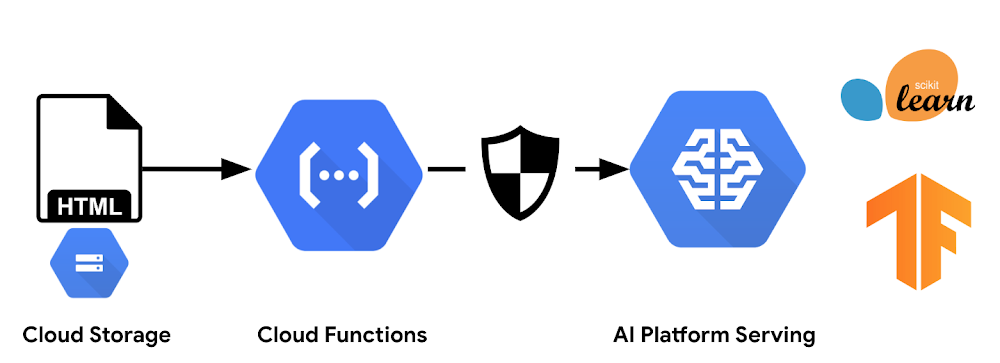
Earlier this week, we explained in detail how you might build and serve a text classifier in TensorFlow. Today, we’ll provide a new explainer on how to build a similar classifier in PyTorch, another machine learning framework. In today’s blog post, we’ll explain how to implement the same model using PyTorch, and deploy it to AI Platform Serving for online prediction. We will reuse the preprocessing implemented in Keras in the previous blog post. The code for this example can be found in this Notebook.AI Platform ML Engine is a serverless, NoOps product that lets you train and serve machine learning models at scale. These models can then be served as REST APIs for online prediction. The AI Platform Serving automatically scales to adjust to any throughput, and provides secure authentication to its REST endpoints.To help maintain affinity of preprocessing between training and serving, AI Platform Serving now enables users to customize the prediction routine that gets called when sending prediction requests to their model deployed on AI Platform Serving. This feature allows you to upload a Custom Model Prediction class, along with your exported model, to apply custom logic before or after invoking the model for prediction.In other words, we can now leverage AI Platform Serving to execute arbitrary Python code, breaking the typical and previous coupling with TensorFlow. This change enables you to pick the best framework for the job, or even combine multiple frameworks into a single application. For example, we can use Keras APIs for their easy-to-use text pre-processing methods, and combine them with PyTorch for the actual machine learning model. This combination of frameworks is precisely what we’ll discuss in this blog post.For more details on text classification, the Hacker News dataset used in the example, and the text preprocessing logic, refer to the Serving a Text Classifier with Preprocessing using AIPlatform Serving blog post.Building a PyTorch text classification modelYou can begin by implementing your TorchTextClassifier model class in the torch_model.py module. As shown in the following code block, we implement the same text classification model architecture described in this post, which consists of an Embedding layer, Dropout layer, followed by two Conv1d and Pooling Layers, then a Dense layer with Softmax activation at the end.Loading and preprocessing dataThe following code prepares both the training and evaluation data. Note that, you use both fit() and transform() with the training data, while you only use transform() with the evaluation data, to make use of the tokenizer generated from the training data. The created train_texts_vectorized and eval_texts_vectorized objects will be used to train and evaluate our text classification model respectively.The implementation of TextPreprocessor class, which uses Keras APIs, is described in Serving a Text Classifier with Preprocessing using AI Platform Serving blog post.Now you need to save the processor object—which includes the tokenizer generated from the training data—to be used when serving the model for prediction. The following code dumps the object to a new processor_state.pkl file.Training and saving the PyTorch modelThe following code snippet shows you how to train your PyTorch model. First, you create an object of the TorchTextClassifier, according to your parameters. Second, you implement a training loop, in which each iteration you predictions from your model (y_pred) given the current training batch, compute the loss using cross_entropy, and backpropagation using loss.backward() and optimizer.step(). After NUM_EPOCH epochs, the trained model is saved to torch_saved_model.pt file.Implementing the Custom Prediction classIn order to apply a custom prediction routine, which includes both preprocessing and postprocessing, you need to wrap this logic in a Custom Model Prediction class. This class, along with the trained model and its corresponding preprocessing object, will be used to deploy the AI Platform Serving microservices. The following code shows how the Custom Model Prediction class (CustomModelPrediction) for our text classification example is implemented in the model_prediction.py module.Deploying to AI Platform servingUploading the artifacts to Cloud StorageNext, you’ll want to upload your artifacts to Cloud Storage, as follows:Your saved (trained) model file: trained_saved_model.pt (see Training and Saving the PyTorch model).Your pickled preprocessing objects (which contain the state needed for data transformation prior to prediction): processor_state.pkl. As described in the previous, Keras-based post, the processor_state.pkl object includes the tokenizer generated from the training data.Second, you need to upload a Python package including all the classes you’ll need for prediction (preprocessing, model classes, and post-processing, if any). In this example, you need to create a `pip`-installable tar file that includes torch_model.py, model_prediction.py, and preprocess.py. To begin, create the following setup.py file:The setup.py file includes a list of the PyPI packages you need to `pip install` and use for prediction in the REQUIRED_PACKAGES variable.Because we are deploying a model implemented by PyTorch, we need to include ‘torch’ in REQUIRED_PACKAGES. Now, you can create the package by running the following command:This will create a `.tar.gz` package under /dist directory. The name of the package will be `$name-$version.tar.gz` where `$name` and `$version` are the ones specified in setup.py.Once you have successfully created the package, you can upload it to Cloud Storage:Deploying the model to AI Platform ServingLet’s define the model name, the model version, and the AI Platform Serving runtime (which corresponds to a TensorFlow version) required for deploying the model.First, you create a model in AI Platform Serving by running the following gcloud command:Second, you create a model version using the following gcloud command, in which you specify the location of the model and preprocessing object (–origin), the location the package(s) including the scripts needed for your prediction (–package-uris), and a pointer to you Custom Model prediction class (–prediction-class).This should take 1-2 minutes.After deploying the model to AI Platform Serving, you can invoke the model for prediction using the code described in previous Keras-based blog post .Note that the client of our REST API does not need to know whether the service was implemented in TensorFlow or in PyTorch. In either case, the client should send the same request, and receive a response of the same form.ConclusionAlthough AI Platform initially provided only support for TensorFlow, it is now evolving into a platform that supports multiple frameworks. You can now deploy models using TensorFlow, PyTorch, or any Python-based ML framework, since AI Platform Serving supports custom prediction Python code, available in beta. This post demonstrates that you can flexibly deploy a PyTorch text classifier, which utilizes text preprocessing logic implemented in using Keras.Feel free to reach out @GCPcloud if there are still features or other frameworks you’d like to train or deploy on AI Platform Serving.Next stepsTo learn more about AI Platform serving custom online prediction, read this blog post.To learn more about machine learning on GCP, take this course.To try out the code, run this Notebook.
Quelle: Google Cloud Platform