Introducing WebSockets, HTTP/2 and gRPC bidirectional streams for Cloud Run

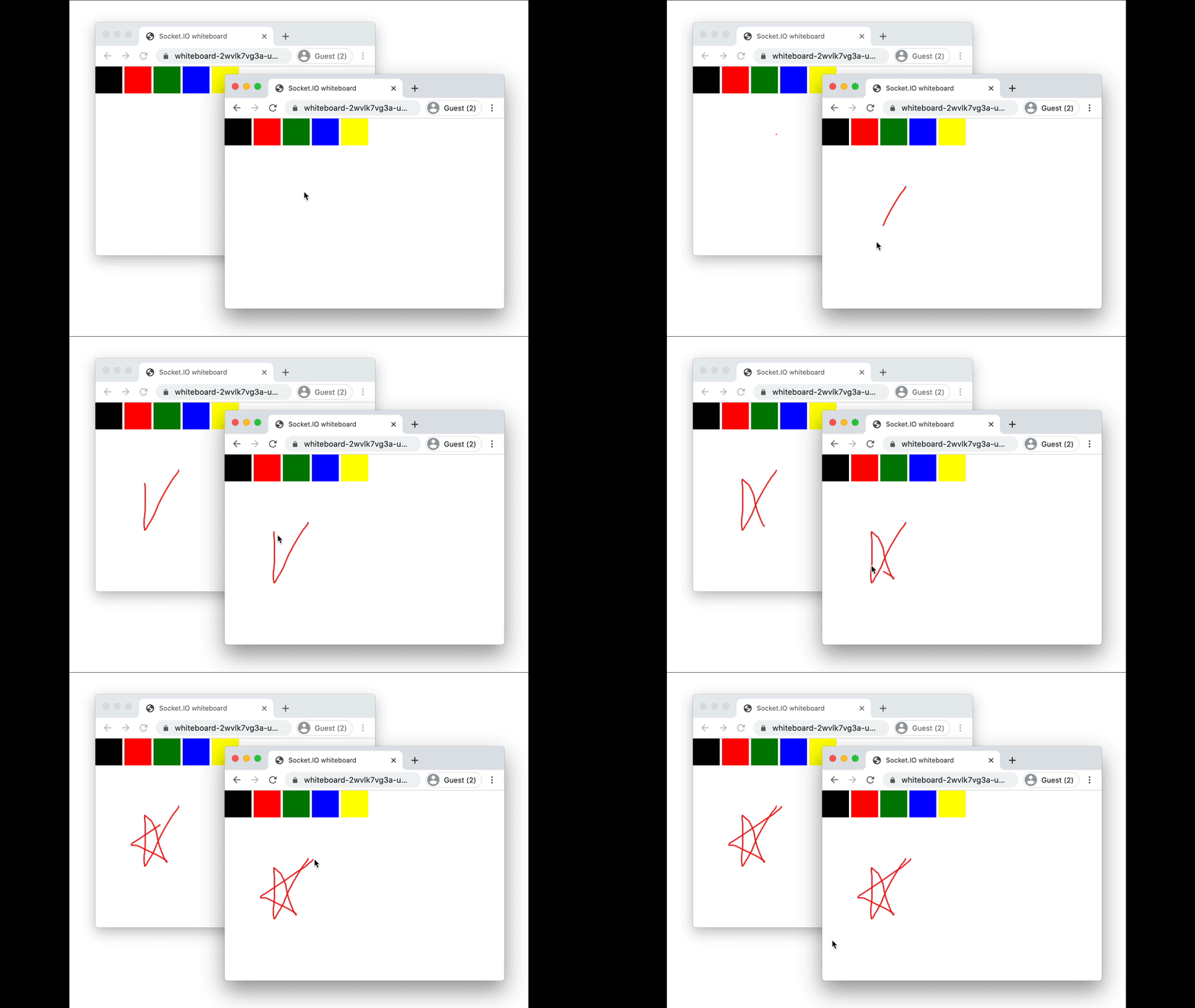
We are excited to announce a broad set of new traffic serving capabilities for Cloud Run: end-to-end HTTP/2 connections, WebSockets support, and gRPC bidirectional streaming, completing the types of RPCs that are offered by gRPC. With these capabilities, you can deploy new kinds of applications to Cloud Run that were not previously supported, while taking advantage of serverless infrastructure. These features are now available in public preview for all Cloud Run locations.Support for streaming is an important part of building responsive, high-performance applications. The initial release of Cloud Run did not support streaming, as it buffered both the request from the client and the service’s response. In October, we announced server-side streaming support, which lets you stream data from your serverless container to your clients. This allowed us to lift the prior response limit of 32 MB and support server-side streaming for gRPC. However, this still did not allow you to run WebSockets and gRPC with either client-streaming or bidirectional streaming.WebSockets and gRPC bidirectional streamingWith the new bidirectional streaming capabilities, Cloud Run can now run applications that use WebSockets (e.g., social feeds, collaborative editing, multiplayer games) as well as the full range of gRPC bi-directional streaming APIs. With these bidirectional streaming capabilities, both the server and the client keep exchanging data over the same request. WebSockets and bidirectional RPCs allow you to build more responsive applications and APIs. This means you can now build a chat app on top of Cloud Run using a protocol like WebSockets, or design streaming APIs using gRPC.Here’s an example of a collaborative live “whiteboard” application running as a container on Cloud Run, serving two separate WebSocket sessions on different browser windows. Note the real time updates to the canvases on both windows:Using WebSockets on Cloud Run doesn’t require any extra configuration and works out of the box. To use client-side streaming or bidirectional streaming with gRPC, you need to enable HTTP/2 support, which we talk about in the next section.To try out a sample WebSockets application on Cloud Run, deploy this whiteboard example from Socket.io by clicking on this link.It’s worth noting that WebSockets streams are still subject to the request timeouts configured on your Cloud Run service. If you plan to use WebSockets, make sure to set your request timeout accordingly.End-to-end HTTP/2 supportEven though many apps don’t support it, Cloud Run has supported HTTP/2 since its first release, including end-to-end HTTP/2 for gRPC. It does so by automatically upgrading clients to use the protocol, making your services faster and more efficient. However, until now, HTTP/2 requests were downgraded to HTTP/1 when they were sent to a container.Starting today, you can use end-to-end HTTP/2 transport on Cloud Run. This is useful for applications that already support HTTP/2. For apps that don’t support HTTP/2, Cloud Run will simply continue to handle HTTP/2 traffic up until it arrives at your container.For your service to serve traffic with end-to-end HTTP/2, your application needs to be able to handle requests with the HTTP/2 cleartext (also known as “h2c”) format. We have developed a sample h2c server application in Go for you to try out the “h2c” protocol. You can build and deploy this app to Cloud Run by cloning the linked repository and running:In the example command above, the “–use-http2″ option indicates that the application supports the “h2c” protocol and ensures the service gets the HTTP/2 requests without downgrading them.Once you’ve deployed the service, use the following command to validate that the request is served using HTTP/2 and not being downgraded to HTTP/1:curl -v –http2-prior-knowledge https://<SERVICE_URL>You can also configure your service to use HTTP/2 in the Google Cloud Console:Getting started With these new networking capabilities, you can now deploy and run a broader variety of web services and APIs to Cloud Run. To learn more about these new capabilities, now in preview, check out the WebSockets demo app or the sample h2c server app.If you encounter issues or have suggestions, please let us know. You can also help us shape the future of Cloud Run by participating in our research studies.Related ArticleIntroducing HTTP/gRPC server streaming for Cloud RunYou can now stream large or partial responses from Cloud Run to clients, improving the performance of your applications.Read Article
Quelle: Google Cloud Platform

Hands-on with Anthos on bare metal

Hands on with Anthos on Bare MetalIn this blog post I want to walk you through my experience of installing Anthos on bare metal  (ABM) in my home lab. It covers the benefits of deploying Anthos on bare metal, necessary prerequisites, the installation process, and using Google Cloud operations capabilities to inspect the health of the deployed cluster. This post isn’t meant to be a complete guide for installing Anthos on bare metal, for that I’d point you to the tutorial I posted on our community site. What is Anthos and Why Run it on Bare Metal?We recently announced that Anthos on bare metal is generally available. I don’t want to rehash the entirety of that post, but I do want to recap some key benefits of running Anthos on your own systems, in particular: Removing the dependency on a hypervisor can lower both the cost and complexity of running your applications. In many use cases, there are performance advantages to running workloads directly on the server. Having the flexibility to deploy workloads closer to the customer can open up new use cases by lowering latency and increasing application responsiveness. Environment OverviewIn my home lab I have a couple of Intel Next Unit of Computing (NUC) machines. Each is equipped with an i7 processor, 32GB of RAM, and a single 250GB SSD. Anthos on bare metal requires 32GB of RAM and at least 128GB of free disk space. Both of these machines are running Ubuntu Server 20.04 LTS, which is one of the supported distributions for Anthos on bare metal. The others are Red Hat Enterprise Linux 8.1 and CentOS 8.1.One of these machines will act as the Kubernetes control plane, and the other will be my worker node. Additionally I will use the worker node to run bmctl, the Anthos on bare metal command line utility used to provision and manage the Anthos on bare metal Kubernetes cluster. On Ubuntu machines, Apparmor and UFW both need to be disabled. Additionally, since I’m using the worker node to run bmctl I need to make sure that gcloud, gsutils, and Docker 19.03 or later are all installed. On the Google Cloud side I need to make sure I have a project created where I have the owner and editor roles. Anthos on bare metal also makes use of three service accounts and requires a handful of APIs. Rather than creating the service accounts and enabling the APIs myself I chose to let bmctl do that work for me. Since I want to take a look at the Cloud Operations dashboards that Anthos on bare metal creates, I need to provision a Cloud Monitoring Workspace.When you run bmctl to perform installation, it uses SSH to execute commands on the target nodes. In order for this to work, I need to ensure I configured passwordless SSH between the worker node and the control plane node. If I was using more than two nodes I’d need to configure connectivity between the node where I run bmctl and all the targeted nodes. With all the prerequisites met, I was ready to download bmctl and set up my cluster. Deploying Your ClusterTo actually deploy a cluster I need to perform the following high-level steps:Install bmctlVerify my network settingsCreate a cluster configuration fileModify the cluster configuration fileDeploy the cluster using bmctl and my customized cluster configuration file. Installing bmctl is pretty straightforward. I used gsutil to copy it down from a Google Cloud storage bucket to my worker machine, and set the execution bit.  Anthos on Bare Metal NetworkingWhen configuring Anthos on bare metal, you will need to specify three distinct IP subnets.Two are fairly standard to Kuberenetes: the pod network and the services network. The third subnet is used for ingress and load balancing. The IPs associated with this network must be on the same local L2 network as your load balancer node (which in my case is the same as the control plane node). You will need to specify an IP for the load balancer, one for ingress, and then a range for the load balancers to draw from to expose your services outside the cluster. The ingress VIP must be within the range you specify for the load balancers, but the load balancer IP may not be in the given range. The CIDR range for my local network is 192.168.86.0/24. Furthermore, I have my Intel NUCs all on the same switch, so they are all on the same L2 network. One thing to note is that the default pod network (192.168.0.0/16) overlapped with my home network. To avoid any conflicts, I set my pod network to use 172.16.0.0/16. Because there is no conflict, my services network is using the default (10.96.0.0/12). It’s important to ensure that your chosen local network doesn’t conflict with the bmctl defaults. Given this configuration, I’ve set my control plane VIP to 192.168.86.99. The ingress VIP, which needs to be part of the range that you specify for your load balancer pool, is 192.168.86.100. And, I’ve set my pool of addresses for my load balancers to 192.168.86.100-192.168.86.150. In addition to the IP ranges, you will also need to specify the IP address of the control plane node and the worker node. In my case the control plane is 192.168.86.51 and the worker node IP is 192.168.86.52.Create the Cluster Configuration FileTo create the cluster configuration file, I connected to my worker node via SSH. Once connected I authenticated to Google Cloud. The command below will create a cluster configuration file for a new cluster named demo cluster. Notice that I used the –enable-apis and –create-service-accounts flags. These flags tell bmctl to create the necessary service accounts and enable the appropriate APis. ./bmctl create config -c demo-cluster –enable-apis –create-service-accounts –project-id=$PROJECT_IDEdit the Cluster Configuration FileThe output from the bmctl create config command is a YAML file that defines how my cluster should be built. I needed to edit this file to provide the networking details I mentioned above, the location of the SSH key to be used to connect to the target nodes, and the type of cluster I want to deploy. With Anthos on bare metal, you can create standalone and multi-cluster deployments:Standalone: This deployment model has a single cluster that serves as a user cluster and as an admin clusterMulti-cluster: Used to manage fleets of clusters and includes both admin and user clusters.Since I’m deploying just a single cluster, I needed to choose standalone. Here are the specific changes I made to the cluster definition file. Under the list of access keys at the top of the file:For the sshPrivateKeyPath variable I specified the path to my SSH private keyUnder the Cluster definition:Changed the type to standaloneSet the IP address of the control plane node Adjusted the CIDR range for the pod networkSpecified the control plane VIP Uncommented and specified the ingress VIP Uncommented the addressPools section (excluding actual comments) and specified the load balancer address pool Under the NodePool definition:Specified the IP address of the worker node For reference, I’ve created a GitLab snippet for my cluster definition yaml (with the comments removed for the sake of brevity).Create the ClusterOnce I had modified the configuration file, I was ready to deploy the cluster using bmctl using the create clustercommand../bmctl create cluster -c demo-clusterbmctl will complete a series of preflight checks before creating your cluster. If any of the checks fail, check the log files specified in the output. Once the installation is complete, the kubeconfig file is written to  /bmctl-workspace/demo-cluster/demo-cluster-kubeconfig Using the supplied kubeconfig file, I can operate against the cluster as I would any other Kubernetes cluster. Exploring Logging and MonitoringAnthos on bare metal automatically creates three Google Cloud Operations (formerly Stackdriver) logging and monitoring dashboards when a cluster is provisioned: node status, pod status, and control plane status. These dashboards enable you to quickly gain visual insight into the health of your cluster. In addition to the three dashboards, you can use Google Cloud Operations Metrics Explorer to create custom queries for a wide variety of performance data points. To view the dashboards, return to Google Cloud Console, navigate to the Operations section, and then choose Monitoring and Dashboards. You should see the three dashboards in the list in the middle of the screen. Choose each of the three dashboards and examine the available graphs.ConclusionThat’s it! Using Anthos on bare metal enables you to create centrally managed Kubernetes clusters with a few commands. Once deployed you can view your clusters in Google Cloud Console, and deploy applications as you would with any other GKE cluster. If you’ve got the hardware available, I’d encourage you to run through my hands-on tutorial. Related ArticleAnthos in depth: exploring a bare-metal deployment optionRunning Anthos on bare metal may provide better performance and lower costs for some workloadsRead Article
Quelle: Google Cloud Platform

Enforcing least privilege by bulk-applying IAM recommendations

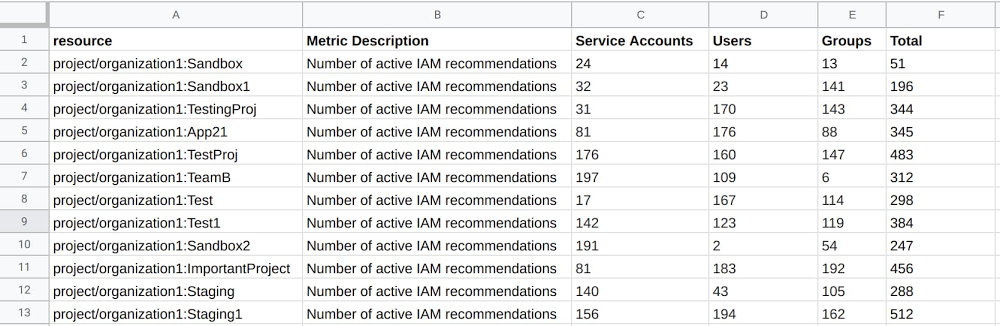
Imagine this scenario: Your company has been using Google Cloud for a little while now. Things are going pretty well—no outages, no security breaches, and no unexpected costs. You’ve just begun to feel comfortable when an email comes in from a developer. She noticed that the project she works on has a service account with a Project Owner role, even though this service account was created solely to access the Cloud Storage API. She’s uncomfortable with these elevated permissions, so you begin investigating.As you dig deeper and start looking at a few projects in your organization, you notice multiple instances of high privileged access roles like Project Owner and Editor assigned to people, groups, and service accounts that don’t need them. The worst part is you don’t even know how big the problem is. There are hundreds of projects at your company and thousands of GCP identities. You can’t check them all manually because you don’t have time, and you don’t know what permissions each identity needs to do its job.If any part of this scenario sounds familiar, that’s because it’s incredibly common. Managing identities and privileges is extremely challenging, even for the most sophisticated of organizations. There is good news though. Google Cloud’s IAM Recommender can help your security organization adhere to the principle of least privilege—the idea that a subject should only be given the access or privileges it needs to complete a task. As we discussed in this blog post, IAM Recommender uses machine learning to inspect every principal’s permission usage across your entire GCP environment for the last 90 days. Based on that scan, it either deems that a user has a role that is a good fit, or it recommends a new role that would be a better fit for that user’s needs. For example, suppose a senior manager uses Google Cloud to look at BigQuery reports. IAM Recommender notices that pattern and recommends changing the manager’s role from Owner to something more appropriate, like BigQuery Data Viewer. In this blog, we’ll walk through one way to analyze IAM recommendations across all your projects and bulk-apply those recommendations for an entire project using a set of commands in Cloud Shell. With this process, we’ll show you how to: View the total number of service accounts, members, and groups that have IAM Recommendations broken out by projects.Identify a project with IAM recommendations that you feel comfortable applying. Bulk-apply recommendations on that project. (Optional) Revert the bulk-applied recommendations if you find that you need to.Identify more projects with recommendationsRepeat steps 1-3.Let’s get started.Get ready to bulk-apply IAM RecommendationsBefore you get started, there’s a bit of work that needs to be done to get your Google Cloud environment ready:Make sure that the Recommender API and Cloud Asset API are enabled.Create a Service Account and give it the IAM Recommender Admin, Role Viewer, Cloud Asset Viewer, Cloud Security Admin roles at the org level. You will need to reference this Service Account and its associated key later while running these scripts. Note that these scripts will not run if the Cloud Asset API of a project is in a VPC Service Control parameter. Now you’re ready to start.Step 1: View your IAM recommendations1. Run this command in Cloud Shell to save all the required code in a folder named iam_recommender_at_scale. This command also creates a Python virtual environment within the folder to execute the code.2. Go to the source directory and activate the python environment.3. Next, retrieve all the IAM recommendations in your organization and break them out by project. Make sure to enter in your Organization ID, called out here as,”<YOUR-ORGANIZATION-ID>”. You’ll also need to include a path to the service account key you stored earlier in pre-step, called out below as, ”<SERVICE-ACCOUNT-FILE-PATH>”.Here’s an example:4. For this demo we exported the results from step 1.3 into a CSV and uploaded it into a Google Sheet. However, you could just as easily use something like BigQuery or your own data analytics tool to look at the data.Table 1: The resource column lists the name of every project with active IAM recommendations within your organization. Subsequent columns break out the total number of recommendations by service account, users, and groups.Step 2: Pick a project to apply IAM recommendations on1. Analyze the output of the work you’ve done so far.Table 2: When we visualize table 1 using a column chart, it becomes clear that there are a couple of outliers in terms of the total number of recommendations. We will focus on the “project/organization1:TestProj” project for the duration of this document.2. Choose a project whose recommendations you want to bulk-apply. In our example, we had two qualifying criteria that we felt were met by “project/organization1: TestProj”:Does the project have a relatively high number of recommendations? “TestProj” has the second highest total number of recommendations, so it qualified.Is the project a safe environment on which to test-drive IAM Recommender? Yes, because “TestProj” is a sandbox.3. (Optional) If you don’t have a sandbox project, or the criteria we mentioned in step 2 don’t feel right, here are some other ideas:Choose a project you are very familiar with. Something you would notice any unwanted changes on.Ask a security-conscious colleague if they’d be willing to use IAM Recommender on their project.Choose a legacy project with very predictable usage patterns. While IAM Recommender uses machine learning to make accurate recommendations for even the most dynamic of projects, this might be a more manageable risk.Step 3: Apply the IAM recommendations1. Surface each principal with a recommendation in “TestProj”. This step doesn’t apply the recommendations, only displays them.For example:2. The resulting JSON is the template for making actual changes to your IAM access policy. This JSON also serves as the mechanism to revert these changes should you find later that you need to, so make sure to store it somewhere safe. Below is a generic example of a JSON. Each recommendation in the JSON contains:id: a uniquely identifier for the recommendationetag: the modification time of the recommendation.member: the identity, or principal, that the recommendation is about. There can be more than one recommendation per member because a member can have more than one role.roles_recommended_to_be_removed: the role(s) that IAM Recommender will remove.roles_recommended_to_be_replaced_with: the role(s) that will replace the existing role. Depending on the recommendation, IAM Recommender replaces the existing role with one role, many roles, or no roles (i.e., removes that role altogether), with the goal of adhering to the principle of least privilege.3. (Optional) This demonstration doesn’t alter the JSON, but rather applies all the recommendations as is. However, if you wanted to customize this JSON and get rid of certain recommendations, this is the time. Simply delete a recommendation with the editor of your choice, save the file, and upload it into the Cloud Shell file manager. You can even write a script that goes through the JSON and removes certain types of recommendations (e.g., maybe you don’t want to take recommendations associated with a certain principal or role).4. Apply all the changes described in the JSON created in step 3.1 by executing the command below. Step 4 describes how you can revert these changes later if you want to.Example:5. Just like that, your project is far closer to adhering to the principle of least privilege than it was at the beginning of this process! When we run step 1.3 again we see that recommendations for “TestProj” went from 483 to 0.Step 4: Revert the changes (optional)Refer back to the JSON you created in 3.1. and run this code to revert the changes:Example:Step 5: Apply more recommendationsAt this point, there are a couple options for what do do next: You can start applying more recommendations! Run this script again or go to the IAM page in the Console and look for individual recommendations from the IAM Recommendation icon. Another option is go to the Recommendations Hub and look at all your GCP Recommendations, not just the IAM related ones.Or, as a bonus step, you can set up an Infrastructure-as-Code pipeline for IAM Recommender, using something like Terraform. Check out this tutorial to learn how to set that up.And that’s the least of itThere are many ways to use the IAM Recommender to ensure least privilege. We hope this blog has helped you identify and mitigate projects that could represent a security risk to your company. You can read about how companies like Veolia used the IAM Recommender to remove millions of permissions with no adverse effects. We are hopeful that your company will have a similar experience. Good luck and thanks for reading!Special thanks to Googlers Asjad Nasir, Bakh Inamov, and Tom Nikl for their valuable contribution.Related ArticleUnder the hood: The security analytics that drive IAM recommendations on Google CloudAn in-depth look at how IAM Recommender works and the benefits it provides.Read Article
Quelle: Google Cloud Platform

Work at warp-speed in the BigQuery UI

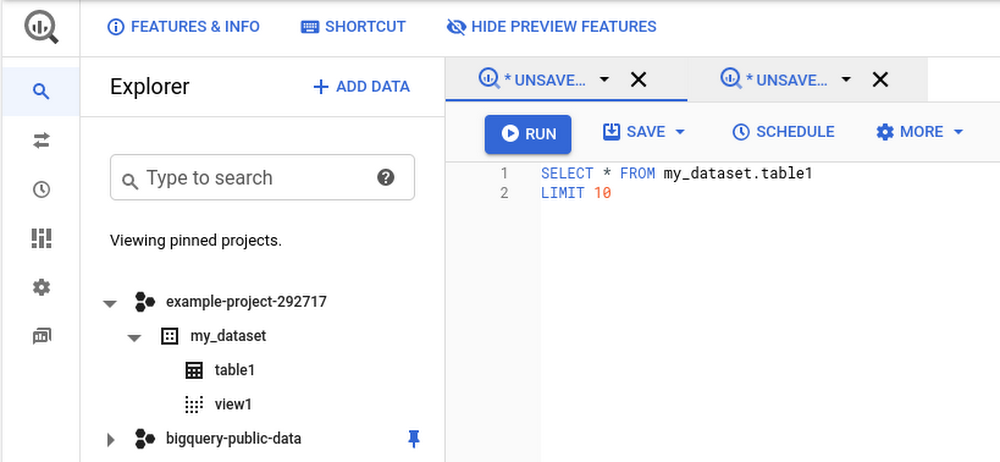
Data analysts can spend hours writing SQL each day to get the right insights. So it’s crucial that the tools in the Google Cloud Console make that job as easy and as fast as possible. Now, we’re excited to show you how BigQuery’s Cloud Console UI has been updated with radical usability improvements for more efficient work, making it easier to find the data you need and write the right SQL quickly. The new capabilities span the entire SQL workspace experience across three feature areas:New multi-tab navigationNew resource panel New SQL editorNew multi-tab navigationOne of the most popular requests for BigQuery has been to support tabs. Now you can work on multiple queries at once and iterate faster with tabbed navigation:Multitask by working on a new query time while you’re waiting for another query to run.Compare queries or results sets side-by-side by splitting your tabs to the left and right.Reference a table schema while you’re authoring a query: just click the table to open its tab.Reference history at any time with the panel at the bottom of the workspace.Reduce your browser’s memory footprint by avoiding the overhead of opening the Cloud Console in multiple browser tabs.New resource panelNow it’s easier than ever to find relevant data at your organization:Your resources and search results are loaded dynamically as you need them so your workspace is more responsive. The navigation buttons for transfers, scheduled queries, and administration have been moved to a collapsible panel on the far left to give you more space for writing queries!Before, you needed to know the exact name of a project prior to pinning it to your resources panel on the left-hand side of the page if you wanted to see resources in that project. Now you can expand a search to find resources outside your pinned projects with a single click on “Broaden search to all projects”.Pin and unpin projects fast with a single click on the pin icon next to each project.New SQL editorFinally, we’ve updated the SQL editor itself with support for tons of new features. In addition to faster performance, you get as-you-type suggestions for SQL functions and metadata like column names and time-saving IDE capabilities to help you write faster, powered by Monaco:Find/replace text within the editorMulti-cursor and multi-selection supportCollapse and expand line sectionsType F1 in the editor to see dozens of other handy new shortcuts and features.While the features are in preview, you can hide them with the “Hide Preview Features” button.If you encounter issues, let us know with the Send Feedback button in the top right of Cloud Console.Get started by visiting BigQuery’s Cloud Console UI. Happy querying! Related ArticleQuery without a credit card: introducing BigQuery sandboxWith BigQuery sandbox, you can try out queries for free, to test performance or to try Standard SQL before you migrate your data warehouse.Read Article
Quelle: Google Cloud Platform

Build your own workout app in 5 steps—without coding

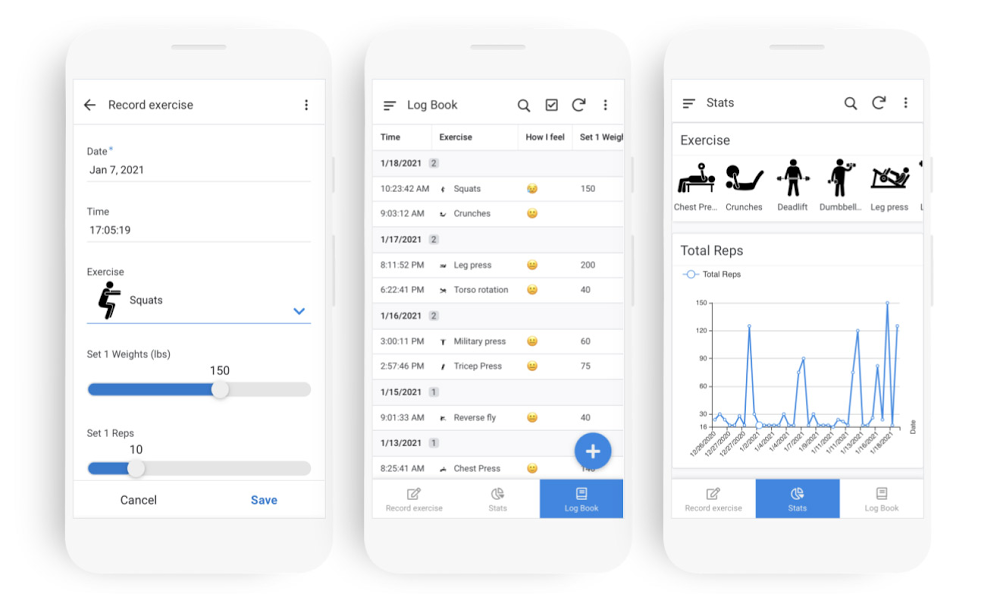
With the holidays behind us and a new year ahead, it’s time to reset our goals and find ways to make our lives healthier and happier. This time last year, like many people, I decided to create a more regimented exercise routine and track my progress. I looked at several fitness and workout apps I could use, but none of them let me track my workouts exactly the way I wanted to—so I made my own, all without writing any code.If you’ve found yourself in a similar situation, don’t worry: Using AppSheet, Google Cloud’s no-code app development platform, you can also build a custom fitness app that can do things like record your sets, reps and weights, log your workouts and show you how you’re progressing.To get started, copy the completed version here. If you run into any snags along the way or have questions, we’ve also started a thread on AppSheet’s Community that you can join. Step 1: Set up your data and create your appFirst, you’ll need to organize your data and connect it to AppSheet. AppSheet can connect to a number of data sources, but it’ll be easiest to connect it to Google Sheets, as we’ve built some nifty integrations with Google Workspace. I’ve already set up some sample data. There are two tables (one on each tab): The first has a list of exercises I do each week and the second is a running log of each exercise I do and my results (such as the weight used and my number of reps). Feel free to copy this Sheet and use it to start your app. Once you’ve done that, you can create your app directly from Google Sheets. Go to Tools>AppSheet>Create an App and AppSheet will read your data and set up your app. Note that if you’re using another data source, you can follow these steps to connect to AppSheet.Step 2: Create a form to log your exercisesYou should now be in the AppSheet editor. A live preview of your app will be on the right side of your screen. At this point, AppSheet has only connected to one of the two tables we had in our spreadsheet (whichever was open when we created our app), so we’ll want to connect to the other by going to Data>Tables>”Add table for “Workout Log.”Before creating the form, we need to tell AppSheet what type of data is in each column and how that data should be used. Go to Data>Columns>Workout Log and set the following columns with these settings (you can adjust column settings by clicking on the Pencil icon to the left of each column):This image shows how I adjusted the settings for “Key,”,“Set 1 Weights (lbs),” “Set 1 Reps,” and “How I Feel.” Now let’s create a View for this form. A view is similar to a web page, but for apps. Go to UX>Views and click on New View. Set the View name to “Record Exercise”, select “Workout Log” next to For this data, set your View type to “form,” and set the Position as “Left.” Now, if you save your app, you should be able to click on “Record exercise” in your app and it will open up a form where you can log your exercise.Step 3: Set up your digital workout log bookI like to quickly see past workouts while I’m exercising to know how many reps and weights I should be doing. To make our workout log book, we’ll want to create a new view. Go to UX>View and click on New View. Name this view “Log Book,” select “Workout Log” as your data, select “Table” as the View Type, and set the Position to “Right.”Then, in the View Options section, choose Sort by “Date,” “Ascending and Group by “Date,” “Ascending.” Step 4: Create your Stats DashboardAt this point, we already have a working app that lets us record and review workouts. However, being the data geek I am, I love using graphs and charts to track progress. Essentially, we’ll be making an interactive dashboard with charts that will show stats for whichever exercise we select. This step is a little more involved, so feel free to skip it if you’d like—it is your app after all!Before we make the Dashboard view, we need to decide what metrics we want to see. I like to see the total number of reps per set, along with the amount of weight I lifted in my first set. We already have a column for weights (Set 1 Weights (lbs)), but we’ll need to set up a virtual column to calculate total reps. To do this, select Data>Columns>Workout Log>Add Virtual Column.For advanced logic, such as these calculations, AppSheet uses expressions, similar to those used in Google Sheets. Call the Virtual Column “Total Reps” and add this formula in the pop up box to calculate total reps: [Set 1 reps] + [Set 2 reps] + [Set 3 reps] + [Set 4 reps] + [Set 5 reps]Now we can work on creating our Dashboard view. In AppSheet, a Dashboard view is basically a view with several other views inside it. So before we create our dashboard, let’s create the following views.Now we can create our Dashboard view. Let’s call the View “Stats,” set the View type to “Dashboard,” and Position to “Center.” For View Entries, we’ll select “Exercise” (not Exercises!) “Total Reps,” “Set 1 Weight (lbs.),” “Sentiment,” and “Calendar.” Enable Interactive Mode and under Display>Icon type “chart” and select the icon of your choosing. Hit Save, and you should now have a pretty neat dashboard that adjusts each chart based on the exercise you select.Step 5: Personalize your app and send it to your phone!Now that your app is ready, you can personalize it by adjusting the look and feel or adding additional functionality. At this point, feel free to poke around the AppSheet editor and test out some of the functionality. For my app, here’s a few of the customizations I added.I went to UX>Brand and changed my primary color to Blue.I went to Behavior>Offline/Sync and turned on Offline Use so that I can use my app when I don’t have an internet connection.I changed the position of my Exercises view to Menu, so it only appears in the Menu in the top-left corner of my app.Once you’ve adjusted your app the way you want it, feel free to send it to your phone. Go to Users>Users>Share App, type in your email address next to User emails, check “I’m not a robot” and select “Add users + send invite.” Now check your email on your phone and follow the steps to download your app!AppSheet offers plenty of ways to simplify your life by building apps—see what other apps you can make. Happy app building!
Quelle: Google Cloud Platform

BenchSci helps pharma deliver new medicines—stat!—with Google Cloud

Every startup should have a lofty goal, even if they’re not 100% certain how they’ll reach it. Our company, BenchSci, is a Canadian biotech startup whose mission is to help scientists bring new medicines to patients 50% faster by 2025. Since founding the company in 2015, we’ve been building a platform to help scientists design better experiments by mining a vast catalog of public datasets, research articles, and proprietary customer datasets. And that platform is built entirely on Google Cloud, whose breadth and depth of features has supported us as we move toward our goal.  There’s urgency to our mission because pharmaceutical R&D can be inefficient. Take for example preclinical research: one study estimates that half of preclinical research spending is wasted, amounting to $28.2B annually in the U.S. alone and up to $48.6 billion globally1. And by our estimates, about 36.1% of that preclinical research waste comes from scientists using inappropriate reagents—materials such as antibodies used in life science experiments. As such, our first product was an AI-assisted reagent selection tool. It collects relevant scientific papers and reagent catalogs, extracts relevant data points from them with proprietary machine learning models, and makes the results searchable to scientists from an easy-to-use interface. Scientists can quickly determine up front whether a particular reagent is a good fit for their experiment, based on existing experimental evidence. That way, they can focus on experiments with the greatest likelihood of productive results and bring new treatments to patients faster.All this runs on Google Cloud. We collect papers, theses, product catalogs, medical and biological databases, and other data, and store them in Cloud Storage. We then organize and extract insights from the data, using a pipeline built from tools including Dataflow and BigQuery. Next, we process the data with our machine learning algorithms, and store results in Cloud SQL and Cloud Storage. Scientists access the results via a web interface built on Google Kubernetes Engine (GKE), Cloud Load Balancer, Identity-Aware Proxy, Cloud CDN, Cloud DNS, and other services. Finally, we use multiple cloud projects, IAM, and infrastructure as code to keep data secure and each customer isolated. As such, we’ve eliminated the need for all but the most specialized R&D infrastructure, as well as for operational hardware, and slashed our management overhead. The combination of Google Cloud’s managed services and easily scalable persistent containers and VMs also lets us prototype and test new capabilities, then bring them to production with minimal management on our part. Google Cloud has also scaled with BenchSci’s needs. The data we analyze has increased by an order of magnitude over three years, and switching to BigQuery and Cloud SQL, for example, removed a great deal of our operational overhead. We also appreciate the flexibility of BigQuery to drive critical steps in our text-processing ML pipeline and the stability of Cloud SQL to drive data access. Over time, we’ve also evolved our data processing pipeline. We started out with Dataproc, a managed Hadoop service, but eventually rewrote this system in Dataflow, which uses Apache Beam. Dataflow can handle hundreds of terabytes, and lets us focus on implementing our business logic rather than managing the underlying infrastructure.Recently, we’ve expanded our platform to support private datasets. Initially, we served all our customers different views of the same underlying public data. In time though, some customers asked if we could include their proprietary pharmacological data in our system. Rather than managing multitenant systems with strict project isolation between them, we leveraged GKE and Config Connector to create unique environments for each customer’s data—without increasing the operational demand on our teams.In short, Google Cloud has enabled us to focus on solving problems without being distracted by having to build and operate computing infrastructure and services. Looking ahead, running our company on Google Cloud gives us the confidence to grow by collecting more and broader data sources; extracting more information from each unit of data with ML algorithms; processing ever more extensive and more proprietary data; and serving a broader range of customer needs through a varied set of interfaces and access points. Our goal is still ambitious, but by partnering with Google Cloud, it feels attainable. Learn more about healthcare and life sciences solutions on Google Cloud.1. https://journals.plos.org/plosbiology/article?id=10.1371/journal.pbio.1002165Related ArticleHealthcare gets more productive with new industry-specific AI toolsWe’re launching in public preview a suite of fully-managed AI tools to help healthcare professionals with the review and analysis of medi…Read Article
Quelle: Google Cloud Platform

Cloud Profiler provides app performance insights, without the overhead

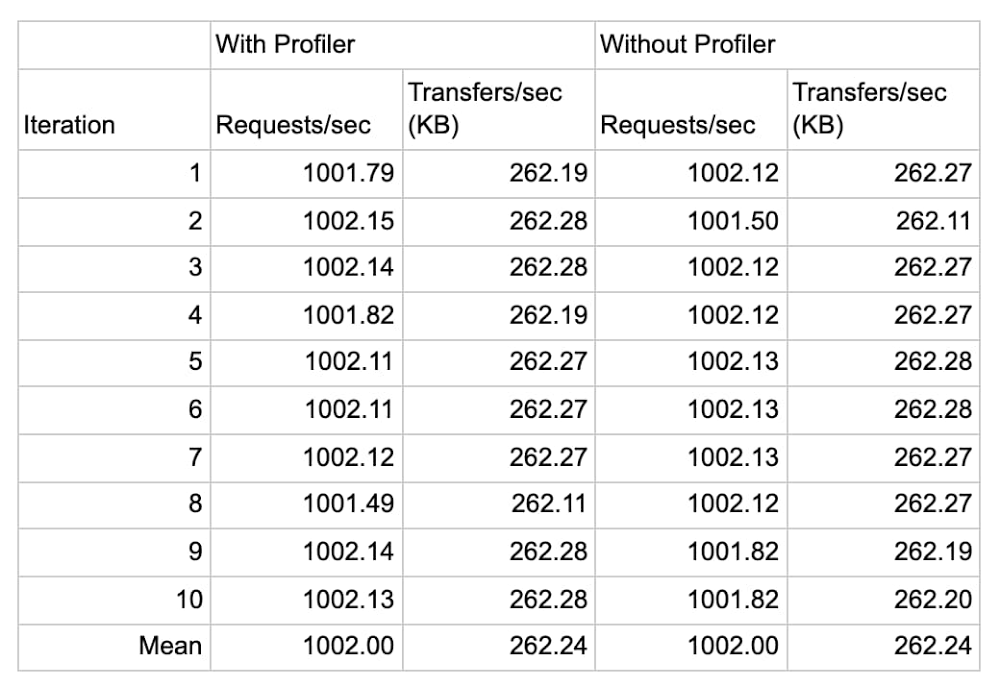
Do you have an application that’s a little… sluggish? Cloud Profiler, Google Cloud’s continuous application profiling tool, can quickly find poor performing code that slows your app performance and drives up your compute bill. In fact, by helping you find the source of memory leaks and other errors, Profiler has helped some of Google Cloud’s largest accounts reduce their CPU consumption by double-digit percentage points. What makes Profiler so useful is that it aggregates production performance data over time from all instances of an application, while placing a negligible performance penalty on the application that you are examining—typically less than 1% CPU and RAM overhead on a single profiled instance, and practically zero when it’s amortized over the full collection duration and all instances of the service!In this blog post, we look at elements of Profiler’s architecture that help it achieve its light touch. Then, we demonstrate the negligible effect of Profiler on an application in action by using DeathStarBench, a sample hotel reservation application that’s popular for testing loosely coupled microservices-based applications. Equipped with this understanding, you’ll have the knowledge you need to enable Profiler on those applications that could use a little boost. Profiler vs. other APM toolsTraditionally, application profiling tools have imposed a heavy load on the application, limiting the tools’ usefulness. Profiler, on the other hand, uses several mechanisms to ensure that it doesn’t hurt application performance. Sampling and analyzing aggregate performanceTo set up Profiler, you need to link a provided language-specific library to your application. Profiler uses this library to capture relevant telemetry from your applications that can then be analyzed using the user interface of the tool. Cloud Profiler supports applications written in Java, Go, Node.js and Python.Cloud Profiler’s libraries sample application performance, meaning that they periodically capture stack traces that represent the CPU and heap consumption of each function. This behavior is different from an event-tracing profiler, which intercepts and briefly halts every single function call to record performance information. To ensure your service’s performance is not impacted, Profiler carefully orchestrates the interval and duration of the profile collection process. By aggregating data across all of the instances of your application over a period of time, Profiler can provide a complete view into production code performance with negligible overhead.Roaming across instancesThe more instances of each service from which you capture profiles, the more accurately Cloud Profiler can analyze your codebase. While each Profiler library / agent uses sampling to reduce the performance impact on a running instance, Profiler also ensures that only one task in a deployment is being profiled at a given time. This ensures that your application is never in a state where all instances are being sampled at the same time.Profiler in actionTo measure the effect of Profiler on an application, we used it with an application with known performance characteristics, the DeathStarBench hotel reservation sample application. The DeathStarBench services were designed to test the performance characteristics of different kinds of infrastructure, service topologies, RPC mechanisms, and service architecture on overall application performance, making them an ideal candidate for these tests. While this particular benchmark is written in Go and uses the Go profiling agent, we expect results for other languages to be similar, since Profiler’s approach to sampling frequency and profiling is similar for all languages that it supports.In this example, we ran the eight services that compose the hotel reservation application on a GCE c2-standard-4 (4 vCPUs, 16 GB memory) VM instance running Ubuntu 18.04.4 LTS Linux and configured the load generator for two series of tests: one at 1,000 queries per second, and one at 10,000. We then performed each test 10 times with Profiler attached to each service and 10 times without it, and recorded the service’s throughput and the CPU and memory consumption in Cloud Monitoring. Each iteration ran for about 5 minutes, for a total of about 50 minutes for 10 iterations.The following data shows the result of the 1,000 QPS run:In the first test we observe that Profiler introduces a negligible increase in CPU (less than 0.5%) consumption and a minor increase in memory consumption, averaging to roughly 32 MB (3.7%) of additional RAM usage across eight services, or just under 4 MB per service. The following data shows the result of the 10,000 QPS run:In the second test, we see that Profiler’s only impact on application is in line with the previous observations that the increase in memory consumption is roughly 23 MB (2.8%) of memory, or 3MB per service, and a negligible increase in CPU (less than 0.5%) consumption.In both tests, the increase in memory usage can be attributed to the increase in the application’s binary size after linking with the Profiler agent.In exchange, you gain deep insight into code performance, down to each function call, as shown here for the hotel reservation application:Here we use Profiler to analyze the memory usage of the benchmark’s “frontend” service. We utilize Profiler’s weight filter and weight comparison features to determine the functions that increased their memory usage while the application scaled from 1,000 QPS to 10,000 QPS, which are highlighted in orange.ConclusionIn short, Profiler introduces no discernible impact on an application’s performance, and a negligible impact on CPU and memory consumption. And in exchange, it lets you continuously monitor the production performance of your services without affecting their performance or incurring any additional costs! That’s a win-win, in our book. To learn more about Profiler, be sure to read this Introduction to Profiler, and this blog about its advanced features. Related ArticleSee how your code actually executes with Stackdriver Profiler, now GACloud monitoring is now even better, as Stackdriver Profiler is now generally available from Google Cloud Platform (GCP).Read Article
Quelle: Google Cloud Platform

Eventarc: A unified eventing experience in Google Cloud

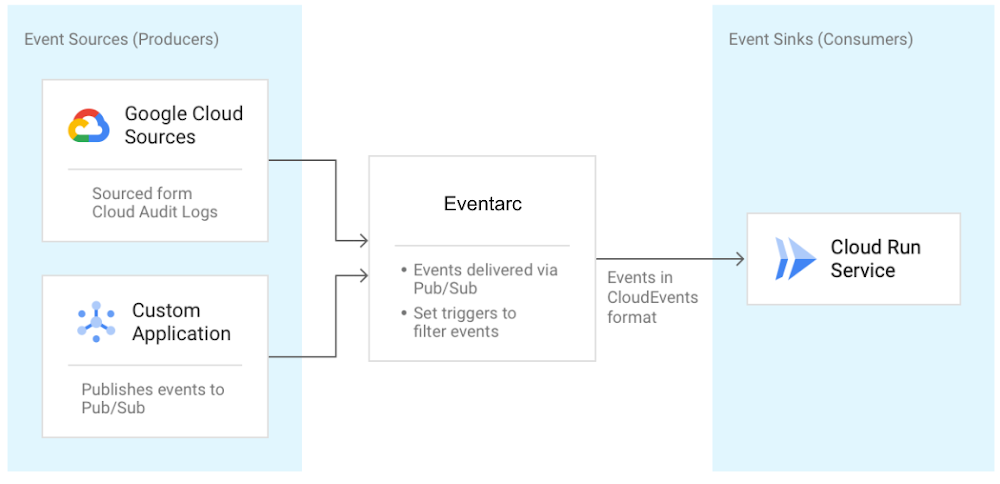
I recently talked about orchestration versus choreography in connecting microservices and introduced Workflows for use cases that can benefit from a central orchestrator. I also mentioned Eventarc and Pub/Sub in the choreography camp for more loosely coupled event-driven architectures. In this blog post, I talk more about the unified eventing experience by Eventarc. What is Eventarc?We announced Eventarc back in October as a new eventing functionality that enables you to send events to Cloud Run from more than 60 Google Cloud sources. It works by reading Audit Logs from various sources and sending them to Cloud Run services as events in CloudEvents format. It can also read events from Pub/Sub topics for custom applications.Getting events to Cloud RunThere are already other ways to get events to Cloud Run, so you might wonder what’s special about Eventarc? I’ll get to this question, but let’s first explore one of those ways, Pub/Sub.As shown in this Using Pub/Sub with Cloud Run tutorial, Cloud Run services can receive messages pushed from a Pub/Sub topic. This works if the event source can directly publish messages to a Pub/Sub topic. It can also work for services that have integration with Pub/Sub and publish their events through that integration. For example, Cloud Storage is one of those services and in this tutorial, I show how to receive updates from a Cloud Storage bucket using a Pub/Sub topic in the middle. For other services with no integration to Pub/Sub, you have to either integrate them with Pub/Sub and configure Pub/Sub to route messages to Cloud Run or you need to find another way of sourcing those events. It’s possible but definitely not trivial. That’s where Eventarc comes into play. Immediate benefits of Eventarc Eventarc provides an easier path to receive events not only from Pub/Sub topics but from a number of Google Cloud sources with its Audit Log and Pub/Sub integration. Any service with Audit Log integration or any application that can send a message to a Pub/Sub topic can be event sources for Eventarc. You don’t have to worry about the underlying infrastructure with Eventarc. It is a managed service with no clusters to set up or maintain. It also has some concrete benefits beyond the easy integration. It provides consistency and structure to how events are generated, routed, and consumed. Let’s explore those benefits next.Simplified and centralized routingEventarc introduces the notion of a trigger. A trigger specifies routing rules from event sources to event sinks. For example, one can listen for new object creation events in Cloud Storage and route them to a Cloud Run service by simply creating an Audit Log trigger as follows:If you want to listen for messages from Pub/Sub instead, that’s another trigger:This trigger creates a Pub/Sub topic under the covers. Applications can send messages to that topic and those messages are routed to the specified Cloud Run service by Eventarc. Users can also create triggers from Google Cloud Console under the triggers section of Cloud Run:By having event routing defined as triggers, users can list and manage all their triggers in one central place in Eventarc. Here’s the command to see all created triggers:gcloud beta eventarc triggers listConsistency with eventing format and librariesIn Eventarc, different events from different sources are converted to CloudEvents compliant events. CloudEvents is a specification for describing event data in a common way with the goal of consistency, accessibility and portability. A CloudEvent includes context and data about the event: Event consumers can read these events directly. We also try to make it easier in various languages (Node.js, Python, Go, Java, C# and more) with CloudEvents SDKs to read the event and Google Events libraries to parse the date field.Going back to our Cloud Storage example earlier, this is how you’d read Cloud Storage events via AuditLogs in Node.js using the two mentioned libraries:Similarly, this is how you’d read messages from a Pub/Sub trigger in C#: Long term visionThe long term vision of Eventarc is to be the hub of events from more sources and sinks, enabling a unified eventing story in Google Cloud and beyond.In the future, you can expect to read events directly (without having to go through Audit Logs) from more Google Cloud sources (eg. Firestore, BigQuery, Storage), Google sources (eg. Gmail, Hangouts, Chat), 3rd party sources (eg. Datadog, PagerDuty) and send these events to more Google Cloud sinks (eg. Cloud Functions, Compute Engine, Pub/Sub) and custom sinks (any HTTP target).  Now that you have a better overall picture of the current state and future vision for Eventarc:Check out Trigger Cloud Run with events from Eventarc for a hands-on codelab. Send us feedback on Eventarc and which sources and sinks you would value the most.As always, feel free to reach out to me on Twitter @meteatamel for questions.Related ArticleTrigger Cloud Run with events from more than 60 Google Cloud sourcesNow, you can invoke applications running on Cloud Run with events generated by over 60 Google Cloud services.Read Article
Quelle: Google Cloud Platform

How we’re helping to reshape the software supply chain ecosystem securely

As we start the new year, we see ongoing revelations about an attack involving SolarWinds and others, that in turn led to the compromise of numerous other organizations. Software supply chain attacks like this pose a serious threat to governments, companies, non-profits, and individuals alike. At Google, we work around the clock to protect our users and customers. Based on what is known about the attack today, we are confident that no Google systems were affected by the SolarWinds event. We make very limited use of the affected software and services, and our approach to mitigating supply chain security risks meant that any incidental use was limited and contained. These controls were bolstered by sophisticated monitoring of our networks and systems. Beyond this specific attack, we remain focused on defending against all forms of supply chain risk and feel a deep responsibility to collaborate on solutions that benefit our customers and the common good of the industry. That’s why today we want to share some of the security best practices we employ and investments we make in secure software development and supply chain risk management. These key elements of our security and risk programs include our efforts to develop and deploy software safely at Google, design and build a trusted cloud environment to deliver defense-in-depth at scale, advocate for modern security architectures, and advance industry-wide security initiatives. To protect the software products and solutions we provide our cloud customers, we have to mitigate potential security risks, no matter how small, for our own employees and systems. To do this, we have modernized the technology stack to provide a more defensible environment that we can protect at scale. For example, modern security architectures like BeyondCorp allow our employees to work securely from anywhere, security keys have effectively eliminated password phishing attacks against our employees, and Chrome OS was built by design to be more resilient against malware. By building a strong foundation for our employees to work from, we are well-prepared to address key issues, such as software supply chain security. Many of these topics are covered more extensively in our book Building Secure and Reliable Systems.How we develop and deploy software and hardware safely at Google Developing software safely starts with providing secure infrastructure and requires the right tools and processes to help our developers avoid predictable security mistakes. For example, we make use of secure development and continuous testing frameworks to detect and avoid common programming mistakes. Our embedded security-by-default approach also considers a wide variety of attack vectors on the development process itself, including supply chain risks. A few examples of how we tackle the challenge of developing software safely: Trusted Cloud Computing: Google Cloud’s infrastructure is designed to deliver defense-in-depth at scale, which means that we don’t rely on any one thing to keep us secure, but instead build layers of checks and controls that includes proprietary Google-designed hardware, Google-controlled firmware, Google-curated OS images, a Google-hardened hypervisor, as well as data center physical security and services. We provide assurances in these security layers through roots of trust, such as Titan Chips for Google host machines and Shielded Virtual Machines. Controlling the hardware and security stack allows us to maintain the underpinnings of our security posture in a way that many other providers cannot. We believe that this level of control results in reduced exposure to supply chain risk for us and our customers. More on our measures to mitigate hardware supply chain risk can be found in this blog post.  Binary Authorization: As we describe in our Binary Authorization whitepaper, we verify, for example, that software is built and signed in an approved isolated build environment from properly checked-in code that has been reviewed and tested. These controls are enforced during deployment by policy, depending on the sensitivity of the code. Binaries are only permitted to run if they pass such control checks, and we continuously verify policy compliance for the lifetime of the job. This is a critical control used to limit the ability of a potentially malicious insider, or other threat actor using their account, to insert malicious software into our production environment. Google Cloud customers can use the Binary Authorization service to define and automatically enforce production deployment policy based on the provenance and integrity of their code. Change Verification: Code and configuration changes submitted by our developers are provably reviewed by at least one person other than the author. Sensitive administrative actions typically require additional human approvals. We do this to prevent unexpected changes, whether they’re mistakes or malicious insertions. Reshaping the ecosystemWe also believe the broader ecosystem will need to reshape its approach to layered defense to address supply chain attacks long-term. For example, software development teams should adopt tamper-evident practices paired with transparency techniques that allow for third-party validation and discoverability. We have published an architectural guide to adding tamper checking to a package manager, and this is implemented for Golang. Developers can make use of our open-source verifiable Trillian log, which powers the world’s largest, most used and respected production crypto ledger-based ecosystem, certificate transparency.Another area for consideration is limiting the effects of attacks by using modern computing architectures that isolate potentially compromised software components. Examples of such architectures are Android OS’s application sandbox, gVisor (an application sandbox for containers), and Google’s BeyondProd where microservice containerization can limit the effects of malicious software. Should any of the upstream supply-chain components in these environments become compromised, such isolation mechanisms can act as a final layer of defense to deny attackers their goals.Our industry commitment and responsibility  The software supply chain represents the links across organizations—an individual company can only do so much on their own. We need to work together as an industry to change the way software components are built, distributed and tracked throughout their lifecycle. One example of collaboration is the Open Source Security Foundation, which Google co-founded last year to help the industry tackle issues like software supply chain security in open source dependencies and promote security awareness and best practices. We also work with industry partners to improve supply chain policies and reduce supply chain risk, and publish information for users and customers on how they can use our technology to manage supply chain risk. Pushing the software ecosystem forwardAlthough the history of software supply chain attacks is well-documented, each new attack reveals new challenges. The seriousness of the SolarWinds event is deeply concerning but it also highlights the opportunities for government, industry, and other stakeholders to collaborate on best practices and build effective technology that can fundamentally improve the software ecosystem. We will continue to work with a range of stakeholders to address these issues and help lay the foundation for a more secure future.Related ArticleMitigating risk in the hardware supply chainGoogle hardware, software, and services are built with security as a primary design concern. Learn more about the steps we take to secure…Read Article
Quelle: Google Cloud Platform

The democratization of data and insights: making real-time analytics ubiquitous

In our first blog post in this series, we talked broadly about the democratization of data and insights. Our second blog took a deeper look at insights derived specifically from machine learning, and how Google Cloud has worked to push those capabilities to more users across the data landscape. In our third and final blog in this series, we’ll examine data access, data insights, and machine learning in the context of real-time decision making, and how we’re working to help all users – business and technical – get access to real-time insights.Getting real about real-time data analysisLet’s start by taking a look at real-time data analysis (also referred to as stream analytics) and the blend of factors that increasingly make it critical to business success. First, data is increasingly real-time in nature. IDC predicts that by 2025, more than 25% of all data created will be real-time in nature. We predict the number of business decisions being made at Google Cloud based on real-time data will be even higher than that. What’s driving that growth? There are a number of factors that represent an overall trend towards digitization in not just business, but society in general. These factors include, but aren’t limited to, digital devices, IoT-enabled manufacturing and logistics, digital commerce, digital communications, and digital media consumption. Harnessing the real-time data created by these activities gives companies the opportunity to better analyze their market, competition, and importantly, customers.Next, customers expect more than ever in terms of personalization; they expect to be a “segment of one” across recommendations, offers, experience, and more. Companies know this and compete with each other to deliver the best user and customer experience possible. Google Cloud customers such as AB Tasty are processing billions of real-time events for millions of users each day to deliver just that for their clients—an experience that’s optimized for smaller and smaller segments of users.With our new data pipeline and warehouse, we are able to personalize access to large volumes of data that were not previously there. That means new insights and correlations and, therefore, better decisions and increased revenue for customers. Jean-Yves Simon, VP Product, AB TastyFinally, real-time analysis is most useful when there’s an opportunity to take quick actions based on the insights. The same digitization driving real-time data generation provides an opportunity to drive immediate action in an instant feedback loop. Whether the action involves on-the-spot recommendations for digital retail, rerouting delivery vehicles based on real-time traffic information, changing the difficulty of an online gaming session, digitally recalibrating a manufacturing process, stopping fraud before a transaction is completed, or countless other examples, today’s technology opens up the opportunity to drive a more responsive and efficient business.Democratizing real-time data analysisWe think of democratization in this space in two different frames. One is the standard frame we’ve taken in this blog series of expanding the capabilities of various data practitioners: “how do we give more users the ability to generate real-time insights?” The other frame, specifically for stream analytics, is democratization at the company level. Let’s start with how we’re helping more businesses move to real-time, and then we’ll dive into how we’re helping across different users.Democratizing stream analytics for all businesses Historically, collecting, processing, and acting upon real-time data was particularly challenging. The nature of real-time data is that its volume and velocity can vary wildly in many use cases, creating multiple layers of complexity for data engineers trying to keep the data flowing through their pipelines. The tradeoffs involved in running a real-time data pipeline led many engineers to implement a lambda architecture, in which they would have both a real-time copy of (sometimes partial) results as well as a “correct” copy of results that took a traditional batch route. In addition to presenting challenges in reconciling data at the end of these pipelines, this architecture multiplied the number of systems to manage, and typically increased the number of ecosystems these same engineers had to manage. Setting this up, and keeping it all working, took large teams of expert data engineers. It kept the bar for use cases high.Google and Google Cloud knew there had to be a better way to analyze real-time data… so we built it! Dataflow, together with Pub/Sub, answers the challenges posed by traditional streaming systems by providing a completely serverless experience that handles the variation in event streams with ease. Pub/Sub and Dataflow scale to exactly what resources are needed for the job at hand, handling performance, scaling, availability, security, and more—all automatically. Dataflow ensures that data is reliably and consistently processed exactly once, so engineers can trust the results their systems produce. Dataflow jobs are written using the Apache Beam SDK, which provides programming language choice for Dataflow (in addition to portability). Finally, Dataflow also allows data engineers to easily switch back and forth between both batch streaming modes, meaning users can experiment between real-time results and cost-effective batch processing with no changes to the code.Google unifies streaming analytics and batch processing the way it should be. No compromises. That must be the goal when software architects create a unified streaming and batch solution that must scale elastically, perform complex operations, and have the resiliency of Rocky Balboa. The Forrester Wave™, Streaming Analytics, Q3 2019, by Mike Gualtieri, Forrester Research, Inc.All together, Dataflow and Pub/Sub deliver an integrated, easy-to-operate experience that opens real-time analysis up to companies that don’t have large teams of expert data engineers. We’ve seen small teams of as few as six engineers processing billions of events per day. They can author their pipelines, and leave the rest to us.Democratizing stream analytics for all personasHaving developed a streaming platform that made streaming available to data engineering teams of all sizes and skills, we set about making it easier for more people to access real-time analysis and drive better decisions as a result. Let’s dive into how we’ve expanded access to real-time analytics.Business and data analystsProviding access to real-time data for data analysts and business analysts starts with enabling data to be rapidly ingested into the data warehouse. BigQuery is designed to be “always fast, always fresh,” and it enables streaming inserts into the data warehouse at millions of events per second. This gives data warehouse users the ability to work on the very freshest data, making their analysis more timely and accurate.In addition to the insights that data analysts typically drive out of the data warehouse, analysts can also apply machine learning capabilities delivered by BigQuery ML against real-time data being streamed in. If data analysts know there’s a source of data that they need to access but that isn’t currently in the warehouse, Dataflow SQL enables them to connect new streaming sources of data with a few simple lines of SQL. The real-time capabilities we describe for data analysts have cascading effects for the business analysts who rely on dashboards sourced from the data warehouse. BigQuery’s BI Engine enables sub-second query response and high concurrency for BI use cases, but including real-time data in the data warehouse gives business analysts (and those who rely on them) a fuller picture of what’s happening in the business right now. In addition to BI, Looker’s data-driven workflows and data application capabilities benefit from fast-updating data in BigQuery. ETL DevelopersData Fusion, Google Cloud’s code-free ETL tool, delivers real-time processing capabilities to ETL developers with the simplicity of flipping a switch. Data Fusion users can easily set their pipelines to process data in real-time and land it into any number of storage or database services at Google Cloud. Further, Data Fusion’s ability to call upon a number of predefined connectors, transformations, sinks, and more – including machine learning APIs – and to do so in real-time gives businesses an impressive level of flexibility without the need to write any code at all.Wrapping upEach blog in this series (catch up on Part 1 and Part 2 if you missed them) has shown how Google Cloud can democratize data and insights. It’s not enough to deliver data access, then simply hope for good things to happen within your business. We’ve observed a clear formula for successfully democratizing the generation of ideas and insights throughout your business:Start by ensuring you can deliver broad access to data that’s relevant to your business. That means moving towards systems that have elastic storage and compute with the ability to automatically scale both. This will enable you to bring in new data sources and new data workers without the need for labor-intensive operations, increasing the agility of your business.Ensure that users can generate insights from within the tools they know and are comfortable with. By delivering new capabilities to existing users within their tools, you can help your business put data to work across the organization. Further, this will keep your workforce excited and engaged as they get to explore new areas of analysis like machine learning.Once you’ve given your employees the ability to access data and the ability to drive insights from the data, give them the ability to analyze real-time data and automate the outcomes of that analysis. This will drive better customer experiences, and help your organization take faster advantage of opportunities in the market.We hope you’ve enjoyed this series, and we hope you’ll consider working with us to help democratize data and insights within your business. A great way to get started is by starting a free trial or jumping into the BigQuery sandbox, but don’t hesitate to reach out if you want to have a conversation with us.The Forrester Wave™, Streaming Analytics, Q3 2019
Quelle: Google Cloud Platform