Develop Cloud Applications for OpenStack on Murano, Part 3: The application, part 1: Understanding Plone deployment

The post Develop Cloud Applications for OpenStack on Murano, Part 3: The application, part 1: Understanding Plone deployment appeared first on Mirantis | The Pure Play OpenStack Company.
OK, so so far, in Part 1 we talked about what Murano is and why you need it, and in Part 2 we put together the development environment, which consists of a text editor and a small OpenStack cluster with Murano.  Now let&;s start building the actual Murano App.
What we&8217;re trying to accomplish
In our case, we&8217;re going to create a Murano App that enables the user to easily install the Plone CMS. We&8217;ll call it PloneServerApp.
Plone is an enterprise level CMS (think WordPress on steroids).  It comes with its own installer, but it also needs a variety of libraries and other resources to be available to that installer.
Our task will be to create a Murano App that provides an opportunity for the user to provide information the installer needs, then creates the necessary resources (such as a VM), configures it properly, and then executes the installer.
To do that, we&8217;ll start by looking at the installer itself, so we understand what&8217;s going on behind the scenes.  Once we&8217;ve verified that we have a working script, we can go ahead and build a Murano package around it.
Plone Server Requirements
First of all, let’s clarify the resources needed to install the Plone server in terms of the host VM and preinstalled software and libraries. We can find this information in the official Plone Installation Requirements.
Host VM Requirements
Plone supports nearly all Operating Systems, but for the purposes of our tutorial, let’s suppose that our Plone Server needs to run on a VM under Ubuntu.
As far as hardware requirements, the Plone server requires the following:
Minimum requirements:

A minimum of 256 MB RAM and 512 MB of swap space per Plone site
A minimum of 512 MB hard disk space

Recommended requirements:

2 GB or more of RAM per Plone site
40 GB or more of hard disk space

The Plone Server also requires the following to be preinstalled:

Python 2.7 (dev), built with support for expat (xml.parsers.expat), zlib and ssl.
Libraries:

libz (dev),
libjpeg (dev),
readline (dev),
libexpat (dev),
libssl or openssl (dev),
libxml2 >= 2.7.8 (dev),
libxslt >= 1.1.26 (dev).

The PloneServerApp will need to make sure that all of this is available.
Defining what the PloneServerApp does
Next we are going to define the deployment plan. The PloneServerApp executes all necessary steps in a completely automatic way to get the Plone Server working and to make it available outside of your OpenStack Cloud, so we need to know how to make that happen.
The PloneServerApp should follow these steps:

Ask the user to specify the host VM, such as number of CPUs, RAM, disk space, OS image file, etc. The app should then check that the requested VM meets all of the minimum hardware requirements for Plone.
Ask the user to provide values for the mandatory and optional Plone Server installation parameter.
Spawn a single Host VM, according to the user&8217;s chosen VM flavor.
Install the Plone Server and all of its required software and libraries on the spawned host VM. Well have PloneServerApp do this by launching an installation script (runPloneDeploy.sh).

Let&8217;s start at the bottom and make sure we have a working runPloneDeploy.sh script; we can then look at incorporating that into the PloneServerApp.
Creating and debugging a script that fully deploys the Plone Server on a single VM
We&8217;ll need to build and test our script on a Ubuntu machine; if you don&8217;t have one handy, go ahead and deploy one in your new OpenStack cluster. (When we&8217;re done debugging, you can then terminate it to clean up the mess.)
Our runPloneDeploy.sh will be based on the Universal Plone UNIX Installer. You can get more details about it in the official Plone Installation Documentation, but the easiest way is to follow these steps:

Download the latest version of Plone:
$ wget –no-check-certificate https://launchpad.net/plone/5.0/5.0.4/+download/Plone-5.0.4-UnifiedInstaller.tgz

Unzip the archive:
<pre?$ tar -xf Plone-5.0.4-UnifiedInstaller.tgz
Go to the folder containing the installation script&;
$ cd Plone-5.0.4-UnifiedInstaller

&8230;and see all installation options provided by the Universal UNIX Plone Installer:
$ ./install.sh –help

The Universal UNIX Installer lets you choose an installation mode:

a standalone mode &; single Zope web application server will be installed, or
a ZEO cluster mode &8211; ZEO Server and Zope instances will be installed.

It also lets you set several optional installation parameters. If you don’t set these, default values will be used.
In this tutorial let’s choose standalone installation mode and make it possible to configure the most significant parameters for standalone installation. These most significant parameters are the:

administrative user password
top level path on Host VM to install the Plone Server.
TCP port from which the Plone site will be available from outside the VM and outside your OpenStack Cloud

Now, if we were installing Plone manually, we would feed these values into the script on the command line, or set them in configuration files.  To automate the process, we&8217;re going to create a new script, runPloneDeploy.sh, which gets those values from the user, then feeds them to the installer programmatically.
So our script should be invoked as follows:
$ ./runPloneDeploy.sh <InstallationPath> <AdminstrativePassword> <TCPPort>
For example:
$ ./runPloneDeploy.sh “/opt/plone/” “YetAnotherAdminPassword” “8080”
The runPloneDeploy.sh script
Let&8217;s start by taking a look at the final version of the install script, and then we&8217;ll pick it apart.
1. #!/bin/bash
2. #
3. #  Plone uses GPL version 2 as its license. As of summer 2009, there are
4. #  no active plans to upgrade to GPL version 3.
5. #  You may obtain a copy of the License at
6. #
7. #       http://www.gnu.org
8. #
9.
10. PL_PATH=”$1″
11. PL_PASS=”$2″
12. PL_PORT=”$3″
13.
14. # Write log. Redirect stdout & stderr into log file:
15. exec &> /var/log/runPloneDeploy.log
16.
17. # echo “Installing all packages.”
18. sudo apt-get update
19.
20. # Install the operating system software and libraries needed to run Plone:
21. sudo apt-get -y install python-setuptools python-dev build-essential libssl-dev libxml2-dev libxslt1-dev libbz2-dev libjpeg62-dev
22.
23. # Install optional system packages for the handling of PDF and Office files. Can be omitted:
24. sudo apt-get -y install libreadline-dev wv poppler-utils
25.
26. # Download the latest Plone unified installer:
27. wget –no-check-certificate https://launchpad.net/plone/5.0/5.0.4/+download/Plone-5.0.4-UnifiedInstaller.tgz
28.
29. # Unzip the latest Plone unified installer:
30. tar -xvf Plone-5.0.4-UnifiedInstaller.tgz
31. cd Plone-5.0.4-UnifiedInstaller
32.
33. # Set the port that Plone will listen to on available network interfaces. Editing “http-address” param in buildout.cfg file:
34. sed -i “s/^http-address = [0-9]*$/http-address = ${PL_PORT}/” buildout_templates/buildout.cfg
35.
36. # Run the Plone installer in standalone mode
37. ./install.sh –password=”${PL_PASS}” –target=”${PL_PATH}” standalone
38.
39. # Start Plone
40. cd “${PL_PATH}/zinstance”
41. bin/plonectl start
The first line states which shell should be execute the various commands commands:
#!/bin/bash
Lines 2-8 are comments describing the license under which Plone is distributed:
#
#  Plone uses GPL version 2 as its license. As of summer 2009, there are
#  no active plans to upgrade to GPL version 3.
#  You may obtain a copy of the License at
#
#       http://www.gnu.org
#
The next three lines contain commands assigning input script arguments to their corresponding variables:
PL_PATH=”$1″
PL_PASS=”$2″
PL_PORT=”$3″
It’s almost impossible to write a script with no errors, so Line 15 sets up logging. It redirects both stdout and stderr outputs of each command to a log-file for later analysis:
exec &> /var/log/runPloneDeploy.log
Lines 18-31 (inclusive) are taken straight from the Plone Installation Guide:
sudo apt-get update

# Install the operating system software and libraries needed to run Plone:
sudo apt-get -y install python-setuptools python-dev build-essential libssl-dev libxml2-dev libxslt1-dev libbz2-dev libjpeg62-dev

# Install optional system packages for the handling of PDF and Office files. Can be omitted:
sudo apt-get -y install libreadline-dev wv poppler-utils

# Download the latest Plone unified installer:
wget –no-check-certificate https://launchpad.net/plone/5.0/5.0.4/+download/Plone-5.0.4-UnifiedInstaller.tgz

# Unzip the latest Plone unified installer:
tar -xvf Plone-5.0.4-UnifiedInstaller.tgz
cd Plone-5.0.4-UnifiedInstaller
Unfortunately, the Unified UNIX Installer doesn’t give us the ability to configure a TCP Port as a default argument of the install.sh script. We need to edit it in buildout.cfg before carrying out the main install.sh script.
At line 34 we set the desired port using a sed command:
sed -i “s/^http-address = [0-9]*$/http-address = ${PL_PORT}/” buildout_templates/buildout.cfg
Then at line 37 we launch the Plone Server installation in standalone mode, passing in the other two parameters:
./install.sh –password=”${PL_PASS}” –target=”${PL_PATH}” standalone
After setup is done, on line 40, we change to the directory where Plone was installed:
cd “${PL_PATH}/zinstance”
And finally, the last action is to launch the Plone service on line 40.
bin/plonectl start
Also, please don’t forget to leave comments before every executed command in order to make your script easy to read and understand. (This is especially important if you&8217;ll be distributing your app.)
Run the deployment script
Check your script, then spawn a standalone VM with an appropriate OS (in our case it is Ubuntu OS 14.04) and execute the runPloneDeply.sh script to test and debug it. (Make sure to set it as executable, and if necessary, to run it as root (or using sudo)!)
You&8217;ll use the same format we discussed earlier:
$ ./runPloneDeploy.sh <InstallationPath> <AdminstrativePassword> <TCPPort>
For example:
$ ./runPloneDeploy.sh “/opt/plone/” “YetAnotherAdminPassword” “8080”
Once the script is finished, check the outcome:

Find where Plone Server was installed on your VM using the find command, or by checking the directory you specified on the command line.
Try to visit the address http://127.0.0.1:[Port] &8211; where [Port] is the TCP Port that you point to as an argument of the runPloneDeploy.sh script.
Try to login to Plone using the &;admin&; username and [Password] that you point to as an argument of the runPloneDeploy.sh script.

If something doesn’t seem to be right check the runPloneDeploy.log file for errors.
As you can see, our scenario has a pretty small number of lines but it really does the whole installation work on a single VM. Undoubtedly, there are several ways in which you can improve the script, like smart error handling, passing more customizations or enabling Plone autostart. It’s all up to you.
In part 4, we&8217;ll turn this script into an actual Murano App.
The post Develop Cloud Applications for OpenStack on Murano, Part 3: The application, part 1: Understanding Plone deployment appeared first on Mirantis | The Pure Play OpenStack Company.
Quelle: Mirantis

Evacuation Of Southwest Flight Caused By Smoking Samsung Phone

Daniel Slim / AFP / Getty Images

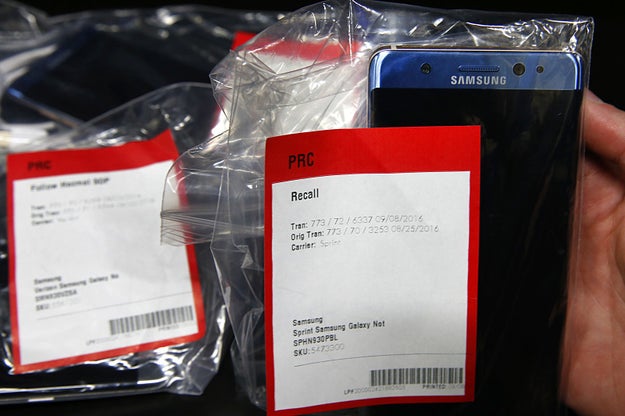
A Southwest Airlines flight 994 departing from Louisville for Baltimore was evacuated this morning after a customer reported smoke emitting from a Galaxy Note 7 cleared for sale by Samsung following a recent recall. Passengers aboard the flight have been re-booked on alternate Southwest flights.

According to a report inThe Courier-Journal, the Galaxy Note 7 that grounded the flight was purchased by owner Brian Green “about two weeks ago” at an AT&T store. A review of the device&;s International Mobile Equipment Identity or IMEI number by The Verge confirmed that the device had been deemed safe and unaffected by Samsung&039;s official Galaxy Note 7 recall effort. That recall was prompted by multiple reports of overheating and explosion from the phone&039;s lithium ion battery.

In a September 2 press conference, Samsung leadership blamed the Galaxy Note 7&039;s battery issue on a “battery cell problem” caused by errors in “the manufacturing process.”

According to WHAS 11 reporter Rachel Platt, one passenger had finished boarding flight 994 when he saw a male passenger take a smoking Samsung smartphone out of his pocket and throw it on the ground at around 9:15 a.m. local time. Another claimed that the phone burned a hole through the carpet.

The flight was evacuated before it had the chance to take off.

The owner of the smoking device, Brian Green, is reportedly getting a new phone and set of clothes after the incident.

Green told The Verge that the phone was powered down and at 80% capacity when it began emitting a “thick grey-green angry smoke.” He also claimed that he replaced the device with the iPhone 7 and that the Louisville Fire Department is in possession of the Samsung phone.

George Frey / Getty Images

Roughly one million Samsung Galaxy Note 7 phones have been formally recalled by the US Consumer Product Safety Commission. Any phone sold before September 15, 2016 is eligible for a replacement and customers can find out more information at Samsung.com.

Southwest is encouraging all of its customers to adhere to the FAA&039;s Pack Safe guidelines which recommend that, “Lithium batteries recalled by the manufacturer/vendor must not be carried aboard aircraft or packed in baggage.”

Samsung has not yet responded to a request for comment.

Quelle: <a href="Evacuation Of Southwest Flight Caused By Smoking Samsung Phone“>BuzzFeed

Encryption At Rest with Azure Site Recovery is now generally available

We are excited to announce that Encryption At Rest with Azure Site Recovery (ASR) which was in Private preview earlier, is now Generally Available (GA). This follows the recent announcement from the Azure Storage team on the General Availability of this feature.

Storage Service Encryption (SSE) helps your organization protect and safeguard data to meet your organizational security and compliance commitments. ASR’s support for Storage Service Encryption delivers further on our promise of providing an enterprise-class, secure and reliable business continuity solution.

With this feature, you can now replicate your on-premises data to storage accounts with Encryption enabled. Encryption can be enabled via the portal on the storage account’s Settings pane as shown in Figure: 1.

If you want to programmatically enable or disable Encryption, you can use the Azure Storage Resource Provider REST API, the Storage Resource Provider Client Library for .NET, Azure PowerShell, or the Azure CLI, details of which can be found in the feature overview from the Azure storage team.

Figure: 1

After enabling encryption, this storage account can be specified as a target for replication while setting up protection for your workloads using Site Recovery as shown in Figure: 2. 

All the replicated data would now be encrypted prior to persisting to storage and decrypted on retrieval. Upon a failover to Azure, your machine would run off of the encrypted storage account.

Figure: 2

Below are a few considerations to keep in mind when using this feature:

All encryption keys are stored, encrypted, and managed by Microsoft.
The experience when using ASR does not change when replicating to SSE-enabled storage accounts.
If you have been using ASR for protecting your workloads, you can turn on SSE for storage accounts used to store the replicated data. Once you do this, all data replicated to these storage accounts from then on (fresh writes) would be encrypted. Data replicated and stored in these storage accounts prior to enabling SSE would not be encrypted.
If you intend to replicate your workloads to premium storage, you will need to turn on SSE on both the premium storage account and the standard storage account used for storing replication logs (configured at the time of setting up replication). 

Support matrix for this feature is specified below for your reference:

Support Matrix

Supported Workloads

All workloads supported by ASR for DR to Azure including
 
VMware virtual machines/physical servers.
Hyper-V VM’s managed by System Center VMM
Hyper-V hosts without System Center VMM.

Storage Type
Standard storage
Premium storage (For VMware virtual machines/physical servers)

Deployment model
Resource Manager


For a complete understanding of how SSE works, please refer to the detailed SSE documentation from the Azure storage team.

Ready to start using ASR? Check out additional product information, to start replicating your workloads to Microsoft Azure using Azure Site Recovery today. You can use the powerful replication capabilities of Site Recovery for 31 days at no charge for every new physical server or virtual machine that you replicate. Visit the Azure Site Recovery forum on MSDN for additional information and to engage with other customers, or use the ASR UserVoice to let us know what features you want us to enable next.

Azure Site Recovery, as part of Microsoft Operations Management Suite, enables you to gain control and manage your workloads no matter where they run (Azure, AWS, Windows Server, Linux, VMware or OpenStack) with a cost-effective, all-in-one cloud IT management solution. Existing System Center customers can take advantage of the Microsoft Operations Management Suite add-on, empowering them to do more by leveraging their current investments. Get access to all the new services that OMS offers, with a convenient step-up price for all existing System Center customers. You can also access only the IT management services that you need, enabling you to on-board quickly and have immediate value, paying only for the features that you use.
Quelle: Azure

With Facebook Messenger Integration, Shopify Lets Businesses Sell Via Bots

Chatting with retailer bots can be an annoying experience. Some can&;t seem to take a hint when you want to buy their product. Others suggest searching the web for the stuff you say you&039;re interested in. Today, Shopify, a tech company that helps merchants sell online, is introducing a Facebook Messenger integration intended to make the process a little bit easier for 250,000 of the businesses that use it, and their customers.

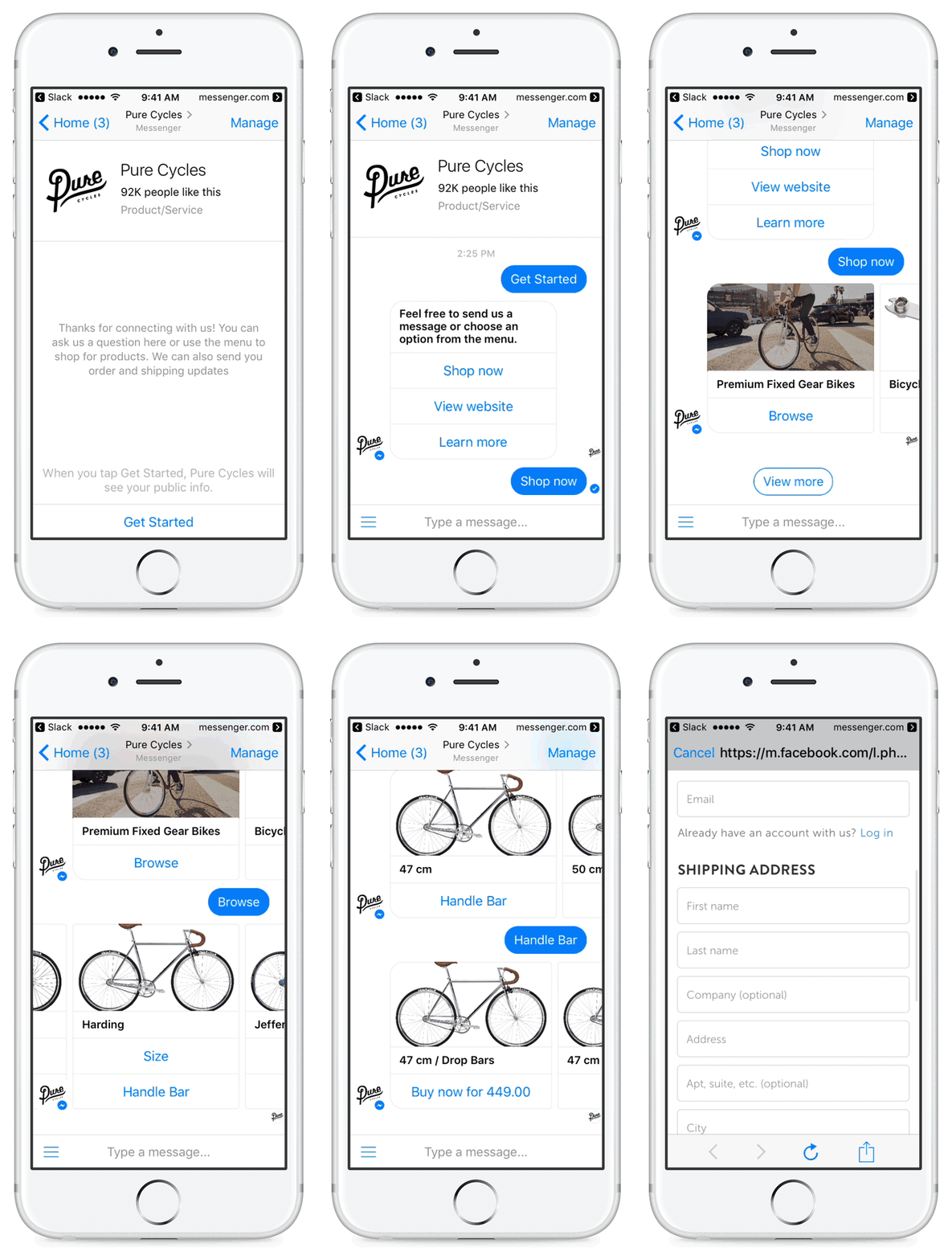
The integration, available to Shopify merchants in the US, UK, Canada, and Australia, makes product catalogs and pricing available inside Messenger. It also lets shoppers complete purchases inside the app. People chatting with Shopify merchant bots can browse through store catalogs and pricing by tapping through suggested replies inside a Messenger conversation. To make a purchase, they need only click “buy now” to view a checkout form with an assortment of payment options. Shopify isn’t storing credit card information inside Messenger right now, but the company is testing native payments and expects to release a product with that integration within the next few months, though it may be a small test to start.

“Starting today, we’ve made it possible for your customers to browse and buy products in Messenger—all while chatting with you in real-time,” the company told its merchants in a blog post. “This is a major step forward for conversational commerce, one that has the potential to change the way the world shops online.”

In February, Shopify introduced Shopkey, a keyboard that imports retailers&039; product catalogs, allowing them to quickly insert photos and purchase links into conversations with customers on social media. Today&039;s move brings the product catalog even closer to those customers, letting them browse it themselves in a message thread.

The integration will be available today to 250,000 Shopify merchants. Of these retailers, 23,000 have already signed up for an earlier feature that allows them to send customers notifications like shipping status via Messenger. Those merchants could form a strong base to help this new effort take hold.

Social commerce hasn&039;t exactly blown anyone away. Twitter, for example, bet on commerce only to dissolve the team charged with developing it earlier this year. Merchants working with Facebook proper have also expressed displeasure with social commerce. Much needs to happen for the struggling practice to reverse course, and taking some of the friction out of the process, which this integration does, is a good place to start.

Quelle: <a href="With Facebook Messenger Integration, Shopify Lets Businesses Sell Via Bots“>BuzzFeed

OMS TECH Fridays – Fall 2016 season

You are Invited!

Join us every other Friday for an hour focused on technical information regarding Microsoft’s Business Continuity and Disaster recovery Solutions including Azure Site Recovery (ASR), Azure Backup (AB), Operational Insights (OI), Azure Automation (AA), and related technologies. This call is open to our customers and partners with the general outline being as follows:

OMS (Operations Management Suite) overview (10-15 minutes)
Technical deep dive/partner focus of the week (30 minutes)
Q&A (10-15 minutes)

You can join the call via Skype and you can make sure you do not miss any off the series by adding our Calendar Invite

If you missed a session, all session will be recorded and posted at our OMS TECH Fridays Channel.

Session Re-Caps

September 16th: Azure Site Recovery – Deployment Troubleshooting​

September 30th:  Vmware to Hyper-V Migration with ASR Scout
Quelle: Azure

Cloud technology can help businesses prepare for Brexit

A majority of voters in the United Kingdom chose June 23 to leave the European Union. Business leaders in the UK and across the EU face a period of great uncertainty.
While negotiations around the precise terms of the so-called Brexit have yet to begin, speculation on matters such as access to markets, movement of labor and data protection are already having an impact on business decisions. Changing regulatory and economic conditions will mean only those with flexible business models will not only weather the storm, but potentially flourish.
Innovation, agility and speed to market are the keys to success here. Cloud solutions with inherent flexibility, scalability and cost efficient delivery not only enable innovation, but underpin agile business.
Cloud solutions can be a growth engine for your business and a means to address the uncertainty that comes with changing business and regulatory climates. Here are a few ways you can be better prepared:

Manage data security and privacy
Reduce the cost of IT infrastructure
Evaluate location strategy to reduce risk
Assess the impact of Brexit on shared services and outsourcing
Use cognitive analytics to make relevant information accessible

Learn more strategies that can help businesses prepare for Brexit.
The post Cloud technology can help businesses prepare for Brexit appeared first on news.
Quelle: Thoughts on Cloud

How to use Docker to run ASP.NET Core apps on Google App Engine

Posted by Ivan Naranjo, Software Developer

Ever wish you could run an ASP.NET Core app on Google App Engine? Now you can, by packaging it in a Docker container.

Google App Engine is a platform for building scalable web applications and mobile backends, and provides the built-in services and APIs common to most applications. Up until recently this infrastructure was only accessible from a handful of languages (Java, Python, Go and PHP), but that changed with the introduction of App Engine Flexible Environment, previously known as Managed VMs. App Engine Flexible allows you to use a Docker container of your choice as the backend for your app. And since it’s possible to wrap an ASP.NET Core app in a Docker image, this allows us to run ASP.NET Core apps on App Engine Flexible.

Step 1: Run your ASP.NET Core app locally
There have been NuGet packages for Google Cloud APIs in .NET for a long time, but starting with version 1.15.0.560, these NuGet packages have started targeting the .NET Core runtime. This allows you to write ASP.NET Core apps that use the Google Cloud APIs, to take advantage of services like Google Cloud Storage, Google Cloud Pub/Sub, or perhaps the newer machine learning APIs.

To show you how to deploy an ASP.NET Core app to App Engine Flexible, we’re going to deploy a very simple app (see the documentation for information about how to build an ASP.NET app that uses the GCP APIs). Of course to use ASP.NET Core, you’ll first need to install the .NET Core runtime and Visual Studio tooling, as well as Bower, which our ASP.NET Core app project uses to set up client-side dependencies.

Let’s start by creating a new ASP.NET Core app from Visual Studio. Open up Visual Studio and select “File > New Project…”. In the dialog, select the “Web” category and the “ASP.NET Core Web Application (.NET Core)” template:

Name the app “DemoFlexApp” and save it in the default “Projects” directory for Visual Studio. In the next dialog, select “Web Application” and press “OK”:

This will generate the app for you. Try it locally by pressing F5, which will build and run the app and open it in a browser window. Once you’re done, stop the app by closing the browser and stopping the debugging session.

Step 2: Package it as a Docker container
Now let’s prepare our app to run on App Engine Flexible. The first step is to define the container and its contents. Don’t worry, you won’t need to install Docker ⸺ App Engine Flexible can build Docker images remotely as part of the deployment process.

For this section, we’ll work from the command line. Open up a new command line window by using Win+R and typing cmd.exe in the dialog.

Now we need to navigate to the directory that contains the project you just created. You can get the path to the project by right clicking on the project in Visual Studio’s Solution Explorer and using the “Open Folder in File Explorer” option:

You can then copy the path from the File Explorer window and paste it into the command line window.

We’ll start by creating the contents of the Docker image for our app, including all its packages, pages, and client side scripts in a single directory. The dotnet CLI creates this directory by “publishing” your app to it, with the following command:

dotnet publish -c Release

Your app is now published to the default publish directory in the Release configuration. During the process of publishing your app, the dotnet CLI resolves all of dependencies and gathers them together with all other files into the output directory. This directory is what Microsoft calls a .NET Core Portable App; it contains all of the files that compose your app, and can be used to run your app on any platform that NET Core supports. You can run your app from this directory with this command:

cd binReleasenetcoreapp1.0publish
dotnet DemoFlexApp.dll

Be sure to be in the published directory when you run this command so that all of the resources can be found.

The next step is to configure the app that we’ll deploy to App Engine Flexible. This requires two pieces:

The Dockerfile that describes how to package the app files into a Docker container
The app.yaml file that tells the Google Cloud SDK tools how to deploy the app

We will deploy the app from the “published” directory that you created above.

Take the following lines and copy them to a new file called “Dockerfile” under the “published” directory:

FROM microsoft/dotnet:1.0.1-core
COPY . /app
WORKDIR /app
EXPOSE 8080
ENV ASPNETCORE_URLS=http://*:8080
ENTRYPOINT [“dotnet”, “DemoFlexApp.dll”]

A Dockerfile describes the content of the Docker image starting from an existing image and adds files and other changes to it. Our repo Dockerfile starts from the Microsoft official image, which is already configured to run .NET Core apps and adds the app files and the tools necessary to run the app from the directory.

One important configuration included in our Dockerfile is the port on which the app listens for incoming traffic ⸺ port 8080, per App Engine Flexible requirements. This is accomplished by setting the ASPNETCORE_URLS environment variable, which ASP.NET Core apps use to determine the port to listen to.

The app.yaml file describes how to deploy the app to App Engine, in this case, the App Engine Flexible environment. Here’s the minimum configuration file required to run on App Engine Flexible, specifying a custom runtime and the Flexible environment. Copy its contents and paste them into a new file called “app.yaml” under the “published” directory:

runtime: custom
vm: true

Step 3: Deploy to App Engine Flexible
Once you’ve saved the Dockerfile and app.yaml files to the published directory, you’re ready to deploy your app to App Engine Flexible. We’re going to use the Google Cloud SDK to do this. Follow these steps to get the SDK fully set up on your box. You’ll also need a Google Cloud Platform project with billing enabled.

Once you’ve fully configured the app and selected a project to deploy it to, you can finally deploy to App Engine Flexible. To do that run this command:

gcloud app deploy app.yaml

The command will take some time to complete, especially the first time since it has to perform all the setup. Once done, open a browser to the newly deployed app:

gcloud app browse

There! You’ve downloaded an ASP.NET Core app, packaged it as a Docker container, and deployed it to Google App Engine Flexible. We look forward to seeing more ASP.NET apps running on Google App Engine.

Quelle: Google Cloud Platform

Azure DocumentDB SDK updates include Python 3 support

Azure DocumentDB, Microsoft’s globally replicated, low latency, NoSQL database, is pleased to announce updates to all four of its client-side SDKs. The biggest improvements were made to the Python SDK, including support for Python 3, connection pooling, consistency improvements, and Top/Order By support for partitioned collections.

This article describes the changes made to each of the new SDKs.

DocumentDB Python SDK 2.0.0

The Azure DocumentDB Python SDK now supports Python 3. The DocumentDB Python SDK previously supported Python 2.7, but it now supports Python 3.3, Python 3.4 and Python 3.5, in addition to Python 2.7. But that’s not all! Connection pooling is now built in, so instead of creating a new connection for each request, calls to the same host are now added to the same session, saving the cost of creating a new connection each time. We also added a few enhancements to consistency level support, and we added Top and Order By support for cross-partition queries, so you can retrieve the top results from multiple partitions and order those results based on the property you specify.

To get started, go to the DocumentDB Python SDK page to download the SDK, get the latest release notes, and browse to the API reference content.

DocumentDB .NET SDK 1.10.0

The new DocumentDB .NET SDK has a few specific improvements, the biggest of which is direct connectivity support for partitioned collections. If you&;re currently using a partitioned collection – this improvement is the go fast button!  In addition, the .NET SDK improves performance for the Bounded Staleness consistency level, and adds LINQ support for StringEnumConverter, IsoDateTimeConverter and UnixDateTimeConverter while translating predicates.

You can download the latest DocumentDB .NET SDK, get the latest release notes, and browse to the API reference content from the DocumentDB .NET SDK page.

DocumentDB Java SDK 1.9.0

In the new DocumentDB Java SDK, we’ve changed Top and Order By support to include queries across partitions within a collection. 

You can download the Java SDK, get the latest release notes, and browse to the API reference content from the DocumentDB Java SDK page.

DocumentDB Node.js SDK 1.10.0

In the new Node.js SDK, we also changed Top and Order By support to include queries across partitions within a collection.

You can download the Node.js SDK, get the latest release notes, and browse to the API reference content from the DocumentDB Node.js SDK page.

Please upgrade to the latest SDKs and take advantage of all these improvements. And as always, if you need any help or have questions or feedback regarding the new SDKs or anything related to Azure DocumentDB, please reach out to us on the developer forums on Stack Overflow. And stay up-to-date on the latest DocumentDB news and features by following us on Twitter @DocumentDB.
Quelle: Azure

How To Dockerize Vendor Apps like Confluence

Docker Datacenter customer, Shawn Bower of Cornell University recently shared their experiences in containerizing Confluence as being the start of their Docker journey.
Through that project they were able to demonstrate a 10X savings in application maintenance, reduce the time to build a disaster recovery plan from days to 30 minutes and improve the security profile of their Confluence deployment. This change allowed the Cloudification team that Shawn leads to start spending the majority of their time helping Cornelians to use technology to be innovative.
Since the original blog was posted, there’s been a lot of requests to get the pragmatic info on how Cornell actually did this project.  In the post below, Shawn provides detailed instructions on how Confluence is containerized and how the Docker workflow is integrated with Puppet.

Written by Shawn Bower
As we started our Journey to move Confluence to the cloud using Docker we were emboldened by the following post from Atlassian. We use many of the Atlassian products and love how well integrated they are.  In this post I will walk you through the process we used to get Confluence in a container and running.
First we needed to craft a Dockerfile.  At Cornell we used image inheritance which enables our automated patching and security scanning process.  We start with the cannonical ubuntu image: https://hub.docker.com/_/ubuntu/ and then build on defaults used here at Cornell.  Our base image is available publicly on github here: https://github.com/CU-CommunityApps/docker-base.
Let’s take a look at the Dockerfile.
FROM ubuntu:14.04

# File Author / Maintainer
MAINTAINER Shawn Bower <my email address>

# Install.
RUN
apt-get update && apt-get install –no-install-recommends -y
build-essential
curl
git
unzip
vim
wget
ruby
ruby-dev
-daemon
openssh-client &&
rm -rf /var/lib/apt/lists/*

RUN rm /etc/localtime
RUN ln -s /usr/share/zoneinfo/America/New_York /etc/localtime

Clamav stuff
RUN freshclam -v &&
mkdir /var/run/clamav &&
chown clamav:clamav /var/run/clamav &&
chmod 750 /var/run/clamav

COPY conf/clamd.conf /etc/clamav/clamd.conf

RUN echo “gem: –no-ri –no-rdoc” > ~/.gemrc &&
gem install json_pure -v 1.8.1 &&
gem install puppet -v 3.7.5 &&
gem install librarian-puppet -v 2.1.0 &&
gem install hiera-eyaml -v 2.1.0

# Set environment variables.
ENV HOME /root

# Define working directory.
WORKDIR /root

# Define default command.
CMD [“bash”]

At Cornell we use Puppet for configuration management so we bake that directly into our base image.  We do a few other things like setting the timezone and installing the clamav agent as we have some applications that use that for virus scanning.  We have an automated project in Jenkins that pulls that latest ubuntu:14.04 image from Docker Hub and then builds this base image every weekend.  Once the base image is built we tag it with ‘latest’, a time stamp tag and automatically push it to our local Docker Trusted Registry.  This allows the brave to pull in patches continuously while allowing others to pin to a specific version until they are ready to migrate.  From that image we create a base Java image which installs Oracle’s JVM.
The Dockerfile is available here and explained below.
# Pull base image.
FROM DTR Repo path /cs/base

# Install Java.
RUN
apt-get update &&
apt-get -y install software-properties-common &&
add-apt-repository ppa:webupd8team/java -y &&
apt-get update &&
echo “oracle-java8-installer shared/accepted-oracle-license-v1-1 select true” | sudo debconf-set-selections &&
apt-get install -y oracle-java8-installer &&
apt-get install oracle-java8-set-default &&
rm -rf /var/lib/apt/lists/*

# Define commonly used JAVA_HOME variable
ENV JAVA_HOME /usr/lib/jvm/java-8-oracle

# Define working directory.
WORKDIR /data

# Define default command.
CMD [“bash”]

The same automated patching process is followed for the Java image as with the base image.  The Java image is automatically built after the base imaged and tagged accordingly so there is a matching set of base and java8.  Now that we have our Java image we can layer on Confluence.  Our Confluence repository is private but the important bits of the Dockerfile are below.
FROM DTR Repo path for cs/java8

# Configuration variables.
ENV CONF_HOME     /var/local/atlassian/confluence
ENV CONF_INSTALL  /usr/local/atlassian/confluence
ENV CONF_VERSION  5.8.18

ARG environment=local

# Install Atlassian Confluence and helper tools and setup initial home
# directory structure.
RUN set -x
&& apt-get update –quiet
&& apt-get install –quiet –yes –no-install-recommends libtcnative-1 xmlstarlet
&& apt-get clean
&& mkdir -p                “${CONF_HOME}”
&& chmod -R 700            “${CONF_HOME}”
&& chown daemon:daemon     “${CONF_HOME}”
&& mkdir -p                “${CONF_INSTALL}/conf”
&& curl -Ls                “http://www.atlassian.com/software/confluence/downloads/binary/atlassian-confluence-${CONF_VERSION}.tar.gz” | tar -xz –directory “${CONF_INSTALL}” –strip-components=1 –no-same-owner
&& chmod -R 700            “${CONF_INSTALL}/conf”
&& chmod -R 700            “${CONF_INSTALL}/temp”
&& chmod -R 700            “${CONF_INSTALL}/logs”
&& chmod -R 700            “${CONF_INSTALL}/work”
&& chown -R daemon:daemon  “${CONF_INSTALL}/conf”
&& chown -R daemon:daemon  “${CONF_INSTALL}/temp”
&& chown -R daemon:daemon  “${CONF_INSTALL}/logs”
&& chown -R daemon:daemon  “${CONF_INSTALL}/work”
&& echo -e                 “nconfluence.home=$CONF_HOME” >> “${CONF_INSTALL}/confluence/WEB-INF/classes/confluence-init.properties”
&& xmlstarlet              ed –inplace
–delete               “Server/@debug”
–delete               “Server/Service/Connector/@debug”
–delete               “Server/Service/Connector/@useURIValidationHack”
–delete               “Server/Service/Connector/@minProcessors”
–delete               “Server/Service/Connector/@maxProcessors”
–delete               “Server/Service/Engine/@debug”
–delete               “Server/Service/Engine/Host/@debug”
–delete               “Server/Service/Engine/Host/Context/@debug”
“${CONF_INSTALL}/conf/server.xml”

# bust cache
ADD version /version

# RUN Puppet
WORKDIR /
COPY Puppetfile /
COPY keys/ /keys

RUN mkdir -p /root/.ssh/ &&
cp /keys/id_rsa /root/.ssh/id_rsa &&
chmod 400 /root/.ssh/id_rsa &&
touch /root/.ssh/known_hosts &&
ssh-keyscan github.com >> /root/.ssh/known_hosts &&
librarian-puppet install &&
puppet apply –modulepath=/modules – hiera_config=/modules/confluence/hiera.yaml

–environment=${environment} -e “class { confluence::app': }” &&
rm -rf /modules &&
rm -rf /Puppetfile* &&
rm -rf /root/.ssh &&
rm -rf /keys

USER daemon:daemon

# Expose default HTTP connector port.
EXPOSE 8080

VOLUME [“/opt/atlassian/confluence/logs”]

# Set the default working directory as the installation directory.
WORKDIR /var/atlassian/confluence

# Run Atlassian Confluence as a foreground process by default.
CMD [“/opt/atlassian/confluence/bin/catalina.sh”, “run”]

We bring down the install media from Atlassian, explode that into the install path and do a bit of cleanup on some of the XML configs.  We use Docker build cache for that part of the process becauses it does not change often.  After the Confluence installation we bust the cache by adding a version file which changes each time the build runs in Jenkins.  This ensuers that Puppet will run in the container and configure the environment.  Puppet is used to lay down environment (dev, test, prod, etc.) configuration and use a docker build argument called ‘environment.’  This allows us to bake everything needed to run Confluence into the image so we can launch it on any machine with no extra configuration.  Whether to store the configuration in the image or outside is a contested subject for sure, but our decision was  to store all configurations directly in the image. We believe this ensures the highest level of portability.
Here are some general rules we follow with Docker

Use base images that are a part of the automated patching
Follow Dockerfile best practices
Keep the base infrastructure in a Dockerfile, and environment specific information in Puppet
Build one process per container
Keep all components of the stack in one repository
If the stack has multiple components (ie, apache, tomcat) they should live in the same repository
Use subdirectories for each component

Hope you enjoyed this post and gets you containerizing some vendored apps. This is just the beginning as we recently moved a legacy coldfusion app into Docker &; almost anything can probably be containerized!

Tips on how to dockerize @atlassian @Confluence by @Cornell&;s @drizzt51Click To Tweet

More Resources

Try Docker Datacenter free for 30 days
Learn more about Docker Datacenter
Read the blog post &8211; It all started with containerizing Confluence at Cornell
Watch the webinar featuring Shawn and Docker at Cornell

The post How To Dockerize Vendor Apps like Confluence appeared first on Docker Blog.
Quelle: https://blog.docker.com/feed/