Announcing C2C, an independent community to serve, educate and connect Google Cloud customers

Over the last several months, I’ve seen first-hand how the power of knowledge-sharing and community has galvanized our customers in the face of an unprecedented global pandemic. Our customers are asking important questions, forging partnerships, and creating real solutions to today’s most challenging problems by harnessing the power of the cloud, and each other. It’s been nothing short of inspiring. We know from experience that when we support our customers and expand their access to insights and community, there’s no limit to what they can achieve.That’s why we’re excited today to launch a new, independent community for our customers, C2C (Customer to Community). C2C is a platform that will bring together IT executives, developers, and other cloud professionals from Google Cloud customers across the globe. By building a community where our customers can learn, connect, and share knowledge, we can harness our collective power to create an even better cloud to address customer needs.Customers who join C2C will receive exclusive networking opportunities, as well as visibility into the Google Cloud ecosystem, with benefits such as:Opportunities to make connections and learn from other customers, including sharing knowledge and best practices through virtual and in-person events;Expanded access to Google Cloud experts and content, such as knowledge forums, white papers, and methodologies;Early and exclusive access to Google Cloud product roadmaps, with opportunities to provide feedback and act as customer-advisors.Today, we’re inviting all customers in North America and EMEA to join C2C, and we look forward to expanding the community to more regions and more customers in the coming weeks and months. So click here to join us today and, together, let’s shape the future of the cloud.
Quelle: Google Cloud Platform

Google Cloud Next ‘20: OnAir—Accelerating digital transformation in the cloud

Today, I am excited to welcome you to Google Cloud Next ‘20: OnAir, our first digital event series that gives our community an opportunity to learn from top industry leaders and get inspired by our latest cloud innovations. As we’ve all experienced, the COVID-19 pandemic has fundamentally changed how we live and work—for citizens, communities and organizations. At Google Cloud, we’ve been touched by how heroically and graciously people and organizations everywhere have stepped up to the challenge, and we have been humbled by the opportunity to support them during this period of profound change. Remote work, telemedicine, digital banking and distance learning have all become new standards in today’s environment. As we face a period of gradual recovery, we see organizations shifting to digital models to sell to and service customers, to deliver products and services and even to design and manufacture products. These changes have driven many organizations to modernize their technology infrastructure rapidly using the cloud to pivot quickly, optimize costs and prepare for the future. Our mission at Google Cloud is to accelerate our customers’ ability to digitally transform and reimagine their businesses through data-powered innovation. We offer three primary capabilities to help you: global-scale distributed infrastructure as a service, a digital transformation platform, and industry-specific solutions powered by Google’s AI and machine learning advances. We continue to see organizations across various industries place their trust in Google Cloud because of the differentiated technology we provide to help them solve real business problems. This includes several leading global companies we’ve recently announced such as Deutsche Bank, FOX Sports, Procter & Gamble, Group Renault, Telefónica and Verizon—to name just a few.Over the past year, we’ve made many significant advances in our technology and we have several important updates to share with you as we kick off Next OnAir. Here are just a few of the important areas where we are introducing new capabilities:Infrastructure enhancements: We continue to expand our global footprint, opening several new regions over the last year, with plans for many more. We have introduced new capabilities in compute with expanded availability of our Bare Metal solution; in storage with our high scale file solutions; and in new networking with enhancements to our CDN, Cloud Armor, and Network Intelligence Center solutions. We have also introduced important new machine learning-powered capabilities to make our infrastructure significantly easier for you to use.Multi-cloud application modernization: We continue to see rapid uptake of Anthos and have introduced new capabilities that bring Anthos to bare metal hybrid environments, and to other clouds including Microsoft Azure and AWS. We also continue to build tools to help you migrate and modernize a broad array of enterprise workloads to Google Cloud. Multi-cloud analytics: We are introducing BigQuery Omni, our new multi-cloud analytics solution—powered by Anthos—which extends our analytics platform to other public clouds, allowing you to use BigQuery’s familiar interface to break down data silos and create actionable business insights, all from a single pane of glass. We are also introducing new capabilities to make analytics significantly easier with new natural language interfaces and enhancements to Looker, our enterprise analytics offering.More control over data: Also new today is Confidential VMs, the first product in our Confidential Computing portfolio, which lets you run workloads in Google Cloud while ensuring your data is encrypted, not only at rest and in transit, but while it’s being processed as well. This helps remove cloud adoption barriers for customers in highly-regulated industries.Additional compliance controls: We are also announcing Assured Workloads for Government, which allow you to automatically apply controls to your workloads, making it easier for customers to comply with things like data location and personnel access requirements. Industry-specific solutions: We continue to enhance our roadmap for industry-specific solutions across retail, financial services, communications, healthcare and manufacturing. One important example is the new capabilities we have introduced to help you harness 5G as a business services platform. Our Global Mobile Edge Cloud strategy will deliver a portfolio and marketplace of 5G solutions built jointly with telecommunications companies; an open cloud platform for developing these network-centric applications; and a global distributed edge for optimally deploying these solutions. These are only a few of the new product innovations and customer stories we’re showcasing over the course of Next OnAir. Throughout the next nine weeks, we’ll be exploring in detail all the ways we’re building on these and other announcements with an aim toward supporting you no matter where you are in your cloud journey. Our Sales, Customer Engineering, and Customer Service teams are here to support you with industry knowledge and technology expertise to meet your needs. We are also grateful for the broad network of partners who help us create and deliver new solutions to our customers. Together, with all of the Googlers who help support our customers each and every day, I invite you to join us as we kick off Next OnAir.
Quelle: Google Cloud Platform

Next OnAir as it happens: All the announcements in one place

Across our keynote presentations and breakout sessions over the nine weeks of Google Cloud Next ‘20: OnAir, we’ll be sharing a wealth of news and updates on all things cloud. And we want to make sure you don’t miss a thing. Check back in with this blog each week to see a running list of what’s happened—and what’s to come.Week 1From major customer news, to solutions for every industry, to first-of-its-kind product announcements, week one of Next OnAir kicked off with a bang.After an inspiring intro from Alphabet and Google CEO Sundar Pichai, Next OnAir kicked off with Google Cloud CEO Thomas Kurian sharing an overview of our strategy and how we’re helping businesses grow and transform digitally. Read Thomas’ blog post or watch the keynote.We shared a number of new customer stories including our work with Deutsche Bank, FOX Sports, Procter & Gamble, Group Renault, Telefónica and Verizon.We announced BigQuery Omni, in private alpha, a flexible, multi-cloud analytics solution, powered by Anthos, that allows you to cost-effectively access and securely analyze data stored across Google Cloud, AWS, and Azure (coming soon), all without leaving the familiar BigQuery user interface. We announced our first Confidential Computing product—Confidential VMs (beta)—a breakthrough technology which encrypts data in-use—while it is being processed. We announced Assured Workloads for Government (in private beta) to help US government agencies, and the enterprises that serve them, serve government workloads without the compromises of traditional “government clouds.” We’re launching C2C, a new, independent community where our customers can learn, connect, and share knowledge. We announced the Google Cloud ISV/SaaS Center of Excellence (CoE), a new resource to help independent software vendor (ISVs) transform their applications with open, cloud-agnostic architectures, improve user experience through AI/ML and voice, and deliver intelligent insights from their applications by providing rich analytics to business users.You’re invited to join usGoogle Cloud Next ‘20 OnAir is running now through Sep 8, 2020, offering nine full weeks of programming to help you solve your toughest business challenges in the cloud. And the best part is you can join in, for free, no matter where you are, and at a time that works for you. Haven’t yet registered? Get started at g.co/cloudnext.
Quelle: Google Cloud Platform

Azure Partner Zone brings new resources and special events for Partners

On July 1, 2020, the Microsoft Azure team launched a new experience for Azure Partners on Azure Partner Zone. The site will feature the latest news, resources, and content to help partners stay abreast of emerging trends, learn about new products and features, and find the tools needed to build a thriving Azure practice.

In addition to the new web experience for Azure Partners, engineering and marketing teams across Azure will be hosting special events for partners, designed to help build, scale, and secure your Azure practice. The most recent event was with industry experts, Service Leadership Inc, aimed at helping our IT Service Partners prepare and manage a new global economic climate. The webinar illustrated likely upcoming macro-economic scenarios, likely Service Provider revenue and profit paths through recovery, and suggested actions for Service Providers to maximize revenue, profit, and safety. Access to the event recording is available on Partner Zone.

The next event is an exclusive pre-Inspire workshop for Microsoft Partners on Monday, July 20. This full-day, eight-session series is an interactive experience for partners designed to help you build and scale managed services on Azure.  Hear from leadership about the future of Azure and learn how you can leverage our cloud-native management solution to reduce operational costs, generate new revenue opportunities, and expand the value of your offerings. 

Azure Management Workshop details

The Azure Management Workshop: An interactive journey for building, scaling, and optimizing your Azure practice using our one native management solution for Azure.

Monday, July 20 from 9 AM to 5 PM Eastern Time.

Sessions include:

Unplugged with Azure Leadership, an Interview with Julia White, CVP Azure Marketing and Erin Chapple, CVP Azure Compute.
Partnering to Drive Customer Success Pre-, During, and Post-Migration to Azure.
Building Scalable Managed Services on Azure with Azure Lighthouse.
Enabling Governance for Managed Services with Azure Policy.
Enabling Hybrid Managed Service Capabilities with Azure Arc.
Deploying Azure Managed Services at Scale Using ARM Templates.
Building and Scaling a Managed Security Practice on Azure Using Azure Sentinel and Azure Lighthouse. 
Taking the Next Step: Becoming an Azure Expert MSP.

Register today for this one-time event on Azure Partner Zone.

The relaunch of Azure Partner Zone

Azure Partner Zone will be updated regularly to help partners migrate existing applications to Azure, innovate with new apps, and enable customers for success. Explore the Practices pages to discover Azure services aligned to support each of these business needs and alleviate challenges. To learn more about each one and drill further into available training documentation, head over to the Solutions pages. You’ll also find a section for building a COVID-19 strategy, showcasing the best tools and resources to help you and your customers navigate this unchartered climate.

For extended education, check out the Training Library, Partner Resources Catalog, and Partner News Center. Here you can dive into self-paced learning for almost any Azure topic, plus find white papers, datasheets, infographics, videos, latest industry blogs, and more. If you are short on time, try the ‘save’ feature to post things to your Partner Zone profile for viewing or revisiting later on. Visitors who log in to the site with their LinkedIn profile can find saved content under View my Toolkit from the profile dropdown.

Partner Zone also helps partners stay connected to the Azure team through the year-round Partner Newsletter and Azure Partner Community. Newsletter subscribers will get early access to the latest news, events, and opportunities for partner engagement while the Azure Partner Community offers a place for partner-to-partner connections and direct communications with the Azure team.

Build and expand your Azure practice today and visit Azure Partner Zone.
Quelle: Azure

How To Deploy Containers to Azure ACI using Docker CLI and Compose

Running containers in the cloud can be hard and confusing. There are so many options to choose from and then understanding how all the different clouds work from virtual networks to security. Not to mention orchestrators. It’s a learning curve to say the least.

At Docker we are making the Developer Experience (DX) more simple. As an extension of that we want to provide the same beloved Docker experience that developers use daily and integrate it with the cloud. Microsoft’s Azure ACI provided an awesome platform to do just that.

In this tutorial, we take a look at running single containers and multiple containers with Compose in Azure ACI. We’ll walk you through setting up your docker context and even simplifying logging into Azure. At the end of this tutorial, you will be able to use familiar Docker commands to deploy your applications into your own Azure ACI account.

Prerequisites

To complete this tutorial, you will need:

Docker installed on your development machine. You can download and install Docker Desktop Edge version 2.3.3.0 or later from the links below:Docker Desktop for MacDocker Desktop for WindowsDocker Hub account. Get your free account here.An Azure account. Sign up for free.Git installed on your development machine.An IDE or text editor to use for editing files. I would recommend VSCode

Run Docker Container on ACI

The integration with Azure ACI is very similar to working with local containers. The development teams have thought very deeply about the developer experience and have tried to make the UX for working with ACI as close as possible to working with local containers.

Let’s run a simple Nginx web server on Azure ACI.

Log into Azure

You do not need to have the Azure CLI installed on your machine to run Docker images in ACI. Docker takes care of everything.

The first thing you need to do is to login to Azure.

$ docker login azure

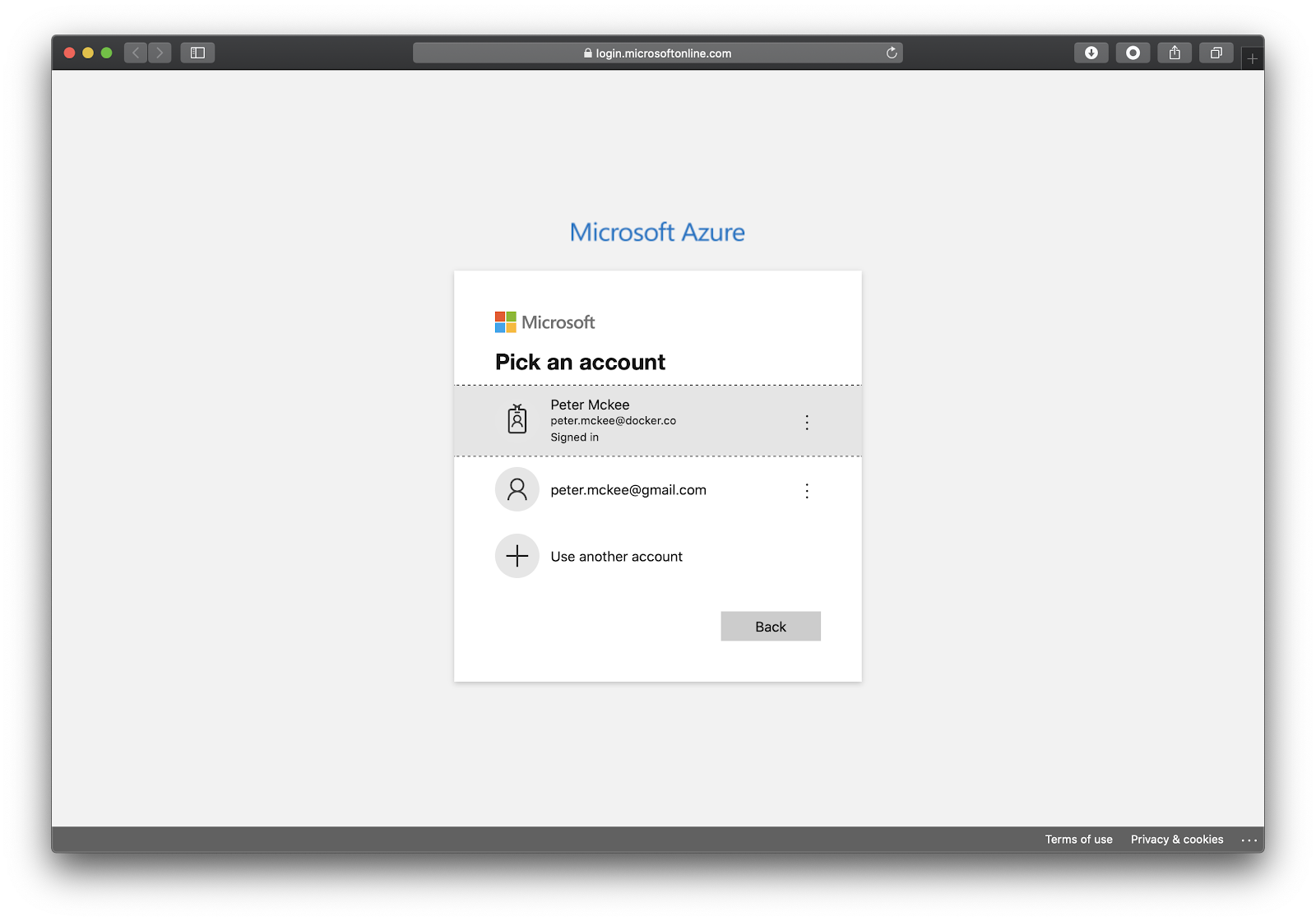
This will open a browser window which will allow you to login to Azure.

Select your account and login. Once you are logged in, you can close the browser window.

Azure ACI Context

Docker has the concept of a context. You can think of a context as a place where you can run docker containers.It’s a little more complicated than this but this is a good enough description for now. In this tutorial, we use our local context and the new ACI context.

Let’s first take a look at what contexts we currently have on our local development machine. Run the following command to see a list of contexts.

$ docker context list

NAME                TYPE                DESCRIPTION           DOCKER ENDPOINT               KUBERNETES ENDPOINT     ORCHESTRATOR

default *           moby                Current DOCKER_HOST based configuration   unix:///var/run/docker.sock   https://kubernetes.docker.internal:6443 (default)   swarm

Depending on if you have already created another context, you should only see one context. This is the default context that points to your local Docker engine labeled as “moby”. You can identify the current context that will be used for docker commands by the “*” beside the name of the active context.

Now let’s create an ACI context that we can run containers with. We’ll use the create aci command to create our context. 

Let’s take a look at the help for creating an aci context.

$ docker context create aci –help

Create a context for Azure Container Instances

Usage:

 docker context create aci CONTEXT [flags]

Flags:

      –description string       Description of the context

  -h, –help                     help for aci

      –location string          Location (default “eastus”)

      –resource-group string    Resource group

      –subscription-id string   Location

Global Flags:

      –config DIRECTORY   Location of the client config files DIRECTORY (default “/Users/peter/.docker”)

  -c, –context string     context

  -D, –debug              enable debug output in the logs

  -H, –host string        Daemon socket(s) to connect to

Underneath the Flags section of the help, you can see that we have the option to set the location, resource-group, and subscription-id.

You can pass these flags into the create command. If you do not, the docker cli will ask you these questions in interactive mode. Let’s do that now.

$ docker context create aci myaci

The first thing the cli will ask is what subscription you would like to use. If you only have one then docker will use that one.

Using only available subscription : Azure subscription 1 (b3c07e4a-774e-4d8a-b071-xxxxxxxxxxxx)

Now we need to select the resource group we want to use. You can either choose one that has been previously created or choose “create a new resource group”. I’ll choose to create a new one.

Resource group “c3eea3e7-69d3-4b54-83cb-xxxxxxxxxxxx” (eastus) created

Okay, our aci context is set up. Let’s list our contexts.

$ docker context list

You should see the ACI context you just created.

Run Containers on ACI

Now that we have our ACI context set up, we can now run containers in the cloud. There are two ways to tell Docker which context you want your commands to be applied to. 

The first is to pass the –context flag. The other is to tell Docker which context we want to use with all subsequent commands by switching contexts. For now, let’s use the –context flag.

$ docker –context myaci run -d –name web -p 80:80 nginx[+] Running 2/2 ⠿ web Created                                                                            ⠿ single–container–aci  Done                                                                                web

Here you can see that Docker interacted with ACI and created a container instance named “web” and started a single instance.

Open your Azure portal and navigate to container instances.

We can also run Docker CLI commands that you are already familiar with such as ps and logs.

Switch Contexts

Let’s take a look at our running containers. But before we do that let’s switch our active context to the ACI context we setup above so we do not have to keep typing –context with every command.

$ docker context use myaci

Now let’s run the ps command without passing the –context flag.

$ docker psCONTAINER ID        IMAGE               COMMAND             STATUS              PORTSweb                 nginx                                   Running             52.224.73.190:80->80/tcp

Nice, since we told Docker to use the myaci context, we see a list of containers running in our Azure account and not on our local machine.

Let’s make sure our container is running. Copy the IP address of the container from the above ps output and paste it into your browser address bar. You can see our Nginx web server running!

Like I mentioned above, we can also take a look at the container’s logs. 

$ docker logs web

To stop and remove the container, run the following command.

$ docker rm web

BOOM!

That was pretty easy and the integration is smooth. With a few docker commands that you are already familiar with and a couple new ones, we were able to run a container in ACI from our development machine pretty quickly and simply.

But we’re not done!

Docker Compose

We can also run multiple containers using Docker Compose. With the ACI integration, we now have the ability to run compose commands from the docker cli against ACI. Let’s do that next.

Fork the Code Repository

I’m using a simple Python Flask application that logs timestamps to a Redis database. Let’s fork the repository and then clone the git repository to your local machine.

Open your favorite browser and navigate to: https://github.com/pmckeetx/timestamper

Click on the “fork” button in the top right corner of the window. This will make a “copy” of the demo repository into your GitHub account.

On your forked version of the repository, click the green “Code” button and copy the github url.

Open up a terminal on your local machine and run the following git command to clone the repository to your local development machine.

Make sure you replace the <<github username>> with your GitHub username.

git clone git@github.com:<<github username>>/timestamper.git

Build and Run Locally

Make sure you are in the root directory for the timestamper project and follow the following steps to build the images and start the application with Docker Compose.

First we need to add your Docker ID to the image in our docker-compose.yml file. Open the docker-compose.yml file in an editor and replace <<username>> with your Docker ID.

Next, we need to make sure we are using the local Docker context.

$ docker context use default

Now we can build and start our application using docker-compose.

$ docker-compose up –buildBuilding frontendStep 1/7 : FROM python:3.7-alpine —> 6ca3e0b1ab69Step 2/7 : WORKDIR /app…frontend_1  |  * Running on http://0.0.0.0:5000/ (Press CTRL+C to quit)frontend_1  |  * Restarting with statfrontend_1  |  * Debugger is active!frontend_1  |  * Debugger PIN: 622-764-646

Docker will build our timestamper image and then run the Redis database and our timestamper containers.

Navigate to http://localhost:5000 and click the Timestamp! button a couple of times.

Compose on ACI

Now let’s run our application on ACI using the new docker compose integration.

We’ll first need to push our image to Docker Hub so ACI can pull the image and run it. Run the following command to push your image to your Docker Hub account.

$ docker-compose pushPushing frontend (pmckee/timestamper:latest)…The push refers to repository [docker.io/pmckee/timestamper]6e899582609b: Pushed…50644c29ef5a: Layer already existslatest: digest: sha256:3ce2607f101a381b36beeb0ca1597cce9925d17a0f826cac0f7e0365386a3042 size: 2201

Now that our image is on Hub, we can use compose to run the application on ACI.

First let’s switch to our ACI context.

$ docker context use myaci

Remember, to see a list of contexts and which is being used, you can run the list contexts command.

$ docker context list

Okay, now that we are using the ACI context, let’s start our application in the cloud.

$ docker compose up[+] Running 3/3 ⠿ timestamper  Created⠿ frontend     Done⠿ backend      Done

Let’s verify that our application is up and running. To get the IP address of our frontend, let’s list our running containers.

$ docker psCONTAINER ID           IMAGE                COMMAND             STATUS              PORTStimestamper_frontend   pmckee/timestamper                       Running             40.71.234.128:5000->5000/tcptimestamper_backend    redis:alpine                             Running

Copy the IP address and port listed above and paste into your favorite browser.

Let’s take a look at the logs for our Redis container.

$ docker logs timestamper_backend

1:C 13 Jul 2020 18:21:12.044 # oO0OoO0OoO0Oo Redis is starting oO0OoO0OoO0Oo…1:M 13 Jul 2020 18:21:12.046 # Server initialized1:M 13 Jul 2020 18:21:12.047 * Ready to accept connections

Yes, sir! That is a Redis container running in ACI! Pretty cool.

After you play around a bit, you can take down the compose application by running compose down.

$ docker compose down

Conclusion

We saw how simple it is now to run a single container or run multiple containers using Compose on Azure with our ACI integration. If you want to help influence or suggest features, you can do that on our public Roadmap.

If you want to learn more about Compose and all the cool things that are happening around the OpenSource initiative, please checkout Awesome Compose and the OpenSource Compose specification. 
The post How To Deploy Containers to Azure ACI using Docker CLI and Compose appeared first on Docker Blog.
Quelle: https://blog.docker.com/feed/