9 things I freakin’ love about Google Cloud identity and environments

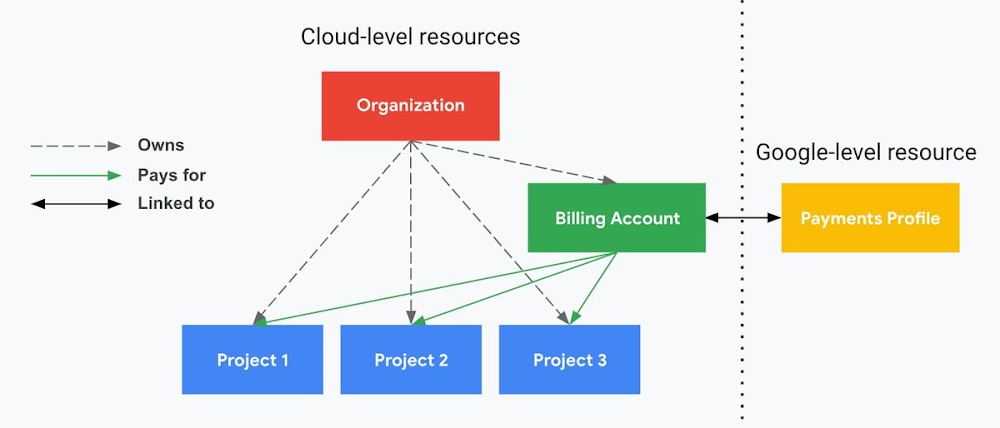
I’ve been at Google Cloud just a few weeks, following years of experience as an AWS Hero and building on other clouds. So last week’s Google Cloud Next–my first!—was a bit of a culture shock. On the GCP podcast, I used the word “intentionality” to describe what I’m seeing: a thoughtful, holistic approach that informs so much of how Google Cloud is put together. Not just in the headline-grabbing new announcements like Google Distributed Cloud, but in the everyday things too. Things like IAM and project setup. Step 1 of any cloud project is to provision access to an environment, and that’s why I always found it so frustrating in my past life when I had to deal with outdated or clunky stuff like:Homebrewed, sketchy SSO tooling and config filesNo centralized identity—I was a different person in every cloud accountMysterious logouts, redirects, and missing project context within the cloud consoleAccount organization features that were “bolted-on” rather than designed the right way from the beginningIn contrast, I recently shared a Twitter thread about how shockingly right Google Cloud gets identity and environments. It’s probably my favorite thing about Google Cloud so far, and so in this post I want to expand on what I’ve learned. If you’re searching for a better way to access and organize your cloud, let me make you one of today’s lucky 10,000.Nine things to love about Google Cloud identity and environments1. You are YOU!Every user is just a Google account (personal or corporate) that works across projects. For beginners, this lowers the barrier to entry and makes cloud feel like an extension of things you already know. For experts, it reduces the friction of having to juggle a bunch of unrelated identities. I love that you can permit any Google account into a cloud project as a collaborator—even a contributor from outside your organization! 2. No non-IAM root accountsGoogle Cloud has been designed from the ground up to avoid the chicken/egg problem of requiring a manually configured superuser that sits outside the rest of the identity management infrastructure. In the Google world, humans use Google accounts, and services use IAM-based service accounts —it’s as straightforward as that. (Even non-Google services can be IAM—yay, workload identity federation!)  3. Project discovery for humansProject, folder, and organization discovery are baked into the console, like browsing a file system scoped to your access level. This hardly even feels like a feature, it’s so subtle and yet absolutely fundamental. But once you see it, you can’t imagine going back to a world where environments exist in a vacuum with no contextual awareness of each other. The hierarchical organization model also means that project-per-application-per-environment best practices are the path of least resistance; if anything, I’ve erred on the side of setting up *too many* logical groupings. It’s just too much fun to play with projects and folders!4. Billing that protects you from yourselfThe project context gives you a logical container for the cost of the resources contained within it. My favorite part of this is that your billing entity is managed separately from the project itself. So you can delete a project and feel sure that all associated resources are gone and no longer racking up charges … without also trashing your ability to pay for future projects you might spin up. (Related: the free tier does not charge you money unless you click a big button that basically says “YES, IT’S OK TO CHARGE ME MONEY.” This guarantee, combined with the familiarity of Google Accounts for access, are the main reasons I now recommend Google Cloud to beginners in my network who are looking for a safe place to learn and explore cloud.)5. Organizational structure != billing structureFor organizations, billing is decoupled from the organization root. So permissions inheritance is a separate design decision from chargeback, as it should be. This keeps your Google Cloud footprint from converging toward Conway’s Law.6. SSO that just worksWant to use the CLI? You get SSO out of the box with your Google Account—no corporate organization required, and no manual shuffling with config files and access keys. Or, better yet, you can use Cloud Shell to run gcloud commands right in your browser, even (especially?) on the docs pages. (Random trivia: I think Cloud Shell is the only native cloud service that has the same name across AWS, Azure, and Google Cloud–but Google’s version has been around the longest and as far as I can tell is the most fully-featured.) 7. One group to rule them allRemember how user entities are just Google accounts? Guess what: you can use Google Groups to manage group access to IAM roles! That’s right: one set of users with permissions across docs, email, and cloud. It’s one reason why Google Workspace makes sense as a core piece of Google Cloud; it really does function like just another cloud service from an identity standpoint. 8. Never lose your placeIn other clouds, I’ve experienced a problem I call the Timeout of Doom: when your console session expires, you’re left on a generic error screen and it’s up to you to figure out how to rebuild your context from scratch–starting with remembering what account you used in the first place. Imagine my delight to realize that reaching your Google Cloud console is as easy as bookmarking a single URL.console.cloud.google.com works and remembers who you are (or, at least, suggests the set of people you might be)—no mystery logouts or redirects.9. Progressive complexity FTWIn my experience it’s been common for cloud providers to design most of their account features for organizations: if you’re an independent developer, you get more exposure to dangerous bills, less access to helpful SSO features, and generally must fend for yourself in a world that wasn’t really created with you in mind.I love that Google Cloud has found a way to work with enterprises while still maintaining their roots as a cloud that developers love to use. Sign in with your personal Google account, attach it to an organization when-and-if you’re ready, and in the meantime you get the same thoughtfulness around SSO and billing as the giant shop down the street. I’m not going to tell you my experience has been seamless; there are footguns here (every Google Workspace integration creates a new project?), and I’m still learning. But it’s that “intentionality” thing again. The Google Cloud identity and environment experience feels like it was designed, not just accreted; there’s an elegant simplicity to it that makes cloud feel fresh and exciting to me all over again. I can’t wait to see what’s next.In the meantime, I highly encourage you to do what I did and spin up a free trial to try things out for yourself. Then hit me up on Twitter with your favorite Google Cloud identity or environment feature!Related Article13 best practices for user account, authentication, and password management, 2021 editionGoogle Cloud offers our best practices to ensure you have a safe, scalable, usable account authentication system.Read Article
Quelle: Google Cloud Platform

Screaming In the Cloud with Corey Quinn and Docker CEO Scott Johnston

On August 31st, Docker announced updates to our product subscriptions — Docker Personal, Pro, Team and Business. Our CEO Scott Johnston recently joined Corey Quinn on an episode of Screaming in the Cloud to go over all the details and discuss how the changes have been received by businesses and the broader developer community. 

The episode with Scott is titled “Heresy in the Church of Docker Desktop with Scott Johnston.” It’s a play on the title of a talk Corey once gave (“Heresy in the Church of Docker”) after he met Scott when they both worked at Puppet.

There’s a substantial discussion around Docker Desktop. Scott describes it as a unique hybrid — one that’s based on upstream open-source technologies (Docker Engine, Docker Compose, BuildKit, etc.), while also being a commercial product that’s engineered for the native environments of Mac and Windows, and soon Linux. He also recalls life before Docker Desktop when developers had to contend with complex setup, maintenance, and “tricky stuff that can go wrong” — all of which Docker Desktop handles so that developers can simply focus on building great apps.

Scott and Corey also discuss the why behind the new subscription tiers, and Docker Business in particular. A key factor was large organizations who use Docker Desktop at scale — as in hundreds and thousands of developers — requesting capabilities to help them manage those large developer environments. Another factor was the need to balance continuing investment in Docker Desktop to give organizations increased productivity, flexibility and security, while also sustainably scaling the Docker business, and still providing a generous free experience with the Docker Personal subscription.

According to Scott, the response from businesses to the updated subscriptions has been overwhelmingly positive. Not only have there turned out to be far more Docker Desktop users inside organizations than previously thought, but many companies have already proactively purchased a Docker subscription. The positive momentum is allowing Docker to accelerate items in the company’s roadmap for developers, such as Docker Desktop for Linux.

You can listen to Episode 264 of “Screaming in the Cloud,” titled “Heresy in the Church of Docker Desktop with Scott Johnston,” here.

Considering an Alternative to Docker Desktop?

Read this blog recapping Docker Captain Bret Fisher‘s video where he reminded his audience of the many things — some of them complex and subtle — that Docker Desktop does that make it such a valuable developer tool.
The post Screaming In the Cloud with Corey Quinn and Docker CEO Scott Johnston appeared first on Docker Blog.
Quelle: https://blog.docker.com/feed/

A closer look at locations in Eventarc

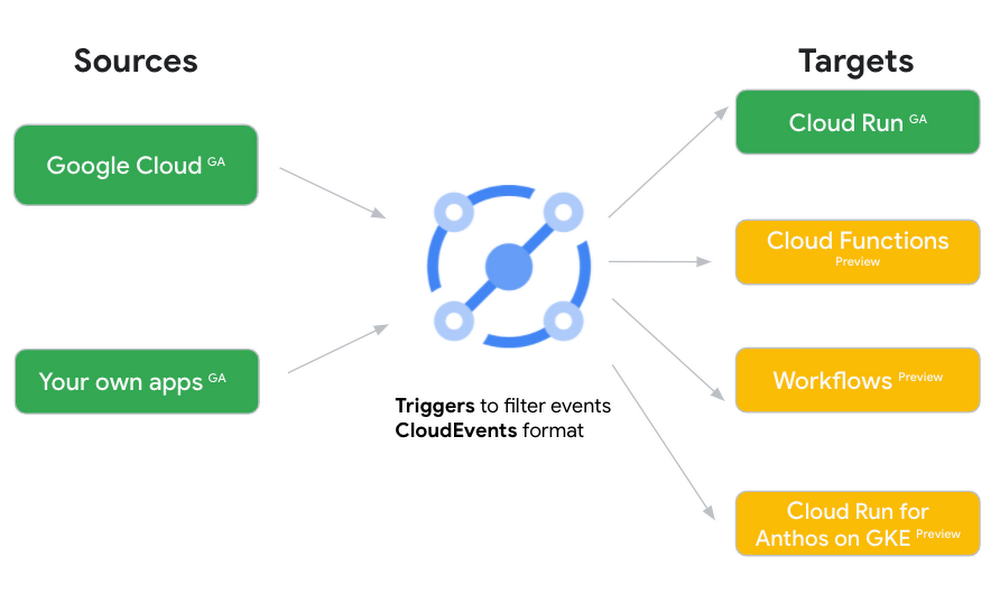
New locations in EventarcBack in August, we announced more Eventarc locations (17 new regions, as well as 6 new dual-region and multi-region locations to be precise). This takes the total number of locations in Eventarc to more than 30. You can see the full list in the Eventarc locations page or by running gcloud eventarc locations list . What does location mean in Eventarc?An Eventarc location usually refers to the single region that the Eventarc trigger gets created in. However, depending on the trigger type, the location can be more than a single region:Pub/Sub triggers only support single-region locations.Cloud Storage triggers support single-region, dual-region, and multi-region locations.Cloud Audit Logs triggers support single-region locations and the special global region.Before looking into trigger location in more detail, let’s look at other locations relevant in Eventarc.What other locations are relevant in Eventarc?Triggers connect event sources to event targets:Each event source, event target, and trigger has its own location. Sometimes, these locations have to match and sometimes they can be different.  Here’s an example of a trigger connecting Cloud Storage events from a bucket in the europe-west1 region to a Cloud Run service in the us-central1 region with a trigger located in the europe-west1 region:In many cases, you don’t have control over the location of the event source. In the example above, the Cloud Storage bucket is in theeurope-west1 region. That’s the location that you need to work with and it has implications for the trigger location (which I’ll get to later). The location of the event target is the region of the service where you want the events to go. You get to choose this from one of the supported regions when you deploy your Cloud Run service. You typically want this to be in the same region as your event source for latency and data locality reasons (but this is not strictly a requirement). In the example above, the event source (bucket) is in europe-west1 but the event target (Cloud Run service) is in  us-central1as specified by the –destination-run-region flag. The location of the trigger is dictated by the event source location, but the trigger type also comes into play. It is specified by the –location flag. Let’s take a look at the trigger location for each trigger type in more detail.Location in Pub/Sub triggersIn a Pub/Sub trigger, you connect a Pub/Sub topic to an event target. Pub/Sub topics are global and not tied to a single region. However, when you create a Pub/Sub trigger, you need to specify a region for it (because Eventarc triggers need to live in a region) with the –location flag as follows:By specifying a location, Eventarc automatically configures the geofencing feature in Pub/Sub such that events only persist in the specified location. As I noted above, you typically want to (but are not required to) choose the same region for the trigger and the Cloud Run service for lower latency and data locality. You can also use regional Pub/Sub service endpoints to publish to the topic to ensure that all of the data stays in a single region. Location in Cloud Storage triggersIn a Cloud Storage trigger, you connect a Cloud Storage bucket to an event target. A Cloud Storage bucket can be in a single-region (e.g. europe-west1), dual-region (e.g. eur4), or multi-region (e.g. eu) location. The location of the bucket dictates the location of the trigger and they have to match. The earlier trigger example was for a bucket in the  europe-west1 single-region location. Here’s another trigger connecting Cloud Storage events from a bucket in the eu multi-region location. Notice how the location flag matches the bucket region:If the bucket region and the trigger region do not match, you’ll see an error:Location in Cloud Audit Logs triggersIn a Cloud Audit Logs trigger, you connect any event source that emits Audit Logs to an event target. The location of the event source will dictate the trigger location. This is typically a single region but there is a special global region that’s necessary in some cases. For example, if you want to read Cloud Storage events from a bucket in the europe-west1 region with an Audit Logs trigger, you will create the trigger with the same location. Note that this will match all buckets in the europe-west1 region as there’s no filter by bucket in Audit Logs:On the other hand, if you want to match a dual-region or a multi-region bucket such as eu, you will create the trigger with the global location as Audit Logs triggers only support a single or global region. Note that this will match all buckets in all regions globally:As you can see from this example, if you want to read Cloud Storage events, the native Cloud Storage trigger is a much better option, but this example illustrates a typical case in which a global Audit Log trigger is necessary. That wraps up this closer look at locations in Eventarc. Feel free to reach out to me on Twitter @meteatamel for any questions or feedback.Related ArticleIntroducing the new Cloud Storage trigger in EventarcLearn how to use the new Cloud Storage trigger of EventarcRead Article
Quelle: Google Cloud Platform

AWS Security Hub fügt Unterstützung für die regionenübergreifende Aggregation von Befunden hinzu, um die Bewertung und Verbesserung Ihres AWS-Sicherheitsstatus zu vereinfachen

AWS Security Hub ermöglicht es Ihnen jetzt, eine Aggregationsregion zu bestimmen und einige oder alle Regionen mit dieser Aggregationsregion zu verknüpfen. Auf diese Weise erhalten Sie einen zentralen Überblick über alle Ihre Befunde für alle Ihre Konten und alle verknüpften Regionen. Nachdem Sie eine Region mit der Aggregationsregion verknüpft haben, werden Ihre Befunde kontinuierlich zwischen den Regionen synchronisiert. Jede Aktualisierung eines Befunds in einer verknüpften Region wird in die Aggregationsregion repliziert, und jede Aktualisierung eines Befunds in der Aggregationsregion wird in die verknüpfte Region repliziert, aus der der Befund stammt. Wenn Sie mehr über diese Funktion erfahren möchten, lesen Sie hier unsere Dokumentation dazu.
Quelle: aws.amazon.com