AWS Config now supports 30 new resource types

AWS Config now supports 30 additional AWS resource types across key services including Amazon EKS, Amazon Q, and AWS IoT. This expansion provides greater coverage over your AWS environment, enabling you to more effectively discover, assess, audit, and remediate an even broader range of resources. With this launch, if you have enabled recording for all resource types, then AWS Config will automatically track these new additions. The newly supported resource types are also available in Config rules and Config aggregators. You can now use AWS Config to monitor the following newly supported resource types in all AWS Regions where the supported resources are available: Resource Types:

AWS::ApplicationSignals::ServiceLevelObjective
AWS::IoT::SoftwarePackage

AWS::ARCZonalShift::AutoshiftObserverNotificationStatus     
AWS::IoT::TopicRule

AWS::B2BI::Transformer
AWS::IoTWireless::Destination

AWS::CE::CostCategory
AWS::IoTWireless::DeviceProfile

AWS::CleanRooms::ConfiguredTable
AWS::IoTWireless::NetworkAnalyzerConfiguration 

AWS::CleanRooms::Membership
AWS::IoTWireless::TaskDefinition

AWS::CodeArtifact::PackageGroup
AWS::IoTWireless::WirelessGateway

AWS::Connect::Prompt
AWS::Kinesis::ResourcePolicy

AWS::EKS::Nodegroup
AWS::PCAConnectorSCEP::Connector

AWS::GameLift::MatchmakingRuleSet
AWS::QBusiness::Application

AWS::GameLift::Script
AWS::QuickSight::DataSet

AWS::Glue::Crawler
AWS::QuickSight::Dashboard

AWS::InternetMonitor::Monitor
AWS::Route53::DNSSEC

AWS::IoT::BillingGroup
AWS::SSM::PatchBaseline

AWS::IoT::ResourceSpecificLogging
AWS::Transfer::User

Quelle: aws.amazon.com

Amazon Bedrock AgentCore Browser now supports browser profiles

Amazon Bedrock AgentCore Browser now supports browser profiles, enabling you to reuse authentication state across multiple browser sessions without repeated login flows. This feature reduces session setup time from minutes to tens of seconds for enterprise customers processing hundreds or thousands of automated browser sessions daily.
Browser profiles persist and reuse browser data including cookies and local storage across multiple sessions. You authenticate to a website once and save the session to a browser profile. When you start a new session using that saved profile, your authentication state is preserved, and you remain logged in. This enables agents to perform tasks on authenticated websites without manual login intervention. You can choose flexible session modes for both read-only and persistent operations, enabling parallel processing where multiple sessions use the same profile simultaneously.
This feature is available in all 14 AWS Regions where Amazon Bedrock AgentCore Browser is available: US East (N. Virginia), US East (Ohio), US West (Oregon), Asia Pacific (Mumbai), Asia Pacific (Singapore), Asia Pacific (Sydney), Asia Pacific (Tokyo), Europe (Frankfurt), Europe (Ireland), Europe (London), Europe (Paris), Europe (Stockholm), Asia Pacific (Seoul), and Canada (Central).
To learn more, visit the Browser Profiles documentation. 
Quelle: aws.amazon.com

Amazon ECS Managed Instances now available in AWS European Sovereign Cloud

Amazon Elastic Container Service (Amazon ECS) Managed Instances is now available in the AWS European Sovereign Cloud. ECS Managed Instances is a fully managed compute option designed to eliminate infrastructure management overhead while giving you access to the full capabilities of Amazon EC2. By offloading infrastructure operations to AWS, you get the application performance you want and the simplicity you need while reducing your total cost of ownership. Managed Instances dynamically scales EC2 instances to match your workload requirements and continuously optimizes task placement to reduce infrastructure costs. It also enhances your security posture through regular security patching initiated every 14 days. You can simply define your task requirements such as the number of vCPUs, memory size, and CPU architecture, and Amazon ECS automatically provisions, configures and operates most optimal EC2 instances within your AWS account using AWS-controlled access. You can also specify desired instance types in Managed Instances Capacity Provider configuration, including GPU-accelerated, network-optimized, and burstable performance, to run your workloads on the instance families you prefer. To get started with ECS Managed Instances, use the AWS Console, Amazon ECS MCP Server, or your favorite infrastructure-as-code tooling to enable it in a new or existing Amazon ECS cluster. You will be charged for the management of compute provisioned, in addition to your regular Amazon EC2 costs. To learn more about ECS Managed Instances, visit the feature page, documentation, and AWS News launch blog.
Quelle: aws.amazon.com

Amazon WorkSpaces Secure Browser now supports custom domain

Amazon WorkSpaces Secure Browser now supports custom domains for your WorkSpaces Secure Browser portals, enabling you to configure portal access through your own domain name instead of the default portal URL. This feature provides users with a more integrated experience using a domain that aligns with your organization’s branding for each secure browser session. As an administrator you simply add the custom domain in the WorkSpaces Secure browser portal and set up a reverse proxy (for example Amazon CloudFront). Once set up, traffic is routed through your reverse proxy to the portal endpoint, and WorkSpaces Secure Browser automatically redirects users to the configured custom domain after authentication and authorization. Authentication can be via AWS Identity Center or your own Identity Provider (IdP), supporting both IdP-initiated and service provider-initiated flows. This feature is available at no additional cost in 10 AWS Regions, including US East (N. Virginia), US West (Oregon), Canada (Central), Europe (Frankfurt, London, Ireland), and Asia Pacific (Tokyo, Mumbai, Sydney, Singapore). WorkSpaces Secure Browser offers pay-as-you go pricing. To get started, visit the Amazon WorkSpaces Secure Browser console to configure your custom domain for your WorkSpaces Secure Browser portal. For more information, see the custom domain section in the Amazon WorkSpaces Secure Browser’s documentation.
Quelle: aws.amazon.com

Reduce Vulnerability Noise with VEX: Wiz + Docker Hardened Images

Open source components power most modern applications. A new generation of hardened container images can establish a more secure foundation, but even with hardened images, vulnerability scanners often return dozens or hundreds of CVEs with little prioritization. This noise slows teams down and complicates security triage. The VEX (Vulnerability Exploitability eXchange) standard addresses the problem by providing information on whether a specific vulnerability actually impacts an organization’s application stack and infrastructure.

A new integration between Docker Hardened Images (DHI) and Wiz CLI now gives security and platform teams accurate reachability insights by analyzing VEX data. Wiz worked with Docker to tune its scanners to properly ingest and parse the VEX statements included with every one of the more than 1,000 DHI images in the catalog. The integration helps users cut through vulnerability noise with scan results that deliver clear, actionable insights.

When the Wiz scanner detects a Docker Hardened Image, it pulls from the image’s VEX documents and OSV advisories to filter out false positives. For organizations already using Wiz, this means a simpler path to adopting hardened images across their container fleet. Finally, for organizations pursuing FedRAMP or other compliance certifications that specify VEX coverage, the ability of Wiz to read DHI VEX statements can accelerate compliance, reducing time to deployment and consequently time to revenue.

TL;DR

Integrate Docker with Wiz to:

Minimize false positives using VEX and OSV data

Identify base images and software components more accurately

Provide security teams with clear visibility into software bills of materials (SBOMs)

Reduce manual validation efforts by integrating detailed issue summaries into your remediation workflows

Better image quality assurance with up-to-date package metadata and SPDX snippets

Migrate to Docker Hardened Images with greater confidence

Why VEX?

VEX (Vulnerability Exploitability eXchange) is a machine-readable way for software suppliers to state whether a known vulnerability actually affects a specific product. Instead of inferring risk from dependency lists alone, VEX explicitly declares whether a vulnerability is not affected, affected, fixed, or under investigation. This matters because many scanner findings are not exploitable in real products, leading to false positives, wasted effort, and obscured real risk.VEX  enables transparent, auditable vulnerability status that security tools and customers can independently verify, unlike proprietary advisory feeds that obscure context and historical risk.

Before you begin

Ensure you have access to both your Docker and Wiz organizations;

Confirm your are using a Docker Hardened Image

Ensure you have SBOM export and scan visibility enabled in Wiz.

Identifying Docker Hardened Images via the Integration on Wiz

With the integration, Wiz automatically detects Docker Hardened Images. The integration consists of two main functionalities on the Wiz dashboard. First, we will verify how many resources and organizations are using Docker Hardened Images by following these steps: 

Navigate to the Wiz Docker integration page and click connect

You’ll be prompted to log in to your Wiz dashboard

Once logged in, navigate to the “Inventory” section on the left side bar of your dashboard

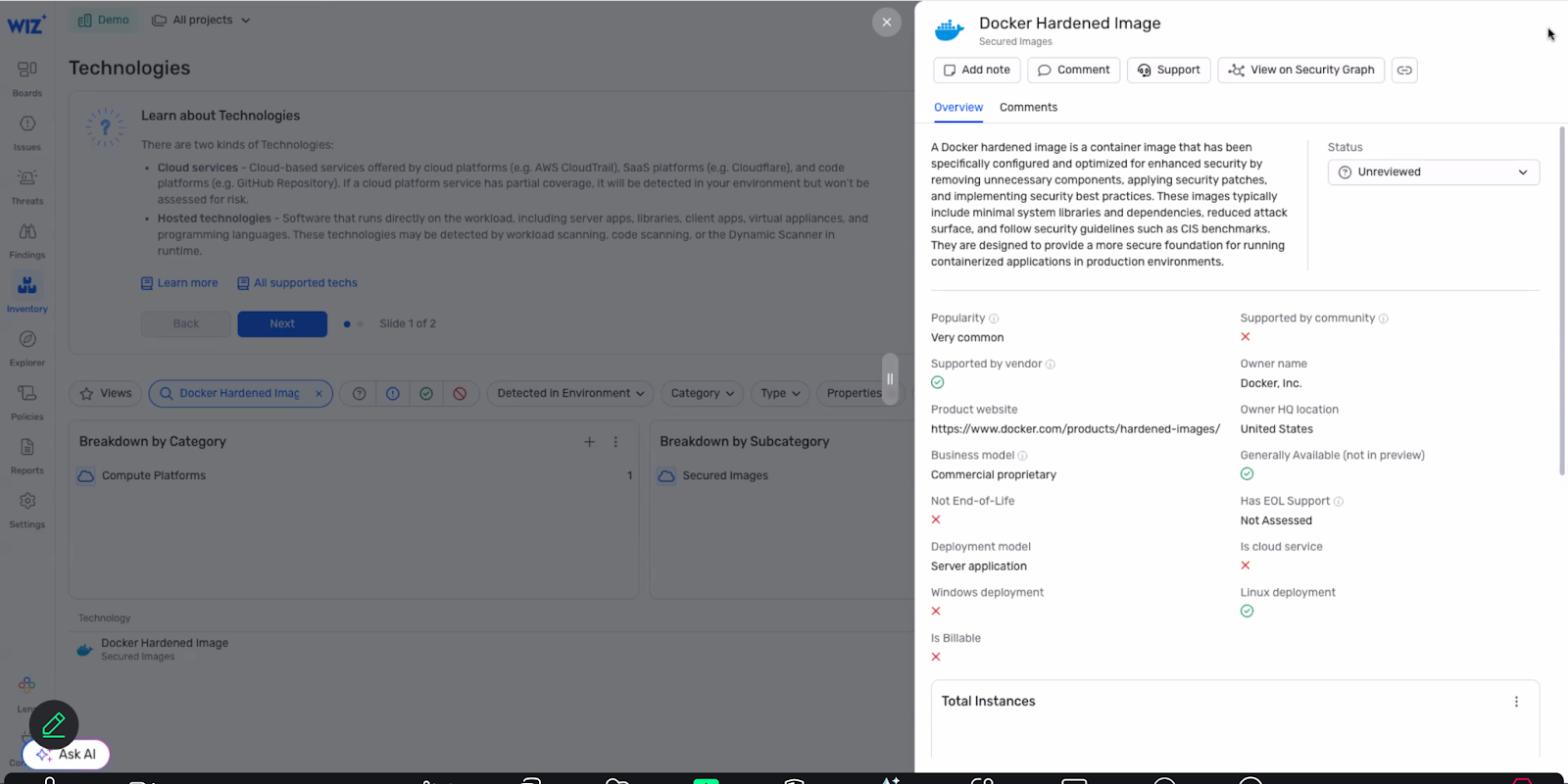
You’ll be redirected to the “Technology” dashboard, where Wiz detects all technologies running on customer environments. Now, look for “Docker Hardened Images” on the search bar

Wiz automatically detects the specific operating systems running on each container mounts and flags them as hardened images

Checking for vulnerabilities on the Wiz dashboard:

Once you’ve validated that Wiz can identify Docker Hardened Images, you will be able to check for vulnerabilities using Wiz’s security graph and Docker’s container metadata. In order to do that, follow these steps from the technologies tab:

Go to inventory/technologies page and filter by operating systems or search for specific technology

Click on the OS/technology to view metadata and resource count

Click to access the security graph view showing all resources running that technology

Add a condition to filter for CVEs detected on those resources. 

View all resources with their associated vulnerabilities in table or graph format

Final Check

After setup, the vulnerabilities will appear according to your pre-set policies. You’ll be able to get a detailed overview on each CVE listed, including graph visualizations for dependency relationships, severity distribution, and potential exploit paths. These insights will help you prioritize remediation efforts, track resolution progress, and ensure compliance with your organization’s security standards.

Integrating Docker Hardened Images for better software supply chain visibility

The Docker-Wiz integration is more than just a checkbox in your security checklist. It provides:

Clarity: VEX documents and accurate base image identification eliminate guesswork, providing clear, contextual vulnerability data.

Confidence: Minimized false positives through OSV advisories and Docker-provided metadata ensures security teams can trust what they see.

Control: Enhanced visibility into SBOMs and technology usage empowers teams to prioritize and manage remediation effectively.

Coverage: Full-stack integration with Wiz surfaces vulnerabilities across all Docker environments, including hardened images and source-built components.This partnership helps DevSecOps teams move fast and remain proactive against container vulnerabilities, an essential capability for modern, lean teams managing fast-paced releases, open source risk, and complex cloud-native environments.

Ready to Get Started?

If you’re already using Docker Hardened Images and Wiz, you’re just a few clicks away from reducing false positives, improving SBOM visibility, and making vulnerability data more actionable.

Check the Docker + Wiz solutions brief

Visit the Docker + Wiz integration page

Read more about VEX in our documentation

Quelle: https://blog.docker.com/feed/