Cloud Wisdom Weekly: 5 ways to reduce costs with containers

“Cloud Wisdom Weekly: for tech companies and startups” is a new blog series we’re running this fall to answer common questions our tech and startup customers ask us about how to build apps faster, smarter, and cheaper. In this installment, Google Cloud Product Manager Rachel Tsao explores how to save on compute costs with modern container platforms. Many tech companies and startups are built to operate under a certain degree of pressure and to efficiently manage costs and resources. These pressures have only increased with inflation, geopolitical shifts, and supply chain concerns, however, creating urgency for companies to find ways to preserve capital while increasing flexibility. The right approach to containers can be crucial to navigating these challenges. In the last few years, development teams have shifted from virtual machines (VMs) to containers, drawn to the latter because they are faster, more lightweight, and easier to manage and automate. Containers also consume fewer resources than VMs, by leveraging shared operating systems. Perhaps most importantly, containers enable portability, letting developers put an application and all its dependencies into a single package that can run almost anywhere. Containers are central to an organization’s agility, and in our conversations with customers about why they choose Google Cloud, we hear frequently that services like Google Kubernetes Engine (GKE) and Cloud Run help tech companies and startups to not only go to market quickly, but also save money. In this article, we’ll explore five ways to help your business quickly and easily reduce compute costs with containers. 5 ways to control compute costs with containers Whether your company is  an established player that is modernizing its business or a startup building its first product, managed containerized products can help you reduce costs, optimize development, and innovate. The following tips will help you to evaluate core features you should expect of container services and include specific advice for GKE and Cloud Run.1. Identify opportunities to reduce cluster administration Most companies want to dedicate resources to innovation, not infrastructure curation. If your team has existing Kubernetes knowledge or runs workloads that need to leverage machine types or graphics processing units (GPUs), you may be able to simplify provisioning with GKE Autopilot. GKE Autopilot provisions and manages the cluster’s underlying infrastructure, all while you pay for only the workload, not 24/7 access to the underlying node-pool compute VMs. In this way, it can reduce cluster administration while saving you money and giving you hardened security best practices by default.2. Consider serverless to maximize developer productivity Serverless platforms continue the theme of empowering your technical talent to focus on the most impactful work. Such platforms can promote productivity by abstracting away aspects of infrastructure creation, letting developers work on projects that drive the business while the platform provider oversees hardware and scalability, aspects of security, and more.  For a broad range of workloads that don’t need machine types or GPUs, going serverless with Cloud Run is a great option for building applications, APIs, internal services, and even real-time data pipelines. Analyst research supports that Cloud Run customers achieve faster deployments with less time spent monitoring services, resulting in reinvested productivity that lets these customers do more with fewer resources.  Designed with high scalability in mind, and an emphasis on the portability of containers, Cloud Run also supports a wide range of stateless workloads, including jobs that run to completion. Moreover, it lets you maximize the skills of your existing team, as it does not require cluster management, a Kubernetes skillset or prior infrastructure experience. Additionally, Cloud Run leverages the Knative spec and a container image as a deployment artifact, enabling an easy migration to GKE if your workload needs change.With Cloud Run, gone are the days of infrastructure overprovisioning! The platform scales down to zero automatically, meaning your services always have the capacity to meet demand, but do not incur costs if there is no traffic. 3. Save with committed use discountsCommitted use discounts provide discounted pricing in exchange for committing to a minimal level of usage in a region for a specified term. If you are able to reliably predict your resource needs, for instance, you can get a 17% discount for Cloud Run (for either one year or three years), and either a 20% discount (for one year) or a 45% discount (for three years) on GKE Autopilot.4. Leverage cost management features Minimum and maximum instances are useful for ensuring your services are ready to receive requests but do not cause cost overages. For Google Cloud customers, best practices for cost management include building your container with Cloud Build, which offers pay-for-use pricing and can be more cost efficient than steady-state build farms.Relatedly, if you choose to leverage serverless containers with Cloud Run, you can set minimum instances to avoid the lag (i.e., the cold start) when a new container instance is starting up from zero. Minimum instances are billed at one-tenth of the general Cloud Run cost. Likewise, if you are testing and want to avoid costs spiraling, you can set a maximum number of instances to ensure your containers do not scale beyond a certain threshold. These settings can be turned off anytime, resulting in no costs when your service is not processing traffic. To have better oversight of costs, you can also view built-in billing reports and set budget alerts on Cloud Billing. 5. Match workload needs to pricing modelsGKE Autopilot is great for running highly reliable workloads thanks to its Pod-level SLA. But if you have workloads that do not need a high level of reliability (e.g., fault tolerant batch workloads, dev/test clusters), you can leverage spot pricing to receive a discount of 60% to 91% compared to regularly-priced pods. Spot Pods run on spare Google Cloud compute capacity as long as resources are available. GKE will evict your Spot Pod with a grace period of 25 seconds during times of high resource demand, but you can automatically redeploy as soon as there is available capability. This can result in significant savings for workloads that are a fit. Innovation requires balance Put into practice, these tips can help you and your business to get the most out of containers while controlling management and resource costs. That said, it is worth noting that while managing cloud costs is important, the relationship between “cloud” and “cost” is often complex. If you are adopting cloud computing with only the primary goal of saving money, you may soon run into other challenges. Cloud services can save your business money in many ways, but they can also help you get the most value for your money. This balance between cost efficiency and absolute cost is important to keep in mind so that even in challenging economic landscapes, your tech company or startup can continue growing and innovating. Beyond cost savings, many tech and startup companies are seeking improved business agility, which is the ability to deploy new products and features frequently and with high quality. With deployment best practices built into GKE Autopilot and Cloud Run, you can transform the way your team operates while maximizing productivity with every new deployment. You can learn if your existing workloads are appropriate for containers with this fit assessment and these guides for migrating to containers. For new workloads, you can leverage these guides for GKE Autopilot and Cloud Run. And for more tips on cost optimization, check out our Architecture Framework for compute, containers, and serverless.If you want to learn more about how Google Cloud can help your startup, visit our page here to get more information about our program and apply for our Google for Startups Cloud Program, and sign up for our communications to get a look at our community activities, digital events, special offers, and more.Related ArticleThink serverless: tips for early-stage startupsGoogle Cloud tips for early-stage startups, from leveraging serverless to maximizing cloud credits to comparing managed services.Read Article
Quelle: Google Cloud Platform
Extending Docker’s Integration with containerd

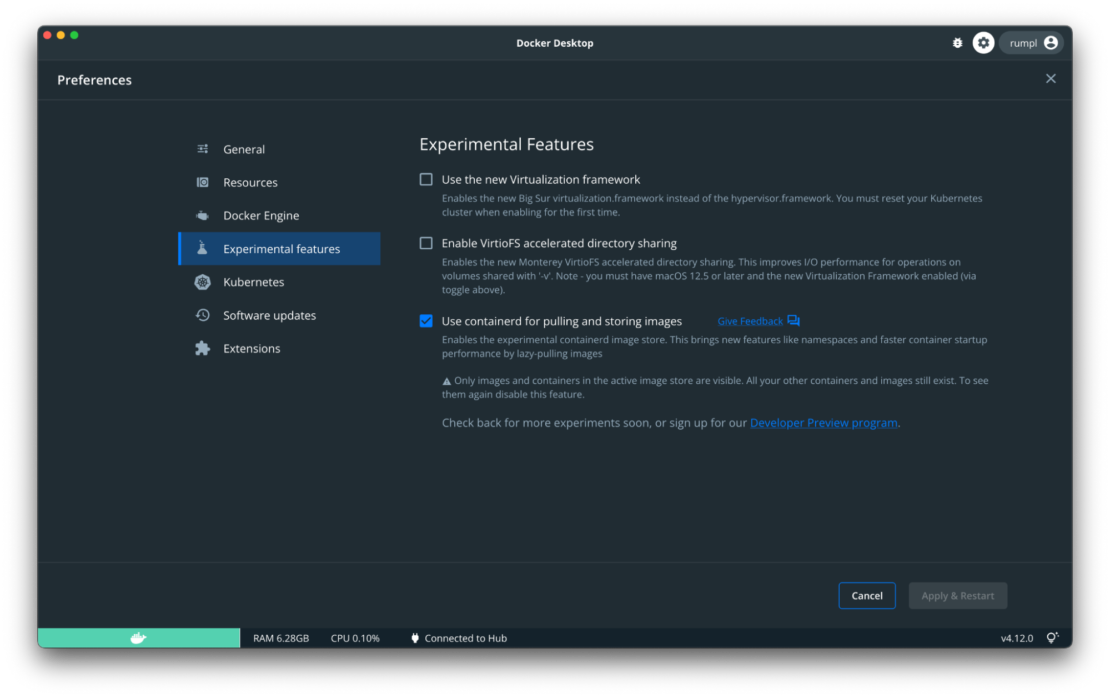
We’re extending Docker’s integration with containerd to include image management! To share this work early and get feedback, this integration is available as an opt-in experimental feature with the latest Docker Desktop 4.12.0 release.

What is containerd?

In the simplest terms, containerd is a broadly-adopted open container runtime. It manages the complete container lifecycle of its host system! This includes pulling and pushing images as well as handling the starting and stopping of containers. Not to mention, containerd is a low-level brick in the container experience. Rather than being used directly by developers, it’s designed to be embedded into systems like Docker and Kubernetes.

Docker’s involvement in the containerd project can be traced all the way back to 2016. You could say, it’s a bit of a passion project for us! While we had many reasons for starting the project, our goal was to move the container supervision out of the core Docker Engine and into a separate daemon. This way, it could be reused in projects like Kubernetes. It was donated to the Cloud Native Computing Foundation (CNCF), and it’s now a graduated (stable) project as of 2017.

What does containerd replace in the Docker Engine?

As we mentioned earlier, Docker has used containerd as part of Docker Engine for managing the container lifecycle (creating, starting, and stopping) for a while now! This new work is a step towards a deeper integration of containerd into the Docker Engine. It lets you use containerd to store images and then push and pull them. Containerd also uses snapshotters instead of graph drivers for mounting the root file system of a container. Due to containerd’s pluggable architecture, it can support multiple snapshotters as well. 

Want to learn more? Michael Crosby wrote a great explanation about snapshotters on the Moby Blog.

Why migrate to containerd for image management?

Containerd is the leading open container runtime and, better yet, it’s already a part of Docker Engine! By switching to containerd for image management, we’re better aligning ourselves with the broader industry tooling. 

This migration modifies two main things:

We’re replacing Docker’s graph drivers with containerd’s snapshotters.We’ll be using containerd to push, pull, and store images.

What does this mean for Docker users?

We know developers love how Docker commands work today and that many tools rely on the existing Docker API. With this in mind, we’re fully vested in making sure that the integration is as transparent as possible and doesn’t break existing workflows. To do this, we’re first rolling it out as an experimental, opt-in feature so that we can get early feedback. When enabled in the latest Docker Desktop, this experimental feature lets you use the following Docker commands with containerd under the hood: run, commit, build, push, load, and save.

This integration has the following benefits:

Containerd’s snapshotter implementation helps you quickly plug in new features. Some examples include using stargz to lazy-pull images on startup or nydus and dragonfly for peer-to-peer image distribution.The containerd content store can natively store multi-platform images and other OCI-compatible objects. This enables features like the ability to build and manipulate multi-platform images using Docker Engine (and possibly other content in the future!).

If you plan to build the multi-platform image, the below graphic shows what to expect when you run the build command with the containerd store enabled. 

Without the experimental feature enabled, you will get an error message stating that this feature is not supported on docker driver as shown in the graphic below. 

If you decide not to enable the experimental feature, no big deal! Things will work like before. If you have additional questions, you can access details in our release notes.

Roadmap for the containerd integration

We want to be as transparent as possible with the Docker community when it comes to this containerd integration (no surprises here!). For this reason, we’ve laid out a roadmap. The integration will happen in two key steps:

We’ll ship an initial version in Docker Desktop which enables common workflows but doesn’t touch existing images to prove that this approach works.Next, we’ll write the code to migrate user images to use containerd and activate the feature for all our users.

We work to make expanding integrations like this as seamless as possible so you, our end user, can reap the benefits! This way, you can create new, exciting things while leveraging existing features in the ecosystem such as namespaces, containerd plug-ins, and more.

We’ve released this experimental feature first in Docker Desktop so that we can get feedback quickly from the community. But, you can also expect this feature in a future Docker Engine release.  

The details on the ongoing integration work can be accessed here. 

Conclusion

In summary, Docker users can now look forward to full containerd integration. This brings many exciting features from native multi-platform support to encrypted images and lazy pulls. So make sure to download the latest version of Docker Desktop and enable the containerd experimental feature to take it for a spin! 

We love sharing things early and getting feedback from the Docker community — it helps us build products that work better for you. Please join us on our community Slack channel or drop us a line using our feedback form.
Quelle: https://blog.docker.com/feed/

The Docker-Sponsored Open Source Program has a new look!

It’s no secret that developers love open source software. About 70–90% of code is entirely made up of it! Plus, using open source has a ton of benefits like cost savings and scalability. But most importantly, it promotes faster innovation.

That’s why Docker announced our community program, the Docker-Sponsored Open Source (DSOS) Program, in 2020. While our mission and vision for the program haven’t changed (yes, we’re still committed to building a platform for collaboration and innovation!), some of the criteria and benefits have received a bit of a facelift.

We recently discussed these updates at our quarterly Community All-Hands, so check out that video if you haven’t yet. But since you’re already here, let’s give you a rundown of what’s new.

New criteria & benefits

Over the past two years, we’ve been working to incorporate all of the amazing community feedback we’ve received about the DSOS program. And we heard you! Not only have we updated the application process which will decrease the wait time for approval, but we’ve also added on some major benefits that will help improve the reach and visibility of your projects.

New application process — The new, streamlined application process lets you apply with a single click and provides status updates along the wayUpdated funding criteria — You can now apply for the program even if your project is commercially funded! However, you must not currently have a pathway to commercialization (this is reevaluated yearly). Adjusting our qualification criteria opens the door for even more projects to join the 300+ we already have!Insights & Analytics — Exclusive to DSOS members, you now have access to a plethora of data to help you better understand how your software is being used.DSOS badge on Docker Hub — This makes it easier for your project to be discovered and build brand awareness.

What hasn’t changed

Despite all of these updates, we made sure to keep the popular program features you love. Docker knows the importance of open source as developers create new technologies and turn their innovations into a reality. That’s why there are no changes to the following program benefits:

Free autobuilds — Docker will automatically build images from source code in your external repository and automatically push the build image to your Docker Hub Repository.Unlimited pulls and egress — This is for all users pulling public images from your project namespace.Free 1-year Docker Team subscription — This feature is for core contributors of your project namespace. This includes Docker Desktop, 15 concurrent builds, unlimited Docker Hub image vulnerability scans, unlimited scoped tokens, role-based access control, and audit logs.

We’ve also kept the majority of our qualification criteria the same (aside from what was mentioned above). To qualify for the program, your project namespace must:

Be shared in public reposMeet the Open Source Initiative’s definition of open source Be in active development (meaning image updates are pushed regularly within the past 6 months or dependencies are updated regularly, even if the project source code is stable)Not have a pathway to commercialization. Your organization must not seek to make a profit through services or by charging for higher tiers. Accepting donations to sustain your efforts is allowed.

Want to learn more about the program? Reach out to OpenSource@Docker.com with your questions! We look forward to hearing from you.
Quelle: https://blog.docker.com/feed/

Integrated Terminal for Running Containers, Extended Integration with Containerd, and More in Docker Desktop 4.12

Docker Desktop 4.12 is now live! This release brings some key quality-of-life improvements to the Docker Dashboard. We’ve also made some changes to our container image management and added it as an experimental feature. Finally, we’ve made it easier to find useful Extensions. Let’s dive in.

Execute commands in a running container straight from the Docker Dashboard

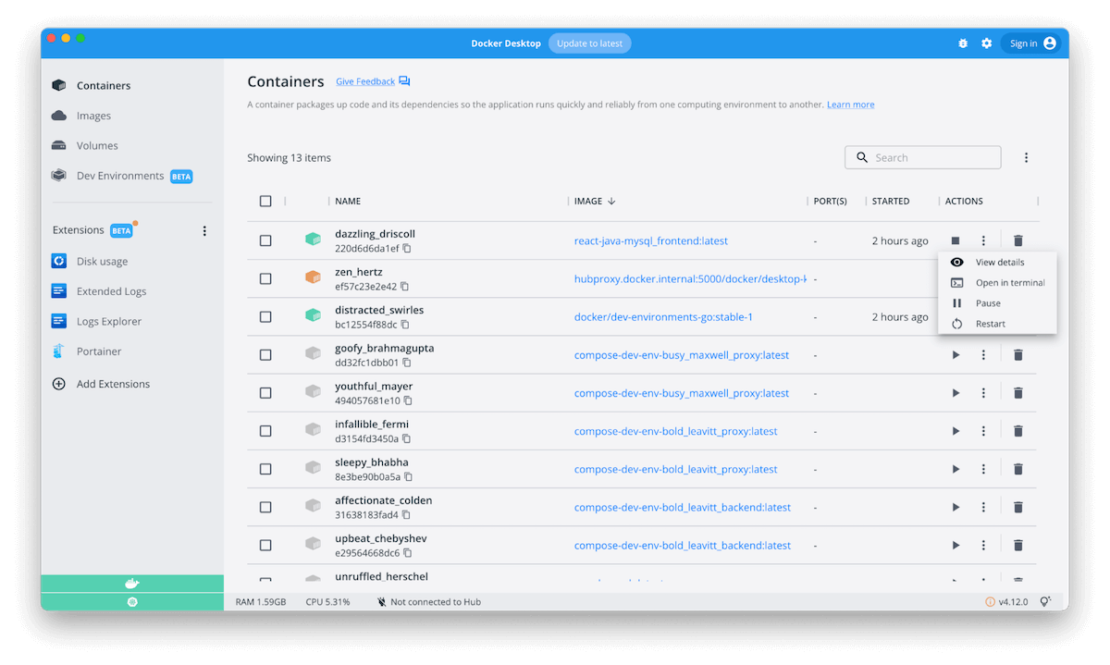
Developers often need to explore a running container’s contents to understand its current state or debug it when issues arise. With Docker Desktop 4.12, you can quickly start an interactive session in a running container directly through a Docker Dashboard terminal. This easy access lets you run commands without needing an external CLI. 

Opening this integrated terminal is equal to running docker exec -it <container-id> /bin/sh (or docker exec -it cmd.exe if you’re using Windows containers) in your system terminal. Docker detects a running container’s default user from the image’s Dockerfile. If there’s none specified, it defaults to root. Placing this in the Docker Dashboard gives you real-time access to logs and other information about your running containers. 

Your session is persisted if you navigate throughout the Dashboard and return — letting you easily pick up where you left off. The integrated terminal also supports copy, paste, search, and session clearing.

Still want to use your external terminal? No problem. We’ve added two easy ways to launch a session externally.

Option 1: Use the “Open in External Terminal” button straight from this tab. Even if you prefer an integrated terminal, this might help you run commands and watch logs simultaneously, for example.

Option 2: Change your default settings to always open your system default terminal. We’ve added the option to choose what fits your workflow. After applying this setting, the “Open in terminal” button from the Containers tab will always open your system terminal.

Extending Docker Desktop’s integration with containerd

We’re extending Docker Desktop’s integration with containerd to include image management. This integration is available as an opt-in, experimental feature within this latest release.

Docker’s involvement in the containerd project extends all the way back to 2016. Docker has used containerd within the Docker Engine to manage the container lifecycle (creating, starting, and stopping) for a while now! 

This new feature is a step towards deeper containerd integration with Docker Engine. It lets you use containerd to store images and then push and pull them. When enabled in the latest Docker Desktop version, this experimental feature lets you use the following Docker commands with containerd under the hood: run, commit, build, push, load, and save. 

This integration has the following benefits:

Containerd’s snapshotter implementation helps you quickly plug in new features. One example is using stargz to lazy pull images on startup.The containerd content store can natively store multi-platform images and other OCI-compatible objects. This lets you build and manipulate multi-platform images, for example, or leverage other related features.

You can learn more in our recent announcement, which fully explains containerd’s integration with Docker.

Easily discover extensions

We’ve added two new ways to interact with extensions in Docker Desktop 4.12.

Docker Extensions are now available directly within the Docker menu. From there, you can browse the Marketplace for new extensions, manage your installed extensions, or change extension settings. 

You can also search for extensions in the Extensions Marketplace! Narrow things down by name or keyword to find the tool you need.

Two new extensions have also joined the Extensions Marketplace:

Docker Volumes Backup & Share

Docker Volumes Backup & Share lets you effortlessly back up, clone, restore, and share Docker volumes. You can now easily create copies of your volumes and share them through SSH or by pushing them to a registry. Learn more about Volumes Backup & Share on Docker Hub. 

Mini Cluster

Mini Cluster enables developers who work with Apache Mesos to deploy and test their Mesos applications with ease. Learn more about Mini Cluster on Docker Hub.

Try out Dev Environments with Awesome Compose samples

We’ve updated our GitHub Awesome Compose samples to highlight projects that you can easily launch as Dev Environments in Docker Desktop. This helps you quickly understand how to add multi-service applications as Dev Environment projects. Look for the following green icon in the list of Docker Compose application samples:

Here’s our new Awesome Compose/Dev Environments feature in action:

Get started with Docker Desktop 4.12 today

While we’ve explored some headlining features in this release, Docker Desktop 4.12 also adds important security enhancements under the hood. To learn about these fixes and more, browse our full release notes. 

Have any feedback for us? Upvote, comment, or submit new ideas via our in-product links or our public roadmap. 

Looking to become a new Docker Desktop user? Visit our Get Started page to jumpstart your development journey.
Quelle: https://blog.docker.com/feed/