Notebook: Razer rüstet Blade Pro 17 mit 300-Hz-Panel aus
Das 17-Zoll-Razer-Blade erhält ein noch schnelleres Display und passend dazu eine flottere CPU sowie leistungsfähigere Geforce-Grafik. (Razer Blade, Notebook)
Quelle: Golem

Das 17-Zoll-Razer-Blade erhält ein noch schnelleres Display und passend dazu eine flottere CPU sowie leistungsfähigere Geforce-Grafik. (Razer Blade, Notebook)
Quelle: Golem

Tesla bietet das Model 3 nur als fünftürige Limousine an, doch nun gibt es das Elektroauto auch als sehr teures Cabrio. (Elektroauto, Technologie)
Quelle: Golem

Eine weitere Fab für die Halbleiterfertigung mit extrem ultravioletter Belichtung: Samsung will so stärker mit TSMC konkurrieren. (Halbleiterfertigung, TSMC)
Quelle: Golem
hashicorp.com – In Consul 1.8, we introduced three new service mesh features: ingress, terminating, and WAN federation via mesh gateways. In this blog, we’re going to explain how WAN federation can be used to connec…
Quelle: news.kubernauts.io
speakerdeck.com – June 28, 2017
Quelle: news.kubernauts.io

Today, Global Accessibility Awareness Day, raises awareness around digital access and inclusion and improving the web experience for everyone. This year, WebAIM analyzed one million homepages for accessibility issues and found that 98% of websites had at least one WCAG (Web Content Accessibility Guidelines) failure on their homepage, such as low-contrast text, missing image alt text, and empty links. These types of accessibility barriers make it difficult or impossible for some visitors — people who are blind, deaf and hard of hearing, and disabled, for example — to use your site.
We encourage you to audit your site to ensure it’s accessible for all readers; the WAVE Web Accessibility Evaluation Tool can identify various errors on your site in seconds. Here are some web accessibility tips to get you started, and be sure to explore the guidelines and resources on the W3C Web Accessibility Initiative (WAI) website for deeper learning.
Use an accessibility-ready theme
You can choose from among a variety of designs for your site, but some themes have features that add complexity, making it harder for disabled people or visitors using screen readers to access your content.
When choosing a theme, consider an accessibility-ready design, like Balasana, a free minimal theme for your business website; or Mayland, a free visual theme that’s great for photographers and storytellers. These themes have been checked by the Theme Review Team and pass basic accessibility requirements.
Display your site title and tagline
Many themes allow you to upload a custom header image, which is a visual way to brand your site, display the title of your blog, or promote the name of your business. But some themes may not support alternative text, or the written copy that appears in place of an image on a page if the image fails to load on your visitor’s screen.
Instead of conveying your site title and tagline within a header image, display your site title and tagline text. Go to Manage → Settings, and at the top under Site profile, fill out your Site title and Site tagline. Then, head to Design → Customize, go to Site Identity, and check the box next to Display Site Title and Tagline.
Structure your pages and posts with appropriate headings
Add headings with the Heading Block to organize pages and posts and make it easier for readers to follow your content, which is especially important for longer pages and posts. Click on the “i” icon in the top toolbar of the block editor to view any errors and incorrect heading sizes.
Select fonts and colors for legibility
Fonts and colors are essential components on your site, adding personality and style and strengthening your visual identity online. Avoid font styles and sizes and color palettes that make your site difficult to read, and pay attention to contrast, or the difference between the darkness of your text and the lightness of your background.
The block editor will display an error message in Color settings when it detects poor color contrast in the specific block you’re working on.
Clearly describe your links
When linking to another page or post on the web, make your linked text descriptive. For example, “click here” is not as effective as “learn how to apply to my writing workshop.”
Include captions with your images
When adding an image with the Image Block, add a description of the image in the caption underneath it. While captions are optional, they improve the experience for all readers by providing more context.
Add alt text to your images
Alt text is essential for people who are blind or use screen readers (they can hear alt text read aloud), or people who have disabled images for speed or bandwidth reasons. Alt text is also important for your site’s SEO — it helps search engines understand what your site content is about.
When adding an image with the Image Block, go to the block’s settings on the right and add the alt text in the box under Image settings.
Learn more about W3C’s image accessibility guidelines.
Create easily clickable CTA areas
With the Buttons Block, you can add call-to-action buttons to your pages and posts quickly. For those of you who design and embed your own buttons with Image Widgets, make buttons, icons, and other CTA elements with wide-enough areas that are easy to click or tap from different devices.
You can apply this tip to text links as well. Tapping a linked hashtag or asterisk within a sentence, for example — especially on a small screen — may be difficult for some people.
Include captions or transcripts for multimedia content
If your site includes video content, consider adding captions or including transcripts (documenting speech, sounds, as well as actions seen on-screen). Podcast transcripts are also incredibly helpful; here’s a transcript of a recent Distributed episode with neuroscientist Adam Gazzaley.
It’s best if video and audio content does not auto-play, but if that’s not possible, options to pause or adjust the volume should be obvious on the page.
Never stop learning and improving
This list is just an introduction to a few best practices and guidelines! If you’re interested in learning more, explore the resources on the W3C Web Accessibility Initiative (WAI) website. You can also explore ways to get involved in improving the accessibility of WordPress.
Learn more about Global Accessibility Awareness Day and participate in online events, webinars, and podcasts.
Quelle: RedHat Stack
You’ve launched your website or started a blog. Congratulations! Now it’s time to attract an audience. You built a website to reach people with your art, ideas, or products and services. We’ve created a free online session to help you do just that.
Register for our next 60-minute webinar, Traffic Control: How to Find and Grow an Audience for your Website, to get advice and guidance on attracting the right people to your site.
Date: May 27, 2020Time: 10:00 a.m. PDT | 11:00 a.m. MDT | 12:00 p.m. CDT | 1:00 p.m. EDT | 17:00 UTCCost: Free | Register nowWho’s invited: Content creators, online publishers, and small businesses looking for the best ways to build an audience of loyal customers and dedicated readers.
Topics will include:
Understanding your audience.Demystifying SEO.How to optimize your site for local visitors.What does “quality content” really mean?Using email, social media, and paid advertising.How to take advantage of WordPress.com’s marketing tools for audience growth.
Hosts Chris Smith and Kasey Steinbrinck run their own sites and both have worked with a variety of businesses to help them optimize their websites and create strong content. They’ll help you choose what to focus on so that you can make the most of your time.
After working as an SEO specialist for many years, Chris supports WordPress.com customers with expert advice as a Happiness Engineer. Kasey started his career as a TV news producer and entertainment writer before becoming a content marketer and an independent blogger. Today he works on WordPress.com’s content strategy.
The 60-minute webinar will include detailed instructions on WordPress SEO as well as a Q&A session. Seats are limited so register today to reserve your spot.
Quelle: RedHat Stack
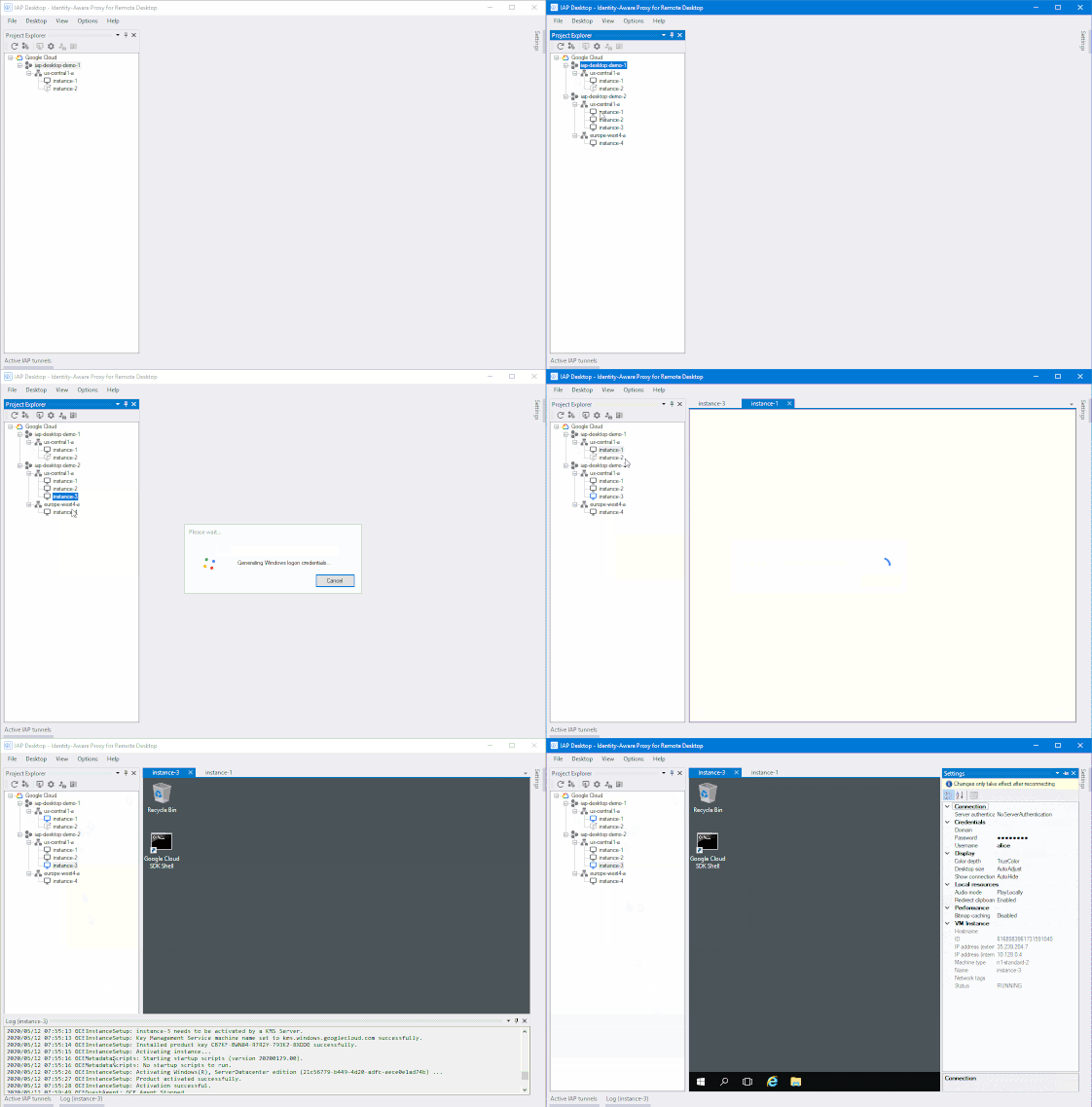
It’s more important than ever for IT administrators to be able to securely access resources from wherever they are. Exposing VM instances to the public internet can be risky, potentially giving bad actors a direct access path to your network. But solutions such as VPN tunnels or jump (bastion) hosts to access these systems can be cumbersome and may not provide the precise access control admin tasks demand.To help solve this dilemma, we’re introducing a new open-source tool to help Windows users and administrators to access and manage Windows VMs running in Compute Engine—conveniently and securely. IAP Desktop is a Windows application that allows you to manage multiple Remote Desktop Protocol (RDP) connections to Windows VM instances running on Google Cloud. IAP Desktop, builds on our existing Identity-Aware Proxy service, which can help you control access to your applications and VMs running on Google Cloud. IAP works by verifying a user’s identity and the context of a request to determine if that user should be allowed to access an application or a VM. All RDP connections are automatically encrypted and tunneled via IAP so you can access VM instances that don’t expose RDP publicly or even have a public IP address. Specifically, IAP Desktop uses IAP TCP forwarding to tunnel RDP connections. But IAP Desktop is more than just a Remote Desktop client: It also provides an overview of and quick access to all your VM instances across your Google Cloud projects. You can also access common functions, like generating Windows credentials or viewing logs, with a single click.You can download IAP Desktop on our GitHub page. Give it a try, we hope it makes it easier to manage your Windows instances on Google Cloud. And, if you’d like to implement simple, secure remote access to applications, check out our BeyondCorp remote access offering.
Quelle: Google Cloud Platform
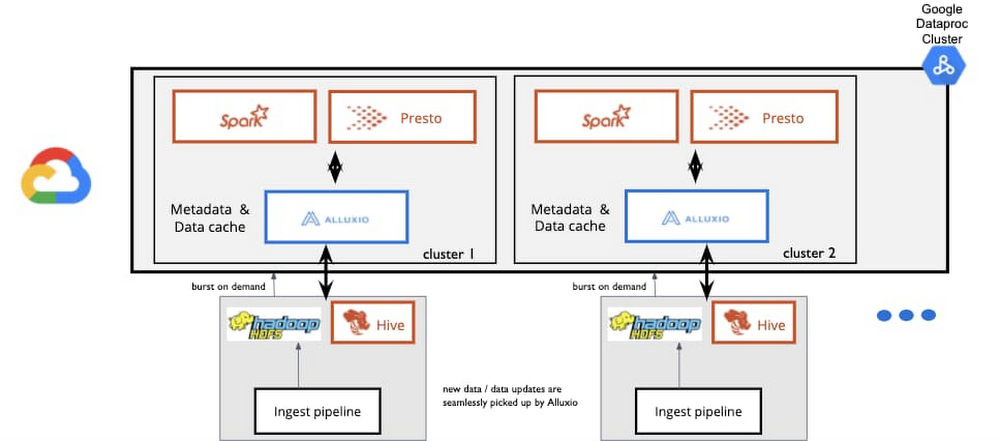
Many companies have data stored in a Hadoop Distributed File System (HDFS) cluster in their on-premises environment. As the amount of stored data grows, and the number of workloads coming in from analytics frameworks like Apache Spark, Presto, Apache Hive, and more grow, this type of fixed on-premises infrastructure becomes costly and causes latency in data processing jobs. One method to tackle this problem is to use Alluxio, an open source data orchestration platform for analytics and AI applications, to “burst” workloads to Dataproc, Google Cloud’s managed service for Hadoop, Spark, and other clusters. You can enable high performance for data analytics across a hybrid environment by mounting on-premises data sources into Alluxio and save on costs in your private data center without copying data. Zero-copy hybrid bursting to DataprocAlluxio integrates with both your private computing environment on-premises and with Google Cloud. Workloads can burst to Google Cloud on-demand without moving data between computing environments first. This allows for high data analytics performance with low I/O overhead.For example, you may use a compute framework like Spark or Presto for your on-prem data stored in HDFS. By bursting that data to Google Cloud with Alluxio, you’re able run the related analytics in the cloud on-demand, without the time and resource-intensive process of migrating large amounts of data to the cloud. Even then, after data is transferred to Cloud Storage, it is hard to access near real-time data as on-prem data pipelines and source systems change and evolve. With a data orchestration platform, you can selectively migrate data on-demand and seamlessly make updated data accessible in the cloud without the need to persist all data to Cloud Storage.We hear from customers that they find this especially helpful for enterprises in financial service, healthcare, and retail as they want to store and mask sensitive data on-prem and burst masked data and machine learning or ETL jobs to Google Cloud. A typical architecture may look something like this:How a large national retailer uses burst processingA leading retailer that balances physical and digital stores moved to a zero-copy hybrid solution powered with Alluxio and Google Cloud as their on-premises data center became increasingly overloaded with the amount of data coming in. They wanted to take advantage of Google Cloud’s scalability, but couldn’t persist data into the cloud due to security concerns. So they added Alluxio to burst their Presto workloads to Google Cloud to query large datasets that before wouldn’t have been able to move to the cloud. Before Alluxio, they manually copied large amounts of data at times three to four more than required for the jobs to run. Once those jobs completed, they had to delete that data, which made use of compute in Google Cloud very inefficient. By moving to Alluxio, they saw a vast improvement in query performance overall and were able to take advantage of the scalability and flexibility of Google Cloud. Here’s how their architecture looks:Using a zero-copy hybrid burst approach for better costs and performanceWe see some common challenges that users face with on-prem Hadoop or other big data workloads:Hadoop clusters are running beyond 100% CPU capacityHadoop clusters can’t be expanded due to high load on the master NameNode Compute capacity is not enough to offer the desired service-level agreement (SLA) to ad-hoc business users, and there’s no separation between SLA and non-SLA workloadsInfrequent and bursty analytics, such as a compute-intensive job for generating monthly compliance reports, compete for scarce resourcesCost containment is a problem at scaleOperational costs of self-maintained infrastructure adds to the total cost of ownership, with indirect costs related to salaries of the IT staffUsing the cloud to meet these challenges allows for independent scaling and on-demand provisioning of both compute and storage, the flexibility to use multiple compute engines (the right tool for the job), and reduced overload on existing infrastructure by moving ephemeral workloads.To learn more about the zero-copy hybrid burst solution, register for the upcoming tech talkhosted by Alluxio and the Google Cloud Dataproc team on Thursday, May 28.
Quelle: Google Cloud Platform
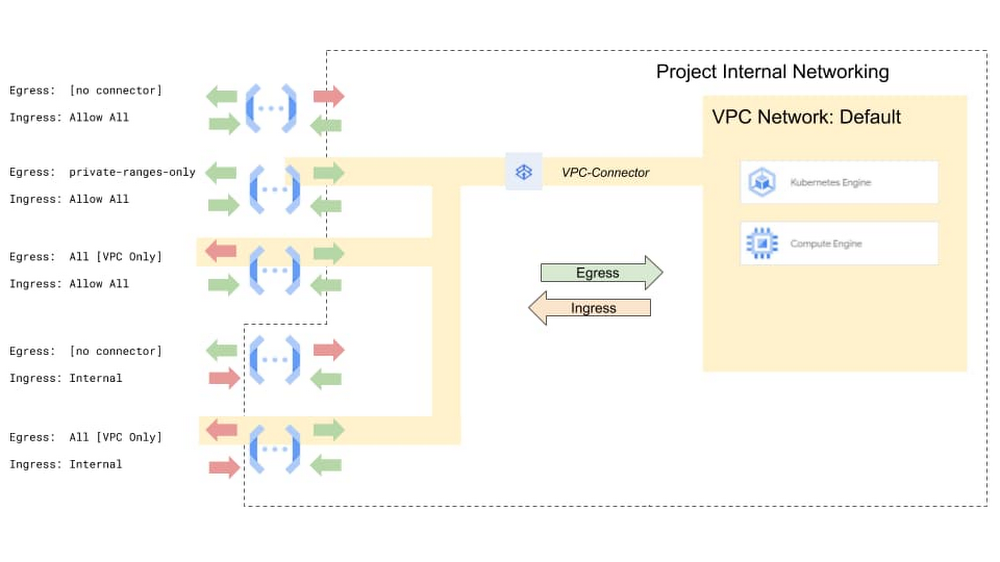
You probably don’t think of advanced VPC networking features and developer-friendly serverless platforms as things that typically play well together, but increasing numbers of organizations want to use serverless platforms in more traditional IT environments. Here at Google Cloud, we want you to have your serverless cake and eat it too, so are announcing support for new networking controls for Google Cloud Functions, including ingress settings and VPC service controls. Serverless VPC Access has been generally available since December, 2019, allowing Cloud Functions to reach into the private IP space of VPC networks. This allows you to route all or internal-only egress traffic to the connected VPC. Today we are extending that with the support of ingress settings, which allows you to control what traffic reaches your Cloud Functions, allowing you to run “private” Cloud Functions. We also support integrating Cloud Functions with VPC Service Controls and organization policies to control the movement of your company’s data.Click to enlargeIngress settings and VPC Service ControlsWith the release of Serverless VPC Access, we provided an egress path from functions to services running in a VPC (e.g., stateful services running on VMs without public IP addresses or services such as Memorystore). Now with support for ingress settings, you have more control over which network requests can reach your functions.By default, ingress settings allow traffic to a function from any VPC in your project, or from any internet source. Per function, you can now set ingress to `internal-only`, which excludes any network requests not originating from internal sources inside the same project.If you want to be more prescriptive about what traffic can reach your functions, you can set up a more explicit perimeter using VPC Service Controls. You can then use ingress and egress settings and the new Organization Policy service to prevent data exfiltration.You can then combine these network settings in various ways to address a variety of use cases:Create a function that can only be called within your VPC network – One of the key uses for network settings is to create a function that can be invoked only by clients within your given project or VPC network, for instance invoking your function from a Compute Engine VM within your VPC network. Here’s an example of how to create such a function.Configure a function to connect to private services on a VPC network – Some services are not built to be hardened to the public internet, and rely on network security to control access. You may want your function to be able to reach a service running in your VPC on your own VM or cluster, or a managed service such as Cloud Memorystore. See this example of connecting functions to Redis for rate-limiting.Manage function egress with VPC firewalls and NAT – You can use network egress settings to enforce the same security policies and firewall rules applied to the compute instances in the VPC — simply route all traffic through the VPC. If you want all traffic from functions to appear to come from a specific stable IP address, this traffic routing directive can be combined with Cloud NAT.Create a security perimeter to protect from Data Exfiltration – Prevent functions from accidentally sending any data to unwanted destinations.Organization policiesThe above use cases show there are many ways to use specific combinations of ingress and egress settings. But for some use cases, such as to protect from data exfiltration, it is important to reduce or remove human error that comes from repeatedly and manually applying resource configurations—especially when your organization already has a defined standard. To address this, Cloud Functions now supports organization policies, which can be applied to Cloud Functions network settings. This lets organizations set strict security policies with proper separation of concerns, while allowing developers to use serverless infrastructure and the flexibility and rapid development it provides.VPC Connector and Service Controls in actionMultinational insurance provider AXA is an early user of Cloud Functions’ new VPC Connector and VPC Service Controls capabilities, which have emerged as a very useful enabler for creating secure serverless services. Working with Google Cloud Premier Partner Wabion, AXA is using these capabilities for two very important requirements:VPC-SC for Cloud Functions protects data streams used in GCP against data exfiltration by restricting access to perimeter-secured services only. “Using this functionality, we can ensure that sensitive data cannot be moved to unauthorized services, platforms or GCP projects,” says Felix Jost, GCP Engineering Lead, AXA. “With appropriate organizational policies configured, the policies can be managed on the whole AXA GCP organization to ensure security.”VPC Connector for Cloud Functions enables internal connection to on-premises services. “This allows building hybrid scenarios on serveless services to ensure maximum flexibility and scalability and seamless integration with other automated flows,” Jost says.We continue to see customers adopt serverless compute platforms like Cloud Functions, and we’re committed to ensuring the serverless workloads you write are first-class citizens of your production Google Cloud environment. To get started with VPC service controls on Cloud Functions please checkout the getting started guide.
Quelle: Google Cloud Platform