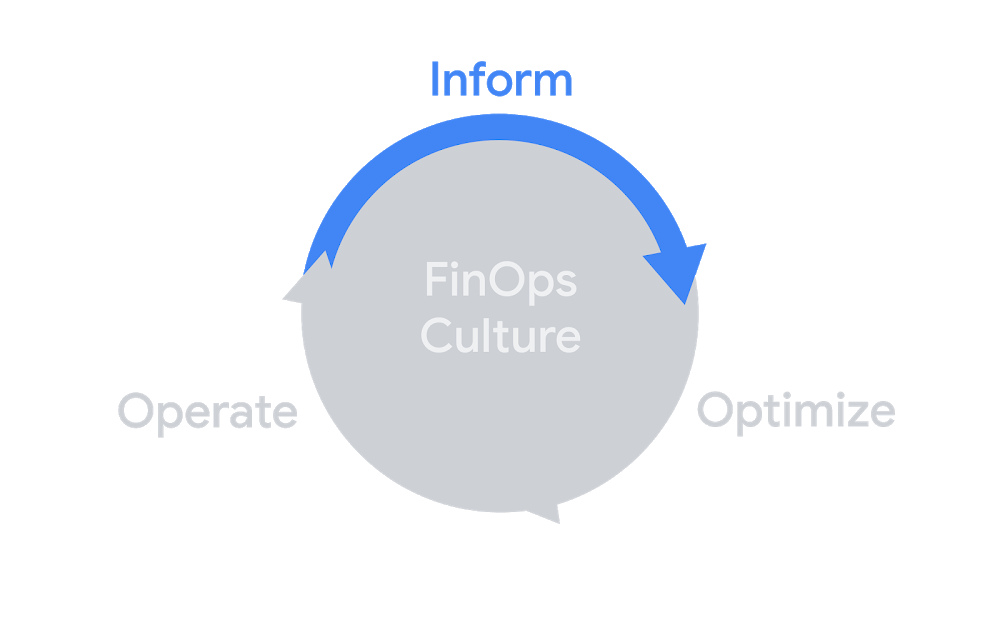
TL;DR: Budgets and alerts are probably the first step to staying on top of your Google Cloud costs. If you care about money, you should definitely set up a budget. In this post, I break down a budget and show how to set one up.Budgets and alerts fit well into the inform phase of the FinOps lifecycle for visibilityThe cloud is great because it’s incredibly easy to spin up a virtual machine, use a managed data warehouse, or even create a globally replicated relational database (this still blows my mind). But while you, or your eng team, might be more than happy to create and toy around with these resources, they cost money and someone has to pay the bills. Let’s look a bit more at what makes up a budget, and how to set one up (feel free to skip ahead if you just want the how-to).What is this “budget” you speak of?Budgets are the first and simplest way to get a handle on your costs. With all the potential ways that you can spend money on the cloud, you’ll want to make sure you can keep track of it. Once you’ve put budgets in place, you can freely launch experimental and production features with better visibility into what’s going on.They don’t actually cap your usage (we’ll talk about how to do that in another post), but they send alerts based on your costs. For now, the key idea is that a budget sends an alert when you hit any threshold for the cost amount for resources that are in scope. Let’s break that down.BudgetThis is what we’re talking about, and it starts with a name (as well as a unique ID). You can (and most certainly should), create multiple budgets, and budgets are attached to a billing account which is where all your cloud costs go. If you’re working with multiple billing accounts (tip: try to consolidate to one billing account per organization), you can set up budgets on each one. You can also automate setting these up rather than doing it manually, but let’s stick to the basics for now and come back to that in another post.AmountEach budget can also have an amount, which will be in the currency of your billing account. You can specify an exact amount, like $1000, or choose “Last month’s spend”. If you choose the last month option, the amount will automatically update based on what you spent last month. In addition, you can select to include credits as part of your amount if you want to count usage against credits (usage discounts, promotions, etc.) or not. We’ll also talk about budgets without an amount in a future post.ThresholdEach budget can have multiple thresholds, and every threshold is essentially a percentage of the budget amount (or you can specify the amount directly, it’s the same either way). So, a 50% threshold on a $1000 budget would trigger at $500. Since you can add multiple, you could set thresholds at 25%, 50%, 75%, and 100% just to make sure you’re on track with your spending throughout a month.Some example thresholds for a $1000 budgetEach threshold can also be actual, or forecasted. Simply put, actual thresholds are based on the actual costs. That is, you’ll hit 100% of a $1000 budget when you’ve spent $1000. On the other hand, forecasted is all about when Google Cloud estimates (using science, machine learning, and maybe some magic) that you’ll end up spending that much by the end of the month. As in, if you set a forecasted threshold for 100% on your $1000 budget, the alert will trigger as soon as Google Cloud forecasts that your costs for the month will be $1000. Forecast thresholds are great to understand where your costs may be trending and to get early alerts.AlertBy default, alerts are emails that get sent out to all Billing Account Administrators and Billing Account Users on that billing account. The email alerts are simple but descriptive, giving you exactly the information you need to know what happened.An actual budget email, even though I changed the billing account IDFirst up, we can see that the billing account is Billing-Reports-Demo and we have the ID in case we need it. Then there’s the budget amount and the percentage hit of the budget, 50% of a $1000 budget. Finally, we know that this is for the month of July, and that this alert was sent on July 8th.Note: Spend some time thinking about a good naming scheme for your budgets; one that works for the people who will be receiving them. The alert has the key information, but if the budget name isn’t descriptive it may be more difficult to track down where the costs are coming from.If I was only expecting to spend $1000 in all of July and then received this alert 8 days in, there’s a good chance there might be some surprise costs happening. Good thing I got this alert so I can figure out what’s going on! There’s more we can do than just send an email, which I’ll cover in the next posts.ScopeEach budget has a scope associated with it, and by default that’s the entire billing account. That would include all projects and Google Cloud services attached to that billing account. To get more granular, you can specify projects, products, or labels. For projects and products, you can choose to include certain ones, so you might have a budget that covers all your production projects and another budget specific to BigQuery costs on your data science projects. You may have heard how important it is to structure your Google Cloud resources to match your actual organization, and that’s fairly evident when you look at setting up budgets!A reasonable (and simplified) example of how you might organize your Google Cloud resources like your (probably less simple) organizationYou’re also able to scope your budget to resource labels, which are another important part of organizing your resources. Currently this is limited to a single label, but it’s a fantastic way to set a budget for any effort like if you label all your resources with “env:production” or “team:infra”. On top of all of that, you can also scope to subaccounts, which is for resellers.Setting up a budgetOkay, with all that background information out of the way, setting up a budget is super quick! First things first, you’ll need to be a Billing Account Administrator (or have a custom role with the appropriate billing.budget permissions). Then you just need to head to my favorite place in the console, the Billing page, and select “Budgets & Alerts”.Is it weird that the billing part of the console is my favorite? I feel like that’s weirdIf you’ve already got some budgets, they’ll be listed on this page along with the thresholds and your current spending amount.So far, I’ve spent nearly $80 on my $1000 budget, well below the first 50% thresholdYou can click on an existing budget to edit it, but just click on “Create Budget” to get started on making a new one. The first step is to name your budget and select your scope. For this new budget, let’s keep an eye on all our BigQuery spending. I’ll keep the scope to all projects and select BigQuery from the products list.By the time I publish this, there will probably be more than 750 optionsNext, we’ll move to the second page: amount. As mentioned above, you can specify an exact amount or dynamically set the budget to last month’s spending. Since my monthly budget for BigQuery is $500 (which I just now made up), I’ll put that in, as well as enabling to include credits. That way, if I received $200 worth of credits in some month, I could spend $700 on BigQuery and still be on budget.Choosing last month’s spend could give me a better view of how my costs might fluctuate month over monthOn the final page, we can add multiple thresholds so we’ll get alerts for each one. I’ll set up 50%, 90%, and 100% so I can keep on top of my costs, and one additional for 120% forecasted. If I get the 120% forecasted cost, that’s a good signal that I should jump into my projects and figure out what’s happening.See those options at the bottom? We’re gonna talk about those in the next blog posts!And just like that, we’ve made a new budget! Everyone who is a Billing Account Administrator or Billing Account User will start to get alerts as our costs go up, and we can use those as good signals to make sure we’re on track.You should consider multiple budgets to track different scopesOne important note is that billing data can sometimes take a bit of time to be reported, which means a budget might be a bit behind if you have fast-rising costs. This is where forecasted thresholds can help, so you can be prepared ahead of time.Email alerts are a quick and easy way to stay on top of your costs, but it’s also just the start of working with budgets. In the next (and hopefully shorter) post, we’ll go over how to add more people than just the Billing Account Admin/Users. After that, we’ll look at using budgets to take more action than just sending a notification. In the meantime, check out the documentation if you’d like to read more about budgets.Related ArticleMonitor cloud costs and create budgets at scaleYou can monitor cloud costs and create budgets, including alerts, with Google Cloud’s Budget API, now available in beta.Read Article
Quelle: Google Cloud Platform