Lunar Gateway: Das (vorläufige) Aus für die Mond-Raumstation
Mit dem Stopp des Projekts schwindet die Glaubwürdigkeit der USA als Partner in der internationalen Raumfahrt. (Raumstation, Nasa)
Quelle: Golem

Mit dem Stopp des Projekts schwindet die Glaubwürdigkeit der USA als Partner in der internationalen Raumfahrt. (Raumstation, Nasa)
Quelle: Golem
Amazon Elastic Container Registry (Amazon ECR) now automatically discovers and syncs OCI referrers, such as image signatures, SBOMs, and attestations, from upstream registries into your Amazon ECR private repositories with its pull through cache feature. Previously, when you listed referrers on a repository with a matching pull through cache rule, Amazon ECR would not return or sync referrers from the upstream repository. This meant that you had to manually list and fetch the upstream referrers. With today’s launch, Amazon ECR’s pull through cache will now reach upstream during referrers API requests and automatically cache related referrer artifacts in your private repository. This enables end-to-end image signature verification, SBOM discovery, and attestation retrieval workflows to work seamlessly with pull through cache repositories without requiring any client-side workarounds. This feature is available today in all AWS Regions where Amazon ECR pull through cache is supported. To learn more, visit the Amazon ECR documentation.
Quelle: aws.amazon.com
Amazon SageMaker HyperPod now supports flexible instance groups, enabling customers to specify multiple instance types and multiple subnets within a single instance group. Customers running training and inference workloads on HyperPod often need to span multiple instance types and availability zones for capacity resilience, cost optimization, and subnet utilization, but previously had to create and manage a separate instance group for every instance type and availability zone combination, resulting in operational overhead across cluster configuration, scaling, patching, and monitoring. With flexible instance groups, you can define an ordered list of instance types using the new InstanceRequirements parameter and provide multiple subnets across availability zones in a single instance group. HyperPod provisions instances using the highest-priority type first and automatically falls back to lower-priority types when capacity is unavailable, eliminating the need for customers to manually retry across individual instance groups. Training customers benefit from multi-subnet distribution within an availability zone to avoid subnet exhaustion. Inference customers scaling manually get automatic priority-based fallback across instance types without needing to retry each instance group individually, while those using Karpenter autoscaling can reference a single flexible instance group. Karpenter automatically detects supported instance types from the flexible instance group and provisions the optimal type and availability zone based on pod requirements. You can create flexible instance groups using the CreateCluster and UpdateCluster APIs, the AWS CLI, or the AWS Management Console. Flexible instance groups are available for SageMaker HyperPod clusters using the EKS orchestrator in all AWS Regions where SageMaker HyperPod is supported. To learn more, see Flexible instance groups.
Quelle: aws.amazon.com
Amazon EC2 High Memory U7i-8TB instances (u7i-8tb.112xlarge) and U7i-12TB instances (u7i-12tb.224xlarge) are now available in AWS Asia Pacific (Singapore) region. U7i instances are part of AWS 7th generation and are powered by custom fourth generation Intel Xeon Scalable Processors (Sapphire Rapids). U7i-8tb instances offer 8TiB of DDR5 memory, and U7i-12tb instances offer 12TiB of DDR5 memory, enabling customers to scale transaction processing throughput in a fast-growing data environment.
U7i-8tb instances deliver 448 vCPUs; U7i-12tb instances deliver 896 vCPUs. Both instances support up to 100 Gbps of Amazon EBS bandwidth for faster data loading and backups, 100 Gbps of network bandwidth, and ENA Express. U7i instances are ideal for customers using mission-critical in-memory databases like SAP HANA, Oracle, and SQL Server.
To learn more about U7i instances, visit the High Memory instances page.
Quelle: aws.amazon.com

Der Mensch beeinflusst den Zustand der Erde nicht nur durch den Ausstoß von Treibhausgasen. Neue Forschung zeigt, wie dringend wir gegensteuern müssen. Ein Bericht von Dirk Eidemüller (Klimakrise, Wissenschaft)
Quelle: Golem

Im letzten Teil dieser Reihe blicken wir auf die häufigsten Fehler, befassen uns mit KI als Helfer und geben einen 3-Schritte-Plan für eine erfolgreiche Bewerbung. Ein Ratgebertext von Markus Kammermeier (Richtig bewerben!, Wirtschaft)
Quelle: Golem

RTX 5090, 64 GB DDR5 und Top-CPUs: Die neuen Golem-High-End-PCs liefern maximale Leistung inklusive aktueller Games. (Technik/Hardware)
Quelle: Golem

In knapp 60 Jahren hat sich Wesentliches beim Flug zum Mond geändert. Anderes ist fast gleich geblieben, weil es sich bewährt hat. Von Mario Petzold (Mondlandung, Nasa)
Quelle: Golem
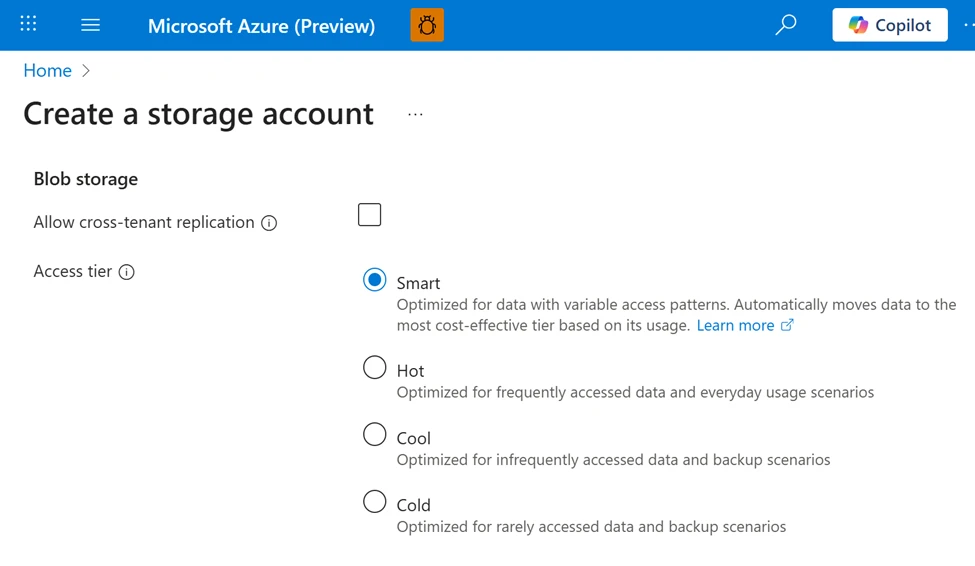
We are excited to announce the general availability (GA) of smart tier for Azure Blob and Data Lake Storage. Smart tier is a fully managed, automated tiering capability for Azure Blob Storage and Data Lake Storage that helps optimize storage costs without ongoing operational effort. By continuously optimizing data placement, smart tier ensures your storage costs are aligned with actual usage.
Get in-depth details about smart tier
As data estates expand and access patterns evolve, managing lifecycle rules at scale becomes complex. Customers need automated, continuous tiering to keep costs aligned with usage.
Smart tier continuously evaluates your data access patterns and automatically moves objects across the hot, cool, and cold tiers to keep your costs aligned with usage without manual configuration.
Since launching the public preview of smart tier at Ignite in November 2025, customers and partners have adopted it across a range of data estates and over 50% of smart-tier–managed capacity has automatically shifted to cooler tiers based on actual access patterns:
We see a significant and measurable benefit from adopting smart tier in Azure Storage for our Azure Data Explorer (ADX) clusters. By intelligently placing data in the most cost‑effective tier based on actual usage patterns, smart tier allows us to optimize storage spend without sacrificing performance. Hot data remains instantly accessible for query workloads, while cooler, less frequently accessed data is automatically shifted to lower‑cost tiers. Smart tier effectively removed the guesswork from storage optimization, enabling us to focus on delivering insights rather than managing data placement.
Brad Watts, Principal PM for Azure Data Explorer
The Azure Blob and Data Lake Storage partner ecosystem is also integrating smart tier into their solutions:
Smart Tier represents a major step forward in simplifying how enterprises optimize storage in the cloud. The ability to automate tiering while maintaining resilience and predictable economics is highly complementary to Qumulo’s data services on Azure. Together with Microsoft, we’re enabling customers to modernize file workloads on Azure while reducing operational complexity and improving long‑term cost efficiency.
Brandon Whitelaw, SVP and Head of Product at Qumulo
Smart tier is generally available today in nearly all zonal public cloud regions, supporting both Azure Blob and Data Lake Storage.
How smart tier makes tiering decisions
Smart tier continuously evaluates the last access time of each individual object on the storage account where smart tier is enabled.
Frequently accessed data stays in the hot tier to support performance and transaction efficiency; inactive data transitions to the cool tier after 30 days and to the cold tier after an additional 60 days. When data is accessed again, it is immediately promoted back to hot and the tiering cycle restarts. This means your datasets remain in the most cost-effective tier automatically, removing the need to predict access patterns.
Read and write operations against an object, i.e. Get Blob or Put Blob operations are restarting the tiering cycle. Metadata operations, i.e. Get Blob Properties, are not impacting transitions. These static tiering rules are part of the underlying service and ensure automatic optimizations without the need for manual maintenance.
Setting up smart tier
Enabling smart tier is straightforward and designed to minimize change management while delivering immediate cost-optimization benefits:
During storage account creation, just select smart tier as the default access tier through the storage account configuration for any storage account with zonal redundancy. This is supported both via API and the Azure portal.
Enable existing accounts with zonal redundancies by switching the blob access tier from default to smart through the same tooling.
Let Azure optimize automatically: Objects inheriting the default tier are continuously managed without manual interventions needed.
Please note: Smart tier doesn’t support legacy account types such as Standard general-purpose v1 (GPv1) and is not applicable on page or append blobs.
For objects managed by smart tier, you pay standard hot, cool, and cold capacity rates, without additional charges for tier transitions, early deletion, or data retrieval. Moving existing objects into smart tier does not incur tier-change fees; a monitoring fee covers the orchestration.
Over time, automated down-tiering of inactive data combined with smart tier’s simplified billing can translate into meaningful savings at scale.
Best practices for maximizing smart tier value
After enabling smart tier on the account level, you can explicitly pin objects that you don’t want to be managed by smart tier to other tiers. No monitoring fee will apply to those objects.
Don’t exclude small objects. Objects less than 128 KiB stay in hot, don’t tier down, and don’t incur the monitoring fee. If an object later grows to equal to or greater than 128 KiB, smart tier policies apply automatically.
Common pitfall: Avoid trying to influence tiering behavior using lifecycle rules or other tier optimization mechanisms for smart tier–managed objects.
Based on patterns observed across multiple large smart tier preview deployments, customers commonly see the following outcomes after enabling smart tier:
Smart tier adoption for a large analytics workload
During public preview, a large data analytics customer enabled smart tier across hundreds of tebibytes of telemetry and log data with mixed and evolving access patterns.
Before enabling smart tier, the team relied on custom lifecycle rules that required frequent retuning as access patterns evolved and often led to unexpected cost spikes after re-access.
After enabling smart tier:
More than half of this customer’s managed data footprint automatically transitioned to cooler tiers based on actual usage patterns.
The team eliminated lifecycle policy management entirely, freeing engineering time.
Storage costs became more predictable and resilient to re-access spikes, since rehydration occurred automatically without retrieval or early deletion charges.
While savings vary by workload, this pattern reflects how smart tier helps align object storage costs with real usage.
Who should use smart tier?
Smart tier is well suited for organizations that:
Manage large or fast-growing object data estates.
Have mixed, evolving, or unpredictable access patterns.
Want to optimize costs without maintaining lifecycle rules.
Need data to remain online and immediately accessible, even when infrequently used.
Want safeguards against billing spikes caused by unplanned rehydration of cooler-tier datasets.
This includes analytics pipelines, data lakes, logs, telemetry, and application data where usage naturally changes over time.
Why enable smart tier now?
Reduce operational overhead: No lifecycle rules to design, test, or maintain.
Align costs with real usage: Data continuously moves to the most appropriate tier based on access patterns.
Preserve performance: Frequently accessed data remains hot; re‑access is automatic.
Simplify billing: No tier transition, early deletion, or retrieval charges within smart tier; a monthly monitoring fee occurs for each object in scope.
Scale with confidence: Built for large, evolving data estates.
What’s next for smart tier?
Smart tier is designed as a foundational capability that will continue to evolve. Upcoming improvements focus on:
Broader regional availability, including additional public cloud regions as GA rollout progresses.
Client tooling support: Watch out for upcoming releases of our Storage SDKs and tooling supporting this new capability.
Get started with smart tier
Enable smart tier during storage account creation or update an existing zonal storage account by setting smart tier as the default access tier. Once enabled, Azure continuously optimizes data placement—no ongoing configuration required.
Optimize data placement with smart tier
The post Optimize object storage costs automatically with smart tier—now generally available appeared first on Microsoft Azure Blog.
Quelle: Azure
In this article
What is cloud cost optimization and why does it still matter?How AI workloads change traditional cost optimizationCloud cost optimization best practices for AI and modern workloadsCloud cost management versus cost optimizationMeasuring value alongside cloud cost optimizationNext steps for cloud cost optimization on Azure
This blog post is the second in a multi-part series called Cloud Cost Optimization. Throughout this series, we’ll share practical strategies, best practices, and actionable guidance to help you plan, design, and manage AI investments for sustainable value and efficiency.
Cloud cost optimization continues to be a top priority for organizations of every size. As cloud environments grow and workloads scale, leaders are under constant pressure to control spend, reduce waste, and ensure that resources are being used efficiently. What was once a secondary operational concern has become a strategic capability tied directly to business performance, resilience, and long‑term growth.
At the same time, the rapid growth of AI workloads is adding a new layer of complexity to managing cloud costs. AI‑powered workloads and evolving usage patterns are transforming how organizations approach cloud optimization and investment planning. However, these changes do not replace the need for strong cost optimization practices. Instead, they make cloud cost optimization and AI cost management more critical than ever.
Maximize the return on your AI investment with Azure
This article provides a practical, evergreen overview of cloud cost optimization, how AI changes the cost landscape, and the principles organizations can apply to optimize cloud and AI workloads over time.
What is cloud cost optimization and why does it still matter?
Cloud cost optimization refers to the ongoing practice of analyzing cloud usage and making informed decisions to reduce unnecessary spend while maintaining performance, reliability, and scalability. It is not about cutting costs indiscriminately, but about ensuring that cloud resources are aligned to real workload demand and business value.
Unlike traditional IT environments, cloud platforms operate on consumption‑based pricing models. This means costs are directly tied to how resources are used, not just what is deployed. As a result, cost optimization is not a one‑time exercise. It requires continuous attention as environments evolve, workloads change, and new services are introduced.
Organizations that invest in cloud cost optimization benefit from:
Improved visibility into where cloud spend is going.
Reduced waste from underutilized or idle resources.
Better alignment between cloud usage and business needs.
Greater confidence when scaling workloads.
As cloud environments grow more complex (spanning multiple services, regions, and architectures), the importance of structured cloud cost management and optimization only increases. For organizations operating in the cloud, this makes cost optimization a foundational capability rather than an operational afterthought.
How AI workloads change traditional cost optimization
AI workloads introduce new cost dynamics that can challenge traditional cloud cost optimization approaches. While many principles still apply, the pace and variability of AI usage amplify the need for strong cost governance.
AI consumption patterns are often less predictable. Training models, running inference, and experimenting with different architectures can cause rapid fluctuations in compute and storage usage. Costs may spike during experimentation phases and stabilize later in production or shift again as models evolve.
AI development typically involves a higher degree of iteration. Teams may test multiple models, datasets, or configurations before settling on a production approach. Without strong visibility and controls, these experiments can quietly drive significant cloud costs and complicate efforts to optimize cloud costs effectively.
AI workloads often rely on specialized infrastructure and services that increase cost sensitivity. As a result, maintaining visibility and control requires intentional AI cost optimization and disciplined cloud cost management practices.
This makes cloud cost optimization even more critical in AI‑powered environments, not optional.
Cloud cost optimization best practices for AI and modern workloads
While technologies change, many cloud cost optimization best practices remain consistent across traditional and AI workloads. The key is applying them continuously and adapting them to modern usage patterns.
Visibility and usage awareness
Effective cost optimization starts with understanding how resources are being consumed. Organizations need clear insight into usage patterns across environments, workloads, and services to identify inefficiencies and optimization opportunities. Visibility is the foundation of both cloud cost management and AI cost management.
Governance guardrails
Guardrails help prevent unnecessary spend before it occurs. These can include usage boundaries, policy‑driven controls, and standardized approaches that encourage efficient resource consumption without slowing innovation. Strong governance supports sustainable cost optimization as environments scale.
Rightsizing and lifecycle thinking
Workloads change over time. Resources that were appropriate during development may be inefficient in production, or vice versa. Rightsizing and lifecycle awareness help ensure resources match actual needs at every stage, which is essential to optimizing cloud costs over the long term.
Continuous review and iteration
Cloud cost optimization is not static. Regular review cycles allow teams to adapt to changing usage patterns, new workloads, and evolving priorities, especially as AI solutions move from experimentation to scale.
These cloud cost optimization best practices apply whether organizations are optimizing traditional applications, data platforms, or AI workloads running at scale.
Cloud cost management versus cost optimization
Cloud cost management and cost optimization are closely related, but not the same.
Cloud cost management focuses on tracking, reporting, and understanding cloud spend. It answers questions like:
Where is money being spent?
How is usage trending over time?
Which workloads or services are driving costs?
Cloud cost optimization, on the other hand, is about action and decision‑making. It builds on cost management insights to determine:
Where inefficiencies exist.
What changes can reduce waste.
How to improve efficiency without compromising outcomes.
Organizations need both. Cloud cost management provides visibility, while cost optimization turns that visibility into informed decisions that improve efficiency, scalability, and resiliency (especially in AI‑heavy environments).
Measuring value alongside cloud cost optimization
Reducing cloud costs alone is rarely the goal. The real objective is ensuring that cloud and AI investments deliver sustainable value over time.
Effective cost optimization balances efficiency with outcomes. This means considering how resources contribute to workload performance, reliability, and long‑term viability (not just minimizing spend). For AI workloads, this balance is particularly important, as experimentation and innovation are essential but must still be managed responsibly.
By measuring efficiency and aligning cloud cost optimization and AI cost optimization efforts with workload value, organizations can avoid short‑term savings that undermine long‑term success. This value‑driven approach to managing cloud costs ensures optimization supports growth rather than constraining it.
Explore how Azure can help maximize your AI return on investment
Next steps for cloud cost optimization on Azure
Azure provides a broad set of resources designed to help organizations manage and optimize cloud and AI costs over time.
To explore guidance, best practices, and curated resources that support cost optimization across cloud and AI workloads, visit the solutions pages:
Maximize ROI from AI.
FinOps on Azure.
For deeper perspectives on related topics, you may also find these resources helpful:
Defining roles and responsibilities for cloud cost optimization.
Optimize your Azure costs to help meet your financial objectives.
Cost optimization is a continuous journey, one that becomes even more important as AI adoption accelerates. By applying durable principles and maintaining ongoing visibility and control, organizations can scale cloud and AI investments responsibly while maximizing long‑term value.
To go deeper, explore the Cloud Cost Optimization series for best practices and guidance on optimizing cloud and AI investments for long-term business impact.
Did you miss these posts in the Cloud Cost Optimization series?
Cloud Cost Optimization: How to maximize ROI from AI, manage costs, and unlock real business value
The post Cloud Cost Optimization: Principles that still matter appeared first on Microsoft Azure Blog.
Quelle: Azure






