Deploying your storage backend using OpenShift Container Storage 4

1. Overview
This Blog is for both system administrators and application developers interested in learning how to deploy and manage Red Hat OpenShift Container Storage 4 (OCS). This Blog outlines how you will be using OpenShift Container Platform (OCP) 4.2.14+ and the OCS operator to deploy Ceph and the Multi-Cloud Object Gateway as a persistent storage solution for OCP workloads. If you do not have a current OpenShift test cluster, you can deploy OpenShift 4 by going to the OpenShift 4 Deployment page and then follow the instructions for AWS Installer-Provisioned Infrastructure (IPI).

> Note: If deploying OpenShift 4 on VMware infrastructure or other User-Provisioned Infrastructure (UPI) skip the steps that include creating machines and machinesets given these resources are not currently available for UPI. To complete all of the instructions in this lab you will need to pre-provision six OCP worker nodes if OCP 4 is on UPI (i.e. not on AWS). To deploy OCS, OCP worker nodes need to have a minimum of 16 CPUs and 64 GB memory available.

1.1. In this Blog you will learn how to

Configure and deploy containerized Ceph and NooBaa
Validate deployment of containerized Ceph Nautilus and NooBaa
Deploy the Rook toolbox to run Ceph and RADOS commands

Figure 1. OpenShift Container Storage components
2. Deploy your storage backend using the OCS operator
2.1. Scale OCP cluster and add 3 new nodes
In this section, you will first validate the OCP environment has 3 master and 2 worker nodes (or 3 worker nodes) before increasing the cluster size by additional 3 worker nodes for OCS resources. The NAME of your OCP nodes will be different than shown below.
oc get nodes

Example output:
NAME STATUS ROLES AGE VERSION
ip-10-0-135-157.ec2.internal Ready worker 38m v1.14.6+c07e432da
ip-10-0-138-253.ec2.internal Ready master 42m v1.14.6+c07e432da
ip-10-0-157-189.ec2.internal Ready master 42m v1.14.6+c07e432da
ip-10-0-159-240.ec2.internal Ready worker 38m v1.14.6+c07e432da
ip-10-0-164-70.ec2.internal Ready master 42m v1.14.6+c07e432da

Now you are going to add 3 more OCP compute nodes to cluster using machinesets.
oc get machinesets -n openshift-machine-api

This will show you the existing machinesets used to create the 3 worker nodes in the cluster already. There is a machineset for each AWS AZ (us-east-1a, us-east-1b, us-east-1c). Your machinesets NAME will be different than below.
NAME DESIRED CURRENT READY AVAILABLE AGE
cluster-ocs-79cf-lj8wq-worker-us-east-1a 1 1 1 1 43m
cluster-ocs-79cf-lj8wq-worker-us-east-1b 1 1 1 1 43m
cluster-ocs-79cf-lj8wq-worker-us-east-1c 0 0 43m
cluster-ocs-79cf-lj8wq-worker-us-east-1d 0 0 43m
cluster-ocs-79cf-lj8wq-worker-us-east-1e 0 0 43m
cluster-ocs-79cf-lj8wq-worker-us-east-1f 0 0 43m

> Warning: Make sure you do the next step for finding and using your CLUSTERID

CLUSTERID=$(oc get machineset -n openshift-machine-api -o jsonpath='{.items[0].metadata.labels.machine.openshift.io/cluster-api-cluster}’)
echo $CLUSTERID
curl -s https://raw.githubusercontent.com/red-hat-storage/ocs-training/master/ocp4ocs4/cluster-workerocs.yaml | sed “s/CLUSTERID/$CLUSTERID/g” | oc apply -f –

Check that you have new machines created.
oc get machines -n openshift-machine-api

They may be in pending for sometime so repeat command above until they are in a running STATE. The NAME of your machines will be different than shown below.
NAME STATE TYPE REGION ZONE AGE
cluster-ocs-79cf-lj8wq-master-0 running m4.xlarge us-east-1 us-east-1a 54m
cluster-ocs-79cf-lj8wq-master-1 running m4.xlarge us-east-1 us-east-1b 54m
cluster-ocs-79cf-lj8wq-master-2 running m4.xlarge us-east-1 us-east-1c 54m
cluster-ocs-79cf-lj8wq-worker-us-east-1a-xscbs running m4.4xlarge us-east-1 us-east-1a 54m
cluster-ocs-79cf-lj8wq-worker-us-east-1b-qcmrl running m4.4xlarge us-east-1 us-east-1b 54m
cluster-ocs-79cf-lj8wq-workerocs-us-east-1a-xmd9q running m4.4xlarge us-east-1 us-east-1a 46s
cluster-ocs-79cf-lj8wq-workerocs-us-east-1b-jh6k4 running m4.4xlarge us-east-1 us-east-1b 46s
cluster-ocs-79cf-lj8wq-workerocs-us-east-1c-649kq running m4.4xlarge us-east-1 us-east-1c 45s

You can see that the workerocs machines are using are also using the AWS EC2 instance type m4.4xlarge. The m4.4xlarge instance type follows our recommended instance sizing for OCS, 16 cpu and 64 GB mem.
Now you want to see if our new machines are added to the OCP cluster.
watch oc get machinesets -n openshift-machine-api

This step could take more than 5 minutes. The result of this command needs to look like below before you proceed. All new workerocs machinesets should have an integer, in this case 1, filled out for all rows and under columns READY and AVAILABLE. The NAME of your machinesets will be different than shown below.
NAME DESIRED CURRENT READY AVAILABLE AGE
cluster-ocs-79cf-lj8wq-worker-us-east-1a 1 1 1 1 62m
cluster-ocs-79cf-lj8wq-worker-us-east-1b 1 1 1 1 62m
cluster-ocs-79cf-lj8wq-worker-us-east-1c 0 0 62m
cluster-ocs-79cf-lj8wq-worker-us-east-1d 0 0 62m
cluster-ocs-79cf-lj8wq-worker-us-east-1e 0 0 62m
cluster-ocs-79cf-lj8wq-worker-us-east-1f 0 0 62m
cluster-ocs-79cf-lj8wq-workerocs-us-east-1a 1 1 1 1 8m26s
cluster-ocs-79cf-lj8wq-workerocs-us-east-1b 1 1 1 1 8m26s
cluster-ocs-79cf-lj8wq-workerocs-us-east-1c 1 1 1 1 8m25s

You can exit by pressing Ctrl+C
Now check to see that you have 3 new OCP worker nodes. The NAME of your OCP nodes will be different than shown below.
oc get nodes -l node-role.kubernetes.io/worker

Example output:
NAME STATUS ROLES AGE VERSION
ip-10-0-131-236.ec2.internal Ready worker 4m32s v1.14.6+c07e432da
ip-10-0-135-157.ec2.internal Ready worker 60m v1.14.6+c07e432da
ip-10-0-145-58.ec2.internal Ready worker 4m28s v1.14.6+c07e432da
ip-10-0-159-240.ec2.internal Ready worker 60m v1.14.6+c07e432da
ip-10-0-164-216.ec2.internal Ready worker 4m35s v1.14.6+c07e432da

2.2. Installing the OCS operator
In this section you will be using three of the worker OCP 4 nodes to deploy OCS 4 using the OCS Operator in OperatorHub. The following will be installed:
Groups and sources for the OCS operators
An OCS subscription
All OCS resources (Operators, Ceph pods, Noobaa pods, StorageClasses)
Start with creating the openshift-storage namespace.
oc create namespace openshift-storage

You must add the monitoring label to this namespace. This is required to get prometheus metrics and alerts for the OCP storage dashboards. To label the openshift-storage namespace use the following command:
oc label namespace openshift-storage “openshift.io/cluster-monitoring=true”

> Note: The below manifest file will not be needed when OCS 4 is released.

To apply this manifest, execute the following:
oc apply -f https://gist.githubusercontent.com/netzzer/207e00a1cbc86006652a100d28be9987/raw/ea441f97a1bfdf476d756bf986b8038ceb086076/deploy-with-olm.yaml

Now switch over to your Openshift Web Console. You can get your URL by issuing command below to get the OCP 4 console route. Put this URL in a browser tab. You will use the same Admin username and password you used to login and use the oc client to login to the OCP 4 console.
oc get -n openshift-console route console

Once you are logged in, navigate to the OperatorHub menu.

Figure 2. OCP OperatorHub
Now type container storage in the Filter by keyword…​ box.

Figure 3. OCP OperatorHub filter on OpenShift Container Storage Operator
Select OpenShift Container Storage Operator and then select Install.

Figure 4. OCP OperatorHub Install OpenShift Container Storage
On the next screen make sure the settings are as shown in this figure. Make sure to change to A specific namespace on the cluster and chose namespace openshift-storage. Click Subscribe.

Figure 5. OCP Subscribe to OpenShift Container Storage
Now you can go back to your terminal window to check the progress of the installation.
watch oc -n openshift-storage get csv

Example output:
NAME DISPLAY VERSION REPLACES PHASE
ocs-operator.v0.0.284 OpenShift Container Storage 0.0.284 Succeeded

You can exit by pressing Ctrl+C
The resource csv is a shortened word for clusterserviceversions.operators.coreos.com.

> Caution: Please wait until the operator PHASE changes to Succeeded. This will mark that the installation of your operator was successful. Reaching this state can take several minutes.
You will now also see some new operator pods in the new openshift-storage namespace:

oc -n openshift-storage get pods

Example output:
NAME READY STATUS RESTARTS AGE
noobaa-operator-7c55776bf9-kbcjp 1/1 Running 0 3m16s
ocs-operator-967957d84-9lc76 1/1 Running 0 3m16s
rook-ceph-operator-8444cfdc4c-9jm8p 1/1 Running 0 3m16s

Now switch back to your Openshift Web Console for the remainder of the installation for OCS 4.
Navigate to the Operators menu on the left and select Installed Operators. Make sure the selected project is set to openshift-storage. What you see, should be similar to the following example picture:

Figure 6. Installed operators: 1) Make sure you are in the right project; 2) Check Operator status; 3) Click on Openshift Container Storage Operator
Click on Openshift Container Storage Operator to get to the OCS configuration screen.

Figure 7. OCS configuration screen
On the top of the OCS configuration screen, scroll over to Storage cluster and click on Create OCS Cluster Service. If you do not see Create OCS Cluster Service refresh your browser window.

Figure 8. OCS Create Storage Cluster
A dialog box will come up next.

Figure 9. OCS create a new storage cluster

> Caution: Make sure to select three workers in different availability zones using instructions below.

To select the appropriate worker nodes of your OCP 4 cluster you can find them by searching for the node label role=storage-node.
oc get nodes –show-labels | grep storage-node |cut -d’ ‘ -f1

Select the three nodes that resulted from the command above. Then click on the button Create below the dialog box where you selected the 3 workers with a checkmark.

> Note: If your worker nodes do not have the label role=storage-node just select 3 worker nodes that meet requirements for OCS nodes (16 vCPUs and 64 GB Memory) and in different availability zones. It would be a good practice to add a unique label to OCP nodes that are to be used for creating the Storage Cluster prior to this step so they are easy to find in list of OCP nodes. In this case it was done by adding this label, role=storage-node, in the machineset YAML files that you used earlier to create the new OCS worker nodes.
In the background this will start initiating a lot of new pods in the openshift-storage namespace, as can be seen on the CLI:

oc -n openshift-storage get pods

Example of a in process installation of the OCS storage cluster:
NAME READY STATUS RESTARTS AGE
csi-cephfsplugin-72n5r 3/3 Running 0 52s
csi-cephfsplugin-cgc4p 3/3 Running 0 52s
csi-cephfsplugin-ksp9j 3/3 Running 0 52s
csi-cephfsplugin-provisioner-849895689c-5mcvm 4/4 Running 0 52s
csi-cephfsplugin-provisioner-849895689c-k784q 4/4 Running 0 52s
csi-cephfsplugin-sfwwg 3/3 Running 0 52s
csi-cephfsplugin-vmv77 3/3 Running 0 52s
csi-rbdplugin-56pwz 3/3 Running 0 52s
csi-rbdplugin-9cwwt 3/3 Running 0 52s
csi-rbdplugin-pmw5g 3/3 Running 0 52s
csi-rbdplugin-provisioner-58d79d7895-69vx9 4/4 Running 0 52s
csi-rbdplugin-provisioner-58d79d7895-mkr78 4/4 Running 0 52s
csi-rbdplugin-pvn82 3/3 Running 0 52s
csi-rbdplugin-zdz5c 3/3 Running 0 52s
noobaa-operator-7ffd9dc86-nmfwm 1/1 Running 0 40m
ocs-operator-9694fd887-mwmsn 0/1 Running 0 40m
rook-ceph-detect-version-544tg 0/1 Terminating 0 46s
rook-ceph-mon-a-canary-6874bdb7-rjv95 0/1 ContainerCreating 0 14s
rook-ceph-mon-b-canary-5d5b47ccfd-wpvnp 0/1 ContainerCreating 0 8s
rook-ceph-mon-c-canary-56969776fc-xgkvw 0/1 ContainerCreating 0 3s
rook-ceph-operator-5dc5f9d7fb-zd7qs 1/1 Running 0 40m

You can also watch the deployment using the Openshift Web Console by going back to the Openshift Container Storage Operator screen and selecting All instances.
Please wait until all Pods are marked as Running in the CLI or until you see all instances shown below as ReadyStatus in the Web Console. Some instances may stay in Unknown Status which is not a concern if your Ready status matches the following diagram:

Figure 10. OCS instance overview after cluster install is finished
oc -n openshift-storage get pods

Output when the cluster installation is finished
NAME READY STATUS RESTARTS AGE
csi-cephfsplugin-72n5r 3/3 Running 0 10m
csi-cephfsplugin-cgc4p 3/3 Running 0 10m
csi-cephfsplugin-ksp9j 3/3 Running 0 10m
csi-cephfsplugin-provisioner-849895689c-5mcvm 4/4 Running 0 10m
csi-cephfsplugin-provisioner-849895689c-k784q 4/4 Running 0 10m
csi-cephfsplugin-sfwwg 3/3 Running 0 10m
csi-cephfsplugin-vmv77 3/3 Running 0 10m
csi-rbdplugin-56pwz 3/3 Running 0 10m
csi-rbdplugin-9cwwt 3/3 Running 0 10m
csi-rbdplugin-pmw5g 3/3 Running 0 10m
csi-rbdplugin-provisioner-58d79d7895-69vx9 4/4 Running 0 10m
csi-rbdplugin-provisioner-58d79d7895-mkr78 4/4 Running 0 10m
csi-rbdplugin-pvn82 3/3 Running 0 10m
csi-rbdplugin-zdz5c 3/3 Running 0 10m
noobaa-core-0 2/2 Running 0 6m3s
noobaa-operator-7ffd9dc86-nmfwm 1/1 Running 0 49m
ocs-operator-9694fd887-mwmsn 1/1 Running 0 49m
rook-ceph-drain-canary-ip-10-0-136-247.ec2.internal-55c658klgqg 1/1 Running 0 6m10s
rook-ceph-drain-canary-ip-10-0-157-178.ec2.internal-758658dr4jw 1/1 Running 0 6m26s
rook-ceph-drain-canary-ip-10-0-168-170.ec2.internal-5b499cfc6xl 1/1 Running 0 6m27s
rook-ceph-mds-ocs-storagecluster-cephfilesystem-a-8568c68dmzctp 1/1 Running 0 5m57s
rook-ceph-mds-ocs-storagecluster-cephfilesystem-b-77b78d-6jhcw 1/1 Running 0 5m57s
rook-ceph-mgr-a-7767f6cf56-2s6mt 1/1 Running 0 7m24s
rook-ceph-mon-a-65b6ffb7f4-57gds 1/1 Running 0 8m50s
rook-ceph-mon-b-6698bf6d5-zml6j 1/1 Running 0 8m25s
rook-ceph-mon-c-55c8f47456-7×455 1/1 Running 0 7m54s
rook-ceph-operator-5dc5f9d7fb-zd7qs 1/1 Running 0 49m
rook-ceph-osd-0-7fc4dd559b-kgvgb 1/1 Running 0 6m27s
rook-ceph-osd-1-9d9dc8f4b-kh8qr 1/1 Running 0 6m27s
rook-ceph-osd-2-559fb96fcb-zc97d 1/1 Running 0 6m10s
rook-ceph-osd-prepare-ocs-deviceset-0-0-g9j2d-wvqj5 0/1 Completed 0 7m2s
rook-ceph-osd-prepare-ocs-deviceset-1-0-h59x8-l5wjs 0/1 Completed 0 7m2s
rook-ceph-osd-prepare-ocs-deviceset-2-0-74spm-tdlb6 0/1 Completed 0 7m1s

2.3. Getting to know the Storage Dashboards
You can now also check the status of your storage cluster with the OCS specific Dashboards that are included in your Openshift Web Console. You can reach this by clicking on Home on your left navigation bar, then selecting Dashboards and finally clicking on Persistent Storage on the top navigation bar of the content page.

> Note: If you just finished your OCS 4 deployment it could take 5-10 minutes for your Dashboards to fully populate.

Figure 11. OCS Dashboard after successful backing storage installation
1 | Health | Quick overview of the general health of the storage cluster
2 | Details | Overview of the deployed storage cluster version and backend provider
3 | Inventory | List of all the resources that are used and offered by the storage system
4 | Events | Live overview of all the changes that are being done affecting the storage cluster
5 | Utilization | Overview of the storage cluster usage and performance
OCS ships with a Dashboard for the Object Store service as well. From within the Dashboard menu click on the Object Service on the top navigation bar of the content page.

Figure 12. OCS Multi-Cloud-Gateway Dashboard after successful installation
1 | Health | Quick overview of the general health of the Multi-Cloud-Gateway
2 | Details | Overview of the deployed MCG version and backend provider including a link to the MCG Dashboard
3 | Buckets | List of all the ObjectBucket with are offered and ObjectBucketClaims which are connected to them
4 | Resource Providers | Shows the list of configured Resource Providers that are available as backing storage in the MCG
Once this is all healthy, you will be able to use the three new StorageClasses created during the OCS 4 Install:
ocs-storagecluster-ceph-rbd
ocs-storagecluster-cephfs
openshift-storage.noobaa.io
You can see these three StorageClasses from the Openshift Web Console by expanding the Storage menu in the left navigation bar and selecting Storage Classes. You can also run the command below:
oc -n openshift-storage get sc

Please make sure the three storage classes are available in your cluster before proceeding.

> Note: The NooBaa pod used the ocs-storagecluster-ceph-rbd storage class for creating a PVC for mounting to it’s db container.

2.4. Using the Rook-Ceph toolbox to check on the Ceph backing storage
Since the Rook-Ceph toolbox is not shipped with OCS, we need to deploy it manually. For this, we can leverage the upstream toolbox.yaml file, but we need to modify the namespace as shown below.
curl -s https://raw.githubusercontent.com/rook/rook/release-1.1/cluster/examples/kubernetes/ceph/toolbox.yaml | sed ‘s/namespace: rook-ceph/namespace: openshift-storage/g’| oc apply -f –

After the rook-ceph-tools Pod is Running you can access the toolbox like this:
TOOLS_POD=$(oc get pods -n openshift-storage -l app=rook-ceph-tools -o name)
oc rsh -n openshift-storage $TOOLS_POD

Once inside the toolbox, try out the following Ceph commands:
ceph status
ceph osd status
ceph osd tree
ceph df
rados df
ceph versions
Example output:
sh-4.2# ceph status
cluster:
id: 786dbab2-ae4f-4352-8d83-5e27c6a4f341
health: HEALTH_OK

services:
mon: 3 daemons, quorum a,b,c (age 105m)
mgr: a(active, since 104m)
mds: ocs-storagecluster-cephfilesystem:1 {0=ocs-storagecluster-cephfilesystem-a=up:active} 1 up:standby-replay
osd: 3 osds: 3 up (since 104m), 3 in (since 104m)

data:
pools: 3 pools, 24 pgs
objects: 100 objects, 114 MiB
usage: 3.2 GiB used, 3.0 TiB / 3.0 TiB avail
pgs: 24 active+clean

io:
client: 1.2 KiB/s rd, 39 KiB/s wr, 2 op/s rd, 3 op/s wr

You can exit the toolbox by either pressing Ctrl+D or by executing exit.
Resources and Feedback
To find out more about OpenShift Container Storage or to take a test drive, visit https://www.openshift.com/products/container-storage/.
If you would like to learn more about what the OpenShift Container Storage team is up to or provide feedback on any of the new 4.2 features, take this brief 3-minute survey.
The post Deploying your storage backend using OpenShift Container Storage 4 appeared first on Red Hat OpenShift Blog.
Quelle: OpenShift

OpenShift Container Storage 4: Introduction to Ceph

This Blog will go through Ceph fundamental knowledge for a better understanding of the underlying storage solution used by Red Hat OpenShift Container Storage 4.

> Note: This content is relevant to learning about the critical components of Ceph and how Ceph works. OpenShift Container Storage 4 uses Ceph in a prescribed manner for providing storage to OpenShift applications. Using Operators and CustomResourceDefinitions (CRDs) for deploying and managing OpenShift Container Storage 4 may restrict some of Ceph’s advanced features when compared to general use outside of Red Hat OpenShift Container Platform 4.

Timeline
The Ceph project has a long history as you can see in the timeline below.

Figure 29. Ceph Project History
It is a battle-tested software defined storage (SDS) solution that has been available as a storage backend for OpenStack and Kubernetes for quite some time.
Architecture
The Ceph cluster provides a scalable storage solution while providing multiple access methods to enable the different types of clients present within the IT infrastructure to get access to the data.

Figure 30. Ceph Architecture
The entire Ceph architecture is resilient and does not present any single point of failure (SPOF).
RADOS
The heart of Ceph is an object store known as RADOS (Reliable Autonomic Distributed Object Store) bottom layer on the diagram. This layer provides the Ceph software defined storage with the ability to store data (serve IO requests, protect the data, check the consistency and the integrity of the data through built-in mechanisms). The RADOS layer is composed of the following daemons:

MONs or Monitors
OSDs or Object Storage Devices
MGRs or Managers
MDSs or Meta Data Servers

Monitors
The Monitors maintain the cluster map and state and provide distributed decision-making while configured in an odd number, 3 or 5 depending on the size and the topology of the cluster, to prevent split-brain situations. The Monitors are not in the data-path and do not serve IO requests to and from the clients.
OSDs
One OSD is typically deployed for each local block device present on the node and the native scalable nature of Ceph allows for thousands of OSDs to be part of the cluster. The OSDs are serving IO requests from the clients while guaranteeing the protection of the data (replication or erasure coding), the rebalancing of the data in case of an OSD or a node failure, the coherence of the data (scrubbing and deep-scrubbing of the existing data).
MGRs
The Managers are tightly integrated with the Monitors and collect the statistics within the cluster. Additionally they provide an extensible framework for the cluster through a pluggable Python interface aimed at expanding the Ceph existing capabilities. The current list of modules developed around the Manager framework are:

Balancer module
Placement Group auto-scaler module
Dashboard module
RESTful module
Prometheus module
Zabbix module
Rook module
Dashboard module

MDSs
The Meta Data Servers manage the metadata for the POSIX compliant shared filesystem such as the directory hierarchy and the file metadata (ownership, timestamps, mode, …​). All the metadata is stored within RADOS and they do not serve any data to the clients. MDSs are only deployed when a shared filesystem is configured in the Ceph cluster.
If we look at the Ceph cluster foundation layer, the full picture with the different types of daemons or containers looks like this.

Figure 31. RADOS as it stands
The circle represents a MON, the ‘M’ represents a MGR and the square with the bar represents an OSD. In the diagram above, the cluster operates with 3 Monitors, 2 Managers and 23 OSDs.
Access Methods
Ceph was designed to provide the IT environment with all the necessary access methods so that any application can use what is the best solution for its use-case.

Figure 32. Different Storage Types Supported
Ceph supports block storage through the RADOS Block Device (aka RBD) access method, file storage through the Ceph Filesystem (aka CephFS) access method and object storage through its native librados API or through the RADOS Gateway (aka RADOSGW or RGW) for compatibility with the S3 and Swift protocols.
Librados
librados allows developers to code natively against the native Ceph cluster API for maximum efficiency combined with a small footprint.

Figure 33. Application Native Object API
The Ceph native API offers different wrappers such as C, C++, Python, Java, Ruby, Erlang, Go and Rust.
RADOS Block Device (RBD)
This access method is used in Red Hat Enterprise Linux, Red Hat OpenStack Platform or OpenShift Container Platform version 3 or 4. RBDs can be accessed either through a kernel module (RHEL, OCS4) or through the librbd API (RHOSP). In the OCP world, RBDs are designed to address the need for RWO PVCs.
Kernel Module (kRBD)
The kernel RBD (aka krbd) driver offers superior performance compared to the userspace librbd method. However, krbd is currently limited and does not provide the same level of functionality. e.g., no RBD Mirroring support.

Figure 34. krbd Diagram
Userspace RBD (`librbd`)
This access method is used in Red Hat OpenStack Environment or OpenShift through the RBD-NBD driver when available starting in the RHEL 8.1 kernel. This mode allows us to leverage all existing RBD features such as RBD Mirroring.

Figure 35. librbd Diagram
Shared Filesystem (CephFS)
This method allows clients to jointly access a shared POSIX compliant filesystem. The client initially contacts the Meta Data Server to obtain the location of the object(s) for a given inode and then communicates directly with an OSD to perform the final IO request.

Figure 36. File Access (Ceph Filesystem or CephFS)
CephFS is typically used for RWX claims but can also be used to support RWO claims.
Object Storage, S3 and Swift (Ceph RADOS Gateway)
This access method offers support for the Amazon S3 and OpenStack Swift support on top of a Ceph cluster. The Openshift Container Storage Multi Cloud Gateway can leverage the RADOS Gateway to support Object Bucket Claims. From the Multi Cloud Gateway perspective the RADOS Gateway will be tagged as a compatible S3 endpoint.

Figure 37. Amazon S3 or OpenStack Swift (Ceph RADOS Gateway)
CRUSH
The Ceph cluster being a distributed architecture some solution had to be designed to provide an efficient way to distribute the data across the multiple OSDs in the cluster. The technique used is called CRUSH or Controlled Replication Under Scalable Hashing. With CRUSH, every object is assigned to one and only one hash bucket known as a Placement Group (PG).

CRUSH is the central point of configuration for the topology of the cluster. It offers a pseudo-random placement algorithm to distribute the objects across the PGs and uses rules to determine the mapping of the PGs to the OSDs. In essence, the PGs are an abstraction layer between the objects (application layer) and the OSDs (physical layer). In case of failure, the PGs will be remapped to different physical devices (OSDs) and eventually see their content resynchronized to match the protection rules selected by the storage administrator.
Cluster Partitioning
The Ceph OSDs will be in charge of the protection of the data as well as the constant checking of the integrity of the data stored in the entire cluster. The cluster will be separated into logical partitions, known as pools. Each pool has the following properties that can be adjusted:

An ID (immutable)
A name
A number of PGs to distribute the objects across the OSDs
A CRUSH rule to determine the mapping of the PGs for this pool
A type of protection (Replication or Erasure Coding)
Parameters associated with the type of protection

Number of copies for replicated pools
K and M chunks for Erasure Coding

Various flags to influence the behavior of the cluster

Pools and PGs

Figure 38. Pools and PGs
The diagram above shows the relationship end to end between the object at the access method level down to the OSDs at the physical layer.

> Note: A Ceph pool has no capacity (size) and is able to consume the space available on any OSD where its PGs are created. A Placement Group or PG belongs to only one pool and an object belongs to one and only one Placement Group.

Data Protection
Ceph supports two types of data protection presented in the diagram below.

Figure 39. Ceph Data Protection
Replicated pools provide better performance in almost all cases at the cost of a lower usable to raw storage ratio (1 usable byte is stored using 3 bytes of raw storage by default) while Erasure Coding provides a cost efficient way to store data with less performance. Red Hat supports the following Erasure Coding profiles with their corresponding usable to raw ratio:

4+2 (1:1.666 ratio)
8+3 (1:1.375 ratio)
8+4 (1:1.666 ratio)

Another advantage of Erasure Coding (EC) is its ability to offer extreme resilience and durability as adminstrators can configure the number of coding chunks (parities) being used. EC can be used for the RADOS Gateway access method and for the RBD access method (performance impact).
Data Distribution
To leverage the Ceph architecture at its best, all access methods but librados, will access the data in the cluster through a collection of objects. Hence a 1GB block device will be a collection of objects, each supporting a set of device sectors and a 1GB file is stored in a CephFS directory will be split into multiple objects. Similarly, a 5GB S3 object stored through the RADOS Gateway via the Multi Cloud Gateway will be divided into multiple objects. The example below illustrates this principle for the RADOS Block Device access method.

Figure 40. Data Distribution

> Note: By default, each access method uses an object size of 4MB. The above diagram details how a 32MB RBD (Block Device) supporting a RWO PVC will be scattered throughout the cluster.

Resources and Feedback
To find out more about OpenShift Container Storage or to take a test drive, visit https://www.openshift.com/products/container-storage/.
If you would like to learn more about what the OpenShift Container Storage team is up to or provide feedback on any of the new 4.2 features, take this brief 3-minute survey.
The post OpenShift Container Storage 4: Introduction to Ceph appeared first on Red Hat OpenShift Blog.
Quelle: OpenShift

Introducing Multi-Cloud Object Gateway for OpenShift

The Multi-Cloud Object Gateway is a new data federation service introduced in OpenShift Container Storage 4.2. The technology is based on the NooBaa project, which was acquired by Red Hat in November 2018, and open sourced recently. More information can be found here https://github.com/noobaa/noobaa-operator.
The Multi-Cloud Object Gateway has an object interface with an S3 compatible API. The service is deployed automatically as part of OpenShift Container Storage 4.2 and provides the same functionality regardless of its hosting environment.
Simplicity, Single experience anywhere
In its default deployment, the Multi-Cloud Object Gateway provides a local object service backed by using local storage or cloud-native storage, if hosted in the cloud.
Every data bucket on the Multi-Cloud Object Gateway is backed, by default, by using local storage or cloud-native storage, if hosted in the cloud. No additional configuration is required.
The Multi-Cloud Object Gateway’s object service API is always an S3 API, which means a single experience on-premise and in the cloud, for any cloud provider. This translates to a zero learning curve when moving to, or adding a new cloud vendor. That translates into greater agility for your teams.
Elasticity
The administrator can add multiple backing stores and apply mirroring policies to create hybrid data buckets and multi-cloud data buckets, using cloud-native storage providers and/or on-prem storage providers. Each bucket can have its own data placement policy and can be changed over time, to support the changing needs of applications and environments.

Integrated Monitoring and Management
The Multi-Cloud Object Gateway leverages the power of Kubernetes Operators to automate complex workflows, i.e. deployment, bootstrapping, configuration, provisioning, scaling, upgrading, monitoring and resource management. It is integrated into the OpenShift storage dashboard to provide an instant view of the current object usage, alerts and resource allocations.

If object services are impacted, the Multi-Cloud Object Gateway Operator will actively perform healing and recovery as needed to ensure data is resilient and available to users. There is no need for the Administrator to enable healing operations, set up jobs to rebalance or redistribute the data, or even upgrade the storage services. For administrators concerned with automatic upgrades, the OpenShift Container Storage Operator can be configured to be manually upgraded to meet organizational maintenance policies or considerations, as well.
Object Provisioning Made Easy
OpenShift Container Storage supports persistent volume claims for block and file-based storage. In addition, it introduces the Object Bucket Claims (OBC) and Object Buckets (OB) concept, which takes inspiration from Persistent Volume Claims (PVC) and Persistent Volumes (PV).
A generic, dynamic bucket provisioning API, similar to Persistent Volumes and Persistent Volume Claims is introduced, so that users familiar with the PVC/PV model can handle bucket provisioning with a similar pattern.
Applications that require an object bucket will create an Object Bucket Claim (OBC) and refer to the object storage class name.
Example:
The object bucket claim creates an object bucket and an account with new credentials.
You can use oc to create the Object Bucket Claim:
$ oc get objectbucket
NAME STORAGE-CLASS CLAIM-NAMESPACE CLAIM-NAME RECLAIM-POLICY PHASE AGE
obc-test-obc-test openshift-storage.noobaa.io obc-test Delete Bound 80s

Use oc to confirm the Object Bucket and accompanying Object Bucket Claim is created:
$ oc get objectbucket
NAME STORAGE-CLASS CLAIM-NAMESPACE CLAIM-NAME RECLAIM-POLICY PHASE AGE
obc-test-obc-test openshift-storage.noobaa.io obc-test Delete Bound 80s

After creating the Object Bucket Claim, the following Kubernetes resources would be created:
An Object Bucket which contains the bucket endpoint information, a reference to the Object Bucket Claim and a reference to the storage class.
A ConfigMap in the same namespace as the Object Bucket Claim, which contains connection information such as the endpoint host, port and bucket name, to be used by applications in order to consume the object service
A Secret in the same namespace as the OBC, which contains the access key and secret key needed to access the bucket.
This information can be used with environment variables. The following YAML is an example of a job using Object Bucket Claim and reading the information from the config map and secret into the environment variables:
apiVersion: objectbucket.io/v1alpha1
kind: ObjectBucketClaim
metadata:
name: “obc-test”
spec:
generateBucketName: “obc-test-noobaa”
storageClassName: openshift-storage.noobaa.io

apiVersion: batch/v1
kind: Job
metadata:
name: obc-test
spec:
template:
spec:
restartPolicy: OnFailure
containers:
– image: quay.io/etamir/training:latest
name: obc-test
env:
– name: BUCKET_NAME
valueFrom:
configMapKeyRef:
name: obc-test
key: BUCKET_NAME
– name: BUCKET_HOST
valueFrom:
configMapKeyRef:
name: obc-test
key: BUCKET_HOST
– name: BUCKET_PORT
valueFrom:
configMapKeyRef:
name: obc-test
key: BUCKET_PORT
– name: AWS_ACCESS_KEY_ID
valueFrom:
secretKeyRef:
name: obc-test
key: AWS_ACCESS_KEY_ID
– name: AWS_SECRET_ACCESS_KEY
valueFrom:
secretKeyRef:
name: obc-test
key: AWS_SECRET_ACCESS_KEY
– name: AWS_DEFAULT_REGION
value: “us-east-1″
volumeMounts:
– name: training-persistent-storage
mountPath: /data
volumes:
– name: training-persistent-storage
emptyDir: {}

Security First
The Multi-Cloud Object Gateway provides multiple solutions for security concerns out of the box. 

Data encryption by default – every write operation chunked into multiple chunks and encrypted with a new key. 
Key management separation from data – all the keys are managed in a centralized location, separated from the encrypted chunks of data, regardless of the data location which can be in the cloud, on prem or a mixture for hybrid and multi-cloud deployments. 
Data isolation – every object bucket claim creates a new account, with new credentials permitted to access a new single bucket and create new buckets accessible only to this account, by default. 


Resources and Feedback
To find out more about OpenShift Container Storage or to take a test drive, visit https://www.openshift.com/products/container-storage/.
If you would like to learn more about what the OpenShift Container Storage team is up to or provide feedback on any of the new 4.2 features, take this brief 3-minute survey.
The post Introducing Multi-Cloud Object Gateway for OpenShift appeared first on Red Hat OpenShift Blog.
Quelle: OpenShift

How a hybrid workforce can save up to 20 hours a month

How productive would your company employees be if they could save two hours a day on regular tasks?
With the growth and evolution of today’s digital economy, companies face the challenge of managing increasingly complex business processes that involve massive amounts of data. This has also led to repetitive work, like requiring employees to manually perform data-intensive tasks when there are technologies available that could help free their time and automate tasks.
According to a WorkMarket report, 53 percent of employees believe they could save up to two hours a day by automating tasks; that equates to roughly 20 hours a month. Working on tasks that could easily be automated is probably not the best use of employees’ time, especially if your business is trying to improve productivity or customer service.
How automation and RPA bots can help improve social welfare
Let’s look at Ana, who is a social worker focused on child welfare and is entrusted with the safety and well-being of children. Like most employees, Ana does whatever it takes to get the job done. Her dilemma is that she spends up to 80 percent of her time executing repetitive, administrative tasks, such as typing handwritten notes and forms into agency systems or manually requesting verifications or background checks from external systems. This leaves only around 20 percent for client-facing activities, which is too low to improve long-term client outcomes.
Can automation make an immediate impact on the well-being of our children and improve the efficiency of the child welfare workers charged with their safety? Simply put, the answer is yes.
Social workers can shift focus back on the important work they do with the help of proven automation technologies. By combining automation capabilities or services, such as automating tasks with robotic process automation (RPA) bots, extracting and classifying data from documents and automating decisions can make a significant and positive impact in the entire social services industry. Watch the below video to see how automation creates more time for child welfare workers to focus on helping vulnerable children by automating repetitive administrative work.


As you can see from the above video, Ana is able to offload a number of her repetitive, routine and administrative tasks to a bot, freeing her to spend more time and effort towards improving the lives of children. The intent of bots is to augment human worker roles for optimal work-effort outcomes, not replace them.
How hybrid workforce solutions help bring freedom
In the future of work, a hybrid workforce will emerge. In this hybrid workforce, bots will work seamlessly alongside human counterparts to get work done more efficiently and deliver exceptional experiences to both customers and employees. The hybrid workforce of the future will allow human employees to focus on inherent human strengths (for example, strategy, judgment, creativity and empathy).
We’ve been enabling IBM Cloud Pak for Automation, our automation software platform for digital business, to interoperate with more RPA solutions. This interoperability gives clients greater freedom of choice to execute according to their business objectives. Our newest collaboration is with Blue Prism, a market-leading RPA vendor.
While our customers are increasingly seeking RPA capabilities to complement digital transformation efforts, Blue Prism customers are building out capabilities to surround their RPA initiatives — including artificial intelligence (AI), machine learning, natural language processing, intelligent document processing and business process management.
To enable greater interoperability between automation platforms, IBM and Blue Prism jointly developed API connectors, available on Blue Prism’s Digital Exchange (DX). These API connectors will help customers seamlessly integrate Blue Prism RPA task automation technology with three key IBM Digital Business Automation platform capabilities: Workflow, Data Capture and Decision Management.
This technical collaboration offers clients an automation solution for every style of work. This includes  immediately automating small-scale processes for efficiency and rapid return on investment (ROI), all the way to achieving a larger digital labor outcome through multiple types of automation.
Read the no-hype RPA Buyer’s Guide to learn how you can extend the value of your RPA investment by using an automation platform to establish new ways of working, maximize the expertise of your employees, lower operational costs and improve the experiences for our employees.
 
The post How a hybrid workforce can save up to 20 hours a month appeared first on Cloud computing news.
Quelle: Thoughts on Cloud

Introducing Red Hat OpenShift 4.3 to Enhance Kubernetes Security

Today Red Hat announces the general availability of Red Hat OpenShift 4.3, the newest version of the industry’s most comprehensive enterprise Kubernetes platform. With security a paramount need for nearly every enterprise, particularly for organizations in the government, financial services and healthcare sectors, OpenShift 4.3 delivers FIPS (Federal Information Processing Standard) compliant encryption and additional security enhancements to enterprises across industries. Combined, these new and extended features can help protect sensitive customer data with stronger encryption controls and improve the oversight of access control across applications and the platform itself. 
This release also coincides with the general availability of Red Hat OpenShift Container Storage 4, which offers greater portability, simplicity and scale for data-centric Kubernetes workloads.
Encryption to strengthen the security of containerized applications on OpenShift
As a trusted enterprise Kubernetes platform, the latest release of Red Hat OpenShift brings stronger platform security that better meets the needs of enterprises and government organizations handling extremely sensitive data and workloads with FIPS (Federal Information Processing Standard) compliant encryption (FIPS 140-2 Level 1). FIPS validated cryptography is mandatory for US federal departments that encrypt sensitive data. When OpenShift runs on Red Hat Enterprise Linux booted in FIPS mode, OpenShift calls into the Red Hat Enterprise Linux FIPS validated cryptographic libraries. The go-toolset that enables this functionality is available to all Red Hat customers. 
OpenShift 4.3 brings support for encryption of etcd, which provides additional protection for secrets at rest. Customers will have the option to encrypt sensitive data stored in etcd, providing better defense against malicious parties attempting to gain access to data such as secrets and config maps stored in ectd.
NBDE (Network-Bound Disk Encryption) can be used to automate remote enablement of LUKS (Linux Unified Key Setup-on-disk-format) encrypted volumes, making it easier to protect against physical theft of host storage. 
Together, these capabilities enhance OpenShift’s defense-in-depth approach to security. 
Better access controls to comply with company security practices 
OpenShift is designed to deliver a cloud-like experience across all environments running on the hybrid cloud. 
OpenShift 4.3 adds new capabilities and platforms to the installer, helping customers to embrace their company’s best security practices and gain greater access control across hybrid cloud environments. Customers can deploy OpenShift clusters to customer-managed, pre-existing VPN / VPC (Virtual Private Network / Virtual Private Cloud) and subnets on AWS, Microsoft Azure and Google Cloud Platform. They can also install OpenShift clusters with private facing load balancer endpoints, not publicly accessible from the Internet, on AWS, Azure and GCP.
With “bring your own” VPN / VPC, as well as with support for disconnected installs, users can have more granular control of their OpenShift installations and take advantage of common best practices for security used within their organizations. 
In addition, OpenShift admins have access to a new configuration API that allows them to select the cipher suites that are used by the Ingress controller, API server and OAuth Operator for Transport Layer Security (TLS). This new API helps teams adhere to their company security and networking standards easily.
OpenShift Container Storage 4 across the cloud
Available alongside OpenShift 4.3 today is Red Hat OpenShift Container Storage 4, which is designed to deliver a comprehensive, multicloud storage experience to users of OpenShift Container Platform. Enhanced with multicloud gateway technology from Red Hat’s acquisition of NooBaa, OpenShift Container Storage 4 offers greater abstraction and flexibility. Customers can choose data services across multiple public clouds, while operating from a unified Kubernetes-based control plane for applications and storage.
To help drive security across disparate cloud environments, this release brings enhanced built-in data protection features, such as encryption, anonymization, key separation and erasure coding. Using the multicloud gateway, developers can more confidently share and access sensitive application data in a more secure, compliant manner across multiple geo-locations and platforms.
OpenShift Container Storage 4 is deployed and managed by Operators, bringing automated lifecycle management to the storage layer, and helping with easier day 2 management.
Automation to enhance day two operations with OpenShift
OpenShift helps customers maintain control for day two operations and beyond when it comes to managing Kubernetes via enhanced monitoring, visibility and alerting. OpenShift 4.3 extends this commitment to control by making it easier to manage the machines underpinning OpenShift deployments with automated health checking and remediation. This area of automated operations capabilities is especially helpful to monitor for drift in state between machines and nodes.
OpenShift 4 also enhances automation through Kubernetes Operators. Customers already have access to Certified and community Operators created by Red Hat and ISVs, but customers have also expressed interest in creating Operators for their specific internal needs. With this release, this need is addressed with the ability to register a private Operator catalog within OperatorHub. Customers with air-gapped installs can find this especially useful in order to take advantage of Operators for highly-secure or sensitive environments.
With this release the Container Security Operator for Red Hat Quay is generally available on OperatorHub.io and embedded into OperatorHub in Red Hat OpenShift. This brings Quay and Clair vulnerability scanning metadata to Kubernetes and OpenShift. Kubernetes cluster administrators can monitor known container image vulnerabilities in pods running on their Kubernetes cluster. If the container registry supports image scanning, such as Quay with Clair, then the Operator will expose any vulnerabilities found via the Kubernetes API.
OpenShift 4.3 is based on Kubernetes 1.16. Red Hat supports customer upgrades from OpenShift 4.2 to 4.3. Other notable features in OpenShift 4.3 include application monitoring with Prometheus (TP), forwarding logs off cluster based on log type (TP), Multus enhancements (IPAM), SR-IOV (GA), Node Topology Manager (TP), re-size of Persistent Volumes with CSI (TP), iSCSI raw block (GA) and new extensions and customizations for the OpenShift Console.
Test Drive Red Hat OpenShift 4
Red Hat OpenShift is trusted by enterprises around the globe. This release comes at the heels of Red Hat’s recent win of the Ford IT Innovation award, which recognized Red Hat’s leadership in innovation enterprise Kubernetes.
OpenShift 4.3 will be available by the end of the month in the coming days. We encourage current customers to check out these new capabilities through the Red Hat customer portal. New to Kubernetes and OpenShift? Try out OpenShift 4 in-browser, through either our hands-on lab (for operations) or learn.openshift.com (great for developers).
Learn more:

Get started with OpenShift 4
Transition from OpenShift 3 to 4
About OpenShift Container Storage 4 
About Multi-Cloud Object Gateway
View customer stories about Red Hat OpenShift

The post Introducing Red Hat OpenShift 4.3 to Enhance Kubernetes Security appeared first on Red Hat OpenShift Blog.
Quelle: OpenShift

How predictive maintenance improves efficiencies across five industries

New technologies—including the rise of the Internet of Things (IoT)—and market pressures to reduce costs are pushing companies to move from reactive, condition-based maintenance and analytics to predictive maintenance. MarketsandMarkets forecasts the global predictive maintenance market size to grow from USD $3.0 billion in 2019 to USD $10.7 billion by 2024.
Predictive maintenance is generally thought to be most applicable to the manufacturing industry. While manufacturing certainly benefits from proactive maintenance, which encompasses predictive and preventative efforts, predictive maintenance can be applied to and benefit a wide range of industry sectors.
Predictive maintenance: Five client case studies from five industries
IBM is helping companies across industries apply predictive maintenance to improve business performance. Below are five IBM client examples demonstrating how predictive maintenance in the cloud is helping businesses from five different industries excel.
Waste management
Government of Jersey cleans waste management. The Government of Jersey is moving from reactive to proactive maintenance to better serve the approximately 100,000 residents of Jersey, the largest of the Channel Islands located off the coast of France. Maintenance had previously been done largely reactively and documentation sometimes took hours to find. Now, the Government of Jersey solid waste department is deploying solutions from IBM Business Partners Ennovia and Crazylog on the IBM Cloud to address these challenges. The CrazyLog Quickbrain solution provides modules for maintenance management, including preventative maintenance scheduling, inventory management and a record of reactive maintenance. The government-run waste department now has greater visibility into its equipment and can more easily access and find relevant information from its 5,000 pieces of documentation.
Read the case study for additional details.
Manufacturing
EcoPlant helps Israeli food companies improve efficiencies. Air compression systems are used by the food and beverage sector to package food, cut and shape food products and clean machinery. However, they’re also quite expensive to run, using as much as 30 percent of plant electricity, according to the US Department of Energy (DOE). Israeli startup EcoPlant is changing the landscape by helping the food and agricultural manufacturing plants cut energy use, reduce costs and improve maintenance and visibility, all with predictive maintenance on IBM Cloud.
Learn more about the EcoPlant predictive maintenance solution by reading the blog post and case study.
Building services
KONE keeps elevators running smoothly. KONE is in the business of keeping people in motion. Traditionally, elevators and escalators have been maintained on a calendar basis or when a problem occurred, but KONE recently launched its 24/7 Connected Services offering on IBM Cloud to provide predictive maintenance for its elevators. The Connected Services offering uses IBM Watson IoT and analytics to help reduce equipment downtime, minimize faults and provide more detailed information about equipment performance and usage.
See how KONE is better serving their customers by reading the case study and watching the video.
Renewable energy
Performance for Assets increases windfarm efficiencies and output. Wind energy is on the rise globally, according to data from Wind Energy International, but windfarm owners have typically had limited or no insight into the condition of their machines. To address this gap, Performance for Assets (P4A) teamed with the IBM Garage to develop an advanced monitoring system for wind turbines in the IBM Cloud. Their solution is designed to help windfarm owners gain insights that’ll help them maintain wind turbines, thereby increasing energy output and profits.
Read more about how Performance for Assets created a predictive maintenance solution with IBM by checking out the blog post and case study.
Mining
Sandvik Mining and Rock Technology improves mining output and safety. Sandvik Mining and Rock Technology is bringing advanced predictive analytics the mining industry. A common industry challenge is maintaining equipment; without properly functioning machinery, mining operations will slow drastically or cease altogether. Sandvik worked with IBM to enhance Optimine, its information and process management solution. Running on IBM Cloud, the solution uses IBM Watson IoT and IBM Maximo Asset Management to analyze vast amounts of data and predict maintenance needs. Now, mining operators can better act on insights to improve production efficiency.
Read the blog post to learn more about the solution that’s helping mining companies reduce mine production downtime by as much as 30 percent.
Learn more about predictive maintenance
See the following resources for more information about predictive maintenance services:

Blog post: A predictive maintenance breakdown
Solution page: Enterprise asset management and preventative maintenance
Guide: A business guide to modern predictive analytics
Interview: Electronic Design Editor Bill Wong talks with Greg Knowles, Program Director for the Watson IoT Portfolio Strategy, about predictive maintenance and artificial intelligence.

The post How predictive maintenance improves efficiencies across five industries appeared first on Cloud computing news.
Quelle: Thoughts on Cloud

OpenShift Authentication Integration with ArgoCD

GitOps is a pattern that has gained a fair share of popularity in recent times as it emphasizes declaratively expressing infrastructure and application configuration within Git repositories. When using Kubernetes, the concepts that GitOps employs aligns well as each of the resources (Deployments, Services, ConfigMaps) that comprise not only an application, but the platform itself can be stored in Git. While the management of these resources can be handled manually, a number of tools have emerged to not only aid in the GitOps space, but specifically with the integration with Kubernetes. 
ArgoCD is one such tool that emphasizes Continuous Delivery (CD) practices to repeatedly deliver changes to Kubernetes environments.
Note: ArgoCD has recently joined forces with Flux, a Cloud Native Computing Foundation (CNCF) sandbox project, to create gitops-engine as the solution that will combine the benefits of each standalone project.
ArgoCD accomplishes CD methodologies by using Git repositories as a source of truth for Kubernetes manifests that can be specified in a number of ways including plan yaml files, kustomize applications, as well as Helm Charts, and applies them to targeted clusters. When working with multiple teams and, in particular, enterprise organizations, it is imperative that each individual using the tool is authorized to do so in line with the principle of least privilege. ArgoCD features a fully functional Role Based Access Control (RBAC) system that can be used to implement this requirement. While ArgoCD itself does not include a user management system outside of a default admin user that has unrestricted access, it provides the ability to integrate with an external user management system through Single Sign On (SSO) capabilities. Open ID Connect (OIDC) is the authorization framework utilized by ArgoCD with two (2) supported approaches available:

Existing OIDC provider – An authorization provider that natively supports the OIDC
Bundled Dex Server – If an authorization provider does not support OIDC, a bundled OIDC and SSO with pluggable connectors to interact with external user management system

When using OpenShift as the Kubernetes distribution, one of the features that the platform natively supports the integration with an array of identity providers. In many cases, OpenShift leverages enterprise identity providers such as Active Directory/LDAP, GitHub or GitLab (including others) to provide access to users and define groups. Included with the deployment of ArgoCD is a Dex, a bundled OpenID Connect (OIDC) and OAuth Server with support for pluggable connectors to connect to user management systems. While Dex could be configured to integrate with these backend systems (such as LDAP) directly, it would add yet another integration point that would need to be managed and potentially cause additional burden. Instead, Dex can be configured to make use of OpenShift’s authentication capabilities. 
This approach aligns well as it reduces the number of integration points that need to be managed by centralizing how users are authenticated, reducing the burden on OpenShift cluster administrators, along with providing a streamlined and consistent experience for end users. This article will describe how to integrate with OpenShift authentication and how to implement granular role based access control in ArgoCD. 
Deploying ArgoCD on OpenShift
While the initial deployment of ArgoCD is outside the scope of this article, the ArgoCD website includes a Getting Started Guide which outlines the steps necessary along with manifests that can be used to deploy ArgoCD. Ensure that you not only have an OpenShift environment available, but are also a user with the admin role within a single namespace.
Note: The minimal level of permissions required to implement this integration is the admin role on a namespace in order to create and configure an OpenShift service account.
Once ArgoCD is deployed, the next step is to validate that you can reach the user interface. The manifests that were applied as described in the Getting Started Guide assume a deployment to a standard Kubernetes environment. OpenShift includes an ingress out-of-the-box solution using Routes to integrate with services running within the platform by external consumers. Create a route that enables access to ArgoCD using the OpenShift Command Line Interface. 
oc create route passthrough argocd –service=argocd-server –port=https –insecure-policy=Redirect
Confirm the web console is accessible by navigating to the location provided by executing the following command:
echo https://$(oc get routes argocd -o=jsonpath='{ .spec.host }’)
Now that access to the console has been verified, let’s describe the architecture of ArgoCD as it pertains to user management. The primary component of the ArgoCD solution is the ArgoCD server (argocd-server). It exposes an API server that can be used by the ArgoCD command line tool (CLI) as well as the web server for which we verified previously. The native OIDC integration from ArgoCD to a supported authentication backend is included within this API server layer. When leveraging an alternate authentication backend that does not natively support OIDC, a standalone instance of the Dex is deployed. It is the logic within Dex which governs the integration with OpenShift. The ability to leverage OpenShift within Dex was a recently added connector and, as a result, the version of Dex that is utilized during the default ArgoCD deployment does not yet contain the needed connector. 
Execute the following command to replace the image that is being used by Dex with the image that includes the OpenShift connector:
oc patch deployment argocd-dex-server  -p ‘{“spec”: {“template”: {“spec”: {“containers”: [{“name”: “dex”,”image”: “quay.io/ablock/dex:openshift-connector”}]}}}}’
Confirm the updated Dex pod is running by executing the following command:
oc get pods -l=app.kubernetes.io/name=argocd-dex-server
Integrating ArgoCD with OpenShift Authentication
With the Dex container using the proper image, the next step is to enable the integration of ArgoCD and OpenShift authentication. OpenShift contains an integrated OAuth server for users to authenticate against the API. External applications (in this case Dex) can be given access to obtain information on behalf of a user from the OAuth server by registering a new OAuth client. OpenShift provides two mechanisms for registering an OAuth client:

Using a Service Account as a constrained form of OAuth Client

Registering an additional OAuth Client with the OAuth Server

The recommended approach, in this circumstance, is to leverage a Service Account as an OAuth Client rather than create an additional OAuth Client with the OAuth server. The primary reasoning behind this decision is that registering an additional OAuth Client with the OAuth server requires elevated access to OpenShift whereas using a service account as an OAuth client only required privileges that are already available within a namespace. However, one must note that while a Service Account can be used to represent an OAuth client for the integration with ArgoCD, there are many situations for which it cannot. One of the primary drawbacks is that only a subset of OAuth scopes supported within OpenShift can be requested by these types of clients as well as role based access can only be granted within the same namespace as the Service Account. 
Only a few steps need to be completed prior to leveraging a Service Account as an OAuth client. First, a Service Account must be identified for this integration. The deployment of ArgoCD created a service account called argocd-dex-server that is used to run the Dex container. This is an ideal Service Account to use for this purpose. 
Next, as with any type of integration with an OAuth server, the application authenticates using a Client ID and Client Secret. The client ID in this case is the full name of the service account in the format system:serviceaccount:<namespace>:<service_account_name>. So in this situation, if ArgoCD was deployed in a namespace called argocd, the Client ID would be  system:serviceaccount:argocd:argocd-dex-server. The Client Secret is any one of the OpenShift OAuth API tokens that are automatically configured upon Service Account creation. This token can be obtained by executing the following command:
oc serviceaccounts get-token argocd-dex-server
The final step is to configure the Redirect URI that represents the location within ArgoCD that users should redirected to after successfully authenticating as part of the OAuth flow, within an annotation on the Service Account. This annotation makes use of the format serviceaccounts.openshift.io/oauth-redirecturi.<name> annotation. So, in this case, the annotation can be specified as serviceaccounts.openshift.io/oauth-redirecturi.argocd. The value of this annotation that represents the Redirect URI takes the following form (using the hostname for ArgoCD retrieved previously):

https://<argocd_host>/api/dex/callback 

Patch the Service Account to add the Redirect URI annotation by replacing the content currently held by <argocd_redirect_uri> by executing the following command:
oc patch serviceaccount argocd-dex-server –type=’json’ -p='[{“op”: “add”, “path”: “/metadata/annotations/serviceaccounts.openshift.io~1oauth-redirecturi.argocd”, “value”:”<argocd_redirect_uri>”}]’
Confirm the annotation was applied to the Service Account appropriately by executing the following command:
oc get sa argocd-dex-server -o jsonpath='{.metadata.annotations.serviceaccounts.openshift.io/oauth-redirecturi.argocd}’
Now that ArgoCD has been granted access to obtain user information from OpenShift, the next step is to configure SSO within ArgoCD. As ArgoCD emphasizes the use of GitOps methodologies through declarative configuration, the majority of the configuration for ArgoCD itself is managed through a range of native Kubernetes resources stored in the cluster. Specifically, the argocd-cm ConfigMap contains the primary configuration for ArgoCD and within this resource is the location for which the integration with the Dex OIDC connector is defined (A full list of resources that aid in the configuration of ArgoCD along with the available options can be found here).
With an understanding of where the specific configuration to enable SSO integration with OpenShift can be managed, let’s investigate the key options exposed by the OpenShift Dex connector as illustrated in the table below: 

oc edit cm argocd-cmDefine the SSO configuration for OpenShift by editing the argocd-cm ConfigMap using the following command:
At initial deployment time, the content of the ConfigMap is empty and contains no data property. The resulting ConfigMap is the code complete configuration that will be ultimately applied:
data:

  url: https://<argocd_host>

  dex.config: |

    connectors:

      # OpenShift

      – type: openshift

        id: openshift

        name: OpenShift

        config:

          issuer: <openshift_api_server>

          clientID: <client_id>

          clientSecret: <client_secret>

          redirectURI: <redirect_uri>

          insecureCA: true
 
Now, let’s walk through each property in detail;
The first property that is required when enabling SSO is the URL for the ArgoCD server itself in the url property. Once again, make use of the hostname discovered previously.
Next, we will define the properties for the Dex connector. The id, type, and name properties are all required regardless of the type of connector being used. The id property refers to a unique value within the Dex server. The type property must be specified as openshift as it identifies the connector that should be used. The name property refers to the friendly name that will appear in the ArgoCD user interface to identify the connector.  
Now, let’s define the properties associated with the OpenShift connector. First, the issuer property is the location of the OpenShift API server. This value can be obtained by running the following command:
oc whoami –show-server
Next, as discovered previously, provide the values of the clientID and clientSecret from the constrained Service Account. 
The redirectURI property should match the value that was placed within the annotation in the Service Account.
Finally, depending on the Certificate Authority that issued the SSL certificate for the OpenShift API server, there may be a need to perform additional configuration so that the Dex server can communicate securely. This could be accomplished by specifying the rootCA property that references the location within the Dex container with the necessary certificates. However, to demonstrate the functionality of the ArgoCD and OpenShift integration, we will forgo this configuration and instead specify the insecureCA property to be true to bypass SSL verification.
Save the ConfigMap to apply the changes.
ArgoCD monitors the state of the ConfigMap and automatically reloads the Dex server so no further action is required prior to testing the integration. 
With the SSO configuration in place, navigate to the ArgoCD URL. You will be presented with a login page as well as a “Login via OpenShift” button. Select this button which will direct you to the OpenShift Login page. Complete the OpenShift login process as well as allowing ArgoCD to make use of your user information when prompted. Afterwards, you will be presented with the ArgoCD overview screen.

Congratulations! You have successfully integrated OpenShift authentication with ArgoCD!
Utilize OpenShift Groups to Restrict Access
By default, any valid OpenShift user who successfully authenticates is granted access to ArgoCD. In many cases, there will be a desire or requirement to limit access to certain subset of users to enhance the security of the solution. For demonstration purposes, we will create two groups within OpenShift and associate users into each group. Ensure that you have two user accounts defined within OpenShift to implement this solution. If you are making use of the kubeadmin account that is provided by default when installing OpenShift, enable the htpasswd identity provider within OpenShift as described in the OpenShift Documentation and create two users, john and bill. Feel free to associate a password of your choosing to each user (such as redhat1!). Afterward, verify both of these users can login to ArgoCD by logging out of any existing sessions and attempting to authenticate with the credentials for each user.  
With two users created, let’s create two groups within OpenShift called argocdusers and argocdadmins. If your OpenShift environment is already making use of groups, feel free to skip the group creation and association step and make use of these previously created assets. 
Otherwise, create the two groups using the following commands:
oc adm groups new argocdusers

oc adm groups new argocdadmins
With the groups created, lets configure the OpenShift connector to require users attempting to authenticate be a member of each group. The groups property allows you to specify a list of groups that have access.
Once again edit the ConfigMap using the following command:
oc edit cm argocd-cm
Add the groups property with the names of the two groups to which will result in the ConfigMap appearing similar to the following:
data:

  url: <argocd_url>

  dex.config: |

    connectors:

      # OpenShift

      – type: openshift

        id: openshift

        name: OpenShift

        config:

          issuer: <openshift_api_server>

          clientID: <client_id>

          clientSecret: <client_secret>

          redirectURI: <redirect_uri>

          insecureCA: true

          groups:

            – argocdusers

            – argocdadmins
Saving the changes will automatically update the configuration. Logout of ArgoCD if previously authenticated and attempt to login again as either john or bill. You should be presented with an error stating that user attempting to login is not part of the required groups. 

Let’s go ahead and fix this.
Add john to the argocdusers group and add bill to the argocdadmins group using the following commands:
oc adm groups add-users argocdusers john

oc adm groups add-users argocdadmins bill
Attempt to login to ArgoCD once again and this time, authorization should succeed now that the users are placed within groups that have been granted access.
Role Based Access Control
While ArgoCD does not have a native user management system, it does feature a robust role based access control system. By default, any authenticated user can browse around the web console, but does not have access to any resources. So, if an attempt is made from either John or Bill’s account to modify any resource will result in an access error (Feel free to try this out yourself). In order for elevated access to be granted, we will look to leverage the groups that a user is a member of and apply policies to perform functions within ArgoCD. For users in the argocdusers group, we will allow users  to make use of the readonly role that is available in ArgoCD as part of a typical deployment (The default set of policies are defined in the builtin-policy.csv file). However, for users in the argocdadmins group, we will want to grant ArgoCD admin privileges. So in our case, Bill will be able to modify all resources within ArgoCD, but John will not (but will be able to view all of the resources, a privilege he did not have previously). 
Role based access control in ArgoCD is defined within a ConfigMap called argocd-rbac-cm. Similar to the argocd-cm ConfigMap resource that we configured previously, no data is defined by default. Two primary components can be managed through this resource:

Default access policy
Policies and group associations in CSV format

As indicated previously, the default access policy that is applied to any authenticated user is read only. This access level can be changed by defining the policy.default property. The policy that is to be applied can either be one of the built in roles or a new role which could be defined within the policy.csv property. While we will not define a new set of policies, we will use the policy.csv property to define an association between the group defined in OpenShift and an ArgoCD role. An ArgoCD role can be associated to a group using the following format:
g, <group_name>, <role>
So, to associate the argocdusers group to the builtin readonly role and the argocdadmins group to the built in admin role, the following would be the resulting group policies:
g, argocdusers, role:readonly

g, argocdadmins, role:admin
Edit the argocd-rbac-cm ConfigMap:
oc edit cm argocd-rbac-cm
Apply the policy to the policy.csv property as shown below:
data:

  policy.csv: |

    g, argocdusers, role:readonly

    g, argocdadmins, role:admin
With the policy applied, login as Bill who is a member of the argocdadmins group and perform a modification to confirm the policy has taken effect. To verify, let’s attempt to create a new ArgoCD Project, which is a logical grouping of applications and ideal for when ArgoCD is used by multiple teams. 
Login as Bill, select the gear icon from the left hand navigation bar, and then click on Projects. At the top of the page, select New Project and enter openshift as the Project Name. Click Create to not only create the project, but to confirm the elevated level of permissions is being applied.
Feel free to logout of Bill’s account and login as John to confirm that he is now able to view all resources within ArgoCD including the openshift project Bill’s user created previously completing all of the desired tasks for integrating ArgoCD with OpenShift authentication. 
While the steps illustrated previously mainly utilized the web interface, users making use of the SSO integration with OpenShift can continue to use the ArgoCD Command Line Interface. When invoking the argocd login subcommand, omit the usage of the –username and –password flags and instead provide the –sso flag. Upon invocation, the default web browser will be launched to the OpenShift login page to complete the login process
As demonstrated in this article, the ability to leverage OpenShift’s authentication and group management capabilities ushers not only provides new opportunities into the GitOps landscape using ArgoCD, but increases the likelihood of being adopted in enterprise environments as it leverages many of the previously agreed upon user management strategies that is part of any OpenShift deployment. 
The post OpenShift Authentication Integration with ArgoCD appeared first on Red Hat OpenShift Blog.
Quelle: OpenShift

Join us in a Digital Climate Strike

With fires raging in the Amazon, hurricanes ripping across the Atlantic, and typhoons flooding Japan, our planet and our climate are sending us a message: We can no longer continue with business as usual.

The week starting September 20th, 350.org is organizing a Global Climate Strike, in association with Fridays For Future, to show global leaders that the time to act is now. Alongside the people walking out of workplaces, schools, and homes around the world, 350.org is organizing a digital climate strike. Websites participating in the digital strike will promote the physical strikes in the lead-up to the date, and partially block themselves to users on September 20th itself. That is where you come in!

Starting today, you can opt into the digital climate strike with your WordPress.com site, showing your commitment to this critical topic and spreading the word about the event. Between now and September 20th, your site will display a small climate strike banner. On the 20th, it will transform into a dismissible full-screen overlay.

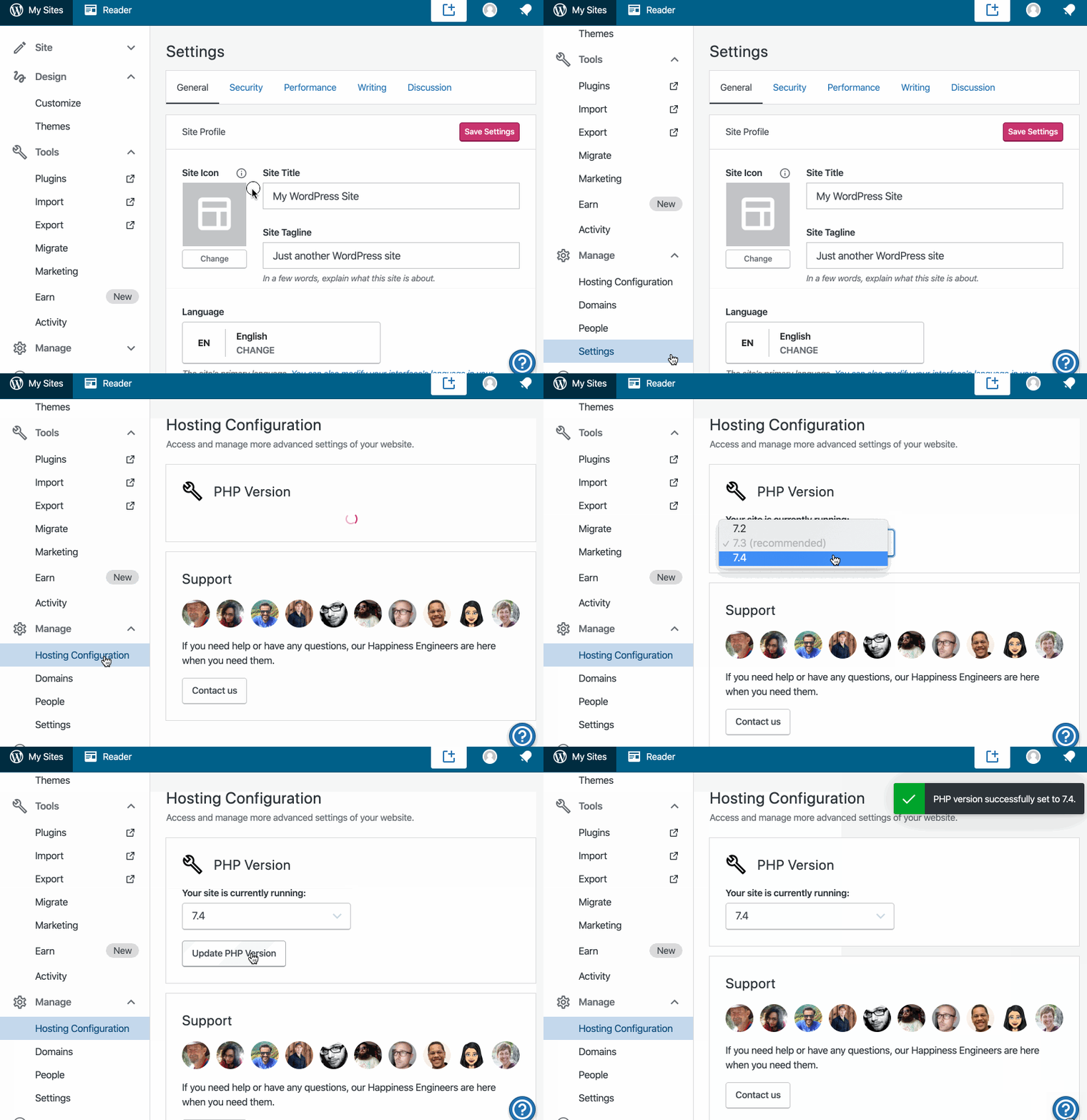
WordPress.com site owners can head to My Site > Manage > Settings. At the top of the Settings menu, you will see a toggle switch — flip it on to join the digital climate strike.

Other WordPress sites can also join the movement by installing the Digital Climate Strike plugin from the WordPress.org plugin repository.

After the day of action, the banner will automatically disappear (or if you’ve installed the plugin, it will automatically disable) and your site will return to normal.

Together we can make a difference, and we hope you’ll join us in supporting this movement.
Quelle: RedHat Stack

A New Way to Earn Money on WordPress.com

It’s hard to be creative when you’re worried about money. Running ads on your site helps, but for many creators, ad revenue isn’t enough. Top publishers and creators sustain their businesses by building reliable income streams through ongoing contributions.

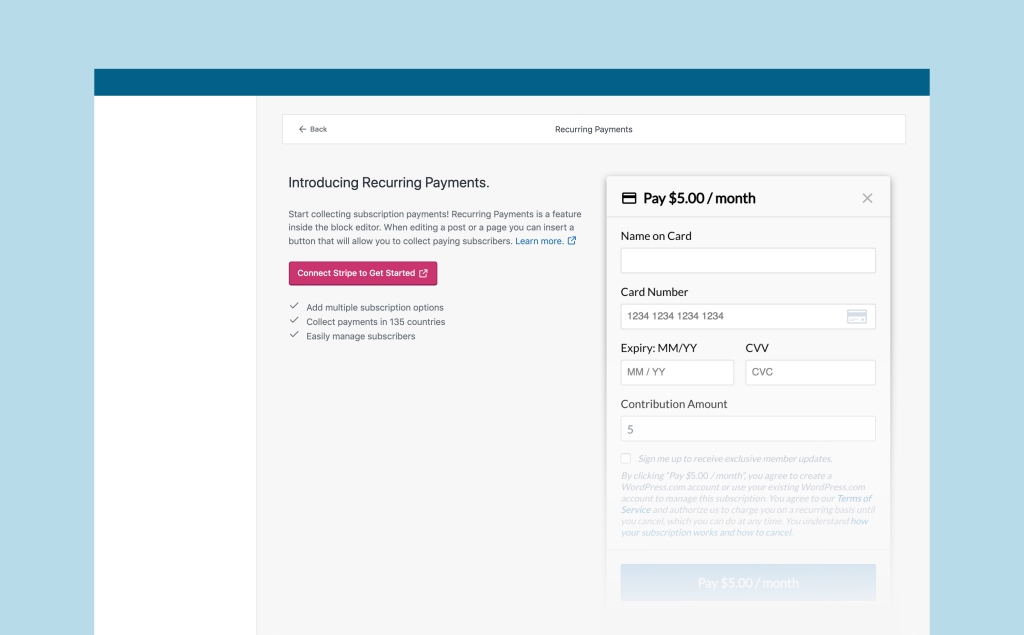
Our new Recurring Payments feature for WordPress.com and Jetpack-powered sites lets you do just that: it’s a monetization tool for content creators who want to collect repeat contributions from their supporters, and it’s available with any paid plan on WordPress.com.

Let your followers support you with periodic, scheduled payments. Charge for your weekly newsletter, accept monthly donations, sell yearly access to exclusive content — and do it all with an automated payment system.

With recurring payments, you can:

Accept ongoing payments from visitors directly on your site.Bill supporters automatically, on a set schedule. Subscribers can cancel anytime from their WordPress.com account.Offer ongoing subscriptions, site memberships, monthly donations, and more, growing your fan base with exclusive content.Integrate your site with Stripe to process payments and collect funds.

Enable Recurring Payments in three steps

Start accepting ongoing payments in just five minutes, without any technical background. 

1. Connect (or create) a Stripe account

WordPress.com partners with Stripe, one of the internet’s biggest payment processors, to make sure transactions are fast and secure. You’ll need a Stripe account to use Recurring Payments. 

Head to your Earn page and click Connect Stripe to Get Started — we’ll walk you through the setup and help you create a Stripe account if you don’t have one.

2. Put a Recurring Payments button on your site

Recurring Payments takes advantage of the powerful block editor. To start collecting revenue, open a post or page, click the (+) to add a new block, and insert a Recurring Payments button.

3. Customize the details of the recurring payment

You can create as many payment plans for your site as you’d like—different currencies, amounts, payment frequencies, and names, so you can offer different tiers or subscriptions.

You can also choose one of your previously created plans when you insert a new button.

Bravo!

You just set up Recurring Payments for your site. Now your fans can support you, just like they do on Longreads.com and around the web.

For more detailed setup instructions, visit the Recurring Payments support page.

So many options to grow your supporter base

With Recurring Payments, you can turn your content into revenue, accept donations, or fund your next big idea. 

Sell access to members-only newsletters.Collect club membership dues automatically.Let fans fund your next art project.

Some people even collect rent with recurring payments!

It’s easier than ever for your visitors to support your site

Recurring Payments make it easy to purchase a subscription or become a supporter on any WordPress.com or Jetpack-connected site — your subscribers will be able to use the same payment information and manage all their subscriptions in one place. To do that, they’ll just need a WordPress.com account.

During the checkout process, they will enter their email address. If they already have a WordPress.com account linked to that address, we will associate the purchase with that account. If they don’t, we’ll create an account for them. When they complete the purchase, they’ll receive an email with more info and login instructions for their new account.

The transaction is between you and your subscriber. WordPress.com only facilitates the processing and management of the subscription. We don’t save your subscribers’ credit card information, either — it’s stored by Stripe, the payment processor, so that the charge can renew automatically. Your subscribers can manage, edit, or cancel their recurring payments on their own, without your intervention, by visiting Me > Manage Purchases > Other sites.

A competitive fee structure helps you share your work far and wide

Recurring Payments is available on all paid plans, for both WordPress.com and Jetpack-connected sites. You pay a percentage of the revenue your site generates through Recurring Payments, which varies depending on your plan. As you collect more subscribers, you might consider switching to a different plan in order to retain more revenue.

WordPress.com PlanJetpack planRelated FeesWordPress.com eCommerce —NoneWordPress.com BusinessJetpack Professional2%WordPress.com PremiumJetpack Premium4%WordPress.com PersonalJetpack Personal 8%

In addition to the fees you pay us, Stripe collects 2.9% + $0.30 for each payment made to your Stripe account.

Make the most of our collection of monetizing tools

Recurring payments is the latest addition to the monetizing tools available on WordPress.com. Here are the other tools you can find by visiting WordPress.com/earn.

Use Simple Payments to take one-time payments, or to sell digital or physical products with minimal configuration.Add WordAds to run advertisements on your site, and earn revenue from your traffic.Move to WooCommerce when you’re ready to create a full shopping experience for visitors — it’s the most customizable online-store platform on the web, with thousands of extensions.

Ready to add Recurring Payments? Head to your site’s Earn section right now.

Quelle: RedHat Stack

PHP 7.4 Just Came Out, and So Did Our PHP Version Switcher

PHP is still one of the most popular languages used to build the web. The newest version, PHP 7.4, was released today — and Business and eCommerce plan customers can opt to start using it immediately.

WordPress.com sites run PHP 7.3 by default — it’s still our recommended version, since it’s been stress-tested across all of WordPress.com — but if you have a site on the Business or eCommerce plan and want to be on the leading technological edge, you can opt to switch to version 7.4 immediately.

Head to My Site > Manage > Hosting Configuration to find the new PHP Version Switcher:

Choose which version of PHP you want your site to run on, click the “Update PHP version” button, and voilà.

(Note: All sites with eCommerce plans can make the switch right now. Sites on the Business plan need to have either an active plugin or a custom theme to use the PHP Version Switcher.)

PHP’s evolved with each version 7 release, and PHP 7.4 promises to have the strongest performance yet. It will eventually power all WordPress.com sites, but Business and eCommerce customers can take advantage of the update today!
Quelle: RedHat Stack