The Classic editing experience is moving, not leaving

With the introduction of the Block editor, the WordPress.com Classic Editor was set for retirement at the beginning of June. We pushed that back a bit to make time for more changes that ease the transition to the Block editor — and now it’s time! With the new and improved Classic block, you have the best of both editors: the flexibility and stability of the Block editor, and the Classic editor interface you know.

From August 11 all WordPress.com accounts will switch from Classic editor to the new Block editor. It will happen in phases, and you’ll get an email to let you know to expect the change.

Here’s what you need to know if you’re a fan of the Classic editor experience.

Why the change?

There are exciting new features in the pipeline that require the new WordPress editor. It’s not technically possible to retrofit them into the older, Classic editor, and we want to make sure everyone can take advantage of them as they become available. With all WordPress.com users publishing with the Block editor, all WordPress.com users always have the latest and greatest.

Can I create simple blog posts the way I always have?

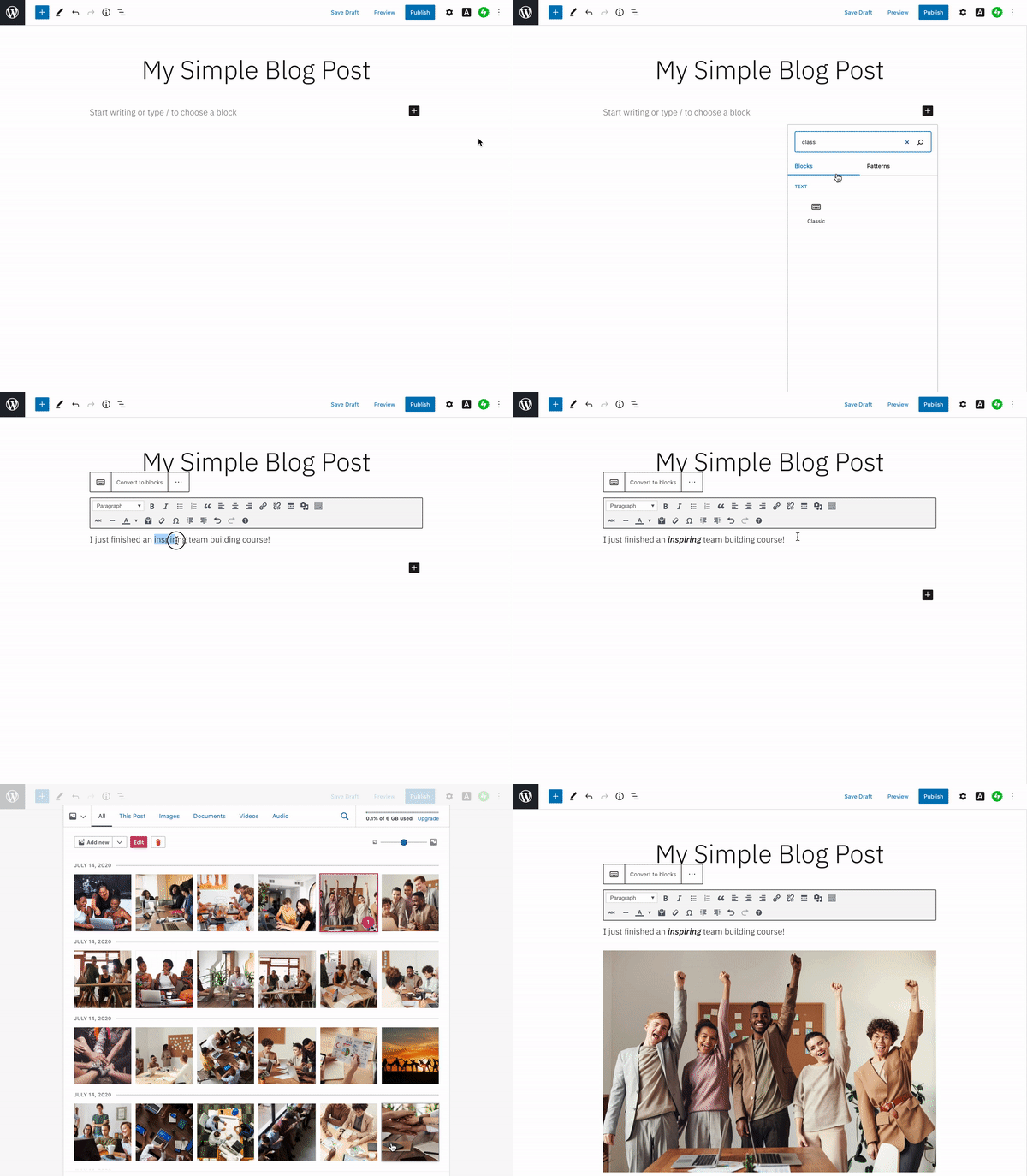
Yes, with the Classic block! It provides an editing experience that mimics the Classic editor — the same options and tools, in the same spot.

To use it, add a Classic block to your post or page, then add and edit both text and media right inside it.

What about editing posts and pages already created in the Classic editor?

Many of you have lots of pages and posts already created and published with the Classic editor. Previously, editing them in the Block editor led to a lot of prompts asking you to convert the content to blocks. Now there’s a single “Convert to blocks” menu item to take care of it in one go.

Use it to upgrade your posts and pages to block-based content at your leisure.

Can I combine the Classic block with other blocks?

The Classic block gives you the best of both worlds. You can continue writing and editing your posts with the simple Classic interface — but when you want to experiment with more complex layouts and functionality you can play with the flexibility of blocks. For example, have you ever wanted an easy way to show off your favorite podcast?

The Block editor also has updates to bring in some of your favorite classic features, like a clean editing screen. The Block editor displays pop-up options and menus as you type — they give you lots of control, but you might not always want them visible over your content. Turn on Top toolbar mode to keep them pinned to the top of the screen. It’s a great way to experience the full flexibility of the block editor while still allowing distraction-free writing.

Look out for the email letting you know when to expect the Block editor switch! In there meantime, learn more about working with the Block editor and the Classic block.
Quelle: RedHat Stack

Introducing a New, Convenient Way for Your Customers to Contact You

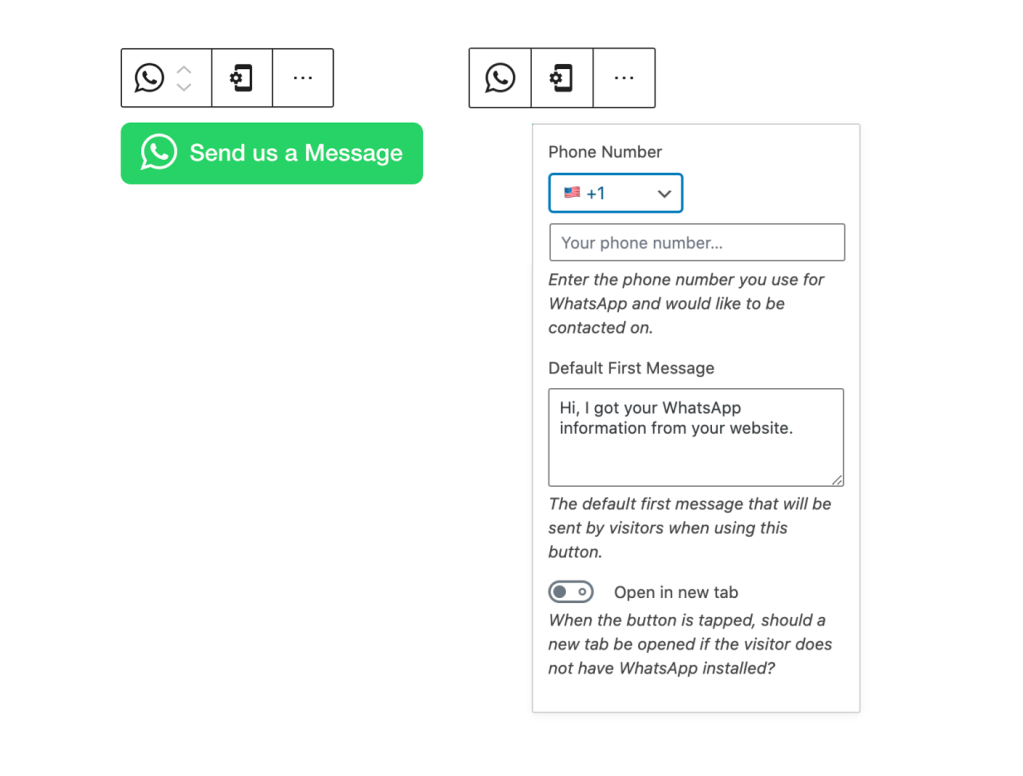
The world is mobile, and your visitors and customers expect to be able to easily contact you using their mobile device. With WordPress.com’s new WhatsApp button, you can provide a one-click, secure way for people to open WhatsApp, with your phone number and a message pre-filled.

Insert the WhatsApp button with your phone number and a custom message pre-filled.

Adding the button is easy. In the block editor, create a new block and search for WhatsApp:

The WhatsApp button is available now to all WordPress.com sites on a Premium, Business, or eCommerce plan. You can upgrade your site to one of these plans, try it out for 30 days, and if you’re not satisfied with your upgrade we’ll grant you a full refund.

If you decide to cancel your paid plan after you’ve already accepted the free custom domain, the domain is yours to keep. We simply ask that you cover the costs for the domain registration.

We hope the WhatsApp button helps you connect with your customers and visitors in new ways. Give it a try today!
Quelle: RedHat Stack

Mirantis Acquires Lens, the World’s Most Popular Kubernetes IDE, to Simplify App Development for Amazon EKS, Google GKE, Microsoft AKS, and On-Prem Clouds

The post Mirantis Acquires Lens, the World’s Most Popular Kubernetes IDE, to Simplify App Development for Amazon EKS, Google GKE, Microsoft AKS, and On-Prem Clouds appeared first on Mirantis | Pure Play Open Cloud.
Lens has widespread adoption and is one of the top trending Kubernetes projects on GitHub
Campbell, CA, August 13, 2020 — Mirantis, the open cloud company, today announced the company has acquired Lens – the Kubernetes integrated development environment (IDE) open source project from its authors, bringing multi-cluster management into the mainstream and greatly simplifying the experience for developers working with Kubernetes and cloud-native applications. This follows the Mirantis acquisition of the team behind the product in February.
Available on Github under the MIT license, Lens has garnered widespread adoption since its launch as an open source project in March 2020. With a growing community of 35,000 users and 7,000 stargazers on GitHub, it has become one of the top trending open source projects in the cloud-native ecosystem. According to publicly available data, some of the largest companies in the world are using Lens to accelerate their Kubernetes efforts at scale, including Apple, Rakuten, Zendesk, TIM, and Adobe.
Lens eliminates the Kubernetes complexity that has hindered mainstream developer adoption since its inception. The tool unlocks situational awareness and enables users to easily manage, develop, debug, monitor, and troubleshoot their workloads across multiple clusters in real time. It supports any certified Kubernetes distribution on any infrastructure, providing freedom of choice for hundreds of enterprises around the world. Lens is a standalone desktop application and works with MacOS, Windows, and Linux operating systems. Users may download and install the software free of charge. 
“Lens has enabled our developers to be more productive by accelerating and simplifying the Kubernetes development workflow,” said Matti Paksula, CTO at Supervisor.com. “The best feature in my opinion is that when I do kubectl get pod in the terminal, the dashboard you are looking at is always in the right context. Additionally, I don’t need to worry about working with stale information because everything is real time.” 
With the acquisition, Mirantis will invest significantly in Lens future development while committing to continue working collaboratively with the Lens community and leading ecosystem players. Lens will remain free and open source.
“Just like Visual Studio was a breakthrough for software developers, Lens is a game changer for Kubernetes developers and operators. It makes writing, testing and running Kubernetes apps easy and simple on any public or private cloud.” said Adrian Ionel, co-founder and CEO, Mirantis. “Lens fills a major gap in moving people from being interested in Kubernetes to being productive with Kubernetes.”
Lens features include:

Immediate Situational Awareness in Context: Lens provides users the easiest and fastest path to situational awareness in real-time for Kubernetes applications and clusters. With a context-aware terminal, built-in Prometheus stats, and comprehensive logging Lens provides users with the easiest and fastest navigation through all layers in the stack, so they can view performance data and troubleshoot issues. 
Context-Aware Terminal: The built-in terminal includes a version of kubectl that is always API-compatible with your cluster and in the right context by automatically downloading and assigning the correct version in the background. As the user switches from one cluster to another, the terminal maintains the correct kubectl version and context.
Multi-Cluster Management on Any Cloud: Access and work with any number of Kubernetes clusters on any cloud, from a single unified IDE. The clusters may be local (e.g. minikube, Docker Desktop) or external (e.g. Docker Enterprise, EKS, AKS, GKE, Rancher, or OpenShift). Clusters may be added simply by importing the kubeconfig with cluster details.
Multiple Workspaces: Workspaces are used to organize any number of clusters into logical groups. They are useful for DevOps and SREs who need to manage multiple (even hundreds of) clusters. A single workspace contains a list of clusters and their full configuration.
Built-In Prometheus Stats: See real-time graphs and resource utilization charts integrated into the dashboard, always in the right context. Lens comes with a built-in and multi-tenant Prometheus setup that respects role-based access control (RBAC) for each user. Users will see visualizations for all the namespaces and resources to which they have access. 

“It’s been amazing to see the rapid adoption of Lens. User growth has been entirely organic so clearly there was a need for a developer-friendly Kubernetes IDE,” said Miska Kaipiainen, founder and principal of the Lens open source project. “With Mirantis, Lens will remain vendor neutral and open source, and maintain its independence. We’re excited to invest more in new feature development, community building, and cloud native technology integrations to make the product better for everybody in the ecosystem.”
A technical demo video of Lens will be available at the KubeCon EU virtual event August 17-20 in the Demo Theater. Visit the Mirantis booth in the Platinum Expo Hall to chat live with the Lens team.
Join the Lens movement on Slack: k8slens.slack.com.The post Mirantis Acquires Lens, the World’s Most Popular Kubernetes IDE, to Simplify App Development for Amazon EKS, Google GKE, Microsoft AKS, and On-Prem Clouds appeared first on Mirantis | Pure Play Open Cloud.
Quelle: Mirantis

Mirantis Acquires Lens, the World’s Most Popular Kubernetes IDE, to Simplify App Development for Amazon EKS, Google GKE, Microsoft AKS, and On-Prem Clouds

The post Mirantis Acquires Lens, the World’s Most Popular Kubernetes IDE, to Simplify App Development for Amazon EKS, Google GKE, Microsoft AKS, and On-Prem Clouds appeared first on Mirantis | Pure Play Open Cloud.
Lens has widespread adoption and is one of the top trending Kubernetes projects on GitHub

Campbell, CA, August 13, 2020 — Mirantis, the open cloud company, today announced the company has acquired Lens – the Kubernetes integrated development environment (IDE) open source project from its authors, bringing multi-cluster management into the mainstream and greatly simplifying the experience for developers working with Kubernetes and cloud-native applications. This follows the Mirantis acquisition of the team behind the product in February.

Available on Github under the MIT license, Lens has garnered widespread adoption since its launch as an open source project in March 2020. With a growing community of 35,000 users and 7,000 stargazers on GitHub, it has become one of the top trending open source projects in the cloud-native ecosystem. According to publicly available data, some of the largest companies in the world are using Lens to accelerate their Kubernetes efforts at scale, including Apple, Rakuten, Zendesk, TIM, and Adobe.

Lens eliminates the Kubernetes complexity that has hindered mainstream developer adoption since its inception. The tool unlocks situational awareness and enables users to easily manage, develop, debug, monitor, and troubleshoot their workloads across multiple clusters in real time. It supports any certified Kubernetes distribution on any infrastructure, providing freedom of choice for hundreds of enterprises around the world. Lens is a standalone desktop application and works with MacOS, Windows, and Linux operating systems. Users may download and install the software free of charge. 

“Lens has enabled our developers to be more productive by accelerating and simplifying the Kubernetes development workflow,” said Matti Paksula, CTO at Supervisor.com. “The best feature in my opinion is that when I do kubectl get pod in the terminal, the dashboard you are looking at is always in the right context. Additionally, I don’t need to worry about working with stale information because everything is real time.” 

With the acquisition, Mirantis will invest significantly in Lens future development while committing to continue working collaboratively with the Lens community and leading ecosystem players. Lens will remain free and open source.

“Just like Visual Studio was a breakthrough for software developers, Lens is a game changer for Kubernetes developers and operators. It makes writing, testing and running Kubernetes apps easy and simple on any public or private cloud.” said Adrian Ionel, co-founder and CEO, Mirantis. “Lens fills a major gap in moving people from being interested in Kubernetes to being productive with Kubernetes.”

Lens features include:

Immediate Situational Awareness in Context: Lens provides users the easiest and fastest path to situational awareness in real-time for Kubernetes applications and clusters. With a context-aware terminal, built-in Prometheus stats, and comprehensive logging Lens provides users with the easiest and fastest navigation through all layers in the stack, so they can view performance data and troubleshoot issues. 
Context-Aware Terminal: The built-in terminal includes a version of kubectl that is always API-compatible with your cluster and in the right context by automatically downloading and assigning the correct version in the background. As the user switches from one cluster to another, the terminal maintains the correct kubectl version and context.
Multi-Cluster Management on Any Cloud: Access and work with any number of Kubernetes clusters on any cloud, from a single unified IDE. The clusters may be local (e.g. minikube, Docker Desktop) or external (e.g. Docker Enterprise, EKS, AKS, GKE, Rancher, or OpenShift). Clusters may be added simply by importing the kubeconfig with cluster details.
Multiple Workspaces: Workspaces are used to organize any number of clusters into logical groups. They are useful for DevOps and SREs who need to manage multiple (even hundreds of) clusters. A single workspace contains a list of clusters and their full configuration.
Built-In Prometheus Stats: See real-time graphs and resource utilization charts integrated into the dashboard, always in the right context. Lens comes with a built-in and multi-tenant Prometheus setup that respects role-based access control (RBAC) for each user. Users will see visualizations for all the namespaces and resources to which they have access. 

“It’s been amazing to see the rapid adoption of Lens. User growth has been entirely organic so clearly there was a need for a developer-friendly Kubernetes IDE,” said Miska Kaipiainen, founder and principal of the Lens open source project. “With Mirantis, Lens will remain vendor neutral and open source, and maintain its independence. We’re excited to invest more in new feature development, community building, and cloud native technology integrations to make the product better for everybody in the ecosystem.”

A technical demo video of Lens will be available at the KubeCon EU virtual event August 17-20 in the Demo Theater. Visit the Mirantis booth in the Platinum Expo Hall to chat live with the Lens team.

Join the Lens movement on Slack: k8slens.slack.com.

About Mirantis
Mirantis is the fastest way to modern apps, providing containers-as-a-service at enterprise scale. The company uses a unique as-a-service model to deliver Kubernetes and related open source software, empowering developers to build, share and run their applications anywhere – from public cloud to hybrid cloud to the edge. Mirantis serves many of the world’s leading enterprises, including Adobe, Cox Communications, DocuSign, Liberty Mutual, PayPal, Reliance Jio, Splunk, STC, Vodafone, and Volkswagen. Learn more at www.mirantis.com.

###

Media Contact

Joseph Eckert for Mirantis

jeckert@eckertcomms.comThe post Mirantis Acquires Lens, the World’s Most Popular Kubernetes IDE, to Simplify App Development for Amazon EKS, Google GKE, Microsoft AKS, and On-Prem Clouds appeared first on Mirantis | Pure Play Open Cloud.
Quelle: Mirantis

Lens, the world’s most popular Kubernetes IDE, has found a new home at Mirantis

The post Lens, the world’s most popular Kubernetes IDE, has found a new home at Mirantis appeared first on Mirantis | Pure Play Open Cloud.
As you may have heard, Mirantis will oversee development of the open source Lens IDE for Kubernetes.  Lens brings multi-cluster management into the mainstream and simplifies the experience for developers working with Kubernetes and cloud-native applications. 

Lens is quickly becoming a Big Deal(TM). Available on Github under the MIT license, Lens has seen blistering widespread adoption since its launch as an open source project this March. With a growing community of 40,000+ users and 7,300+ stargazers on GitHub, it is one of the top trending open source projects in the cloud-native ecosystem. (According to publicly available data, some of the largest companies in the world are using Lens to accelerate their Kubernetes efforts at scale, including Apple, Rakuten, Zendesk, TIM, and Adobe.)

So what’s the big fuss?  Kubernetes has a dashboard, right?  Well, yes, but it’s not really designed to give you the functionality Lens does, including:

Multi-Cluster management on any cloud, whether local (e.g. minikube, Docker Desktop) or external (e.g. Docker Enterprise, EKS, AKS, GKE, Rancher, or OpenShift). Simply import the kubeconfig. You can even group clusters into workspaces.
Immediate situational awareness in context, with a context-aware terminal, built-in Prometheus stats, and comprehensive logging that lets you look at all layers in the stack. Imagine seeing a pod’s logs without having to jump through a million hoops! 
Context-aware terminal includes a version of kubectl that is always API-compatible with your cluster and in the right context, even as you switch from one cluster to another.
Built-In Prometheus stats lets you see real-time graphs and resource utilization charts integrated into the dashboard, always in the right context. 

That’s a lot of words.  Let’s see what Lens looks like:

Crazy that Kubernetes can be that easy, huh?  We’re hugely excited to be part of the Lens movement. Join us on the Lens Slack,  download Lens now and let us know what you think!  

 The post Lens, the world’s most popular Kubernetes IDE, has found a new home at Mirantis appeared first on Mirantis | Pure Play Open Cloud.
Quelle: Mirantis

Getting started with Lens

The post Getting started with Lens appeared first on Mirantis | Pure Play Open Cloud.
It’s easy to get going with Lens on virtually any computer with a graphical desktop environment (Linux, Mac, or Windows). The only real requirement is that you need one or more pre-existing Kubernetes clusters for Lens to look at. (Otherwise, what’s the point?)

Specifically, Lens talks to the Kubernetes API via kubectl, so you’ll need connectivity to your cluster(s) from the computer on which you want to install Lens to port 6443 of the cluster controller using https. As long as you have the kubeconfig for your cluster stored locally (and Lens can help you find that), you should be good to go.

The cluster itself can be pretty-much anywhere and derive from any source. You can use Lens to control local clusters (such as Docker Kubernetes Service clusters running on your laptop), or remote clusters on bare metal, private, or public clouds. Lens adapts automatically to manage different recent versions of Kubernetes, so dealing with multiple generations of Kubernetes cluster is no problem.

Don’t have a cluster yet? Happily, that’s easy too, because you can install a Docker Enterprise cluster quickly, using Launchpad. In fact, Launchpad and Lens companion very well, since Launchpad is available for Linux, Mac, and Windows, too.
Installing Lens
Basic docs can be found at the Lens repository on GitHub. Downloadables are available on the releases page. Installation on Windows (via .exe) and Mac (via .dmg) is easy; just download those files to the local machine and run them. 

On Mac, you can also:
brew cask install lens
to get the latest version.

For Linux, Lens is available via snap or packaged as an AppImage, which we recommend for its convenience. If you haven’t encountered AppImages before (plenty of frequent Linux users haven’t – don’t feel bad), AppImage tech provides a way of packaging application dependencies together in executable binaries that will run on pretty much any Linux machine.

To use the AppImage, just download the release binary to a safe place on your system, make it executable, and run it from the command line or your desktop’s application browser. Because Lens is a desktop application, you don’t even need to be particularly concerned about making sure to save the Lens binary somewhere on your CLI execution path, because the first time it runs, it inserts an icon in your ‘Favorites’ bar that you can pin there to make subsequent execution easy.

Using a standard browser, this is pretty simple, but you can also do it from the command line. To do so, right-click on the link to the AppImage on the Releases page and select Copy link address, then:

Make a lens directory
cd into it
download the binary there using wget, curl, or another tool
make the binary executable, and
run it, prefixing the file name with ./ to tell bash that it needs to look in the local directory instead of elsewhere on your execution path.

For example:
mkdir lens
cd lens
wget https://github.com/lensapp/lens/releases/download/v3.5.2/Lens-3.5.2.AppImage
chmod +x Lens-3.5.2.AppImage
./Lens-3.5.2.AppImage
Lens checks for updates, then opens on your desktop. Right-click on its icon in your Favorites bar and click Add to Favorites to make it more easily accessible.

When launching Lens from a Favorites icon, be sure to just click once for each instance of Lens you want to run. Especially on slowish virtual machines, Lens takes a few moments to start up (check for updates, load contexts, and so on), so it’s easy to get half a dozen instances launching at once if you get impatient and click multiple times. 
Configuring Lens to work with your cluster(s)
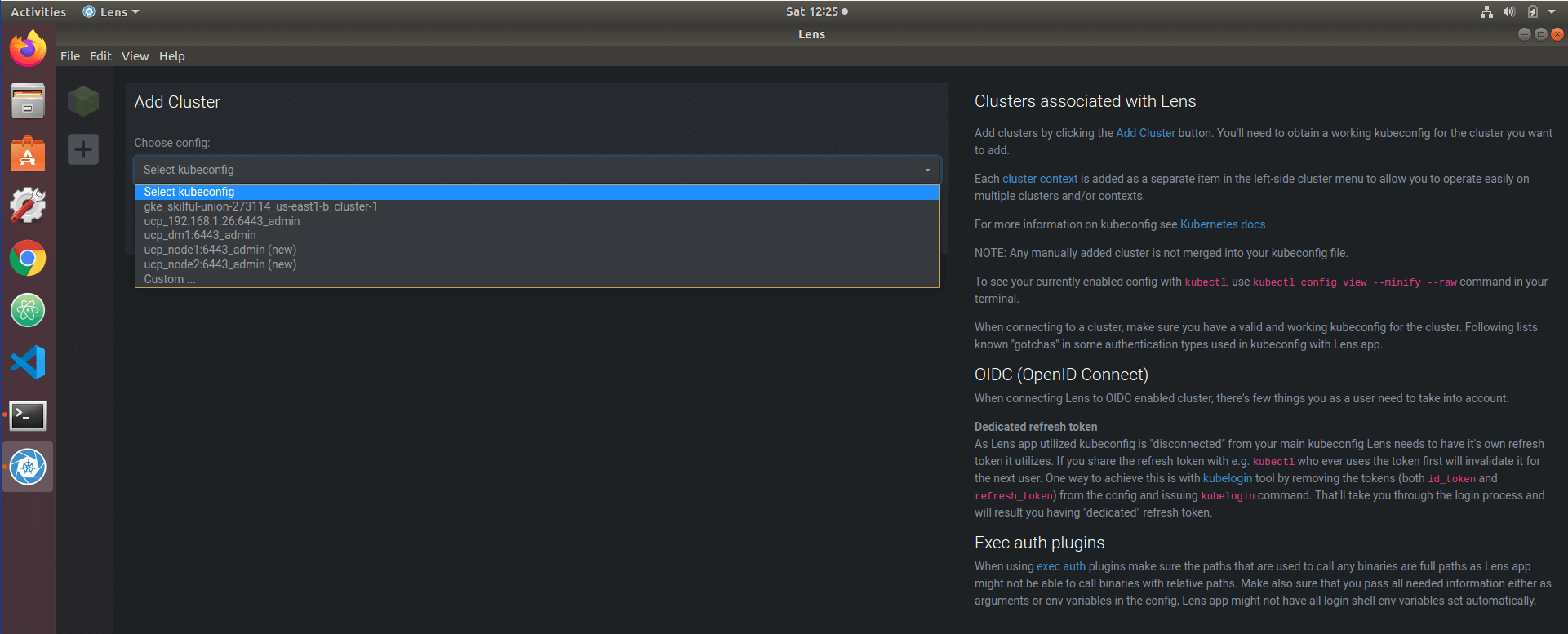
Lens makes configuration very simple. Click Add Cluster in the File menu, and Lens pops up a list of all the kubeconfigs it’s found on your local system. Pick one, and Lens self-configures — creating a context for that cluster so it can manage (for example) the particular version of Kubernetes API it uses, and other details.

If you can’t find your desired kubeconfig in the list, it may be that you haven’t yet downloaded an authentication bundle for that cluster. (Perhaps it was recently deployed, or you deployed it on a public cloud service). For Docker Enterprise clusters, just browse the Universal Control Plane webUI, click on Admin>My Profile>Client Bundles, generate and download a new client bundle, unzip it, and find the kube.yml file; that’s the one Lens needs.

Before manually adding the cluster, it makes sense to use kubectl to make sure the config is working and you can reach the cluster. For Docker Enterprise, this is easy — just source the env.sh from the client bundle, to authenticate:
source env.sh
Then run any kubectl command, such as:
kubectl get pods –all-namespaces
You can then list and copy the kube.yml. In Lens, click on Custom in the kubeconfig pick list, then just paste the YAML into the window and click Add Cluster.

In moments, Lens will populate its context, add your cluster, and show its details in the main window. The only thing you won’t see, at first, is cluster metrics, which is the next thing we’ll set up.
Enabling Lens metrics
Lens can run a small Prometheus instance in your cluster, giving you metrics for nodes visible to you according to RBAC permissions on your account. Admins, of course, will be able to see metrics for everything.

(If you’re already running Prometheus, you can export metrics from this instance to Lens; full instructions are accessible from within the application.)

To set up the internal Prometheus instance, right click on the cluster icon in Lens’ left-hand menu and select Settings, then scroll down to where it says Prometheus to connect an existing Prometheus instance, or a little further, under Features/Metrics, where you can just click Install to have Lens create an instance for you.

Either way, Lens connects to your Prometheus, and cluster metrics automagically appear on your cluster dashboard.

Basic LensOps
Lens makes all the objects and abstractions in each cluster instantly accessible to you. Take a look at the left-hand menu, and try clicking on Workloads. You get a highly browsable submenu (and an alternative, tabbed display) of everything, including handy, color-coded summary graphics that will clue you to any issues.

Drill down anywhere, right-click on the submenu associated with any line-item, and you can edit its YAML in Lens’ built-in editor, then Save to reapply it. Devs working with private clusters can quickly iterate live changes and check results. Drilling in further, Lens lets you access terminals inside running containers, and retrieves container and pod logs directly, with one click, for easy review.

If you’re working on a more infra-as-code basis, Lens also lets you open any number of terminals, letting you quickly browse a local repo for files you need, for example, then push changes to git, issue docker commands, or pop files into VScode or ATOM (or whatever IDE or editor you prefer) for editing, versioning, and careful reapplication.
Where to go from here
The best place to go for inspiration on more advanced use of Lens is the community slack channel (https://k8slens.slack.com), a link to which is provided in the About menu in Lens itself.

Please try Lens, let us know what you think, and what you’d like to see covered in upcoming Lens tutorials. We’re here for you!The post Getting started with Lens appeared first on Mirantis | Pure Play Open Cloud.
Quelle: Mirantis

Manage Posts and Pages with the Block Editor Sidebar

We wanted to make it easier to manage posts and pages when you’re working within the Block Editor. With the Block Editor Sidebar you can view, create, edit, and manage posts and pages right from the Block Editor!  
Wait, another sidebar?
Have you ever finished editing something and then needed to make a quick edit to an existing post, or start a new one? Previously this meant navigating to your dashboard and to the posts list.
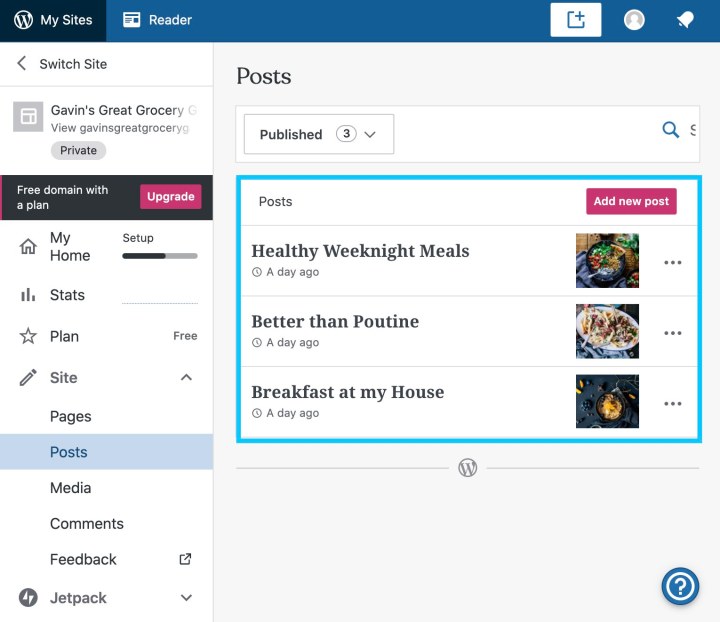
The Block Editor Sidebar allows you to view and access your site’s posts and pages — whether they’re drafts, published, or scheduled — and create new ones right from the editor.
Using the sidebar
The sidebar is available in the Block Editor when editing both posts and pages. For now, when editing a post you’ll only be able to see recent posts, and create new posts. Similarly, if you’re editing a page you’ll see a list of your recent pages and a link to create a new page.
The following steps refer to posts, but you can use the same steps to edit pages.
Open an existing post or create a new one to open the editor.

To view the sidebar, click on the WordPress.com logo at the top left of the editor.

To return to your posts list, select the View Posts link.

To load an existing post, select the post title in the list of recent posts. Unless it’s already been published, the post’s status will appear next to the title, for example “Draft” or “Scheduled.”

To create a new post, click on the Add new post link.

To dismiss the sidebar, click anywhere outside the sidebar or press the “Escape” key.
What’s next?
Now that we have the Block Editor Sidebar in place, we’ll extend its capabilities with more tools and shortcuts to help you manage your site’s content.
Do you have ideas for site-level features you’d like to see in the Block Editor Sidebar? Or suggestions about how we can improve this feature? Please let us know in the comments!
Quelle: RedHat Stack

Starting Your Own Podcast on WordPress.com

I am very inspired by creative podcasts. Entertaining guests and the unscripted nature of the conversations make me feel like I am right there, chatting about world affairs or the deep societal transformations of the connected age. I decided to start my own show with a group of friends  — loosely about blogging, but delving into all sorts of things.

It took three hours, with a total cost of $5/month, including our own domain name. In this post, I’ll share my journey of launching a brand-new podcast on WordPress.com, and later promoting it on iTunes and Spotify.

Why start a podcast?

Podcasting has been hailed as “the new blogging.” According to Edison Research, 51% of Americans have listened to a podcast, and hosts have created over one million podcasts on iTunes Podcasts.

Starting a podcast comes with a lot of perks:

You can connect with your audience on a much deeper level, thanks to your voice and the unscripted nature of the conversation.It’s a fantastic excuse to reach out and meet interesting people.Podcasting pairs really well with other projects — blogging, writing, or even a corporate ”day job.”

A group of Polish bloggers and I had been dreaming of a foray into podcasting for a while. We created the Placebo podcast in hopes of meeting interesting people and, frankly, having fun.

The tagline in Polish reads: “Your dose of absolutely nothing. Confirmed clinical efficacy.”

How does it all work?

You may have listened to a podcast on iTunes, Spotify, or another app — but did you know the content you’re enjoying doesn’t originate there? The beating heart of every podcast is its RSS feed. It is a particular format for content that services like iTunes or Spotify can process and display in the appropriate apps — iTunes, Alexa devices, and other services.

When you upload an audio file to your blog (for example, an .mp3) and hit publish, the new post (including the file) shows up in your RSS feed. From there, iTunes, Spotify, Pocket Casts, or another podcast app downloads the file to play it to your listeners.

WordPress.com also has built-in podcasting tools to make that job easier. To upload audio files, you’ll need a paid plan — any plan, including the Personal plan at $5/month, will do.

What do you need to start?

The name

The name of your podcast helps listeners find you in their favorite podcasting app. With Placebo, our main concern was making it memorable; our secondary goal, humor. (Which is related — funny is memorable!) We came up with “Placebo — a podcast with a confirmed clinical efficacy.”

Other memorable name examples include therapist Esther Perrell’s podcast, Where Should We Begin, Matt Mullenweg’s podcast about remote work, Distributed, and Joe Rogan’s The Joe Rogan Experience. If you are still stuck, try out our recently launched business name generator to help you brainstorm.

Recording

We didn’t want to get expensive gear. It’s better to start simple with the equipment you already have. The Placebo podcast is recorded over Zoom, with video-call headsets. I recommend recording at least three episodes, so when you publish, your listeners will have a better taste of your style.

The Distributed podcast has a great walkthrough of the various recording options you can try.

Cover art

In addition to your name, there are other ways to stand out from all the other podcasts and voices: strong cover art and a succinct, solid summary. (You can add all three on WordPress.com in My Sites → Settings → Writing → Podcasting.) 

The cover art should be easy to recognize. Since our podcast is named Placebo, we decided on a satirical medical vibe. We found a nice graphic, and after a few tweaks, tada!

Placebo podcast cover image

Pro tip: Cover art should be 1400×1400 px, so be sure to use an image that’s big enough.

The summary

When writing your summary on iTunes, you must distill the description of your podcast content to 250 characters or less. For Placebo, we wanted to give listeners a taste and encourage them to give us a try:

Placebo is a podcast with confirmed clinical efficacy. Artur, Agnes, and Michael chat about building your online home, technology, culture, business ideas, and being the best citizen of the Internet you can be. More on placebo.pro

We also included the link to our site, where listeners can learn more.

Here is where you upload your cover art and summary on WordPress.com

Light audio editing

Some podcasts (like Distributed) are edited to equalize audio levels or condense the episode. We opted to publish the raw audio — I only attach the pre-recorded intro music in GarageBand. I delve into details of audio editing on my blog Deliberate Internet. 

Before I upload a new episode to iTunes Podcasts, I add relevant ID3 tags in the iTunes player (where you edit rather than publish). ID3 tags are used by the iPhone Podcasts app to display your cover image. Import each one of your recorded files in iTunes player and select “Information.” There, you can tweak the image, category, and title of the audio file.

After you edit the information in iTunes player, or wherever you are editing your podcast, upload your cover art and click “OK”; your episode will appear in the iTunes Player Podcast library on your computer. You can find this file in your Home Directory → Music → iTunes → Podcasts.

Your audio files are now ready for distribution! That’s where WordPress.com comes in.

Uploading to WordPress.com

Create a separate WordPress.com post for each episode of your podcast. This gives you a unique link to share with your audience, a way for them to listen to your episode without the app, and a place to add extra notes and links.

To publish a podcast post:

Create a new post. Add any extra notes or info you want to share with the podcast.Add the Audio block and upload your podcast file.Give the post the Podcast category.Publish the post.

This guide on the WordPress.com Support Site has more details.

Time to go live

You have your domain and a site for your podcast. You’ve recorded and uploaded a few episodes. Now it’s time to share your podcast with the world!

Your podcast is available on your WordPress.com site, but the majority of people consume podcasts through an app — iTunes podcasts, Spotify, Google Play, etc. Fortunately, they all work by checking your RSS feed. Once you submit your RSS feed to those services, new episodes will appear there automatically.

Spotify 

Copy the RSS URL from the WordPress.com podcasting settings pageGo to Podcasters SpotifySubmit your RSS feedWait two to three days for your podcast to appear

iTunes

Copy the RSS URL from the WordPress.com podcasting settings pageGo to Podcasts ConnectSubmit your RSS feedWait about a week for them to review and approve your podcast

When the podcast is reviewed, approved, and appears in the Spotify and iTunes libraries, add those links to your site. That way, you can promote your nifty WordPress.com custom domain, and visitors can choose their preferred podcast consuming technology. We put these buttons right up at the top:

You can download these buttons here:

Apple Podcasts badgeSpotify badge

The lucky number seven

Recording new podcast episodes are plenty of fun, but can sometimes feel like work. Podcasts with seven or more episodes are likely to continue growing. The Placebo podcast crew has pledged to record at least eight.

And don’t forget to enjoy it! The conversations with interesting guests are why we do it.

I’ve published the full version of “How to Start a Podcast” on my personal website. There, I’ve expanded on my process to record episodes over Zoom, and how I later edited them in GarageBand. Dive deeper if you’re interested!

Cover Photo by The Teens Network Daytime Show Studios on Pexels.com
Quelle: RedHat Stack
Improve Your Remote Collaboration With P2

P2 powers internal collaboration at WordPress.com — and now it’s free for everyone.

As more collaboration is happening remotely and online — work yes, but increasingly also school and personal relationships — we’re all looking for better ways to work together online. Normally, teachers hand out homework to students in person, and project leaders gather colleagues around a conference table for a presentation. Suddenly all this is happening in email, and Slack, and Zoom, and Google docs, and a dozen other tools.

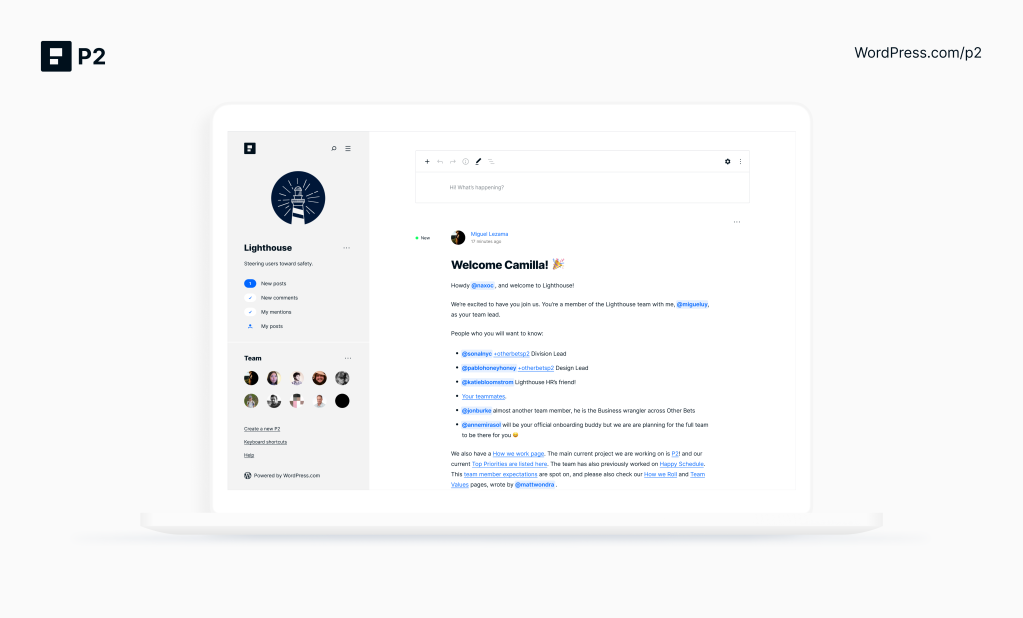
At WordPress.com, our 15 years as a fully distributed company with over 1,200 employees working from 77 countries relies on P2: an all-in-one team website, blog, database, and social network that consolidates communications and files in one accessible, searchable spot.

It powers work at WordPress.com, WooCommerce, and Tumblr. And today, a beta version is available for anyone — for your newly-remote work team, your homeschooling pod, your geographically scattered friends. P2 is the glue that gives your group an identity and coherence. 

What’s P2?

P2 moves your team or organization away from scattered communication and siloed email inboxes. Any member of your P2, working on any kind of project together, can post regular updates. Discussions happen via comments, posted right from the front page and updated in real time, so your team can brainstorm, plan, and come to a consensus. Upload photos or charts, take a poll, embed files, and share tidbits from your day’s activities. Tag teammates to get their attention. Your P2 members can see updates on the Web, via email, or in the WordPress mobile apps. 

Keep your P2 private for confidential collaboration. Or make it public to build a community. How you use it and who has access is up to you. And as folks come and go, all conversations and files remain available on the P2, and aren’t lost in anyone’s inbox.

The beta version of P2 is free for anyone, and you can create as many P2 sites as you need. (Premium versions are in the works.)  

What can I use P2 for?

Inside Automattic, we use P2 for:

Companywide blog posts from teams and leadership, where everyone can ask questions via comments.Virtual “watercoolers” to help teammates connect — there are P2s for anything from music to Doctor Who to long-distance running.Project planning updates.Sharing expertise to our broader audience. We’ve got a P2 with guidance on how to manage remote work, and WooCommerce uses P2 to organize their global community.

P2 works as an asynchronous companion to live video like Zoom or live chat like Slack. It’s a perfect partner for live video and chat — you have those tools when a real-time conversation gets the job done, and P2 for reflection, discussion, and commemorating decisions.

How can you use your P2?

Plan a trip with friends and family — share links, ticket files, and travel details. (See an example on this P2!).Create a P2 for your school or PTA to share homeschooling resources and organize virtual events.Manage your sports team’s schedules and share photos from games.Let kids track and submit homework assignments remotely, with a space for Q&A with your students.

How can I learn more?

Visit this demo P2 to learn the P2 ropes! Check out a range of example posts and comments to see how you can:

Post, read, comment, like, and follow conversations. @-mention individuals and groups to get their attention. Share video, audio, documents, polls, and more.  Access in-depth stats and get notifications.

Ready for your own P2?

Visit WordPress.com/p2 and create your own P2.
Quelle: RedHat Stack