Docker Hub Image Retention Policy Delayed, Subscription Updates

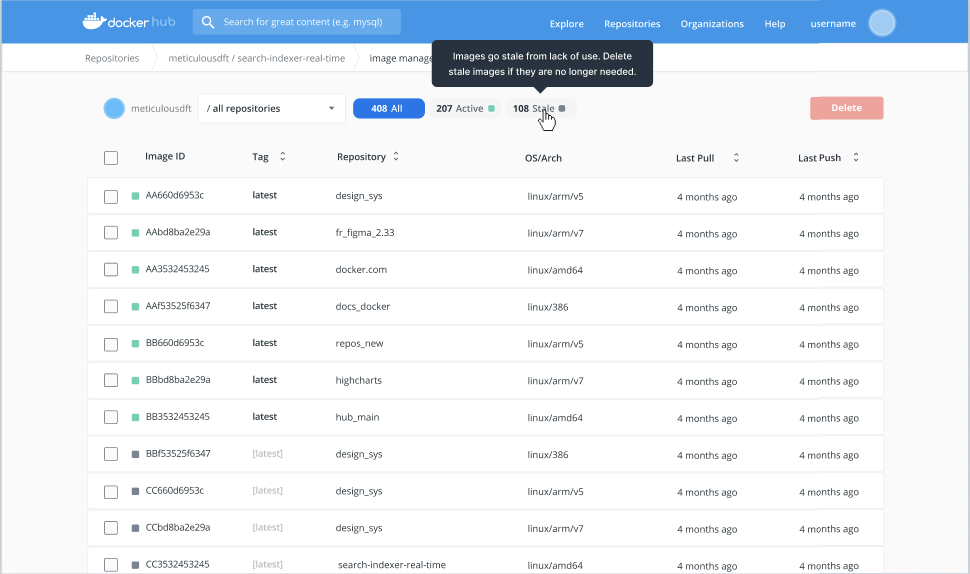
Today we are announcing that we are pausing enforcement of the changes to image retention until mid 2021. Two months ago, we announced a change to Docker image retention policies to reduce overall resource consumption. As originally stated, this change, which was set to take effect on November 1, 2020, would result in the deletion of images for free Docker account users after six months of inactivity. After this announcement, we heard feedback from many members of the Docker community about challenges this posed, in terms of adjusting to the policy without visibility as well as tooling needed to manage an organization’s Docker Hub images. Today’s announcement means Docker will not enforce image expiration enforcement on November 1. Instead, Docker is focusing on consumption-based subscriptions that meet the needs of all of our customers. In this model, as the needs of a developer grow, they can upgrade to a subscription that meets their requirements without limits.

This change means that developers will get a base level of consumption to start, and can extend their subscriptions as their needs grow and evolve, only paying for what is actually needed. The community of 6.7 million registered Docker developers is incredibly diverse–the requirements of someone getting started with containers is different than the needs of an OSS project organizer which are also different for a 40,000 person software development team. Our new model gives each individual developer or organization the opportunity to scale their usage and consumption along the dimensions that make most sense to them. 

As we make this move to consumption-based subscriptions, we are also creating new capabilities to help users understand and manage their usage of various resources on the Docker platform. As an example of this, for image storage on Docker Hub we will soon release an experimental Hub CLI tool, a Hub Dashboard and new APIs. Our goal is to give developers the insights required to effectively understand and manage their image storage in Docker Hub. We will be delivering the first tools in the coming weeks, and will announce the timeline for new image retention policies early in 2021.

Reminder: Image pull consumption tiers

Continuing with our move towards consumption-based limits, customers will see the new rate limits for Docker pulls of container images at each tier of Docker subscriptions starting from November 1, 2020. Anonymous free users will be limited to 100 pulls per six hours, and authenticated free users will be limited to 200 pulls per six hours. Docker Pro and Team subscribers can pull container images from Docker Hub without restriction as long as the quantities are not excessive or abusive. We want our Docker Pro subscription to be the best way for individual developers to work with Docker and our Team subscription to continue to add value for teams to come together as they scale their usage with tools like CI/CD. The levels for what is abusive/excessive will be managed with these two goals in mind. 

Excessive usage/abuse of Pro and Team limits will be initially managed through a process where a customer will be informed about the usage overage through email as well as the ability to get usage information in response headers from Docker Hub. Continued abuse may be followed with hard restriction in usage. Details about Docker subscription levels and differentiators are available on the Docker Pricing Page. 

Going forward you will see this model extended to other capabilities available from Docker in order to provide maximum flexibility for developers. With millions of developers pulling billions of images per month, any change we make to the system has to be considered with our community in mind. We appreciate the feedback and suggestions from the Docker community, and we are excited to share more new features with you in the coming weeks and months.
The post Docker Hub Image Retention Policy Delayed, Subscription Updates appeared first on Docker Blog.
Quelle: https://blog.docker.com/feed/

Understanding Inner Loop Development and Pull Rates

We have heard feedback that given the changes Docker introduced relating to network egress and the number of pulls for free users, that there are questions around the best way to use Docker as part of your development workflow without hitting these limits. This blog post covers best practices that improve your experience and uses a sensible consumption of Docker which will mitigate the risk of hitting these limits and how to increase the limits depending on your use case. 

If you are interested in how these limits are addressed in a CI/CD pipeline, please have a look at our post: Best Practices for using Docker Hub for CI/CD. If you are using Github Action, have a look at our Docker Github Actions post.

Prerequisites

To complete this tutorial, you will need the following:

Free Docker Account You can sign-up for a free Docker account and receive free unlimited public repositoriesDocker running locallyInstructions to download and install DockerAn IDE or text editor to use for editing files. I would recommend VSCode

Determining Number of Pulls

Docker defines pull rate limits as the number of manifest requests to Docker Hub. Rate limits for Docker pulls are based on the account type of the user requesting the image – not the account type of the image’s owner. For anonymous (unauthenticated) users, pull rates are limited based on the individual IP address. 

We’ve been getting questions from customers and the community regarding container image layers. We are not counting image layers as part of the pull rate limits. Because we are limiting on manifest requests, the number of layers (blob requests) related to a pull is unlimited at this time

As an anonymous user, you are able to perform up to 100 pulls within a six hour window. This is a high enough limit to allow individual developers to build their images on their local development machine without worry of reaching the pull limits.

If you need to perform more than 100 pulls per six hour window, create a free Docker account which will allow you to perform up to 200 pulls per six hour window. Doubling the amount of pulls compared to the anonymous limit.

To get a good idea of how many pulls a build will incur, you can take a look at the number of FROM commands in your Docker file. Once an image has been pulled to your local machine, it will not incur a pull on subsequent builds.

So for example, if we had an application that was made up of a frontend UI, a REST service and a database. We would have two Dockerfiles. One for building the UI and one for building the REST service. We would  then combine these images with our database inside of a compose file. Inside of this compose file, we would include our database image.

Let’s take a look at this scenario using the react-express-mongodb example in the Awesome Compose repository. Clone the awesome-compose repository and open the react-express-mongodb folder in your favorite editor.

$ git clone git@github.com:docker/awesome-compose.git

$ cd awesome-compose/react-express-mongodb

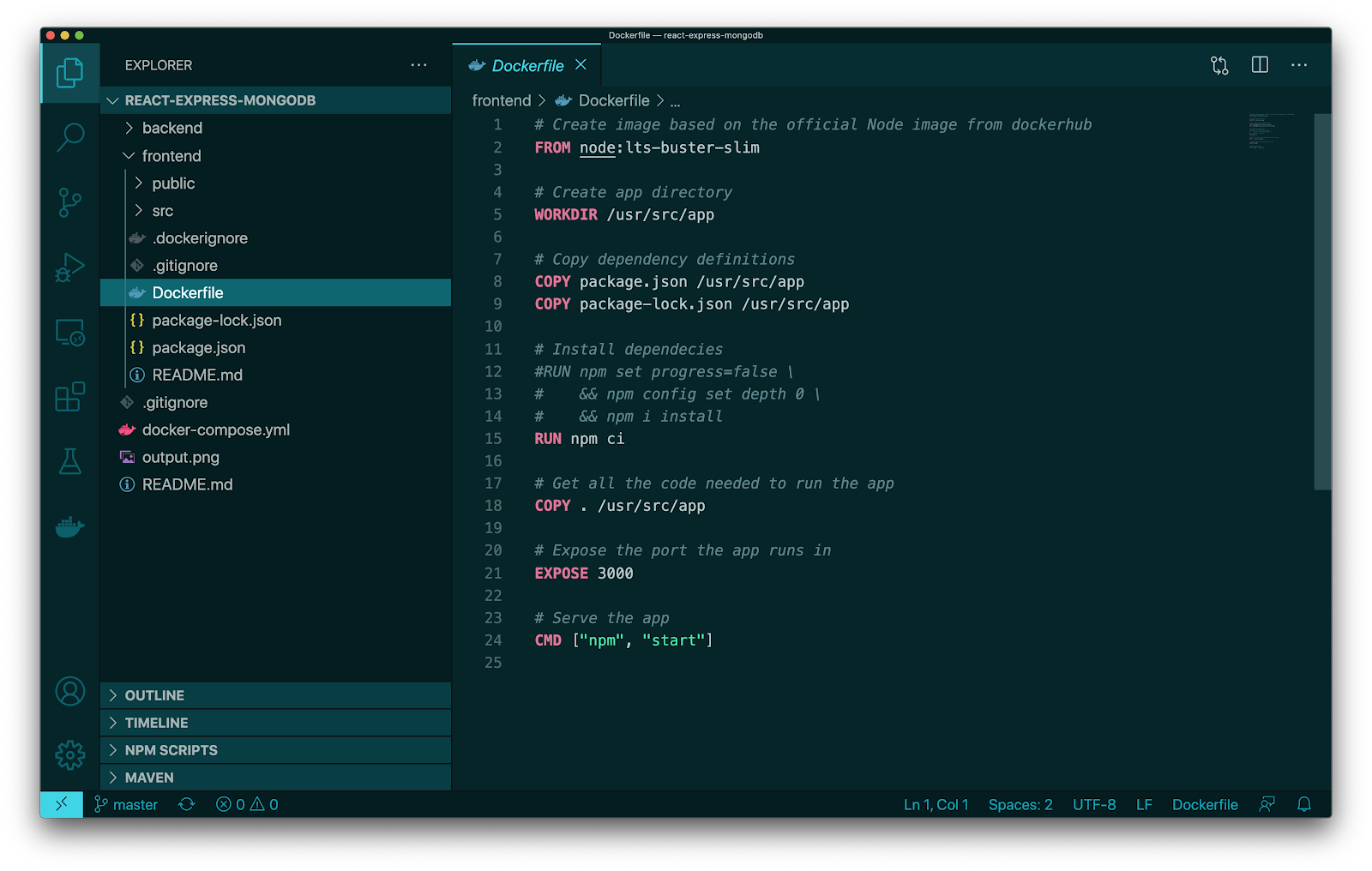
Expand the frontend fold and open the Dockerfile.

As you can see on line 1, we are using the node:lts-buster-slim image. If we do not already have this image locally then when we perform a build, this image will be pulled from Docker Hub and count as one pull.

Likewise in the backend folder, we see a Dockerfile that is used to build the backend image. On line 1 of this file, we are also using the node:lts-buster-slim image. Again, if you have not already pulled this image from Docker Hub, when you run a docker build, then Docker will pull this image and count it as one pull.

To recap, since we are using the same base image (node:lts-buster-slim) for each of our application images, we will only have to pull that image once and therefore only incur one pull.

The same is true for the mongo:4.2.0 image. When you run the docker-compose up command, the mongo image will be pulled, if not present locally, and increase the pull limit counter by one.

So in the above example, with zero images present locally, you will incur two pull requests to Hub. Even if we expanded this out to a slightly more complex architecture with a few more services that are also written in node, we would still only incur two pull requests. One for the node image and one for the mongodb image.

Now let’s take a look at a more advanced build scenario below.

Here is an example of a Dockerfile that uses multi-stage builds:

1 # syntax=docker/dockerfile:1.1.72 ARG GO_VERSION=1.13.7-buster34 FROM golang:${GO_VERSION} AS golang56 FROM golang AS build7 ….8 FROM debian:buster AS foo9 ….10 FROM scratch AS final11 COPY –from=build /bin/foo /bin/foo

Simply counting the number of FROM‘s will not work in all situations but it is a good general proxy. If I have a FROM command that references an image that I only have locally, then a Hub pull will not occur. We can also use  FROM commands in a multi-stage build to reference other build-stages located in the same Dockerfile. 

In the above Dockerfile, we have multiple FROM statements of which the total comprises a multi-stage build. What will actually be pulled from Hub depends on the state of your local cache, which build target is set and whether or not you’re using BuildKit.

Let’s walk through a scenario where we are not using BuildKit.

On line 4 we can see that we are referencing the GO_VERSION build argument:

FROM golang:${GO_VERSION} AS golang

The value of GO_VERSION is dependent on whether we have passed a value using the –build-arg option or not. 

So, for example, let’s say we have the golang:1.13.7-buster image on our local machine. If we do not override the GO_VERSION then we will not incur a pull. On the other hand, if we set the GO_VERSION to 1.15.2-buster and do not have this image locally, then we will incur a pull from Hub.

Another point to keep in mind when counting FROMs, is that a FROM command can reference the scratch image. The scratch image is not an image on Hub but is treated specially by Docker and never pulls anything from Hub but is used as a starting point for creating an empty image.

Now let’s take a look at building an image using BuildKit. We’ll use the same sample Dockerfile from above.

When we run a build, the FROM scratch AS final stage is started which will trigger the following flow:

FROM golang AS build is startedWhich triggers the FROM golang:$(GO_VERSION} AS golang stageWhich will pull the golang:1.13.7-buster image from Hub if it is not present locally

In this scenario, the FROM debian:buster AS foo stage on line 8 is not used in the final image and therefore will not be built and the debian:buster image will not be pulled from Hub. Even though it is a FROM statement in the Dockerfile, it is not used and need not be counted when figuring out the number of pulls that will occur.

Unlimited Pulls

If you are working on a larger project that has a lot of different base images or you are building images and removing them often, then the best option is to purchase a Docker Pro Account or a Docker Team Account.

Both the Pro and Team accounts give you unlimited pulls and therefore not subject to rate limiting. You also receive unlimited private repositories with these plans.

Conclusion

In this article we discussed how pulls are counted when building images using Docker. We first talked about a common application that has a frontend, backend and a datastore and how this scenario will not reach the 100 pull limit for anonymous users. Then we discussed a more advanced Dockerfile that uses multi-stage builds and how this can potentially affect your pull limits. Although not enough to reach the 200 pull limit for authenticated accounts. 

For more information and common questions, please read our FAQ. As always, please feel free to reach out to us on Twitter (@docker) or to me directly (@pmckee).

To get started using Docker sign up for a free Docker account and take a look at our getting started guide.
The post Understanding Inner Loop Development and Pull Rates appeared first on Docker Blog.
Quelle: https://blog.docker.com/feed/
Docker and Snyk Extend Partnership to Docker Official and Certified Images

Today we are pleased to announce that Docker and Snyk have extended our existing partnership to bring vulnerability scanning to Docker Official and certified images. As the exclusive scanning partner for these two image categories, Snyk will work with Docker to provide developers with insights into our most popular images. It builds on our previous announcement earlier this year where Snyk scanning was integrated into the Docker Desktop and Docker Hub. This means that developers can now incorporate vulnerability assessment along each step of the container development and deployment process.

Docker Official images represent approximately 25% of all of the pull activity on Docker Hub. Docker Official images are used extensively by millions of developers and developer world wide teams to build and run tens of millions of containerized applications. By integrating vulnerability scanning from Snyk users are now able to get more visibility into the images and have a higher level of confidence that their applications are secure and ready for production.

Docker Official images that have been scanned by Snyk will be available early next year.

You can read more about it from Snyk here and you can catch Docker CEO Scott Johnson and Snyk CEO Peter McKay discuss the partnership during the Snykcon user conference keynote Thursday morning October 22 at 8:30 AM Pacific. You can register for Snykcon at http://bit.ly/SnykConDocker

Additional Resources

Get started with scanning in the desktop nowhttps://www.docker.com/get-started

Learn more about scanning in Docker Hubhttps://goto.docker.com/on-demand-adding-container-security.htmlLearn more about scanning in Docker Desktop https://goto.docker.com/on-demand-find-fix-container-image-vulnerabilities.html
The post Docker and Snyk Extend Partnership to Docker Official and Certified Images appeared first on Docker Blog.
Quelle: https://blog.docker.com/feed/

Docker at SnykCon 2020

We are excited to be a gold sponsor of the inaugural SnykCon virtual conference, a free online event from Snyk taking place this week on October 21-22, 2020. The conference will look at best practices and technologies for integrating development and security teams, tools, and processes, with a specific nod of the secure use of containers, from images used as a starting point to apps shared with teams and the public.

At Docker, we know that security is vital to successful app development projects, and automating app security early in the development process ensures teams start with the right foundation and ship apps that have vulnerability scanning and remediation included by default. This year we announced a broad partnership with Snyk to incorporate their leading vulnerability scanning across the entire Docker app development lifecycle. At Snykcon, attendees will learn how to successfully incorporate security scanning into their entire Docker app delivery pipeline.

Some of the highlights from Docker at this event include:

Docker CEO Scott Scott Johnston will join Snyk CEO Peter McKay in the keynote fireside chat on Thursday, October 22 at 8:30am PDT. Scot and Peter will talk about the partnership between Docker and Snyk and share new collaboration between the companies that strengthen the integration of Snyk scanning into Docker container workflows. 

Later that day, Docker’s Justin Cormack will deliver a breakout session with Danielle Inbar from Snyk on how to secure containers directly from Docker Desktop. In this session, Justin and Danielle will take you on a technical deep dive into how you can integrate Snyk and Docker for continuous integrated security scanning, in your command line and throughout the SDLC. This session will give you an insider’s perspective to quickly start benefiting from these new integrations.

You can get more details about these sessions, as well as the rest of the Snykcon program at the Snykcon agenda page. 

Snykcon starts this Wednesday, but it’s not too late to register (and it’s free!).

Simply go to the Snykcon registration page and sign up today. I look forward to “seeing” you online this Wednesday and Thursday!
The post Docker at SnykCon 2020 appeared first on Docker Blog.
Quelle: https://blog.docker.com/feed/

Improve the Security of Hub Container Images with Automatic Vulnerability Scans

In yesterday’s blog about improvements to the end-to-end Docker developer experience, I was thrilled to share how we are integrating security into image development, and to announce the launch of vulnerability scanning for images pushed to the Hub. This release is one step in our collaboration with our partner Snyk where we are integrating their security testing technology into the Docker platform. Today, I want to expand on our announcements and show you how to get started with image scanning with Snyk. 

In this blog I will show you why scanning Hub images is important, how to configure the Hub pages to trigger Snyk vulnerability scans, and how to run your scans and understand the results. I will also provide suggestions incorporating vulnerability scanning into your development workflows so that you include regular security checkpoints along each step of your application deployment.  

Software vulnerability scanners have been around for a while to detect vulnerabilities that hackers use for software exploitation. Traditionally security teams ran scanners after developers thought that their work was done, frequently sending code back to developers to fix known vulnerabilities. In today’s “shift-left” paradigm, scanning is applied earlier during the development and CI cycles but most organizations have to build their own automation to connect the scan functions to the CI instruments. Yesterday’s release changes this equation and provides built in automated scanning as an integral step within the CI cycle.  

Now you decide which repos to configure for vulnerability scanning to trigger a scan every time you push an image into that repo, and when the scan is completed you can view the scan results in your Hub account. Vulnerability data is organized in the Hub in several different layers: vulnerability severity summary, list of all vulnerabilities, and detailed information about a specific security flaw. The scanning function is available for Pro and Team users, creating a simple method of validation for each image update.

How It Works

Step 1 – Enable Repo Scanning Functions

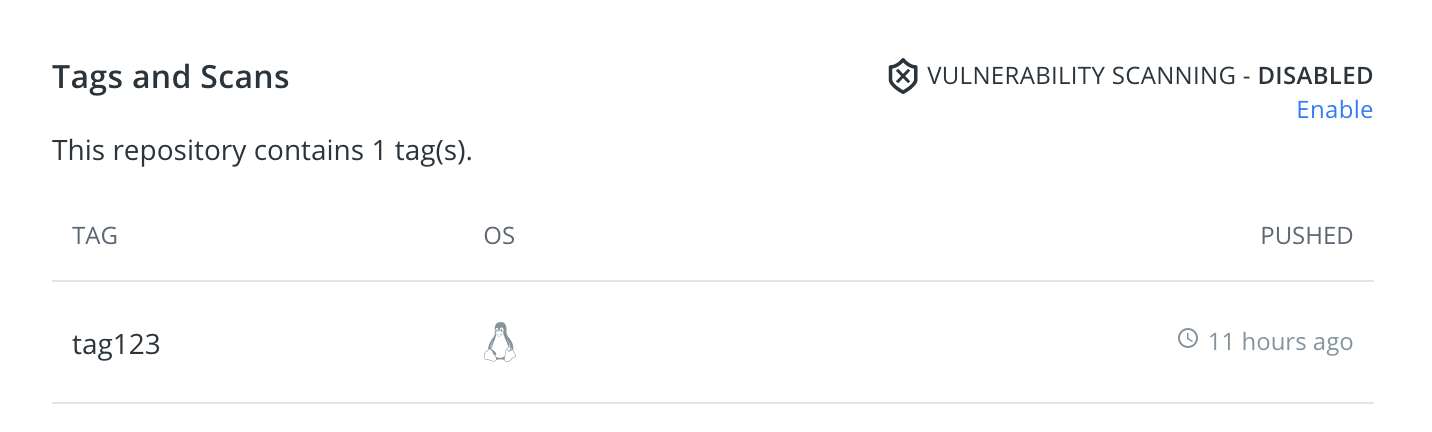
Enabling repo scanning is a simple, single-click process, but the default setting is for disabled scanning so make sure you turn it on.

Scanning is separately configurable for each repo so you can decide how you want to start incorporating scanning into your team collaboration cycles and application build steps. You can adopt these processes on a smaller scale and over time expand them to the rest of your organization. Conversely, if you decide that the repo that you have been scanning is no longer an active part of your development, you can use the same single-click option to disable scanning.

Step 2 – Run your scans

Once you enable scanning, each time that you push a tagged image into that repo you will automatically trigger a scan.  

Step 3 – View the Results

After vulnerability scanning is completed, you can go to the repo page in the Hub to view the scan results. General Tab of the Hub Repo page includes results summary for all the repo image scans which will show the number of high, medium and low vulnerabilities identified during each scan.  

Clicking on the Vulnerabilities section of a specific tag brings you to the Vulnerability Tab for that tag, which shows the total number of vulnerabilities identified during the scan. Vulnerabilities Tab includes the scan severities summary and shows you the full list of scan vulnerabilities.  

The vulnerability list is organized so that you will see the most critical vulnerabilities first. The higher severity issues are prioritized above the lower ones, and the same severity vulnerabilities are organized in the descending order for the Common Vulnerability Scoring System (CVSS) .  CVSS scores are a published standard for assigning numerical value to the severity of software vulnerabilities. Vulnerability list also includes Common Vulnerabilities and Exposures (CVEs), which are identification numbers for publicly known cybersecurity vulnerabilities as well as name and version of a package containing this vulnerability. If available, the ‘Fixed In’ column includes a higher version of the same package that has the vulnerability resolved. This is a very important part that gives you clear guidance on how to rebuild your image without the vulnerability.  

Next to the ‘Fixed In’ column is a pop-up link to a page on the Snyk website, presenting detailed information about that specific vulnerability.

The little arrow located next to the Severity rating indicates that this vulnerability has dependencies. Clicking on this arrow expands the vulnerability box and displays these dependencies:

Learn More and Try It For Yourself

Hub scanning is already available. Please check the Docker Doc section link below for more information on how to get started and give us feedback: 

https://docs.docker.com/docker-hub/vulnerability-scanning/

To learn more from experts about getting the most from Docker Hub vulnerability scanning, please plan on joining Docker’s Peter McKee and Snyk’s Jim Armstrong for a joint webinar on Wednesday, Oct 15.  Register now!
The post Improve the Security of Hub Container Images with Automatic Vulnerability Scans appeared first on Docker Blog.
Quelle: https://blog.docker.com/feed/
New Vulnerability Scanning, Collab and Support Enhance Docker Pro and Team Subscriptions

Last March, we laid out our commitment to focus on developer experiences to help build, share, and run applications with confidence and efficiency. In the past few months we have delivered new features for the entire Docker platform that have built on the tooling and collaboration experiences to improve the development and app delivery process.

During this time, we have also learned a lot from our users about ways Docker can help improve developer confidence in delivering apps for more complicated use cases and how we can help   larger teams improve their ability to deliver apps in a secure and repeatable manner. Over the next few weeks, you will see a number of new features delivered to Docker subscribers at the free, Pro and Team level that deliver on that vision for our customers. 

Today, I’m excited to announce the first set of features: vulnerability scanning in Docker Hub for Pro and Team subscribers. This new release enables individual and team users to automatically monitor, identify and ultimately resolve security issues in their applications. We will also preview Desktop features that will rollout over the next several months.   

We’ve heard in numerous interviews with team managers that developer velocity is critical, that automation enables this and that images going into production have to be secure. Last month we launched Docker local image scans as preview in Desktop Edge and today we are releasing vulnerability scanning in Docker Hub. Starting now each time that you push images into Docker Hub, a vulnerability scan will run automatically using the same underlying tooling as our Docker Scan CLI. Once the scan is complete, you can review the scan results in your Docker Hub dashboard. Look out for a deeper dive into the Hub image scanning in the coming days.  

Improved Collaboration and Control

We are also thrilled to start talking to you about Docker’s plans for Docker Desktop and how we are going to add unique improvements for Desktop for Pro and Team users. Starting in November Pro and Team users of Desktop will get additional features and benefits designed to meet the unique needs of teams and of complex use cases, on top of the core features in the free edition. The first feature will provide visibility of Docker Hub scan results directly within the Docker Dashboard for all of your Hub images. In the coming months we will enable users of Docker Context to store and share your contexts with your team from the Desktop via Docker Hub, allowing development teams to collaborate with the same set of contextual details for shared remoted instances. 

For enterprises who want more control over their version of Desktop and don’t want to keep dismissing updates, we will be providing the ability to ‘ignore’ updates in Desktop until you choose to install the new version. Additionally, we allow for centralized deployment and management of Docker Desktop teams at scale through revised licensing terms for Docker Teams. This will allow larger deployments of Docker Desktop to be rolled out automatically rather than relying on individuals to install it on their own.

Finally, we will also extend the Docker enhanced customer support to include Docker Desktop as well as Docker Hub. Docker Pro and Team subscribers will be assured of consistent support from Docker across all offerings in their subscriptions as they build, share and run their containerized applications. 

We will continue to add more Pro and Team features across the entire Docker platform to make developers’ and teams’ lives easier over the coming months.  And of course, we will continue to improve and enhance our core, free offerings. 

 To test Hub scanning today, sign up for a Pro Docker account.   Or,  try the experience locally and run docker scan on your Desktop CLI. If you are interested in Docker Desktop, and what the future holds, then keep an eye on our product roadmap.  If you have questions about deployment licensing or support, please reach out to us.

CTA: 

Sign up for Docker HubRegister for the Webinar: Adding Container Security to Docker Hub with Snyk on October 15th at 10AM PT Join our YouTube Live: Synk Image Scanning on Oct. 8th at 10AM PT

More info on Docker Subscriptions for Pros and Teams
The post New Vulnerability Scanning, Collab and Support Enhance Docker Pro and Team Subscriptions appeared first on Docker Blog.
Quelle: https://blog.docker.com/feed/

The Docker Dashboard Welcomes Hub and Local Images

Last year we released the Docker Dashboard as part of Docker Desktop, today we are excited to announce we are releasing the next piece of the dashboard to our community customers with a new Images UI. We have expanded the existing UI for your local machine with the ability to interact with your Docker images on Docker Hub and locally. This allows you to: display your local images, manage them (run, inspect, delete) through an intuitive UI without using the CLI. And for you images in Hub you can now view you repos or your teams repos and pull images directly from the UI. 

To get started, Download the latest Docker Desktop release and load up the dashboard (we are also excited that we have given the dashboard an icon)

You will be able to see that we have also added a new sidebar to navigate between the two areas and we are planning to add new sections in here soon. To find out more about what’s coming or to give feedback on what you would like to see check out our public roadmap. 

Let’s jump in and have a look at what we can do…

From the whale menu, you can access the “Dashboard” and then “Images” where you’ll see a summary and each image with its details: tag, image id, creation date, and size. 

I can also see which of my images are being used by a running or stopped container with 

Now I have all these images, I can have a go at running one of them.I will go for my standard demo my simple Whale, when I hover over the image line I can see I get two new buttons, I am going to start off by clicking ‘run’ 

This pops up a UI where you can either just ‘run’ or add in some values. In this instance I am just going to add a port mapping so I can see what is running in my container once I have started it. 

Great this now takes me to my running container UI and I can see that my container is alive! 

Next let’s look at clearing up what we have not used so far. I am going to start by hitting the clean up button we saw in the top right corner of our images UI 

Then my UI changes, I am going to remove all my unused images, I can see I will free up 4gb which isn’t bad!

I hit remove up and I can then see after I accept the warning my clean up happens I only have my in use images remaining! 

Now let’s have a look at our Hub images, as I am signed in I can just click on the remote repositories tab

Great! I can now see my repos in Hub along with my tags, I can either pull my image to then run it or I can switch between my Teams to see the repositories in my teams. If I click pull on one of my images, I can see this is started as it takes me back to my local image cache screen and shows me the progress of the download:

I’ve also created an “unboxing” walkthrough of the entire process. You can join me on a guided tour of the new features in this video.

We hope you are as excited as we are for the next piece of our Docker Dashboard, to get started you can download the latest Docker Desktop release to explore your local images. You can try out the Remote Repository functionality by signing into Docker Hub and pulling any of your existing images or if you are new why not try pulling a Docker Official Image like NGINX , retagging it and then having a go at pushing it from the UI.
The post The Docker Dashboard Welcomes Hub and Local Images appeared first on Docker Blog.
Quelle: https://blog.docker.com/feed/

Docker Names Donnie Berkholz to Vice President of Products

To deepen Docker’s investment in products that make developers successful, we’re pleased to announce that Donnie Berkholz will join the Docker team as VP of Products. Donnie has an extensive background as a practitioner, leader, and advisor on developer platforms and communities. He spent more than a decade as an open-source developer and leader at Gentoo Linux, and he recently served as a product and technology VP at CWT overseeing areas including DevOps and developer services. Donnie’s also spent time at RedMonk, 451 Research, and Scale Venture Partners researching and advising on product and market strategy for DevOps and developer products.

To get to know Donnie, we asked him a few questions about his background and where he plans to focus in his new role:

What got you the most excited about joining Docker? 

I’ve been a big fan of Docker’s technology since the day it was announced. At the time, I was an industry analyst with RedMonk, and I could instantly sense the incredible impact that it would have in transforming the modern developer experience. Recent years have borne that out with the astonishing growth in popularity of containers and cloud-native development. With Docker’s renewed focus on developers, I’m really excited to help shape products that have a natural fit with Docker’s user base.

What are your main goals now that you’re part of the Docker team?

Everything tends to fall into place when you’ve got a great team who’s aligned and empowered. As VP of Products, I’ll be making sure our team has everything they need to succeed, continuing to evolve our product strategy and vision, and driving execution with an experimental mindset. What I mean by that is ensuring we have a culture and way of working that allows us to continuously innovate and learn fast — in partnership with the broader Docker team, as well as our partners, customers and the millions of developers who use Docker.

We have an amazing community of Docker users, and I’m really excited about making their lives better by solving some of their biggest and most frustrating problems as they develop software.

What will you focus on most in the next few months as you work to shape great products for developers?

My initial priorities when starting any new role are to build relationships and to learn. First, collaboration is such a critical aspect of success in any organization that it’s vital to form high-trust relationships, so you can partner closely and cross-functionally. Second, learning how and why things are done the way they are is crucial, so you don’t come in with a plan from a playbook that seems grand but doesn’t fit the needs of the organization. Once those are in place, my focus will shift toward getting us from where we are today to where we’ll need to be, so we can reach and exceed our ambitious goals.

When you’re not focused on making Docker better, what hobbies or interests do you have?

I love to read sci-fi and fantasy books, especially these little niches called wuxia or xianxia. If you imagine “Crouching Tiger, Hidden Dragon” or “Kung Fu Hustle,” you’ll get the idea. Besides that, I’m a big fan of craft beer. So let me know if any of you visit Minneapolis or (in a future world!) we attend the same event, because I’d love to share a beverage of any sort with our community.
The post Docker Names Donnie Berkholz to Vice President of Products appeared first on Docker Blog.
Quelle: https://blog.docker.com/feed/






