Pro and Team Subscriptions Embrace Docker Desktop

About a month ago we talked about how we planned to make Docker Desktop more first class as part of our Pro and Team subscriptions. Today we are pleased to announce that with the latest release of Docker Desktop we are launching support for Docker Desktop for Pro and Team users. This means that customers on Pro plans or team members on Team plans will be able to get support outside of the community support in our Github repository, this will include installation support, issues in running Desktop and of course the existing support for Docker Hub. 

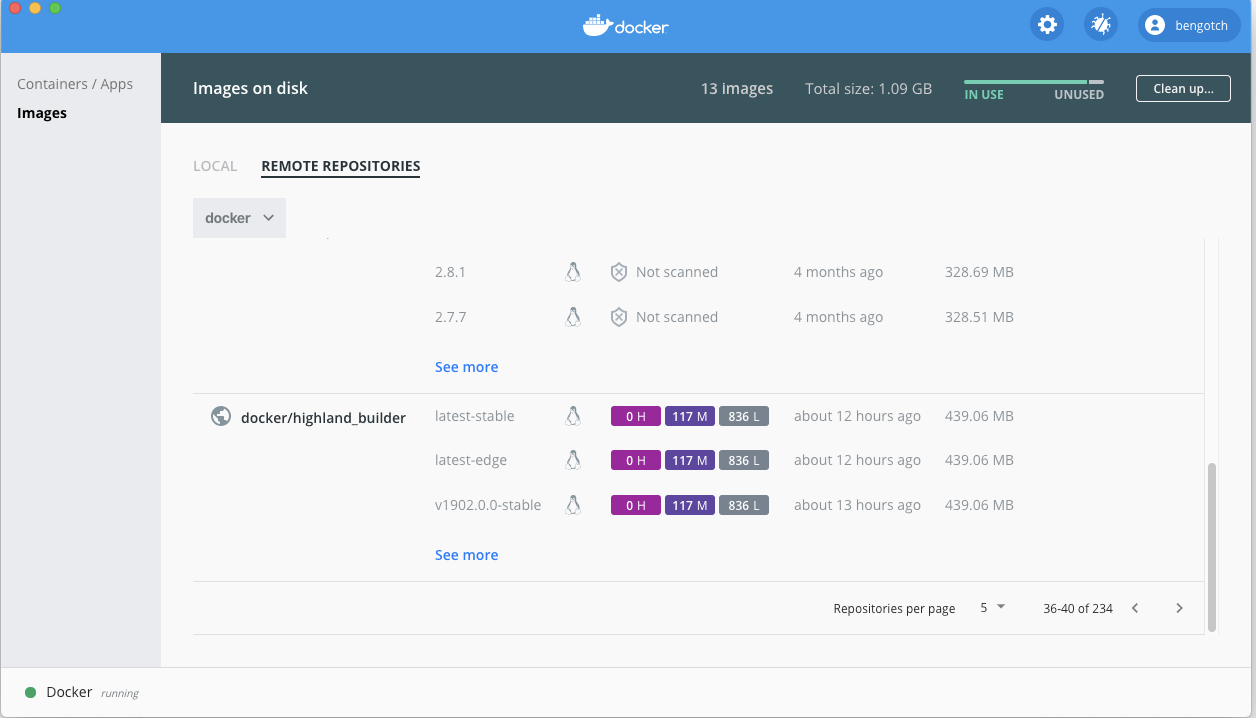
Along with this, we have our first Pro feature available in Docker Desktop! For Pro and Team users who have scanning enabled in Docker Hub, you will be able to see your scan results directly in the Docker Dashboard. 

This is the first step in releasing unique features for Pro and Team users on Docker Desktop.

Along with this we are pleased to announce that in Docker Desktop 2.5 we have the GA release of the docker scan CLI powered by Snyk! To find out more about scanning images locally have a read of Marina’s blog post. 

For customers who want more control over their version of Desktop and don’t want to keep dismissing updates, we will be providing the ability to ‘ignore’ updates in Desktop until you choose to install the new version. Additionally, we allow for centralized deployment and management of Docker Desktop teams at scale through revised licensing terms for Docker Teams. This will allow larger deployments of Docker Desktop to be rolled out automatically rather than relying on individuals to install it on their own.

We will be combining this with a new way to update Docker Desktop for all of our users, we will be moving to ‘delta’ updates. This means that the update size of Docker Desktop will reduce down from ~500mb to around ~20mb and will install faster as well.

We are really excited to be able to offer some new unique features for our Pro and Team customers as well as continuing to improve Desktop for our millions of existing users. For more information on what is coming on Desktop check out our public roadmap.

To get support you will need to submit a Desktop support ticket here, if you are not a Pro or Team plan member then have a look here at our offerings to get support today. 

To find out more about what else is included in our Pro and Team plans then have a look at our pricing page to find out more. Or to just get started with Docker Desktop download it here today to begin using Docker!
The post Pro and Team Subscriptions Embrace Docker Desktop appeared first on Docker Blog.
Quelle: https://blog.docker.com/feed/

Checking Your Current Docker Pull Rate Limits and Status

Continuing with our move towards consumption-based limits, customers will see the new rate limits for Docker pulls of container images at each tier of Docker subscriptions starting from November 2, 2020. 

Anonymous free users will be limited to 100 pulls per six hours, and authenticated free users will be limited to 200 pulls per six hours. Docker Pro and Team subscribers can pull container images from Docker Hub without restriction as long as the quantities are not excessive or abusive.

In this article, we’ll take a look at determining where you currently fall within the rate limiting policy using some command line tools.

Determining your current rate limit

Requests to Docker Hub now include rate limit information in the response headers for requests that count towards the limit. These are named as follows:

RateLimit-Limit    RateLimit-Remaining

The RateLimit-Limit header contains the total number of pulls that can be performed within a six hour window. The RateLimit-Remaining header contains the number of pulls remaining for the six hour rolling window. 

Let’s take a look at these headers using the terminal. But before we can make a request to Docker Hub, we need to obtain a bearer token. We will then use this bearer token when we make requests to a specific image using curl.

Anonymous Requests

Let’s first take a look at finding our limit for anonymous requests. 

The following command makes a request to auth.docker.io for an authentication token for the ratelimitpreview/test image and saves that token in an environment variable named TOKEN. You’ll notice that we do not pass a username and password as we will for authenticated requests.

$ TOKEN=$(curl “https://auth.docker.io/token?service=registry.docker.io&scope=repository:ratelimitpreview/test:pull” | jq -r .token)

Now that we have a TOKEN, we can decode it and take a look at what’s inside. We’ll use the jwt tool to do this. You can also paste your TOKEN into the online tool located on jwt.io

$ jwt decode $TOKEN
Token header
————
{
“typ”: “JWT”,
“alg”: “RS256″
}

Token claims
————
{
“access”: [
{
“actions”: [
“pull”
],
“name”: “ratelimitpreview/test”,
“parameters”: {
“pull_limit”: “100”,
“pull_limit_interval”: “21600”
},
“type”: “repository”
}
],

}

Under the Token header section, you see a pull_limit and a pull_limit_interval. These values are relative to you as an anonymous user and the image being requested. In the above example, we can see that the pull_limit is set to 100 and the pull_limit_interval is set to 21600 which is the number of seconds for the limit.

Now make a request for the test image, ratelimitpreview/test, passing the TOKEN from above.

NOTE: The following curl command emulates a real pull and therefore will count as a request. Please run this command with caution.

$ curl -v -H “Authorization: Bearer $TOKEN” https://registry-1.docker.io/v2/ratelimitpreview/test/manifests/latest 2>&1 | grep RateLimit

< RateLimit-Limit: 100;w=21600
< RateLimit-Remaining: 96;w=21600

The output shows that our RateLimit-Limit is set to 100 pulls every six hours – as we saw in the output of the JWT. We can also see that the RateLimit-Remaining value tells us that we now have 96 remaining pulls for the six hour rolling window. If you were to perform this same curl command multiple times, you would observe the RateLimit-Remaining value decrease.

Authenticated requests

For authenticated requests, we need to update our token to be one that is authenticated. Make sure you replace username:password with your Docker ID and password in the command below.

$ TOKEN=$(curl –user ‘username:password’ “https://auth.docker.io/token?service=registry.docker.io&scope=repository:ratelimitpreview/test:pull” | jq -r .token)

Below is the decoded token we just retrieved.

$ jwt decode $TOKEN
Token header
————
{
“typ”: “JWT”,
“alg”: “RS256″
}

Token claims
————
{
“access”: [
{
“actions”: [
“pull”
],
“name”: “ratelimitpreview/test”,
“parameters”: {
“pull_limit”: “200”,
“pull_limit_interval”: “21600”
},
“type”: “repository”
}
],

}

The authenticated JWT contains the same fields as the anonymous JWT but now the pull_limit value is set to 200 which is the limit for authenticated free users.

Let’s make a request for the ratelimitpreview/test image using our authenticated token.

NOTE: The following curl command emulates a real pull and therefore will count as a request. Please run this command with caution.

$ curl -v -H “Authorization: Bearer $TOKEN” https://registry-1.docker.io/v2/ratelimitpreview/test/manifests/latest 2>&1 | grep RateLimit

< RateLimit-Limit: 200;w=21600
< RateLimit-Remaining: 176;w=21600

You can see that our RateLimit-Limit value has risen to 200 per six hours and our remaining pulls are at 176 for the next six hours. Just like with an anonymous request, If you were to perform this same curl command multiple times, you would observe the RateLimit-Remaining value decrease.

Error messages

When you have reached your Docker pull rate limit, the resulting response will have a http status code of 429 and include the below message.

HTTP/1.1 429 Too Many Requests
Cache-Control: no-cache
Connection: close
Content-Type: application/json
Retry-After: 21600
{
“errors”: [{
“code”: “DENIED”,
“message”: “You have reached your pull rate limit. You may increase the limit by authenticating and upgrading: https://www.docker.com/increase-rate-limit”
}]
}

Conclusion

In this article we took a look at determining the number of image pulls allowed based on whether we are an authenticated user or anonymous user. Anonymous free users will be limited to 100 pulls per six hours, and authenticated free users will be limited to 200 pulls per six hours. If you would like to avoid rate limits completely, you can purchase or upgrade to a Pro or Team subscription: subscription details and upgrade information is available at https://docker.com/pricing.

For more information and common questions, please read our docs page and FAQ. And as always, please feel free to reach out to us on Twitter (@docker) or to me directly (@pmckee).

To get started using Docker, sign up for a free Docker account and take a look at our getting started guide.
The post Checking Your Current Docker Pull Rate Limits and Status appeared first on Docker Blog.
Quelle: https://blog.docker.com/feed/
What you need to know about upcoming Docker Hub rate limiting

On August 13th, we announced the implementation of rate limiting for Docker container pulls for some users. Beginning November 2, Docker will begin phasing in limits of Docker container pull requests for anonymous and free authenticated users.  The limits will be gradually reduced over a number of weeks until the final levels (where anonymous users are limited to 100 container pulls per six hours and free users limited to 200 container pulls per six hours) are reached. All paid Docker accounts (Pro, Team or Legacy subscribers) are exempt from rate limiting. 

The rationale behind the phased implementation periods is to allow our anonymous and free tier users and integrators to see the places where anonymous CI/CD processes are pulling container images. This will allow Docker users to address the limitations in one of two ways:  upgrade to an unlimited Docker Pro or Docker Team subscription,  or adjust application pipelines to accommodate the container image request limits.  After a lot of thought and discussion, we’ve decided on this gradual, phased increase over the upcoming weeks instead of an abrupt implementation of the policy. An up-do-date status update on rate limitations is available at https://www.docker.com/increase-rate-limits.

Docker users can get an up-to-date view of their usage limits and updated status messages in the CLI, in terms of querying for current pulls used as well as header messages returned from Docker Hub. This blog post walks developers through how they can access their current account usage as well as understanding the header messages. And finally, Docker users can avoid rate limits completely by upgrading to a Pro or Team subscription: subscription details and upgrade information is available at https://docker.com/pricing. And open source projects can apply for a sponsored no-cost Docker account by filling out this application.
The post What you need to know about upcoming Docker Hub rate limiting appeared first on Docker Blog.
Quelle: https://blog.docker.com/feed/
Setting Up Cloud Deployments Using Docker, Azure and Github Actions

A few weeks ago I shared a blog about how to use GitHub Actions with Docker, prior to that Guillaume has also shared his blog post on using Docker and ACI. I thought I would bring these two together to look at a single flow to go from your code in GitHub all the way through to deploying on ACI using our new Docker to ACI experience!

To start, let’s remember where we were with our last Github action. Last time we got to a point where our builds to master would be re-built and pushed to Docker Hub (and we used some caching to speed these up).  

name: CI to Docker Hub

on:
push:
tags:
– “v*.*.*”

jobs:

build:
runs-on: ubuntu-latest
steps:

name: Checkout
uses: actions/checkout@v2

name: Set up Docker Buildx
id: buildx
uses: docker/setup-buildx-action@v1

name: Cache Docker layers
uses: actions/cache@v2
with:
path: /tmp/.buildx-cache
key: ${{ runner.os }}-buildx-${{ github.sha }}
restore-keys: |
${{ runner.os }}-buildx-

uses: docker/login-action@v1
with:
username: ${{ secrets.DOCKER_USERNAME }}
password: ${{ secrets.DOCKER_PASSWORD }}

name: Build and push
id: docker_build
uses: docker/build-push-action@v2
with:
context: ./
file: ./Dockerfile
builder: ${{ steps.buildx.outputs.name }}
push: true
tags: bengotch/simplewhale:latest
cache-from: type=local,src=/tmp/.buildx-cache
cache-to: type=local,dest=/tmp/.buildx-cache

name: Image digest
run: echo ${{ steps.docker_build.outputs.digest }}

Now we want to find out how we could take our image we have built and get that deployed onto ACI. 

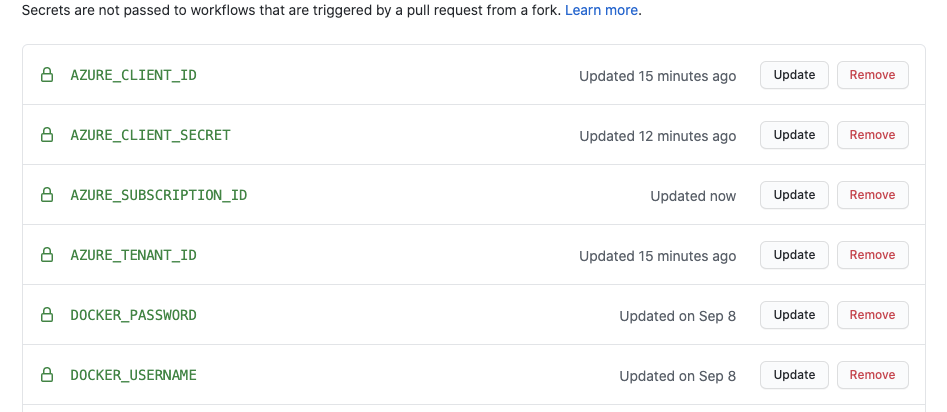
The first thing I will need to do is head over to my Github repository and add in a few more secrets which will be used to store my credentials for Azure. If you already have an Azure account and can grab your credentials that is great. If not, you will need to create your Azure credentials that we are going to use, but we cover that as well. 

I will need to add in my tenant ID as the secret AZURE_TENANT_ID, I will then need to go and create an App in Azure to get a client and a secret. The easiest way to do this is to use the Azure console with the command 

az ad sp create-for-rbac –name http://myappname –role contributor –sdk-auth

This will output your AZURE_CLIENT_ID and an AZURE_CLIENT_SECRET.

Lastly I will need to add my subscription ID, I can find this here and will add it as AZURE_SUBSCRIPTION_ID.

If this is the first time you have used Azure you will also need to create a resource group, this is the Azure way to group a set of resources for a single solution. You can set up new resource groups by going here and adding one, for example I created a new one called simplewhale in uk-south.  

Now we can start to build out our action, we will want to put in a condition for when we want this workflow to trigger. I would like to be quite continuous so will deploy the image each time I have pushed it to Docker Hub:

on:
workflow_run:
workflows: [”CI to Docker Hub”]
branches: [main]
types:
– completed

With this in place, I will now setup on an Ubuntu box for my action:

jobs:
run-aci:
runs-on: ubuntu-latest
steps:
– name: Checkout code
uses: actions/checkout@v2

Next I will need to install the Docker Compose CLI onto the actions instance I am running on:

– name: Install Docker Compose CLI
run: >
curl -L https://raw.githubusercontent.com/docker/compose-cli/main/scripts/install/install_linux.sh | sh

With this installed, I can then log into Azure using the Compose CLI and making use of our secrets we entered earlier:

– name: “login azure”
run: “docker login azure –client-id $AZURE_CLIENT_ID –client-secret $AZURE_CLIENT_SECRET –tenant-id $AZURE_TENANT_ID”
env:
AZURE_TENANT_ID: ‘${{ secrets.AZURE_TENANT_ID }}’
AZURE_CLIENT_ID: ‘${{ secrets.AZURE_CLIENT_ID }}’
AZURE_CLIENT_SECRET: ‘${{ secrets.AZURE_CLIENT_SECRET }}’

Having logged in, I need to create an ACI context to use for my deployments:

– name: “Create an aci context”
run: ‘docker context create aci –subscription-id $AZURE_SUBSCRIPTION_ID –resource-group simplewhale –location uksouth acicontext’
env:
AZURE_SUBSCRIPTION_ID: ‘${{ secrets.AZURE_SUBSCRIPTION_ID }}’

Then I will want to deploy my container using my ACI context. I have added a curl it to make sure it exists:

– name: “Run my App”
run: ‘docker –context acicontext run -d –name simplewhale –domainname simplewhale -p 80:80 bengotch/simplewhale ‘

– name: “Test deployed server”
run: ‘curl http://simplewhale.uksouth.azurecontainer.io/’

And then we can just double check to be sure:

Great! Once again my Whale app has been successfully deployed! Now I have a CI that stores things in the Github Registry for minor changes, that ships my full numbered versions to Docker Hub and then re-deploys these to ACI for me!

To run through a deeper example using Compose as well, why not check out Karol’s example of using the ACI experience with his Compose application which also includes how to use mounts and connect to another registry.You can get started using the ACI experience locally using Docker Desktop today. Remember, you will also need to have your images in a repo to use them in ACI, which can easily be done with Docker Hub.
The post Setting Up Cloud Deployments Using Docker, Azure and Github Actions appeared first on Docker Blog.
Quelle: https://blog.docker.com/feed/

Docker V2 Github Action is Now GA

Docker is happy to announce the GA of our V2 Github Action. We’ve been working with @crazy-max over the last few months along with getting feedback from the wider community on how we can improve our existing Github Action. We have now moved from our single action to a clearer division and advanced set of options that not only allow you to just build & push but also support features like multiple architectures and build cache.

The big change with the advent of our V2 action is also the expansion of the number of actions that Docker is providing on Github. This more modular approach and the power of Github Actions has allowed us to make the minimal UX changes to the original action and add a lot more functionality.

We still have our more meta build/push action which does not actually require all of these preconfiguration steps and can still be used to deliver the same workflow we had with the previous workflow! To Upgrade the only changes are that we have split out the login to a new step and also now have a step to setup our builder. 


name: Setup Docker Buildx
uses: docker/setup-buildx-action@v1

This step is setting up our builder, this is the tool we are going to use to build our Docker image. 

This means our full Github Action is now: 

name: ci

on:
push:
branches: main

jobs:
main:
runs-on: ubuntu-latest
steps:

name: Setup Docker Buildx
uses: docker/setup-buildx-action@v1

name: Login to DockerHub
uses: docker/login-action@v1
with:
username: ${{ secrets.DOCKERHUB_USERNAME }}
password: ${{ secrets.DOCKERHUB_TOKEN }}

name: Build and push
id: docker_build
uses: docker/build-push-action@v2
with:
push: true
tags: bengotch/samplepython:latest

For users looking for more information on how to move from V1 of the Github Action to V2, check out our release migration notes. 

Let’s now look at some of the more advanced features we have unlocked by adding in this step and the new QEMU option.

Multi platform

By making use of BuildKit we now have access to multi-architecture builds, this allows us to build images targeted at more than one platform and also build Arm images.

To do this, we will need to add in our QEMU step: 

name: Set up QEMU
uses: docker/setup-qemu-action@v1

And then within our build & push step we will need to specify out platform to use: 


name: Build and push
uses: docker/build-push-action@v2
with:
context: .
file: ./Dockerfile
platforms: linux/386,linux/amd64,linux/arm/v6,linux/arm/v7,linux/arm64,linux/ppc64le,linux/s390x
push: true
tags: |
bengotch/app:latest

Cache Registry 

To make use of caching to speed up my builds I can now make use of the 

name: ci

on:
push:
branches: master

jobs:
registry-cache:
runs-on: ubuntu-latest
steps:

name: Set up Docker Buildx
uses: docker/setup-buildx-action@v1

name: Login to DockerHub
uses: docker/login-action@v1
with:
username: ${{ secrets.DOCKERHUB_USERNAME }}
password: ${{ secrets.DOCKERHUB_TOKEN }}

name: Build and push
uses: docker/build-push-action@v2
with:
push: true
tags: user/app:latest
cache-from: type=registry,ref=user/app:latest
cache-to: type=inline

To see more examples of the best practices for using our latest version of the Github Action check out Chads example repohttps://github.com/metcalfc/docker-action-examples. You can make use of the features in here or some of the more advanced features we can now offer with the V2 action such as push to multiple registries, use of a local registry for e2e test, export an image to the Docker client and more! 

To learn more about the changes to our Github Action, have a read through our updated usage documentation or check out our blog post on the best practices with Docker and Github Actions. If you have questions or feedback on the changes from V1 to V2 please raise tickets on our repo or our public roadmap
The post Docker V2 Github Action is Now GA appeared first on Docker Blog.
Quelle: https://blog.docker.com/feed/

Docker’s Next Chapter: Our First Year

2020 has been quite the year. Pandemic, lockdowns, virtual conferences and back-to-back Zoom meetings. Global economic pressures, confinement and webcams aside, we at Docker have been focused on delivering what we set out to do when we announced Docker’s Next Chapter: Advancing Developer Workflows for Modern Apps last November 2019. I wish to thank the Docker team for their “can do!” spirit and efforts throughout this unprecedented year, as well as our community, our Docker Captains, our ecosystem partners, and our customers for their non-stop enthusiasm and support. We could not have had the year we had without you.

This next chapter is being jointly written with you, the developer, as so much of our motivation and inspiration comes from your sharing with us how you’re using Docker. Consider the Washington University School of Medicine (WUSM): WUSM’s team of bioinformatics developers uses Docker to build pipelines – consisting of up to 25 Docker images in some cases – for analyzing the genome sequence data of cancer patients to inform diagnosis and treatments. Furthermore, they collaborate with each other internally and with other cancer research institutions by sharing their Docker images through Docker Hub. In the words of WUSM’s Dr. Chris Miller, this collaboration “helps to accelerate science and medicine globally.”

WUSM is but one of the many examples we’ve heard this last year of Docker’s role in simplifying and accelerating how development teams build, share, and run modern apps. This inspires us to make the development of modern apps even simpler, to offer even more choices in app stacks and tools, and to help you move even faster.

Early indicators suggest we’re on the right path. There’s been a significant increase in Docker usage this past year as more and more developers embrace Docker to build, share, and run modern applications. Specifically, 11.3 million monthly active users sharing apps from 7.9 million Docker Hub repositories at a rate of 13.6 billion pulls per month – up 70% year-over-year. Furthermore, in May the 2020 Stack Overflow Developer Survey of 65,000 developers resulted in Docker as the #1 most wanted, the #2 most loved, and the #3 most popular platform.

One of the reasons for this growth is that Docker offers choice to developers by integrating with best-of-breed tools and services. This past year, the industry’s largest cloud providers – AWS and Microsoft – partnered with Docker to create fast, friction-free “code-to-cloud” automations for developers. We partnered with Snyk to “shift left” security and make it a natural part of a developer’s inner loop as well as to secure Docker Official Images and Docker Certified Images. And to help development teams further automate their pipelines, this year we shipped our own Docker GitHub Action. We’ll be sharing more in the months to come on how Docker and its ecosystem partners are working together to bring more choices to developers so watch this space. 

Sustainable Community, Code, & Company

The sustainability of open source businesses is often a topic of discussion. Docker isn’t immune to economic realities, and this past year we’ve focused on the sustainability of the community, code, and company. For the community, we’ve made investments to make it even more accessible, including virtual DockerCon which attracted 80,000 attendees from around the world. For the code, to ensure we can effectively engage and support we’ve intentionally aligned our open source efforts around projects relevant to developers, including BuildKit, Notary, OCI, the Docker GitHub Action, the Compose spec, and our Compose integrations with cloud providers.

For the company, achieving sustainability has been a multi-step process with the objective of continuing to offer all developers 100% free build, share, run tools and, as they scale their use, to provide compelling value in our subscriptions. First, we introduced per-seat pricing to make our subscriptions easier to understand for developers and development teams. Then we introduced annual purchasing options which offer discounts for longer-term commitments. More recently, we announced establishing upper limits on ‘docker pulls’ as the first step in our move toward usage-based pricing. This ensures we scale sustainably while continuing to offer 100% free build, share, and run tools to the tens of millions more developers joining the Docker community.

What’s Next?

As busy as our first year has been, we’re looking forward to working with our developer community in the coming year to deliver more great tools and integrations that help development teams build, share, and run modern apps. In fact, you’ve already given us plenty of great ideas and feedback in our public roadmap on GitHub – keep ‘em comin’. To prioritize and focus our efforts, our guiding questions continue to be:

“Does this feature simplify for the development team the complexity of building, sharing, and running a modern app?”

“Does this offer the development team more choice in terms of app stack technologies and/or pipeline tools – without introducing complexity?”

“Does this help a development team iterate more quickly and accelerate the delivery of their application?”

With that, here’s a sneak peek of what to look for in our second year:

App Dev Environments – To help teams get up-and-running quickly with new projects, expect more prescriptive development environments and pipeline tools in a “batteries included, but swappable” approach. You’ve maybe already seen our early hints around this for Go, Python, and Node.js – more to come.

Container Image Management – Expect more visibility and more tools for development teams to proactively manage their images.

Pipeline Automation –  Our GitHub- and Atlassian BitBucket-integrated autobuilds service and our Docker GitHub Action are loved by many of you, but you also have other favorite build and CI tools you’d like to see more tightly integrated. Stay tuned.

Collaboration –  Getting an app from code-to-cloud is a team effort. The more effortlessly a team can share – code, images, context, automation, and more – the faster they can ship. Docker Compose has already proven its value for development team collaboration; look for us to build on its success.

Content – Developers have already voted with their pulls – Docker Official Images are by far the most popular category of images pulled. Why? Because development teams trust them as the basis for their modern apps. In the coming year, look for additional breadth and depth of trusted content to be made available. This includes apps from ISVs distributing Docker Certified Images as Docker Verified Publishers. In fact, this program already recognizes more than 90 ISVs, with more joining every day.

As we look forward to 2021 – hopefully a year that frees us to meet safely together in person again – Docker remains committed to providing a collaborative application development platform to help teams build, share, and run modern apps that transform their organizations. The Docker team is thankful that we’re on this journey together with our community members, contributors, ecosystem partners, and customers – let’s have a great year!
The post Docker’s Next Chapter: Our First Year appeared first on Docker Blog.
Quelle: https://blog.docker.com/feed/

VMware's Tanzu » ADMIN Magazine

admin-magazine.com – Admins understand that simply operating containers is not enough. Instead, purpose-designed container orchestration is also necessary, which is where the popular Docker was seen to be lacking. Google…Tweeted by @adminmagazine https://twitter.com/adminmagazine/status/1319347420862550022
Quelle: news.kubernauts.io

Comparing Container Pipelines

dzone.com – Containers brought a monumental shift to DevOps by allowing teams to ship code faster than ever before. However, we still have to go through the process of building, packaging, and deploying those co…Tweeted by @DZoneInc https://twitter.com/DZoneInc/status/1319519028839407616
Quelle: news.kubernauts.io



