How to Train and Deploy a Linear Regression Model Using PyTorch – Part 1

Python is one of today’s most popular programming languages and is used in many different applications. The 2021 StackOverflow Developer Survey showed that Python remains the third most popular programming language among developers. In GitHub’s 2021 State of the Octoverse report, Python took the silver medal behind Javascript.
Thanks to its longstanding popularity, developers have built many popular Python frameworks and libraries like Flask, Django, and FastAPI for web development.
However, Python isn’t just for web development. It powers libraries and frameworks like NumPy (Numerical Python), Matplotlib, scikit-learn, PyTorch, and others which are pivotal in engineering and machine learning. Python is arguably the top language for AI, machine learning, and data science development. For deep learning (DL), leading frameworks like TensorFlow, PyTorch, and Keras are Python-friendly.
We’ll introduce PyTorch and how to use it for a simple problem like linear regression. We’ll also provide a simple way to containerize your application. Also, keep an eye out for Part 2 — where we’ll dive deeply into a real-world problem and deployment via containers. Let’s get started.
What is PyTorch?
A Brief History and Evolution of PyTorch
Torch debuted in 2002 as a deep-learning library developed in the Lua language. Accordingly, Soumith Chintala and Adam Paszke (both from Meta) developed PyTorch in 2016 and based it on the Torch library. Since then, developers have flocked to it. PyTorch was the third-most-popular framework per the 2021 StackOverflow Developer Survey. However, it’s the most loved DL library among developers and ranks third in popularity. Pytorch is also the DL framework of choice for Tesla, Uber, Microsoft, and over 7,300 others.
PyTorch enables tensor computation with GPU acceleration, plus deep neural networks built on a tape-based autograd system. We’ll briefly break these terms down, in case you’ve just started learning about these technologies.

A tensor, in a machine learning context, refers to an n-dimensional array.
A tape-based autograd means that Pytorch uses reverse-mode automatic differentiation, which is a mathematical technique to compute derivatives (or gradients) effectively using a computer.

Since diving into these mathematics might take too much time, check out these links for more information:

What is a Pytorch Tensor?
What is a tape-based autograd system?
Automatic differentiation

PyTorch is a vast library and contains plenty of features for various deep learning applications. To get started, let’s evaluate a use case like linear regression.
What is Linear Regression?
Linear Regression is one of the most commonly used mathematical modeling techniques. It models a linear relationship between two variables. This technique helps determine correlations between two variables — or determines the value-dependent variable based on a particular value of the independent variable.
In machine learning, linear regression often applies to prediction and forecasting applications. You can solve it analytically, typically without needing any DL framework. However, this is a good way to understand the PyTorch framework and kick off some analytical problem-solving.
Numerous books and web resources address the theory of linear regression. We’ll cover just enough theory to help you implement the model. We’ll also explain some key terms. If you want to explore further, check out the useful resources at the end of this section.
Linear Regression Model
You can represent a basic linear regression model with the following equation:
Y = mX + bias
What does each portion represent?

Y is the dependent variable, also called a target or a label.
X is the independent variable, also called a feature(s) or co-variate(s).
bias is also called offset.
m refers to the weight or “slope.”

These terms are often interchangeable. The dependent and independent variables can be scalars or tensors.
The goal of the linear regression is to choose weights and biases so that any prediction for a new data point — based on the existing dataset — yields the lowest error rate. In simpler terms, linear regression is finding the best possible curve (line, in this case) to match your data distribution.
Loss Function
A loss function is an error function that expresses the error (or loss) between real and predicted values. A very popular way to measure loss is by using a root mean squared error, which we’ll also use.
Gradient Descent Algorithms
Gradient descent is a class of optimization algorithms that tries to solve the problem (either analytically or using deep learning models) by starting from an initial guess of weights and bias. It then iteratively reduces errors by updating weights and bias values with successively better guesses.
A simplified approach uses the derivative of the loss function and minimizes the loss. The derivative is the slope of the mathematical curve, and we’re attempting to reach the bottom of it — hence the name gradient descent. The stochastic gradient method samples smaller batches of data to compute updates which are computationally better than passing the entire dataset at each iteration.
To learn more about this theory, the following resources are helpful:

MIT lecture on Linear regression
Linear regression Wikipedia article
Dive into deep learning online resources on linear regression

Linear Regression with Pytorch
Now, let’s talk about implementing a linear regression model using PyTorch. The script shown in the steps below is main.py — which resides in the GitHub repository and is forked from the “Dive Into Deep learning” example repository. You can find code samples within the pytorch directory.
For our regression example, you’ll need the following:

Python 3
PyTorch module (pip install torch) installed on your system
NumPy module (pip install numpy) installed
Optionally, an editor (VS Code is used in our example)

Problem Statement
As mentioned previously, linear regression is analytically solvable. We’re using deep learning to solve this problem since it helps you quickly get started and easily check the validity of your training data. This compares your training data against the data set.
We’ll attempt the following using Python and PyTorch:

Creating synthetic data where we’re aware of weights and bias
Using the PyTorch framework and built-in functions for tensor operations, dataset loading, model definition, and training

We don’t need a validation set for this example since we already have the ground truth. We’d assess our results by measuring the error against the weights and bias values used while creating our synthetic data.
Step 1: Import Libraries and Namespaces
For our simple linear regression, we’ll import the torch library in Python. We’ll also add some specific namespaces from our torch import. This helps create cleaner code:

# Step 1 import libraries and namespaces

import torch

from torch.utils import data

# `nn` is an abbreviation for neural networks

from torch import nn

Step 2: Create a Dataset
For simplicity’s sake, this example creates a synthetic dataset that aims to form a linear relationship between two variables with some bias.
i.e. y = mx + bias + noise

#Step 2: Create Dataset

#Define a function to generate noisy data

def synthetic_data(m, c, num_examples):

"""Generate y = mX + bias(c) + noise"""

X = torch.normal(0, 1, (num_examples, len(m)))

y = torch.matmul(X, m) + c

y += torch.normal(0, 0.01, y.shape)

return X, y.reshape((-1, 1))


true_m = torch.tensor([2, -3.4])

true_c = 4.2

features, labels = synthetic_data(true_m, true_c, 1000)

Here, we use the built-in PyTorch function torch.normal to return a tensor of normally distributed random numbers. We’re also using the torch.matmul function to multiply tensor X with tensor m, and Y is distributed normally again.
The dataset looks like this when visualized using a simple scatter plot:

The code to create the visualization can be found in this GitHub repository.
Step 3: Read the Dataset and Define Small Batches of Data

#Step 3: Read dataset and create small batch

#define a function to create a data iterator. Input is the features and labels from synthetic data

# Output is iterable batched data using torch.utils.data.DataLoader

def load_array(data_arrays, batch_size, is_train=True):

"""Construct a PyTorch data iterator."""

dataset = data.TensorDataset(*data_arrays)

return data.DataLoader(dataset, batch_size, shuffle=is_train)


batch_size = 10

data_iter = load_array((features, labels), batch_size)


next(iter(data_iter))

Here, we use the PyTorch functions to read and sample the dataset. TensorDataset stores the samples and their corresponding labels, while DataLoader wraps an iterable around the TensorDataset for easier access.
The iter function creates a Python iterator, while next obtains the first item from that iterator.
Step 4: Define the Model
PyTorch offers pre-built models for different cases. For our case, a single-layer, feed-forward network with two inputs and one output layer is sufficient. The PyTorch documentation provides details about the nn.linear implementation.
The model also requires the initialization of weights and biases. In the code, we initialize the weights using a Gaussian (normal) distribution with a mean value of 0, and a standard deviation value of 0.01. The bias is simply zero.

#Step4: Define model & initialization

# Create a single layer feed-forward network with 2 inputs and 1 outputs.

net = nn.Linear(2, 1)


#Initialize model params

net.weight.data.normal_(0, 0.01)

net.bias.data.fill_(0)

Step 5: Define the Loss Function
The loss function is defined as a root mean squared error. The loss function tells you how far from the regression line the data points are:

#Step 5: Define loss function
# mean squared error loss function
loss = nn.MSELoss()

Step 6: Define an Optimization Algorithm
For optimization, we’ll implement a stochastic gradient descent method.
The lr stands for learning rate and determines the update step during training.

#Step 6: Define optimization algorithm
# implements a stochastic gradient descent optimization method
trainer = torch.optim.SGD(net.parameters(), lr=0.03)

Step 7: Training
For training, we’ll use specialized training data for n epochs (five in our case), iteratively using minibatch features and corresponding labels. For each minibatch, we’ll do the following:

Compute predictions and calculate the loss
Calculate gradients by running the backpropagation
Update the model parameters
Compute the loss after each epoch

# Step 7: Training

# Use complete training data for n epochs, iteratively using a minibatch features and corresponding label

# For each minibatch:

#   Compute predictions by calling net(X) and calculate the loss l

#   Calculate gradients by running the backpropagation

#   Update the model parameters using optimizer

#   Compute the loss after each epoch and print it to monitor progress

num_epochs = 5

for epoch in range(num_epochs):

for X, y in data_iter:

l = loss(net(X) ,y)

trainer.zero_grad() #sets gradients to zero

l.backward() # back propagation

trainer.step() # parameter update

l = loss(net(features), labels)

print(f’epoch {epoch + 1}, loss {l:f}’)

Results
Finally, compute errors by comparing the true value with the trained model parameters. A low error value is desirable. You can compute the results with the following code snippet:

#Results
m = net.weight.data
print(‘error in estimating m:’, true_m – m.reshape(true_m.shape))
c = net.bias.data
print(‘error in estimating c:’, true_c – c)

When you run your code, the terminal window outputs the following:
python3 main.py
features: tensor([1.4539, 1.1952])
label: tensor([3.0446])
epoch 1, loss 0.000298
epoch 2, loss 0.000102
epoch 3, loss 0.000101
epoch 4, loss 0.000101
epoch 5, loss 0.000101
error in estimating m: tensor([0.0004, 0.0005])
error in estimating c: tensor([0.0002])
As you can see, errors gradually shrink alongside the values.
Containerizing the Script
In the previous example, we had to install multiple Python packages just to run a simple script. Containers, meanwhile, let us easily package all dependencies into an image and run an application.
We’ll show you how to quickly and easily Dockerize your script. Part 2 of the blog will discuss containerized deployment in greater detail.
Containerize the Script
Containers help you bundle together your code, dependencies, and libraries needed to run applications in an isolated environment. Let’s tackle a simple workflow for our linear regression script.
We’ll achieve this using Docker Desktop. Docker Desktop incorporates Dockerfiles, which specify an image’s overall contents.
Make sure to pull a Python base image (version 3.10) for our example:
FROM python:3.10
Next, we’ll install the numpy and torch dependencies needed to run our code:
RUN apt update && apt install -y python3-pip
RUN pip3 install numpy torch
Afterwards, we’ll need to place our main.py script into a directory:
COPY main.py app/
Finally, the CMD instruction defines important executables. In our case, we’ll run our main.py script:
CMD [“python3″, “app/main.py” ]
Our complete Dockerfile is shown below, and exists within this GitHub repo:
FROM python:3.10
RUN apt update && apt install -y python3-pip
RUN pip3 install numpy torch
COPY main.py app/
CMD [“python3″, “app/main.py” ]
Build the Docker Image
Now that we have every instruction that Docker Desktop needs to build our image, we’ll follow these steps to create it:

In the GitHub repository, our sample script and Dockerfile are located in a directory called pytorch. From the repo’s home folder, we can enter cd deeplearning-docker/pytorch to access the correct directory.
Our Docker image is named linear_regression. To build your image, run the docker build -t linear_regression. command.

Run the Docker Image
Now that we have our image, we can run it as a container with the following command:
docker run linear_regression
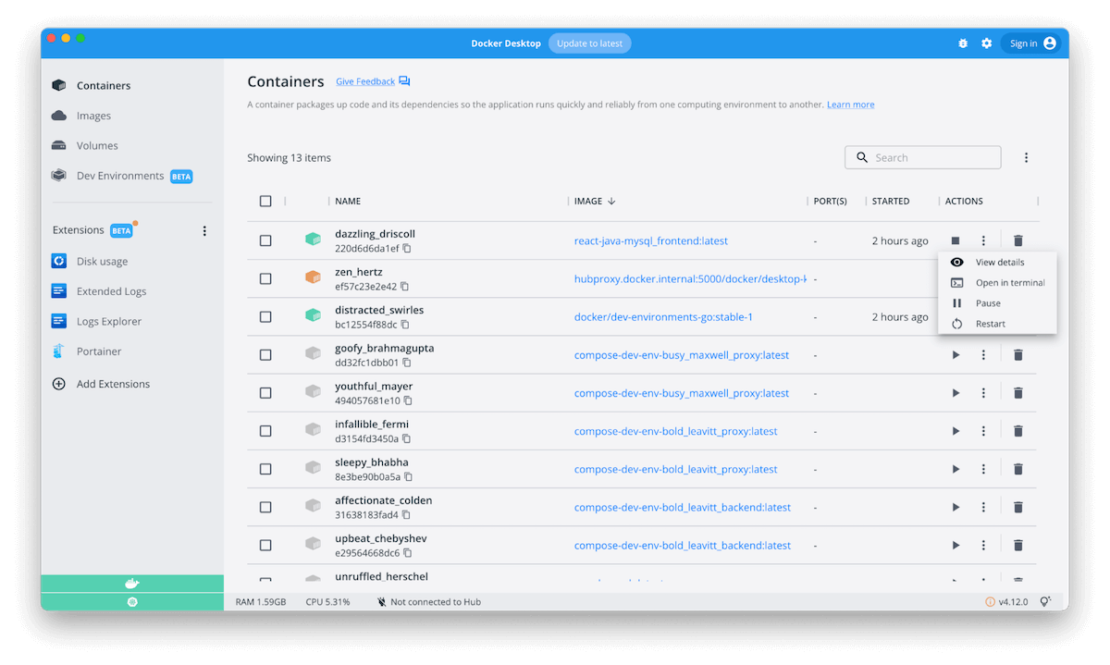
This command will create a container and execute the main.py script. Once we run the container, it’ll re-print the loss and estimates. The container will automatically exit after executing these commands. You can view your container’s status via Docker Desktop’s Container interface:

Desktop shows us that linear_regression executed the commands and exited successfully.
We can view our error estimates via the terminal or directly within Docker Desktop. I used a Docker Extension called Logs Explorer to view my container’s output (shown below):
Alternatively, you may also experiment using the Docker image that we created in this blog.

As we can see, the results from running the script on my system and inside the container are comparable.
To learn more about using containers with Python, visit these helpful links:

Patrick Loeber’s talk, “How to Containerize Your Python Application with Docker”
Docker documentation on building containers using Python

Want to learn more about PyTorch theories and examples?
We took a very tiny peek into the world of Python, PyTorch, and deep learning. However, many resources are available if you’re interested in learning more. Here are some great starting points:

PyTorch tutorials
Dive into Deep learning GitHub
Machine Learning Mastery Tutorials

Additionally, endless free and paid courses exist on websites like YouTube, Udemy, Coursera, and others.
Stay tuned for more!
In this blog, we’ve introduced PyTorch and linear regression, and we’ve used the PyTorch framework to solve a very simple linear regression problem. We’ve also shown a very simple way to containerize your PyTorch application.
But, we have much, much more to discuss on deployment. Stay tuned for our follow-up blog — where we’ll tackle the ins and outs of deep-learning deployments! You won’t want to miss this one.
Quelle: https://blog.docker.com/feed/
Getting Started with Visual Studio Code and IntelliJ IDEA Docker Plugins

Today’s developers swear by IDEs that best support their workflows. Jumping repeatedly between windows and apps is highly inconvenient, which makes these programs so valuable. By remaining within your IDE, it’s possible to get more done in less time.
Today, we’ll take a look at two leading IDEs — VS Code and IntelliJ IDEA — and how they can mesh with your favorite Docker tools. We’ll borrow a sample ASP.NET application and interact with it throughout this guide. We’ll show you why Docker integrations are so useful during this process.
The Case for Integration
When working with Docker images, you’ll often need to perform repetitive tasks like building, tagging, and pushing each image — after creating unique Dockerfiles and Compose files.
In a typical workflow, you’d create a Dockerfile and then build your image using the docker build CLI command. Then, you’d tag the image using the docker tag command and upload it to your remote registry with docker push. This process is required each time you update your application. Additionally, you’ll frequently need to inspect your running containers, volumes, and networks.
Before the Docker, Docker Explorer, and “Remote – Containers” plugins debuted, (to name a few), you’d have to switch between your IDE and Docker Desktop to perform tasks. Now, Docker Desktop IDE integration unlocks Desktop’s functionality without compromising productivity. The user experience is seamless.
Integrating your favorite IDE with Docker Desktop enables you to be more productive without leaving either app. These extensions let you create Dockerfiles and Compose files based on your entered source code — letting you view and manage containers directly from within your IDE.
Now, let’s explore how to install and leverage various Docker plugins within each of these IDEs.
Prerequisites
You’ll need to download and install the following before getting started:

The latest version of Docker Desktop
Visual Studio Code
IntelliJ IDEA
Our sample ASP.NET Core app

 
Before beginning either part of the tutorial, you’ll first need to download and install Docker Desktop. This grabs all Docker dependencies and places them onto your machine — for both the CLI and GUI. After installing Desktop, launch it before proceeding.
Next, pull the Docker image from the ASP.NET Core app using the Docker CLI command:
docker pull mcr.microsoft.com/dotnet/samples:aspnetapp
 
However, our example is applicable to any image. You can find a simple image on Docker Hub and grab it using the appropriate docker pull command.
Integrations with VS Code
Depending on which version you’re running (since you might’ve installed it prior), VS Code’s welcome screen will automatically prompt you to install recommended Docker plugins. This is very convenient for quickly getting up and running:
 
VS Code displays an overlay in the bottom right, asking to install Docker-related extensions.


If you want to install everything at once, simply click the Install button. However, it’s likely that you’ll want to know what VS Code is adding to your workspace. Click the Show Recommendations button. This summons a list of Docker and Docker-adjacent extensions — while displaying Microsoft’s native “Remote – Containers” extension front and center:


You can click any of these items in the sidebar and install them using the green Install button. Selecting the dropdown arrow attached to this button lets you install a release version or pre-release version depending on your preferences. Additionally, each extension may also install its own dependencies that let it work properly. You can click the Dependencies tab, if applicable, to view these sidekick programs.
However, you may have to manually open the Extensions pane if this prompt doesn’t appear. From the column of icons in the sidebar, click the Extensions icon that resembles a window pane, search for “Docker” in the search bar.


You’ll also see a wide variety of other Docker-related extensions, sorted by popularity and relevance. These are developed by community members and verified publishers.
Once your installation finishes, a “Getting Started with Docker” screen will greet you in the main window, letting you open a workspace Folder, run a container, and more:


The Docker whale icon will also appear in the left-hand pane. Clicking it shows a view similar to that shown below:


Each section expands to reveal more information. You can then check your running containers and images, stop or start them, connect to registries, plus inspect networks, volumes, and contexts.
Remember that ASP.NET image we pulled earlier? You can now expand the Images group and spin up a container using the ASP.NET Core image. Locate mcr.microsoft.com/dotnet/samples in the list, right click the aspnetapp tag, and choose “Run”:


You’ll then see your running container under the Containers group:


This method lets you easily preview container files right within VS Code.
Expand the Files group under the running container and select any file from the list. Our example below previews the site.css file from the app/wwwroot/css directory:


Finally, you may need to tag your local image before pushing it to the remote registry. You can do this by opening the Registries group and clicking “Connect Registry.”
VSCode will display a wizard that lets you choose your registry service — like Azure, Docker Hub, the Docker Registry, or GitLab. Let’s use Docker Hub by selecting it from the options list:


Now, Visual Studio will prompt you to enter credentials. Enter these to sign in. Once you’ve successfully logged in, your registry will appear within the group:


After connecting to Hub, you can tag local images using your remote repository name. For example:
YOUR_REPOSITORY_NAME/samples:aspnetapp
 
To do this, return to the Images group and right-click on the aspnetapp Docker image. Then, select the “Tag” option from the context menu. VS will display the wizard, where you can enter your desired tag.
Finally, right-click again on aspnetapp and select “Push” from the context menu:


This method is much faster than manually entering your code into the terminal.
However, this showcases just some of what you can achieve with the Docker extension for VS Code. For example, you can automatically generate Dockerfiles from within VS Code.
To create these, open the Command Palette (View > Command Palette…), and type “Docker” to view all available commands:


Next, click “Add Docker Files to Workspace…” You can now create your Dockerfiles from within VS Code.
Additionally, note the variety of Docker functions available from the Command Palette. The Docker extension integrates seamlessly with your development processes.
IntelliJ IDEA
In the IntelliJ IDEA Ultimate Edition, the Docker plugin is enabled by default. However, if you’re using the Community Edition, you’ll need to install the plugin manually.
You can either do this when the IDE starts (as shown below), or by clicking the Preferences window in the Plugins section.


Once you’ve installed the Docker plugin, you’ll need to connect it to Docker Desktop. Follow these steps:

Navigate to IntelliJ IDEA > Preferences.
Expand the Build, Execution, Deployment group. Click Docker, and then click the small  “+” icon to the right.
Choose the correct Docker daemon for your platform (for example, Docker for Mac).

 
The installation may take a few minutes. Once it’s complete, you’ll see the “Connection successful” message toward the middle-bottom of the Preferences pane:


Next, click “Apply” and then expand the Docker group from the left sidebar.
Select “Docker Registry” and add your preferred registry from there. Like our VS Code example, this demo also uses Docker Hub.
IntelliJ will prompt you to enter your credentials. You should again see the “Connection successful” message under the Test connection pane if you’re successful:


Now, click OK. Your Docker daemon and the Docker Registry connections will appear in the bottom portion of your IDE, in the Services pane:


This should closely resemble what happens within VS Code. Now, you can spin up another container!
To do this, click to expand the Images group. Locate your container image and select it to open the menu. Click the “Create Container” button from there.


This launches the “Create Docker Configuration” window, where you can configure port binding, entrypoints, command variables, and more.
You can otherwise interact with these options via the “Modify options” drop-down list — written in blue near the upper-right corner of the window:


After configuring your options, click “Run” to start the container. Now, the running container (test-container) will appear in the Services pane:


You can also inspect the running container just like you would in VS Code.
First, navigate back to the Dashboard tab. You’ll see additional buttons that let you quickly “Restart” or “Stop” the container:


Additionally, you can access the container command prompt by clicking “Terminal.” You’ll then use this CLI to inspect your container files.


Finally, you can now easily tag and push the image. Here’s how:

Expand the Images group, and click on your image. You’ll see the Tags list in the right-hand panel.
Click on “Add…” to create a new tag. This prompts the Tag image window to appear. Use this window to provide your repository name.
Click “Tag” to view your new tag in the list.


Click on your tag. Then use the “Push Image” button to send your image to the remote registry.
Wrapping Up
By following this tutorial, you’ve learned how easy it is to perform common, crucial Docker tasks within your IDE. The process of managing containers and images is much smoother. Accordingly, you no longer need to juggle multiple windows or programs while getting things done. Docker Desktop’s functionality is baked seamlessly into VS Code and IntelliJ IDEA.
To enjoy streamlined workflows yourself, remember to download Docker Desktop and add Docker plugins and extensions to your favorite IDE.
Want to harness these Docker integrations? Read VS Code’s docs to learn how to use a Docker container as a fully-featured dev environment, or customize the official VS Code Docker extension. You can learn more about how Docker and IntelliJ team up here.
Quelle: https://blog.docker.com/feed/

Cross Compiling Rust Code for Multiple Architectures

Getting an idea, planning it out, implementing your Rust code, and releasing the final build is a long process full of unexpected issues. Cross compilation of your code will allow you to reach more users, but it requires knowledge of building executables for different runtime environments. Luckily, this post will help in getting your Rust application running on multiple architectures, including x86 for Windows.
Overview
You want to vet your idea with as many users as possible, so you need to be able to compile your code for multiple architectures. Your users have their own preferences on what machines and OS to use, so we should do our best to meet them in their preferred set-up. This is why it’s critical to pick a language or framework that lends itself to support multiple ways to export your code for multiple target environments with minimal developer effort. Also, it’d be better to have tooling in place to help automate this export process.
If we invest some time in the beginning to pick the right coding language and automation tooling, then we’ll avoid the headaches of not being able to reach a wider audience without the use of cumbersome manual steps. Basically, we need to remove as many barriers as possible between our code and our audience.
This post will cover building a custom Docker image, instantiating a container from that image, and finally using that container to cross compile your Rust code. Your code will be compiled, and an executable will be created for your target environment within your working directory.
What You’ll Need

Your Rust code (to help you get started, you can use the source code from this git repo)
The latest version of Docker Desktop

Getting Started
My Rust directory has the following structure:

.
├── Cargo.lock
├── Cargo.toml
└── src
└── main.rs

 
The lock file and toml file both share the same format. The lock file lists packages and their properties. The Cargo program maintains the lock file, and this file should not be manually edited. The toml file is a manifest file that specifies the metadata of your project. Unlike the lock file, you can edit the toml file. The actual Rust code is in main.rs. In my example, the main.rs file contains a version of the game Snake that uses ASCII art graphics. These files run on Linux machines, and our goal is to cross compile them into a Windows executable.
The cross compilation of your Rust code will be done via Docker. Download and install the latest version of Docker Desktop. Choose the version matching your workstation OS — and remember to choose either the Intel or Apple (M-series) processor variant if you’re running macOS.


Creating Your Docker Image
Once you’ve installed Docker Desktop, navigate to your Rust directory. Then, create an empty file called Dockerfile within that directory. The Dockerfile will contain the instructions needed to create your Docker image. Paste the following code into your Dockerfile:

FROM rust:latest

RUN apt update && apt upgrade -y
RUN apt install -y g++-mingw-w64-x86-64

RUN rustup target add x86_64-pc-windows-gnu
RUN rustup toolchain install stable-x86_64-pc-windows-gnu

WORKDIR /app

CMD ["cargo", "build", "–target", "x86_64-pc-windows-gnu"]

 
Setting Up Your Image
The first line creates your image from the Rust base image. The next command upgrades the contents of your image’s packages to the latest version and installs mingw, an open source program that builds Windows applications.
Compiling for Windows
The next two lines are key to getting cross compilation working. The rustup program is a command line toolchain manager for Rust that allows Rust to support compilation for different target platforms. We need to specify which target platform to add for Rust (a target specifies an architecture which can be compiled into by Rust). We then install that toolchain into Rust. A toolchain is a set of programs needed to compile our application to our desired target architecture.
Building Your Code
Next, we’ll set the working directory of our image to the app folder. The final line utilizes the CMD instruction in our running container. Our command instructs Cargo, the Rust build system, to build our Rust code to the designated target architecture.
Building Your Image
Let’s save our Dockerfile, and then navigate to that directory in our terminal. In the terminal, run the following command:
docker build . -t rust_cross_compile/windows
 
Docker will build the image by using the current directory’s Dockerfile. The command will also tag this image as rust_cross_compile/windows.
Running Your Container
Once you’ve created the image, then you can run the container by executing the following command:
docker run –rm -v ‘your-pwd’:/app rust_cross_compile/windows
 
The -rm option will remove the container when the command completes. The -v command allows you to persist data after a container has existed by linking your container storage with your local machine. Replace ‘your-pwd’ with the absolute path to your Rust directory. Once you run the above command, then you will see the following directory structure within your Rust directory:

.
├── Cargo.lock
├── Cargo.toml
└── src
└── main.rs
└── target
└── debug
└── x86_64-pc-windows-gnu
└── debug
termsnake.exe

 
Running Your Rust Code
You should now see a newly created directory called target. This directory will contain a subdirectory that will be named after the architecture you are targeting. Inside this directory, you will see a debug directory that contains the executable file. Clicking the executable allows you to run the application on a Windows machine. In my case, I was able to start playing the game Snake:


Running Rust on armv7
We have compiled our application into a Windows executable, but we can modify the Dockerfile like the below in order for our application to run on the armv7 architecture:

FROM rust:latest

RUN apt update && apt upgrade -y
RUN apt install -y g++-arm-linux-gnueabihf libc6-dev-armhf-cross

RUN rustup target add armv7-unknown-linux-gnueabihf
RUN rustup toolchain install stable-armv7-unknown-linux-gnueabihf

WORKDIR /app

ENV CARGO_TARGET_ARMV7_UNKNOWN_LINUX_GNUEABIHF_LINKER=arm-linux-gnueabihf-gcc CC_armv7_unknown_Linux_gnueabihf=arm-linux-gnueabihf-gcc CXX_armv7_unknown_linux_gnueabihf=arm-linux-gnueabihf-g++

CMD ["cargo", "build", "–target", "armv7-unknown-linux-gnueabihf"]

 
Running Rust on aarch64
Alternatively, we could edit the Dockerfile with the below to support aarch64:

FROM rust:latest

RUN apt update && apt upgrade -y
RUN apt install -y g++-aarch64-linux-gnu libc6-dev-arm64-cross

RUN rustup target add aarch64-unknown-linux-gnu
RUN rustup toolchain install stable-aarch64-unknown-linux-gnu

WORKDIR /app

ENV CARGO_TARGET_AARCH64_UNKNOWN_LINUX_GNU_LINKER=aarch64-linux-gnu-gcc CC_aarch64_unknown_linux_gnu=aarch64-linux-gnu-gcc CXX_aarch64_unknown_linux_gnu=aarch64-linux-gnu-g++

CMD ["cargo", "build", "–target", "aarch64-unknown-linux-gnu"]

 
Another way to compile for different architectures without going through the creation of a Dockerfile would be to install the cross project, using the cargo install -f cross command. From there, simply run the following command to start the build:
cross build –target x86_64-pc-windows-gnu
Conclusion
Docker Desktop allows you to quickly build a development environment that can support different languages and frameworks. We can build and compile our code for many target architectures. In this post, we got Rust code written on Linux to run on Windows, but we don’t have to limit ourselves to just that example. We can pick many other languages and architectures. Alternatively, Docker Buildx is a tool that was designed to help solve these same problems. Checkout more documentation of Buildx here.
Quelle: https://blog.docker.com/feed/

Creating the KubeCon Flappy Dock Extension

During KubeCon EU 2022, our Docker team was able to show off many of our latest releases, including Docker Desktop for Linux and Docker Extensions. Community feedback on these has been overwhelmingly positive! To help demonstrate the types of extensions available, we demoed the Disk Usage extension and built our own extension just for the conference: Flappy Dock! Let’s dive into the extension and how we built it.


The Makeup of an Extension
In case you haven’t built your own extension, extensions are simply specially formatted Docker images that contain a frontend and optional backend services. The frontend is simply a web app that’s extracted from the image and rendered within Docker Desktop. Therefore, anything that can run in a web browser can run as an extension! The extension’s metadata.json (more on that later) configuration file tells Docker Desktop how to install and use it.
As we looked around for fun ideas for KubeCon, we decided to run a simple game. Fortunately, we found a web adaptation of Flappy Bird on GitHub — thanks nebez/floppybird! This would be a perfect starting point.
Converting Flappy Bird to Flappy Dock
While Flappy Bird is fun, why don’t we make it match our nautical theme while using Moby and Molly? Luckily, that’s a pretty easy change to make with the following steps.
1) Using the NGINX Container
After cloning the repo locally, we can launch the app using an nginx container. Using the new Featured Images page, I can start my container with a few clicks. If I start an nginx container, select the directory I cloned the repo into, and open the site, I get Flappy Bird! Feel free to play a game or two (use either the mouse or spacebar to play the game)!


2) Swapping Out Our Images
To customize the game, we need to swap out some images with some Docker-themed images! Each of the following images go into the assets folder.

Moby
Molly
The ocean background (replacing the sky)
The ocean ceiling
The ocean floor (replacing the land)

 
3) Changing Your CSS
We’ll modify the css/main.css and replace the original sky, ceiling, and land assets with our new images. If we refresh our browser, we should have the following now!


Our images are now in place, but we’ll need to tweak the colors where the images aren’t being used. We’ll do that next!
In the css/main.css file, make the following changes:

In the #sky declaration, set the background color value to #222D6D
In the #land declaration, set the background color value to #094892

 
You can see our game coming together!


4) Updating Your Game Code
With both CSS classes in place, let’s update the game code to randomly choose a character. We also must clear out the previous character choice, since you can play the game multiple times without refreshing the page. In the js/main.js file, locate the showSplash function. At the top of that function, add the following:

const useMolly = Math.floor(Math.random() * 2) === 0;
$("#player")
.removeClass("moby").removeClass("molly")
.addClass(useMolly ? "molly" : "moby");

 
Finally, check out your game. You should now successfully have either Moby or Molly as your main character while playing Flappy Dock!


Turning Flappy Dock into an Extension
Now that we have our web-based game ready to go, it’s time to turn it into an extension! As we mentioned earlier, an extension is simply a specialized image that contains a metadata.json with configurations.
To use the docker extension commands, first install the Docker Extension SDK plugin (instructions can be found here). This is currently the only method to install an extension not listed in the Extensions Marketplace.
1) Adding Configurations to the Root
In the root of our project, we’re then going to create a metadata.json file with the following contents:

{
"icon": "docker.svg",
"ui": {
"dashboard-tab": {
"title": "Flappy Dock",
"root": "ui",
"src": "index.html"
}
}
}

 
This configuration specifies the extension title and the location within the container image that contains the web-based application.
2) Creating an Image
Now, all that’s left is to create a container image. We can use the following Dockerfile to do so!

FROM alpine
LABEL org.opencontainers.image.title="Flabby Dock"
org.opencontainers.image.description="A fun extension to play Flappy Bird, but Docker style!"
org.opencontainers.image.vendor="Your name here"
com.docker.desktop.extension.api.version=">= 0.2.3"
com.docker.extension.screenshots=""
com.docker.extension.detailed-description=""
com.docker.extension.publisher-url=""
com.docker.extension.additional-urls=""
com.docker.extension.changelog=""

COPY metadata.json .
COPY index.html ui/
COPY assets ui/assets
COPY css ui/css
COPY js ui/js

 
The Dockerfile here simply puts the metadata.json at the root and copies other key files in the locations we specified in our config. You can also use various labels to describe the image (which is helpful for images in the Marketplace).
At this point, we can build our image and install it with the following commands:
docker build -t flappy-dock .
docker extension install flappy-dock
 
3) Confirming Within Docker Desktop
Within Docker Desktop, we should now see Flappy Dock in the sidebar! If you click on it, you can play the game!


For KubeCon, we added a few additional changes to the app — including a running total score, run count, and an available “easy mode” with extra space between the pipes. Want to learn more? Check out our version of the code in this GitHub code repo.
Recap
While a fairly basic example — by building Flappy Dock into an extension — we demonstrated how to turn any web-based interface into an extension. If you have ideas for your own tools, documentation, or even games, we hope this blog post helped out!
If you want to dive deeper into Docker Extensions and explore the additional capabilities provided through the SDK (including running Docker commands, listing containers and images, and more), visit the resources below. We’d love to hear your feedback and about what you want to build with Docker Extensions!
 

Extensions SDK Docs – useful when building your own extension and exploring the SDK
Extensions SDK Repo – useful for sharing feedback, reporting bugs, or submitting feature requests

Quelle: https://blog.docker.com/feed/

8 Organizations Supporting the LGBTQ+ Tech Community

8 Organizations Supporting the LGBTQ+ Tech Community
June is Pride Month. And while it’s time to celebrate the LGBTQ+ community, it’s also an important reminder that diversity within the workforce remains an ongoing challenge within tech (as well as many other industries) for LGBTQ+ people. To help face that challenge, we want to highlight eight amazing organizations that are helping to support the LGBTQ+ tech community.

1. Out in Science, Technology, Engineering, and Mathematics (oSTEM)
A non-profit professional association for LGBTQ+ people in the STEM community. With over 100 student chapters at colleges/universities and professional chapters in cities across the United States and abroad, oSTEM is the largest chapter-based organization focused on LGBTQ+ people in STEM. oSTEM empowers LGBTQ+ people in STEM to succeed personally, academically, and professionally by cultivating environments and communities that nurture innovation, leadership, and advocacy.
2. TransTech Social Enterprises
An incubator for LGBTQ+ Talent with a focus on economically empowering the T, transgender people, in our community. They provide training, mentorship, and employment opportunities both in person and online for their members. 
3. Out for Undergrad (O4U)
An organization that holds major conferences for LGBTQ+ students. Students are able to network, learn from professionals, and participate in career fairs. Participation for students is also free as the cost of airfare, lodging, and the conferences are covered by participating employers. 
4. Lesbians Who Tech
A community of LGBTQ+ women, non-binary, and trans indviduals in and around tech (and the people who support them). The goals of Lesbians Who Tech are to be more visible to each other, to be more visible to others, to get more women, POC, and queer and trans people in technology, and to connect the community to other organizations and companies that are doing incredible work. Each year, they hold a summit focused on technology and offer a scholarship for LGBTQ+ women in coding that covers 50% of tuition for a coding school program. 
5.  Out in Tech
The world’s largest non-profit community of LGBTQ+ tech leaders. They create opportunities for their 40,000 members to advance their careers, grow their networks, and leverage tech for social change. Their Out in Tech U Mentorship program pairs LGBTQ+ youth with tech professionals to provide both technical and professional skills. 
6. LGBTQ in Technology
A space for LGBTQ+ people in technology to chat and support each other. They strive to keep it safe, positive, and confidential. The Slack channel is open to anybody who identifies as lesbian, gay, bisexual, trans, non-binary, gender non-conforming, queer, and those questioning whether they fit into those or any of the many other sub-genres of people who aren’t generally considered both “straight” and cis.
7. Out to Innovate
An organization that empowers LGBTQ+ individuals in STEM by providing education, advocacy, professional development, networking, and peer support.
They educate all communities regarding scientific, technological, and medical concerns of LGBTQ+ people.
8. Pride in STEM
A charity run by an independent group of LGBTQ+ scientists & engineers from around the world. They aim to showcase and support all LGBTQ+ people in STEM fields.Their goal has been to raise the profile of LGBTQ+ people in science, technology, engineering, and math/medicine (STEM) as well as to highlight the struggles LGBTQ+ STEM people often face.
We celebrate all members of the LGBTQ+ community
In the Docker community, we know the importance of bringing your whole self to everything you do, and we embrace what makes each of us unique. We’re proud of all LGBTQ+ members in our community, and celebrate you for who you are.
We also want to support the LGBTQ+ tech community. That’s why, in honor of Pride month, we’re making a donation to each of the organizations listed above.
To everyone in the LGBTQ+ tech community: Thank you. And we’re glad to have you here.
Quelle: https://blog.docker.com/feed/

Simplify Your Deployments Using the Rust Official Image

We previously tackled how to deploy your web applications quicker with the Caddy 2 Official Image. This time, we’re turning our attention to Rust applications.
The Rust Foundation introduced developers to the Rust programming language in 2010. Since then, developers have relied on it while building CLI programs, networking services, embedded applications, and WebAssembly apps.
Rust is also the most-loved programming language according to Stack Overflow’s 2021 Developer Survey, and Mac developers’ most-sought language per Git Tower’s 2022 survey. It has over 85,000 dedicated libraries, while our Rust Official Image has over 10 million downloads. Rust has a passionate user base. Its popularity has only grown following 2018’s productivity updates and 2021’s language-consistency enhancements.
That said, Rust application deployments aren’t always straightforward. Why’s this the case?
The Deployment Challenge
Developers have numerous avenues for deploying their Rust applications. While flexibility is good, the variety of options can be overwhelming. Accordingly, your deployment strategies will change depending on application types and their users.
Do you need a fully-managed IaaS solution, a PaaS solution, or something simpler? How important is scalability? Is this application as a personal project or as part of an enterprise deployment? The answers to these will impact your deployment approach — especially if you’ll be supporting that application for a long time.
Let’s consider something like Heroku. The platform provides official support for major languages like PHP, Python, Go, Node.js, Java, Ruby, and others. However, only these languages receive what Heroku calls “first-class” support.
In Rust’s case, Heroku’s team therefore doesn’t actively maintain any Rust frameworks, language features, or updated versioning. You’re responsible for tackling these tasks. You must comb through a variety of unofficial, community-made Buildpacks to extend Heroku effectively. Interestingly, some packs do include notes on testing with Docker, but why not just cut out the middle man?
There are also options like Render and Vercel, which feature different levels of production readiness.
That’s why the Rust Official Image is so useful. It accelerates deployment by simplifying the process. Are you tackling your next Rust project? We’ll discuss common use cases, streamline deployment via the Rust Official Image, and share some important tips.
Why Rust?
Rust’s maintainers and community have centered on system programming, networking, command-line applications, and WebAssembly (AKA “Wasm”). Many often present Rust as an alternative to C++ since they share multiple use cases. Accordingly, Rust also boasts memory safety, strong type safety, and modularity.
You can also harness Rust’s application binary interface (ABI) compatibility with C, which helps Rust apps access lower-level binary data within C libraries. Additionally, helpers like wasm-pack, wasm-bindgen, Neon, Helix, rust-cpython, and cbindgen let you extend codebases written in other languages with Rust components. This helps all portions of your application work seamlessly together.
Finally, you can easily cross compile to static x86 binaries (or non-x86 binaries like Arm), in 32-bit or 64-bit. Rust is platform-agnostic. Its built-in mechanisms even support long-running services with greater reliability.
That said, Rust isn’t normally considered an “entry-level” language. Experienced developers (especially those versed in C or C++) tend to pick up Rust a little easier. Luckily, alleviating common build complexities can boost its accessibility. This is where container images shine. We’ll now briefly cover the basics behind leveraging the Rust image.
To learn more about Rust’s advantages, read this informative breakdown.
Prerequisites and Technical Fundamentals
The Rust Official Image helps accelerate your deployment, and groups all dependencies into one package.
 
Here’s what you’ll need to get started:

Your Rust application code
The latest version of Docker Desktop
Your IDE of choice (VSCode is recommended, but not required)

 
In this guide, we’ll assume that you’re bringing your finalized application code along. Ensure that this resides in the proper location, so that it’s discoverable and usable within your upcoming build.
Your Rust build may also leverage pre-existing Rust crates (learn more about packages and crates here). Your package contains one or more crates (or groups of compiled executables and binary programs) that provide core functionality for your application. You can also leverage library crates for applications with shared dependencies.
Some crates contain important executables — typically in the form of standalone tools. Then we have configurations to consider. Like .yaml files, Cargo.toml files — also called the package manifests — form an app’s foundation. Each manifest contains sections. For example, here’s how [package] section looks:

[package]
name = "hello_world" # the name of the package
version = "0.1.0" # the current version, obeying semver
authors = ["Alice <a@example.com>", "Bob <b@example.com>"]

 
You can define many configurations within your manifests. Rust generates these sectioned files upon package creation, using this $ cargo new script:

$ cargo new my-project
Created binary (application) `my-project` package
$ ls my-project
Cargo.toml
src
$ ls my-project/src
main.rs

 
Rust automatically uses src/main.rs as the binary crate root directory, whereas src/lib.rs references a package with a library crate. The above example from Rust’s official documentation incorporates a simple binary crate within the build.
Before moving ahead, we recommend installing Docker Desktop, because it makes managing containers and images much easier. You can view, run, stop, and configure your containers via the Dashboard instead of the CLI. However, the CLI remains available within VSCode — and you can `SSH` directly into your containers via Docker Desktop’s Container interface.
Now, let’s inspect our image and discuss some best practices. To make things a little easier, launch Docker Desktop before proceeding.
Using the Rust Official Image
The simplest way to use the Rust image is by running it as a Rust container. First, enter the `docker pull rust` command to automatically grab the `latest` image version. This takes about 20 seconds within VSCode:


You can confirm that Docker Desktop pulled your image successfully by accessing the Images tab in the sidebar — then locating your rust image in the list:


To run this image as a container, hover over it and click the blue “Run” button that appears. Confirm by clicking “Run” again within the popup modal. You can expand the Optional Settings form to customize your container, though that’s not currently necessary.
Confirm that your rust container is running by visiting the Containers tab, and finding it within the list. Since we bypassed the Optional Settings, Docker Desktop will give your container a random name. Note the blue labels beside each container name. Docker Desktop displays the base image’s name:tag info for each container:


Note: Alternatively, you can pull a specific version of Rust with the tag :<version>. This may be preferable in production, where predictability and pre-deployment testing is critical. While :latest images can bring new fixes and features, they may also introduce unknown vulnerabilities into your application.
 
You can stop your container by hovering over it and clicking the square “Stop” button. This process takes 10 seconds to complete. Once stopped, Docker Desktop labels your container as exited. This step is important prior to making any configuration changes.
Similarly, you can (and should) remove your container before moving onward.
Customizing Your Dockerfiles
The above example showcased how images and containers live within Desktop. However, you might’ve noticed that we were working with “bare” containers, since we didn’t use any Rust application code.
Your project code brings your application to life, and you’ll need to add it into your image build. The Dockerfile accomplishes this. It helps you build layered images with sequential instructions.
Here’s how your basic Rust Dockerfile might look:

FROM rust:1.61.0

WORKDIR /usr/src/myapp
COPY . .

RUN cargo install –path .

CMD ["myapp"]

 
You’ll see that Docker can access your project code. Additionally, the cargo install RUN command grabs your packages.
To build and run your image with a complete set of Rust tooling packaged in, enter the following commands:

$ docker build -t my-rust-app .
$ docker run -it –rm –name my-running-app my-rust-app

 
This image is 1.8GB — which is pretty large. You may instead need the slimmest possible image builds. Let’s cover some tips and best practices.
Image Tips and Best Practices
Save Space by Compiling Without Tooling
While Rust tooling is useful, it’s not always essential for applications. There are scenarios where just the compiled application is needed. Here’s how your augmented Dockerfile could account for this:

FROM rust:1.61.0 as builder
WORKDIR /usr/src/myapp
COPY . .
RUN cargo install –path .

FROM debian:buster-slim
RUN apt-get update && apt-get install -y extra-runtime-dependencies && rm -rf /var/lib/apt/lists/*
COPY –from=builder /usr/local/cargo/bin/myapp /usr/local/bin/myapp
CMD ["myapp"]

 
Per the Rust Project’s developers, this image is merely 200MB. That’s tiny compared to our previous image. This saves disk space, reduces application bloat, and makes it easier to track layer-by-layer changes. That outcome appears paradoxical, since your build is multi-stage (adding layers) yet shrinks significantly.
Additionally, naming your stages and using those names in each COPY ensures that each COPY won’t break if you reorder your instructions.
This solution lets you copy key artifacts between stages and abandon unwanted artifacts. You’re not carrying unwanted components forward into your final image. As a bonus, you’re also building your Rust application from a single Dockerfile.
 
Note: See the && operator used above? This helps compress multiple RUN commands together, yet we don’t necessarily consider this a best practice. These unified commands can be tricky to maintain over time. It’s easy to forget to add your line continuation syntax () as those strings grow.
 
Finally, Rust is statically compiled. You can create your Dockerfile with the FROM scratch instruction and append only the binary to the image. Docker treats scratch as a no-op and doesn’t create an extra layer. Consequently, Scratch can help you create minuscule builds measuring just a few MB.
To better understand each Dockerfile instruction, check out our reference documentation.
Use Tags to Your Advantage
Need to save even more space? Using the Rust alpine image can save another 60MB. You’d instead specify an instruction like FROM rust:1.61.0-alpine as builder. This isn’t caveat-free, however. Alpine images leverage musl libc instead of glibc and friends, so your software may encounter issues if important dependencies are excluded. You can compare each library here to be safe.
 
There are some other ways to build smaller Rust images:

The rust:<version>-slim tag pulls an image that contains just the minimum packages needed to run Rust. This saves plenty of space, but fails in environments that require deployments beyond just your rust image
The rust:<version>-slim-bullseye tag pulls an image built upon Debian 11 branch, which is the current stable distro
The rust:<version>slim-buster tag also pulls an image built upon the Debian 10 branch, which is even slightly smaller than its bullseye successor

 
Docker Hub lists numerous image tags for the Rust Official Image. Each version’s size is listed according to each OS architecture.
Creating the slimmest possible application is an admirable goal. However, this process must have a goal or benefit in mind. For example, reducing your image size (by stripping dependencies) is okay when your application doesn’t need them. You should never sacrifice core functionality to save a few megabytes.
Lastly, you can lean on the `cargo-chef` subcommand to dramatically speed up your Rust Docker builds. This solution fully leverages Docker’s native caching, and offers promising performance gains. Learn more about it here.
Conclusion
Cross-platform Rust development doesn’t have to be complicated. You can follow some simple steps, and make some approachable optimizations, to improve your builds. This reduces complexity, application size, and build times by wide margins. Moreover, embracing best practices can make your life easier.
Want to jumpstart your next Rust project? Our awesome-compose library features a shortcut for getting started with a Rust backend. Follow our example to build a React application that leverages a Rust backend with a Postgres database. You’ll also learn how Docker Compose can help streamline the process.
Quelle: https://blog.docker.com/feed/

How to Build and Deploy a Django-based URL Shortener App from Scratch

At Docker, we are incredibly proud of our vibrant, diverse and creative community. From time to time, we feature cool contributions from the community on our blog to highlight some of the great work our community does. Are you working on something awesome with Docker? Send your contributions to Ajeet Singh Raina (@ajeetraina) on the Docker Community Slack and we might feature your work!
URL shortening is a widely adopted technique that’s used to create short, condensed, and unique aliases for long URL links. Websites like tinyurl.com, bit.ly and ow.ly offer online URL shortener services, while social media sites integrate shorteners right into their product, like Twitter with its use of t.co. This is especially important for Twitter, where shortened links allow users to share long URLs in a Tweet while still fitting in the maximum number of characters for their message.
Why are URL shortener techniques so popular? First, the URL shortener technique allows you to create a short URL that is easy to remember and manage. Say, if you have a brand name, a short URL just consisting of a snippet of your company name is easier to identify and remember.

Second, oversized and hard-to-guess URLs might sometimes look too suspicious and clunky. Imagine a website URL link that has UTM parameters embedded. UTMs are snippets of text added to the end of a URL to help marketers track where website traffic comes from if users click a link to this URL. With too many letters, backslashes and question marks, a long URL might look insecure. Some users might still think that there is a security risk involved with a shortened URL as you cannot tell where you’re going to land, but there are services like Preview mode that allows you to see a preview version of long URL before it instantly redirects you to the actual site.
How do they actually work? Whenever a user clicks a link (say, https://tinyurl.com/2p92vwuh), an HTTP request is sent to the backend server with the full URL. The backend server reads the path part(2p92vwuh) that maps to the database that stores a description, name, and the real URL. Then it issues a redirect, which is an HTTP 302 response with the target URL in the header.

Building the application
In this blog tutorial, you’ll learn how to build a basic URL shortener using Python and Django.
First, you’ll create a basic application in Python without using Docker. You’ll see how the application lets you shorten a URL. Next, you’ll build a Docker image for that application. You’ll also learn how Docker Compose can help you rapidly deploy your application within containers. Let’s jump in.
Key Components
Here’s what you’ll need to use for this tutorial:

Git
GitHub account
Python 3.8+ and virtualenv
Django
Microsoft Visual Studio Code
Docker Desktop

Getting Started
Once you have Python 3.8+ installed on your system, follow these steps to build a basic URL shortener clone from scratch.
Step 1. Create a Python virtual environment
Virtualenv is a tool for creating isolated virtual python environments. It’s a self-contained directory tree that contains a Python installation from a particular version of Python, as well as a number of additional packages.
The venv module is used to create and manage virtual environments. In most of the cases, venv is usually the most recent version of Python. If you have multiple versions of Python, you can create a specific Python version.
Use this command to create a Python virtual environment to install packages locally
mkdir -p venv
python3 -m venv venv
The above command will create a directory if it doesn’t exist and also create sub-directories that contain a copy of the Python interpreter and a number of supporting files.
$ tree venv -L 2
venv
├── bin
│ ├── Activate.ps1
│ ├── activate
│ ├── activate.csh
│ ├── activate.fish
│ ├── easy_install
│ ├── easy_install-3.8
│ ├── pip
│ ├── pip3
│ ├── pip3.8
│ ├── python -> python3
│ └── python3 -> /usr/bin/python3
├── include
├── lib
│ └── python3.8
├── lib64 -> lib
└── pyvenv.cfg

5 directories, 12 files

Once you’ve created a virtual environment, you’ll need to activate it:
source ./venv/bin/activate
Step 2. Install Django
The easiest way to install Django is to use the standalone pip installer. PIP(Preferred Installer Program) is the most popular package installer for Python and is a command-line utility that helps you to manage your Python 3rd-party packages. Use the following command to update the pip package and then install Django:
pip install -U pip
pip install Django
You’ll see the following results:
Collecting django
Downloading Django-4.0.4-py3-none-any.whl (8.0 MB)
━━━━━━━━━━━━━━━━━━━━━━━━━━━━━━━━━━━━━━━━ 8.0/8.0 MB 15.9 MB/s eta 0:00:00
Collecting asgiref<4,>=3.4.1
Downloading asgiref-3.5.2-py3-none-any.whl (22 kB)
Collecting sqlparse>=0.2.2
Downloading sqlparse-0.4.2-py3-none-any.whl (42 kB)
━━━━━━━━━━━━━━━━━━━━━━━━━━━━━━━━━━━━━━━━ 42.3/42.3 kB 1.7 MB/s eta 0:00:00
Collecting backports.zoneinfo
Downloading backports.zoneinfo-0.2.1.tar.gz (74 kB)
━━━━━━━━━━━━━━━━━━━━━━━━━━━━━━━━━━━━━━━━ 74.1/74.1 kB 3.0 MB/s eta 0:00:00
Installing build dependencies … done
…..
Step 3. Create a Django project
The django-admin is Django’s command-line utility for administrative tasks. The utility helps you automatically create manage.py in each Django project.
mkdir -p src/ && cd src
django-admin startproject url shortener

Django Project Structure:
$ tree urlshortener/
urlshortener/
├── manage.py
└── urlshortener
├── __init__.py
├── asgi.py
├── settings.py
├── urls.py
└── wsgi.py

1 directory, 6 files

In this directory tree:

manage.py is Django’s CLI
settings.py is where all of the global Django project’s settings reside
urls.py is where all the URL mappings reside
wsgi.py is an entry-point for WSGI-compatible servers to serve the project in production

Step 4. Creating a Django app for shortening the URL
Change directory to src/urlshortener and run the following command:
cd src/urlshortener
python manage.py startapp main

It will create a new subdirectory called “main” under src/urlshortener as shown below:
src
└── urlshortener
├── main
│ ├── admin.py
│ ├── apps.py
│ ├── __init__.py
│ ├── migrations
│ ├── models.py
│ ├── tests.py
│ └── views.py
├── manage.py
└── urlshortener

In this directory tree:

admin.py is where Django’s built-in admin configuration resides
migrations is where all of the database migrations reside
models.py is where all of the database models for this Django app exist
tests.py is self-explanatory
views.py is where “controller” functions reside, the functions that are in charge of creating the views

For this tutorial, you’ll only leverage the last one.
Step 5. Create the URL Shortener
pyshorteners is a simple URL shortening API wrapper Python library. With pyshorteners , you can generate a short url or expand another one is as easy as typing
Run the following command to install the package pyshorteners:
pip install pyshorteners
Run the following command to save all your python libraries with current version into requirements.txt file:
pip freeze > requirements.txt
Once the command is successfully run, the requirements.txt gets created with the following entries:
asgiref==3.5.2
backports.zoneinfo==0.2.1
certifi==2022.5.18.1
charset-normalizer==2.0.12
Django==4.0.5
idna==3.3
pyshorteners==1.0.1
requests==2.27.1
sqlparse==0.4.2
urllib3==1.26.9
Head to main/views.py and edit it accordingly:
from django.shortcuts import render
from django.http import HttpResponse
import pyshorteners

# Create your views here.
def shorten(request, url):
shortener = pyshorteners.Shortener()
shortened_url = shortener.chilpit.short(url)
return HttpResponse(f’Shortened URL: <a href=”{shortened_url}”>{shortened_url}</a>’)

In this code listing:

In line 1, the render function is imported by default. You won’t remove it now, as you’re going to use it later.
In line 2, you’ve imported the class name HttpResponse. This is the type returned with an HTML text.
In line 3, the library pyshorteners is imported, which you use to shorten the given URLs.
In line 7, the function gets two parameters; a request that is mandatory, and a url that is set by Django. We’ll get to it in the next file.
In line 8, you initialized the shortener object.
In line 9, the shortened URL is generated by sending a request to chilp.it.
In line 10, the shortened URL is returned as a minimal HTML link.

Next, let’s assign a URL to this function.
Create a urls.py under main:
touch main/urls.py
Add the below code:
from django.urls import path

from . import views

urlpatterns = [
path(‘shorten/<str:url>’, views.shorten, name=’shorten’),
]

The URL mapping specifies which function to use and which path parameters there are. In this case, the URL is mapped to the function shorten and with a string parameter named url.
Now head back to the urlshortener/ directory and include the newly created urls.py file:
from django.contrib import admin
from django.urls import include, path

urlpatterns = [
path(”, include(‘main.urls’)),
path(‘admin/’, admin.site.urls),
]
Now, run the development server:
python manage.py runserver
Open http://127.0.0.1:8000/shorten/google.com in your browser and type Enter. It will show you a shortened URL as shown in the following screenshot.

Step 6. Creating the form
In this section, you’ll see how to create a landing page.
mkdir -p main/templates/main
touch main/templates/main/index.html

Open the index.html and fill it up the with following content:
<form action=”{% url ‘main:shorten_post’ %}” method=”post”>
{% csrf_token %}
<fieldset>
<input type=”text” name=”url”>
</fieldset>
<input type=”submit” value=”Shorten”>
</form>

In this file:

The form action which the URL form sends the request to, is defined by Django’s template tag url. The tag in use is the one created in the URL mappings. Here, the URL tag main:shorten_post doesn’t exist yet. You’ll create it later.
The CSRF token is a Django security measure that works out-of-the-box.

Head over to main/views.py under the project directory src/urlshortener/ and add two functions, namely index and shorten_post at the end of the file.
from django.shortcuts import render
from django.http import HttpResponse
import pyshorteners

def index(request):
return render(request, ‘main/index.html’)

def shorten_post(request):
return shorten(request, request.POST[‘url’])

. . .

Here,

The function index renders the HTML template created in the previous step, using the render function.
The function shorten_post is a function created to be used for the post requests. The reason for its creation (and not using the previous function) is because Django’s URL mapping only works with path parameters and not post request parameters. So, here, the parameter url is read from the post request and passed to the previously available shorten function.

Now go to the main/urls.py to bind the functions to URLs:
from django.urls import path

from . import views

urlpatterns = [
path(”, views.index, name=’index’),
path(‘shorten’, views.shorten_post, name=’shorten_post’),
path(‘shorten/<str:url>’, views.shorten, name=’shorten’),
]

Next, head over to urlshortener/settings.py under src/urlshortener/urlshortener directory and add ‘main.apps.MainConfig’ to the beginning of the list INSTALLED_APPS:
. . .

INSTALLED_APPS = [
‘main.apps.MainConfig’,
‘django.contrib.admin’,
‘django.contrib.auth’,
‘django.contrib.contenttypes’,
‘django.contrib.sessions’,
‘django.contrib.messages’,
‘django.contrib.staticfiles’,
]

. . .

Step 7. Creating a Database Models
Now, to save the URLs and their short versions locally, you should create database models for them. Head to main/models.py under src/urlshortener/main and create the following model:
from django.db import models

# Create your models here.
class Question(models.Model):
original_url = models.CharField(max_length=256)
hash = models.CharField(max_length=10)
creation_date = models.DateTimeField(‘creation date’)

We’ll assume that the given URLs fit in 256 characters and the short version are less than 10 characters (usually 7 characters would suffice).
Now, create the database migrations:
python manage.py makemigrations
It will show the following results:
Migrations for ‘main':
main/migrations/0001_initial.py
– Create model Question

A new file will be created under main/migrations.
main % tree migrations
migrations
├── 0001_initial.py
├── __init__.py
└── __pycache__
└── __init__.cpython-39.pyc

1 directory, 3 files

Now to apply the database migrations to the default SQLite DB, run:
python manage.py migrate
It shows the following results:
urlshortener % python3 manage.py migrate
Operations to perform:
Apply all migrations: admin, auth, contenttypes, main, sessions
Running migrations:
Applying contenttypes.0001_initial… OK
Applying auth.0001_initial… OK
Applying admin.0001_initial… OK
Applying admin.0002_logentry_remove_auto_add… OK
Applying admin.0003_logentry_add_action_flag_choices… OK
Applying contenttypes.0002_remove_content_type_name… OK
Applying auth.0002_alter_permission_name_max_length… OK
Applying auth.0003_alter_user_email_max_length… OK
Applying auth.0004_alter_user_username_opts… OK
Applying auth.0005_alter_user_last_login_null… OK
Applying auth.0006_require_contenttypes_0002… OK
Applying auth.0007_alter_validators_add_error_messages… OK
Applying auth.0008_alter_user_username_max_length… OK
Applying auth.0009_alter_user_last_name_max_length… OK
Applying auth.0010_alter_group_name_max_length… OK
Applying auth.0011_update_proxy_permissions… OK
Applying auth.0012_alter_user_first_name_max_length… OK
Applying main.0001_initial… OK
Applying sessions.0001_initial… OK

Now that you have the database models, it’s time to create a shortener service. Create a Python file main/service.py and add the following functionality:
import random
import string
from django.utils import timezone

from .models import LinkMapping

def shorten(url):
random_hash = ”.join(random.choice(string.ascii_uppercase + string.ascii_lowercase + string.digits) for _ in range(7))
mapping = LinkMapping(original_url=url, hash=random_hash, creation_date=timezone.now())
mapping.save()
return random_hash

def load_url(url_hash):
return LinkMapping.objects.get(hash=url_hash)

In this file, in the function shorten, you create a random 7-letter hash, assign the entered URL to this hash, save it into the database, and finally return the hash.
In load_url, you load the original URL from the given hash.
Now, create a new function in the views.py for redirecting:
from django.shortcuts import render, redirect

from . import service

. . .

def redirect_hash(request, url_hash):
original_url = service.load_url(url_hash).original_url
return redirect(original_url)

Then create a URL mapping for the redirect function:
urlpatterns = [
path(”, views.index, name=’index’),
path(‘shorten’, views.shorten_post, name=’shorten_post’),
path(‘shorten/<str:url>’, views.shorten, name=’shorten’),
path(‘<str:url_hash>’, views.redirect_hash, name=’redirect’),
]

You create a URL mapping for the hashes directly under the main host, e.g. example.com/xDk8vdX. If you want to give it an indirect mapping, like example.com/r/xDk8vdX, then the shortened URL will be longer.
The only thing you have to be careful about is the other mapping example.com/shorten. We made this about the redirect mapping, as otherwise it would’ve resolved to redirect as well.
The final step would be changing the shorten view function to use the internal service:
from django.shortcuts import render, redirect
from django.http import HttpResponse
from django.urls import reverse

from . import service

. . .

def shorten(request, url):
shortened_url_hash = service.shorten(url)
shortened_url = request.build_absolute_uri(reverse(‘redirect’, args=[shortened_url_hash]))
return HttpResponse(f’Shortened URL: <a href=”{shortened_url}”>{shortened_url}</a>’)

You can also remove the third-party shortener library from requirements.txt, as you won’t use it anymore.
Using PostgreSQL
To use PostgreSQL instead of SQLite, you change the config in settings.py:
import os

. . .

DATABASES = {
‘default': {
‘ENGINE': ‘django.db.backends.sqlite3′,
‘NAME': BASE_DIR / ‘db.sqlite3′,
}
}

if os.environ.get(‘POSTGRES_NAME’):
DATABASES = {
‘default': {
‘ENGINE': ‘django.db.backends.postgresql’,
‘NAME': os.environ.get(‘POSTGRES_NAME’),
‘USER': os.environ.get(‘POSTGRES_USER’),
‘PASSWORD': os.environ.get(‘POSTGRES_PASSWORD’),
‘HOST': ‘db’,
‘PORT': 5432,
}
}

The if statement means it only uses the PostgreSQL configuration if it exists in the environment variables. If not set, Django will keep using the SQLite config.
Create a base.html under main/templates/main:
<!DOCTYPE html>
<html lang=”en”>
<head>
<meta charset=”UTF-8″>
<title>Link Shortener</title>
<link href=”https://unpkg.com/material-components-web@latest/dist/material-components-web.min.css” rel=”stylesheet”>
<script src=”https://unpkg.com/material-components-web@latest/dist/material-components-web.min.js”></script>
</head>
<style>
#main-card {
margin:0 auto;
display: flex;
width: 50em;
align-items: center;
}
</style>
<body class=”mdc-typography”>
<div id=”main-card”>
{% block content %}
{% endblock %}
</div>
</body>

Alter the index.html to use material design:
{% extends ‘main/base.html’ %}

{% block content %}
<form action=”{% url ‘shorten_post’ %}” method=”post”>
{% csrf_token %}
<label class=”mdc-text-field mdc-text-field–outlined”>
<span class=”mdc-notched-outline”>
<span class=”mdc-notched-outline__leading”></span>
<span class=”mdc-notched-outline__notch”>
<span class=”mdc-floating-label” id=”my-label-id”>URL</span>
</span>
<span class=”mdc-notched-outline__trailing”></span>
</span>
<input type=”text” name=”url” class=”mdc-text-field__input” aria-labelledby=”my-label-id”>
</label>
<button class=”mdc-button mdc-button–outlined” type=”submit”>
<span class=”mdc-button__ripple”></span>
<span class=”mdc-button__label”>Shorten</span>
</button>
</form>
{% endblock %}

Create another view for the response, namely link.html:
{% extends ‘main/base.html’ %}

{% block content %}
<div class=”mdc-card__content”>
<p>Shortened URL: <a href=”{{shortened_url}}”>{{shortened_url}}</a></p>
</div>
{% endblock %}

Now, get back to views.py and change the shorten function to render instead of returning a plain HTML:
. . .

def shorten(request, url):
shortened_url_hash = service.shorten(url)
shortened_url = request.build_absolute_uri(reverse(‘redirect’, args=[shortened_url_hash]))
return render(request, ‘main/link.html’, {‘shortened_url': shortened_url})

Click here to access the code previously developed for this example. You can directly clone the repository and try executing the following commands to bring up the application.
git clone https://github.com/aerabi/link-shortener
cd link-shortener/src/urlshortener
python manage.py migrate
python manage.py runserver

Step 8. Containerizing the Django App
Docker helps you containerize your Django app, letting you bundle together your complete Django application, runtime, configuration, and OS-level dependencies. This includes everything needed to ship a cross-platform, multi-architecture web application.
Let’s look at how you can easily run this app inside a Docker container using a Docker Official Image. First, you’ll need to download Docker Desktop. Docker Desktop accelerates the image-building process while making useful images more discoverable. Complete the installation process once your download is finished.
You’ve effectively learned how to build a sample Django app. Next, let’s see how to create an associated Docker image for this application.
Docker uses a Dockerfile to specify each image’s “layers.” Each layer stores important changes stemming from the base image’s standard configuration. Create the following empty Dockerfile in your Django project.
touch Dockerfile
Use your favorite text editor to open this Dockerfile. You’ll then need to define your base image.
Whenever you’re creating a Docker image to run a Python program, it’s always recommended to use a smaller base image that helps in speeding up the build process and launching containers at a faster pace.
FROM python:3.9
Next, let’s quickly create a directory to house our image’s application code. This acts as the working directory for your application
RUN mkdir /code
WORKDIR /code
It’s always recommended to update all the packages using the pip command.
RUN pip install –upgrade pip
The following COPY instruction copies the requirements.txt file from the host machine to the container image and stores it under /code directory.
COPY requirements.txt /code/
RUN pip install -r requirements.txt
Next, you need to copy all the directories of the Django project. It includes Django source code and pre-environment configuration files of the artifact.
COPY . /code/
Next, use the EXPOSE instruction to inform Docker that the container listens on the specified network ports at runtime. The EXPOSE instruction doesn’t actually publish the port. It functions as a type of documentation between the person who builds the image and the person who runs the container, about which ports are intended to be published.
EXPOSE 8000
Finally, in the last line of the Dockerfile, specify CMD so as to provide defaults for an executing container. These defaults include Python executables. The runserver command is a built-in subcommand of Django’s manage.py file that will start up a development server for this specific Django project.
CMD [“python”, “manage.py”, “runserver”, “0.0.0.0:8000″]
Here’s your complete Dockerfile:
FROM python:3.9

RUN mkdir /code
WORKDIR /code
RUN pip install –upgrade pip
COPY requirements.txt /code/

RUN pip install -r requirements.txt
COPY . /code/

EXPOSE 8000

CMD [“python”, “manage.py”, “runserver”, “0.0.0.0:8000″]

Step 9. Building Your Docker Image
Next, you’ll need to build your Docker image. Enter the following command to kickstart this process, which produces an output soon after:
docker build -t urlshortener .
Step 10. Run Your Django Docker Container
Docker runs processes in isolated containers. A container is a process that runs on a host, which it’s either local or remote. When an operator executes docker run, the container process that runs is isolated with its own file system, networking, and separate process tree from the host.
The following docker run command first creates a writeable container layer over the specified image, and then starts it.
docker run -p 8000:8000 -t urlshortener
Step 11. Running URL Shortener app using Docker Compose
Finally, it’s time to create a Docker Compose file. This single YAML file lets you specify your frontend app and your PostgreSQL database:
services:
web:
build:
context: ./src/urlshortener/
dockerfile: Dockerfile
command: gunicorn urlshortener.wsgi:application –bind 0.0.0.0:8000
ports:
– 8000:8000
environment:
– POSTGRES_NAME=postgres
– POSTGRES_USER=postgres
– POSTGRES_PASSWORD=postgres
depends_on:
– db
db:
image: postgres
volumes:
– postgresdb:/var/lib/postgresql/data
environment:
– POSTGRES_DB=postgres
– POSTGRES_USER=postgres
– POSTGRES_PASSWORD=postgres

volumes:
postgresdb:

Your example application has the following parts:

Two services backed by Docker images: your frontend web app and your backend database
The frontend, accessible via port 8000
The depends_on parameter, letting you create the backend service before the frontend service starts
One persistent volume, attached to the backend
The environmental variables for your PostgreSQL database

You’ll then start your services using the docker-compose up command.
docker-compose up -d -—build
Note: If you’re using Docker Compose v1, the command line name is docker-compose, with a hyphen. If you’re using v2, which is shipped with Docker Desktop, you should omit the hyphen: docker compose.
docker-compose ps
NAME COMMAND SERVICE STATUS PORTS
link-shortener-db-1 “docker-entrypoint.s…” db running 5432/tcp
link-shortener-web-1 “gunicorn urlshorten…” web running 0.0.0.0:8000->8000/tcp
Now, it’s time to perform the migration:
docker-compose exec web python manage.py migrate

Just like that, you’ve created and deployed your Django URL-shortener app! This is usable in your browser, like before:

You can get the shortened URL by adding the URL as shown below:

Conclusion
Docker helps accelerate the process of building, running, and sharing modern applications. Docker Official Images help you develop your own unique applications, no matter what tech stack you’re accustomed to. With a single YAML file, we demonstrated how Docker Compose helps you easily build and deploy a Django-based URL shortener app in a matter of seconds. With just a few extra steps, you can apply this tutorial while building applications with much greater complexity.
Happy coding.
Quelle: https://blog.docker.com/feed/

From Edge to Mainstream: Scaling to 100K+ IoT Devices

Developers are builders at heart. Many have also ventured into the IoT — an evolving space ruled by microcontrollers, sensors, and various other software-driven microelectronics. Accordingly, the Raspberry Pi has become a favorite “command center” for developers running simple applications. We’ll discuss how these applications have steadily grown more dynamic, and how containerized deployments have solved multi-industry complexities. You’ll also learn what exciting possibilities await for Pi-driven IoT projects.
 
Image courtesy of Harrison Broadbent, via Unsplash.
 
Unlocking Sophisticated Deployments
These Pi devices can support powerful data-driven workloads — like tracking global vaccination rates, or monitoring weather changes (among others). And while running tasks on a few devices is manageable, complexity does grow with scale. This challenge was once pretty mighty across numerous devices.
Marc Pous recently showcased how containers can enable deployments of 100,000+ IoT devices. He also demonstrated that the Raspberry Pi can readily replicate and distribute containers. Consequently, it’s possible — with a little help from your desktop — to pull an image and push containerized services to your IoT fleet.
Luckily, you can also secure a base Raspberry Pi 4 Model B for about $30 USD — though current shortages might make it tricky. Nonetheless, the financial barrier to entry is low, and developers like Marc have now unraveled the technical mystery. Technology that was once complicated has become much more accessible to developers.


Marc’s example leveraged the Kerberos Agent (install it yourself here) — a free and open-source project that transforms IoT devices into security cameras. Typically, each Kerberos Agent requires its own separate host. Marc’s streamlined deployment method, alternatively, leveraged multiple Docker containers linked to a single Docker host. Kerberos outlines this process within its documentation.
You can use Docker Desktop to efficiently manage these containers. Installing Desktop equips your machine with core dependencies and enables Docker CLI commands. By entering docker run –name camera -p 80:80 -p 8889:8889 -d kerberos/kerberos, Marc pulled the Kerberos official image from Docker Hub and quickly spun up his container.
Did you know? Docker Desktop 4.9 recently added powerful new Container interface enhancements. Be sure to check it out!Tooltip Text
From there, he described how to harmoniously use Balena Cloud, Docker Compose, and more to scale your IoT deployment. You can do this from any machine. This solution also works with numerous device types, brands, and deployments. While that use case is interesting, how does it fit into the bigger picture?
Expanding to Other Real-World Applications
IoT applications span countless industries. Manufacturing, agriculture, energy, logistics, healthcare, urban planning, and transportation (among others) rely on IoT devices daily. Each device can generate significant amounts of real-time data. Developers can help companies capture it and uncover insights or form new strategies. Meanwhile, hobbyists can continue to explore exciting new use cases without needing elaborate setups or resources.
Users have purchased over 40 million Raspberry Pi units since launch. Just imagine if even a fraction of those users focused on IoT development. We could see countless, horizontally-scalable solutions emerge.
Over 14.4 billion active IoT endpoints may exist by the end of 2022. Additionally, some expect IoT adoption to surpass 75 billion by 2025. If you’re a developer in this space, you have to feel really good about the possibilities — especially as chipset supplies recover. The capacity needed to scale is, and will be, there.
Investments into “Pi-oT”
Developers from the world’s largest organizations have already embraced Raspberry Pi computing. Back in 2019, Oracle unveiled the world’s largest Pi supercomputer, made using 1,060 clustered Pi boards. NASA’s Jet Propulsion Laboratory (JPL) has also used these boards during Mars missions. If developers entrust this hardware with such critical workloads, then we’ll likely see expanded usage across varied, large-scale deployments.
Massive vendors like AWS have also embraced containerized IoT. In December 2019, AWS IoT Greengrass v1.10 added support for Docker container images. This lets you use Docker to scale to edge devices. AWS still actively maintains Greengrass (now v2+), and has documented how to use IoT-centric Docker containers.
Solving the Puzzle
Overall, IoT uptake is rising quickly. Containers give developers a platform-agnostic way to expand IoT deployments, minus the obstacles from previous years. Marc’s earlier example proved something important: that IoT development and positive developer experiences can go hand-in-hand.
The right tools and workflows are crucial for helping you manage IoT complexity at scale. You can then focus on innovating, instead of grappling with every piece of your deployment. Want to dig deeper? Discover how to harness Docker alongside Microsoft Azure IoT Edge, or learn about containerized deployment via balenaOS.
Quelle: https://blog.docker.com/feed/

Kickstart Your Spring Boot Application Development

At Docker, we are incredibly proud of our vibrant, diverse and creative community. From time to time, we feature cool contributions from the community on our blog to highlight some of the great work our community does. Are you working on something awesome with Docker? Send your contributions to Ajeet Singh Raina (@ajeetraina) on the Docker Community Slack and we might feature your work!
Choosing the right application framework and technology is critical to successfully building a robust, highly responsive web app. Enterprise developers regularly struggle to identify the best application build practices. According to the 2021 Java Developer Productivity Report, 62% of surveyed developers use Spring Boot as their main framework technology. The ever-increasing demand for microservices within the Java community is driving this significant adoption.
Source ~ The 2021 Java Developer productivity Report
 
Spring Boot is the world’s leading Java web framework. It’s open source, microservices-based, and helps developers to build scalable Java apps. Developers love Spring because of its auto-configuration, embedded servers, and simplified dependency management. It helps development teams create services faster and more efficiently. Accordingly, users spend very little time on initial setup. That includes downloading essential packages or application servers.
The biggest challenge that developers face with Spring Boot is concurrency — or the need to do too many things simultaneously. Spring Boot may also unnecessarily increase the deployment binary size with unused dependencies. This creates bloated JARs that may increase your overall application footprint while impacting performance. Other challenges include a high learning curve and complexity while building a customized logging mechanism.
How can you offset these drawbacks? Docker simplifies and accelerates your workflows by letting you freely innovate with your choice of tools, application stacks, and deployment environments for each project. You can run your Spring Boot artifact directly within Docker containers. This is useful when you need to quickly create microservices. Let’s see this process in action.
Building Your Application
This walkthrough will show you how to accelerate your application development using Spring Boot.
First, we’ll create a simple web app with Spring Boot, without using Docker. Next, we’ll build a Docker image just for that application. You’ll also learn how Docker Compose can help you rapidly deploy your application within containers. Let’s get started.
Key Components

JDK 17+
Spring Boot CLI (optional)
Microsoft Visual Studio Code
Docker Desktop

Getting Started
Once you’ve installed the Maven and OpenJDK package in your system, follow these steps to build a simple web application using Spring Boot.
Starting with Spring Initializr
Spring Initializr is a quickstart generator for Spring projects. It provides an extensible API to generate JVM-based projects with implementations for several common concepts — like basic language generation for Java, Kotlin, and Groovy. Spring Initializr also supports build-system abstraction with implementations for Apache Maven and Gradle. Additionally, It exposes web endpoints to generate an actual project and serve its metadata in a well-known format. This lets third-party clients provide assistance where it’s needed.
Open this pre-initialized project in order to generate a ZIP file. Here’s how that looks:

 
For this demonstration, we’ve paired Maven build automation with Java, a Spring Web dependency, and Java 17 for our metadata.


Click “Generate” to download “spring-boot-docker.zip”. Use the unzip command to extract your files.
Project Structure
Once you unzip the file, you’ll see the following project directory structure:

tree spring-boot-docker
spring-boot-docker
├── HELP.md
├── mvnw
├── mvnw.cmd
├── pom.xml
└── src
├── main
│ ├── java
│ │ └── com
│ │ └── example
│ │ └── springbootdocker
│ │ └── SpringBootDockerApplication.java
│ └── resources
│ ├── application.properties
│ ├── static
│ └── templates
└── test
└── java
└── com
└── example
└── springbootdocker
└── SpringBootDockerApplicationTests.java

 
The src/main/java  directory contains your project’s source code, the src/test/java directory contains the test source, and the pom.xml file is your project’s Project Object Model (POM).
The pom.xml file is the core of a Maven project’s configuration. It’s a single configuration file that contains most of the information needed to build a customized project. The POM is huge and can seem daunting. Thankfully, you don’t yet need to understand every intricacy to use it effectively. Here’s your project’s POM:

<?xml version="1.0" encoding="UTF-8"?>
<project xmlns="http://maven.apache.org/POM/4.0.0" xmlns:xsi="http://www.w3.org/2001/XMLSchema-instance"
xsi:schemaLocation="http://maven.apache.org/POM/4.0.0 https://maven.apache.org/xsd/maven-4.0.0.xsd">
<modelVersion>4.0.0</modelVersion>
<parent>
<groupId>org.springframework.boot</groupId>
<artifactId>spring-boot-starter-parent</artifactId>
<version>2.5.13</version>
<relativePath/> <!– lookup parent from repository –>
</parent>
<groupId>com.example</groupId>
<artifactId>spring-boot-docker</artifactId>
<version>0.0.1-SNAPSHOT</version>
<name>spring-boot-docker</name>
<description>Demo project for Spring Boot</description>
<properties>
<java.version>17</java.version>
</properties>
<dependencies>
<dependency>
<groupId>org.springframework.boot</groupId>
<artifactId>spring-boot-starter-web</artifactId>
</dependency>

<dependency>
<groupId>org.springframework.boot</groupId>
<artifactId>spring-boot-starter-test</artifactId>
<scope>test</scope>
</dependency>
</dependencies>

<build>
<plugins>
<plugin>
<groupId>org.springframework.boot</groupId>
<artifactId>spring-boot-maven-plugin</artifactId>
</plugin>
</plugins>
</build>

</project>

 
The SpringbootDockerApplication.java file starts by declaring your com.example.springbootdocker package and importing necessary Spring frameworks. Many Spring Boot developers like their apps to use auto-configuration, component scanning, and extra configuration definitions to their “application class.” You can use a single @SpringBootApplication  annotation to enable those features. That same annotation also triggers component scanning for your current package and its sub-packages. You can configure this and even move it elsewhere by manually specifying the base package.
Let’s create a simple RESTful web service that displays “Hello World!” by annotating classic controllers as shown in the following example:.

package com.example.springbootdocker;

import org.springframework.boot.SpringApplication;
import org.springframework.boot.autoconfigure.SpringBootApplication;
import org.springframework.web.bind.annotation.RequestMapping;
import org.springframework.web.bind.annotation.RestController;

@RestController
@SpringBootApplication
public class SpringBootDockerApplication {

@RequestMapping("/")
public String home() {
return "Hello World!";
}

public static void main(String[] args) {
SpringApplication.run(SpringBootDockerApplication.class, args);
}

}

 
@RestControler and @RequestMapping are two other popular annotations. The @RestController annotation simplifies the creation of RESTful web services. It conveniently combines @Controller and @ResponseBody — which eliminates the need to annotate every request-handling method of the controller class with the @ResponseBody annotation. Meanwhile, the @RequestMapping annotation maps web requests to Spring Controller methods.
First, we can flag a class as a @SpringBootApplication and as a @RestController, letting Spring MVC harness it for web requests. @RequestMapping maps / to the home() method, which sends a Hello World response.  The main() method uses Spring Boot’s SpringApplication.run() method to launch an application.
The following command takes your compiled code and packages it into a distributable format, like a JAR:
./mvnw package

[INFO] Scanning for projects…
[INFO]
[INFO] ——————-&amp;lt; com.example:spring-boot-docker &amp;gt;——————-
[INFO] Building spring-boot-docker 0.0.1-SNAPSHOT
[INFO] ——————————–[ jar ]———————————
[INFO]
[INFO] — maven-resources-plugin:3.2.0:resources (default-resources) @ spring-boot-docker —
[INFO] Using ‘UTF-8′ encoding to copy filtered resources.
[INFO] Using ‘UTF-8′ encoding to copy filtered properties files.
[INFO] Copying 1 resource
[INFO] Copying 0 resource
[INFO]
[INFO] — maven-compiler-plugin:3.8.1:compile (default-compile) @ spring-boot-docker —
[INFO] Nothing to compile – all classes are up to date
[INFO]
[INFO] — maven-resources-plugin:3.2.0:testResources (default-testResources) @ spring-boot-docker —
[INFO] Using ‘UTF-8′ encoding to copy filtered resources.
[INFO] Using ‘UTF-8′ encoding to copy filtered properties files.
[INFO] skip non existing resourceDirectory /Users/johangiraldohurtado/Downloads/spring-boot-docker/src/test/resources
[INFO]
[INFO] — maven-compiler-plugin:3.8.1:testCompile (default-testCompile) @ spring-boot-docker —
[INFO] Changes detected – recompiling the module!
[INFO] Compiling 1 source file to /Users/johangiraldohurtado/Downloads/spring-boot-docker/target/test-classes
[INFO]
[INFO] — maven-surefire-plugin:2.22.2:test (default-test) @ spring-boot-docker —


[INFO] Tests run: 1, Failures: 0, Errors: 0, Skipped: 0, Time elapsed: 4.37 s – in com.example.springbootdocker.SpringBootDockerApplicationTests
[INFO]
[INFO] Results:
[INFO]
[INFO] Tests run: 1, Failures: 0, Errors: 0, Skipped: 0
[INFO]
[INFO]
[INFO] — maven-jar-plugin:3.2.2:jar (default-jar) @ spring-boot-docker —
[INFO] Building jar: /Users/johangiraldohurtado/Downloads/spring-boot-docker/target/spring-boot-docker-0.0.1-SNAPSHOT.jar
[INFO]
[INFO] — spring-boot-maven-plugin:2.5.13:repackage (repackage) @ spring-boot-docker —
[INFO] Replacing main artifact with repackaged archive
[INFO] ——
[INFO] BUILD SUCCESS
[INFO] ————————————————————————
[INFO] Total time: 11.461 s
[INFO] Finished at: 2022-05-12T12:50:12-05:00
[INFO] ————————————————————————

Running app Packages as a JAR File
After successfully building your JAR, it’s time to run the app package as a JAR file:
java -jar target/spring-boot-docker-0.0.1-SNAPSHOT.jar
Here are the results:

. ____ _ __ _ _
/ / ___’_ __ _ _(_)_ __ __ _
( ( )___ | ‘_ | ‘_| | ‘_ / _` |
/ ___)| |_)| | | | | || (_| | ) ) ) )
‘ |____| .__|_| |_|_| |___, | / / / /
=========|_|==============|___/=/_/_/_/
:: Spring Boot :: (v2.5.13)

2022-05-12 13:02:35.591 INFO 3594 — [ main] c.e.s.SpringBootDockerApplication : Starting SpringBootDockerApplication v0.0.1-SNAPSHOT using Java 17.0.2 on Johans-MacBook-Air.local with PID 3594 (/Users/johangiraldohurtado/Downloads/spring-boot-docker/target/spring-boot-docker-0.0.1-SNAPSHOT.jar started by johangiraldohurtado in /Users/johangiraldohurtado/Downloads/spring-boot-docker)
2022-05-12 13:02:35.597 INFO 3594 — [ main] c.e.s.SpringBootDockerApplication : No active profile set, falling back to 1 default profile: "default"
2022-05-12 13:02:37.958 INFO 3594 — [ main] o.s.b.w.embedded.tomcat.TomcatWebServer : Tomcat initialized with port(s): 8080 (http)
2022-05-12 13:02:37.979 INFO 3594 — [ main] o.apache.catalina.core.StandardService : Starting service [Tomcat]
2022-05-12 13:02:37.979 INFO 3594 — [ main] org.apache.catalina.core.StandardEngine : Starting Servlet engine: [Apache Tomcat/9.0.62]
2022-05-12 13:02:38.130 INFO 3594 — [ main] o.a.c.c.C.[Tomcat].[localhost].[/] : Initializing Spring embedded WebApplicationContext
2022-05-12 13:02:38.130 INFO 3594 — [ main] w.s.c.ServletWebServerApplicationContext : Root WebApplicationContext: initialization completed in 2351 ms
2022-05-12 13:02:39.015 INFO 3594 — [ main] o.s.b.w.embedded.tomcat.TomcatWebServer : Tomcat started on port(s): 8080 (http) with context path ”
2022-05-12 13:02:39.050 INFO 3594 — [ main] c.e.s.SpringBootDockerApplication : Started SpringBootDockerApplication in 4.552 seconds (JVM running for 5.486)

 
You can now access your “Hello World” page through your web browser at http://localhost:8080, or via this curl command:

curl localhost:8080
Hello World

 
Click here to access the code previously developed for this example.
Containerizing the Spring Boot Application
Docker helps you containerize your Java app — letting you bundle together your complete Spring application, runtime, configuration, and OS-level dependencies. This includes everything needed to ship a cross-platform, multi-architecture web application.
Let’s assess how you can easily run this app inside a Docker container using a Docker Official Image. First, you’ll need to download Docker Desktop. Docker Desktop accelerates the image-building process while making useful images more discoverable. Complete the installation process once your download is finished.
Docker uses a Dockerfile to specify each image’s “layers.” Each layer stores important changes stemming from the base image’s standard configuration. Create the following empty Dockerfile in your Spring Boot project.
touch Dockerfile
Use your favorite text editor to open this Dockerfile. You’ll then need to define your base image.
Whenever you are creating a Docker image to run a Java program, it’s always recommended to use a smaller base image that helps in speeding up the build process and launching containers at a faster pace. Also, for executing a simple program, we just need to use JRE instead of JDK since there is no development or compilation of the code required.
The upstream Java JDK doesn’t distribute an official JRE package. Hence, we will leverage the popular  eclipse-temurin:17-jdk-focal Docker image available in Docker Hub. The Eclipse Temurin project provides code and processes that support the building of runtime binaries and associated technologies that are high performance, enterprise-caliber & cross-platform.
FROM eclipse-temurin:17-jdk-focal
Next, let’s quickly create a directory to house our image’s application code. This acts as the working directory for your application:
WORKDIR /app
The following COPY instruction copies the Maven wrappers and pom file from the host machine  to the container image.The pom.xml file contains information of project and configuration information for the maven to build the project such as dependencies, build directory, source directory, test source directory, plugin, goals etc.
COPY .mvn/ ./mvn
COPY mvnw pom.xml ./
The following RUN instructions trigger a goal that resolves all project dependencies including plugins and reports and their dependencies.
RUN ./mvnw dependency:go-offline
Next, we need to copy the most important directory of the maven project – /src. It includes java source code and pre-environment configuration files of the artifact.
COPY src ./src
The Spring Boot Maven plugin includes a run goal which can be used to quickly compile and run your application. The last line tells Docker to compile and run your app packages.
CMD [“./mvnw”, “spring-boot:run”]
Here’s your complete Dockerfile:

FROM eclipse-temurin:17-jdk-focal

WORKDIR /app

COPY .mvn/ .mvn
COPY mvnw pom.xml ./
RUN ./mvnw dependency:go-offline

COPY src ./src

CMD ["./mvnw", "spring-boot:run"]

Building Your Docker Image
Next, you’ll need to build your Docker image. Enter the following command to kickstart this process, which produces an output soon after:
docker build –platform linux/amd64 -t spring-helloworld .

docker image ls
REPOSITORY TAG IMAGE ID CREATED SIZE
spring-helloworld latest 4cf762a7b96d 4 minutes ago 124MB

 
Docker Desktop’s intuitive dashboard lets you manage your containers, applications, and images directly from within Docker Desktop. The GUI enables this with only a few clicks. While still possible, you won’t need to use the CLI to perform these core actions.
Select Dashboard from the top whale menu icon to access the Docker Dashboard:

Click on Images. The Images view displays a list of your Docker images, and lets you run images as functional containers.

Additionally, you can push your images directly to Docker Hub for easy sharing and collaboration.

The Image view also includes the Inspect option. This unveils environmental variables, port information, and more. Crucially, the Image view lets you run your container directly from your image. Simply specify the container’s name, exposed ports, and mounted volumes as required.

Run Your Spring Boot Docker Container
Docker runs processes in isolated containers. A container is a process that runs on a host, which is either local or remote. When an operator executes docker run, the container process that runs is isolated with its own file system, networking, and separate process tree from the host.
The following docker run command first creates a writeable container layer over the specified image, and then starts it.
docker run -p 8080:8080 -t spring-helloworld
Here’s your result:

. ____ _ __ _ _
/ / ___’_ __ _ _(_)_ __ __ _
( ( )___ | ‘_ | ‘_| | ‘_ / _` |
/ ___)| |_)| | | | | || (_| | ) ) ) )
‘ |____| .__|_| |_|_| |___, | / / / /
=========|_|==============|___/=/_/_/_/
:: Spring Boot :: (v2.5.13)

2022-05-12 18:31:38.770 INFO 1 — [ main] c.e.s.SpringBootDockerApplication : Starting SpringBootDockerApplication v0.0.1-SNAPSHOT using Java 17.0.2 on 3196593a534f with PID 1 (/app.jar started by root in /)
2022-05-12 18:31:38.775 INFO 1 — [ main] c.e.s.SpringBootDockerApplication : No active profile set, falling back to 1 default profile: "default"
2022-05-12 18:31:39.434 INFO 1 — [ main] o.s.b.w.embedded.tomcat.TomcatWebServer : Tomcat initialized with port(s): 8080 (http)
2022-05-12 18:31:39.441 INFO 1 — [ main] o.apache.catalina.core.StandardService : Starting service [Tomcat]
2022-05-12 18:31:39.442 INFO 1 — [ main] org.apache.catalina.core.StandardEngine : Starting Servlet engine: [Apache Tomcat/9.0.62]
2022-05-12 18:31:39.535 INFO 1 — [ main] o.a.c.c.C.[Tomcat].[localhost].[/] : Initializing Spring embedded WebApplicationContext
2022-05-12 18:31:39.535 INFO 1 — [ main] w.s.c.ServletWebServerApplicationContext : Root WebApplicationContext: initialization completed in 682 ms
2022-05-12 18:31:39.797 INFO 1 — [ main] o.s.b.w.embedded.tomcat.TomcatWebServer : Tomcat started on port(s): 8080 (http) with context path ”
2022-05-12 18:31:39.805 INFO 1 — [ main] c.e.s.SpringBootDockerApplication : Started SpringBootDockerApplication in 1.365 seconds (JVM running for 1.775)

 
Go to Docker Dashboard and open your app in your browser:

Next, click Logs to observe your app’s behavior:

Docker Dashboard’s Stats tab lets you view CPU consumption, memory usage, disk read vs. write, and network use:

You can also confirm your containerized application’s functionality via the URL http://localhost:8080:

curl localhost:8080
Hello Developers From Docker!

 
Want to explore alternative ways to get started with Spring Boot? Check out this Docker image built for developers like you.
Building Multi-Container Spring Boot Apps with Docker Compose
We’ve effectively learned how to build a sample Spring Boot app and create associated Docker images. Next, let’s build a multi-container Spring Boot app using Docker Compose.
For this demonstration, you’ll leverage the popular awesome-compose repository.
Cloning the Repository

git clone https://github.com/docker/awesome-compose

 
Change your directory to match the spring-postgres project and you’ll see the following project directory structure:

.
├── README.md
├── backend
│ ├── Dockerfile
│ ├── pom.xml
│ └── src
│ └── main
│ ├── java
│ │ └── com
│ │ └── company
│ │ └── project
│ │ ├── Application.java
│ │ ├── controllers
│ │ │ └── HomeController.java
│ │ ├── entity
│ │ │ └── Greeting.java
│ │ └── repository
│ │ └── GreetingRepository.java
│ └── resources
│ ├── application.properties
│ ├── data.sql
│ ├── schema.sql
│ └── templates
│ └── home.ftlh
├── db
│ └── password.txt
└── docker-compose.yaml

13 directories, 13 files

 
Let’s also take a peak at our docker compose file:

services:
backend:
build: backend
ports:
– 8080:8080
environment:
– POSTGRES_DB=example
networks:
– spring-postgres
db:
image: postgres
restart: always
secrets:
– db-password
volumes:
– db-data:/var/lib/postgresql/data
networks:
– spring-postgres
environment:
– POSTGRES_DB=example
– POSTGRES_PASSWORD_FILE=/run/secrets/db-password
expose:
– 5432
volumes:
db-data:
secrets:
db-password:
file: db/password.txt
networks:
spring-postgres:

 
The compose file defines an application with two services: backend and db. While deploying the application, docker compose maps port 8080 of the backend service container to port 8080 of the host, per your file. Make sure port 8080 on the host isn’t already in use.
Through your compose file, it’s possible to determine environment variables. For example, you can specify connected databases in the backend service. With a database, you can define the name, password, and parameters of your database.
Thanks to our compose file’s behavior — which lets us recreate containers from indicated services — it’s important to define volumes that store critical information.
Start your application by running docker compose command:
docker compose up -d
Your container list should show two containers running and their port mappings, as seen below:

docker compose ps
Name Command State Ports
——————————————————————————————-
spring-postgres_backend_1 java -cp app:app/lib/* com … Up 0.0.0.0:8080-&amp;gt;8080/tcp
spring-postgres_db_1 docker-entrypoint.sh postgres Up 5432/tcp

 
After the application starts, navigate to http://localhost:8080 in your web browser. You can also run the following curl to form your webpage:

$ curl localhost:8080
<!DOCTYPE HTML>
<html>
<head>
<title>Getting Started: Serving Web Content</title>
<meta http-equiv="Content-Type" content="text/html; charset=UTF-8" />
</head>
<body>
<p>Hello from Docker!</p>
</body>

Stop and Remove Your Containers
You’ve successfully built your sample application—congratulations! However, it’s now time to take things offline. You can do this quickly and easily with the following command:

$ docker compose down
Stopping spring-postgres_db_1 … done
Stopping spring-postgres_backend_1 … done
Removing spring-postgres_db_1 … done
Removing spring-postgres_backend_1 … done
Removing network spring-postgres_default

 
Alternatively, navigate to the Containers / Apps section from Docker Desktop’s sidebar, hover over each active container, and click the square Stop button. The process takes roughly 10 seconds — shutting your containers down elegantly.
Conclusion
We’ve demonstrated how to containerize our Spring Boot application, and why that’s so conducive to smoother deployment. We’ve also harnessed Docker Compose to construct a simple, two-layered web application. This process is quick and lets you devote precious time to other development tasks — especially while using Docker Desktop. No advanced knowledge of containers or even Docker is needed to succeed.
References:

Getting Started with Java
Build your Java image
Spring Boot development with Docker

 
Quelle: https://blog.docker.com/feed/



