July 2022 Newsletter

The latest and greatest content for developers.

Community All-Hands: September 1st
Join us at our Community All-Hands on September 1st! This virtual event is an opportunity for the community to come together with Docker staff to learn, share, and collaborate. Interested in speaking? Submit your proposal.

Register Now

News you can use and monthly highlights:
How to optimize production Docker images running Node.js with Yarn – Are the images that you’re picking up to build Node.js apps getting bloated? Here’s a quick way to improve the production lifecycle by efficiently optimizing your Docker images.
How to Containerize a Golang App With Docker for Development and Production – Need to pack your Golang project into a Docker container locally and then deploy it to production? Here’s a detailed guide for you.
NextJS in Docker – Are you planning to containerize your Next.js project? Here’s a quick tip to conquer the Next.js environmental variable problem and get the right Dockerfile working for you.
SQLcl Docker Desktop Extension – Here’s a Docker Extension that allows you to run a simple SQL command line tool to flawlessly connect to your Oracle XE 21c or any other RDBMS instance.
Nest.js — Reducing Docker container size – Dockerizing Nest.js can be done in a snap. However, many important concerns like image bloat, missing image tags, and poor build performance aren’t addressed. Here’s a survival guide for you.
How to run docker compose files in Rider – Jetbrains Rider is a fast and powerful cross-platform .NET ID. The latest release provides Docker support using the Docker plugin. Learn more about its usage.

Dear Moby with Kat and Shy
Ever wish there was an advice column just for developers? Introducing Dear Moby with Kat and Shy — the web series with content sourced by and for you, our Docker community. Join them for fun facts, tips of the week, and chats about all things app development.

Watch Dear Moby

The latest tips and tricks from the community:

How to Build and Deploy a URL Shortener Using TypeScript and Nest.js
9 Tips for Containerizing Your .NET Application
How I created my Homepage (for free) using Docker, Hugo, and Firebase
Caching Gems with Docker Multi-Stage build
Understand how to monitor Docker Metrics with Docker Stats

Tips for Using BusyBox
Our BusyBox image has been downloaded over one billion times — making it one of our most popular images! Learn more about this powerhouse featherweight (less than 2.71 MB in size), and explore use cases and best practices.

Learn More

Educational content created by the experts at Docker:

Getting Started with Visual Studio Code and IntelliJ IDEA Docker Plugins
How to Train and Deploy a Linear Regression Model Using PyTorch
Top Tips and Use Cases for Managing Your Volumes
How to Rapidly Build Multi-Architecture Images with Buildx
Why Containers and WebAssembly Work Well Together
Resources to Use Javascript, Python, Java, and Go with Docker
Quickly Spin Up New Development Projects with Awesome Compose

Docker Captain: Thorsten Hans
For this month’s Docker Captain shoutout, we’re excited to welcome Thorsten Hans, a Cloudnative Consultant at Thinktecture with a love for sweet Alabama BBQ sauce. As far back as 2015, Thorsten has had deep appreciation for Docker’s intuitive design and tried-and-true efficiency.

Meet the Captain

See what the Docker team has been up to:

Docker Hub v1 API Deprecation
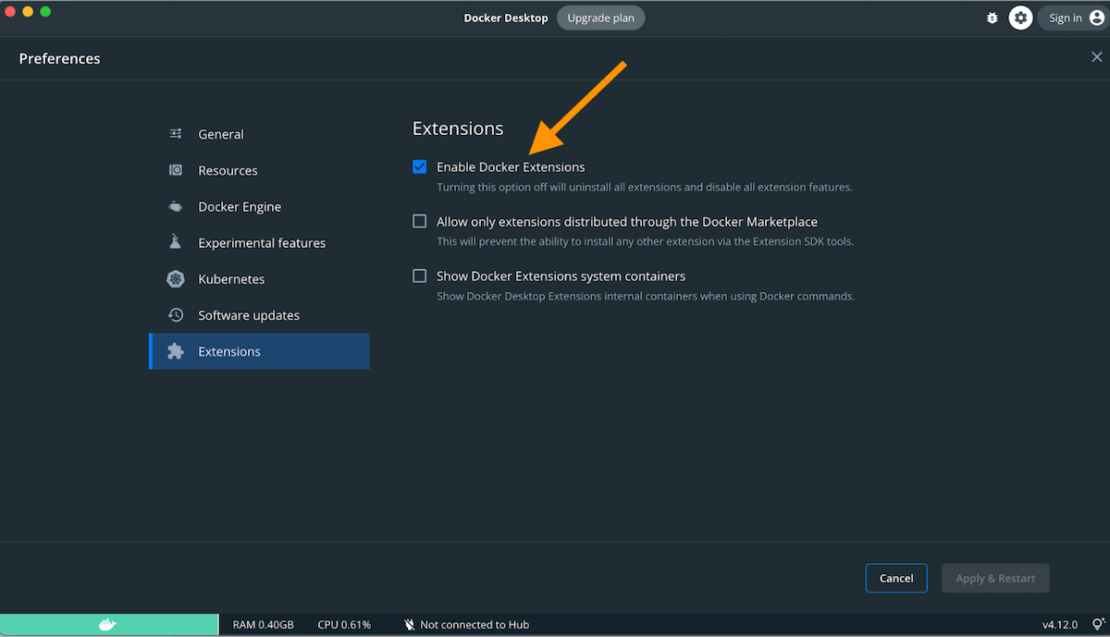
New Extensions, Improved logs, and more in Docker Desktop 4.10
Key Insights from Stack Overflow’s 2022 Developer Survey
New SCIM Capabilities for Docker Business

DockerCon 2022 On-Demand
With over 50 sessions for developers by developers, watch the latest developer news, trends, and announcements from DockerCon 2022. From the keynote to product demos to technical breakout sessions, hacks, and tips & tricks, there’s something for everyone.

Watch On-Demand

Subscribe to our newsletter to get the latest news, blogs, tips, how-to guides, best practices, and more from Docker experts sent directly to your inbox once a month.

Quelle: https://blog.docker.com/feed/
How to Build and Deploy a Task Management Application Using Go

Golang is designed to let developers rapidly develop scalable and secure web applications. Go ships with an easy to use, secure, and performant web server alongside its own web templating library. Enterprise users also leverage the language for rapid, cross-platform deployment. With its goroutines, native compilation, and the URI-based package namespacing, Go code compiles to a single, small binary with zero dependencies — making it very fast.
Developers also favor Go’s performance, which stems from its concurrency model and CPU scalability. Whenever developers need to process an internal request, they use separate goroutines, which consume just one-tenth of the resources that Python threads do. Via static linking, Go actually combines all dependency libraries and modules into a single binary file based on OS and architecture.
Why is containerizing your Go application important?
Go binaries are small and self-contained executables. However, your application code inevitably grows over time as it’s adapted for additional programs and web applications. These apps may ship with templates, assets and database configuration files. There’s a higher risk of getting out-of-sync, encountering dependency hell, and pushing faulty deployments.
Containers let you synchronize these files with your binary. They also help you create a single deployable unit for your complete application. This includes the code (or binary), the runtime, and its system tools or libraries. Finally, they let you code and test locally while ensuring consistency between development and production.
We’ll walk through our Go application setup, and discuss the Docker SDK’s role during containerization.
Table of Contents

Building the Application
Key Components
Getting Started
Define a Task
Create a Task Runner
Container Manager
Sequence Diagram
Conclusion

Building the Application
In this tutorial, you’ll learn how to build a basic task system (Gopher) using Go.
First, we’ll create a system in Go that uses Docker to run its tasks. Next, we’ll build a Docker image for our application. This example will demonstrate how the Docker SDK helps you build cool projects. Let’s get started.
Key Components

Go

Go Docker SDK

Microsoft Visual Studio Code

Docker Desktop

Getting Started
Before getting started, you’ll need to install Go on your system. Once you’ve finished up, follow these steps to build a basic task management system with the Docker SDK.
Here’s the directory structure that we’ll have at the end:
➜ tree gopher
gopher
├── go.mod
├── go.sum
├── internal
│ ├── container-manager
│ │ └── container_manager.go
│ ├── task-runner
│ │ └── runner.go
│ └── types
│ └── task.go
├── main.go
└── task.yaml

4 directories, 7 files

You can click here to access the complete source code developed for this example. This guide leverages important snippets, but the full code isn’t documented throughout.  
version: v0.0.1
tasks:
– name: hello-gopher
runner: busybox
command: ["echo", "Hello, Gopher!"]
cleanup: false
– name: gopher-loops
runner: busybox
command:
[
"sh",
"-c",
"for i in `seq 0 5`; do echo ‘gopher is working'; sleep 1; done",
]
cleanup: false
 
Define a Task
First and foremost, we need to define our task structure. This task is going to be a YAML definition with the following structure:
The following table describes the task definition:


Now that we have a task definition, let’s create some equivalent Go structs.
Structs in Go are typed collections of fields. They’re useful for grouping data together to form records. For example, this Task Task struct type has Name, Runner, Command, and Cleanup fields.
// internal/types/task.go

package types

// TaskDefinition represents a task definition document.
type TaskDefinition struct {
Version string `yaml:"version,omitempty"`
Tasks []Task `yaml:"tasks,omitempty"`
}

// Task provides a task definition for gopher.
type Task struct {
Name string `yaml:"name,omitempty"`
Runner string `yaml:"runner,omitempty"`
Command []string `yaml:"command,omitempty"`
Cleanup bool `yaml:"cleanup,omitempty"`
}
 
Create a Task Runner
The next thing we need is a component that can run our tasks for us. We’ll use interfaces for this, which are named collections of method signatures. For this example task runner, we’ll simply call it Runner and define it below:

// internal/task-runner/runner.go

type Runner interface {
Run(ctx context.Context, doneCh chan<- bool)
}

Note that we’re using a done channel (doneCh). This is required for us to run our task asynchronously — and it also notifies us once this task is complete.
You can find your task runner’s complete definition here. In this example, however, we’ll stick to highlighting specific pieces of code:

// internal/task-runner/runner.go

func NewRunner(def types.TaskDefinition) (Runner, error) {
client, err := initDockerClient()
if err != nil {
return nil, err
}

return &runner{
def: def,
containerManager: cm.NewContainerManager(client),
}, nil
}

func initDockerClient() (cm.DockerClient, error) {
cli, err := client.NewClientWithOpts(client.FromEnv)
if err != nil {
return nil, err
}

return cli, nil
}

The NewRunner returns an instance of the struct, which provides the implementation of the Runner interface. The instance will also hold a connection to the Docker Engine. The initDockerClient function initializes this connection by creating a Docker API client instance from environment variables.
By default, this function creates an HTTP connection over a Unix socket unix://var/run/docker.sock (the default Docker host). If you’d like to change the host, you can set the DOCKER_HOST environment variable. The FromEnv will read the environment variable and make changes accordingly.
The Run function defined below is relatively basic. It loops over a list of tasks and executes them. It also uses a channel named taskDoneCh to see when a task completes. It’s important to check if we’ve received a done signal from all the tasks before we return from this function.

// internal/task-runner/runner.go

func (r *runner) Run(ctx context.Context, doneCh chan<- bool) {
taskDoneCh := make(chan bool)
for _, task := range r.def.Tasks {
go r.run(ctx, task, taskDoneCh)
}

taskCompleted := 0
for {
if <-taskDoneCh {
taskCompleted++
}

if taskCompleted == len(r.def.Tasks) {
doneCh <- true
return
}
}
}

func (r *runner) run(ctx context.Context, task types.Task, taskDoneCh chan<- bool) {
defer func() {
taskDoneCh <- true
}()

fmt.Println("preparing task – ", task.Name)
if err := r.containerManager.PullImage(ctx, task.Runner); err != nil {
fmt.Println(err)
return
}

id, err := r.containerManager.CreateContainer(ctx, task)
if err != nil {
fmt.Println(err)
return
}

fmt.Println("starting task – ", task.Name)
err = r.containerManager.StartContainer(ctx, id)
if err != nil {
fmt.Println(err)
return
}

statusSuccess, err := r.containerManager.WaitForContainer(ctx, id)
if err != nil {
fmt.Println(err)
return
}

if statusSuccess {
fmt.Println("completed task – ", task.Name)

// cleanup by removing the task container
if task.Cleanup {
fmt.Println("cleanup task – ", task.Name)
err = r.containerManager.RemoveContainer(ctx, id)
if err != nil {
fmt.Println(err)
}
}
} else {
fmt.Println("failed task – ", task.Name)
}
}

 
The internal run function does the heavy lifting for the runner. It accepts a task and transforms it into a Docker container. A ContainerManager executes a task in the form of a Docker container.
Container Manager
The container manager is responsible for:

Pulling a Docker image for a task

Creating the task container

Starting the task container

Waiting for the container to complete

Removing the container, if required

Therefore, with respect to Go, we can define our container manager as shown below:
// internal/container-manager/container_manager.go

type ContainerManager interface {
PullImage(ctx context.Context, image string) error
CreateContainer(ctx context.Context, task types.Task) (string, error)
StartContainer(ctx context.Context, id string) error
WaitForContainer(ctx context.Context, id string) (bool, error)
RemoveContainer(ctx context.Context, id string) error
}

type DockerClient interface {
client.ImageAPIClient
client.ContainerAPIClient
}

type ImagePullStatus struct {
Status string `json:"status"`
Error string `json:"error"`
Progress string `json:"progress"`
ProgressDetail struct {
Current int `json:"current"`
Total int `json:"total"`
} `json:"progressDetail"`
}

type containermanager struct {
cli DockerClient
}
 
The containerManager interface has a field called cli with a DockerClient type. The interface in-turn embeds two interfaces from the Docker API, namely ImageAPIClient and ContainerAPIClient. Why do we need these interfaces?
For the ContainerManager interface to work properly, it must act as a client for the Docker Engine and API. For the client to work effectively with images and containers, it must be a type which provides required APIs. We need to embed the Docker API’s core interfaces and create a new one.
The initDockerClient function (seen above in runner.go) returns an instance that seamlessly implements those required interfaces. Check out the documentation here to better understand what’s returned upon creating a Docker client.
Meanwhile, you can view the container manager’s complete definition here.
Note: We haven’t individually covered all functions of container manager here, otherwise the blog would be too extensive.
Entrypoint
Since we’ve covered each individual component, let’s assemble everything in our main.go, which is our entrypoint. The package main tells the Go compiler that the package should compile as an executable program instead of a shared library. The main() function in the main package is the entry point of the program.

// main.go

package main

func main() {
args := os.Args[1:]

if len(args) < 2 || args[0] != argRun {
fmt.Println(helpMessage)
return
}

// read the task definition file
def, err := readTaskDefinition(args[1])
if err != nil {
fmt.Printf(errReadTaskDef, err)
}

// create a task runner for the task definition
ctx := context.Background()
runner, err := taskrunner.NewRunner(def)
if err != nil {
fmt.Printf(errNewRunner, err)
}

doneCh := make(chan bool)
go runner.Run(ctx, doneCh)

<-doneCh
}

 
Here’s what our Go program does:

Validates arguments

Reads the task definition

Initializes a task runner, which in turn initializes our container manager

Creates a done channel to receive the final signal from the runner

Runs our tasks

Building the Task System
1) Clone the repository
The source code is hosted over GitHub. Use the following command to clone the repository to your local machine.
git clone https://github.com/dockersamples/gopher-task-system.git
 
2) Build your task system
The go build command compiles the packages, along with their dependencies.
go build -o gopher

3) Run your tasks
You can directly execute gopher file to run the tasks as shown in the following way:
$ ./gopher run task.yaml

preparing task – gopher-loops
preparing task – hello-gopher
starting task – gopher-loops
starting task – hello-gopher
completed task – hello-gopher
completed task – gopher-loops

 
4) View all task containers  
You can view the full list of containers within the Docker Desktop. The Dashboard clearly displays this information: 

5) View all task containers via CLI
Alternatively, running docker ps -a also lets you view all task containers:
$ docker ps -a
CONTAINER ID IMAGE COMMAND CREATED STATUS PORTS NAMES
396e25d3cea8 busybox "sh -c ‘for i in `se…" 6 minutes ago Exited (0) 6 minutes ago gopher-loops
aba428b48a0c busybox "echo ‘Hello, Gopher…" 6 minutes ago Exited (0) 6 minutes ago

Note that in task.yaml the cleanup flag is set to false for both tasks. We’ve purposefully done this to retrieve a container list after task completion. Setting this to true automatically removes your task containers.
Sequence Diagram
 

Conclusion
Docker is a collection of software development tools for building, sharing, and running individual containers. With the Docker SDK’s help, you can build and scale Docker-based apps and solutions quickly and easily. You’ll also better understand how Docker works under the hood. We look forward to sharing more such examples and showcasing other projects you can tackle with Docker SDK, soon!
Want to start leveraging the Docker SDK, yourself? Check out our documentation for install instructions, a quick-start guide, and library information.
References

Docker SDK
Go SDK Reference
Getting Started with Go

Quelle: https://blog.docker.com/feed/

Docker Captains Take 5 — Thorsten Hans

Docker Captains are select members of the community that are both experts in their field and are passionate about sharing their Docker knowledge with others. “Docker Captains Take 5” is a regular blog series where we get a closer look at our Captains and ask them the same broad set of questions ranging from what their best Docker tip is to whether they prefer cats or dogs (personally, we like whales and turtles over here). Today, we’re interviewing Thorsten, who recently joined as a Docker Captain. He’s a Cloud-Native Consultant at Thinktecture and is based in Saarbrücken, Germany.

How/when did you first discover Docker?
I started using Docker when I got a shiny new MacBook Pro back in 2015. Before unboxing the new device, I was committed to keeping my new rig as clean and efficient as possible. I didn’t want to mess up another device with numerous databases, SDKs, or other tools for every project. Docker sounded like the perfect match for my requirements. (Spoiler: It was!)
When using macOS as an operating system, Docker Toolbox was the way to go back in those days.
Although quite some time has passed since 2015, I still remember how amazed I was by Docker’s clean CLI design and how Docker made underlying (read: way more complicated) concepts easy to understand and adopt.
What’s your favorite Docker command?
To be honest, I think “favorite” is a bit too complicated to answer! Based on hard facts, it’s docker run.
According to my ZSH history, it’s the command with most invocations. By the way, if you want to find yours, use this command:

bash

history | awk ‘BEGIN {FS="[ t]+||"} {print $3,$4}’ | sort | uniq -c | sort -nr | grep docker | head -n 10

Besides docker run, I would go with docker sbom and docker scan. Those help me to address common requirements when it comes to shift-left security.
What’s your top tip for working with Docker that others may not know?
From a developer’s perspective, it’s definitely docker context in combination with Azure and AWS.
Adding Azure Container Instances (ACI) or Amazon Elastic Container Service (ECS) as a Docker context and running your apps straight in the public cloud within seconds is priceless.
Perhaps you want to quickly try out your application, or you have to verify that your containerized application works as expected in the desired cloud infrastructure. Serverless contexts from Azure and AWS with native integration in Docker CLI provide an incredible inner-loop experience for both scenarios.
What’s the coolest Docker demo you’ve done/seen?
It might sound a bit boring these days. However, I still remember how cool the first demo on debugging applications running in Docker containers from people at Microsoft was.
Back in those days, they demonstrated how to debug applications running in Docker containers on the local machine and attach the local debugger to Docker containers running in the cloud. Seeing the debugger stopping at the desired breakpoint, showing all necessary contextual information, and knowing about all the nitty-gritty infrastructure in-between was just mind blowing.
That was the “now we’re talking” moment for many developers in the audience.
What have you worked on in the past six months that you’re particularly proud of?
As part of my daily job, I help developers understand and master technologies. The most significant achievement is when you recognize that they don’t need your help anymore. It’s that moment when you realize they’ve grasped the technologies — which ultimately permits them to master their technology challenges without further assistance.
What do you anticipate will be Docker’s biggest announcement this year?
Wait. There is more to come? Really!? TBH, I have no clue. We’ve had so many significant announcements already in 2022. Just take a look at the summary of DockerCon 2022 and you’ll see what I mean.
Personally, I hope to see handy extensions appearing in Docker Desktop, and I would love to see new features in Docker Hub when it comes to automations.
What are some personal goals for the next year with respect to the Docker community?
I want to help more developers adopt Docker and its products to improve their day-to-day workflow. As we start to see more in-person conferences here in Europe, I can’t wait to visit new communities, meetups, and conferences to demonstrate how Docker can help them take their productivity to a whole new level.
Speaking to all the event organizers: If you want me to address inner-loop performance and shift-left security at your event, ping me on Twitter and we’ll figure out how I can contribute.
What was your favorite thing about DockerCon 2022?
I won’t pick a particular announcement. It’s more the fact that Docker as a company continually sharpens its communication, marketing, and products to address the specific needs of developers. Those actions help us as an industry build faster inner-loop workflows and address shift-left security’s everyday needs.
Looking to the distant future, what’s the technology that you’re most excited about and that you think holds a lot of promise?
Definitely cloud-native. Although the term cloud-native has been around for quite some time now, I think we haven’t nailed it yet. Vendors will abstract complex technologies to simplify the orchestration, administration, and maintenance of cloud-native applications.
Instead of thinking about technical terms, we must ensure everyone thinks about this behavior when the term cloud-native is referenced.
Additionally, the number of tools, CLIs, and technologies developers must know and master to take an idea into an actual product is too high. So I bet we’ll see many abstractions and simplifications in the cloud-native space.
Rapid fire questions…
What new skill have you mastered during the pandemic?
Although I haven’t mastered it (yet), I would answer this question with Rust. During the pandemic, I looked into some different programming languages. Rust is the language that stands out here. It has an impressive language design and helps me write secure, correct, and safe code. The compiler, the package manager, and the entire ecosystem are just excellent.
IMO, every developer should dive into new programming languages from time to time to get inspired and see how other languages address common requirements.
Cats or Dogs?
Dogs. We thought about and discussed having a dog for more than five years. Finally, in December 2022, we found Marley, the perfect dog to complete our family.

Salty, sour, or sweet?
Although I would pick salty, I love sweet Alabama sauce for BBQ.
Beach or mountains?
Beach, every time.
Your most often used emoji?
Phew, There are tons of emojis I use quite frequently. Let’s go with 🚀.
Quelle: https://blog.docker.com/feed/

New SCIM Capabilities for Docker Business

Managing users across hundreds of applications and systems can be a painful process. And it only gets more challenging the larger your organization gets. To make it easier, we introduced Single Sign-On (SSO) earlier this year so you could securely manage Docker users through your standard identity provider (IdP).
Today, we’re excited to announce enhancements to the way you manage users with the addition of System for Cross-Domain Identity Management (SCIM) capabilities. By integrating Docker with your IdP via SCIM, you can automate the provisioning and deprovisioning of user seats. In fact, whatever user changes you make in your IdP will automatically be updated in Docker, eliminating the need to manually add or remove users as they come and go from your organization.
The best part? SCIM is now available with a Docker Business subscription!

What is System for Cross-Domain Identity Management (SCIM)?
SCIM is a provisioning system that allows customers to manage Docker users within their IdP. When SCIM is enabled, you no longer need to update both your organization’s IdP and Docker with any user changes like adding/removing users of profile updates. Your IdP can be the single source of truth. Whatever updates are made there will automatically be reflected in the Members tab on Docker Hub. We recommend enabling SCIM after you verify your domain and set up the SSO connection between your IdP and Docker (SSO enforcement won’t be necessary).
For more information on SSO and SCIM, check out our docs page.
Check out SSO and SCIM in action!
View our webinar on demand. We walk through the advanced management and security tools included in your Docker Business subscription — including a demo of SSO and SCIM — and answer some questions along the way.
SSO and SCIM are available to organizations with a Docker Business subscription.
Click here to learn more about how Docker Business supercharges developer productivity and collaboration without compromising on security and compliance.
Quelle: https://blog.docker.com/feed/
9 Tips for Containerizing Your .NET Application

Over the last five years, .NET has maintained its position as a top framework among professional developers. In Stack Overflow’s 2022 Developer Survey, .NET ranked first in the “other framework and libraries” category. Stack Overflow reserves this for developers who’ve done extensive development work with key technologies in the past year, and want to continue using them the next.
 
Data courtesy of Stack Overflow.
 
Over 60,000 developers and 3,700 companies have contributed to the .NET platform. Since its 2002 debut, .NET has supported multiple languages (C#, F#, Visual Basic), platforms (.NET Core, .NET framework, Mono), editors, and libraries for building for diverse applications. .NET provides standard sets of base class libraries and APIs common to all .NET applications.
Why is containerizing a .NET application important?
.NET was originally designed for Windows. Meanwhile, we originally based Docker around Linux. .NET has the application virtual machine (called Common Language Runtime) and other components aimed at solving build problems common to large enterprise applications from 10 to 20 years ago. The two weren’t inherently compatible on day one.
Both have since evolved to become cross-platform, open-source developer platforms. When building tiny containers with a single process running inside, using a directly compiled language is typically faster. That said, .NET has come a long way and is now container-friendly. Microsoft has made a concerted effort to enable the container system since Windows Server 2016 SP2. Its goal has been keeping up with this growing container ecosystem. Today, you can run containers on Windows hosts that aren’t just based on the Linux kernel, but also the Windows kernel.
Running your .NET application in a Docker container has numerous benefits. First, Docker containers can act as isolated test environments. .NET developers can code and test locally while ensuring consistency between development and production. Second, it eliminates deployment issues caused by missing dependencies while moving to a production environment. Third, containers let developers of all skill levels build, share, and run containerized .NET applications. Containers are immutable infrastructure, provide portability, and help improve scalability. Likewise, the modularity and lightweight nature of .NET 6 make it perfect for containers. 
Containerizing a .NET application is easy. You can do this by copying source code files and building a Docker image. We’ll also cover common concerns like image bloat, missing image tags, and poor build performance with these nine tips for containerizing your .NET application code.
Containerizing a Student Record Management Application
To better understand those concerns, let’s look at a simple student record management application. In our last blog post, you saw how easy building and deploying a student database application is via a Dockerfile and Docker Compose.
Running your application is simple. You’ll clone the GitHub project repository and use the Docker Compose CLI to bring up the complete application with the following commands:

git clone https://github.com/dockersamples/student-record-management

 
Change your directory to student-record-management to see the following Docker Compose file:

services:
db:
image: postgres
restart: always
environment:
POSTGRES_PASSWORD: example
volumes:
– postgres-data:/var/lib/postgresql/data
adminer:
image: adminer
restart: always
ports:
– 8080:8080
app:
build:
context: .
dockerfile: ./Dockerfile
ports:
– 5000:80
depends_on:
– db
volumes:
postgres-data:

 
We’ve defined two services in this Compose file by the name db and app attributes. The Adminer (formerly phpMinAdmin) Docker image is a fully-featured database management tool written in PHP. We’ve set up port forwarding via the ports attribute. The depends_on attribute lets us express dependencies between services. In this case, we’ll start Postgres before our core application.  
Run the following command to bring up our student record management application:

docker-compose up -d

 
Once it’s up and running, you can view the Docker Dashboard and click on the “arrow” key (shown in app-1) to quickly access the application:


Typically, developers use the following Dockerfile template to build a Docker image. A Dockerfile is a list of sequential instructions that build your container image. This image is composed of a stack of layers, and each represents an instruction in our Dockerfile. Each layer contains changes to its underlying layer.

FROM mcr.microsoft.com/dotnet/sdk:6.0

WORKDIR /src
COPY . ./src

RUN dotnet build -o /app
RUN dotnet publish -o /publish

WORKDIR /publish
ENV ASPNETCORE_URLS=http://+:80/
EXPOSE 80
CMD ["./myWebApp"]

 
The first line defines our base image, which is around 754 MB in size (or, alternatively, 994 MB for Nano Server and 6.34GB for Windows Server). The COPY copies the necessary project file from the host system to the root of the Docker image. The EXPOSE instruction tells Docker that the container listens specifically on network port 80 at runtime. Lastly, our CMD lets us configure a container that’ll run as an executable.
To build a Docker image, we’ll use the docker build command:

docker build -t student-app .

 
Let’s check the size of our new Docker image:

docker images
REPOSITORY TAG IMAGE ID CREATED SIZE
student-app latest d3caa8643c2c 4 minutes ago 827MB

 
One key drawback of this example is that our Docker image isn’t optimized. Crucially, optimization lets teams share smaller images, boost performance, and enables easier debugging. It’s essential at every CI/CD stage including production. If you’re using Windows base images, you can expect your images to be much larger vs. Linux base images. There must be a better build approach that lets us discard unneeded files after compilation, since these aren’t required in our final image.
1) Choosing the Right .NET Docker Images
The official .NET Docker images are publicly available in the Microsoft repositories on Docker Hub. The process of identifying and picking up the right container base image while building applications can be confusing. To simplify the selection process, most images repositories provide extension tagging to help you select both a specific framework version. They also let you choose the right operating system, like a specific Linux distribution or Windows version.
Microsoft offers two categories of images. The first encompasses images used to develop and build .NET apps, while the second houses those used to run .NET apps. For example, mcr.microsoft.com/dotnet/sdk:6.0 is used during the development and build process. This image includes the compiler and any other .NET dependencies. Meanwhile, mcr.microsoft.com/dotnet/aspnet:6.0 is ideal for production environments. This image includes ASP.NET Core, with runtime only alongside ASP.NET Core optimizations, on Linux and Windows (multi-arch).
You can visit GitHub to browse available Docker images.
2) Optimize your Dockerfile for dotnet Restore
When building .NET Core apps with Docker, it’s important to consider how Docker caches layers while building your app.
A common way to leverage the build cache is to copy only the .csproj ,.sln, and nuget.config files for your app before performing a dotnet restore — instead of copying the full source code. The NuGet package restore can be one of the slowest parts of the build, and it only depends on these files. By copying them first, Docker can cache the restore result. For example, it won’t need to run again if you only change a .cs file.

FROM mcr.microsoft.com/dotnet/sdk:6.0
WORKDIR /src

COPY *.csproj ./
RUN dotnet restore

COPY . ./
RUN dotnet build -o /app
RUN dotnet publish -o /publish
WORKDIR /publish
ENV ASPNETCORE_URLS=http://+:80/
EXPOSE 80
CMD ["./myWebApp"]

 
💁  The dotnet restore command uses NuGet to restore dependencies and project-specific tools that are specified in the project file.
3) Use a Multi-Stage Build
With multi-stage builds, Docker can use one base image for compilation, packaging, and unit tests. Another image then holds the application runtime. This makes the final image more secure and smaller in size (as it does not contain any development or debugging tools). Multi-stage Docker builds are a great way to ensure your builds are 100% reproducible and as lean as possible. You can create multiple stages within a Dockerfile and control how you build that image.
The .NET SDK includes .NET runtimes and tooling to develop, build, and package .NET applications. One best practice while creating docker images is keeping the image compact. You can containerize your .NET applications using a multi-layer approach. Each layer may contain different parts of the application like dependencies, source code, resources, and even snapshot dependencies. Alternatively, you can build any application as a separate image from the final image that contains the runnable application. To better understand this, let’s analyze the following Dockerfile.
The build stage uses SDK images to build the application and create final artifacts in the publish folder. The final stage copies artifacts from the build stage to the app folder, exposing port 80 to incoming requests and specifying the command to run the application, WebApp. In the first stage, we’ll extract the dependencies. In the second stage, we’ll copy the extracted dependencies to the final image.  Here’s a sample multi-stage Dockerfile for the student database example:

FROM mcr.microsoft.com/dotnet/sdk:6.0 as build

WORKDIR /src
COPY *.csproj ./
RUN dotnet restore

COPY . ./
RUN dotnet build -o /app
RUN dotnet publish -o /publish

FROM mcr.microsoft.com/dotnet/aspnet:6.0 as base
COPY –from=build /publish /app
WORKDIR /app
EXPOSE 80
CMD ["./myWebApp"]

The first stage is labeled build, where mcr.microsoft.com/dotnet/sdk is the base image.

docker images
REPOSITORY TAG IMAGE ID CREATED SIZE
mywebapp_app latest 1d4d9778ce14 3 hours ago 229MB

 
Our final image size shrinks dramatically to 229 MB, when compared to the single stage Dockerfile size of 827MB!
4) Use Specific Base Image tags, Instead of “Latest”
While building Docker images, we always recommended tagging them with useful tags that codify version information, intended destination (prod or test, for instance), stability, or other useful information for deploying the application in different environments. Conversely, we don’t recommend relying on the :latest tag. This :latest tag is often updated frequently and new versions can cause breaking changes. If you want to protect yourself against breaking changes, it’s best to pin to a specific version then update to newer versions when you’re ready.
For example, we’d avoid using mcr.microsoft.com/dotnet/sdk:latest as a base image. Instead, you should use specific tags like mcr.microsoft.com/dotnet/sdk:6.0, mcr.microsoft.com/dotnet/sdk:6.0-windowsservercore-ltsc2019, or others.
5) Run as a Non-root User for Security Purposes
While running an application within a Docker container, it has default access to the root for Linux or administrator privileges for Windows. This can undermine application security. You can solve this problem by adding USER instructions within your Dockerfile. The USER instruction sets the preferred user name (or UID) and optionally the user group (or GID) while running the image — and for any subsequent RUN, CMD, or ENTRYPOINT instructions.
Windows networks commonly use Active Directory (AD) to enable authentication and authorization between users, computers, and other network resources. Windows application developers often use Integrated Windows Authentication. This makes it easy for users and other services to automatically, transparently sign into the application using their credentials. Although Windows containers cannot be domain joined, they can still use Active Directory domain identities to support various authentication scenarios.
To achieve this, you can configure a Windows container to run with a group Managed Service Account (gMSA), which is a special type of service account introduced in Windows Server 2012. It’s designed to let multiple computers share an identity without requiring a password.
6) Use .dockerignore
To increase the build performance (and as a general best practice) we recommend creating a .dockerignore file in the same directory as your Dockerfile. For this tutorial, your .dockerignore file should contain the following lines:

Dockerfile*
**/[b|B]in/
**/[O|o]bj/

 
These lines exclude the  bin and obj files from the Docker build context. There are many good reasons to carefully structure a .dockerignore file, but this simple version works for now. It’s also helpful to understand how the docker build command works and what the build context means.
The build context is the place or space where the developer works. It can be a folder in Windows or a directory in Linux. In this directory, you’ll find every necessary app component like source code, configuration files, libraries, and plugins. You’ll determine which of these components to include while constructing a new image.
With the .dockerignore file, we can determine which components are vital. They’ll ultimately belong to the new image that we’re building.
For example, if we don’t want to include the bin and conf directory in our image build, we just need to indicate that within our .dockerignore file.
7) Add Health Checks to Your Containers
The HEALTHCHECK instruction tells Docker how to test a container and confirm that it’s still working. This can detect (for example) when a web server is stuck in an infinite loop and unable to handle new connections — even though the server process is still running.
When an application is deployed in production, an orchestrator like Kubernetes or a service fabric will most likely manage it. By providing the health check, you’re sharing the status of your containers with the orchestrator to permit management tasks based on your configurations. Let’s look at the following example:

FROM mcr.microsoft.com/dotnet/sdk:6.0 as build

WORKDIR /src
COPY *.csproj ./
RUN dotnet restore

COPY . ./
RUN dotnet build -o /app
RUN dotnet publish -o /publish

FROM mcr.microsoft.com/dotnet/aspnet:6.0 as base
COPY –from=build /publish /app
WORKDIR /app
EXPOSE 80
#If you’re using the Linux Container
HEALTHCHECK CMD curl –fail http://localhost || exit 1
#If you’re using Windows Container with Powershell
#HEALTHCHECK CMD powershell -command `
# try { `
# $response = iwr http://localhost; `
# if ($response.StatusCode -eq 200) { return 0} `
# else {return 1}; `
# } catch { return 1 }

CMD ["./myWebApp"]

 
When HEALTHCHECK is present in a Dockerfile, you’ll see the container’s health in the STATUS column while running docker ps. A container that passes this check displays as healthy. An unhealthy container displays as unhealthy.

docker ps
CONTAINER ID IMAGE COMMAND CREATED STATUS PORTS NAMES
7bee4d6a652a student-app "./myWebApp" 2 seconds ago Up 1 second (health: starting) 0.0.0.0:5000-80/tcp modest_murdock

 
8) Optimize for Startup Performance
You can improve .NET app startup times and reduce latency by compiling your assemblies with Ready to Run (R2R) compilation. However, this will increase your build time as a compromise. You can do this by setting the PublishReadyToRun property, which takes effect when you publish an application.
You can add the PublishReadyToRun property in two ways:
1) Set it within your project file:

<PropertyGroup>
<PublishReadyToRun>true</PublishReadyToRun>
</PropertyGroup>

 
2) Set it using the command line:

/p:PublishReadyToRun=true

 
The default Dockerfile that comes with the sample doesn’t use R2R compilation since the application is too small to warrant it. The bulk of the IL code that’s executed in this sample application is within .NET’s libraries, which are already R2R-compiled. This example enables R2R in Dockerfile, where we pass the /p:PublishReadyToRun=true to the dotnet build and dotnet publish commands.

FROM mcr.microsoft.com/dotnet/sdk:6.0 as build

WORKDIR /src
COPY *.csproj ./
RUN dotnet restore

COPY . ./
RUN dotnet build -o /app -r linux-x64 /p:PublishReadyToRun=true
RUN dotnet publish -o /publish -r linux-x64 –self-contained true –no-restore /p:PublishTrimmed=true /p:PublishReadyToRun=true /p:PublishSingleFile=true

FROM mcr.microsoft.com/dotnet/aspnet:6.0 as base
COPY –from=build /publish /app
WORKDIR /app
EXPOSE 80
HEALTHCHECK CMD curl –fail http://localhost || exit 1

CMD ["./myWebApp"]

9) Choose the Appropriate Isolation Mode For Windows Containers
There are two distinct modes of runtime isolation for Windows containers:  

Process Isolation – In this mode, multiple container instances can run concurrently in the same host with isolation on the file system, registry, network ports, process, thread ID space, and Object Manager namespace. It’s almost identical to how Linux containers run.
Hyper-V Isolation – In this mode, containers run inside a highly-optimized virtual machine, which provides hardware-level isolation between containers and hosts.

 
Most developers prefer process isolation when developing locally. It typically consumes fewer hardware resources than Hyper-V isolation. Hence, developers must account for the additional hardware needed while running the container in Hyper-V mode. However, your primary consideration when deciding to choose Hyper-V isolation is security — since it provides added hardware-level isolation. While Windows Server supports both options (default: Process Isolation), Windows 10+ only supports Hyper-V isolation.
To specify the isolation level, you should specify the –isolation flag: 

docker run -it –isolation=process mcr.microsoft.com/windows/servercore:ltsc2019 cmd

Conclusion
You’ve now seen some of the many methods for optimizing your Docker images. In any case, carefully crafting your Dockerfile is essential. If you’d like to go further, check out these bonus resources that cover recommendations and best practices for building secure, production-grade Docker images:

Docker Development Best Practices
Dockerfile Best Practices
Build Images with BuildKit
Best Practices for Scanning Images
Getting Started with Docker Extensions

 
At Docker, we’re incredibly proud of our vibrant, diverse and creative community. From time to time, we feature cool contributions from the community on our blog to highlight some of the great work our community does. Are you working on something awesome with Docker? Send your contributions to Ajeet Singh Raina (@ajeetraina) on our Docker Community Slack channel, and we might feature your work!
 

Quelle: https://blog.docker.com/feed/
Use Cases and Tips for Using the BusyBox Docker Official Image

While developing applications, using the slimmest possible images can help reduce build times while reducing your app’s overall footprint. Similarly, successfully deploying such compact, Linux-friendly applications means packaging them into a cross-platform unit. That’s where containers and the BusyBox Docker Official Image come in handy.
 

Maintaining the BusyBox image has also been an ongoing priority at Docker. In fact, our very first container demo used BusyBox back in 2013! Users have downloaded it over one billion times, making BusyBox one of our most popular images.
Not exceeding 2.71 MB in size — with most tags under 900 KB, depending on architecture — the BusyBox container image is incredibly lightweight. It’s even much smaller than our Alpine image, which developers gravitate towards given its slimness. BusyBox’s compact size enables quicker sharing, by greatly reducing initial upload and download times. Smaller base images, depending on changes and optimizations to their subsequent layers, can also reduce your application’s attack surface.
In this guide, we’ll introduce you to BusyBox, cover some potential use cases, explore best practices, and briefly show you how to use its container image.
What’s BusyBox?
Dubbed the “Swiss Army Knife of Embedded Linux,” BusyBox packages together multiple, common UNIX utilities (or applets) into one executable binary. It helps you create your own Linux distribution, and our associated container image helps you deploy it across different devices.
This is possible thanks to BusyBox’s ability to run in numerous POSIX environments — which also includes FreeBSD and Android. It works in concert with the Linux kernel.
Miniature but mighty, it contains nearly 400 of UNIX’s leading commands while replacing many GNU utilities (shellutils, fileutils, and more) with something comparable in its full distribution. Although some of these may not be fully-featured, their core functionalities remain intact without forcing developers to make concessions.
Which BusyBox version should I use?
BusyBox helps replicate the experience of using common shell commands. Some Linux distributions use GNU’s coreutils package to ship these commands, while others have instead opted for BusyBox. Though BusyBox isn’t the most complete environment available, it checks most boxes for developers who need something approachable and lightweight.
BusyBox comes in a variety of pre-built binary versions. As a result, we support over 30 image tags on Docker Hub. Each includes its own Linux binary variant per CPU and sets of dependencies — impacting both image size and functionality.
Each is also built against various libc variants. To understand how each image’s relation to musl, uClibc, dietlibc, and glibc impacts your build, check out this comparison chart. This will help you choose the correct image for your specific use case.
That said, which use cases pair best with the BusyBox image? Let’s jump in.
BusyBox Use Cases
The Linux landscape is vast, and developer use cases will vary pretty greatly. However, we’ll tackle a few interesting examples and why they matter.
Building Distros for Embedded Systems
Known for having very limited available resources, embedded systems require distros with minute sizes that only include essential functionality. There’s very little extra room for frills or extra dependencies. Consequently, embedded Linux versions must be streamlined and purpose-built, which is where BusyBox excels.
BusyBox’s maintainers highlight its modularity. You can choose any BusyBox image that suits your build, yet you can also pick and choose commands or features during compilation. You don’t have to package together — to a point — anything you don’t need. While you can run atop the Linux kernel, containerizing your BusyBox implementation alleviates the need to include this kernel within the container itself. BusyBox will instead leverage your embedded system’s kernel by default, saving space.
Each applet’s behavior within your given image will determine how it works within a given embedded environment. BusyBox lets you modify configuration files, directories, and infrastructure to best fit your embedded system of choice.
Leveraging Kubernetes Init Containers
While the BusyBox Docker Official Image is a great base for other projects, BusyBox works well with the Kubernetes initContainer feature. These specialized Docker containers (for our example) run before app containers in a Pod. Init containers can contain scripts or other utilities that reside outside of the application image, and properly initializing these “regular” containers may depend on k8s spinning up these components first. Init containers always run until their tasks finish, and they run synchronously.
These containers also adhere to strictly-configured resource limits, support volumes, and respect your security settings. Why would you use an initContainer? According to the k8s documentation, you can do the following:

Wait for a Service to be created as Pods spin up
Register a Pod with a remote server from an API
Wait for an allotted period of time before finally starting an app container
Clone a Git repo into a volume
Generate configuration files automatically from value inputs

 
Kubernetes uses its configuration files to specify how these processes occur — alongside any shell commands. You can specify your BusyBox Docker image in this file with your chosen tag. Kubernetes will pull your BusyBox image, then create and start Docker containers from it while assigning them unique IDs.
By using init containers with BusyBox and Docker, you can better prepare your app containers to run vital workflows before they spin up.
Running an HTTP Web Server
Since the BusyBox container image helps you create a basic Linux environment, we can use that environment to run compiled Linux applications.
As a result, we can use our BusyBox base image to create custom executables, which — in this case — support a web app powered by a Go server. We’d like to shoutout developer Soham Kamani for highlighting this example!
How is this possible? To simplify the process, Soham accomplished this by:

Creating a BusyBox container using the Docker CLI (enabling us to run common commands).
Running custom executables after creating a custom Golang “hello world” program, and creating a companion Dockerfile to support it.
Building and running a Docker image using BusyBox as the base.
Creating a server.go file, compiling it, and running it as a web server using Docker components.

 
BusyBox lets you tackle this workflow while creating a final image that’s very slim. It gives developers an environment where their applications can run, thrive, scale, and deploy effectively. You can even manage your images and containers easily with Docker Desktop, if you prefer a visual interface.
You can read through the entire tutorial here, and view the sample code on GitHub. Want to explore more Go-based server deployments? Check out our Caddy 2 image guide.
This is not an exhaustive list of BusyBox use cases. However, these examples do showcase how creative you can get, even with a simple Linux base image.
Getting Started with the BusyBox Image
Hopefully you’ve discovered how the BusyBox image punches above its weight in terms of functionality. Luckily, using the BusyBox image is equally simple. Here’s how to get started in a Docker context.
First, run BusyBox as a shell with the following command:

$ docker run -it –rm busybox

 
This lets you execute commands within your BusyBox system, since you’re now effectively sh-ing into your environment. The -it flag combines both -i and -t together — which keeps STDIN open and allocates a pseudo-tty. This -tty tells Docker to create a virtual terminal session within your BusyBox container. Using the –rm flag tells Docker to tidy up your container and remove the filesystem when it exits.
Next, you’ll create a Dockerfile for your statically-compiled BusyBox binary. Here’s how that basic Dockerfile could look:

FROM busybox
COPY ./my-static-binary /my-static-binary
CMD ["/my-static-binary"]

 
Note that you’ll have to complete this compilation in another location, like a Docker container. This is possible with another Linux image like Alpine, but BusyBox is perfect for situations where heavy extensibility isn’t needed.
Lastly, always choose the variant which best fits your needs. You can use either busybox:uclibc, busybox:glibc, or busybox:musl as required. Options one and three are statically compiled, while glibc stems from Debian.
Docker and BusyBox Equal Simplicity
BusyBox is an essential tool for developers who love simplistic Linux. It lets you create powerful, customized Linux executables within a stripped-down (yet accommodating) Linux environment. Use cases are diverse, and the BusyBox image helps reduce bloat.
Both Docker and BusyBox work well together, while being inclusive of popular, related technologies like Kubernetes. Despite the BusyBox image’s small size, it unlocks many exciting development possibilities that are continually evolving. Visit Docker Hub to learn more and quickly pull your first BusyBox image.
Quelle: https://blog.docker.com/feed/
Quickly Spin Up New Development Projects with Awesome Compose

Containers optimize our daily development work. They’re standardized, so that we can easily switch between development environments — either migrating to testing or reusing container images for production workloads.
However, a challenge arises when you need more than one container. For example, you may develop a web frontend connected to a database backend with both running inside containers. While possible, this approach risks negating some (or all) of that container magic, since we must also consider storage interaction, network interaction, and port configurations. Those added complexities are tricky to navigate.
How Docker Compose Can Help
Docker Compose streamlines many development workloads based around multi-container implementations. One such example is a WordPress website that’s protected with an NGINX reverse proxy, and requires a MySQL database backend.
Alternatively, consider an eCommerce platform with a complex microservices architecture. Each cycle runs inside its own container — from the product catalog, to the shopping cart, to payment processing, and, finally, product shipping. These processes rely on the same database backend container runtime, using a Redis container for caching and performance.
Maintaining a functional eCommerce platform means running several container instances. This doesn’t fully address the additional challenges of scalability or reliable performance.
While Docker Compose lets us create our own solutions, building the necessary Dockerfile scripts and YAML files can take some time. To simplify these processes, Docker introduced the open source Awesome Compose library in March 2020. Developers can now access pre-built samples to kickstart their Docker Compose projects.
What does that look like in practice? Let’s first take a more detailed look at Docker Compose. Next, we’ll explore step-by-step how to spin up a new development project using Awesome Compose.
Having some practical knowledge of Docker concepts and base commands is helpful while following along. However, this isn’t required! If you’d like to brush up or become familiarized with Docker, check out our orientation page and our CLI reference page.
How Docker Compose Works
Docker Compose is based on a compose.yaml file. This file specifies the platform’s building blocks — typically referencing active ports and the necessary, standalone Docker container images.
The diagram below represents snippets of a compose.yaml file for a WordPress site with a MySQL database, a WordPress frontend, and an NGINX reverse proxy:


We’re using three separate Docker images in this example: MySQL, WordPress, and NGINX. Each of these three containers has its own characteristics, such as network ports and volumes.

mysql:
image: mysql:8.0.28
container_name: demomysql
networks:
– network
wordpress:
depends_on:
– mysql
image: wordpress:5.9.1-fpm-alpine
container_name: demowordpress
networks:
– network
nginx:
depends_on:
– wordpress
image: nginx:1.21.4-alpine
container_name: nginx
ports:
– 80:80
volumes:
– wordpress:/var/www/html

 
Originally, you’d have to use the docker run command to start each individual container. However, this introduces hiccups while managing interactions across each container related to network and storage. It’s much more efficient to consolidate all necessary objects into a docker compose scenario.
To help developers deploy baseline scenarios faster, Docker provides a GitHub repository with several environments, available for you to reuse, called Docker Awesome Compose. Let’s explore how to run these on your own machine.
How to Use Docker Compose
Getting Started
First, you’ll need to download and install Docker Desktop (for macOS, Windows, or Linux). Note that all example outputs in this article, however, come from a Windows Docker host.
You can verify that Docker is installed by running a simple docker run hello-world command:
C:>docker run hello-world
 
This should produce the following output, indicating that things are working correctly:


You’ll also need to install Docker Compose on your machine. Similarly, you can verify this installation by running a basic docker compose command, which triggers a corresponding response:
 
C:>docker compose


Next, either locally download or clone the Awesome Compose GitHub repository. If you have Git running locally, simply enter the following command:
git clone https://github.com/docker/awesome-compose.git


If you’re not running Git, you can download the Awesome Compose repository as a ZIP file. You’ll then extract it within its own folder.
Adjusting Your Awesome Compose Code
After downloading Awesome Compose, jump into the appropriate subfolder and spin up your sample environment. For this example, we’ll use WordPress with MariaDB. You’ll then want to access your wordpress-mysql subfolder.
Next, open your compose.yaml file within your favorite editor and inspect its contents. Make the following changes in your provided YAML file:
 

Update line 9: volumes: – mariadb:/var/lib/mysql
Provide a complex password for the following variables:

MYSQL_ROOT_PASSWORD (line 12)
MYSQL_PASSWORD (line 15)
WORDPRESS_DB_PASSWORD (line 27)

Update line 30: volumes: mariadb (to reflect the name used in line 9 for this volume)

 
While this example has mariadb enabled, you can switch to a mysql example by commenting out image: mariadb:10.7 and uncommenting #image: mysql:8.0.27.
Your updated file should look like this:

services:
db:
# We use a mariadb image which supports both amd64 & arm64 architecture
image: mariadb:10.7
# If you really want to use MySQL, uncomment the following line
#image: mysql:8.0.27
#command: ‘–default-authentication-plugin=mysql_native_password’
volumes:
– mariadb:/var/lib/mysql
restart: always
environment:
– MYSQL_ROOT_PASSWORD=P@55W.RD123
– MYSQL_DATABASE=wordpress
– MYSQL_USER=wordpress
– MYSQL_PASSWORD=P@55W.RD123
expose:
– 3306
– 33060
wordpress:
image: wordpress:latest
ports:
– 80:80
restart: always
environment:
– WORDPRESS_DB_HOST=db
– WORDPRESS_DB_USER=wordpress
– WORDPRESS_DB_PASSWORD=P@55W.RD123
– WORDPRESS_DB_NAME=wordpress
volumes:
mariadb:

 
Save these file changes and close your editor.
Running Docker Compose
Starting up Docker Compose is easy. To begin, ensure you’re in the wordpress-mysql folder and run the following from the Command Prompt:
docker compose up -d
 
This command kicks off the startup process. It downloads and soon runs your various container images from Docker Hub. Now, enter the following Docker command to confirm your containers are running as intended:
docker compose ps
 
This command should show all running containers and their active ports:

 
Verify that your WordPress app is active by navigating to http://localhost:80 in your browser — which should display the WordPress welcome page.
If you complete the required fields, it’ll redirect you to the WordPress dashboard, where you can start using WordPress. This experience is identical to running on a server or hosting environment.


Once testing is complete (or you’ve finished your daily development work), you can shut down your environment by entering the docker compose down command.


Reusing Your Environment
If you want to continue developing in this environment later, simply re-enter docker compose up -d. This action displays the development setup containing all of the previous information in the MySQL database. This takes just a few seconds.


However, what if you want to reuse the same environment with a fresh database?
To bring down the environment and remove the volume — which we defined within compose.yaml — run the following command:
docker compose down -v


Now, if you restart your environment with docker compose up, Docker Compose will summon a new WordPress instance. WordPress will have you configure your settings again, including the WordPress user, password, and website name:


While Awesome Compose sample projects work out of the box, always start with the README.md instructions file. You’ll typically need to update your sample YAML file with some environmental specifics — such as a password, username, or chosen database name. If you skip this step, the runtime won’t start correctly.
Awesome Compose Simplifies Multi-Container Management
Agile developers always need access to various application development-and-testing environments. Containers have been immensely helpful in providing this. However, more complex microservices architectures — which rely on containers running in tandem — are still quite challenging. Luckily, Docker Compose makes these management processes far more approachable.
Awesome Compose is Docker’s open-source library of sample workloads that empowers developers to quickly start using Docker Compose. The extensive library includes popular industry workloads such as ASP.NET, WordPress, and React web frontends. These can connect to MySQL, MariaDB, or MongoDB backends.
You can spin up samples from the Awesome Compose library in minutes. This lets you quickly deploy new environments locally or virtually. Our example also highlighted how easy customizing your Docker Compose YAML files and getting started are.
Now that you understand the basics of Awesome Compose, check out our other samples and explore how Docker Compose can streamline your next development project.
Quelle: https://blog.docker.com/feed/
Resources to Use Javascript, Python, Java, and Go with Docker

With so many programming and scripting languages out there, developers can tackle development projects any number of ways. However, some languages — like JavaScript, Python, and Java — have been perennial favorites. (We’ve previously touched on this while unpacking Stack Overflow’s 2022 Developer Survey results.)
 
Image courtesy of Joan Gamell, via Unsplash.
 
Many developers use Docker in tandem with these languages. We’ve seen our users create some amazing applications! Here are some resources and recommendations to level up your container game with these languages.
Getting Started with Docker
If you’ve never used Docker, you may want to familiarize yourself with some basic concepts first. You can learn the technical fundamentals of Docker and containerization via our “Orientation and Setup” guide and our introductory page. You’ll learn how containers work, and even how to harness tools like the Docker CLI or Docker Desktop.
Our Orientation page also serves as a foundation for many of our own official walkthroughs. This is a great resource if you’re completely new to Docker!
If you prefer hands-on learning, look no further than Shy Ruparel’s “Getting Started with Docker” video guide. Shy will introduce you to Docker’s architecture, essential CLI commands, Docker Desktop tips, and sample applications.


If you’re feeling comfortable with Docker, feel free to jump to your language-specific section using the links below. We’ve created language-specific workflows for each top language within our documentation (AKA “Our Language Modules” in this blog). These steps are linked below alongside some extra exploratory resources. We’ll also include some awesome-compose code samples to accelerate similar development projects — or to serve as inspiration.
Table of Contents

How to Use Docker with JavaScript
How to Use Docker with Python
How to Use Docker with Java
How to Use Docker with Go


How to Use Docker with JavaScript
JavaScript has been the programming world’s leading language for 10 years running. Luckily, there are also many ways to use JavaScript and Docker together. Check out these resources to harness JavaScript, Node.js, and other runtimes or frameworks with Docker.
Docker Node.js Modules
Before exploring further, it’s worth completing our learning modules for Node. These take you through the basics and set you up for increasingly-complex projects later on. We recommend completing these in order:

Overview for Node.js (covering learning objectives and containerization of your Node application)
Build your Node image
Run your image as a container
Use containers for development
Run your tests using Node.js and Mocha frameworks
Configure CI/CD for your application
Deploy your app

It’s also possible that you’ll want to explore more processes for building minimum viable products (MVPs) or pulling container images. You can read more by visiting the following links.
Other Essential Node Resources

Docker Docs: Building a Simple Todo List Manager with Node.js (creating a minimum viable product)
Docker Hub: The Node.js Official Image
Docker Hub: The docker/dev-environments-javascript image (contains Dockerfiles for building images used by the Docker Dev Environments feature)
GitHub: Official Docker and Node.js Best Practices (via the OpenJS Foundation)
GitHub: Awesome Compose sample #1 (building a Node.js application with an NGINX proxy and a Redis database)
GitHub: Awesome Compose samples #2 and #3 (building a React app with a Node backend and either a MySQL or MongoDB database)

 
How to Use Docker with Python
Python has consistently been one of our developer community’s favorite languages. From building simple sample apps to leveraging machine learning frameworks, the language supports a variety of workloads. You can learn more about the dynamic duo of Python and Docker via these links.
Docker Python Modules
Similar to Node.js, these pages from our documentation are a great starting point for harnessing Python and Docker:

Overview for Python
Build your Python image
Run your image as a container
Use containers for development (featuring Python and MySQL)
Configure CI/CD for your application
Deploy your app

Other Essential Python Resources

Docker Hub: The Python Official Image
Docker Hub: The PyPy Official Image (a fast, compliant alternative implementation of the Python language)
Docker Hub: The Hylang Official Image (for converting expressions and data structures into Python’s abstract syntax tree (AST))
Docker Blog: How to “Dockerize” Your Python Applications (tips for using CLI commands, Docker Desktop, and third-party libraries to containerize your app)
Docker Blog: Tracking Global Vaccination Rates with Docker, Python, and IoT (an informative, beginner-friendly tutorial for running Python containers atop Raspberry Pis)
GitHub: Awesome Compose sample #1 (building a sample app using both Python/Flask and a Redis database)
GitHub: Awesome Compose samples #2 and #3 (building a Python/Flask app with an NGINX proxy and either a MongoDB or MySQL database)

 
How to Use Docker with Java
Both its maturity and the popularity of Spring Boot have contributed to Java’s growth over the years. It’s easy to pair Java with Docker! Here are some resources to help you do it.
Docker Java Modules
Like with Python, these modules can help you hit the ground running with Java and Docker:

Overview for Java
Build your Java image
Run your image as a container
Use containers for development
Run your tests
Configure CI/CD for your application
Deploy your app

Other Essential Java Resources

Docker Hub: The openjdk Official Image (use this instead of the Java Official Image, which is now deprecated)
Docker Hub: The Apache Tomcat Official Image (an open source web server that implements both the Java Servlet and JavaServer Pages (JSP)
Docker Hub: The ibmjava Official Image (implementing IBM’s SDK, Java Technology Edition Docker Image)
Docker Hub: The Apache Groovy Official Image (an optionally-typed, dynamic language for statically compiling Java applications and boosting productivity)
Docker Hub: The eclipse-temurin Official Image (provides code and processes for building runtime binaries or associated technologies, featured in the following “9 Tips” blog post)
Docker Blog: 9 Tips for Containerizing Your Spring Boot Code
Docker Blog: Kickstart Your Spring Boot Application Development
GitHub: Awesome Compose sample #1 (building a React app with a Spring backend and a MySQL database)
GitHub: Awesome Compose sample #2 (building a Java Spark application with a MySQL database)
GitHub: Awesome Compose sample #3 (building a simple Spark Java application)
GitHub: Awesome Compose sample #4 (building a Java app with the Spring Framework and a Postgres database)

 
How to Use Docker with Go
Last, but not least, Go has become a popular language for Docker users. According to Stack Overflow’s 2022 Developer Survey, over 10,000 JavaScript users (of roughly 46,000) want to start or continue developing in Go or Rust. It’s often positioned as an alternative to C++, yet many Go users originally transition over from Python and Ruby.
There’s tremendous overlap there. Go’s ecosystem is growing, and it’s become increasingly useful for scaling workloads. Check out these links to jumpstart your Go and Docker development.
Docker Go Modules

Overview for Go
Build your Go image
Run your image as a container
Use containers for development
Run your tests using Go test
Configure CI/CD for your application
Deploy your app

Other Essential Go Resources

Docker Hub: The Golang Official Image
Docker Hub: The Caddy Official Image (for building enterprise-ready web servers with automatic HTTPS)
Docker Hub: The circleci/golang image (for extending the Golang Official Image to work better with CircleCI)
Docker Blog: Deploying Web Applications Quicker and Easier with Caddy 2 (creating a Caddy 2 web server and Dockerizing any associated applications)
GitHub: Awesome Compose samples #1 and #2 (building a Go server with an NGINX proxy and either a Postgres or MySQL database)
GitHub: Awesome Compose sample #3 (building an NGINX proxy with a Go backend)
GitHub: Awesome Compose sample #4 (building a TRAEFIK proxy with a Go backend)

 
Build in the Language You Want with Docker
Docker supports all of today’s leading languages. It’s easy to containerize your application and deploy cross-platform without having to make concessions. You can bring your workflows, your workloads, and, ultimately, your users along.
And that’s just the tip of the iceberg. We welcome developers who develop in other languages like Rust, TypeScript, C#, and many more. Docker images make it easy to create these applications from scratch.
We hope these resources have helped you discover and explore how Docker works with your preferred language. Visit our language-specific guides page to learn key best practices and image management tips for using these languages with Docker Desktop.
Quelle: https://blog.docker.com/feed/
How to Build and Deploy a URL Shortener Using TypeScript and Nest.js

At Docker, we’re incredibly proud of our vibrant, diverse and creative community. From time to time, we feature cool contributions from the community on our blog to highlight some of the great work our community does. Are you working on something awesome with Docker? Send your contributions to Ajeet Singh Raina (@ajeetraina) on the Docker Community Slack and we might feature your work!
 
Over the last five years, TypeScript’s popularity has surged among enterprise developers. In Stack Overflow’s 2022 Developer Survey, TypeScript ranked third in the “most wanted” category. Stack Overflow reserves this distinction for developers who aren’t developing with a specific language or technology, but have expressed interest in doing so.
 
Data courtesy of Stack Overflow.
 
TypeScript’s incremental adoption is attributable to enhancements in developer code quality and comprehensibility. Overall, Typescript encourages developers to thoroughly document their code and inspires greater confidence through ease of use. TypeScript offers every modern JavaScript feature while introducing powerful concepts like interfaces, unions, and intersection types. It improves developer productivity by clearly displaying syntax errors during compilation, rather than letting things fail at runtime.
However, remember that every programming language comes with certain drawbacks, and TypeScript is no exception. Long compilation times and a steeper learning curve for new JavaScript users are most noteworthy.
Building Your Application
In this tutorial, you’ll learn how to build a basic URL shortener from scratch using TypeScript and Nest.
First, you’ll create a basic application in Nest without using Docker. You’ll see how the application lets you build a simple URL shortening service in Nest and TypeScript, with a Redis backend. Next, you’ll learn how Docker Compose can help you jointly run a Nest.js, TypeScript, and Redis backend to power microservices. Let’s jump in.
Getting Started
The following key components are essential to completing this walkthrough:

Node.js
NPM
VS Code
Docker Desktop 

 
Before starting, make sure you have Node installed on your system. Then, follow these steps to build a simple web application with TypeScript.
Creating a Nest Project
Nest is currently the fastest growing server-side development framework in the JavaScript ecosystem. It’s ideal for writing scalable, testable, and loosely-coupled applications. Nest provides a level of abstraction above common Node.js frameworks and exposes their APIs to the developer. Under the hood, Nest makes use of robust HTTP server frameworks like Express (the default) and can optionally use Fastify as well! It supports databases like PostgreSQL, MongoDB, and MySQL. NestJS is heavily influenced by Angular, React, and Vue — while offering dependency injection right out of the box.
For first-time users, we recommend creating a new project with the Nest CLI. First, enter the following command to install the Nest CLI.

npm install -g @nestjs/cli

 
Next, let’s create a new Nest.js project directory called backend.

mkdir backend

 
It’s time to populate the directory with the initial core Nest files and supporting modules. From your new backend directory, run Nest’s bootstrapping command. We’ll call our new application link-shortener:

nest new link-shortener

⚡ We will scaffold your app in a few seconds..

CREATE link-shortener/.eslintrc.js (665 bytes)
CREATE link-shortener/.prettierrc (51 bytes)
CREATE link-shortener/README.md (3340 bytes)
CREATE link-shortener/nest-cli.json (118 bytes)
CREATE link-shortener/package.json (1999 bytes)
CREATE link-shortener/tsconfig.build.json (97 bytes)
CREATE link-shortener/tsconfig.json (546 bytes)
CREATE link-shortener/src/app.controller.spec.ts (617 bytes)
CREATE link-shortener/src/app.controller.ts (274 bytes)
CREATE link-shortener/src/app.module.ts (249 bytes)
CREATE link-shortener/src/app.service.ts (142 bytes)
CREATE link-shortener/src/main.ts (208 bytes)
CREATE link-shortener/test/app.e2e-spec.ts (630 bytes)
CREATE link-shortener/test/jest-e2e.json (183 bytes)

? Which package manager would you ❤️ to use? (Use arrow keys)
❯ npm
yarn
pnpm

 
All three packages managers are usable, but we’ll choose npm for the purposes of this walkthrough.

Which package manager would you ❤️ to use? npm
✔ Installation in progress… ☕

🚀 Successfully created project link-shortener
👉 Get started with the following commands:

$ cd link-shortener
$ npm run start

Thanks for installing Nest 🙏
Please consider donating to our open collective
to help us maintain this package.

🍷 Donate: https://opencollective.com/nest&amp;amp;amp;amp;amp;amp;amp;amp;amp;amp;amp;amp;amp;amp;amp;amp;amp;amp;amp;amp;amp;lt;/pre&amp;amp;amp;amp;amp;amp;amp;amp;amp;amp;amp;amp;amp;amp;amp;amp;amp;amp;amp;amp;amp;gt;

 
Once the command is executed successfully, it creates a new link-shortener project directory with node modules and a few other boilerplate files. It also creates a new src/ directory populated with several core files as shown in the following directory structure:
tree -L 2 -a
.
└── link-shortener
├── dist
├── .eslintrc.js
├── .gitignore
├── nest-cli.json
├── node_modules
├── package.json
├── package-lock.json
├── .prettierrc
├── README.md
├── src
├── test
├── tsconfig.build.json
└── tsconfig.json

5 directories, 9 files
 
Let’s look at the core files ending with .ts (TypeScript) under /src directory:
src % tree
.
├── app.controller.spec.ts
├── app.controller.ts
├── app.module.ts
├── app.service.ts
└── main.ts

0 directories, 5 files
 
Nest embraces modularity. Accordingly, two of the most important Nest app components are controllers and providers. Controllers determine how you handle incoming requests. They’re responsible for accepting incoming requests, performing some kind of operation, and returning the response. Meanwhile, providers are extra classes which you can inject into the controllers or to certain providers. This grants various supplemental functionality. We always recommend reading up on providers and controllers to better understand how they work.
The app.module.ts is the root module of the application and bundles up a couple of controllers and providers that the controller uses.

cat app.module.ts
import { Module } from ‘@nestjs/common';
import { AppController } from ‘./app.controller';
import { AppService } from ‘./app.service';

@Module({
imports: [],
controllers: [AppController],
providers: [AppService],
})
export class AppModule {}

 
As shown in the above file, AppModule is just an empty class. Nest’s @Module decorator is responsible for providing the config that lets Nest build a functional application from it.
First, app.controller.ts exports  a basic controller with a single route. The app.controller.spec.ts is the unit test for the controller. Second, app.service.ts is a basic service with a single method. Third, main.ts is the entry file of the application. It bootstraps the application by calling NestFactory.create, then starts the new application by having it listen for inbound HTTP requests on port 3000.

import { NestFactory } from ‘@nestjs/core';
import { AppModule } from ‘./app.module';

async function bootstrap() {
const app = await NestFactory.create(AppModule);
await app.listen(3000);
}
bootstrap();

 
Running the Application
Once the installation is completed, run the following command to start your application:

npm run start

> link-shortener@0.0.1 start
> nest start

[Nest] 68686 – 05/31/2022, 5:50:59 PM LOG [NestFactory] Starting Nest application…
[Nest] 68686 – 05/31/2022, 5:50:59 PM LOG [InstanceLoader] AppModule dependencies initialized +24ms
[Nest] 68686 – 05/31/2022, 5:50:59 PM LOG [RoutesResolver] AppController {/}: +4ms
[Nest] 68686 – 05/31/2022, 5:50:59 PM LOG [RouterExplorer] Mapped {/, GET} route +2ms
[Nest] 68686 – 05/31/2022, 5:50:59 PM LOG [NestApplication] Nest application successfully started +1ms

This command starts the app with the HTTP server listening on the port defined in the src/main.ts file. Once the application is successfully running, open your browser and navigate to http://localhost:3000. You should see the “Hello World!” message:

 
Let’s now add a new test for our new endpoint in app.service.spec.ts:

import { Test, TestingModule } from "@nestjs/testing";
import { AppService } from "./app.service";
import { AppRepositoryTag } from "./app.repository";
import { AppRepositoryHashmap } from "./app.repository.hashmap";
import { mergeMap, tap } from "rxjs";

describe(‘AppService’, () =&amp;amp;gt; {
let appService: AppService;

beforeEach(async () =&amp;amp;gt; {
const app: TestingModule = await Test.createTestingModule({
providers: [
{ provide: AppRepositoryTag, useClass: AppRepositoryHashmap },
AppService,
],
}).compile();

appService = app.get&amp;amp;lt;AppService&amp;amp;gt;(AppService);
});

describe(‘retrieve’, () =&amp;amp;gt; {
it(‘should retrieve the saved URL’, done =&amp;amp;gt; {
const url = ‘docker.com';
appService.shorten(url)
.pipe(mergeMap(hash =&amp;amp;gt; appService.retrieve(hash)))
.pipe(tap(retrieved =&amp;amp;gt; expect(retrieved).toEqual(url)))
.subscribe({ complete: done })
});
});
});

 
Before running our tests, let’s implement the function in app.service.ts:

import { Inject, Injectable } from ‘@nestjs/common';
import { map, Observable } from ‘rxjs';
import { AppRepository, AppRepositoryTag } from ‘./app.repository';

@Injectable()
export class AppService {
constructor(
@Inject(AppRepositoryTag) private readonly appRepository: AppRepository,
) {}

getHello(): string {
return ‘Hello World!';
}

shorten(url: string): Observable&amp;amp;lt;string&amp;amp;gt; {
const hash = Math.random().toString(36).slice(7);
return this.appRepository.put(hash, url).pipe(map(() =&amp;amp;gt;; hash)); // &amp;amp;lt;– here
}

retrieve(hash: string): Observable&amp;amp;lt;string&amp;amp;gt; {
return this.appRepository.get(hash); // &amp;amp;lt;– and here
}
}

 
Run these tests once more to confirm that everything passes, before we begin storing the data in a real database.
Add a Database
So far, we’re just storing our mappings in memory. That’s fine for testing, but we’ll need to store them somewhere more centralized and durable in production. We’ll use Redis, a popular key-value store available on Docker Hub.
Let’s install this Redis client by running the following command from the backend/link-shortener directory:

npm install redis@4.1.0 –save

 
Inside /src, create a new version of the AppRepository interface that uses Redis. We’ll call this file app.repository.redis.ts:

import { AppRepository } from ‘./app.repository';
import { Observable, from, mergeMap } from ‘rxjs';
import { createClient, RedisClientType } from ‘redis';

export class AppRepositoryRedis implements AppRepository {
private readonly redisClient: RedisClientType;

constructor() {
const host = process.env.REDIS_HOST || ‘redis';
const port = +process.env.REDIS_PORT || 6379;
this.redisClient = createClient({
url: `redis://${host}:${port}`,
});
from(this.redisClient.connect()).subscribe({ error: console.error });
this.redisClient.on(‘connect’, () =&amp;amp;gt; console.log(‘Redis connected’));
this.redisClient.on(‘error’, console.error);
}

get(hash: string): Observable&amp;amp;lt;string&amp;amp;amp;&amp;amp;gt; {
return from(this.redisClient.get(hash));
}

put(hash: string, url: string): Observable&amp;amp;lt;string&amp;amp;gt; {
return from(this.redisClient.set(hash, url)).pipe(
mergeMap(() =&amp;amp;gt; from(this.redisClient.get(hash))),
);
}
}

 
Finally, it’s time to change the provider in app.module.ts to our new Redis repository from the in-memory version:

import { Module } from ‘@nestjs/common';
import { AppController } from ‘./app.controller';
import { AppService } from ‘./app.service';
import { AppRepositoryTag } from ‘./app.repository';
import { AppRepositoryRedis } from "./app.repository.redis";

@Module({
imports: [],
controllers: [AppController],
providers: [
AppService,
{ provide: AppRepositoryTag, useClass: AppRepositoryRedis }, // &amp;amp;lt;– here
],
})
export class AppModule {}

 
Finalize the Backend
Head back to app.controller.ts and create another endpoint for redirect:

import { Body, Controller, Get, Param, Post, Redirect } from ‘@nestjs/common';
import { AppService } from ‘./app.service';
import { map, Observable, of } from ‘rxjs';

interface ShortenResponse {
hash: string;
}

interface ErrorResponse {
error: string;
code: number;
}

@Controller()
export class AppController {
constructor(private readonly appService: AppService) {}

@Get()
getHello(): string {
return this.appService.getHello();
}

@Post(‘shorten’)
shorten(@Body(‘url’) url: string): Observable&amp;amp;lt;ShortenResponse | ErrorResponse&amp;amp;gt; {
if (!url) {
return of({ error: `No url provided. Please provide in the body. E.g. {‘url':’https://google.com’}`, code: 400 });
}
return this.appService.shorten(url).pipe(map(hash =&amp;amp;gt; ({ hash })));
}

@Get(‘:hash’)
@Redirect()
retrieveAndRedirect(@Param(‘hash’) hash): Observable&amp;amp;lt;{ url: string }&amp;amp;gt; {
return this.appService.retrieve(hash).pipe(map(url =&amp;amp;gt; ({ url })));
}
}

 
Click here to access the code previously developed for this example.
Containerizing the TypeScript Application
Docker helps you containerize your TypeScript app, letting you bundle together your complete TypeScript application, runtime, configuration, and OS-level dependencies. This includes everything needed to ship a cross-platform, multi-architecture web application. 
Let’s see how you can easily run this app inside a Docker container using a Docker Official Image. First, you’ll need to download Docker Desktop. Docker Desktop accelerates the image-building process while making useful images more discoverable. Complete the installation process once your download is finished.
Docker uses a Dockerfile to specify an image’s “layers.” Each layer stores important changes building upon the base image’s standard configuration. Create the following empty Dockerfile in your Nest project.
 
touch Dockerfile
 
Use your favorite text editor to open this Dockerfile. You’ll then need to define your base image. Let’s also quickly create a directory to house our image’s application code. This acts as the working directory for your application:
 
WORKDIR /app
 
The following COPY instruction copies the files from the host machine to the container image:
 
COPY . .
 
Finally, this closing line tells Docker to compile and run your application packages:
 
CMD[“npm”, “run”, “start:dev”]
 
Here’s your complete Dockerfile:

FROM node:16
COPY . .
WORKDIR /app
RUN npm install
EXPOSE 3000
CMD ["npm", "run", "start:dev"]

 
You’ve effectively learned how to build a Dockerfile for a sample TypeScript app. Next, let’s see how to create an associated Docker Compose file for this application. Docker Compose is a tool for defining and running multi-container Docker applications. With Compose, you’ll use a YAML file to configure your services. Then, with a single command, you can create and start every service from your configuration.
Defining Services Using a Compose File
It’s time to define your services in a Docker Compose file:

services:
redis:
image: ‘redis/redis-stack’
ports:
– ‘6379:6379′
– ‘8001:8001′
networks:
– urlnet
dev:
build:
context: ./backend/link-shortener
dockerfile: Dockerfile
environment:
REDIS_HOST: redis
REDIS_PORT: 6379
ports:
– ‘3000:3000′
volumes:
– ‘./backend/link-shortener:/app’
depends_on:
– redis
networks:
– urlnet

networks:
urlnet:

 
Your example application has the following parts:

Two services backed by Docker images: your frontend dev app and your backend database redis
The redis/redis-stack Docker image is an extension of Redis that adds modern data models and processing engines to provide a complete developer experience. We use port 8001 for RedisInsight — a visualization tool for understanding and optimizing Redis data.
The frontend, accessible via port 3000
The depends_on parameter, letting you create your backend service before the frontend service starts
One persistent volume, attached to the backend
The environmental variables for your Redis database

 
Once you’ve stopped the frontend and backend services that we ran in the previous section, let’s build and start our services using the docker-compose up command:

docker compose up -d –build

 
Note: If you’re using Docker Compose v1, the command line syntax is docker-compose with a hyphen. If you’re using v2, which ships with Docker Desktop, the hyphen is omitted and docker compose is correct. 

docker compose ps
NAME COMMAND SERVICE STATUS PORTS
link-shortener-js-dev-1 "docker-entrypoint.s…" dev running 0.0.0.0:3000-&amp;amp;amp;amp;amp;amp;amp;amp;amp;amp;gt;3000/tcp
link-shortener-js-redis-1 "/entrypoint.sh" redis running 0.0.0.0:6379-&amp;amp;amp;amp;amp;amp;amp;amp;amp;amp;gt;6379/tcp, 0.0.0.0:8001-&amp;amp;amp;amp;amp;amp;amp;amp;amp;amp;gt;8001/tcp

 
Just like that, you’ve created and deployed your TypeScript URL shortener! You can use this in your browser like before. If you visit the application at https://localhost:3000, you should see a friendly “Hello World!” message. Use the following curl command to shorten a new link:

curl -XPOST -d "url=https://docker.com" localhost:3000/shorten

 
Here’s your response:

{"hash":"l6r71d"}

 
This hash may differ on your machine. You can use it to redirect to the original link. Open any web browser and visit https://localhost:3000/l6r71d to access Docker’s website.
Viewing the Redis Keys
You can view the Redis keys with the RedisInsight tool by visiting https://localhost:8001.
 

Viewing the Compose Logs
You can use docker compose logs -f to check and view your Compose logs:

[6:17:19 AM] Starting compilation in watch mode…
link-shortener-js-dev-1 |
link-shortener-js-dev-1 | [6:17:22 AM] Found 0 errors. Watching for file changes.
link-shortener-js-dev-1 |
link-shortener-js-dev-1 | [Nest] 31 – 06/18/2022, 6:17:23 AM LOG [NestFactory] Starting Nest application…
link-shortener-js-dev-1 | [Nest] 31 – 06/18/2022, 6:17:23 AM LOG [InstanceLoader] AppModule dependencies initialized +21ms
link-shortener-js-dev-1 | [Nest] 31 – 06/18/2022, 6:17:23 AM LOG [RoutesResolver] AppController {/}: +3ms
link-shortener-js-dev-1 | [Nest] 31 – 06/18/2022, 6:17:23 AM LOG [RouterExplorer] Mapped {/, GET} route +1ms
link-shortener-js-dev-1 | [Nest] 31 – 06/18/2022, 6:17:23 AM LOG [RouterExplorer] Mapped {/shorten, POST} route +0ms
link-shortener-js-dev-1 | [Nest] 31 – 06/18/2022, 6:17:23 AM LOG [RouterExplorer] Mapped {/:hash, GET} route +1ms
link-shortener-js-dev-1 | [Nest] 31 – 06/18/2022, 6:17:23 AM LOG [NestApplication] Nest application successfully started +1ms
link-shortener-js-dev-1 | Redis connected

You can also leverage the Docker Dashboard to view your container’s ID and easily access or manage your application:


You can also inspect important logs via the Docker Dashboard:
 

Conclusion
Congratulations! You’ve successfully learned how to build and deploy a URL shortener with TypeScript and Nest. Using a single YAML file, we demonstrated how Docker Compose helps you easily build and deploy a TypeScript-based URL shortener app in seconds. With just a few extra steps, you can apply this tutorial while building applications with much greater complexity.
Happy coding.
Quelle: https://blog.docker.com/feed/