Testing with Telepresence and Docker

Ever found yourself wishing for a way to synchronize local changes with a remote Kubernetes environment? There’s a Docker extension for that! Read on to learn more about how Telepresence partners with Docker Desktop to help you run integration tests quickly and where to get started.
A version of this article was first published on Ambassador’s blog.

Run integration tests locally with the Telepresence Extension on Docker Desktop
Testing your microservices-based application becomes difficult when it can no longer be run locally due to resource requirements. Moving to the cloud for testing is a no-brainer, but how do you synchronize your local changes against your remote Kubernetes environment?
Run integration tests locally instead of waiting on remote deployments with Telepresence, now available as an Extension on Docker Desktop. By using Telepresence with Docker, you get flexible remote development environments that work with your Docker toolchain so you can code and test faster for Kubernetes-based apps.
Install Telepresence for Docker through these quick steps:

Download Docker Desktop.
Open Docker Desktop.
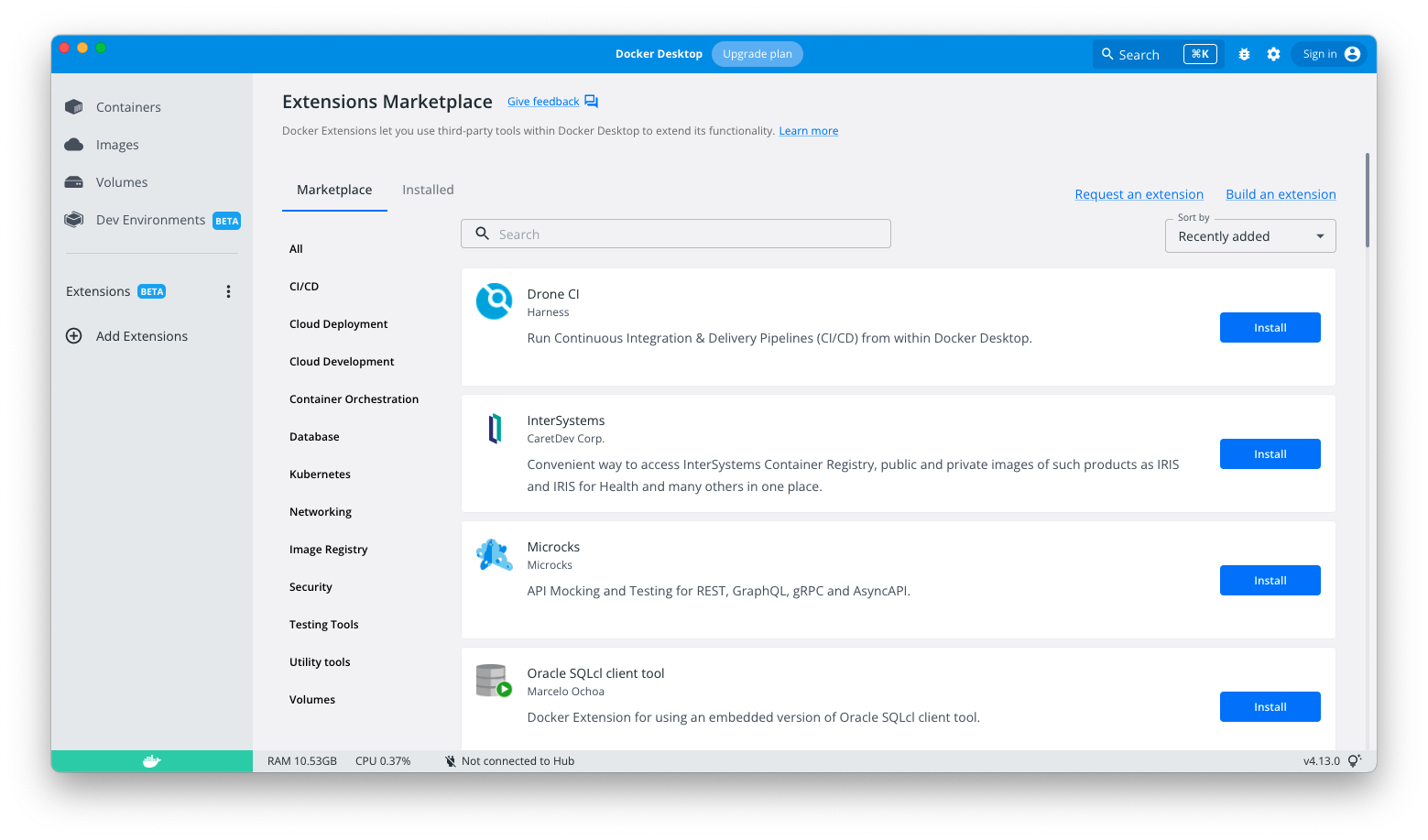
In the Docker Dashboard, click “Add Extensions” in the left navigation bar.
In the Extensions Marketplace, search for the Ambassador Telepresence extension.
Click install.

Connect to Ambassador Cloud through the Telepresence extension:
After you install the Telepresence extension in Docker Desktop, you need to generate an API key to connect the Telepresence extension to Ambassador Cloud.

Click the Telepresence extension in Docker Desktop, then click Get Started.
Click the Get API Key button to open Ambassador Cloud in a browser window.
Sign in with your Google, GitHub, or Gitlab account. Ambassador Cloud opens to your profile and displays the API key.
Copy the API key and paste it into the API key field in the Docker Dashboard.

Connect to your cluster in Docker Desktop:

Select the desired cluster from the dropdown menu and click Next. This cluster is now set to kubectl’s current context.
Click Connect to [your cluster]. Your cluster is connected, and you can now create intercepts.

To get hands-on with the example shown in the above recording, please follow these instructions:
1. Enable and start your Docker Desktop Kubernetes cluster locally 1. 
Install the Telepresence extension to Docker Desktop if you haven’t already.
2. Install the emojivoto application in your local Docker Desktop cluster (we will use this to simulate a remote K8s cluster).
Use the following command to apply the Emojivoto application to your cluster.
kubectl apply -k github.com/BuoyantIO/emojivoto/kustomize/deployment
3. Start the web service in a single container with Docker.
Create a file docker-compose.yml and paste the following into that file:

version: ‘3’

services:
web:
image: buoyantio/emojivoto-web:v11
environment:
– WEB_PORT=8080
– EMOJISVC_HOST=emoji-svc.emojivoto:8080
– VOTINGSVC_HOST=voting-svc.emojivoto:8080
– INDEX_BUNDLE=dist/index_bundle.js
ports:
– "8080:8080"
network_mode: host

In your terminal run docker compose up to start running the web service locally.
4. Using a test container, curl the “list” API endpoint in Emojivoto and watch it fail (because it can’t access the backend cluster).
In a new terminal, we will test the Emojivoto app with another container. Run the following command docker run -it –rm –network=host alpine. Then we’ll install curl: apk –no-cache add curl.
Finally, curl localhost:8080/api/list, and you should get an rpc error message because we are not connected to the backend cluster and cannot resolve the emoji or voting services:

> docker run -it –rm –network=host alpine
apk –no-cache add curl
fetch https://dl-cdn.alpinelinux.org/alpine/v3.15/main/x86_64/APKINDEX.tar.gz
fetch https://dl-cdn.alpinelinux.org/alpine/v3.15/community/x86_64/APKINDEX.tar.gz
(1/5) Installing ca-certificates (20211220-r0)
(2/5) Installing brotli-libs (1.0.9-r5)
(3/5) Installing nghttp2-libs (1.46.0-r0)
(4/5) Installing libcurl (7.80.0-r0)
(5/5) Installing curl (7.80.0-r0)
Executing busybox-1.34.1-r3.trigger
Executing ca-certificates-20211220-r0.trigger
OK: 8 MiB in 19 packages

curl localhost:8080/api/list
{"error":"rpc error: code = Unavailable desc = connection error: desc = "transport: Error while dialing dial tcp: lookup emoji-svc on 192.168.65.5:53: no such host""}

5. Run Telepresence connect via Docker Desktop.
Open Docker Desktop and click the Telepresence extension on the left-hand side. Click the blue “Connect” button. Copy and paste an API key from Ambassador Cloud if you haven’t done so already (https://app.getambassador.io/cloud/settings/licenses-api-keys). Select the cluster you deployed the Emojivoto application to by selecting the appropriate Kubernetes Context from the menu. Click next and the extension will connect Telepresence to your local cluster.
6. Re-run the curl and watch this succeed.
Now let’s re-run the curl command. Instead of an error, the list of emojis should be returned indicating that we are connected to the remote cluster:

curl localhost:8080/api/list
[{"shortcode":":joy:","unicode":"😂"},{"shortcode":":sunglasses:","unicode":"😎"},{"shortcode":":doughnut:","unicode":"🍩"},{"shortcode":":stuck_out_tongue_winking_eye:","unicode":"😜"},{"shortcode":":money_mouth_face:","unicode":"🤑"},{"shortcode":":flushed:","unicode":"😳"},{"shortcode":":mask:","unicode":"😷"},{"shortcode":":nerd_face:","unicode":"🤓"},{"shortcode":":gh

7. Now, let’s “intercept” traffic being sent to the web service running in our K8s cluster and reroute it to the “local” Docker Compose instance by creating a Telepresence intercept.
Select the emojivoto namespace and click the intercept button next to “web”. Set the target port to 8080 and service port to 80, then create the intercept.
After the intercept is created you will see it listed in the UI. Click the nearby blue button with three dots to access your preview URL. Open this URL in your browser, and you can interact with your local instance of the web service with its dependencies running in your Kubernetes cluster.
Congratulations, you’ve successfully created a Telepresence intercept and a sharable preview URL! Send this to your teammates and they will be able to see the results of your local service interacting with the Docker Desktop cluster.
 

Want to learn more about Telepresence or find other life-improving Docker Extensions? Check out the following related resources:
 

Install the official Telepresence Docker Desktop Extension.
Learn more about Ambassador and their solutions for Kubernetes developers.
Read similar articles covering new Docker Extensions.
Find more helpful Docker Extensions on Docker Hub.
Learn how to create your own extensions for Docker Desktop.
Get started and download Docker Desktop for Windows, Mac, or Linux.

Quelle: https://blog.docker.com/feed/

How I Built My First Containerized Java Web Application

It gives me immense pleasure to present this blog as I intern with Docker as a Product Marketer. This incredible experience has given me the chance to brainstorm many new ideas. As a prior Java developer, I’ve always been amazed by how Java and Spring Boot work wonders together! Shoutout to everyone who helped drive the completion of this blog!
 
For the past 30 years, web development has become vital across multiple industries. Developers have long used Java and the Spring Framework for web development, particularly on the server side.
Java follows the “old is gold” philosophy. And after evolving over 25 years, it’s still one of today’s most popular programming languages. Fifty-million websites including Google, LinkedIn, eBay, Amazon, and Stack Overflow, use Java extensively.
 

In this blog, we’ll create a simple Java Spring Boot web application and containerize it using Docker, which works by running our application as a software “image.” This image packages together the operating system, code, and any supporting libraries or dependencies. This makes it much easier to develop and deploy cross-platform applications. Let’s jump into the process.
Here’s what you’ll be doing

Building your first Java Spring Boot web app
Running and building your application without Docker, first
Containerizing the Spring Boot web application

What you’ll need
1. JDK 17 or above
2. Spring Tool Suite for Eclipse
3. Docker Desktop
Building your first Java Spring Boot web app
We’re using Spring Tool Suite (STS) for our application. STS is Eclipse-based and tailored for creating Spring applications. It includes a built-in and customizable Tomcat server that offers Spring configuration file validation, coding assistance, and more.
Another advantage is that Spring Tool Suite 4 doesn’t need an explicit Maven plugin. It ships with its own Maven plugin, which is easy to enable by navigating to Windows > Preferences > Maven. This IDE also offers an approachable UI and tools to simplify Spring app development.
That said, let’s now create a new base project for our app. Create a new Spring starter project from the Package Explorer:
 

Since we’re building a Spring web app, we need to add our Spring web and Thymeleaf dependencies. Thymeleaf is a Java template engine for implementing frontend functions like HTML, XML, JavaScript, CSS, or even plain text files with Spring Boot.

You’ll notice that configuring your starter project takes some time, since we’re pulling from the official website. Once finished, you can further configure your project base. The project structure looks like this:

By default, Maven compiles sources from src/main/java and src/test/java is where your test cases reside. Meanwhile, src/main/resources is the standard Maven location for application resources like templates, images and other configurations.
Maven’s fundamental unit of work is the pom.xml (Project Object Model). It contains information about the project, its dependencies, and configuration details that Maven uses while building.
Here’s our project’s POM. You’ll also notice the Spring Web and Thymeleaf dependencies that we added initially:

<?xml version="1.0" encoding="UTF-8"?>
<project xmlns="http://maven.apache.org/POM/4.0.0" xmlns:xsi="http://www.w3.org/2001/XMLSchema-instance"
xsi:schemaLocation="http://maven.apache.org/POM/4.0.0 https://maven.apache.org/xsd/maven-4.0.0.xsd">
<modelVersion>4.0.0</modelVersion>
<parent>
<groupId>org.springframework.boot</groupId>
<artifactId>spring-boot-starter-parent</artifactId>
<version>2.7.2</version>
<relativePath/> <!– lookup parent from repository –>
</parent>
<groupId>com.example</groupId>
<artifactId>webapp</artifactId>
<version>0.0.1-SNAPSHOT</version>
<name>webapp</name>
<description>Demo project for Spring Boot</description>
<properties>
<java.version>17</java.version>
</properties>
<dependencies>
<dependency>
<groupId>org.springframework.boot</groupId>
<artifactId>spring-boot-starter-web</artifactId>
</dependency>

<dependency>
<groupId>org.springframework.boot</groupId>
<artifactId>spring-boot-starter-test</artifactId>
<scope>test</scope>
</dependency>

<dependency>
<groupId>org.springframework.boot</groupId>
<artifactId>spring-boot-starter-thymeleaf</artifactId>
</dependency>
</dependencies>

<build>
<plugins>
<plugin>
<groupId>org.springframework.boot</groupId>
<artifactId>spring-boot-maven-plugin</artifactId>
</plugin>
</plugins>
</build>

</project>

 
Next, if you inspect the source code inside src/main/java, you’ll see a generated class WebappApplication.java file:

package com.example.mypkg;

import org.springframework.boot.SpringApplication;
import org.springframework.boot.autoconfigure.SpringBootApplication;

@SpringBootApplication
public class WebappApplication {

public static void main(String[] args) {
SpringApplication.run(WebappApplication.class, args);
}

}

 
This is the main class that your Spring Boot app executes from. The @SpringBootApplication annotation denotes a variety of features — including the ability to enable Spring Boot auto-configuration, Java-based Spring configuration, and component scanning.
Therefore, @SpringBootApplication is akin to using @Configuration, @EnableAutoConfiguration, and @ComponentScan with their default attributes. Here’s more information about each annotation:

@Configuration denotes that the particular class has @Bean definition methods. The Spring container may process it to provide bean definitions.
@EnableAutoConfiguration helps you auto-configure beans present in the classpath.
@ComponentScan lets Spring scan for configurations, controllers, services, and other predefined components.

 
A Spring application is bootstrapped as a standalone from the main method using SpringApplication.run(<Classname>.class, args).
As mentioned, you can embed both static and dynamic web pages in src/main/resources. Here, we’ve designated Products.html as the home page of our application:

We’ll use a simple RESTful web service to grab our application’s home page. First, create a Controller class in the same location as your main class. This’ll be responsible for processing incoming REST API calls, preparing a model, and returning the rendered view as a response.

package com.example.mypkg;

import org.springframework.stereotype.Controller;
import org.springframework.web.bind.annotation.GetMapping;

@Controller
public class HomeController {

@GetMapping(value = "/DockerProducts")
public String index() {
return "Products";
}

}

 
The @Controller annotation assigns the controller role to a particular class. You’d use this annotation to mark a class as a web request handler. @GetMapping commonly maps HTTP GET requests onto specific handler methods. Here, it’s the method “index” that returns our app’s homepage, called “Products.”
Building and running the application without Docker
It’s time to test our application by running it as a Spring Boot application. 
 

Your application is now available at port 8080, which you can access by opening http://localhost:8080/DockerProducts in your browser.
We’ve tested our project by running it. It’s now time to build our application by  creating a JAR file. Choose the “Maven clean” install option within Spring Tool Suite:


Here’s the console for the ongoing build. You’ll see that STS has successfully built our JAR:

You can access this JAR file in the Target folder shown below:

Containerizing our Spring Boot web application with Docker
Next, we’re using Docker to containerize our application. Before starting, download and install Docker Desktop. Docker Desktop includes multiple developer-focused tools like the Docker CLI, Docker Compose, and Docker Engine. It also features a user-friendly UI (the Docker Dashboard) that streamlines common container, image, and volume management tasks.
Once that’s installed, we’ll tackle containerization with the following steps:

Creating a Dockerfile
Building the Docker image
Running Docker container to access the application

 
Creating a Dockerfile
A Dockerfile is a plain-text file that specifies instructions for building a Docker image. You can create this in your project’s root directory:

FROM eclipse-temurin:17-jdk-focal
ADD target/webapp-0.0.1-SNAPSHOT.jar webapp-0.0.1-SNAPSHOT.jar
EXPOSE 8080
ENTRYPOINT ["java", "-jar", "webapp-0.0.1-SNAPSHOT.jar"]

 
What does each instruction do?

FROM – Specifies the base image that your Dockerfile uses to build a new image. We’re using eclipse-temurin:17-jdk-focal as our base image. The Eclipse Temurin Project shares code and procedures that enable you to easily create Java SE runtime binaries. It also helps you leverage common, related technologies that appear throughout Java’s ecosystem.
ADD – Copies the new files and JAR into your Docker container’s filesystem at a specific destination
EXPOSE – Reveals specific ports to the host machine. We’re exposing port 8080 since embedded Tomcat servers automatically use it.
ENTRYPOINT – Sets executables that’ll run once the container spins up

 
Building the Docker image
Docker images are instructive templates for creating Docker containers. You’ll build your Docker image by opening the STS terminal at your project’s root directory, and entering the following command:
docker build -t docker_desktop_page .
 
Our image name is docker_desktop_page. Here’s how your images will appear if you request a list:
 

Run your application as a Docker container
A Docker container is a running instance of a Docker image. It’s a lightweight, standalone, executable software package that includes everything needed to run an application. Enter this command to start your container:
docker run -p 8080:8080 docker_desktop_page

Access your application at http://localhost:8080/DockerProducts. Here’s a quick glimpse of our webpage!

You can also view your image and running container via the Docker Dashboard:

You can also manage these containers within the Container interface.
Containerization enables easier build and deploy
Congratulations! You’ve successfully built your first Java website. You can access the full project source code here.
You’ve now learned how easy containerizing an application is — even without prior Docker experience. To learn more about developing your next Java Spring Boot application, check out our Getting started with Java Overview.
Quelle: https://blog.docker.com/feed/

How to Use the Apache httpd Docker Official Image

Deploying and spinning up a functional server is key to distributing web-based applications to users. The Apache HTTP Server Project has long made this possible. However, despite Apache Server’s popularity, users can face some hurdles with configuration and deployment.
Thankfully, Apache and Docker containers can work together to streamline this process — saving you time while reducing complexity. You can package your application code and configurations together into one cross-platform unit. The Apache httpd Docker Official Image helps you containerize a web-server application that works across browsers, OSes, and CPU architectures.
In this guide, we’ll cover Apache HTTP Server (httpd), the httpd Docker Official Image, and how to use each. You’ll also learn some quick tips and best practices. Feel free to skip our Apache intro if you’re familiar, but we hope you’ll learn something new by following along. Let’s dive in.
In this tutorial:

What is Apache Server?
How to use the httpd Docker Official Image
How to use a Dockerfile with your image
How to use your image without a Dockerfile
Configuration and useful tips
How to unlock data encryption through SSL
Pull your first httpd Docker Official Image

What is Apache Server?
The Apache HTTP Server was created as a “commercial-grade, featureful, and freely available source code implementation of an HTTP (Web) server.” It’s equally suitable for basic applications and robust enterprise alternatives.
Like any server, Apache lets developers store and access backend resources — to ultimately serve user-facing content. HTTP web requests are central to this two-way communication. The “d” portion of the “httpd” acronym stands for “daemon.” This daemon handles and routes any incoming connection requests to the server.
Developers also leverage Apache’s modularity, which lets them add authentication, caching, SSL, and much more. This early extensibility update to Apache HTTP Server sparked its continued growth. Since Apache HTTP Server began as a series of NCSA patches, its name playfully embraces its early existence as “a patchy web server.”
Some Apache HTTP Server fun facts:

Apache debuted in 1995 and is still widely used.
It’s modeled after NCSA httpd v1.3.
Apache currently serves roughly 47% of all sites with a known web server

Httpd vs. Other Server Technologies
If you’re experienced with Apache HTTP Server and looking to containerize your application, the Apache httpd Docker Official Image is a good starting point. You may also want to look at NGINX Server, PHP, or Apache Tomcat depending on your use case.
As a note, HTTP Server differs from Apache Tomcat — another Apache server technology. Apache HTTP Server is written in C while Tomcat is Java based. Tomcat is a Java Servlet dedicated to running Java code. It also helps developers create application pages via JavaServer Pages.
What is the httpd Docker Official Image?
We maintain the httpd Docker Official Image in tandem with the Docker community. Developers can use httpd to quickly and easily spin up a containerized Apache web server application. Out of the box, httpd contains Apache HTTP Server’s default configuration.
Why use the Apache httpd Docker Official Image? Here are some core use cases:

Creating an HTML server, as mentioned, to serve static web pages to users
Forming secure server HTTPS connections, via SSL, using Apache’s modules
Using an existing complex configuration file
Leveraging advanced modules like mod_perl, which this GitHub project outlines

While these use cases aren’t specific to our httpd Official Image itself, it’s easy to include these external configurations within your image itself. We’ll explore this process and outline how to use your first Apache container image now.
For use cases such as mod_php, a dedicated image such as the PHP Docker Official Image is probably a better fit.
How to use the httpd Docker Official Image
Before proceeding, you’ll want to download and install Docker Desktop. While we’ll still use the CLI during this tutorial, the built-in Docker Dashboard gives you an easy-to-use UI for managing your images and containers. It’s easy to start, pause, remove, and inspect running containers with the click of a button. Have Desktop running and open before moving on.
The quickest way to leverage the httpd Official Image is to visit Docker Hub, copy the docker pull httpd command into your terminal, and run it. This downloads each package and dependency within your image before automatically adding it into Docker Desktop:


Some key things happened while we verified that httpd is working correctly in this video:

We pulled our httpd image using the docker pull httpd command.
We found our image in Docker Desktop in the Images pane, chose “Run,” and expanded the Optional settings pane. We named our image so it’s easy to find, and entered 8080 as the host port before clicking “Run” again.
Desktop took us directly into the Containers pane, where our named container, TestApache, was running as expected.
We visited `http://localhost:8080` in our browser to test our basic setup.

This example automatically grabs the :latest version of httpd. We recommend specifying a numbered version or a tag with greater specificity, since these :latest versions can introduce breaking changes. It can be challenging to monitor these changes and test them effectively before moving into production.
That’s a great test case, but what if you want to build something a little more customized? This is where a Dockerfile comes in handy.
How to use a Dockerfile with your image
Though less common than other workflows, using a Dockerfile with the httpd Docker Official Image is helpful for defining custom configurations.
Your Dockerfile is a plain text file that instructs Docker on how to build your image. While building your image manually, this file lets you create configurations and useful image layers — beyond what the default httpd image includes.
Running an HTML server is a common workflow with the httpd Docker Official Image. You’ll want to add your Dockerfile in a directory which contains your project’s complete HTML. We’ll call it public-html in this example:

FROM httpd:2.4

COPY ./public-html/ /usr/local/apache2/htdocs/

 
The FROM instruction tells our builder to use httpd:2.4 as our base image. The COPY instruction copies new files or directories from our specified source, and adds them to the filesystem at a certain location. This setup is pretty bare bones, yet still lets you create a functional Apache HTTP Server image!
Next, you’ll need to both build and run this new image to see it in action. Run the following two commands in sequence:

$ docker build -t my-apache2 .

$ docker run -d –name my-running-app -p 8080:80 my-apache2

 
First, docker build will create your image from your earlier Dockerfile. The docker run command takes this image and starts a container from it. This container is running in detached mode, or in the background. If you wanted to take a step further and open a shell within that running container, you’d enter a third command: docker exec -ti my-running-app sh. However, that’s not necessary for this example.
Finally, visit http://localhost:8080 in your browser to confirm that everything is running properly.
How to use your image without a Dockerfile
Sometimes, you don’t even need nor want a Dockerfile for your image builds. This is the more common approach that most developers will take — compared to using a Dockerfile. It also requires just a couple of commands.
That said, enter the following commands to run your Apache HTTP Server container:
Mac:

$ docker run -d –name my-apache-app -p 8080:80 -v "$PWD":/usr/local/apache2/htdocs/ httpd:2.4

 
Linux:

$ docker run -d –name my-apache-app -p 8080:80 -v

$(pwd):/usr/local/apache2/htdocs/ httpd:2.4

 
Windows:

$ docker run -d –name my-apache-app -p 8080:80 -v "$pwd":/usr/local/apache2/htdocs/ httpd:2.4

 
Note: For most Linux users, the Mac version of this command works — but the Linux version is safest for those running compatible shells. While Windows users running Docker Desktop will have bash available, ”$pwd” is needed for Powershell.
Using -v bind mounts your project directory and $PWD (or its OS-specific variation) effectively expands to your current working directory, if you’re running macOS or Linux. This lets your container access your filesystem effectively and grab what it needs to run. You’re still connecting host port 8080 to container port 80/tcp — just like we did earlier within Docker Desktop — and running your Apache container in the background.
Configuration and useful tips
Customizing your Apache HTTP Server configuration is possible with two quick steps. First, enter the following command to grab the default configuration upstream:
&amp;lt;code&amp;gt;docker run –rm httpd:2.4 cat /usr/local/apache2/conf/httpd.conf &amp;amp;gt; my-httpd.conf&amp;lt;/code&amp;gt;
Second, return to your Dockerfile and COPY in your custom configuration from the required directory:

FROM httpd:2.4

COPY ./my-httpd.conf /usr/local/apache2/conf/httpd.conf

That’s it! You’ve now dropped your Apache HTTP Server configurations into place. This might include changes to any modules and any functional additions to help your server run.
How to unlock data encryption through SSL
Apache forms connections over HTTP by default. This is fine for smaller projects, test cases, and server setups where security isn’t important. However, larger applications and especially those that transport sensitive data — like enterprise apps — may require encryption. HTTPS is the standard that all web traffic should use given its default encryption.
This is possible natively through Apache using the mod_ssl encryption module. In a Docker context, running web traffic over SSL means using the COPY instruction to add your server.crt and server.key into your /usr/local/apache2/conf/ directory.
This is a condensed version of this process, and more steps are needed to get SSL up and running. Check out our Docker Hub documentation under the “SSL/HTTPS” section for a complete list of approachable steps. Crucially, SSL uses port 443 instead of port 80 — the latter of which is normally reserved for unencrypted data).
Pull your first httpd Docker Official Image
We’ve demoed how to successfully use the httpd Docker Official Image to containerize and run Apache HTTP Server. This is great for serving web pages and powering various web applications — both secure or otherwise. Using this image lets you deploy cross-platform and cross-browser without encountering hiccups.
Combining Apache with Docker also preserves much of the customizability and functionality developers expect from Apache HTTP Server. To quickly start experimenting, head over to Docker Hub and pull your first httpd container image.

Further reading:

The httpd GitHub Repository
Awesome Compose: A sample PHP application using Apache2

Quelle: https://blog.docker.com/feed/
Dear Moby: CronJobs and Kubernetes and Ocean Puns, Oh My!

Whalecome, dear reader, to the first issue of Dear Moby — my new advice column where I, Moby Dock, will be answering real developer questions from you, the Docker community. Ever hear of the Dear Abby column? Well, this one is better, because it’s just for developers.
Since we announced this column (and its video counterpart with my friends, Kat and Shy), we’ve received a tidal wave of questions. (You can submit your own questions here!)
Despite my whaleth of knowledge and passion for all things app development, I’m only one whale — and I don’t have all the answers! Many, but not all. So, I’ve commissioned a crew of fellow Docker experts to voyage alongside me in pursuit of the answers you seek.
So without further ado, let’s dive into the fray…

Our first question comes from shaileshb who asks:
“Hey! I’m creating a CronJob for my kubernetes cluster. Currently, I am confused as to whether I should put database connection strings and the main logic inside the CronJob itself, or whether those should exist in an API that the CronJob calls.”
Today’s commissioned experts: Director of Engineering Shawn Axsom and Principal Software Engineer Josh Newman
Dear shaileshb,
The best approach depends on your specific circumstances, but there are important considerations around performance and security you have to take into account with every deployment to a cluster you create.
Whether you use an additional API or not, you should secure connection strings and other secrets.
You want to keep it secret and keep it safe, so try these best practices:

Don’t put connection strings in environmental variables that someone could access while breaching the container or inspecting container or pod metadata.
Set identity access management policies based on the Principle of Least Privilege. (More about PoLP here.)
Consolidate database access to a single service or limited subset.
Consider a secrets manager, regardless of what deployment approach you take. (Take a deep dive into Kubernetes secret storage with this post from Conjur!)

Next, when it comes to performance, it really depends on your circumstance. Either approach can give you good performance, but your choice needs to take into account things like how often the CronJob runs, whether it runs in parallel, whether caching is involved, etc. And if designing for scale, you’ll want to consider connection limits and connection pooling.
When going the CronJob route, we suggest considering an external connection pool — but be sure it’s set up properly to avoid exhausting it. This might be an advantage of the API route. Depending on your tech stack and usage, you can get better connection pooling within the API service. If you want to brush up on your connection pooling considerations, check out this Stack Overflow article.
In the long run, simplicity is a virtue and will always reign supreme.
An understandable, secure, and scalable system is a one with a cohesive design that isn’t over-engineered. It’s often best to start small (and also consider existing services that may benefit from the functionality) and keep the code contained in one location where secrets are stored securely — especially if there aren’t performance or scalability concerns (or a need to reuse it). And if these concerns do rear their ugly heads, that simplicity makes it easier to refactor. Truth be told, after observing the code in production (or getting feedback), you might even opt for a different approach, so the simpler you start, the easier you make things for yourself later.
Above all else, it’s always good to design for resiliency and extensibility. If best practices aren’t put in place from the start, make sure to design the CronJob or API in a modular and composable way so these practices can be put into practice later without a rewrite.

Well, that does it for our first issue of Dear Moby! Many thanks to Josh and Shawn.
Have another question for me and the Docker dev team to tackle? Submit it here!
Until next time,
Moby Dock
Quelle: https://blog.docker.com/feed/
Slim.AI Docker Extension for Docker Desktop

Extensions are great for expanding the capability of Docker Desktop. We’re proud to feature this extension from Slim.AI which promises deep container insight and optimization features. Follow along as Slim.AI walks through how to install, use, and connect with these handy new features!
A version of this article was first published on Slim.AI’s blog.

We’re excited to announce that we’ve been working closely with the team at Docker developing our own Slim.AI Docker Extension to help developers build secure, optimized containers faster. You can find the Slim Extension in the Docker Marketplace or on Docker Hub.
Docker Extensions give developers a simple way to install, and run helpful container development tools directly within the Docker Desktop. For more information about Docker Extensions, check out https://docs.docker.com/desktop/extensions/.
The Slim.AI Docker Extension brings some of the Slim Platform’s capabilities directly to your local environment. Our initial release, available to everyone, is focused on being the easiest way for developers to get visibility into the composition and construction of their images and help reduce friction when selecting, troubleshooting, optimizing, and securing images.

Why should I install the Slim.AI Extension?
At Slim, we believe that knowing your software is a key building block to creating secure, small, production-ready containers and reducing software supply chain risk. One big challenge many of us face when attempting to optimize and secure container images is that images often lack important documentation. This leaves us in a pinch when trying to figure out even basic details about whether or not an image is usable, well constructed, and secure.
This is where, we believe, the Slim Docker Extension can help.
Currently, the Slim Docker extension is free to developers and includes the following capabilities:
Available Free to All Developers without Authentication to the Slim Platform

Easy to access deep analyses of your local container images by tag with quick access to information like the local arch, exposed ports, shells, volumes, and certs
Security insights including whether the containers runs with a root user and a complete list of files that have special permissions
Optimization opportunities including a counts of deleted and duplicate files
Fully searchable File Explorer filterable by layer, instruction, and file type with the ability to view the contents of any text-based file
The ability to compare any two local images or image tags with deep analyses and File Explorer capabilities
Reverse engineered dockerfiles for each image when the originals are not available

Features available to developers with Slim.AI accounts (https://portal.slim.dev):

Search across multiple public and authenticated registries for quality images including support for Docker Hub, Github, DigitalOcean, ECR, MCR, GCR, with more coming soon.
View deep analysis, insights, and File Explorer for images across available registries prior to pulling them down to your local machine.

How do I install the extension?

Make sure you’re running Docker Desktop version 4.10 or greater. You can get the latest version of Docker Desktop at docker.com/desktop.
Go to Slim.AI Extension on Docker Hub. (https://hub.docker.com/extensions/slimdotai/dd-ext)
Click “Open in Docker Desktop”.
This will open the Slim.AI extension in the Extensions Marketplace in Docker Desktop. Click “Install.” The installation should take just a few seconds.

How do I use the Slim.AI Docker Desktop Extension?

Once installed, click on the Slim.AI extension in the left nav of Docker Desktop.
You should see a “Welcome” screen. Go ahead and click to view our Terms and Privacy Policy. Then, click “Start analyzing local containers”.
The Slim.AI Docker Desktop Extension will list the images on your local machine.
You can use the search bar to find specific images by name.
Click the “Explore” button or carrot icon to view details about your images:

The File Explorer is a complete searchable view into your image’s file system. You can filter by layer, file type, and whether or not it is an Addition, Modification, or Deletion in a given layer. You can also view the content of non-binary files by clicking on the file name then clicking File Contents in the new window.
The Overview displays important metadata and insights about your image including the user, certs, exposed ports, volumes, environment variables, and more.
The Docker File shows a reverse engineered dockerfile we generate when the original dockerfile may not be available.

Click the “Compare” button to compare two images or image tags.

Select the tag via the dropdown under the image name. Then, click the “Compare” button in its card.
Select a second image or tag, and click the “Compare” button in its card.
You will be taken to a comparison view where you can explore the differences in the files, metadata, and reverse engineered dockerfiles.

How do I connect the Slim.AI Docker Desktop Extension to my Slim.AI Account?

Once installed, click on the “Login” button at the top of the extension.
Sign in using your GitHub, GitLab, or BitBucket account. (Accounts are free for individual developers.)
Navigate back to the Slim Docker Desktop Extension
Once successfully connected, you can use the search bar to search over all of your connected registries and explore remote images before pulling them down to your local machine.

What if I don’t have a Slim.AI account?
The Slim platform is currently free to use. You can create an account from the Docker Desktop Extension by clicking the Login button in the top right of the extension. You will be taken to a sign in page where you can authenticate using Github, Gitlab, or Bitbucket.
What’s on the roadmap?
We have a number of features and refinements planned for the extension, but we need your feedback to help us improve. Please provide your feedback here.
Planned capabilities include:

Improvements to the Overview to provide more useful insights
Design and UX updates to make the experience even easier to use
More capabilities that connect your local experience to the Slim Portal


Interested in learning more about how extensions can expand your experience in Docker Desktop? Check out our Docker Hub extensions library or see below for further reading: 
 

Install the Slim.AI Docker Desktop Extension.
Read similar articles covering new Docker Extensions.
Learn how to create your own extensions for Docker Desktop.
Get started and download Docker Desktop for Windows, Mac, or Linux. 

Quelle: https://blog.docker.com/feed/
Community All-Hands Q3: Call for Papers

Mark your calendars! Join us for our next Community All-Hands event on September 1st. This quarterly event is a unique opportunity for the Docker community and staff to come together and present topics we’re passionate about.
Don’t miss out on this special event with community news, project demos, programming workshops, company and product updates, and more! In this edition, we will be introducing an unconference track, in which you will be able to propose any topic and drive an interactive discussion with the community (the world is your oyster!).
We are looking for speakers who want to share their experience with the community in a 30 to 45-minute presentation. We welcome all topics related to software development and the tech ecosystem. Additionally, we’re looking for unconference hosts who are passionate about a particular topic and want to lead a discussion on it.
Have a topic you’re especially excited about and would like to host? Follow these top five tips to get your topic suggestion accepted, and submit your proposal before August 14th!
Top five tips to get your proposal accepted

To increase the chances of your topic being selected, there’s a few qualities our community especially looks forward to. When brainstorming your proposal, we recommend keeping the following in mind.
1. Keep it short and sweet
Brevity is key when it comes to proposals. The review committee is looking for clear and concise proposals that get to the point.
2. Make it relevant
Your proposal should be relevant to the Docker community. Think about what would be of interest to other members of the community and what would contribute to the overall goal of the All-Hands event, which is to bring the community together.
During this event, developers can look forward to an altruistic platform for learning about new technologies and driving group conversation. For this reason, please don’t submit commercial and promotional content.
3. Don’t be afraid to repeat topics
Everyone has a different perspective, so don’t be afraid to repeat a topic that has been presented before. Your unique perspective is what makes your proposal valuable!
4. Know your audience
Keep your audience in mind when crafting your proposal. The All-Hands event is open to developers of all levels, so make sure your proposal is accessible to a broad range of people.
5. Follow the submission guidelines
Be sure to follow the submission guidelines when submitting your proposal. This includes providing all the required information and using the correct format.
Still not sure what to submit? Here’s a list of ideas
 
Main track:

Converting your application from a monolith into a collection of microservices
Getting started with Carbon, WASM, or any other technology. Provide a template in DockerHub for people to use!
A workshop on how to build modern web development architecture based Jamstack
A workshop on how to use some exciting new technologies (Web3, AI, Blockchain)
Case study: How you increased the productivity of your team with modern software tooling
Best practices for developing and deploying cloud-native applications
Showcase your new IoT project and information on how to contribute
How you made your tech meetup more inclusive
Your new Docker extension and how others can benefit from installing it

 
Unconference track:

Discussion on security best practices
Lightning talk about your open source project
Birds of a Feather session – Reactive Programming
Discussion panel on Artificial Intelligence trends
Guided meditation session
Docker sessions in French, Spanish or Klingon
An interpretative dance session of marine creatures

 
We hope these tips help you in submitting a successful proposal for our next Community All-Hands event. Make sure to submit your ideas before the August 14th deadline, and we’ll see you there!
Quelle: https://blog.docker.com/feed/
Containerizing a Legendary PetClinic App Built with Spring Boot

Per the latest Health for Animals Report, over half of the global population (billions of households) is estimated to own a pet. In the U.S. alone, this is true for 70% of households.
A growing pet population means a greater need for veterinary care. In a survey by the World Small Animal Veterinary Association (WSAVA), three-quarters of veterinary associations shared that subpar access to veterinary medical products hampered their ability to meet patient needs and provide quality service.
Source: Unsplash
 
The Spring Framework team is taking on this challenge with its PetClinic app. The Spring PetClinic is an open source sample application developed to demonstrate the database-oriented capabilities of Spring Boot, Spring MVC, and the Spring Data Framework. It’s based on this Spring stack and built with Maven.
PetClinic’s official version also showcases how these technologies work with Spring Data JPA. Overall, the Spring PetClinic community maintains nine PetClinic app forks and 18 repositories under Docker Hub. To learn how the PetClinic app works, check out Spring’s official resource.
Deploying a Pet Clinic app is simple. You can clone the repository, build a JAR file, and run it from the command line:
git clone https://github.com/dockersamples/spring-petclinic-docker
cd spring-petclinic-docker
./mvnw package
java -jar target/*.jar
 
You can then access PetClinic at http://localhost:8080 in your browser:


Why does the PetClinic app need containerization?
The biggest challenge developers face with Spring Boot apps like PetClinic is concurrency — or the need to do too many things simultaneously. Spring Boot apps may also unnecessarily increase deployment binary sizes with unused dependencies. This creates bloated JARs that may increase your overall application footprint while impacting performance.
Other challenges include a steep learning curve and complexities while building a customized logging mechanism. Developers have been seeking solutions to these problems. Unfortunately,  even the Docker Compose file within Spring Boot’s official repository shows how to containerize the database, but doesn’t extend this to the complete application.
How can you offset these drawbacks? Docker simplifies and accelerates your workflows by letting you freely innovate with your choice of tools, application stacks, and deployment environments for each project. You can run your Spring Boot artifact directly within Docker containers. This lets you quickly create microservices. This guide will help you completely containerize your PetClinic solution.
Containerizing the PetClinic application
Docker helps you containerize your Spring app — letting you bundle together your complete Spring Boot application, runtime, configuration, and OS-level dependencies. This includes everything needed to ship a cross-platform, multi-architecture web application. 
We’ll explore how to easily run this app within a Docker container, using a Docker Official image. First, you’ll need to download Docker Desktop and complete the installation process. This gives you an easy-to-use UI and includes the Docker CLI, which you’ll leverage later on.
Docker uses a Dockerfile to specify each image’s layers. Each layer stores important changes stemming from your base image’s standard configuration. Let’s create an empty Dockerfile in our Spring project.
Building a Dockerfile
A  Dockerfile is a text document that contains the instructions to assemble a Docker image. When we have Docker build our image by executing the docker build command, Docker reads these instructions, executes them, and creates a Docker image as a result.
Let’s walk through the process of creating a Dockerfile for our application. First create the following empty Dockerfile in the root of your Spring project.
touch Dockerfile
 
You’ll then need to define your base image.
The upstream OpenJDK image no longer provides a JRE, so no official JRE images are produced. The official OpenJDK images just contain “vanilla” builds of the OpenJDK provided by Oracle or the relevant project lead. That said, we need an alternative!
One of the most popular official images with a build-worthy JDK is Eclipse Temurin . The Eclipse Temurin project provides code and processes that support the building of runtime binaries and associated technologies. Temurin is high performance, enterprise-caliber, and cross-platform.
FROM eclipse-temurin:17-jdk-jammy
 
Next, let’s quickly create a directory to house our image’s application code. This acts as the working directory for your application:
WORKDIR /app
 
The following COPY instruction copies the Maven wrapper and our pom.xml file from the host machine to the container image. The COPY command takes two parameters. The first tells Docker which file(s) you would like to copy into the image. The second tells Docker where you want those files to be copied. We’ll copy everything into our working directory called /app.

COPY .mvn/ .mvn
COPY mvnw pom.xml ./

 
Once we have our pom.xml file inside the image, we can use the RUN command to execute the command ./mvnw dependency:resolve. This works identically to running the .mvnw (or mvn) dependency locally on our machine, but this time the dependencies will be installed into the image.

RUN./mvnw dependency:resolve

 
The next thing we need to do is to add our source code into the image. We’ll use the COPY command just like we did with our pom.xml  file above.

COPY src ./src

 
Finally, we should tell Docker what command we want to run when our image is executed inside a container. We do this using the CMD instruction.

CMD ["./mvnw", "spring-boot:run"]

 
Here’s your complete Dockerfile:

FROM eclipse-temurin:17-jdk-jammy
WORKDIR /app
COPY .mvn/ .mvn
COPY mvnw pom.xml ./
RUN ./mvnw dependency:resolve
COPY src ./src
CMD ["./mvnw", "spring-boot:run"]

 
Create a .dockerignore file
To increase build performance, and as a general best practice, we recommend creating a  .dockerignore file in the same directory as your Dockerfile. For this tutorial, your .dockerignore file should contain just one line:
target
 
This line excludes the target directory — which contains output from Maven — from Docker’s build context. There are many good reasons to carefully structure a .dockerignore file, but this simple file is good enough for now.
So, what’s this build context and why’s it essential? The docker build command builds Docker images from a Dockerfile and a context. This context is the set of files located in your specified PATH or URL. The build process can reference any of these files.
Meanwhile, the compilation context is where the developer works. It could be a folder on Mac, Windows, or a Linux directory. This directory contains all necessary application components like source code, configuration files, libraries, and plugins. With the .dockerignore file, you can determine which of the following elements like source code, configuration files, libraries, plugins, etc. to exclude while building your new image.
Building a Docker image
Let’s build our first Docker image:

docker build –tag petclinic-app .

 
Once the build process is completed, you can list out your images by running the following command:

$ docker images
REPOSITORY TAG IMAGE ID CREATED SIZE
petclinic-app latest 76cb88b61d39 About an hour ago 559MB
eclipse-temurin 17-jdk-jammy 0bc7a4cbe8fe 5 weeks ago 455MB

 
With multi-stage builds, a Docker build can use one base image for compilation, packaging, and unit tests. A separate image holds the application runtime. This makes the final image more secure and smaller in size (since it doesn’t contain any development or debugging tools).
Multi-stage Docker builds are a great way to ensure your builds are 100% reproducible and as lean as possible. You can create multiple stages within a Dockerfile and control how you build that image.
Spring Boot uses a “fat JAR” as its default packaging format. When we inspect the fat JAR, we see that the application is a very small portion of the entire JAR. This portion changes most frequently. The remaining portion contains your Spring Framework dependencies. Optimization typically involves isolating the application into a separate layer from the Spring Framework dependencies. You only have to download the dependencies layer — which forms the bulk of the fat JAR — once. It’s also cached in the host system.
In the first stage, the base target is building the fat JAR. In the second stage, it’s copying the extracted dependencies and running the JAR:

FROM eclipse-temurin:17-jdk-jammy as base
WORKDIR /app
COPY .mvn/ .mvn
COPY mvnw pom.xml ./
RUN ./mvnw dependency:resolve
COPY src ./src

FROM base as development
CMD ["./mvnw", "spring-boot:run", "-Dspring-boot.run.profiles=mysql", "-Dspring-boot.run.jvmArguments=’-agentlib:jdwp=transport=dt_socket,server=y,suspend=n,address=*:8000’"]
FROM base as build
RUN ./mvnw package

FROM eclipse-temurin:17-jre-jammy as production
EXPOSE 8080
COPY –from=build /app/target/spring-petclinic-*.jar /spring-petclinic.jar
CMD ["java", "-Djava.security.egd=file:/dev/./urandom", "-jar", "/spring-petclinic.jar"]

 
The first image eclipse-temurin:17-jdk-jammy is labeled base. This helps us refer to this build stage in other build stages. Next, we’ve added a new stage labeled development. We’ll leverage this stage while writing Docker Compose later on.
Notice that this Dockerfile has been split into two stages. The latter layers contain the build configuration and the source code for the application, and the earlier layers contain the complete Eclipse JDK image itself. This small optimization also saves us from copying the target directory to a Docker image — even a temporary one used for the build. Our final image is just 318 MB, compared to the first stage build’s 567 MB size.
Now, let’s rebuild our image and run our development build. We’ll run the docker build command as above, but this time we’ll add the –target development flag so that we specifically run the development build stage.

docker build -t petclinic-app –target development .

docker images
REPOSITORY TAG IMAGE ID CREATED SIZE
petclinic-app latest 05a13ed412e0 About an hour ago 313MB
 
Using Docker Compose to develop locally
In this section, we’ll create a Docker Compose file to start our PetClinic and the MySQL database server with a single command.
Here’s how you define your services in a Docker Compose file:

services:
petclinic:
build:
context: .
dockerfile: Dockerfile
target: development
ports:
– 8000:8000
– 8080:8080
environment:
– SERVER_PORT=8080
– MYSQL_URL=jdbc:mysql://mysqlserver/petclinic
volumes:
– ./:/app
depends_on:
– mysqlserver
mysqlserver:
image: mysql/mysql-server:8.0
ports:
– 3306:3306
environment:
– MYSQL_ROOT_PASSWORD=
– MYSQL_ALLOW_EMPTY_PASSWORD=true
– MYSQL_USER=petclinic
– MYSQL_PASSWORD=petclinic
– MYSQL_DATABASE=petclinic
volumes:
– mysql_data:/var/lib/mysql
– mysql_config:/etc/mysql/conf.d
volumes:
mysql_data:
mysql_config:
 
You can clone the repository or download the YAML file directly from here.
This Compose file is super convenient, as we don’t have to enter all the parameters to pass to the docker run command. We can declaratively do that using a Compose file.
Another cool benefit of using a Compose file is that we’ve set up DNS resolution to use our service names. Resultantly, we’re now able to use mysqlserver in our connection string. We use mysqlserver since that’s how we’ve named our MySQL service in the Compose file.
Now, let’s start our application and confirm that it’s running properly:

docker compose up -d –build

 
We pass the –build flag so Docker will compile our image and start our containers. Your terminal output will resemble what’s shown below if this is successful:


Next, let’s test our API endpoint. Run the following curl commands:
$ curl –request GET
–url http://localhost:8080/vets
–header ‘content-type: application/json’

 
You should receive the following response:

{

"vetList": [
{
"id": 1,
"firstName": "James",
"lastName": "Carter",
"specialties": [],
"nrOfSpecialties": 0,
"new": false
},
{
"id": 2,
"firstName": "Helen",
"lastName": "Leary",
"specialties": [
{
"id": 1,
"name": "radiology",
"new": false
}
],
"nrOfSpecialties": 1,
"new": false
},
{
"id": 3,
"firstName": "Linda",
"lastName": "Douglas",
"specialties": [
{
"id": 3,
"name": "dentistry",
"new": false
},
{
"id": 2,
"name": "surgery",
"new": false
}
],
"nrOfSpecialties": 2,
"new": false
},
{
"id": 4,
"firstName": "Rafael",
"lastName": "Ortega",
"specialties": [
{
"id": 2,
"name": "surgery",
"new": false
}
],
"nrOfSpecialties": 1,
"new": false
},
{
"id": 5,
"firstName": "Henry",
"lastName": "Stevens",
"specialties": [
{
"id": 1,
"name": "radiology",
"new": false
}
],
"nrOfSpecialties": 1,
"new": false
},
{
"id": 6,
"firstName": "Sharon",
"lastName": "Jenkins",
"specialties": [],
"nrOfSpecialties": 0,
"new": false
}
]
}

 
Conclusion
Congratulations! You’ve successfully learned how to containerize a PetClinic application using Docker. With a multi-stage build, you can easily minimize the size of your final Docker image and improve runtime performance. Using a single YAML file, we demonstrated how Docker Compose helps you easily build and deploy your PetClinic app in seconds. With just a few extra steps, you can apply this tutorial while building applications with much greater complexity.
Happy coding.
References

Build Your Java Image
Kickstart your Spring Boot Application Development
Spring PetClinic Application Repository

Quelle: https://blog.docker.com/feed/

Virtual Desktop Support, Mac Permission Changes, & New Extensions in Docker Desktop 4.11

Docker Desktop 4.11 is now live! With this release, we added some highly-requested features designed to help make developers’ lives easier and help security-minded organizations breathe easier.
Run Docker Desktop for Windows in Virtual Desktop Environments
Docker Desktop for Windows is officially supported on VMware ESXi and Azure Windows VMs for our Docker Business subscribers. Now you can use Docker Desktop on your virtual environments and get the same experience as running it natively on Windows, Mac, or Linux machines.
Currently, we support virtual environments where the host hypervisors are VMware ESXi or Windows Hyper-V — both on-premises and in the cloud. Citrix Hypervisor support is also coming soon. As a Docker Business subscriber, you’ll receive dedicated support for running Docker Desktop in your virtual environments.
To learn more about running Docker Desktop for Windows in a virtual environment, please visit our documentation.
Changes to permission requirements on Docker Desktop for Mac
The first time you run Docker Desktop for Mac, you have to authenticate as root in order to install a privileged helper process. This process is needed to perform a limited set of privileged operations and runs in the background on the host machine while Docker Desktop is running.
In Docker Desktop v4.11, you don’t have to run this privilege helper service at all. Use the —user flag in the install command to set everything up in advance. Docker Desktop will then run without needing root on the Mac.
For more details on Docker Desktop for Mac’s permission requirements, check out our documentation.
New Extensions in the Marketplace
We’re excited to announce the addition of two new extensions to the Extensions Marketplace:

vcluster  – Create and manage virtual Kubernetes clusters using vcluster. Learn more about vcluster here.
PGAdmin4 – Quickly admin and monitor PostgreSQL databases with PGAdmin4 tools. Learn more about PGAdmin here.

Customize your Docker Desktop Theme
Prefer dark mode on the Docker Dashboard? With 4.11 you can now customize your preference or have it respect your system settings. Go to settings in the upper right corner to try it for yourself.

Fixing the Frequency of Docker Desktop Feedback Prompts
Thanks to all your feedback, we identified a bug that was asking some users for feedback too frequently. Docker Desktop should now only request your feedback twice a year.
As we outlined here, you’ll be asked for feedback 30 days after the product is installed. You can choose to give feedback or decline. You then won’t be asked for a rating again for 180 days.
These scores help us understand user experience trends so we can keep improving Docker Desktop — and your comments have helped us make changes like this. Thanks for helping us fix this for everyone!
Have any feedback for us?
Upvote, comment, or submit new ideas via either our in-product links or our public roadmap. Check out our release notes to learn more about Docker Desktop 4.11.
Looking to become a new Docker Desktop user? Visit our Get Started page to jumpstart your development journey.
Quelle: https://blog.docker.com/feed/
Docker Captain Take 5 — Julien Maitrehenry

Docker Captain Take 5 — Julien Maitrehenry

Docker Captains are select members of the community that are both experts in their field and are passionate about sharing their Docker knowledge with others. “Docker Captains Take 5” is a regular blog series where we get a closer look at our Captains and ask them the same broad set of questions ranging from what their best Docker tip is to whether they prefer cats or dogs (personally, we like whales and turtles over here). Today, we’re interviewing Julien who recently joined the Captains Program. He is a developer and devops at Kumojin and is based in Quebec City.

How/when did you first discover Docker?
I don’t remember how, but, back in 2014, I was working in a PHP shop, and we had our dev environment running inside a VM (with Vagrant). But, it wasn’t really easy to share and maintain. So, we started experimenting with Docker for our dev env. After that, I learned about (legacy/classic) Swarm in Docker, and these tools resolved some of my issues in production for handling load balancer reconfiguration, deployment, and new version management. Check out my first conference about Docker here.
Since then, I continue to learn, use, and share about Docker. It’s useful in so many use cases — it’s amazing!
What is your favorite Docker command?
Docker help. I still need to check the documentation sometimes!
But also, when I need more space on Docker Desktop, I’ll choose docker buildx prune!
What is your top tip for working with Docker that others may not know?
If your team uses ARM (Apple M1, for example) and intel CPU and you want to share a docker image with your team, build a cross platform image:
docker buildx build –push –platform linux/arm64/v8,linux/amd64 –tag xxx/nginx-proxy:1.21-alpine
What’s the coolest Docker demo you have done/seen?
Back during the 2018 Dockercon, I was impressed by the usage of Docker for the DART (Double Asteroid Redirection Test) project. A project as easy as building an aircraft, hitting an asteroid with it, and saving the world!
You should check how they use Docker for space hardware emulation and testing — it’s brilliant to see how Docker could be used to help save the world: https://www.youtube.com/watch?v=RnWXOAplvjY
What have you worked on in the past six months that you’re particularly proud of?
Being a mentor for a developer school in Quebec (42 Quebec). It’s amazing to see the new generation of developers and help them with all their questions, fears, and concerns! And it’s cool when someone calls you “Mister Docker” because he watches a docker conference I gave to answer questions about usage and more.
What do you anticipate will be Docker’s biggest announcement this year?
After Docker Extension and SBOM? It’s really hard to say. I need more time to explore and create my first extension, but, I’m sure the Docker team will find something.
What are some personal goals for the next year with respect to the Docker community?
Give my first conference in English as I always give them in French. I’d also like to update my blog with more content.
What was your favorite thing about DockerCon 2022?
The French community room. It was a pleasure to engage with Aurélie and Rachid and have so many great speakers with us! I would do it again anytime!
Looking to the distant future, what is the technology that you’re most excited about and that you think holds a lot of promise?
7 years from now, I still think Docker will continue to innovate and find new ways to simplify the life of the developer community!
Rapid fire questions…
What new skill have you mastered during the pandemic?
Using a face mask and forgetting about it! Or traveling between different countries during the pandemic with all different kinds of restrictions and rules.
Cats or Dogs?
Cats! I’m sorry, but a dog requires too much time, and I already have 3 young kids.
Salty, sour or sweet?
Salty or Umami
Beach or mountains?
Mountains!
Your most often used emoji?
🤣 or 😄
Quelle: https://blog.docker.com/feed/

Bulk User Add for Docker Business and Teams

Docker’s goal is to create a world-class product experience for our customers. We want to build a robust product that will help all teams achieve their goals. In line with that, we’ve tried to simplify the process of onboarding your team into the Docker ecosystem with our Bulk User Add feature for Docker Business and Docker Team subscriptions.
You can invite your team to their accounts by uploading a file including their email addresses to Docker Hub. The CSV file can either be a file you create for this specific purpose, or one that’s extracted from another in-house system. The sole requirement is that the file contains a column with the email addresses of the users that will be invited into Docker. Once the CSV file is uploaded using Docker Hub, each team member in the file will receive an invitation to use their account.
We’ve also updated Docker Hub’s web interface to add multiple members at once. We hope this is useful for smaller teams that can just copy and paste a list of emails directly in the web interface and onboard everyone they need. Once your team is invited, you can see both the pending and accepted invites through Docker Hub.

Bulk User Add can be used without needing to have SSO setup for your organization. This feature allows you to get the most out of your Docker Team or Business subscription, and it greatly simplifies the onboarding process.
Learn more about the feature on our docs page, and sign in to your Docker Hub account to try it for yourself.
And if you have any questions or would like to discuss this feature, please attend our upcoming
Docker Office Hours.
 
Quelle: https://blog.docker.com/feed/





