How we made Kubernetes insanely easy to install

Editor’s note: Today’s post is by Luke Marsden, Head of Developer Experience, at Weaveworks, showing the Special Interest Group Cluster-Lifecycle’s recent work on kubeadm, a tool to make installing Kubernetes much simpler.Over at SIG-cluster-lifecycle, we’ve been hard at work the last few months on kubeadm, a tool that makes Kubernetes dramatically easier to install. We’ve heard from users that installing Kubernetes is harder than it should be, and we want folks to be focused on writing great distributed apps not wrangling with infrastructure!There are three stages in setting up a Kubernetes cluster, and we decided to focus on the second two (to begin with):Provisioning: getting some machinesBootstrapping: installing Kubernetes on them and configuring certificatesAdd-ons: installing necessary cluster add-ons like DNS and monitoring services, a pod network, etcWe realized early on that there’s enormous variety in the way that users want to provision their machines.They use lots of different cloud providers, private clouds, bare metal, or even Raspberry Pi’s, and almost always have their own preferred tools for automating provisioning machines: Terraform or CloudFormation, Chef, Puppet or Ansible, or even PXE booting bare metal. So we made an important decision: kubeadm would not provision machines. Instead, the only assumption it makes is that the user has some computers running Linux.Another important constraint was we didn’t want to just build another tool that “configures Kubernetes from the outside, by poking all the bits into place”. There are many external projects out there for doing this, but we wanted to aim higher. We chose to actually improve the Kubernetes core itself to make it easier to install. Luckily, a lot of the groundwork for making this happen had already been started.We realized that if we made Kubernetes insanely easy to install manually, it should be obvious to users how to automate that process using any tooling.So, enter kubeadm. It has no infrastructure dependencies, and satisfies the requirements above. It’s easy to use and should be easy to automate. It’s still in alpha, but it works like this:You install Docker and the official Kubernetes packages for you distribution.Select a master host, run kubeadm init.This sets up the control plane and outputs a kubeadm join […] command which includes a secure token.On each host selected to be a worker node, run the kubeadm join […] command from above.Install a pod network. Weave Net is a great place to start here. Install it using just kubectl apply -f https://git.io/weave-kubePresto! You have a working Kubernetes cluster! Try kubeadm today. For a video walkthrough, check this out:Follow the kubeadm getting started guide to try it yourself, and please give us feedback on GitHub, mentioning @kubernetes/sig-cluster-lifecycle!Finally, I want to give a huge shout-out to so many people in the SIG-cluster-lifecycle, without whom this wouldn’t have been possible. I’ll mention just a few here:Joe Beda kept us focused on keeping things simple for the user.Mike Danese at Google has been an incredible technical lead and always knows what’s happening. Mike also tirelessly kept up on the many code reviews necessary.Ilya Dmitrichenko, my colleague at Weaveworks, wrote most of the kubeadm code and also kindly helped other folks contribute.Lucas Käldström from Finland has got to be the youngest contributor in the group and was merging last-minute pull requests on the Sunday night before his school math exam.Brandon Philips and his team at CoreOS led the development of TLS bootstrapping, an essential component which we couldn’t have done without.Devan Goodwin from Red Hat built the JWS discovery service that Joe imagined and sorted out our RPMs.Paulo Pires from Portugal jumped in to help out with external etcd support and picked up lots of other bits of work.And many other contributors! This truly has been an excellent cross-company and cross-timezone achievement, with a lovely bunch of people. There’s lots more work to do in SIG-cluster-lifecycle, so if you’re interested in these challenges join our SIG. Looking forward to collaborating with you all!–Luke Marsden, Head of Developer Experience at WeaveworksTry kubeadm to install Kubernetes todayGet involved with the Kubernetes project on GitHub Post questions (or answer questions) on Stack Overflow Connect with the community on SlackFollow us on Twitter @Kubernetesio for latest updates
Quelle: kubernetes

Image2Docker: A New Tool for Prototyping Windows VM Conversions

Docker is a great tool for building, shipping, and running your applications. Many companies are already moving their legacy applications to Docker containers and now with the introduction of the Microsoft Windows Server 2016, Docker Engine can not run containers  natively on Windows.To make it even easier, there’s a new prototyping tool for Windows VMs that shows you how to replicate a VM Image to a container.
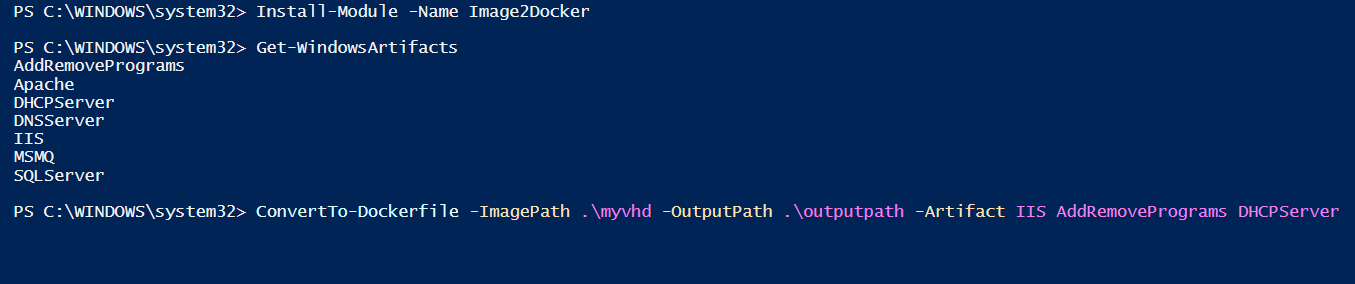
Docker Captain Trevor Sullivan recently released the Image2Docker tool, an open source project we’re hosting on GitHub. Still in it’s early stages, Image2Docker is a Powershell module that you can point at a virtual hard disk image, scan for common Windows components and suggest a Dockerfile. And to make it even easier, we’re hosting it in the Powershell Gallery to make it easy to install and use.
In Powershell, just type:
Install-Module -Name Image2Docker
And you’ll have access to Get-WindowsArtifacts and ConvertTo-Dockerfile. You can even select which discovery artifacts to search for.

Currently Image2Docker supports VHD, VHDK, and WIM images. If you have a VMDK, Microsoft provides a great conversion tool to convert VMDK images to VHD images.
And as an open source project, lead by a Docker Captain, it’s easy to contribute. We welcome contributions to add more discovery objects and functionality.
More Resources:

Check out Image2Docker in the Powershell Gallery
Contribute to Image2Docker
Learn More: Docker and Windows Server
Get Started with Windows Server Containers with Docker

Introducing Image2Docker: A New Tool for Prototyping @Windows VM Conversions by @pcgeek86Click To Tweet

The post Image2Docker: A New Tool for Prototyping Windows VM Conversions appeared first on Docker Blog.
Quelle: https://blog.docker.com/feed/

How Qbox Saved 50% per Month on AWS Bills Using Kubernetes and Supergiant

Editor’s Note: Today’s post is by the team at Qbox, a hosted Elasticsearch provider sharing their experience with Kubernetes and how it helped save them fifty-percent off their cloud bill. A little over a year ago, we at Qbox faced an existential problem. Just about all of the major IaaS providers either launched or acquired services that competed directly with our Hosted Elasticsearch service, and many of them started offering it for free. The race to zero was afoot unless we could re-engineer our infrastructure to be more performant, more stable, and less expensive than the VM approach we had had before, and the one that is in use by our IaaS brethren. With the help of Kubernetes, Docker, and Supergiant (our own hand-rolled layer for managing distributed and stateful data), we were able to deliver 50% savings, a mid-five figure sum. At the same time, support tickets plummeted. We were so pleased with the results that we decided to open source Supergiant as its own standalone product. This post will demonstrate how we accomplished it.Back in 2013, when not many were even familiar with Elasticsearch, we launched our as-a-service offering with a dedicated, direct VM model. We hand-selected certain instance types optimized for Elasticsearch, and users configured single-tenant, multi-node clusters running on isolated virtual machines in any region. We added a markup on the per-compute-hour price for the DevOps support and monitoring, and all was right with the world for a while as Elasticsearch became the global phenomenon that it is today.BackgroundAs we grew to thousands of clusters, and many more thousands of nodes, it wasn’t just our AWS bill getting out of hand. We had 4 engineers replacing dead nodes and answering support tickets all hours of the day, every day. What made matters worse was the volume of resources allocated compared to the usage. We had thousands of servers with a collective CPU utilization under 5%. We were spending too much on processors that were doing absolutely nothing. How we got there was no great mystery. VM’s are a finite resource, and with a very compute-intensive, burstable application like Elasticsearch, we would be juggling the users that would either undersize their clusters to save money or those that would over-provision and overspend. When the aforementioned competitive pressures forced our hand, we had to re-evaluate everything.Adopting Docker and KubernetesOur team avoided Docker for a while, probably on the vague assumption that the network and disk performance we had with VMs wouldn’t be possible with containers. That assumption turned out to be entirely wrong.To run performance tests, we had to find a system that could manage networked containers and volumes. That’s when we discovered Kubernetes. It was alien to us at first, but by the time we had familiarized ourselves and built a performance testing tool, we were sold. It was not just as good as before, it was better.The performance improvement we observed was due to the number of containers we could “pack” on a single machine. Ironically, we began the Docker experiment wanting to avoid “noisy neighbor,” which we assumed was inevitable when several containers shared the same VM. However, that isolation also acted as a bottleneck, both in performance and cost. To use a real-world example, If a machine has 2 cores and you need 3 cores, you have a problem. It’s rare to come across a public-cloud VM with 3 cores, so the typical solution is to buy 4 cores and not utilize them fully.This is where Kubernetes really starts to shine. It has the concept of requests and limits, which provides granular control over resource sharing. Multiple containers can share an underlying host VM without the fear of “noisy neighbors”. They can request exclusive control over an amount of RAM, for example, and they can define a limit in anticipation of overflow. It’s practical, performant, and cost-effective multi-tenancy. We were able to deliver the best of both the single-tenant and multi-tenant worlds.Kubernetes + SupergiantWe built Supergiant originally for our own Elasticsearch customers. Supergiant solves Kubernetes complications by allowing pre-packaged and re-deployable application topologies. In more specific terms, Supergiant lets you use Components, which are somewhat similar to a microservice. Components represent an almost-uniform set of Instances of software (e.g., Elasticsearch, MongoDB, your web application, etc.). They roll up all the various Kubernetes and cloud operations needed to deploy a complex topology into a compact entity that is easy to manage.For Qbox, we went from needing 1:1 nodes to approximately 1:11 nodes. Sure, the nodes were larger, but the utilization made a substantial difference. As in the picture below, we could cram a whole bunch of little instances onto one big instance and not lose any performance. Smaller users would get the added benefit of higher network throughput by virtue of being on bigger resources, and they would also get greater CPU and RAM bursting.Adding Up the Cost SavingsThe packing algorithm in Supergiant, with its increased utilization, resulted in an immediate 25% drop in our infrastructure footprint. Remember, this came with better performance and fewer support tickets. We could dial up the packing algorithm and probably save even more money. Meanwhile, because our nodes were larger and far more predictable, we could much more fully leverage the economic goodness that is AWS Reserved Instances. We went with 1-year partial RI’s, which cut the remaining costs by 40%, give or take. Our customers still had the flexibility to spin up, down, and out their Elasticsearch nodes, without forcing us to constantly juggle, combine, split, and recombine our reservations. At the end of the day, we saved 50%. That is $600k per year that can go towards engineering salaries instead of enriching our IaaS provider. Download KubernetesGet involved with the Kubernetes project on GitHub Post questions (or answer questions) on Stack Overflow Connect with the community on SlackFollow us on Twitter @Kubernetesio for latest updates
Quelle: kubernetes

Kubernetes 1.4: Making it easy to run on Kubernetes anywhere

Today we’re happy to announce the release of Kubernetes 1.4.Since the release to general availability just over 15 months ago, Kubernetes has continued to grow and achieve broad adoption across the industry. From brand new startups to large-scale businesses, users have described how big a difference Kubernetes has made in building, deploying and managing distributed applications. However, one of our top user requests has been making Kubernetes itself easier to install and use. We’ve taken that feedback to heart, and 1.4 has several major improvements.These setup and usability enhancements are the result of concerted, coordinated work across the community – more than 20 contributors from SIG-Cluster-Lifecycle came together to greatly simplify the Kubernetes user experience, covering improvements to installation, startup, certificate generation, discovery, networking, and application deployment.Additional product highlights in this release include simplified cluster deployment on any cloud, easy installation of stateful apps, and greatly expanded Cluster Federation capabilities, enabling a straightforward deployment across multiple clusters, and multiple clouds.What’s new:Cluster creation with two commands – To get started with Kubernetes a user must provision nodes, install Kubernetes and bootstrap the cluster. A common request from users is to have an easy, portable way to do this on any cloud (public, private, or bare metal).Kubernetes 1.4 introduces ‘kubeadm’ which reduces bootstrapping to two commands, with no complex scripts involved. Cluster setup is now transparent, reliable and customizable without having to reverse engineer opaque pre-built solutions. Installation is also streamlined by packaging Kubernetes with its dependencies, for most major Linux distributions including Red Hat and Ubuntu Xenial. This means users can now install Kubernetes using familiar tools such as apt-get and yum.Add-on deployments, such as for an overlay network, can be reduced to one command by using a DaemonSet.Enabling this simplicity is a new certificates API and its use for kubelet TLS bootstrap, as well as a new discovery API.Expanded stateful application support – While cloud-native applications are built to run in containers, many existing applications need additional features to make it easy to adopt containers. Most commonly, these include stateful applications such as batch processing, databases and key-value stores. In Kubernetes 1.4, we have introduced a number of features simplifying the deployment of such applications, including: ScheduledJob is introduced as Alpha so users can run batch jobs at regular intervals.Init-containers are Beta, addressing the need to run one or more containers before starting the main application, for example to sequence dependencies when starting a database or multi-tier app.Dynamic PVC Provisioning moved to Beta. This feature now enables cluster administrators to expose multiple storage provisioners and allows users to select them using a new Storage Class API object.  Curated and pre-tested Helm charts for common stateful applications such as MariaDB, MySQL and Jenkins will be available for one-command launches using version 2 of the Helm Package Manager.Cluster federation API additions – One of the most requested capabilities from our global customers has been the ability to build applications with clusters that span regions and clouds. Federated Replica Sets Beta – replicas can now span some or all clusters enabling cross region or cross cloud replication. The total federated replica count and relative cluster weights / replica counts are continually reconciled by a federated replica-set controller to ensure you have the pods you need in each region / cloud.Federated Services are now Beta, and secrets, events and namespaces have also been added to the federation API.Federated Ingress Alpha – starting with Google Cloud Platform (GCP), users can create a single L7 globally load balanced VIP that spans services deployed across a federation of clusters within GCP. With Federated Ingress in GCP, external clients point to a single IP address and are sent to the closest cluster with usable capacity in any region or zone of the federation in GCP.Container security support – Administrators of multi-tenant clusters require the ability to provide varying sets of permissions among tenants, infrastructure components, and end users of the system.Pod Security Policy is a new object that enables cluster administrators to control the creation and validation of security contexts for pods/containers. Admins can associate service accounts, groups, and users with a set of constraints to define a security context.AppArmor support is added, enabling admins to run a more secure deployment, and provide better auditing and monitoring of their systems. Users can configure a container to run in an AppArmor profile by setting a single field.Infrastructure enhancements – We continue adding to the scheduler, storage and client capabilities in Kubernetes based on user and ecosystem needs.Scheduler – introducing inter-pod affinity and anti-affinity Alpha for users who want to customize how Kubernetes co-locates or spreads their pods. Also priority scheduling capability for cluster add-ons such as DNS, Heapster, and the Kube Dashboard.Disruption SLOs – Pod Disruption Budget is introduced to limit impact of pods deleted by cluster management operations (such as node upgrade) at any one time.Storage – New volume plugins for Quobyte and Azure Data Disk have been added.Clients – Swagger 2.0 support is added, enabling non-Go clients.Kubernetes Dashboard UI – lastly, a great looking Kubernetes Dashboard UI with 90% CLI parity for at-a-glance management.For a complete list of updates see the release notes on GitHub. Apart from features the most impressive aspect of Kubernetes development is the community of contributors. This is particularly true of the 1.4 release, the full breadth of which will unfold in upcoming weeks.AvailabilityKubernetes 1.4 is available for download at get.k8s.io and via the open source repository hosted on GitHub. To get started with Kubernetes try the Hello World app.To get involved with the project, join the weekly community meeting or start contributing to the project here (marked help). Users and Case StudiesOver the past fifteen months since the Kubernetes 1.0 GA release, the adoption and enthusiasm for this project has surpassed everyone’s imagination. Kubernetes runs in production at hundreds of organization and thousands more are in development. Here are a few unique highlights of companies running Kubernetes: Box — accelerated their time to delivery from six months to launch a service to less than a week. Read more on how Box runs mission critical production services on Kubernetes.Pearson — minimized complexity and increased their engineer productivity. Read how Pearson is using Kubernetes to reinvent the world’s largest educational company. OpenAI — a non-profit artificial intelligence research company, built infrastructure for deep learning with Kubernetes to maximize productivity for researchers allowing them to focus on the science.We’re very grateful to our community of over 900 contributors who contributed more than 5,000 commits to make this release possible. To get a closer look on how the community is using Kubernetes, join us at the user conference KubeCon to hear directly from users and contributors.ConnectPost questions (or answer questions) on Stack Overflow Connect with the community on SlackFollow us on Twitter @Kubernetesio for latest updatesThank you for your support! — Aparna Sinha, Product Manager, Google
Quelle: kubernetes

Build and run your first Docker Windows Server container

Today, Microsoft announced the general availability of Server 2016, and with it, Docker engine running containers natively on Windows. This blog post describes how to get setup to run Docker Windows Containers on Windows 10 or using a Windows Server 2016 VM. Check out the companion blog posts on the technical improvements that have made Docker containers on Windows possible and the post announcing the Docker Inc. and Microsoft partnership.
Before getting started, It’s important to understand that Windows Containers run Windows executables compiled for the Windows Server kernel and userland (either windowsservercore or nanoserver). To build and run Windows containers, you have to have a Windows system with container support.
Windows 10 with Anniversary Update
For developers, Windows 10 is a great place to run Docker Windows containers and containerization support was added to the the Windows 10 kernel with the Anniversary Update (note that container images can only be based on Windows Server Core and Nanoserver, not Windows 10). All that’s missing is the Windows-native Docker Engine and some image base layers.
The simplest way to get a Windows Docker Engine is by installing the Docker for Windows public beta (direct download link). Docker for Windows used to only setup a Linux-based Docker development environment (slightly confusing, we know), but the public beta version now sets up both Linux and Windows Docker development environments, and we’re working on improving Windows container support and Linux/Windows container interoperability.
With the public beta installed, the Docker for Windows tray icon has an option to switch between Linux and Windows container development. For details on this new feature, check out Stefan Scherers blog post.
Switch to Windows containers and skip the next section.

Windows Server 2016
Windows Server 2016 is the where Docker Windows containers should be deployed for production. For developers planning to do lots of Docker Windows container development, it may be worth setting up a Windows Server 2016 dev system (in a VM, for example), at least until Windows 10 and Docker for Windows support for Windows containers matures.
For Microsoft Ignite 2016 conference attendees, USB flash drives with Windows Server 2016 preloaded are available at the expo. Not at ignite? Download a free evaluation version and install it on bare metal or in a VM running on Hyper-V, VirtualBox or similar. Running a VM with Windows Server 2016 is also a great way to do Docker Windows container development on macOS and older Windows versions.
Once Windows Server 2016 is running, log in and install the Windows-native Docker Engine directly (that is, not using &;Docker for Windows&;). Run the following in an Administrative PowerShell prompt:
# Add the containers feature and restart
Install-WindowsFeature containers
Restart-Computer -Force

# Download, install and configure Docker Engine
Invoke-WebRequest “https://download.docker.com/components/engine/windows-server/cs-1.12/docker.zip” -OutFile “$env:TEMPdocker.zip” -UseBasicParsing

Expand-Archive -Path “$env:TEMPdocker.zip” -DestinationPath $env:ProgramFiles

# For quick use, does not require shell to be restarted.
$env:path += “;c:program filesdocker”

# For persistent use, will apply even after a reboot.
[Environment]::SetEnvironmentVariable(“Path”, $env:Path + “;C:Program FilesDocker”, [EnvironmentVariableTarget]::Machine)

# You have to start a new PowerShell prompt at this point
dockerd –register-service
Start-Service docker
Docker Engine is now running as a Windows service, listening on the default Docker named pipe. For development VMs running (for example) in a Hyper-V VM on Windows 10, it might be advantageous to make the Docker Engine running in the Windows Server 2016 VM available to the Windows 10 host:
# Open firewall port 2375
netsh advfirewall firewall add rule name=”docker engine” dir=in action=allow protocol=TCP localport=2375

# Configure Docker daemon to listen on both pipe and TCP (replaces docker –register-service invocation above)
dockerd.exe -H npipe:////./pipe/docker_engine -H 0.0.0.0:2375 –register-service
The Windows Server 2016 Docker engine can now be used from the VM host  by setting DOCKER_HOST:
$env:DOCKER_HOST = “<ip-address-of-vm>:2375″
See the Microsoft documentation for more comprehensive instructions.
Running Windows containers
First, make sure the Docker installation is working:
> docker version
Client:
Version:      1.12.1
API version:  1.24
Go version:   go1.6.3
Git commit:   23cf638
Built:        Thu Aug 18 17:32:24 2016
OS/Arch:      windows/amd64
Experimental: true

Server:
Version:      1.12.2-cs2-ws-beta-rc1
API version:  1.25
Go version:   go1.7.1
Git commit:   62d9ff9
Built:        Fri Sep 23 20:50:29 2016
OS/Arch:      windows/amd64
Next, pull a base image that’s compatible with the evaluation build, re-tag it and to a test-run:
docker pull microsoft/windowsservercore:10.0.14393.206
docker tag microsoft/windowsservercore:10.0.14393.206 microsoft/windowsservercore
docker run microsoft/windowsservercore hostname
69c7de26ea48
Building and pushing Windows container images
Pushing images to Docker Cloud requires a free Docker ID. Storing images on Docker Cloud is a great way to save build artifacts for later user, to share base images with co-workers or to create build-pipelines that move apps from development to production with Docker.
Docker images are typically built with docker build from a Dockerfile recipe, but for this example, we’re going to just create an image on the fly in PowerShell.
“FROM microsoft/windowsservercore `n CMD echo Hello World!” | docker build -t <docker-id>/windows-test-image –
Test the image:
docker run <docker-id>/windows-test-image
Hello World!
Login with docker login and then push the image:
docker push <docker-id>/windows-test-image
Images stored on Docker Cloud available in the web interface and public images can be pulled by other Docker users.
Using docker-compose on Windows
Docker Compose is a great way develop complex multi-container consisting of databases, queues and web frontends. Compose support for Windows is still a little patchy and only works on Windows Server 2016 at the time of writing (i.e. not on Windows 10).
To try out Compose on Windows, you can clone a variant of the ASP.NET Core MVC MusicStore app, backed by a SQL Server Express 2016 database. If running this sample on Windows Server 2016 directly, first grab a Compose executable and make it is in your path. A correctly tagged microsoft/windowsservercore image is required before starting. Also note that building the SQL Server image will take a while.
git clone https://github.com/friism/Musicstore

cd Musicstore
docker build -t sqlserver:2016 -f .dockermssql-server-2016-expressDockerfile .dockermssql-server-2016-express.

docker-compose -f .srcMusicStoredocker-compose.yml up

Start a browser and open http://<ip-of-vm-running-docker>:5000/ to see the running app.
Summary
This post described how to get setup to build and run native Docker Windows containers on both Windows 10 and using the recently published Windows Server 2016 evaluation release. To see more example Windows Dockerfiles, check out the Golang, MongoDB and Python Docker Library images.
Please share any Windows Dockerfiles or Docker Compose examples your build with @docker on Twitter using the tag windows. And don’t hesitate to reach on the Docker Forums if you have questions.
More Resources:

Sign up to be notified of GA and the Docker Datacenter for Windows Beta
Register for a webinar: Docker for Windows Server
Learn more about the Docker and Microsoft partnership

The post Build and run your first Docker Windows Server container appeared first on Docker Blog.
Quelle: https://blog.docker.com/feed/

Introducing Docker for Windows Server 2016

Today, Microsoft is announcing general availability of Windows Server 2016 at the Ignite conference in Atlanta. For Windows developers and IT-pros, the most exciting new Windows feature is containers, and containers on Windows Server 2016 are powered by Docker.
The first version of Docker was released in 2013, and in the 3 years since launch, Docker has completely transformed how Linux developers and ops build, ship and run apps. With Docker Engine and containers now available natively on Windows, developers and IT-pros can begin the same transformation for Windows-based apps and infrastructure and start reaping the same benefits: better security, more agility, and improved portability and freedom to move on-prem apps to the cloud.
For developers and IT-pros that build and maintain heterogenous deployments with both Linux and Windows infrastructure, Docker on Windows holds even greater significance: The Docker platform now represents a single set of tools, APIs and image formats for managing both Linux and Windows apps. As Linux and Windows apps and servers are dockerized, developers and IT-pros can bridge the operating system divide with shared Docker terminology and interfaces for managing and evolving complex microservices deployments both on-prem and in the cloud.

Running Containers on Windows Server
Docker running containers on Windows is the result of a two-year collaboration between Microsoft that involved the Windows kernel growing containerization primitives, Docker and Microsoft collaborating on porting the Docker Engine and CLI to Windows to take advantage of those new primitives and Docker adding multi-arch image support to Docker Hub.
The result is that the awesome power of docker run to quickly start a fresh and fully isolated container is now available natively on Windows:
PC C:> docker run -ti microsoft/windowsservercore powershell
Windows PowerShell

Copyright (C) 2016 Microsoft Corporation. All rights reserved.

PS C:>
The kernel containerization features are available in all versions of Windows Server 2016, and are also on Windows 10 systems with the Anniversary Update, and the Windows-native Docker daemon runs on both Windows Server 2016 and Windows 10 (although only containers based on Windows Server build and run on Windows 10).
docker run on Windows comes with the same semantics as on Linux: Full process isolation and sandboxed filesystem (and Windows Registry!) with support for layering changes. Each container sees a clean Windows system and cannot interfere with other processes (containerized or not) on the system.
For example, two dockerized apps using different Internet Information Services (IIS) versions and different .NET frameworks can co-exist merrily on the same system. They can even write to their respective filesystems and registries without affecting each other.
With containerization, Windows IT-pros get most of the isolation and release-artifact-stability benefits of VMs, without the resource overhead and lost agility inherent in hardware virtualization.
Similar to how containers on Linux can run with different security profiles, containers on Windows run in one of two isolation modes:

Windows Server Containers use the same shared-kernel process-isolation paradigm known from Linux. Since containers run as normal (but isolated) processes, startup is fast and resource overhead is minimal.
With Hyper-V isolation, container processes run inside a very minimal hypervisor created during container start. This yields potentially better isolation at the cost of slower startup and some resource overhead.

Isolation can be set with a simple switch passed to docker run:
docker run –isolation=hyperv microsoft/nanoserver
As long as the underlying host supports the requested isolation mode, any Windows container image can be run as either a hyper-v or server container and a container host can run both side by side. Container processes are oblivious to the isolation mode they run in, and the Docker control API is the same for both modes.
This makes isolation mode not generally a developer concern and developers should use the default or what’s convenient on their system. Isolation mode does give IT-pros options when choosing how to deploy containerized apps in production.
Also note that, while Hyper-V is the runtime technology powering hyper-v isolation, hyper-v isolated containers are not Hyper-V VMs and cannot be managed with classic Hyper-V tools.
For readers interested in details of how containers are implemented on Windows, John Starks’ black belt session at DockerCon ‘16 is a great introduction.

Building Windows Container Images
Thanks to layering improvements to the Windows Registry and filesystem, docker build and Dockerfiles are fully supported for creating Windows Docker images. Below is an example Windows Dockerfile that Stefan Scherer has proposed for the Node.js official Docker library image. It can be built on Windows with docker build:
FROM microsoft/windowsservercore
ENV NPM_CONFIG_LOGLEVEL info
ENV NODE_VERSION 4.5.0
ENV NODE_SHA256 16aab15b29e79746d1bae708f6a5dbed8ef3c87426a9408f7261163d0cda0f56
RUN powershell -Command
$ErrorActionPreference = ‘Stop’ ;
(New-Object System.Net.WebClient).DownloadFile(‘https://nodejs.org/dist/v%NODE_VERSION%/node-v%NODE_VERSION%-win-x64.zip’, ‘node.zip’) ;
if ((Get-FileHash node.zip -Algorithm sha256).Hash -ne $env:NODE_SHA256) {exit 1} ;
Expand-Archive node.zip -DestinationPath C: ;
Rename-Item ‘C:node-v%NODE_VERSION%-win-x64′ ‘C:nodejs’ ;
New-Item ‘%APPDATA%npm’ ;
$env:PATH = ‘C:nodejs;%APPDATA%npm;’ + $env:PATH ;
[Environment]::SetEnvironmentVariable(‘PATH’, $env:PATH, [EnvironmentVariableTarget]::Machine) ;
Remove-Item -Path node.zip
CMD [ “node.exe” ]
Note how PowerShell is used to install and setup zip files and exes: Windows containers run Windows executables compiled for Windows APIs. To build and run a Windows container, a Windows system is required. While the Docker tools, control APIs and image formats are the same on Windows and Linux, a Docker Windows container won’t run on a Linux system and vice-versa.
Also note that the starting layer is microsoft/windowsservercore. Starting FROM scratch is not an option when creating Windows container images. Instead, images are based on either microsoft/windowsservercore or microsoft/nanoserver.
The Windows Server Core image comes with a mostly complete userland with the processes and DLLs found on a standard Windows Server Core install. With the exception of GUI apps and apps requiring Windows Remote Desktop, most apps that run on Windows Server can be dockerized to run in an image based on microsoft/windowsservercore with minimal effort. Examples include Microsoft SQL Server, Apache, Internet Information Services (IIS) and the full .NET framework.
This flexibility comes at the cost of some bulk: The microsoft/windowsservercore image takes up 10GB. Thanks to Docker’s highly efficient image layering, this is not a big problem in practice. Any given Docker host only needs to pull the base layer once, and any images pulled or built on that system simply reuse the base layer.
The other base layer option is Nano Server, a new and very minimal Windows version with a pared-down Windows API. Lots of software already runs on Nano Server, including IIS, the new .NET Core framework, Node.js and Go. And the Nano Server base image is an order of magnitude smaller than Windows Server Core, meaning it has less dependencies and surface area to keep updated. Nano Server is an exciting development, not only as a base for minimal containers that build and boot quickly, but also as a Minimalist Operating System that makes for a great container host OS running just the Docker daemon and containers, and nothing else.
With the choice of Windows Server Core and Nano Server, developers and IT-pros can opt to lift-and-shift existing Windows-based apps into Server Core containers or adopt Nano Server for greenfield development or incrementally as part of breaking monolithic apps into microservices components.
Docker is working with Microsoft and the community to build container images based on both Windows Server Core and Nano Server. Golang, Python and Mongo are available as official Docker images (more are on their way), and Microsoft also maintains a set of very popular sample images.
Summary
Today’s announcement of Docker Engine building, running and managing containers on Windows is the fruit of years of labor by teams at both Microsoft and Docker and by the Docker community. We’re incredibly proud of the work we’ve done with Microsoft to bring the benefits of containerization to Windows developers and IT-pros, and we’re excited about the prospect of getting Windows and Linux technologists building, shipping and running apps together with a common set of tools and APIs.
Here are some resources to help you get started

Sign up to be notified of GA and the Docker Datacenter for Windows Beta
Register for a webinar: Docker for Windows Server
Learn more about the Docker and Microsoft partnership

The post Introducing Docker for Windows Server 2016 appeared first on Docker Blog.
Quelle: https://blog.docker.com/feed/
Docker Announces Commercial Partnership with Microsoft to Double Container Market by Extending Docker Engine to Windows Server

With industry analysts declaring Windows Server with more than 60% of the x86 server market, and citing Microsoft Azure as the fastest-growing public cloud, it comes as no surprise that Microsoft, even at its current scale, is further extending its leadership as a strategic, trusted partner to enterprise IT.
It is this industry leadership that catalyzed our technical collaboration in the Docker open source project back in October 2014, to jointly bring the agility, portability, and security benefits of the Docker platform to Windows Server.  After two years of joint engineering, we are excited to unveil a new, commercial partnership to extend these benefits for both Windows developers targeting Windows Server and enterprise IT professionals.
Specifically, the commercial partnership entails:

The Commercially Supported Docker Engine aka “CS Docker Engine”, Docker, Inc.’s tested, validated, and supported package of Docker Engine, will be available to Windows Server 2016 customers at no additional cost
Microsoft will provide Windows Server 2016 customers enterprise support for CS Docker Engine, backed by Docker, Inc
Docker and Microsoft will jointly promote Docker Datacenter to enable IT Pros to secure the Windows Server software supply chain and manage containerized Windows Server workloads, whether on-prem, in the cloud, or hybrid.

These fruits of this partnership for the first time offer enterprise IT professionals with a single platform for both Windows and Linux applications on any infrastructure, whether bare metal, virtualized, or cloud.
 

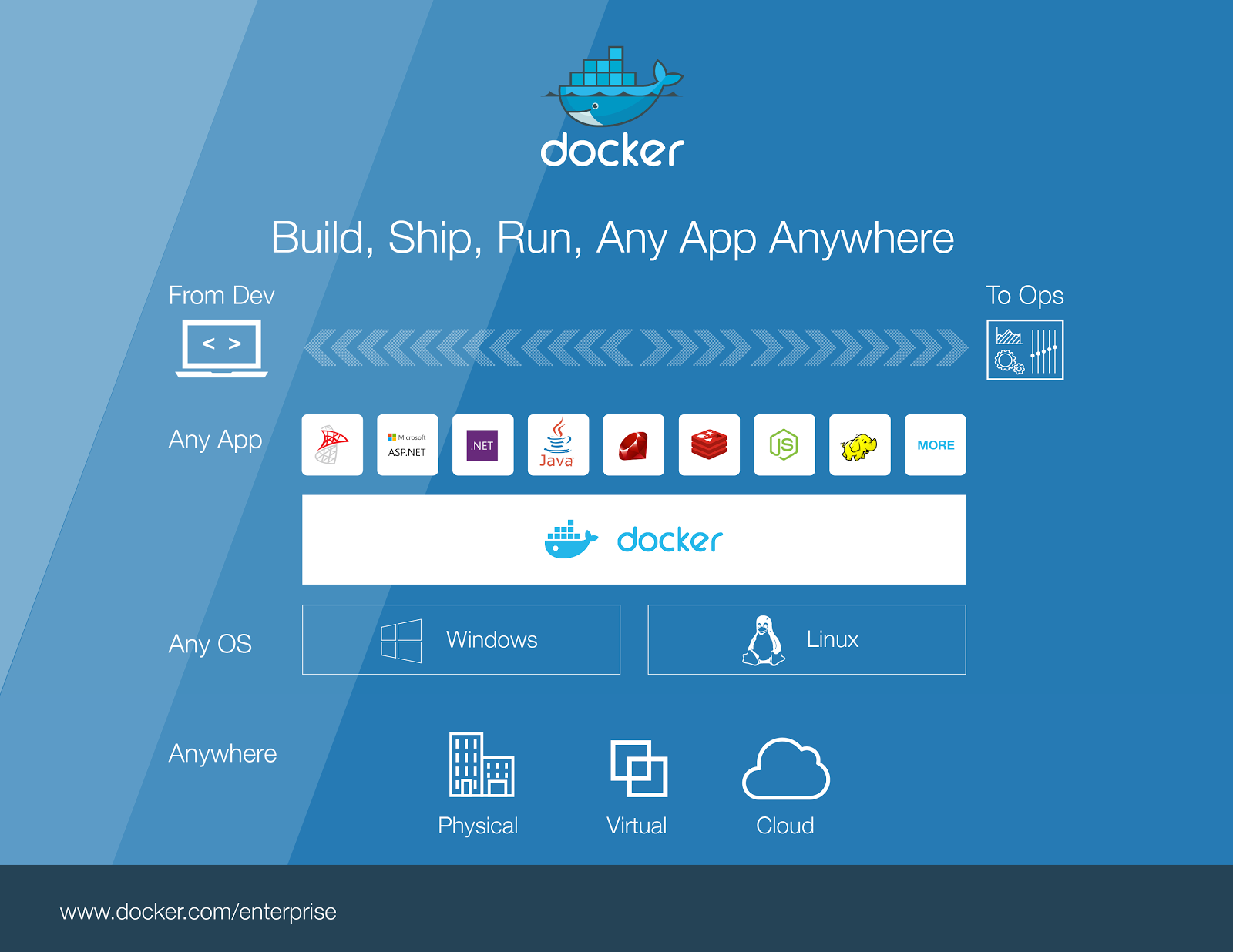
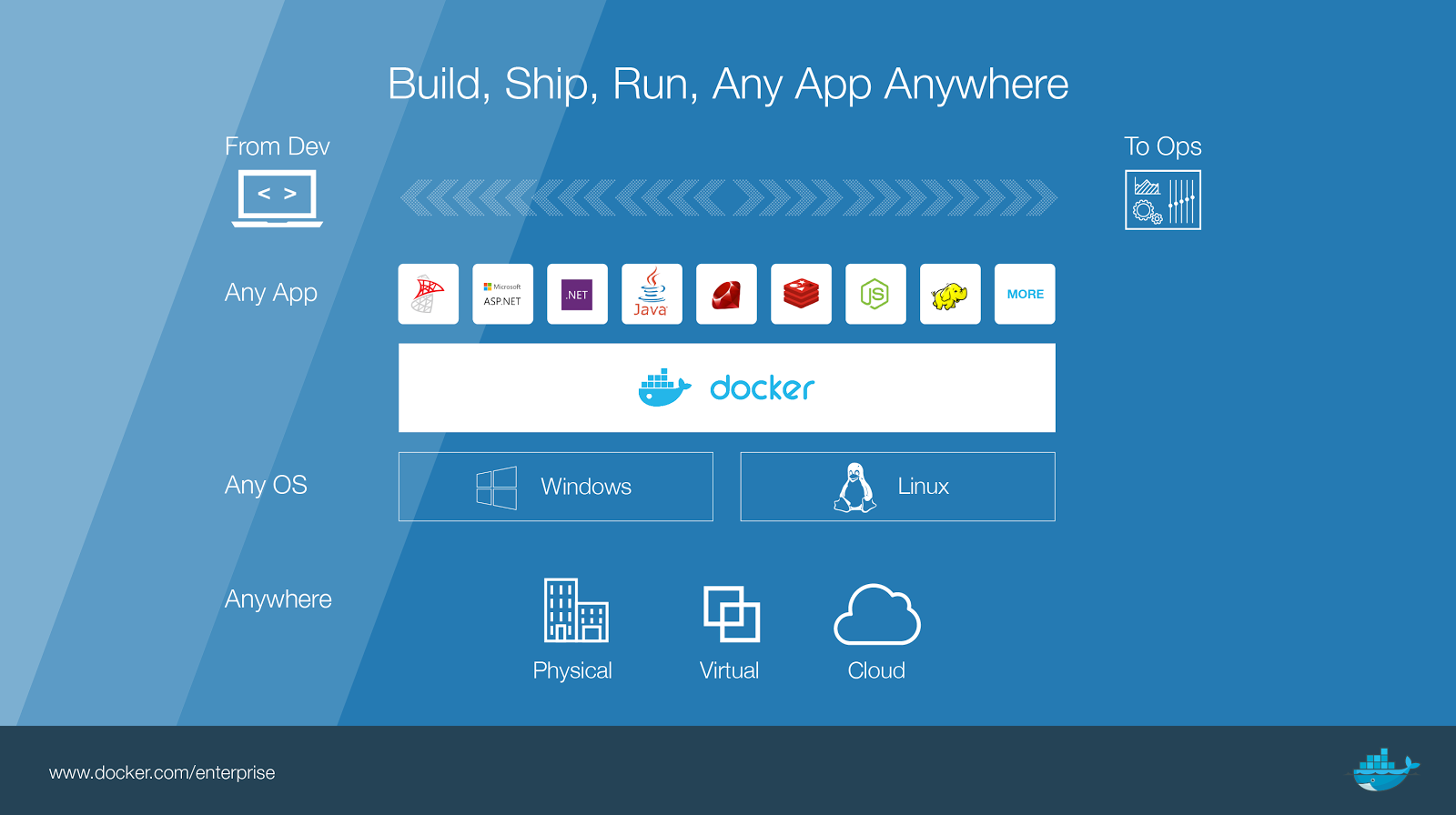
CS Docker Engine and Docker Datacenter for Windows Server represent a major addition that complements several other joint initiatives as depicted above.
 

For developers, the integration of Visual Studio Tools for Docker and Docker for Windows provides complete desktop development environments for building Dockerized Windows apps;
To jumpstart app development, Microsoft has contributed Windows Server container base images and apps to Docker Hub;
For IT pros, Docker Datacenter will be designed to manage Windows Server environments in addition to the Linux environments Datacenter already manages.

Availability
Windows Server 2016 will be generally available in October, when Windows Server 2016 customers will be able to download the first version of the CS Docker Engine. Docker Datacenter for managing Windows Server containerized workloads will be available shortly thereafter.  While the announcements today represent another significant milestone in our partnership, Docker and Microsoft are just getting started.
Check out the below to learn more!

Learn more about Docker on Windows Server
Sign up to be notified of GA and the Docker Datacenter for Windows Beta
Register for a webinar: Docker for Windows Server
Learn more about the Docker and Microsoft partnership

The post Docker Announces Commercial Partnership with Microsoft to Double Container Market by Extending Docker Engine to Windows Server appeared first on Docker Blog.
Quelle: https://blog.docker.com/feed/

Docker Weekly Roundup | September 18, 2016


It’s time for your weekly ! Get caught up on the top news including; how to maintain dev environments for Java web apps, scale with Swarm, and make your CI/CD pipeline work for you. As we begin a new week, let’s recap our top five most-read stories of the week of September 18, 2016:

Debugging Java in Docker tutorial for building a Java web application using containers and three popular Java IDEs: Eclipse, IntelliJ IDEA and Netbeans by Sophia Parafina. 

Orchestration Workshop instructional workshop to scale out an app, operate and go deeper in Docker Swarm by Jerome Petazzoni.  

PiZero Swarm with OTG  detailed explanation on how to build your own PiZero Swarm with OTG networking by Docker Captain Alex Ellis.

Docker-based Workflow Learn how to make your CI/CD pipeline work with these four tips for an effective Docker-based workflow by Docker Captain Adrian Mouat.

Service Discovery in the Swarm Cluster overview of how Docker Engine now acts as a Swarm manager, Swarm worker, and service registry by Docker Captain Viktor Farcic.

Weekly Roundup: Top 5 Docker stories for the week 09/18/16Click To Tweet

The post Docker Weekly Roundup | September 18, 2016 appeared first on Docker Blog.
Quelle: https://blog.docker.com/feed/
Walk, Jog, Run: Getting Smarter About Docker


I’ve spent most of the summer traveling to and speaking at a lot of different trade shows: EMC World, Cisco Live!, VMworld, HP Discover, Dockercon, and LinuxCon (as well as some meetups and smaller gatherings). A lot of the time, I’m speaking to people who are just getting familiar with Docker. They may have read an article or have had someone walk into their office and say “This Docker thing, so hot right now. Go figure it out”.
Certainly there are a number of companies running Docker in production, but there are still many who are asking fundamental questions about what Docker is, and how it can benefit their organization. To help folks out in that regard, I wrote an eBook.
After someone gets a grasp on what Docker is, they tend to want to dive in and start exploring, but often times they aren’t sure how to get started.
My advice (based on the approach I took when I joined Docker last year) is to walk, jog, and then run:
Walk: Decide where you want to run Docker, and install it. This could be Docker for Mac, Docker for Windows, or just installing Docker on Linux. Pick whatever makes the most sense for your environment and load it up.
From there run your first Docker app: hello-world
$ docker run hello-world
After you know you have Docker running, work your way through one of our labs. I’d suggest starting with this beginner lab we have on GitHub.
Jog: You’ve got Docker installed, and you have played with the command line a bit. You’ve probably run a few containers as well. The next step is to try and replicate a commonly deployed application in Docker.
When I started working with Docker the first application I tried to deploy was WordPress. It is a good example because it has a few moving parts (the web front end and a database backend), and there are about a thousand blogs on how to do it. Read a bunch of blogs, and then give it a go.
After WordPress I decided to build a very simple CI pipeline using Jenkins. CI is a great use case for Docker. Docker vastly simplifies your build environments, and, because containers deploy so quickly, customers can see some real time savings as well.
Run: So you’ve been able to stand up someone else’s application, now it’s time to take the next step. Deploy one of your own. Take an existing application, and move it into a container.
This will allow to build your own Dockerfile from scratch, and maybe even a Docker Compose file as well. Try and choose an app with on a few moving parts, and be mindful of things like static configs and port mappings which can add additional complexity.
So download the eBook  and get started walking. If you get stuck, ask for help from the community, or attend a meetup. There are a growing number of Docker experts out there who are always more than willing to lend a hand.

Practical advice to walk, jog, run your way to @Docker expertiseClick To Tweet

 
Here are some helpful links:

Download Docker onto your favorite environment
Check out all the hands on tutorials for Docker and product documentation
Learn more about our latest Docker 1.12 release
Join our community, or attend a meetup or ask a Docker expert for help

The post Walk, Jog, Run: Getting Smarter About Docker appeared first on Docker Blog.
Quelle: https://blog.docker.com/feed/
Announcing the new Docs Repo on GitHub!

By John Mulhausen
The documentation team at Docker is excited to announce that we are consolidating all of our documentation into a single GitHub Pages-based repository on GitHub.
When is this happening?

The new repo is public now at https://github.com/docker/docker.github.io.
During the week of Monday, September 26th, any existing docs PRs need to be migrated over or merged.
We’ll do one last “pull” from the various docs repos on Wednesday, September 28th, at which time the docs/ folders in the various repos will be emptied.
Between the 28th and full cutover, the docs team will be testing the new repo and making sure all is well across every page.
Full cutover (production is drawing from the new repo, new docs work is pointed at the new repo, dissolution of old docs/ folders) is complete on Monday, October 3rd.

The problem with the status quo

Up to now, the docs have been all inside the various project repos, inside folders named “docs/” &; and to see the docs running on your local machine was a pain.
The docs were built around Hugo, which is not natively supported by GitHub, and took minutes to build, and even longer for us to deploy.
Even worse than all that, having the docs siloed by product meant that cross-product documentation was rarely worked on, and things like reusable partials (includes) weren’t being taken advantage of. It was difficult to have visibility into what constituted “docs activity” when pull requests pertained to both code and docs alike.

Why this solution will get us to a much better place

All of the documentation for all of Docker’s projects will now be open source!
It will be easier than ever to contribute to and stage the docs. You can use GitHub Pages’ *.github.io spaces, install Jekyll and run our docs, or just run a Docker command:
git clone https://github.com/docker/docker.github.io.git docs
cd docs
docker run -ti &;rm -v &;$PWD&;:/docs -p 4000:4000 docs/docstage
Doc releases can be done with milestone tags and branches that are super easy to reference, instead of cherry-picked pull requests (PRs) from several repos. If you want to use a particular version of the docs, in perpetuity, it will be easier than ever to retrieve them, and we can offer far more granularity.
Any workflows that require users to use multiple products can be modeled and authored easily, as authors will only have to deal with a single point of reference.
The ability to have “includes” (such as reusable instructions, widgets that enable docs functionality, etc) will be possible for the first time.

What does this mean for open source contributors?
Open source contributors will need to create both a code PR and a docs PR, instead of having all of the work live in one PR. We’re going to work to mitigate any inconvenience:

Continuous integration tests will eventually be able to spot when a code PR is missing docs and provide in-context, useful instructions at the right time that guide contributors on how to spin up a docs PR and link it to the code PR.
We are not going to enforce that a docs PR has to be merged before a code PR is merged, just that a docs PR exists. That means we should be able to merge your code PR just as quickly, if not more so, than in the past.
We will leave README instructions in the repos under their respective docs/ folders that point people to the correct docs repo.
We are adding “edit this page” buttons to every page on the docs so it will be easier than ever to locate what needs to be updated and fix it, right in the browser on GitHub.

We welcome contributors to get their feet wet, start looking at our new repo, and propose changes. We’re making it easier than ever to edit our documentation!
The post Announcing the new Docs Repo on GitHub! appeared first on Docker Blog.
Quelle: https://blog.docker.com/feed/