Running a container in Microsoft Azure Container Instances (ACI) with Docker Desktop Edge

Earlier this month Docker announced our partnership with Microsoft to shorten the developer commute between the desktop and running containers in the cloud. We are excited to announce the first release of the new Docker Azure Container Instances (ACI) experience today and wanted to give you an overview of how you can get started using it.

The new Docker and Microsoft ACI experience allows developers to easily move between working locally and in the Cloud with ACI; using the same Docker CLI experience used today! We have done this by expanding the existing docker context command to now support ACI as a new backend. We worked with Microsoft to target ACI as we felt its performance and ‘zero cost when nothing is running’ made it a great place to jump into running containers in the cloud.

ACI is a Microsoft serverless container solution for running a single Docker container or a service composed of a group of multiple containers defined with a Docker Compose file. Developers can run their containers in the cloud without needing to set up any infrastructure and take advantage of features such as mounting Azure Storage and GitHub repositories as volumes. For production cases, you can leverage Docker commands inside of an automated CI/CD flow.

Thanks to this new ACI context, you can now easily run a single container in Microsoft ACI using the docker run command but also multi-container applications using the docker compose up command.

This new experience is now available as part of Docker Desktop Edge 2.3.2 . To get started, simply download the latest Edge release or update if you are already on Desktop Edge.

Create an ACI context

Once you have the latest version, you will need to get started by logging into an Azure account. If you don’t have one you can sign up for one with $200 of credit for 30 days to try out the experience here. Once you have an account you can get started in the Docker CLI by logging into Azure: 

This will load up the Azure authentication page allowing you to login using your credentials and Multi-Factor Authentication (MFA). Once you have authenticated you will see a login succeeded in the CLI, you are now ready to create your first ACI context. To do this you will need to use the docker context create aci command. You can either pass in an Azure subscription and resource group to the command or use the interactive CLI to choose them, or even create a resource group. For this example I will deploy to my default Resource Group.

My context is then created and I can check this using docker context ls

Single Container Application Example

Before I use this context, I am now going to test my application locally to check everything is working as expected. I am just going to use a very simple web server with a static HTML web page on.

I start by building my image and then running it locally:

Getting ready to run my container on ACI, I now push my image to Dockerhub using docker push bengotch/simplewhale and then change my context using docker context use myacicontext. From that moment, all the subsequent commands we will execute will be run against this ACI context.

I can check no containers are running in my new context using docker ps. Now to run my container on ACI I only need to  repeat the very same  docker run command as earlier. I can see my container is running and use the IP address to access my container running in ACI!

I can now remove my container using docker rm. Note that once the command has been executed, nothing is running on ACI and all resources are removed from ACI – resulting in no ongoing cost.

Multi-Container Application Example

With the new Docker ACI experience we can also deploy multi-container applications using Docker Compose. Let’s take a look at a simple 3 part application with a Java backend, Go frontend and postgres DB:

To start, I swap to my default (local) context and run a docker-compose up to run my app locally. 

I then check to see that I can access it and see it running locally:

Now I swap over to my ACI context using docker context use myacicontext and run my app again. This time I can use the new syntax docker compose up (note the lack of a ‘-’ between docker and compose).

And I can then go and see if this is working using its public IP address:

I have now run both my single container locally and in the cloud, along with running my multi-container app locally and in the cloud – all using the same artifacts and using the same Docker experience that I know and love!

Try out the new experience!

To try out the new experience, download the latest version of Docker Desktop Edge today, you can raise bugs on our beta repo and let us know what other features you would like to see integrated by adding an issue to the Docker Roadmap!
The post Running a container in Microsoft Azure Container Instances (ACI) with Docker Desktop Edge appeared first on Docker Blog.
Quelle: https://blog.docker.com/feed/

Top 5 Questions from “How to become a Docker Power User” session at DockerCon 2020

This is a guest post from Brian Christner. Brian is a Docker Captain since 2016, host of The Byte podcast, and Co-Founder & Site Reliability Engineer at 56K.Cloud. At 56K.Cloud, he helps companies to adapt technologies and concepts like Cloud, Containers, and DevOps. 56K.Cloud is a Technology company from Switzerland focusing on Automation, IoT, Containerization, and DevOps.

It was a fantastic experience hosting my first ever virtual conference session. The commute to my home office was great, and I even picked up a coffee on the way before my session started. No more waiting in lines, queueing for food, or sitting on the conference floor somewhere in a corner to check emails. 

The “DockerCon 2020 that’s a wrap” blog post highlighted my session “How to Become a Docker Power User using VS Code” session was one of the most popular sessions from DockerCon. Docker asked if I could write a recap and summarize some of the top questions that appeared in the chat. Absolutely.

Honestly, I liked the presented/audience interaction more than an in-person conference. Typically, a presenter broadcasts their content to a room full of participants, and if you are lucky and plan your session tempo well enough, you still have 5-10 minutes for Q&A at the end. Even with 5-10 minutes, I find it is never enough time to answer questions, and people always walk away as they have to hurry to the next session.

Virtual Events allow the presenters to answer questions in real-time in the chat. Real-time chat is brilliant as I found a lot more questions were being asked compared to in-person sessions. However, we averaged about 5,500 people online during the session, so the chat became fast and furious with Q&A.  

I quickly summarized the Chat transcript of people saying hello from countries/cities around the world. The chat kicked off with people from around the world chiming in to say “Hello from my home country/city. Just from the chat transcripts and people saying hello, I counted the following:

  Argentina 1  

  Austria 2  

  Belgium 1  

  Brazil 4  

  Canada 3  

  Chile 1  

  Colombia 1  

  Denmark 3  

  France 3  

  Germany 3  

  Greece 2  

  Guatemala 1  

  Italy 1  

  Korea 1  

  Mexico 1  

  My chair 1  

  Netherlands 2  

  Poland 2  

  Portugal 2  

  Saudi Arabia 1  

  South Africa 4  

  Spain 1  

  Switzerland 3  

  UK 3  

  USA 15  

  TOTAL  62 

Top 5 Questions

Based on the Chat transcript, we summarized the top 5 questions/requests.

The number one asked question was for the link to the demo code. VS Code demo Repo – https://github.com/vegasbrianc/vscode-docker-demoDoes VS Code support VIM/Emacs keybindings? Yes, and yes. You can either install the VIM or Emacs keybinding emulation to transform VS Code to your favorite editor keybinding shortcuts.We had several docker-compose questions ranging from can I run X with docker-compose to can I run docker-compose in production. Honestly, you can run docker-compose in production, but it depends on your application and use case. Please have a look at the Docker Voting Application, highlighting the different ways you can run the same application stack. Additionally, docker-compose documentation is an excellent resource.VS Code Debugging – This is a really powerful tool. If you select the Debug option when bootstrapping your project Debug is built in by default. Otherwise, you can add the debug code manually Docker context is one of the latest features to arrive in the VS Code Docker extension. A few questions asked how to setup Docker contexts and how to use it. At the moment, you still need to set up a Docker Context using the terminal. I would highly recommend reading the blog post by Anca Lordache wrote about using Docker Context as it provides a complete end-to-end set up of using Context with remote hosts

Bonus question!

The most requested question during the session is a link to the Cat GIF’s so here you go.

via GIPHY

More Information

That’s a wrap Blog post:- https://www.docker.com/blog/dockercon-2020-and-thats-a-wrap/Become a Docker Power User With Microsoft Visual Studio Code – https://docker.events.cube365.net/docker/dockercon/content/Videos/4YkHYPnoQshkmnc26  Code used in the talk and demo – https://github.com/vegasbrianc/vscode-docker-demoVIM Keybinding – https://marketplace.visualstudio.com/items?itemName=vscodevim.vimEmacs Keybinding – https://marketplace.visualstudio.com/items?itemName=vscodeemacs.emacsDocker Voting Application – https://github.com/dockersamples/example-voting-appdocker-compose documentation – https://docs.docker.com/compose/VS Code Debug – https://code.visualstudio.com/docs/containers/debug-commonHow to deploy on remote Docker hosts with docker-compose – https://www.docker.com/blog/how-to-deploy-on-remote-docker-hosts-with-docker-compose/

Additional links mentioned during the session

2020 Stackoverflow Survey – https://insights.stackoverflow.com/survey/2020#technology-most-loved-dreaded-and-wanted-platforms-loved5VS Code Containers overview documentation – https://code.visualstudio.com/docs/containers/overviewAwesome VS Code List – https://code.visualstudio.com/docs/containers/overviewCompose Spec – https://www.compose-spec.io/

Find out more about 56K.Cloud

We love Cloud, IoT, Containers, DevOps, and Infrastructure as Code. If you are interested in chatting connect with us on Twitter or drop us an email: info@56K.Cloud. We hope you found this article helpful. If there is anything you would like to contribute or you have questions, please let us know!
The post Top 5 Questions from “How to become a Docker Power User” session at DockerCon 2020 appeared first on Docker Blog.
Quelle: https://blog.docker.com/feed/

Containerize Your Go Developer Environment – Part 3

In this series of blog posts, we show how to put in place an optimized containerized Go development environment. In part 1, we explained how to start a containerized development environment for local Go development, building an example CLI tool for different platforms. Part 2 covered how to add Go dependencies, caching for faster builds and unit tests. This third and final part is going to show you how to add a code linter, a GitHub Action CI, and some extra build optimizations.

Adding a linter

We’d like to automate checking for good programming practices as much as possible so let’s add a linter to our setup. First step is to modify the Dockerfile:

# syntax = docker/dockerfile:1-experimentalFROM –platform=${BUILDPLATFORM} golang:1.14.3-alpine AS base WORKDIR /src ENV CGO_ENABLED=0 COPY go.* . RUN go mod download COPY . .FROM base AS build ARG TARGETOS ARG TARGETARCH RUN –mount=type=cache,target=/root/.cache/go-build   GOOS=${TARGETOS} GOARCH=${TARGETARCH} go build -o /out/example .FROM base AS unit-test RUN –mount=type=cache,target=/root/.cache/go-build   go test -v .FROM golangci/golangci-lint:v1.27-alpine AS lint-base
FROM base AS lintCOPY –from=lint-base /usr/bin/golangci-lint /usr/bin/golangci-lintRUN –mount=type=cache,target=/root/.cache/go-build   –mount=type=cache,target=/root/.cache/golangci-lint   golangci-lint run –timeout 10m0s ./…FROM scratch AS bin-unix COPY –from=build /out/example / …

We now have a lint-base stage that is an alias for the golangci-lint image which contains the linter that we would like to use. We then have a lint stage that runs the lint, mounting a cache to the correct place.

As for the unit tests, we can add a lint rule to our Makefile for linting. We can also alias the test rule to run the linter and unit tests:

all: bin/example test: lint unit-testPLATFORM=local.PHONY: bin/example bin/example:    @docker build . –target bin     –output bin/     –platform ${PLATFORM}.PHONY: unit-test unit-test:    @docker build . –target unit-test.PHONY: lint lint:    @docker build . –target lint

Adding a CI

Now that we’ve containerized our development platform, it’s really easy to add CI for our project. We only need to run our docker build or make commands from the CI script. To demonstrate this, we’ll use GitHub Actions. To set this up, we can use the following .github/workflows/ci.yaml file:

name: Continuous Integrationon: [push]jobs:  ci:    name: CI    runs-on: ubuntu-latest    env:       DOCKER_BUILDKIT: “1”    steps:     – name: Checkout code       uses: actions/checkout@v2     – name: Run linter       run: make lint     – name: Run unit tests       run: make unit-test     – name: Build Linux binary       run: make PLATFORM=linux/amd64     – name: Build Windows binary       run: make PLATFORM=windows/amd64

Notice that the commands we run on the CI are identical to those that we use locally and that we don’t need to do any toolchain configuration as everything is already defined in the Dockerfile!

One last optimization

Performing a COPY will create an extra layer in the container image which slows things down and uses extra disk space. This can be avoided by using RUN –mount and bind mounting from the build context, from a stage, or an image. Adopting this pattern, the resulting Dockerfile is as follows:

# syntax = docker/dockerfile:1-experimentalFROM –platform=${BUILDPLATFORM} golang:1.14.3-alpine AS base WORKDIR /src ENV CGO_ENABLED=0 COPY go.* . RUN go mod downloadFROM base AS build ARG TARGETOS ARG TARGETARCH RUN –mount=target=.   –mount=type=cache,target=/root/.cache/go-build   GOOS=${TARGETOS} GOARCH=${TARGETARCH} go build -o /out/example .FROM base AS unit-test RUN –mount=target=.   –mount=type=cache,target=/root/.cache/go-build   go test -v .FROM golangci/golangci-lint:v1.27-alpine AS lint-base
FROM base AS lintRUN–mount=target=.   –mount=from=lint-base,src=/usr/bin/golangci-lint,target=/usr/bin/golangci-lint   –mount=type=cache,target=/root/.cache/go-build   –mount=type=cache,target=/root/.cache/golangci-lint   golangci-lint run –timeout 10m0s ./…
FROM scratch AS bin-unix COPY –from=build /out/example /FROM bin-unix AS bin-linuxFROM bin-unix AS bin-darwinFROM scratch AS bin-windows
COPY –from=build /out/example /example.exeFROM bin-${TARGETOS} AS bin

The default mount type is a read only bind mount from the context that you pass with the docker build command. This means that you can replace the COPY . . with a RUN –mount=target=. wherever you need the files from your context to run a command but do not need them to persist in the final image.

Instead of separating the Go module download, we could remove this and just use a cache mount for /go/pkg/mod.

Conclusion

This series of posts showed how to put in place an optimized containerized Go development environment and then how to use this same environment on the CI. The only dependencies for those who would like to develop on such a project are Docker and make– the latter being optionally replaced by another scripting language.

You can find the source for this example on my GitHub: https://github.com/chris-crone/containerized-go-dev

You can read more about the experimental Dockerfile syntax here: https://github.com/moby/buildkit/blob/master/frontend/dockerfile/docs/experimental.md

If you’re interested in build at Docker, take a look at the Buildx repository: https://github.com/docker/buildx
The post Containerize Your Go Developer Environment – Part 3 appeared first on Docker Blog.
Quelle: https://blog.docker.com/feed/

DockerCon 2020: The Microsoft Sessions

This is the second post of our series of blog articles focusing on the key developer content that we are curating from DockerCon LIVE 2020. Increasingly, we are seeing more and more developers targeting Microsoft architectures and Azure for their containerized application deployments. Microsoft has always had a rich set of developer tools including VS Code and GitHub that work with Docker tools. 

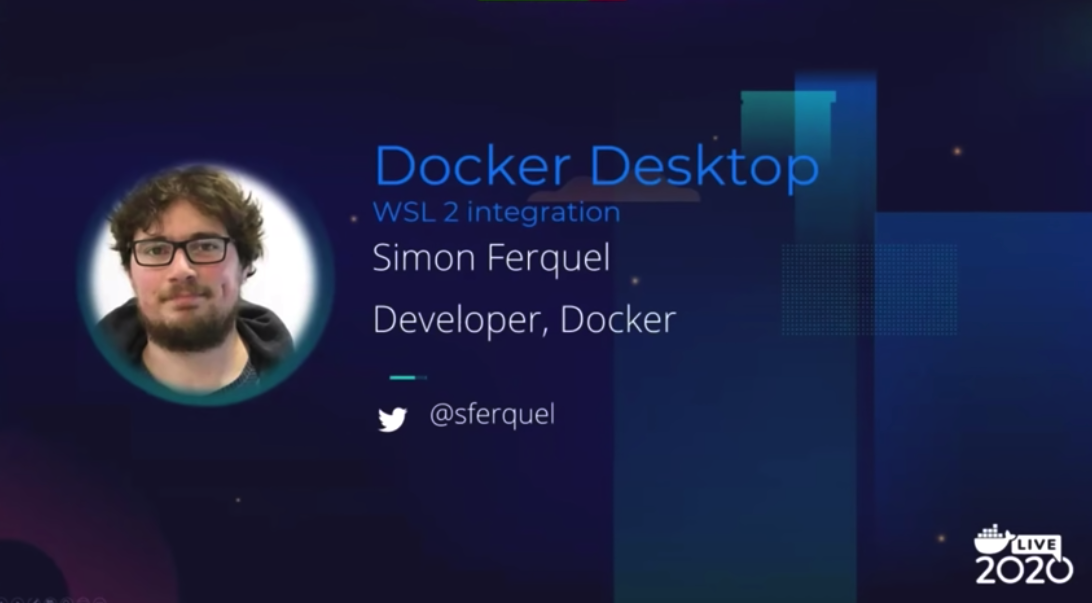
One of the biggest developments for developers using Windows 10 is the release of WSL 2 (Windows Subsystem for Linux). Instead of using a translation layer to convert Linux kernel calls into Windows calls, WSL 2 now offers its own isolated Linux kernel running on a thin version of the Hyper-V hypervisor. Check out Simon Ferquel’s session on WSL 2 as well as Paul Yuknewicz’s session on apps running in Azure. Be sure to check out these valuable sessions on using Docker with Microsoft tools and technologies.

Docker Desktop + WSL 2 Integration Deep Dive

Simon Ferquel – Docker

Simon’s session provides a deep dive on how Docker Desktop on Windows works with WSL 2 to provide a better developer experience. This presentation will give you a better understanding of how Docker Desktop and WSL 2 architectures fit together and the challenges we faced with the integration.

Become a Docker Power User with Microsoft Visual Studio Code

Brian Christner – 56K.Cloud

Docker Captain, Brian Christner, does an excellent job on showing you how to unlock the full potential of using Microsoft Visual Studio Code (VS Code) and Docker Desktop to turn you into a Docker Power User. He covers and expands on utilizing the VS Code Docker plugin to take your project and Docker skills to the next level. This session has some very good demos including learning how to bootstrap new projects, quickly write Dockerfiles utilizing templates, build, run, and interact with containers all from VS Code.

From Fortran on the Desktop to Kubernetes in the Cloud: A Windows Migration Story

Elton Stoneman – Sixeyed Consulting

Elton is a Docker Captain and a Microsoft Azure MVP. Moving legacy Windows apps to the cloud is a very hot topic amongst IT shops that are looking to some obvious approaches to modernization. Elton walks through the processes and practicalities of taking an older Windows app, making it run in containers with Kubernetes, and then building a simple API wrapper to host the whole stack as a cloud-based SaaS product. 

Deep Dive: Developing Containerized Apps for Azure

Paul Yuknewicz – Microsoft

Join Paul from the MS product team for a closer look into building modern cloud applications using VS Code, Docker Desktop, WSL2 and more. In this demo-rich session, Paul talks about how containers make modern applications better, the stages of moving to the cloud, and covers developer tools needed including sneak peaks of future Microsoft tools that enhance developer productivity. 

If you are ready to get started with Docker, we offer free plans for individual developers and teams just starting out. Get started with Docker today.

The post DockerCon 2020: The Microsoft Sessions appeared first on Docker Blog.
Quelle: https://blog.docker.com/feed/

Please Don’t Evict My Pod; Part 1

gist.github.com – It was the second day of the long weekend; I was watching Money Heist on Netflix (a good one to watch, free recommendation by a human), and in-between, I got the slack notification on one channel, “I…
Quelle: news.kubernauts.io


