Containerized Python Development – Part 1

Developing Python projects in local environments can get pretty challenging if more than one project is being developed at the same time. Bootstrapping a project may take time as we need to manage versions, set up dependencies and configurations for it. Before, we used to install all project requirements directly in our local environment and then focus on writing the code. But having several projects in progress in the same environment becomes quickly a problem as we may get into configuration or dependency conflicts. Moreover, when sharing a project with teammates we would need to also coordinate our environments. For this we have to define our project environment in such a way that makes it easily shareable. 

A good way to do this is to create isolated development environments for each project. This can be easily done by using containers and  Docker Compose to manage them.  We cover this in a series of blog posts, each one with a specific focus.

This first part covers how to containerize a Python service/tool and the best practices for it.

Requirements

To easily exercise what we discuss in this blog post series, we need to install a minimal set of tools required to manage containerized environments locally:

Windows or macOS: Install Docker DesktopLinux: Install Docker and then Docker Compose

Containerize a Python service

We show how to do this with a simple Flask service such that we can run it standalone without needing  to set up other components.

server.pyfrom flask import Flask
server = Flask(__name__)@server.route(“/”) def hello():    return “Hello World!”if __name__ == “__main__”:   server.run()

In order to run this program, we need to make sure we have all the required dependencies installed first. One way to manage dependencies is by using a package installer such as pip. For this we need to create a requirements.txt file and write the dependencies in it. An example of such a file for our simple server.py is the following:

requirements.txtFlask==1.1.1

We have now the following structure:

app
├─── requirements.txt
└─── src     └─── server.py

We create a dedicated directory for the source code to isolate it from other configuration files. We will see later why we do this.

To execute our Python program, all is left to do is to install a Python interpreter and run it. 

We could run this program locally. But, this goes against the purpose of containerizing our development which is to keep a clean standard development environment that allows us to easily switch between projects with different conflicting requirements.

Let’s have a look next on how we can easily containerize this Python service.

Dockerfile 

The way to get our Python code running in a container is to pack it as a Docker image and then run a container based on it. The steps are sketched below.

To generate a Docker image we need to create a Dockerfile which contains instructions needed to build the image. The Dockerfile is then processed by the Docker builder which generates the Docker image. Then, with a simple docker run command, we create and run a container with the Python service.

Analysis of a Dockerfile

An example of a Dockerfile containing instructions for assembling a Docker image for our hello world Python service is the following:

Dockerfile# set base image (host OS)FROM python:3.8# set the working directory in the containerWORKDIR /code# copy the dependencies file to the working directoryCOPY requirements.txt .
# install dependenciesRUN pip install -r requirements.txt# copy the content of the local src directory to the working directoryCOPY src/ .# command to run on container startCMD [ “python”, “./server.py” ]

For each instruction or command from the Dockerfile, the Docker builder generates an image layer and stacks it upon the previous ones. Therefore, the Docker image resulting from the process is simply a read-only stack of different layers.

We can also observe in the output of the build command the Dockerfile instructions being executed as steps.

$ docker build -t myimage .
Sending build context to Docker daemon 6.144kB
Step 1/6 : FROM python:3.8
3.8.3-alpine: Pulling from library/python

Status: Downloaded newer image for python:3.8.3-alpine
—> 8ecf5a48c789
Step 2/6 : WORKDIR /code
—> Running in 9313cd5d834d
Removing intermediate container 9313cd5d834d
—> c852f099c2f9
Step 3/6 : COPY requirements.txt .
—> 2c375052ccd6
Step 4/6 : RUN pip install -r requirements.txt
—> Running in 3ee13f767d05

Removing intermediate container 3ee13f767d05
—> 8dd7f46dddf0
Step 5/6 : COPY ./src .
—> 6ab2d97e4aa1
Step 6/6 : CMD python server.py
—> Running in fbbbb21349be
Removing intermediate container fbbbb21349be
—> 27084556702b
Successfully built 70a92e92f3b5
Successfully tagged myimage:latest

Then, we can check the image is in the local image store:

$ docker images
REPOSITORY    TAG       IMAGE ID        CREATED          SIZE
myimage       latest    70a92e92f3b5    8 seconds ago    991MB

During development, we may need to rebuild the image for our Python service multiple times and we want this to take as little time as possible. We analyze next some best practices that may help us with this.

Development Best Practices for Dockerfiles

We focus now on best practices for speeding up the development cycle. For production-focused ones, this blog post and the docs cover them in more details.

Base Image

The first instruction from the Dockerfile specifies the base image on which we add new layers for our application. The choice of the base image is pretty important as the features it ships may impact the quality of the layers built on top of it. 

When possible, we should always use official images which are in general frequently updated and may have less security concerns.

The choice of a base image can impact the size of the final one. If we prefer size over other considerations, we can use some of the base images of a very small size and low overhead. These images are usually based on the alpine distribution and are tagged accordingly. However, for Python applications, the slim variant of the official Docker Python image works well for most cases (eg. python:3.8-slim).

Instruction order matters for leveraging build cache

When building an image frequently, we definitely want to use the builder cache mechanism to speed up subsequent builds.  As mentioned previously, the Dockerfile instructions are executed in the order specified. For each instruction, the builder checks first its cache for an image to reuse. When a change in a layer is detected, that layer and all the ones coming after are being rebuilt.

For an efficient use of the caching mechanism , we need to place the instructions for layers that change frequently after the ones that incur less changes.

Let’s check our Dockerfile example to understand how the instruction order impacts caching. The interesting lines are the ones below.

…# copy the dependencies file to the working directoryCOPY requirements.txt .# install dependenciesRUN pip install -r requirements.txt
# copy the content of the local src directory to the working directoryCOPY src/ ….

During development, our application’s dependencies change less frequently than the Python code. Because of this, we choose to install the dependencies in a layer preceding the code one. Therefore we copy the dependencies file and install them and then we copy the source code. This is the main reason why we isolated the source code to a dedicated directory in our project structure.

Multi-stage builds 

Although this may not be really useful during development time, we cover it quickly as it is interesting for shipping the containerized Python application once development is done. 

What we seek in using multi-stage builds is to strip the final application image of all unnecessary files and software packages and to deliver only the files needed to run our Python code.  A quick example of a multi-stage Dockerfile for our previous example is the following:

# first stage
FROM python:3.8 AS builder
COPY requirements.txt .
# install dependencies to the local user directory (eg. /root/.local)
RUN pip install –user -r requirements.txt
# second unnamed stage
FROM python:3.8-slim
WORKDIR /code
# copy only the dependencies installation from the 1st stage image
COPY –from=builder /root/.local/bin /root/.local
COPY ./src .
# update PATH environment variable
ENV PATH=/root/.local:$PATH
CMD [ “python”, “./server.py” ]

Notice that we have a two stage build where we name only the first one as builder. We name a stage by adding an AS <NAME> to the FROM instruction and we use this name in the COPY instruction where we want to copy only the necessary files to the final image.

The result of this is a slimmer final image for our application:

$ docker images REPOSITORY    TAG      IMAGE ID       CREATED         SIZE
myimage       latest   70a92e92f3b5   2 hours ago     991MB
multistage    latest   e598271edefa   6 minutes ago   197MB

In this example we relied on the pip’s  –user  option to install dependencies to the local user directory and copy that directory to the final image. There are however other solutions available such as virtualenv or building packages as wheels and copy and install them to the final image.

Run the container

After writing the Dockerfile and building the image from it,  we can run the container with our Python service.

$ docker images REPOSITORY   TAG      IMAGE ID       CREATED       SIZE
myimage      latest   70a92e92f3b5   2 hours ago   991MB

$ docker ps
CONTAINER ID   IMAGE   COMMAND   CREATED   STATUS   PORTS   NAMES
$ docker run -d -p 5000:5000 myimage
befb1477c1c7fc31e8e8bb8459fe05bcbdee2df417ae1d7c1d37f371b6fbf77f

We now containerized our hello world server and we can query the port mapped to localhost.

$ docker psCONTAINER     ID        IMAGE        COMMAND        PORTS                   …befb1477c1c7  myimage   “/bin/sh -c  ‘python …”   0.0.0.0:5000->5000/tcp  …$ curl http://localhost:5000″Hello World!”

What’s next?

This post showed how to containerize a Python service for a better development experience. Containerization not only provides deterministic results easily reproducible on other platforms but also avoids dependency conflicts and enables us to keep a clean standard development environment. A containerized development environment is easy to manage and share with other developers as it can be easily deployed without any change to their  standard environment.  

In the next post of this series, we will show how to set up a container-based multi-service project where the Python component is connected to other external ones and how to manage the lifecycle of all these project components with Docker Compose.

Resources

Best practices for writing Dockerfileshttps://docs.docker.com/develop/develop-images/dockerfile_best-practices/https://www.docker.com/blog/speed-up-your-development-flow-with-these-dockerfile-best-practices/Docker Desktop https://docs.docker.com/desktop/
The post Containerized Python Development – Part 1 appeared first on Docker Blog.
Quelle: https://blog.docker.com/feed/

How To Deploy Containers to Azure ACI using Docker CLI and Compose

Running containers in the cloud can be hard and confusing. There are so many options to choose from and then understanding how all the different clouds work from virtual networks to security. Not to mention orchestrators. It’s a learning curve to say the least.

At Docker we are making the Developer Experience (DX) more simple. As an extension of that we want to provide the same beloved Docker experience that developers use daily and integrate it with the cloud. Microsoft’s Azure ACI provided an awesome platform to do just that.

In this tutorial, we take a look at running single containers and multiple containers with Compose in Azure ACI. We’ll walk you through setting up your docker context and even simplifying logging into Azure. At the end of this tutorial, you will be able to use familiar Docker commands to deploy your applications into your own Azure ACI account.

Prerequisites

To complete this tutorial, you will need:

Docker installed on your development machine. You can download and install Docker Desktop Edge version 2.3.3.0 or later from the links below:Docker Desktop for MacDocker Desktop for WindowsDocker Hub account. Get your free account here.An Azure account. Sign up for free.Git installed on your development machine.An IDE or text editor to use for editing files. I would recommend VSCode

Run Docker Container on ACI

The integration with Azure ACI is very similar to working with local containers. The development teams have thought very deeply about the developer experience and have tried to make the UX for working with ACI as close as possible to working with local containers.

Let’s run a simple Nginx web server on Azure ACI.

Log into Azure

You do not need to have the Azure CLI installed on your machine to run Docker images in ACI. Docker takes care of everything.

The first thing you need to do is to login to Azure.

$ docker login azure

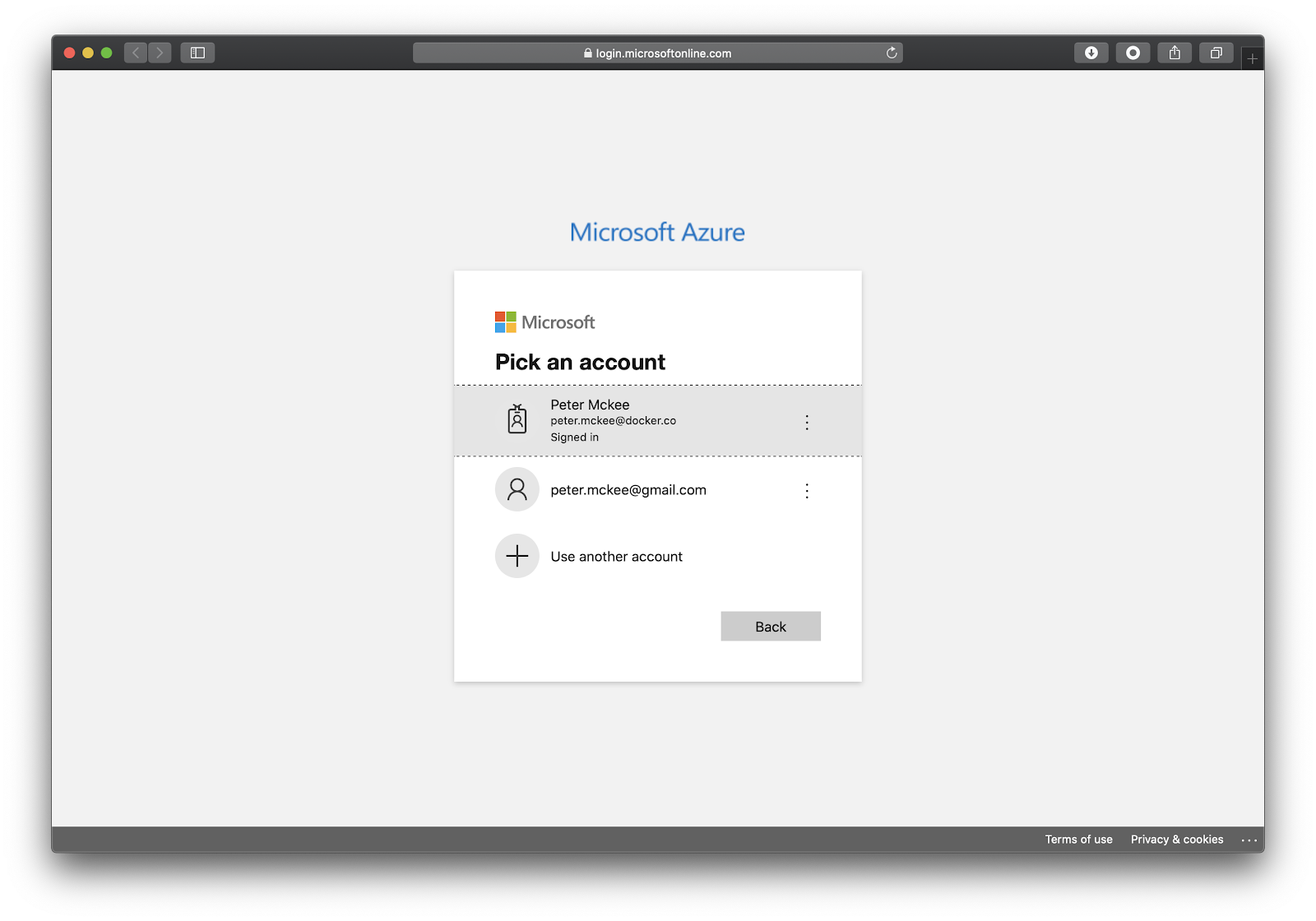
This will open a browser window which will allow you to login to Azure.

Select your account and login. Once you are logged in, you can close the browser window.

Azure ACI Context

Docker has the concept of a context. You can think of a context as a place where you can run docker containers.It’s a little more complicated than this but this is a good enough description for now. In this tutorial, we use our local context and the new ACI context.

Let’s first take a look at what contexts we currently have on our local development machine. Run the following command to see a list of contexts.

$ docker context list

NAME                TYPE                DESCRIPTION           DOCKER ENDPOINT               KUBERNETES ENDPOINT     ORCHESTRATOR

default *           moby                Current DOCKER_HOST based configuration   unix:///var/run/docker.sock   https://kubernetes.docker.internal:6443 (default)   swarm

Depending on if you have already created another context, you should only see one context. This is the default context that points to your local Docker engine labeled as “moby”. You can identify the current context that will be used for docker commands by the “*” beside the name of the active context.

Now let’s create an ACI context that we can run containers with. We’ll use the create aci command to create our context. 

Let’s take a look at the help for creating an aci context.

$ docker context create aci –help

Create a context for Azure Container Instances

Usage:

 docker context create aci CONTEXT [flags]

Flags:

      –description string       Description of the context

  -h, –help                     help for aci

      –location string          Location (default “eastus”)

      –resource-group string    Resource group

      –subscription-id string   Location

Global Flags:

      –config DIRECTORY   Location of the client config files DIRECTORY (default “/Users/peter/.docker”)

  -c, –context string     context

  -D, –debug              enable debug output in the logs

  -H, –host string        Daemon socket(s) to connect to

Underneath the Flags section of the help, you can see that we have the option to set the location, resource-group, and subscription-id.

You can pass these flags into the create command. If you do not, the docker cli will ask you these questions in interactive mode. Let’s do that now.

$ docker context create aci myaci

The first thing the cli will ask is what subscription you would like to use. If you only have one then docker will use that one.

Using only available subscription : Azure subscription 1 (b3c07e4a-774e-4d8a-b071-xxxxxxxxxxxx)

Now we need to select the resource group we want to use. You can either choose one that has been previously created or choose “create a new resource group”. I’ll choose to create a new one.

Resource group “c3eea3e7-69d3-4b54-83cb-xxxxxxxxxxxx” (eastus) created

Okay, our aci context is set up. Let’s list our contexts.

$ docker context list

You should see the ACI context you just created.

Run Containers on ACI

Now that we have our ACI context set up, we can now run containers in the cloud. There are two ways to tell Docker which context you want your commands to be applied to. 

The first is to pass the –context flag. The other is to tell Docker which context we want to use with all subsequent commands by switching contexts. For now, let’s use the –context flag.

$ docker –context myaci run -d –name web -p 80:80 nginx[+] Running 2/2 ⠿ web Created                                                                            ⠿ single–container–aci  Done                                                                                web

Here you can see that Docker interacted with ACI and created a container instance named “web” and started a single instance.

Open your Azure portal and navigate to container instances.

We can also run Docker CLI commands that you are already familiar with such as ps and logs.

Switch Contexts

Let’s take a look at our running containers. But before we do that let’s switch our active context to the ACI context we setup above so we do not have to keep typing –context with every command.

$ docker context use myaci

Now let’s run the ps command without passing the –context flag.

$ docker psCONTAINER ID        IMAGE               COMMAND             STATUS              PORTSweb                 nginx                                   Running             52.224.73.190:80->80/tcp

Nice, since we told Docker to use the myaci context, we see a list of containers running in our Azure account and not on our local machine.

Let’s make sure our container is running. Copy the IP address of the container from the above ps output and paste it into your browser address bar. You can see our Nginx web server running!

Like I mentioned above, we can also take a look at the container’s logs. 

$ docker logs web

To stop and remove the container, run the following command.

$ docker rm web

BOOM!

That was pretty easy and the integration is smooth. With a few docker commands that you are already familiar with and a couple new ones, we were able to run a container in ACI from our development machine pretty quickly and simply.

But we’re not done!

Docker Compose

We can also run multiple containers using Docker Compose. With the ACI integration, we now have the ability to run compose commands from the docker cli against ACI. Let’s do that next.

Fork the Code Repository

I’m using a simple Python Flask application that logs timestamps to a Redis database. Let’s fork the repository and then clone the git repository to your local machine.

Open your favorite browser and navigate to: https://github.com/pmckeetx/timestamper

Click on the “fork” button in the top right corner of the window. This will make a “copy” of the demo repository into your GitHub account.

On your forked version of the repository, click the green “Code” button and copy the github url.

Open up a terminal on your local machine and run the following git command to clone the repository to your local development machine.

Make sure you replace the <<github username>> with your GitHub username.

git clone git@github.com:<<github username>>/timestamper.git

Build and Run Locally

Make sure you are in the root directory for the timestamper project and follow the following steps to build the images and start the application with Docker Compose.

First we need to add your Docker ID to the image in our docker-compose.yml file. Open the docker-compose.yml file in an editor and replace <<username>> with your Docker ID.

Next, we need to make sure we are using the local Docker context.

$ docker context use default

Now we can build and start our application using docker-compose.

$ docker-compose up –buildBuilding frontendStep 1/7 : FROM python:3.7-alpine —> 6ca3e0b1ab69Step 2/7 : WORKDIR /app…frontend_1  |  * Running on http://0.0.0.0:5000/ (Press CTRL+C to quit)frontend_1  |  * Restarting with statfrontend_1  |  * Debugger is active!frontend_1  |  * Debugger PIN: 622-764-646

Docker will build our timestamper image and then run the Redis database and our timestamper containers.

Navigate to http://localhost:5000 and click the Timestamp! button a couple of times.

Compose on ACI

Now let’s run our application on ACI using the new docker compose integration.

We’ll first need to push our image to Docker Hub so ACI can pull the image and run it. Run the following command to push your image to your Docker Hub account.

$ docker-compose pushPushing frontend (pmckee/timestamper:latest)…The push refers to repository [docker.io/pmckee/timestamper]6e899582609b: Pushed…50644c29ef5a: Layer already existslatest: digest: sha256:3ce2607f101a381b36beeb0ca1597cce9925d17a0f826cac0f7e0365386a3042 size: 2201

Now that our image is on Hub, we can use compose to run the application on ACI.

First let’s switch to our ACI context.

$ docker context use myaci

Remember, to see a list of contexts and which is being used, you can run the list contexts command.

$ docker context list

Okay, now that we are using the ACI context, let’s start our application in the cloud.

$ docker compose up[+] Running 3/3 ⠿ timestamper  Created⠿ frontend     Done⠿ backend      Done

Let’s verify that our application is up and running. To get the IP address of our frontend, let’s list our running containers.

$ docker psCONTAINER ID           IMAGE                COMMAND             STATUS              PORTStimestamper_frontend   pmckee/timestamper                       Running             40.71.234.128:5000->5000/tcptimestamper_backend    redis:alpine                             Running

Copy the IP address and port listed above and paste into your favorite browser.

Let’s take a look at the logs for our Redis container.

$ docker logs timestamper_backend

1:C 13 Jul 2020 18:21:12.044 # oO0OoO0OoO0Oo Redis is starting oO0OoO0OoO0Oo…1:M 13 Jul 2020 18:21:12.046 # Server initialized1:M 13 Jul 2020 18:21:12.047 * Ready to accept connections

Yes, sir! That is a Redis container running in ACI! Pretty cool.

After you play around a bit, you can take down the compose application by running compose down.

$ docker compose down

Conclusion

We saw how simple it is now to run a single container or run multiple containers using Compose on Azure with our ACI integration. If you want to help influence or suggest features, you can do that on our public Roadmap.

If you want to learn more about Compose and all the cool things that are happening around the OpenSource initiative, please checkout Awesome Compose and the OpenSource Compose specification. 
The post How To Deploy Containers to Azure ACI using Docker CLI and Compose appeared first on Docker Blog.
Quelle: https://blog.docker.com/feed/

Minimum Viable Kubernetes

eevans.co – If you’re reading this, chances are good that you’ve heard of Kubernetes. (If you haven’t, how exactly did you end up here?) But what actually is Kubernetes? Is it “Production-Grade Container Orchest…
Quelle: news.kubernauts.io

Migrating from GKE to CloudRun

medium.com – GKE is one of the wonderful service offerings from Google cloud. However, just that your services or functionalities are dockerized, does not mean that GKE should be the only choice of runtime to ach…
Quelle: news.kubernauts.io

From Docker Straight to AWS

Just about six years ago to the day Docker hit the first milestone for Docker Compose, a simple way to layout your containers and their connections. A talks to B, B talks to C, and C is a database. Fast forward six years and the container ecosystem has become complex.  New managed container services have arrived bringing their own runtime environments, CLIs, and configuration languages. This complexity serves the needs of the operations teams who require fine grained control, but carries a high price for developers.

One thing has remained constant over this time is that developers love the simplicity of Docker and Compose. This led us to ask, why do developers now have to choose between simple and powerful? Today, I am excited to finally be able to talk about the result of what we have been working on for over a year to provide developers power and simplicity from desktop to the cloud using Compose. Docker is expanding our strategic partnership with Amazon and integrating the Docker experience you already know and love with Amazon Elastic Container Service (ECS) with AWS Fargate. Deploying straight from Docker straight to AWS has never been easier.

Today this functionality is being made available as a beta UX using docker ecs to drive commands. Later this year when the functionality becomes generally available this will become  part of our new Docker Contexts and will allow you to  just run docker run and docker compose.

To learn more about what we are building together with Amazon go read Carmen Puccio’s post over at the Amazon Container blog. After that register for the Amazon Cloud Container Conference and come see Carmen and my session at 3:45 PM Pacific.

We are extremely excited for you to try out the public beta starting right now. In order to get started, you can sign up for a Docker ID, or use your existing Docker ID, and download the latest version of Docker Desktop Edge 2.3.3.0 which includes the new experience. You can also head straight over to the GitHub repository which will include the conference session’s demo you can follow along. We are excited for you to try it out, report issues and let us know what other features you would like to see on the Roadmap!
The post From Docker Straight to AWS appeared first on Docker Blog.
Quelle: https://blog.docker.com/feed/

From Docker Straight to AWS

Just about six years ago to the day Docker hit the first milestone for Docker Compose, a simple way to layout your containers and their connections. A talks to B, B talks to C, and C is a database. Fast forward six years and the container ecosystem has become complex.  New managed container services have arrived bringing their own runtime environments, CLIs, and configuration languages. This complexity serves the needs of the operations teams who require fine grained control, but carries a high price for developers.

One thing has remained constant over this time is that developers love the simplicity of Docker and Compose. This led us to ask, why do developers now have to choose between simple and powerful? Today, I am excited to finally be able to talk about the result of what we have been working on for over a year to provide developers power and simplicity from desktop to the cloud using Compose. Docker is expanding our strategic partnership with Amazon and integrating the Docker experience you already know and love with Amazon Elastic Container Service (ECS) with AWS Fargate. Deploying straight from Docker straight to AWS has never been easier.

Today this functionality is being made available as a beta UX using docker ecs to drive commands. Later this year when the functionality becomes generally available this will become  part of our new Docker Contexts and will allow you to  just run docker run and docker compose.

To learn more about what we are building together with Amazon go read Carmen Puccio’s post over at the Amazon Container blog. After that register for the Amazon Cloud Container Conference and come see Carmen and my session at 3:45 PM Pacific.

We are extremely excited for you to try out the public beta starting right now. In order to get started, you can sign up for a Docker ID, or use your existing Docker ID, and download the latest version of Docker Desktop Edge 2.3.3.0 which includes the new experience. You can also head straight over to the GitHub repository which will include the conference session’s demo you can follow along. We are excited for you to try it out, report issues and let us know what other features you would like to see on the Roadmap!
The post From Docker Straight to AWS appeared first on Docker Blog.
Quelle: https://blog.docker.com/feed/



