Getting Started with Offload: Automating Everyday Workflows with Docker
Every developer eventually hits a wall with their local machine. Maybe it’s training an AI model that drains your CPU, compiling a massive codebase that makes your fan sound like a jet engine, or simply trying to run GPU workloads on a laptop that doesn’t have one. The result is the same: slow builds, limited resources, and wasted time.
Docker Offload was built to solve exactly that problem. Instead of forcing you to upgrade your hardware or spend days setting up cloud infrastructure, Offload extends your existing Docker workflow into the cloud. You keep using the same docker build and docker run commands you already know — but behind the scenes, the heavy lifting happens on powerful, cloud-hosted machines (including GPUs).
Think of it as a turbo button for Docker: the same developer experience, just supercharged.
Docker Offload is a fully managed service that lets you execute Docker builds and run containers in the cloud while maintaining your familiar local development experience.It provides on-demand cloud infrastructure for fast, consistent builds and compute-intensive workloads like running LLMs, machine learning pipelines, and GPU-accelerated applications.This is ideal if you want to leverage cloud resources or if your local machine doesn’t meet the hardware requirements to run the model locally.
Why use Docker Offload
Docker Offload is designed to support modern development teams working across local and cloud environments. It helps you:
Offload heavy builds and runs to fast, scalable infrastructure
Accelerate feedback loops in development and testing
Run containers that require more resources than your local setup can provide
Use Docker Compose to manage complex, multi-service apps that need cloud resources
Docker Offload is ideal for high-velocity development workflows that need the flexibility of the cloud without sacrificing the simplicity of local tools.
How to get started
Step 1: Sign up and subscribe to Docker Offload for access
To access Docker Offload, you must sign up and subscribe.
Step 2: Start Docker Offload
Start Docker Desktop and sign in with your account.
Open a terminal and run the following command to start Docker Offload:
$ docker offload start
When prompted, select your Docker account to use for Docker Offload. This account will consume credits for your Docker Offload usage.
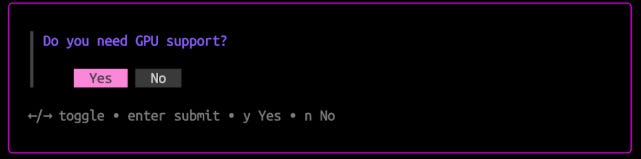
When prompted, select whether to enable GPU support. If you choose to enable GPU support, Docker Offload will run in an instance with an NVIDIA L4 GPU, which is useful for machine learning or compute-intensive workloads.
NoteEnabling GPU support consumes more budget. For more details, see Docker Offload usage.
Step 3: Run a container with Docker Offload
After starting Docker Offload, Docker Desktop connects to a secure cloud environment that mirrors your local experience. When you run builds or containers, they execute remotely, but behave just like local ones.
To verify that Docker Offload is working, run a container:
$ docker run –rm hello-world
If you enabled GPU support, you can also run a GPU-enabled container:
$ docker run –rm –gpus all hello-world
If Docker Offload is working, you’ll see Hello from Docker! in the terminal output.
Step 4: Stop Docker Offload
When you’re done using Docker Offload, you can stop it, which will stop a budget consumption, however after a few minutes the offload worker will be completely disposed. When stopped, you get back to building images and running containers locally.
$ docker offload stop
To start Docker Offload again, run the docker offload start command.
Save money
Docker Offload runs your builds remotely, not on the machine where you invoke the build. This means that files must be transferred from your local system to the cloud over the network.
Transferring files over the network introduces higher latency and lower bandwidth compared to local transfers. To reduce these effects, Docker Offload includes several performance optimizations:
It uses attached storage volumes for build cache, which makes reading and writing cache fast.
When pulling build results back to your local machine, it only transfers files that changed since the previous build.
Even with these optimizations, large projects or slower network connections can lead to longer transfer times. Here are several ways to optimize your build setup for Docker Offload:
Use .dockerignore files
Choose slim base images
Use multi-stage builds
Fetch remote files during the build
Leverage multi-threaded tools
For general Dockerfile tips, see Building best practices.
Quelle: https://blog.docker.com/feed/








