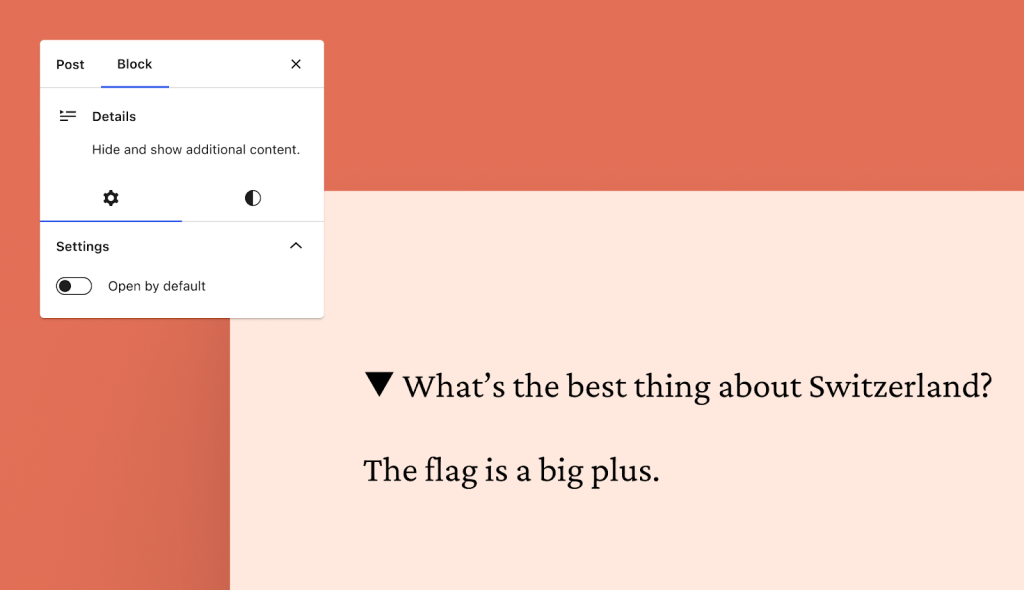
Introducing Footnotes, Details Block, and Writing Flow Improvements

The team at WordPress is always working to enhance your writing and publishing experience, whether adding brand-new features or fixing bugs and minor inconveniences. The latest round of updates includes a feature you’ve long been asking for, a new block, and a few improvements to the general flow and convenience of publishing. 

Let’s take a look! 

Hide content with the new Details Block 

The new Details Block features a drop-down arrow that reveals hidden information when clicked. This block provides a way to hide content that some readers might not want or need to see — detailed event information, fine print notices, methodology or research notes, spoilers for books and movies, even the punchline to a joke. It’s basically a way for readers to opt-in to viewing some bit of content. 

We’ve been using the Details Block internally at WordPress.com for ages, and we’re excited that it’s now been brought outside our digital office walls. 

Source your work or add context with footnotes

You’ve been asking for footnotes, and we’re glad to let you know that this feature is now available in the editor! 

To add a footnote: 

Click the small “More” arrow in the action bar that appears while editing a post/page, just to the right of the link icon.

Select “Footnote” at the top. 

From there, your cursor will automatically move to the footnote for you to add a reference or comment. 

Improve your writing flow with these small changes 

In addition to the new Details Block and Footnotes function, we’ve made a few small improvements to the overall writing flow that will make your writing and editing a bit smoother. 

“View post” button added 

It used to take multiple clicks from the editor to view published posts or pages. This inconvenience has been remedied with a new button at the top of the editor. When you click it you’ll be taken to the published post/page in a new tab. 

“Switch to draft” button moved 

This button has been placed next to the “Move to trash” button on the right sidebar. When you click “Switch to draft,” a confirmation box will appear asking you if you’re sure about un-publishing the post/page. 

“Preview” button enhanced 

The preview button has been streamlined and enhanced so that the icon displayed matches the device you’re previewing. “Desktop” mode, the default, displays a laptop icon while “Tablet” and “Mobile” display those respective devices. 

Are there other features that would your writing, editing, and publishing experience even better? Let us know in the comments!
Quelle: RedHat Stack

Optimizing Deep Learning Workflows: Leveraging Stable Diffusion and Docker on WSL 2

Deep learning has revolutionized the field of artificial intelligence (AI) by enabling machines to learn and generate content that mimics human-like creativity. One advancement in this domain is Stable Diffusion, a text-to-image model released in 2022. 

Stable Diffusion has gained significant attention for its ability to generate highly detailed images conditioned on text descriptions, thereby opening up new possibilities in areas such as creative design, visual storytelling, and content generation. With its open source nature and accessibility, Stable Diffusion has become a go-to tool for many researchers and developers seeking to harness the power of deep learning. 

In this article, we will explore how to optimize deep learning workflows by leveraging Stable Diffusion alongside Docker on WSL 2, enabling seamless and efficient experimentation with this cutting-edge technology.

In this comprehensive guide, we will walk through the process of setting up the Stable Diffusion WebUI Docker, which includes enabling WSL 2 and installing Docker Desktop. You will learn how to download the required code from GitHub and initialize it using Docker Compose. 

The guide provides instructions on adding additional models and managing the system, covering essential tasks such as reloading the UI and determining the ideal location for saving image output. Troubleshooting steps and tips for monitoring hardware and GPU usage are also included, ensuring a smooth and efficient experience with Stable Diffusion WebUI (Figure 1).

Figure 1: Stable Diffusion WebUI.

Why use Docker Desktop for Stable Diffusion?

In the realm of image-based generative AI, setting up an effective execution and development environment on a Windows PC can present particular challenges. These challenges arise due to differences in software dependencies, compatibility issues, and the need for specialized tools and frameworks. Docker Desktop emerges as a powerful solution to tackle these challenges by providing a containerization platform that ensures consistency and reproducibility across different systems.

By leveraging Docker Desktop, we can create an isolated environment that encapsulates all the necessary components and dependencies required for image-based generative AI workflows. This approach eliminates the complexities associated with manual software installations, conflicting library versions, and system-specific configurations.

Using Stable Diffusion WebUI

The Stable Diffusion WebUI is a browser interface that is built upon the Gradio library, offering a convenient way to interact with and explore the capabilities of Stable Diffusion. Gradio is a powerful Python library that simplifies the process of creating interactive interfaces for machine learning models.

Setting up the Stable Diffusion WebUI environment can be a tedious and time-consuming process, requiring multiple steps for environment construction. However, a convenient solution is available in the form of Stable Diffusion WebUI Docker project. This Docker image eliminates the need for manual setup by providing a preconfigured environment.

If you’re using Windows and have Docker Desktop installed, you can effortlessly build and run the environment using the docker-compose command. You don’t have to worry about preparing libraries or dependencies beforehand because everything is encapsulated within the container.

You might wonder whether there are any problems because it’s a container. I was anxious before I started using it, but I haven’t had any particular problems so far. The images, models, variational autoencoders (VAEs), and other data that are generated are shared (bind mounted) with my Windows machine, so I can exchange files simply by dragging them in Explorer or in the Files of the target container on Docker Desktop. 

The most trouble I had was when I disabled the extension without backing it up, and in a moment blew away about 50GB of data that I had spent half a day training. (This is a joke!)

Architecture

I’ve compiled a relatively simple procedure to start with Stable Diffusion using Docker Desktop on Windows. 

Prerequisites:

Windows 10 Pro, 21H2 Build 19044.2846

16GB RAM

NVIDIA GeForce RTX 2060 SUPER

WSL 2 (Ubuntu)

Docker Desktop 4.18.0 (104112)

Setup with Docker Compose

We will use the WebUI called AUTOMATIC1111 to utilize Stable Diffusion this time. The environment for these will be constructed using Docker Compose. The main components are shown in Figure 2.

Figure 2: Configuration built using Docker Compose.

The configuration of Docker Compose is defined in docker-compose.yml. We are using a Compose extension called x-base_service to describe the major components common to each service.

To start, there are settings for bind mount between the host and the container, including /data, which loads modes, and /output, which outputs images. Then, we make the container recognize the GPU by loading the NVIDIA driver.

Furthermore, the service named sd-auto:58 runs AUTOMATIC1111, WebUI for Stable Diffusion, within the container. Because there is a port mapping (TCP:7860), between the host and the container in the aforementioned common service settings, it is possible to access from the browser on the host side to the inside of the container.

Getting Started

Prerequisite

WSL 2 must be activated and Docker Desktop installed.

On the first execution, it downloads 12GB of Stable Diffusion 1.5 models, etc. The Web UI cannot be used until this download is complete. Depending on your connection, it may take a long time until the first startup.

Downloading the code

First, download the Stable Diffusion WebUI Docker code from GitHub. If you download it as a ZIP, click Code > Download ZIP and the stable-diffusion-webui-docker-master.zip file will be downloaded (Figure 3). 

Unzip the file in a convenient location. When you expand it, you will find a folder named stable-diffusion-webui-docker-master. Open the command line or similar and run the docker compose command inside it.

Figure 3: Downloading the configuration for Docker Compose from the repository.

Or, if you have an environment where you can use Git, such as Git for Windows, it’s quicker to download it as follows:

git clone https://github.com/AbdBarho/stable-diffusion-webui-docker.git

In this case, the folder name is stable-diffusion-webui-docker. Move it with cd stable-diffusion-webui-docker.

Supplementary information for those familiar with Docker

If you just want to get started, you can skip this section.

By default, the timezone is UTC. To adjust the time displayed in the log and the date of the directory generated under output/txt2img to Japan time, add TZ=Asia/Tokyo to the environment variables of the auto service. Specifically, add the following description to environment:.

auto: &automatic
<<: *base_service
profiles: ["auto"]
build: ./services/AUTOMATIC1111
image: sd-auto:51
environment:
– CLI_ARGS=–allow-code –medvram –xformers –enable-insecure-extension-access –api
– TZ=Asia/Tokyo

Tasks at first startup

The rest of the process is as described in the GitHub documentation. Inside the folder where the code is expanded, run the following command:

docker compose –profile download up –build

After the command runs, the log of a container named webui-docker-download-1 will be displayed on the screen. For a while, the download will run as follows, so wait until it is complete:

webui-docker-download-1 | [DL:256KiB][#4561e1 1.4GiB/3.9GiB(36%)][#42c377 1.4GiB/3.9GiB(37%)]

If the process ends successfully, it will be displayed as exited with code 0 and returned to the original prompt:

…(snip)
webui-docker-download-1 | https://github.com/xinntao/Real-ESRGAN/blob/master/LICENSE
webui-docker-download-1 | https://github.com/xinntao/ESRGAN/blob/master/LICENSE
webui-docker-download-1 | https://github.com/cszn/SCUNet/blob/main/LICENSE
webui-docker-download-1 exited with code 0

If a code other than 0 comes out like the following, the download process has failed:

webui-docker-download-1 | 42c377|OK | 426KiB/s|/data/StableDiffusion/sd-v1-5-inpainting.ckpt
webui-docker-download-1 |
webui-docker-download-1 | Status Legend:
webui-docker-download-1 | (OK):download completed.(ERR):error occurred.
webui-docker-download-1 |
webui-docker-download-1 | aria2 will resume download if the transfer is restarted.
webui-docker-download-1 | If there are any errors, then see the log file. See ‘-l’ option in help/m
an page for details.
webui-docker-download-1 exited with code 24

In this case, run the command again and check whether it ends successfully. Once it finishes successfully, run the command to start the WebUI. 

Note: The following is for AUTOMATIC1111’s UI and GPU specification:

docker compose –profile auto up –build

When you run the command, loading the model at the first startup may take a few minutes. It may look like it’s frozen like the following display, but that’s okay:

webui-docker-auto-1 | LatentDiffusion: Running in eps-prediction mode
webui-docker-auto-1 | DiffusionWrapper has 859.52 M params.

If you wait for a while, the log will flow, and the following URL will be displayed:

webui-docker-auto-1 | Running on local URL: http://0.0.0.0:7860

Now the startup preparation of the Web UI is set. If you open http://127.0.0.1:7860 from the browser, you can see the Web UI. Once open, select an appropriate model from the top left of the screen, write some text in the text field, and select the Generate button to start generating images (Figure 4).

Figure 4: After selecting the model, input the prompt and generate the image.

When you click, the button will be reversed. Wait until the process is finished (Figure 5).

Figure 5: Waiting until the image is generated.

At this time, the log of image generation appears on the terminal you are operating, and you can also check the similar display by looking at the log of the container on Docker Desktop (Figure 6).

Figure 6: 100% indicates that the image generation is complete.

When the status reaches 100%, the generation of the image is finished, and you can check it on the screen (Figure 7).

Figure 7: After inputting “Space Cat” in the prompt, a cat image was generated at the bottom right of the screen.

The created images are automatically saved in the output/txt2img/date folder directly under the directory where you ran the docker compose command.

To stop the launched WebUI, enter Ctrl+C on the terminal that is still running the docker compose command.

Gracefully stopping… (press Ctrl+C again to force)
Aborting on container exit…
[+] Running 1/1
? Container webui-docker-auto-1 Stopped 11.4s
canceled

When the process ends successfully, you will be able to run the command again. To use the WebUI again after restarting, re-run the docker compose command:

docker compose –profile auto up –build

To see the operating hardware status, use the task manager to look at the GPU status (Figure 8).

Figure 8: From the Performance tab of the Windows Task Manager, you can monitor the processing of CUDA and similar tasks on the GPU.

To check whether the GPU is visible from inside the container and to see whether the information comes out, run the nvidia-smi command from docker exec or the Docker Desktop terminal.

root@e37fcc5a5810:/stable-diffusion-webui# nvidia-smi
Mon Apr 17 07:42:27 2023
+—————————————————————————————+
| NVIDIA-SMI 530.41.03 Driver Version: 531.41 CUDA Version: 12.1 |
|—————————————–+———————-+———————-+
| GPU Name Persistence-M| Bus-Id Disp.A | Volatile Uncorr. ECC |
| Fan Temp Perf Pwr:Usage/Cap| Memory-Usage | GPU-Util Compute M. |
| | | MIG M. |
|=========================================+======================+======================|
| 0 NVIDIA GeForce RTX 2060 S… On | 00000000:01:00.0 On | N/A |
| 42% 40C P8 6W / 175W| 2558MiB / 8192MiB | 2% Default |
| | | N/A |
+—————————————–+———————-+———————-+
+—————————————————————————————+
| Processes: |
| GPU GI CI PID Type Process name GPU Memory |
| ID ID Usage |
|=======================================================================================|
| 0 N/A N/A 149 C /python3.10 N/A |
+—————————————————————————————+

Adding models and VAEs

If you download a model that is not included from the beginning, place files with extensions, such as .safetensors in stable-diffusion-webui-dockerdataStableDiffusion. In the case of VAE, place .skpt files in stable-diffusion-webui-dockerdataVAE.

If you’re using Docker Desktop, you can view and operate inside on the Files of the webui-docker-auto-1 container, so you can also drag it into Docker Desktop. 

Figure 9 shows the Docker Desktop screen. It says MOUNT in the Note column, and it shares the information in the folder with the container from the Windows host side.

Figure 9: From the Note column, you can see whether the folder is mounted or has been modified.

Now, after placing the file, a link to Reload UI is shown in the footer of the WebUI, so select there (Figure 10).

Figure 10: By clicking Reload UI, the WebUI settings are reloaded.

When you select Reload UI, the system will show a loading screen, and the browser connection will be cut off. When you reload the browser, the model and VAE files are automatically loaded. To remove a model, delete the model file from dataStableDiffusion.

Conclusion

With Docker Desktop, image generation using the latest generative AI environment can be done easier than ever. Typically, a lot of time and effort is required just to set up the environment, but Docker Desktop solves this complexity. If you’re interested, why not take a challenge in the world of generative AI? Enjoy!

Learn more

Get the latest release of Docker Desktop.

Have questions? The Docker community is here to help.

New to Docker? Get started.

Quelle: https://blog.docker.com/feed/

How Kinsta Improved the End-to-End Development Experience by Dockerizing Every Step of the Production Cycle

Guest author Amin Choroomi is an experienced software developer at Kinsta. Passionate about Docker and Kubernetes, he specializes in application development and DevOps practices. His expertise lies in leveraging these transformative technologies to streamline deployment processes and enhance software scalability.

One of the biggest challenges of developing and maintaining cloud-native applications at the enterprise level is having a consistent experience through the entire development lifecycle. This process is even harder for remote companies with distributed teams working on different platforms, with different setups, and asynchronous communication. 

At Kinsta, we have projects of all sizes for application hosting, database hosting, and managed WordPress hosting. We need to provide a consistent, reliable, and scalable solution that allows:

Developers and quality assurance teams, regardless of their operating systems, to create a straightforward and minimal setup for developing and testing features.

DevOps, SysOps, and Infrastructure teams to configure and maintain staging and production environments.

Overcoming the challenge of developing cloud-native applications on a distributed team

At Kinsta, we rely heavily on Docker for this consistent experience at every step, from development to production. In this article, we’ll walk you through:

How to leverage Docker Desktop to increase developers’ productivity.

How we build Docker images and push them to Google Container Registry via CI pipelines with CircleCI and GitHub Actions.

How we use CD pipelines to promote incremental changes to production using Docker images, Google Kubernetes Engine, and Cloud Deploy.

How the QA team seamlessly uses prebuilt Docker images in different environments.

Using Docker Desktop to improve the developer experience

Running an application locally requires developers to meticulously prepare the environment, install all the dependencies, set up servers and services, and make sure they are properly configured. When you run multiple applications, this approach can be cumbersome, especially when it comes to complex projects with multiple dependencies. And, when you introduce multiple contributors with multiple operating systems, chaos is installed. To prevent this, we use Docker.

With Docker, you can declare the environment configurations, install the dependencies, and build images with everything where it should be. Anyone, anywhere, with any OS can use the same images and have exactly the same experience as anyone else.

Declare your configuration with Docker Compose

To get started, you need to create a Docker Compose file, docker-compose.yml. This is a declarative configuration file written in YAML format that tells Docker your application’s desired state. Docker uses this information to set up the environment for your application.

Docker Compose files come in handy when you have more than one container running and there are dependencies between containers.

To create your docker-compose.yml file:

Start by choosing an image as the base for our application. Search on Docker Hub to find a Docker image that already contains your app’s dependencies. Make sure to use a specific image tag to avoid errors. Using the latest tag can cause unforeseen errors in your application. You can use multiple base images for multiple dependencies — for example, one for PostgreSQL and one for Redis.

Use volumes to persist data on your host if you need to. Persisting data on the host machine helps you avoid losing data if Docker containers are deleted or if you have to recreate them.

Use networks to isolate your setup to avoid network conflicts with the host and other containers. It also helps your containers to find and communicate with each other easily.

Bringing it all together, we have a docker-compose.yml that looks like this:

“`yaml
version: ‘3.8’

services:
db:
image: postgres:14.7-alpine3.17
hostname: mk_db
restart: on-failure
ports:
– ${DB_PORT:-5432}:5432
volumes:
– db_data:/var/lib/postgresql/data
environment:
POSTGRES_USER: ${DB_USER:-user}
POSTGRES_PASSWORD: ${DB_PASSWORD:-password}
POSTGRES_DB: ${DB_NAME:-main}
networks:
– mk_network
redis:
image: redis:6.2.11-alpine3.17
hostname: mk_redis
restart: on-failure
ports:
– ${REDIS_PORT:-6379}:6379
networks:
– mk_network

volumes:
db_data:

networks:
mk_network:
name: mk_network
“`

Containerize the application

Build a Docker image for your application

To begin, we need to build a Docker image using a Dockerfile, and then call that from docker-compose.yml.

Follow these five steps to create your Dockerfile file:

1. Start by choosing an image as a base. Use the smallest base image that works for the app. Usually, alpine images are minimal with nearly zero extra packages installed. You can start with an alpine image and build on top of that:

“`docker
FROM node:18.15.0-alpine3.17
“`

2. Sometimes you need to use a specific CPU architecture to avoid conflicts. For example, suppose that you use an arm64-based processor but you need to build an amd64 image. You can do that by specifying the — platform in Dockerfile:

“`docker
FROM –platform=amd64 node:18.15.0-alpine3.17
“`

3. Define the application directory and install the dependencies and copy the output to your root directory:

“`docker
WORKDIR /opt/app
COPY package.json yarn.lock ./
RUN yarn install
COPY . .
“`

4. Call the Dockerfile from docker-compose.yml:

“`yaml
services:
…redis
…db

app:
build:
context: .
dockerfile: Dockerfile
platforms:
– "linux/amd64"
command: yarn dev
restart: on-failure
ports:
– ${PORT:-4000}:${PORT:-4000}
networks:
– mk_network
depends_on:
– redis
– db
“`

5. Implement auto-reload so that when you change something in the source code, you can preview your changes immediately without having to rebuild the application manually. To do that, build the image first, then run it in a separate service:

“`yaml
services:
… redis
… db

build-docker:
image: myapp
build:
context: .
dockerfile: Dockerfile
app:
image: myapp
platforms:
– "linux/amd64"
command: yarn dev
restart: on-failure
ports:
– ${PORT:-4000}:${PORT:-4000}
volumes:
– .:/opt/app
– node_modules:/opt/app/node_modules
networks:
– mk_network
depends_on:
– redis
– db
– build-docker

volumes:
node_modules:
“`

Pro tip: Note that node_modules is also mounted explicitly to avoid platform-specific issues with packages. This means that, instead of using the node_modules on the host, the Docker container uses its own but maps it on the host in a separate volume.

Incrementally build the production images with continuous integration 

The majority of our apps and services use CI/CD for deployment, and Docker plays an important role in the process. Every change in the main branch immediately triggers a build pipeline through either GitHub Actions or CircleCI. The general workflow is simple: It installs the dependencies, runs the tests, builds the Docker image, and pushes it to Google Container Registry (or Artifact Registry). In this article, we’ll describe the build step.

Building the Docker images

We use multi-stage builds for security and performance reasons.

Stage 1: Builder

In this stage, we copy the entire code base with all source and configuration, install all dependencies, including dev dependencies, and build the app. It creates a dist/ folder and copies the built version of the code there. This image is way too large, however, with a huge set of footprints to be used for production. Also, as we use private NPM registries, we use our private NPM_TOKEN in this stage as well. So, we definitely don’t want this stage to be exposed to the outside world. The only thing we need from this stage is the dist/ folder.

Stage 2: Production

Most people use this stage for runtime because it is close to what we need to run the app. However, we still need to install production dependencies, and that means we leave footprints and need the NPM_TOKEN. So, this stage is still not ready to be exposed. Here, you should also note the yarn cache clean on line 19. That tiny command cuts our image size by up to 60 percent.

Stage 3: Runtime

The last stage needs to be as slim as possible with minimal footprints. So, we just copy the fully baked app from production and move on. We put all those yarn and NPM_TOKEN stuff behind and only run the app.

This is the final Dockerfile.production:

“`docker
# Stage 1: build the source code
FROM node:18.15.0-alpine3.17 as builder
WORKDIR /opt/app
COPY package.json yarn.lock ./
RUN yarn install
COPY . .
RUN yarn build

# Stage 2: copy the built version and build the production dependencies FROM node:18.15.0-alpine3.17 as production
WORKDIR /opt/app
COPY package.json yarn.lock ./
RUN yarn install –production && yarn cache clean
COPY –from=builder /opt/app/dist/ ./dist/

# Stage 3: copy the production ready app to runtime
FROM node:18.15.0-alpine3.17 as runtime
WORKDIR /opt/app
COPY –from=production /opt/app/ .
CMD ["yarn", "start"]
“`

Note that, for all the stages, we start copying package.json and yarn.lock files first, installing the dependencies, and then copying the rest of the code base. The reason for this is that Docker builds each command as a layer on top of the previous one, and each build could use the previous layers if available and only build the new layers for performance purposes. 

Let’s say you have changed something in src/services/service1.ts without touching the packages. That means the first four layers of the builder stage are untouched and could be reused. This approach makes the build process incredibly faster.

Pushing the app to Google Container Registry through CircleCI pipelines

There are several ways to build a Docker image in CircleCI pipelines. In our case, we chose to use circleci/gcp-gcr orbs:

Minimum configuration is needed to build and push our app, thanks to Docker.

“`yaml
executors:
docker-executor:
docker:
– image: cimg/base:2023.03
orbs:
gcp-gcr: circleci/gcp-gcr@0.15.1
jobs:

deploy:
description: Build & push image to Google Artifact Registry
executor: docker-executor
steps:

– gcp-gcr/build-image:
image: my-app
dockerfile: Dockerfile.production
tag: ${CIRCLE_SHA1:0:7},latest
– gcp-gcr/push-image:
image: my-app
tag: ${CIRCLE_SHA1:0:7},latest
“`

Pushing the app to Google Container Registry through GitHub Actions

As an alternative to CircleCI, we can use GitHub Actions to deploy the application continuously.

We set up gcloud and build and push the Docker image to gcr.io:

“`yaml
jobs:
setup-build:
name: Setup, Build
runs-on: ubuntu-latest

steps:
– name: Checkout
uses: actions/checkout@v3

– name: Get Image Tag
run: |
echo "TAG=$(git rev-parse –short HEAD)" >> $GITHUB_ENV

– uses: google-github-actions/setup-gcloud@master
with:
service_account_key: ${{ secrets.GCP_SA_KEY }}
project_id: ${{ secrets.GCP_PROJECT_ID }}

– run: |-
gcloud –quiet auth configure-docker

– name: Build
run: |-
docker build
–tag "gcr.io/${{ secrets.GCP_PROJECT_ID }}/my-app:$TAG"
–tag "gcr.io/${{ secrets.GCP_PROJECT_ID }}/my-app:latest"
.

– name: Push
run: |-
docker push "gcr.io/${{ secrets.GCP_PROJECT_ID }}/my-app:$TAG"
docker push "gcr.io/${{ secrets.GCP_PROJECT_ID }}/my-app:latest"
“`

With every small change pushed to the main branch, we build and push a new Docker image to the registry.

Deploying changes to Google Kubernetes Engine using Google Delivery Pipelines

Having ready-to-use Docker images for each and every change also makes it easier to deploy to production or roll back in case something goes wrong. We use Google Kubernetes Engine to manage and serve our apps, and we use Google Cloud Deploy and Delivery Pipelines for our continuous deployment process.

When the Docker image is built after each small change (with the CI pipeline shown previously), we take one step further and deploy the change to our dev cluster using gcloud. Let’s look at that step in CircleCI pipeline:

“`yaml
– run:
name: Create new release
command: gcloud deploy releases create release-${CIRCLE_SHA1:0:7} –delivery-pipeline my-del-pipeline –region $REGION –annotations commitId=$CIRCLE_SHA1 –images my-app=gcr.io/${PROJECT_ID}/my-app:${CIRCLE_SHA1:0:7}
“`

This step triggers a release process to roll out the changes in our dev Kubernetes cluster. After testing and getting the approvals, we promote the change to staging and then production. This action is all possible because we have a slim isolated Docker image for each change that has almost everything it needs. We only need to tell the deployment which tag to use.

How the Quality Assurance team benefits from this process

The QA team needs mostly a pre-production cloud version of the apps to be tested. However, sometimes they need to run a prebuilt app locally (with all the dependencies) to test a certain feature. In these cases, they don’t want or need to go through all the pain of cloning the entire project, installing npm packages, building the app, facing developer errors, and going over the entire development process to get the app up and running.

Now that everything is already available as a Docker image on Google Container Registry, all the QA team needs is a service in Docker compose file:

“`yaml
services:
…redis
…db

app:
image: gcr.io/${PROJECT_ID}/my-app:latest
restart: on-failure
ports:
– ${PORT:-4000}:${PORT:-4000}
environment:
– NODE_ENV=production
– REDIS_URL=redis://redis:6379
– DATABASE_URL=postgresql://${DB_USER:-user}:${DB_PASSWORD:-password}@db:5432/main
networks:
– mk_network
depends_on:
– redis
– db
“`

With this service, the team can spin up the application on their local machines using Docker containers by running:

“`shell
docker compose up
“`

With this service, the team can spin up the application on their local machines using Docker containers by running:

“`shell
docker compose up
“`

This is a huge step toward simplifying testing processes. Even if QA decides to test a specific tag of the app, they can easily change the image tag on line 6 and re-run the Docker compose command. Even if they decide to compare different versions of the app simultaneously, they can easily achieve that with a few tweaks. The biggest benefit is to keep our QA team away from developer challenges.

Advantages of using Docker

Almost zero footprints for dependencies: If you ever decide to upgrade the version of Redis or PostgreSQL, you can just change one line and re-run the app. There’s no need to change anything on your system. Additionally, if you have two apps that both need Redis (maybe even with different versions) you can have both running in their own isolated environment, without any conflicts with each other.

Multiple instances of the app: There are many cases where we need to run the same app with a different command, such as initializing the DB, running tests, watching DB changes, or listening to messages. In each of these cases, because we already have the built image ready, we just add another service to the Docker compose file with a different command, and we’re done.

Easier testing environment: More often than not, you just need to run the app. You don’t need the code, the packages, or any local database connections. You only want to make sure the app works properly, or need a running instance as a backend service while you’re working on your own project. That could also be the case for QA, Pull Request reviewers, or even UX folks who want to make sure their design has been implemented properly. Our Docker setup makes it easy for all of them to take things going without having to deal with too many technical issues.

Learn more

Get the latest release of Docker Desktop.

Have questions? The Docker community is here to help.

New to Docker? Get started.

Visit the Kinsta site to learn about the cloud platform.

Quelle: https://blog.docker.com/feed/