Why representation matters: 6 tips on how to build DEI into your business

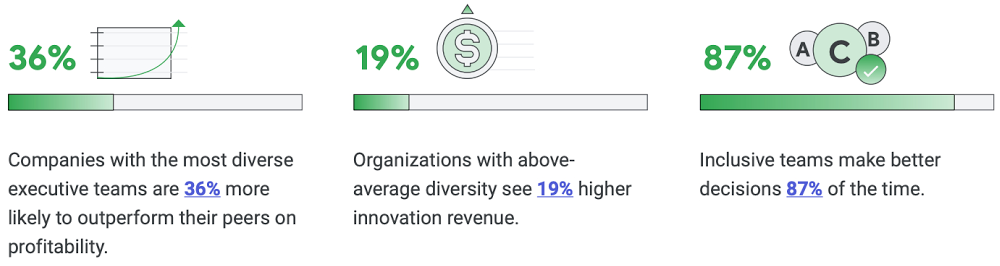
Diversity, equity, and inclusion (DEI) are more than buzzwords, they are critical components of workplace culture that have real, tangible impacts on your entire organization. Well-executed and robust DEI initiatives ensure that every single employee feels welcomed and valued when they are at work. And that’s not all—done right, DEI will create a thriving environment that fosters increased engagement, productivity, and ultimately, new innovation.Now, more than ever there is more urgency to incorporate diversity and inclusion into every aspect of your business. Not only because it enhances your ability to be responsive to users and customers, but because it builds trust and a sense of belonging for your employees.So, how do you build a representative workforce and inclusive teams? Read our short eBook to learn steps you can take to build DEI into your business along with insights from our own journey at Google Cloud.Related ArticleRead Article
Quelle: Google Cloud Platform

Chefkoch whips up handwritten recipes in the cloud with text detector

Editor’s note: When German cooking platform Chefkoch was looking to bring treasured hand-me-down recipes into the 21st century it found a scaleable, well-supported solution with Google’s data cloud. Here’s how it was cooked up. Whether it’s salad dressing or chicken soup, most households have a favorite dish passed down across the generations. These recipes are often scribbled on scraps of paper and this personal culinary heritage is heavily guarded. Recognizing the significance of handwritten or printed recipes, German cooking platform Chefkoch wanted to make it possible to quickly and easily parse, extract and digitalize these time-honored tasty morsels using Google Cloud augmented analytics and machine learning (ML) capabilities, to make it easy for users to share and access these recipes in a digital form.When considering the best way to develop the technology, Chefkoch undertook extensive market research of the global food market. It identified best practices within the industry, looked at working business models and upcoming food-tech trends, and applied this to an in-depth study of its own users’ motivations for using its platform. Finally, Chefkoch created a Kano Model that prioritized different features based on how likely they would be to satisfy its users.Chefkoch users each have their own Kochbuch (cookbook) on the platform where they can save, sort, and manage their Chefkoch recipes. On the back of its research, Chefkoch decided that this was the best place for its new proposition. It opted to develop the Kochbuch to make it possible to store any recipe within it, including offline ones. “To do this we needed to extract the text, be it handwritten or printed, and then separate the recipe title, the ingredients and the instructions,” explains Tim Adler, CTO of Chefkoch.APIs get reading recipesTo enable this, Chefkoch began assessing various text importing tools. In May 2021, it settled on Google Cloud’s ML services and  Google Cloud Functions, because it offers scalable functions as a service (FaaS) with a number of APIs that enable code to be run without server management. “We screened the market for solutions in order to recognize text in scanned handwritten recipes,” says Adler. “Google’s solution convinced us, not only because we could work with the APIs and documentation easily, but also because Google’s team presented us with an impressive proof of concept with our own test-data.”Chefkoch chose to build this recipe-reading tool using the Vision and Natural Language services offered by Google Cloud  because it can run across devices and be scaled cost-effectively.  As seen in the diagram above, it uses the Cloud Vision API optical character recognition (OCR) tool, which is optimized for German and English text detection, to extract the text from a written or printed page. It then applies AutoML Natural Language Entity Extraction  Models 1 and 2  and the Cloud Natural Language API to identify and segregate the different sections of the recipes to perfect the resulting on screen recipe, as shown below.Chefkoch worked closely with Google to perfect the solution. Our Google team initially made a demo for Chefkoch to help the team understand how everything works together, demonstrating, for example, how a dataset has to be structured to optimize the desired results after the model training. They presented a working end-to-end demo of a functioning API which takes in the image of a handwritten or printed recipe, and outputs the desired results: with the various components of the recipes cleanly extracted and separated. This offline-to-online recipe upload service is now being trialed on Chefkoch’s Kochbuch. “We are working on testing, improving, extending and producing the solution,” reveals Adler.Tweaking the recipe Results from early-stage testing are encouraging, with users rating the OCR feature with an A or B grade. In response to this feedback, small adjustments have already been made to the training of the model to get it to align with audience needs. The tool, which has been unofficially named the Handwritten Recipe Parser, can now pick up contextual spelling mistakes, for example, where a word is spelled incorrectly for the context, such as “meet” instead of meat.Cooking up users with analog to digital offeringThere are plans to expand the menu of features on Handwritten Recipe Parser too. Chefkoch is now developing a manual recipe extraction solution, where users can upload their own recipe images and add the title, ingredients and method and there are plans to enable users to amend existing Chefkoch recipes by adding their own text and written annotations. To learn more about Cloud AutoML and Vision API, visit our site.Related ArticleBusinesses realize the full value of visual data using Plainsight Vision AI on Google CloudAI startup Plainsight built its Vision AI offering on Google Cloud, enabling companies to extract accurate, actionable insights from vide…Read Article
Quelle: Google Cloud Platform
Run more workloads on Cloud Run with new CPU allocation controls

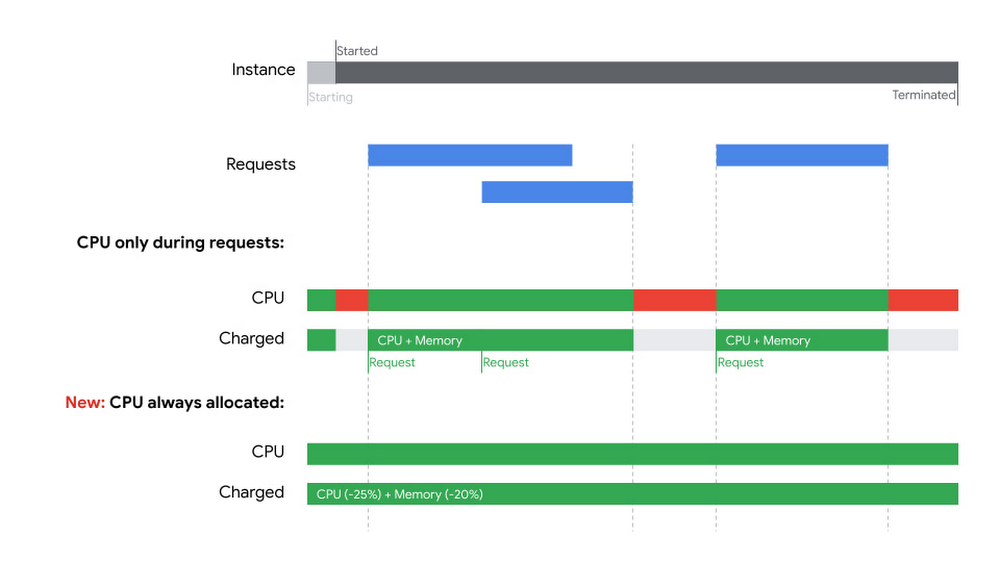
Cloud Run, Google Cloud’s serverless container platform, offers a very granular pay-per-use pricing, charging you only for CPU and memory when your app processes requests or events. By default, Cloud Run does not allocate CPU outside of request processing. For a class of workloads that expect to do background processing, this can be problematic. So today, we are excited to introduce the ability to allocate CPU for Cloud Run container instances even outside of request processing.This feature unlocks many use cases that weren’t previously compatible with Cloud Run:Executing background tasks and other asynchronous processing work after returning responsesLeveraging monitoring agents like OpenTelemetry that may assume access to CPU in background threadsUsing Go’s Goroutines or Node.js async, Java threads, and Kotlin coroutinesMoving Spring Boot apps that use built-in scheduling/background functionalityListening for Firestore changes to keep an in-memory cache up to dateEven if CPU is always allocated, Cloud Run autoscaling is still in effect, and may terminate container instances if they aren’t needed to handle incoming traffic. An instance will never stay idle for more than 15 minutes after processing a request (unless it is kept active using min instances).Combined with Cloud Run minimum instances, you can even keep a certain number of container instances up and running with full access to CPU resources. Together, these functionalities now enable new background processing use cases like using streaming pull with Cloud Pub/Sub or running a serverless Kafka consumer group.When you opt in to “CPU always allocated”, you are billed for the entire lifetimeof container instances—from when a container is started to when it is terminated. Cloud Run’s pricing is now different when CPU is always allocated: There are no per-request feesCPU is priced 25% lower and memory 20% lower Of course, the Cloud Run free tier still applies, and Committed Use Discounts can give you up to 17% discount for a one-year commitment.How to allocate always-on CPUYou can change your existing Cloud Run service to always have CPU allocated from the Google Cloud Console:or from the command line:gcloud beta run services update SERVICE-NAME –no-cpu-throttlingWe hope this change will allow you to run more workloads on Cloud Run successfully while still benefiting from its low-ops characteristics.To learn more about Cloud Run, check out our getting started guides.Related ArticleMaximize your Cloud Run investments with new committed use discountsCommitted use discounts in Cloud Run enable predictable costs—and a substantial discount!Read Article
Quelle: Google Cloud Platform
Push your code and see your builds happening in your terminal with "git deploy"

If you have used hosting services like Heroku before, you might be familiar with the user workflow where you run “git push heroku main”, and you see your code being pushed, built, and deployed. When your code is received by the remote git server, your build is started. With source-based build triggers in Cloud Build, the same effect happens: you “git push” your code, and this triggers a build. However, you don’t see this happen in the same place you ran your git push command. Could you have just one command that you run to give you that Heroku-like experience? Yes, you can. Introducing git deploy: a small Python script that lets you push your code and see it build in one command. You can get the code here: https://github.com/glasnt/git-deployThis code doesn’t actually do anything; it just shows you what’s already going on in Cloud Build.  Explaining what this code doesn’t do requires some background knowledge about how git works, and how Cloud Build triggers work.git hooksHooks are custom scripts that are launched when various actions occur in git, and come in two categories: client-side, and server-side. You could set up client-side hooks to do, for example lint checks before you write your commit message, by creating a .git/hooks/pre-commit file that runs your linter of choice. For server-side hooks, however, those need to be stored on the server. You can see server-side hooks running when git returns logs with the “remote: ” prefix. Heroku uses server-side hooks to start deployments. GitHub also uses server-side hooks when you push a branch to a repo, returning the link you can use to create a pull request on your branch (for example: remote: Create a pull request for ‘mytopic’ on GitHub by visiting). However, since you as a developer do not have control over GitHub’s git server, you cannot create server-side hooks, so that solution isn’t possible in this instance. Instead, you can extend git on your machine.git extensionsWriting extensions for git is remarkably simple: you don’t actually change git at all, git just finds your script. When you run a command in git, it will first check if the command is one of it’s internal built-in functions. If the command is not built-in, it will check if there is an external command in its ‘namespace’ and run that. Specifically, if there is an executable on your system PATH that starts with “git-” (e.g. git-deploy), it will run that script when you call “git deploy”. This elegance means that you can extend git’s workflow to do anything you want while still ‘feeling’ like you’re in git (because you are. Kinda.)Inspecting Cloud Build in the command lineCloud Build has a rich user interface of its own in the Cloud console, and native integration into services like Cloud Run. But it also has a rich interface in gcloud, the Google Cloud command line. One of those functions is gcloud builds logs –stream, which allows you to view the progress of your build as it happens, much the same as if you were to view the build in the Google Cloud console. You can also use gcloud to list Cloud Build triggers, filtering by it’s GitHub owner, name, and branch. With that unique trigger ID, you can view what builds are currently running, and stream them. You can get the GitHub identifying information by inspecting git’s configured remote origin and branch.Putting it all togetherGiven all the background, we can now explain what the git deploy script does. Based on what folder you are currently in, it detects what branch and remote origin you have configured. It then runs the code push for you. It then checks to see what Cloud Build triggers are connected to that remote origin, and then waits until a build for that trigger has been started. Once it has, it just streams the logs to the terminal. Suffice to say that this script doesn’t actually do anything that’s not already being done, but it just shows you it all happening in the terminal. ✨(The choice to use Python for this script was mostly due to the fact I did not want to have to write regex parsers in bash. And even if I did, it wouldn’t work for users who use other shells. Git extensions can be written in any language, though!)Related ArticleIntegrating Google Cloud Build with JFrog Artifactory[Editor’s note: Today we hear from software artifact management provider JFrog about how and why to use Google Cloud Build in conjunction…Read Article
Quelle: Google Cloud Platform






