Proton: Mozilla testet neues Firefox-Design
Die Nightly-Versionen des Firefox enthalten das neue Design des Browsers. Es gibt nun schwebende Tabs und ein vereinfachtes Menü. (Firefox, Browser)
Quelle: Golem

Die Nightly-Versionen des Firefox enthalten das neue Design des Browsers. Es gibt nun schwebende Tabs und ein vereinfachtes Menü. (Firefox, Browser)
Quelle: Golem

Der elektrische Opel Corsa-e Rally erhält für den Renneinsatz ein eigenes Soundsystem. Leise wäre das Fahrzeug zu gefährlich. (Opel, Technologie)
Quelle: Golem
Each year at Red Hat Summit we look forward to showcasing unique partner stories and our joint successes in helping customers achieve open hybrid cloud innovation. This year, we are pleased to introduce the Partner Experience: an integrated, immersive experience for partners within the Red Hat Summit 2021 event.
Quelle: CloudForms
Application developers, architects, and operations teams should aim to optimize their applications and services to minimize cloud computing infrastructure costs. There are a number of emerging open source technologies that can make a significant contribution to this objective, and we’ll highlight some in this post.
Quelle: CloudForms

The Friday Five is a weekly Red Hat® blog post with 5 of the week’s top news items and ideas from or about Red Hat and the technology industry. Consider it your weekly digest of things that caught our eye.
Quelle: CloudForms
An explosion of SaaS applications over the last decade has fundamentally changed the security landscape of modern enterprises. According to the Cloud Security Threat Report1, the average organization uses hundreds, possibly upwards of 1,000 of SaaS applications, many of these unsanctioned by IT departments, and this number is only forecasted to increase. Today, we see many organizations trying to secure modern SaaS applications with a legacy, network-based approach, where access might only be given if a user is on the corporate network or connecting through a VPN. But conventional castle-and-moat security strategies are no longer adequate; the network from which you access resources is no longer a reliable indicator of trusted access. This paradigm shift has led to increased adoption of the zero trust model, where no person, device, or network enjoys inherent trust. Instead, trust, which allows access to applications and information, must be earned by demonstrating criteria such as identity and other factors, through policies set by administrators.Transitioning to a zero trust model is no easy feat, which is why we recently introduced BeyondCorp Enterprise to help our customers with this challenge. BeyondCorp Enterprise allows users to implement a zero trust approach based on the same principles we use at Google and manage access to their SaaS applications hosted on Google Cloud, in other clouds, or on-premises. And now, in light of the increase in remote work, secure access to applications has never been a more relevant conversation.BeyondCorp Enterprise makes it easy to enforce granular access policies based on a user’s identity, organizational group, device health, encryption status, geographic origin, form of authentication, and more. But application access is only one part of our zero trust approach; once a user has access to an app, we also want to make sure their data is protected. BeyondCorp Enterprise includes new threat and data protection services, giving users an added layer of security, integrated directly in the browser without the need for an agent.Transitioning to a zero trust model can be a journey, but our solutions can help you get started quickly and easily. One way to do this is to think about your deployment and take a targeted approach, for instance, starting with a group of specific users or a set of SaaS apps you want to secure. For instance, you could think about frontline workers who may only need to access a point-of-sale application, or maybe your organization has a large customer service operation and those employees only need to access call center software. These use cases and ones similar are a great first step as they are straightforward and the use of VPN is almost certainly unnecessary.Our new whitepaper, “Secure access to SaaS applications with BeyondCorp Enterprise,” outlines common scenarios for IT leaders to consider, and provides guidance for how they can approach each one. As with any new deployment, there are a number of security factors organizations must consider, such as:How to govern zero trust access to sanctioned SaaS applicationsHow to prevent leakage of sensitive data from SaaS applicationsHow to prevent malware transfers and lateral movements via sanctioned applicationsHow to prevent visits to phishing URLs embedded in application contentWe dive deeper into each of these, as well as a selection of other scenarios, in the whitepaper. Read it here, and learn more about BeyondCorp Enterprise in our on-demand overview webinar or our product page. 1. Cloud Security Threat ReportRelated ArticleBeyondCorp Enterprise: Introducing a safer era of computingThe GA of Google’s comprehensive zero trust product offering, BeyondCorp Enterprise, brings this modern, proven technology to organizatio…Read Article
Quelle: Google Cloud Platform
Editor’s note: Here we take a look at how Branch, a fintech startup, built their data platform with BigQuery and other Google Cloud solutions that democratized data for their analysts and scientists. As a startup in the fintech sector, Branch helps redefine the future of work by building innovative, simple-to-use tech solutions. We’re an employer payments platform, helping businesses provide faster pay and fee-free digital banking to their employees. As head of the Behavioral and Data Science team, I was tapped last year to build out Branch’s team and data platform. I brought my enthusiasm for Google Cloud and its easy-to-use solutions to the first day on the job. We chose Google Cloud for ease-of-use, data & savings I had worked with Google Cloud previously, and one of the primary mandates from our CTO was “Google Cloud-first,” with the larger goal of simplifying unnecessary complexity in the system architecture and controlling the costs associated with being on multiple cloud platforms. From the start, Google Cloud’s suite of solutions supported my vision of how to design a data team. There’s no one-size-fits-all approach. It starts with asking questions: what does Branch need? Which stage are we at? Will we be distributed or centralized? But above all, what parameters in the product will need to be optimized with analytics and data science approaches? With team design, product parameterization is critical. With a product-driven company, the data science team can be most effective by tuning a product’s parameters—for example, a recommendation engine for an ecommerce site is driven by algorithms and underlying models that are updating parameters. “Show X to this type of person but Y to this type of person,” X and Y are the parameters optimized by modeling behavioral patterns. Data scientists behind the scenes can run models as to how that engine should work, and determine which changes are needed. By focusing on tuning parameters, the team is designed around determining and optimizing an objective function. That of course relies heavily on the data behind it. How do we label the outcome variable? Is a whole labeling service required? Is it clean data with a pipeline that won’t require a lot of engineering work? What data augmentation will be needed? With that data science team design envisioned, I started by focusing on user behavior—deciding how to monitor and track it, how to partner with the product team to ensure it’s in line with the product objectives, then spinning up A/B testing and monitoring. On the optimization side, transaction monitoring is critical in fintech. We need to look for low-probability events and abnormal patterns in the data, and then take action, either reaching out to the user as quickly as possible to inform them, or stopping the transaction directly. In the design phase, we need to determine if these actions need to be done in real-time or after the fact. Is it useful to the user to have that information in real time? For example, if we are working to encourage engagement, and we miss an event or an interaction, it’s not the end of the world. It’s different with a fraud monitoring system, for which you’ve got to be much more strict about real-time notifications.Our data infrastructureThere are many use cases at Branch for data cloud technologies from Google Cloud. One is with “basic” data work. It’s been incredibly easy to use BigQuery, Google’s serverless data warehouse, which is where we’ve replicated all of our SQL databases, and Cloud Scheduler, the fully managed enterprise-grade cron job scheduler. These two tools, working together, make it easy to organize data pipelining. And because of their deep integration, they play well with other Google Cloud solutions like Cloud Composer and Dataform, as well as with services, like Airflow, from other providers. Especially for us as a startup, the whole Google Cloud suite of products accelerates the process of getting established and up and running, so we can perform the “bread-and-butter” work of data science. We also use BigQuery as a holder of heavier stats, and we train our models there, weekly, monthly, nightly, depending on how much data we collect. Then we leverage the messaging and ingestion tool Pub/Sub and its event systems to get the response in real time. We evaluate the output for that model in a Dataproc cluster or Dataform, and run all of that in Python notebooks, which can call out to BigQuery to train a model, or get evaluated and pass the event system through.Full integration of data solutionsAt the next level, you need to push data out to your internal teams. We are growing and evolving, so I looked for ways to save on costs during this transition. We do a heavy amount of work in Google Sheets because it integrates well with other Google services, getting data and visuals out to the people who need them; enabling them to access raw data and refresh as needed. Google Groups also makes it easy to restrict access to data tables, which is a vital concern in the fintech space. The infrastructure management and integration of Google Groups make it super useful. If an employee departs the organization, we can easily delete or control their level of access. We can add new employees to a group that has a certain level of rights, or read and write access to the underlying databases. As we grow with Google Cloud, I also envision being able to track the user levels, including who’s running which SQLs and who’s straining the database and raising our costs. A streamlined data science team saves costsI’d estimate that Google Cloud’s solutions have saved us the equivalent of one full-time engineer we’d otherwise need to hire to link the various tools together, making sure that they are functional and adding more monitoring. Because of the fully managed features of many of Google Cloud’s products, that work is done for us, and we can focus on expanding our customer products. We’re now 100% Google Cloud for all production systems, having consolidated from IBM, AWS, and other cloud point solutions. For example, Branch is now expanding financial wellness offerings for our customers to encourage better financial behavior through transaction monitoring, forecasting their spend and deposits, and notifying them of risks or anomalies. With those products and others, we’ll be using and benefiting from the speed, scalability, and ease of use of Google Cloud solutions, where they always keep data—and data teams—top of mind. Learn more about Branch. Curious about other use cases for BigQuery? Read how retailers can use BigQuery ML to create demand forecasting models.Related ArticleInventory management with BigQuery and Cloud RunBuilding a simple inventory management system with Cloud Run and BigQueryRead Article
Quelle: Google Cloud Platform
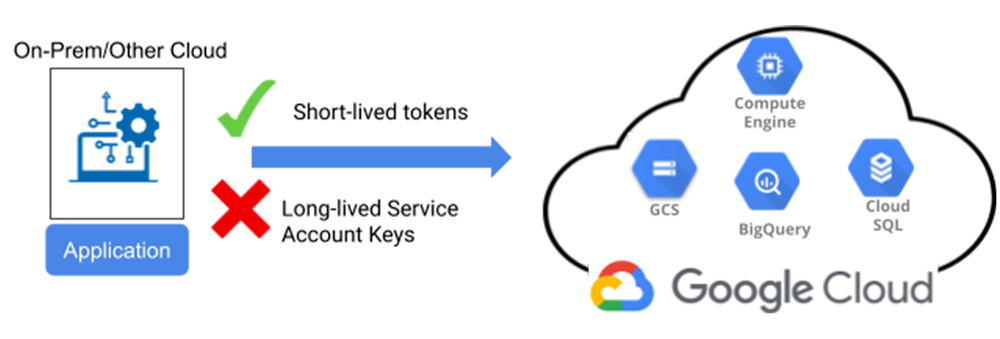
Organizations often have applications that run on multiple platforms, on-premises or cloud. For such applications that call Google Cloud Platform (GCP) APIs, a common challenge admins face is securing long-lived service account keys used to authenticate to GCP. Examples of such applications might include:Analytics workloads running on AWS or Azure that access sensitive datasets stored in Google Cloud Storage CI/CD pipelines that use external tools such as Terraform to provision projects and VMs on GCP Microservice-based apps running on GKE that connect to one or more GCP services. Since these applications rely on service account keys to access GCP APIs, you need to create and manage these credentials and have safeguards in place to ensure that long-lived service keys are well protected, securely distributed, and frequently rotated. If these credentials are compromised, a bad actor can use them to access your resources and data, and put your business at risk. Managing service account keys can become even more challenging as your organization’s cloud consumption and deployment of multi-cloud applications grows, putting you in the unenviable position of having to self-manage thousands of service account credentials or invest in third-party solutions to safeguard these service account keys.The best way to alleviate the challenges around service account keys is not to use them at all – and with workload identity federation, a new feature on Google Cloud, you can do just that.What is workload Identity federation and how do I set it up?Workload identity federation is a new keyless application authentication mechanism that allows your workloads running on-premises, in AWS, or in Azure to federate with an external Identity provider (IdP) and call Google Cloud resources without using a service account key. Your workloads instead call our security token service (STS) endpoint to exchange the authentication token they obtained from the IdP for a short-lived GCP access token. They then use this access token to impersonate a service account and inherit the permissions of the service account to access GCP resources.Here are the steps to set up workload identity Federation:1 .Create a workload identity pool resource object in your GCP project. The workload identity Pool is a new component built to facilitate this keyless federation mechanism. The pool acts as a container for your collection of external identities.2. Connect one or more of your IdPs to the workload identity Pool. The IdP can be an AWS or Azure account(s) or provider(s) that support OIDC protocol (SAML is coming soon).3. Grant the pool access to resources by defining two IAM policies:A policy granting a service account access to desired resources. You can create a new service account or re-use an existing service account. A policy that allows identities from the pool to impersonate the service account. Detailed information on creating these policies are available in our documentation.4. Authenticate your workloads to the STS endpoint, impersonate the service account, and have them call the desired GCP APIs.More detailed information on how to set up workload identity federation and configure policies can be found here. Integration with authentication client librariesWe’ve provided extensive client library support in many languages to help your application developers simplify and secure the authentication process with minimal coding. We highly-recommend you use them. Here’s an example of how developers can can start using workload identity pools with the Google Cloud Client libraries in two steps:Generate the credentials configuration file for your workload identity pool provider:Set the GOOGLE_APPLICATION_CREDENTIALS environment variable on your VM to point to the generated credentials config file.You can now start using workload identity pools to call Google APIs as illustrated in this Python snippet:You can use custom attributes (claims) from the IdP to define fine-grained IAM access policy to allow or deny your workloads access to resources and audit their calls using Cloud Audit Logs.Improving your cloud security postureMoving from service account keys to the keyless application authentication mechanism enabled by workload identity federation can help you reduce the risks associated with managing long-lived keys for application authentication across your environment. With this new capability, developers can build more secure applications and better protect access to GCP services. To learn more about workload identity federation, take a look at our documentation.Related ArticleHelp keep your Google Cloud service account keys safe: taking charge of your securityGoogle Cloud Platform (GCP) offers robust service account key management capabilities to help ensure that only authorized and properly au…Read Article
Quelle: Google Cloud Platform

Wildlife provides critical benefits to support nature and people. Unfortunately, wildlife is slowly but surely disappearing from our planet and we lack reliable and up-to-date information to understand and prevent this loss. By harnessing the power of technology and science, we can unite millions of photos from [motion sensored cameras] around the world and reveal how wildlife is faring, in near real-time…and make better decisions wildlifeinsights.org/aboutCase study backgroundGoogle partnered with several leading conservation organizations to build a project known as Wildlife Insights, which is a web app that enables people to upload, manage, and identify images of wildlife from camera traps. The intention is for anyone in the world who wishes to protect wildlife populations and take inventory of their health, to do so in a non-invasive way. The tricky part, however, is reviewing each of the millions of photos and identifying every species, and so this is where Machine Learning is of great help with this big data problem. Themodels built by the inter-organizational collaboration, presently classifies up to 732 species and includes region-based logic such as preventing a camera trap in Asia—for example—from classifying an African elephant (using geo-fencing). These models have been in development for several years, and are continuously being evolved to serve animals all over the globe. You can learn more about it here.This worldwide collaboration took a lot of work, but much of the basic technology used isavailable to you at WildlifeLifeInsights.org!And, for those interested in wanting to learn how to build a basic image classifier inspired from this wildlife project, please continue reading. You can also go deeper by trying out our sample tutorial at the end, which contains the code we used, and lets you run it interactively in a step-by-step notebook (you can click the “play” icon at each step to run each process).How to build an image classification model to protect wildlifeWe’re launching a Google Cloud series called “People and Planet AI” to empower users to build amazing apps that can help solve complex social and environmental challenges inspired from real case studies such as the project above. In this first episode, we show you how to use Google Cloud’s Big Data & ML capabilities to automatically classify images of animals from camera traps. You can check out the video here.Requirements to get startedHardwareYou would require two hardware components:Camera trap(s) → to take photos (which we also strongly recommend you share by uploading on Wildlife Insights to help build a global observation network of wildlife). Micro controller(s) (like a Raspberry Pi or Arduino) → to serve as a small linux computer for each camera. It hosts the ML model locally and does the heavy lifting of labeling images by species as well as omitting blank images that aren’t helpful.With these two tools, the goal is to have the labeled images then uploaded via an internet connection. This can be done over a cellular network. However, in remote areas you can carry the microcontroller to a wifi enabled area periodically to do the transfer.
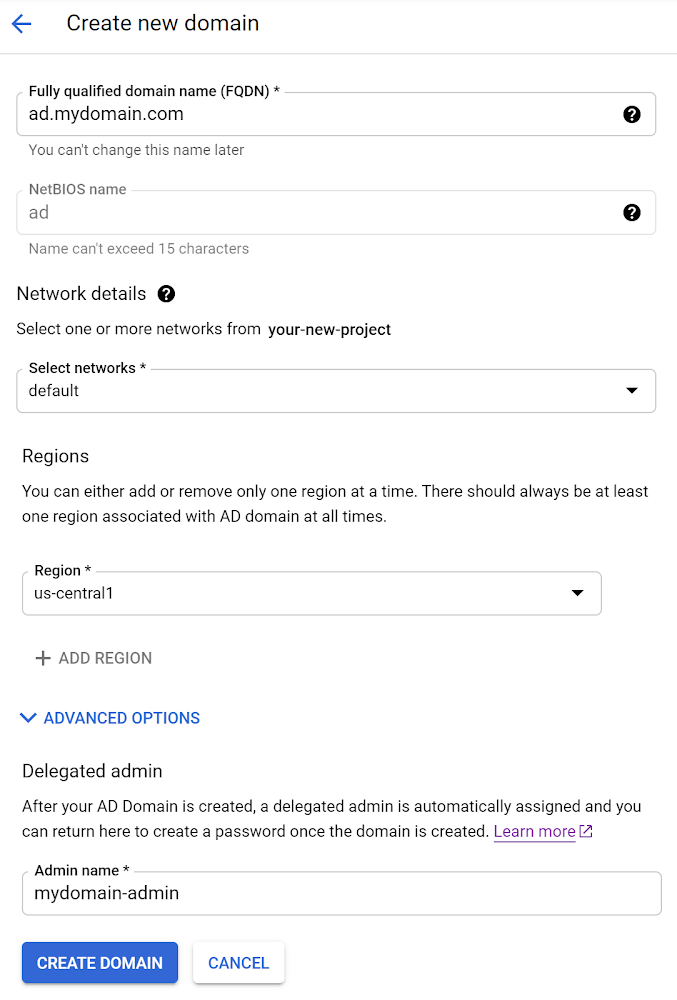
SQL Server instances in Google Cloud SQL now integrate with Microsoft Active Directory (AD) as a pre-GA feature that you can try out for yourself right now. This post describes the basic steps required to create a SQL Server instance with this new functionality. If you’re looking for complete details see the official documentation.Create a domain with Managed Service for Microsoft Active DirectoryThe first step is to create a domain with Managed Service for Microsoft AD. This can be done easily via the “Managed Microsoft Active Directory” section in the Google Cloud Console. Click the “CREATE NEW AD DOMAIN” button and enter the following information:Specify a Fully Qualified Domain NameExample: ad.mydomain.comSelect a VPC networkExample: defaultSpecify a suitable CIDR range for the AD domain Example: 10.1.0.0/24Select a Region where the AD domain should be locatedExample: us-central1Specify an admin name for the AD domain’s delegated administratorExample: mydomain-adminWith all of that information provided it should look something like this:Click “CREATE DOMAIN” to complete the process of creating the AD domain. You’ll have to be patient for a bit since it can take up 60 minutes for the domain to be available for use. Once it is ready it will look like this in the list of domains:The final step to configure the AD domain is to set the “Delegated admin” password. Click the domain name in the list of domains to go to its details page. On that page, click the “SET PASSWORD” link and make a note of the password which we’ll use in a later step of this blog post.Create a SQL Server instance with Windows AuthenticationAfter your AD domain is available for use you can start creating SQL Server instances that utilize the AD domain to enable Windows Authentication with AD-based identities. Go ahead and try out creating a new SQL Server instance by going to the Cloud SQL section of the Google Cloud Console. Click the “CREATE INSTANCE” button. Then click “Choose SQL Server” and enter the following information:Specify an Instance IDExample: sql-server-with-adEnter a password for the ‘sqlserver’ user and make a note of this for use in a later step.Select a Database version. All versions will work with Active Directory. I selected “SQL Server 2017 Standard”.Select a Region where the instance should be located. It is recommended that you locate the SQL Server instance in the same region as the AD domain for the lowest network latency and the best performance.Example: us-central1Select whether the instance should be located in a “Single zone” or “Multiple zones”. For production instances “Multiple zones” is recommended to achieve high availability which provides automatic failover to another zone within your selected region. Select “SHOW CONFIGURATION OPTIONS”Click the “Connections” section to expand it and select both the “Private IP” and “Public IP” options. Note, if this is the first time creating a Private IP for the “Network” you select, you’ll be prompted that a “Private service connection is required”.Click “SET UP CONNECTION” and select “Use an automatically allocated IP range” in the “Enable Service Networking API” dialog that appears: Then click the “Continue” button to complete the process.Back in the instance “Configuration Options”, click the “Authentication” section to expand it.From the dropdown menu for joining a managed Active Directory domain, select the domain that you created in the first step of this blog post.Cloud SQL will automatically create a Per-Product, Per-Project Service account used for authentication to the instance. You will be prompted to grant the service account the “managedidentities.sqlintegrator” IAM role.With all of that information provided the create instance form should look something like this:Click “CREATE INSTANCE” to complete the process of creating the instance. Once the instance is created you should see the new instance’s overview page that should look something like this:Well done! You now have a SQL Server instance on Google Cloud that you can log into using Windows Authentication with an AD-based identity. Connecting to the SQL Server instance using Windows authenticationLet’s go ahead and confirm that everything works as expected. To do so I’ll create a Windows Server 2019 VM using Google Compute Engine. Using it I can add a new user to the Managed Active Directory, give that user access to the SQL Server instance in Cloud SQL and then connect to the SQL Server instance as that user with Windows Authentication.Windows Server VM’s are easy to create using Google Compute Engine’s marketplace.Searching for “Windows Server 2019″ in the marketplace returns many options to choose from.I’ll create a VM using the “Secured SQL Server 2017 Standard on Windows Server 2019″ option. After choosing the VM option, click the “Launch” button and you’ll be taken to the instance creation page. Review the settings of the VM instance to be created, especially the “Network” selection under the “Networking” section, to ensure that the selected “Network” is a network that is included in your Active Directory domain. Then scroll to the bottom of the instance creation page and click the “Create” button. Once the VM creation process is complete, you’ll be taken to the instance detail page. Click the “Set Windows password” button to set a password to use for logging into the VM. Then use the “Remote Desktop Protocol” (RDP) button to login in to the VM.Once you are logged into the VM instance you can now join the VM to the Managed Active Directory domain. Click the “Windows” icon on the bottom left of the screen, type “Control Panel”, and then press ENTER. Navigate to “System and Security”, and then click “System”. Under Computer name, domain, and workgroup settings, click “Change settings”.Then click the “Change” button in the System Properties dialog box.Enter the name of your Managed Active Directory in the “Domain” input text box and click the “OK” button.A welcome to the domain message should appear that looks something like this:Now that we have a Windows Server VM in our Managed Active Directory, we can add a User. To do so, we’ll need to install the necessary Remote Server Administration Tools (RSAT). Open “Server Manager” and click the “Manage” menu item and select “Add Roles and Features” wizard.In the wizard, advance to the Select features page. You can select Features from the sidebar or select Next until you reach it.On the Select features page, in the Features list, expand Remote Server Administration Tools, and then expand Role Administration Tools.Under Role Administration Tools, select AD DS and AD LDS Tools. This enables the following features:Active Directory module for Windows PowerShellAD LDS Snap-Ins and Command-Line ToolsActive Directory Administrative CenterAD DS Snap-Ins and Command-Line ToolsOptional: You may also want to enable the following features:Group Policy ManagementDNS Server Tools (under Role Administration Tools)Close the wizard.Excellent! Now the Windows Server VM is enabled with the tools to add Users to the Managed AD domain. Remember the “Delegated admin” that we specified when we created the AD domain at the beginning of this blog post? Well now it’s time to use it. We’ll log out of the Windows Server VM and log back in as the “Delegated admin”. Log out of the Windows VM by clicking the “Windows” icon at the bottom left of the VM instance screen, then clicking the “power” icon and selecting “Disconnect”.Back on the Google Compute Engine instances page click the “RDP” button to log back into the Window Server VM, but this time do so with the AD domain “Delegated admin” username and password.Once logged in, open “Server Manager”, click the “Tools” menu item and select “Active Directory Users and Computers”. In the “Active Directory Users and Computers” dialog window that appears, expand the ad.mydomain.com item and click the “Cloud” sub-item. Then Click the “Create a New User in the current container” icon to create a new User.Enter a First and Last name for the User along with a logon name and click the “Next” button.Enter and confirm a Password for the User, then click the “Next” button again. Finally click the “Finish” button in the confirmation dialog box to create the User.Great! Now we’ve got a new AD domain User. But they still need to be granted access to the SQL Server instance on Cloud SQL. We can do that with Azure Data Studio. Open a browser on the Windows Server VM and go to the Azure Data Studio download page. Click the “System Installer” link to initiate the download, and click the “Run” button in the download dialog window that appearsAfter the Azure Data Studio installation wizard completes, with “Launch Azure Data Studio” checkbox selected, click the “Finish” button to open the program. In the start screen Azure Data Studio click the “New Connection” link.For “Server” enter the “Active Directory FQDN (Private)” value from the Cloud SQL – SQL Server instance details page:Example: private.sql-server-with-ad.us-central1.your-new-project.cloudsql.ad.mydomain.comFor Authentication type select “SQL Login”For the “User name” enter “sqlserver” and for “Password” enter the password for the “sqlserver” User that you specified when you created the SQL Server instance.With all of that information specified the Connection Details should look something like this:Click the “Connect” button to connect to the SQL Server instance. Once the connection is made, click the “New query” link and enter the following query:CREATE LOGIN [ad.mydomain.comclouduser] FROM WINDOWSand click the “Run” button.Wonderful! We’re completely done with the setup and now it is time for the moment of truth.Let’s test out connecting to our SQL Server instance as our new AD domain User via Windows Authentication. Close the Azure Data Studio. Now we’ll reopen Azure Data Studio but we’ll do so as the new AD domain User. Click the “Windows” icon at the bottom left of the VM instance screen and type “Azure Data Studio”. Right-click the “Azure Data Studio” icon and select “Run as a different user”.Enter the “User name” and “Password” for the AD domain User in the dialog box that appears.On the Azure Data Studio start page, click the “New Connection” link. For “Server” enter the “Active Directory FQDN (Private)” value from the Cloud SQL – SQL Server instance details page:Example: private.sql-server-with-ad.us-central1.your-new-project.cloudsql.ad.mydomain.comFor Authentication type select “Windows Authentication”.Click the “Connect” button… and smile because your SQL Server on Cloud SQL is now integrated with Managed Active Directory.Getting startedWindows Authentication for Cloud SQL for SQL Server is available in preview for all customers today! Learn more and get started.
Quelle: Google Cloud Platform






