Protect your Google Cloud spending with budgets

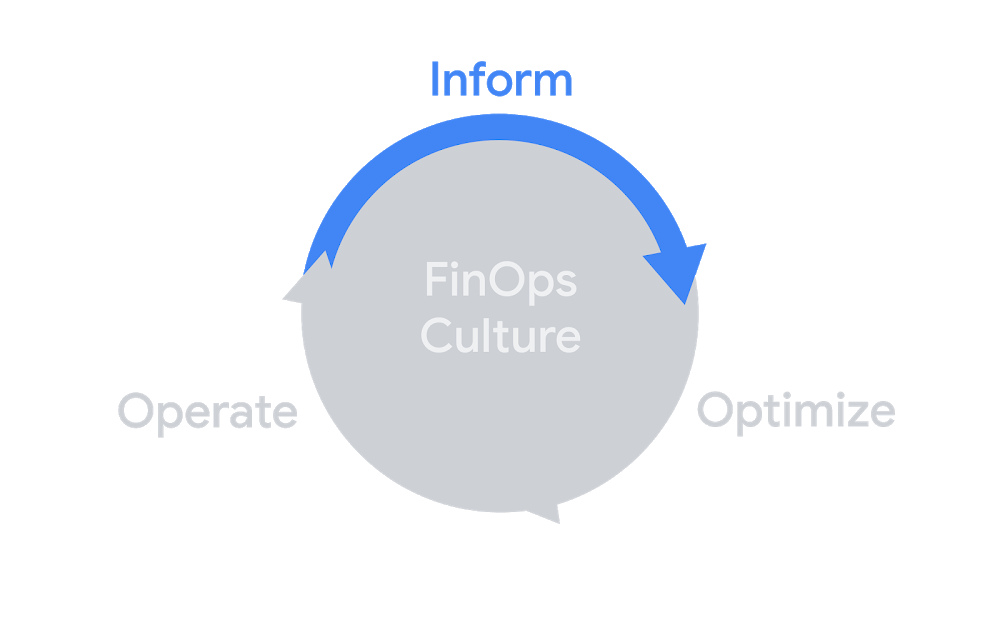
TL;DR: Budgets and alerts are probably the first step to staying on top of your Google Cloud costs. If you care about money, you should definitely set up a budget. In this post, I break down a budget and show how to set one up.Budgets and alerts fit well into the inform phase of the FinOps lifecycle for visibilityThe cloud is great because it’s incredibly easy to spin up a virtual machine, use a managed data warehouse, or even create a globally replicated relational database (this still blows my mind). But while you, or your eng team, might be more than happy to create and toy around with these resources, they cost money and someone has to pay the bills. Let’s look a bit more at what makes up a budget, and how to set one up (feel free to skip ahead if you just want the how-to).What is this “budget” you speak of?Budgets are the first and simplest way to get a handle on your costs. With all the potential ways that you can spend money on the cloud, you’ll want to make sure you can keep track of it. Once you’ve put budgets in place, you can freely launch experimental and production features with better visibility into what’s going on.They don’t actually cap your usage (we’ll talk about how to do that in another post), but they send alerts based on your costs. For now, the key idea is that a budget sends an alert when you hit any threshold for the cost amount for resources that are in scope. Let’s break that down.BudgetThis is what we’re talking about, and it starts with a name (as well as a unique ID). You can (and most certainly should), create multiple budgets, and budgets are attached to a billing account which is where all your cloud costs go. If you’re working with multiple billing accounts (tip: try to consolidate to one billing account per organization), you can set up budgets on each one. You can also automate setting these up rather than doing it manually, but let’s stick to the basics for now and come back to that in another post.AmountEach budget can also have an amount, which will be in the currency of your billing account. You can specify an exact amount, like $1000, or choose “Last month’s spend”. If you choose the last month option, the amount will automatically update based on what you spent last month. In addition, you can select to include credits as part of your amount if you want to count usage against credits (usage discounts, promotions, etc.) or not. We’ll also talk about budgets without an amount in a future post.ThresholdEach budget can have multiple thresholds, and every threshold is essentially a percentage of the budget amount (or you can specify the amount directly, it’s the same either way). So, a 50% threshold on a $1000 budget would trigger at $500. Since you can add multiple, you could set thresholds at 25%, 50%, 75%, and 100% just to make sure you’re on track with your spending throughout a month.Some example thresholds for a $1000 budgetEach threshold can also be actual, or forecasted. Simply put, actual thresholds are based on the actual costs. That is, you’ll hit 100% of a $1000 budget when you’ve spent $1000. On the other hand, forecasted is all about when Google Cloud estimates (using science, machine learning, and maybe some magic) that you’ll end up spending that much by the end of the month. As in, if you set a forecasted threshold for 100% on your $1000 budget, the alert will trigger as soon as Google Cloud forecasts that your costs for the month will be $1000. Forecast thresholds are great to understand where your costs may be trending and to get early alerts.AlertBy default, alerts are emails that get sent out to all Billing Account Administrators and Billing Account Users on that billing account. The email alerts are simple but descriptive, giving you exactly the information you need to know what happened.An actual budget email, even though I changed the billing account IDFirst up, we can see that the billing account is Billing-Reports-Demo and we have the ID in case we need it. Then there’s the budget amount and the percentage hit of the budget, 50% of a $1000 budget. Finally, we know that this is for the month of July, and that this alert was sent on July 8th.Note: Spend some time thinking about a good naming scheme for your budgets; one that works for the people who will be receiving them. The alert has the key information, but if the budget name isn’t descriptive it may be more difficult to track down where the costs are coming from.If I was only expecting to spend $1000 in all of July and then received this alert 8 days in, there’s a good chance there might be some surprise costs happening. Good thing I got this alert so I can figure out what’s going on! There’s more we can do than just send an email, which I’ll cover in the next posts.ScopeEach budget has a scope associated with it, and by default that’s the entire billing account. That would include all projects and Google Cloud services attached to that billing account. To get more granular, you can specify projects, products, or labels. For projects and products, you can choose to include certain ones, so you might have a budget that covers all your production projects and another budget specific to BigQuery costs on your data science projects. You may have heard how important it is to structure your Google Cloud resources to match your actual organization, and that’s fairly evident when you look at setting up budgets!A reasonable (and simplified) example of how you might organize your Google Cloud resources like your (probably less simple) organizationYou’re also able to scope your budget to resource labels, which are another important part of organizing your resources. Currently this is limited to a single label, but it’s a fantastic way to set a budget for any effort like if you label all your resources with “env:production” or “team:infra”. On top of all of that, you can also scope to subaccounts, which is for resellers.Setting up a budgetOkay, with all that background information out of the way, setting up a budget is super quick! First things first, you’ll need to be a Billing Account Administrator (or have a custom role with the appropriate billing.budget permissions). Then you just need to head to my favorite place in the console, the Billing page, and select “Budgets & Alerts”.Is it weird that the billing part of the console is my favorite? I feel like that’s weirdIf you’ve already got some budgets, they’ll be listed on this page along with the thresholds and your current spending amount.So far, I’ve spent nearly $80 on my $1000 budget, well below the first 50% thresholdYou can click on an existing budget to edit it, but just click on “Create Budget” to get started on making a new one. The first step is to name your budget and select your scope. For this new budget, let’s keep an eye on all our BigQuery spending. I’ll keep the scope to all projects and select BigQuery from the products list.By the time I publish this, there will probably be more than 750 optionsNext, we’ll move to the second page: amount. As mentioned above, you can specify an exact amount or dynamically set the budget to last month’s spending. Since my monthly budget for BigQuery is $500 (which I just now made up), I’ll put that in, as well as enabling to include credits. That way, if I received $200 worth of credits in some month, I could spend $700 on BigQuery and still be on budget.Choosing last month’s spend could give me a better view of how my costs might fluctuate month over monthOn the final page, we can add multiple thresholds so we’ll get alerts for each one. I’ll set up 50%, 90%, and 100% so I can keep on top of my costs, and one additional for 120% forecasted. If I get the 120% forecasted cost, that’s a good signal that I should jump into my projects and figure out what’s happening.See those options at the bottom? We’re gonna talk about those in the next blog posts!And just like that, we’ve made a new budget! Everyone who is a Billing Account Administrator or Billing Account User will start to get alerts as our costs go up, and we can use those as good signals to make sure we’re on track.You should consider multiple budgets to track different scopesOne important note is that billing data can sometimes take a bit of time to be reported, which means a budget might be a bit behind if you have fast-rising costs. This is where forecasted thresholds can help, so you can be prepared ahead of time.Email alerts are a quick and easy way to stay on top of your costs, but it’s also just the start of working with budgets. In the next (and hopefully shorter) post, we’ll go over how to add more people than just the Billing Account Admin/Users. After that, we’ll look at using budgets to take more action than just sending a notification. In the meantime, check out the documentation if you’d like to read more about budgets.Related ArticleMonitor cloud costs and create budgets at scaleYou can monitor cloud costs and create budgets, including alerts, with Google Cloud’s Budget API, now available in beta.Read Article
Quelle: Google Cloud Platform

What you can learn in our Q1 2021 Google Cloud Security Talks

Join us for our first Google Cloud Security Talks of 2021, a live online event on March 3rd where we’ll help you navigate the latest in cloud security.We’ll share expert insights into our security ecosystem and cover the following topicsSunil Potti and Rob Sadowski will kick off Security Talks on March 3rd.Thomas Kurian and Juan Rajlin join us for a conversation on overcoming risk management challenges in the Cloud.This will be followed by a roundtable to get insight into cloud risk management with Phil Venables and leaders from the industry.Javier Soltero and Karthik Lakshminarayan will talk about information governance in Google Workspace and how it can enable users to access data safely and securely while preserving privacy.Following this will be a panel discussion on the future of Confidential Computing with Raghu Nambiar (AMD), Harold Giménez (Hashicorp), Solomon Cates (Thales), Nelly Porter & Sam Lugani.You will learn about the unique components of the Chronicle security analytics platform that enable security teams to supercharge their security telemetry with Mike Hom.Peter Blum and Emil Kiner will present the innovations we are making with machine learning to better protect networks. You will also learn about Chrome browser’s security capabilities, including how Chrome helps support a zero trust environment, with Philippe Rivard and Robert Shield.Finally, Timothy Peacock will do a deep dive into Container Threat Detection, a built-in service of Security Command Center that detects the most common container runtime attacks and alerts you to any suspicious activity. We look forward to sharing our latest security insights and solutions with you. Sign-up now to reserve your virtual seat.Related ArticleNew research reveals who’s targeted by email attacksOur new study examines over a billion phishing and malware emails and their anonymized targets to better understand what factors influenc…Read Article
Quelle: Google Cloud Platform

Build a chatbot resume on Google Cloud

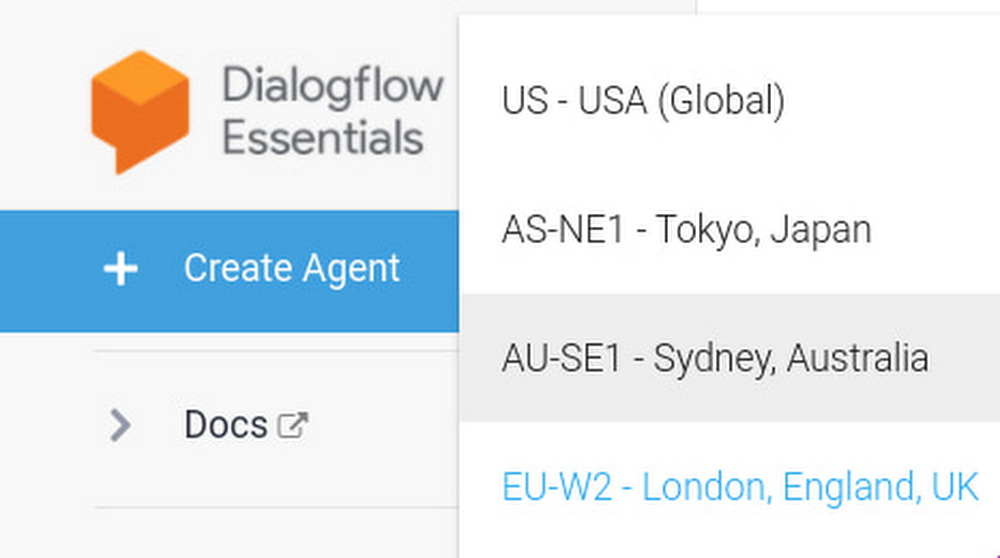
Getting the job you want requires you to stand out to potential employers—especially in the current job market. Recently I did just that by building a conversational chatbot on Google Cloud that answers questions about my professional experience (plus some surprises). Not only did I stand out, but I learned how to build and host my own chatbot on my website. Creating a new Dialogflow agent1. If you don’t have one, Create a Google Cloud project – for new users there’s a $300 credit that was more than enough for this application in my case.  2. After you have a Google Cloud project and have your GCP account,  go to the Dialgoflow Essentials Console. (Google has two different products Dialogflow CX and Dialogflow Essentials, and we’ll be using Essentials for this simple application).  On the top left you should see something that allows you to choose a location first (in case you have data location requirements), and then create a new agent.After you click that button, name your agent and associate it with your Google Cloud Project. Here are the values I chose for my agent:Give your agent some understanding3. Let’s create an intent. The way the agent communicates is by inferring the “Intents” of its interlocutor. When a user writes or says something the agent matches the expression to the best intent that you created in your Dialogflow agent. For each Dialogflow agent, you define many intents, where your combined intents can handle a complete conversation. So we need to create these: find the intents button on the left side navigation bar.And then in the centre  click “create intent” to create a new one.Creating an intent has two main parts: (1) what the agent expects its interlocutor to write or say and (2) what the agent says in response. For example, I want to create an intent where the interlocutor is asking about my certifications, and my agent responds with which certifications I have.  For this I need to give it “Training Phrases”.  In practice, it helps me to think about this as a sink or funnel: I start by deciding I want my agent to be able to talk about a topic (the response, the bottom of the funnel) so I’ll have to think about the kinds of sentences that I want to fall into that funnel (the training phrases, the catching area of the funnel). The example will make it clear:3.1. Let’s create that top part of the intent.  Click on “Add Training Phrases “Add some training phrases that exemplify what the intent should capture. I name the intent “Certifications” and  I add some sentences like this:It’s best if you add more than 10 sentences that cover the range of ways you want to capture the conversation into the “Certifications” funnel response. 3.2. Now the bottom part of the funnel: what should the agent say in response? Click “Add Response”Here’s what I’ve put in my case:Click “Save” on the top of the page. Let’s try it out: on the top right hand side of the page, look for “Try it now”. Notice how I can ask a question that has different words (accreditations, diploma) and still get the agent to understand what the intent is, and therefore what answer to give.This is what the NLP models are doing for you: from your dozen examples, they understand the kinds of sentences that the agent should link to that intent, and then return the appropriate answer. In the funnel analogy: it’s capturing related questions into the same funnel and responding with the appropriate answer. 4. Next, let’s change the Welcome Intent. As a best practice, you should start the conversation with a greeting plus a few lines on what your specific agent can do for the user. This way you can direct the conversation in the right direction. To change the Default Welcome intent, first save the work you have done earlier. Click on the “Save” button on the top right hand of the page. Next, click again on “Intents” on the left of the navigation bar and then click on “Default Welcome Intent” on the main menu. In the “Responses” section you’ll see the default responses.Which you can then change to something more appropriate, like:Once you have changed the default responses to something that fits your application, click Save. 5. Go create more intents! For a conversational-resume these should be questions that you’d expect to get from a recruiter. I have some general intents like “Favourite Project” (trained with sentences like “What was Filipe’s favourite project in his career?”  and “Tell me what Filipe is most proud of achieving. ”) or “Strengths” (trained with sentences like “What are some of Filipe’s main strengths?” and “Tell me what kinds of tasks people turn to Filipe for?”). Because I have a background in data science and programming, I also have intents that ask about my statisticals skills, or familiarity with Cloud technologies. Don’t forget to keep testing your agent on the panel on the right, to see if it responds as you want to inputs from interlocutors. Once done, you are ready to deploy your agentHost your agent on a website6. Let’s get a website! The easiest way here is to click here to get a google site. Just use a template or create a blank one. Later, if you buy your own domain, you can host it there. That’s what I did: www.filipegracio.com is built on top of a Google Site. 7. Now we’re going to get the agent on the website. Go back to the Dialogflow console, go to integrations, and turn on the Dialogflow Messenger option.When you do this, you’ll see a new window appear with a bit of code you’ll be able to embed on your site. Make sure your integration is enabled. Here’s what the bit of code looks like:Copy that code with the little clipboard symbol on the bottom right. 8. Next we just need to put the agent on your site! You do this back on your created website. While editing the content of Google website, on a blank page section, double click and you’ll see this wheel show up, click on Embed.And now embed the code of the bot that you copied from the Dialogflow console. Like so:After you do this, and “Publish” the website (on the top right there’s the button) your website should be available to the public with your agent ready to answer everything the visitors ask about. Explore your creativity You can make your chatbot be about whatever you want. It can help your business, it can promote your hobby, and it can help you find a job. If you use it like I did, put a link to the website on top of your resume, and make sure it’s visible on your social profiles, share it online. People will notice and you’ll be proving that you have skills, that you made a special effort, and that you think creatively. Good luck!Related ArticleRespond to customers faster and more accurately with Dialogflow CXNew Dialogflow CX Virtual Agents can jumpstart your contact center operational efficiency goals, drive CSAT up and take care of your huma…Read Article
Quelle: Google Cloud Platform

Freedom of choice: 9TB SSDs bring ultimate IOPS/$ to Compute Engine VMs

Applications that perform low-latency, I/O-intensive operations need to run on virtual machines with high-performance storage that’s tightly coupled with compute. This is especially important for applications built around real-time analytics, e-commerce, gaming, social media, and advertising platforms. Custom machine types in Compute Engine not only let you attach high-performance Local SSD, but give you the flexibility to customize your VMs to your workload’s exact needs.   Today, we are excited to announce that you can attach 6TB and 9TB Local SSD to second-generation general-purpose N2 Compute Engine VMs, for great IOPS per dollar. 9TB Local SSD delivers up to 2.4 million IOPS and 9.4 GB/s of throughput at direct-attach latencies, on any N2 VM with 24 or more vCPUs. And because you can attach these SSDs to any N2 VM shape (including custom shapes), you can define the exact VM that your application needs in terms of CPU, RAM, and SSD. You don’t need to attach more CPU and memory than what your I/O-intensive or storage-intensive workload demands, so you can optimize specifically for IOPS/$ or density/$—or a combination thereof.Disclaimer: Results are based on Google Cloud’s internal benchmarkingMaximum storage performance with fewer vCPUs6TB and 9TB Local SSDs have been available for N1 VMs, allowing you to achieve that maximum 2.4 million IOPS with 32 vCPUs or more. With N2 VMs, you need as few as 24 vCPUs to drive that same performance. This translates to a 7% better total cost of ownership for N2 VMs, relative to N1s. Some applications afford you the flexibility to optimize performance further, at different I/O queue depths or different block sizes. Using performance benchmarking tools like FIOcan help you make the optimal choice. As shown below, internal testing demonstrates that Local SSDs offer consistent performance across a broad range of configurations that your workloads might demand.Disclaimer: Results are based on Google Cloud’s internal benchmarkingMaximum throughputAttaching Local SSD to a VM is also a good strategy for workloads that demand high storage throughput. As you can see from the charts below, Local SSD can deliver close to maximum throughput at a wide range of block sizes (4K, 16K, 128K) and I/O depths, depending on the needs of your databases and applications.Disclaimer: Results are based on Google Cloud’s internal benchmarkingGet started todayLocal SSD are priced per-GB irrespective of the VM to which they are attached. Visit our pricing page for specific pricing in your region. 6TB and 9TB Local SSDs are now Generally Available on both N2 and N2D VMs. For more details, check out our documentation for Local SSDs. If you have questions or feedback, check out the Getting Help page.Related ArticleLocal SSDs + VMs = love at first (tera)byteIn Google Cloud Storage you can now attach 6TB and 9TB local SSDs to virtual machines (VMs) for higher throughput and IOPS per VM.Read Article
Quelle: Google Cloud Platform

How to trigger Cloud Run actions on BigQuery events

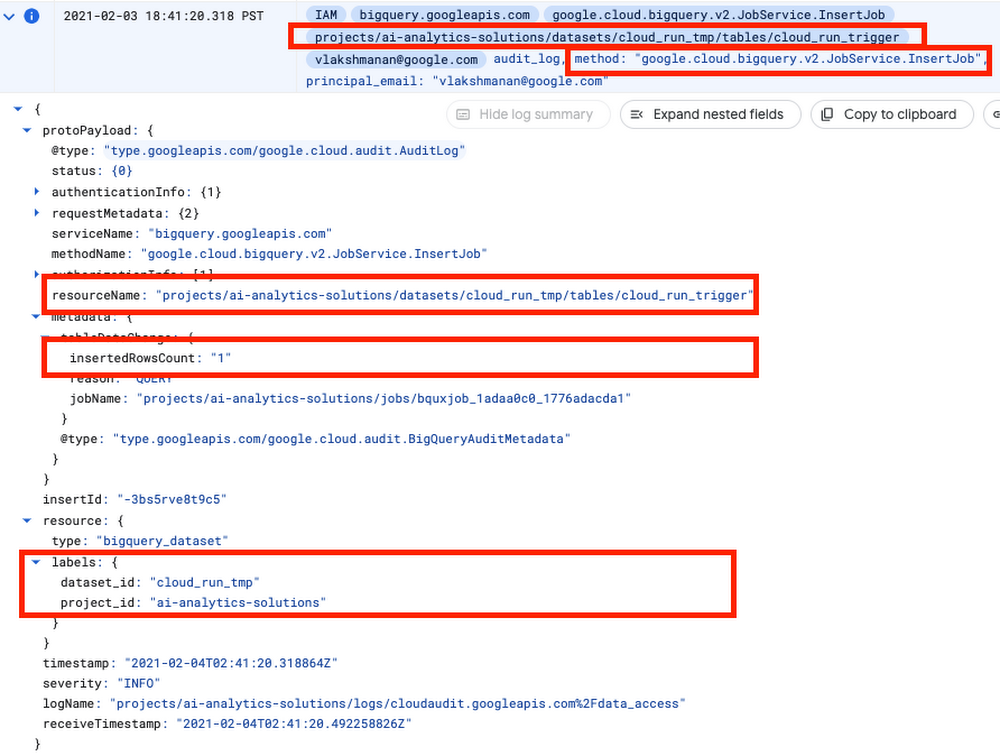
Many BigQuery users ask for database triggers—a way to run some procedural code in response to events on a particular BigQuery table, model, or dataset. Maybe you want to run an ELT job whenever a new table partition is created, or maybe you want to retrain your ML model whenever new rows are inserted into the table.In the general category of “Cloud gets easier”, this article will show how to quite simply and cleanly tie together BigQuery and Cloud Run. Because if you love BigQuery and you love Cloud Run, how can you not love when they get together?!Cloud Run will be triggered when BigQuery writes to its audit log. Every data access in BigQuery is logged (there is no way to turn it off), and so all that we need to do is to find out the exact log message that we are looking for.Follow along with me.Find the BigQuery eventI’m going to take a wild guess here and assume that you don’t want to muck up your actual datasets, so create a temporary dataset named cloud_run_tmp in your project in BigQuery.In that project, let’s create a table into which we will insert some rows to try things out. Grab some rows from a BigQuery public dataset to create this table:Then, run the insert query that we want to build a database trigger for:Now, in another Chrome tab, click on this link to filter for BigQuery audit events in Cloud Logging.I found this event:Note that there will be several audit logs for a given BigQuery action. In this case, for example, when we submit a query, a log will be generated immediately. But only after the query is parsed does BigQuery know which table(s) we want to interact with, so the initial log will not have the table name. Keep in mind that you don’t want any old audit log… make sure to look for a unique set of attributes that clearly identifies your action.In the case of inserting rows, this is the combination:The method is google.cloud.bigquery.v2.JobService.InsertJobThe name of the table being inserted to is the protoPayload.resourceNameThe dataset id is available as resource.labels.dataset_idThe number of inserted rows is protoPayload.metadata.tableDataChanged.insertedRowsCountWrite the Cloud Run ActionNow that we know the payload that we are looking for, we can write the Cloud Run action. Let’s do it in Python as a Flask App (full code is on GitHub).First, we make sure that this is the event we want to process:Once we have identified that this is the event we want, then we carry out the action that we want to do. Here, let’s do an aggregation and write out a new table:The Dockerfile for the container is simply a basic Python container into which we install Flask and the BigQuery client library:Deploy Cloud RunBuild the container and deploy it using a couple of gcloud commands:Setup Event TriggerIn order for the trigger to work, the service account for Cloud Run will need a couple of permissions:Finally create the event trigger:The important thing to note is that we are triggering on any Insert log created by BigQuery. That’s why, in the action, we had to filter these events based on the payload.What events are supported? An easy way to check is to look at the Web Console for Cloud Run. Here are a few to get your mind whirring:Try it outNow, try out the BigQuery -> Cloud Run trigger and action. Go to the BigQuery console and insert a row or two:Watch as a new table called created_by_trigger  gets created! You have successfully triggered a Cloud Run action on a database event in BigQuery. Enjoy!ResourcesAll the code, along with a README with instructions, is on GitHub.This blog post is an update to the book BigQuery: The Definitive Guide.  My goal is to update the book contents approximately once a year, and provide updates in the form of blogs like this.You can find previous such update blogs linked from the GitHub repository of the book.Thanks to Prashant Gulati.Related Article3 cool Cloud Run features that developers loveCloud Run developers enjoy pay-per-use pricing, multiple concurrency and secure event processing.Read Article
Quelle: Google Cloud Platform