Working with multiple Kubernetes clusters in Mirantis Container Cloud and Lens

The post Working with multiple Kubernetes clusters in Mirantis Container Cloud and Lens appeared first on Mirantis | Ship Code Faster.
One of the advantages both Mirantis Container Cloud and the Lens IDE share is that both enable you to easily work with multiple Kubernetes clusters. What’s more, the Mirantis Container Cloud Lens extension ties the two together, making it simple to connect some or all of the clouds in your Mirantis Container Cloud to your Lens install.
In this tutorial, we will look at adding Kubernetes clusters to Lens, Installing the Mirantis Container Cloud Lens extension, and using the extension to add existing clusters from a Mirantis Container Cloud instance. We’ll look at both clusters and workspaces, and when we’re done, we’ll clean everything up.
Setting up
The first thing we’ll do is make sure everything is working properly by accessing a single cluster.  The easiest way to do this is to follow these steps:

Make sure you have Lens installed.  You can find instructions in the Getting Started with Lens blog.
Make sure you have a Kubernetes cluster running. You can create one easily using K0s. For instructions, see How to create a Kubernetes cluster with K0s: A quick and dirty guide.
Make sure that you have a copy of your KUBECONFIG file.  (If you created a K0s cluster on an external server, make sure to edit the KUBECONFIG file to point to the appropriate IP address. You can see those instructions in the guide.)

Now you’re ready to add the cluster to Lens.
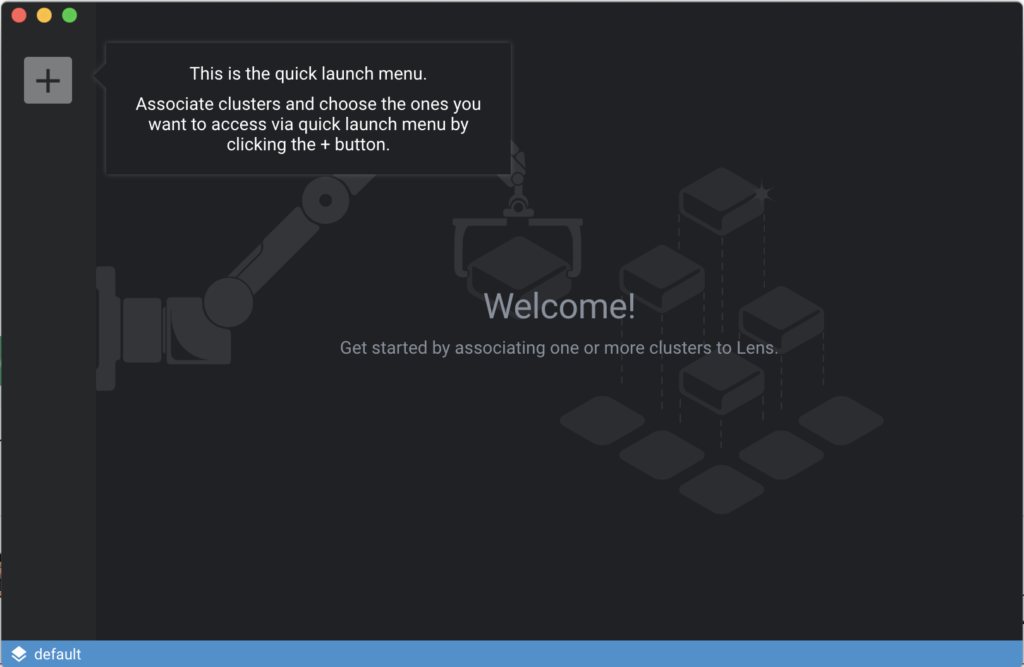
When you start Lens for the first time, you’ll be presented with the quick launch menu, which enables you to add a cluster.

Follow these steps to add the cluster:

Click the Add Cluster button (+) in the upper left.
Lens allows you to choose between adding an actual KUBECONFIG file and copying and pasting the kubeconfig information.
Add the kubeconfig file and select the appropriate context, then click Add Cluster.  At that point you can navigate through the objects in your cluster.
At this point, you can add additional clusters and they will appear as an icon on the left-hand side.  You can change the icon representing the cluster by choosing File->Cluster Settings and scrolling down to the General section.
You can then browse your local system for an image to use for the new cluster.  For best results, use a square image, but all the common image formats such as jpg, png, and gif will work.

If you have multiple clusters you can also organize them into Workspaces.
Using Workspaces
Workspaces are a way to organize clusters to make them easier to find when you have dozens, hundreds, or thousands to deal with.  To see the existing Workspaces, click the lower left-corner of the Lens interface.

In this case, we only have the original Workspace, default.  To add more, click Workspaces->Add Workspace.

From there you can specify the new name and click the square disk icon to save.  Once you’ve done that you will see the new workspace in the lower-left list.

Now we’re ready to go ahead and add in our Mirantis Container Cloud clusters.
Adding Mirantis Container Cloud
Mirantis Container Cloud is a convenient way for you to get control over multiple Kubernetes environments.  
Let’s start by taking a quick tour of some relevant parts of Mirantis Container Cloud.  (if you need to install Container Cloud, you can find information here.)
First sign with the username and password you specified at install, or that was given to you by your administrator.
From here, you can see a list of the main clusters.  In this example, that means just the main management cluster:

Notice that I said “main clusters”.  If you click Projects, you will see that you can also add individual projects.

Obviously default is the project we’re looking at to start with, and that’s where the kaas-mgmt cluster lives.  In this case, however, we have a second project called demo, which we can access by clicking the icon next to the project name and choosing demo->Save.

As you can see, in this case we have two clusters that are part of the demo project:

And of course anything we do in this context will apply to the demo project.
So how do we get these clusters into Lens?
Adding the Mirantis Container Cloud extension to Lens
It would be simple for us to add each individual cluster to Lens as we added our original k0s cluster, but there’s also an easier way that takes advantage of the Lens Extensions API.
Mirantis has create a Mirantis Container Cloud Lens Extension that will enable you to easily import some or all of your Mirantis Container Cloud clusters.  To take advantage of it, follow these steps:

Download the extension from Github. Don’t extract the archive, just make note of where you’ve saved it.
Open the Extensions view by choosing Lens->Extensions.
Under Install Extension, click the file folder icon and navigate to the archive you downloaded. The extension will likely install immediately, or click the Install button.
You should see the new extension listed under Installed Extensions.

If you need to disable or uninstall the extension, you can do it from this page.
Adding clusters to Lens with the Mirantis Container Cloud extension
Now we’re ready to go ahead and add our clusters to Lens so we can work with them more easily. Follow these steps:

We have a couple of ways to start this process.  One would be to go to File->Add Cloud Clusters. The other is to click the Container Cloud icon at the bottom right of the window. or
From here, you can add the actual clusters by adding the Mirantis Container Cloud URL, username, and password.  

On the right-hand side you have the option to make two decisions.  The first is whether you want to add these clusters to new workspaces.  These workspaces will be based on Container Cloud projects.  For now, leave this option checked.
The other option is to decide whether to generate an offline token for access to the clusters.  Note that once you generate a token, this token cannot be revoked, so only do this if absolutely necessary.

Choose which clusters you want to add and click Add selected clusters.
Open the Workspaces menu on the lower left-hand corner and you will see that we have two new namespaces, mcc_default and mcc_demo, corresponding to the Mirantis Container Cloud default and demo projects, respectively. Change to the mcc_default workspace.

Notice that there’s just one cluster, kaas-mgmt, in this namespace.  You can see the user and the cluster name by hovering over the cluster icon.
 Change to the mcc_demo workspace.  Notice that you now see the demo-1 and demo-2 clusters that were part of the Mirantis Container Cloud demo project.

Now you have the ability to poke around the cluster just as you would with any other Kubernetes cluster linked to Lens.

Cleaning up
Of course, we can’t talk about how to add clusters and extensions to Lens without talking about how to clean them up again.
Removing a cluster
To remove a single cluster from Lens, follow these steps:

In the left-hand panel, click the cluster you want to delete. 
Choose File->Cluster Settings.
This option brings up a page that shows you information about the cluster such as the Kubernetes version and distribution, status, API address, and so on.  It also gives you the option to change parameters such as the cluster’s name and workspace, and to enable metrics or set the default namespace.

Scroll down to the bottom of the page and click the red Remove Cluster button.

Note that you’re not doing anything to the cluster itself, you’re just removing it from Lens.
Removing a workspace
One of the advantages of workspaces is that it gives you the ability to remove an entire group of clusters at once by removing the workspace.  In this example we’ve added two new workspaces, so we can go ahead and remove them.

 In the Workspaces menu at the bottom of the page, click the Workspaces link,

You will be presented with a list of existing workspaces.  You can change the name by clicking the pencil icon.  To delete the workspace, click the trash can icon.

 Confirm the deletion by clicking Remove Workspace.

From here you can repeat the process for any additional workspaces that you want to delete.
Where to go from here
Many companies are working on extensions to Lens, and in the near future there will be some fun new extensions for you to play with.  In the meantime, if you’re just starting out with Lens, we strongly recommend you check out the Getting Started with Lens tutorial, and join the Lens community. 
The post Working with multiple Kubernetes clusters in Mirantis Container Cloud and Lens appeared first on Mirantis | Ship Code Faster.
Quelle: Mirantis
Enforcing least privilege by bulk-applying IAM recommendations

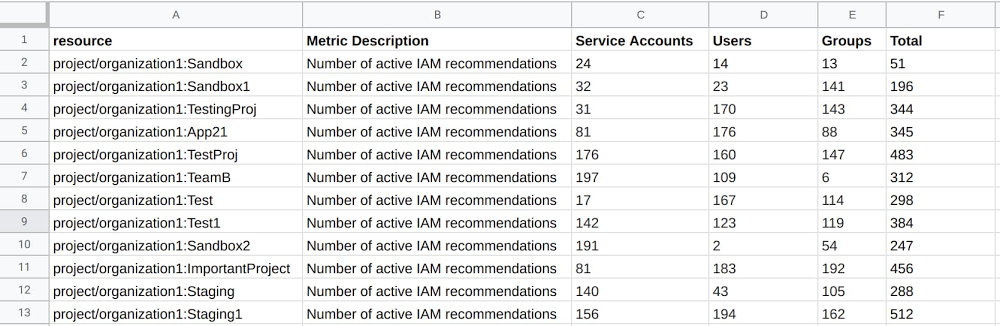
Imagine this scenario: Your company has been using Google Cloud for a little while now. Things are going pretty well—no outages, no security breaches, and no unexpected costs. You’ve just begun to feel comfortable when an email comes in from a developer. She noticed that the project she works on has a service account with a Project Owner role, even though this service account was created solely to access the Cloud Storage API. She’s uncomfortable with these elevated permissions, so you begin investigating.As you dig deeper and start looking at a few projects in your organization, you notice multiple instances of high privileged access roles like Project Owner and Editor assigned to people, groups, and service accounts that don’t need them. The worst part is you don’t even know how big the problem is. There are hundreds of projects at your company and thousands of GCP identities. You can’t check them all manually because you don’t have time, and you don’t know what permissions each identity needs to do its job.If any part of this scenario sounds familiar, that’s because it’s incredibly common. Managing identities and privileges is extremely challenging, even for the most sophisticated of organizations. There is good news though. Google Cloud’s IAM Recommender can help your security organization adhere to the principle of least privilege—the idea that a subject should only be given the access or privileges it needs to complete a task. As we discussed in this blog post, IAM Recommender uses machine learning to inspect every principal’s permission usage across your entire GCP environment for the last 90 days. Based on that scan, it either deems that a user has a role that is a good fit, or it recommends a new role that would be a better fit for that user’s needs. For example, suppose a senior manager uses Google Cloud to look at BigQuery reports. IAM Recommender notices that pattern and recommends changing the manager’s role from Owner to something more appropriate, like BigQuery Data Viewer. In this blog, we’ll walk through one way to analyze IAM recommendations across all your projects and bulk-apply those recommendations for an entire project using a set of commands in Cloud Shell. With this process, we’ll show you how to: View the total number of service accounts, members, and groups that have IAM Recommendations broken out by projects.Identify a project with IAM recommendations that you feel comfortable applying. Bulk-apply recommendations on that project. (Optional) Revert the bulk-applied recommendations if you find that you need to.Identify more projects with recommendationsRepeat steps 1-3.Let’s get started.Get ready to bulk-apply IAM RecommendationsBefore you get started, there’s a bit of work that needs to be done to get your Google Cloud environment ready:Make sure that the Recommender API and Cloud Asset API are enabled.Create a Service Account and give it the IAM Recommender Admin, Role Viewer, Cloud Asset Viewer, Cloud Security Admin roles at the org level. You will need to reference this Service Account and its associated key later while running these scripts. Note that these scripts will not run if the Cloud Asset API of a project is in a VPC Service Control parameter. Now you’re ready to start.Step 1: View your IAM recommendations1. Run this command in Cloud Shell to save all the required code in a folder named iam_recommender_at_scale. This command also creates a Python virtual environment within the folder to execute the code.2. Go to the source directory and activate the python environment.3. Next, retrieve all the IAM recommendations in your organization and break them out by project. Make sure to enter in your Organization ID, called out here as,”<YOUR-ORGANIZATION-ID>”. You’ll also need to include a path to the service account key you stored earlier in pre-step, called out below as, ”<SERVICE-ACCOUNT-FILE-PATH>”.Here’s an example:4. For this demo we exported the results from step 1.3 into a CSV and uploaded it into a Google Sheet. However, you could just as easily use something like BigQuery or your own data analytics tool to look at the data.Table 1: The resource column lists the name of every project with active IAM recommendations within your organization. Subsequent columns break out the total number of recommendations by service account, users, and groups.Step 2: Pick a project to apply IAM recommendations on1. Analyze the output of the work you’ve done so far.Table 2: When we visualize table 1 using a column chart, it becomes clear that there are a couple of outliers in terms of the total number of recommendations. We will focus on the “project/organization1:TestProj” project for the duration of this document.2. Choose a project whose recommendations you want to bulk-apply. In our example, we had two qualifying criteria that we felt were met by “project/organization1: TestProj”:Does the project have a relatively high number of recommendations? “TestProj” has the second highest total number of recommendations, so it qualified.Is the project a safe environment on which to test-drive IAM Recommender? Yes, because “TestProj” is a sandbox.3. (Optional) If you don’t have a sandbox project, or the criteria we mentioned in step 2 don’t feel right, here are some other ideas:Choose a project you are very familiar with. Something you would notice any unwanted changes on.Ask a security-conscious colleague if they’d be willing to use IAM Recommender on their project.Choose a legacy project with very predictable usage patterns. While IAM Recommender uses machine learning to make accurate recommendations for even the most dynamic of projects, this might be a more manageable risk.Step 3: Apply the IAM recommendations1. Surface each principal with a recommendation in “TestProj”. This step doesn’t apply the recommendations, only displays them.For example:2. The resulting JSON is the template for making actual changes to your IAM access policy. This JSON also serves as the mechanism to revert these changes should you find later that you need to, so make sure to store it somewhere safe. Below is a generic example of a JSON. Each recommendation in the JSON contains:id: a uniquely identifier for the recommendationetag: the modification time of the recommendation.member: the identity, or principal, that the recommendation is about. There can be more than one recommendation per member because a member can have more than one role.roles_recommended_to_be_removed: the role(s) that IAM Recommender will remove.roles_recommended_to_be_replaced_with: the role(s) that will replace the existing role. Depending on the recommendation, IAM Recommender replaces the existing role with one role, many roles, or no roles (i.e., removes that role altogether), with the goal of adhering to the principle of least privilege.3. (Optional) This demonstration doesn’t alter the JSON, but rather applies all the recommendations as is. However, if you wanted to customize this JSON and get rid of certain recommendations, this is the time. Simply delete a recommendation with the editor of your choice, save the file, and upload it into the Cloud Shell file manager. You can even write a script that goes through the JSON and removes certain types of recommendations (e.g., maybe you don’t want to take recommendations associated with a certain principal or role).4. Apply all the changes described in the JSON created in step 3.1 by executing the command below. Step 4 describes how you can revert these changes later if you want to.Example:5. Just like that, your project is far closer to adhering to the principle of least privilege than it was at the beginning of this process! When we run step 1.3 again we see that recommendations for “TestProj” went from 483 to 0.Step 4: Revert the changes (optional)Refer back to the JSON you created in 3.1. and run this code to revert the changes:Example:Step 5: Apply more recommendationsAt this point, there are a couple options for what do do next: You can start applying more recommendations! Run this script again or go to the IAM page in the Console and look for individual recommendations from the IAM Recommendation icon. Another option is go to the Recommendations Hub and look at all your GCP Recommendations, not just the IAM related ones.Or, as a bonus step, you can set up an Infrastructure-as-Code pipeline for IAM Recommender, using something like Terraform. Check out this tutorial to learn how to set that up.And that’s the least of itThere are many ways to use the IAM Recommender to ensure least privilege. We hope this blog has helped you identify and mitigate projects that could represent a security risk to your company. You can read about how companies like Veolia used the IAM Recommender to remove millions of permissions with no adverse effects. We are hopeful that your company will have a similar experience. Good luck and thanks for reading!Special thanks to Googlers Asjad Nasir, Bakh Inamov, and Tom Nikl for their valuable contribution.Related ArticleUnder the hood: The security analytics that drive IAM recommendations on Google CloudAn in-depth look at how IAM Recommender works and the benefits it provides.Read Article
Quelle: Google Cloud Platform

Work at warp-speed in the BigQuery UI

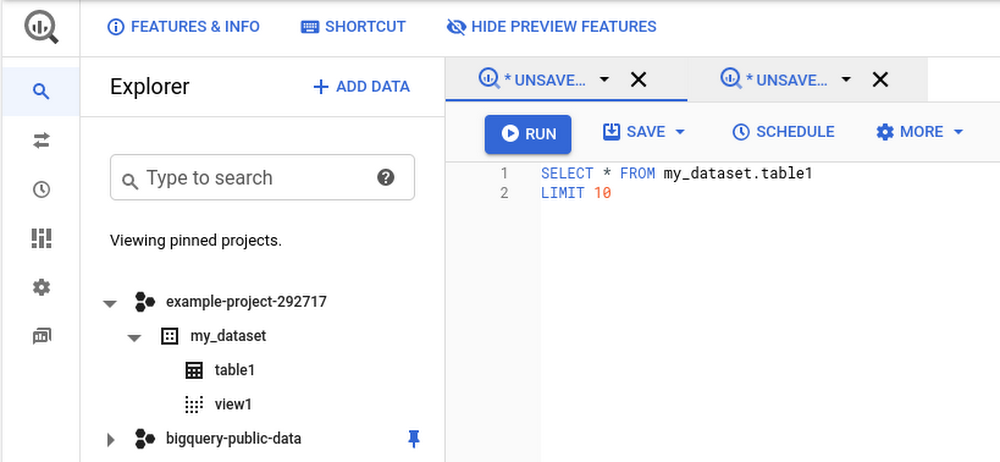
Data analysts can spend hours writing SQL each day to get the right insights. So it’s crucial that the tools in the Google Cloud Console make that job as easy and as fast as possible. Now, we’re excited to show you how BigQuery’s Cloud Console UI has been updated with radical usability improvements for more efficient work, making it easier to find the data you need and write the right SQL quickly. The new capabilities span the entire SQL workspace experience across three feature areas:New multi-tab navigationNew resource panel New SQL editorNew multi-tab navigationOne of the most popular requests for BigQuery has been to support tabs. Now you can work on multiple queries at once and iterate faster with tabbed navigation:Multitask by working on a new query time while you’re waiting for another query to run.Compare queries or results sets side-by-side by splitting your tabs to the left and right.Reference a table schema while you’re authoring a query: just click the table to open its tab.Reference history at any time with the panel at the bottom of the workspace.Reduce your browser’s memory footprint by avoiding the overhead of opening the Cloud Console in multiple browser tabs.New resource panelNow it’s easier than ever to find relevant data at your organization:Your resources and search results are loaded dynamically as you need them so your workspace is more responsive. The navigation buttons for transfers, scheduled queries, and administration have been moved to a collapsible panel on the far left to give you more space for writing queries!Before, you needed to know the exact name of a project prior to pinning it to your resources panel on the left-hand side of the page if you wanted to see resources in that project. Now you can expand a search to find resources outside your pinned projects with a single click on “Broaden search to all projects”.Pin and unpin projects fast with a single click on the pin icon next to each project.New SQL editorFinally, we’ve updated the SQL editor itself with support for tons of new features. In addition to faster performance, you get as-you-type suggestions for SQL functions and metadata like column names and time-saving IDE capabilities to help you write faster, powered by Monaco:Find/replace text within the editorMulti-cursor and multi-selection supportCollapse and expand line sectionsType F1 in the editor to see dozens of other handy new shortcuts and features.While the features are in preview, you can hide them with the “Hide Preview Features” button.If you encounter issues, let us know with the Send Feedback button in the top right of Cloud Console.Get started by visiting BigQuery’s Cloud Console UI. Happy querying! Related ArticleQuery without a credit card: introducing BigQuery sandboxWith BigQuery sandbox, you can try out queries for free, to test performance or to try Standard SQL before you migrate your data warehouse.Read Article
Quelle: Google Cloud Platform

Build your own workout app in 5 steps—without coding

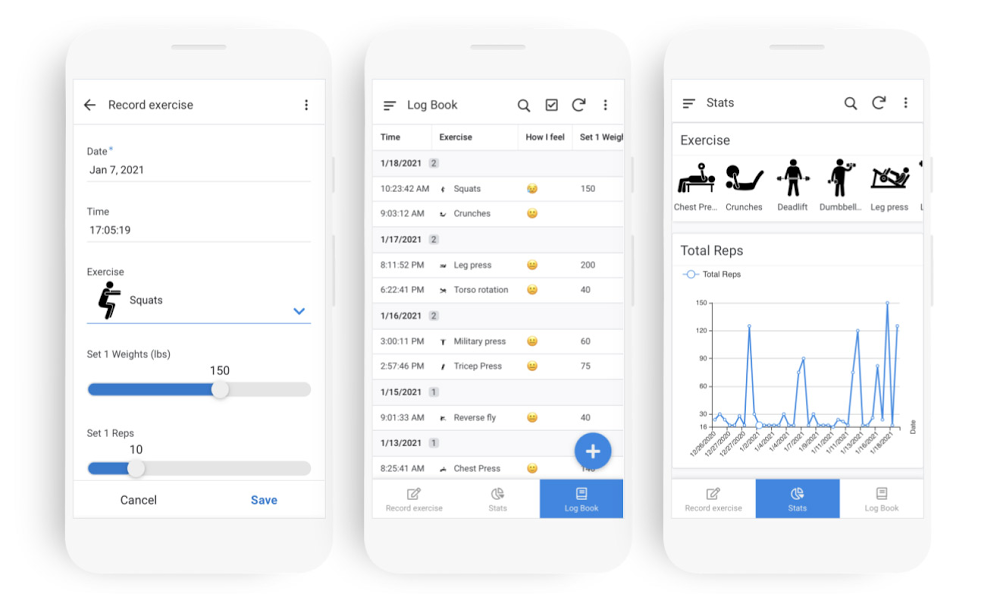
With the holidays behind us and a new year ahead, it’s time to reset our goals and find ways to make our lives healthier and happier. This time last year, like many people, I decided to create a more regimented exercise routine and track my progress. I looked at several fitness and workout apps I could use, but none of them let me track my workouts exactly the way I wanted to—so I made my own, all without writing any code.If you’ve found yourself in a similar situation, don’t worry: Using AppSheet, Google Cloud’s no-code app development platform, you can also build a custom fitness app that can do things like record your sets, reps and weights, log your workouts and show you how you’re progressing.To get started, copy the completed version here. If you run into any snags along the way or have questions, we’ve also started a thread on AppSheet’s Community that you can join. Step 1: Set up your data and create your appFirst, you’ll need to organize your data and connect it to AppSheet. AppSheet can connect to a number of data sources, but it’ll be easiest to connect it to Google Sheets, as we’ve built some nifty integrations with Google Workspace. I’ve already set up some sample data. There are two tables (one on each tab): The first has a list of exercises I do each week and the second is a running log of each exercise I do and my results (such as the weight used and my number of reps). Feel free to copy this Sheet and use it to start your app. Once you’ve done that, you can create your app directly from Google Sheets. Go to Tools>AppSheet>Create an App and AppSheet will read your data and set up your app. Note that if you’re using another data source, you can follow these steps to connect to AppSheet.Step 2: Create a form to log your exercisesYou should now be in the AppSheet editor. A live preview of your app will be on the right side of your screen. At this point, AppSheet has only connected to one of the two tables we had in our spreadsheet (whichever was open when we created our app), so we’ll want to connect to the other by going to Data>Tables>”Add table for “Workout Log.”Before creating the form, we need to tell AppSheet what type of data is in each column and how that data should be used. Go to Data>Columns>Workout Log and set the following columns with these settings (you can adjust column settings by clicking on the Pencil icon to the left of each column):This image shows how I adjusted the settings for “Key,”,“Set 1 Weights (lbs),” “Set 1 Reps,” and “How I Feel.” Now let’s create a View for this form. A view is similar to a web page, but for apps. Go to UX>Views and click on New View. Set the View name to “Record Exercise”, select “Workout Log” next to For this data, set your View type to “form,” and set the Position as “Left.” Now, if you save your app, you should be able to click on “Record exercise” in your app and it will open up a form where you can log your exercise.Step 3: Set up your digital workout log bookI like to quickly see past workouts while I’m exercising to know how many reps and weights I should be doing. To make our workout log book, we’ll want to create a new view. Go to UX>View and click on New View. Name this view “Log Book,” select “Workout Log” as your data, select “Table” as the View Type, and set the Position to “Right.”Then, in the View Options section, choose Sort by “Date,” “Ascending and Group by “Date,” “Ascending.” Step 4: Create your Stats DashboardAt this point, we already have a working app that lets us record and review workouts. However, being the data geek I am, I love using graphs and charts to track progress. Essentially, we’ll be making an interactive dashboard with charts that will show stats for whichever exercise we select. This step is a little more involved, so feel free to skip it if you’d like—it is your app after all!Before we make the Dashboard view, we need to decide what metrics we want to see. I like to see the total number of reps per set, along with the amount of weight I lifted in my first set. We already have a column for weights (Set 1 Weights (lbs)), but we’ll need to set up a virtual column to calculate total reps. To do this, select Data>Columns>Workout Log>Add Virtual Column.For advanced logic, such as these calculations, AppSheet uses expressions, similar to those used in Google Sheets. Call the Virtual Column “Total Reps” and add this formula in the pop up box to calculate total reps: [Set 1 reps] + [Set 2 reps] + [Set 3 reps] + [Set 4 reps] + [Set 5 reps]Now we can work on creating our Dashboard view. In AppSheet, a Dashboard view is basically a view with several other views inside it. So before we create our dashboard, let’s create the following views.Now we can create our Dashboard view. Let’s call the View “Stats,” set the View type to “Dashboard,” and Position to “Center.” For View Entries, we’ll select “Exercise” (not Exercises!) “Total Reps,” “Set 1 Weight (lbs.),” “Sentiment,” and “Calendar.” Enable Interactive Mode and under Display>Icon type “chart” and select the icon of your choosing. Hit Save, and you should now have a pretty neat dashboard that adjusts each chart based on the exercise you select.Step 5: Personalize your app and send it to your phone!Now that your app is ready, you can personalize it by adjusting the look and feel or adding additional functionality. At this point, feel free to poke around the AppSheet editor and test out some of the functionality. For my app, here’s a few of the customizations I added.I went to UX>Brand and changed my primary color to Blue.I went to Behavior>Offline/Sync and turned on Offline Use so that I can use my app when I don’t have an internet connection.I changed the position of my Exercises view to Menu, so it only appears in the Menu in the top-left corner of my app.Once you’ve adjusted your app the way you want it, feel free to send it to your phone. Go to Users>Users>Share App, type in your email address next to User emails, check “I’m not a robot” and select “Add users + send invite.” Now check your email on your phone and follow the steps to download your app!AppSheet offers plenty of ways to simplify your life by building apps—see what other apps you can make. Happy app building!
Quelle: Google Cloud Platform

BenchSci helps pharma deliver new medicines—stat!—with Google Cloud

Every startup should have a lofty goal, even if they’re not 100% certain how they’ll reach it. Our company, BenchSci, is a Canadian biotech startup whose mission is to help scientists bring new medicines to patients 50% faster by 2025. Since founding the company in 2015, we’ve been building a platform to help scientists design better experiments by mining a vast catalog of public datasets, research articles, and proprietary customer datasets. And that platform is built entirely on Google Cloud, whose breadth and depth of features has supported us as we move toward our goal.  There’s urgency to our mission because pharmaceutical R&D can be inefficient. Take for example preclinical research: one study estimates that half of preclinical research spending is wasted, amounting to $28.2B annually in the U.S. alone and up to $48.6 billion globally1. And by our estimates, about 36.1% of that preclinical research waste comes from scientists using inappropriate reagents—materials such as antibodies used in life science experiments. As such, our first product was an AI-assisted reagent selection tool. It collects relevant scientific papers and reagent catalogs, extracts relevant data points from them with proprietary machine learning models, and makes the results searchable to scientists from an easy-to-use interface. Scientists can quickly determine up front whether a particular reagent is a good fit for their experiment, based on existing experimental evidence. That way, they can focus on experiments with the greatest likelihood of productive results and bring new treatments to patients faster.All this runs on Google Cloud. We collect papers, theses, product catalogs, medical and biological databases, and other data, and store them in Cloud Storage. We then organize and extract insights from the data, using a pipeline built from tools including Dataflow and BigQuery. Next, we process the data with our machine learning algorithms, and store results in Cloud SQL and Cloud Storage. Scientists access the results via a web interface built on Google Kubernetes Engine (GKE), Cloud Load Balancer, Identity-Aware Proxy, Cloud CDN, Cloud DNS, and other services. Finally, we use multiple cloud projects, IAM, and infrastructure as code to keep data secure and each customer isolated. As such, we’ve eliminated the need for all but the most specialized R&D infrastructure, as well as for operational hardware, and slashed our management overhead. The combination of Google Cloud’s managed services and easily scalable persistent containers and VMs also lets us prototype and test new capabilities, then bring them to production with minimal management on our part. Google Cloud has also scaled with BenchSci’s needs. The data we analyze has increased by an order of magnitude over three years, and switching to BigQuery and Cloud SQL, for example, removed a great deal of our operational overhead. We also appreciate the flexibility of BigQuery to drive critical steps in our text-processing ML pipeline and the stability of Cloud SQL to drive data access. Over time, we’ve also evolved our data processing pipeline. We started out with Dataproc, a managed Hadoop service, but eventually rewrote this system in Dataflow, which uses Apache Beam. Dataflow can handle hundreds of terabytes, and lets us focus on implementing our business logic rather than managing the underlying infrastructure.Recently, we’ve expanded our platform to support private datasets. Initially, we served all our customers different views of the same underlying public data. In time though, some customers asked if we could include their proprietary pharmacological data in our system. Rather than managing multitenant systems with strict project isolation between them, we leveraged GKE and Config Connector to create unique environments for each customer’s data—without increasing the operational demand on our teams.In short, Google Cloud has enabled us to focus on solving problems without being distracted by having to build and operate computing infrastructure and services. Looking ahead, running our company on Google Cloud gives us the confidence to grow by collecting more and broader data sources; extracting more information from each unit of data with ML algorithms; processing ever more extensive and more proprietary data; and serving a broader range of customer needs through a varied set of interfaces and access points. Our goal is still ambitious, but by partnering with Google Cloud, it feels attainable. Learn more about healthcare and life sciences solutions on Google Cloud.1. https://journals.plos.org/plosbiology/article?id=10.1371/journal.pbio.1002165Related ArticleHealthcare gets more productive with new industry-specific AI toolsWe’re launching in public preview a suite of fully-managed AI tools to help healthcare professionals with the review and analysis of medi…Read Article
Quelle: Google Cloud Platform

Die grafische Benutzeroberfläche von Porting Assistant für .NET ist jetzt Open Source

Die grafische Benutzeroberfläche von Porting Assistant für .NET ist jetzt in Open Source verfügbar. Benutzer können nun den Quellcode einsehen, verändern und an diesem mitwirken. Der Porting Assistant für die .NET-Datenspeicher- und Analyse-Engine, der Informationen wie die Kompatibilität von Paketen und deren bekannte Ersetzungen enthält, ist bereits über Open Source verfügbar. Mit dem neuen Release können Anwender auch am UI-Entwicklungsprozess mitwirken.
Quelle: aws.amazon.com