3 Ways to optimize Cloud Run response times
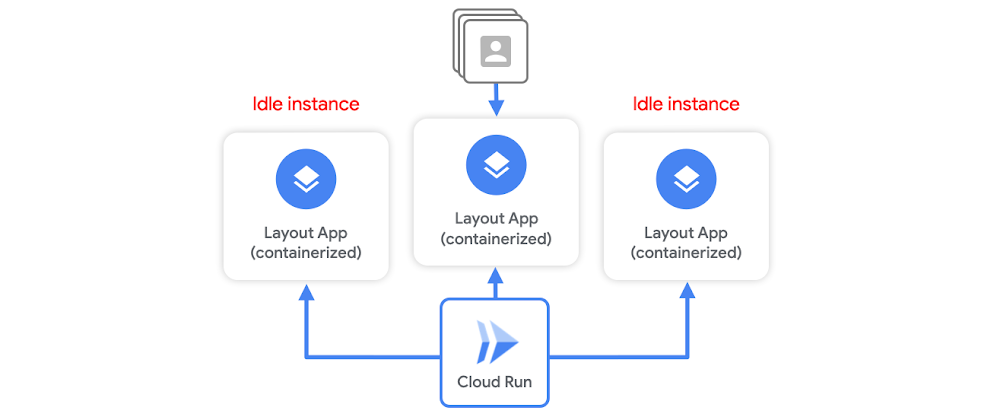
Serverless containerization has taken the world by storm as it gives developers a way to deploy their stateless microservices without a heavy burden of infrastructure management. Cloud Run abstracts all infrastructure management. You hand over a container image with a web server and stateless logic, and specify a combination of memory/CPU and allowed concurrency. Cloud Run takes care of creating an HTTP endpoint, routing requests to containers, and scaling containers up and down to handle the volume of requests. While Cloud Run offers some native features to reduce response time latency, such as idle instances, much of it can be improved by writing effective services, which I’ll outline below. Idle instancesAs traffic fluctuates, Cloud Run attempts to reduce the chance of cold starts by keeping some idle instances around to handle spikes in traffic. For example, when a container instance has finished handling requests, it might remain idle for a period of time in case another request needs to be handled.But, Cloud Run will terminate unused containers after some time if no requests need to be handled. This means a cold start can still occur. Container instances are scaled as needed, and it will initialize the execution environment completely. While you can keep idle instances permanently available using the min-instance setting, this incurs cost even when the service is not actively serving requests. So, let’s say you want to minimize both cost, and response time latency during a possible cold start. You don’t want to set a minimum number of idle instances, but you also know any additional computation needed upon container startup before it can start listening to requests means longer load times and latency. Cloud Run container startup There are a few tricks you can do to optimize your service for container startup times. The goal here is to minimize the latency that delays a container instance from serving requests. But first, let’s review the Cloud Run container startup routine. At a high level, it consists of:Starting the serviceStarting the containerRunning the entrypoint command to start your serverChecking for the open service portYou want to tune your service in order to minimize the time needed for step 1a. Let’s walk through 3 ways to optimize your service for Cloud Run response times.#1 Create a leaner serviceFor starters, on Cloud Run, the size of your container image does not affect cold start or request processing time. Large container images, however, mean slower build times, and slower deployment times.You want to be extra careful when it comes to applications written in dynamic languages. For example, if you’re using Node.js or Python, module loading that happens on process startup will add latency during a cold start.Also be aware of some modules that run initialization code upon importing.To build a leaner service you can:Minimize the number and size of dependencies if you’re using a dynamic language.Instead of computing things upon startup, compute them lazily. The initialization of global variables always occurs during startup, which increases cold start time. Use lazy initialization for infrequently used objects to defer the time cost and decrease cold start times.Shorten your initializations and speed up time to start your HTTP server.And use code-loading optimizations like PHP’s composer autoloader optimization.#2 Use a smaller base imageYou want to build a minimal container by working off a lean base image like: alpine, distroless. For example, the alpine:3.7 image is 71 MB smaller than the centos:7 image. You can also use, scratch, which is an empty image on which you can build your own runtime environment. If your app is a statically linked binary, it’s easy to use the scratch base image:You should also only install what is strictly needed inside the image. In other words, don’t install extra packages that you don’t need.#3 Use global variablesIn Cloud Run, you can’t assume that service state is preserved between requests. But, Cloud Run does reuse individual container instances to serve ongoing traffic. That means you can declare a global variable. When new containers are spun up, it can reuse its value. You can also cache objects in memory. Moving this from the request logic to global scope means better performance when traffic is ongoing. Now this doesn’t exactly help cold start times, but once the container is initialized, cached objects can help reduce latency during subsequent ongoing requests. For example, if you move per-request logic to global scope, it should make a cold starts last approximately the same amount of time (and if you add extra logic for caching that you wouldn’t have in a warm request, it would increase the cold start time), but any subsequent request served by that warm instance will have a lower latency.One option that can help with cold starts is to offload global state to an in-memory datastore like Memorystore, which provides sub-millisecond data access to application caches. ConclusionA lot of this boils down to creating a leaner service so logic that computes during container initialization is minimized, and it can start serving requests as soon as possible. While these are just a few best practices for designing a Cloud Run service, there are a number of other tips for writing effective services and optimizing performance, which you can read about here. For more cloud content follow me on Twitter @swongful.Related Article3 cool Cloud Run features that developers loveCloud Run developers enjoy pay-per-use pricing, multiple concurrency and secure event processing.Read Article
Quelle: Google Cloud Platform








