It’s not DNS: Ensuring high availability in a hybrid cloud environment

Our customers have multi-faceted requirements around DNS forwarding, especially if they have multiple VPCs that connect to multiple on-prem locations. As we discussed in an earlier blog post, we recommend that customers utilize a hub-and-spoke model, which helps get around reverse routing challenges due to the usage of the Google DNS proxy range.But in some configurations, this approach can introduce a single point of failure (SPOF) within the hub network, and if there are connectivity issues within your deployment, it could cause an outage in all your VPC networks. In this post, we’ll discuss some redundancy mechanisms you can employ to ensure that Cloud DNS is always available to handle your DNS requests.Figure 1.1 – A non-redundant hub and spoke DNS architectureAdding redundancy to the hub-and-spoke modelIf you need a redundant hub-and-spoke model, consider a model where the DNS-forwarding VPC network spans multiple Google Cloud regions, and where each region has a separate path (via interconnect or other means) to the on-prem network. In the image below, VPC Network H spans us-west1 and us-east1 and each region has a dedicated Interconnect to the customer’s on-prem network. The other VPC networks are then peered with the hub network.Figure 1.2 – A highly available hub-and-spoke architectureThis scenario provides highly available DNS capabilities, allowing the VPC to egress queries out of either interconnect path, and allowing return queries to return via either interconnect path. The outbound request path always leaves Google Cloud via the nearest interconnect location to where the request originated (unless a failure occurred, at which point it uses the other interconnect path). Note, while Cloud DNS will always route the request back to on-prem through the interconnect closest to the region, the responses back from the on-prem network to Google Cloud will depend on your WAN routing. In cases with equal cost routing in place, you may see asymmetric routing behaviors on the return responses, which take a different path than the way they went, and may introduce additional resolution latencies in some cases. Alternative DNS setupsA highly available hub-and-spoke model isn’t an option for all companies, though. Some organizations’ IP address space consists of a mixture of address blocks across many locations. This often happens to companies as a result of a merger or acquisition, which can make it difficult to set up a clean geo-based DNS. Let’s look at a different DNS setup and how customers may have to adapt for failures of the DNS stack.To understand the problem, consider the case of a Google Cloud customer that was managing U.S. East Coast DNS resolvers for East Coast-based VPCs, and U.S. West Coast resolvers for West Coast-based VPCs, in order to reduce latency for DNS queries. The challenge arose when it came time to build out redundancy. Specifically the customer wanted a third set of resolvers to provide backup for both east and west coast resolvers in the event of a failure of either of the resolvers.  Unfortunately, a setup like Figure 1.3 could cause issues in a failure scenario.Figure 1.3 – Multiple Hub and Spokes With a Single Set Of Backup DNS ResolversIn this setup, the failure of the West Coast DNS resolvers would result in traffic being forwarded to the backup servers running in the central US, with the source IP addresses for these DNS requests corresponding to Google Cloud’s DNS proxy server address range (35.199.192.0/19). But because there are two VPCs and the WAN sees two different routes to get back to the Google Cloud DNS proxy server address range, it would typically route the return requests back via the closest link advertising the Google Cloud DNS proxy IP range. In this case, that would be the east coast interconnect. And because the east coast interconnect connected to a different VPC than originated the request, the response would be dropped by the Google Cloud DNS proxies (since the Virtual Network ID (VNID) of the return packets would be different from the VNID for the east coast VPC). The problem herein lies with the routing and subnet advertisements, not the DNS layer itself.  So the question becomes, how do you support network topologies with multiple VPCs and DNS resolvers while still providing HA DNS resolvers on-premise?One approach is to proxy the DNS request as shown in Figure 1.4 below. By forwarding all DNS requests to a proxy setup within the VPC (or even within a specific subnet, depending on your desired granularity), you end up with VPC-specific IP addresses making it easy for the on-prem infrastructure to correctly send their responses back to the correct VPC. This also simplifies on-prem firewall configurations because you no longer need to open them up for Google’s DNS proxy IP range. Since you can specify multiple IP addresses for DNS forwarding, you can run multiple proxy VMs for additional proxy redundancy and further bolster your availability.Figure 1.4 – Insertion of Proxy VM For HA DNS ConfigurationHighly available DNS: the devil is in the detailsDNS is a critical capability for any enterprise, but setting up highly available DNS architectures can be complex. It’s easy to build a highly redundant DNS stack that can handle many failure scenarios, but overlook the underlying routing until something fails and DNS queries are unable to resolve. When designing a DNS architecture for a hybrid environment, be sure to take a deep look at your underlying infrastructure, and think through how failure scenarios will impact DNS query resolution. To learn more about designing highly available architectures in Google Cloud, check out our patterns for resilient and scalable apps.Related ArticleUnderstanding forwarding, peering, and private zones in Cloud DNSCloud DNS private zones, peering, and logging and auditing enhance security and manageability of your private GCP DNS environment.Read Article
Quelle: Google Cloud Platform
Taking Your App Live with Docker and the Uffizzi App Platform

Tune in December 10th 1pm EST for our Live DockTalk:  Simplify Hosting Your App in the Cloud with Uffizzi and DockerWe’re excited to be working with Uffizzi on this joint blog.  Docker and Uffizzi have very similar missions that naturally complement one another.  Docker helps you bring your ideas to life by reducing the complexity of application development and Uffizzi helps you bring your ideas to life by reducing the complexity of cloud application hosting. This blog is a step-by-step guide to setting up automated builds from your Github repo via Docker Hub and enabling Continuous Deployment to your Uffizzi app hosting environment.

PrerequisitesTo complete this tutorial, you will need the following:

Free Docker Account You can sign-up for a free Docker account and receive free unlimited public repositoriesAn IDE or text editor to use for editing files. I would recommend VSCodeFree Uffizzi App Platform Account Free Github Account

Docker Overview

Docker is an open platform for developing, shipping, and running applications. Docker containers separate your applications from your infrastructure so you can deliver software quickly. 

With Docker, you can manage your infrastructure in the same ways you manage your applications. By taking advantage of Docker’s methodologies for shipping, testing, and deploying code quickly, you can significantly reduce the delay between writing code and running it in production.Uffizzi App Platform OverviewUffizzi is a Docker-centric cloud application platform.  Uffizzi helps Devs by reducing the complexity of hosting their app in the cloud.   Uffizzi automates over a dozen cloud processes and provides push-button app hosting environments that are reliable, scalable, and secure.With Uffizzi you can set up and deploy your application directly from Docker Hub or, as we’ll show in this blog, from Github through Docker Hub’s automated build process.  Uffizzi is built upon the open source container orchestrator Kubernetes and allows you to leverage this powerful tool without the complexities of managing cloud infrastructure.

Fork and Clone Example Application

We’ll use an example “Hello World” application for this demonstration, but you can use this workflow with any app that answers HTTP requests.

Login to your GitHub account and “fork” your own copy of this example repository: https://github.com/UffizziCloud/hello-world

To fork the example repository, click the Fork button in the header of the repository:

Wait just a few moments for GitHub to copy everything into your account. When it’s finished, you’ll be taken to your forked copy of the example repository. You can read more about forking GitHub repositories here: https://guides.github.com/activities/forking/

Of course to actually make any changes you’ll need to “clone” your new Git repository onto your workstation. This will be a little different depending on which operating system your workstation is running, but once you have Git installed, `git clone` will usually succeed. The green “Code” button in your repository header provides the URL to clone.  You could also use GitHub’s desktop application. You can learn more about Git here: https://guides.github.com/introduction/git-handbook/

Review Code and Dockerfile

Confirm that you have a viable clone by reviewing some of the files within, especially the `Dockerfile`. This file is required to build a Docker image for any application, and it will later be used to automatically build and deploy your new container images. This example `Dockerfile` is extremely simple; your application may require a more sophisticated `Dockerfile`. You can read more about `Dockerfile` anatomy here: https://docs.docker.com/engine/reference/builder/

Create Private Docker Hub Repository

Next, we need somewhere for those built images to reside where Uffizzi can find them. Log in to your Docker Hub account and click on Repositories and then Create Repository.

Be sure to create a Private Repository (not Public) for later Continuous Deployment to Uffizzi. 

And now’s a good time to link your GitHub account and add a Build Rule to configure automatic building. Click the GitHub logo and authorize Docker to view your GitHub repository. Click the blue plus sign and create a Build Rule for your `master` branch.

Once you click “Create & Build” you can navigate to your new repository and select the “Builds” tab to see it working (see below screenshot). Once it finishes, your application is ready to deploy on Uffizzi! You can read more about linking GitHub accounts and automatic builds here: https://docs.docker.com/docker-hub/builds/

Setting Up Your Uffizzi App Hosting Environment

Go to https://uffizzi.com and sign up for a free account – there is no credit card required.  From the dashboard choose “Get Started Now”. Now choose an environment for your app – “Free” is appropriate for this tutorial.For naming you can use the default name or you can call it “Continuous Deployment Demo” if you’d like.At the “Import Your Application” Step choose Docker Hub and log in to your Docker Hub account. 

Once authenticated with Docker Hub select the repo that you’ve created for this demo.  This is the repository that later Docker Hub will push your updated image to and kick off the continuous deployment process to your Uffizzi App Hosting environment. After choosing the repo, select your image under “My Images”.  You should now be able to indicate the port number that your container listens on – for this tutorial it will be `80`.  

We are not connecting to any other services or databases for this demo so environment variables are not required. Now Select “Import”. (Note- if you selected an environment other than “Free” there will be an option to add a database –  you can choose “Skip” – a database is not required for this tutorial.)Now you should see your shopping cart with your `hello-world` image.  Go ahead and hit the “Deploy” button.  Uffizzi will take a few minutes to automate about a dozen cloud processes, from allocating Kubernetes resources to scheduling your container to configuring load-balanced networking to securing your environment.  You can “Explore your environment” while you wait.When these steps are complete you will see your container “Running” and you should also see “Continuous Deployment” enabled. Go ahead and click “Open application”  to see the application live in your web browser.  Later in this tutorial we will come back to this browser tab to see the updates we push from our repository. Later you can configure HTTPS encryption and add a custom domain within the Uffizzi UI, but that’s not necessary for this demo.  

Demonstrate Continuous Deployment

Now we can demonstrate Continuous Deployment on Uffizzi. Make a small change to index.html within your workstation’s cloned Git repository, then git push it up to GitHub. Because we connected your GitHub, Docker, and Uffizzi accounts, your changes will immediately deploy to Uffizzi within a new Docker image. This may take a few minutes; check the status in your Docker Hub “Builds” tab.

Confirm Your Update is Live

Now we can see the updates we just made to our application live on Uffizzi! Once you set up your Uffizzi App Hosting environment with Continuous Deployment you don’t have to do anything within Uffizzi to push your code updates.  The goal is to make it easy so you can focus on your application!

Confirm Your Update is Live

Conclusion

In this post, we learned about creating private repositories and setting up automated builds with Docker Hub.  Next we covered how to deploy our Docker image direct from our Docker Hub private repository into a Uffizzi App Hosting environment. Once our application was live on Uffizzi we ensured “Continuous Deployment” was enabled.  This allows Uffizzi to watch our connected Docker Hub repository and automatically deploy new images built there. Next we updated our demo app on our workstation then deployed it to Uffizzi Cloud by executing a `git push` command.  This push initiated an automated sequence that took our app from new code pushed to GitHub to a Docker image on Docker Hub to a deployed Uffizzi Hosting Environment.  If you have any Docker-related questions, please feel free to reach out on Twitter @pmckee and join us in our community slack.

If you have any Uffizzi-related questions, please feel free to reach out on Twitter to @uffizzi_ and join us in our uffizzi users community slack – Grayson Adkins (grayson.adkins@uffizzi.cloud) or Josh Thurman  (josh.thurman@uffizzi.cloud).
The post Taking Your App Live with Docker and the Uffizzi App Platform appeared first on Docker Blog.
Quelle: https://blog.docker.com/feed/

Best practices for homogeneous database migrations

Migrating applications to Google Cloud is most effective when you’re migrating their backing database or databases to Google Cloud as well. The result is improved performance, lowered cost, and ease of management and operations.To make these migrations easier, we’ve announced the new Database Migration Service (DMS), an easy-to-use, serverless migration tool that provides minimal downtime database migration to Cloud SQL for MySQL (in preview) and Cloud SQL for PostgreSQL (in private preview—sign up here).DMS currently focuses on homogeneous migrations—that is, migrations across compatible database engines, which don’t require transformations such as schema conversion from source to destination. In this case, the goal of the migration is for the migrated database to be as close as possible to a copy of the source database, available in the Cloud SQL destination.This blog outlines the best practices of homogeneous database migration to Cloud SQL for MySQL, and how DMS enables a secure, straightforward database migration experience. The Database Migration Service advantageDMS supports homogeneous database migrations as a serverless service. By utilizing the database engine’s own native replication technology, DMS supports continuous replication from source to destination. This ensures the databases are constantly in sync, with maximum fidelity of data being transferred. You can cut over to use your application with your new Cloud SQL instance with minimal downtime.DMS makes database migration simple and reliable with a few key capabilities:Guided, validated setup flow. The migration job creation flow uniquely features built-in source configuration guidance and secure connectivity support (see screenshot below), to ease the highest complexity portions of migration setup. Within the flow, setup and configuration are validated to ensure that the database migration is set up to succeed.Modularity and reuse of connection profile. The connection to the source database is specified separately, so you can reuse it throughout the definition, testing, and execution phases without requiring the user to re-enter configuration values. This also enables separation of ownership between teams, separating who defines the connection and who executes the migration.Monitored, native migrations. DMS utilizes the open source database’s own native replication technologies to ensure a reliable, high-fidelity migration. Running migrations can be monitored via UI and API, including tracking any migration delay (see second screenshot below).Automatic management of migration resources. As a serverless service, any required migration resources are automatically managed by DMS. No resources have to be provisioned or managed by the user, and migration-specific resources never need to be monitored.DMS’s user interface provides a structured process for migration job creation:DMS provides status and monitoring visibility:Using Database Migration Service for your migration journeyHere, we’ll go through the phases of an overall database migration journey, with guidance on how to leverage DMS in the process.Assessment and planningThe goal of the assessment phase of a database migration is to collect and review the source databases that have been identified as candidates for migration to Google Cloud. The subsequent planning phase then creates an overall migration plan, including tasks for the implementation of migration jobs, their testing, and the actual migration of the production databases, including database promotion and application cutover.For this post, we’ll focus on migrating the database with DMS, and not the applications that access it. Find more details on application migrations in the Migration to Google Cloud Solution.Source database assessmentIn the common case of database migration, several databases are migrated in a coordinated wave, since applications can depend on more than one data source, or they may be interrelated. The first step for such a process is to collect all databases that are in the scope of a wave of database migrations. For each database, decide if it’s a homogeneous migration to the same, compatible database engine in Google Cloud, and therefore a good fit for the current capabilities of DMS. The most important aspects for analysis are:Prerequisites.To migrate a database, it has to fulfill specific prerequisites: Namely, specific source database configuration needs to be performed (for example, enabling binary logging), and preparing network connectivity that suits the security posture and requirements of the organization. You can meet these requirements by changing the source configuration and network setup from within the Database Migration Service in order to streamline the process and simplify the migration setup.Size. Determine the database size, since this will provide input to planning the migration timeline: The larger the database, the more time it will take to migrate the initial snapshot and test the migration as part of the move to Google Cloud in production.The following discussion focuses on a single database for simplicity. In the case of migrating several databases, all migration-related tasks can be performed in parallel for each of the databases.Database migration planningThe goal of planning a database migration is to create a list of all the necessary tasks that will ensure a successful migration and production promotion. A timeline-based project plan will indicate the time and the order of the various tasks. Their duration often depends on the size of the database, especially in the case of testing and migration tasks, as well as other factors like team availability and application usage.If multiple databases are migrated in waves, a staggered overall migration plan is a good approach. In order to gain experience with DMS and the database migration process, it is a good practice to start with smaller, less mission-critical databases.The basic elements of a migration plan for a single database are:Migration timeline. A timeline with start and projected end dates will specify the overall duration. It contains all the tasks that have to be accomplished.Preparation tasks. Preparation tasks determine the size of the database and confirm that all prerequisites are met (as indicated above). This should also include any changes that have to be made to the source database in preparation for migration.Execution tasks. These tasks implement the DMS migration job. Information about preparation details as well as migration job creation details are provided in the user interface as a one-stop shop for all required knowledge and background.Testing. One of the most important tasks is to test the migration in context of a proof of concept. This can be done only for the initial databases as you gain migration experience, or for every migrated database. A test migrates the database to Google Cloud completely and performs validation, while not yet moving the production application workload to Google Cloud. The goal of testing is to verify that the migration of the database and moving production to Google Cloud will be successful. The application is thoroughly tested against the migrated database. In addition, it’s frequently part of the process to spot-test expected queries against the migrated database to ensure consistency.Final migration and promotion. The date and time has to be set and communicated for the production migration, generally when the application usage is low, for the application to experience downtime. At that point, the DMS migration job is executed. Once the continuous migration has caught up so that the lag between the source and Cloud SQL is minimal, the database can be promoted and the application can be cut over. The application is shut down, and any pending changes are migrated by the DMS to Cloud SQL. Promotion of the Cloud SQL instance is initiated, any outstanding validation is performed, and the application is cut over and restarted to run against the new Cloud SQL instance.Database tuning. Once the application is running in Google Cloud and working against the new Cloud SQL instance, you can tune the database to further improve performance.Migration planning is a detailed and multi-step process. While most frequently a migration will run without a hitch, it’s generally good practice to plan for contingencies in case of additional time required for debugging (such as for establishing connectivity) or if a migration may need to be restarted.Implementation, testing, execution, cutoverAfter assessment and planning is completed, implementation, testing migration and cutover can commence.ImplementationThe implementation consists of three resources that correspond to the systems involved.Source connection profile. Define a connection profile that represents the connectivity info of the source database, which will be used in the migration job. Note that migrations are frequently initiated directly against the primary database, but in the cases where the primary is load-sensitive, or many DDLs run on it, it’s preferable to connect to a read replica. Destination database. The destination Cloud SQL instance is created during the flow of migration job creation, and a connection profile is automatically created for it in the back end when the instance is created to provide the destination of the migration job.Migration job. The migration job is specified either through the user interface (see screenshot above for an overview of the user interface flow) or using the API, utilizing the created connection profiles. If you use the user interface, you can copy the configuration values that you entered in case you need those again for another migration job specification. Most importantly, use the job testing feature as part of migration job creation to ensure a complete and consistent migration job implementation.Limitations: Currently the Database Migration Service does not migrate MySQL user management and permission management to the destination database. Users and permissions need to be manually set in the new Cloud SQL instance, and this can be done as soon as the destination database has been created. Learn more about migration limitations.After the implementation is completed, you can begin testing.Migration testingTesting is a very important aspect of database migration to ensure that all aspects of the migration are taken care of, including application migration and application testing.The best practice is to begin by running a migration job entirely for testing purposes. Start a migration job, and after the migration job enters the continuous replication (CDC) phase with minimal lag, promote the destination database and use it for testing the application in Google Cloud to ensure expected performance and results. If any error occurs during the migration testing, analyze it and make the required changes, either to the source database or to the migration job. If a change was made, run a complete test again to ensure expected results.Production migrationOnce testing is completed, you can migrate the production database and application. At this point you need to finalize the day and time of production migration. Ideally, there is low application use at this time. In addition, all stakeholders that need to be involved should be available and ready.Once the production migration starts, it requires close monitoring to ensure that it goes smoothly. The monitoring user interface in DMS is important during this phase to ensure replication lag is low at the time of promotion.Once the migration is completed, validate that the destination database is complete and consistent in order to support the application.Database and application cutoverIt is a best practice to create a backup of the destination database as a consistent starting point for the new primary database before connecting any application.Once you take the backup, promote the Cloud SQL database to be the new primary going forward. Cut over all dependent applications to access the new primary database, and open up the applications for production usage.Once the application starts running on Cloud SQL, monitor the database performance closely to see if performance tuning is required. Since the application has never run before on Cloud SQL, there may be tuning options available that could optimize application performance, as shown here and here.What’s nextReview the DMS Documentation Try out DMS in the Google Cloud console. It’s available at no additional charge for native lift-and-shift migrations to Cloud SQLRelated ArticleAccelerating cloud migrations with the new Database Migration ServiceThe new Database Migration Service lets you perform a homogeneous migration to managed cloud databases like Cloud SQL for MySQL.Read Article
Quelle: Google Cloud Platform

Supporting the next generation of startups

At Google Cloud, we’re committed to helping organizations at every stage of their journey build with cloud technology, infrastructure, and solutions. For startups, the cloud provides a critical foundation for the future, and can help early-stage businesses not only spin up key services quickly, but also prepare for the bursts of growth they will experience along the journey.Supporting innovative startup businesses is a part of Google’s DNA, and I am excited to join Google Cloud to help every startup—from the earliest days of product-market fit to mature companies with multiple funding rounds under their belts—tap into Google Cloud’s unique capabilities. I’ve spent much of my career in the startup ecosystem, including as a founder and early team member at several successful startups, and I’m thrilled to join Google Cloud to help startups take advantage of Google Cloud’s capabilities. We believe that our products and technology offer startups incredibly strong value, ease-of-use, and reliability. And our AI/ML capabilities, analytics, and collaboration tools have become critical tools for helping startups grow and succeed. My role is to help ensure we match the resources and support of Google Cloud to the right startups, at the right time in their journeys. With that in mind, I want to share more about our vision for helping startups and founders build the next generation of technology businesses on Google Cloud. We’re excited to roll out several new priorities for our startups program in 2021, including: Continuing our support for all early-stage startups, with new offerings specific to their stage to ensure they can get up and running quickly with Google Cloud.Enabling our teams to engage more deeply with select high potential startups and their associated investors, to ensure we’re providing a better overall experience, including hands-on help with Google Cloud products, expertise, and support.More closely aligning our offerings to the stage of a startup’s growth, including helping to connect founders and their teams with the resources that will have the biggest impact depending on the stage of their journey.Expanding resources and support to later-stage startups, including support from our sales and partner teams, increased access to Google Cloud credits, free Google Workspace accounts, go-to-market support, training and workshops, and mentorship from Googlers.Continuing to focus on diversity and inclusion internally and across the broader startup community, including our work with the Black Founders Fund, Google for Startups Accelerator: Women Founders, and other initiatives.To date, we’ve supported thousands of startups around the world grow their businesses with Google Cloud, such as:Sesame, a startup focused on simplifying how patients receive healthcare, which used Google Cloud to ramp up its capacity for telehealth during the global COVID-19 pandemic. Sesame was able to dramatically expand its platform, ultimately scaling to help patients in 35 U.S. states see a doctor, virtually.MyCujoo, a business launched in The Netherlands, which provides a scalable platform for live streaming football competitions around the world, at all levels. The team at MyCujoo is using Google Cloud to power its video and community platform.doc.ai, which has developed a digital health platform that leverages cloud AI and ML capabilities to help users develop personal health insights and predictive models and get a precise view of their health.I’m tremendously excited about the opportunity we have to support the next generation of high-growth companies through our program for startups, and look forward to supporting visionary founders and teams around the world.To learn more and to sign up to join us at cloud.google.com/startups.Related ArticleIDC study shows Google Cloud Platform helps SMBs accelerate business growth with 222% ROIA new IDC study found that Google Cloud SMB customers can achieve a 222% return on their investment over three years with an average annu…Read Article
Quelle: Google Cloud Platform

BigQuery Explained: Data Manipulation (DML)

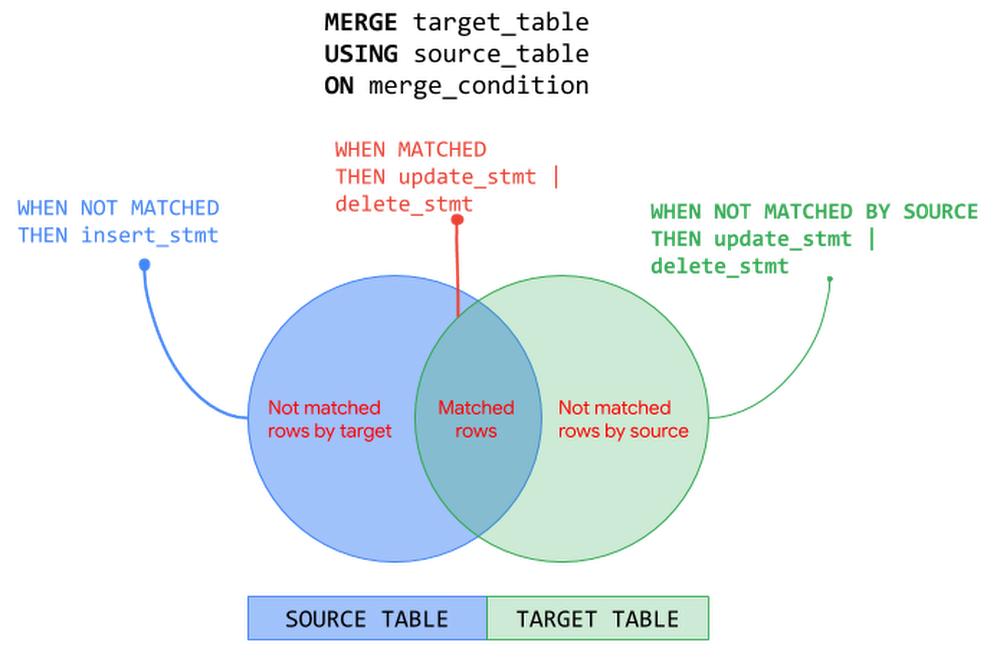
In the previous posts of BigQuery Explained, we reviewed how to ingest data into BigQuery and query the datasets. In this blog post, we will show you how to run data manipulation statements in BigQuery to add, modify and delete data stored in BigQuery. Let’s get started!Data Manipulation in BigQueryBigQuery has supported Data Manipulation Language (DML) functionality since 2016 for standard SQL, which enables you to insert, update, and delete rows and columns in your BigQuery datasets. DML in BigQuery supports data manipulation at an arbitrarily large number of rows in a table in a single job and supports an unlimited number of DML statements on a table. This means you can apply changes to data in a table more frequently and keep your data warehouse up to date with the changes in data sources. In this blog post we will cover:Use cases and syntax of common DML statementsConsiderations when using DML, including topics like quotas and pricingBest practices for using DML in BigQueryFollowing tables will be used in the examples in this post:TransactionsCustomerProductLet’s start with DML statements supported by BigQuery and their usage – INSERT, UPDATE, DELETE and MERGE.INSERT statementINSERT statement allows you to append new rows to a table. You can insert new rows using explicit values or by querying tables or views or using subqueries. Values added must be compatible with the target column’s data type. Following are few patterns to add rows into a BigQuery table:INSERT using explicit values:This approach can be used to bulk insert explicit values.INSERT using SELECTstatement: This approach is commonly used to copy a table’s content into another table or a partition. Let’s say you have created an empty table and plan to add data from an existing table, for example from a public data set. You can use the INSERT INTO … SELECT statement to append new data to the target table.INSERT using subqueries or common table expressions (CTE):As seen in the previous post, WITH statement allows you to name a subquery and use it in subsequent queries such as the SELECT or INSERT statement here (also called Common Table Expressions). In the example below, values to be inserted are computed using a subquery that performs JOIN operation with multiple tables.DELETE statementDELETE statement allows you to delete rows from a table. When using a DELETE statement, you must use WHERE clause followed by a condition. DELETE all rows from a tableDELETE FROM `project.dataset.table` WHERE true;DELETE with WHEREclause: This approach uses WHERE clause to identify the specific rows to be deleted.DELETE FROM `project.dataset.table` WHERE price = 0;DELETE with subqueries:This approach uses a subquery to identify the rows to be deleted. The subquery can query other tables or perform JOINs with other tables.DELETE `project.dataset.table`tWHERE t.id NOT IN (SELECT id from `project.dataset.unprocessed`)UPDATE statementUPDATE statement allows you to modify existing rows in a table. Similar to DELETE statement, each UPDATE statement must include the WHERE clause followed by a condition. To update all rows in the table, use WHERE true.Following are few patterns to update rows in a BigQuery table:UPDATE with WHERE clause: Use WHERE clause in the UPDATE statement to identify specific rows that need to be modified and use SET clause to update specific columns.UPDATE using JOINs: In a data warehouse, it’s a common pattern to update a table based on conditions from another table. In the previous example, we updated quantity and price columns in the product table. Now we will update the transactions table based on the latest values in the product table. (NOTE: A row in the target table to be updated must match with at most one row when joining with the source table in the FROM clause. Otherwise runtime error is generated)UPDATE nested and repeated fields: As seen in the previous post, BigQuery supports nested and repeated fields using STRUCT and ARRAY to provide a natural way of denormalized data representation. With BigQuery DML, you can UPDATE nested structures as well. In the product table, specs is a nested structure with color and dimension attributes and the dimension attribute is a nested structure. The below example UPDATEs the nested field for specific rows identified by WHERE clause.MERGE statementMERGE statement is a powerful construct and an optimization pattern that combines INSERT, UPDATE and DELETE operations on a table into an “upsert” operation based on values matched from another table. In an enterprise data warehouse with a star or snowflake schema, a common use case is to maintain Slowly Changing Dimension (SCD) tables that preserves the history of data with reference to the source data i.e. insert new records for new dimensions added, remove or flag dimensions that are not in the source and update the values that are changed in the source. The MERGE statement can be used to manage these operations on a dimension table with a single DML statement.Here is the generalized structure of the MERGE statement:A MERGE operation performs JOIN between the target and the source based on merge_condition. Then depending on the match status – MATCHED, NOT MATCHED BY TARGET and NOT MATCHED BY SOURCE – corresponding action is taken. The MERGE operation must match at most one source row for each target row. When there is more than one row matched, the operation errors out. The following picture illustrates MERGE operation on the source and target tables with the corresponding actions – INSERT, UPDATE and DELETE:MERGE operation can be used with source as subqueries, joins, nested and repeated structures. Let’s look at MERGE operation with INSERT else UPDATE pattern using subqueries. In the below example, MERGE operation INSERTs the row when there are new rows in source that are not found in target and UPDATEs the row when there are matching rows from both source and target tables.You can also include an optional search condition in WHEN clause to perform operations differently. In the below example, we derive the price of ‘Furniture’ products differently compared to other products.  Note that when there are multiple qualified WHEN clauses, only the first WHEN clause is executed for a row.The patterns seen so far in this post is not an exhaustive list. Refer to BigQuery documentation for DML syntax and more examples.Things to know about DML in BigQueryUnder the HoodBigQuery performs the following steps when executing a DML job. This is only a representative flow of what happens behind the scenes when you execute a DML job in BigQuery.Note that when you execute a DML statement in BigQuery, an implicit transaction is initiated that commits the transaction automatically when successful. Refer this article to understand how BigQuery executes a DML statement.Quotas and LimitsBigQuery enforces quotas for a variety of reasons such as to prevent unforeseen spikes in usage to protect the community of Google Cloud users. There are no quota limits on BigQuery DML statements i.e. BigQuery supports an unlimited number of DML statements on a table. However,  you must be aware of following quotas enforced by BigQuery when designing the data mutation operations:DML statements are not subjected to a quota limit but they do count towards the quota – tables operations per day and partition modifications per day. DML statements will not fail due to these limits but other jobs can.Concurrent DML JobsBigQuery manages the concurrency of DML statements that mutate rows in a table. BigQuery is a multi-version and ACID-compliant database that uses snapshot isolation to handle multiple concurrent operations on a table. Concurrently running mutating DML statements on a table might fail due to conflicts in the changes they make and BigQuery retries these failed jobs. Thus, the first job to commit wins which could mean that when you run a lot of short DML operations, you could starve longer-running ones. Refer this article to understand how BigQuery manages concurrent DML jobs.How many concurrent DML jobs can be run?INSERT DML job concurrency: During any 24 hour period, you can run the first 1000 INSERT statements into a table concurrently. After this limit is reached, the concurrency of INSERT statements that write to a table is limited to 10. Any INSERT DML jobs beyond 10 are queued in PENDING state. After a previously running job finishes, the next PENDING job is dequeued and run. Currently, up to 100 INSERT DML statements can be queued against a table at any given time.UPDATE, DELETE and MERGE DML job concurrency: BigQuery runs a fixed number of concurrent mutating DML statements (UPDATE, DELETE or MERGE) on a table. When the concurrency limit is reached, BigQuery automatically queues the additional mutating DML jobs in a PENDING state. After a previously running job finishes, the next PENDING job is dequeued and run. Currently, BigQuery allows up to 20 mutating DML jobs to be queued in PENDING state for each table and any concurrent mutating DMLs beyond this limit will fail. This limit is not affected by concurrently running load jobs or INSERT DML statements against the table since they do not affect the execution of mutation operations. What happens when concurrent DML jobs get into conflicts?DML conflicts arise when the concurrently running mutating DML statements (UPDATE, DELETE, MERGE) try to mutate the same partition in  a table and may experience concurrent update failures. Concurrently running mutating DML statements will succeed as long as they don’t modify data in the same partition. In case of concurrent update failures, BigQuery handles such failures automatically by retrying the job by first determining a new snapshot timestamp to use for reading the tables used in the query and then applying the mutations on the new snapshot. BigQuery retries concurrent update failures on a table up to three times. Note that inserting data to a table does not conflict with any other concurrently running DML statement. You can mitigate conflicts by grouping DML operations and performing batch UPDATEs or DELETEs.Pricing DML StatementsWhen designing DML operations in your system, it is key to understand how BigQuery prices DML statements to optimize costs as well as performance. BigQuery pricing for DML queries is based on the number of bytes processed by the query job with DML statement. Following table summarizes the calculation of bytes processed based on table being partitioned or non-partitioned:Since the DML pricing is based on the number of bytes processed by the query job, the best practices of querying the data with SELECT queries applies to DML query jobs as well. For example, limiting the bytes read by querying only data that is needed, partition pruning with partitioned tables, block pruning with clustered tables and more. Following are best practices guides for controlling bytes read by a query job and optimizing costs:Managing input data and data sources | BigQueryEstimating storage and query costs | BigQueryCost optimization best practices for BigQueryDMLs on Partitioned and Non-Partitioned TablesIn the previous BigQuery Explained post, we perceived how BigQuery partitioned tables make it easier to manage and query your data, improve the query performance and control costs by reducing bytes read by a query. In the context of DML statements, partitioned tables can accelerate the update process when the changes are limited to the specific partitions. For example, a DML statement can update data in multiple partitions for both ingestion-time partitioned and partitioned tables (date, timestamp, datetime and integer range partitioned).Let’s refer to the example from the partitioning section of BigQuery Explained: Storage Overview post where we created non-partitioned and partitioned tables from a public data set based on StackOverflow posts. Non-Partitioned TablePartitioned TableLet’s run an UPDATE statement on non-partitioned and partitioned tables to modify a column for all the StackOverflow posts created on a specific date.Non-Partitioned TablePartitioned TableIn this example, with the partitioned table the query with DML job scans and updates only the required partition processing ~11 MB data compared to the DML job on the non-partitioned table that processes ~3.3 GB data doing a full table scan. Here the DML operation on the partitioned table is faster and cheaper than the non-partitioned table.Using DML statements (INSERT, UPDATE, DELETE, MERGE) with partitioned and non-partitioned tables follow the same DML syntax as seen in the post earlier. Except when working with an ingestion-time partitioned table, you specify the partition refering the _PARTITIONTIME pseudo column. For example, see the INSERT statement below for ingestion-time partitioned table and a partitioned table.INSERT with ingestion-time partitioned tableINSERT with partitioned TableWhen using a MERGE statement against a partitioned table, you can limit the partitions involved in the DML statements by using partition pruning conditions in a subquery filter, a search_condition filter, or a merge_condition filter.Refer BigQuery documentation for using DML with partitioned tables and non-partitioned tables.DML and BigQuery Streaming insertsIn the BigQuery Explained: Data Ingestion post, we touched upon the streaming ingestion pattern that allows continuous styles of ingestion by streaming data into BigQuery in real-time, using the tabledata.insertAll method. BigQuery allows DML modifications on tables with active streaming buffer based on recency of writes in the table.Rows written to the table recently using streaming cannot be modified. Recent writes are typically those that occur within the last 30 minutes. All other rows in the table are modifiable with mutating DML statements (UPDATE, DELETE or MERGE).Best Practices Using DML in BigQueryAvoid point-specific DML statements. Instead group DML operations.Even though you can now run unlimited DML statements in BigQuery, consider performing bulk or large-scale mutations for the following reasons: BigQuery DML statements are intended for bulk updates. Using point-specific DML statements is an attempt to treat BigQuery like an Online Transaction Processing (OLTP) system. BigQuery focuses on Online Analytical Processing (OLAP) by using table scans and not point lookups.Each DML statement that modifies data initiates an implicit transaction. By grouping DML statements you can avoid unnecessary transaction overhead.DML operations are charged based on the number of bytes processed by the query which can be a full table or partition or cluster scan. By grouping DML statements you can limit the number of bytes processed.DML operations on a table are subjected to rate limiting when multiple DML statements are submitted too quickly. By grouping operations, you can mitigate the failures due to rate limiting.The following are a few ways to perform bulk mutations:Batch mutations by using the MERGE statement based on contents of another table. MERGE statement is an optimization construct that can combine INSERT, UPDATE, and DELETE operations into one statement and perform them atomically.Using subqueries or correlated subqueries with DML statements where the subquery identifies the rows to be modified and the DML operation mutates data in bulk.Replace single row INSERTs with bulk inserts using explicit values or subqueries or common table expressions (CTE) as discussed earlier in the post. For example, if you have the following point specific INSERT statements, running them as is in BigQuery is an anti-pattern:You can translate into a single INSERT statement that performs a bulk operation instead:If your use case involves frequent single row inserts, consider streaming your data instead. Please note there is a charge for streamed data unlike load jobs which are free.Refer BigQuery documentation on examples of performing batch mutations.Batch your updates and inserts.Performing large-scale mutations in BigQueryUse CREATE TABLE AS SELECT (CTAS) for large-scale mutations.DML statements can get significantly expensive when you have large scale modifications. For such cases, prefer CTAS (CREATE TABLE AS SELECT) instead. So instead of performing a large number of UPDATE or DELETE statements, you run a SELECT statement and save the query results into a new target table with modified data using CREATE TABLE AS SELECT operation. After creating the new target table with modified data, you would discard the original target table. SELECT statements can be cheaper than processing DML statements in this case. Another typical scenario where a large number of INSERT statements is used is when you create a new table from an existing table. Instead of using multiple INSERT statements, create a new table and insert all the rows in one operation using the CREATE TABLE AS SELECT statement.Use TRUNCATE when deleting all rows.When performing a DELETE operation to remove all the rows from a table, use TRUNCATE TABLE statement instead. The TRUNCATE TABLE statement is a DDL (Data Definition Language) operation that removes all rows from a table but leaves the table metadata intact, including the table schema, description, and labels. Since TRUNCATE is a metadata operation it does not incur a charge.TRUNCATE TABLE `project.dataset.mytable`Partition your data.As we have seen earlier in the post, partitioned tables can significantly improve performance of DML operation on the table and optimize cost as well. Partitioning ensures that the changes are limited to specific partitions within the table. For example, when using MERGE statement you can lower cost by precomputing the partitions affected prior to the MERGE and include a filter for the target table that prunes partition in a subquery filter, a search_condition filter, or a merge_condition filter of MERGE statement. If you don’t filter the target table the mutating DML statement will do a full table scan. In the following example, you are limiting the MERGE statement to scan only the rows in the ‘2018-01-01′ partition in both the source and the target table by specifying a filter in the merge condition.When UPDATE or DELETE frequently modify older data, or within a particular range of dates, consider partitioning your tables. Avoid partitioning tables if the amount of data in each partition is small and each update modifies a large fraction of the partitions.Cluster tablesIn the previous post of BigQuery Explained, we have seen clustering data can improve performance of certain queries by sorting and collocating related data in blocks. If you often update rows where one or more columns fall within a narrow range of values, consider using clustered tables. Clustering performs block level pruning and scans only data relevant to the query reducing the number of bytes processed by the query. This improves DML query performance as well as optimizes costs. You can use clustering with or without partitioning the table and clustering the tables is free. Refer example of DML query with clustered tableshere. Be mindful of your data editsIn the previous post of BigQuery Explained, we mentioned long term storage can offer significant price savings when your table or partition of a table has not been modified for 90 days. There is no degradation of performance, durability, availability or any other functionality when a table or partition is considered for long-term storage. To get the most out of long-term storage, be mindful of any actions that edit your table data, such as streaming, copying, or loading data, including any DML or DDL actions. Any modification can bring your data back to active storage and reset the 90-day timer. To avoid this, you can consider loading the new batch of data to a new table or a partition of a table. Consider Cloud SQL for OLTP use casesIf your use case warrants OLTP functionality, consider using Cloud SQL federated queries, which enable BigQuery to query data that resides in Cloud SQL. Check out this video for querying Cloud SQL from BigQuery.Querying Cloud SQL from BigQueryWhat’s Next?In this article, we learned how you can add, modify and delete data stored in BigQuery using DML statements, how BigQuery executes DML statements, best practices and things to know when working with DML statements in BigQuery.Check out BigQuery documentation on DML statementsUnderstand quotas, limitations and pricing of BigQuery DML statements Refer to this blog post on BigQuery DML without limitsIn the next post, we will look at how to use scripting, stored procedures and user defined functions in BigQuery.Stay tuned. Thank you for reading! Have a question or want to chat? Find me on Twitter or LinkedIn.Thanks to Pavan Edara and Alicia Williams for helping with the post.Related Article[New blog series] BigQuery explained: An overviewOur new blog series provides an overview of what’s possible with BigQuery.Read Article
Quelle: Google Cloud Platform