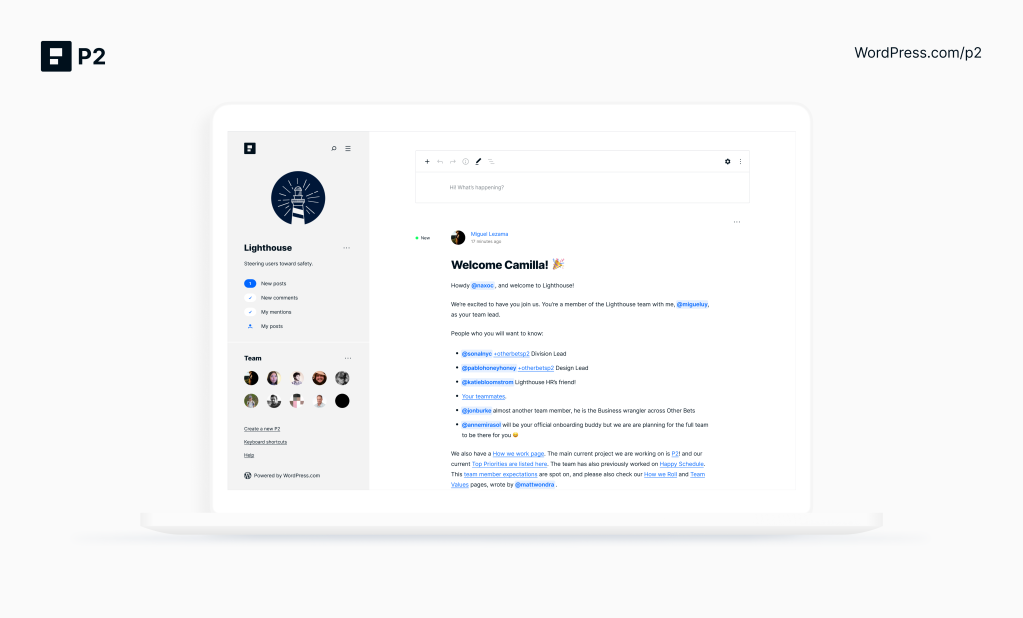
Improve Your Remote Collaboration With P2

P2 powers internal collaboration at WordPress.com — and now it’s free for everyone.

As more collaboration is happening remotely and online — work yes, but increasingly also school and personal relationships — we’re all looking for better ways to work together online. Normally, teachers hand out homework to students in person, and project leaders gather colleagues around a conference table for a presentation. Suddenly all this is happening in email, and Slack, and Zoom, and Google docs, and a dozen other tools.

At WordPress.com, our 15 years as a fully distributed company with over 1,200 employees working from 77 countries relies on P2: an all-in-one team website, blog, database, and social network that consolidates communications and files in one accessible, searchable spot.

It powers work at WordPress.com, WooCommerce, and Tumblr. And today, a beta version is available for anyone — for your newly-remote work team, your homeschooling pod, your geographically scattered friends. P2 is the glue that gives your group an identity and coherence. 

What’s P2?

P2 moves your team or organization away from scattered communication and siloed email inboxes. Any member of your P2, working on any kind of project together, can post regular updates. Discussions happen via comments, posted right from the front page and updated in real time, so your team can brainstorm, plan, and come to a consensus. Upload photos or charts, take a poll, embed files, and share tidbits from your day’s activities. Tag teammates to get their attention. Your P2 members can see updates on the Web, via email, or in the WordPress mobile apps. 

Keep your P2 private for confidential collaboration. Or make it public to build a community. How you use it and who has access is up to you. And as folks come and go, all conversations and files remain available on the P2, and aren’t lost in anyone’s inbox.

The beta version of P2 is free for anyone, and you can create as many P2 sites as you need. (Premium versions are in the works.)  

What can I use P2 for?

Inside Automattic, we use P2 for:

Companywide blog posts from teams and leadership, where everyone can ask questions via comments.Virtual “watercoolers” to help teammates connect — there are P2s for anything from music to Doctor Who to long-distance running.Project planning updates.Sharing expertise to our broader audience. We’ve got a P2 with guidance on how to manage remote work, and WooCommerce uses P2 to organize their global community.

P2 works as an asynchronous companion to live video like Zoom or live chat like Slack. It’s a perfect partner for live video and chat — you have those tools when a real-time conversation gets the job done, and P2 for reflection, discussion, and commemorating decisions.

How can you use your P2?

Plan a trip with friends and family — share links, ticket files, and travel details. (See an example on this P2!).Create a P2 for your school or PTA to share homeschooling resources and organize virtual events.Manage your sports team’s schedules and share photos from games.Let kids track and submit homework assignments remotely, with a space for Q&A with your students.

How can I learn more?

Visit this demo P2 to learn the P2 ropes! Check out a range of example posts and comments to see how you can:

Post, read, comment, like, and follow conversations. @-mention individuals and groups to get their attention. Share video, audio, documents, polls, and more.  Access in-depth stats and get notifications.

Ready for your own P2?

Visit WordPress.com/p2 and create your own P2.
Quelle: RedHat Stack

Fast Restart: A powerful new tool to help improve SAP HANA uptime

There are plenty of things in life where “good enough” is a worthy goal. But if you’re a SAP administrator, you know that “good enough” simply isn’t when it comes to reducing system downtime and achieving faster restart times on your business-critical SAP HANA environments.Of course, when you’re pursuing perfection, some tactics are better than others, especially when you’re dealing with tight budgets and an overworked IT staff. That’s why we’re spotlighting a powerful technique that uses existing SAP HANA capabilities to help slash your database restart times. It’s an approach that most SAP admins can implement in minutes—and it complements Google Cloud’s existing arsenal of tools and tactics for maximizing SAP system availability.Using persistent memory to help reduce HANA restart timesRestart times have always been a concern for SAP HANA, which—like any in-memory database—can take a long time to load resident data back into memory from persistent storage. Whether you’re talking about process restarts, system crashes, or planned maintenance, it’s common for HANA restarts to take an hour or longer. The process of reading data from disk back into memory accounts for virtually all of this downtime.Beginning with SAP HANA 2 SPS3, SAP has supported the use of persistent memory (PRAM) to help reduce restart times. This approach employs a method to store columnstore fragments into a filesystem, backed by persistent memory like Intel Optane DC Persistent Memory. It’s a tempting option for any organization where SAP HANA plays a business-critical role—and where the idea of losing access to HANA for an hour or more is enough to give any SAP admin some sleepless nights.There’s a lot of value in maximizing HANA uptime. But there’s also value in adopting technology that’s flexible, scalable, and engineered to support innovation. Let’s look at another option that can help maximize HANA system availability and that organizations can adopt to achieve these goals.Fast Restart: A valuable new way to combat HANA downtimeBeginning with HANA 2.0 SPS4, SAP has supported a method, dubbed Fast Restart, that offers many of the same benefits as PRAM. Fast Restart is a more limited solution than one using persistent memory, but it also has a major advantage: Customers can implement it on virtually any current host system, without sacrificing performance or flexibility.In a nutshell, Fast Restart uses TMPFS—a long-established Unix facility for creating virtual filesystems—to store HANA database columns in DRAM. This means Fast Restart won’t survive a full VM restart, but it will keep a database intact and in-memory when a process restart or planned maintenance knocks down a HANA instance. And that still covers a lot of situations where Fast Restart can turn an hour-long ordeal into a hiccup that users are unlikely to notice.Who should be using Fast Restart? The short answer is simple: Almost everybody who runs SAP HANA 2 SPS4+, whether on-premises or in the cloud, should seriously consider it. Most of the time, adopting Fast Restart is as simple as knowing it’s available; the implementation process is relatively straightforward and low-risk.For most SAP administrators, the process of implementing Fast Restart includes just three steps:Map out and understand the host environment’s non-uniform memory access (NUMA) topology. This is a critical preparatory step since HANA is designed to self-optimize its memory access and process allocation based on its own reading of a system’s NUMA topology, and setting up TMPFS for HANA will require a similar understanding of how HANA recognizes and uses system memory.Create and mount the TMPFS filesystem. This includes creating and naming the required number of directories, setting mount options, updating fstab, and checking the resulting filesystem to confirm that it will function properly.Configure HANA to use Fast Restart. This includes some fairly simple changes to the HANA global INI parameters, and then deciding whether to store specific Column tables or partitions into the persistent memory space or to change the default for all new tables.When you’re ready to implement Fast Restart on your own HANA systems, be sure to review the SAP documentation for Fast Restart for a deeper dive into the setup process and to understand the requirements for using Fast Restart.Fast Restart by the numbers: A night-and-day differenceYou may be wondering just how much of a difference Fast Restart can make during an event such as a HANA process restart. We were curious, too, so we set up a simple comparison test to get some hard numbers.First, we generated a fairly typical HANA environment, including data in 40 Tables with a total volume of 2.74TB, configured for preload. We then measured the time elapsed from HANA startup invocation to all preload tables being loaded in memory—first by provisioning a memory-optimized virtual server using Compute Engine, but without Fast Restart:Compute Engine M1 memory-optimized serverStartup invocation: 11:41:47Finished preload: 12:22:05IO Speed: Approx. 1.17GB/sTotal time elapsed for startup: 40 minutesAnd then we measured the same startup time, elapsed on the same virtual server, using Fast Restart:Startup invocation: 11:12:32Finished preload: 11:13:09IO Speed: approx. 28MB/sTotal time elapsed for startup: 1 minuteIt’s hard to envision better performance, given the time SAP HANA needs simply to load its own binaries and to read checksum information required to validate the in-memory data. And while the process might take as long as 4 to 5 minutes depending on your exact HANA configuration, the difference in startup times speaks for itself.Fast Restart on Google Cloud: One tool among many to protect HANA uptimeFast restart is a great option for any organization that runs SAP HANA, whether you’re running HANA on Google Cloud, using legacy on-premises systems, or another cloud provider. But keep in mind that using Fast Restart raises an important question: What can you do to minimize downtime in cases where Fast Restart isn’t capable of closing the gap on its own—for example, when it’s necessary to shut down a host VM for planned maintenance or due to unplanned issues?This is where the value of a multi-faceted availability strategy comes into play. For organizations running SAP HANA on Google Cloud, that means interlocking high availability solutions such as:Live Migration, which moves a running HANA instance seamlessly to a new VM prior to beginning scheduled maintenance, without the need for administrator monitoring or intervention.Host Auto Restart, which allows Compute Engine to restart a VM instance automatically on a different host. This offers the ability to quickly restart an affected application, typically through the use of customer-supplied startup scripts.High-availability database support, most notably Google Cloud’s support for synchronous SAP HANA system replication and for SAP HANA host auto-failover.Google Cloud’s approach to high availability by design, which allows SAP HANA users to leverage a redundant, global infrastructure to deploy applications across multiple zones and regions—capabilities that can accommodate stringent availability targets.As we said, “good enough” is rarely good enough when it comes to maintaining the availability of your business-critical SAP HANA systems. Fast Restart is an important, and sometimes overlooked, tool for helping to improve your system availability. But the best approach to availability is one that relies on many solutions working in unison, which is exactly why Fast Restart can be such a valuable tool for organizations already running SAP HANA on Google Cloud.Learn more about SAP on Google Cloud.
Quelle: Google Cloud Platform

New best practices to help automate more secure Cloud deployments

Organizations move to the cloud for many reasons, from improved efficiency, to ease of management, to better security. That’s right, one of the most important benefits of moving to the cloud is the opportunity to establish a robust baseline security and compliance posture. But it doesn’t just magically happen. While you can depend on Google Cloud’s secure-by-design core infrastructure, built-in product security features, and advanced security tools, you also need to configure cloud deployments to meet your own unique security and compliance requirements. We believe that a big part of our shared responsibility for security is to help make meeting these requirements easier. That’s why this week we launched our Google Cloud security best practices center, a new web destination that delivers world-class security expertise from Google and our partners. This expertise, in the form of security blueprints, guides, whitepapers, and more, can help you accelerate your move to cloud while prioritizing security and compliance. And with downloadable, deployable templates and code, it can help you automate more secure deployment of services and resources.Blueprints: Helping you automate more secure deploymentsAs part of this new resource center, we’re publishing a comprehensive new security foundations blueprint to provide curated, opinionated guidance and accompanying automation to help you build security into your starting point for your Google Cloud deployments. The security foundations blueprint was developed based on our customer experience and covers the following topics:Google Cloud organization structureAuthentication and authorizationResource hierarchy and deploymentNetworking (segmentation and security)LoggingDetective controlsBilling setupThe blueprint itself includes both a detailed best practices guide and deployable assets in the form of customizable Terraform build scripts that can be used to stand up a Google Cloud environment configured per the guidance. This joins other newly published blueprints with the same goal of best-practice security posture automation for specific apps or workloads.The PCI on GKE blueprint contains reference architectures and a set of Terraform configurations and scripts that demonstrate how to bootstrap a PCI environment in Google Cloud. The core of this blueprint is a sample Online Boutique application, where users can browse items, add them to a shopping cart, and make purchases. This blueprint enables you to quickly and easily deploy workloads on Google Kubernetes Engine (GKE) that align with the Payment Card Industry Data Security Standard (PCI DSS) in a repeatable, supported, and secure way. The blueprint also includes a PCI DSS 3.2.1 mapping for the solution and a PCI Compliance whitepaper, which provides an independent, third-party assessment of the blueprint performed by Coalfire, Google’s PCI DSS auditor.The Google Cloud Healthcare Data Protection Toolkit is an automation framework for deploying Google Cloud resources to store and process healthcare data, including protected health information (PHI) as defined by the US Health Insurance Portability and Accountability Act (HIPAA). It provides an example of how to configure Google Cloud infrastructure for data storage, analytics, or application development and includes many of the security and privacy best-practice controls recommended for healthcare data, such as configuring appropriate access, maintaining audit logs, and monitoring for suspicious activities.The Anthos security blueprints provide prescriptive information and instructions for achieving a set of security postures when you create or migrate workloads that use Anthos clusters. There are currently individual blueprints for enforcing policies, enforcing locality restrictions for clusters on Google Cloud, and auditing and monitoring for deviation from policy. Each blueprint includes an implementation guide and deployable assets (custom resource definition files and Terraform templates and scripts). These blueprints are additive, so you can apply multiple blueprints to your environments. Get startedVisit our Google Cloud security best practices center today to learn more about how to accelerate your cloud migration and improve your security posture. We also have a couple NextOnAir sessions that deal with blueprints and are worth checking out: Master Security and Compliance in the Public Cloud and Enhance Your Security Posture and Run PCI Compliant Apps with Anthos. Then, listen to our recent GCP Podcast on blueprints to hear about the current offerings and future plans. And keep checking back for the latest additions to the center as we continue to add and update content from Google Cloud experts and our partners.
Quelle: Google Cloud Platform

New multi-region configurations for Spanner in Asia and Europe

Cloud Spanner is Google Cloud’s massively scalable relational database service. A core tenet of Spanner’s vision has been ensuring high availability of applications with external strong consistency. In support of this, we’ve launched two new multi-regions of Spanner that offer 99.999% availability: the Asia multi-region (asia1) and the Europe multi-region (eur5). More multi-regions allow you to deliver a high-quality, unified customer experience to users around the world while ensuring high availability.Multi-region configurations offer benefits that include:99.999% availability: Spanner’s multi-region architecture supports high business continuity and offers protection against region failures. The new asia1 and eur5 multi-regions provide an even higher availability in comparison to regional Spanner instances (99.999% versus 99.99%) without compromising on the scale insurance or strong consistency guarantees of Spanner.Data distribution: Spanner automatically replicates your data between regions with strong consistency guarantees. This allows you to serve a global customer base by co-locating data with compute near your users to provide low-latency data access..External consistency: Even though Spanner automatically shards the data across multiple machines and replicates across geographically distant locations, you can still use Spanner as if it were a database running on a single machine. Transactions are guaranteed to be serializable, and the order of transactions within the database is the same as the order in which clients observe the transactions to have been committed. Spanner has seen strong momentum in Asia in a variety of industries such as financial services, retail, healthcare, media and entertainment, and gaming. The new asia1 region will enable companies in that region to launch new digital services with the performance and availability their consumers expect and enable high business continuity. How new Spanner regions enable high availability and scalabilityWe’ve heard from Fukuoka Financial Group (FFG), a premier banking and financial company in Japan, about their selection and use of Spanner. “For our digital-native banking system currently under development, we needed a database that can scale seamlessly based on demand, offers external strong consistency, good performance and has extremely high availability for us to deliver an unmatched experience to our consumers,” says Masaaki Miyamoto, managing director, Zero Bank Design Factory Co., Ltd. (a subsidiary of FFG). “We found Spanner to be the only relational database that meets our needs. We are glad that now Spanner offers an Asia multi-regional configuration that delivers 99.999% availability SLA, enabling us to build applications for high-business continuity with infinite scale. Accenture is supporting us to develop our banking system.”A Spanner multi-region consists of a minimum of three regions and five replicas; Spanner today supports multi-regions with five, seven, or nine replicas in an instance configuration. In addition to read-write replicas and read-only replicas, multi-regions support a witness region that uses a witness replica. A witness replica does not serve reads, but does participate in voting to commit writes, thus helping achieve quorum for writes. Asia1 multi-region has five replicas and the witness region is located in asia-northeast2 (Seoul).The asia1 multi-region is configured as follows:asia-northeast1 (Tokyo) as default leader asia-northeast2 (Osaka) as secondary regionasia-northeast3 (Seoul) as witness regionMercari, an ecommerce company, and Merpay, its mobile payments division, have found success building apps with Spanner.  “We started using Spanner for our new mobile payment service Merpay in 2018 and since then we have expanded its use in other business units in the organization,” says Singo Ishimura, GAE Meister at Mercari, Inc. “Spanner’s strong consistency, high availability and its ability to seamlessly scale has allowed us to focus on building the business logic in our applications instead of worrying about the operations and management of the database. We at Mercari/Merpay are excited about the recent launch of the Spanner Asia multi-region, as we now have options to run workloads that need the five 9s of availability offered by the Spanner multi-regional configuration.” The new Europe multi-region (eur5) will enable customers in regulated industries like financial services to retain local copies of data and provide 99.999% availability for their workloads. The eur5 multi-region, similar to eur3, has five replicas, with the witness in europe-west4 (Netherlands). The eur5 configuration details are as follows:europe-west2 (London) as default leadereurope-west1 (Belgium) as secondary regioneurope-west4 (Netherlands) as witness region We’ve heard from Google Cloud partner Accenture Japan about their experience onboarding customers to Spanner.“A distributed database that scales write access, not only read access, is a key component to achieve digital transformation,” says Keisuke Yamane, managing director, Accenture Technology, Intelligent Software Engineering Services at Accenture Japan Ltd. “We are seeing a great demand for Spanner because of its unique characteristics of both a distributed database and a relational database. This Asia multi-regional configuration announced will lead to greater use of Spanner in regulated industries like the financial sector, such as Zero Bank Design Factory Inc., life science sector, and others. Accenture will accelerate our clients’ digital transformation based on our MAINRI platform that fully utilizes Google Cloud, including Spanner.”The new multi-region configurations can be easily accessed using the Spanner API, user interface (UI) or command line interface (CLI), as part of the instance creation workflow. For more information, review the documentation and the configuration details panel in the UI.Learn moreTo get started with Spanner, create an instanceor try it out with a Spanner Qwiklab.
Quelle: Google Cloud Platform

Logs-based Security Alerting in Google Cloud: Detecting attacks in Cloud Identity

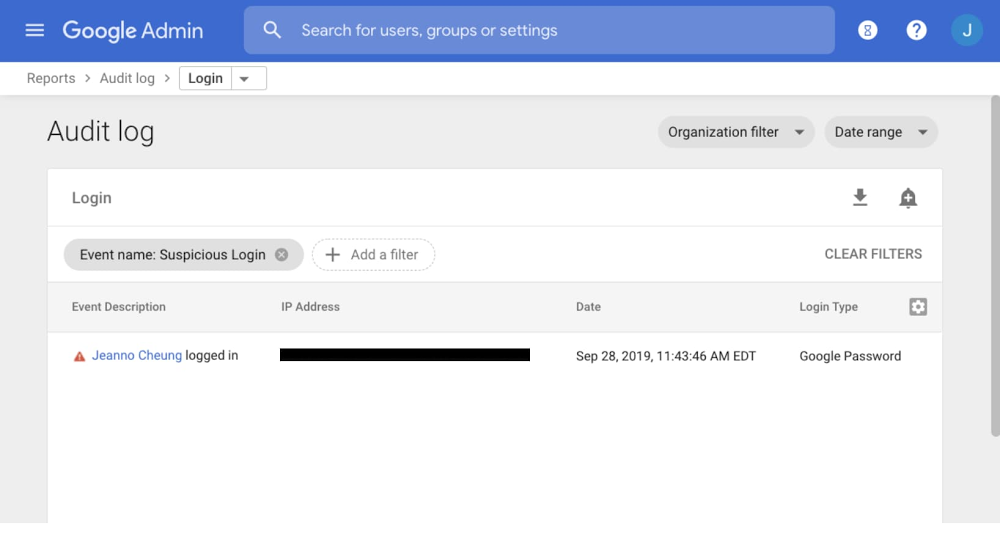
Shifting from an on-premise model to a cloud-based one opens up new opportunities when it comes to logging and securing your workloads.In this series of blog posts, we’ll cover some cloud-native technologies you can use to detect security threats and alert on logs in Google Cloud. The end result will be an end-to-end logs-based security alerting pipeline in Google Cloud Platform (GCP). We’ll start with a look into alerting on Cloud Identity logs in the Admin Console.Cloud IdentityCustomers use Cloud Identity to provision, manage, and authenticate users across their Google Cloud deployment. Cloud Identity is how the people in your organization gain a Google identity, and it’s these identities that are granted access to your Google Cloud resources.Now think about this: What if a rogue actor gets admin access in Cloud Identity and starts adding users to Google Groups? What if one of those groups is assigned privileged access within GCP? Cloud Identity logs can provide visibility into these situations and serve as your first line of defense against authentication and authorization-based attacks.Cloud Identity logsCloud Identity logs track events that may have a direct impact on your GCP environment. Relevant logs include:Admin audit log: track actions performed in the Google Admin Console. For example, you can see when an administrator added a user to your domain or changed a setting.Login audit log: track when users sign in to your domainGroups audit log: track changes to group settings and group memberships in Google GroupsOAuth Token audit log: track third-party application usage and data access requestsSAML audit log (G Suite/Cloud Identity Premium only): view your users’ successful and failed logins to SAML applicationsThe core information in each log entry is the event name and description. Cloud Identity logs track a large number of predefined “events” that can occur in your deployment. For example, the Login audit logs track “Failed Login” and “Suspicious Login” events. Failed Login happens every time a user fails to login. Suspicious Login happens if a user logged in under suspicious circumstances, such as from an unfamiliar IP address. The number of events Cloud Identity tracks is quite large, and these events can be explored in the Reports > Audit log section of the Admin Console.Setting alerts in Cloud IdentityTo detect threats and respond to potential malicious activity in a timely manner, you can alert on events in Cloud Identity logs. A good first line of defense is setting up alerts in the Admin Console. When you create an alert, you specify a filter and a list of recipients who will get an email when this alert is triggered. Let’s explore some potentially useful alerts.Example 1: Alerting on login eventsIn this scenario, let’s say a user has unknowingly had their Google credentials stolen, and a malicious actor is trying to use them to sign in as the user from outside the company network. Cloud Identity will see that this user is trying to sign in from an unfamiliar IP address and log it as a Suspicious Login event. Let’s create an alert for this situation so we can take action if we think a user account has been compromised.From the Reports > Audit log section of the Admin Console, choose the type of log you want to create an alert for. Once you’re viewing Login audit logs, create a filter for logs with the “Suspicious Login” event name.You can create an alert by pressing the bell-shaped button in the top right corner of the console. You supply a list of recipients who will be notified by email every time this alert is triggered. In our example, “security@example.com” would receive an email alert if there’s a Suspicious Login. The notified users can then take action to mitigate the security concern.You can create alerts for other Login audit events in the same way. For example, the “Leaked Password” event type is logged when we detect compromised credentials and requires a password reset, and the Government-Backed Attack event type is logged when we believe government-backed attackers have tried to compromise a user account. Alerting on these events and others can help you be aware of and react to login-related security threats.Example 2: Alerting on changes to groupsWe recommend that Google Cloud enterprise customers handle IAM permissioning by first assigning users to groups, and then listing these groups as members of IAM Roles. This way, deprovisioning Google Cloud access is as easy as removing a user from a group in Cloud Identity.Of course, if deprovisioning IAM permissions is as easy as removing a user from a group, then provisioning access is as easy as adding them to a group. This could be dangerous if malicious users are added to a group with privileged, wide-reaching access in GCP.There are four potential roles that can add a user to a group in Cloud Identity, depending on your settings:Super Admin (through the Admin Console)Group Admin (through the Admin Console)Group Owner (through Google Groups)Group Manager (through Google Groups)Let’s look at a scenario to illustrate how we can use Cloud Identity logs to help mitigate these risks. Bob is a Security Lead at Company A. The Cloud Identity Super Admin has assigned him as a group manager for the Google Group “security-admin@example.com”, meaning he can add or remove members of his team to this group. This group is assigned powerful roles in GCP to carry out break-glass administrative actions surrounding security.Let’s suppose that, in one way or another, a malicious actor has gotten access to Bob’s credentials, signed in as Bob, and has silently started adding users to the security-admin group. Now all of these rogue users have privileged access in our GCP organization. Not good!To mitigate a scenario like Bob’s, you should set up alerts for group membership modification in the Admin Console. We can set up these alerts to trigger if modifications are made by group managers in Google Groups or by admins in the Admin Console.To audit Group actions taken in Google Groups, we go to the Reports > Audit log > Groups section of the Admin Console. Here, we can see audit logs of actions taken on Groups. Then, we can filter on the “User added to a group” event name and specify the group name, for example a sensitive group like “security-admin@example.com”.After that, we can create a reporting rule so that a static list of recipients is automatically emailed when this log appears.The details for our new reporting rule are available in the Admin Console under Security > Rules > Security Admin Group Modification.Google Groups isn’t the only way to add someone to a group. An admin could also potentially do this within the Admin Console, which would be tracked in an Admin audit log. In the same way we created an alert to trigger based on an event in a Groups audit log, we can filter for Groups-related events in the Admin audit logs.Next stepsCloud Identity logs help track many different events that you can use for security alerting. Once your organization is aware of these logs, you can brainstorm alerts that make sense for your use cases. For example, as you configure settings in Cloud Identity, you can make sure the settings stay that way by alerting if Admin audit logs ever show that a specific Cloud Identity setting is changed.Setting alerts on Cloud Identity logs in the Admin Console is a good first step towards a more secure Google Cloud deployment. However, we can only go as far as the built-in Admin Console features allow us to. The next post in this series will look at how to get Cloud Identity logs into Cloud Logging on GCP so that you can analyze, export, and store them just like any other GCP log. This will allow for even more granular Cloud Identity log analysis and alerting.
Quelle: Google Cloud Platform