5 AWS Services You Should Avoid!

medium.com – Get ready for some personal and definitely opinionated opinions! AWS comes with many components that cover different areas of concerns. But, most are not general purpose and cheap enough to be applie…
Quelle: news.kubernauts.io

Windows Server containers on GKE now GA, with ecosystem support

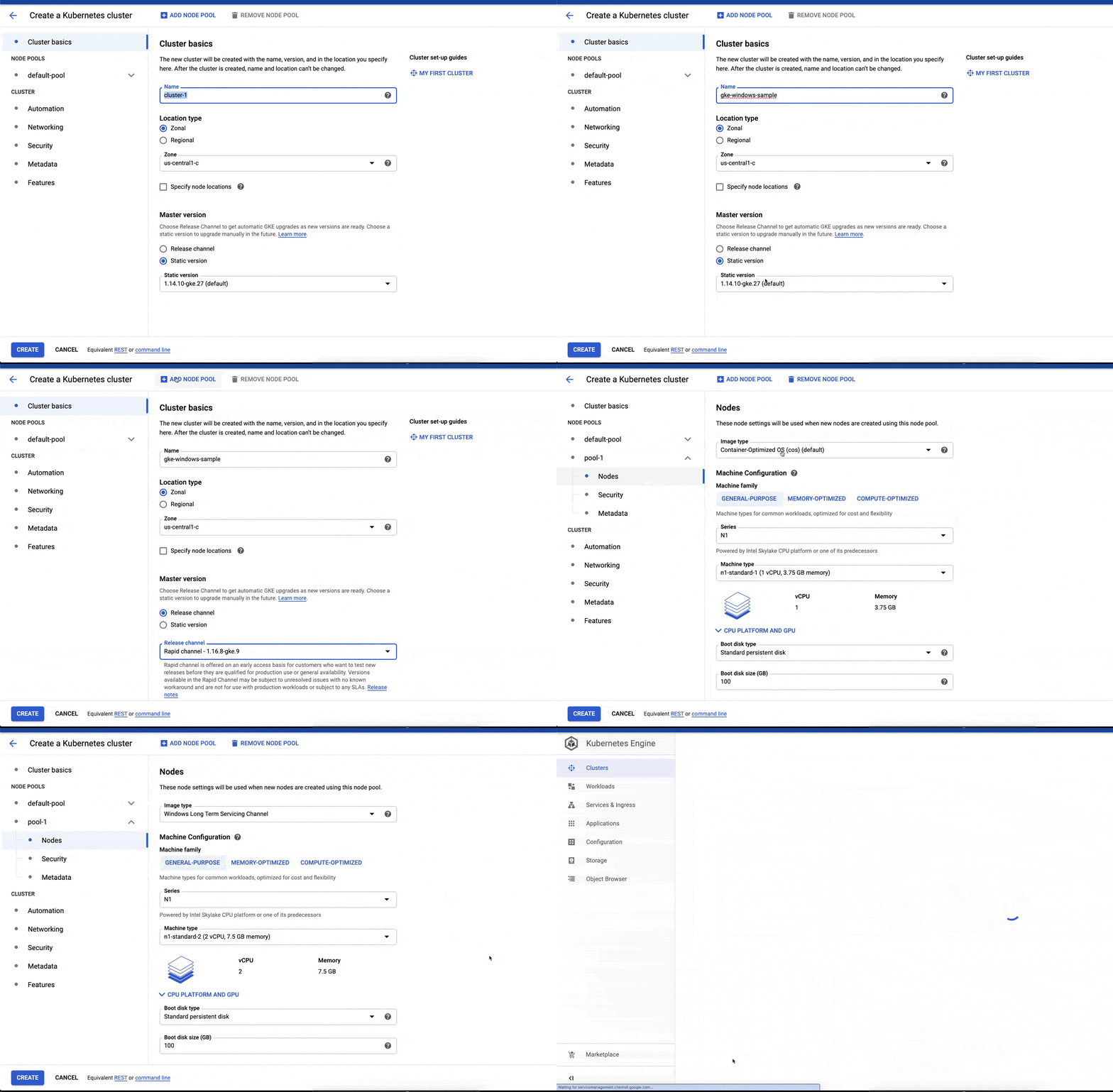
As organizations look to modernize their Windows Server applications to achieve improved scalability and smoother operations, migrating them into Windows containers has become a leading solution. And orchestrating these containers with Kubernetes has become the industry norm, just as it has with Linux. We launched the preview of Windows Server container support in Google Kubernetes Engine (GKE) earlier this year, and today, it’s generally available for production use. Running your Windows apps in containers on Kubernetes can provide significant cost savings, as well as improved reliability, scalability, and security—things that are especially important in times of uncertainty. Since we launched the preview, many customers have kicked the tires on our Windows Server containers. Thanks to their feedback, we’ve added features like support for private clusters and regional clusters, choice of Long-Term Servicing Channel (LTSC) and Semi-Annual Channel (SAC) versions, integration with Active Directory using group Managed Service Account (gMSA) and much more. This release also includes integration with the Google Cloud Console to simplify creating new GKE clusters or updating existing clusters with Windows Server node pools like in the graphic below.Improving the end-to-end experience with partner solutionsWhen you modernize your applications, you also want to incorporate them into an end-to-end DevOps management experience that works with your existing tooling and workflows. To that end, we’ve worked with several partners to make sure that your build, test, deploy, config and monitoring apps work well with Windows containers. Here are some use cases and partner solutions that we’ve tested to support Windows containers in GKE:Here are a few solutions from our technology ecosystem ISV partners tested to work with Windows containers in GKE:Aqua: Aqua’s security platform can be deployed directly on a GKE cluster and allows users of Windows applications to scan images and ensure only trusted images are deployed to production, all while preventing container related attacks in real time. More here.Chef: Chef’s application delivery solution Habitat can easily and efficiently package and deploy any Windows application—both modern and legacy—into GKE. More here.CircleCI: CircleCI’s orb supports deployment to Windows containers running on GKE, allowing you to deploy applications in minutes from your CI/CD pipeline. More here.CloudBees: Speed up your software delivery using CloudBees Core pipelines to test and create Windows-based apps managed on GKE. More here. Codefresh: Codefresh provides native support for connecting to GKE clusters, so you can create a deployment pipeline to serve Windows applications on the cluster. More here.Datadog: By deploying the Datadog Agent on your Windows node pool, you can monitor all your containerized Windows applications running on a GKE cluster. More here.GitLab: Execute a CI/CD pipeline with Windows runners on GitLab (both dotcom and self-hosted) to automatically deploy Windows apps on GKE. More hereJFrog: JFrog Artifactory serves as a Kubernetes registry that provides full traceability of all your orchestrated Windows apps. More here.New Relic: The New Relic Kubernetes solution for GKE lets you fully observe metrics, events, logs and traces for the Windows workloads running in your Kubernetes clusters. More here.We hope you will kick-start your modernization journey using Windows Server containers. You can find detailed documentation on our website. Our partners are eager to help you with any questions related to the published solutions. You can also reach out to the GCP sales team. If you are new to GKE, the Google Kubernetes Engine page and the Coursera course on Architecting with GKE are good places to start. Please don’t hesitate to reach out to us at gke-windows@google.com if you have any feedback or need help unblocking your use case.
Quelle: Google Cloud Platform

Anthos in depth: Toward a service-based architecture

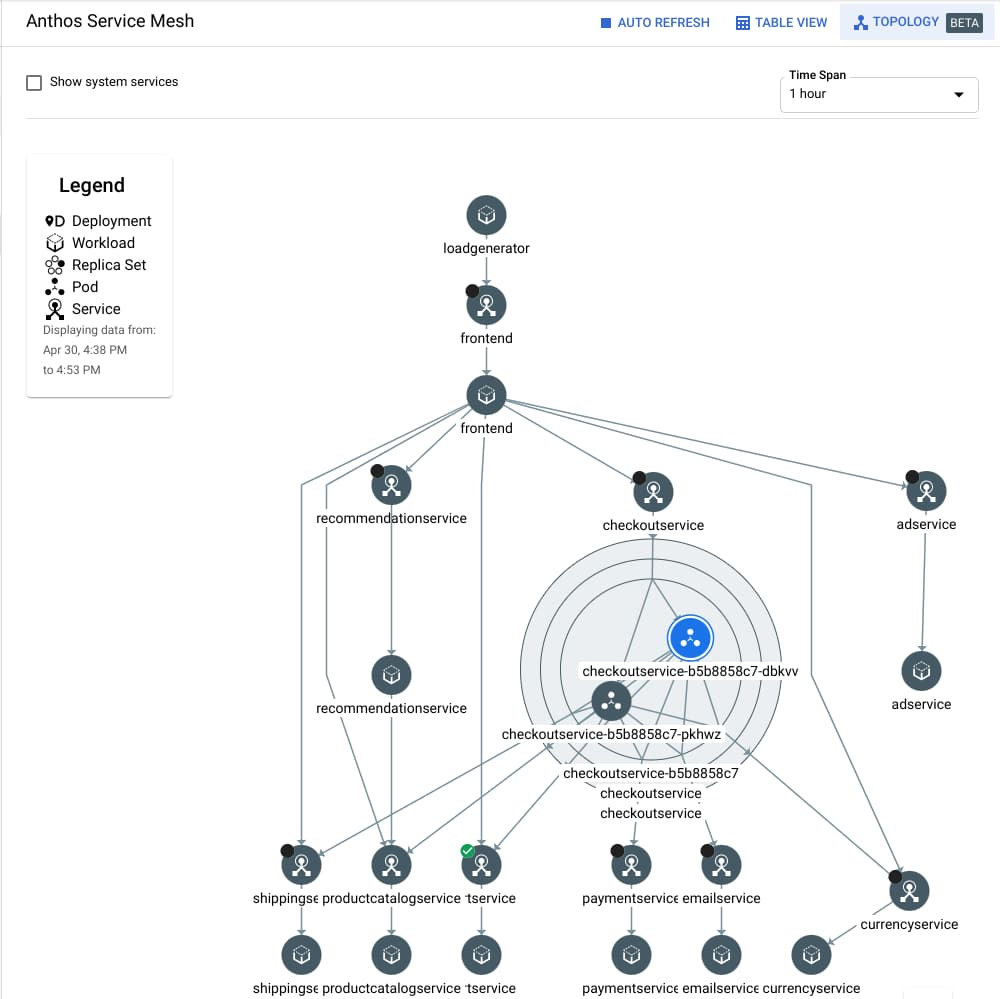
Two weeks ago, we announced many new advancements we are making to Anthos, including new capabilities that let you better run and manage loosely coupled microservices anywhere you need them. Today, we’re diving deeper into this world of services, and how we have been helping customers on their journey to this model. At a high level, the main benefit of a service-based architecture is the speed with which it lets you roll out changes with minimum disruption. With their smaller, independent components, microservices-based architectures enable faster development and deployment, increased choice of technologies, and more autonomous teams, so you can quickly roll out new and upgraded products to your customers. But as your usage of microservices increases, you often face additional challenges and you may need to adopt more modern deployment and management practices. With Anthos Service Mesh, you can: Better understand what is happening with your services Set policies to control those servicesSecure the communication between services All of this is done without changes to your application code. Let’s take a deeper look at how Anthos Service Mesh works, and how you can use it to adopt a more efficient service-based architecture. Better monitoring and SLOsMany of you come to us for help implementing Site Reliability Engineering (SRE) principles in your organization. Anthos Service Mesh can help you do this, beginning with monitoring, so they can see which services are communicating, how much traffic is being sent, and response times and error rates. Simply having this initial baseline information is a major improvement for many customers’ operations. For example, the topology graph below shows the connections between services. The focus on the checkout service even shows the pods comprising the service.Click to enlargeOnce you have monitoring in place, you can use Anthos Service Mesh to implement service level objectives (SLOs). Setting SLOs (for example, 99% availability over a one week rolling window) and having alerts on those SLOs lets your staff be proactive and catch issues before your customers become aware of them. You can send alerts (i.e., email, page, and UI warnings) to the team when your SLOs are not being met or you’ve exceeded your error budgets. This is an indicator that deployments should be frozen or slowed until stability and reliability are under control. This “cartservice” screenshot below shows the golden signals associated with this service, its health, and links to the infrastructure on which it’s running.Through monitoring, SLOs and alerts, your team will have much more information about—and control over—the health and well-being of your services, which in turn makes your products more reliable and performant for your customers. For example, co-location provider and Google Cloud partner Equinix uses Anthos and Anthos Service Mesh to give their customers visibility into their environments, so they can make better deployment decisions. “At Equinix, giving our customers the best performance is our top priority. With Anthos and network insights from Equinix Cloud Exchange Fabric, we can build a service mesh that gives access to rich information about the performance of our customers’ applications,” said Yun Freund, SVP, Platform Architecture and Engineering. “This provides us with metrics we can use to recommend where customers should run their workloads for the best end-to-end user experience.”Security with policies, encryption and authenticationFor many of you, particularly those in regulated industries like financial services and healthcare, there can be no compromises when it comes to security. Anthos Service Mesh lets you reduce the risk of data breaches by setting policies that ensure that any and all communications to and from your workloads are encrypted, mutually authenticated and authorized. This also helps protect against insider threats.But implementing, maintaining and updating strict policies using traditional rules and IP based parameters can be difficult. It’s even harder to enforce those policies while your deployments are scaling up and down—especially if they’re based on technologies like containers and serverless that span hybrid and multi-cloud environments. Anthos Service Mesh lets you implement context-aware application security using parameters such as identity, the service in question, as well as the context of the incoming request. You can also do all of this without depending on network primitives such as IP addresses. In this way, Anthos Service Mesh can help you adopt defense-in-depth and zero trust security strategies, on your way to implementing best practices such as BeyondCorp and BeyondProd.Anthos Service Mesh also provides Mesh CA, a fully-managed certificate authority to issue certificates for your microservices, enabling a “zero trust” security posture based on mTLS. Mesh CA is now generally available for workloads running on Anthos GKE.Traffic managementFinally, you can deploy Anthos Service Mesh to help you achieve safer, more controlled release processes, as well as gain more control over how traffic flows between your services. Anthos Service Mesh contains a number of traffic capabilities to allow you to fine tune the traffic in your mesh. For example, you can use the built-in canary capabilities to route a small percentage of traffic to new versions before rolling them out for all your users. Or you can take advantage of various load-balancing capabilities or location-based routing to control traffic. Other policies such as retries to enhance reliability, or even fault injection to test resilience, can help you roll out new products, while ensuring your customers have the best possible experience. In the second half of this year Anthos Service Mesh will also integrate with Traffic Director, a managed configuration and traffic control plane for your service mesh. Traffic Director powers the traffic management fundamentals of the service mesh (like service discovery, endpoint registration, health checking and load balancing) and enables powerful DevOps use cases like blue/green deployments and circuit breaking while still using declarative, open-source Istio APIs. Managed by GoogleWhile Anthos Service Mesh is based on the open-source Istio service mesh, it is offered as a managed service. You get all the benefits of service mesh without having to monitor, manage and upgrade the underlying software.Included as part of the managed offering, you get service mesh dashboards that give you all of the monitoring and SLO capabilities above, as well as telemetry, logging and tracing into a single tool. All these capabilities are generally available (GA) and fully supported. They give your application teams a set of out-of–the-box, powerful operations dashboards without having to depend on multiple open-source projects that you would in turn have to commit to deploy and maintain. And because all these Anthos Service Mesh components, including Traffic Director, Mesh CA and the Anthos Services telemetry dashboards, are managed services, you don’t need to worry about installing, upgrading or maintaining these components—Google’s SREs are on the job.What’s next for Anthos Service Mesh? The next frontier for Anthos Service Mesh is to make it easier for you to join virtual machines to the mesh, and not just containers. We are actively working on making it easy to add new and existing VMs to your mesh, so you can use all of the features listed above with your VM-based workloads. Later this week, we are hosting a webinar where you will be able to learn how the newest Anthos features will help you to build resilient applications and enable you to follow SRE and security best practices no matter where your applications run. You can register for this webinar on May 8, 2020 here.
Quelle: Google Cloud Platform

Providing transparency into government requests for enterprise data

At Google Cloud, we’re committed to being transparent about when governments request our enterprise customers’ data. Today, to continue our company-wide efforts to build trust through transparency, Google published its semi-annual Requests for user information transparency report. This version of the report represents an important step forward. For the first time, it breaks out the number of government requests we received for Google Cloud Platform and G Suite Enterprise Cloud customer data. Last October, we committed to publish this information in early 2020, and future transparency reports will continue to include it.Let’s take a look at some of the data and takeaways from the report before looking at how we’re working to improve your control over, and visibility into, your data. Key Transparency Report takeaways for customers Now that we’re breaking out information on the government requests for data we received, we have four initial observations. These observations are based on the total number of government requests for user information (81,785) across all of Google we received from July 2019 to December 2019. First, the number of requests targeting enterprises (282) represents a very small percentage (0.3%) of the overall number of requests we received. Second, for requests relating to G Suite Enterprise Cloud customers, we produced data in a very small number of cases (152). In each case, we reviewed the requests to ensure they were consistent with our policies and practices outlined below, and applicable law. Third, we didn’t produce any Google Cloud Platform Enterprise Cloud customer data in response to government requests. Finally, with regard to public sector customers, we didn’t identify any requests that appeared to be from a national government seeking information about another national government. If we were to receive such a request in the future, we would redirect the requesting government to the customer and object to the request if necessary.Moving forward, we trust that this enterprise-focused information will help address questions about how often governments are coming to Google to request access to enterprise customer data. Advocacy in support of customer controlBreaking out Google Cloud Platform and G Suite Enterprise Cloud customer data in our transparency report is part of our larger commitment to advancing customers’ control of their data in the cloud. We also advocate extensively, and litigate when necessary, to protect the interests of our enterprise customers. We continue to advocate for five global principles for governments to follow when making requests for enterprise data stored in the cloud: Approach enterprises directly Promote transparencyProtect customer rights Support strong security Streamline government rules for compelled production On the litigation side, in the United States Court of Appeals for the Second Circuit, our legal challenge to protect a customer’s right to know when its data is accessed has progressed. We recently filed our reply brief to counter the government’s arguments on secrecy and notice.Improving technical controls in our cloudWe believe that customers should have the strongest levels of control over data stored in the cloud. To support that mission, we’ve  developed industry-leading product capabilities that enhance your control over your data and provide expanded visibility into when and how your data is accessed. Some of our recent product updates in these areas include: External Key Manager, which is now generally available, lets customers encrypt data with encryption keys that are stored and managed in a third-party key management system that is run outside Google.Key Access Justifications (alpha for GCE/PD and Big Query) provides customers with a justification every time their externally hosted keys are needed to decrypt data and gives them the opportunity to approve or deny such requests. These products provide unprecedented levels of control over data in the cloud, and we’ll continue to update them based on customer needs. We are committed to building trust through transparency, and to helping to ensure our customers’ control over their data through legal and technical means. To learn more about our efforts, check out our whitepaper, “Government requests for customer data: controlling access to your data in Google Cloud.”
Quelle: Google Cloud Platform

How Azure VPN helps organizations scale remote work

In the weeks and months we have all been grappling with the global pandemic, there’s no doubt about the impact it has had on the lives of people everywhere. A shift to remote work is one of the widespread effects of the global pandemic, and we heard from organizations around the world who are looking for ways to enable more of their employees to work remotely for their safety and that of the community. With this shift, we’re working to address common infrastructure challenges businesses face when helping employees stay connected at scale.

Common challenges for businesses expanding secure, remote access

One of the major challenges while setting up remote access is providing workers/employees access to key internal resources, which may reside on-premises or Azure, for example, healthcare or government organizations who have sensitive patient or tax information in on-premises datacenters and other sensitive information in Azure.

Another challenge that the businesses around the world now face is how to quickly scale an existing VPN setup, which is typically targeted at a small portion of an organization’s workforce, to now accommodate all or most workers. Even within Microsoft, we’ve seen our typical remote access at 50,000+ employee spike to as high as 128,000 employees while we’re working to protect staff and our communities during the global pandemic.

How Azure VPN can help with secure, remote work at scale

The Azure network is designed to withstand sudden changes in the utilization of resources and can greatly help during periods of peak utilization. The Azure Point-to-Site (P2S) VPN Gateway solution is cloud-based and can be provisioned quickly to cater for the increased demand of users to work from home. It can scale up easily and be turned off just as easily.

Tips to help you get started with Azure VPN Gateway

Based on the customers we’ve been working with and best practices we’ve established over our years of work with enterprises, here are tips to help your own company get started with Azure VPN Gateway:

For scenarios where you need to access resources on-premises or in Azure, you can build a VPN Gateway in Azure and connect your existing VPN solution to Azure. This eliminates single point of failure to on-premises and provides nearly limitless scale. See Remote work using Azure VPN Gateway Point-to-Site to help you understand how to set up Azure VPN Gateway and integrate it with your existing setup.
Use Azure Active Directory (Azure AD), certificate-based authentication, or RADIUS authentication to authenticate users and to validate the status of their device before allowing them on VPN. You can review Create an Azure AD tenant for P2S OpenVPN protocol connections for more details.
We recommend split tunneling VPN traffic. This allows network traffic to go directly to public resources—such as Office 365 and Windows Virtual Desktops—and prevents internet traffic from having to go back to the corporate office, reducing overall load and bandwidth on your corporate internet links and on-premises VPN infrastructure.
To improve on-premises to Azure connectivity to support scale, you can work with your local telecommunications provider to temporarily increase connectivity to the internet. This can help scale your connectivity from your office or data center to Microsoft up to 10 Gbps.
Apply all available security updates to your VPN and firewall devices. The patching and updates for the Azure VPN gateway are managed by Microsoft. For your on-premises devices, please follow the guidance from the device vendor. We’ve brought together tips in this blog post.

How to get started

If you’re not currently using P2S tunnels, please review the following document, evaluate your scenario, and follow the instructions to start using Azure VPN services.
Quelle: Azure

How to Build and Test Your Docker Images in the Cloud with Docker Hub

Part 2 in the series on Using Docker Desktop and Docker Hub Together

Introduction

In part 1 of this series, we took a look at installing Docker Desktop, building images, configuring our builds to use build arguments, running our application in containers, and finally, we took a look at how Docker Compose helps in this process. 

In this article, we’ll walk through deploying our code to the cloud, how to use Docker Hub to build our images when we push to GitHub and how to use Docker Hub to automate running tests.

Docker Hub

Docker Hub is the easiest way to create, manage, and ship your team’s images to your cloud environments whether on-premises or into a public cloud.

This first thing you will want to do is create a Docker ID, if you do not already have one, and log in to Hub.

Creating Repositories

Once you’re logged in, let’s create a couple of repos where we will push our images to.

Click on “Repositories” in the main navigation bar and then click the “Create Repository” button at the top of the screen.

You should now see the “Create Repository” screen.

You can create repositories for your account or for an organization. Choose your Docker ID from the dropdown. This will create the repository for your Docker ID.

Now let’s give our repository a name and description. Type projectz-ui in the name field and a short description such as: This is our super awesome UI for the Projectz application. 

We also have the ability to make the repository Public or Private. Let’s keep the repository Public for now.

We can also connect your repository to a source control system. You have the option to choose GitHub or Bitbucket but we’ll be doing this later in the article. So, for now, do not connect to a source control system. 

Go ahead and click the “Create” button to create a new repository.

Your repository will be created and you will be taken to the General tab of your new repository.

This is the repository screen where we can manage tags, builds, collaborators, webhooks, and visibility settings.

Click on the Tags tab. As expected, we do not have any tags at this time because we have not pushed an image to our repository yet.

We also need a repository for your services application. Follow the previous steps and create a new repository for the projectz-services application. Use the following settings to do so:

Repository name: projectz-services

Description: This is our super awesome services for the Projectz application

Visibility: Public

Build Settings: None

Excellent. We now have two Docker Hub Repositories setup.

Structure Project

For simplicity in part 1 of this series, we only had one git repository. For this article, I refactored our project and broke them into two different git repositories to more align with today’s microservices world.

Pushing Images

Now let’s build our images and push them to the repos we created above.

Fork Repos

Open your favorite browser and navigate to the pmckeetx/projectz-ui repository.

Create a copy of the repo in your GitHub account by clicking the “Fork” button in the top right corner.

Repeat the processes for the pmckeetx/projectz-svc repository.

Clone the repositories

Open a terminal on your local development machine and navigate to wherever you work on your source code. Let’s create a directory where we will clone our repos and do all our work in.

$ cd ~/projects
$ mkdir projectz

Now let’s clone the two repositories you just forked above. Back in your browser click the green “Clone or download” button and copy the URL. Use these URLs to clone the repo to your local machine.

$ git clone https://github.com/[github-id]/projectz-ui.git ui
$ git clone https://github.com/[github-id]/projectz-svc.git services

(Remember to substitute your GitHub ID for [github-id] in the above commands)

If you have SSH keys set up for your github account, you can use the SSH URLs instead.

List local images

Let’s take a look at the list of Docker images we have locally on our machine. Run the following command to see a list of images.

$ docker images

You can see that I have the nginx, projectz-svc, projectz-ui, and node images on my machine. If you do not see the above images, that’s okay, we are going to recreate them now.

Remove local images

Let’s first remove projectz-svc and projectz-ui images. We’ll use the remove image (rmi) command. You can skip this step if you do not have the projectz-svc and projectz-ui on your local machine.

$ docker rmi projectz-svc projectz-ui

If you get the following or similar error: Error response from daemon: conflict: unable to remove repository reference “projectz-svc” (must force) – container 6b1b99cc899c is using its referenced image 6b9eadff19ae

This means that the image you are trying to remove is being used by a container and can not be removed. You need to stop and rm (remove) the container before you can remove the image. To do so, run the following commands.

First, find the running container:

$ docker ps -a

Here we can see that the container named services is using the image projectz-svc which we are trying to remove. 

Let’s stop and remove this container. We can do this at the same time by using the –force option to the rm command. 

If we tried to remove the container by using docker rm services without first stopping it, we would get the following error: Error response from daemon: You cannot remove a running container 6b1b99cc899c. Stop the container before attempting removal or force remove

So we’ll use the –force option to tell Docker to send a SIGKILL to the container and then remove it.

$ docker rm –force services

Do the same for the UI container, if it is still running.

Now that we stopped and removed the containers, we can now remove the images.

$ docker rmi projectz-svc projectz-ui

Let’s list our images again.

$ docker images

Now you should see that the projectz-ui and projectz-services images are gone.

Building images

Let’s build our images for the UI and Services projects now. Run the following commands:

$ cd [working dir]/projectz/services
$ docker build –tag projectz-svc .
$ cd ../ui
$ docker build –tag projectz-ui .

If you would like a more in-depth discussion around building images and Dockerfiles, refer back to part 1 of this series.

Pushing images

Okay, now that we have our images built, let’s take a look at pushing them to Docker Hub.

Tagging images

If you look back at the beginning of the post where we set up our Docker Hub repositories, you’ll see that we created the repositories in our Docker ID namespace. Before we can push our images to Hub, we’ll need to tag them using this namespace.

Open your favorite browser and navigate to Docker Hub and let’s review real quick.

Login to Hub, if you’ve not already done so, and take a look at the dashboard. You should see a list of images. Choose your Docker ID from the dropdown to only show images associated with your Docker ID.

Click on the row for the projectz-ui repository. 

Towards the top right of the window, you should see a docker command highlighting in grey.

This is the Docker Push command followed by the image name. You’ll see that this command uses your Docker ID followed by a slash followed by the image name and tag, separated by a colon. You can read more about pushing to repositories and tagging images in our documentation.

Let’s tag our local images to match the Docker Hub Repository. Run the following commands anywhere in your terminal.

$ docker tag projectz-ui [dockerid]/projectz-ui:latest
$ docker tag projectz-svc [dockerid]/projectz-svc:latest

(Remember to substitute your Docker ID for [dockerid] in the above commands)

Now list your local images and see the newly tagged images.

$ docker images

Pushing

Okay, now that we have our images tagged correctly, let’s push our images to Hub.

The first thing we need to do is make sure we logged into Docker Hub on the terminal. Although the repositories we created earlier are “public”, only the owner of the repository can push by default. If you would like to allow folks on your team to be able to push images and manage repositories. Take a look at Organizations and Teams in Hub.

$ docker login
Login with your Docker ID to push and pull images from Docker Hub…
Username:

Enter your username (Docker ID) and password.

Now we can push our images.

$ docker push [dockerid]/projectz-ui:latest
$ docker push [dockerid]/projectz-svc:latest

Open your favorite browser and navigate to Docker Hub, select one of the repositories we created earlier and then click the “Tags” tab. You will now see the images and tag we just pushed.

Automatically Build and Test Images

That was pretty straightforward but we had to run a lot of manual commands. What if we wanted to build an image, run tests and publish to a repository so we could deploy our latest changes?

We might be tempted to write a shell script and have everybody on the team run it after they completed a feature. But this wouldn’t be very efficient. 

What we want is a continuous integration (CI) pipeline. Docker Hub provides these features using AutoBuilds and AutoTests

Connecting Source Control

Docker Hub can be connected to GitHub and Bitbucket to listen to push notifications so it can trigger AutoBuilds.

I’ve already connected my Hub account to my GitHub account. To connect your own Hub account to your version control system follow these simple steps in our documentation.

Setup AutoBuilds

Let’s set up AutoBuilds for our two repositories. The steps are the same for both repositories so I’ll only walk you through one of them.

Open Hub in your browser, and navigate to the detail page for the projectz-ui repository.

Click on the “Builds” tab and then click the “Link to GitHub” button in the middle of the page.

Now in the Build Configuration screen. Select your organization and repository from the dropdowns. Once you select a repository, the screen will expand with more options.

Leave the AUTOTEST setting to Off and the REPOSITORY LINKS to Off also.

The next thing we can configure is Build Rules. Docker Hub automatically configures the first BUILD RULE using the master branch of our repo. But we can configure more.

We have a couple of options we can set for build rules. 

The first is Source Type which can either be a Branch or a Tag. 

Then we can set the Source, this is referring to either the Branch you want to watch or the Tag name you would like to watch. You can enter a string literal or a RegExp that will be used for matching.

Next, we’ll set the Docker Tag that we want to use when the image is built and tagged.

We can also tell Hub what Dockerfile to use and where the Build Context is located.

The next option turns off or on the Build Rule.

We also have the option to use the Build Cache.

Save and Build

We’ll leave the default Build Rule that Hub added for us. Click the “Save and Build” button.

Our Build options will be saved and an AutoBuild will be kicked off. You can watch this build run on the “Builds” tab of your image page.

To view the build logs, click on the build that is in progress and you will be taken to the build details page where you can view the logs.

Once the build is complete, you can view the newly created image by clicking on the “Tags” tab. There you will see that our image was built and tagged with “latest”.

Follow the same steps to set up the projectz-svc repository. 

Trigger a build from Git Push

Now that we see that our image is being built, let’s make a change to our project and trigger it from git push command.

Open the projectz-svc/src/routes.js file in your favorite editor and add the following code snippet anywhere before the module.exports = appRouter line at the bottom of the file.

appRouter.get( ‘/services/hello’, function( req, res ) {
res.json({ code: ‘success’, payload: ‘World’ })
})

module.exports = appRouter

Save the file and commit the changes locally.

$ git commit -am “add hello – world route”

Now, if we push the changes to GitHub, GitHub will trigger a webhook to Docker Hub which will in turn trigger a new build of our image. Let’s do that now.

$ git push

Navigate over to Hub in your browser and scroll down. You should see that a build was just triggered.

After the build finishes, navigate to the “Tags” tab and see that the image was updated.

Setup AutoTests

Excellent! We now have both our images building when we push to our source control repo. But this is just step one in our CI process. We should only push new images to the repository if all tests pass.

Docker Hub will automatically run tests if you have a docker-compose.test.yml file that defines a sut service. Let’s create this now and run our tests.

Open the projectz-svc project in your editor and create a new file name: docker-compose.test.yml and add the following yaml.

version: “3.6”

services:
sut:
build:
context: .
args:
NODE_ENV: test
ports:
– “8080:80″
command: npm run test

Commit the changes and push to GitHub.

$ git add docker-compose.test.yml
$ git commit -m “add docker-compose.test.yml for hub autotests”
$ git push origin master

Now navigate back to Hub and the projectz-svc repo. Once the build finishes, click on the build link and scroll to the bottom of the build logs. There you can see that the tests were run and the image was pushed to the repo.

If the build fails, you will see that the status turns to FAILURE and you will be able to see the error in the build logs.

Conclusion

In part 2 of this series, we showed you how Docker Hub is one of the easiest ways to automatically build your images and run tests without having to use a separate CI system. If you’d like to go further you can take a look at: 

Speed Up Your Development Flow With These Dockerfile Best PracticesDocker Hub Essentials DockerTalkAutomate Developer Workflows and Increase Productivity with Docker Hub
The post How to Build and Test Your Docker Images in the Cloud with Docker Hub appeared first on Docker Blog.
Quelle: https://blog.docker.com/feed/