Lenovo: Thinkpad E14/E15 mit Ryzen 4000 ab 700 Euro
Die günstigen Einsteigermodelle sind bei Ryzen-APU und DDR4-Speicher limitiert. (Thinkpad, AMD)
Quelle: Golem

Die günstigen Einsteigermodelle sind bei Ryzen-APU und DDR4-Speicher limitiert. (Thinkpad, AMD)
Quelle: Golem

Die Ausgabe neuer Aktien soll das Kapital des Halbleiterfertigers weiter steigern, der Kurs hatte sich innerhalb eines Jahres verdoppelt. (Halbleiterfertigung, TSMC)
Quelle: Golem

Mangels Thunderbolt 3 haben Surface-Käufer wenig Alternativen zu den hochpreisigen Docks. (Surface, Microsoft)
Quelle: Golem

Kommentar eines Mitarbeiters: Intel “schert sich einen Dreck”, solange die Produktion im Halbleiterwerk weiter laufe. (Halbleiterfertigung, Intel)
Quelle: Golem
thenewstack.io – In 2016, when the digital media arm of the French Métropole Television (M6) streamed the European Football Championship (UEFA Euro) and the French team made it to the final, the infrastructure Ops te…
Quelle: news.kubernauts.io
medium.com – At Disney Streaming Services we run infrastructure in multiple Amazon Web Services (AWS) regions and multiple AWS accounts. Some teams use AWS Systems Manager to help maintain and troubleshoot infras…
Quelle: news.kubernauts.io
kubernauts.sh – Rancher Dedicated as a Service is designed and built for those companies who have a need to seriously run a managed Kubernetes anywhere, either On-Prem or as a Cloudless service togehter for you or w…
Quelle: news.kubernauts.io
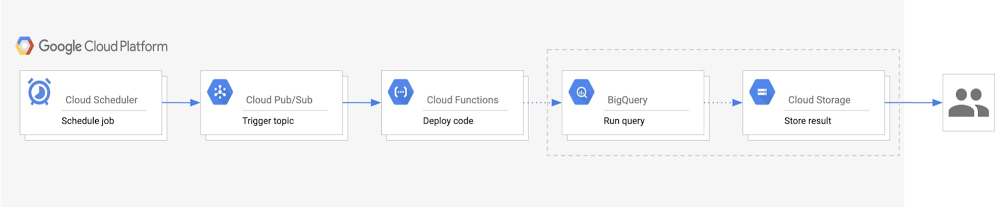
Data accessibility and analysis is a crucial part of getting value from your data. While there are many methods to view data when it comes to BigQuery, one common way is to export query results as an email on a scheduled basis. This lets end users get an email with a link to the most recent query results, and is a good solution for anyone looking for daily statistics on business processes, monthly summaries of website metrics, or weekly business reviews. Whatever the query may be, stakeholders who need the information can access data easily via email for relevant insights. In this post, we’ll describe a way to easily automate exporting results from BigQuery to email.Design considerations for results emailsAn important design consideration is the size and complexity of the data. Keep in mind the size constraints for email attachments and for exporting large queries from within BigQuery. In the case that the query results are over 1 GB, BigQuery will output the results into multiple tables. As a result, you would need to send multiple CSV attachments in the email.If you have G Suite access, you can do this using scheduled Apps Script, which uses the BigQuery API to run the query and export the results to a Google Sheet. A time-based trigger on the script will refresh the data at scheduled intervals. With this, you could easily send an email with a link to the Sheet using the Gmail Service. This method depends on G Suite. For a more general solution, we recommend using Google Cloud as the primary solution to automate BigQuery exports to an email. It involves a couple of Google Cloud products and the SendGrid API for sending the emails. Here’s how to do that.Automating BigQuery results to an email We’ll walk you through how to build an automated process to export BigQuery results into email, starting with the steps and a look at the architecture diagram.Create a Pub/Sub topic that will trigger your Cloud Functions code to run.Set up a BigQuery dataset and Cloud Storage bucket for your exports.Build a Cloud Function with the code that runs the query, exports results, and sends an email.Create a Cloud Scheduler job tied to the Pub/Sub topic to automatically run the function on a scheduled basis.Here’s a look at the architecture of this process:Click to enlargeWithin this architecture, you’ll see: Cloud Scheduler: A Cloud Scheduler job invokes the Pub/Sub topic to schedule the email export periodically. Pub/Sub: A Pub/Sub topic triggers the Cloud Function. Cloud Function: A Cloud Function subscribes to the Pub/Sub topic and runs the code calling the BigQuery and Cloud Storage APIs.BigQuery: The BigQuery API generates the query results, stores them in a table, and then exports the results as a CSV into Cloud Storage. Cloud Storage: A Cloud Storage bucket stores the CSV file. The Cloud Storage API generates a signed URL for the CSV that is sent out as an email to users. Last, the SendGrid API sends an email with the link to the signed URL to the specified recipients. Getting started with email exportsThere are a few one-time setup steps related to storing data and sending emails when you begin this process. First, create a BigQuery dataset that will host the tables created for each export. For example, if you want to receive an email every day, this dataset would have a table for each daily export with a naming convention such as “daily_export_${TIMESTAMP}.” Since this dataset can quickly increase in size, we recommend setting a default table expiration time. This way, the tables holding outdated data can be deleted.Next, create a Cloud Storage bucket to host the exported CSV files from BigQuery. Similar to the dataset expiration time, the bucket lifecycle management configuration can automatically delete the CSV or move the file to a different storage class after the time frame defined in the “Age” condition. The final setup step involves configuring access to the SendGrid API. To do this, create an account and generate a SendGrid API key, which will allow the Cloud Function to authenticate with the Email API and send an email. The free tier pricing for SendGrid applies for 40,000 messages per day for the first 30 days, and then 100 per day forever. (We’ll get to the implementation of the API in the next section.)Implementation details Creating a service accountYou will need to create a service account to authenticate SendGrid API. The service account must have the Service Account Token Creator role to generate signed credentials for Cloud Functions. It will also need access to perform the BigQuery and Storage actions, for which the BigQuery Admin and Storage Object Admin roles should be added. The following sample code creates a service account with the previously mentioned roles:Writing the Cloud Functions codeIn order to build this solution, use the Python Client Library to call Google BigQuery and Cloud Storage APIs. Instantiate the client library with the proper service account credentials for the correct authentication to perform the necessary tasks. If the main script will run in Cloud Functions, the credentials default to the Application Default Credentials. In the case that it will run locally, the credentials will use the service account key file provided by the environment variable GOOGLE_APPLICATION_CREDENTIALS. The following sample code demonstrates creating the credentials:Now, to instantiate the client libraries in your main function:Using the BigQuery and Cloud Storage client libraries, you can create a table, output your query results to that table, and export the table data as a CSV to Cloud Storage.Next, generate the signed URL for the CSV file stored in the bucket. This process includes setting an expiration time indicating the duration for which the link can be accessed. The expiration time should be set to the delta in time between emails to prevent recipients from accessing old data. For authentication, Function Identity fetches the function’s current identity (the service account executing the function). iam.Signer() sends a request to that service account to generate OAuth credentials for authenticating the generate_signed_url() function.To send the email using SendGrid API, follow the SendGrid implementation guide for the web API using the token you generated. The following sample shows what that looks like:As shown above, the SendGrid API key can be accessed as an environment variable on Cloud Functions. In order to store the API key more securely, you can also encrypt and store the key with Cloud Key Management Service.Deploying the pipelineTo build the pipeline, create a Pub/Sub topic, deploy the Cloud Function with the code from the previous section, and configure Cloud Scheduler to trigger the pipeline. This sample code shows how to deploy the pipeline locally, assuming that “main.py” holds the Cloud Function code:Now you have an automated pipeline that sends your BigQuery exports straight to a set of emails, allowing for easy data accessibility and analysis.Learn more about the Google Cloud tools used here:Get started with the BigQuery Client Libraries Schedule queries in BigQueryUse signed URLs in Cloud StorageHow to create a Cloud Scheduler job
Quelle: Google Cloud Platform

Editor’s note: Yufeng Guo is a Developer Advocate who focuses on AI technologies.No matter what type of workloads we’re running, we’re always looking for more computational power. With general purpose processors, we’re quickly coming up against a hard limit: the laws of physics. At the same time, the things we’re trying to accomplish with machine learning keep getting more complex and compute intensive.This need for more specific computational power is what led to the creation of the first tensor processing unit (TPU). Google purpose-built the TPU to tackle our own machine learning workloads, and now they’re available to Google Cloud customers. The more we understand about TPUs, and why they were built the way they are, the better we can design machine learning architectures and software systems to tackle even more complex problems in the future.In this two-part video series, I look at the origins of the customer AI chip and what makes the TPU so specialized for your AI challenges. First dive into the history and hardware of TPUs. You’ll learn why Google created an application specific integrated circuit (ASIC) for AI workloads like Translate, Photos, and even Search. You’ll also learn about the TPU architecture and how it differs from CPUs and GPUs.Next, dive into the TPU v2 and v3, publicly available through Google Cloud. Learn more about their performance capabilities, like connecting thousands together in the form of Cloud TPU Pods. This video also covers basic benchmark examples, and new usability improvements with TensorFlow 2.0 and the Keras API.Learn more about Cloud TPUs and pricing at the website and check out the documentation to see how to get started. You can also join our Kaggle community and the second competition using TPUs to identify toxicity comments across multiple languages. For more information about AI in general, check out the AI Adventures series on YouTube.
Quelle: Google Cloud Platform

We’ve heard from our customers that you need visibility into metrics and logs from Google Cloud, other clouds, and on-prem in one place. Google Cloud has partnered with Blue Medora to bring you a single solution to save time and money in managing your logs in a single place. Google Cloud’s operations management suite gives you the same scalable core platform that powers all internal and Google Cloud observability. Adding Blue Medora’s software, BindPlane, helps collect the metrics and logs and push them into the open APIs that form our core observability platform. This solution is now generally available and comes at no additional cost for Google Cloud users.Eastbound Tech, a U.S.-based IT consulting company focused on infrastructures and databases, replaced their six-figure security information and event management (SIEM) solution. “The Blue Medora and Cloud Logging solution has allowed me to gather signals from a really diverse environment and see them in a single pane of glass,” says founder and CEO Timothy Wright. “This has saved us significant money and effort otherwise spent on managing additional tools and open source solutions.” How BindPlane Logs for Cloud Logging worksGetting started with BindPlane Logs is simple. Once a log source is ingested into Cloud Logging, you can view and search through the raw log data and create metrics off of those log files just like logs collected from Google Cloud. You can use all the features of Google Cloud’s operations management suite, including viewing logs in real time in the Cloud Console or through log-based metrics to view logs and metrics side by side and alert on logs. (Using BindPlane Logs has no additional charge over logs collected from within Google Cloud.)The BindPlane Logs agent is deployed via a single-line install command for Windows and Linux and a YAML file for Kubernetes to shorten the time it takes to get data streaming into Cloud Logging. The BindPlane Logs agent is based on Fluentd. For collection and parsing, your existing Fluentd input configuration can be shared between the Cloud Logging agent and the BindPlane log agent. BindPlane’s centralized collection simplifies updates and configuration changes, saving time as you update your agents from a central remote location all at once. BindPlane includes deployment templates to reduce the time it takes to deploy a log agent with the same source and destination configurations to clustered applications.Managing Blue Medora’s BindPlane logs for Google Cloud Logging.BindPlane log sources BindPlane for Cloud Logging today supports more than 50 log sources, including Oracle, mySQL, PostgreSQL, Apache Tomcat, NGINX, Palo Alto Networks, and more. Check out the BindPlane documentation page to see more supported resources.Learn more about BindPlane Logs for Cloud Logging and register to use these logs at no additional charge.
Quelle: Google Cloud Platform






