Advancing safe deployment practices

"What is the primary cause of service reliability issues that we see in Azure, other than small but common hardware failures? Change. One of the value propositions of the cloud is that it’s continually improving, delivering new capabilities and features, as well as security and reliability enhancements. But since the platform is continuously evolving, change is inevitable. This requires a very different approach to ensuring quality and stability than the box product or traditional IT approaches — which is to test for long periods of time, and once something is deployed, to avoid changes. This post is the fifth in the series I kicked off in my July blog post that shares insights into what we're doing to ensure that Azure's reliability supports your most mission critical workloads. Today we'll describe our safe deployment practices, which is how we manage change automation so that all code and configuration updates go through well-defined stages to catch regressions and bugs before they reach customers, or if they do make it past the early stages, impact the smallest number possible. Cristina del Amo Casado from our Compute engineering team authored this posts, as she has been driving our safe deployment initiatives.” – Mark Russinovich, CTO, Azure


When running IT systems on-premises, you might try to ensure perfect availability by having gold-plated hardware, locking up the server room and throwing away the key. Software wise, IT would traditionally prevent as much change as possible — avoiding applying updates to the operating system or applications because they’re too critical, and pushing back on change requests from users. With everyone treading carefully around the system, this ‘nobody breathe!’ approach stifles continued system improvement, and sometimes even compromises security for systems that are deemed too crucial to patch regularly. As Mark mentioned above, this approach doesn't work for change and release management in a hyperscale public cloud like Azure. Change is both inevitable and beneficial, given the need to deploy service updates and improvements, and given our commitment to you to act quickly in the face of security vulnerabilities. As we can’t simply avoid change, Microsoft, our customers, and our partners need to acknowledge that change is expected, and we plan for it. Microsoft continues to work on making updates as transparent as possible and will deploy the changes safely as described below. Having said that, our customers and partners should also design for high availability, consume maintenance events sent by the platform to adapt as needed. Finally, in some cases, customers can take control of initiating the platform updates at a suitable time for their organization.

Changing safely

When considering how to deploy releases throughout our Azure datacenters, one of the key premises that shapes our processes is to assume that there could be an unknown problem introduced by the change being deployed, plan in a way that enables the discovery of said problem with minimal impact, and automate mitigation actions for when the problem surfaces. While a developer might judge it as completely innocuous and guarantee that it won't affect the service, even the smallest change to a system poses a risk to the stability of the system, so ‘changes’ here refers to all kinds of new releases and covers both code changes and configuration changes. In most cases a configuration change has a less dramatic impact on the behavior of a system but, just as for a code change, no configuration change is free of risk for activating a latent code defect or a new code path.

Teams across Azure follow similar processes to prevent or at least minimize impact related to changes. Firstly, by ensuring that changes meet the quality bar before the deployment starts, through test and integration validations. Then after sign off, we roll out the change in a gradual manner and measure health signals continuously, so that we can detect in relative isolation if there is any unexpected impact associated with the change that did not surface during testing. We do not want a change causing problems to ever make it to broad production, so steps are taken to ensure we can avoid that whenever possible. The gradual deployment gives us a good opportunity to detect issues at a smaller scale (or a smaller ‘blast radius’) before it causes widespread impact.

Azure approaches change automation, aligned with the high level process above, through a safe deployment practice (SDP) framework, which aims to ensure that all code and configuration changes go through a lifecycle of specific stages, where health metrics are monitored along the way to trigger automatic actions and alerts in case of any degradation detected. These stages (shown in the diagram that follows) reduce the risk that software changes will negatively affect your existing Azure workloads.

This shows a simplification of our deployment pipeline, starting on the left with developers modifying their code, testing it on their own systems, and pushing it to staging environments. Generally, this integration environment is dedicated to teams for a subset of Azure services that need to test the interactions of their particular components together. For example, core infrastructure teams such as compute, networking, and storage share an integration environment. Each team runs synthetic tests and stress tests on the software in that environment, iterate until stable, and then once the quality results indicate that a given release, feature, or change is ready for production they deploy the changes into the canary regions.

Canary regions

Publicly we refer to canary regions as “Early Updates Access Program” regions, and they’re effectively full-blown Azure regions with the vast majority of Azure services. One of the canary regions is built with Availability Zones and the other without it, and both regions form a region pair so that we can validate data geo-replication capabilities. These canary regions are used for full, production level, end to end validations and scenario coverage at scale. They host some first party services (for internal customers), several third party services, and a small set of external customers that we invite into the program to help increase the richness and complexity of scenarios covered, all to ensure that canary regions have patterns of usage representative of our public Azure regions. Azure teams also run stress and synthetic tests in these environments, and periodically we execute fault injections or disaster recovery drills at the region or Availability Zone level, to practice the detection and recovery workflows that would be run if this occurred in real life. Separately and together, these exercises attempt to ensure that software is of the highest quality before the changes touch broad customer workloads in Azure.

Pilot phase

Once the results from canary indicate that there are no known issues detected, the progressive deployment to production can get started, beginning with what we call our pilot phase. This phase enables us to try the changes, still at a relatively small scale, but with more diversity of hardware and configurations. This phase is especially important for software like core storage services and core compute infrastructure services, that have hardware dependencies. For example, Azure offers servers with GPU's, large memory servers, commodity servers, multiple generations and types of processors, Infiniband, and more, so this enables flighting the changes and may enable detection of issues that would not surface during the smaller scale testing. In each step along the way, thorough health monitoring and extended 'bake times' enable potential failure patterns to surface, and increase our confidence in the changes while greatly reducing the overall risk to our customers.

Once we determine that the results from the pilot phase are good, the deployment systems proceed by allowing the change to progress to more and more regions incrementally. Throughout the deployment to the broader Azure regions, the deployment systems endeavor to respect Availability Zones (a change only goes to one Availability Zone within a region) and region pairing (every region is ‘paired up’ with a second region for georedundant storage) so a change deploys first to a region and then to its pair. In general, the changes deploy only as long as no negative signals surface.

Safe deployment practices in action

Given the scale of Azure globally, the entire rollout process is completely automated and driven by policy. These declarative policies and processes (not the developers) determine how quickly software can be rolled out. Policies are defined centrally and include mandatory health signals for monitoring the quality of software as well as mandatory ‘bake times’ between the different stages outlined above. The reason to have software sitting and baking for different periods of time across each phase is to make sure to expose the change to a full spectrum of load on that service. For example, diverse organizational users might be coming online in the morning, gaming customers might be coming online in the evening, and new virtual machines (VMs) or resource creations from customers may occur over an extended period of time.

Global services, which cannot take the approach of progressively deploying to different clusters, regions, or service rings, also practice a version of progressive rollouts in alignment with SDP. These services follow the model of updating their service instances in multiple phases, progressively deviating traffic to the updated instances through Azure Traffic Manager. If the signals are positive, more traffic gets deviated over time to updated instances, increasing confidence and unblocking the deployment from being applied to more service instances over time.

Of course, the Azure platform also has the ability to deploy a change simultaneously to all of Azure, in case this is necessary to mitigate an extremely critical vulnerability. Although our safe deployment policy is mandatory, we can choose to accelerate it when certain emergency conditions are met. For example, to release a security update that requires us to move much more quickly than we normally would, or for a fix where the risk of regression is overcome by the fix mitigating a problem that’s already very impactful to customers. These exceptions are very rare, in general our deployment tools and processes intentionally sacrifice velocity to maximize the chance for signals to build up and scenarios and workflows to be exercised at scale, thus creating the opportunity to discover issues at the smallest possible scale of impact.

Continuing improvements

Our safe deployment practices and deployment tooling continue to evolve with learnings from previous outages and maintenance events, and in line with our goal of detecting issues at a significantly smaller scale. For example, we have learned about the importance of continuing to enrich our health signals and about using machine learning to better correlate faults and detect anomalies. We also continue to improve the way in which we do pilots and flighting, so that we can cover more diversity of hardware with smaller risk. We continue to improve our ability to rollback changes automatically if they show potential signs of problems. We also continue to invest in platform features that reduce or eliminate the impact of changes generally.

With over a thousand new capabilities released in the last year, we know that the pace of change in Azure can feel overwhelming. As Mark mentioned, the agility and continual improvement of cloud services is one of the key value propositions of the cloud – change is a feature, not a bug. To learn about the latest releases, we encourage customers and partners to stay in the know at Azure.com/Updates. We endeavor to keep this as the single place to learn about recent and upcoming Azure product updates, including the roadmap of innovations we have in development. To understand the regions in which these different services are available, or when they will be available, you can also use our tool at Azure.com/ProductsbyRegion.
Quelle: Azure

Scale your Composer environment together with your business

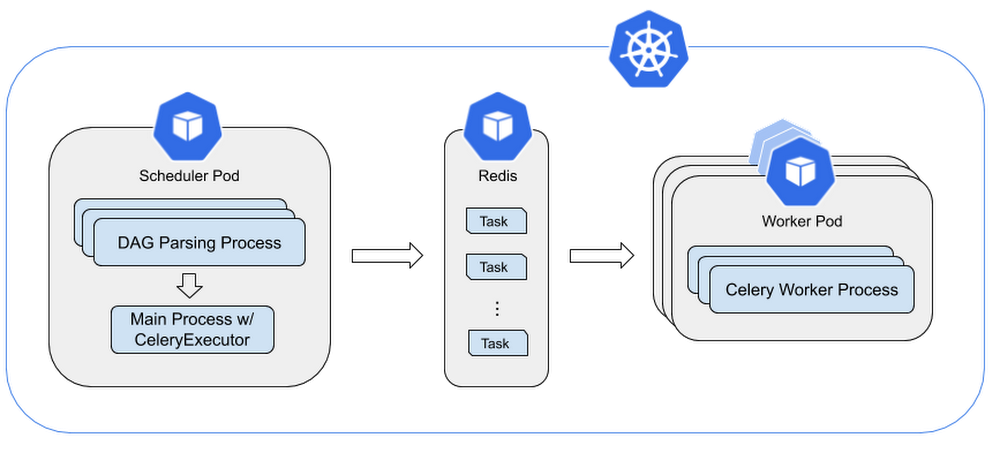
When you’re building data pipelines, it’s important to consider business needs now and in the future. We often hear from customers that they want to configure and optimize their Cloud Composer environments. So we on the Cloud Composer engineering team will share in this post how Cloud Composer—built on Apache Airflow—works, and offer some tips to optimize your Cloud Composer performance. Cloud Composer is a fully managed workflow orchestration service that lets you author, schedule, and monitor pipelines that span across clouds and on-premises data centers. It’s built on Apache Airflow open source software and operated using the Python programming language.We’ll start by analyzing how Airflow configurations can affect performance, then offer tips on ways to quickly bootstrap your initial settings for high performance. You may also find this sizing guide helpful—make a copy and add your own numbers. Understanding Apache Airflow scheduler architecture with CeleryExecutorLet’s start with this detailed architecture of Airflow scheduler/worker in Cloud Composer. This assumes you’re already familiar with overall Cloud Composer architecture and Apache Airflow concepts.In the diagram below, you can see that the process of parsing DAGs loads DAGs from files repeatedly. The process checks DAGs and fires scheduling actions, such as starting a DAG run or creating a task. Tasks are sent to workers for execution via a Redis-based task queue.Scheduler architecture of Airflow on ComposerThe scheduler launches multiple processes by calling Python multiprocessing.Process to parse DAG files in parallel. The total number of DAG processing processes that the scheduler can launch is limited by the Airflow config (scheduler)-max_threads.Each DAG parsing process will complete the following steps:Parse a subset of DAG files to generate DAG runs and tasks for those DAG runs.Collect tasks that meet all dependencies.Set these tasks to the SCHEDULED state.The main process of the scheduler will do the following in a loop:Collect all SCHEDULED tasks from DAG parsing processes.Set eligible tasks to QUEUED state.Send certain number of QUEUED tasks into Celery queue. This number is calculated by the parallelism config parameter, which represents the max number of tasks running concurrently.Remaining tasks will remain in QUEUED state.Life of a task in Cloud ComposerEvery Airflow Task goes through the process and constraints depicted below before being executed by a worker. In sequence, a Airflow task needs to pass these Airflow config constraints to be finally executed by a worker:Constraints in Airflow at different stagesThe DAG parsing process in the scheduler parses the DAG definition, creating task instances for each task in the DAG.If all of the task dependencies are met, the task is set to the SCHEDULED state.Once the task is in the SCHEDULED state, the scheduler main process picks it for processing.The Scheduler main pProcess picks tasks in the SCHEDULED state, taking into account the constraints `dag_concurrency` for maximum number of tasks per DAG and `non_pooled_task_slot_count’ for max number of tasks in the system, together with other criteria for queueing. Effectively queued tasks are set to the QUEUED state.As the next step, the Scheduler main process queues tasks in the Celery queue based on the `parallelism` constraint, which limits the number of queued tasks in the Celery queue. Queued tasks are kept in state QUEUED.Last, worker processes take tasks from the Celery queue as long as the number of tasks in the worker is lower than the `worker_concurrency` constraint. Tasks effectively running in a worker are set to the RUNNING state.Recommended Airflow config variables for optimal performanceHere’s a quick reference table with our recommendations for various Airflow configs that may affect performance. We’re going to discuss the rationale behind each of them in the following sections.Choose the right Airflow scheduler settings When you need to scale your Cloud Composer environment, you’ll want to choose the right Airflow configs as well as node and machine type settings.The Airflow default config for scheduler max_threads is only two, which means even if the Airflow scheduler pod runs in a 32-core node, it can only launch two DAG parsing processes. Therefore, it’s recommended to set max_threads to at least the number of vCPUs per machine.If you find tasks are taking a long time in SCHEDULED state, it can mean that tasks are constrained by dag_concurrency or non_pooled_task_slot_count. You can consider increasing the value of the two options.If you find tasks are stuck in QUEUED state, it can mean they may be constrained by parallelism. It may, however, also be limited by worker processing power, because tasks are only set to RUNNING state after they’re already picked up by a worker. You can consider increasing parallelism or adding more worker nodes.Test Airflow worker performance Cloud Composer launches a worker pod for each node you have in your environment. Each worker pod can launch multiple worker processes to fetch and run a task from the Celery queue. The number of processes a worker pod can launch is limited by Airflow config worker_concurrency. To test worker performance, we ran a test based on no-op PythonOperator and found that six or seven concurrent worker processes seem to already fully utilize one vCPU with 3.75GB RAM (the default n1-standard-1 machine type). The addition of worker processes can introduce large context switch overhead and can even result in out-of-memory issues for worker pods, ultimately disrupting task execution.`worker_concurrency` = 6-8 * cores_per_node or per_3.75GB_ramCloud Composer uses six as the default concurrency value for environments. For environments with more cores in a single node, use the above formula to quickly get a worker_concurrency number that works for you. If you do want a higher concurrency, we recommend monitoring worker pod stability closely after the new value takes effect. Worker pod evictions that happen because of out-of-memory errors may indicate the concurrency value is too high. Your real limit may vary depending on your worker process memory consumption.Another consideration to take into account is long-running operations that are not CPU-intensive, such as polling status from a remote server that consumes memory for running a whole Airflow process. We advise lifting your worker_concurrency number slowly and monitoring closely after adjustment.Consider more nodes vs. more powerful machinesBig node setup vs. small node setup with the same number of vCPUs. In the image on the right, the Airflow Scheduler pod runs in a relatively less powerful machine.Our internal tests show that worker processing power is most influenced by the total number of vCPU cores rather than machine type. There’s not much difference in terms of worker processing power between a small number of multi-core machines and a large number of single-core machines, as long as the total number of CPU cores is the same.However, in the small node setup, with a large number of nodes but less powerful machines, the Scheduler runs in a small machine, and it may not have enough compute power to produce tasks for workers to execute. Therefore, we recommend setting up a Cloud Composer cluster with a relatively small number of powerful machines, keeping in mind that if the number of machines is too small, a failure of one machine will impact the cluster severely.Our internal tests show that with worker_cores:scheduler_cores ratio up to around 9:1, there is no performance difference in terms of system turnout for the same amount of cores, as long as there are no long-running tasks. We recommend that you only exceed that ratio when you have long-running tasks. You can use the formula below to quickly calculate a good worker_cores:scheduler_cores ratio to start with.For example, if you set up your environment initially with three nodes and two cores per machine and then estimate you may have 24 long-running tasks at the same time, you could try to scale your environment up to 9 + 24 / (2 * 6) = 11 nodes. If you want to have more performance, it may be worth trying with a more powerful machine type instead.Use our sizing guide to get started, and have a wonderful journey with Cloud Composer!
Quelle: Google Cloud Platform

Get Your Windows Apps Ready for Kubernetes

The post Get Your Windows Apps Ready for Kubernetes appeared first on Mirantis | Pure Play Open Cloud.
Kubernetes continues to evolve, with exciting new technical features that unlock additional real-world use cases. Historically, the orchestrator has been focused on Linux-based workloads, but Windows has started to play a larger part in the ecosystem; Kubernetes 1.14 declared Windows Server worker nodes as “Stable”.
The teams at Mirantis have been helping customers with Windows Containers for more than three years, beginning in earnest with the Modernizing Traditional Applications (MTA) program. At the time, the only orchestration option for Windows Containers was Swarm; however, the expansion of Kubernetes support has enabled Mirantis to apply its deep experience with Windows Container orchestration to the Kubernetes platform.
Why Windows Applications?
Simply put, there are still a significant number of Windows-based applications running in enterprise datacenters around the world, providing value to organizations. Development teams are often comprised of engineers well-versed and experienced in the C# language and .NET application framework, both of which regularly rank highly in StackOverflow’s yearly Developer Survey.
Such applications represent years of investment and engineering team enablement, but they also represent challenges across development, deployment, and operations. Containers provide a myriad of benefits to these workloads, including portability, security, and scalability.
The ending of support for Windows Server 2008 has created a situation in which many organizations are assessing their options for moving workloads onto a supported operating system. A variety of potential paths to take for such an effort exist, including:

Refactoring and Upgrading by re-developing .NET Framework applications into the more modern .NET Core is not a small task, and requires substantial time and people resources. This makes sense for a subset of an application portfolio, but becomes impractical when scaling to dozens or hundreds of applications.

Custom Support Agreements may be a short-term fix, but are extremely expensive and merely a bandaid that momentarily postones more comprehensive remediation.

“Lifting and shifting” servers to a public cloud provider is an option to gain security fixes, but is also a short-term solution to a broader problem that comes with wholly different economic impacts, and additional technical architecture considerations.

Containerizing with Kubernetes enables workloads to pick up the benefits of containers while moving onto the modern Windows Server 2019 operating system by targeting by an on-premises environment, or a public cloud as part of a broader cloud migration strategy.

Taking the Kubernetes path provides the most benefits for these legacy workloads, enabling an organization to standardize on how it builds, shares, and runs applications. A microservice application built last week and a monolithic application built last decade can run side-by-side on a single cluster, reducing and consolidating the number of platforms and operational overhead necessary to support an organization.
While each application is unique, there are a series of considerations that the Mirantis team focuses on when engaging with customers along the Windows Container journey: identity, storage, and logging.
Identity
The most common mechanism for user authentication and authorization in legacy .NET Framework applications is Integrated Windows Authentication (IWA). This scheme enables an application developer to easily add identity support to an application, and for that application to interact with Active Directory when running on a server that is joined to an Active Directory Domain Controller.
When an application utilizing IWA is containerized, the first hurdle is often how to integrate with Active Directory (AS). AD Domain Controllers were designed in the pre-container era, when a server would join and stay joined for years or decades. Container lifecycles are far shorter, with pods being created and destroyed regularly as part of orchestration operations. Instead of every container having to join and leave the domain, the pattern is to join the underlying host worker nodes to the domain, then pass a credential into necessary containers. 
In this case, the credential used is a “Group Managed Service Account” (gMSA), a long-existing feature of Active Directory employed with containers to enable IWA. Support for gMSAs in Kubernetes has advanced swiftly over the past year, with 1.16 moving the feature to Beta. For workloads using IWA in non-container environments today, a mapping exercise is done to move permissions from a traditional AD user account to a gMSA account that can be used with the container. Once completed, Windows Containers can utilize IWA as-is without the need for costly changes to the code base’s authentication model.
Storage
Before Twelve-Factor Applications became popular, it was common for monolithic workloads to maintain various “stateful” data within the application itself. When possible, however, the current recommendation is to externalize such stateful data into caches, databases, queues, or other mechanisms so that applications are more easily scalable. 
When an application can’t externalize its state data, it can use various Kubernetes features to ensure that if a pod is re-scheduled or destroyed, the data is still safe and usable by a future pod. For Linux pods, the Container Storage Interface (CSI) is the preferred method for storing stateful information, but CSI support for Windows pods is still maturing. In the interim, FlexVolume plugins are available for SMB and iSCSI that provide volume support for Windows pods. Once deployed to host nodes, Windows pods can then mount stateful storage directly into the pod at a specified file path, essentially providing a “removable” drive that can be “moved” to the new pod.
Logging
A common pattern in Linux Containers is for applications to write information directly to the standard output (STDOUT) stream. This is the data that is visible in tools such as the Docker CLI and kubectl:

Windows applications do not follow this convention, however, instead writing data to Event Tracing for Windows (ETW), Performance Counters, custom files, and so on. Unfortunately, that means that when using tools such as the Docker CLI or kubectl, little to no data is available to aid in container debugging:

Fortunately, to help developers and operators, Microsoft has introduced an exciting open source tool called LogMonitor, which acts as a conduit between logging locations within Windows Containers and the container’s standard out stream. The Dockerfile is used to bring a binary into the image; that binary is configured with a JSON file to tailor itself to a specific application.  Docker can then provides a logging experience simlar to that of to Linux Containers. On the tool’s roadmap are additional Kubernetes-related features, such as support for ConfigMaps.
Summary
Containerizing .NET Framework and other WIndows-based applications enables workloads to take advantage of Kubernetes’ capabilities for decreasing costs, increasing availability, and enhancing operational agility. Get started today with your applications to take advantage of how the community is rapidly adding Windows pod-related capabilities that further refine and mature the experience. 
Are you looking at moving Microsoft Windows-based apps to Kubernetes?  Get in touch to hear more about how our expertise can accelerate your adoption of Kubernetes through an enterprise-grade platform, or schedule a demo to see Docker Enterprise in action.
The post Get Your Windows Apps Ready for Kubernetes appeared first on Mirantis | Pure Play Open Cloud.
Quelle: Mirantis

Backup Explorer now available in preview

As organizations continue to expand their use of IT and the cloud, protecting critical enterprise data becomes extremely important. And if you are a backup admin on Microsoft Azure, being able to efficiently monitor backups on a daily basis is a key requirement to ensuring that your organization has no weaknesses in its last line of defense.

Up until now, you could use a Recovery Services vault to get a bird’s eye view of items being backed up under that vault, along with the associated jobs, policies, and alerts. But as your backup estate expands to span multiple vaults across subscriptions, regions, and tenants, monitoring this estate in real-time becomes a non-trivial task, requiring you to write your own customizations.

What if there was a simpler way to aggregate information across your entire backup estate into a single pane of glass, enabling you to quickly identify exactly where to focus your energy on?

Today, we are pleased to share the preview of Backup Explorer. Backup Explorer is a built-in Azure Monitor Workbook enabling you to have a single pane of glass for performing real-time monitoring across your entire backup estate on Azure. It comes completely out-of-the-box, with no additional costs, via native integration with Azure Resource Graph and Azure Workbooks.

Key Benefits

1) At-scale views – With Backup Explorer, monitoring is no longer limited to a Recovery Services vault. You can get an aggregated view of your entire estate from a backup perspective. This includes not only information on your backup items, but also resources that are not configured for backup, ensuring that you don’t ever miss protecting critical data in your growing estate. And if you are an Azure Lighthouse user, you can view all of this information even across multiple tenant, enabling truly boundary-less monitoring.

2) Deep drill-downs – You can quickly switch between aggregated views and highly granular data for any of your backup-related artifacts, be it backup items, jobs, alerts or policies.

3) Quick troubleshooting and actionability – The at-scale views and deep drill-downs are designed to aid you in getting to the root cause of a backup-related issue. Once you identify an issue, you can act on it by seamlessly navigating to the backup item or the Azure resource, right from Backup Explorer.

Backup Explorer is currently supported for Azure Virtual Machines. Support for other Azure workloads will be added soon.

At Azure Backup, Backup Explorer is just one part of our overall goal to enable a delightful, enterprise-ready management-at-scale experience for all our customers.

Getting Started

To get started with using Backup Explorer, you can simply navigate to any Recovery Services vault and click on Backup Explorer in the quick links section.

You will be redirected to Backup Explorer which gives a view across all the vaults, subscriptions, and tenants that you have access to.

More information

Read the Backup Explorer documentation for detailed information on leveraging the various tabs to solve different use-cases.
Quelle: Azure