Capturing Logs in Docker Desktop

Docker Desktop runs a Virtual Machine to host Docker containers. Each component within the VM (including the Docker engine itself) runs as a separate isolated container. This extra layer of isolation introduces an interesting new problem: how do we capture all the logs so we can include them in Docker Desktop diagnostic reports? If we do nothing then the logs will be written separately into each individual container which obviously isn’t very useful!

The Docker Desktop VM boots from an ISO which is built using LinuxKit from a list of Docker images together with a list of capabilities and bind mounts. For a minimal example of a LinuxKit VM definition, see https://github.com/linuxkit/linuxkit/blob/master/examples/minimal.yml — more examples and documentation are available in the LinuxKit repository. The LinuxKit VM in Docker Desktop boots in two phases: in the first phase, the init process executes a series of one-shot “on-boot” actions sequentially using runc to isolate them in containers. These actions typically format disks, enable swap, configure sysctl settings and network interfaces. The second phase contains “services” which are started concurrently and run forever as containerd tasks.

The following diagram shows a simplified high-level view of the boot process:

By default the “on-boot” actions’ stdout and stderr are written both to the VM console and files in /var/log/onboot.* while the “services” stdout and stderr are connected directly to open files in /var/log which are left to grow forever.

Initially we considered adding logging to the VM by running a syslog compatible logging daemon as a regular service that exposes /dev/log or a port (or both). Other services would then connect to syslog to write logs. Unfortunately a logging daemon running in a service would start later — and therefore miss all the logs from — the “on-boot” actions. Furthermore, since services start concurrently, there would be a race between the syslog daemon starting and syslog clients starting: either logs would be lost or each client startup would have to block waiting for the syslog service to start. Running a syslog daemon as an “on-boot” action would avoid the race with services, but we would have to choose where to put it in the “on-boot” actions list. Ideally we would start the logging daemon at the beginning so that no logs are lost, but then we would not have access to persistent disks or the network to store the logs anywhere useful.

In summary we wanted to add a logging mechanism to Docker Desktop that:

was able to capture all the logs — both the on-boot actions and the service logs;could write the logs to separate files to make them easier to read in a diagnostics report;could rotate the log files so they don’t grow forever;could be developed within the upstream LinuxKit project; andwould not force existing LinuxKit users to rewrite their YAML definitions or modify their existing code.

We decided to implement first-class support for logging by adding a “memory log daemon” called memlogd which starts before the first on-boot action and buffers in memory the last few thousand lines of console output from each container. Since it is only buffering in memory, memlogd does not require any network or persistent storage. A log downloader starts later, after the network and persistent storage is available, connects to memlogd and streams the logs somewhere permanent.

As long as the logs are streamed before the in-memory buffer is full, no lines will be lost. The use of memlogd is entirely optional in LinuxKit; if it is not included in the image then logs are written to the console and directly to open files as before.

Design

We decided to use the Go library container/ring to create a bounded circular buffer. The buffer is bounded to prevent a spammy logging client consuming too much memory in the VM. However if the buffer does fill, then the oldest log lines will be dropped. The following diagram shows the initial design:

Logging clients send log entries via a file descriptor (labelled “linuxkit-external-logging.sock”). Log downloading programs connect to a query socket (labelled “memlogdq.sock”), read logs from the internal buffer and write them somewhere else.

Recall that one of our design goals was to avoid making changes to each individual container definition to use the new logging system. We don’t want to explicitly bind-mount a logging socket into the container or have to modify the container’s code to connect to it. How then do we capture the output from containers automatically and pass it all to the linuxkit-external-logging.sock?

When an on-boot action or service is launched, the VM’s init system creates a FIFO (for containerd) or a socketpair (for runc) for the stdout and stderr. By convention LinuxKit containers normally write their log entries to stderr. Therefore if we modify the init system, we can capture the logs written to the stderr FIFOs and the socketpairs without having to change the container definition or the code. Once the logs have been captured, the next step is to send them to  memlogd — how do we do that?

A little known feature of Linux is that you can pass open file descriptors to other processes via Unix domain sockets. We can, instead of proxying log lines, just pass an open socket directly to memlogd. We modified the design for memlogd to take advantage of this:

When the container is started, the init system passes the stdout and stderr file descriptors to memlogd along with the name of the container. Memlogd monitors all its file descriptors in a select-loop. When data is available it will be read, tagged with the container name and timestamped before it is appended to the in-memory ringbuffer. When the container terminates, the fd is closed and memlogd removes the fd from the loop.

So this means:

we don’t have to modify container YAML definitions or code to be aware of the logging system; andwe don’t have to proxy logs between the container and memlogd.

Querying memlogd

To see memlogd in action on a Docker Desktop system, try the following command:

docker run -it –privileged –pid=host justincormack/nsenter1 /usr/bin/logread -F -socket /run/guest-services/memlogdq.sock

This will run a privileged container in the root namespace (containing the “memlogdq.sock” used for querying the logs) and run the utility “logread”, telling it to “follow” the stream i.e. to keep copying from memlogd to the terminal until interrupted. The output looks like this:

2019-02-22T16:04:23Z,docker;time=”2019-02-22T16:04:23Z” level=debug msg=”registering ttrpc server”

Where the initial timestamp indicates when memlogd received the message and “docker” shows that the log came from the docker service. The rest of the line is the output written to stderr.

Kernel logs (kmsg)

In Docker Desktop we include the Linux kernel logs in diagnostic reports to help us understand and fix Linux kernel bugs. We created the kmsg-package for this purpose. When this service is started, it will connect to /dev/kmsg, stream the kernel logs and output them to stderr. As the stderr is automatically sent to memlogd, the kernel logs will then also be included in the VM’s logs and will be included in the diagnostic report. Note that reading kernel logs via /dev/kmsg is a privileged operation and so the kmsg service needs the capability CAP_SYSLOG.

Persisting the logs

In Docker Desktop we persist the log entries to files (one per service), rotate them when they become large and then delete the oldest to avoid leaking space. We created the  logwrite package for this purpose. When this service is started, it connects to the query socket memlogdq.sock, downloads the logs as they are written and manages the log files.

Summary

We now have a relatively simple and lightweight, yet extendable logging system that provides the features we need in Docker Desktop: it captures logs from both “on-boot” actions and services, and persists logs to files with rotation after the file system has been mounted. We developed the logging system in the upstream LinuxKit project where we hope the simple and modular design will allow it to be easily extended by other LinuxKit developers.

References

Documentation for memlogd in the LinuxKit repoAn example use of memlogdThe source code for memlogdThe kmsg service which allows kernel log messages to be included
The post Capturing Logs in Docker Desktop appeared first on Docker Blog.
Quelle: https://blog.docker.com/feed/

Want to use AutoML Tables from a Jupyter Notebook? Here’s how

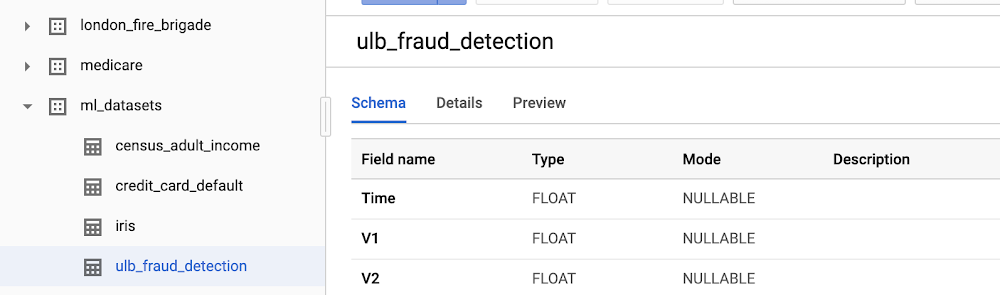
While there’s no doubt that machine learning (ML) can be a great tool for businesses of all shapes and sizes, actually building ML models can seem daunting at first. Cloud AutoML—Google Cloud’s suite of products—provides tools and functionality to help you build ML models that are tailored to your specific needs, without needing deep ML expertise.AutoML solutions provide a user interface that walks you through each step of model building, including importing data, training your model on the data, evaluating model performance, and predicting values with the model. But, what if you want to use AutoML products outside of the user interface? If you’re working with structured data, one way to do it is by using the AutoML Tables SDK, which lets you trigger—or even automate—each step of the process through code. There is a wide variety of ways that the SDK can help embed AutoML capabilities into applications. In this post, we’ll use an example to show how you can use the SDK from end-to-end within your Jupyter Notebook. Jupyter Notebooks are one of the most popular development tools for data scientists. They enable you to create interactive, shareable notebooks with code snippets and markdown for explanations. Without leaving Google Cloud’s hosted notebook environment, AI Platform Notebooks, you can leverage the power of AutoML technology.There are several benefits of using AutoML technology from a notebook. Each step and setting can be codified so that it runs the same every time by everyone. Also, it’s common, even with AutoML, to need to manipulate the source data before training the model with it. By using a notebook, you can use common tools like pandas and numpy to preprocess the data in the same workflow. Finally, you have the option of creating a model with another framework, and ensemble that together with the AutoML model, for potentially better results. Let’s get started!Understanding the dataThe business problem we’ll investigate in this blog is how to identify fraudulent credit card transactions. The technical challenge we’ll face is how to deal with imbalanced datasets: only 0.17% of the transactions in the dataset we’re using are marked as fraud. More details on this problem are available in the research paper Calibrating Probability with Undersampling for Unbalanced Classification.To get started, you’ll need a Google Cloud Platform project with billing enabled. To create a project, follow the instructions here. For a smooth experience, check that the necessary storage and ML APIs are enabled. Then, follow this link to access BigQuery public datasets in the Google Cloud console.In the Resources tree in the bottom-left corner, navigate through the list of datasets until you find ml-datasets, and then select the ulb-fraud-detection table within it.Click the Preview tab to preview sample records from the dataset. Each record has the following columns:Time is the number of seconds between the first transaction in the dataset and the time of the selected transaction.V1-V28 are columns that have been transformed via a dimensionality reduction technique called PCA that has anonymized the data.Amount is the transaction amount.Set up your Notebook EnvironmentNow that we’ve looked at the data, let’s set up our development environment. The notebook we’ll use can be found in AI Hub. Select the “Open in GCP” button, then choose to either deploy the notebook in a new or existing notebook server.Configure the AutoML Tables SDKNext, let’s highlight key sections of the notebook. Some details, such as setting the project ID, are omitted for brevity, but we highly recommend running the notebook end-to-end when you have an opportunity.We’ve recently released a new and improved AutoML Tables client library. You will first need to install the library and initialize the Tables client.By the way, we recently announced that AutoML Tables can now be used in Kaggle kernels. You can learn more in this tutorial notebook, but the setup is similar to what you see here.Import the Data The first step is to create a BigQuery dataset, which is essentially a container for the data. Next, import the data from the BigQuery fraud detection dataset. You can also import from a CSV file in Google Cloud Storage or directly from a pandas dataframe.Train the ModelFirst, we have to specify which column we would like to predict, or our target column, with set_target_column(). The target column for our example will be “Class”—either 1 or 0, if the transaction is fraudulent or not.Then, we’ll specify which columns to exclude from the model. We’ll only exclude the target column, but you could also exclude IDs or other information you don’t want to include in the model.There are a few other things you might want to do that aren’t necessary needed in this example:Set weights on individual columnsCreate your own custom test/train/validation split and specify the column to use for the splitSpecify which timestamp column to use for time-series problemsOverride the data types and nullable status that AutoML Tables inferred during data importThe one slightly unusual thing that we did in this example is override the default optimization objective. Since this is a very imbalanced dataset, it’s recommended that you optimize for AU-PRC, or the area under the Precision/Recall curve, rather than the default AU-ROC.Evaluate the ModelAfter training has been completed, you can review various performance statistics on the model, such as the accuracy, precision, recall, and so on. The metrics are returned in a nested data structure, and here we are pulling out the AU-PRC and AU-ROC from that data structure.Deploy and Predict with the ModelTo enable online predictions, the model must first be deployed. (You can perform batch predictions without deploying the model).We’ll create a hypothetical transaction record with similar characteristics and predict on it. After invoking the predict() API with this record, we receive a data structure with each class and its score. The code below finds the class with the maximum score.Conclusion Now that we’ve seen how you can use AutoML Tables straight from your notebook to produce an accurate model of a complex problem, all with a minimal amount of code, what’s next?To find out more, the AutoML Tables documentation is a great place to start. When you’re ready to use AutoML in a notebook, the SDK guide has detailed descriptions of each operation and parameter. You might also find our samples on Github helpful.After you feel comfortable with AutoML Tables, you might want to look at other AutoML products. You can apply what you’ve learned to solve problems in Natural Language, Translation, Video Intelligence, and Video domains.Find me on Twitter at @kweinmeister, and good luck with your next AutoML experiment!
Quelle: Google Cloud Platform

Videoportale: Mixer legt wesentlich stärker zu als Twitch

Das auf Gaming spezialisierte Videoportal Twitch ist 2019 weiter gewachsen, aber der Konkurrent Mixer von Microsoft konnte noch viel stärker zulegen. Das zeigen neue Marktdaten. Grund für die unterschiedliche Entwicklung dürften millionenschwere Wechsel von Ninja und anderen Streamern sein. (Twitch, Microsoft)
Quelle: Golem

Best of 2019 Blogs: Announcing Docker Enterprise 3.0 General Availability

The post Best of 2019 Blogs: Announcing Docker Enterprise 3.0 General Availability appeared first on Mirantis | Pure Play Open Cloud.

One of the most popular blogs in 2019 was the release of Docker Enterprise 3.0. This post, originally published in July, recaps the key details.

Today, we’re excited to announce the general availability of Docker Enterprise 3.0 – the only desktop-to-cloud enterprise container platform enabling organizations to build and share applications and securely run them anywhere – from hybrid cloud to the edge.

Docker Enterprise 3.0 Demo


Leading up to GA, more than 2,000 people participated in the Docker Enterprise 3.0 public beta program to try it for themselves. We gathered feedback from some of these beta participants to find out what excites them most about the latest iteration of Docker Enterprise. Here are 3 things that customers are excited about and the features that support them:

Simplifying Kubernetes

Kubernetes is a powerful orchestration technology but due to its inherent complexity, many enterprises (including Docker customers) have struggled to realize the full value of Kubernetes on their own. Much of Kubernetes’ perceived complexity stems from a lack of intuitive security and manageability configurations that most enterprises expect and require for production-grade software. We’re addressing this challenge with Docker Kubernetes Service (DKS) – a Certified Kubernetes distribution that is included with Docker Enterprise 3.0. It’s the only offering that integrates Kubernetes from the developer desktop to production servers, with ‘sensible secure defaults’ out-of-the-box.

“Increasing application development velocity and digital agility are a strategic imperative for companies in all sectors today. Developer experience is the killer app,” said RedMonk co-founder, James Governor. “Docker Kubernetes Service and Docker Application aim to package and simplify developer and operator experience, making modern container based workflows more accessible to developers and operators alike.”

You can learn more about Docker Kubernetes Service here.

Automating Deployment of Containers and Kubernetes

One of the most common requests we’ve heard from customers has been to make it easier to deploy and manage their container environments. That’s why we introduced new lifecycle automation tools for day 1 and day 2 operations, helping customers accelerate and expand the deployment of containers and Kubernetes on their choice of infrastructure. Using a simple set of CLI commands, operations teams can easily deploy, scale, backup and restore, and upgrade their Docker Enterprise clusters across hybrid and multi-cloud deployment on AWS, Azure, or VMware.

Building Modern Applications 

With the ever-increasing emphasis on making things easier and faster for developers, it’s no surprise that Docker Desktop Enterprise and Docker Application created a lot of excitement amongst beta participants. Docker Desktop Enterprise is a new developer tool that decreases the “time-to-Docker” – accelerating developer onboarding and improving developer productivity. Docker Application, based on the CNAB standard, is a new application format that enables developers to bundle the many distributed resources that comprise a modern application into a single object that can be easily shared, installed and run anywhere. Docker Desktop Enterprise also allows users to quickly and easily create Docker Applications leveraging pre-defined Application Templates that support any language or framework.

“The Docker Enterprise platform and its approach to simplifying how containerized applications are built, shared and run allows us to fail fearlessly. We can test new services easily and quickly and if they work, we can immediately enhance the mortgage experience for our customers,” said Don Bauer, Lead DevOps Engineer, Citizens Bank. “Docker’s investment in new capabilities like Docker Application and simplified cluster management will further improve developer productivity and lifecycle automation for us so that we can continue to bring new, differentiated services to market faster.”

You can learn more about Docker Applications here.

How to Get Started

Learn More about What’s New in Docker Enterprise 3.0
Schedule a demo 

The post Best of 2019 Blogs: Announcing Docker Enterprise 3.0 General Availability appeared first on Mirantis | Pure Play Open Cloud.
Quelle: Mirantis