Microsoft makes it easier to build popular language representation model BERT at large scale

This post is co-authored by Rangan Majumder, Group Program Manager, Bing and Maxim Lukiyanovm, Principal Program Manager, Azure Machine Learning.

Today we are announcing the open sourcing of our recipe to pre-train BERT (Bidirectional Encoder Representations from Transformers) built by the Bing team, including code that works on Azure Machine Learning, so that customers can unlock the power of training custom versions of BERT-large models using their own data. This will enable developers and data scientists to build their own general-purpose language representation beyond BERT.

The area of natural language processing has seen an incredible amount of innovation over the past few years with one of the most recent being BERT. BERT, a language representation created by Google AI language research, made significant advancements in the ability to capture the intricacies of language and improved the state of the art for many natural language applications, such as text classification, extraction, and question answering. The creation of this new language representation enables developers and data scientists to use BERT as a stepping-stone to solve specialized language tasks and get much better results than when building natural language processing systems from scratch.

The broad applicability of BERT means that most developers and data scientists are able to use a pre-trained variant of BERT rather than building a new version from the ground up with new data. While this is a reasonable solution if the domain’s data is similar to the original model’s data, it will not deliver best-in-class accuracy when crossing over to a new problem space. For example, training a model for the analysis of medical notes requires a deep understanding of the medical domain, providing career recommendations depend on insights from a large corpus of text about jobs and candidates, and legal document processing requires training on legal domain data. In these cases, to maximize the accuracy of the Natural Language Processing (NLP) algorithms one needs to go beyond fine-tuning to pre-training the BERT model.

Additionally, to advance language representation beyond BERT’s accuracy, users will need to change the model architecture, training data, cost function, tasks, and optimization routines. All these changes need to be explored at large parameter and training data sizes. In the case of BERT-large, this can be quite substantial as it has 340 million parameters and trained over 2.5 billion Wikipedia and 800 million BookCorpus words. To support this with Graphical Processing Units (GPUs), the most common hardware used to train deep learning-based NLP models, machine learning engineers will need distributed training support to train these large models. However, due to the complexity and fragility of configuring these distributed environments, even expert tweaking can end up with inferior results from the trained models.

To address these issues, Microsoft is open sourcing a first of a kind, end-to-end recipe for training custom versions of BERT-large models on Azure. Overall this is a stable, predictable recipe that converges to a good optimum for developers and data scientists to try explorations on their own.

“Fine-tuning BERT was really helpful to improve the quality of various tasks important for Bing search relevance,” says Rangan Majumder, Group Program Manager at Bing, who led the open sourcing of this work.  “But there were some tasks where the underlying data was different from the original corpus BERT was pre-trained on, and we wanted to experiment with modifying the tasks and model architecture.  In order to enable these explorations, our team of scientists and researchers worked hard to solve how to pre-train BERT on GPUs. We could then build improved representations leading to significantly better accuracy on our internal tasks over BERT.  We are excited to open source the work we did at Bing to empower the community to replicate our experiences and extend it in new directions that meet their needs.”

“To get the training to converge to the same quality as the original BERT release on GPUs was non-trivial,” says Saurabh Tiwary, Applied Science Manager at Bing.  “To pre-train BERT we need massive computation and memory, which means we had to distribute the computation across multiple GPUs. However, doing that in a cost effective and efficient way with predictable behaviors in terms of convergence and quality of the final resulting model was quite challenging. We’re releasing the work that we did to simplify the distributed training process so others can benefit from our efforts.”

Results

To test the code, we trained BERT-large model on a standard dataset and reproduced the results of the original paper on a set of GLUE tasks, as shown in Table 1. To give you estimate of the compute required, in our case we ran training on Azure ML cluster of 8xND40_v2 nodes (64 NVidia V100 GPUs total) for 6 days to reach listed accuracy in the table. The actual numbers you will see will vary based on your dataset and your choice of BERT model checkpoint to use for the upstream tasks.

Table1. GLUE Test results, evaluated by the provided test script on the GLUE development set. The “Average” column is simple average over the table results. F1 scores are reported for QQP and MRPC, Spearman correlations are reported for STS-B, and accuracy scores are reported for the other tasks. The results for tasks with smaller dataset sizes have significant variation and may require multiple fine-tuning runs to reproduce the results.

The code is available in open source on the Azure Machine Learning BERT GitHub repo. Included in the repo is:

A PyTorch implementation of the BERT model from Hugging Face repo.
Raw and pre-processed English Wikipedia dataset.
Data preparation scripts.
Implementation of optimization techniques such as gradient accumulation and mixed precision.
An Azure Machine Learning service Jupyter notebook to launch pre-training of the model.
A set of pre-trained models that can be used in fine-tuning experiments.
Example code with a notebook to perform fine-tuning experiments.

With a simple “Run All” command, developers and data scientists can train their own BERT model using the provided Jupyter notebook in Azure Machine Learning service. The code, data, scripts, and tooling can also run in any other training environment.

Summary

We could not have achieved these results without leveraging the amazing work of the researchers before us, and we hope that the community can take our work and go even further. If you have any questions or feedback, please head over to our GitHub repo and let us know how we can make it better.

Learn how Azure Machine Learning can help you streamline the building, training, and deployment of machine learning models. Start free today.
Quelle: Azure

Docker’s Contribution to Authentication for Windows Containers in Kubernetes

When Docker Enterprise added support for Windows containers running on Swarm with the release of Windows Server 2016, we had to tackle challenges that are less pervasive in pure Linux environments. Chief among these was Active Directory authentication for container-based services using Group Managed Service Accounts, or gMSAs. With nearly 3 years of experience deploying and running Windows container applications in production, Docker has solved for a number of complexities that come with managing gMSAs in a container-based world. We are pleased to have contributed that work to upstream Kubernetes.

Challenges with gMSA in Containerized Environments

Aside from being used for authentication across multiple instances, gMSAs solves for two additional problems: 

Containers cannot join the domain, and;When you start a container, you never really know which host in your cluster it’s going to run on. You might have three replicas running across hosts A, B, and C today and then tomorrow you have four replicas running across hosts Q, R, S, and T. 

One way to solve for this transience is to place the gMSA credential specifications for your service on each and every host where the containers for that service might run, and then repeat that for every Windows service you run in containers. It only takes a few combinations of servers and services to realize this solution just doesn’t scale. You could also place the credential specs inside the image itself, but then you have issues with flexibility if you later change the credspec the service uses.

Figure 1: Managing the matrix of container, credspecs, and hosts doesn’t scale

With Docker Enterprise 3.0 we created a new way to manage gMSA credspecs in Swarm environments. Rather than manually creating and copying credspecs to every potential host, you can instead create a service configuration:

docker config create credspec… 

which is a cluster-wide resource and can be used as a parameter when you create a Windows container service:

docker service create –credential-spec=”config://credspec”…

Swarm then automatically provides the credential spec to the appropriate container at runtime. Much like a secret, the config is only provided to containers that require it; and unlike a typical docker config, the cred spec is not mounted as a file in the system.

Figure 2: Swarm and Kubernetes orchestrators provide gMSA credspecs only when & where needed

Bringing gMSA credspecs to Kubernetes

Now that Kubernetes 1.14 has added support for Windows, the number of Windows container applications is likely to increase substantially and this same gMSA support will be important to anybody trying to run production Windows apps in their Kubernetes environment. The Docker team has been supporting this effort within the Kubernetes project with help from the SIG-Windows community. gMSA support is in the Alpha release phase in Kubernetes 1.14. 

gMSAs in Kubernetes work in a similar fashion to the config in Swarm: you create a credspec for the gMSA, use Kubernetes RBAC to control which pods can access the credspec, and then your pods can access the appropriate gMSA as needed. Again, this is still in Alpha right now so if you want to try it out you will have to enable the feature first.

We have additional work we are contributing upstream in addition to the gMSA work, like CSI support for Windows workloads, and we’ll share more about that in the weeks ahead as they reach alpha release stages. 

Learn more about #Docker’s contribution to authentication for Windows containers in @kubernetesioClick To Tweet

Call to Action 

If you’re attending OSCON check out the “Deploying Windows apps with Draft, Helm, and Kubernetes” session by Jessica Deen Test out the new gMSA config specs, coming soon in Docker Enterprise 3.0Review and contribute to the Kubernetes Windows gMSA SIG or other enhancement proposalsLearn more about Microsoft Group Managed Service Accounts

The post Docker’s Contribution to Authentication for Windows Containers in Kubernetes appeared first on Docker Blog.
Quelle: https://blog.docker.com/feed/

Quick tip: Enable nested virtualization on a GCE instance

The post Quick tip: Enable nested virtualization on a GCE instance appeared first on Mirantis | Pure Play Open Cloud.
There are times when you need to run a virtual machine — but you’re already ON a virtual machine.  Fortunately, it’s possible, but you need to enable nested virtualization.  For me, this comes up often when I’m running OpenStack or Kubernetes on a Google Compute Engine instance.  To solve the problem, follow these steps:

Install the latest version of the gcloud command-line tool.
Create a new instance so you have a base disk to work with.  Because you’ll eventually want to use the image in a zone that includes nested virtualization, create it in zone us-central1-b.  You can do this from the UI, or using the command line. By default, the disk will have the same name as the instance:
gcloud compute instances create temp-image-base –zone us-central1-b
Stop the instance:
gcloud compute instances stop temp-image-base –zone us-central1-b

Now create a new disk, based on that disk, with nested virtualization enabled:
gcloud compute images create nested-vm-image
  –source-disk temp-image-base –source-disk-zone us-central1-b
  –licenses “https://www.googleapis.com/compute/v1/projects/vm-options/global/licenses/enable-vmx”

Next create the new instance using the new image:
gcloud compute instances create nested-vm –zone us-central1-b –image=nested-vm-image –boot-disk-size=250GB

Connect to the instance:
gcloud compute ssh nested-vm –zone=us-central1-b

Confirm that nested virtualization is enabled by looking for a non-zero response to:
> grep -cw vmx /proc/cpuinfo
> 1

Finally, install a hypervisor such as KVM:
sudo apt-get update && sudo apt-get install qemu-kvm -y

From there, you’re ready to run VMs on your VM.
The post Quick tip: Enable nested virtualization on a GCE instance appeared first on Mirantis | Pure Play Open Cloud.
Quelle: Mirantis

Keep calm and query on: Running your databases in GCP

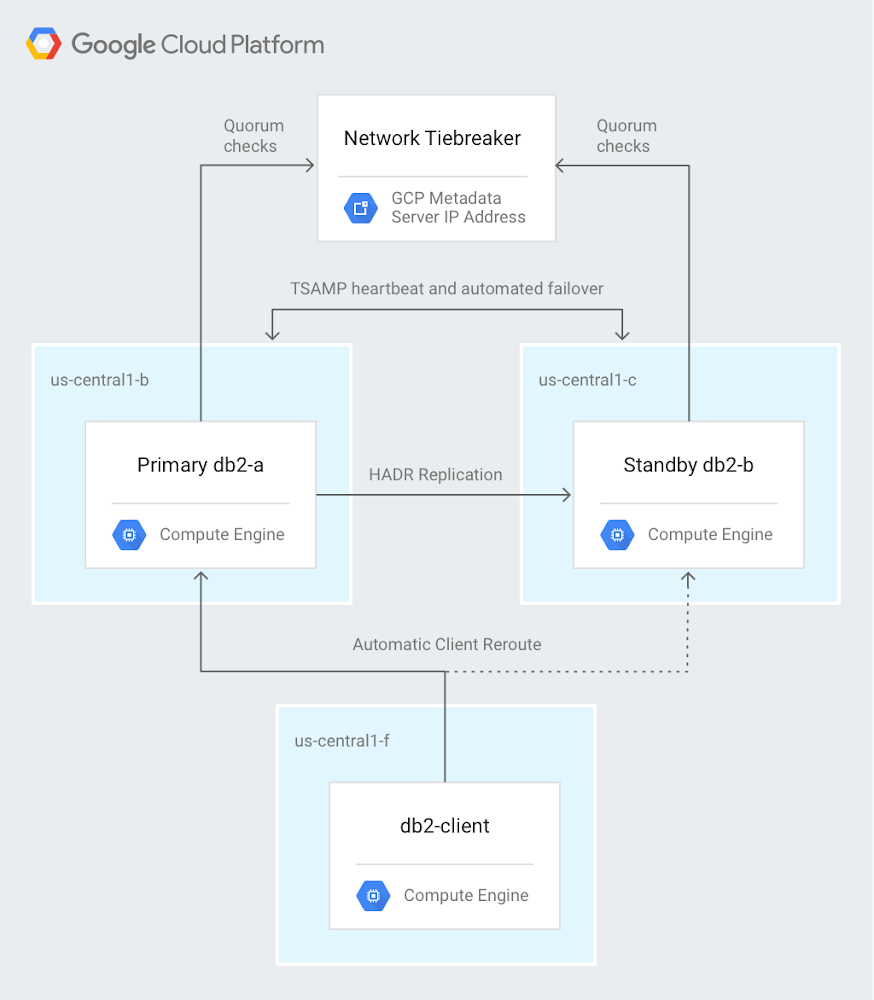
A fundamental piece of many applications is a database, and that’s true for many cloud-based solutions too. Running a database in the cloud is in many ways similar to running a database on-premises, but there are important differences—and advantages. Our team—database solutions architects here at Google Cloud—works to help you understand every aspect of databases in the cloud: deploying, migrating, and managing. We want to help you choose the right way to run your database on Google Cloud Platform (GCP).When you run a database on GCP, you can choose between managed services or running on infrastructure we manage for you. Managed services can remove some of the operational overhead required to operate a database, while running it yourself gives you full control over how your database is deployed. With both options, you get reliability, security, and elasticity built in, with the ability to get global connectivity using Google’s network.Our team works continually to help users understand every aspect of databases in the cloud: deploying, migrating, and managing. Here are some examples of our recent solutions for using cloud databases, from deployment to monitoring. Deploying IBM Db2The first step for cloud-based databases is, of course, to get your database up and running. IBM Db2 is a common enterprise database, so we recently published a comprehensive solution document that describes how to deploy IBM Db2 on GCP: Deploying highly available IBM Db2 11.1 on Compute Engine with automatic client reroute and a network tiebreaker. The solution starts with setting up Compute Engine instances (VMs) to run Db2. As you can tell from the title, it goes well beyond the basics of deployment—it walks you through how to create a highly available deployment in a cluster with transaction replication and automated failover, as shown here:And the solution doesn’t just stop when you’ve set everything up. The goal is high availability, so to make sure everything is working, author Ron Pantofaro shows you how to temporarily disable the primary cluster node. You can then verify that the database fails over properly and that the standby node takes over. Migrating an existing database to GCPIn many cases, you aren’t deploying a database from scratch. Instead, you want to migrate an existing database to GCP. Just migrating a database from one platform to another can have its challenges. But what if you also want to change from a NoSQL database to a relational one? In his solution Migrating from DynamoDB to Cloud Spanner, SA Sami Zuhuruddin recently tackled this interesting and challenging transition. He describes how to move your data from Amazon DynamoDB, which is a NoSQL database, to Cloud Spanner, which is a fully relational, fault-tolerant SQL database with transaction support. When you read Sami’s solution, you’ll see why you’ll want to follow his expert guidance for this task. The process goes through a number of intermediate steps that include Amazon S3, Google Cloud Storage, AWS Lambda, Cloud Pub/Sub, and Cloud Dataflow before arriving at Cloud Spanner. Sami explains the data model on both sides of the migration, including keys, data types, and indexes. You’ll see which user permissions you need in order to perform each step. The solution walks you through the entire process, including verification at the end. Here’s a look at the architecture involved:Backing up a databaseIt’s just as important in the cloud as it is on-premises to back up your databases. Two recent solutions discuss ways to do this.In Using Microsoft SQL Server backups for point-in-time recovery on Compute Engine, SA Ron Pantofaro turns his hand from deployment to backup and shows you how to configure backup for a SQL Server instance that’s running on Compute Engine. You’ll see how to back up both the data and the database logs to Cloud Storage. He also describes how to restore a backup in case you ever need to do that (though we hope not). This isn’t the end of the job, though. From there, you’ll see how to schedule your backups and how to prune backups that you no longer need.Of course, you might be using a different database. In Performing MySQL Hot Backups with Percona XtraBackup and Cloud Storage, the SA team shows a similar set of tasks—backing up, restoring, scheduling, and pruning—but for MySQL databases. Adding tracing to your GCP-based databaseOne of the benefits of running a database in GCP is that you can take advantage of services like Stackdriver to gather tracing information. In his community tutorial Client-side tracing of Cloud Memorystore for Redis workloads with OpenCensus, SA Karthi Thyagarajan discusses how to add tracing that lets you measure data-retrieval latency. This solution uses a data store consisting of Cloud Memorystore backed by Cloud Storage. As he says, this lets you “focus on the key aspects of client-side tracing without getting hung up on things like database deployments and related configuration.”You can download the Java client app that Karthi created has a Java client app that you can get from GitHub, which already contains the logic for reading from the data store and generating trace output. After you’ve got the data store set up, you run the client app to read data. You can see some of the benefits of the instrumentation you’ve set up—you go to the Stackdriver console and visually compare the latencies of cached and non-cached reads:More GCP database solutionsThis covers just a few of the database-oriented solutions that our Solutions Architects team has produced. To find out more, check out the databases and migration entries in the GCP Solutions Gallery.
Quelle: Google Cloud Platform

Assess the readiness of SQL Server data estates migrating to Azure SQL Database

Migrating hundreds of SQL Server instances and thousands of databases to Azure SQL Database, our Platform as a Service (PaaS) offering, is a considerable task, and to streamline the process as much as possible, you need to feel confident about your relative readiness for migration. Being able to identify low-hanging fruit including the servers and databases that are fully ready or that require minimal effort to prepare for migration eases and accelerates your efforts. We are pleased to share that Azure database target readiness recommendations have been enabled.

The Azure Migrate hub provides a unified view of all your migrations across the servers, applications, and databases. This integration provides customers with a seamless migration experience beginning during the discovery phase. The functionality allows customers to use assessment tools for visibility into the applications currently run on-premises so that they can determine cloud suitability and project the cost of running their applications in the cloud. It also allows customers to compare options between competing public and hybrid cloud options.

Assessing and viewing results

Assessing the overall readiness of your data estate for a migration to Azure SQL Database requires only a few steps:

Provision an instance of Azure Migrate, create a migration project, and then add Data Migration Assistant to the migration solution to perform the assessment.
After you create the migration project, download Data Migration Assistant and run an assessment against one or more SQL Server instances.
Upload the Data Migration Assistant assessment results to the Azure Migrate hub.

In a few minutes, the Azure SQL Database target readiness results will be available in your Azure Migrate project.

You can use single assessment for as many SQL Servers as you want, or you can run multiple parallel assessments and upload them to the Azure Migrate hub. The Azure Migrate hub consolidates all the assessments and a provide summarized view of SQL Server and database readiness.

The Azure Migrate dashboard provides a view of your data estate and its overall readiness for migration. This includes the number of databases that are ready to migrate to Azure SQL Database and to SQL Server hosted on an Azure virtual machine. Readiness is computed based on feature parity and schema compatibility with various Azure SQL Database offerings. The dashboard also provides insight into overall migration blockers and the all-up effort involved with migrating to Azure.

IT pros and database administrators can drill-down further to view a specific set of SQL Server instances and databases for a better understanding their readiness for migration.

The “Assessed database” view provides an overview of individual databases, showing info like migration blockers and readiness for Azure SQL Database and SQL Servers hosted on an Azure virtual machine.

Get started

Migrations can be overwhelming and a bit daunting, but we’re here with the expertise and tools, like Data Migration Assistant, to support you along the way. Discover your readiness results and acceleration your migration.

Get started:

Step-by-step guide on how to assess  your readiness
Perform a SQL Server migration assessment with Data Migration Assistant

Quelle: Azure

From Red Hat Developers Blog: Using a custom builder image on Red Hat OpenShift with OpenShift Do

Daniel Helfand has created a video to match his excellent blog post over at Red Hat Developers Blog. He’s taken a lot of time to carefully explain how to use a custom builder image on Red Hat OpenShift using OpenShift Do. If you prefer the video tutorial, you’re all set. If you prefer a long […]
The post From Red Hat Developers Blog: Using a custom builder image on Red Hat OpenShift with OpenShift Do appeared first on Red Hat OpenShift Blog.
Quelle: OpenShift

OpenShift 4: Image Builds

One of the key differentiators of Red Hat OpenShift as a Kubernetes distribution is the ability to build container images using the platform via first class APIs. This means there is no separate infrastructure or manual build processes required to create images that will be run on the platform. Instead, the same infrastructure can be […]
The post OpenShift 4: Image Builds appeared first on Red Hat OpenShift Blog.
Quelle: OpenShift