AWS Direct Connect Service Delivery Partners

AWS Direct Connect gives you the ability to create private network connections between your datacenter, office, or colocation environment and AWS.
We recently announced new gigabit connectivity options for AWS Direct Connect with Hosted Connections with 1, 2, 5, or 10 Gbps of capacity. Today, with the launch of the AWS Direct Connect Service Delivery Program, AWS Direct Connect Service Delivery Partners are exclusively authorized to provision AWS Direct Connect 1, 2, 5 and 10 Gbps Hosted Connections. In order to qualify, all APN Partners must meet the new AWS Direct Connect Service Delivery Program requirements, complete validation by AWS, and enable monitoring of the network link between the partner and AWS. To learn more about the specific AWS Direct Connect services an APN Partner is approved for, see the AWS Direct Connect Partners page. To learn more about how to become an AWS Direct Connect Service Delivery Partner, check out the AWS Service Delivery Program page and learn more on the APN Blog. 
Quelle: aws.amazon.com

Deploying a production-grade Helm release on GKE with Terraform

Editor’s note:Today we hear from Gruntwork, a DevOps service provider specialized in cloud infrastructure automation, about how to automate Kubernetes deployments to GKE with HashiCorp Terraform.As more organizations look to capitalize on the advantages of Kubernetes, they increasingly use managed platforms like Google Kubernetes Engine (GKE), to offload the work of managing Kubernetes themselves. They manage and deploy workloads with tools like kubectl and Helm, the Kubernetes package manager that repeatably applies common templates, a.k.a., charts.Then there’s HashiCorp Terraform, an infrastructure management and deployment tool that allows you to programmatically configure infrastructure across a variety of providers, including Google Cloud. Terraform lets you deploy GKE clusters reliably and repeatedly, no matter your organization’s scale.Here at Gruntwork, we find that using Terraform can make it easier to adopt Kubernetes, both on GCP as well as other cloud environments. We worked with Google Cloud to build a series of open-source Terraform modules based on Google Cloud Platform (GCP) and Kubernetes best practices that allow you to work with GCP and Kubernetes in a reliable manner.To get a sense of what the Gruntwork GCP Modules do, first consider what you’d need to do to securely deploy a service on a GKE cluster using Helm:Prepare a GCP service account with minimal permissions instead of reusing the project-scoped Compute default service accountProvision a service-specific VPC network instead of the project default networkDeploy a GKE private cluster and disable insecure add-ons and legacy Kubernetes featuresAdd a node pool with autoscaling, auto repair and auto upgrade enabledConfigure kubectl to interact with the clusterCreate a TLS cert to communicate with the Helm server, TillerCreate a Tiller-specific namespace for TillerDeploy Tiller into the Tiller-specific namespaceOnly after you’ve done all that will you be able to deploy workloads to Kubernetes using Helm! In addition, to deploy your services using Helm, each of your developers also needs toDownload a Tiller client cert for HelmUse Helm to release a Helm chart with your serviceThat’s quite a daunting list just to release your first Helm chart on GKE and definitely not a problem that you want to solve from scratch. Our new GKE module automates these steps for you, allowing you can consistently apply all of these GCP and Kubernetes best practices using Terraform, with a single terraform apply!To learn more, we’ve included a full, working config in the module’s GitHub repo, and are showing snippets of config below. Alternatively, you can open it in Google Cloud Shell with the button below to try it out yourself.You can use the Cloud Console to verify that the cluster has been deployed correctly:Next, you can use kubergrunt (a collection of utility scripts compiled to a Go binary for use with Terraform) to deploy Helm’s server component, Tiller, into your cluster. This also releases a chart using Helm, allowing you to view your deployed service on the web.Finally, you can use Helm to securely release a chart and view its status.Once that’s finished, you can pull up the service address in the Cloud Console under “Services” and poll the /healthz path for a 200 response.The Gruntwork GCP modules make production-ready enterprise configuration of GKE clusters simple, allowing you to roll out clusters and workloads following best practices in minutes. The modules are available now; they’re published on the Terraform Module Registry, and are available licensed as Apache 2.0 on GitHub.Together with Google Cloud, we plan to continue to broaden the number of GCP services that you can provision with Terraform through our modules, providing Terraform users a familiar workflow across multiple cloud and on-premises environments and reducing the operational complexity of managing GCP infrastructure. If you have any specific feedback on use cases you’d like us to prioritize, please reach out to us at info@gruntwork.io.
Quelle: Google Cloud Platform

No deep learning experience needed: build a text classification model with Google Cloud AutoML Natural Language

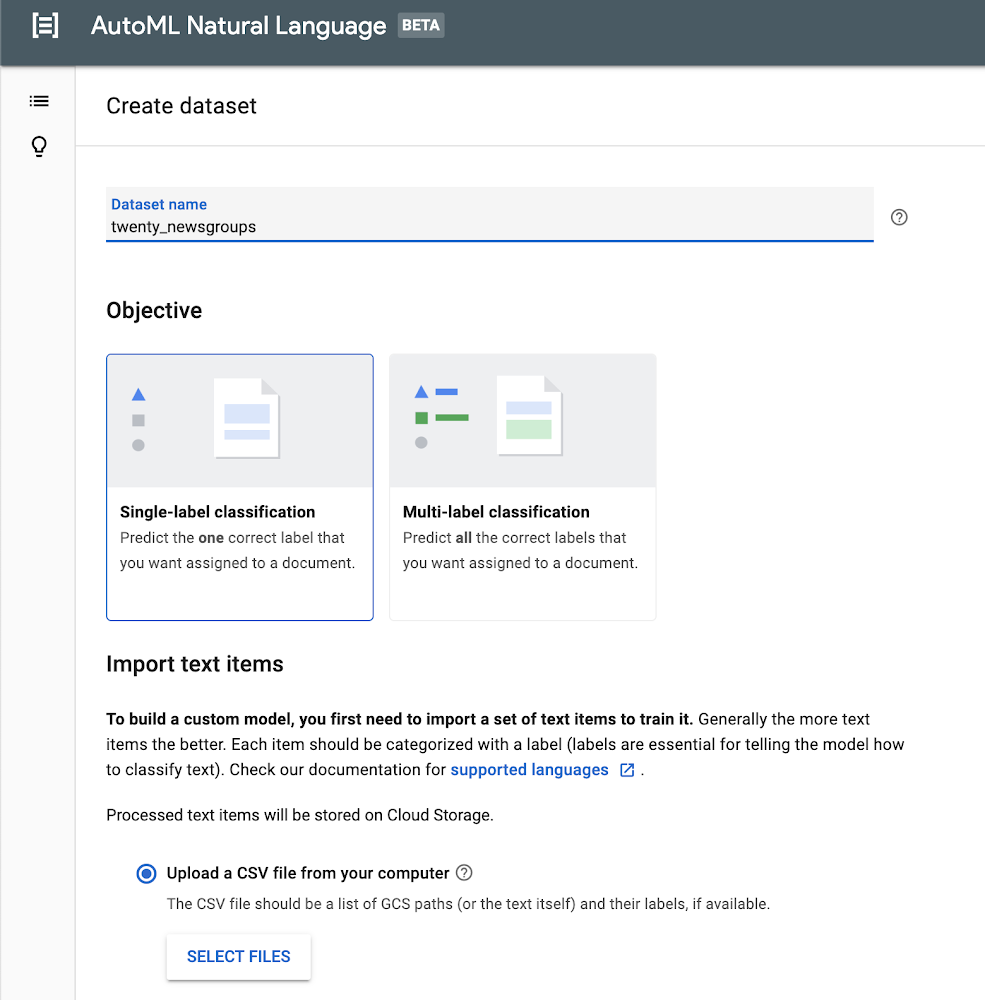
Modern organizations process greater volumes of text than ever before. Although certain tasks like legal annotation must be performed by experienced professionals with years of domain expertise, other processes require simpler types of sorting, processing, and analysis, with which machine learning can often lend a helping hand.Categorizing text content is a common machine learning task—typically called “content classification”—and it has all kinds of applications, from analyzing sentiment in a review of a consumer product on a retail site, to routing customer service inquiries to the right support agent. AutoML Natural Language helps developers and data scientists build custom content classification models without coding. Google Cloud’s Natural Language API helps you classify input text into a set of predefined categories. If those categories work for you, the API is a great place to start, but if you need custom categories, then building a model with AutoML Natural Language is very likely your best option.In this blog post, we’ll guide you through the entire process of using AutoML Natural Language. We’ll use the 20 Newsgroups dataset, which consists of about 20,000 posts, roughly evenly divided across 20 different newsgroups, and is frequently used for content classification and clustering tasks.As you’ll see, this can be a fun and tricky exercise, since the posts typically use casual language and don’t always stay on topic. Also, some of the newsgroups that we’ll use from the dataset overlap quite a bit; for example, two disparate groups cover PC and Mac hardware.Preparing your dataLet’s first start by downloading the data. I’ve included a link to a Jupyter notebook that will download the raw dataset, and then transform it into the CSV format expected by AutoML Natural Language. AutoML Natural Language looks for the text itself or a URL in the first column, and the label in the second column. In our example, we’re assigning one label to each sample, but AutoML Natural Language also supports multiple labels.To download the data, you can simply run the notebook in the hosted Google Colab environment, or you can find the source code on GitHub.Importing your dataWe are now ready to access the AutoML Natural Language UI. Let’s start by creating a new dataset by clicking the New Dataset button. Create a name like twenty_newsgroups and upload the CSV you downloaded in the earlier step.Training your modelIt will take several minutes for the endpoint to import your training text. Once complete, you’ll see a list of the text items and each accompanying label. You can drill down into the text items for specific labels on the left side.After you’ve loaded your data successfully, you can move on to the next stage by training your model. It will take several hours to return the optimal model, and you’ll receive notification emails about the status of the training.Evaluating your modelWhen the model training is complete, you’ll see a dashboard that displays a number of metrics. AutoML Natural Language generates these metrics comparing predictions against the actual labels in the test set. If these metrics are new to you, I’d recommend reading more about them in the Google Machine Learning Crash Course. In short, recall represents how well the model found instances of the correct label (minimizing false negatives). Precision represents how well it did at avoiding labeling instances incorrectly (minimizing false positives).The precision and recall metrics from this example are based on a score threshold of 0.5. You can try adjusting this threshold to see how it impacts your metrics. You can see that there is a tradeoff between precision and recall. If the confidence required to apply a label rises from 0.5 to 0.9, for example, precision will go up because your model will be less likely to mislabel a sample. On the other hand, recall will go down because any samples between 0.5 and 0.9 which were previously identified will not be labeled.Just below this paragraph, you’ll find a confusion matrix. This tool can help you more precisely evaluate the model’s accuracy at the label level. You’ll not only see how often the model identified each label correctly, but you’ll see which labels it mistakenly identified. You can drill down to see specific examples of false positives and negatives. This can prove to be very useful information, because you’ll know whether you need to add more training data to help your model better differentiate between labels that it frequently failed to predict.PredictionLet’s have some fun and try this on some example text. By moving to the Predict tab, you can paste or type some text and see how your newly trained model labels it. Let’s start with an easy example. I’ll take the first paragraph of a Google article about automotive trends, and paste it in. Woohoo! 100% accuracy.You can try some more examples yourself, entering text that might be a little tougher for the model to distinguish. You’ll also see how to invoke a prediction using the API at the bottom. For more details, the documentation provides examples in Python, Java, and Node.js.ConclusionOnce you’ve created a custom model that organizes content into categories, you can then use AutoML Natural Language’s robust evaluation tools to assess your model’s accuracy. These will help you refine your threshold and potentially add more data to shore up any weaknesses. Try it out for yourself!
Quelle: Google Cloud Platform

5G Today: Fernsehen über 5G startet in Deutschland

In Oberbayern wird getestet, wie mit 5G-Broadcasting eine Overlay-Infrastruktur geschaffen werden kann, die sich zur gleichzeitigen Versorgung von Millionen künftiger 5G-Mobilgeräte eignet. Die regulären Mobilfunknetze sollen nicht belastet werden. (Fernsehen, Technologie)
Quelle: Golem

Succeeding with Red Hat OpenShift and VMware’s Software-Defined Datacenter (SDDC)

This is a guest post by VMware’s Robbie Jerrom. Robbie works alongside some of VMware’s largest customers in Europe as they focus on bringing Modern and Cloud-Native applications and platforms to their VMware Software-Defined Datacenter. Prior to joining VMware, Robbie spent a decade as a Software Engineer building Enterprise software such as Java virtual machines, […]
The post Succeeding with Red Hat OpenShift and VMware’s Software-Defined Datacenter (SDDC) appeared first on Red Hat OpenShift Blog.
Quelle: OpenShift






