Docker on Windows Webinar Q&A

Recently I presented Docker on Windows: from 101 to Modernizing .NET Apps, a live webinar on using Docker with Windows, and running .NET Framework apps in containers. The session was recorded and you can watch it on the Docker YouTube channel:

I start with the basics of Windows Docker containers, showing how to you can run containers from public images, and write Dockerfiles to package your own apps to run in containers.
Then I move onto Dockerizing a traditional ASP.NET WebForms app, showing you how to take existing apps and run them in Docker with no code changes, and then use the Docker platform to modernize the app – breaking features out of the monolithic codebase, running them in separate containers and using Docker to connect them.
I maxed out the session time (just like Mike with his Docker for the Sysadmin webinar), so here are the answers to questions raised in the session.
Q:  We have several servers hosting our frontend, some as middle tier hosting the services and we have some for the database. Shall we have a container for each service?
A: Docker doesn’t mandate any particular design, you can architect your move to Docker in the way that works best for you. You could start by packaging your whole web app into one Docker image and your service layer into another Docker image, without having to change source code.
You can run multiple web containers from your web image, and multiple service containers from your service image. That gives you failover, scale and zero-downtime deployments for updates. You also get better density – you won’t be allocating a set of servers to be the service layer, you have a single swarm and servers can run containers from different layers to get maximum compute utilization.
Docker containers can access other services on the network, so you can continue to use your existing database. That could be the first step in a roadmap to break out monolithic apps and run features in their own containers, which means you can scale, update and manage them separately.  Check out the Modernizing Traditional Apps labs for guidance.
Q:  What would be the proper way to isolate groups of containers in Docker, meaning having a set of containers for DEV and another set of containers for QA, running in the same Docker host or swarm? 
The best grouping mechanism is a Docker stack running in swarm mode. You don’t need a cluster of machines running Docker for swarm mode, you can run a single-node swarm for your non-production environments.
You define all the services for one application in a Docker compose file and deploy it to the swarm with docker stack deploy. You can manage the whole solution as one unit, having different stacks for different environments. Running in swarm mode also lets you scale services and use rolling updates for app changes, so you can practice deployments for production.
You could also have dedicated nodes in your swarm for each environment, using node labels and service constraints – so you could have two servers for integration, three for QA etc. but manage them all in the same swarm. Or run separate swarms and physically isolate your environments – you can run a single server in swarm mode.
The other option is to segment workloads by running them in separate Docker networks, if you’re running outside of swarm mode. That doesn’t work so well with Windows where there’s a single default NAT network.
Q:  Can you host .NET NT Services in a docker container? My .NET NT services also write to the windows Event-Viewer, how would this work between the host and the Service assuming I can run .NET NT services in a container.
Yes, with Windows Server Core as the base image you can run Windows Services. In your Dockerfile you would deploy the Windows Service with a script, like installing an MSI with msiexec. Then in your startup command you can use Start-Service to make sure the Windows Service is running when the container starts.
Docker doesn’t integrate directly with the Event Log in containers, but you can use a startup command which polls the Event Log and makes the entries visible from Docker – this is what Microsoft do with the Dockerfile for SQL Server.
Q: How is licensing handled for Windows in containers?
Licensing for containers is done at the host level, so if you have a Windows Server VM running 100 containers, you only pay one server licence for the VM.
Docker licensing is separate. Docker for Windows is a free Docker Community Edition, and runs on Windows 10 and Windows Server 2016. In production you get support with Docker Enterprise Edition, and the Windows Server 2016 licence includes Docker EE Basic so you can raise support tickets with Microsoft and have them escalated to Docker, Inc.
Q:  If I bring up 3 containers on a host, can I use host IP address or DNS name to access these, or do I have to use container IP address to access them?
You can publish container ports to the host when you run them, e.g. docker container run -d -p 80:80 microsoft/iis will run the IIS container with port 80 mapped to the host. Any external traffic to the host gets directed into the container. When you’re working locally on the Docker host, then you need to use the container IP addresses.
Inside the container it’s simpler. Service discovery is built into Docker. The platform has its own DNS server, so containers can reach other by container (or service) name. If you run SQL Server in a container called db then you can run an ASP.NET app in another container and use db as the server name in the database connection string. Docker resolves the container name to the IP address of the container transparently, whether the container is running on the same server, or a different server in a Docker swarm.
Q. Can we change the password of the “User ManagerContainerAdministrator”? Can we use this user account to run as our application service in the container?
No. ContainerAdministrator is a special virtual account, it doesn’t have a password. If you need to use an administrative account with a password, you can create one in the Dockerfile with the net user command, and add it to the admin group with net localgroup.
ContainerAdministrator is the default account when you run a container – so if your CMD instruction starts a console app, that app will run as ContainerAdministrator. If your app runs in the background as a Windows Service, then the account will be the service account, so ASP.NET apps run under application pool accounts.
Q:  Will the sample code be available after this?
Yes. The demos from the webinar were all based on the .NET Newsletter sample app on GitHub – dockersamples/newsletter-signup. It’s an ASP.NET WebForms app that’s been modernized using Docker, splitting features out from the original monolith into small, self-contained components.
Learn more about Docker on Windows:

Watch Docker for .NET Developers from DockerCon 2017
Try Image2Docker, a tool which extracts ASP.NET apps into Dockerfiles and deploy to Docker Enterprise Edition
Watch Escape from Your VMs, the DockerCon 2017 session on using Image2Docker
Come and join us in Copenhagen for DockerCon Europe 2017


#Docker on #Windows – from 101 to modernizing #dotnet apps. Q&A from the webinar with…Click To Tweet

The post Docker on Windows Webinar Q&A appeared first on Docker Blog.
Quelle: https://blog.docker.com/feed/

Introducing Transfer Appliance: Sneakernet for the cloud era

By Ben Chong, Product Manager, Transfer Appliance

Back in the eighties, when network constraints limited data transfers, people took to the streets and walked their floppy disks where they needed to go. And Sneakernet was born.

In the world of cloud and exponential data growth, the size of the disk and the speed of your sneakers may have changed, but the solution is the same: Sometimes the best way to move data is to ship it on physical media.

Today, we’re excited to introduce Transfer Appliance, to help you ingest large amounts of data to Google Cloud Platform (GCP).

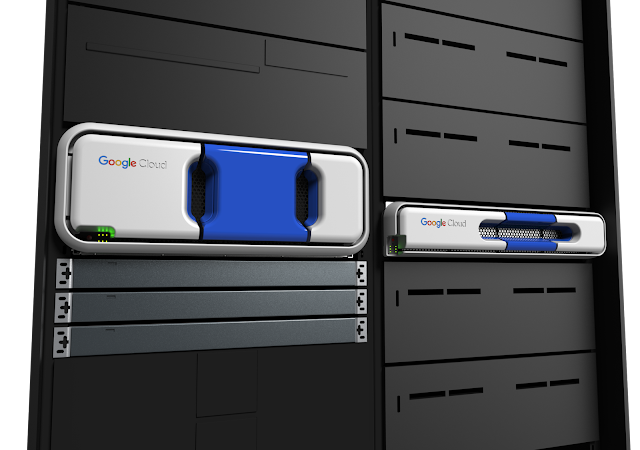
Transfer Appliance offers up to 480TB in 4U or 100TB in 2U of raw data capacity in a single rackmount device

Transfer Appliance is a rackable high-capacity storage server that you set up in your data center. Fill it up with data and then ship it to us, and we upload your data to Google Cloud Storage. With capacity of up to one-petabyte compressed, Transfer Appliance helps you migrate your data orders-of-magnitude faster than over a typical network. The appliance encrypts your data at capture, and you decrypt it when it reaches its final cloud destination, helping to get it to the cloud safely.

Like many organizations we talk to, you probably have large amounts of data that you want to use to train machine learning models. You have huge archives and backup libraries taking up expensive space in your data center. Or IoT devices flooding your storage arrays. There’s all this data waiting to get to the cloud, but it’s impeded by expensive, limited bandwidth. With Transfer Appliance, you can finally take advantage of all that GCP has to offer — machine learning, advanced analytics, content serving, archive and disaster recovery — without upgrading your network infrastructure or acquiring third-party data migration tools.

Working with customers, we’ve found that the typical enterprise has many petabytes of data, and available network bandwidth between 100 Mbps and 1 Gbps. Depending on the available bandwidth, transferring 10 PB of that data would take between three and 34 years — much too long.

Estimated transfer times for given capacity and bandwidth

That’s where Transfer Appliance comes in. In a matter of weeks, you can have a petabyte of your data accessible in Google Cloud Storage, without consuming a single bit of precious outbound network bandwidth. Simply put, Transfer Appliance is the fastest way to move large amounts of data into GCP.

Compare the transfer times for 1 petabyte of data.

Customers tell us that space inside the data center is at a premium, and what space there is comes in the form of server racks. In developing Transfer Appliance, we built a device designed for the data center, that slides into a standard 19” rack. Transfer Appliance will only live in your data center for a few days, but we want it to be a good houseguest while it’s there.

Customers have been testing Transfer Appliance for several months, and love what they see:

“Google Transfer Appliance moves petabytes of environmental and geographic data for Makani so we can find out where the wind is the most windy.” — Ruth Marsh, Technical Program Manager at Makani

“Using a service like Google Transfer Appliance meant I could transfer hundreds of terabytes of data in days not weeks. Now we can leverage all that Google Cloud Platform has to offer as we bring narratives to life for our clients.”  — Tom Taylor, Head of Engineering at The Mill
Transfer Appliance joins the growing family of Google Cloud Data Transfer services. Initially available in the US, the service comes in two configurations: 100TB or 480TB of raw storage capacity, or up to 200TB or 1PB compressed. The 100TB model is priced at $300, plus shipping via Fedex (approximately $500); the 480TB model is priced at $1800, plus shipping (approximately $900). To learn more visit the documentation.

We think you’re going to love getting to cloud in a matter of weeks rather than years. Sign up to reserve a Transfer Appliance today.
Quelle: Google Cloud Platform