Nicole Nguyen / BuzzFeed News
The “pro” tablet is like a spork, which I've said before and will happily say again. Gadgets in this category have typically been unexceptional at both of their jobs: 1. being a tablet and 2. serving as a laptop replacement. Tablets offer neither the portability of that other touchscreen device in your pocket — your phone — nor the performance of a desktop computer.
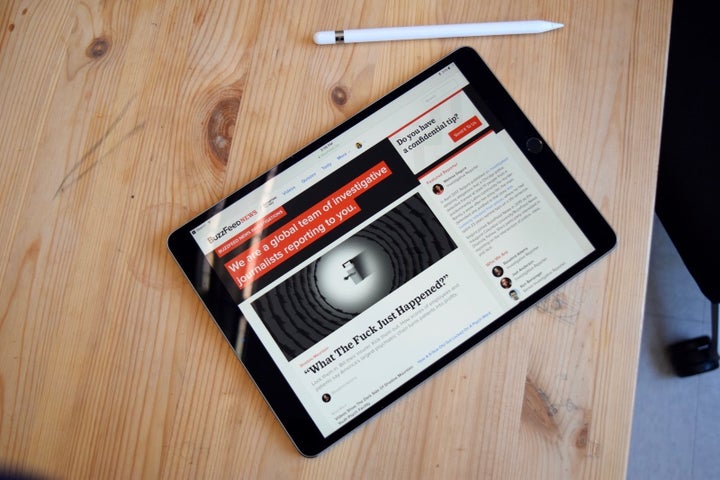
But Microsoft and Apple are trying to convince us otherwise. Each company released new versions of their respective high-performance tablets recently: the fifth generation Surface Pro starts shipping today and the 10.5-inch iPad Pro hits shelves this week. Curious. 🤔
So, if a tablet has “Pro” in its name, does that mean you can get real work done on it? After reviewing this year’s Surface Pro and iPad Pro, I’ve discovered that yes, it’s possible, but it might not be the most efficient or pleasant way to get that work done — and it largely depends on the type of work you’re doing. If you’re wondering whether you need a tablet at all, or which one you should buy, here’s a guide to the pros and cons of each.
Who should even consider getting a tablet?
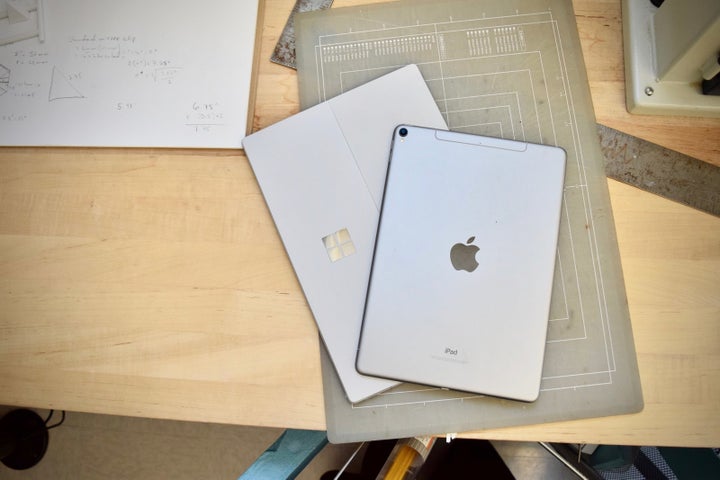
Nicole Nguyen / BuzzFeed News
1. People who have $$$$ to burn, bruh! Tablets are amazing luxury devices. They’re giant phones that make Facebook and Hulu and basically any app look uh-mazing. Plus, they’re fun for when you feel like holding a big ol’ slab of glass above your head in bed. FYI: you’ll end up spending close to a grand for a high-end one with a nice screen.
2. If you use digital textbooks or read/annotate lots of PDFs, get a tablet. Big touchscreens make it easy to zoom in and out of text, and get up close to the media, in a way that makes doing the same thing on a phone feel cramped. If reading is your primary activity, you can probably get away with a regular tablet (like the cheaper iPad or new Galaxy Tab) with a third-party keyboard case and stylus. But if you *also* need to do some word processing (emailing, essay writing, and the like) and, occasionally, other stuff (playing games or watching HD movies) on the device, consider a pro tablet.
3. The styluses on these tablets are getting insanely good, and are even used by professional illustrators. If you’re interested in drawing or handwriting, these devices can be an alternative to paper sketchbooks/notebooks.
But “pro” tablets aren’t for everyone.
Touchscreens attract lots of finger grease (gross) and neither of the devices I reviewed for this article are particularly good for typing on laps, if that’s your thing.
Think about whether you really need a touchscreen. There are lots of ultra lightweight laptop options (including this year’s Macbook and Surface Laptop, which each weigh about a pound) that might be more suited to your needs.
The new Surface Pro and 10.5-inch iPad Pro: Should I get the latest?

Nicole Nguyen / BuzzFeed News
On the outside, the devices seem like they haven’t changed much, but thanks to processor upgrades, the new versions are as powerful as many laptops on the market.
If you’re a power user and can afford it, you won’t go wrong with this year's models. But you could save a few hundred bucks by getting last year’s tablets (the 9.7 iPad Pro or Surface Pro 4), and spend the saved money on extra luxuries, like accessories or additional storage. You won’t miss too much.
You can read my full review of the 10.5-inch iPad Pro, but here’s the short version: It has a slightly bigger screen that can accommodate a full-sized keyboard, a faster processor (nearly double the speed compared to last year’s 9.7-inch iPad Pro), and a new feature called ProMotion, which makes all motion — scrolling, zooming, etc. — much more smooth and detailed.
As for the new Surface Pro, the details are below, but the bottom line is this: It has a bigger battery, faster processor, and a new stylus (the Surface Pen) that’s updated to be more accurate and much more pressure sensitive (you can now tilt to shade, but only in the Sketchpad app for now).
Okay, let’s dive in.

It’s a very productive device.

Nicole Nguyen / BuzzFeed News
That’s because the Surface Pro runs a desktop operating system, Windows 10, instead of a limited mobile operating system. You can stack multiple windows on top of each other, instead of just two apps side-by-side. You can also run the full version of Adobe Photoshop (a must for some designers and illustrators) and use browser extensions. There’s a trackpad built into the Surface Pro’s keyboard cover (sold separately), which makes precise actions that aren’t as easy with your finger, like selecting text, less of a pain.
The keyboard is great.
The keys are satisfyingly bouncy. I had no problem using it all day to type (and typing is 95% of my job). It has backlit keys (helpful for dark classrooms!) and shortcuts for sound, brightness, PrtScn, etc. — all the buttons you’d expect on a full-fledged computer.
It’s a great desktop machine that could absolutely replace your laptop.
Nicole Nguyen / BuzzFeed News
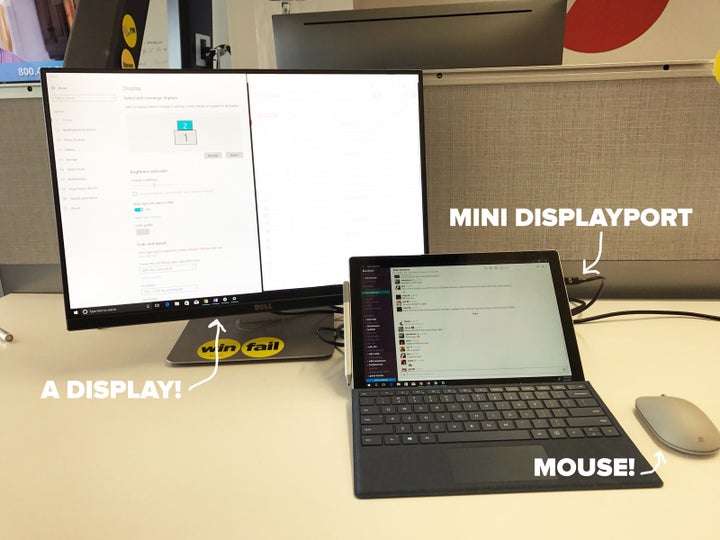
Unlike the iPad Pro, it’s much more comfortable to work on at a desk if you’re using it for significant amounts of time. But you’ll need accessories to make it more ergonomic.
The Surface Pro has a port (mini DisplayPort) to connect it to an external monitor, which not only means you can see more things on screen at once, but it puts that content at a more comfortable eye level too, so you don’t feel like you’re going to sprain your neck from craning over to look at a little screen. And if the Surface Pro’s tiny trackpad makes your thumb cramp, you can pair a wireless mouse.
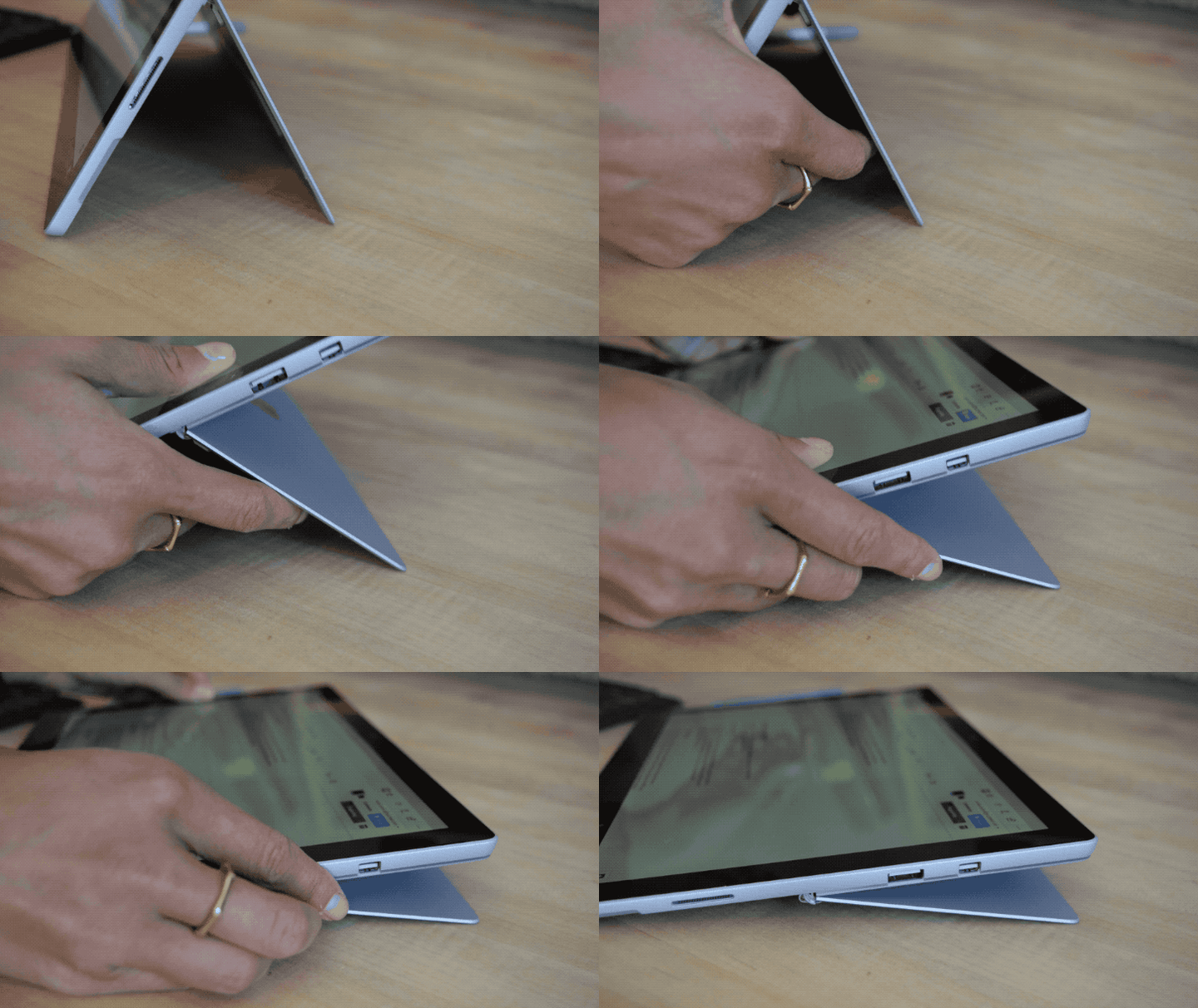
There’s also a super-stable kickstand built-in that can be upright while typing or recline to 15 degrees, which happens to be a great angle for drawing.
As a Mac user, switching to a Windows device has never felt easier.
It's been a minute since I last used Windows, and I was nervous about having to re-learn the operating system. But, as it turns out, it's super easy to use the device right out of the box. I signed into the Chrome browser, and everything I needed — my saved passwords, bookmarks, extensions — were all synced and ready to go with little setup. It’s helpful that I work mostly with web apps (Google Docs, Gmail, BuzzFeed’s CMS) and software that essentially works the same across platforms (Slack and Adobe Photoshop/Premiere).
You can easily work with additional devices, without special adapters.
Nicole Nguyen / BuzzFeed News
There’s a USB port and a microSD reader built into the Surface Pro. It’s great for connecting a backup drive or dumping images from a camera. If you need to present something, cable adapters that connect the Surface Pro’s display to a projector (with a VGA or HDMI connection) are widely available and can be bought from Microsoft (~$40) or Amazon Basics (~$11) for fairly inexpensive prices.
There’s actually a place for the stylus.
Nicole Nguyen / BuzzFeed News
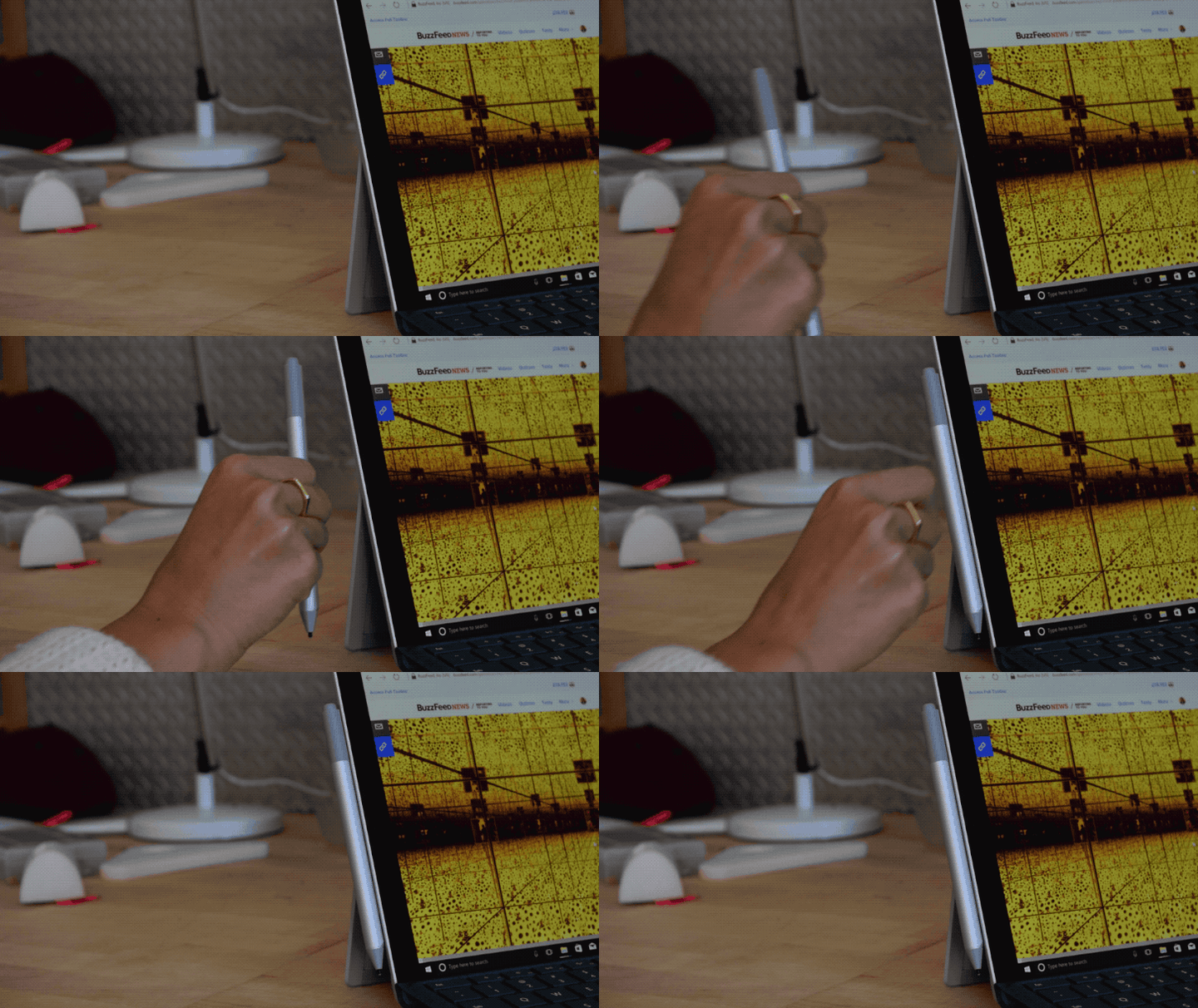
There’s a new Surface Pen stylus (now sold separately at $100) for writing and drawing. It has an even stronger magnetic connection, so you can securely snap it to the Surface Pro without worrying it’s going to end up in the bottom of your bag (unlike the older version). And if you want to be extra cautious, there’s a $5 Pen Loop with an adhesive side that sticks to the side of your keyboard cover.
If you need power, the Surface Pro goes all the way up to 1 terabyte of storage and 16GB of RAM.
You’ll, of course, need to pay for that top-tier computing power (prices below). If you’d rather poke your eyeball than read about ~specifications~, skip to the next section, Surface Pro Cons. 👇
The following is really for people who need help choosing the right Surface Pro configuration for them.
There are three Intel processors to choose from: Core m3 (for really basic computing like web browsing, writing documents), Core i5 (for Photoshop-ing, multi-tasking with a lot of tabs), and Core i7 (for video editing, gaming). You also have various storage options.
These are the latest chips from Intel (seventh generation Kaby Lake), and they’re faster and more battery-efficient than the previous version. I tested a maxed out Surface Pro (with a Core i7, 512 GB of storage, and 16 GB of RAM). It was absolute overkill, though editing 1080p video in Adobe Premiere was fun.
The Core i5 model with 4GB of RAM and 128GB of storage will be the sweet spot for most, but those truly using the Surface as their primary device will want more storage (256GB) because a full desktop OS takes up a surprising amount of space (approximately 10 gigabytes).

It’s better at being a laptop than a tablet.
Even after shedding the keyboard, the tablet part of the Surface Pro, at over a pound and a half, feels much heavier and bulkier than the one-pound iPad. It’s also much bigger (at 12.3 inches versus 10.5). For the tiny-wristed (hi, it me), it takes some arm strength to hoist the tablet up in the air.
And, for those who opt for the most powerful of the three models ― the Core i7 ― you’ll hear and feel the air running from the fan inside the device. It also runs warm when it’s working hard. The core m3 and core i5 models are fanless (read: quieter) and will run cooler.
The Surface Pro is supposed to get 13.5 hours of battery life, but it got between 7.5 to 9 hours in my testing.
In my first battery test, I put the Pro in overdrive and, as I expected, didn’t get the 13.5 hours Microsoft promised. In my real world high stress test*, I got closer to 7.5 hours of battery life before needing to plug in. With a less stressful test — including battery saver turned on and using Microsoft’s Edge browser instead of Chrome — I got closer to 9 to 10 hours. But you’ll have to use Edge to get that kind of battery life which, ugh.** There’s also some battery drain overnight, even when the device is asleep, and it takes about two hours to fully charge.
A Microsoft spokesperson said the 13.5 hour claim is based on playing videos stored locally (not streamed), and said I received varied results because of various factors, like an active Wi-Fi connection, background processes, and browsing, which utilizes the CPU.
*I downloaded a software update, plugged the device into an external display, connected a wireless mouse, and had 16 Chrome browser tabs (a serious battery hog on any device), OneNote, and Slack open simultaneously.
**Edge also began crashing randomly, for no reason at all. TG for Google Doc auto-save. 🙏
There’s still no em dash keyboard shortcut. What the hell!
You can’t even rely on the trusty Microsoft Word alt+0151 code to type an em dash on the Surface Pro. You need to lift your arm, tap the touchscreen keyboard icon, switch to the numbers/symbols keyboard, and longpress the the hyphen key to conjure the mythical em dash. Also, the emoji keyboard is limited. I am annoyed.
Windows can be kind of funky.

Nicole Nguyen / BuzzFeed News
Windows overcomplicates even simple tasks. For example, there’s a Settings app *and* a Control Panel app, and some settings options are in one and not the other, and vice versa. And even though I tested a top-of-the-line Surface Pro, there’s a weird delay between tapping a taskbar menu icon and the menu appearing, which means there’s lag …by design?? Details like that make the operating system feel clunky and slow.
The Surface Pro doesn’t have ports that support new technology.
Specifically, it doesn’t have the versatile USB-C port, which can power the device, connect it to an external display, and offer super fast data transfer speeds with a single cable. Those who have newer Thunderbolt 3 displays and accessories will need to buy adapters.
There are security and privacy concerns with Windows 10.
Microsoft has done a significant amount of work to toughen up its security, and Windows 10 is much more secure than older versions like XP, but it’s still not as secure as iOS, which only allows Apple-signed and certified apps to be installed. Bad actors are immediately revoked. Additionally, it’s incredibly difficult for malicious apps to execute code in the background in iOS (like a keylogger that records everything you type), because the system is designed to run one app at a time, and only allows certain functions to run in the background, like music, location, and downloading small amounts of content.
In terms of privacy, the Electronic Frontier Foundation came out strongly against Windows 10 for the amount of telemetry, or the data a computer sends to a company about itself, that Microsoft collects by default. The privacy policy reveals how sweeping this collection can be, especially with Cortana, the digital assistant built into Windows 10. It’s all or nothing with Cortana's location tracking, for example, (you can't use the assistant if you don't share it) and Edge sends your browsing history to Microsoft to help Cortana produce better responses. Microsoft responded to the criticism by adding a setting that reduces data collection, but doesn't eliminate it completely.

It has a killer display.
Nicole Nguyen / BuzzFeed News
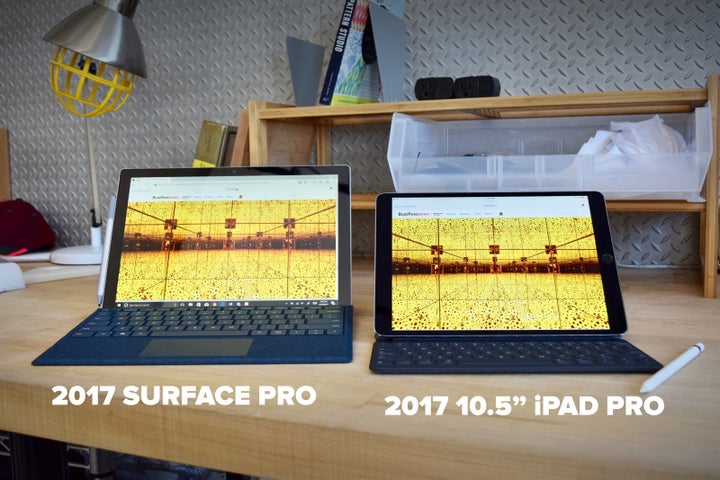
If you take a look at the specs, the Surface Pro’s screen actually has a higher pixel density (or pixels per inch) than the 10.5-inch iPad Pro’s, but the iPad’s display feels way better. Fonts on the Surface Pro look just kind of crappy? Janky? Outdated? They're smoother and more attractive in iOS somehow.
Slide to compare fonts on the iPad on the left vs. Surface on the right:
The new iPad Pro also has that new ProMotion tech, which makes Safari webpages look like they’re attached to your finger when you scroll. Motion lag is virtually imperceptible, and it’s almost disarming when you use it for the first time.
The Apple Pencil is an amazing, pen-like stylus.
Quelle: <a href="A Guide To High-Performance Tablets: Surface Pro Vs. iPad Pro“>BuzzFeed